
H700 - Wireless access point SONIM - Free user manual and instructions
Find the device manual for free H700 SONIM in PDF.


| Product Type | Rugged Wi-Fi Access Point |
| Model | H700 |
| Brand | Sonim |
| Dimensions (W x D x H) | 200 x 150 x 50 mm |
| Weight | 1.0 kg |
| Power Supply | 12V DC via power adapter or PoE (802.3af) |
| Power Consumption | 15 W typical |
| Wi-Fi Standard | IEEE 802.11a/b/g/n/ac/ax (Wi-Fi 6) |
| Frequency Bands | 2.4 GHz and 5 GHz |
| Maximum Data Rate | Up to 1.2 Gbps |
| Ethernet Ports | 1 x Gigabit Ethernet (PoE in) |
| Antenna | Internal dual-band antennas, 2x2 MIMO |
| Rugged Rating | IP68, MIL-STD-810G |
| Operating Temperature | -20°C to 60°C |
| Security | WPA3, WPA2, WPA-Enterprise, 802.1X |
| Management | Web interface, CLI, SNMP v3 |
| Mounting | Wall or ceiling mount (bracket included) |
| Maintenance | Wipe with a dry, soft cloth; do not use solvents |
| Safe Use | Keep away from water, avoid covering vents |
| Spare Parts / Repairability | No user-serviceable parts; contact Sonim support |
Frequently Asked Questions - H700 SONIM
User questions about H700 SONIM
0 question about this device. Answer the ones you know or ask your own.
Ask a new question about this device
Download the instructions for your Wireless access point in PDF format for free! Find your manual H700 - SONIM and take your electronic device back in hand. On this page are published all the documents necessary for the use of your device. H700 by SONIM.
USER MANUAL H700 SONIM
NOTE:
Device visuals are for general reference only. The physical product and screen illustrations in this user guide may differ in appearance and functionality, especially after any future software updates.
TABLE OF CONTENTS
WELCOME....5
What's in the box? 5
Compatibility 5
About Your H700....6
5G, 4G, and 3G Support....6
Wi-Fi 6E Certified, Wi-Fi 7 Ready....6
USB C Charging Port and RJ45 Ethernet Port......6
Security 7
GENERAL INFORMATION......8
Register Your Device....8
Sonim Support Information 8
GETTING TO KNOW YOUR H700....9
DEVICE ICONOGRAPHY 10
GETTING STARTED 11
Remove the Battery Safety Tab....11
How to insert the battery....12
Charging your mobile hotspot....14
Installing/replacing a SIM card....15
Unlocking your SIM....16
Switching the H700 ON/OFF....16
LED status indicator....17
Setting up a Wi-Fi connection....18
USING YOUR H700....19
Home Screen....19
H700 USB Options....20
Wi-Fi Devices 21
Wi-Fi Info....22
Menu....23
Network....24
Wi-Fi....25
Messages....27
Settings....28
Help 34
Data Usage 35
THE WEB USER INTERFACE.... 36
Web UI Device Management....36
Forgot Password....38
Logging out of the Web UI....39
WEB UI HOME SCREEN....40
Status 41
Network....42
Networks....42
APN....43
Wi-Fi....44
Wi-Fi Configuration....44
2.4GHz Band or 5/6GHz Bands 45
LAN/WAN 49
LAN 49
WAN....50
Data Usage....51
Messages....53
Connections....54
Settings....55
Software Update....55
Restore and Restart....55
Admin Settings....56
Device Settings: 57
GPS....57
Power....58
About 61
Advanced Settings....62
PRODUCT SPECIFICATIONS....71
General....71
WIRELESS COMMUNICATION....73
HAZARDOUS LOCATION USAGE....74
Areas Prohibited by the Law 74
Near Medical and Life Support Equipment 75
On An Aircraft, either on the Ground or Air-Borne 75
While Operating a Vehicle....75
Electrostatic Discharge (ESD)....75
SPECIFIC ABSORPTION RATE (SAR) DECLARATION 76
SAFETY GUIDELINES....77
Personal Medical Devices....77
Child Safety 77
BATTERY SAFETY INFORMATION....78
Battery Usage....78
Charging The Battery....78
Tips To Extend the Battery Life....79
Storing Your Mobile Hotspot or Battery....80
BASIC TROUBLESHOOTING & FAQ....81
WELCOME
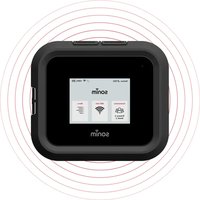
Welcome to your new Sonim H700 5G Mobile Hotspot (also referred to as an 'H700' throughout this user guide). This guide will help you set up and start using your device. You'll also learn everything there is to know about using the features of the H700, safety and handling, and more.
For quick and easy setup and warranty information, please refer to the Quick Start Guide that was bundled with your device.
What's in the box?
The H700 package includes:
• Sonim H700 5G Mobile Hotspot • 6000mAh Li-ion Battery - Wall Charger • USB A to USB C (3.0) Cable • Battery Cover Lever Tool - Quick Start Guide

NOTE: A SIM card is not included in the package and must be obtained separately from your carrier. For the H700 to support Internet access, your SIM must be activated.
Compatibility
- Compatible with Google Chrome®, Firefox®, Internet Explorer®, Safari™, and Mobile Safari™.
- USB tethering compatible with Microsoft® Windows 7, 10, 11, and MacOS® 10.7 (Lion) and later.
- The H700 is compatible with USB 3.0 cables or higher. Please use the provided USB 3.0 cable for tethering and charging your device.
About Your H700
The H700 is a powerful, secure mobile hotspot equipped with everything you need to work, play, create, and communicate virtually anywhere life takes you.
5G, 4G, AND 3G SUPPORT
The H700 supports 5G (5GNR Sub 6GHz and mmWave) for exceptional data connectivity. It also provides reliable access with 4G and 3G, so you can stay connected no matter where your work takes you.
WI-FI 6E CERTIFIED, WI-FI 7 READY
The H700 offers dual-band Wi-Fi 6E (2.4GHz and 5GHz/6GHz) and Wi-Fi 7 (5GHz/6GHz) connectivity, enabling faster speeds and reliable data access, even when multiple devices are connected. The H700 ensures smooth streaming, quicker downloads, and efficient online collaboration.
USB C CHARGING PORT AND RJ45 ETHERNET PORT
The H700 can provide direct Internet connections to other devices via Ethernet or USB C cables. Use an Ethernet cable for a stable, wired connection, ideal for setting up temporary conference rooms or trade show booths where reliable connectivity is crucial. The USB C port offers versatility, doubling as a universal charging port (reverse charging) to give your external devices a power boost when needed.

NOTE: Ethernet cable can be purchased separately.

IMPORTANT!
To maintain the IP68 rating against dust and water ingress, secure the protective flaps on all external ports (labeled 1, 2, and 3 on Page 8) and ensure that the battery cover fits securely.
SECURITY
The H700 supports multiple Wi-Fi security modes (WPA, WPA2, WPA3) to ensure device compatibility. Where possible, we recommend you use WPA3 for stronger encryption and peace of mind so that your data connections are secure.
DISPOSAL OF OLD ELECTRICAL AND ELECTRONIC EQUIPMENT

The crossed-out wheeled bin symbol indicates that this product and any enhancements marked with it cannot be disposed of as unsorted waste; instead, they must be taken to separate collection for end-of-life disposal.
GENERAL INFORMATION
Sonim and the Sonim logo are trademarks of Sonim, a NEXA company. Other company and product names may be trademarks or registered trademarks of the respective owners with whom they are associated.
Register Your Device
Please register your device at https://sonimtech.my.site.com to receive product information and updates.
WARRANTY
The Sonim H700 5G is covered by a 2-Year limited warranty. The battery is covered by a 1-Year warranty. For more FAQs, please go to the Sonim website at www.sonimtech.com/support.
Sonim Support Information
You can access Sonim support through the following channels:
Web: sonimtech.com/wireless-connectivity/help/h700
Technical Support: support@sonimtech.com
Request for warranty or RMA support: RMA@sonimtech.com
Phone: For local contact numbers and hours of operation, please visit our website at sonimtech.com/wireless-connectivity/help
Access Support Information: To access support info, please scan the following QR code using your smartphone.

GETTING TO KNOW YOUR H700

- External (TS-9) antenna ports
- 2.5Gbps Ethernet port (RJ45)
- USB C port
- Status LED
- Display
- Battery cover opening (thumb catch)
- Battery (under battery cover)
- SIM tray (under the battery)
- Power button
A. Carrier information B. Wi-Fi Devices list C. Battery indicator D. Menu E. Wi-Fi Access Information
DEVICE ICONOGRAPHY
| Icon | Meaning |
 | Connected to the 5G cellular network |
 | Connected to the 4G cellular network |
 | Connected to the 3G cellular network |
 | Cellular network signal strength indicator |
 | No cellular network available |
 | Connected devices (Wi-Fi) |
 | Wi-Fi indicator / Wi-Fi information |
 | Data activity indicator |
 | The battery is being charged |
 | The device is in ‘No Battery’ mode |
 | The device is in ‘Battery Conservation’ mode |
 | Battery status indicator |
 | Battery low warning (10% or less) |
 | Battery low warning (charge immediately) |
 | SIM is PIN locked. Enter SIM PIN to use device |
 | NO SIM or SIM card not detected |
 | New SMS message(s) received |
 | A software update is available for download |
 | A new software update is available for installation |
 | Go to the previous screen |
 | Go to the Home screen |
GETTING STARTED
Remove the Battery Safety Tab
Before first use, open the battery cover (door) and remove the plastic tab from the battery.

IMPORTANT!
The device ships with a safety tab to prevent it from automatically turning on during shipment. Remove the tab before first use.
TO REMOVE THE BATTERY SAFETY TAB:
- Open the battery cover.
To open the battery compartment, gently insert the battery cover lever (tool included in the box with your device) into the slot located at the corner of the device, as illustrated below, and then gently pry it open.
- Remove the battery cover.
- Remove the plastic safety tab.
- Close the battery cover, ensuring that it is fully closed.

How to insert the battery
- Insert the battery flush into the cavity so the three metallic contacts on the top of the battery are aligned with the metallic contact points in the battery compartment and gently slide it into place.

- Close the battery cover, ensuring that it is fully secure. You will hear clicks when the battery cover is properly sealed. This is important to ensure the H700 remains water and dust resistant.


CAUTION:
Recycle used batteries as per local regulations. If you do not use the approved battery with your H700, there will be a risk of fire or explosions resulting in burns or severe injury. Do not attempt to open, crush, or burn the battery. Do not subject the H700 or the battery to temperatures or environments exceeding 55°C.

WARNING!
Only use the Sonim-approved battery and charger that was provided with your H700. The warranty does not cover damage caused by using non-approved batteries and/or chargers.

NOTE: Before removing or replacing the battery, ensure your H700 is not connected to any device or power source. Take caution when removing the battery cover and battery. If you experience difficulty removing the battery cover, please use the provided battery cover lever tool to assist. Never attempt to remove the battery with a knife, a key, a pen, or any other such instrument for this purpose. Using foreign instruments may damage the battery and void your warranty.
Before using the H700, please read the Battery Safety Information section in this user guide.
Charging your mobile hotspot

NOTE: It is important to fully charge your H700 battery before using it for the first time.
If the battery is completely discharged, it may take several minutes for the charging icon to appear when the charger is connected.
TO CHARGE THE BATTERY:
- Connect the provided USB cable to the wall charger AC Adapter (USB-A connection type).
- The H700 charging port is located on the top center of the housing. Open the port cover and insert the other end of the USB cable (USB C connection type) into the charging port.
- Plug the AC Adapter into an appropriate electrical outlet.
CHARGING ANIMATION/ICON
- When the battery is being charged, the battery icon on the status bar displays an icon indicating that the battery is being charged.
• After fully charging the battery, you can disconnect the charger from the mobile hotspot.
CHARGING SAFETY WARNING

Risk of electrical shock. Dry location use only.
Installing/replacing a SIM card
The Subscriber Identity Module (SIM) card is a small rectangular plastic card that stores your carrier subscription information. Your H700 will not function without a properly activated SIM card.
To install/replace a SIM card:
- Unplug the H700 (if connected to an AC Adapter), power OFF the device, remove the battery cover, and take out the battery.
- To remove a SIM card, gently slide the SIM out of the SIM card tray.
- Gently slide the new SIM card into the SIM tray with the metal contacts facing down.
- Replace the battery and the battery cover.


CAUTION: Do not bend or scratch your SIM card. Avoid exposing the SIM card to static electricity, water, or dirt.
Unlocking your SIM
If you have a PIN lock on your SIM:
The "Unlock SIM" icon will display in the upper left corner of the screen. Click on the icon to enter the unlock screen, and then enter your PIN code to unlock (see illustrations below).


NOTE: The SIM PIN can be obtained from your service provider. If your SIM PIN has been entered incorrectly 3 times, the SIM card will be blocked. If this happens, you will need to contact your service provider to obtain a PUK code to unblock your SIM card.
Switching the H700 ON/OFF
- To switch ON: press and hold the Power button until the Sonim logo appears on the screen.
- To switch OFF: Press and hold the Power button for three seconds. You will see the following screen. Choose 'Yes' to switch OFF.

NOTE: You can select 'No' to not switch OFF or 'Reboot' to reboot the H700.

• To wake up the display: Press and release the Power button.
LED status indicator
The H700 has a white status LED (see illustration on the ‘Getting to know your H700’ page) to indicate that the device is turned on.
The LED will periodically turn ON for one second and turn OFF for five seconds when the device is switched ON. This provides you with an indication that the H700 is on without having to turn on the display.
The LED will continue to blink while devices are connected to the H700. If there are no devices connected to the H700, the device will go into deep-sleep mode to conserve battery life. When the device is in deep-sleep mode, the LED will not blink.
You can take the H700 out of deep-sleep mode by briefly pressing the power button – at this point, the LED will resume blinking.
Setting up a Wi-Fi connection
- Turn on the H700 by pressing the power button for four seconds.
- Open the Wi-Fi settings on your laptop or a Wi-Fi device that you want to connect to your H700.
- Select "Wi-Fi Info" to find your H700's Wi-Fi names (SSIDs) and passwords. In "Wi-Fi Info", you can swipe left and right to view SSIDs/passwords. There are four Wi-Fi names (SSID) in your Sonim Spot H500
a. Primary Network (2.4GHz) b. Primary Network (5GHz) c. Primary Network (6GHz) d. Guest Network
- To access the Internet, connect to a Wi-Fi SSID using the corresponding password. It is recommended that you connect to the Primary Wi-Fi. The Guest Wi-Fi can be enabled using Menu > Wi-Fi > Guest Network.

NOTE: Sonim strongly recommends changing the default passwords for your Wi-Fi network via the Admin Website to ensure secure access.

NOTE: To activate/deactivate SSIDs and change usernames and passwords, please log in to the Admin Website.
USING YOUR H700
The H700 display lets you access the Internet, check your device's status, view data usage, Wi-Fi network and password information, connected device details, and more.
Home Screen
The H700 Home Screen provides a quick overview of its status.

The device screen is a 2.4-inch (61mm) TFT LCD with capacitive touch.
There are three selectable sections: Wi-Fi Devices, Wi-Fi Info, and Menu. Once a selection is made, that section will appear red briefly before it loads the selected option.
The home screen provides a status bar at the top of the screen – you will see info such as your carrier specifics (name, signal strength, and connection type), Wi-Fi ON/OFF status, battery status, and other information on the status bar. To see the meaning of icons that can appear in the status bar, please refer to the table on the ‘Device Iconography’ page.
The H700 home screen will display Data Usage information when using a Telstra SIM card. The Data Usage displayed is an estimated value – you can download the ‘My Telstra’ app from the App Store (for Apple users)
or Google Play (for Android users). Please visit https://telstra.com for more information.
If you are using a non-Telstra SIM card, you can manually configure a data plan via the Admin Website > Data Usage menu.
H700 USB OPTIONS
When a USB cable is plugged into the H700 and into a computer, the following USB Connection Options screen appears.

Select the desired option from the list, then click OK to return to the Home page.
Wi-Fi Devices

This section displays the number of Wi-Fi devices connected to the Primary and Guest Wi-Fi network. Selecting the Wi-Fi Devices section loads a Connected Devices list that displays all connected devices, including Wi-Fi, Ethernet, and USB devices.
Clicking on Connected Device displays additional information, including its Device Name, IP Address, and MAC Address.
It is possible to block a specific Wi-Fi connected device from connecting to the H700 by selecting Block. You can remove a device from the blocked devices list by selecting Blocked Devices > MAC Address of blocked device > Unblock (see illustrations below).


Wi-Fi Info

The Wi-Fi Info section will provide details of the Primary and Guest Network Names (SSIDs) and Passwords. You can:
- Click on Wi-Fi Info on the home screen to enter the Wi-Fi information display pages.
- Swipe the pages to display the various options: Primary Network (2.4GHz) / Primary Network (5GHz) / Primary Network (6GHz) / Guest Network (2.4GHz).
- Wi-Fi networks that are enabled or disabled are visually represented with an Enabled or Disabled indicator (see illustrations below)


• To enable or disable a Wi-Fi network, go to Menu > Wi-Fi > Primary Network or Menu > Wi-Fi > Guest Network and use the toggles to enable or disable a network. • To activate/deactivate SSID broadcast and to change usernames and passwords, please log in to the Admin Website.

NOTES:
- The 5GHz and 6GHz bands cannot be activated concurrently on the Primary Network.
- The 5GHz and 6GHz options are unavailable on the Guest Network.
- For advanced Wi-Fi configuration settings, please log in to the Admin Website. See Menu > Help > Admin Website for more information.
Menu

The Menu section provides access to additional options, including Network, Wi-Fi, Messages, Settings, Help, and Data usage.

When navigating the Menus, the icon in the top-left corner of the screen shows your current location within the menu. The icons in the top-right corner of the screen let you either go back one page (←) or return to the home screen (←).
NETWORK
The Network menu can be accessed by selecting the Network icon.

Using the toggle switches, you can enable or disable the Network (data) Connection and/or Data Roaming.

Green means it is enabled, and grey means it is disabled.

CAUTION: Data Roaming is disabled by default. When enabled, roaming charges may apply if you are not on your home network. Check your cellular network provider to ensure that you have a suitable data roaming plan.
From the Network menu, you can swipe to the second page to see the Device IMEI Number and Mobile Number.


NOTE: Mobile Number display is dependent on the SIM and may not be supported.
WI-FI
The Wi-Fi menu can be accessed by selecting the Wi-Fi icon.

The Wi-Fi menu lets you enable or disable the Primary and Guest Wi-Fi networks, and access additional Wi-Fi settings.

Wi-Fi CONFIGURATION - allows users to enable or disable the 2.4 GHz, 5 GHz, or 6 GHz Wi-Fi networks by sliding the toggle switches.
Green means it is enabled, and grey means it is disabled.


NOTES:
- The 5GHz and 6GHz bands cannot be activated concurrently on the Primary Network.
- The 5GHz and 6GHz options are unavailable on the Guest Network.
- For advanced Wi-Fi configuration settings, please log in to the Admin Website. See Menu > Help > Admin Website for more information.
SETTINGS - Allows you to:
- Enable or Disable Wi-Fi connections (Green means it is enabled, and grey means it is disabled).
- Enable WPS connections either with the WPS Button or PIN entry.

WPS refers to Wi-Fi Protected Setup. It is a wireless network security standard that facilitates faster and easier connections between the H700 and wireless devices.


With the WPS Button method, you can connect to a Wi-Fi enabled device. To activate this feature, select 'Use WPS Button' on the H700, then press the WPS button on the connecting device.


Use the WPS PIN method to connect to a Wi-Fi enabled device that has a WPS PIN associated with it.

MESSAGES
Messages can be accessed by selecting the Messages icon.

Messages can be viewed and deleted in this section. Here you will find SMS messages sent to your device or notifications from your service provider.

NOTES:
- Messages cannot be sent from the H700.
- Messages can be deleted using the Delete button. Once messages are deleted, they cannot be recovered.


SETTINGS
The Settings menu can be accessed by selecting the Settings icon.

The following settings options are available (on the 1st Settings page):

AIRPLANE MODE - Can be enabled or disabled (Green means it is enabled, and grey means it is disabled).

NOTE: If Airplane Mode is active, you will not be able to use the H700 as a hotspot.
USB TETHERING - A mobile connection shared with a PC/MAC via a USB data cable can be enabled or disabled (Green means enabled, grey means disabled).
Screen Timeout - This allows you to specify how long the screen stays on after the last use.

NOTE: Setting a longer screen time can drain the battery faster.
SLEEP MODE - to conserve power, the device can be set to sleep when no devices are connected. The power button can be pressed to awaken the device.

NOTE: Selecting a shorter sleep mode time may extend your battery life.
The following settings options are available (on the 2nd Settings page):

RESET AND REBOOT - allows the device to be reset and rebooted back to the H700s factory default settings.

NOTE: Any active connections (Wi-Fi, USB, Ethernet) and the cellular network will be disconnected during the Reset and Reboot process. Additionally, all device settings, including Wi-Fi and Admin Website passwords, will be reset to factory defaults.
ETHERNET – provides the following options:

a. Enable Ethernet Port: Allows the Ethernet port on the device to be Enabled or Disabled (Green means it is enabled, and grey means it is disabled).
b. Enable Ethernet offloading: When enabled and the H700 is connected to an Internet-connected device (such as a cable modem/router), data traffic can be routed via the Internet-connected device instead of the cellular network (Green means enabled, and grey means disabled).
POWER – provides the following option:

Power Bank: The H700's USB C port allows you to use it as a power bank to charge other devices. This is also referred to as reverse charging (Green means enabled, and grey means disabled).

NOTES:
• Power Bank mode will operate as a slow charger. - Power Bank mode is disabled when the H700 is switched OFF or rebooted.
OTHER BATTERY FEATURES
No Battery Mode: Enables operation of the H700 without a battery when connected to a constant power source.
The device will automatically enter No Battery mode when the following conditions are met:
- The device is completely shut down.
- The battery is removed.
- The device is connected to a power source and booted up.

NOTES:
- The No Battery mode is ONLY compatible with the provided AC Adapter. Using an alternative power source may cause the H700 to power OFF or reboot.
- When using No Battery mode, the H700 will power OFF during a power outage. The H700 will switch back ON when power is restored.
Battery Conservation: allows you to improve the longevity of your battery by limiting the maximum battery level to 80% when charging your device.
This feature activates automatically after the device has been connected to a wall charger for 24 continuous hours. A pop-up notification will appear, allowing the user to disable the mode directly from the pop-up.

ABOUT HOTSPOT - provides useful information about your device, such as:
- Model
- Software Version
- Hardware Version
- Battery Level (%)
- Internet Status
- Technology
- Network • Signal Strength (RSRP) • SNR (dB)
- Mobile Number IMEI
- ICCID
- Roaming status
- APN IP Address
Software Update (available on the 3rd Settings page): Provides software updates for your H700. You can select 'Check for new updates' to check if there are recent updates for your H700.


NOTE: This user guide reflects the user interface updates introduced in software version H70.0-02-22.3.0-35.45.00.
HELP
Help can be accessed by selecting the Help icon.

The following help menus are available:

a. Admin Website - provides details about how to access the Admin Website. The Admin Website allows users to access and configure advanced device settings. The username and password for the Admin Website are available here.
b. Wi-Fi tutorial - provides basic instructions on how to set up Wi-Fi connections.
c. Access support info - displays a QR code that links to the online support information. The URL for online support is also listed here.

NOTE: You cannot access the user guide directly from the H700. You will need to use a device capable of scanning the QR code and/or accessing the link.
DATA USAGE
Data usage information can be accessed by selecting the Data usage icon.

This section displays Data Usage information when using a Telstra SIM card. The Data Usage displayed is an estimated value – you can download the 'My Telstra' app from the App Store (for Apple users) or Google Play (for Android users). Please visit https://telstra.com for more information.
If you are using a non-Telstra SIM card, you can manually configure a data plan via the Admin Website > Data Usage menu.
THE WEB USER INTERFACE
While you can edit some settings directly on the H700 screen, additional, advanced settings are available via the Admin Website, which will be referred to as the Web User Interface (Web UI) throughout the rest of this user guide.
Web UI Device Management
- On your Wi-Fi device or laptop that is connected to your H700, type http://192.168.1.1 or http://sonim.mobilehotspot/ in the browser bar.

NOTE: Your mobile device, PC, or MAC must be connected to your H700 via Wi-Fi, Ethernet, or USB to access your Web UI.

- Enter the Username and Password.
Your Username and Password can be found by navigating to Menu > Help > Admin Website on the H700 screen.
- Click Log In.

NOTE: If this is your first login, Sonim strongly recommends changing the credentials for your Web UI, Primary Wi-Fi, and Guest Wi-Fi logins.
• To change the credentials for the Web UI: Navigate to Web UI > Settings > Admin Settings • To change the credentials for the Primary Network: Navigate to Web UI > Wi-Fi > Primary Network • To change the credentials for the Guest Network: Navigate to Web UI > Wi-Fi > Guest Network
PASSWORD CRITERIA
Your new password must meet the following criteria:
- Must include a lower-case character (a - z)
- Must include an UPPER-CASE character (A - Z) • Must include a number (0 - 9)
- Must include a special character from the list: @ ! % & #
- Must be between 10 and 16 characters long • New and confirmation password must match

IMPORTANT!
For best security practices, it is strongly recommended that you use a different password for the Wi-Fi Primary, Wi-Fi Guest, and Admin Website.
FORGOT PASSWORD
If the H700 Web UI password has been forgotten, the solution is to reset the device manually. When “Forget Password” is selected from the Web UI login screen, the following page will display in your browser’s window.
sonim.
Welcome to Sonim Mobile Hotspot!
If you have forgot your password, please reset your Wi-Fi Hotspot by press the reset key, which it is located on the side of battery.
Navigate the Internet > Help > Admin Website on your traffic screen to view login details.

NOTE: Any active connections (Wi-Fi, USB, and Ethernet) and the cellular network will be disconnected during the Reset and Reboot process. Additionally, all device settings, including Wi-Fi and Admin Website passwords, will be reset to factory defaults.
RESET THE DEVICE TO FACTORY DEFAULT.
- Remove the battery cover.
- Use the end of a paper clip to press in the Reset key.
- Hold for 3 seconds and then release.
- Close the battery cover, ensuring that it is fully secure. You will hear clicks when the battery cover

LOGGING OUT OF THE WEB UI
TO LOG OUT:
- Click Logout in the upper right corner.
- Click OK on the pop-up screen to exit the application and return to the Web UI login screen.

WEB UI HOME SCREEN
The Web UI home screen main navigation pages include Status, Network, Wi-Fi, LAN/WAN, Data Usage, Messages, Connections, Settings, and Help.
![graph LR A["Network"] -->|Cellular| B["Hotspot"] B -->|USB LAN/WAN| C["Primary: 1 Guest: 0"] D["WiFi"] --> E["Primary Network 2.4 GHz: On Network Name(ESD): SONM_68.24G Password: 414e3040"] F["Network"] --> G["Internet Status: Connected Network Name: Carrier Technology: 45"] H["Connected Devices"] -…](/content/2026/07/1447598/images/1ef40a10edda909ee8785b7c59e53e5904e69cb5313ead531a618fd0aa561886.jpg)
Status
The Status tab provides an overview of the active connections on your H700.
• A green tick indicates that a connection is active. • A black cross indicates that a connection is inactive.
![graph TD A["Main menu"] --> B["Red indicates selected screen"] B --> C["Status bar"] C --> D["Network"] D --> E["HEV"] E --> F["LAT/FIV/VAN"] F --> G["Data usage"] G --> H["Messages"] H --> I["Connect Site"] I --> J["Settings"] J --> K["Help"] C --> L["Green tick indicates connected"] L --> M["Hotsp…](/content/2026/07/1447598/images/125eb4c4f737d89a1277d163f1cceb4dda229ff5e5191a8d8a1e30cefe68cc0a.jpg)
Additional status information regarding the H700s Wi-Fi networks, cellular network connectivity details (including APN), and Connected Devices can be viewed on the Status page.
Network
The Network tab provides cellular network settings.

NETWORKS
From the Networks page, use the toggle switches to enable or disable the Network (data) Connection and/or Data Roaming. Red means it is enabled, and grey means it is disabled.

CAUTION:
Data Roaming is disabled by default. When enabled, roaming charges may apply if you are not on your home network. Check your cellular network provider to ensure that you have a suitable data roaming plan.
The Network Mode allows you to select the radio access technology you wish to operate on. Options are: 5G/4G/3G, 4G/3G, and 3G.
The Network Operator allows you to specify Automatic network selection mode or Manual Selection mode.
APN
The APN page lets you create a new Access Point Name (APN) if your SIM card subscription requires a configuration different from the default (for example, a corporate APN). You may need to contact your service provider to obtain detailed APN configuration settings.

Wi-Fi
This tab allows you to configure basic and advanced settings for your Wi-Fi networks.
WI-FI CONFIGURATION
The Wi-Fi Configuration page provides the following configurable options:
Wi-Fi Switch: Toggle this setting to Enable or Disable Wi-Fi access completely. This applies to the Primary and Guest network.
Allow Individual Bans: Enable and disable the individual bands for both the Primary and Guest networks.
Red means it is enabled, and grey means it is disabled.
Wi-Fi Connections: Set the number of devices allowed to connect.

2.4GHz Band or 5/6GHz Bands
From the 2.4GHz Band or 5/6GHz Bands pages, you can manage the 2.4GHz and 5/6GHz bands:
- Renaming the network name (SSID).
- Setting the security standard. This refers to the security/encryption used by your network. The H700 supports:
- None (Open) – No security ○ WPA2 Personal PSK (AES) ○ WPA/WPA2 Mixed Mode ○ WPA3/WPA2 Mixed Mode ○ WPA3
It is recommended that the highest possible security level be used. You can try other supported security/encryption levels if you are having difficulty connecting older / legacy Wi-Fi devices to the H700.

CAUTION:
Using None (Open) provides no security/encryption – using this setting is not advised.
- Password: Here, you can change the default password for your Wi-Fi network. It is highly recommended that you change the default password. Note that changing the password for one band does not change it for both.
- Hide password on touchscreen: The username and passwords for configured Wi-Fi networks are displayed on your H700 screen. This toggle allows you to enable/disable the display of the password on screen. A blue tick means it is enabled, and an empty box means it is disabled.
- Broadcast SSID (Primary Network Name): This toggle allows you to configure whether the Wi-Fi network name is broadcast or hidden. When hidden, you may have to manually enter the Wi-Fi access details the first time you connect to the network. A blue tick means it is enabled, and an empty box means it is disabled.
- WPS: This setting allows you to toggle ON or OFF WPS access on the H700. A blue tick means it is enabled, and an empty box means it is disabled.

NOTE: WPS refers to Wi-Fi Protected Setup, a wireless network security standard that facilitates faster and easier connections between the H700 and wireless devices.
WPS can be accessed via your H700 screen (Menu > Wi-Fi > Settings > WPS). For more info, please see the WPS section in the Using your H700 > Wi-Fi > WPS part of this guide.
- Wi-Fi privacy separation: This function helps to enhance security on your Wi-Fi network by preventing communication between wireless devices on that network. A blue tick means it is enabled, and an empty box means it is disabled.
NOTE: When enabled, Wi-Fi privacy separation may prevent you from accessing devices on your network, such as printers or file servers. Where devices on your Primary Network are trusted, it is recommended to leave this setting disabled.
Setting Wi-Fi privacy separation to ON is highly recommended when operating a Guest Network.
• 802.11b mode: This refers to the Wi-Fi connection standard.
- The H700 supports up to 802.11b/g/n/ax on 2.4GHz. You can configure the setting to
802.11b/g/n if you are having difficulty connecting older/legacy Wi-Fi devices to the H700.
The H700 supports up to 802.11be (Wi-Fi 7) on 5GHz and 6GHz. Other options, such as 802.11a, n, ac, ax, are supported if you require a specific connection standard.
- Bandwidth: This refers to the capacity allocated to the Wi-Fi network for data transmission. It is generally recommended to leave this at the highest available value.
- Channel: In some scenarios, Wi-Fi networks in surrounding areas may use specific channels that are causing some interference. In such cases, you may get better performance by setting a manual channel. It is generally recommended to leave this setting at ‘Automatic.’
Click Save Changes to apply the changes.

![sonim Status Network WiFi LAN/WAN Data Usage Messages Connections Settings Help WiFi Configuration 2.4GHz Band 5/6GHz Bands Primary Network (5GHz) Primary Network (6GHz) WiFi Status [To change, go to WiFi Configuration] Enabled Disabled Network Name(SSID): SONM_BA_SC SONM_BA_AG Security: WPA2/WPA2 M…](/content/2026/07/1447598/images/59541458c516778d31d6167146a0ca0fd4c775fba44876d23cb7e839d21f6fe4.jpg)

NOTES:
- The 5GHz and 6GHz bands cannot be enabled at the same time on the Primary Network.
- The 5GHz and 6GHz options are unavailable on the Guest Network.
LAN/WAN
This tab lets you configure your LAN and WAN settings. Please exercise caution when changing these settings to avoid potential network issues.
LAN
The LAN page provides the following configurable options:

The DHCP server assigns IP addresses to all devices connecting to the H700. If necessary, you can modify the IP address scheme and DHCP lease time used by your network when assigning IP addresses to devices connected via Wi-Fi, Ethernet, or USB.
WAN
The WAN page provides the following configurable options:
IP passthrough: allows you to assign your carrier-provided IP address to the target device specified in the 'MAC Address' field. With this feature, WAN traffic is passed directly to this MAC Address. Red means that it is enabled, and grey means that it is disabled.


NOTES:
- Before enabling 'IP Passthrough', ensure that the setting for 'Ethernet Port' is ENABLED and 'Enable Ethernet Offloading' is DISABLED. These settings can be found on your Device UI under the 'Ethernet' menu item.
- For the settings to take effect, a manual reboot of your Sonim device and target device is recommended after enabling or disabling IP Passthrough.
- When rebooting your Sonim device, ensure that the target device specified in the MAC Address field is connected via the Ethernet port.
- Some advanced networking features may be unavailable while 'IP Passthrough' is active.
Data Usage
From the Data Usage tab, you can access data usage information.

This section displays Data Usage information automatically when using a Telstra SIM card. The Data Usage displayed is an estimated value – you can download the ‘My Telstra’ app from the App Store (for Apple users) or Google Play (for Android users). Please visit https://telstra.com for more information.
If you are using a non-Telstra SIM card, you can manually configure your data plan details. To do this, select My plan has Fixed data and enter your plan details.

NOTE: The data calculated by the device is an estimate only. Please refer to your service provider's app/website for exact data usage statistics.

Messages
From the Messages tab, you can view SMS messages received by your H700 and delete messages that are no longer needed.
![Status Network Wi-Fi LAN/WAN Data Usage Messages Connections Settings Help InBox[1/1] Sender Content Date +1234567890 You are roaming. Data charges may apply. 02/08/2024 09:44 AM +1 > 1/1 Page: Go](/content/2026/07/1447598/images/06c2a7e526c656f6b4e218529886eb05da4a64f53c42227600c5b862e02fe33c.jpg)
Messages can be viewed and deleted in this section. Here you will find SMS messages sent to your device or notifications from your service provider.

NOTES:
- Messages cannot be sent from the H700.
- Messages can be deleted using the Delete button.
- Once messages are deleted, they cannot be recovered.
Connections
The Connections tab displays the connected devices (Wi-Fi, USB, and Ethernet) and their respective statuses.
Selecting the Status of a Connected Device will display additional information, such as its Device Name, IP Address, and MAC Address.
You can also edit the Device Name here and Save Changes.
It is possible to blacklist a connected Wi-Fi device by checking the box to Block the device from accessing your H700, then Save Changes.
Here you can also see a list of blocked devices. To unblock a device, check the Unblock box, then Save Changes.

Settings
The Settings tab provides access to several useful tasks:
SOFTWARE UPDATE
This page enables you to check for new software updates for your H700. Select 'Check for new updates,' and if available, follow the on-screen prompts to proceed with installing a new software update.
Alternatively, you can use the H700 device screen to check for and install software updates.

RESTORE AND RESTART
On this tab, you can reboot the H700 or reset it to its factory default settings.
To Restore to Factory Defaults, select 'Restore factory defaults' then 'OK' to confirm.

NOTE: Any active connections (Wi-Fi, USB, and Ethernet) and the cellular network will be disconnected during the Reset and Reboot process. Additionally, all device settings, including Wi-Fi and Admin Website passwords, will be reset to the factory default.
To restart the H700, select Restart, then OK to confirm.

ADMIN SETTINGS
On this page, you can modify/change the Admin Website (Web UI) username and password.
To change your Username, enter your current Username, New Username, and Current Password, then select Apply.
To change your Password, enter your Current Password, New Password, and New Password again (as confirmation), then select Apply.

DEVICE Settings:
USB tethering can be enabled/disabled from this page.
To enable or disable, select an option, then Save Changes.

GPS
This page allows you to configure GPS settings on the H700.
Enable GPS: This toggle allows you to enable or disable GPS. Red means it is enabled, and grey means it is disabled.
Turn on GPS over Wi-Fi: GPS over Wi-Fi allows the device to provide a GPS/NMEA (National Marine Electronics Association) stream to a Windows computer. This can be used when running an application that can utilize a GPS/NMEA stream (such as an Enterprise application). To utilize GPS over Wi-Fi, a Windows driver must be installed on the PC. Select the ‘Download Driver’ button to download and install the latest GPS driver for the H700.
Port Number: Allows you to configure the port number used for the GPS/NMEA stream. To change the port number, enter the desired port number, then 'Save Port Number.'

POWER
Here you can configure various power-related options.

NOTE: Only one of the following features can be activated at any one time.

No Battery Mode: Enables operation of the H700 without a battery when connected to a constant power source (Red means it is enabled, and grey means it is disabled).

NOTES:
- No Battery mode is ONLY compatible with the provided AC Adapter. Using an alternative power source may cause the H700 to power OFF or reboot.
- When using No Battery mode, the H700 will power OFF during a power outage. The H700 will switch back ON when power is restored.
- When switching OFF No Battery mode, please ensure that there is a battery in the H700 to ensure normal operation.
Power Bank mode: Allows you to use the USB C port on the H700 as a power bank to charge other devices. This is also referred to as reverse charging (Red means it is enabled, and grey means it is disabled).

NOTES:
• Power Bank mode will operate as a slow charger. - Power Bank mode is disabled when the H700 is switched OFF or rebooted.
Battery Conservation mode: Allows you to improve the longevity of your battery when charging your device, by limiting the maximum battery level to 80% (Green means it is enabled, and grey means it is disabled).
Battery Preservation Mode: Automatically activates after the device has been continuously connected to a charger for 24 hours.
A pop-up notification will appear every 24 hours, informing users that the mode has been enabled and encouraging them to switch to No Battery
Mode. This notification also provides an option to disable the mode directly by selecting Charge to Full on the right side of the screen.

ABOUT
In the About screen, you can view useful data related to your Internet Status and Device Info.


ADVANCED SETTINGS
This menu can be accessed via the Web UI > Settings > Advanced Settings.

WARNING!
Making changes to the Advanced Settings can cause the device to stop operating properly. Make changes to these settings only if you fully understand the impact to the device.
MANUAL DNS
Here you can specify Primary and Secondary DNS server IP addresses if you wish to use DNS servers different from those automatically provided by your cellular service provider.
DNS Rebinding Protection: This setting protects devices that may be vulnerable to a type of attack referred to as DNS Rebinding.

SIM (SUBSCRIBER IDENTITY MODULE)
The PIN code on a SIM card provides an additional layer of security. If the PIN code is enabled, Internet access is not available until the correct PIN code is entered on the H700.

NOTE: Please also refer to the Getting Started > Unlocking your SIM section of this user guide.
The SIM page allows you to Enable, Disable or Modify the PIN code.
To Enable, set PIN operation to 'Enable,' enter the correct PIN code, then Save Changes.

To Disable, set PIN operation to 'Disable,' enter the correct PIN code, then Save Changes.

To Modify, set PIN operation to 'Modify,' enter your current PIN, New PIN, then New PIN again as confirmation, the 'Save Changes.'


NOTE: The SIM PIN can be obtained from your service provider. If your SIM PIN has been entered incorrectly 3 times, the SIM card will be blocked. If this happens, you will need to contact your service provider to obtain a PUK code to unblock your SIM card.
FIREWALL

IMPORTANT!
Firewall settings should be changed with caution as improper settings may leave the H700 and devices (Wi-Fi, USB, and Ethernet) connecting to the H700 vulnerable to unauthorized access.
This page allows you to modify the firewall settings to allow capabilities such as MAC Filter, IP Filter, Port Filter, Port Forwarding, and VPN Pass Through. These options are only available if the corresponding option is Enabled on the firewall, then applied with Save Changes.

MAC FILTER
On this page you can define a list of devices that you wish to allow (Whitelist) or disallow (Blacklist) connecting with your H700's Wi-Fi or the Internet.
Select Whitelist or Blacklist from the Status, Add MAC Addresses as required, then Save Changes.


NOTES:
- The Whitelist will only allow devices with the specified MAC address(es) to connect to the Internet. If the MAC Filter is enabled but the whitelist is empty, devices will not be able to access the Internet.
- The Blacklist will deny devices with the specified MAC address(es) from connecting to the Internet.
- A MAC address must be specified in the format: xx:xx:xx:xx:xx:xx.
IP FILTER
In this page, you can manage what IP traffic is allowed in and out of your network based on the rules you define.
Select Whitelist or Blacklist from the Status, Add the LAN IP Address, LAN Port, WAN IP Address, WAN Port, Protocol, and required Status (ON/OFF), then select Save Changes.


NOTES:
- Whitelist: Set the websites that users are allowed to access. If the whitelist is empty, users will not be able to access the Internet.
- Blacklist: Set the websites that you do not want users to access.
- The supported value range of the LAN and WAN Port is 1-65535.
- Settings will not take effect until 'Save Changes' is clicked.
PORT FILTER
On this page, you can select which applications (for example, HTTP, FTP, and Email servers) can use the Mobile Hotspot to connect to the Internet.
Select from the list of preset applications (Email, FTP, HTTP, HTTPS, and TELNET) or create your own application with Add, type in an Application Name, Start and End Port, Protocol, and set Status (ON/OFF), then Save Changes to apply.
![Advanced < Manual DNS SIM Firewall MAC Filter IP Filter Port Filter Port Forwarding > Select the applications which you wish to allow. □ Email [POP3, IMAP, SMTP] □ FTP □ HTTP □ HTTPS □ TELNET You can define your own applications, and then enable or disable them as needed. To define an application, y…](/content/2026/07/1447598/images/47434eacfa097fa925f61c27a0fda6476f71eac6dc6b6987f78df347ea12b902.jpg)
PORT FORWARDING
On this page, you can designate IP traffic to be routed to specific devices on your network (for example, Web servers, FTP servers, Email servers, etc.) by port forwarding to that IP address and Port number.
Select Add, then type in a Name for the port forward rule, type the WAN port, LAN IP address, LAN Port, Protocol, and set Status (ON/OFF), then select Save Changes.

DMZ SETTINGS
This page allows you to set up a DMZ (Demilitarized Zone). This setting will effectively forward all WAN-originated traffic to this internal IP address on your network.
To enable a DMZ, set the DMZ status to Enable, then enter an IP address from your internal network, and then Save Changes.

VPN PASSTHROUGH
VPN passthrough enables VPN traffic to bypass the device's firewall, ensuring secure Internet connections for remote work or accessing private networks while maintaining data privacy.
Additional VPN connection methods can be Enabled/Disabled via this page.

PRODUCT SPECIFICATIONS
General
| Name | Sonim H700 5G Mobile Hotspot |
| Model | H700A |
| Chipset | Qualcomm® SDX75 series |
| Approvals | RCM (Australia/New Zealand) [KKT] |
| Weight | 308g |
| SIM | 4FF Nano removable SIM |
| Dimension | 115x100x22.7mm |
| Connectivity | 5G: n1, n3, n5, n7, n8, n26, n28, n40, n78, n258(5GNR Sub 6GHz and mmWave support)4G: CAT20 | Band 1, 3, 5, 7, 8, 26, 28, 38, 40,42(4G 20-layer DL / 256 QAM / 4x4 MIMO)3G: B5 (850MHz), B8 (900MHz), B1 (2100MHz) |
| Wireless Network(Wi-Fi mode) | WLAN bands: 2.4GHz, 5GHz, 6GHzWi-Fi 6E certified: 802.11 b/g/n/ac/an/axWi-Fi 7 ready: 802.11be (up to 80MHz) |
| Location services | Standalone GPS / NMEA / GPS over Wi-Fi |
| Ethernet | 2.5Gbps Ethernet port (RJ45) |
| USB interface | USB C 3.1 Port |
| Display | 2.4" 64K colour TFT LCD, QVGA (320x240) |
| Battery Size | Removable 6000mAh Li-Ion |
| Time for full charge | 3 hours (when not in use) |
| Power Sensing | Auto Power ON with power detection |
| Power Modes | No Battery modePower Bank mode (reverse charging)Battery Conservation mode |
| External Antenna | 2x external (TS-9) antenna ports |
| Environmental | IP68 / MIL-STD-810H rated |
| Operating Temperature | -20 to 55 degrees Celsius |
| Memory | RAM: 1GB, ROM: 1GB |
WIRELESS COMMUNICATION

WARNING!
Data can occasionally be lost or delayed due to wireless transmission and reception properties.
The data loss can be due to variations in radio signal strength that result from changes in the characteristics of the radio transmission path.
Although data loss is rare, the environment where you operate the H700 might adversely affect data communications.
Variations in radio signal strength are referred to as fading, caused by several factors, including signal reflection, the ionosphere, and interference from other radio channels.
SONIM® or its partners will not be held responsible for damages of any kind resulting from the delays or errors in data transmitted or received or failure of the Sonim H700 5G Mobile Hotspot device to send or receive such data.
HAZARDOUS LOCATION USAGE
Do not operate the H700 in an environment that might be susceptible to radio interference, resulting in danger, specifically:
Areas Prohibited by the Law
Follow any special rules and regulations and obey all signs and notices. Always turn off the H700 when instructed or when you suspect it might cause interference or danger.
Do not operate the H700 in any area where a potentially explosive atmosphere might exist. Sparks in such areas could cause an explosion or fire, resulting in bodily injury or even death. Be aware and comply with all signs and instructions.
- Users are advised not to operate the H700 at a refueling point or service station.
- Users are reminded to observe restrictions on the use of any radio equipment (including the H700) in:
- Fuel depots (fuel storage and distribution areas), chemical plants, or where blasting operations are in progress. Areas with a potentially explosive atmosphere are often but not always clearly marked.
- Dangerous locations such as gas stations, below deck on boats, chemical transfer or storage facilities, vehicles using liquefied petroleum gas (such as propane or butane), areas where the air contains chemicals or particles, such as grain, dust, or metal powders, and any other area where you would generally be advised to turn off your vehicle engine.
Near Medical and Life Support Equipment
Do not operate the H700 in any area where medical equipment, life support equipment, or near any equipment that might be susceptible to any form of radio interference. In such areas, the H700 must be turned OFF as the device may transmit signals that could interfere with this equipment.
On an Aircraft, Either on the Ground or Air-Borne
In addition to FAA requirements, many airline regulations state that you must suspend wireless operations before boarding an airplane. Please ensure that the H700 is turned off before boarding the aircraft to comply with these regulations. The H700 may transmit signals that could interfere with various onboard systems and controls.
While Operating a Vehicle
The driver or operator of any vehicle should not operate a wireless data device (including the H700) while in control of a vehicle.
Doing so will detract from the driver or operator's control and operation of that vehicle. In many countries operating such communications devices while controlling a vehicle is an offense.
Electrostatic Discharge (ESD)
Electrical and electronic devices are sensitive to electrostatic discharge (ESD). Macintosh native connection software might attempt to reinitialize the device should a substantial electrostatic discharge reset the device. Restart your Mobile Hotspot devices if the software is not operational after an ESD occurrence.
SPECIFIC ABSORPTION RATE (SAR) DECLARATION
Sonim, a NEXA company, declares that the Sonim H700 5G Mobile Hotspot is tested to comply with the applicable requirements and regulations in Australia for human exposure to radio waves.
Specific Absorption Rate (SAR) is used to measure radio waves absorbed by a body. The device complies with RF specifications when the device is used at a distance of 5mm from your body.
The SAR limit is 2.0 W/kg averaged over 10 grams of tissue in Australia.
The maximum SAR value recorded for the Sonim H700 5G Mobile Hotspot is 1.86 W/kg on n40.
SAFETY GUIDELINES
PERSONAL MEDICAL DEVICES
Mobile hotspots may affect the operation of cardiac pacemakers and other implanted equipment. Please avoid placing the H700 close to a pacemaker, for example, laying it on your chest. If a minimum distance of 15 cm (6 inches) is kept between the H700 and the pacemaker, the risk of interference is limited. If you suspect that interference is taking place, immediately turn off your H700 and contact a medical professional for more information. For other medical devices, consult your physician and the manufacturer of the device. Comply with instructions to switch off the H700 or deactivate the RF transmitter when required, especially when posted in hospitals and airplanes. Equipment used in these places may be sensitive to radio waves emitted from the device and adversely affect their operation. Also, observe restrictions at gas stations or other areas with flammable atmosphere or when close to electro-explosive devices.
CHILD SAFETY
Do not allow children to play with your H700, its accessories or battery. Keep it out of their reach. They could hurt themselves or others, or could accidentally damage the H700. Your H700 may contain small parts, which could be detached and create a choking hazard.
BATTERY SAFETY INFORMATION
The current battery level, and whether it is charging or not charging, is displayed in the upper right-hand corner of the screen.
Battery Usage
Your H700 comes with a removable battery. For any battery related questions, please contact the Sonim Customer Support – details can be found on the last page of this guide.
Use only a Sonim mobile hotspot certified battery for the H700. Battery model, BAT-06000-01S, is designed for the H700. The use of other batteries may cause permanent damage to your device, thus voiding the warranty. It is recommended to protect the battery from extreme temperature environments and moisture.
Please keep the battery out of the reach of children.
Charging The Battery
We recommend that you give the battery a full charge before you use the H700 for the first time. The ambient temperature during charging shall be in the range 0°C to 45°C (32°F to 113°F). Only power supplies with outputs meeting the SELV requirements can be used for charging. The maximum allowable input voltage for the H700 is 5V. There is a risk of fire or explosion while charging if the battery has been replaced with an incorrect type.
If the battery is completely out of charge, it may take several minutes for the charging icon to appear when the charger is connected.
Tips To Extend the Battery Life
Using 'No Battery' or 'Battery Conservation' mode
In scenarios where the device will be used continuously or where it is on an external power source for extended periods (e.g., several days at a time or 24/7), consider switching ON Battery Conservation mode.
Alternatively, consider switching ON No Battery mode and operating the device without a battery.
These settings are available via the H700 in Menu > Settings > Power.
Managing Screen Timeout
To maximize your battery life, it is recommended to set your Screen Timeout to 30 seconds (which is the factory default). The longer the Screen Timeout value, the shorter your battery life will typically be.
Managing Sleep Mode.
To further maximize your battery life, please go to Settings > Sleep Mode and you will have the option to put your mobile hotspot to sleep if no devices are connected after 5 minutes, 15 minutes, 30 minutes, 60 minutes, or Never. Setting a lower Sleep Mode will assist with the longevity of your battery life.
Enable Airplane mode where appropriate.
If you are traveling and don't have access to mobile data, switch your device to Airplane mode. To access Airplane Mode, go to Menu > Settings > Airplane Mode.
Avoid extreme (very hot or very cold) temperatures.
Leaving the device in extremely hot or cold places, such as in a closed car in summer or winter conditions could reduce the capacity and lifetime of the battery. For the best results, try to use the device between -20°C and +55°C (-4°F and 131°F). A device with a hot or cold battery may not work temporarily, even when the battery is fully charged. Battery performance is particularly limited in temperatures well below freezing.
Storing Your Mobile Hotspot or Battery
If you plan to store your mobile hotspot or your battery for an extended time, please follow the recommendations below to ensure long battery life and to minimize battery self-discharge:
• Charge your battery to a level between 40% to 80%. - Store the H700 and battery separately to minimize battery trickle drain. • Insulate the battery terminals to avoid discoloration and potential short circuits with other battery terminals. - Store the battery in dry and cool conditions in a vibration-free environment. - If you use a climate-controlled storage location, set the temperature in the range of 10° - 18° Celsius and keep the relative humidity between 40% - 50%. - Recharge the battery once every 6 months, using the original Sonim AC Adapter and charging cable.
BASIC TROUBLESHOOTING & FAQ
I forgot my Wi-Fi password (where can I find my Wi-Fi passwords?) On the H700 touchscreen, tap 'Wi-Fi Info'. You will see a list of Wi-Fi networks (SSIDs) that are enabled or disabled. The password will be listed below the network name.
I forgot my Admin Website (Web UI) username and/or password. On the H700 touchscreen, tap Menu > Help > Admin Website. The Admin Website URL, username and password will be displayed here.
How do I access the Admin Website (Web UI)?
Connect a PC/MAC or a mobile device such as a tablet to the Wi-Fi, USB, or Ethernet interface of the H700. Open a web browser and navigate to http://sonim.mobilehotspot or http://192.168.1.1/. Log in with the credentials found at Menu > Help > Admin Website.
How can I change the Wi-Fi name and password?
Log in to the Admin Website (Web UI), then navigate to Wi-Fi > Primary Network or Wi-Fi > Guest Network to change passwords.
How can I change the Admin Website (Web UI) username and password?
Log in to the Admin Website (Web UI), then navigate to Settings > Admin Settings to change the username and/or password.
My device won't connect to the Internet. What is wrong?
All Sonim mobile hotspots require an activated SIM card to establish a connection to the Internet. Contact your mobile service provider to confirm that your SIM card is active. If your SIM card is active, you may want to ask your service provider if there are any network outages that may be affecting your access. Contact Sonim Support for assistance – see the last page of this guide for details.
Will my Sonim H700 5G Mobile Hotspot roam on other carriers? Yes, your mobile hotspot is capable of roaming globally (in other countries); however, it is optimized to perform best when used with a Telstra SIM in Australia. Global roaming depends on your carrier's network coverage and available roaming bands.

NOTE: Ensure your SIM subscription supports International Roaming. Additional Roaming Charges may apply.
Is the H700 locked to work only on the mobile carrier from which I purchased it?
The H700 is not locked to any network and should work with most SIM cards; however, it performs best with a Telstra SIM in Australia.

- NOTE
- TABLE OF CONTENTS
- WELCOME
- GENERAL INFORMATION
- GETTING TO KNOW YOUR H
- DEVICE ICONOGRAPHY
- GETTING STARTED
- USING YOUR H
- THE WEB USER INTERFACE
- WEB UI HOME SCREEN
- PRODUCT SPECIFICATIONS
- WIRELESS COMMUNICATION
- HAZARDOUS LOCATION USAGE
- SPECIFIC ABSORPTION RATE (SAR) DECLARATION
- SAFETY GUIDELINES
- BATTERY SAFETY INFORMATION
- BASIC TROUBLESHOOTING & FAQ
- WHAT'S IN THE BOX
- COMPATIBILITY
- ABOUT YOUR H
- G, 4G, AND 3G SUPPORT
- WI-FI 6E CERTIFIED, WI-FI 7 READY
- USB C CHARGING PORT AND RJ45 ETHERNET PORT
- IMPORTANT
- SECURITY
- DISPOSAL OF OLD ELECTRICAL AND ELECTRONIC EQUIPMENT
- REGISTER YOUR DEVICE
- WARRANTY
- SONIM SUPPORT INFORMATION
- REMOVE THE BATTERY SAFETY TAB
- TO REMOVE THE BATTERY SAFETY TAB
- HOW TO INSERT THE BATTERY
- CAUTION
- WARNING
- CHARGING YOUR MOBILE HOTSPOT
- TO CHARGE THE BATTERY
- CHARGING ANIMATION/ICON
- CHARGING SAFETY WARNING
- INSTALLING/REPLACING A SIM CARD
- UNLOCKING YOUR SIM
- SWITCHING THE H700 ON/OFF
- LED STATUS INDICATOR
- SETTING UP A WI-FI CONNECTION
- HOME SCREEN
- H700 USB OPTIONS
- WI-FI DEVICES
- WI-FI INFO
- NOTES
- MENU
- NETWORK
- WI-FI
- SETTINGS - ALLOWS YOU TO
- MESSAGES
- SETTINGS
- OTHER BATTERY FEATURES
- HELP
- DATA USAGE
- WEB UI DEVICE MANAGEMENT
- PASSWORD CRITERIA
- FORGOT PASSWORD
- RESET THE DEVICE TO FACTORY DEFAULT
- LOGGING OUT OF THE WEB UI
- TO LOG OUT
- STATUS
- NETWORKS
- APN
- WI-FI CONFIGURATION
- GHZ BAND OR 5/6GHZ BANDS
- LAN/WAN
- LAN
- WAN
- CONNECTIONS
- SOFTWARE UPDATE
- RESTORE AND RESTART
- ADMIN SETTINGS
- DEVICE SETTINGS
- GPS
- POWER
- ABOUT
- ADVANCED SETTINGS
- MANUAL DNS
- SIM (SUBSCRIBER IDENTITY MODULE)
- FIREWALL
- MAC FILTER
- IP FILTER
- PORT FILTER
- PORT FORWARDING
- DMZ SETTINGS
- VPN PASSTHROUGH
- AREAS PROHIBITED BY THE LAW
- NEAR MEDICAL AND LIFE SUPPORT EQUIPMENT
- ON AN AIRCRAFT, EITHER ON THE GROUND OR AIR-BORNE
- WHILE OPERATING A VEHICLE
- ELECTROSTATIC DISCHARGE (ESD)
- PERSONAL MEDICAL DEVICES
- CHILD SAFETY
- BATTERY USAGE
- CHARGING THE BATTERY
- TIPS TO EXTEND THE BATTERY LIFE
- MANAGING SCREEN TIMEOUT
- MANAGING SLEEP MODE
- ENABLE AIRPLANE MODE WHERE APPROPRIATE
- AVOID EXTREME (VERY HOT OR VERY COLD) TEMPERATURES
- STORING YOUR MOBILE HOTSPOT OR BATTERY
Brand : SONIM
Model : H700
Category : Wireless access point