
CP-X2521WN - Projector HITACHI - Free user manual and instructions
Find the device manual for free CP-X2521WN HITACHI in PDF.


| Product type | Liquid crystal projector |
| Native resolution | 1024 x 768 pixels (XGA) |
| Lamp | 215 W UHP (type DT01191) |
| Built-in speaker | 1 W |
| Power supply | AC 100-120 V / 220-240 V, 50/60 Hz |
| Power consumption | 320 W (100-120 V), 310 W (220-240 V) |
| Dimensions (W x H x D) | 306 x 77 x 221 mm (without protruding parts) |
| Weight | Approx. 2.3 kg |
| Operating temperature | 5 to 35 °C |
| Video input ports | COMPUTER IN1/2 (D-sub 15), HDMI, S-VIDEO, VIDEO (RCA) |
| Audio ports | AUDIO IN1/2 (3.5 mm mini-jack), AUDIO OUT (3.5 mm mini-jack) |
| Control ports | USB Type A (storage), USB Type B (mouse/keyboard), CONTROL (RS-232C), LAN (RJ45) |
| Keystone correction | Automatic and manual vertical |
| Special functions | ECO mode, auto power off (AUTO OFF), direct power on, digital zoom, freeze, blank, simplified mouse and keyboard |
| Maintenance | Regular cleaning of air filter (type UX36761); lamp replacement after approximately 2000 hours |
| Security | Anti-theft security bar, Kensington slot, password, transition detector |
| Optional accessories | Lamp DT01191, filter set UX36761, wireless USB adapter USB-WL-11N, ceiling mount kit HAS-X1 |
Frequently Asked Questions - CP-X2521WN HITACHI
User questions about CP-X2521WN HITACHI
0 question about this device. Answer the ones you know or ask your own.
Ask a new question about this device
Download the instructions for your Projector in PDF format for free! Find your manual CP-X2521WN - HITACHI and take your electronic device back in hand. On this page are published all the documents necessary for the use of your device. CP-X2521WN by HITACHI.
USER MANUAL CP-X2521WN HITACHI
CP-X2021WN/CP-X2521WN/ CP-X3021WN
Presentation PC-LESS 80 Mode Thumbnail, Mode Plein Ecran, Mode Diapositive, Playlist Affichage USB .89 Lancement de I'affichage USB, Menu contextual, Menu flottant, Fenetre Options
Entretien 93
Identification des pieces composantes (suite)
Panneau de contrôle
(1) Touche STANDBY/ON (19)
(2) Touche INPUT (22, 29)
(3) Touche MENU (29)
Identification des pieces composantes (suite)
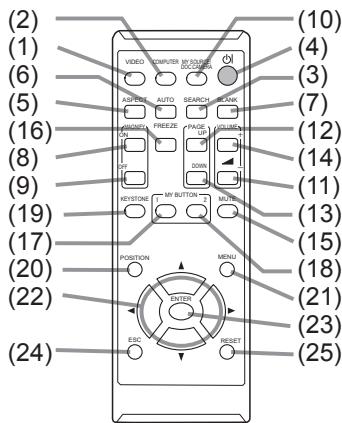
Télécommande
(1) Touche VIDEO (22)
(2) Touche COMPUTER (22)
(3) Touche SEARCH (23)
(4) Touche STANDBY/ON (19)
(5) Touche ASPECT (23)
(6) Touche AUTO (25)
(7) Touche BLANK (28)
(8) Touche MAGNIFY - ON (27)
(9) Touche MAGNIFY - OFF (27)
(10) Touche MY SOURCE/DOC.CAMERA (22, 57)
(11) Touche VOLUME - (21)
(12) Touche PAGE UP (18)
(13) Touche PAGE DOWN (18)
(14) Touche VOLUME + (21)
(15) Touche MUTE (21)
(16) Touche FREEZE (28)
(17) Touche MY BUTTON - 1 (56, 57)
(18) Touche MY BUTTON - 2 (56, 57)
(19) Touche KEYSTONE (26)
(20) Touche POSITION (25, 29)
(21) Touche MENU (29)
(22) Touches des curseurs ▲/▼/▲/▶ (图29)
(23) Touche ENTER (29)
(24) Touche ESC (29)
(25) Touche RESET (29)
(26) Couvercle des piles (17)
Presentation PC-LESS
Presentation PC-LESS (suite)
CP-X2021WN, CP-X2521WN, CP-X3021WN: 1024 x 768
Presentation PC-LESS (suite)
Presentation PC-LESS (suite)
Presentation PC-LESS (suite)
Presentation PC-LESS (suite)
Mode Plein Écran
Presentation PC-LESS (suite)
Mode Dipositive
Presentation PC-LESS (suite)
Voussouspoucepasser uneDiapositive selonlaconfigurationdésirée.ConfigurerlesDIAPOSITIVE dansle menuTHUMBMAIL.
Presentation PC-LESS (suite)
[ \text{Playlist} ]
Cannot start VLCiewer Lite for USB while VLCiewer is running.
OK
CP-X2021WN/CP-X2521WN/ CP-X3021WN
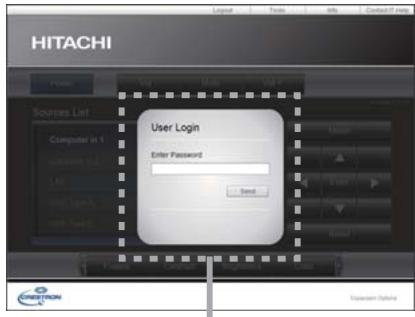
Dialogue User Password
Communication Port (Port de Communication)
CP-X2021WN/CP-X2521WN/CP-X3021WN
User's Manual (detailed)
Operating Guide - Technical
Example of PC signal
| Resolution (H x V) | H. frequency (kHz) | V. frequency (Hz) | Rating | Signal mode |
| 720 x 400 | 37.9 | 85.0 | VESA | TEXT |
| 640 x 480 | 31.5 | 59.9 | VESA | VGA (60Hz) |
| 640 x 480 | 37.9 | 72.8 | VESA | VGA (72Hz) |
| 640 x 480 | 37.5 | 75.0 | VESA | VGA (75Hz) |
| 640 x 480 | 43.3 | 85.0 | VESA | VGA (85Hz) |
| 800 x 600 | 35.2 | 56.3 | VESA | SVGA (56Hz) |
| 800 x 600 | 37.9 | 60.3 | VESA | SVGA (60Hz) |
| 800 x 600 | 48.1 | 72.2 | VESA | SVGA (72Hz) |
| 800 x 600 | 46.9 | 75.0 | VESA | SVGA (75Hz) |
| 800 x 600 | 53.7 | 85.1 | VESA | SVGA (85Hz) |
| 832 x 624 | 49.7 | 74.5 | Mac 16” mode | |
| 1024 x 768 | 48.4 | 60.0 | VESA | XGA (60Hz) |
| 1024 x 768 | 56.5 | 70.1 | VESA | XGA (70Hz) |
| 1024 x 768 | 60.0 | 75.0 | VESA | XGA (75Hz) |
| 1024 x 768 | 68.7 | 85.0 | VESA | XGA (85Hz) |
| 1152 x 864 | 67.5 | 75.0 | VESA | 1152 x 864 (75Hz) |
| 1280 x 768 | 47.7 | 60.0 | VESA | W-XGA (60Hz) |
| 1280 x 800 | 49.7 | 60.0 | VESA | 1280 x 800 (60Hz) |
| 1280 x 960 | 60.0 | 60.0 | VESA | 1280 x 960 (60Hz) |
| 1280 x 1024 | 64.0 | 60.0 | VESA | SXGA (60Hz) |
| 1280 x 1024 | 80.0 | 75.0 | VESA | SXGA (75Hz) |
| *1280 x 1024 | 91.1 | 85.0 | VESA | SXGA (85Hz) |
| 1400 x 1050 | 65.2 | 60.0 | VESA | SXGA+ (60Hz) |
| 1440 x 900 | 55.9 | 59.9 | VESA | WXGA+ (60Hz) |
| *1600 x 1200 | 75.0 | 60.0 | VESA | UXGA (60Hz) |
NOTE - Be sure to check jack type, signal level, timing and resolution before connecting this projector to a PC.
- Some PCs may have multiple display screen modes. Use of some of these modes will not be possible with this projector.
- Depending on the input signal, full-size display may not be possible in some cases. Refer to the number of display pixels above.
- Although the projector can display signals with resolution up to UXGA (1600x1200), the signal will be converted to the projector's panel resolution before being displayed. The best display performance will be achieved if the resolutions of the input signal and projector panel are identical.
Automatic adjustment may not function correctly with some input signals. - The image may not be displayed correctly when the input sync signal is a composite sync or a sync on G.
- The HDMITM input does not support the signals marked with *.
Initial set signals
The following signals are used for the initial settings. The signal timing of some PC models may be different. In such case, adjust the items V POSITION and H POSITION in the IMAGE menu.
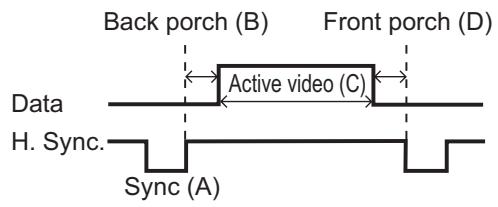
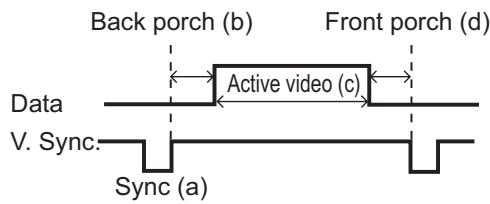
| Resolution (H x V) | Horizontal signal timing (μs) | Vertical signal timing (lines) | Signal mode | ||||||
| (A) | (B) | (C) | (D) | (a) | (b) | (c) | (d) | ||
| 720 x 400 | 2.0 | 3.0 | 20.3 | 1.0 | 3 | 42 | 400 | 1 | TEXT |
| 640 x 480 | 3.8 | 1.9 | 25.4 | 0.6 | 2 | 33 | 480 | 10 | VGA (60Hz) |
| 640 x 480 | 1.3 | 4.1 | 20.3 | 0.8 | 3 | 28 | 480 | 9 | VGA (72Hz) |
| 640 x 480 | 2.0 | 3.8 | 20.3 | 0.5 | 3 | 16 | 480 | 1 | VGA (75Hz) |
| 640 x 480 | 1.6 | 2.2 | 17.8 | 1.6 | 3 | 25 | 480 | 1 | VGA (85Hz) |
| 800 x 600 | 2.0 | 3.6 | 22.2 | 0.7 | 2 | 22 | 600 | 1 | SVGA (56Hz) |
| 800 x 600 | 3.2 | 2.2 | 20.0 | 1.0 | 4 | 23 | 600 | 1 | SVGA (60Hz) |
| 800 x 600 | 2.4 | 1.3 | 16.0 | 1.1 | 6 | 23 | 600 | 37 | SVGA (72Hz) |
| 800 x 600 | 1.6 | 3.2 | 16.2 | 0.3 | 3 | 21 | 600 | 1 | SVGA (75Hz) |
| 800 x 600 | 1.1 | 2.7 | 14.2 | 0.6 | 3 | 27 | 600 | 1 | SVGA (85Hz) |
| 832 x 624 | 1.1 | 3.9 | 14.5 | 0.6 | 3 | 39 | 624 | 1 | Mac 16" mode |
| 1024 x 768 | 2.1 | 2.5 | 15.8 | 0.4 | 6 | 29 | 768 | 3 | XGA (60Hz) |
| 1024 x 768 | 1.8 | 1.9 | 13.7 | 0.3 | 6 | 29 | 768 | 3 | XGA (70Hz) |
| 1024 x 768 | 1.2 | 2.2 | 13.0 | 0.2 | 3 | 28 | 768 | 1 | XGA (75Hz) |
| 1024 x 768 | 1.0 | 2.2 | 10.8 | 0.5 | 3 | 36 | 768 | 1 | XGA (85Hz) |
| 1152 x 864 | 1.2 | 2.4 | 10.7 | 0.6 | 3 | 32 | 864 | 1 | 1152 x 864 (75Hz) |
| 1280 x 768 | 1.7 | 2.5 | 16.0 | 0.8 | 3 | 23 | 768 | 1 | W-XGA (60Hz) |
| 1280 x 800 | 1.6 | 2.4 | 15.3 | 0.8 | 3 | 24 | 800 | 1 | W-XGA (60Hz) |
| 1280 x 960 | 1.0 | 2.9 | 11.9 | 0.9 | 3 | 36 | 960 | 1 | W-XGA (60Hz) |
| 1280 x 1024 | 1.0 | 2.3 | 11.9 | 0.4 | 3 | 38 | 1024 | 1 | SXGA (60Hz) |
| 1280 x 1024 | 1.1 | 1.8 | 9.5 | 0.1 | 3 | 38 | 1024 | 1 | SXGA (75Hz) |
| 1280 x 1024 | 1.0 | 1.4 | 8.1 | 0.4 | 3 | 44 | 1024 | 1 | SXGA (85Hz) |
| 1400 x 1050 | 1.2 | 2.0 | 11.4 | 0.7 | 3 | 33 | 1050 | 1 | SXGA+ (60Hz) |
| 1440 x 900 | 1.4 | 2.2 | 13.5 | 0.8 | 6 | 25 | 900 | 3 | WXGA+ (60Hz) |
| 1600 x 1200 | 1.2 | 1.9 | 9.9 | 0.4 | 3 | 46 | 1200 | 1 | UXGA (60Hz) |
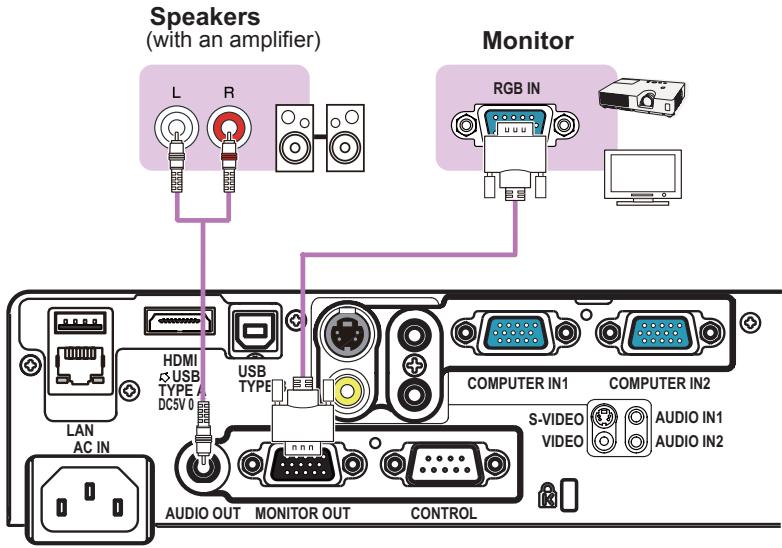
Connection to the ports
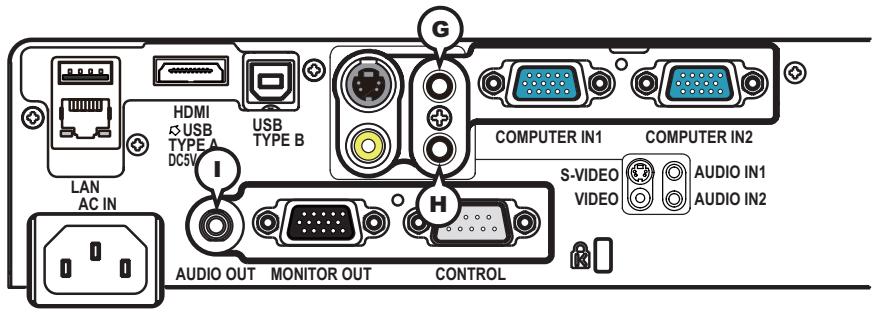
NOTICE Use the cables with straight plugs, not L-shaped ones, as the input ports of the projector are recessed.
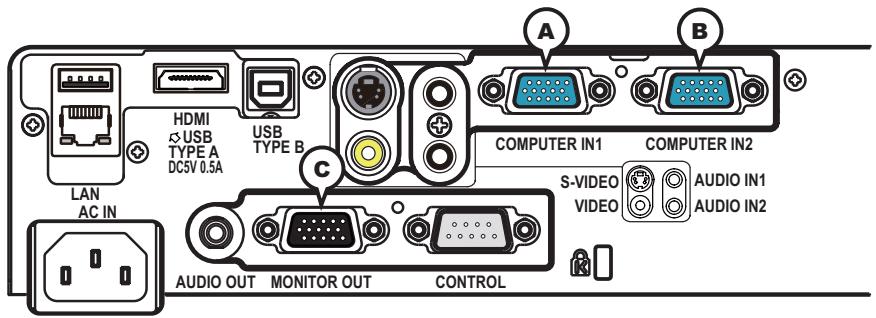
COMPUTER IN1, COMPUTER IN2, MONITOR OUT
Video signal: RGB separate, Analog, 0.7Vp-p, 75Ω terminated (positive)
H/V. sync. signal: TTL level (positive/negative)
- Composite sync. signal: TTL level
Video signal:
-Y, Analog, 1.0 ± 0.1Vp-p with composite sync, 75Ω terminated
-Cb/Pb, Analog, 0.7 ± 0.1 Vp-p, 75 Ω terminated
-Cr/Pr, Analog, 0.7± 0.1Vp - p 75Ω terminated
System: 480i@60, 480p@60, 576i@50, 576p@50, 720p@50/60, 1080i@50/60, 1080p@50/60
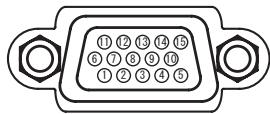
| Pin | Signal | Pin | Signal |
| 1 | Video Red, Cr/Pr | 9 | (No connection) |
| 2 | Video Green, Y | 10 | Ground |
| 3 | Video Blue, Cb/Pb | 11 | (No connection) |
| 4 | (No connection) | 12 | A: SDA (DDC data), (No connection) B, C: (No connection) |
| 5 | Ground | ||
| 6 | Ground Red, Ground Cr/Pr | 13 | H. sync / Composite sync., (No connection) |
| 7 | Ground Green, Ground Y | 14 | V. sync., (No connection) |
| 8 | Ground Blue, Ground Cb/Pb | 15 | A: SCL (DDC clock), (No connection) B, C: (No connection) |
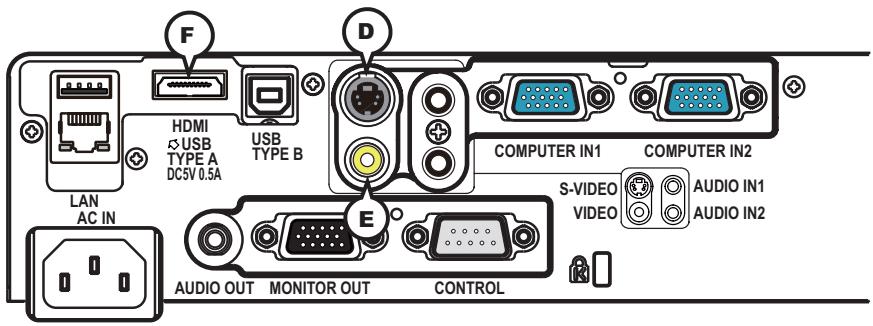
-VIDEO
Mini DIN 4pin jack
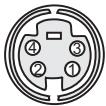
- System: NTSC, PAL, SECAM, PAL-M, PAL-N, NTSC4.43, PAL (60Hz)
| Pin | Signal |
| 1 | Color signal 0.286Vp-p (NTSC, burst), 75Ω terminator Color signal 0.300Vp-p (PAL/SECAM, burst) 75Ω terminator |
| 2 | Brightness signal, 1.0Vp-p, 75Ω terminator |
| 3 | Ground |
| 4 | Ground |
EVIDEO
RCA jack
- System: NTSC, PAL, SECAM, PAL-M, PAL-N, NTSC4.43, PAL (60Hz)
1.0± 0.1Vp - p 75Ω terminator
EHDRMI
- Type:HDMI™ connector
- Audio signal : Linear PCM (Sampling rate; 32/44.1/48 kHz)
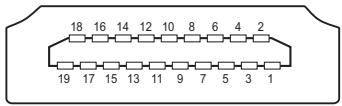
| Pin | Signal | Pin | Signal | Pin | Signal |
| 1 | T.M.D.S. Data2 + | 8 | T.M.D.S. Data0 Shield | 15 | SCL |
| 2 | T.M.D.S. Data2 Shield | 9 | T.M.D.S. Data0 - | 16 | SDA |
| 3 | T.M.D.S. Data2 - | 10 | T.M.D.S. Clock + | 17 | DDC/CEC Ground |
| 4 | T.M.D.S. Data1 + | 11 | T.M.D.S. Clock Shield | 18 | +5V Power |
| 5 | T.M.D.S. Data1 Shield | 12 | T.M.D.S. Clock - | 19 | Hot Plug Detect |
| 6 | T.M.D.S. Data1 - | 13 | CEC | ||
| 7 | T.M.D.S. Data0 + | 14 | Reserved(N.C. on device) | ||
⑥AUDIO IN1, HAUDIO IN2
- About the details of RS-232C communication, please refer to the next chapter.
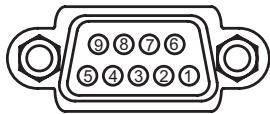
| Pin | Signal | Pin | Signal | Pin | Signal |
| 1 | (No connection) | 4 | (No connection) | 7 | RTS |
| 2 | RD | 5 | Ground | 8 | CTS |
| 3 | TD | 6 | (No connection) | 9 | (No connection) |
USB TYPE A
USB A type jack
| Pin | Signal |
| 1 | +5V |
| 2 | - Data |
| 3 | + Data |
| 4 | Ground |
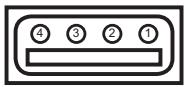
USB TYPE B
USB B type jack
| Pin | Signal |
| 1 | +5V |
| 2 | - Data |
| 3 | + Data |
| 4 | Ground |
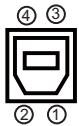
MLAN
RJ-45 jack
| Pin | Signal | Pin | Signal | Pin | Signal |
| 1 | TX+ | 4 | - | 7 | - |
| 2 | TX- | 5 | - | 8 | - |
| 3 | RX+ | 6 | RX- |
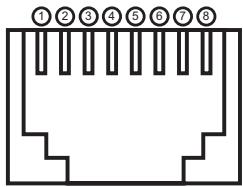
To input component video signal to COMPUTER IN ports ex.
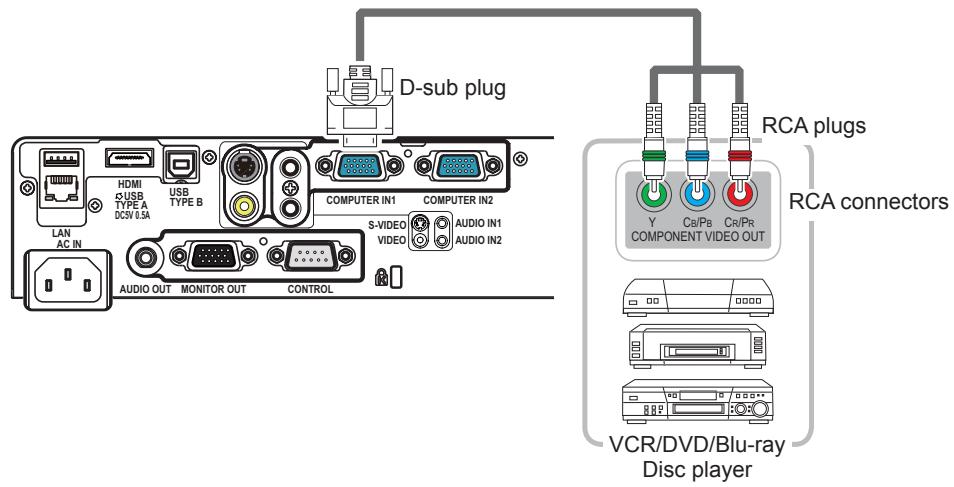
To input component video signal to the COMPUTER IN1 or COMPUTER IN2 port of the projector, use a RCA to D-sub cable or adapter.
For about the pin description of the required cable or adapter, refer to the descriptions about COMPUTER IN1 or COMPUTER IN2 port (3).
RS-232C Communication
When the projector connects to the computer by RS-232C communication, the projector can be controlled with RS-232C commands from the computer.
For details of RS-232C commands, refer to RS-232C Communication / Network command table (17).
Connection
- Turn off the projector and the computer.
- Connect the projector's CONTROL port and the computer's RS-232C port with a RS-232C cable (cross). Use the cable that fulfills the specification shown in figure.
- Turn the computer on, and after the computer has started up turn the projector on.
- Set the COMMUNICATION TYPE to OFF. (OPTION menu - SERVICE COMMUNICATION in the Operating Guide)
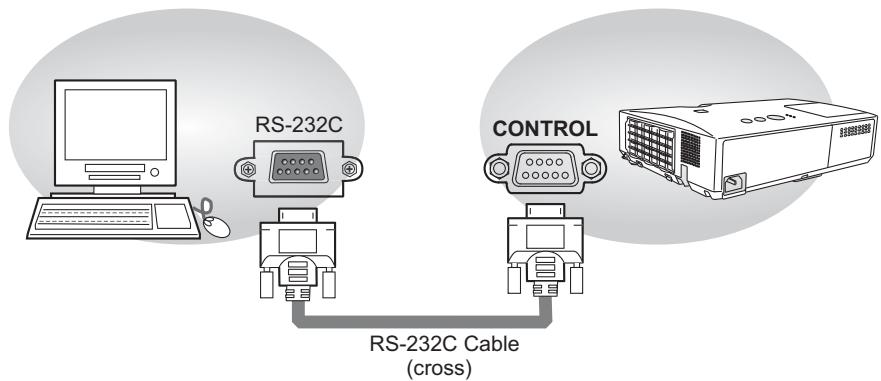
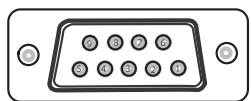
RS-232C port of the computer
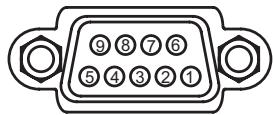
CONTROL port of the projector
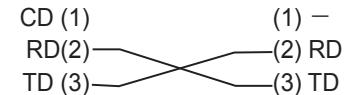

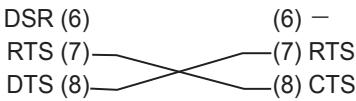
RI (9) (9)-
Communication settings
1. Protocol
19200bps,8N1
2. Command format ("h" shows hexadecimal)
| Byte Number | 0 | 1 | 2 | 3 | 4 | 5 | 6 | 7 | 8 | 9 | 10 | 11 | 12 |
| Command Action | Header | Data | |||||||||||
| Header code | Packet | Data size | CRC flag | Action | Type | Setting code | |||||||
| L | H | L | H | L | H | L | H | L | H | L | H | ||
| <SET>Change setting to desired value [(cL)(cH)] by [(eL)(eH)]. | BEh | EFh | 03h | 06h | 00h | (aL) | (aH) | 01h | 00h | (bL) | (bH) | (cL) | (cH) |
| <GET>Read projector internal setup value [(bL)(bH)]. | (aL) | (aH) | 02h | 00h | (bL) | (bH) | 00h | 00h | |||||
| <INIncrement>Increment setup value [(bL)(bH)] by 1. | (aL) | (aH) | 04h | 00h | (bL) | (bH) | 00h | 00h | |||||
| <DECREMENT>Decrement setup value [(bL)(bH)] by 1. | (aL) | (aH) | 05h | 00h | (bL) | (bH) | 00h | 00h | |||||
| <EXECUTE>Run a command [(bL)(bH)]. | (aL) | (aH) | 06h | 00h | (bL) | (bH) | 00h | 00h | |||||
[Header code], [Packet], [Data size]
Set [BEh, EFh, 03h, 06h, 00h] to byte number 0 4 .
[CRC flag]
For byte number 5, 6, refer to RS-232C Communication / Network command table (17).
[Action]
Set functional code to byte number 7, 8.
[ <\text{SET}> = [01h, 00h], <\text{GET}> = [02h, 00h], <\text{INCREMENT}> = [04h, 00h] ]
Refer to the command table above.
[Type], [Setting code]
For byte number 9 12 , refer to RS-232C Communication / Network command table (17).
3. Response code / Error code ("h" shows hexadecimal)
(1) ACK reply : 06h
When the projector receives the Set, Increment, Decrement or Execute command correctly, the projector changes the setting data for the specified item by [Type], and it returns the code.
(2) NAK reply : 15h
When the projector cannot understand the received command, the projector returns the error code.
In such a case, check the sending code and send the same command again.
(3) Error reply : 1Ch + 0000h
When the projector cannot execute the received command for any reasons, the projector returns the error code.
In such a case, check the sending code and the setting status of the projector.
(4) Data reply : 1Dh + xxxhh
When the projector receives the GET command correctly, the projector returns the response code and 2 bytes of data.
NOTE • For connecting the projector to your devices, please read the manual for each devices, and connect them correctly with suitable cables.
- Operation cannot be guaranteed when the projector receives an undefined command or data.
- Provide an interval of at least 40ms between the response code and any other code.
- The projector outputs test data when the power supply is switched ON, and when the lamp is lit. Ignore this data.
- Commands are not accepted during warm-up.
- When the data length is greater than indicated by the data length code, the projector ignore the excess data code. Conversely when the data length is shorter than indicated by the data length code, the projector returns the error code to the computer.
Command Control via the Network
When the projector connects network, the projector can be controlled with RS-232C commands from the computer with web browser.
For details of RS-232C commands, refer to RS-232C Communication / Network command table (17).
NOTE - If data is transferred via wireless and wired LAN at the same time, the projector may not be able to process the data correctly.
Connection
- Turn off the projector and the computer.
- If you use wired LAN, connect the projector's LAN port to the computer's LAN port with a LAN cable. Use the cable that fulfills the specification shown in figure. If you use wireless LAN, insert the USB wireless adapter into the projector's USB TYPE A port.
- Turn the computer on, and after the computer has started up turn the projector on.
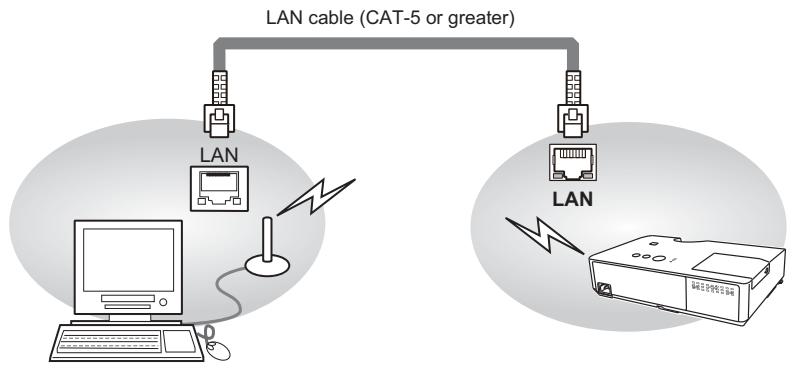
Comunicaion Port
The following two ports are assigned for the command control.
TCP #23
TCP #9715
Configure the following items form a web browser when command control is used.
| Port Settings | ||
| Network Control Port1 (Port: 23) | Port open | Click the [Enable] check box to open [Network Control Port1 (Port: 23)] to use TCP #23. Default setting is “Enable”. |
| Authentication | Click the [Enable] check box for the [Authentication] setting when authentication is required. Default setting is “Disable”. | |
| Network Control Port2 (Port: 9715) | Port open | Click the [Enable] check box to open [Network Control Port2 (Port: 9715)] to use TCP #9715. Default setting is “Enable”. |
| Authentication | Click the [Enable] check box for the [Authentication] setting when authentication is required. Default setting is “Enable”. | |
When the authentication setting is enabled, the following settings are required.
| Security Settings | ||
| Network Control | Authentication Password | Enter the desired authentication password. ConfirmThis setting will be the same for [Network Control Port1 (Port: 23)] and [Network Control Port2 (Port: 9715)]. Default setting is blank. |
| Re-enter Authentication Password | ||
Command control settings
[TCP #23]
1. Command format
Same as RS-232C communication, refer to RS-232C Communicaton command format.
2. Response code / Error code ("h" shows hexadecimal)
Four of the response / error code used for TCP#23 are the same as RS-232C Communication (1)~(4). One authentication error reply (5) is added.
(1) ACK reply : 06h
Refer to RS-232C communication (10).
(2) NAK reply : 15h
Refer to RS-232C communication (10).
(3) Error reply : 1Ch + 0000h
Refer to RS-232C communication (10).
(4) Data reply : 1Dh + xxxxhh
Refer to RS-232C communication (10).
(5) Authentication error reply : 1Fh + 0400h
When authentication error occurred, the projector returns the error code.
[TCP#9715]
1. Command format
The commands some datum are added to the head and the end of the ones of TCP#9715 are used.
| Header | Data length | RS-232C command | Check sum | Connection ID |
| 0x02 | 0x0D | 13 bytes | 1 byte | 1 byte |
[Header]
02, Fixed
[Data Length]
RS-232C commands byte length (0× 0D , Fixed)
[RS-232C commands]
Refer to RS-232C Communication command format (9).
[Check Sum]
This is the value to make zero on the addition of the lower 8 bits from the header to the checksum.
[Connection ID]
Random value from 0 to 255 (This value is attached to the reply data).
NOTE - Operation cannot be guaranteed when the projector receives an undefined command or data.
- Provide an interval of at least 40ms between the response code and any other code.
- Commands are not accepted during warm-up.
2. Response code / Error code ("h" shows hexadecimal)
The connection ID is attached for the TCP#23's response / error codes are used. The connection ID is same as the sending command format.
(1) ACK reply: 06h + × × h (××h: connection ID)
(2) NAK reoly: 15h + × × h
(3) Error reply : 1Ch + 0000h + xxh
(4) Data reply : 1Dh + xxxh + xxh
(5) Authentication error reply : 1Fh + 0400h + xxh
(6) Projector busy reply: 1Fh + xxxxxh + xxh When the projector is too busy to receives the command, the projector returns the error code. In such a case, check the sending code and send the same command again.
Automatic Connection Break
The TCP connection will be automatically disconnected after there is no communication for 30 seconds after being established.
Authentication
The projector does not accept commands without authentication success when authentication is enabled. The projector uses a challenge response type authentication with an MD5 (Message Digest 5) algorithm. When the projector is using a LAN, a random 8 bytes will be returned if authentication is enabled. Bind this received 8 bytes and the authentication password and digest this data with the MD5 algorithm and add this in front of the commands to send.
Following is a sample if the authentication password is set to "password" and the random 8 bytes are "a572f60c".
1) Select the projector.
2) Receive the random 8 bytes "a572f60c" from the projector.
3) Bind the random 8 bytes "a572f60c" and the authentication password "password" and it becomes "a572f60cpassword".
4) Digest this bind "a572f60cpassword" with MD5 algorithm.
It will be "e3d97429adffa11bce1f7275813d4bde".
5) Add this "e3d97429adffa11bce1f7275813d4bde" in front of the commands and send the data.
Send "e3d97429adffaa11bce1f7275813d4bde"+command.
6) When the sending data is correct, the command will be performed and the reply data will be returned. Otherwise, an authentication error will be returned.
NOTE · As for the transmission of the second or subsequent commands, the authentication data can be omitted when the same connection.
Network Bridge Communication
This projector is equipped with NETWORK BRIDGE function.
When the projector connects to the computer by wired or wireless LAN
communicaton, an external device that is connected with this projector by RS-
232C communication can be controlled from the computer as a network terminal.
For details, see the 6. Network Bridge function in the Network Guide.
NOTE · If data is transferred via wireless and wired LAN at the same time, the projector may not be able to process the data correctly.
Connection
- If you use wired LAN, connect the computer's LAN port and the projector's LAN port with a LAN cable. Use the cable that fulfills the specification shown in figure. If you use wireless LAN, insert the USB wireless adapter into the projector's LAN port.
-
Connect the projector's CONTROL port and the RS-232C port of the devices that you want to control with a RS-232C cable.
2 Turn the computer on, and after the computer has started up turn the
projector on.
A Set the COMMUNICATION TYPE to NETWORK BRIDGE. (OPTION menu -
- SERVICE - COMMUNICATION in the Operating Guide
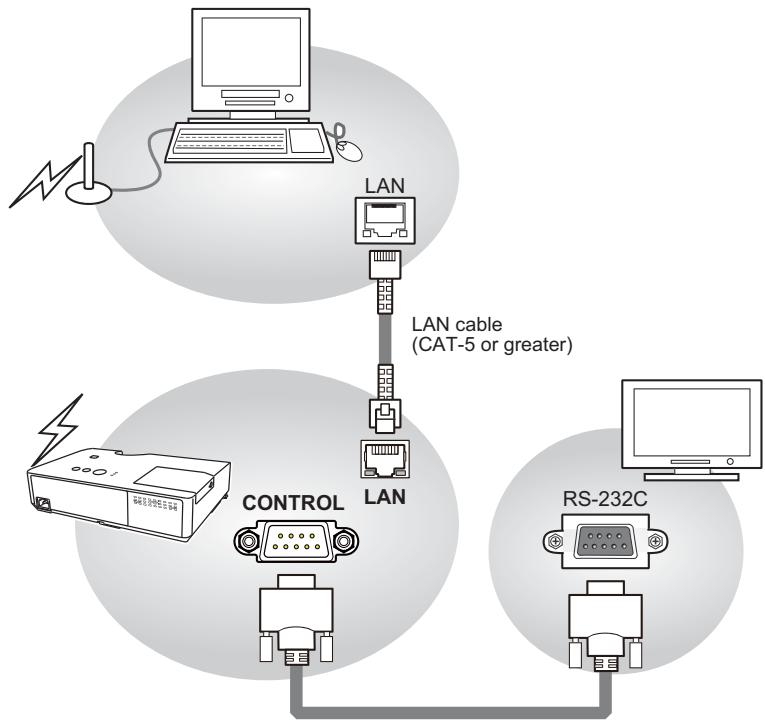
Communication settings
For communication setting, use the OPTION - SERVICE - COMMUNICATION menu. (OPTION menu - SERVICE - COMMUNICATION in the Operating Guide)
| Item | Condition |
| BAUD RATE | 4800bps / 9600bps / 19200bps / 38400bps |
| Data length | 8 bit (fixed) |
| PARITY | NONE/ODD/EVEN |
| Start bit | 1 bit (fixed) |
| Stop bit | 1 bit (fixed) |
| Transmission method | HALF-DUPLEX/FULL-DUPLEX |
NOTE • For connecting the projector to your devices, please read the manual for each devices, and connect them correctly with suitable cables.
- Turn off (the power of) both the projector and other devices and unplug, before connecting them.
- For details of Transmission method, refer to 6.4 Transmission method in the Network Guide.
RS-232C Communication / Network command table
| Names | Operation Type | Header | Command Data | ||||||
| CRC | Action | Type | |||||||
| Power | Set | Turn off | BE EF | 03 | 06 00 | 2A D3 | 01 00 | 00 60 | 00 00 |
| Turn on | BE EF | 03 | 06 00 | BA D2 | 01 00 | 00 60 | 01 00 | ||
| Get | BE EF | 03 | 06 00 | 19 D3 | 02 00 | 00 60 | 00 00 | ||
| [Example return] | |||||||||
| 00 00 | 01 00 | 02 00 | |||||||
| [Off] | [On] | [Cool down] | |||||||
| Input Source | Set | COMPUTER IN1 | BE EF | 03 | 06 00 | FE D2 | 01 00 | 00 20 | 00 00 |
| COMPUTER IN2 | BE EF | 03 | 06 00 | 3E D0 | 01 00 | 00 20 | 04 00 | ||
| HDMI | BE EF | 03 | 06 00 | 0E D2 | 01 00 | 00 20 | 03 00 | ||
| S-VIDEO | BE EF | 03 | 06 00 | 9E D3 | 01 00 | 00 20 | 02 00 | ||
| VIDEO | BE EF | 03 | 06 00 | 6E D3 | 01 00 | 00 20 | 01 00 | ||
| LAN | BE EF | 03 | 06 00 | CE D5 | 01 00 | 00 20 | 0B 00 | ||
| USB TYPE A | BE EF | 03 | 06 00 | 5E D1 | 01 00 | 00 20 | 06 00 | ||
| USB TYPE B | BE EF | 03 | 06 00 | FE D7 | 01 00 | 00 20 | 0C 00 | ||
| Get | BE EF | 03 | 06 00 | CD D2 | 02 00 | 00 20 | 00 00 | ||
| Error Status | Get | BE EF | 03 | 06 00 | D9 D8 | 02 00 | 20 60 | 00 00 | |
| [Example return] | |||||||||
| 00 00 | 01 00 | 02 00 | 03 00 | ||||||
| [Normal] | [Cover error] | [Fan error] | [Lamp error] | ||||||
| 04 00 | 05 00 | 07 00 | 08 00 | ||||||
| [Temp error] | [Air flow error] | [Cold error] | [Filter error] | ||||||
| MAGNIFY | Get | BE EF | 03 | 06 00 | 7C D2 | 02 00 | 07 30 | 00 00 | |
| Increment | BE EF | 03 | 06 00 | 1A D2 | 04 00 | 07 30 | 00 00 | ||
| Decrement | BE EF | 03 | 06 00 | CB D3 | 05 00 | 07 30 | 00 00 | ||
| FREEZE | Set | NORMAL | BE EF | 03 | 06 00 | 83 D2 | 01 00 | 02 30 | 00 00 |
| FREEZE | BE EF | 03 | 06 00 | 13 D3 | 01 00 | 02 30 | 01 00 | ||
| Get | BE EF | 03 | 06 00 | B0 D2 | 02 00 | 02 30 | 00 00 | ||
| PICTURE MODE | Set | NORMAL | BE EF | 03 | 06 00 | 23 F6 | 01 00 | BA 30 | 00 00 |
| CINEMA | BE EF | 03 | 06 00 | B3 F7 | 01 00 | BA 30 | 01 00 | ||
| DYNAMIC | BE EF | 03 | 06 00 | E3 F4 | 01 00 | BA 30 | 04 00 | ||
| BOARD(BLACK) | BE EF | 03 | 06 00 | E3 EF | 01 00 | BA 30 | 20 00 | ||
| BOARD(GREEN) | BE EF | 03 | 06 00 | 73 EE | 01 00 | BA 30 | 21 00 | ||
| WHITEBOARD | BE EF | 03 | 06 00 | 83 EE | 01 00 | BA 30 | 22 00 | ||
| DAYTIME | BE EF | 03 | 06 00 | E3 C7 | 01 00 | BA 30 | 40 00 | ||
| Get | BE EF | 03 | 06 00 | 10 F6 | 02 00 | BA 30 | 00 00 | ||
| [Example return] | |||||||||
| 00 00 | 01 00 | 04 00 | 10 00 | ||||||
| [Normal] | [Cinema] | [Dynamic] | [Custom] | ||||||
| 20 00 | 21 00 | 22 00 | 40 00 | ||||||
| [BOARD(BLACK)] | [BOARD(GREEN)] | [WHITEBOARD] | [DAY TIME] | ||||||
| BRIGHTNESS | Get | BE EF | 03 | 06 00 | 89 D2 | 02 00 | 03 20 | 00 00 | |
| Increment | BE EF | 03 | 06 00 | EF D2 | 04 00 | 03 20 | 00 00 | ||
| Decrement | BE EF | 03 | 06 00 | 3E D3 | 05 00 | 03 20 | 00 00 | ||
| BRIGHTNESS Reset | Execute | BE EF | 03 | 06 00 | 58 D3 | 06 00 | 00 70 | 00 00 | |
| Get | BE EF | 03 | 06 00 | FD D3 | 02 00 | 04 20 | 00 00 | ||
| Increment | BE EF | 03 | 06 00 | 9B D3 | 04 00 | 04 20 | 00 00 | ||
| Decrement | BE EF | 03 | 06 00 | 4A D2 | 05 00 | 04 20 | 00 00 | ||
| CONTRAST Reset | Execute | BE EF | 03 | 06 00 | A4 D2 | 06 00 | 01 70 | 00 00 | |
| CRC | Action | Type Setting Code | |||||||
| GAMMA | Set | DEFAULT-1 | BE EF | 03 | 06 00 | 07 E9 | 01 00 | A1 30 | 20 00 |
| CUSTOM-1 | BE EF | 03 | 06 00 | 07 FD | 01 00 | A1 30 | 10 00 | ||
| DEFAULT-2 | BE EF | 03 | 06 00 | 97 E8 | 01 00 | A1 30 | 21 00 | ||
| CUSTOM-2 | BE EF | 03 | 06 00 | 97 FC | 01 00 | A1 30 | 11 00 | ||
| DEFAULT-3 | BE EF | 03 | 06 00 | 67 E8 | 01 00 | A1 30 | 22 00 | ||
| CUSTOM-3 | BE EF | 03 | 06 00 | 67 FC | 01 00 | A1 30 | 12 00 | ||
| DEFAULT-4 | BE EF | 03 | 06 00 | F7 E9 | 01 00 | A1 30 | 23 00 | ||
| CUSTOM-4 | BE EF | 03 | 06 00 | F7 FD | 01 00 | A1 30 | 13 00 | ||
| DEFAULT-5 | BE EF | 03 | 06 00 | C7 EB | 01 00 | A1 30 | 24 00 | ||
| CUSTOM-5 | BE EF | 03 | 06 00 | C7 FF | 01 00 | A1 30 | 14 00 | ||
| DEFAULT-6 | BE EF | 03 | 06 00 | 57 EA | 01 00 | A1 30 | 25 00 | ||
| CUSTOM-6 | BE EF | 03 | 06 00 | 57 FE | 01 00 | A1 30 | 15 00 | ||
| Get | BE EF | 03 | 06 00 | F4 F0 | 02 00 | A1 30 | 00 00 | ||
| User Gamma Pattern | Set | Off | BE EF | 03 | 06 00 | FB FA | 01 00 | 80 30 | 00 00 |
| 9 steps gray scale | BE EF | 03 | 06 00 | 6B FB | 01 00 | 80 30 | 01 00 | ||
| 15 steps gray scale | BE EF | 03 | 06 00 | 9B FB | 01 00 | 80 30 | 02 00 | ||
| Ramp | BE EF | 03 | 06 00 | OB FA | 01 00 | 80 30 | 03 00 | ||
| Get | BE EF | 03 | 06 00 | C8 FA | 02 00 | 80 30 | 00 00 | ||
| User Gamma Point 1 | Get | BE EF | 03 | 06 00 | 08 FE | 02 00 | 90 30 | 00 00 | |
| Increment | BE EF | 03 | 06 00 | 6E FE | 04 00 | 90 30 | 00 00 | ||
| Decrement | BE EF | 03 | 06 00 | BF FF | 05 00 | 90 30 | 00 00 | ||
| User Gamma Point 1 Reset | Execute | BE EF | 03 | 06 00 | 58 C2 | 06 00 | 50 70 | 00 00 | |
| User Gamma Point 2 | Get | BE EF | 03 | 06 00 | F4 FF | 02 00 | 91 30 | 00 00 | |
| Increment | BE EF | 03 | 06 00 | 92 FF | 04 00 | 91 30 | 00 00 | ||
| Decrement | BE EF | 03 | 06 00 | 43 FE | 05 00 | 91 30 | 00 00 | ||
| User Gamma Point 2 Reset | Execute | BE EF | 03 | 06 00 | A4 C3 | 06 00 | 51 70 | 00 00 | |
| User Gamma Point 3 | Get | BE EF | 03 | 06 00 | B0 FF | 02 00 | 92 30 | 00 00 | |
| Increment | BE EF | 03 | 06 00 | D6 FF | 04 00 | 92 30 | 00 00 | ||
| Decrement | BE EF | 03 | 06 00 | 07 FE | 05 00 | 92 30 | 00 00 | ||
| User Gamma Point 3 Reset | Execute | BE EF | 03 | 06 00 | E0 C3 | 06 00 | 52 70 | 00 00 | |
| User Gamma Point 4 | Get | BE EF | 03 | 06 00 | 4C FE | 02 00 | 93 30 | 00 00 | |
| Increment | BE EF | 03 | 06 00 | 2A FE | 04 00 | 93 30 | 00 00 | ||
| Decrement | BE EF | 03 | 06 00 | FB FF | 05 00 | 93 30 | 00 00 | ||
| User Gamma Point 4 Reset | Execute | BE EF | 03 | 06 00 | 1C C2 | 06 00 | 53 70 | 00 00 | |
| User Gamma Point 5 | Get | BE EF | 03 | 06 00 | 38 FF | 02 00 | 94 30 | 00 00 | |
| Increment | BE EF | 03 | 06 00 | 5E FF | 04 00 | 94 30 | 00 00 | ||
| Decrement | BE EF | 03 | 06 00 | 8F FE | 05 00 | 94 30 | 00 00 | ||
| User Gamma Point 5 Reset | Execute | BE EF | 03 | 06 00 | 68 C3 | 06 00 | 54 70 | 00 00 | |
| User Gamma Point 6 | Get | BE EF | 03 | 06 00 | C4 FE | 02 00 | 95 30 | 00 00 | |
| Increment | BE EF | 03 | 06 00 | A2 FE | 04 00 | 95 30 | 00 00 | ||
| Decrement | BE EF | 03 | 06 00 | 73 FF | 05 00 | 95 30 | 00 00 | ||
| User Gamma Point 6 Reset | Execute | BE EF | 03 | 06 00 | 94 C2 | 06 00 | 55 70 | 00 00 | |
| User Gamma Point 7 | Get | BE EF | 03 | 06 00 | 80 FE | 02 00 | 96 30 | 00 00 | |
| Increment | BE EF | 03 | 06 00 | E6 FE | 04 00 | 96 30 | 00 00 | ||
| Decrement | BE EF | 03 | 06 00 | 37 FF | 05 00 | 96 30 | 00 00 | ||
| User Gamma Point 7 Reset | Execute | BE EF | 03 | 06 00 | D0 C2 | 06 00 | 56 70 | 00 00 | |
(continued on next page)
| Names | Operation Type | Header | Command Data | ||||||
| CRC | Action | Type | |||||||
| User Gamma Point 8 | Get | BE EF | 03 | 06 00 | 7C FF | 02 00 | 97 30 | 00 00 | |
| Increment | BE EF | 03 | 06 00 | 1A FF | 04 00 | 97 30 | 00 00 | ||
| Decrement | BE EF | 03 | 06 00 | CB FE | 05 00 | 97 30 | 00 00 | ||
| User Gamma Point 8 Reset | Execute | BE EF | 03 | 06 00 | 2C C3 | 06 00 | 57 70 | 00 00 | |
| COLOR TEMP | Set | 1 HIGH | BE EF | 03 | 06 00 | 0B F5 | 01 00 | B0 30 | 03 00 |
| 1 CUSTOM | BE EF | 03 | 06 00 | CB F8 | 01 00 | B0 30 | 13 00 | ||
| 2 MID | BE EF | 03 | 06 00 | 9B F4 | 01 00 | B0 30 | 02 00 | ||
| 2 CUSTOM | BE EF | 03 | 06 00 | 5B F9 | 01 00 | B0 30 | 12 00 | ||
| 3 LOW | BE EF | 03 | 06 00 | 6B F4 | 01 00 | B0 30 | 01 00 | ||
| 3 CUSTOM | BE EF | 03 | 06 00 | AB F9 | 01 00 | B0 30 | 11 00 | ||
| 4 Hi-BRIGHT-1 | BE EF | 03 | 06 00 | 3B F2 | 01 00 | B0 30 | 08 00 | ||
| 4 CUSTOM | BE EF | 03 | 06 00 | FB FF | 01 00 | B0 30 | 18 00 | ||
| 5 Hi-BRIGHT-2 | BE EF | 03 | 06 00 | AB F3 | 01 00 | B0 30 | 09 00 | ||
| 5 CUSTOM | BE EF | 03 | 06 00 | 6B FE | 01 00 | B0 30 | 19 00 | ||
| 6 Hi-BRIGHT-3 | BE EF | 03 | 06 00 | 5B F3 | 01 00 | B0 30 | 0A 00 | ||
| 6 CUSTOM | BE EF | 03 | 06 00 | 9B FE | 01 00 | B0 30 | 1A 00 | ||
| Get | BE EF | 03 | 06 00 | C8 F5 | 02 00 | B0 30 | 00 00 | ||
| COLOR TEMP GAIN R | Get | BE EF | 03 | 06 00 | 34 F4 | 02 00 | B1 30 | 00 00 | |
| Increment | BE EF | 03 | 06 00 | 52 F4 | 04 00 | B1 30 | 00 00 | ||
| Decrement | BE EF | 03 | 06 00 | 83 F5 | 05 00 | B1 30 | 00 00 | ||
| COLOR TEMP GAIN R Reset | Execute | BE EF | 03 | 06 00 | 10 C6 | 06 00 | 46 70 | 00 00 | |
| COLOR TEMP GAIN G | Get | BE EF | 03 | 06 00 | 70 F4 | 02 00 | B2 30 | 00 00 | |
| Increment | BE EF | 03 | 06 00 | 16 F4 | 04 00 | B2 30 | 00 00 | ||
| Decrement | BE EF | 03 | 06 00 | C7 F5 | 05 00 | B2 30 | 00 00 | ||
| COLOR TEMP GAIN G Reset | Execute | BE EF | 03 | 06 00 | EC C7 | 06 00 | 47 70 | 00 00 | |
| COLOR TEMP GAIN B | Get | BE EF | 03 | 06 00 | 8C F5 | 02 00 | B3 30 | 00 00 | |
| Increment | BE EF | 03 | 06 00 | EA F5 | 04 00 | B3 30 | 00 00 | ||
| Decrement | BE EF | 03 | 06 00 | 3B F4 | 05 00 | B3 30 | 00 00 | ||
| COLOR TEMP GAIN B Reset | Execute | BE EF | 03 | 06 00 | F8 C4 | 06 00 | 48 70 | 00 00 | |
| COLOR TEMP OFFSET R | Get | BE EF | 03 | 06 00 | 04 F5 | 02 00 | B5 30 | 00 00 | |
| Increment | BE EF | 03 | 06 00 | 62 F5 | 04 00 | B5 30 | 00 00 | ||
| Decrement | BE EF | 03 | 06 00 | B3 F4 | 05 00 | B5 30 | 00 00 | ||
| COLOR TEMP OFFSET R Reset | Execute | BE EF | 03 | 06 00 | 40 C5 | 06 00 | 4A 70 | 00 00 | |
| COLOR TEMP OFFSET G | Get | BE EF | 03 | 06 00 | 40 F5 | 02 00 | B6 30 | 00 00 | |
| Increment | BE EF | 03 | 06 00 | 26 F5 | 04 00 | B6 30 | 00 00 | ||
| Decrement | BE EF | 03 | 06 00 | F7 F4 | 05 00 | B6 30 | 00 00 | ||
| COLOR TEMP OFFSET G Reset | Execute | BE EF | 03 | 06 00 | BC C4 | 06 00 | 4B 70 | 00 00 | |
| COLOR TEMP OFFSET B | Get | BE EF | 03 | 06 00 | BC F4 | 02 00 | B7 30 | 00 00 | |
| Increment | BE EF | 03 | 06 00 | DA F4 | 04 00 | B7 30 | 00 00 | ||
| Decrement | BE EF | 03 | 06 00 | OB F5 | 05 00 | B7 30 | 00 00 | ||
| COLOR TEMP OFFSET B Reset | Execute | BE EF | 03 | 06 00 | C8 C5 | 06 00 | 4C 70 | 00 00 | |
| COLOR | Get | BE EF | 03 | 06 00 | B5 72 | 02 00 | 02 22 | 00 00 | |
| Increment | BE EF | 03 | 06 00 | D3 72 | 04 00 | 02 22 | 00 00 | ||
| Decrement | BE EF | 03 | 06 00 | 02 73 | 05 00 | 02 22 | 00 00 | ||
| COLOR Reset | Execute | BE EF | 03 | 06 00 | 80 D0 | 06 00 | 0A 70 | 00 00 | |
| TINT | Get | BE EF | 03 | 06 00 | 49 73 | 02 00 | 03 22 | 00 00 | |
| Increment | BE EF | 03 | 06 00 | 2F 73 | 04 00 | 03 22 | 00 00 | ||
| Decrement | BE EF | 03 | 06 00 | FE 72 | 05 00 | 03 22 | 00 00 | ||
| TINT Reset | Execute | BE EF | 03 | 06 00 | 7C D1 | 06 00 | 0B 70 | 00 00 | |
| SHARPNESS | Get | BE EF | 03 | 06 00 | F1 72 | 02 00 | 01 22 | 00 00 | |
| Increment | BE EF | 03 | 06 00 | 97 72 | 04 00 | 01 22 | 00 00 | ||
| Decrement | BE EF | 03 | 06 00 | 46 73 | 05 00 | 01 22 | 00 00 | ||
| SHARPNESS Reset | Execute | BE EF | 03 | 06 00 | C4 D0 | 06 00 | 09 70 | 00 00 | |
| MY MEMORY Load | Set | 1 | BE EF | 03 | 06 00 | 0E D7 | 01 00 | 14 20 | 00 00 |
| 2 | BE EF | 03 | 06 00 | 9E D6 | 01 00 | 14 20 | 01 00 | ||
| 3 | BE EF | 03 | 06 00 | 6E D6 | 01 00 | 14 20 | 02 00 | ||
| 4 | BE EF | 03 | 06 00 | FE D7 | 01 00 | 14 20 | 03 00 | ||
| MY MEMORY Save | Set | 1 | BE EF | 03 | 06 00 | F2 D6 | 01 00 | 15 20 | 00 00 |
| 2 | BE EF | 03 | 06 00 | 62 D7 | 01 00 | 15 20 | 01 00 | ||
| 3 | BE EF | 03 | 06 00 | 92 D7 | 01 00 | 15 20 | 02 00 | ||
| 4 | BE EF | 03 | 06 00 | 02 D6 | 01 00 | 15 20 | 03 00 | ||
| ASPECT | Set | 4:3 | BE EF | 03 | 06 00 | 9E D0 | 01 00 | 08 20 | 00 00 |
| 16:9 | BE EF | 03 | 06 00 | 0E D1 | 01 00 | 08 20 | 01 00 | ||
| 14:9 | BE EF | 03 | 06 00 | CE D6 | 01 00 | 08 20 | 09 00 | ||
| 16:10 | BE EF | 03 | 06 00 | 3E D6 | 01 00 | 08 20 | 0A 00 | ||
| NORMAL | BE EF | 03 | 06 00 | 5E DD | 01 00 | 08 20 | 10 00 | ||
| Get | BE EF | 03 | 06 00 | AD D0 | 02 00 | 08 20 | 00 00 | ||
| OVER SCAN | Get | BE EF | 03 | 06 00 | 91 70 | 02 00 | 09 22 | 00 00 | |
| Increment | BE EF | 03 | 06 00 | F7 70 | 04 00 | 09 22 | 00 00 | ||
| Decrement | BE EF | 03 | 06 00 | 26 71 | 05 00 | 09 22 | 00 00 | ||
| OVER SCAN Reset | Execute | BE EF | 03 | 06 00 | EC D9 | 06 00 | 27 70 | 00 00 | |
| V POSITION | Get | BE EF | 03 | 06 00 | OD 83 | 02 00 | 00 21 | 00 00 | |
| Increment | BE EF | 03 | 06 00 | 6B 83 | 04 00 | 00 21 | 00 00 | ||
| Decrement | BE EF | 03 | 06 00 | BA 82 | 05 00 | 00 21 | 00 00 | ||
| V POSITION Reset | Execute | BE EF | 03 | 06 00 | E0 D2 | 06 00 | 02 70 | 00 00 | |
| H POSITION | Get | BE EF | 03 | 06 00 | F1 82 | 02 00 | 01 21 | 00 00 | |
| Increment | BE EF | 03 | 06 00 | 97 82 | 04 00 | 01 21 | 00 00 | ||
| Decrement | BE EF | 03 | 06 00 | 46 83 | 05 00 | 01 21 | 00 00 | ||
| H POSITION Reset | Execute | BE EF | 03 | 06 00 | 1C D3 | 06 00 | 03 70 | 00 00 | |
| H PHASE | Get | BE EF | 03 | 06 00 | 49 83 | 02 00 | 03 21 | 00 00 | |
| Increment | BE EF | 03 | 06 00 | 2F 83 | 04 00 | 03 21 | 00 00 | ||
| Decrement | BE EF | 03 | 06 00 | FE 82 | 05 00 | 03 21 | 00 00 | ||
(continued on next page)
| Names | Operation Type | Header | Command Data | ||||||
| CRC | Action | Type Setting Code | |||||||
| H SIZE | Get | BE EF | 03 | 06 00 | B5 82 | 02 00 | 02 21 | 00 00 | |
| Increment | BE EF | 03 | 06 00 | D3 82 | 04 00 | 02 21 | 00 00 | ||
| Decrement | BE EF | 03 | 06 00 | 02 83 | 05 00 | 02 21 | 00 00 | ||
| H SIZE Reset | Execute | BE EF | 03 | 06 00 | 68 D2 | 06 00 | 04 70 | 00 00 | |
| AUTO ADJUST EXECUTE | Execute | BE EF | 03 | 06 00 | 91 D0 | 06 00 | 0A 20 | 00 00 | |
| PROGRESSIVE | Set | OFF | BE EF | 03 | 06 00 | 4A 72 | 01 00 | 07 22 | 00 00 |
| TV | BE EF | 03 | 06 00 | DA 73 | 01 00 | 07 22 | 01 00 | ||
| FILM | BE EF | 03 | 06 00 | 2A 73 | 01 00 | 07 22 | 02 00 | ||
| Get | BE EF | 03 | 06 00 | 79 72 | 02 00 | 07 22 | 00 00 | ||
| VIDEO NR | Set | LOW | BE EF | 03 | 06 00 | 26 72 | 01 00 | 06 22 | 01 00 |
| MID | BE EF | 03 | 06 00 | D6 72 | 01 00 | 06 22 | 02 00 | ||
| HIGH | BE EF | 03 | 06 00 | 46 73 | 01 00 | 06 22 | 03 00 | ||
| Get | BE EF | 03 | 06 00 | 85 73 | 02 00 | 06 22 | 00 00 | ||
| COLOR SPACE | Set | AUTO | BE EF | 03 | 06 00 | OE 72 | 01 00 | 04 22 | 00 00 |
| RGB | BE EF | 03 | 06 00 | 9E 73 | 01 00 | 04 22 | 01 00 | ||
| SMPTE240 | BE EF | 03 | 06 00 | 6E 73 | 01 00 | 04 22 | 02 00 | ||
| REC709 | BE EF | 03 | 06 00 | FE 72 | 01 00 | 04 22 | 03 00 | ||
| REC601 | BE EF | 03 | 06 00 | CE 70 | 01 00 | 04 22 | 04 00 | ||
| Get | BE EF | 03 | 06 00 | 3D 72 | 02 00 | 04 22 | 00 00 | ||
| S-VIDEO FORMAT | Set | AUTO | BE EF | 03 | 06 00 | E6 70 | 01 00 | 12 22 | 0A 00 |
| NTSC | BE EF | 03 | 06 00 | 86 74 | 01 00 | 12 22 | 04 00 | ||
| PAL | BE EF | 03 | 06 00 | 16 75 | 01 00 | 12 22 | 05 00 | ||
| SECAM | BE EF | 03 | 06 00 | 16 70 | 01 00 | 12 22 | 09 00 | ||
| NTSC4.43 | BE EF | 03 | 06 00 | 26 77 | 01 00 | 12 22 | 02 00 | ||
| M-PAL | BE EF | 03 | 06 00 | 86 71 | 01 00 | 12 22 | 08 00 | ||
| N-PAL | BE EF | 03 | 06 00 | 76 74 | 01 00 | 12 22 | 07 00 | ||
| Get | BE EF | 03 | 06 00 | 75 76 | 02 00 | 12 22 | 00 00 | ||
| C-VIDEO FORMAT | Set | AUTO | BE EF | 03 | 06 00 | A2 70 | 01 00 | 11 22 | 0A 00 |
| NTSC | BE EF | 03 | 06 00 | C2 74 | 01 00 | 11 22 | 04 00 | ||
| PAL | BE EF | 03 | 06 00 | 52 75 | 01 00 | 11 22 | 05 00 | ||
| SECAM | BE EF | 03 | 06 00 | 52 70 | 01 00 | 11 22 | 09 00 | ||
| NTSC4.43 | BE EF | 03 | 06 00 | 62 77 | 01 00 | 11 22 | 02 00 | ||
| M-PAL | BE EF | 03 | 06 00 | C2 71 | 01 00 | 11 22 | 08 00 | ||
| N-PAL | BE EF | 03 | 06 00 | 32 74 | 01 00 | 11 22 | 07 00 | ||
| Get | BE EF | 03 | 06 00 | 31 76 | 02 00 | 11 22 | 00 00 | ||
| HDMI FORMAT | Set | AUTO | BE EF | 03 | 06 00 | BA 77 | 01 00 | 13 22 | 00 00 |
| VIDEO | BE EF | 03 | 06 00 | 2A 76 | 01 00 | 13 22 | 01 00 | ||
| COMPUTER | BE EF | 03 | 06 00 | DA 76 | 01 00 | 13 22 | 02 00 | ||
| Get | BE EF | 03 | 06 00 | 89 77 | 02 00 | 13 22 | 00 00 | ||
| HDMI RANGE | Set | AUTO | BE EF | 03 | 06 00 | 86 D8 | 01 00 | 22 20 | 00 00 |
| NORMAL | BE EF | 03 | 06 00 | 16 D9 | 01 00 | 22 20 | 01 00 | ||
| ENHANCED | BE EF | 03 | 06 00 | E6 D9 | 01 00 | 22 20 | 02 00 | ||
| Get | BE EF | 03 | 06 00 | B5 D8 | 02 00 | 22 20 | 00 00 | ||
| COMPUTER IN1 | Set | AUTO | BE EF | 03 | 06 00 | CE D6 | 01 00 | 10 20 | 03 00 |
| SYNC ON G OFF | BE EF | 03 | 06 00 | 5E D7 | 01 00 | 10 20 | 02 00 | ||
| Get | BE EF | 03 | 06 00 | OD D6 | 02 00 | 10 20 | 00 00 | ||
(continued on next page)
| Names | Operation Type | Header | Command Data | ||||||
| CRC | Action | Type | |||||||
| COMPUTER IN2 | Set | AUTO | BE EF | 03 | 06 00 | 32 D7 | 01 00 | 11 20 | 03 00 |
| SYNC ON G OFF | BE EF | 03 | 06 00 | A2 D6 | 01 00 | 11 20 | 02 00 | ||
| Get | BE EF | 03 | 06 00 | F1 D7 | 02 00 | 11 20 | 00 00 | ||
| FRAME LOCK - COMPUTER IN1 | Set | OFF | BE EF | 03 | 06 00 | 3B C2 | 01 00 | 50 30 | 00 00 |
| ON | BE EF | 03 | 06 00 | AB C3 | 01 00 | 50 30 | 01 00 | ||
| Get | BE EF | 03 | 06 00 | 08 C2 | 02 00 | 50 30 | 00 00 | ||
| FRAME LOCK - COMPUTER IN2 | Set | OFF | BE EF | 03 | 06 00 | 0B C3 | 01 00 | 54 30 | 00 00 |
| ON | BE EF | 03 | 06 00 | 9B C2 | 01 00 | 54 30 | 01 00 | ||
| Get | BE EF | 03 | 06 00 | 38 C3 | 02 00 | 54 30 | 00 00 | ||
| FRAME LOCK - HDMI | Set | OFF | BE EF | 03 | 06 00 | 7F C2 | 01 00 | 53 30 | 00 00 |
| ON | BE EF | 03 | 06 00 | EF C3 | 01 00 | 53 30 | 01 00 | ||
| Get | BE EF | 03 | 06 00 | 4C C2 | 02 00 | 53 30 | 00 00 | ||
| AUTO KEYSTONE EXECUTE | Execute | BE EF | 03 | 06 00 | E5 D1 | 06 00 | 0D 20 | 00 00 | |
| KEYSTONE V | Get | BE EF | 03 | 06 00 | B9 D3 | 02 00 | 07 20 | 00 00 | |
| Increment | BE EF | 03 | 06 00 | DF D3 | 04 00 | 07 20 | 00 00 | ||
| Decrement | BE EF | 03 | 06 00 | 0E D2 | 05 00 | 07 20 | 00 00 | ||
| KEYSTONE V Reset | Execute | BE EF | 03 | 06 00 | 08 D0 | 06 00 | OC 70 | 00 00 | |
| AUTO ECO MODE | Set | OFF | BE EF | 03 | 06 00 | FB 27 | 01 00 | 10 33 | 00 00 |
| ON | BE EF | 03 | 06 00 | 6B 26 | 01 00 | 10 33 | 01 00 | ||
| Get | BE EF | 03 | 06 00 | C8 27 | 02 00 | 10 33 | 00 00 | ||
| ECO MODE | Set | NORMAL | BE EF | 03 | 06 00 | 3B 23 | 01 00 | 00 33 | 00 00 |
| ECO | BE EF | 03 | 06 00 | AB 22 | 01 00 | 00 33 | 01 00 | ||
| INTELLIGENT ECO | BE EF | 03 | 06 00 | FB 2E | 01 00 | 00 33 | 10 00 | ||
| Get | BE EF | 03 | 06 00 | 08 23 | 02 00 | 00 33 | 00 00 | ||
| INSTALLATION | Set | FRONT / DESKTOP | BE EF | 03 | 06 00 | C7 D2 | 01 00 | 01 30 | 00 00 |
| REAR / DESKTOP | BE EF | 03 | 06 00 | 57 D3 | 01 00 | 01 30 | 01 00 | ||
| REAR / CEILING | BE EF | 03 | 06 00 | A7 D3 | 01 00 | 01 30 | 02 00 | ||
| FRONT / CEILING | BE EF | 03 | 06 00 | 37 D2 | 01 00 | 01 30 | 03 00 | ||
| Get | BE EF | 03 | 06 00 | F4 D2 | 02 00 | 01 30 | 00 00 | ||
| STANDBY MODE | Set | NORMAL | BE EF | 03 | 06 00 | D6 D2 | 01 00 | 01 60 | 00 00 |
| SAVING | BE EF | 03 | 06 00 | 46 D3 | 01 00 | 01 60 | 01 00 | ||
| Get | BE EF | 03 | 06 00 | E5 D2 | 02 00 | 01 60 | 00 00 | ||
| MONITOR OUT - COMPUTER IN1 | Set | COMPUTER IN1 | BE EF | 03 | 06 00 | 3E F4 | 01 00 | B0 20 | 00 00 |
| OFF | BE EF | 03 | 06 00 | CE B5 | 01 00 | B0 20 | FF 00 | ||
| Get | BE EF | 03 | 06 00 | OD F4 | 02 00 | B0 20 | 00 00 | ||
| MONITOR OUT - COMPUTER IN2 | Set | COMPUTER IN2 | BE EF | 03 | 06 00 | CE F7 | 01 00 | B4 20 | 04 00 |
| OFF | BE EF | 03 | 06 00 | FE B4 | 01 00 | B4 20 | FF 00 | ||
| Get | BE EF | 03 | 06 00 | 3D F5 | 02 00 | B4 20 | 00 00 | ||
| MONITOR OUT - S-VIDEO | Set | COMPUTER IN1 | BE EF | 03 | 06 00 | 86 F5 | 01 00 | B2 20 | 00 00 |
| COMPUTER IN2 | BE EF | 03 | 06 00 | 46 F7 | 01 00 | B2 20 | 04 00 | ||
| OFF | BE EF | 03 | 06 00 | 76 B4 | 01 00 | B2 20 | FF 00 | ||
| Get | BE EF | 03 | 06 00 | B5 F5 | 02 00 | B2 20 | 00 00 | ||
| MONITOR OUT -VIDEO | Set | COMPUTER IN1 | BE EF | 03 | 06 00 | C2 F5 | 01 00 | B1 20 | 00 00 |
| COMPUTER IN2 | BE EF | 03 | 06 00 | 02 F7 | 01 00 | B1 20 | 04 00 | ||
| OFF | BE EF | 03 | 06 00 | 32 B4 | 01 00 | B1 20 | FF 00 | ||
| Get | BE EF | 03 | 06 00 | F1 F5 | 02 00 | B1 20 | 00 00 | ||
(continued on next page)
| Names | Operation Type | Header | Command Data | ||||||
| CRC | Action | Type Setting Code | |||||||
| MONITOR OUT - HDMI | Set | COMPUTER IN1 | BE EF | 03 | 06 00 | 7A F4 | 01 00 | B3 20 | 00 00 |
| COMPUTER IN2 | BE EF | 03 | 06 00 | BA F6 | 01 00 | B3 20 | 04 00 | ||
| OFF | BE EF | 03 | 06 00 | 8A B5 | 01 00 | B3 20 | FF 00 | ||
| Get | BE EF | 03 | 06 00 | 49 F4 | 02 00 | B3 20 | 00 00 | ||
| MONITOR OUT - LAN | Set | COMPUTER IN1 | BE EF | 03 | 06 00 | 1A F6 | 01 00 | BB 20 | 00 00 |
| COMPUTER IN2 | BE EF | 03 | 06 00 | DA F4 | 01 00 | BB 20 | 04 00 | ||
| OFF | BE EF | 03 | 06 00 | EA B7 | 01 00 | BB 20 | FF 00 | ||
| Get | BE EF | 03 | 06 00 | 29 F6 | 02 00 | BB 20 | 00 00 | ||
| MONITOR OUT - USB TYPE A | Set | COMPUTER IN1 | BE EF | 03 | 06 00 | B6 F4 | 01 00 | B6 20 | 00 00 |
| COMPUTER IN2 | BE EF | 03 | 06 00 | 76 F6 | 01 00 | B6 20 | 04 00 | ||
| OFF | BE EF | 03 | 06 00 | 46 B5 | 01 00 | B6 20 | FF 00 | ||
| Get | BE EF | 03 | 06 00 | 85 F4 | 02 00 | B6 20 | 00 00 | ||
| MONITOR OUT - USB TYPE B | Set | COMPUTER IN1 | BE EF | 03 | 06 00 | 6E F7 | 01 00 | BC 20 | 00 00 |
| COMPUTER IN2 | BE EF | 03 | 06 00 | AE F5 | 01 00 | BC 20 | 04 00 | ||
| OFF | BE EF | 03 | 06 00 | 9E B6 | 01 00 | BC 20 | FF 00 | ||
| Get | BE EF | 03 | 06 00 | 5D F7 | 02 00 | BC 20 | 00 00 | ||
| MONITOR OUT - STANDBY | Set | COMPUTER IN1 | BE EF | 03 | 06 00 | 2A F7 | 01 00 | BF 20 | 00 00 |
| COMPUTER IN2 | BE EF | 03 | 06 00 | EA F5 | 01 00 | BF 20 | 04 00 | ||
| OFF | BE EF | 03 | 06 00 | DA B6 | 01 00 | BF 20 | FF 00 | ||
| Get | BE EF | 03 | 06 00 | 19 F7 | 02 00 | BF 20 | 00 00 | ||
| VOLUME - COMPUTER IN1 | Get | BE EF | 03 | 06 00 | CD CC | 02 00 | 60 20 | 00 00 | |
| Increment | BE EF | 03 | 06 00 | AB CC | 04 00 | 60 20 | 00 00 | ||
| Decrement | BE EF | 03 | 06 00 | 7A CD | 05 00 | 60 20 | 00 00 | ||
| VOLUME - COMPUTER IN2 | Get | BE EF | 03 | 06 00 | FD CD | 02 00 | 64 20 | 00 00 | |
| Increment | BE EF | 03 | 06 00 | 9B CD | 04 00 | 64 20 | 00 00 | ||
| Decrement | BE EF | 03 | 06 00 | 4A CC | 05 00 | 64 20 | 00 00 | ||
| VOLUME - S-VIDEO | Get | BE EF | 03 | 06 00 | 75 CD | 02 00 | 62 20 | 00 00 | |
| Increment | BE EF | 03 | 06 00 | 13 CD | 04 00 | 62 20 | 00 00 | ||
| Decrement | BE EF | 03 | 06 00 | C2 CC | 05 00 | 62 20 | 00 00 | ||
| VOLUME -VIDEO | Get | BE EF | 03 | 06 00 | 31 CD | 02 00 | 61 20 | 00 00 | |
| Increment | BE EF | 03 | 06 00 | 57 CD | 04 00 | 61 20 | 00 00 | ||
| Decrement | BE EF | 03 | 06 00 | 86 CC | 05 00 | 61 20 | 00 00 | ||
| VOLUME - HDMI | Get | BE EF | 03 | 06 00 | 89 CC | 02 00 | 63 20 | 00 00 | |
| Increment | BE EF | 03 | 06 00 | EF CC | 04 00 | 63 20 | 00 00 | ||
| Decrement | BE EF | 03 | 06 00 | 3E CD | 05 00 | 63 20 | 00 00 | ||
| VOLUME - LAN | Get | BE EF | 03 | 06 00 | E9 CE | 02 00 | 6B 20 | 00 00 | |
| Increment | BE EF | 03 | 06 00 | 8F CE | 04 00 | 6B 20 | 00 00 | ||
| Decrement | BE EF | 03 | 06 00 | 5E CF | 05 00 | 6B 20 | 00 00 | ||
| VOLUME - USB TYPE A | Get | BE EF | 03 | 06 00 | 45 CC | 02 00 | 66 20 | 00 00 | |
| Increment | BE EF | 03 | 06 00 | 23 CC | 04 00 | 66 20 | 00 00 | ||
| Decrement | BE EF | 03 | 06 00 | F2 CD | 05 00 | 66 20 | 00 00 | ||
| VOLUME - USB TYPE B | Get | BE EF | 03 | 06 00 | 9D CF | 02 00 | 6C 20 | 00 00 | |
| Increment | BE EF | 03 | 06 00 | FB CF | 04 00 | 6C 20 | 00 00 | ||
| Decrement | BE EF | 03 | 06 00 | 2A CE | 05 00 | 6C 20 | 00 00 | ||
| VOLUME - AUDIO OUT STANDBY | Get | BE EF | 03 | 06 00 | D9 CF | 02 00 | 6F 20 | 00 00 | |
| Increment | BE EF | 03 | 06 00 | BF CF | 04 00 | 6F 20 | 00 00 | ||
| Decrement | BE EF | 03 | 06 00 | 6E CE | 05 00 | 6F 20 | 00 00 | ||
(continued on next page)
| Names | Operation Type | Header | Command Data | ||||||
| CRC | Action | Type Setting Code | |||||||
| MUTE | Set | OFF | BE EF | 03 | 06 00 | 46 D3 | 01 00 | 02 20 | 00 00 |
| ON | BE EF | 03 | 06 00 | D6 D2 | 01 00 | 02 20 | 01 00 | ||
| Get | BE EF | 03 | 06 00 | 75 D3 | 02 00 | 02 20 | 00 00 | ||
| SPEAKER | Set | ON | BE EF | 03 | 06 00 | FE D4 | 01 00 | 1C 20 | 01 00 |
| OFF | BE EF | 03 | 06 00 | 6E D5 | 01 00 | 1C 20 | 00 00 | ||
| Get | BE EF | 03 | 06 00 | 5D D5 | 02 00 | 1C 20 | 00 00 | ||
| AUDIO SOURCE - COMPUTER IN1 | Set | AUDIO IN1 | BE EF | 03 | 06 00 | 6E DC | 01 00 | 30 20 | 01 00 |
| AUDIO IN2 | BE EF | 03 | 06 00 | 9E DC | 01 00 | 30 20 | 02 00 | ||
| OFF | BE EF | 03 | 06 00 | FE DD | 01 00 | 30 20 | 00 00 | ||
| Get | BE EF | 03 | 06 00 | CD DD | 02 00 | 30 20 | 00 00 | ||
| AUDIO SOURCE - COMPUTER IN2 | Set | AUDIO IN1 | BE EF | 03 | 06 00 | 5E DD | 01 00 | 34 20 | 01 00 |
| AUDIO IN2 | BE EF | 03 | 06 00 | AE DD | 01 00 | 34 20 | 02 00 | ||
| OFF | BE EF | 03 | 06 00 | CE DC | 01 00 | 34 20 | 00 00 | ||
| Get | BE EF | 03 | 06 00 | FD DC | 02 00 | 34 20 | 00 00 | ||
| AUDIO SOURCE - HDMI | Set | OFF | BE EF | 03 | 06 00 | BA DD | 01 00 | 33 20 | 00 00 |
| AUDIO IN1 | BE EF | 03 | 06 00 | 2A DC | 01 00 | 33 20 | 01 00 | ||
| AUDIO IN2 | BE EF | 03 | 06 00 | DA DC | 01 00 | 33 20 | 02 00 | ||
| AUDIO_HDMI | BE EF | 03 | 06 00 | 7A C4 | 01 00 | 33 20 | 20 00 | ||
| Get | BE EF | 03 | 06 00 | 89 DD | 02 00 | 33 20 | 00 00 | ||
| AUDIO SOURCE - S-VIDEO | Set | AUDIO IN1 | BE EF | 03 | 06 00 | D6 DD | 01 00 | 32 20 | 01 00 |
| AUDIO IN2 | BE EF | 03 | 06 00 | 26 DD | 01 00 | 32 20 | 02 00 | ||
| OFF | BE EF | 03 | 06 00 | 46 DC | 01 00 | 32 20 | 00 00 | ||
| Get | BE EF | 03 | 06 00 | 75 DC | 02 00 | 32 20 | 00 00 | ||
| AUDIO SOURCE - VIDEO | Set | AUDIO IN1 | BE EF | 03 | 06 00 | 92 DD | 01 00 | 31 20 | 01 00 |
| AUDIO IN2 | BE EF | 03 | 06 00 | 62 DD | 01 00 | 31 20 | 02 00 | ||
| OFF | BE EF | 03 | 06 00 | 02 DC | 01 00 | 31 20 | 00 00 | ||
| Get | BE EF | 03 | 06 00 | 31 DC | 02 00 | 31 20 | 00 00 | ||
| AUDIO SOURCE - LAN | Set | OFF | BE EF | 03 | 06 00 | DA DF | 01 00 | 3B 20 | 00 00 |
| AUDIO IN1 | BE EF | 03 | 06 00 | 4A DE | 01 00 | 3B 20 | 01 00 | ||
| AUDIO IN2 | BE EF | 03 | 06 00 | BA DE | 01 00 | 3B 20 | 02 00 | ||
| AUDIO LAN | BE EF | 03 | 06 00 | 8A D3 | 01 00 | 3B 20 | 11 00 | ||
| Get | BE EF | 03 | 06 00 | E9 DF | 02 00 | 3B 20 | 00 00 | ||
| AUDIO SOURCE - USB TYPE A | Set | OFF | BE EF | 03 | 06 00 | 76 DD | 01 00 | 36 20 | 00 00 |
| AUDIO IN1 | BE EF | 03 | 06 00 | E6 DC | 01 00 | 36 20 | 01 00 | ||
| AUDIO IN2 | BE EF | 03 | 06 00 | 16 DC | 01 00 | 36 20 | 02 00 | ||
| Get | BE EF | 03 | 06 00 | 45 DD | 02 00 | 36 20 | 00 00 | ||
| AUDIO SOURCE - USB TYPE B | Set | OFF | BE EF | 03 | 06 00 | AE DE | 01 00 | 3C 20 | 00 00 |
| AUDIO IN1 | BE EF | 03 | 06 00 | 3E DF | 01 00 | 3C 20 | 01 00 | ||
| AUDIO IN2 | BE EF | 03 | 06 00 | CE DF | 01 00 | 3C 20 | 02 00 | ||
| AUDIO_USB TYPE B | BE EF | 03 | 06 00 | OE D2 | 01 00 | 3C 20 | 12 00 | ||
| Get | BE EF | 03 | 06 00 | 9D DE | 02 00 | 3C 20 | 00 00 | ||
| AUDIO SOURCE - AUDIO OUT STANDBY | Set | AUDIO IN1 | BE EF | 03 | 06 00 | 7A DF | 01 00 | 3F 20 | 01 00 |
| AUDIO IN2 | BE EF | 03 | 06 00 | 8A DF | 01 00 | 3F 20 | 02 00 | ||
| OFF | BE EF | 03 | 06 00 | EA DE | 01 00 | 3F 20 | 00 00 | ||
| Get | BE EF | 03 | 06 00 | D9 DE | 02 00 | 3F 20 | 00 00 | ||
| LAN SOUND ENABLE | Set | Disable | BE EF | 03 | 06 00 | BA F0 | 01 00 | A3 20 | 00 00 |
| Enable | BE EF | 03 | 06 00 | 2A F1 | 01 00 | A3 20 | 01 00 | ||
| Get | BE EF | 03 | 06 00 | 89 F0 | 02 00 | A3 20 | 00 00 | ||
(continued on next page)
| Names | Operation Type | Header | Command Data | ||||||
| CRC | Action | Type Setting Code | |||||||
| USB TYPE B SOUND ENABLE | Set | Disable | BE EF | 03 | 06 00 | 32 F0 | 01 00 | A5 20 | 00 00 |
| Enable | BE EF | 03 | 06 00 | A2 F1 | 01 00 | A5 20 | 01 00 | ||
| Get | BE EF | 03 | 06 00 | 01 F0 | 02 00 | A5 20 | 00 00 | ||
| HDMI AUDIO | Set | 1 | BE EF | 03 | 06 00 | AE C6 | 01 00 | 40 20 | 01 00 |
| 2 | BE EF | 03 | 06 00 | 5E C6 | 01 00 | 40 20 | 02 00 | ||
| Get | BE EF | 03 | 06 00 | 0D C7 | 02 00 | 40 20 | 00 00 | ||
| LANGUAGE * | Set | ENGLISH | BE EF | 03 | 06 00 | F7 D3 | 01 00 | 05 30 | 00 00 |
| FRANÇAIS | BE EF | 03 | 06 00 | 67 D2 | 01 00 | 05 30 | 01 00 | ||
| DEUTSCH | BE EF | 03 | 06 00 | 97 D2 | 01 00 | 05 30 | 02 00 | ||
| ESPÁÑOL | BE EF | 03 | 06 00 | 07 D3 | 01 00 | 05 30 | 03 00 | ||
| ITALIANO | BE EF | 03 | 06 00 | 37 D1 | 01 00 | 05 30 | 04 00 | ||
| NORSK | BE EF | 03 | 06 00 | A7 D0 | 01 00 | 05 30 | 05 00 | ||
| NEDERLANDS | BE EF | 03 | 06 00 | 57 D0 | 01 00 | 05 30 | 06 00 | ||
| PORTUGUES | BE EF | 03 | 06 00 | C7 D1 | 01 00 | 05 30 | 07 00 | ||
| 日本語 | BE EF | 03 | 06 00 | 37 D4 | 01 00 | 05 30 | 08 00 | ||
| 简体中文 | BE EF | 03 | 06 00 | A7 D5 | 01 00 | 05 30 | 09 00 | ||
| 繁體中文 | BE EF | 03 | 06 00 | 37 DE | 01 00 | 05 30 | 10 00 | ||
| 한글 | BE EF | 03 | 06 00 | 57 D5 | 01 00 | 05 30 | 0A 00 | ||
| SVENSKA | BE EF | 03 | 06 00 | C7 D4 | 01 00 | 05 30 | 0B 00 | ||
| PYCCKNI | BE EF | 03 | 06 00 | F7 D6 | 01 00 | 05 30 | 0C 00 | ||
| SUOMI | BE EF | 03 | 06 00 | 67 D7 | 01 00 | 05 30 | 0D 00 | ||
| POLSKI | BE EF | 03 | 06 00 | 97 D7 | 01 00 | 05 30 | 0E 00 | ||
| TÜRKÇE | BE EF | 03 | 06 00 | 07 D6 | 01 00 | 05 30 | 0F 00 | ||
| DANSK | BE EF | 03 | 06 00 | A7 DF | 01 00 | 05 30 | 11 00 | ||
| ČESKY | BE EF | 03 | 06 00 | 57 DF | 01 00 | 05 30 | 12 00 | ||
| MAGYAR | BE EF | 03 | 06 00 | C7 DE | 01 00 | 05 30 | 13 00 | ||
| ROMÁNÁ | BE EF | 03 | 06 00 | F7 DC | 01 00 | 05 30 | 14 00 | ||
| SLOVENDSKI | BE EF | 03 | 06 00 | 67 DD | 01 00 | 05 30 | 15 00 | ||
| HRVATSKI | BE EF | 03 | 06 00 | 97 DD | 01 00 | 05 30 | 16 00 | ||
| ЕLVΗΝΙΚΑ | BE EF | 03 | 06 00 | 07 DC | 01 00 | 05 30 | 17 00 | ||
| LIETUVΙΥ | BE EF | 03 | 06 00 | F7 D9 | 01 00 | 05 30 | 18 00 | ||
| EESTI | BE EF | 03 | 06 00 | 67 D8 | 01 00 | 05 30 | 19 00 | ||
| LATVIEŠU | BE EF | 03 | 06 00 | 97 D8 | 01 00 | 05 30 | 1A 00 | ||
| νημι | BE EF | 03 | 06 00 | 07 D9 | 01 00 | 05 30 | 1B 00 | ||
| ιλυεός | BE EF | 03 | 06 00 | 37 DB | 01 00 | 05 30 | 1C 00 | ||
| σταυβία | BE EF | 03 | 06 00 | A7 DA | 01 00 | 05 30 | 1D 00 | ||
| PORTUGUES BRA | BE EF | 03 | 06 00 | 57 DA | 01 00 | 05 30 | 1E 00 | ||
| BAHASA IND | BE EF | 03 | 06 00 | C7 DB | 01 00 | 05 30 | 1F 00 | ||
| TIENG VIET | BE EF | 03 | 06 00 | 37 CA | 01 00 | 05 30 | 20 00 | ||
| Get | BE EF | 03 | 06 00 | C4 D3 | 02 00 | 05 30 | 00 00 | ||
| MENU POSITION H | Get | BE EF | 03 | 06 00 | 04 D7 | 02 00 | 15 30 | 00 00 | |
| Increment | BE EF | 03 | 06 00 | 62 D7 | 04 00 | 15 30 | 00 00 | ||
| Decrement | BE EF | 03 | 06 00 | B3 D6 | 05 00 | 15 30 | 00 00 | ||
| MENU POSITION H Reset | Execute | BE EF | 03 | 06 00 | DC C6 | 06 00 | 43 70 | 00 00 | |
- Not all of the languages in the table are supported. (continued on next page)
| Names | Operation Type | Header | Command Data | ||||||
| CRC | Action | Type | |||||||
| MENUPPOSITIONV | Get | BE EF | 03 | 06 00 | 40 D7 | 02 00 | 16 30 | 00 00 | |
| Increment | BE EF | 03 | 06 00 | 26 D7 | 04 00 | 16 30 | 00 00 | ||
| Decrement | BE EF | 03 | 06 00 | F7 D6 | 05 00 | 16 30 | 00 00 | ||
| MENUPPOSITIONVReset | Execute | BE EF | 03 | 06 00 | A8 C7 | 06 00 | 44 70 | 00 00 | |
| BLANK | Set | MyScreen | BE EF | 03 | 06 00 | FB CA | 01 00 | 00 30 | 20 00 |
| ORIGINAL | BE EF | 03 | 06 00 | FB E2 | 01 00 | 00 30 | 40 00 | ||
| BLUE | BE EF | 03 | 06 00 | CB D3 | 01 00 | 00 30 | 03 00 | ||
| WHITE | BE EF | 03 | 06 00 | 6B D0 | 01 00 | 00 30 | 05 00 | ||
| BLACK | BE EF | 03 | 06 00 | 9B D0 | 01 00 | 00 30 | 06 00 | ||
| Get | BE EF | 03 | 06 00 | 08 D3 | 02 00 | 00 30 | 00 00 | ||
| BLANK On/Off | Set | OFF | BE EF | 03 | 06 00 | FB D8 | 01 00 | 20 30 | 00 00 |
| ON | BE EF | 03 | 06 00 | 6B D9 | 01 00 | 20 30 | 01 00 | ||
| Get | BE EF | 03 | 06 00 | C8 D8 | 02 00 | 20 30 | 00 00 | ||
| START UP | Set | MyScreen | BE EF | 03 | 06 00 | CB CB | 01 00 | 04 30 | 20 00 |
| ORIGINAL | BE EF | 03 | 06 00 | 0B D2 | 01 00 | 04 30 | 00 00 | ||
| OFF | BE EF | 03 | 06 00 | 9B D3 | 01 00 | 04 30 | 01 00 | ||
| Get | BE EF | 03 | 06 00 | 38 D2 | 02 00 | 04 30 | 00 00 | ||
| MyScreen Lock | Set | OFF | BE EF | 03 | 06 00 | 3B EF | 01 00 | C0 30 | 00 00 |
| ON | BE EF | 03 | 06 00 | AB EE | 01 00 | C0 30 | 01 00 | ||
| Get | BE EF | 03 | 06 00 | 08 EF | 02 00 | C0 30 | 00 00 | ||
| MESSAGE | Set | OFF | BE EF | 03 | 06 00 | 8F D6 | 01 00 | 17 30 | 00 00 |
| ON | BE EF | 03 | 06 00 | 1F D7 | 01 00 | 17 30 | 01 00 | ||
| Get | BE EF | 03 | 06 00 | BC D6 | 02 00 | 17 30 | 00 00 | ||
| TEMPLATE | Set | TEST PATTERN | BE EF | 03 | 06 00 | 43 D9 | 01 00 | 22 30 | 00 00 |
| DOT-LINE1 | BE EF | 03 | 06 00 | D3 D8 | 01 00 | 22 30 | 01 00 | ||
| DOT-LINE2 | BE EF | 03 | 06 00 | 23 D8 | 01 00 | 22 30 | 02 00 | ||
| DOT-LINE3 | BE EF | 03 | 06 00 | B3 D9 | 01 00 | 22 30 | 03 00 | ||
| DOT-LINE4 | BE EF | 03 | 06 00 | 83 DB | 01 00 | 22 30 | 04 00 | ||
| CIRCLE 1 | BE EF | 03 | 06 00 | 13 DA | 01 00 | 22 30 | 05 00 | ||
| CIRCLE 2 | BE EF | 03 | 06 00 | E3 DA | 01 00 | 22 30 | 06 00 | ||
| MAP 1 | BE EF | 03 | 06 00 | 83 D4 | 01 00 | 22 30 | 10 00 | ||
| MAP 2 | BE EF | 03 | 06 00 | 13 D5 | 01 00 | 22 30 | 11 00 | ||
| Get | BE EF | 03 | 06 00 | 70 D9 | 02 00 | 22 30 | 00 00 | ||
| TEMPLATE On/Off | Set | OFF | BE EF | 03 | 06 00 | BF D8 | 01 00 | 23 30 | 00 00 |
| ON | BE EF | 03 | 06 00 | 2F D9 | 01 00 | 23 30 | 01 00 | ||
| Get | BE EF | 03 | 06 00 | 8C D8 | 02 00 | 23 30 | 00 00 | ||
| C. C.-DISPLAY | Set | OFF | BE EF | 03 | 06 00 | FA 62 | 01 00 | 00 37 | 00 00 |
| ON | BE EF | 03 | 06 00 | 6A 63 | 01 00 | 00 37 | 01 00 | ||
| AUTO | BE EF | 03 | 06 00 | 9A 63 | 01 00 | 00 37 | 02 00 | ||
| Get | BE EF | 03 | 06 00 | C9 62 | 02 00 | 00 37 | 00 00 | ||
| C. C.-MODE | Set | CAPTIONS | BE EF | 03 | 06 00 | 06 63 | 01 00 | 01 37 | 00 00 |
| TEXT | BE EF | 03 | 06 00 | 96 62 | 01 00 | 01 37 | 01 00 | ||
| Get | BE EF | 03 | 06 00 | 35 63 | 02 00 | 01 37 | 00 00 | ||
| C. C.- CHANNEL | Set | 1 | BE EF | 03 | 06 00 | D2 62 | 01 00 | 02 37 | 01 00 |
| 2 | BE EF | 03 | 06 00 | 22 62 | 01 00 | 02 37 | 02 00 | ||
| 3 | BE EF | 03 | 06 00 | B2 63 | 01 00 | 02 37 | 03 00 | ||
| 4 | BE EF | 03 | 06 00 | 82 61 | 01 00 | 02 37 | 04 00 | ||
| Get | BE EF | 03 | 06 00 | 71 63 | 02 00 | 02 37 | 00 00 | ||
(continued on next page)
| Names | Operation Type | Header | Command Data | ||||||
| CRC | Action | Type Setting Code | |||||||
| AUTO SEARCH | Set | OFF | BE EF | 03 | 06 00 | B6 D6 | 01 00 | 16 20 | 00 00 |
| ON | BE EF | 03 | 06 00 | 26 D7 | 01 00 | 16 20 | 01 00 | ||
| Get | BE EF | 03 | 06 00 | 85 D6 | 02 00 | 16 20 | 00 00 | ||
| AUTO KEYSTONE | Set | OFF | BE EF | 03 | 06 00 | EA D1 | 01 00 | 0F 20 | 00 00 |
| ON | BE EF | 03 | 06 00 | 7A D0 | 01 00 | 0F 20 | 01 00 | ||
| Get | BE EF | 03 | 06 00 | D9 D1 | 02 00 | 0F 20 | 00 00 | ||
| DIRECT POWER ON | Set | OFF | BE EF | 03 | 06 00 | 3B 89 | 01 00 | 20 31 | 00 00 |
| ON | BE EF | 03 | 06 00 | AB 88 | 01 00 | 20 31 | 01 00 | ||
| Get | BE EF | 03 | 06 00 | 08 89 | 02 00 | 20 31 | 00 00 | ||
| AUTO POWER OFF | Get | BE EF | 03 | 06 00 | 08 86 | 02 00 | 10 31 | 00 00 | |
| Increment | BE EF | 03 | 06 00 | 6E 86 | 04 00 | 10 31 | 00 00 | ||
| Decrement | BE EF | 03 | 06 00 | BF 87 | 05 00 | 10 31 | 00 00 | ||
| USB TYPE B | Set | MOUSE | BE EF | 03 | 06 00 | FF 23 | 01 00 | 50 26 | 00 00 |
| USB DISPLAY | BE EF | 03 | 06 00 | 6F 22 | 01 00 | 50 26 | 01 00 | ||
| Get | BE EF | 03 | 06 00 | CC 23 | 02 00 | 50 26 | 00 00 | ||
| LAMP TIME | Get | BE EF | 03 | 06 00 | C2 FF | 02 00 | 90 10 | 00 00 | |
| LAMP TIME Reset | Execute | BE EF | 03 | 06 00 | 58 DC | 06 00 | 30 70 | 00 00 | |
| FILTER TIME | Get | BE EF | 03 | 06 00 | C2 F0 | 02 00 | A0 10 | 00 00 | |
| FILTER TIME Reset | Execute | BE EF | 03 | 06 00 | 98 C6 | 06 00 | 40 70 | 00 00 | |
| MY BUTTON-1 | Set | COMPUTER IN1 | BE EF | 03 | 06 00 | 3A 33 | 01 00 | 00 36 | 00 00 |
| COMPUTER IN2 | BE EF | 03 | 06 00 | FA 31 | 01 00 | 00 36 | 04 00 | ||
| HDMI | BE EF | 03 | 06 00 | CA 33 | 01 00 | 00 36 | 03 00 | ||
| S-VIDEO | BE EF | 03 | 06 00 | 5A 32 | 01 00 | 00 36 | 02 00 | ||
| VIDEO | BE EF | 03 | 06 00 | AA 32 | 01 00 | 00 36 | 01 00 | ||
| LAN | BE EF | 03 | 06 00 | OA 34 | 01 00 | 00 36 | OB 00 | ||
| USB TYPE A | BE EF | 03 | 06 00 | 9A 30 | 01 00 | 00 36 | 06 00 | ||
| USB TYPE B | BE EF | 03 | 06 00 | 3A 36 | 01 00 | 00 36 | OC 00 | ||
| INFORMATION | BE EF | 03 | 06 00 | FA 3E | 01 00 | 00 36 | 10 00 | ||
| AUTO KEYSTONE | BE EF | 03 | 06 00 | 6A 3F | 01 00 | 00 36 | 11 00 | ||
| MY MEMORY | BE EF | 03 | 06 00 | 9A 3F | 01 00 | 00 36 | 12 00 | ||
| PICTURE MODE | BE EF | 03 | 06 00 | OA 3E | 01 00 | 00 36 | 13 00 | ||
| FILTER RESET | BE EF | 03 | 06 00 | 3A 3C | 01 00 | 00 36 | 14 00 | ||
| AV MUTE | BE EF | 03 | 06 00 | AA 38 | 01 00 | 00 36 | 19 00 | ||
| TEMPLATE | BE EF | 03 | 06 00 | CA 39 | 01 00 | 00 36 | 1B 00 | ||
| RESOLUTION | BE EF | 03 | 06 00 | 9A 3A | 01 00 | 00 36 | 1E 00 | ||
| ECO MODE | BE EF | 03 | 06 00 | OA 25 | 01 00 | 00 36 | 37 00 | ||
| MY IMAGE | BE EF | 03 | 06 00 | 5A 3D | 01 00 | 00 36 | 16 00 | ||
| SLIDESHOW | BE EF | 03 | 06 00 | 9A 2B | 01 00 | 00 36 | 22 00 | ||
| MESSENGER | BE EF | 03 | 06 00 | AA 29 | 01 00 | 00 36 | 25 00 | ||
| Get | BE EF | 03 | 06 00 | 09 33 | 02 00 | 00 36 | 00 00 | ||
(continued on next page)
| Names | Operation Type | Header | Command Data | ||||||
| CRC | Action | Type Setting Code | |||||||
| MY BUTTON-2 | Set | COMPUTER IN1 | BE EF | 03 | 06 00 | C6 32 | 01 00 | 01 36 | 00 00 |
| COMPUTER IN2 | BE EF | 03 | 06 00 | 06 30 | 01 00 | 01 36 | 04 00 | ||
| HDMI | BE EF | 03 | 06 00 | 36 32 | 01 00 | 01 36 | 03 00 | ||
| S-VIDEO | BE EF | 03 | 06 00 | A6 33 | 01 00 | 01 36 | 02 00 | ||
| VIDEO | BE EF | 03 | 06 00 | 56 33 | 01 00 | 01 36 | 01 00 | ||
| LAN | BE EF | 03 | 06 00 | F6 35 | 01 00 | 01 36 | 0B 00 | ||
| USB TYPE A | BE EF | 03 | 06 00 | 66 31 | 01 00 | 01 36 | 06 00 | ||
| USB TYPE B | BE EF | 03 | 06 00 | C6 37 | 01 00 | 01 36 | 0C 00 | ||
| INFORMATION | BE EF | 03 | 06 00 | 06 3F | 01 00 | 01 36 | 10 00 | ||
| AUTO KEYSTONE | BE EF | 03 | 06 00 | 96 3E | 01 00 | 01 36 | 11 00 | ||
| MY MEMORY | BE EF | 03 | 06 00 | 66 3E | 01 00 | 01 36 | 12 00 | ||
| PICTURE MODE | BE EF | 03 | 06 00 | F6 3F | 01 00 | 01 36 | 13 00 | ||
| FILTER RESET | BE EF | 03 | 06 00 | C6 3D | 01 00 | 01 36 | 14 00 | ||
| AV MUTE | BE EF | 03 | 06 00 | 56 39 | 01 00 | 01 36 | 19 00 | ||
| TEMPLATE | BE EF | 03 | 06 00 | 36 38 | 01 00 | 01 36 | 1B 00 | ||
| RESOLUTION | BE EF | 03 | 06 00 | 66 3B | 01 00 | 01 36 | 1E 00 | ||
| ECO MODE | BE EF | 03 | 06 00 | F6 24 | 01 00 | 01 36 | 37 00 | ||
| MY IMAGE | BE EF | 03 | 06 00 | A6 3C | 01 00 | 01 36 | 16 00 | ||
| SLIDESHOW | BE EF | 03 | 06 00 | 66 2A | 01 00 | 01 36 | 22 00 | ||
| MESSENGER | BE EF | 03 | 06 00 | 56 28 | 01 00 | 01 36 | 25 00 | ||
| Get | BE EF | 03 | 06 00 | F5 32 | 02 00 | 01 36 | 00 00 | ||
| MY BUTTON-ECO | Set | COMPUTER IN1 | BE EF | 03 | 06 00 | 5A 31 | 01 00 | 08 36 | 00 00 |
| COMPUTER IN2 | BE EF | 03 | 06 00 | 9A 33 | 01 00 | 08 36 | 04 00 | ||
| HDMI | BE EF | 03 | 06 00 | AA 31 | 01 00 | 08 36 | 03 00 | ||
| S-VIDEO | BE EF | 03 | 06 00 | 3A 30 | 01 00 | 08 36 | 02 00 | ||
| VIDEO | BE EF | 03 | 06 00 | CA 30 | 01 00 | 08 36 | 01 00 | ||
| LAN | BE EF | 03 | 06 00 | 6A 36 | 01 00 | 08 36 | 0B 00 | ||
| USB TYPE A | BE EF | 03 | 06 00 | FA 32 | 01 00 | 08 36 | 06 00 | ||
| USB TYPE B | BE EF | 03 | 06 00 | 5A 34 | 01 00 | 08 36 | 0C 00 | ||
| INFORMATION | BE EF | 03 | 06 00 | 9A 3C | 01 00 | 08 36 | 10 00 | ||
| AUTO KEYSTONE | BE EF | 03 | 06 00 | OA 3D | 01 00 | 08 36 | 11 00 | ||
| MY MEMORY | BE EF | 03 | 06 00 | FA 3D | 01 00 | 08 36 | 12 00 | ||
| PICTURE MODE | BE EF | 03 | 06 00 | 6A 3C | 01 00 | 08 36 | 13 00 | ||
| FILTER RESET | BE EF | 03 | 06 00 | 5A 3E | 01 00 | 08 36 | 14 00 | ||
| AV MUTE | BE EF | 03 | 06 00 | CA 3A | 01 00 | 08 36 | 19 00 | ||
| TEMPLATE | BE EF | 03 | 06 00 | AA 3B | 01 00 | 08 36 | 1B 00 | ||
| RESOLUTION | BE EF | 03 | 06 00 | FA 38 | 01 00 | 08 36 | 1E 00 | ||
| ECO MODE | BE EF | 03 | 06 00 | 6A 27 | 01 00 | 08 36 | 37 00 | ||
| MY IMAGE | BE EF | 03 | 06 00 | 3A 3F | 01 00 | 08 36 | 16 00 | ||
| SLIDESHOW | BE EF | 03 | 06 00 | FA 29 | 01 00 | 08 36 | 22 00 | ||
| MESSENGER | BE EF | 03 | 06 00 | CA 2B | 01 00 | 08 36 | 25 00 | ||
| BLANK | BE EF | 03 | 06 00 | 9A 00 | 01 00 | 08 36 | 40 00 | ||
| FREEZE | BE EF | 03 | 06 00 | OA 01 | 01 00 | 08 36 | 41 00 | ||
| VOLUME | BE EF | 03 | 06 00 | FA 01 | 01 00 | 08 36 | 42 00 | ||
| AUTO | BE EF | 03 | 06 00 | 6A 00 | 01 00 | 08 36 | 43 00 | ||
| Get | BE EF | 03 | 06 00 | 69 31 | 02 00 | 08 36 | 00 00 | ||
(continued on next page)
| Names | Operation Type | Header | Command Data | ||||||
| CRC | Action | Type Setting Code | |||||||
| MY SOURCE | Set | COMPUTER IN1 | BE EF | 03 | 06 00 | FA 38 | 01 00 | 20 36 | 00 00 |
| COMPUTER IN2 | BE EF | 03 | 06 00 | 3A 3A | 01 00 | 20 36 | 04 00 | ||
| HDMI | BE EF | 03 | 06 00 | 0A 38 | 01 00 | 20 36 | 03 00 | ||
| S-VIDEO | BE EF | 03 | 06 00 | 9A 39 | 01 00 | 20 36 | 02 00 | ||
| VIDEO | BE EF | 03 | 06 00 | 6A 39 | 01 00 | 20 36 | 01 00 | ||
| LAN | BE EF | 03 | 06 00 | CA 3F | 01 00 | 20 36 | 0B 00 | ||
| USB TYPE A | BE EF | 03 | 06 00 | 5A 3B | 01 00 | 20 36 | 06 00 | ||
| USB TYPE B | BE EF | 03 | 06 00 | FA 3D | 01 00 | 20 36 | 0C 00 | ||
| Get | BE EF | 03 | 06 00 | C9 38 | 02 00 | 20 36 | 00 00 | ||
| Magnify Position H | Get | BE EF | 03 | 06 00 | C8 D7 | 02 00 | 10 30 | 00 00 | |
| Increment | BE EF | 03 | 06 00 | AE D7 | 04 00 | 10 30 | 00 00 | ||
| Decrement | BE EF | 03 | 06 00 | 7F D6 | 05 00 | 10 30 | 00 00 | ||
| Magnify Position V | Get | BE EF | 03 | 06 00 | 34 D6 | 02 00 | 11 30 | 00 00 | |
| Increment | BE EF | 03 | 06 00 | 52 D6 | 04 00 | 11 30 | 00 00 | ||
| Decrement | BE EF | 03 | 06 00 | 83 D7 | 05 00 | 11 30 | 00 00 | ||
| MY IMAGE | Set | OFF | BE EF | 03 | 06 00 | 3A C3 | 01 00 | 00 35 | 00 00 |
| IMAGE-1 | BE EF | 03 | 06 00 | AA C2 | 01 00 | 00 35 | 01 00 | ||
| IMAGE-2 | BE EF | 03 | 06 00 | 5A C2 | 01 00 | 00 35 | 02 00 | ||
| IMAGE-3 | BE EF | 03 | 06 00 | CA C3 | 01 00 | 00 35 | 03 00 | ||
| IMAGE-4 | BE EF | 03 | 06 00 | FA C1 | 01 00 | 00 35 | 04 00 | ||
| Get | BE EF | 03 | 06 00 | 09 C3 | 02 00 | 00 35 | 00 00 | ||
| MY IMAGE IMAGE-1 Delete | Execute | BE EF | 03 | 06 00 | 71 C3 | 06 00 | 01 35 | 00 00 | |
| MY IMAGE IMAGE-2 Delete | Execute | BE EF | 03 | 06 00 | 35 C3 | 06 00 | 02 35 | 00 00 | |
| MY IMAGE IMAGE-3 Delete | Execute | BE EF | 03 | 06 00 | C9 C2 | 06 00 | 03 35 | 00 00 | |
| MY IMAGE IMAGE-4 Delete | Execute | BE EF | 03 | 06 00 | BD C3 | 06 00 | 04 35 | 00 00 | |
| VOLUME - ALL | Get | BE EF | 03 | 06 00 | CD C3 | 02 00 | 50 20 | 00 00 | |
| Increment | BE EF | 03 | 06 00 | AB C3 | 04 00 | 50 20 | 00 00 | ||
| Decrement | BE EF | 03 | 06 00 | 7A C2 | 05 00 | 50 20 | 00 00 | ||
PJLink command
| Commands | Control Description | Parameter or Response |
| POWR | Power Controlol | 0 = Standby |
| 1 = Power On | ||
| POWR ? | Power Status inquiry | 0 = Standby |
| 1 = Power On | ||
| 2 = Cool Down | ||
| INPT | Input Source selection | 11 = COMPUTER IN 1 |
| 12 = COMPUTER IN 2 | ||
| 22 = S-VIDEO | ||
| 23 = VIDEO | ||
| 31 = HDMI | ||
| 41 = USB TYPE A | ||
| 51 = LAN | ||
| 52 = USB TYPE B | ||
| INPT ? | Input Source inquiry | 11 = COMPUTER IN 1 |
| 12 = COMPUTER IN 2 | ||
| 22 = S-VIDEO | ||
| 23 = VIDEO | ||
| 31 = HDMI | ||
| 41 = USB TYPE A | ||
| 51 = LAN | ||
| 52 = USB TYPE B | ||
| AVMT | AV Mute | 10 = BLANK off |
| 11 = BLANK on | ||
| 20 = Mute off | ||
| 21 = Mute on | ||
| 30 = AV Mute off | ||
| 31 = AV Mute on | ||
| AVMT ? | AV Mute inquiry | 10 = BLANK off |
| 11 = BLANK on | ||
| 20 = Mute off | ||
| 21 = Mute on | ||
| 30 = AV Mute off | ||
| 31 = AV Mute on |
(continued on next page)
| Commands | Control Description | Parameter or Response |
| ERST ? | Error Status inquiry | 1st byte: Refers to Fan error; one of 0 to 2 |
| 2nd byte: Refers to Lamp error; one of 0 to 2 | ||
| 3rd byte: Refers to Temprature error; one of 0 to 2 | ||
| 4th byte: Refers to Cover error; one of 0 to 2 | ||
| 5th byte: Refers to Filter error; one of 0 to 2 | ||
| 6th byte: Refers to Other error; one of 0 to 2 | ||
| The mearning of 0 to 2 is as given below | ||
| 0 = Error is not detected; 1 = Warning; 2 = Error | ||
| LAMP ? | Lamp Status inquiry | 1st number (digits 1 to 5): Lamp Time |
| 2nd number : 0 = Lamp off, 1 = Lamp on | ||
| INST ? | Input Source List inquiry | 11 12 22 23 31 41 51 52 |
| NAME ? | Projector Name inquiry | Responds with the name set in "PROJECTOR NAME" of "NETWORK" |
| INF1 ? | Manufacturer's Name inquiry | HITACHI |
| INF2 ? | Model Name inquiry | Your model name, "CP-X2021WN", "CP-X2521WN" or "CP-X3021WN". |
| INFO ? | Other Information inquiry | Responds with the factory information and so on |
| CLSS ? | Class Information inquiry | 1 |
NOTE - The password used in PJLink™ is the same as the password set in the Web Brouwser Comtol. To use PJLink™ without authentication, do not set any password in Web Browser Control.
- For specifications of PJLink™, see the web site of the Japan Business Machine and Information System Industries Association.
CP-X2021WN/CP-X2521WN/ CP-X3021WN
CP-X2021WN, CP-X2521WN, CP-X3021WN
Partie responsible
Hitachi America, Ltd.
Adresse
900 Hitachi way, Chula Vista, CA 91914-3556 U.S.A.
Numero de téléphone
+1 -800-225-1741
T-2 CP-X2521WN, CP-X3021WN
(1024 x 768) (±10%)
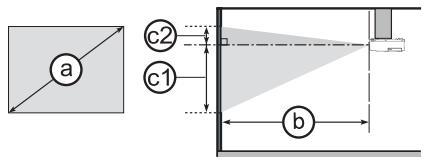
| aScreen size(diagonal) | 4:3 screen | 16:9 screen | |||||||||||||||
| bProjection distance | c1Screen height | c2Screen height | bProjection distance | c1Screen height | c2Screen height | ||||||||||||
| min. | max. | min. | max. | ||||||||||||||
| type(inch) | m | m | inch | m | inch | cm | inch | cm | inch | m | inch | m | inch | cm | inch | ||
| 30 | 0.8 | 0.9 | 34 | 1.0 | 40 | 39 | 15 | 7 | 3 | 0.9 | 37 | 1.1 | 44 | 36 | 14 | 1 | 0 |
| 40 | 1.0 | 1.2 | 46 | 1.4 | 54 | 52 | 21 | 9 | 3 | 1.3 | 50 | 1.5 | 59 | 49 | 19 | 1 | 0 |
| 50 | 1.3 | 1.5 | 58 | 1.7 | 68 | 65 | 26 | 11 | 4 | 1.6 | 64 | 1.9 | 75 | 61 | 24 | 1 | 1 |
| 60 | 1.5 | 1.8 | 70 | 2.1 | 83 | 78 | 31 | 13 | 5 | 2.0 | 77 | 2.3 | 90 | 73 | 29 | 2 | 1 |
| 70 | 1.8 | 2.1 | 82 | 2.5 | 97 | 91 | 36 | 15 | 6 | 2.3 | 90 | 2.7 | 106 | 85 | 34 | 2 | 1 |
| 80 | 2.0 | 2.4 | 95 | 2.8 | 111 | 105 | 41 | 17 | 7 | 2.6 | 103 | 3.1 | 121 | 97 | 38 | 2 | 1 |
| 90 | 2.3 | 2.7 | 107 | 3.2 | 125 | 118 | 46 | 20 | 8 | 3.0 | 116 | 3.5 | 136 | 109 | 43 | 3 | 1 |
| 100 | 2.5 | 3.0 | 119 | 3.5 | 139 | 131 | 51 | 22 | 9 | 3.3 | 130 | 3.9 | 152 | 122 | 48 | 3 | 1 |
| 120 | 3.0 | 3.6 | 143 | 4.3 | 167 | 157 | 62 | 26 | 10 | 4.0 | 156 | 4.6 | 183 | 146 | 57 | 4 | 1 |
| 150 | 3.8 | 4.6 | 179 | 5.3 | 210 | 196 | 77 | 33 | 13 | 5.0 | 196 | 5.8 | 229 | 182 | 72 | 4 | 2 |
| 200 | 5.1 | 6.1 | 240 | 7.1 | 280 | 261 | 103 | 44 | 17 | 6.6 | 262 | 7.8 | 306 | 243 | 96 | 6 | 2 |
| 250 | 6.4 | 7.6 | 300 | 8.9 | 351 | 327 | 129 | 54 | 21 | 8.3 | 328 | 9.7 | 383 | 304 | 120 | 7 | 3 |
| 300 | 7.6 | 9.2 | 361 | 10.7 | 422 | 392 | 154 | 65 | 26 | 10.0 | 393 | 11.7 | 460 | 365 | 144 | 9 | 4 |
F-1
F-2
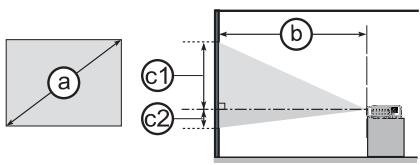
- On a horizontal surface
- Suspended from the ceiling
F-3
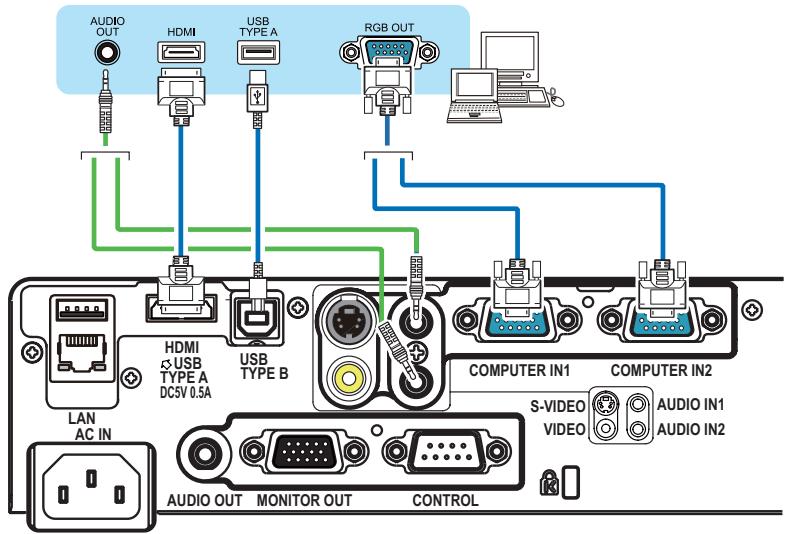
Computer
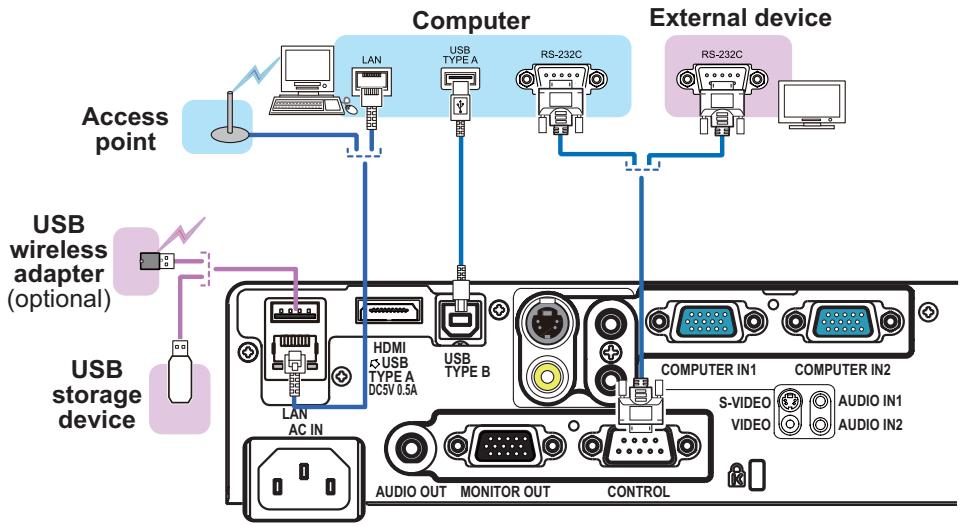
F-5
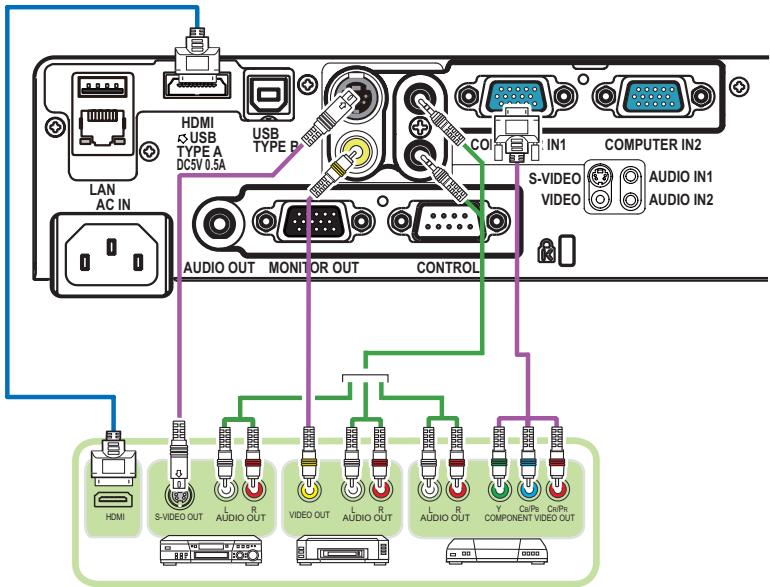
VCR/DVD/Blu-ray Disc™ player
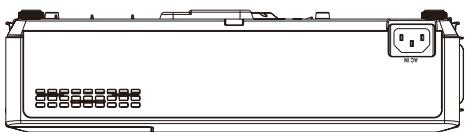
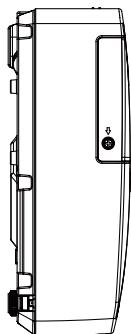
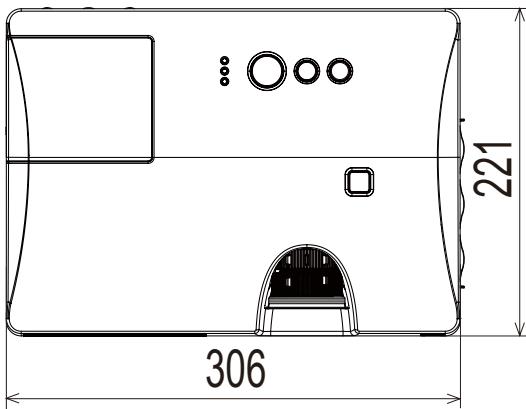
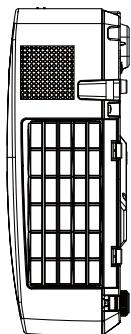
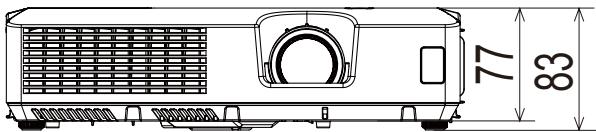
[unit: mm]
NOTE • The information in this manual is subject to change without notice. • The manufacturer assumes no responsibility for any errors that may appear in this manual. • The reproduction, transfer or copy of all or any part of this document is not permitted without express written consent.
Digital Media Division
900 Hitachi way, Chula Vista
CA 91914-3556 USA CANADA
Tel: +1 -800-225-1741
http://www.hitachi-america.us/digitalmedia
Hitachi Europe Ltd., Digital Media Group Consumer Affairs Department
Whitebrook Park, Lower Cookham Road, Maidenhead
Berkshire SL6 8YA UNITED KINGDOM
Tel: 0844 481 0297
Email: consumer.mail@hitachi-eu.com
Hitachi Europe S.A.S., Digital Media Group
Email: customerservice.italy@hitachi-eu.com
Hitachi Europe S.A.
Gran Via Carles III, 86 Planta 5a
Denmark Tel: +46 8 562 711 00
http://www.hitachidigitalmedia.com
Hitachi Australia Pty Ltd.
Level 3, 82 Waterloo Road
North Ryde N.S.W 2113 AUSTRALIA
Tel: +61 -2-9888-4100
http://www.hitachi.com.au
Hitachi (Hong Kong), Ltd.
18/F., Ever Gain Centre, 28 On Muk Street.
Shatin, N.T. HONG KONG
Tel: +852-2113-8883
http://www.hitachi-hk.com.hk
Hitachi Sales (Malaysia) Sdn. Bhd.
Lot 12, Jalan Kamajuan, Bangi Industrial Estate,
43650 Bandar Baru Bangi, Selangor Darul Ehsan
MALAYSIA
Tel: +60-3-8911-2670
http://www.hitachconsumer.com.my
Hitachi Home Electronics Asia (S) Pte. Ltd.
438A Alexandra Road #01-01/02/03
Alexandra Technopark, 119967 SINGAPORE
Tel: +65 -6536-2520
http://www.hitachconsumer.com.sg
Hitachi Sales Corp. of Taiwan
2nd Floor, No.65, Nanking East Road, Section 3,
Taipei 104 TAIWAN
Tel: +886-2-2516-0500
http://www.hsct.com.tw
Hitachi Sales (Thailand), Ltd.
994, 996 Soi Thonglor, Sukhumvit 55 Rd.,
Klongtonnua, Vadhana, Bangkok 10110
THAILAND
Tel: +66-2381-8381-98
http://www.hitachi-th.com
Hitachi Consumer Electronics Co., Ltd.
292 Yoshida-cho, Totsuka-ku
Yokohama 244-0817 JAPAN
Tel: +81-45-415-2625
- CP-X2021WN/CP-X2521WN/ CP-X3021WN
- ENTRETIEN 93
- IDENTIFICATION DES PIECES COMPOSANTES (SUITE)
- PANNEAU DE CONTRÔLE
- TÉLÉCOMMANDE
- PRESENTATION PC-LESS
- PRESENTATION PC-LESS (SUITE)
- MODE PLEIN ÉCRAN
- MODE DIPOSITIVE
- [ \TEXT{PLAYLIST} ]
- COMMUNICATION PORT (PORT DE COMMUNICATION)
- CP-X2021WN/CP-X2521WN/CP-X3021WN
- USER'S MANUAL (DETAILED)
- OPERATING GUIDE - TECHNICAL
- INITIAL SET SIGNALS
- CONNECTION TO THE PORTS
- COMPUTER IN1, COMPUTER IN2, MONITOR OUT
- VIDEO
- EVIDEO
- EHDRMI
- ⑥AUDIO IN1, HAUDIO IN2
- USB TYPE A
- USB TYPE B
- MLAN
- TO INPUT COMPONENT VIDEO SIGNAL TO COMPUTER IN PORTS EX
- RS-232C COMMUNICATION
- CONNECTION
- COMMUNICATION SETTINGS
- PROTOCOL
- COMMAND FORMAT ("H" SHOWS HEXADECIMAL)
- [HEADER CODE], [PACKET], [DATA SIZE]
- [CRC FLAG]
- [ACTION]
- [TYPE], [SETTING CODE]
- RESPONSE CODE / ERROR CODE ("H" SHOWS HEXADECIMAL)
- ACK REPLY : 06H
- NAK REPLY : 15H
- ERROR REPLY : 1CH + 0000H
- DATA REPLY : 1DH + XXXHH
- COMMAND CONTROL VIA THE NETWORK
- COMUNICAION PORT
- COMMAND CONTROL SETTINGS
- [TCP #23]
- COMMAND FORMAT
- [TCP#9715]
- [HEADER]
- [DATA LENGTH]
- [RS-232C COMMANDS]
- [CHECK SUM]
- [CONNECTION ID]
- AUTOMATIC CONNECTION BREAK
- AUTHENTICATION
- NETWORK BRIDGE COMMUNICATION
- T-2 CP-X2521WN, CP-X3021WN
- F-1
- F-2
- F-3
- F-5
Brand : HITACHI
Model : CP-X2521WN
Category : Projector