
CML158XW - Monitor HITACHI - Free user manual and instructions
Find the device manual for free CML158XW HITACHI in PDF.


| Brand | HITACHI |
| Model | CML158XW |
| Product type | 15-inch color LCD monitor |
| Screen size | 15 inches (38 cm) diagonal |
| Native resolution | 1024 x 768 pixels |
| Panel type | Active matrix TFT color |
| Brightness | 250 cd/m² (typical), 200 cd/m² (minimum) |
| Contrast ratio | 400:1 (typical) |
| Response time | 35 ms (typical) |
| Horizontal viewing angle | -65° to +65° |
| Vertical viewing angle | -55° to +45° |
| Number of displayable colors | 262,144 colors |
| Horizontal scanning frequencies | 24 to 61 kHz |
| Vertical scanning frequencies | 49 to 75 Hz |
| Video input | Analog RGB 0.7 Vpp, D-sub 15-pin connector |
| Built-in speakers | 2 x 1 W stereo |
| Audio functions | External headphone jack, volume adjustment |
| Power supply | 100-240 V AC, 50/60 Hz, 1.2 A max |
| Power consumption (on) | 30 W maximum |
| Power consumption (standby) | 3 W maximum |
| Dimensions (W x H x D) | 352 x 343 x 176 mm |
| Net weight | 2.9 ± 0.3 kg |
| Certifications | TCO'99, ENERGY STAR, FCC Class B, ICES-003 |
| Safety | Do not open the case - high voltage. Use a grounded outlet. Disconnect if malfunction occurs. |
| Maintenance | Clean with a soft, dry cloth. Do not use abrasive products. |
Frequently Asked Questions - CML158XW HITACHI
User questions about CML158XW HITACHI
0 question about this device. Answer the ones you know or ask your own.
Ask a new question about this device
Download the instructions for your Monitor in PDF format for free! Find your manual CML158XW - HITACHI and take your electronic device back in hand. On this page are published all the documents necessary for the use of your device. CML158XW by HITACHI.
USER MANUAL CML158XW HITACHI
READ THE INSTRUCTIONS INSIDE CAREFULLY. KEEP THIS USER MANUAL FOR FUTURE REFERENCE.
For future reference, record the serial number of your colour monitor.
SERIAL No.
The serial number is located on the rear of the monitor.
This monitor is ENERGY STAR® compliant when used with a computer equipped with VESA DPMS.
The ENERGY STAR® emblem does not represent EPA endorsement of any product or service.
As an ENERGY STAR® Partner, Hitachi,Ltd. has determined that this product meets the ENERGY STAR® guidelines for energy efficiency.



TCO'99 STATEMENT

Congratulations!
You have just purchased a TCO'99 approved and labelled product! Your choice has provided you with a product developed for professional use. Your purchase has also contributed to reducing the burden on the environment and also to the further development of environmentally adapted electronics products.
This product meets the requirements for the TCO'99 scheme which provides for an international environmental and quality labelling of personal computers. The labelling scheme was developed as a joint effort by the TCO (The Swedish Confederation of Professional Employees), Svenska Naturskyddsforeningen (The Swedish Society for Nature Conservation), Statens Energimyndighet (The Swedish National Energy Administration) and SEMKO AB.
The requirements cover a wide range of issues: environment, ergonomics, usability, reduction of electric and magnetic fields, energy consumption and electrical safety.
Why do we have environmentally labelled computers?
In many countries, environmental labelling has become an established method for encouraging the adaptation of goods and services to the environment. The main problem, as far as computers and other electronics equipment are concerned, is that environmentally harmful substances are used both in the products and during their manufacture. Since it is not so far possible to satisfactorily recycle the majority of electronics equipment, most of these potentially damaging substances sooner or later enter nature.
There are also other characteristics of a computer, such as energy consumption levels, that are important from the viewpoints of both the work (internal) and natural (external) environments. Since all methods of electricity generation have a negative effect on the environment (e.g. acidic and climate-influencing emissions, radioactive waste), it is vital to save energy. Electronics equipment in offices is often left running continuously and thereby consumes a lot of energy.
What does the environmental labelling involve?
The environmental demands has been developed by Svenska Naturskyddsforeningen (The Swedish Society for Nature Conservation). These demands impose restrictions on the presence and use of heavy metals, brominated and chlorinated flame retardants, CFCs (freons) and chlorinated solvents, among other things. The product must be prepared for recycling and the manufacturer is obliged to have an environmental policy which must be adhered to in each country where the company implements its operational policy.
The energy requirements include a demand that the computer and/or display, after a certain period of inactivity, shall reduce its power consumption to a lower level in one or more stages. The length of time to reactivate the computer shall be reasonable for the user.
Below you will find a brief summary of the environmental requirements met by this product. The complete environmental criteria document may be ordered from:
TCO Development
SE-114 94 Stockholm, Sweden
Fax: +46 8 782 92 07
Email (Internet): development@tco.se
Current information regarding TCO'99 approved and labelled products may also be
obtained via the Internet, using the address: http://www.tco-info.com/
Environmental requirements
Flame retardants
Flame retardants are present in printed circuit boards, cables, wires, casings and housings. Their purpose is to prevent, or at least to delay the spread of fire. Up to 30% of the plastic in a computer casing can consist of flame retardant substances. Most flame retardants contain bromine or chloride, and those flame retardants are chemically related to another group of environmental toxins, PCBs. Both the flame retardants containing bromine or chloride and the PCBs are suspected of giving rise to severe health effects, including reproductive damage in fish-eating birds and mammals, due to the bio-accumulative* processes. Flame retardants have been found in human blood and researchers fear that disturbances in foetus development may occur.
The relevant TCO'99 demand requires that plastic components weighing more than 25 grams must not contain flame retardants with organically bound bromine or chlorine. Flame retardants are allowed in the printed circuit boards since no substitutes are available.
Cadmium**
Cadmium is present in rechargeable batteries and in the colour-generating layers of certain computer displays. Cadmium damages the nervous system and is toxic in high doses. The relevant TCO'99 requirement states that batteries, the colour-generating layers of display screens and the electrical or electronics components must not contain any cadmium.
Mercury**
Mercury is sometimes found in batteries, relays and switches. It damages the nervous system and is toxic in high doses. The relevant TCO'99 requirement states that batteries may not contain any mercury. It also demands that mercury is not present in any of the electrical or electronics components associated with the labelled unit. There is however one exception. Mercury is, for the time being, permitted in the back light system of flat panel monitors as there today is no commercially available alternative. TCO aims on removing this exception when a mercury free alternative is available.
CFCs (freons)
The relevant TCO'99 requirement states that neither CFCs nor HCFCs may be used during the manufacture and assembly of the product. CFCs (freons) are sometimes used for washing printed circuit boards. CFCs break down ozone and thereby damage the ozone layer in the stratosphere, causing increased reception on earth of ultraviolet light with e.g. increased risks of skin cancer (malignant melanoma) as a consequence.
Lead**
Lead can be found in picture tubes, display screens, solders and capacitors. Lead damages the nervous system and in higher doses, causes lead poisoning. The relevant TCO'99 requirement permits the inclusion of lead since no replacement has yet been developed.
Limited Warranty for USA Customers Only
FOR HITACHI MODELS STARTING WITH "CM":
Hitachi America, Ltd. warrants our CM Hitachi CRT colour monitor models to be free from defects in material and workmanship for 36 months from the date you purchased it if your purchase was made prior to 1/31/01 or 60 months if your purchase was made after 1/31/01 from your authorised Hitachi America, Ltd. monitor dealer. If you purchase a Hitachi CML Liquid Crystal Display (LCD) colour monitor, Hitachi provides a warranty of 36 months for the panel and 12 months for the backlight if purchased before 1/31/01 or 36 months for both panel and backlight if purchased after 1/31/01. In the event of a defect during this 12 month, 36 month or 60 month period, Hitachi America, Ltd. will, at its option, repair or replace the monitor at no charge except as set forth below. If owner cannot provide proof of purchase, the warranty period will start to run from the date of manufacture.
FOR HITACHI VALUE LINE MODELS STARTING WITH "V":
Hitachi America, Ltd. warrants our Value line "V" series of colour monitors to be free from defects in material and workmanship for a 36 month period from the date your purchase was made from an authorised Hitachi America, Ltd. monitor dealer. In the event of a defect during the first 12 months, Hitachi will, at its option, repair or replace the monitor at no charge except as set forth below. From the 13th month through the 36th month after purchase, Hitachi will provide parts ONLY free of charge through its Authorised Monitor Service Centre. All additional charges – INCLUDING ANY & ALL MANDATORY LABOUR CHARGES TO REPLACE ANY COVERED PARTS – will be your responsibility. You will be responsible for paying Hitachi's authorised service centre directly for labour and associated shipping charges.
FOR ALL HITACHI MONITORS:
Hitachi America, Ltd. may repair your monitor with new or reconditioned parts or replace it with a new or reconditioned monitor of the same or similar kind, and any replaced monitors or parts become Hitachi America, Ltd.'s property.
Exclusions from this warranty: It is normal for Cathode Ray Tube (CRT) monitors and LCD display backlights to decrease in brightness as they age. This is a natural process in CRTs & LCDs due to the degradation of the LCD backlight and the degradation of the CRT phosphors that create the image and is not covered by this warranty. THIS WARRANTY EXCLUDING DECREASED IMAGE CLARITY OR REDUCED BRIGHTNESS DUE TO NATURAL AGEING OF THE MONITOR / DISPLAY. IN ADDITION, THIS WARRANTY DOES NOT COVER PHOSPHOR BURN. Phosphor burn can occur when a monitor is left with one static image for extended periods of time during which the image may become burned into the phosphors.
This limited warranty does not cover damage occurring in shipping or in storage after you purchase the monitor or damage caused by abuse, accident, disaster, misuse, mishandling, mispackaging or shipping, improper installation, unauthorised repair or modification, or failure to follow the manufacturer's instruction with respect to the proper
handling, operation, installation, service and maintenance of the monitor. This warranty is for the benefit of the original owner only in accordance with all terms stated in this warranty. Warranty is not transferable.
To obtain warranty service, call 1-800-562-2552 to obtain a return authorisation number and the location of your Hitachi service centre. If a problem occurs within the first 30 days after purchase AND IF CONSISTENT WITH YOUR DEALER'S RETURN POLICY, you can return the monitor to the dealer from whom you bought it. Returns through dealer are subject to all dealer return policies and possible charges. Not all dealers accept returns. For warranty service, if you choose to ship the monitor rather than delivering it in person, you must assume the risk of damage or loss in transit. You must also use the original shipping container (or equivalent packaging), pay shipping charges and insurance, and enclose a copy of the proof of purchase date with the monitor. DO NOT return your monitor without a return authorisation number or the shipment will be refused and returned to you at your expense.
NEVER open the monitor cabinet. If the monitor is not operating properly, contact Hitachi America Ltd. service centre (Call 1-800-562-2552). DO NOT OPEN THE MONITOR HOUSING UNDER ANY CIRCUMSTANCES. BY OPENING THE MONITOR HOUSING YOU WILL EXPOSE YOURSELF TO HIGH VOLTAGE AND POSSIBLE SEVERE ELECTRICAL SHOCKS AND Void ALL WARRANTYES.
ANY IMPLIED WARRANTY OF MERCHANTABILITY OR FITNESS FOR A PARTICULAR PURPOSE ON THIS MONITOR IS LIMITED TO THE 12, 36 or 60 MONTH DURATION OF THIS WRITTEN WARRANTY, AS APPLICABLE. ALL WARRANTYES SET FORTH IN THIS WARRANTY ARE LIMITED TO 12, 36 OR 60 MONTHS FROM THE DATE OF PURCHASE AS INDICATED IN THIS WARRANTY. NO WARRANTYES WHATSOEVER WILL COVER THIS MONITOR BEYOND THE STATED 12, 36 OR 60 MONTHS. HOWEVER, SOME STATES DO NOT ALLOW LIMITATIONS ON HOW LONG AN IMPLIED WARRANTY LASTS, SO THE ABOVE LIMITATION MAY NOT APPLY TO YOU.
IF THIS MONITOR IS DEFECTIVE, YOUR ONLY REMEDY IS REPAIR OR REPLACEMENT, AS DESCRIBED ABOVE. UNDER NO CIRCUMSTANCES WILL HITACHI AMERICA, LTD. BE LIABLE FOR INCIDENTAL OR CONSEQUENTIAL DAMAGES, INCLUDING ANY LOST SAVINGS, LOST PROFITS, OR ANY OTHER DAMAGES CAUSED BY THE USE OF THIS MONITOR OR INABILITY TO USE IT, EVEN IF THE DEALER OR HITACHI AMERICA, LTD. HAS BEEN ADVISED OF SUCH LIABILITY OR OTHER CLAIMS.
SOME STATES DO NOT ALLOW THE EXCLUSION OR LIMITATION OF INCIDENTAL OR CONSEQUENTIAL DAMAGES SO THE ABOVE LIMITATION OR EXCLUSION MAY NOT APPLY TO YOU. THIS WARRANTY GIVES YOU SPECIFIC LEGAL RIGHTS, AND YOU MAY HAVE OTHER RIGHTS WHICH VARY STATE TO STATE.
THIS WARRANTY APPLIES TO NEW, CURRENT, PRODUCTS SOLD THROUGH AUTHORISED HITACHI RESELLERS ONLY AND DOES NOT APPLY TO PRODUCTS SOLD AFTER THEY ARE DISCONTINUED OR REFURBISHED OR BOUGHT FROM ANYONE OTHER THAN AN AUTHORISED HITACHI RESELLER.
HITACHI
Colour Monitor
CML158XW
USER MANUAL
Congratulations on your selection of the HITACHI Colour Monitor.
Read the instructions inside carefully, and keep this user manual for future reference.
NOTE:
- The information in this manual is subject to change without notice. The manufacturer assumes no responsibility for any errors that may appear in this manual.
- The reproduction, transmission or use of this documents or contents is not permitted without express written authority.
TRADEMARK ACKNOWLEDGEMENT:
VGA is a registered trademark of International Business Machines Corporation. VESA is a trademark of a nonprofits organisation, Video Electronics Standard Association.
ENERGY STAR® is a trademark of Environmental Protection Agency (EPA).
CONTENTS
Using this Display Safely 5
Warning 6
Caution 9
FCC Statement Warning 11
For the Customers in CANADA 11
For the Customers in the UK 12
Chapter 1 Installation 13
Unpacking 13
Connecting the LCD Monitor and Base 13
Viewing Angle Adjustment 13
Connecting the Display to your Computer 14
Connecting the AC Power 14
Connecting the Audio Cable 14
Setting Up the LCD Monitor 14
Power Management System 14
Chapter 2 Display Controls 15
User Controls. 15
Adjusting the Monitor's Display. 15
Function Description 16
Chapter 3 Technical Information 17
Specifications 17
Standard Timing Table 19
Troubleshooting 20
Using this Display Safely
Common Safety Precautions
Please read carefully and make sure you fully understand the following safety precautions:
- Operations should be done according to instructions and procedures described in this manual.
- Make sure to heed all warnings displayed on the device and manual. Neglecting to do so may result in fire or damage the device.
Symbols
Safety notifications are presented as shown below. These are indicated by "Warning" and "Caution" in combination with a caution symbol (graphic symbol). Additionally, details are depicted within the graphic symbols.

Warning

Caution


This symbol is used to indicate a hazard that may result in death or grave injury.
This symbol is used to indicate a hazard that may result in minor injury or significant damage to the product
[Notice example 1] Shock Caution
This () symbol indicates that caution should be taken and within the triangle () is a picture depicting "Shock caution".
[Notice Example 2] Disassembly Prohibited
In the ( ) barred circle is an action that must not be done and the picture in this ( ) one depicts "Disassembly Prohibited".
[Notice Example 3] Unplug power Cord from Socket
In the () symbol is an action that should be taken. This () one is a picture depicting "Unplug Power Cord from Socket" and other mandatory actions.
Handling and Operation
Do not handle or operate in ways other than what is depicted in the manual. If there are any problems with the device, turn OFF the power, unplug the cord then notify the dealer where the product was purchased or call a service person.
Taking ample care
The cautions noted on the device and manual have been carefully considered. Even so, unforeseen incidents may happen. When operating the device, in addition to following instructions, takes ample care during handling and operation.

Abnormal heat, smoke, sounds or smells.
If anything abnormal should happen, turn OFF the power and unplug the power cord. Continued use in this condition may lead to electrical shock or fire. The area around the cord should be clear to allow the cord to be easily unplugged.

Repair, Modification, Disassembly
DO NOT attempt to repair, modify or disassemble the product. This may result in fire or electrical shock.

Air vents
- The air vents are to prevent the internal temperature from rising. To not place items on or so that they block the air vents. Also do not place in racks where the air vents will be blocked. This will cause the internal temperature to rise and result in fire or malfunction.
- Do place on racks that fix the display in leaning position. This will change the flow of air through the air vents and cause the internal temperature to rise resulting in fire or malfunction.

Placing Objects in Device
DO NOT put paper clips, pins, metallic objects or combustible items in the ventilation holes. Using the device in this condition may result in electrical shock or fire.

Removing the Case Cover
DO NOT remove the case cover. There are many high voltage parts inside and are very dangerous.

Placing Objects on the Device
DO NOT put flower vases, planters, vessels containing water, pins and paper clips or other metal items on the device. If anything should fall in, using the product in this condition may result in electrical shock.

Handling of the power cord
Use the power cord supplied with the product and be careful of the following during use. If handled improperly, the cord may be damaged resulting in electrical shock or fire. Never place objects on it.
-DO NOT pull
-DO NOT apply pressure
-DO NOT fold
-DO NOT wrap
-DO NOT use next to heating device

Plugging and Unplugging
- When plugging or unplugging the power cord in the socket, make sure to hold the plug. Pulling on the power cord may cause a partial breakage resulting in fire.
- When taking a holiday or vacation and leaving the device unused for prolonged periods, unplug the power cord. Leaving it plugged in may result in fire.
- When unplugging or plugging in the power cord, insure that your hands are dry. Handling with wet hands may result in electrical shock.

Poor Electrical Contact in Electric Plug, etc.
The following must be done to prevent bad contact in the electrical plug that may result in fire.
Insure that electric plug is inserted in fully.
Check to see if there is no dust accumulated on the plug before plugging in.
DO NOT use a socket that is loose or wobbles.

Impact from Dropping
To not drop, bang or subject to physical shock. Using after such incidents may result in electrical shock or fire.

Power Usage
The usable voltage is 100-120V / 200-240VAC. DO NOT use any other voltage. This may result in electrical shock or fire.

Multi-Tap Usage
TO not attach multiple extension plugs into one outlet. This may result in fire and overloading lines will activate the circuit breakers causing data loss or damage to the product.

Usage in Humid or Dusty Areas
DO NOT use or store in areas that are humid, dusty or have abundant moisture such as a bathroom. This may cause fire or electrical shock.

Moving to Areas of Different Temperature
Moving the device to areas that are very different in temperature may cause condensation on the outside and internally. Using the device in this condition may result in fire or electrical shock. Leave the device at the location for a few hours before using.

Aluminium Electrolysis Condenser
The electrolyte condenser used in the AC adapter has a limited life. If used past the life span (approximately 5 years), replace the AC adapter. Leakage or drying up of the electrolyte liquid may result in fire, electrical shock. This may also cause the device itself to malfunction.

Damage to the Display Unit
Liquid may leak out of the display when damaged. DO NOT touch the liquid. If you should touch the liquid, wash your hands thoroughly with water. If the liquid should get into your mouth or eyes, gargle or rinse your eyes and promptly see a doctor for treatment.
The display unit is made of glass. If the display unit should break, avoid handling the glass fragments. The fragments are dangerous and can cause injury.
Warning for Mercury
Hg-- THE LAMP IN THIS PRODUCT CONTAINS MERCURY. RECYCLE OR DISPOSE OF ACCORDING TO APPLICABLE ENVIRONMENTAL LAWS.
For Recycling and Disposal information, contact your government agency, the Electronic Industries Alliance at www.eiae.org, and/or www.lamprecycle.org (in the US), or the Electronic Product Stewardship Canada at www.epsc.ca (in Canada). For more information, call 1-800-HITACHI (1-800-448-2244) (in the US).

Contact with Metal and Other Edges
When moving the computer be careful when coming in contact with the plastic and metal edges. It is possible to be injured.

Use in Unstable Places
DO NOT place on sloping or narrow areas that are unstable. The device may drop or fall and cause injury.

Display Cable
Arrange the cables so that they are out of the way. If a cable is tripped on, it may cause injury and damage to the connected devices.
DO NOT place heavy objects on the cable. Additionally, do not place objects that generate heat near the cables. The cable casing may break and cause damage to the devices that are connected.

Stand
When adjusting the angle, hold the top left and right edges with both hands and move slowly. Using only one hand may cause it to fall.
DO NOT place your hand near the stand when adjusting the LCD forward or back. Your fingers may get caught and cause injury.

Eyestrain
When continuously looking at the display while working, keep the work area lighted at 300 - 1000 Lexes. Additionally, for every hour of work, rest 10 to 15 minutes. Continuously looking at the display for prolonged periods will cause accumulated eye fatigue.

Disposal of this Product
When disposing of this product, confer with the dealer where this product was purchased or refer to laws of the local government or regulations regarding disposal.

Electronic Interference
If used in the vicinity of other electronic devices, they may interfere with each other's performances. Especially for devices such as radios and televisions, noise may enter their sound reception. If this should happen, try the following:
Place in a location as far away from radios and televisions as possible.
Change the facing of the antenna on the radio or television.
Use a different electrical socket.

Storing the Plastic Bag
Keep the plastic bag used to wrap the display away from young children. The bag may cause suffocation.
FCC Statement Warning
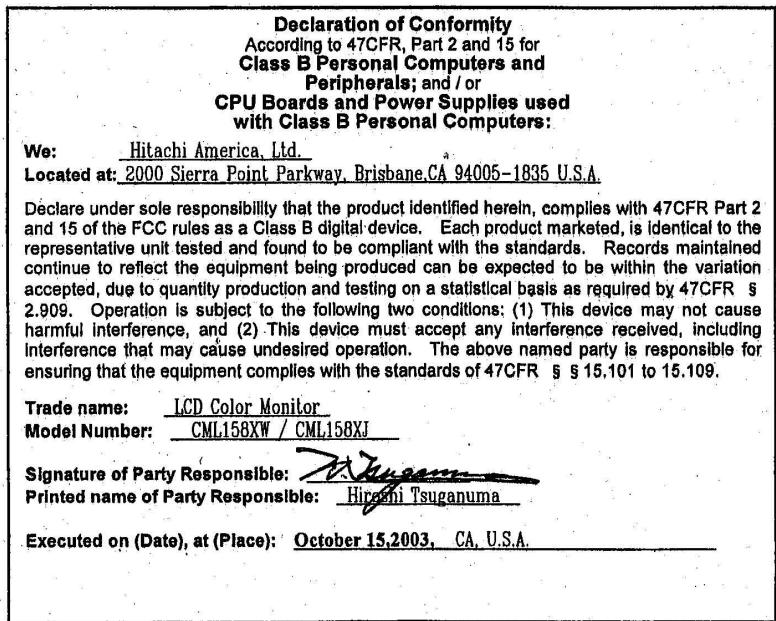
WARNING : This equipment has been tested and found to comply with the limits for a Class B digital device, pursuant to Part 15 of the FCC Rules. These limits are designed to provide reasonable protection against harmful interference in a residential installation. This equipment generates, uses, and can radiate radio frequency energy and, if not installed and used in accordance with the instructions, may cause harmful interference to radio communications. However, there is no guarantee that interference will not occur in a particular installation. If this equipment does cause harmful interference to radio or television reception, which can be determined by turning the equipment off and on, the user is encouraged to try to correct the interference by one or more of the following measures:
Reorient or relocate the receiving antenna.
- Increase the separation between the equipment and receiver.
- Connect the equipment into an outlet on a circuit different from that to which the receiver is connected.
- Consult the dealer or an experienced radio / TV technician for help.
INSTRUCTIONS TO USERS : This equipment complies with the requirements of FCC
(Federal Communication Commission) equipments provided that following conditions are met.
(1) Power cord: Unshielded power cord must be used.
(2) Video inputs: The input signal amplitude must not exceed the specified level.
CAUTION : Changes or modifications not expressly approved by the party responsible for compliance could void the user's authority to operate the equipment.
For the Customers in CANADA
NOTICE : This Class B digital apparatus complies with Canadian ICES-003.
THIS PRODUCT IS SUPPLIED WITH A TWO PIN MAINS PLUG FOR USE IN
MAINLAND EUROPE. FOR THE UK PLEASE REFER TO THE NOTES ON THIS PAGE.
IMPORTANT FOR UNITED KINGDOM
WORDING FOR CLASS I EQUIPMENT INSTRUCTION BOOKS AND LABELS
The mains lead on this equipment is supplied with a moulded plug incorporating a fuse, the value of which is indicated on the pin face of the plug. Should the fuse need to be replaced, an ASTA or BSI approved BS 1362 fuse must be used of the same rating. If the fuse cover is detachable never use the plug with the cover omitted. If a replacement fuse cover is required, ensure it is of the same colour as that visible on the pin face of the plug. Fuse covers are available from your dealer.
DO NOT cut off the mains plug from this equipment. If the plug fitted is not suitable for the power outlets in your home or the cable is too short to reach a power outlet, then obtain an appropriate safety approved extension lead or consult your dealer.
Should it be necessary to change the mains plugs, this must be carried out by a competent person, preferably a qualified electrician.
If there is no alternative to cutting off the mains plug, ensure that you dispose of it immediately, having first removed the fuse, to avoid a possible shock hazard by inadvertent connection to the mains supply.
WARNING: THIS EQUIPMENT MUST BE EARTHED
IMPORTANT:
The wires in the mains lead are coloured in accordance with the following code:
Green and Yellow = Earth, Blue = Neutral, Brown = Live.
As these colours may not correspond with the coloured markings identifying the terminals in your plug, proceed as follows:
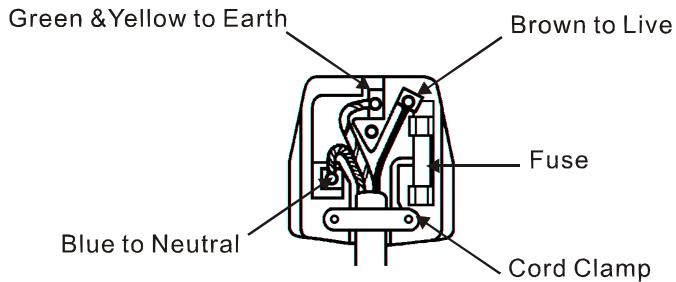
The wire which is coloured GREEN and YELLOW must be connected to the terminal in the plug which is marked with the letter E or by the earth symbol 12 or coloured GREEN or GREEN and YELLOW.
The wire coloured BLUE must be connected to the terminal marked with the letter N or coloured BLUE or BLACK. The wire coloured BROWN must be connected to the terminal marked with the letter L or coloured BROWN or RED.
Chapter 1 Installation
Unpacking
Before unpacking the LCD Monitor, prepare a suitable workspace for your Monitor and computer. You need a stable and clean surface near a wall power outlet. Make sure that LCD Monitor has enough space around it for sufficient airflow. Though the LCD Monitor uses very little power, some ventilation is needed to ensure that the Monitor does not become too hot.
After you unpack the LCD Monitor, make sure that the following items were included in the box:
-
LCD Monitor
-
User's Manual
-
1.8M Power Cord
-
Base
-
1.5M Stereo Jack Audio Cable
If you find that any of these items is missing or appears damaged, contact your dealer immediately.
Connecting the LCD Monitor and Base
When you open the box to take the base and put on the desk first. Then connect the LCD Monitor and base please.(See Fig.1-1)
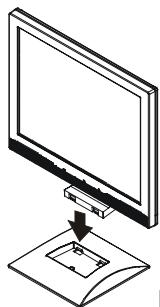
Figure 1-1
Viewing Angle Adjustment
The LCD Monitor is designed to allow users to have a comfortable viewing angle. The viewing angle can be adjusted from -5^ to +30^ . (See Fig. 1-2)
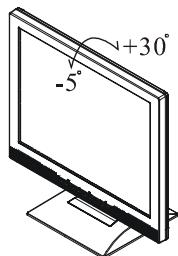
Figure 1-2
Warning
Do not force the LCD Monitor over its maximum viewing angle settings as stated above. Attempting this will result in damaging the Monitor and Monitor stand.
Connecting the Display to your Computer
- Power off your computer.
- Connect the signal cable to the VGA port on your PC.
- Make sure connections are secure.
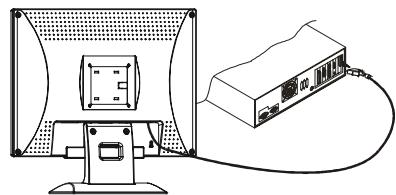
Figure 1-3
Connecting the AC Power
- Connect the power cord to the Monitor AC socket. (See Fig. 1-4)
- Connect the plug Pin of power cord to an AC power source.
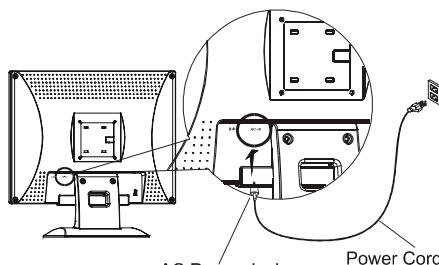
Figure 1-4
Power Cord
Warning
We recommend to install a "Surge Protector" device between the AC Power Jack and the electrical wall outlet for adding protection against power surges to prevent the effects of sudden voltage variations from reaching the LCD Monitor. Sudden power surges may damage your monitor.
Connecting the Audio Cable
- Connect the audio cable to the "LINE OUT" jack on your PC's audio card or to the front panel's "AUDIO OUT" jack of your CD ROM drive. (See Fig. 1-5)
- Connect the other end of the audio cable to the LCD Monitor's "LINE IN" jack.
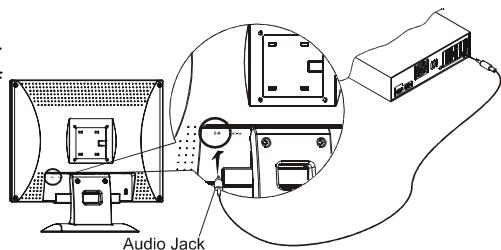
Figure 1-5
Setting Up the LCD Monitor
- Make sure the power cord is connected to the LCD Monitor.
- Turn on the LCD Monitor's power switch, located on the bezel of the monitor.
Power Management System
This LCD Monitor complies with the VESA DPMS (version 1.0) Power Management guidelines. The VESA DPMS provides four power saving modes through detecting a horizontal or vertical sync. signal.
When the LCD Monitor is in power saving mode, the monitor screen will be blank and the power LED indicator will light yellow.
Chapter 2 Display Controls
User Controls
A brief description and the location of all LCD Monitor function controls and indicators:
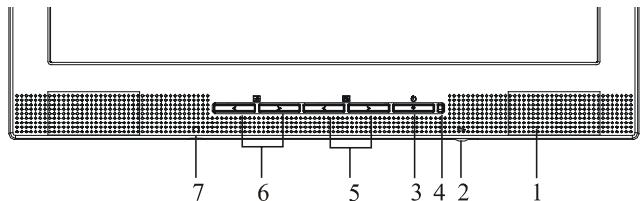
Figure 2-1
| 1 | Stereo Speakers | PC Audio Stereo output. |
| 2 | Speaker Volume Control | Increase Volume - Turn knob clockwise. Decrease Volume - Turn knob anti-clockwise |
| 3 | DC Power Switch | Press the power switch to switch the monitor ON/OFF. |
| 4 | DC Power-On Indicator | LED lights Green colour --- Power is ON. LED lights Yellow --- Monitor is in "Power Saving Mode". LED is off --- Power is OFF. |
| 5 | Function Select Buttons | Press either left or right control button for OSD (On Screen Display) menu selection. |
| 6 | Adjustment Control Buttons | Press the left button to decrease the OSD setting and press the right button to increase the OSD setting. Press the left button for one second, then "Auto Adjustment" will be active. |
| 7 | External Headphone Jack | The monitor speakers will be disabled when using an external headphone or external speakers. |
Adjusting the Monitor's Display
The monitor has four function control buttons to select among functions shown on OSD menu, designed for easy user-viewing environments.
OSD Function Menu
To access OSD Main menu, simply press one of the Function Select control buttons, and the menu diagram will pop up on the screen as shown on Fig. 2-2:
Continue pressing the Function Select buttons to scroll through the entire menu items ,then press Adjustment Control buttons to adjust content of selected item.
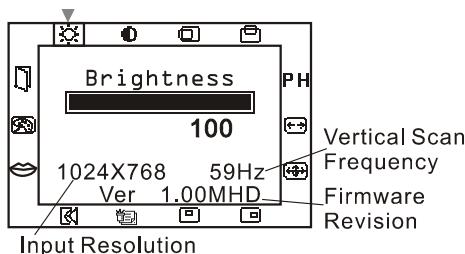
Figure 2-2
Attention
Firmware revision may have been updated into a latest version while the version number shown on all OSD menus in this manual will stay as Ver. 1.00.
Function Description
| Icon | Function | Function Description |
| Brightness | This function increases or decreases the brightness of the image. | |
| Contrast | This function increases or decreases the difference between the dark and light colour. | |
| H. Position | This function shifts the entire display image left or right. | |
| V. Position | This function shifts the entire display image up or down. | |
| PH | Phase | A total of 101 scales (0 to 100) are available to adjust the focus and clarity of the display. |
| +→ | Clock | This function carries a frequency tracking feature that offers the user to have better stability and clarity. Increasing Clock value can be up to +50 scales. The number of decreasing Clock (minus) is depend on the input timing. |
| +#+ | Auto Adjustment | This function will adjust the display size automatically to fit full screen. |
| OSD H. Position | This function moves the OSD menu window left or right. | |
| OSD V. Position | This function moves the OSD menu window up or down. | |
| Graphics Text | This function is to choose a display that allows maximum graphics text quality. The resolution selection can either be 640 x 400 or 720 x 400. Please refer to Chapter 3 “Standard Timing” Table for of different timing modes. | |
| Recall | The recall function will return all adjusted parameters to factory preset values. | |
| Language | Eight OSD language options are available: English, German, French, Spanish, Italian, Japan, Russian, and Chinese(simple). Press the left or right Adjustment Control button to select other language. | |
| Colour Management | Colour Temp.: Push the (+/-) button to select a different colour temperature. Please see the diagram below for function and description. | |
| Save + Exit | Saves the values of this setting and exits the OSD menu function. |
| Icon | Function | Description |
| 9300 | CIE coordinated Colour Temperature of 9300°K | Sets the CIE coordinate colour temperature to 9300°K |
| 6500 | CIE coordinated Colour Temperature of 6500°K | Sets the CIE coordinate colour temperature to 6500°K |
| User | Three colours (Red, Green, Blue) can be adjusted from the OSD menu | Sets the settings to a by user defined CIE Temperature. |
Chapter 3 Technical Information
Specifications
LCD Panel
Size
15.0" (38 cm)
Display Type
Active matrix colour TFT LCD
Resolution
1024 x 768
Display Dot
1024 x (RGB) x 768
Display Area (mm)
304 x 228 (H x V)
Disply Colour
262K
Brightness
200 cd/m² (minimum) 250 cd/m²(typical)
Contrast Ratio
400:1 (typical)
Response Time
35 ms (typical)
Lamp Voltage
760 Vrms (typical)
Lamp Current
6.0 mA rms. (typical)
Viewing Angle
Vertical: -55^ +45^
Horizontal: -65^ +65^
ISO 13406-2
Display Colours
Video
Input Signal
Pixel fault class: Class II
Input Impedance
16.7M with FRC or Dithering
Polarity
Amplitude
Analog RGB 0.7Vp-p
Multi-mode Supported
75 Ohm ± 2%
Positive
0 - 0.7 ± 0.05 Vp
Horizontal Frequency: 24 61kHz
Vertical Frequency: 49 75Hz
Audio
Input
500mVrms
Output
1W+1W
Control
Power
On/Off switch with LED indicator
OSD
Brightness
Digital
Contrast
Digital
Horizontal Position
Digital
Vertical Position
Digital
Phase
Digital
Clock
Digital
Display Mode Setup
Use EEPROM to save settings in memory
OSD Format
20 characters x 9 rows
Power Management
| Mode | Power Consumption* | AC Input | LED Color |
| On | 30W maximum | 240 VAC | Green |
| Standby | 3W maximum | 240 VAC | Yellow |
| Suspend | 3W maximum | 240 VAC | Yellow |
| Off | 3W maximum | 240 VAC | Yellow |
| DC Power Off | 3W maximum | 240 VAC | Dark |
| Disconnected | 3W maximum | 240 VAC | Yellow: Standby, Suspend, Off Dark: DC Power off |
- Meeting VESA DPMS requirements measured from AC Input.
Sync Input
| Signal | Separate TTL compatible horizontal and vertical synchronisation |
| Polarity | Positive and negative |
| Plug & Play | Supports VESA DDC1 and DDC2B functions |
| External Connection | |
| Power Input (AC input) | AC socket |
| Video Cable | 1.5M with 15-pin D-sub connector |
| Audio Cable | 1.5M with Stereo Jack |
| Environment | |
| Operating Condition: | |
| Temperature | 5°C to 40°C/41°F to 104°F |
| Relative Humidity | 20% to 80% |
| Storage Condition: | |
| Temperature | -20°C to 60°C/-4°F to140°F |
| Relative Humidity | 5% to 85% |
| Power Supply | |
| Input Voltage | Single phase, 100 ~ 240VAC, 50 / 60 Hz |
| Input Current | 1.2 A maximum |
| Size and Weight | |
| Dimensions | 352 (W) x 343 (H) x 176 (D) mm |
| Net Weight | 2.9 ± 0.3Kg |
| Gross Weight | 4.4 ± 0.3Kg |
Pin Assignment
| Signal | Signal | ||
| PIN | Description | PIN | Description |
| 1 | Red | 9 | +5V |
| 2 | Green | 10 | Cable Detection |
| 3 | Blue | 11 | Digital GND |
| 4 | Digital GND | 12 | SDA |
| 5 | Digital GND | 13 | H. Sync. |
| 6 | Red Rtn | 14 | V. Sync. |
| 7 | Green Rtn | 15 | SCL |
| 8 | Blue Rtn | ||
Standard Timing Table
If the selected timing is NOT included in table below, this LCD monitor will use the most suitable available timing.
| Resolution | H. Freq. (KHz) | V. Freq. (Hz) | Pixel Freq. (MHz) | H/V Sync. Polarity | Mode |
| 640 x 350 | 31.469 | 70.087 | 25.175 | +/- | VGA-350 |
| 640 x 400 | 24.830 | 56.420 | 21.050 | -/- | NEC PC9801 |
| 640 x 400 | 31.469 | 70.087 | 25.175 | -/+,-/ | VGA-400-GRAPH NEC PC9821 |
| 640 x 480 | 31.469 | 59.940 | 25.175 | -/- | VGA-480 |
| 640 x 480 | 37.861 | 72.809 | 31.500 | -/- | VESA - 480 - 72Hz |
| 640 x 480 | 37.500 | 75.000 | 31.500 | -/- | VESA - 480 - 75Hz |
| 720 x 400 | 31.469 | 70.087 | 28.322 | -/+ | VESA-400-TEXT |
| 800 x 600 | 35.156 | 56.250 | 36.000 | +/+ | SVGA |
| 800 x 600 | 37.879 | 60.317 | 40.000 | +/+ | VESA-600-60 Hz |
| 800 x 600 | 48.077 | 72.188 | 50.000 | +/+ | VESA-600-72 Hz |
| 800 x 600 | 46.875 | 75.000 | 49.500 | +/+ | VESA-600-75 Hz |
| 832 x 624 | 49.725 | 74.55 | 57.2832 | -/- | APPLE MAC-800 |
| 1024x 768 | 48.363 | 60.004 | 65.000 | -/- | XGA |
| 1024x 768 | 53.964 | 66.132 | 71.664 | +/+ | COMPAQ-XGA |
| 1024x 768 | 56.476 | 70.069 | 75.000 | -/- | VESA-768-70 Hz |
| 1024x 768 | 60.023 | 75.029 | 78.750 | +/+ | VESA-768-75 Hz |
Troubleshooting
This LCD Monitor has pre-adjusted using factory standard VGA timings. Due to the output timing differences among various VGA cards in the market, users may initially experience an unstable or unclear display whenever a new display mode or new VGA card is selected.
Attention
This LCD Monitor Supports Multiple VGA Modes.
Refer to the Standard Timing Table for a listing of modes supported by this LCD Monitor.
PROBLEM Picture is unclear and unstable
The picture is unclear and unstable, please perform the following steps :
- Enter PC to "Shut Down Windows" status while you're in MS-Windows environment.
- Check the screen to see if there's any black vertical stripes appear. If there are, take advantage of the "Clock" function in OSD menu and adjust (by increment or decrement numbers) until those bars disappear.
- Move to "Phase" function in OSD menu again and adjust the monitor screen to its most clear display.
- Click "No" on "Shut Down Windows" and back to the normal PC operating environment.
PROBLEM There is no picture on LCD Monitor
If there's no picture on the LCD Monitor, please perform the following steps:
- Make sure the power indicator on the LCD Monitor is ON, all connections are secured, and the system is running on the correct timing. Refer to Chapter 3 for information on timing.
- Turn off the LCD Monitor and then turn it back on again. If there is still no picture, press the Adjustment Control button several times.
- If step 2 doesn't work, connect your PC system to another external CRT. If your PC system Functions properly with a CRT Monitor but it does not function with the LCD Monitor, the output timing of the VGA card may be out of the LCD's synchronous range. Please change to an alternative mode listed in the Standard Timing Table or replace the VGA card, and then repeat steps 1 and 2.
PROBLEM There is no picture on LCD Monitor
If you have chosen an output timing that is outside of the LCD Monitor's synchronous range (Horizontal: 24 61KHz and Vertical: 49 75Hz ), the OSD will display a "Out of Range" message. Choose a mode that is supported by your LCD Monitor.
Also, if the signal cable is not connected to LCD monitor at all or properly, the monitor screen will display a message "No Input Signal".
HITACHI
< U.S.A. >
Hitachi America, Ltd.
2000 Sierra Point Parkway,
Brisbane, CA 94005-1835 U.S.A
Technical Support : 1 - 800 - 562 - 2552
World Wide Web Home page : http://www.hitachidisplays.com
< Europe >
Hitachi Europe Ltd
Digital Media Group
Lower Cookham Road
Maidenhead, Berkshire, SL6 8YA U.K.
Tel: +44-1628-643349
Fax:+44-1628-643403
| Tel | Fax | |
| UK office | +44-1628-643349 | +44-1628-643403 |
| German office | +49(0)21152-915152 | +49(0)21152-91594 |
| France office | +33(0)13463-0545 | +33(0)13465-0761 |
| Belgium office | +32(0)236-39901 | +32(0)236-39900 |
| Holland | +44-1628-643349 | +44-1628-643403 |
| Switzerland office | +41(0)628-898-011 | +41(0)628-964-771 |
| Italy office | +39-02-487-86228 | +39-02-487-86322 |
| Spain office | +34(0)93-409-2549 | +34(0)9349-01863 |
| Greece office | +30(0)1-9242620 | +30(0)1-9240789 |
| Norway office | +47(0)2205-9060 | +47(0)2205-9061 |
| Sweden office | +46(0)8-5627-1100 | +46(0)8-5627-1113 |
| Finland office | +358-9455-0805 | +358-9455-2152 |
| Denmark office | +45-43-43-6050 | +45-43-43-6051 |
- READ THE INSTRUCTIONS INSIDE CAREFULLY. KEEP THIS USER MANUAL FOR FUTURE REFERENCE.
- SERIAL No.
- TCO'99 STATEMENT
- Congratulations!
- Why do we have environmentally labelled computers?
- What does the environmental labelling involve?
- TCO Development
- Environmental requirements
- Flame retardants
- Cadmium**
- Mercury**
- CFCs (freons)
- Lead**
- Limited Warranty for USA Customers Only
- HITACHI
- Colour Monitor
- CML158XW
- USER MANUAL
- NOTE:
- TRADEMARK ACKNOWLEDGEMENT:
- CONTENTS
- Using this Display Safely 5
- Chapter 1 Installation 13
- Chapter 2 Display Controls 15
- Chapter 3 Technical Information 17
- Using this Display Safely
- Common Safety Precautions
- Symbols
- [Notice example 1] Shock Caution
- [Notice Example 2] Disassembly Prohibited
- [Notice Example 3] Unplug power Cord from Socket
- Handling and Operation
- Taking ample care
- Abnormal heat, smoke, sounds or smells.
- Repair, Modification, Disassembly
- Air vents
- Placing Objects in Device
- Removing the Case Cover
- Placing Objects on the Device
- Handling of the power cord
- Plugging and Unplugging
- Poor Electrical Contact in Electric Plug, etc.
- Impact from Dropping
- Power Usage
- Multi-Tap Usage
- Usage in Humid or Dusty Areas
- Moving to Areas of Different Temperature
- Aluminium Electrolysis Condenser
- Damage to the Display Unit
- Warning for Mercury
- Contact with Metal and Other Edges
- Use in Unstable Places
- Display Cable
- Stand
- Eyestrain
- Disposal of this Product
- Electronic Interference
- Storing the Plastic Bag
- FCC Statement Warning
- For the Customers in CANADA
- WORDING FOR CLASS I EQUIPMENT INSTRUCTION BOOKS AND LABELS
- WARNING: THIS EQUIPMENT MUST BE EARTHED
- IMPORTANT:
- Chapter 1 Installation
- Unpacking
- Connecting the LCD Monitor and Base
- Viewing Angle Adjustment
- Warning
- Connecting the Display to your Computer
- Connecting the AC Power
- Connecting the Audio Cable
- Setting Up the LCD Monitor
- Power Management System
- Chapter 2 Display Controls
- User Controls
- Adjusting the Monitor's Display
- OSD Function Menu
- Attention
- Chapter 3 Technical Information
- Specifications
- LCD Panel
- ISO 13406-2
- Display Colours
- Video
- Audio
- Control
- OSD
- Pin Assignment
- Standard Timing Table
- Troubleshooting
- PROBLEM Picture is unclear and unstable
- PROBLEM There is no picture on LCD Monitor
Brand : HITACHI
Model : CML158XW
Category : Monitor