
CM2111M - Computer monitor HITACHI - Free user manual and instructions
Find the device manual for free CM2111M HITACHI in PDF.


| Product Type | CRT Computer Monitor |
| Brand and Model | HITACHI CM2111M |
| Screen Size | 21 inches (53 cm) diagonal |
| Shadow mask pitch | 0.26 mm (horizontal 0.21 mm) - INVAR shadow mask |
| Coating | Anti-glare (New Anti-Reflection coat) |
| Maximum Resolution | 1600 x 1200 (CM2111M); Up to 1600 horizontal dots, 1280 vertical lines |
| Horizontal Frequency | 31 – 95 kHz |
| Vertical Frequency | 50 – 160 Hz |
| Video Clock Frequency | 200 MHz (max.) |
| Active Display Area | 395 mm (horizontal) x 295 mm (vertical) |
| Color Temperatures | Presets: 9300 K, 6500 K; User: 5000 K (initial) |
| Video Input Signal | Analog 0.7 Vpp; Separate H/V sync, composite H/V, or sync on green |
| Input Connector | D-Sub Mini 15-pin (CM2111M model) |
| Power Consumption | 135 W (nominal); Standby mode < 30 W; Off mode ~4 W |
| Power Supply | AC 100-120 / 200-240 V (auto-detection) with power saving circuit |
| Dimensions (with base) | 488 (W) x 474 (H) x 534 (D) mm |
| Weight | 33 kg |
| Main Features | OSD EasyMenu, automatic/manual degaussing, moiré reduction, digital adjustments: size, position, trapezoid, parallelogram, rotation, RGB color correction |
| Plug & Play Compatibility | VESA DDC1/2B |
| Energy Saving | Energy Star / VESA DPMS compliant (standby, suspend, off) |
| Cleaning | Screen: water or alcohol with a soft cloth; do not use abrasive cleaners or those containing ammonia |
| Safety | Do not open the cover (high voltage); unplug before cleaning; avoid magnetic fields; do not expose to rain or moisture |
| Operating Environment | Temperature: 5 to 35 °C; Humidity: 10 to 80% |
Frequently Asked Questions - CM2111M HITACHI
User questions about CM2111M HITACHI
0 question about this device. Answer the ones you know or ask your own.
Ask a new question about this device
Download the instructions for your Computer monitor in PDF format for free! Find your manual CM2111M - HITACHI and take your electronic device back in hand. On this page are published all the documents necessary for the use of your device. CM2111M by HITACHI.
USER MANUAL CM2111M HITACHI
READ THE INSTRUCTION INSIDE CAREFULLY.
KEEP THIS USER MANUAL FOR FUTURE REFERENCE.
For future reference, record the serial number of your colour monitor.
SERIAL No.
The serial number is located on the rear of the monitor.

EPA POLLUTION PREVENTER
This monitor is Energy Star compliant when used with a computer equipped with VESA DPMS.
The Energy Star emblem does not represent EPA endorsement of any product or service.

USER MANUAL 1
The information in this manual is subject to change without notice. HITACHI assumes no responsibility for any errors that may appear in this manual.
CONTENTS
FEATURES 2
CAUTIONS 3
INSTALLATION 4
STANDARD SETTINGS 9
OPERATION 10
POWERSAVINGSYSTEM 16
PLUG&PLAY 16
SPECIFICATIONS 17
TRADEMARK ACKNOWLEDGMENT
VGA is a registered trademark of International Business Machines Corporation.
Apple and Macintosh are registered trademarks of Apple Computer, Inc.
VESA is a trademark of a nonprofit organization, Video Electronics Standard Association.
Energy Star is a trademark of Environmental Protection Agency (EPA).
FEATURES
The following features are provided by the HITACHI Colour Monitor.
Sharpest Focus and Highest Contrast
Flat screen CRT with anti-glare, dynamic focus circuit, dark glass, and an INVAR shadow mask gives the sharpest focus and highest contrast to minimize eye fatigue.
Wide-range Multi-Scanning
Automatic scanning and automatic adjustment to conform with a wide range of scanning frequencies and user requirements.
Digital Picture Control Function
Size, position, side pincushion, trapezoid, rotation and parallelogram are adjustable by digital controls.
Geometry setting can be stored for different H/V frequencies. Microprocessor-based preset functions can store 31 sets of geometry settings including the standard factory settings.
Digital Colour Control Function
Red, green, and blue colour balance is adjustable by digital control.
Adjusted colour setting can be stored and recalled by the colour select button.
Power Saving System
The Environmental Protection Agency (EPA) has established a voluntary program by which manufacturers enable computer products to go into low power states while not being used. This monitor has a low power "sleep" mode, which is compliant with the EPA requirements for the "Energy Star" program, and will assist you in conserving energy.
Please refer to the section "POWER SAVING SYSTEM" for details.
EasyMenu
On Screen Display function that allows direct access to adjust all operations from front panel.
Moire Reduction
This monitor has moirereductionfunction.
Please refer to the section of "OPERATION - MOIRE REDUCTION ON/OFF" for details.
PLUG &PLAY
This monitor is VESA DDC1/2B compliant when used with a computer compliant with VESA DDC (Display Data Channel).
CAUTIONS
NEVER REMOVE THE REAR COVER!
The rear cover MUST be removed only by authorized service personnel. This colour monitor contains high voltage components.
BE CAREFUL OF STATIC ELECTRICITY ON CRT SURFACE!
To prevent electrical shock by the static electricity on the CRT surface, disconnect the power cord at least 30 SECONDS AFTER turning off the power.
A BE CAREFUL OF GENERATED MAGNETISM!
After the power has been turned on or "DEGAUSS" button has been pressed, the CRT is demagnetized for approximately 10 seconds. This generates a strong magnetic field around the front cover which may affect the data stored on magnetic tape or disks near the front cover. Place such magnetic recording equipment and tapes/disks apart from this unit.
AVOID FREQUENT POWER ON-OFF SWITCHING!
DO NOT repeat OFF and ON in a short period. It may cause blurred colours or distortion of the displayed pattern.
△REMOVE THE POWER CORD FOR COMPLETE SEPARATION!
For complete separation from the power source, remove the power cord from the monitor or from the wall outlet.
Avoid direct rays of the sun or room lighting onto the CRT screen in order to prevent eye fatigue.
ABOUT CLEANING
This monitor has a non-glare and anti-electrostatic treatment on the surface of the screen. Use water or an alcoholic solvent with a soft cloth like gauze to clean the surface of the screen. NEVER use an abrasive, glass cleaner containing highly concentrated ammonia and strong base chemicals since they damage the surface treatment.
Clean the cabinet and controls with a lightly moistened soft cloth.
DO NOT use aerosol sprays, solvents or abrasive cleaners.
CAUTION for 200V operation only
This equipment relies on the protective devices in the building installation for short - circuit and over - current protection. Refer to the following table for the suitable number and location of the protective devices which should be provided in the building installation.
Protective devices in single - phase equipment or sub - assemblies
| Protection against | Minimum number of fuses or circuit - breaker poles | Location | |
| Equipment to be connected to POWER SYSTEMS with earthed neutral reliably identified | Earth faults | 1 | Both conductors |
| Overcurrent | 1 | Either of the two conductors | |
| Equipment to be connected to any supply, including IT POWER SYSTEMS and supplies with reversible plugs | Earth faults | 2 | Both conductors |
| Overcurrent | 1 | Either of the two conductors |
Verify that the protective devices in the building installation meets the conditions in the table prior to installing the equipment.
Install the monitor in the following way, taking care to maintain safety.
1. Installation
Install the monitor on a horizontal base.
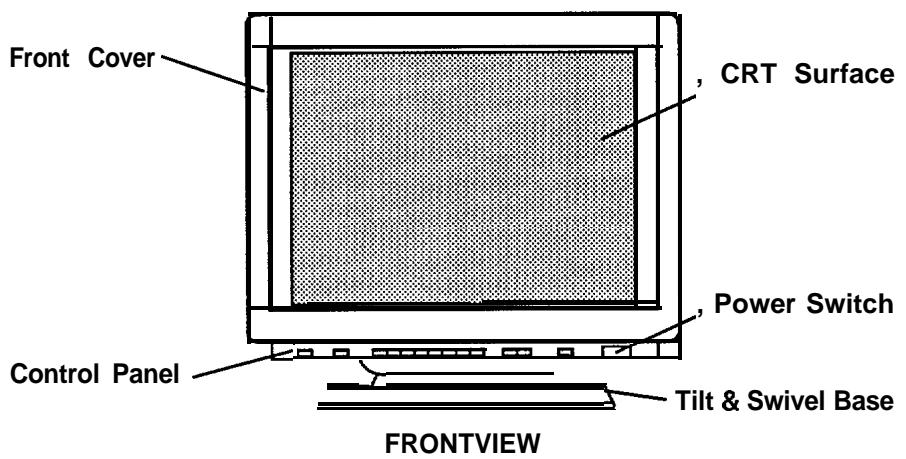
NOTICE
INSTALL THE UNIT IN AN ADEQUATE ENVIRONMENT!
DO NOT expose this monitor to rain or moisture to prevent electric shock or fire hazard.
This unit is designed to be used in an office or business environment.
DO NOT subject the unit to vibrations, dust, or corrosive gases.
KEEP IN A WELL VENTILATED PLACE!
DO NOT cover this monitor or place anything against any sides (not only the top, right and left side but also the rear and bottom side) of unit. Ventilation holes are provided at all sides of the rear cover to prevent the temperature from rising.
KEEP AWAY FROM HEATING RADIATION OR SOURCE!
AVOID placing the unit in direct sunshine or near a heating appliance.
BE CAREFUL OF MAGNETIC FIELDS!
DO NOT place a magnet, loudspeaker system, floppy disk drive, printer, or anything which will generate magnetism near the unit. A magnetic field may cause blurred colours or distortion of the displayed pattern.
2. Power Cord Connection
① Make sure the Power Switch is "OFF".
② Make sure to use a power cord meeting the safety standard of the country in which you are using the monitor.
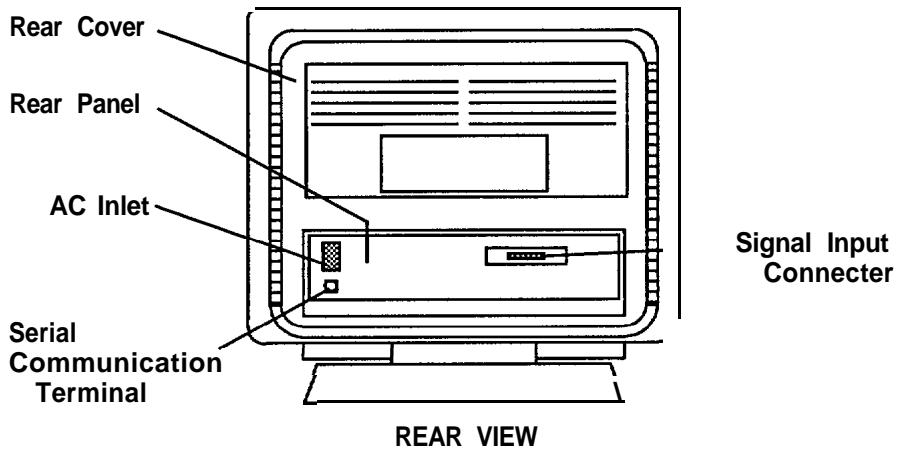
③ Connect a power cord to the "AC Inlet" of the monitor.
④ Connect the plug of the power cord to a receptacle of the correct voltage.
NOTICE
In Europe, a proper European standard approved power cord is to be used with this monitor. For a rated current up to 6 A, a type not lighter than H05VV-F 3G 0.75 mm* or H05VVH2-F 3G 0.75 mm² shall be used.
In USA/Canada, use a UL LISTED/CSA LABELLED or CERTIFIED power cord set meeting the following specifications.
Rating: min. 125V, 7A Length: max. 3.1m Type: SVT or SJT
Plug type: NEMA 5-15P, Parallel blade, Grounding type, 125V, 15A
Failure to do so may cause fire or electric shock hazard.
The enclosed power cord shall be used if provided.
Use only the correct voltage power outlet with safety ground connection.
100 - 120 V for USA, Canada, etc.
200 - 240 V for Europe, etc.
(This monitor will automatically adjust to the input voltage 100dot 120I200dot 240V .)
The receptacle should be close to the monitor and easily accessible.
FOR THE CUSTOMERS IN U.K.
THIS PRODUCT IS SUPPLIED WITH A TWO PIN MAINS PLUG FOR USE IN MAINLAND EUROPE. FOR THE U.K. PLEASE REFER TO THE NOTES ON THIS PAGE.
IMPORTANT FOR UNITED KINGDOM
WORDING FOR CLASS I EQUIPMENT INSTRUCTION BOOKS AND LABELS
The mains lead on this equipment is supplied with a moulded plug incorporating a fuse, the value of which is indicated on the pin face of the plug. Should the fuse need to be replaced, an ASTA or BSI approved BS 1362 fuse must be used of the same rating. If the fuse cover is detachable never use the plug with the cover omitted. If a replacement fuse cover is required, ensure it is of the same colour as that visible on the pin face of the plug. Fuse covers are available from your dealer.
DO NOT cut off the mains plug from this equipment. If the plug fitted is not suitable for the power points in your home or the cable is too short to reach a power point, then obtain an appropriate safety approved extension lead or consult your dealer.
Should it be necessary to change the mains plugs, this must be carried out by a competent person, preferably a qualified electrician.
If there is no alternative to cutting off the mains plug, ensure that you dispose of it immediately, having first removed the fuse, to avoid a possible shock hazard by inadvertent connection to the mains supply.
WARNING: THIS EQUIPMENT MUST BE EARTHED
IMPORTANT
The wires in the mains lead are coloured in accordance with the following code:
Green and Yellow = Earth, Blue = Neutral, Brown = Live.
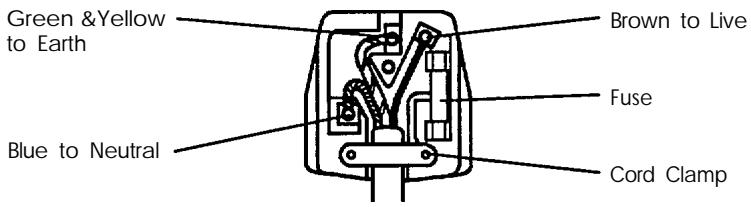
As these colours may not correspond with the coloured markings identifying the terminals in your plug, proceed as follows:
The wire which is coloured GREEN and YELLOW must be connected to the terminal in the plug which is marked with the letter E or by the earth symbol 1色 or coloured GREEN or GREEN and YELLOW.
The wire coloured BLUE must be connected to the terminal marked with the letter N or coloured BLUE or BLACK. The wire coloured BROWN must be connected to the terminal marked with the letter L or coloured BROWN or RED.
3. Signal Cable Connection
For model CM21 12M, use a signal cable with a 13W3 Type D-Sub connector.
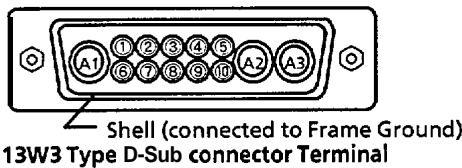
TABLE I-I
| Pin No. | Signal | Pin No. | Signal | Pin No. | Signal |
| A1 | Red Video | 1 | Ground | 6 | H.Sync. (or H/V) |
| A2 | Green Video (Sync. optional) | 2 | V.Sync. [VCLK] | 7 | Ground |
| 3 | Bi-directional Data [SDA] | 8 | Ground | ||
| 4 | Data Clock [SCL] | 9 | Ground | ||
| A3 | Blue Video | 5 | No connection | 10 | Ground |
Insert connector to the "Signal Input Terminal" (13W3 Type D-Sub Connector Terminal), and secure the screws on the connector shell firmly.
For model CM21 11 M, use a signal cable with a D-Sub Mini 15-pin Connector.
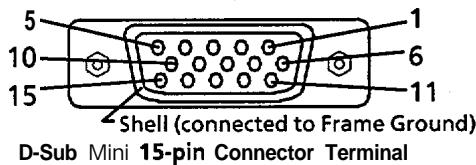
TABLE 1-2
| Pin No. | Signal | Pin No. | Signal | Pin No. | Signal |
| 1 | Red Video | 6 | Red Ground | 11 | Ground |
| 2 | Green Video (Sync. optional) | 7 | Green Ground | 12 | Bi-directional Data [SDA] |
| 3 | Blue Video | 8 | Blue Ground | 13 | H.Sync. (or H/V) |
| 4 | Ground | 9 | No connection | 14 | V.Sync. [VCLK] |
| 5 | No connection | 10 | Ground | 15 | Data Clock [SCL] |
-
Insert connector to the "Signal Input Terminal" (D-Sub Mini 15-pin Connector Terminal), and secure the screws on the connector shell firmly.
-
If the graphics board supplies more than one type of sync. signal, the sync. signal type will be automatically selected by the monitor, with the priority shown in TABLE 2.
TABLE 2
| Sync. Signal Type | Priority |
| H., V. Separate Sync. | 1 |
| H / V Composite Sync. | 2 |
| Sync. on Green Video | 3 |

4. Power On
Turn on the Power Switch of the monitor first, then the computer.
NOTICE :
- After turning OFF the switch, wait at least 5 seconds to restart the monitor. Otherwise the monitor may operate unusually.
- If the picture doesn't appear, turn OFF the power switch, make sure of the following and wait at least 30 seconds to restart the monitor. Make sure the power switch of the computer, power cord connection, signal cable connection and the input sync. signal are right.
- If the colour is impure on the screen after turning ON the monitor, wait for 10 minutes and press the Degauss button.
STANDARD SETTINGS
Microprocessor-based preset functions can store 31 sets of geometry settings including the standard settings.
The following industrial standard settings have been preprogrammed by the factory.
| No. | Video Mode Name(with Resolution andVertical Frequency) | HorizontalFrequency | Video Mode | CM2111M | CM2112M |
| 1 | VGA 640 × 480 - 60Hz | 31.47 kHz | VGA | ✓ | ✓ |
| 2 | VESA 800 × 600 - 75Hz | 46.88 kHz | VESA | ✓ | ✓ |
| 3 | VESA 1024 × 768 - 75Hz | 60.02 kHz | VESA | ✓ | ✓ |
| 4 | Apple 1152 × 870 - 75Hz | 68.68 kHz | Macintosh21 Color | ✓ | ✓ |
| 5 | VESA 1280 × 1024- 75Hz | 79.98 kHz | VESA | ✓ | ✓ |
| 6 | VESA 1600 × 1200- 75Hz | 93.75 kHz | VESA | ✓ | ✓ |
| 7 | VESA 1600 × 1200- 85Hz | 106.25 kHz | VESA | ✓ |
NOTE :
- Input signals with approximately the same frequencies may be regarded as the same signal.
- The following horizontal timing conditions are recommended.
for 31 kHz - 52 kHz horizontal frequency :
Horizontal front porch should be more than 0.1 us.
Horizontal sync. width should be more than 1.0 - 3.8 μs.
Horizontal back porch should be more than 1.2 us.
Horizontal blanking width should be more than 3.5 us.
for 52kHz - 107kHz horizontal frequency :
Horizontal front porch should be more than 0.1µs
Horizontal sync. width should be more than 0.8 dot 3.0 us.
Horizontal back porch should be more than 1.1 us.
Horizontal blanking width should be more than 2.3 us.
- The following vertical timing conditions are recommended.
Vertical front porch should be more than 9 µ s.
Vertical sync. width should be less than 100 us.
Vertical back porch should be more than 400 us.
Vertical blanking width should be more than 450 us.
- If either the front or back porch is extremely long, or the data display time is extremely short, it may not be able to set the expected size and position.
- Standard settings are subject to change without notice.
- This monitor is tested and conformed compliance with ZH1/618 and EN29241-3 (ISO9241-3) ergonomics requirement on above No.3 and No.5 video modes.
We recommend to use this monitor on these video modes.
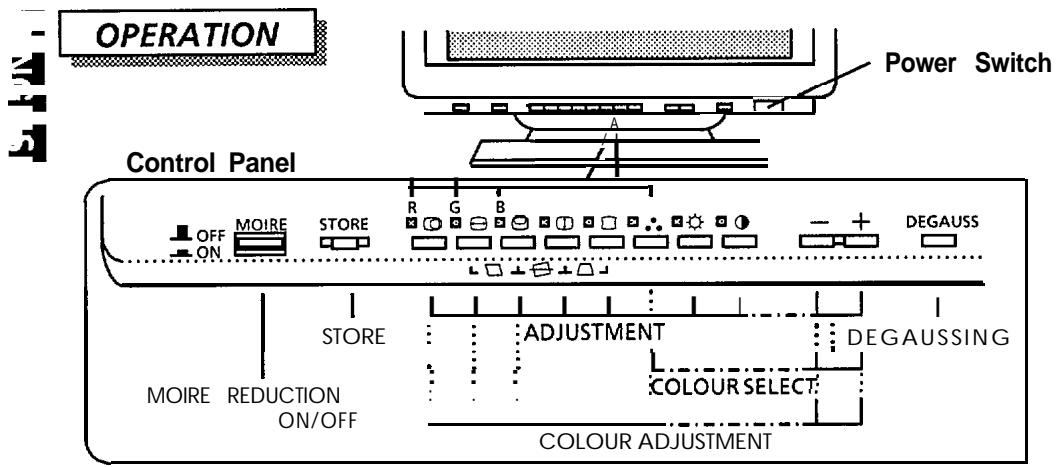
□ If two or more buttons are pressed at the same time, they will be invalid except when mentioned in the following cases:
POWER ON/OFF
- Press the switch [① I, to switch the power ON/OFF.
When power is ON, the power LED lights.
Refer to "AUTOMATIC SIGNAL CHECK".
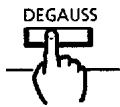
DEGAUSSING
- Press the button [DEGAUSS I, to degauss manually.
Use this button only when you see colour impurities on the screen after turning on the monitor. Remember, the monitor is automatically degaussed during initial power on.
Wait for 10 minutes before repeating the function.
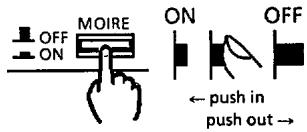
MOIRE REDUCTION ON/OFF
Press the switch [MOIRE],
to switch the Moire Reduction function ON/OFF.
While the button [MOIRE] is in the "ON" position, the moiré changing circuit operates. This is effective for horizontal moire but not vertical moire. You change the moiré pattern by pressing this switch.
In some cases, this function may cause deterioration of display quality, such as focus, jitter, etc.
This function may be effected by outside magnetic fields.
Moire may appear on the screen due to an interference between the CRT dot pitch and video signal, and under certain conditions by video image, display size, display brightness, etc.
The symbol [ ] will be indicated by pressing the button [1] while this button is in the "ON" position.
ADJUSTMENT
Contrast
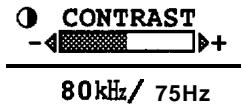
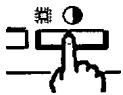
① Press the button [O].
The EasyMenu will show the input signal information with the contrast adjustment condition.
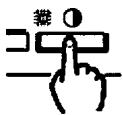
② Pressthebutton[-]or[+]
[ + ] makes the display brighter, excluding the background.
[ ] makes the display darker, excluding the background.
Brightness

① Press the button [ ]
② Press the button [-] or [+] .
[ + ] makes the display brighter, including the background.
[-] makes the display darker, including the background.
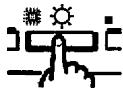
Horizontal Position
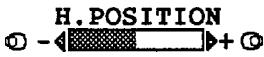
① Press the button[O]
② Press the button [-] or [+] .
[ + ] moves the display position to the right.
[-] moves the display position to the left.
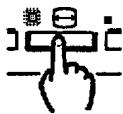
Horizontal Size
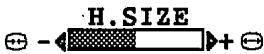
① Press the button [Θ].
② Press the button [-] or [+] .
[+] expands the display horizontally.
[-] shrinks the display horizontally.
Vertical Position
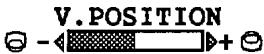
① Press the button [ ]
② Press the button [-] or [+] .
[+] moves the display position up.
[ - ] moves the display position down.
Vertical Size
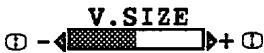
① Press the button [CD].
② Press the button [-] or [+] .
[+ ] expands the display vertically.
[-] shrinks the display vertically.
Pincushion

① Press the button [□].
② Press the button [-] or [+] .
[+] curves the left/right sides of the display outwards.
[-] curves the left/right sides of the display inwards.
Trapezoid

Rotation
Parallelogram

① To activate the Trapezoid control press the buttons [□] and [□] simultaneously.
function,
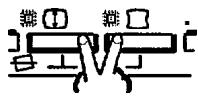
② Press the button [-1 or [+].
[+dot ] expands the top side and shrinks the bottom side.
[-] shrinks the top side and expands the bottom side.
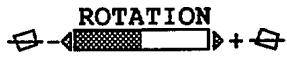
① To activate the Rotation control function, press the buttons [O] and [E] simultaneously.
② Press the button [-] or [+] .
[+ ] rotates the whole image clockwise.
[-] rotates the whole image counterclockwise.
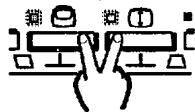
① To activate the Parallelogram control function, press the buttons [ ] and [ ] simultaneously.
② Press the button [-] or [+] .
[+] tilts the left/right sides of the display rightward.
[-] tilts the left/right sides of the display leftward.
COLOUR SELECT
COLOR SELECT No.1:9300K
(LED[..] flashes once.)
pressing[+] 个
pressing[-]
COLOR SELECT No.2:6500K
(LED[.]:flashes twice.)
pressing[+] 1 pressing[-]
COLOR SELECT No.3:USER
(LED[::] flashes three times.)
To select the most suitable colour balance.
You have a choice of two standard colour balance No.1 (9300 K), No.2 (6500 K), and one user colour balance No.3.
No.3 is factory set at 5000K , and it is re-programmable if desired.
After colour adjustment and storing, your colour balance will be restored by selecting No.3.
Refer to "COLOUR ADJUSTMENT" and "STORE".
To reset No.3 to 5000 K, you can use the RESET (User Data Clear) function, though all your stored data including geometry settings will be lost. Refer to "RESET (USER DATA CLEAR)".
① Press the button [] .
When this button is pressed, the LED [..] and the EasyMenu will show you the current selected colour balance No.
If the colour adjustment is changed and not stored, the colour temperature will not be shown by the EasyMenu, until colour balance No.1 or No.2 is selected again.
② Press the button [-] or [+] .
[+] change the colour balance from No.1 to No.2, and from No.2 to No.3.
[-] change the colour balance from No.3 to No.2, and from No.2 to No.1.
After colour adjustment without store, this operation cancels the adjusted colour condition.
COLOUR ADJUSTMENT
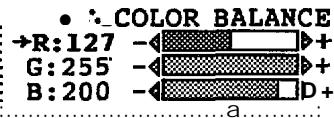
Red. Colour.
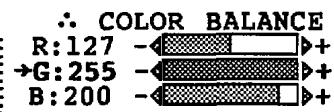
Green. Colour
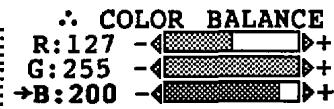
Blue Colour
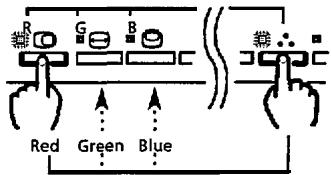
① Select the colour to adjust, by pressing the following buttons.
[...] and [G] simultaneously, select the Red colour.
[...] and [Θ] simultaneously, select the Green colour.
[...] and [♂] simultaneously, select the Blue colour.
El If the LEDs [] and [] / [] / [] are lit already, pressing the button [] / [] / [] without [] is valid.
The colour level is indicated by the EasyMenu, in a value between 0 - 255.
② Pressing the button [-] or [+] .
[+dot ] makes the selected colour stronger.
If any colour is adjusted above 255, the unit will automatically reduce the values of the remaining two colours to achieve the expected colour.
[-] makes the selected colour weaker.
If any colour is adjusted weaker, the unit will automatically increase the values of the remaining two colours till either colour reaches 255. Then the unit will reduce the value of the selected colour.
CI When you have adjusted any colour, storing manually will store the colour balance to No.3, irrespective of your "Colour Select" selection.
COLOUR RESET
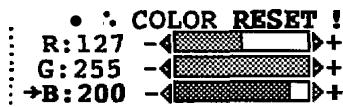
- Keep pressing [+] and [-] buttons simultaneously for about 2 seconds, to cancel the current colour balance.
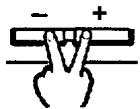
The currently adjusted colour balance if not stored will be canceled, and the previously stored colour balance will be recalled. You can the restartthe adjustment.
CI This operation is valid only when the LEDs [...] and [] / [] / [6] are lit.
AUTOMATIC STORE
- About 10 seconds after a change has been made, the monitor automatically stores the currently adjusted data for the following items only :
Contrast, Brightness, Colour Select
For these items, only one setting is allowed, so storing the new setting will delete the old setting.
Store manually if you wish to store your adjusted settings if you want to turn the monitor OFF.
- Press the button [STORE], to store the currently adjusted data for the following items:
① For the following items, only one setting is allowed :
Rotation, Parallelogram
Colour (Red, Green and Blue)
It is stored to the user colour balance No.3.
Contrast, Brightness, Colour Select
It is normally not necessary to store them manually.
Refer to "AUTOMATIC STORE".
□ Storing the new setting will delete the old setting.
② Forthefollowing functions, one setting is allowed for each video mode:
Horizontal Position, Horizontal Size,
Vertical Position, Vertical Size,
Pincushion, Trapezoid
The setting will be restored to the picture automatically when the same video mode is used. Refer to "AUTOMATIC ADJUSTMENT".
For a video mode which already has a stored setting, storing the new setting will delete the old setting.
CI The geometry for standard video modes has been preset (refer to "STANDARD SETTINGS"), and you can store maximum 31 sets of geometry settings including the standard settings.
If your store is at its maximum already, storing a setting for new video mode overwrites the oldest user setting.
The video mode is distinguished by the horizontal/vertical frequency and polarity of the horizontal/vertical sync. signal. When the video modes are almost similar in these factors, however, the video modes may not be discriminated as different.
RESET (USERDATA CLEAR) (at the power ON only)
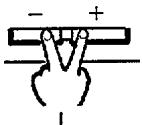
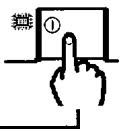
- Turn ON the power switch while pressing the buttons [+] and [-] together, to reset to the original standard settings.
Use this function only when you want to cancel ALL your stored data.
All your stored data will be lost and the all adjustment conditions will be returned to the original settings.
SIGNAL CHECK
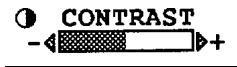
80kHz/75Hz
Press the button [ ] will indicate the horizontal and vertical scanning frequencies on EasyMenu.
Accuracy of frequencies.
Horizontal approximately: ± 1kHz
Vertical approximately : ± 1 Hz
| AUTOMATIC SIGNAL CHECK | ● When the monitor has detected a change in the signal input condition, the monitor will indicate the condition automatically, as follows : |
| 80kHz/ 75Hz | ① When the monitor detects a valid signal, the EasyMenu will indicate the horizontal frequency and vertical frequency. |
| .............................. | □ Accuracy of frequencies. Horizontal approximately : ±1 kHz Vertical approximately : ±1 Hz |
| : INVALID SYNC. | ② When the monitor detects no sync. signal, all LEDs will light continuously, and the EasyMenu will indicate the message “INVALID SYNC.” for 5 seconds. |
| .............................. | □ Check the power switch of the computer and cable connection. |
| .............................. | ③ When the monitor goes into the power saving mode, the power LED will blink. |
| .............................. | □ Check the power switch of the computer and cable connection. |
| .............................. | □ Refer to “POWER SAVING SYSTEM”. |
| : INVALID SCAN FREQ. | @When the monitor detects a sync. signal which is out of set-up specification or unstable, the EasyMenu will indicate the message “INVALID SCAN FREQ.”. |
| .............................. | □ Verify the specification of the input signal. |
| VIDEO MUTING | ● When the monitor has detected a change in the signal input condition, the monitor mutes the picture automatically. This function hides scrambled images which may appear during the changing period of the input signal. The muting period depends on the time that elapses until the replaced signal becomes stable. |
| AUTOMATIC ADJUSTMENT | ● When the monitor has received a proper input signal, it will automatically adjust the following :Horizontal Position, Horizontal Size, Vertical Position, Vertical Size, Pincushion, Trapezoid (for each video mode)Rotation, Parallelogram, Contrast, Brightness, Colour Select |
- This monitor complies with VESA, Nutek, and Energy Star power saving requirements. The power saving system works only when used with VESA DPMS compliant PC's and/or graphic controllers.
| VESA DPMS | POWER SAVING STATES | ||||
| MODE | VIDEO | H-SYNC | V-SYNC | Power | Power LED |
| ON | Active | Yes | Yes | 135 W (nominal) | Lighting Green |
| Stand-by | Blanked | No | Yes | less than 30 W | Flashing quickly |
| Suspend | Blanked | Yes | No | ||
| OFF | Blanked | No | No | approx. 4 W | Flashing slowly |
PLUG & PLAY
- This monitor complies with VESA DDC1/2B specifications. Plug & Play is a system with computer, peripherals (including monitors), and operating system. It works when the monitor is connected to DDC ready computer that is running an operating system software that is capable for the plug & play.
SPECIFICATIONS
| CRT | 21 inches diagonal, 0.26 mm (horizontal : 0.21 mm) mask pitch, Invar shadow mask, Black matrix, Short persistence phosphors. | |
| CM2111ME | CM2112MET | |
| New Anti-Reflection coat | Anti-Reflection panel | |
| Input Signal | Video : 0.7 Vp-p, Analog Sync. | CM2111ME |
| Horizontal : Separate H, V or Composite H/V TTL level or Sync. on Green at 0.3 Vpp | ||
| Synchronization | Horizontal : 31 - 95 kHz | CM2112MET |
| Vertical : 50 - 160 Hz | 31 - 107 kHz | |
| Vertical : Up to 1,280 lines | ||
| Resolution | CM2111ME | CM2112MET |
| Horizontal : Up to 1,600 dots | ||
| Vertical : Up to 1,280 lines | ||
| Video Clock Frequency | CM2111ME | CM2112MET |
| 200 MHz (max.) | 220 MHz (max.) | |
| Active Display Area | Horizontal : 395 mm | |
| Vertical : 295 mm | ||
| The active display area is changed according to the graphics board. | ||
| Colour Temperature | Standard Colour Balance 1 : 9300 K | |
| Standard Colour Balance 2 : 6500 K | ||
| Colour Balance 3 : User defined (5000 K at the initial setting) | ||
| Warm-up Time | 30 minutes to reach optimum performance level. | |
| Power Supply | AC 100 - 120 l200 - 240 V, Automatically select. Provided with Power Save Circuit. | |
| Power Consumption : 135 W (nominal) | ||
| Dimensions | 488 (W) X 474 (H) X 534 (D) mm Including Tilt &Swivel base. | |
| Weight | CM2111ME | CM2112MET |
| 33 kg | 34 kg | |
| Environmental Condition | Temperature : 5°C to 35°C | -20°C to 60°C |
| Humidity : 10% to 80% | 10% to 90% | |
Specification and Design are subject to change without notice.
- EPA POLLUTION PREVENTER
- CONTENTS
- TRADEMARK ACKNOWLEDGMENT
- FEATURES
- Sharpest Focus and Highest Contrast
- Wide-range Multi-Scanning
- Digital Picture Control Function
- Digital Colour Control Function
- Power Saving System
- EasyMenu
- Moire Reduction
- PLUG &PLAY
- CAUTIONS
- Installation
- NOTICE
- Power Cord Connection
- FOR THE CUSTOMERS IN U.K.
- IMPORTANT FOR UNITED KINGDOM
- WORDING FOR CLASS I EQUIPMENT INSTRUCTION BOOKS AND LABELS
- WARNING: THIS EQUIPMENT MUST BE EARTHED
- IMPORTANT
- Signal Cable Connection
- Power On
- NOTICE :
- STANDARD SETTINGS
- NOTE :
- ADJUSTMENT
- Contrast
- Brightness
- Horizontal Position
- Horizontal Size
- Vertical Position
- Vertical Size
- Pincushion
- Trapezoid
- Rotation
- Parallelogram
- COLOUR SELECT
- COLOUR ADJUSTMENT
- Red. Colour.
- Green. Colour
- Blue Colour
- COLOUR RESET
- AUTOMATIC STORE
- RESET (USERDATA CLEAR) (at the power ON only)
- SIGNAL CHECK
- PLUG & PLAY
- SPECIFICATIONS
Brand : HITACHI
Model : CM2111M
Category : Computer monitor