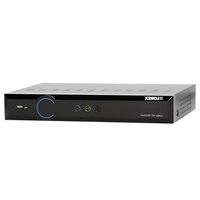
LH0604 - Digital Video Recorder Lorex - Free user manual and instructions
Find the device manual for free LH0604 Lorex in PDF.


Pick your language and provide your email: we'll send you a specifically translated version.
| Product Type | 4-Channel Digital Video Recorder (DVR) |
| Model | LH0604 |
| Brand | Lorex |
| Video Input | 4 Channels, BNC connectors |
| Video Resolution | Up to 1080p (1920 x 1080) per channel |
| Compression Format | H.264 |
| Recording Frame Rate | Up to 30 fps per channel at 1080p |
| Storage Capacity | Up to 1 SATA HDD (max 6TB, not included) |
| Dimensions (W x D x H) | 12.5 x 9.5 x 2.0 inches (318 x 241 x 51 mm) |
| Weight | 3.5 lbs (1.6 kg) without HDD |
| Power Supply | DC 12V / 2A adapter included |
| Power Consumption | Less than 10W (without HDD) |
| Operating Temperature | 14°F to 122°F (-10°C to 50°C) |
| Remote Access | Via Lorex Cloud app (iOS/Android) or web browser |
| Audio Support | 1 audio input, 1 audio output (RCA) |
| Motion Detection | Yes, configurable per channel with email alerts |
| Playback Features | Search by date/time, motion, or alarm |
| Backup Options | USB flash drive, network, or eSATA (if available) |
| Maintenance & Cleaning | Keep ventilation slots clear; clean with dry cloth |
| Safety | 12V DC only; use supplied adapter; surge protection recommended |
| Spare Parts & Repairability | Contact Lorex support for parts; user-replaceable HDD |
| General Information | Designed for home/office security; includes one year warranty |
Frequently Asked Questions - LH0604 Lorex
How do I connect cameras to the LH0604?
Connect each camera to the BNC video input on the rear panel. Ensure power is supplied to the cameras (e.g., via a separate power adapter if not PoE).
What hard drive types are supported?
The LH0604 supports one SATA 3.5-inch hard drive up to 6TB. Use a surveillance-rated drive for reliability.
How can I access the DVR remotely?
Download the Lorex Cloud app on your smartphone or tablet. Register the DVR via its network settings, then log in with your account.
Why is my DVR not recording?
Check that a hard drive is installed and properly formatted. Verify recording schedule is set to continuous or motion. Also ensure power is stable.
How do I set up motion detection?
Go to Menu > Event > Motion Detection. Enable it on the desired channels, adjust sensitivity, and define areas. Save and set email alerts if needed.
Can I play back footage on my computer?
Yes, use the Lorex Player software (available on the included CD or Lorex website). Export recordings to USB and open them in the player.
What is the default IP address?
The default IP is 192.168.1.108. It may vary; check the network menu on the DVR via the local interface.
How do I reset the DVR to factory settings?
Press and hold the Reset button (on the back panel) for 10 seconds while powered on. Alternatively, go to Menu > System > Default.
What should I do if the DVR is not powering on?
Verify the power adapter is connected securely. Try a different outlet. If it still doesn't turn on, the internal power board may need replacement.
Are there any specific cleaning instructions?
Disconnect power before cleaning. Use a soft, dry cloth to remove dust. Never use liquids or sprays. Keep ventilation openings unobstructed.
User questions about LH0604 Lorex
0 question about this device. Answer the ones you know or ask your own.
Ask a new question about this device
No questions yet. Be the first to ask one.
Download the instructions for your Digital Video Recorder in PDF format for free! Find your manual LH0604 - Lorex and take your electronic device back in hand. On this page are published all the documents necessary for the use of your device. LH0604 by Lorex.
USER MANUAL LH0604 Lorex


Manual assistant
Powered by Anthropic
Waiting for your message
Product information
Brand : Lorex
Model : LH0604
Category : Digital Video Recorder