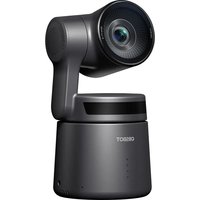
Tail Air - Camera OBSBOT - Free user manual and instructions
Find the device manual for free Tail Air OBSBOT in PDF.


Pick your language and provide your email: we'll send you a specifically translated version.
| Product Type | PTZ Webcam |
| Model | Tail Air |
| Resolution | 4K (3840 x 2160) at 30fps |
| Sensor | 1/2.8-inch CMOS |
| Lens | F/1.8, 80° field of view |
| Pan/Range | -170° to +170° |
| Tilt/Range | -30° to +90° |
| AI Tracking | Yes, with gesture control |
| Auto Framing | Yes |
| Microphones | Built-in dual omnidirectional |
| Connectivity | USB-C (USB 3.0), Bluetooth, Wi-Fi |
| Compatibility | Windows, macOS, Android, iOS |
| Dimensions | 123 x 70 x 70 mm (4.8 x 2.8 x 2.8 in) |
| Weight | 350 g (12.3 oz) |
| Power Input | 5V/2A via USB-C |
| Mounting | 1/4-20 tripod thread (included tripod) |
| Cleaning | Use a soft dry cloth; avoid liquids |
| Storage | Keep in a dry, dust-free environment |
| Safety Warnings | Do not expose to water or extreme temperatures |
| Spare Parts | Contact OBSBOT support; no user-replaceable parts |
| Warranty | 1 year limited warranty |
Frequently Asked Questions - Tail Air OBSBOT
How do I set up the OBSBOT Tail Air for the first time?
Connect the camera to your computer via USB-C, download and install the OBSBOT Center software from the official website. Follow the on-screen instructions to calibrate and update firmware.
Can I use the Tail Air without installing software?
Yes, it works as a standard UVC webcam on Windows and macOS. However, advanced features like AI tracking and gesture control require the OBSBOT Center software.
How does AI tracking work?
The camera uses AI to lock onto a subject (e.g., a person) and automatically pans, tilts, and zooms to keep them in frame. You can also use hand gestures to control tracking, like raising a hand to start tracking.
What is the maximum resolution and frame rate?
The Tail Air supports 4K at 30fps and 1080p at 60fps. Ensure your USB cable and port support USB 3.0 for optimal performance.
Is the Tail Air compatible with streaming software like OBS?
Yes, it appears as a standard webcam source in OBS, Zoom, Microsoft Teams, and other applications. For advanced controls, use OBSBOT Center or the optional remote control.
How do I update the firmware?
Open OBSBOT Center, go to 'Settings' > 'Firmware Update'. The software will check for updates and guide you through the process. Keep the camera connected during the update.
What are the gesture controls?
Raise your open palm to start/stop tracking. Make a 'C' shape (thumb and index finger) to zoom in/out. Refer to the manual for a full gesture list.
Can I mount the Tail Air on a tripod?
Yes, it has a standard 1/4-20 thread at the bottom. A mini tripod is included. For heavier setups, use a professional tripod with quick-release plate.
How do I clean the lens?
Use a dry, soft microfiber cloth. Gently wipe the lens in a circular motion. Do not use any liquids, as they may damage the coating.
What should I do if the camera is not detected?
Check the USB connection and try a different port. Ensure the cable is USB 3.0 capable. Restart the computer and update drivers. If using a hub, connect directly to the computer.
User questions about Tail Air OBSBOT
0 question about this device. Answer the ones you know or ask your own.
Ask a new question about this device
No questions yet. Be the first to ask one.
Download the instructions for your Camera in PDF format for free! Find your manual Tail Air - OBSBOT and take your electronic device back in hand. On this page are published all the documents necessary for the use of your device. Tail Air by OBSBOT.
USER MANUAL Tail Air OBSBOT

Manual assistant
Powered by Anthropic
Waiting for your message
Product information
Brand : OBSBOT
Model : Tail Air
Category : Camera