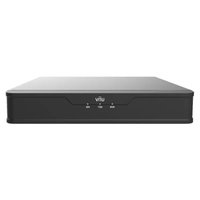
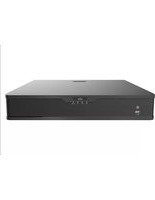
NVR301-08S3 - VCR UniView - Free user manual and instructions
Find the device manual for free NVR301-08S3 UniView in PDF.


Pick your language and provide your email: we'll send you a specifically translated version.
| Product Type | Network Video Recorder (NVR) |
| Brand | UniView |
| Model | NVR301-08S3 |
| Number of Channels | 8 |
| Hard Drive Bays | 3 SATA (up to 8TB each) |
| Video Compression | H.265+/H.265/H.264+/H.264 |
| Recording Resolution | Up to 8MP per channel |
| PoE Support | 8 built-in PoE ports (IEEE 802.3af/at) |
| Video Output | HDMI/VGA (up to 4K resolution) |
| Dimensions (W x D x H) | 300 x 230 x 44 mm |
| Weight | 2.1 kg (without HDD) |
| Power Supply | DC 48V, 1.5A |
| Power Consumption | ≤ 15W (without HDD) |
| Operating Temperature | -10°C to 55°C |
| Working Humidity | 10% to 90% (non-condensing) |
| Network Interface | 1x RJ45 10/100/1000 Mbps |
| USB Ports | 2x USB 2.0, 1x USB 3.0 |
| Remote Access | Via web browser, mobile app (UniView Plus) |
| Audio | 1x audio input, 1x audio output (RCA) |
| Alarm I/O | 4 alarm inputs, 1 alarm output |
| Compatibility | ONVIF 2.4 compliant |
| Maintenance | Regularly clean dust from vents; update firmware via web UI |
| Safety | Use only provided power adapter; keep away from moisture |
| Spare Parts | Power adapter, rack mount kit, SATA cables |
Frequently Asked Questions - NVR301-08S3 UniView
How do I install hard drives in the NVR301-08S3?
Open the enclosure by removing screws on the bottom/front. Insert up to three SATA hard drives into the bays and secure them with screws. Connect SATA data and power cables, then close the enclosure. Format the drives via the NVR menu after boot.
What mobile app can I use to view cameras remotely?
Use the UniView Plus app (available for iOS and Android). Scan the QR code from the NVR's network settings or manually add the device by IP address.
How do I set up motion detection?
Go to the NVR web interface, select a camera, then click Event > Motion Detection. Enable it and draw detection zones on the video. Adjust sensitivity and set email or push notifications as needed.
Why is my NVR not powering on?
Check that the included DC 48V power adapter is firmly connected. Verify the power outlet works. If using PoE to power the NVR itself, ensure the switch supplies sufficient power. A flashing but no boot may indicate a faulty adapter.
Can I use third-party IP cameras with this NVR?
Yes, the NVR supports ONVIF Profile S cameras. Add cameras manually by entering their IP address, username, and password. Some non-ONVIF cameras may still work via RTSP if they support that protocol.
What maximum storage capacity is supported?
Each of the three SATA bays supports hard drives up to 8TB, for a total raw capacity of 24TB. Use drives designed for 24/7 surveillance (e.g., WD Purple or Seagate SkyHawk).
How do I reset the NVR to factory defaults?
Press and hold the Reset button (small hole on the back) for 10 seconds while the device is powered on. Release when the status LED blinks. All settings will be erased, and the device will reboot.
Can I connect the NVR directly to a monitor?
Yes, use the HDMI or VGA port to connect a monitor. The NVR supports up to 4K output via HDMI. Navigate the local interface with a mouse (USB port provided).
Does the NVR support audio recording?
Yes, if your camera has a built-in microphone and the correct audio profile is selected, the NVR will record audio along with video. You can also connect an external microphone to the audio input on the NVR.
How often should I update the firmware?
Check for firmware updates every 3-6 months via the System > Upgrade section of the web interface. Download the latest firmware from the official UniView website or contact support. Always backup settings before updating.
User questions about NVR301-08S3 UniView
0 question about this device. Answer the ones you know or ask your own.
Ask a new question about this device
No questions yet. Be the first to ask one.
Download the instructions for your VCR in PDF format for free! Find your manual NVR301-08S3 - UniView and take your electronic device back in hand. On this page are published all the documents necessary for the use of your device. NVR301-08S3 by UniView.
USER MANUAL NVR301-08S3 UniView

Manual assistant
Powered by Anthropic
Waiting for your message
Product information
Brand : UniView
Model : NVR301-08S3
Category : VCR