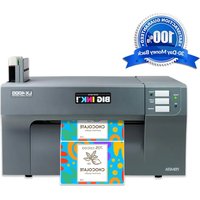
LX4000 - Label printer PRIMERA - Free user manual and instructions
Find the device manual for free LX4000 PRIMERA in PDF.


Pick your language and provide your email: we'll send you a specifically translated version.
| Product Type | Label Printer |
| Brand | Primera |
| Model | LX4000 |
| Dimensions (W x D x H) | 420 x 320 x 310 mm |
| Weight | 12 kg |
| Power Supply | 100-240 VAC, 50/60 Hz |
| Print Method | Thermal Transfer / Direct Thermal |
| Print Resolution | 300 dpi |
| Max Print Speed | 6 ips (152 mm/s) |
| Max Label Width | 108 mm (4.25 in) |
| Max Print Width | 105.6 mm (4.16 in) |
| Connectivity | USB 2.0, Ethernet 10/100 |
| Media Sensing | Reflective/Transmissive, Gap, Black Mark, I-Mark |
| Ribbon Capacity | 450 m (max OD 80 mm) |
| Supported Media Types | Continuous, Die-cut, Fanfold, Roll |
| Operating Temperature | 5°C to 40°C |
| Humidity Range | 20% to 85% non-condensing |
| Warranty | 1 year limited |
Frequently Asked Questions - LX4000 PRIMERA
How do I load labels into the LX4000?
Open the top cover, release the media roll holder, place the label roll so it unwinds in the correct direction, feed the labels through the sensor and under the printhead, then close the cover until it clicks.
How do I change the ribbon?
Open the top cover, remove the empty ribbon core, install a new ribbon roll, thread the ribbon through the printhead mechanism, and wind a few turns onto the take-up spindle. Ensure the ribbon is taut.
What software is compatible with the LX4000?
The LX4000 works with most label design software like NiceLabel, Bartender, or Seagull Scientific drivers. Primera also provides its own driver package for Windows.
How do I connect the printer via Ethernet?
Connect an Ethernet cable from the printer to your network router. Power on the printer, then on your computer, install the driver and choose the network printer option. You may need to configure the IP address from the printer menu.
How do I calibrate the label sensor?
Load labels and ribbon, then press and hold the 'Feed' button until the printer automatically feeds some labels. The sensor will calibrate for gap, black mark, or continuous stock. Verify by printing a test label.
What should I do if the printer is not feeding labels correctly?
Check that the media type is set correctly in the driver (gap, black mark, continuous). Ensure the labels are not stuck together or damaged. Clean the sensor and platen roller. Recalibrate the sensor.
How do I clean the printhead?
Turn off the printer, lift the top cover, and clean the printhead with a lint-free swab moistened with isopropyl alcohol. Allow it to dry before closing. Clean after every ribbon change.
How can I update the firmware?
Visit Primera's support website for the LX4000, download the latest firmware file. Use the printer's web interface or a USB connection with the Primera firmware update utility. Follow the on-screen instructions.
What are the common troubleshooting steps for print quality issues?
Check darkness/contrast settings, ribbon and label compatibility, printhead cleanliness, and platen roller wear. Adjust print speed and force. If the issue persists, run a printer self-test.
How do I perform a factory reset?
With the printer powered off, press and hold the 'Feed' and 'Pause' buttons simultaneously, then power on. Continue holding until the status light flashes. Release the buttons; the printer will restore default settings.
User questions about LX4000 PRIMERA
0 question about this device. Answer the ones you know or ask your own.
Ask a new question about this device
No questions yet. Be the first to ask one.
Download the instructions for your Label printer in PDF format for free! Find your manual LX4000 - PRIMERA and take your electronic device back in hand. On this page are published all the documents necessary for the use of your device. LX4000 by PRIMERA.
USER MANUAL LX4000 PRIMERA
Manual assistant
Powered by Anthropic
Waiting for your message
Product information
Brand : PRIMERA
Model : LX4000
Category : Label printer