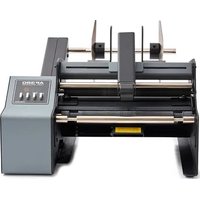
AP380 - Label printer PRIMERA - Free user manual and instructions
Find the device manual for free AP380 PRIMERA in PDF.


Pick your language and provide your email: we'll send you a specifically translated version.
| Product Type | Label Printer |
| Brand | Primera |
| Model | AP380 |
| Print Technology | Thermal Transfer / Direct Thermal |
| Print Resolution | 300 dpi |
| Max Print Speed | Up to 8 inches per second |
| Max Label Width | 4.65 inches (118 mm) |
| Dimensions (W x D x H) | 7.9 x 10.6 x 7.5 inches (200 x 269 x 191 mm) |
| Weight | 4.4 lbs (2.0 kg) |
| Power Supply | 100-240 VAC, 50/60 Hz, 1.5 A |
| Interface | USB 2.0, Ethernet, optional Wi-Fi |
| Media Handling | Roll-fed labels with peel option |
| Label Roll Capacity | Up to 5 inch outer diameter |
| Memory | 16 MB SDRAM, 8 MB Flash |
| Barcode Symbologies | Code 128, Code 39, EAN, UPC, PDF417, QR Code, etc. |
| Display | 2-line LCD with backlight |
| Operating Temperature | 40° to 95° F (5° to 35° C) |
| Cleaning | Use isopropyl alcohol on printhead and platen roller |
| Safety | UL, CUL, FCC Class A, CE |
| Spare Parts / Repairability | Printhead, roller, cutter blade available; user-replaceable |
Frequently Asked Questions - AP380 PRIMERA
How do I load labels in the Primera AP380?
Open the top cover, insert the label roll onto the spindle, and feed the labels through the media guides. Close the cover and press the feed button to align.
What type of ribbon do I need for thermal transfer?
Use wax or wax-resin ribbon matching the label width. The printer supports 1 inch core ribbons.
How do I connect the printer to my computer?
Connect via USB cable or Ethernet. Install the driver from the included CD or Primera website.
Can I print labels without a computer?
The AP380 cannot print standalone; it requires a computer or network connection to send print jobs.
What software is compatible?
Compatible with Windows Label Maker, Bartender, NiceLabel, and any software that supports Seagull drivers.
How do I clean the printhead?
Turn off the printer, open the cover, and gently wipe the printhead with a pen soaked in isopropyl alcohol. Allow to dry.
Why are my labels not peeling correctly?
Check the peel sensor alignment and ensure the label gap sensor is calibrated. Adjust the peel bar position if needed.
What is the maximum label length?
The printer can handle continuous labels up to 39 inches (99 cm) long.
How do I reset the printer to factory settings?
Hold the feed button while powering on, then release when the indicator blinks. This restores default parameters.
Where can I find replacement parts?
Order genuine Primera parts like printhead (AP380-PH), platen roller (AP380-PR), and cutter (AP380-CT) from authorized resellers.
User questions about AP380 PRIMERA
0 question about this device. Answer the ones you know or ask your own.
Ask a new question about this device
No questions yet. Be the first to ask one.
Download the instructions for your Label printer in PDF format for free! Find your manual AP380 - PRIMERA and take your electronic device back in hand. On this page are published all the documents necessary for the use of your device. AP380 by PRIMERA.
USER MANUAL AP380 PRIMERA
Manual assistant
Powered by Anthropic
Waiting for your message
Product information
Brand : PRIMERA
Model : AP380
Category : Label printer