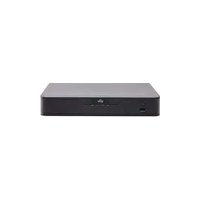
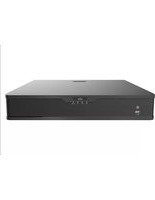
NVR301-04-P4 - VCR UniView - Free user manual and instructions
Find the device manual for free NVR301-04-P4 UniView in PDF.


Pick your language and provide your email: we'll send you a specifically translated version.
| Product Type | Network Video Recorder (NVR) |
| Model | NVR301-04-P4 |
| Brand | UniView |
| Video Channels | 4 channels (up to 8MP each) |
| Compression | H.265 / H.264 |
| PoE Ports | 4 built-in PoE (IEEE 802.3af/at) |
| HDD Support | 1 SATA III bay, up to 10TB |
| Dimensions (W x D x H) | 260 mm x 230 mm x 44 mm |
| Weight | Approximately 1.5 kg (without HDD) |
| Power Supply | DC 48V, 1.5A |
| Power Consumption | ≤ 15 W (without HDD) |
| Operating Temperature | -10°C to 55°C |
| Storage Humidity | 10% to 90% (non-condensing) |
| Network Interface | 1 RJ45 10/100/1000 Mbps |
| USB Ports | 2 x USB 2.0 |
| Video Output | 1 x HDMI (up to 1920x1080P), 1 x VGA |
| Remote Access | Via web browser, mobile app (UniView View), CMS |
| Maintenance | Clean with dry cloth; avoid liquids |
| Safety | Class II equipment; use only supplied power adapter |
| Spare Parts / Repairability | HDD and power supply are replaceable; contact support for other parts |
| General Information | Supports motion detection, continuous recording, scheduled recording; ONVIF compatible |
Frequently Asked Questions - NVR301-04-P4 UniView
How do I connect cameras to the NVR301-04-P4?
Connect cameras to the PoE ports (1-4) on the rear panel using Ethernet cables. The NVR will automatically power and detect them.
What is the maximum hard drive capacity supported?
The NVR supports one 3.5-inch SATA HDD up to 10TB.
Can I access the NVR remotely?
Yes. Enable remote access in the network settings and use the UniView View mobile app or a web browser to view live and recorded footage.
How do I set up recording?
Go to Record Settings in the menu. You can choose Continuous, Motion, or Schedule recording modes for each camera.
The NVR is not detecting my camera. What should I do?
Check that the camera is properly connected to a PoE port, the camera is powered on, and the network settings are correct. Try rebooting the NVR.
How do I play back recorded footage?
Use the Playback menu. Select the camera, date, and time. You can also export clips to USB.
What is the default IP address of the NVR?
The default IP is 192.168.1.10. It can be changed via the network settings menu.
How do I update the firmware?
Download the latest firmware from the UniView website. Go to System > Upgrade and upload the file. Do not power off during update.
Can I use non-PoE cameras?
Yes, if the camera is non-PoE, connect it via a separate power source and use a standard Ethernet cable to a PoE port or a network switch. The NVR PoE ports will still try to supply power, so ensure the camera can handle PoE or use a PoE injector if necessary.
What should I do if the NVR does not power on?
Check that the power adapter is securely connected and the outlet works. If using PoE, ensure the total power draw does not exceed the budget. If the issue persists, contact support.
User questions about NVR301-04-P4 UniView
0 question about this device. Answer the ones you know or ask your own.
Ask a new question about this device
No questions yet. Be the first to ask one.
Download the instructions for your VCR in PDF format for free! Find your manual NVR301-04-P4 - UniView and take your electronic device back in hand. On this page are published all the documents necessary for the use of your device. NVR301-04-P4 by UniView.
USER MANUAL NVR301-04-P4 UniView

Manual assistant
Powered by Anthropic
Waiting for your message
Product information
Brand : UniView
Model : NVR301-04-P4
Category : VCR