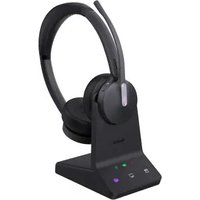
WH64 - Headset Yealink - Free user manual and instructions
Find the device manual for free WH64 Yealink in PDF.


| Product Type | Wireless DECT Headset |
| Brand | Yealink |
| Model | WH64 |
| Dimensions (approx. | 170 x 60 x 190 mm |
| Weight | ~150 g |
| Power Source | Rechargeable battery (Li-ion) |
| Battery Life | Up to 18 hours talk time |
| Charging Time | ~2.5 hours |
| Wireless Technology | DECT |
| Frequency Band | 1.9 GHz (DECT) |
| Range (open area) | Up to 150 meters |
| Audio Features | Wideband audio, noise cancellation |
| Call Control | Answer/end, mute, volume controls on headset |
| Compatibility | Yealink IP phones, PC via USB dongle |
| Wearing Style | Over-the-head, monaural or binaural (optional) |
| Microphone | Noise-canceling boom microphone |
| Cleaning | Wipe with a dry or slightly damp cloth |
| Safety | Use only the provided charging base and adapter |
| Spare Parts | Ear cushions, battery, USB dongle |
| Repairability | Replaceable battery and ear cushions |
| General | Compatible with Yealink wireless headsets ecosystem |
Frequently Asked Questions - WH64 Yealink
User questions about WH64 Yealink
0 question about this device. Answer the ones you know or ask your own.
Ask a new question about this device
Download the instructions for your Headset in PDF format for free! Find your manual WH64 - Yealink and take your electronic device back in hand. On this page are published all the documents necessary for the use of your device. WH64 by Yealink.
USER MANUAL WH64 Yealink
- In the Base
- For Teams Version: Tap

- Go to Settings > Basic Settings > General.
- For UC Version: Tap

- Go to Basic Settings > General.
- In the Yealink USB Connect
-
Open the Yealink USB Connect software and select the desired device CARD.
-
Go to Device settings > Basic Settings > General.
| Functions | Description |
| Language | Select the screen text language from a list of 13 languages. |
| Bluetooth | Enable/disable Bluetooth.Enable this function; you can do the following:-Open discover: Enable the Bluetooth of WH66/WH67 to be discovered by your mobile device.-Discoverable time: Select the timeout period for Bluetooth to be discovered.Default: 5 min. |
| Device Bluetooth Name | User-defined name of the Bluetooth device will take effect immediately after modification. |
| Bluetooth Auto Connect | Reconnect to the terminal device upon power-on automatically. |
| BLT-Busylight | Set the status of Busylight.-Sync (default): Synchronize device state. When the device has no state, it is in the off state.-Available: Solid green (The status bar of the LCD idle interface shows a green icon).-DND: Solid red (The status bar of the LCD idle interface shows a red icon).-Off: It remains off even if synchronized with a state. There is no icon in the status of the LCD Idle interface, and the light is not on when there is a call status. |
| DECT Auto Sleep | Set the time for the headset to enter sleep mode when no device is connected in DECT mode. |
| Date Format | Set the date display format. |
| Time Format | Set the time display format. |
Sound
- In the Base
- For Teams Version: Tap

- Go to Settings > Basic Settings > Sound.
- For UC Version: Tap

- Go to Basic Settings > Sound.
- In the Yealink USB Connect
-
Open the Yealink USB Connect software and select the desired device CARD.
-
Go to Device settings > Basic Settings > Sound.
| Functions Description | |
| Voice Guidance Enable voice prompts or not. | |
| Voice Guidance Language | Set voice guidance language. |
| Dial Tone Set whether the paired headset plays a dial tone when entering the | |
| dialing screen. | |
| Keypad Tone Set wh | whether the paired headset produces a sound when pressing the keypad keys. |
| Wearing Preference | You can select the position of the mic arm to optimize the stereo audio. |
| Second Device Audio | Hear the audio (tone music)from the other connected device while streaming audio. |
PC Softphone
- Open the Yealink USB Connect software and select the desired device CARD.
- Go to Device settings > Basic Settings > PC software.
| Functions | Description |
| Call Control with Softph one | Set whether to enable USB call control. |
| Headset Local Ringto ne | Set whether a local ringtone is transmitted from the headset when a call comes from a device connected via USB. If there is no ringtone in the headset when the call comes in, you can enable this feature to make the headset play the built-in ringtone. |
| Base Ringto ne Volume | Set the base ringer volume when a call comes from a device connected via USB. |
| Local Ring Type | Select the local ringtone for incoming calls from USB-connected devices. |
Deskphone
- Open the Yealink USB Connect software and select the desired device CARD.
- Go to Device settings > Basic Settings > PC Softphone.
| Functions | Description |
| Headset Local Rington e | Set whether a local ringtone is transmitted from the headset when a call comes from a device connected via USB. If there is no ringtone in the headset when the call comes in, you can enable this feature to make the headset play the built-in ringtone. |
| Base Rington e Volume | Set the base ring volume when a call comes from a device connected via USB. |
| Local Ring Type | Select the local ringtone for incoming calls from USB-connected devices. |
Display Settings
- In the Base
- For Teams Version: Tap

- Go to Settings > Basic Settings > Display.
- For UC Version: Tap

- Go to Basic Settings > Display.
- In the Yealink USB Connect
-
Open the Yealink USB Connect software and select the desired device CARD.
-
Go to Device settings > Basic Settings > Display.
| Functions | Description |
| Dark Theme | The dark theme changes the default bright background color to a darker color, which is easier on the eyes in low-light environments or if you prefer less bright screens.It is only available in the Teams version. |
| TeamsUserName | Set whether the Teams user name displays on the home screen when the device disconnects from the PC.Default: Personal Mode.- Personal Mode: Display the Teams user name when the device disconnects from the PC.- Desking Mode: Do not display the Teams user name when the device disconnects from the PC.It is only available in the Teams version. |
| Backlight ActiveLevel | Set the backlight level |
| Backlight Time | Set the backlight time.The backlight will be forcibly turned off if there is no operation for 24 hours to save power. |
| Screensaver WaitTime | Change the waiting time for the screen saver. |
| Screensaver Background | Set whether to display the built-in or the custom screensaver.- System- Custom |
Advanced Settings
General Settings
- In the Base
- For Teams Version: Tap

- Go to Settings > Advanced Settings > General.
- For UC Version: Tap

- Go to Advanced Settings > General.
- In the Yealink USB Connect
-
Open the Yealink USB Connect software and select the desired device CARD.
-
Go to Device settings > Advanced Settings > General.
| Functions | Description |
| Wireless Range | Select the wireless range between the headset and the base. When the headset exceeds the preset wireless range, it will prompt you "out of range". If you encounter signal interference from other wire devices, selectMediumorShort.-Long:the wireless range is up to 150 m.- Medium: the wireless range is up to 30 m. - Short: the wireless range is up to 10 m. |
| Smart Mute Reminder | If you try to talk while your mic is muted, the headset will alert you. |
| Mute Detection Interval | Set mute detection interval |
| USB Computer Audio | When controlling the headset on the base, how does the speaker on the base play the non-call audio from the USB device. |
| Music Mode | Turn on to optimize audio for music. The audio quality for calls is not affected by this setting. |
| Platform | Change the platform between UC and Teams versions. |
Calling
- In the Base
- For Teams Version: Tap

- Go to Settings > Advanced Settings > Calling.
- For UC Version: Tap

- Go to Advanced Settings > Calling.
- In the Yealink USB Connect
-
Open the Yealink USB Connect software and select the desired device CARD.
-
Go to Device settings > Advanced Settings > Calling.
| Functions | Description |
| Deskphone Connection | Enable a connection to the deskphone through the base's AUX port. |
| Call Device | Connect the headset to multiple PC softphones; the feature supports specifying a PC softphone to enter the dialing screen to make a call. |
| Call Priority | If you are on a call and a new call arises on a different phone without any actions on the device, then this setting determines which of the two active calls is routed to the headset. |
| Call Recording | After it is turned on, the voice of your call on other devices will be input to this unit, and you can record it with recording software. |
| Phone Type | If you use a USB connection for the Unify Phone, you need to modify the configuration. |
| Auto Dial | Set whether to turn on the automatic call-out function. After turning it on, the device will automatically dial out 5 seconds after entering the number on the dial pad. |
| Predial Feature | Control whether to enter the talking state by pressing the MFB button in the idle state. |
| Auto Answer when Undocked | If the headset is docked on the base during a call, it will automatically switch to hands-free mode.Default: Off. |
| Auto Answer when boom drop | When there is a new call, you can answer it by putting down the microphone arm. |
| Open Line when Undocked | Set whether to enter the dialing screen when undocking the headset. |
| Handsfree whendocked | Please select whether to enable hands-free call audio playback when the headset is docked in DECT mode. |
| Permanent Conference Mode | After enabling the permanent meeting mode, the headphones will not disconnect after hanging up the call. |
| Equalizer for Calls | Select an audio preference to use for all calls.Default: Normal.- Normal: The bass and treble balance.- Bass: The bass is enhanced.- Treble: The treble is enhanced. |
| Comfort Noise | To indicate to the other party that you are on a call with the weak and comfortable noise. |
| Noise Suppression | If enabled, it will suppress the background noise of the sender and improve the signal-to-noise ratio. |
| Smart Noise Block | If enabled, it will significantly suppress the background noise of the sender, especially in the non-speech segment, eliminating the noise. Note that enabling this configuration may increase voice delay. |
| Sidetone Level | You can use this setting to adjust the volume of your voice heard during a call. |
Headset Busylight
- In the Base
- For Teams Version: Tap

- Go to Settings > Advanced Settings > Hearing Protection.
- For UC Version: Tap

- Go to Advanced Settings > Hearing Protection.
- In the Yealink USB Connect
-
Open the Yealink USB Connect software and select the desired device CARD.
-
Go to Device settings > Advanced Settings > Hearing Protection.
| Fuctions Description | |
| Focus Mode You | can use this option to manually turn the Busylight on or off. |
| Calling Indication | Turn on this function, and the busylight will turn on automatically during a call |
Hearing Protection
- In the Base
- For Teams Version: Tap

- Go to Settings > Advanced Settings > Hearing Protection.
- For UC Version: Tap

- Go to Advanced Settings > Hearing Protection.
-
In the Yealink USB Connect
-
Open the Yealink USB Connect software and select the desired device CARD.
- Go to Device settings > Advanced Settings > Hearing Protection.
| Functions Description | |
| Anti-Startle Protection | Set which hearing protection technology to be used.- Peak Block Protection- Australian G616 Protection |
| Daily Noise Exposure Select the decibel level the headset protects against sound spikes. | |
| - No Limiting- 80dBA- 85dBA | |
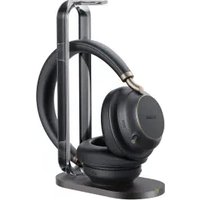
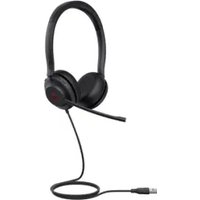
Brand : Yealink
Model : WH64
Category : Headset