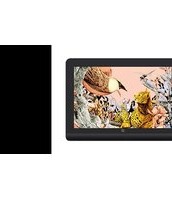
Artist Pro 16 (Gen 2) - Graphic tablet XP-Pen - Free user manual and instructions
Find the device manual for free Artist Pro 16 (Gen 2) XP-Pen in PDF.


Pick your language and provide your email: we'll send you a specifically translated version.
| Product Type | Graphic Tablet with Display |
| Brand | XP-Pen |
| Model | Artist Pro 16 (Gen 2) |
| Screen Size | 15.6 inches |
| Resolution | 1920 x 1080 (Full HD) |
| Color Gamut | 120% sRGB |
| Pressure Sensitivity | 16384 levels |
| Pen Technology | Battery-free electromagnetic resonance |
| Connectivity | USB-C, HDMI, USB-A |
| Dimensions (W x H x D) | 14.2 x 9.8 x 0.5 inches (approx.) |
| Weight | 2.2 lbs (approx.) |
| Power Supply | USB-C or included AC adapter |
| Main Functions | Digital drawing, painting, design, photo editing |
| Care and Cleaning | Wipe with a soft, dry cloth; avoid liquids |
| Safety Precautions | Keep away from water and extreme temperatures |
| Spare Parts | Pen nibs, USB cable, AC adapter available separately |
| Repairability | Not user-serviceable; contact support for repairs |
| General Information | Compatible with Windows and macOS; driver required |
Frequently Asked Questions - Artist Pro 16 (Gen 2) XP-Pen
How do I connect the Artist Pro 16 (Gen 2) to my computer?
Use the included USB-C to USB-C cable for both data and power. If your computer lacks USB-C, use the provided USB-A adapter or connect the power adapter separately. Then connect an HDMI cable from the tablet to your computer's HDMI port.
Do I need to install a driver?
Yes. Download the latest driver from the XP-Pen official website for your operating system (Windows/macOS). Install and restart your computer. The tablet will not function correctly without the driver.
How do I calibrate the pen pressure?
Open the XP-Pen Tablet Driver software. Go to the 'Pen' tab and click 'Calibrate'. Follow the on-screen instructions to tap the crosshairs. You can also adjust pressure curve settings in the same interface.
What is the pen battery life?
The pen is battery-free, powered by electromagnetic resonance from the tablet. It never needs charging or batteries.
How do I replace pen nibs?
Use the nib removal tool (usually a small metal ring) that came with the tablet. Insert the nib into the tool and pull gently. Insert a new nib by pushing it straight into the pen.
Can I use the tablet with Linux?
Official drivers are only available for Windows and macOS. Linux support may require community drivers (like DIGImend) and is not officially supported by XP-Pen.
How do I adjust screen brightness?
Press the physical buttons on the tablet (usually the top-left button) to cycle through brightness levels. Alternatively, use the on-screen display menu accessed by holding the power button.
Why is my pen not drawing?
Check that the driver is installed and running. Ensure the tablet is properly connected (USB and HDMI). Try restarting your computer. If the issue persists, test the pen on another surface or replace the nib.
How do I clean the screen?
Turn off the tablet and unplug it. Use a soft, lint-free microfiber cloth slightly dampened with water. Wipe gently. Do not use alcohol, ammonia-based cleaners, or abrasive materials.
What is the warranty period?
XP-Pen typically offers a 1-year limited warranty against manufacturing defects. Warranty terms may vary by region; check your specific purchase documentation.
User questions about Artist Pro 16 (Gen 2) XP-Pen
0 question about this device. Answer the ones you know or ask your own.
Ask a new question about this device
No questions yet. Be the first to ask one.
Download the instructions for your Graphic tablet in PDF format for free! Find your manual Artist Pro 16 (Gen 2) - XP-Pen and take your electronic device back in hand. On this page are published all the documents necessary for the use of your device. Artist Pro 16 (Gen 2) by XP-Pen.
USER MANUAL Artist Pro 16 (Gen 2) XP-Pen
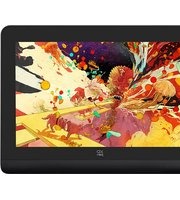
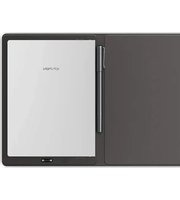
Manual assistant
Powered by Anthropic
Waiting for your message
Product information
Brand : XP-Pen
Model : Artist Pro 16 (Gen 2)
Category : Graphic tablet