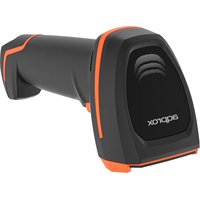
appLS24 - Barcode Reader Approx - Free user manual and instructions
Find the device manual for free appLS24 Approx in PDF.


Pick your language and provide your email: we'll send you a specifically translated version.
| Product Type | 1D/2D Barcode Scanner |
| Brand | Approx |
| Model | appLS24 |
| Dimensions | 16.5 x 7.0 x 9.5 cm |
| Weight | 150 g |
| Power Supply | USB 5V or rechargeable Li-ion battery 1200 mAh |
| Battery Life | Up to 8 hours of continuous use |
| Reading Range | Up to 30 cm depending on code density |
| Readable Code Types | Code 39, Code 128, EAN-13, UPC-A, QR Code, Data Matrix, PDF417 |
| Interface | Wired USB or Wireless Bluetooth 5.0 |
| Light Source | Red laser Class 2, 650 nm |
| Maximum Resolution | 3 mil (0.076 mm) |
| Operating Temperature | 0 °C to 50 °C |
| Operating Humidity | 5% to 95% (non-condensing) |
| Drop Resistance | 1.5 m on concrete |
| Protection Rating | IP42 |
| Main Functions | Automatic scanning, wireless transmission, memory storage for up to 5000 codes |
| Maintenance and Cleaning | Clean the reading window with a soft, dry cloth |
| Safety | Class 2 laser: do not stare directly into the beam |
| Spare Parts and Repairability | Replaceable battery and USB cable |
| Included Accessories | USB cable, desk stand, user manual |
| Warranty | 2 years |
| Country of Origin | China |
Frequently Asked Questions - appLS24 Approx
How do I connect my appLS24 scanner to a computer?
Connect the provided USB cable to the scanner and to a USB port on your computer. The scanner is automatically recognized as an HID device. No driver is required for Windows, macOS, or Linux.
Can I use the scanner wirelessly?
Yes, the appLS24 is equipped with Bluetooth 5.0. Enable Bluetooth in your device settings, then press the pairing button on the scanner (often a long press on the scan button). It will appear as 'Approx appLS24'.
How do I recharge the battery?
Use the provided USB cable to connect the scanner to a standard USB charger (5V/1A minimum) or to a computer USB port. The LED indicator turns red during charging and green when fully charged. It takes approximately 2 hours for a full charge.
The scanner is not scanning barcodes, what should I do?
1. Check that the lens is not obstructed or dirty. Clean it with a soft cloth. 2. Make sure the barcode is well-lit and clear. 3. Check the barcode type: the scanner supports most common 1D and 2D codes. 4. If the problem persists, perform a factory reset (see manual).
What is the maximum reading range?
The range depends on the barcode density. For a standard EAN-13 code, the range can reach up to 30 cm. For very small (high density) codes, the optimal distance is about 10 cm.
How do I clean the barcode scanner?
Unplug the scanner before cleaning. Use a soft, slightly damp cloth (clean water) to wipe the housing and the reading window. Do not use harsh chemicals. Avoid getting water into the openings.
Can the scanner read barcodes from a smartphone screen?
Yes, it reads QR codes and barcodes displayed on LCD or OLED screens. Adjust the screen brightness to 100% and maintain a distance of about 15 cm for optimal reading.
What to do if the scanner beeps but does not display data?
This indicates the code was read but the transmission may be misconfigured. Check the output format (USB HID, serial, etc.) in the manual. For normal use in keyboard emulation, make sure 'USB Keyboard' mode is enabled. Refer to the quick start guide.
How do I reset the scanner to factory settings?
Scan the 'Factory Reset' barcode provided in the manual. If you have lost the manual, hold down the scan button for 10 seconds until the LED flashes three times and then turns off. The scanner will restart with default settings.
Does the scanner support 2D barcodes like QR Code?
Yes, the Approx appLS24 reads 1D barcodes (Code 39, EAN, etc.) and 2D barcodes (QR Code, Data Matrix, PDF417, etc.). It is therefore suitable for many applications.
User questions about appLS24 Approx
0 question about this device. Answer the ones you know or ask your own.
Ask a new question about this device
No questions yet. Be the first to ask one.
Download the instructions for your Barcode Reader in PDF format for free! Find your manual appLS24 - Approx and take your electronic device back in hand. On this page are published all the documents necessary for the use of your device. appLS24 by Approx.
USER MANUAL appLS24 Approx
Manual assistant
Powered by Anthropic
Waiting for your message
Product information
Brand : Approx
Model : appLS24
Category : Barcode Reader