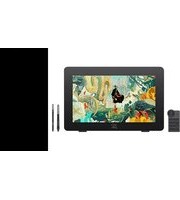
Artist Pro 24 (Gen 2) - Graphic tablet XP-Pen - Free user manual and instructions
Find the device manual for free Artist Pro 24 (Gen 2) XP-Pen in PDF.


Pick your language and provide your email: we'll send you a specifically translated version.
| Product Type | Graphics Drawing Monitor |
| Model | Artist Pro 24 (Gen 2) |
| Brand | XP-Pen |
| Display Size | 23.8 inches (diagonal) |
| Resolution | 2560 x 1440 (WQHD) |
| Pressure Levels | 8192 |
| Pen Technology | Battery-free, X3 Smart Chip |
| Tilt Support | ±60° |
| Color Gamut | 120% sRGB, 16.7M colors |
| Viewing Angle | 178°/178° |
| Connectivity | USB-C, HDMI, DisplayPort |
| Power Supply | DC 12V, 3A (36W typical) |
| Weight | Approx 6.8 kg (without stand) |
| Dimensions (W x H x D) | 582 x 357 x 28.2 mm (without stand) |
| Additional Features | Full laminated anti-glare screen, customizable shortcut buttons, adjustable stand (sold separately) |
| Cleaning Instructions | Use a soft, dry cloth; avoid liquid cleaners or abrasive materials. |
| Safety Precautions | Do not expose to moisture or direct sunlight; ensure adequate ventilation during use. |
| Spare Parts Availability | Pen nibs, cables, and other parts available from XP-Pen official store or authorized retailers. |
| Repair Service | Contact XP-Pen customer support for warranty and repair options. |
Frequently Asked Questions - Artist Pro 24 (Gen 2) XP-Pen
What is the resolution of the XP-Pen Artist Pro 24 (Gen 2)?
The Artist Pro 24 (Gen 2) features a 2560 x 1440 (WQHD) resolution, providing crisp and detailed visuals for professional work.
Does the pen require a battery or charging?
No, the pen is battery-free and uses XP-Pen's X3 Smart Chip for power and signal transmission, so you never need to charge it.
How do I connect the tablet to my computer?
Use the included USB-C cable (or HDMI + USB for older computers). Connect the USB-C end to the tablet and the other end to your computer. Ensure the power adapter is connected if required.
What is the color gamut coverage?
The display covers 120% sRGB color gamut (16.7 million colors), ensuring accurate and vibrant color reproduction.
Is the Artist Pro 24 (Gen 2) compatible with Mac and Windows?
Yes, it works with Windows 7/8/10/11 and macOS 10.12 or later. Install the appropriate driver from the XP-Pen website for full functionality.
How do I calibrate the pen for better accuracy?
Open the XP-Pen driver software, go to 'Pen Calibration' and follow the on-screen instructions to tap the crosshairs at each point. Adjust as needed.
Are there customizable shortcut keys on this model?
Yes, the Artist Pro 24 (Gen 2) has eight customizable shortcut buttons on the monitor, which can be configured via the driver software.
What is the weight of the tablet?
The tablet weighs approximately 6.8 kg (about 15 lbs) without the stand, which is typical for a 24-inch drawing monitor.
How should I clean the screen?
Use a soft, lint-free cloth slightly dampened with water (or a screen-safe cleaner). Do not spray liquid directly on the screen. Wipe gently in a circular motion.
Where can I download the latest driver?
Visit the official XP-Pen website (www.xp-pen.com) and go to the 'Download' section. Select 'Artist Pro 24 (Gen 2)' and download the driver for your operating system.
User questions about Artist Pro 24 (Gen 2) XP-Pen
0 question about this device. Answer the ones you know or ask your own.
Ask a new question about this device
No questions yet. Be the first to ask one.
Download the instructions for your Graphic tablet in PDF format for free! Find your manual Artist Pro 24 (Gen 2) - XP-Pen and take your electronic device back in hand. On this page are published all the documents necessary for the use of your device. Artist Pro 24 (Gen 2) by XP-Pen.
USER MANUAL Artist Pro 24 (Gen 2) XP-Pen
Manual assistant
Powered by Anthropic
Waiting for your message
Product information
Brand : XP-Pen
Model : Artist Pro 24 (Gen 2)
Category : Graphic tablet