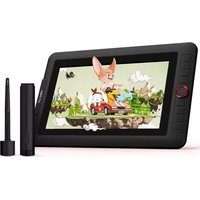
Artist 12 Pro - Graphic tablet XP-Pen - Free user manual and instructions
Find the device manual for free Artist 12 Pro XP-Pen in PDF.


Pick your language and provide your email: we'll send you a specifically translated version.
| Type | Graphic drawing tablet with display |
| Display Size | 11.6 inches |
| Resolution | 1920 x 1080 |
| Pressure Sensitivity | 8192 levels |
| Pen Technology | Battery-free, electromagnetic resonance |
| Pen Buttons | 2 side buttons |
| Connectivity | USB-C |
| Dimensions (W x H x D) | 332 x 220 x 13 mm |
| Weight | 730 g |
| Power Source | USB bus power |
| Compatible Operating Systems | Windows, macOS, Android (with OTG) |
| Main Functions | Drawing, painting, photo editing, note-taking |
| Cleaning Instructions | Use a soft, lint-free cloth. Avoid liquids and solvents. |
| Safety Precautions | Do not disassemble. Avoid extreme temperatures and humidity. |
| Spare Parts Available | Pen nibs, replacement pen, USB cable |
| Reparability | Pen nibs user-replaceable. Other repairs by authorized service. |
| Warranty | 1 year limited warranty |
Frequently Asked Questions - Artist 12 Pro XP-Pen
How do I install the driver for the XP-Pen Artist 12 Pro?
Download the driver from the official XP-Pen website, run the installer, and follow the on-screen instructions. Restart your computer after installation.
Does the Artist 12 Pro work with macOS?
Yes, it is compatible with macOS. Download the appropriate driver from the XP-Pen website.
How do I replace the pen nibs?
Gently pull out the old nib using the nib remover tool or pliers, then insert a new nib until it clicks into place.
Why is the cursor not moving on the tablet?
Ensure the driver is installed correctly and the USB cable is securely connected. Try restarting your computer or reconnecting the tablet.
Can I use the Artist 12 Pro with an Android phone?
Yes, if your phone supports USB OTG (On-The-Go). Connect the tablet via a USB-C to OTG adapter. Some functions may be limited.
How do I calibrate the pen pressure or display?
Open the XP-Pen driver software, select 'Pen' or 'Display' settings, and adjust calibration options. You can also use the system display calibration tool.
What is the warranty period?
The XP-Pen Artist 12 Pro typically comes with a 1-year limited warranty. Check your region for details.
How should I clean the screen?
Use a soft, dry microfiber cloth. For stubborn smudges, slightly dampen the cloth with water. Do not use alcohol or abrasive cleaners.
Is the Artist 12 Pro compatible with Adobe Photoshop?
Yes, once the driver is installed, the tablet works with Photoshop and other creative software that supports pressure sensitivity.
Does the tablet have shortcut keys?
No, the Artist 12 Pro does not have built-in shortcut keys. However, you can customize the two side buttons on the pen using the driver software.
User questions about Artist 12 Pro XP-Pen
0 question about this device. Answer the ones you know or ask your own.
Ask a new question about this device
No questions yet. Be the first to ask one.
Download the instructions for your Graphic tablet in PDF format for free! Find your manual Artist 12 Pro - XP-Pen and take your electronic device back in hand. On this page are published all the documents necessary for the use of your device. Artist 12 Pro by XP-Pen.
USER MANUAL Artist 12 Pro XP-Pen
Manual assistant
Powered by Anthropic
Waiting for your message
Product information
Brand : XP-Pen
Model : Artist 12 Pro
Category : Graphic tablet