XENEON 32QHD165 - Monitor CORSAIR - Free user manual and instructions
Find the device manual for free XENEON 32QHD165 CORSAIR in PDF.


Pick your language and provide your email: we'll send you a specifically translated version.
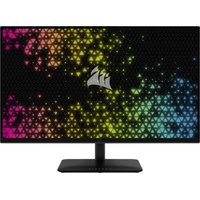
| Product Type | 32-inch QHD Gaming Monitor |
| Model | XENEON 32QHD165 |
| Brand | Corsair |
| Screen Size | 31.5 inches (80 cm) |
| Resolution | 2560 x 1440 (QHD) |
| Refresh Rate | 165 Hz |
| Response Time | 1 ms (MPRT) |
| Panel Type | IPS (In-Plane Switching) |
| HDR Support | HDR10 |
| Adaptive Sync | AMD FreeSync Premium & G-Sync Compatible |
| Connectivity | 1x DisplayPort 1.4, 2x HDMI 2.0, 1x USB-C (65W PD), 4x USB 3.2 Gen1 Type-A |
| Dimensions (with stand) | 714 x 518 x 246 mm |
| Weight (with stand) | 8.5 kg |
| Power Consumption | 70 W (typical), <0.5 W (standby) |
| Ergonomics | Tilt, Swivel, Height adjustment, VESA mount (100x100mm) |
| Speakers | 2x 3W built-in |
| Cleaning | Use a soft, dry microfiber cloth; avoid liquid cleaners |
| Safety | Do not disassemble; use only supplied power adapter |
| Spare Parts | Contact Corsair support for stand, power adapter, cables |
| Repairability | Back cover removable; panel replacement difficult; consult certified technician |
| General Info | Designed for immersive gaming with ultra-smooth visuals and vivid colors |
Frequently Asked Questions - XENEON 32QHD165 CORSAIR
How do I enable 165Hz refresh rate on my Corsair XENEON 32QHD165?
Connect via DisplayPort 1.4 or HDMI 2.0. Go to Display Settings > Advanced Display > choose 165Hz under Refresh Rate. Ensure your GPU supports it.
Can I use VESA mount with this monitor?
Yes, the monitor supports VESA 100x100mm mount. Remove the stand by pressing the release button and attach a VESA bracket using the provided screws.
How to adjust HDR settings?
In the OSD, navigate to Image Adjust > HDR and select Auto or On. Also enable HDR in Windows Display Settings > Windows HD Color.
What is the recommended cleaning method for the screen?
Turn off the monitor and unplug. Use a soft, dry microfiber cloth to gently wipe the screen. Do not use paper towels, alcohol, or spray liquids directly.
Does the monitor support G-Sync?
Yes, the Corsair XENEON 32QHD165 is G-Sync Compatible. Enable G-Sync in NVIDIA Control Panel under Set up G-Sync after connecting via DisplayPort.
How can I reset the OSD settings to factory defaults?
Press the joystick to open OSD, go to System Setup > Factory Reset. Confirm to reset all settings.
What should I do if there is no display signal?
Check cable connections at both ends. Ensure the correct input source is selected (press input button). Try a different cable or port. Restart the monitor and PC.
Can I connect my laptop via USB-C?
Yes, the USB-C port supports DisplayPort Alt Mode and up to 65W power delivery. Connect your laptop with a USB-C cable that supports video.
How to enable the built-in crosshair overlay?
In OSD, go to Gaming > Crosshair and select a style. The crosshair will appear on-screen for FPS games.
Where can I download the latest driver or firmware?
Visit Corsair's official website, search for XENEON 32QHD165, go to the Support/Downloads section. Firmware updates may require a Windows utility.
User questions about XENEON 32QHD165 CORSAIR
0 question about this device. Answer the ones you know or ask your own.
Ask a new question about this device
No questions yet. Be the first to ask one.
Download the instructions for your Monitor in PDF format for free! Find your manual XENEON 32QHD165 - CORSAIR and take your electronic device back in hand. On this page are published all the documents necessary for the use of your device. XENEON 32QHD165 by CORSAIR.
USER MANUAL XENEON 32QHD165 CORSAIR
Manual assistant
Powered by Anthropic
Waiting for your message
Product information
Brand : CORSAIR
Model : XENEON 32QHD165
Category : Monitor