
TVAC10101 - Monitor ABUS - Free user manual and instructions
Find the device manual for free TVAC10101 ABUS in PDF.


| Product Type | Monitor for security camera system |
| Brand | ABUS |
| Model | TVAC10101 |
| Display Size | 7 inches (estimated) |
| Display Resolution | 800 x 480 pixels (estimated) |
| Dimensions (W x H x D) | 190 x 140 x 25 mm (estimated) |
| Weight | 0.45 kg (estimated) |
| Power Supply | DC 12V, 1A (included) |
| Power Consumption | 5W (estimated) |
| Input Video | BNC connector for analog cameras |
| Brightness | 250 cd/m² (estimated) |
| Contrast Ratio | 300:1 (estimated) |
| Viewing Angle | 140° horizontal, 120° vertical (estimated) |
| Audio | Built-in speaker for audio monitoring |
| Controls | Menu buttons on front panel |
| Mounting | Desk stand included, VESA 75x75 compatible |
| Operating Temperature | 0°C to 40°C |
| Storage Temperature | -20°C to 60°C |
| Cleaning | Wipe with a soft dry cloth; do not use liquid cleaners |
| Safety | Keep away from water and heat sources; use only supplied power adapter |
| Spare Parts | Power adapter, stand, AV cable available from ABUS |
Frequently Asked Questions - TVAC10101 ABUS
User questions about TVAC10101 ABUS
0 question about this device. Answer the ones you know or ask your own.
Ask a new question about this device
Download the instructions for your Monitor in PDF format for free! Find your manual TVAC10101 - ABUS and take your electronic device back in hand. On this page are published all the documents necessary for the use of your device. TVAC10101 by ABUS.
USER MANUAL TVAC10101 ABUS
Declaration of conformity....12
GNU GPL License note 12
Features 13
Startup procedure.... 14
Battery.... 14
User manual.... 14
Malfunction.... 14
Application overview.... 15
Shortcut menu.... 16
Drop-down menu 17
Control buttons 18
Interfaces....20
Declaration of conformity
ABUS Security-Center hereby declares that the enclosed product complies with the requirements of the following directives concerning the product:
RED Directive (2014/53/EU)
EMC Directive (2014/30/EU)
Low Voltage Directive (2014/35/EU)
RoHS Directive (2011/65/EU)
The full EU declaration of conformity can be obtained from the following address: ABUS Security-Center GmbH & Co. KG
Linker Kreuthweg 5
86444 Affing
GERMANY
www.abus.com/product/Itemnumber
('Item number' in the link to be replaced with
the article number of the enclosed product)
GNU GPL License note
Note that this product includes open source software, licensed under the GNU General Public License (GPL). The GPL license terms can be viewed online under the following link:
https://www.abus.com/var/ImagesPIM/d110001/medias/docus/13/gpl-2.0_license.txt
Features
- High-resolution 7" touch display with 1280x800 pixel
- Universal test monitor for maintenance and installation of IP network cameras as well as analog AHD, CVI, TVI and CVBS cameras
• Supports 4K H.264 and 4K H.265 streams - Compatible with ONVIF and all third-party manufacturers
- With network tools for network maintenance and testing
- Integrated PoE power supply with 24 W at the LAN port
- Integrated mobile power supply for devices (12V, S-A)
- Integrated USB power supply for USB devices (5V, 2A)
- Integrated measuring device for testing of PoE lines and measuring of the power consumption of connected devices
- Wifi and Wifi Hot Spot
- Cable tester
• Data storage on SD card (snapshots/videos/documents) - PTZ camera control, zoom and lens setting directly via the control buttons of the test monitor.
- Integrated LED lamp
- Battery lasts up to 10 hours (5-6 hours of charging time)
- Audio test
- Test pattern output
- Including adapter cable accessories for all interfaces
- Including useful shoulder bag for transportation of the test monitor and the accessories
Startup procedure
Thank you for purchasing the 7" Universal test monitor. Please read this quick guide before using the device.
For using the test monitor safely, please first read the separate attached Safety Information carefully.
The quick guide should be kept well in case of reference.
If there is any question or problem while using the 7" Universal test monitor, or damages on the product occurred, please contact our technical support.
Battery
The tester has a built-in lithium ion polymer rechargeable battery.
For safety during transportation, the battery connection inside the battery cabin is disconnected by a transport securing plastic.
Before using the device, the transport securing plastic must be removed.
For job routine there is no need for the transport securing plastic.
User manual
After powering on the device for the first time it is highly recommended to have a look at the “Manual” application. There you will find comprehensive instructions, including user guide for all settings, functions and pre-installed applications, as well as a digital quick guide and frequently asked questions.
Furthermore, while using pre-installed applications, you can directly open the application's instruction picture-in-picture by simply tapping on the application symbol in the left upper corner of the display.
The ABUS IPCam Plus application also provides user instructions within the application.
Malfunction
If you should notice abnormal behaviour of the device perform a restart by pressing more than 2 seconds. If this is not possible in worst case scenario, please remove the battery and power on the device after restoring the battery.
Application overview

| 1 | Applications for installation and maintenance of IP cameras:POE power output: Powering of PoE devicesIP Discovery: Displays devices in the networkNetwork Tool: Application for maintenance and testing of the networkONVIF: Application for installation and maintenance of ONVIF camerasIPC Test: Application with protocols of all third-party manufacturerIPCam Plus: ABUS IP camera application, see also point 6 “My APPS” |
| 2 | Applications for installation and maintenance of analog cameras CVBS, CVI, AHD, TVI, SDI as wells as application for test pattern output TV out/in |
| 3 | Applications for test of twisted pair cables and RJ45 interfaces |
| 4 | Applications for playback and display of the HDMI input |
| 5 | Useful applications:Chrome: WebbrowserPoE & Power Info: Displays the power consumption of connected devicesDroiNotes: Application for making notesData monitor: Application for RS485 interfaceCalculator: Calculator applicationQuickoffice: Pre-installed collection of free office tools |
| 6 | Self-added Android applications, for example ABUS iDVR |
| 7 | Digital user guide |
| 8 | Application for updating the device's software |
| 9 | File explorer |
| 10 | Settings |
| 11 | Settings of color scheme and background pictures of menus/applications |
Shortcut menu

Using the MENU button you can open the shortcut menu at any time.
In the device settings, you can easy define the content of the shortcut menu by simply holding down the applications to add or remove from the menu.
Drop-down menu

By double-swiping across the display from the top to the bottom, you can open the Drop-down menu, where you can find useful additional functions.
• CVBS: CVBS input displayed picture in picture
• HDMI: HDMI input displayed picture in picture
• TV OUT: TV OUT displayed picture in picture
• LAN info: LAN information displayed picture in picture
• POWER OUTPUT: Activate or deactivate PoE output
- IP: Open IP settings
Control buttons
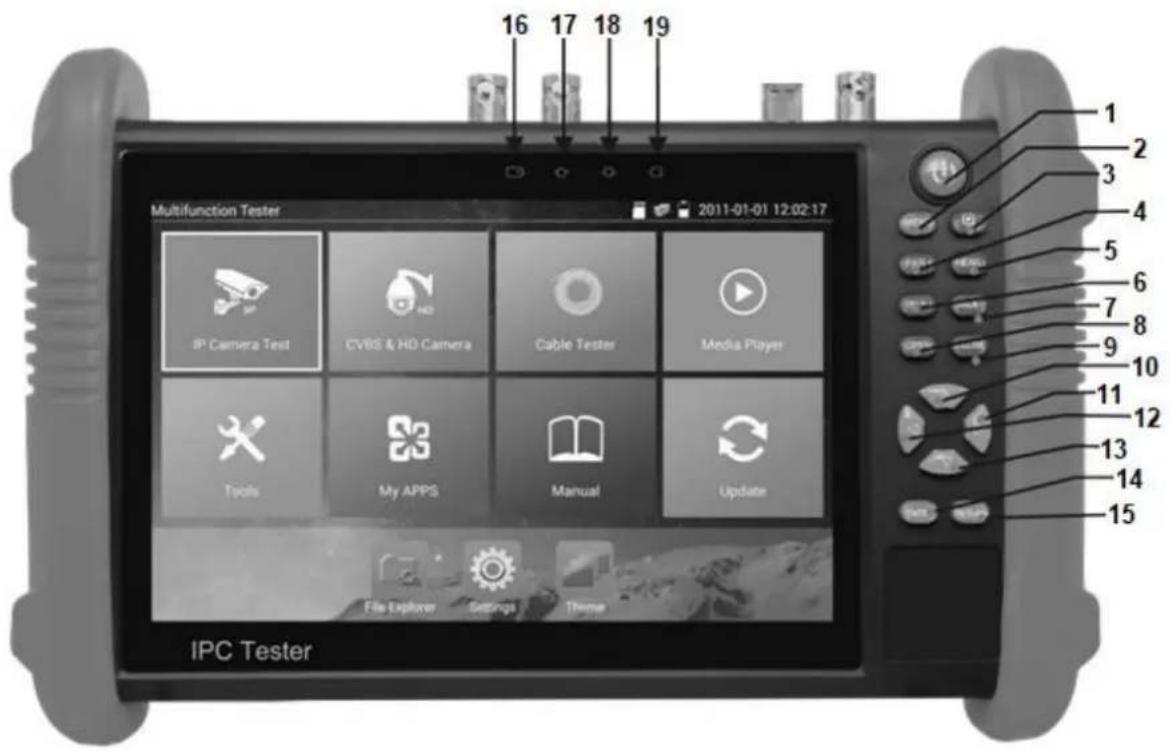
| 1 |  | Press more than 2 seconds to turn on or off or restart the device, short press to turn on or off the display |
| 2 |  | Press MENU key to call short menu. |
| 3 |  | Keep pressed to switch between recently used apps or 4x Zoom |
| 4 |  | Far focus: Focus the image faraway |
| 5 |  | Near focus: Focus the image nearby |
| 6 |  | TELE: Zoom in the image |
| 7 |  | WIDE: Zoom out the image |
| 8 |  | Open/Set: Confirm the setting of parameters, open or enlarge the aperture |
| 9 |  | Return/Close: Return or cancel while setting parameters of the menu, close or decrease the aperture |
| 10 |  | Upward: Set function or add the value of the parameter. Tilt the PTZ upward. |
| 11 |  | Rightward: Select the parameter. Add the value of the parameter. Pan the PTZ to the right. |
| 12 |  | Downward: Set function or reduce the value of the parameter. Tilt the PTZ downward. |
| 13 |  | Leftward: Select the parameter. Pan the PTZ to the left. |
| 14 |  | Confirm key (Long press to capture screen/take a screenshot) |
| 15 | [GKBY] | Return/Close: Return page or exit menu. |
| 16 |  | Charge indicator: It lights red while the battery is being charged.When the charging is complete, the indicator turns off automatically. |
| 17 | [∅XZK] | RS485 data transmission indicator: It lights red while the data is being transmitted |
| 18 |  | Data received indicator: It lights red while the data is being received |
| 19 |  | Power indicator: It lights green while the tester is powered on by the adapter |
Interfaces
Top interfaces:

Bottom interfaces:
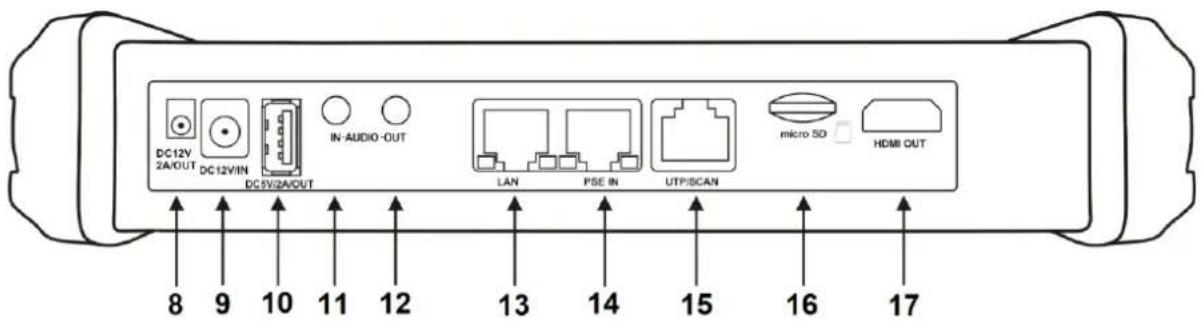
| 1 | SDI input (BNC interface) |
| 2 | RS485 Interface for controlling of PTZ cameras |
| 3 | LED lamp |
| 4 | Video signal output (BNC interface) / cable tracer interface |
| 5 | TVI/CVI/AHD/CVBS input (BNC interface) |
| 6 | HDMI input |
| 7 | 12V, 3A power output, for provisional DC power supply |
| 8 | 12V, 3A power output, for provisional DC power supply |
| 9 | 12V, 2A charging interface |
| 10 | USB 5V, 2A power output (only for power, no data) |
| 11 | Audio input |
| 12 | Audio output and earphone interface |
| 13 | LAN test port with PoE power supply output for test of PoE or non-PoE IP cameras |
| 14 | PSE input (power sourcing equipment) for test of PoE voltage |
| 15 | UTP cable port: UTP cable tester port / Cable tracer port |
| 16 | Micro SD card (supports up to 32GB) |
| 17 | HDMI output |
(D) Impressum
These operating instructions are published by ABUS Security-Center GmbH & Co.KG, Linker Kreuthweg 5, 86444 Affing, Germany. No reproduction (including translation) is permitted in whole or part e.g. photocopy, microfilming or storage in electronic data processing equipment, without the express written consent of the publisher.
The operating instructions reflect the current technical specifications at the time of print.
We reserve the right to change the technical or physical specifications.
© Copyright 02/2019 by ABUS Security-Center


Brand : ABUS
Model : TVAC10101
Category : Monitor