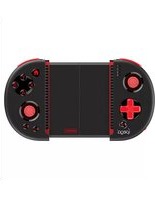
PG-9087S - Controller IPEGA - Free user manual and instructions
Find the device manual for free PG-9087S IPEGA in PDF.


| Product Type | Wireless Game Controller |
| Brand | IPEGA |
| Model | PG-9087S |
| Dimensions (approx.) | 150 x 80 x 30 mm (folded) |
| Weight | 150 g |
| Power Source | Built-in rechargeable lithium battery, 300 mAh |
| Charging | Micro USB cable (included) |
| Connection Type | Bluetooth wireless |
| Bluetooth Version | 3.0 |
| Compatibility | iOS (Android via OTG), Android 4.0+, Windows, Mac OS |
| Supported Device Size | Phones up to 6.5 inches with case |
| Controls | 2 analog joysticks, D-pad, A/B/X/Y buttons, L1/R1/L2/R2 bumpers, Start/Select, Home |
| Special Features | Telescopic holder for smartphone, ergonomic design, turbo function |
| Battery Life | Up to 10 hours continuous use |
| Standby Time | Approximately 30 days |
| Operating Range | Up to 10 meters |
| Package Includes | Controller, USB charging cable, user manual |
| Maintenance | Clean with soft dry cloth, avoid liquids |
| Safety Precautions | Do not expose to water or extreme temperatures; turn off when not in use |
| Spare Parts & Repairability | Not user-serviceable; contact IPEGA support for repairs |
| Warranty | 12 months from date of purchase |
Frequently Asked Questions - PG-9087S IPEGA
User questions about PG-9087S IPEGA
0 question about this device. Answer the ones you know or ask your own.
Ask a new question about this device
Download the instructions for your Controller in PDF format for free! Find your manual PG-9087S - IPEGA and take your electronic device back in hand. On this page are published all the documents necessary for the use of your device. PG-9087S by IPEGA.
USER MANUAL PG-9087S IPEGA
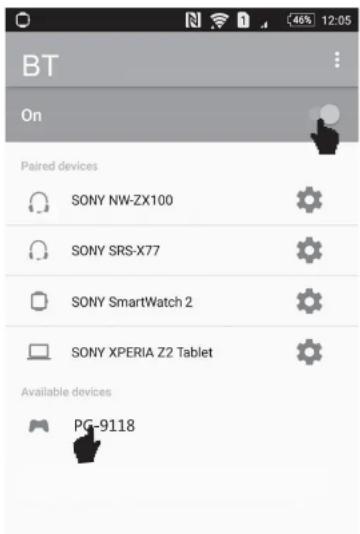
Direct-Play Mode Default Setting on iOS/Android devices
iOS devices: Press and hold "Y+HOME" buttons on
iPega gamepad, Open bluetooth on your devices,
Search "Gamepad Model" Connect it
Android devices: Press and hold "A+HOME" buttons
on iPega gamepad, Open bluetooth on your devices,
Search "Gamepad Model" Connect it
Change preset game by press buttons on the gamepad:
HOME+UP : PUBG Mobile; HOME+RIGHT : Arena of Valor
HOME+DOWN : Mobile Legends; HOME+LEFT : Knives Out
Direct-Play Mode Default Setting on iOS/Android devices
Default game buttons for PUBG Mobile &
Knives Out as shown
Remarks:
When using this product, please placed the device
horizontally. And make sure the HOME key is on the right.
Restore the game's buttons to their default settings.
Please find the steps shown at next page
Change preset game by press buttons on
the gamepad:
HOME+UP : PUBG Mobile;
HOME+RIGHT : Arena of Valor
HOME+DOWN : Mobile Legends;
HOME+LEFT : Knives Out

Direct-Play Mode Default Setting on iOS/Android devices
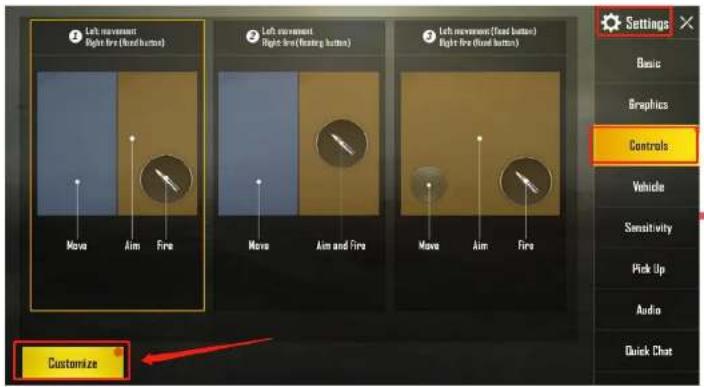
* If you changed the game buttons before, please Reset the game buttons
Step1 Open "Setting" in the game, enter "Customize" interface
Step2 Click "Reset", Save it and Exit

Change preset game by press buttons on the gamepad:
HOME+UP : PUBG Mobile;
HOME+RIGHT : Arena of Valor
HOME+DOWN : Mobile Legends;
HOME+LEFT: Knives Out

Direct-Play Mode Default Setting on iOS/Android devices
Arena of Valor & Mobile Legends default game buttons as shown below:
| Game Action | Gamepad | Game Action | Gamepad | Notes | |
| Moving direction | Left joystick | TP | R1+L1 | ||
| Purchase equipment up | D-pad ↑ | Recover | R1+L2 | ||
| Purchase equipment down | D-pad ↓ | Summoner Spells | R1+R2 | ||
| Add skills 1 | D-pad ← | Map | Right joystick | ||
| Add skills 2 | D-pad → | Attack | R1+X | ||
| Add skills 3 | R3 | Retreat | R1+Y | ||
| Normal attack | A | Gather | R1+B | ||
| Topple towers | B | Open the shop | R1+D-pad ↑ | ||
| Add knife | X | Pick up objects | R1+D-pad ← | Border Chicken games mode | |
| Against information | Y | Salve | R1+A | ||
| Skill 1 | L1 | Backpack | R1+D-pad ↓ | ||
| Skill 2 | L2 | Map | R1+D-pad → | ||
| Skill 3 | R2 |
Change preset game by press buttons on the gamepad:
HOME+UP : PUBG Mobile; HOME+RIGHT : Arena of Valor
HOME+DOWN : Mobile Legends; HOME+LEFT : Knives Out
ípega®
How to reset game buttons using ShootingPlus V3 APP On iOS devices
Youtube guide video: https://www.youtube.com/watch?v=DeQQ0DPdtHQ
ípega®
How to Use ShootingPlus V3 APP on iOS devices
Step1 Download and install "ShootingPlus V3" APP from APP store Step 2 Open "ShootingPlus" APP, You can see that there are a lot of games that have preset buttons, which can be downloaded to gamepad. After download, Click "V3" popup window, "Choose" the game buttons in the app or press the buttons on the gamepad to change game buttons.


How to Use ShootingPlus V3 APP on iOS devices
If you want to set the game buttons follow your habits, please check the steps as shown below:
Step1 Get a Screenshot from the game
(For PUBG, Click "Setting" ----"Control",
Enter "Customize" interface)

Step2 Open Shootingplus App, Click "V3" popup window, Long press the blank area, Load the screenshot for game buttons


How to Use ShootingPlus V3 APP on iOS devices
Step 3 Click "NEW", all of the game buttons will be clear, and press the button on the gamepad and drag them to right position, after all game buttons are set, save and exit.

Step 4 Open the game, enjoy it!
ípega®
How to reset game buttons using ShootingPlus V3 APP On Android devices
Youtube guide video: https://www.youtube.com/watch?v=DeQQ0DPdtHQ
ípega®
How to Use ShootingPlus V3 APP on Android devices
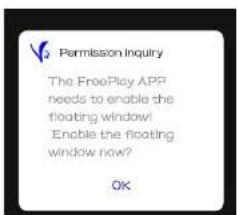
Step1 Download and install "ShootingPlus V3" APP from Google Play Store,
Open "ShootingPlus" APP, Enable the floating window, Permit drawing over other apps


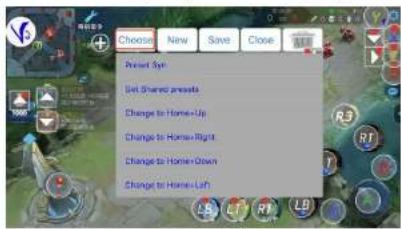
Step 2 You can see that there are a lot of games that have preset buttons, which can be
downloaded to gamepad. After download, Click "V3" popup window, "Choose" the game buttons in the app or press the buttons on the gamepad to change game buttons.

ípega®
How to Use ShootingPlus V3 APP on Android devices
If you want to set the game buttons follow your habits, please check the steps as shown below:
Step1 Open the game, click "V3" popup window, "Choose" the Prset game buttons in the app


ípega®
How to Use ShootingPlus V3 APP on Android devices
Step 2 If you want to set all buttons follow your habit, Click "NEW", all of the game buttons will be clear, and press the button on the gamepad and drag them to right position, after all game buttons are set, save and exit.
Step 3 Open the game, press "SELECT" on the gamepad, game buttons will appear, enjoy the game!


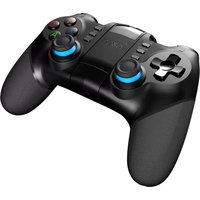


Brand : IPEGA
Model : PG-9087S
Category : Controller