DIMAGE VIEWER VER2.2 - Image Processing Software KONICA MINOLTA - Free user manual and instructions
Find the device manual for free DIMAGE VIEWER VER2.2 KONICA MINOLTA in PDF.


User questions about DIMAGE VIEWER VER2.2 KONICA MINOLTA
0 question about this device. Answer the ones you know or ask your own.
Ask a new question about this device
Download the instructions for your Image Processing Software in PDF format for free! Find your manual DIMAGE VIEWER VER2.2 - KONICA MINOLTA and take your electronic device back in hand. On this page are published all the documents necessary for the use of your device. DIMAGE VIEWER VER2.2 by KONICA MINOLTA.
USER MANUAL DIMAGE VIEWER VER2.2 KONICA MINOLTA
The essentials of imaging
www.minoltaeurope.com
text_image
0011011 1011 0100 01100 11000 101001 010001110001011010001011000111101 101011100011011011101101010001111001DiMAGE Viewer
E
INSTRUCTION MANUAL
BEFORE YOU BEGIN
Before installing the DiMAGE Viewer software, read the data-transfer section in the camera manual. This section details how to connect the camera to a computer using the supplied USB cable. The s in this manual assume the camera is connected to the computer with a USB cable as described in the camera manual.
This instruction manual does not provide instruction in the basic operation of the personal computers, or the basic operation of Windows or Macintosh operating systems; refer to the manuals supplied with the computer.
The examples in this manual use Windows software. The appearance of the screens may differ from the examples when using Macintosh or other Windows operating systems.
Every precaution has been taken to ensure the accuracy of this material. Contact Minolta if you have any questions. Minolta is not responsible for any loss or damage caused by the use of this software.
This instruction manual may not be copied either in part or in its entirety without the prior permission of Minolta.
TABLE OF CONTENTS
System requirements ....6
DiMAGE Viewer system requirements ....6
QuickTime system requirements....7
Before installing the DiMAGE Viewer 7
Installation 8
Installing the DiMAGE Viewer - Windows....8
Installing the DiMAGE Viewer - Macintosh....10
Starting up the Viewer....12
Starting up the Viewer - Windows 12
Starting up the Viewer - Macintosh 13
Importing and editing images....14
Loading image files....14
Updating the thumbnail window 14
Opening audio files....15
Changing the display format....16
Changing the thumbnail format 17
Sorting image files....18
Selecting thumbnails 18
Renaming single files 19
Renaming multiple files 19
Creating folders 20
Moving images to another folder 21
Copying images to another folder....22
Cut, copy, paste, and delete - Windows 23
Cut, copy, paste, and delete - Macintosh 23
Displaying and saving image information....24
Image information setup....25
Editing the subject line ....25
Basic image processing ....26
Image-correction window....26
Tool bars 27
Displaying images in the image-correction window....28
Flip and rotate images....29
Controlling the image display 30
Fit-to-window button....30
Resizing the viewer window....30
Grab tool 31
Magnifying tool....31
Menu options ....31
Variation palette....32
Brightness, contrast, and color-balance palette 33
An introduction to color....35
Comparing pre- and post correction images....36
Undoing and redoing an image correction 37
Processing images of text and line art 37
Data imprinting 38
Saving images 40
Resizing an image to be saved 40
Saving an image....40
Changing the image name or format....41
Printing 42
Creating an index sheet....44
Advanced image processing....46
The tone curve / histogram palette....47
Using the tone curve 48
Drawing tone curves by freehand....49
A short guide to tone-curve corrections 50
Correcting color ....51
White, black, and gray-point corrections 52
Setting the white and black-point values....54
Tone-curve / histogram auto setting 55
Displaying the color histograms....55
Histogram corrections....56
A short guide to histogram corrections....58
Hue, saturation, and lightness palette....60
Hue correction example....61
Auto-setting button....61
Sharpness 62
Area marquee - saving or printing a portion of an image 64
Tracking image corrections - snapshot button....65
Saving image corrections 66
Loading image-correction Jobs 67
Processing RAW images....68
Saving RAW images....70
Saving RAW Jobs....71
Loading RAW Jobs....71
Batch processing....72
Movie Enhancer 74
Flicker correction 75
Editing movie files....76
Splicing two movie clips....76
Copying sections from movie to another 77
Correcting movie images....78
Advanced setup....80
Customizing the viewer - Preferences....80
Color matching - Color preferences 82
Using printer ICC profiles 84
Using monitor ICC profiles 85
About DiMAGE Viewer ICC profiles....85
ICC profile locations 86
Viewer notes 87
Uninstalling the DiMAGE Viewer 87
Copying Job files 88
Embedded camera color profiles....90
Note on color measurement....90
DIIMAGE VIEWER SYSTEM REQUIREMENTS
| IBM PC/AT compatible computers | Apple Macintosh series computers |
| 133MHz Pentium processor or higher | PowerPC 100MHz or higher |
| 64MB or more of RAM(128MB or more with Windows XP) | 128MB or more of available RAM |
| 200MB or more of available hard-disk space | 200MB or more of available hard-disk space |
| A True Color (24 bit) or greater monitor with a minimum resolution of 800 X 600. 1024 X 768 (XGA) or higher is recommended. | A 24-bit color or greater monitor with a minimum resolution of 800 X 600. 1024 X 768 or higher is recommended. |
| CD-ROM drive | |
| QuickTime 5 or later | QuickTime 4 or later |
Refer to the DiMAGE Viewer CD-ROM for Windows and Macintosh operating system requirements. The requirements are printed on the CD-ROM disk. Compatibility with Windows XP is with the Home or Professional editions only.
Computers with Windows 98 operating systems require Microsoft Internet Explorer 5.0 or later.
QUICKTIME SYSTEM REQUIREMENTS
IBM PC / AT Compatible
Pentium-based computer
Windows 95, 98, 98SE, NT, Me, 2000 Professional, or XP.
32MB or more of RAM
Sound Blaster or compatible sound card
DirectX 3.0 or later recommended
To install QuickTime, follow the instructions in the installer. In the window to choose the type of installation, select the recommended option; the minimum or custom options may prevent the DiMAGE Viewer from operating properly.
Macintosh users can download the latest version of QuickTime free of charge from the Apple Computer web site: www.apple.com.
BEFORE INSTALLING THE DAMAGE VIEWER
RAM-stationed programs such as anti-virus or installation-monitoring software may cause the installer to fail. Remove or disable these programs before installing the DiMAGE Viewer. Reinstall or enable the software when the installation is complete.
If you are upgrading the DiMAGE Viewer from a version earlier than 2.2, see page 88 on how to save any Job file which may have been created. The procedure must be completed before installing the new Viewer version.
INSTALLING THE DAMAGE VIEWER - WINDOWS
In the example below, the hard disk drive is drive F. The letters designating the drives will vary between computers. With Windows 2000 or XP, the software should be installed with the Administrator privilege.
text_image
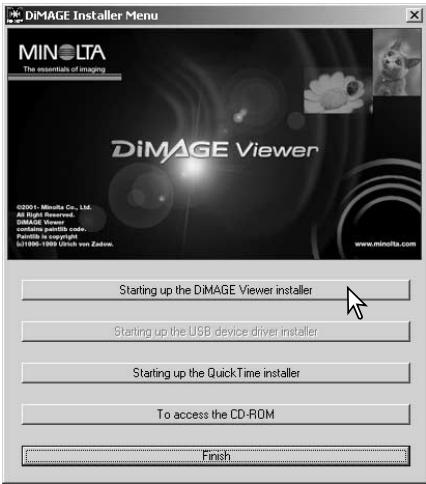
DiMAGE Installer Menu MINOLTA The essentials of imaging DiMAGE Viewer 02001- Minolta Co., Ltd. 28 Right Reserved. On DIIMAGE Viewer ONION, power, music Portable is copyright Io11996-1999 Unich von Zebwe. www.minolta.com Starting up the DiMAGE Viewer installer Starting up the USB device driver installer Starting up the QuickTime installer To access the CD-ROM FinishTurn on the computer to start Windows.
Insert the DiMAGE Viewer CD-ROM into the CD-ROM drive. The DiMAGE Viewer Installer window will open automatically. The installer window varies with the camera model.
Click the "Starting up the DiMAGE Viewer installer" button to begin installation.
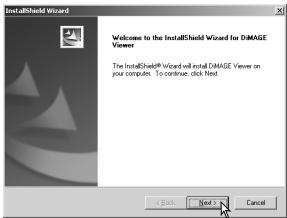
The welcome window will open. Click "Next>" to continue.
text_image
InstallShield Wizard Welcome to the InstallShield Wizard for DAMAGE Viewer The InstallShield Wizard will install DAMAGE Viewer on your computer. To continue, click Next. Next Next Cancel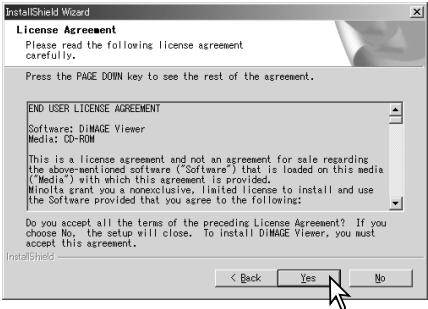
text_image
InstallShield Wizard License Agreement Please read the following license agreement carefully. Press the PAGE DOWN key to see the rest of the agreement. END USER LICENSE AGREEMENT Software: DIMAGE Viewer Media: CD-ROM This is a license agreement and not an agreement for sale regarding the above-mentioned software ("Software") that is loaded on this media ("Media") with which this agreement is provided. Minolta grant you a nonexclusive, limited license to install and use the Software provided that you agree to the following: Do you accept all the terms of the preceding License Agreement? If you choose No, the setup will close. To install DIMAGE Viewer, you must accept this agreement. InstallShield < Back Yes NoThe license agreement appears. If you accept the agreement, click "Yes" to continue the installation routine.
Read the entire license agreement carefully before continuing. If you do not agree to the terms, click “No” to exit the installation program.
text_image
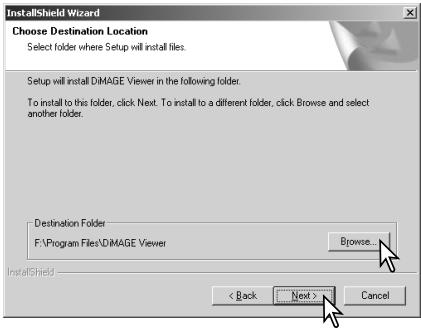
InstallShield Wizard Choose Destination Location Select folder where Setup will install files. Setup will install DiIMAGE Viewer in the following folder. To install to this folder, click Next. To install to a different folder, click Browse and select another folder. Destination Folder F:\Program Files\DiIMAGE Viewer Browse... InstallShield < Back Next > CancelTo install the software in the default location - F:\Program Files\DiMAGE Viewer, click "Next >." To install the software in a different location, click browse button to display the folder selection window. Specify the directory in which to install the software.
text_image
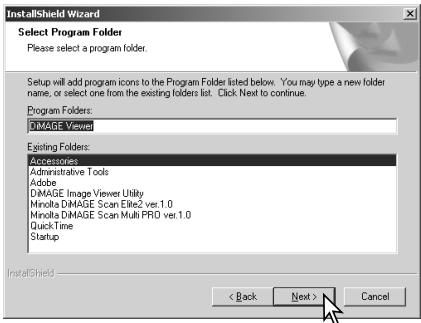
InstallShield Wizard Select Program Folder Please select a program folder. Setup will add program icons to the Program Folder listed below. You may type a new folder name, or select one from the existing folders list. Click Next to continue. Program Folders: IMAGE Viewer Existing Folders: Accessories Administrative Tools Adobe IMAGE Image Viewer Utility Minolta DMAGE Scan Elite2 ver 1.0 Minolta DMAGE Scan Multi PRO ver 1.0 QuickTime Startup InstallShield < Back Next > CancelThe name of the default program folder is displayed. To install the software icons in this folder, click "Next>." Installation will begin.
To install the software icons in another folder, select one of the folders listed in the existing-folders box below. Click "Next>" to begin installation.
text_image
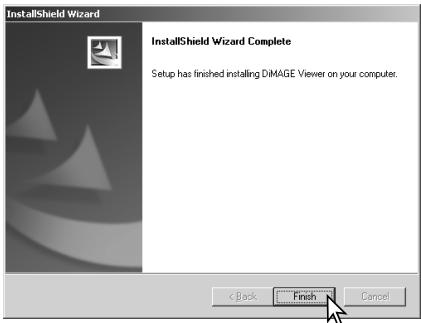
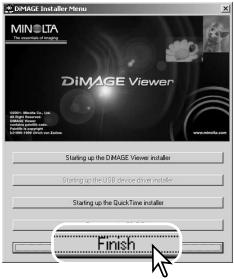
InstallShield Wizard InstallShield Wizard Complete Setup has finished installing DiMAGE Viewer on your computer. < Back Finish CancelWhen the software installation has been completed, a message will be displayed. Click "Finish."
text_image
MINDIA DiIMAGE Viewer Starting up the DiIMAGE Viewer installer Starting on the USB device driver installer Starting up the Quick Time installer FinishThe DiMAGE Viewer installer window will be displayed. Click "Finish" to close the window.
INSTALLING THE DAMAGE VIEWER - MACINTOSH
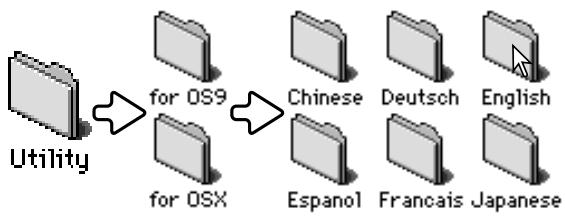
Turn on the computer to start the operating system. When the desktop appears, insert the DiMAGE Viewer CD-ROM into the CD-ROM drive. The contents of the CD-ROM appear automatically. If the contents do not appear, double-click the CD-ROM icon to open it.
flowchart
graph LR
    A["Utility"] --> B["for OS9"]
    B --> C["for OSX"]
    C --> D["Chinese"]
    C --> E["Espanol"]
    C --> F["Francais"]
    C --> G["Japanese"]
    C --> H["Deutsch"]
    C --> I["English"]
Open the utility folder, and then open the appropriate operating system and language folder.
text_image
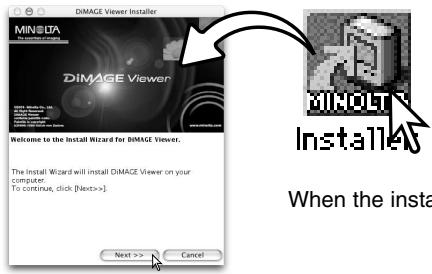
DIMAGE Viewer Installer MINISTA DIMAGE Viewer Welcome to the Install Wizard for DIMAGE Viewer. The Install Wizard will install DIMAGE Viewer on your computer. To continue, click [Next>×] Next >> Cancel MINOLT InstallAs When the instaDouble-click on the installer icon to start the Installation program.
When the installation screen appears click "Next>" to begin the setup.
text_image
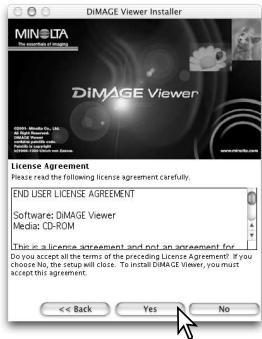
DIMAGE Viewer Installer MINI SLA My website is ordering DIMAGE Viewer License Agreement Please read the following license agreement carefully. END USER LICENSE AGREEMENT Software: DIMAGE Viewer Media: CD-ROM This is a license agreement and not an agreement for. Do you accept all the terms of the preceding License Agreement? If you choose No, the setup will close. To install DIMAGE Viewer, you must accept this agreement. << Back Yes NoThe license agreement appears. If you accept the agreement, click "Yes" to continue the installation routine.
Read the entire license agreement carefully before continuing. If you do not agree to the terms, click "No" to exit the installation program.
text_image
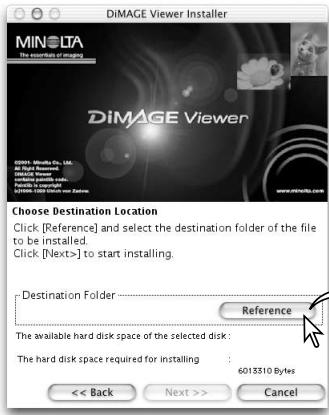
DiMAGE Viewer Installer MINELTA The environment of this image DiMAGE Viewer Choose Destination Location Click [Reference] and select the destination folder of the file to be installed. Click [Next>] to start installing. Destination Folder Reference The available hard disk space of the selected disk: The hard disk space required for installing : 6013310 Bytes << Back Next >> CancelThe location for the DiMAGE Viewer files must be specified. Click the reference button.
text_image
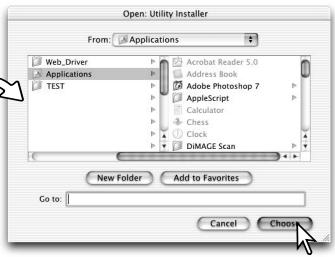
Open: Utility Installer From: Applications Web_Driver Applications TEST Acrobat Reader 5.0 Address Book Adobe Photoshop 7 AppleScript Calculator Chess Clock DIMAGE Scan New Folder Add to Favorites Go to: Cancel ChooseUsing the folder-selection dialog box, select the location where the software should be installed. Click "Choose."
text_image
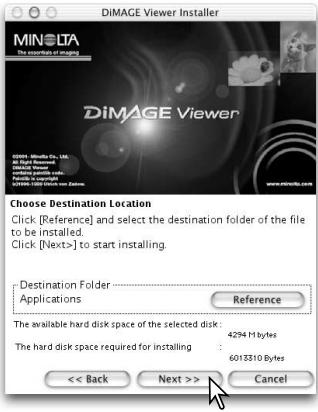
DiMAGE Viewer Installer MINOLTA The resources of imaging DiMAGE Viewer ©2011 Minola Co., Ltd. © 2011 Minola Co., Ltd. © 2011 Minola Co., Ltd. © 2011 Minola Co., Ltd. © 2011 Minola Co., Ltd. © 2011 Minola Co., Ltd. © 2011 Minola Co., Ltd. © 2011 Minola Co., Ltd. © 2011 Minola Co., Ltd. © 2010 Max. 2010 © 2010 Max. 2010 © 2010 Max. 2010 © 2010 Max. 2010 © 2010 Max. 2010 © 2010 Max. 2010 © 2010 Max. 2010 © 2010 Max. 2010 ©2010 Max. 2010 © 2010 Max. 2010 © 2010 Max. 2010 © 2010 Max. 2010 © 2010 Max. 2010 © 2010 Max. 2010 © 2010 Max. 2010 © 2564-1888 ENEROS Systems www.minolta.com Choose Destination Location Click [Reference] and select the destination folder of the file to be installed. Click [Next>] to start installing. Destination Folder Applications Reference The available hard disk space of the selected disk: 4294 MBytes The hard disk space required for installing : 6013310 Bytes << Back Next >> CancelConfirm the installation location on the installer screen. Click "Next >>" to install the DiMAGE Viewer.
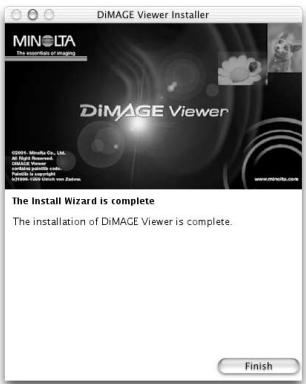
A window will appear when the software has been installed. Click "Finish" to exit the installer.
text_image
DiMAGE Viewer Installer MINOLTA The installation of DiMAGE Viewer DiMAGE Viewer ©2014 MioVita Co., Ltd. © No. 3587 © 2014 MioVita Co., Ltd. © 2014 MioVita Co., Ltd. www.miolta.com The Install Wizard is complete The installation of DiMAGE Viewer is complete. FinishSTARTING UP THE VIEWER - WINDOWS
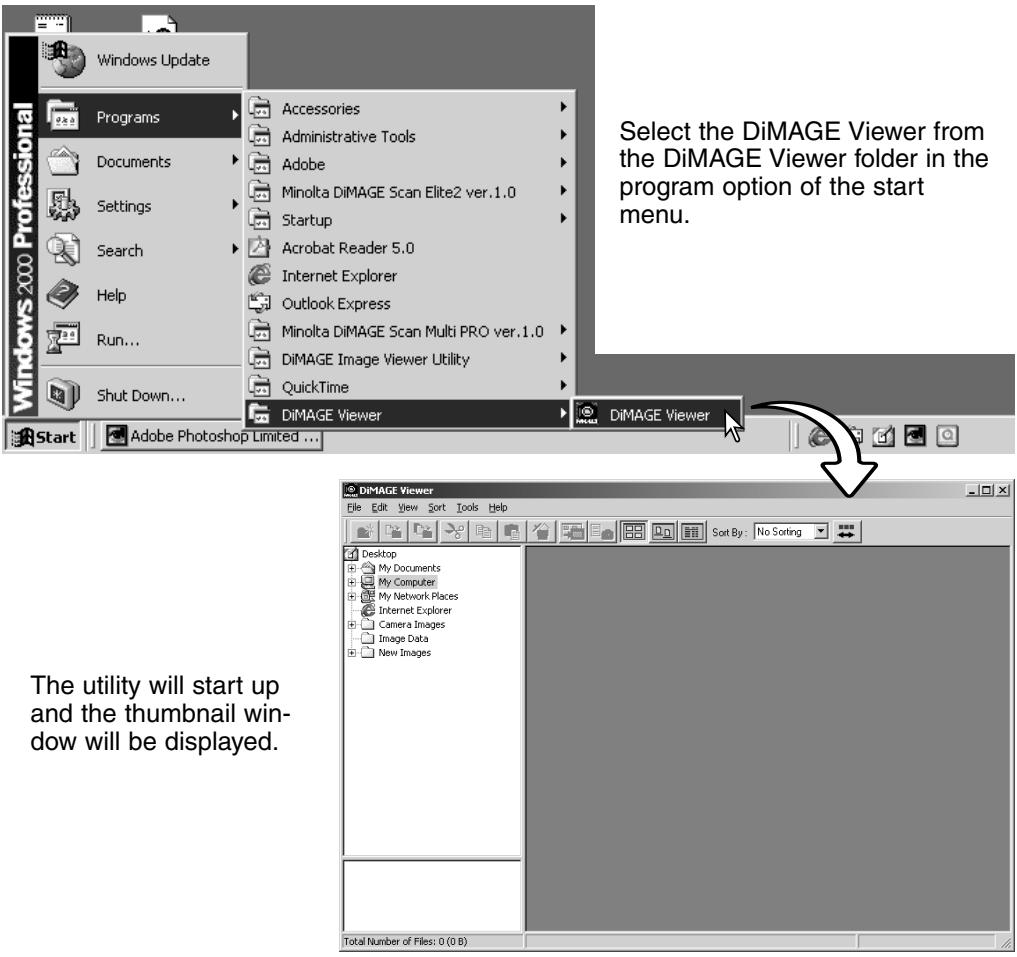
text_image
Windows 2000 Professional Windows Update Programs Accessories Administrative Tools Autodesk Minolta DiMAGE Scan Elite2 ver.1.0 Startup Acrobat Reader 5.0 Internet Explorer Outlook Express Minolta DiMAGE Scan Multi PRO ver.1.0 DiMAGE Image Viewer Utility QuickTime DiMAGE Viewer Select the DiMAGE Viewer from the DiMAGE Viewer folder in the program option of the start menu. Start Adobe Photoshop Limited ... DiMAGE Viewer The utility will start up and the thumbnail window will be displayed. Total Number of Files: 0 (0 B)STARTING UP THE VIEWER - MACINTOSH
Open the DiMAGE Viewer folder. Double-click the DiMAGE Viewer icon to start up the application. The main window of the utility will be displayed.
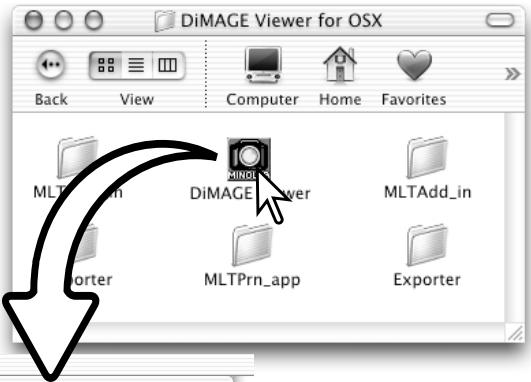
text_image
DiMAGE Viewer for OSX Back View Computer Home Favorites MLTPm in DiMAGE Power MLTAdd_in Exporter MLTPrn_app Exporter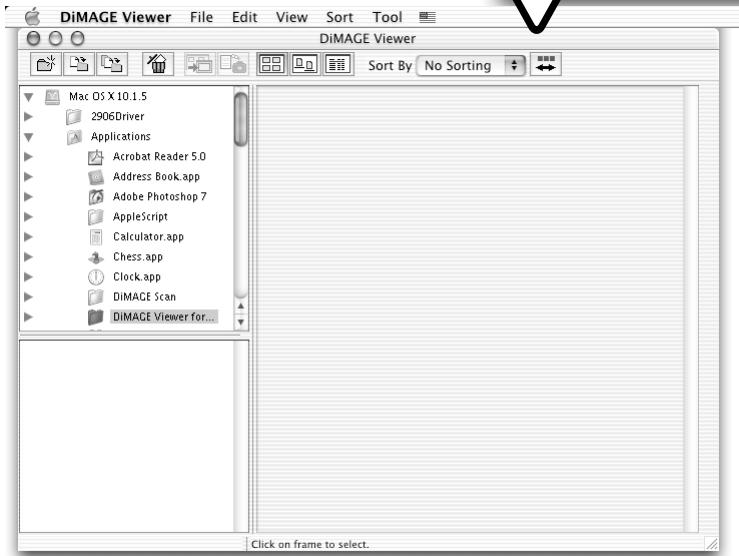
text_image
DiMAGE Viewer File Edit View Sort Tool DiMAGE Viewer Sort By No Sorting Mac OS X 10.1.5 2906Driver Applications Acrobat Reader 5.0 Address Book.app Adobe Photoshop 7 AppleScript Calculator.app Chess app Clock.app DiMAGE Scan DiMAGE Viewer for... Click on frame to select.IMPORTING AND EDITING IMAGES
LOADING IMAGE FILES
text_image
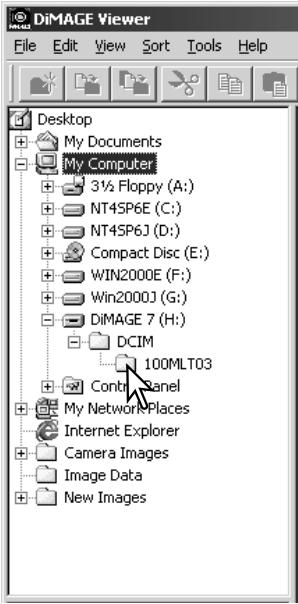
DiMAGE Viewer File Edit View Sort Tools Help Desktop My Documents My Computer 3½ Floppy (A:) NT4SP6E (C:) NT4SP6J (D:) Compact Disc (E:) WIN2000E (F:) Win2000J (G:) DiMAGE 7 (H:) DCIM 100MLT03 Conti Panel My Network Places Internet Explorer Camera Images Image Data New ImagesImages can be loaded directly from a digital camera or from image folders saved in the computer. Simply use the folder tree to select the file containing the images. For information on the camera's folder organization, and connecting the camera to the computer, refer to the camera's instruction manual.
Click on the positive (+) nodes to display the contents of a folder. Click on a negative (−) node to hide the folder contents.
Click on the image folder to load the images. All still-image, audio, and movie files in the folder will be loaded.
UPDATING THE THUMBNAIL WINDOW
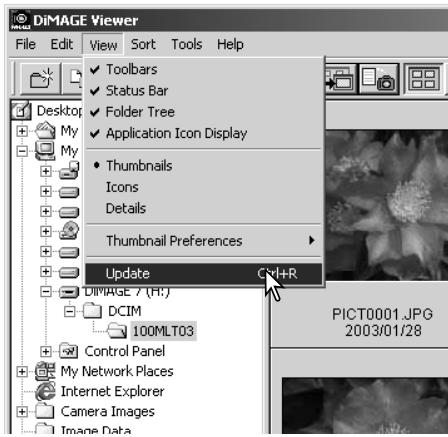
If any changes are made to the folder tree or thumbnail display, for example, the camera is disconnected from the computer, the window can be updated. Select the update option from the view menu to update the DiMAGE Viewer.
text_image
DiMAGE Viewer File Edit View Sort Tools Help Toolbars Status Bar Folder Tree Application Icon Display Thumbnails Icons Details Thumbnail Preferences Update Ctrl+R DiMAGE 7 (F:) DCIM 100MLT03 Control Panel My Network Places Internet Explorer Camera Images Image Data PICT0001.JPG 2003/01/28OPENING AUDIO FILES
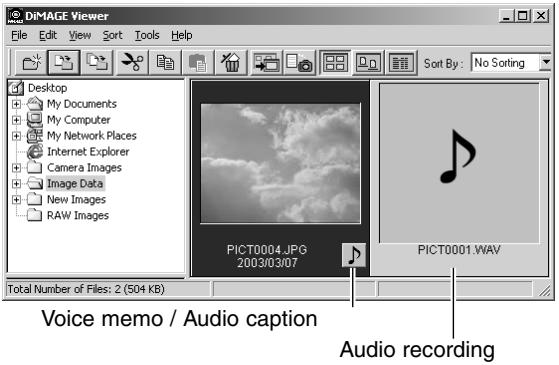
Voice memos, audio captions, and audio recordings made with the camera can be played back with the DiMAGE Viewer. To confirm if your camera can make audio recordings, refer to the instruction manual. After setting up the preferences box (see below), simply click on the note button or double click on the audio file to play back the recordings.
text_image
DIMAGE Viewer File Edit View Sort Tools Help Desktop My Documents My Computer My Network Places Internet Explorer Camera Images Image Data New Images RAW Images Total Number of Files: 2 (504 KB) Voice memo / Audio caption Audio recording PICT0004.JPG 2003/03/07 PICT0001.WAV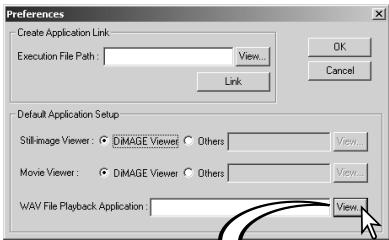
text_image
Preferences Create Application Link: Execution File Path: View... Link Default Application Setup Still-image Viewer: DiMAGE Viewer Others View... Movie Viewer: DiMAGE Viewer Others View... WAV File Playback Application: ViewTo set up the Viewer to play back audio files, select the preferences option from the file menu to open the dialog box.
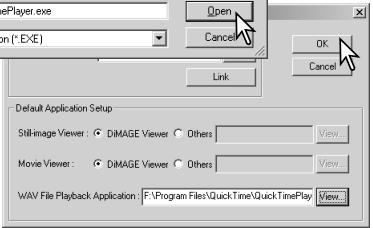
Click on the view button next to the WAV file playback application text box to display the open dialog box.
text_image
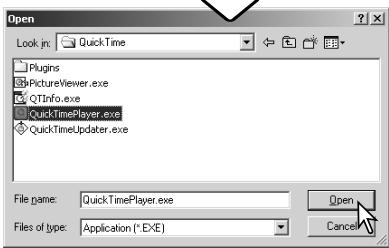
Open Look in: QuickTime Plugins PictureViewer.exe QTInfo.exe QuickTimePlayer.exe QuickTimeUpdater.exe File name: QuickTimePlayer.exe Files of type: Application (*.EXE) Open CancelLocate the application to play back audio files; QuickTime or the Windows Media Player can be used for playback. Click the open button; the execution path will be displayed in the preferences window.
text_image
ePlayer.exe Open Cancel Link Default Application Setup Still-image Viewer : ○ DiIMAGE Viewer ○ Others View... Movie Viewer : ○ DiIMAGE Viewer ○ Others View... WAV File Playback Application : F:\Program Files\QuickTime\QuickTimePlay View...Click the OK button in the preferences window to complete the operation.
CHANGING THE DISPLAY FORMAT
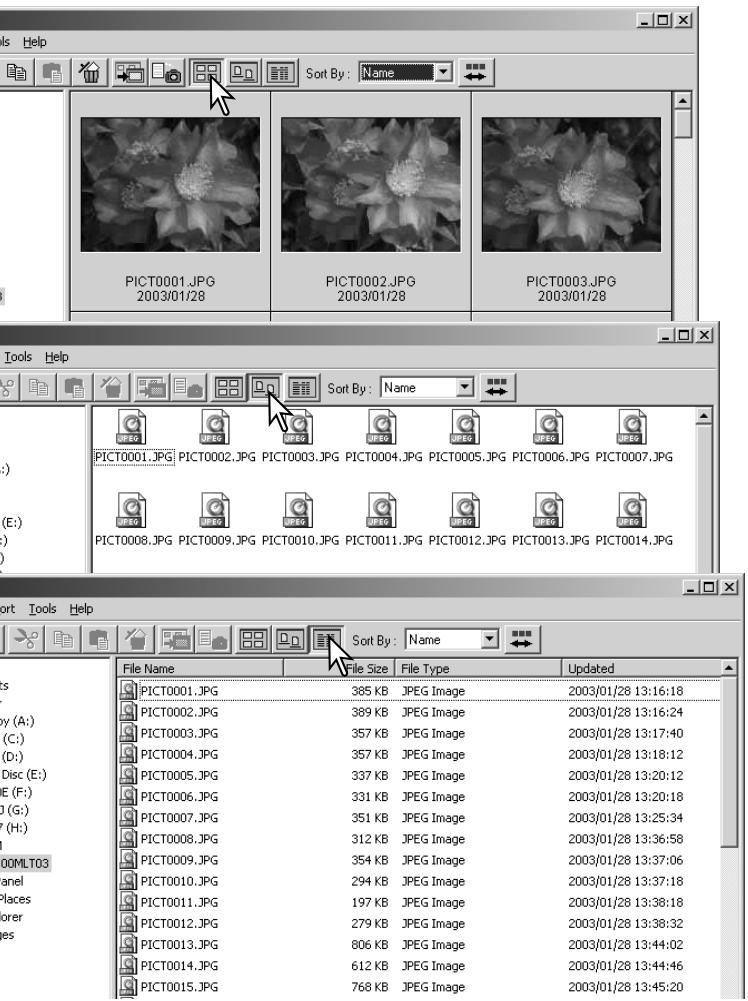
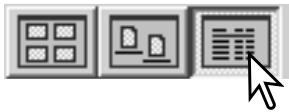
The contents of a folder can be displayed as thumbnail images, icons, or in a list with file data. To change the display format, simply press the appropriate button located on the tool bar.
text_image
PICT0001.JPG 2003/01/28 PICT0002.JPG 2003/01/28 PICT0003.JPG 2003/01/28 PICT0001.JPG PICT0002.JPG PICT0003.JPG PICT0004.JPG PICT0005.JPG PICT0006.JPG PICT0007.JPG PICT0008.JPG PICT0009.JPG PICT0010.JPG PICT0011.JPG PICT0012.JPG PICT0013.JPG PICT0014.JPG Sort By: Name Sort Tools Help File Name File Size File Type Updated PICT0001.JPG 385 KB JPEG Image 2003/01/28 13:16:18 PICT0002.JPG 389 KB JPEG Image 2003/01/28 13:16:24 PICT0003.JPG 357 KB JPEG Image 2003/01/28 13:17:40 PICT0004.JPG 357 KB JPEG Image 2003/01/28 13:18:12 PICT0005.JPG 337 KB JPEG Image 2003/01/28 13:20:12 PICT0006.JPG 331 KB JPEG Image 2003/01/28 13:20:18 PICT0007.JPG 351 KB JPEG Image 2003/01/28 13:25:34 PICT0008.JPG 312 KB JPEG Image 2003/01/28 13:36:58 PICT0009.JPG 354 KB JPEG Image 2003/01/28 13:37:06 PICT0010.JPG 294 KB JPEG Image 2003/01/28 13:37:18 PICT0011.JPG 197 KB JPEG Image 2003/01/28 13:38:18 PICT0012.JPG 279 KB JPEG Image 2003/01/28 13:38:32 PICT0013.JPG 806 KB JPEG Image 2003/01/28 13:44:02 PICT0014.JPG 612 KB JPEG Image 2003/01/28 13:44:46 PICT0015.JPG 768 KB JPEG Image 2003/01/28 13:45:20
text_image
Screenshot of a software toolbar with three UI elements: a window, a document icon, and a grid interface.Thumbnail display button
text_image
Icon showing three document icons with a cursor pointing to a small chart, likely representing a data or graph interface.Icon display button
natural_image
Three icon buttons with grid and arrow symbols, no readable text or symbolsList display button
CHANGING THE THUMBNAIL FORMAT
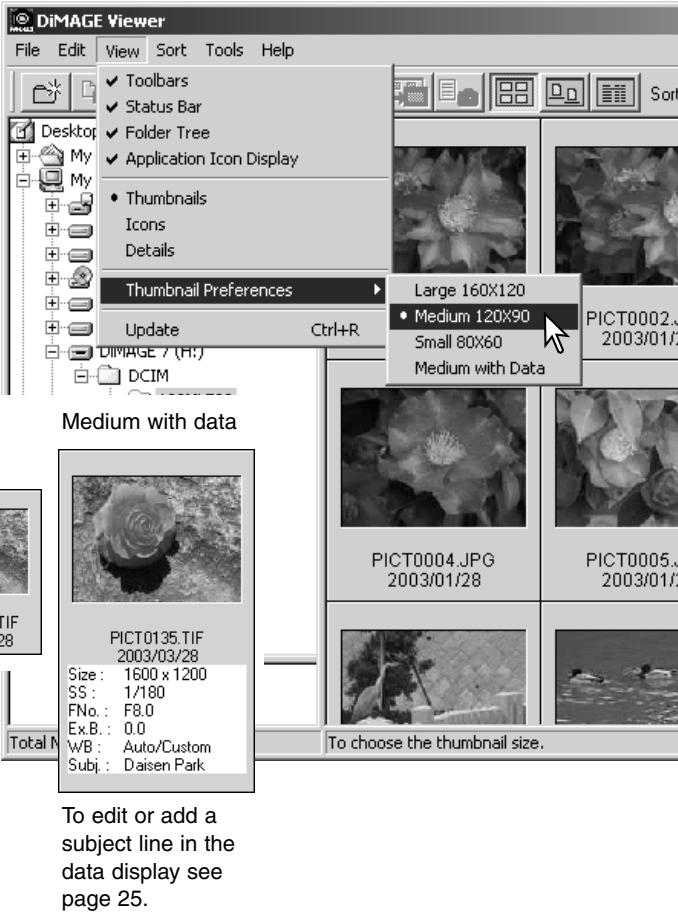
The thumbnail format can be changed. Four format are available: large, medium, small, and medium with data.
To change the format, highlight the Thumbnail Preferences option on the view menu to display the format options. Highlight and click the desired thumbnail format; the thumbnail display will change accordingly.
text_image
DiMAGE Viewer File Edit View Sort Tools Help Toolbars Status Bar Folder Tree Application Icon Display Thumbnails Icons Details Thumbnail Preferences Update Ctrl+R Large 160X120 Medium 120X90 Small 80X60 Medium with Data PICT0002.JPG 2003/01/28 PICT0004.JPG 2003/01/28 PICT0005.JPG 2003/01/28 Total N To edit or add a subject line in the data display see page 25. Subj.: Daisen Park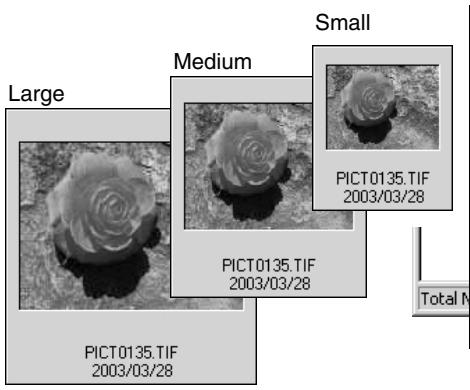
text_image
Large Medium Small PICT0135.TIF 2003/03/28 PICT0135.TIF 2003/03/28 Total NTo edit or add a subject line in the data display see page 25.
SORTING IMAGE FILES
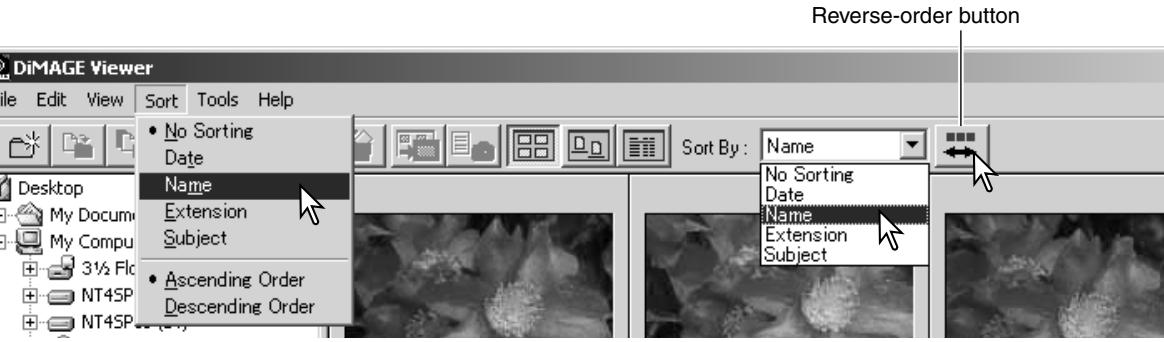
Image files can be sorted by name, date, extension, or subject line in ascending or descending order. This function works with the thumbnail, icon, or list displays (p. 16). To sort the displayed images, use the sort menu or the sort-by drop-down menu on the tool bar. Simply highlight the sorting category with the mouse.
text_image
DiMAGE Viewer File Edit View Sort Tools Help Desktop My Docu My Compu 3½ Flc NT4SP NT4SP Name Extension Subject Ascending Order Descending Order Sort By: Name No Sorting Date Name Extension Subject Reverse-order buttonThe sort menu can also be used to change the display between ascending and descending order. The reverse-order button on the tool bar will also change the display order.
SELECTING THUMBNAILS
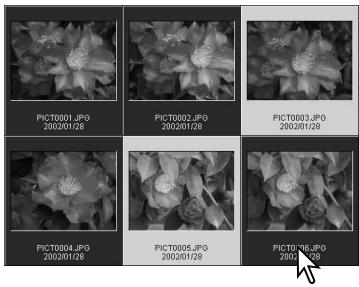
Click on the thumbnail boarders or file icon to select a single image. To select multiple images, press and hold the control key (Windows) or command key (Macintosh) and then click on each image; the selected frames will have a dark border. To deselect an image, click on the thumbnail or icon a second time while holding the control key (Windows) or command key (Macintosh). To select consecutive images, press and hold the shift key and then click on the first and last image of the series. Press the control key (Windows) or command key (Macintosh) and "A" key at the same time to select all images.
natural_image
Six grayscale flower images labeled PICT0001 through PICT0005, each with a camera lens (no text or symbols on the images themselves)RENAMING SINGLE FILES
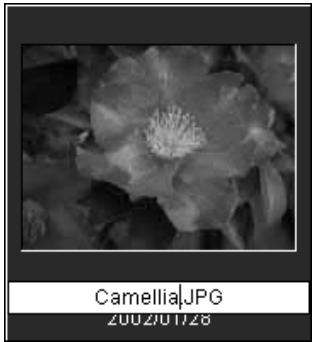
Single files can be renamed in the thumbnail, icon, or list displays (p. 16). When rewriting file names, always include the original file extension.
Click on the thumbnail, icon, or file name to highlight it.
Click on the file name to activate the cursor or select rename from the edit menu. Use the keyboard to change the file name.
natural_image
Black-and-white close-up of a flower with visible petals and center (no text or symbols)RENAMING MULTIPLE FILES
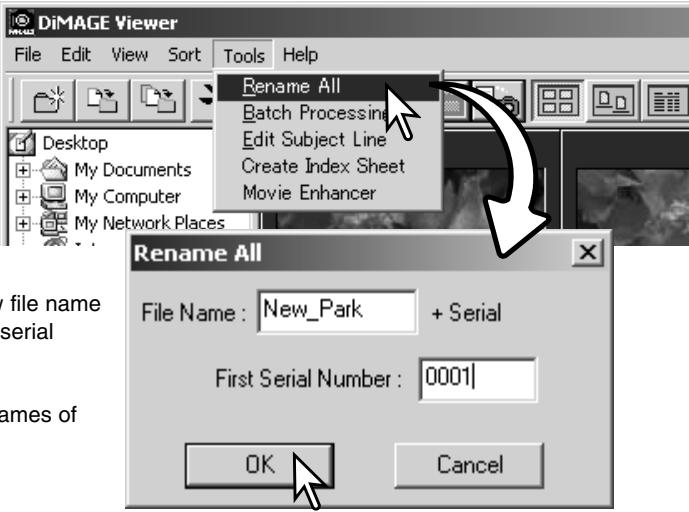
Multiple files can be renamed in the thumbnail, icon, or list displays (p. 16). Click on the thumbnail boarders or file icon to select the images to be renamed (p. 18).
From the tool menu, select the rename-all option. The rename-all window will open.
text_image
DiMAGE Viewer File Edit View Sort Tools Help Desktop My Documents My Computer My Network Places Rename All Batch Processing Edit Subject Line Create Index Sheet Movie Enhancer Rename All File Name: New_Park + Serial First Serial Number: 0001 OK CancelIn the rename-all window, enter the new file name up to ten characters, and enter the first serial number up to five digits.
Click the OK button to change the file names of the selected images.
CREATING FOLDERS
text_image
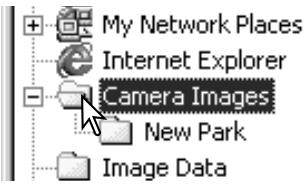
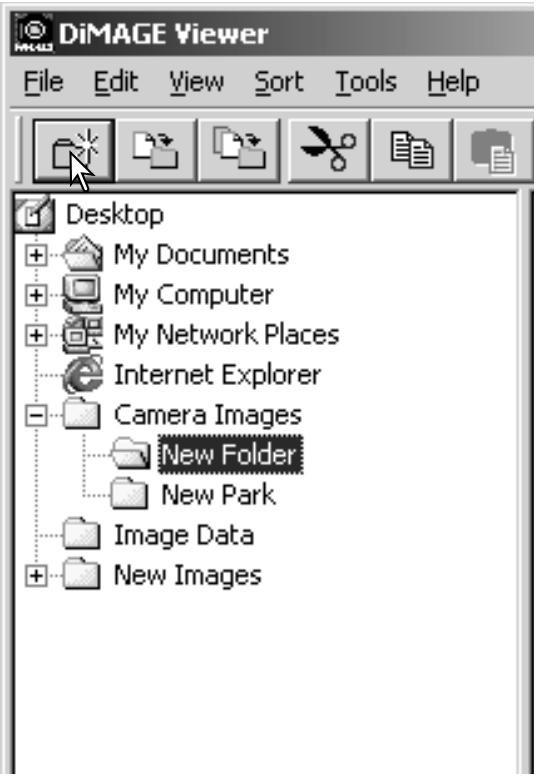
My Network Places Internet Explorer Camera Images New Park Image DataNew folders can be created to store images. Click on the desired location for the new folder. In this example the new folder will be placed in Camera Images.
Click on the new-folder button on the tool bar or select new folder from the file menu. The new folder will be created in the specified location.
The folder name can be changed with the keyboard.
text_image
DiMAGE Viewer File Edit View Sort Tools Help Desktop + My Documents + My Computer + My Network Places - Internet Explorer Camera Images New Folder New Park Image Data + New ImagesMOVING IMAGES TO ANOTHER FOLDER
text_image
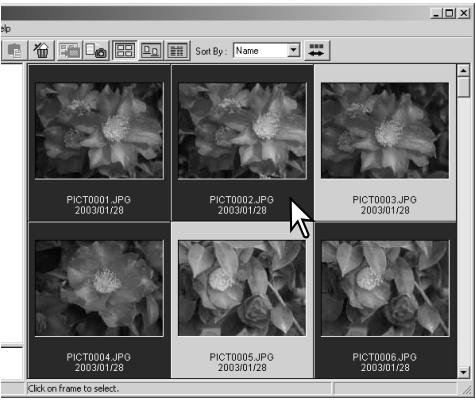
PICT0001.JPG 2003/01/28 PICT0002.JPG 2003/01/28 PICT0003.JPG 2003/01/28 PICT0004.JPG 2003/01/28 PICT0005.JPG 2003/01/28 PICT0006.JPG 2003/01/28 Click on frame to select.Multiple files can be moved from one folder to another. Click on the thumbnail boarders or file icon to select the images to be moved.
- To select multiple images, press and hold the control key (Windows) or command key (Macintosh) and then click on each image to be moved; the selected frames will have a dark border. To deselect an image, click on the thumbnail or icon a second time while holding the control key (Windows) or command key (Macintosh). To select consecutive images, press and hold the shift key and then click on the first and last image of the series. Press the control key (Windows) or command key (Macintosh) and "A" key at the same time to select all images.
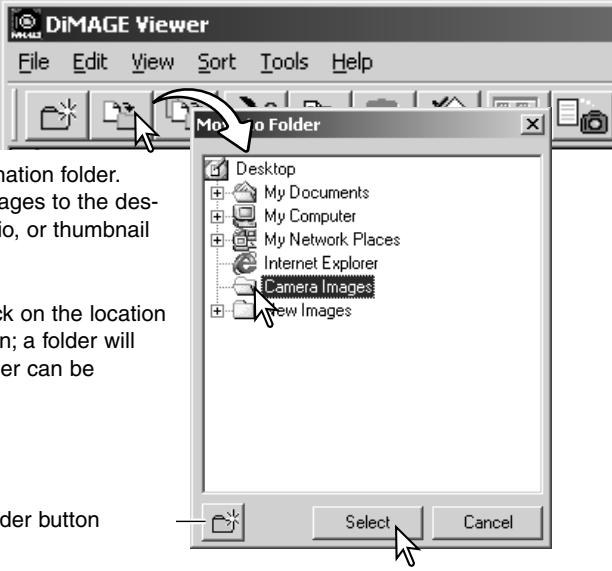
Click on the move-to-folder button on the tool bar or select the move-to-folder option from the edit menu. The move-to-folder window will open.
In the move-to-folder window, click on the destination folder. Click the select button to move the specified images to the designated folder. If an image has an attached audio, or thumbnail file, those files will also be copied.
A new folder can be created in this window. Click on the location for the new folder and click the new-folder button; a folder will appear in the folder tree in the window. The folder can be renamed.
New-folder button
text_image
DiMAGE Viewer File Edit View Sort Tools Help My Folder Desktop My Documents My Computer My Network Places Internet Explorer Camera Images New Images Select Cancel Add to Add to Add to Add to Add to Add to Add to Add to Add to Add to Add to Add to Add to Add to Add to Add to Add to Add to Add to Add to Add to Add to Add to Add to Add to Add to Add to Add to Add to Add to Add to Add to Add to Add toCOPYING IMAGES TO ANOTHER FOLDER
text_image
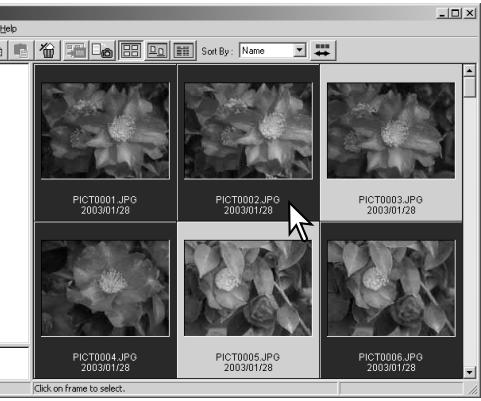
PICT0001.JPG 2003/01/28 PICT0002.JPG 2003/01/28 PICT0003.JPG 2003/01/28 PICT0004.JPG 2003/01/28 PICT0005.JPG 2003/01/28 PICT0006.JPG 2003/01/28 Click on frame to select.Multiple files can be copied from one folder to another. Click on the thumbnail boarders or file icon to select the images to be copied.
- To select multiple images, press and hold the control key (Windows) or command key (Macintosh) and then click on each image to be copied; the selected frames will have a dark border. To deselect an image, click on the thumbnail or icon a second time while holding the control key (Windows) or command key (Macintosh). To select consecutive images, press and hold the shift key and then click on the first and last image of the series. Press the control key (Windows) or command key (Macintosh) and "A" key at the same time to select all images.
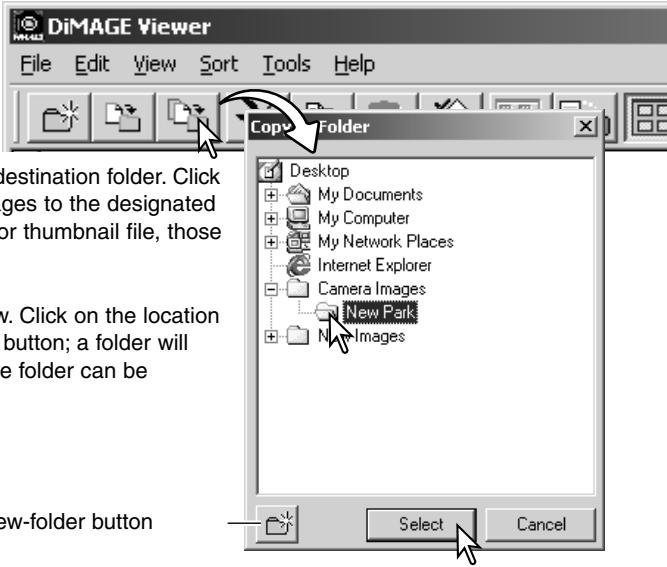
Click on the copy-to-folder button on the tool bar or select the copy-to-folder option from the edit menu. The copy-to-folder window will open.
In the copy-to-folder window, click on the destination folder. Click the select button to copy the specified images to the designated folder If an image has an attached audio, or thumbnail file, those files will also be copied.
A new folder can be created in this window. Click on the location for the new folder and click the new-folder button; a folder will appear in the folder tree in the window. The folder can be renamed.
New-folder button
text_image
DiMAGE Viewer File Edit View Sort Tools Help Copy Folder Desktop My Documents My Computer My Network Places Internet Explorer Camera Images New Park New Images Select Cancel Destination folder. Click ages to the designated or thumbnail file, those v. Click on the location button; a folder will e folder can be new-folder buttonCUT, COPY, PASTE, AND DELETE - WINDOWS
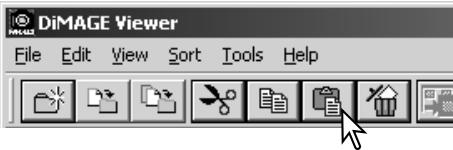
The tool bar and edit menu can be used to cut, copy, paste, and delete folders and single or multiple images. These functions affect any audio or thumbnail files attached to an image. The delete key on the keyboard will also delete folders and images.
text_image
DiMAGE Viewer File Edit View Sort Tools Help
Cut

Copy

Paste

Delete
Select the folder or images to be moved. Click the cut or copy button. The display will not change when a cut is made until the paste has been completed. Click on the new location for the folder or images. Click the paste button to complete the operation.
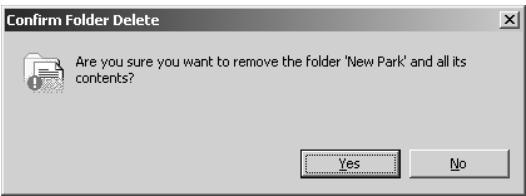
When a delete command is given, a confirmation screen will appear. Clicking the yes button will execute the command and delete the data, clicking the no button will cancel the delete command.
text_image
Confirm Folder Delete Are you sure you want to remove the folder 'New Park' and all its contents? Yes NoCUT, COPY, PASTE, AND DELETE - MACINTOSH
The cut, copy, and paste functions are located in the edit menu. They can be used for editing file and folder names, but they cannot be used to cut, copy, or paste files and folders.
The delete button on the tool bar or pressing the command and delete button on the keyboard will erase files and folders. When a delete command is given, a confirmation screen will appear. Clicking the yes button will execute the command and delete the data, clicking the no button will cancel the delete command.
DISPLAYING AND SAVING IMAGE INFORMATION
text_image
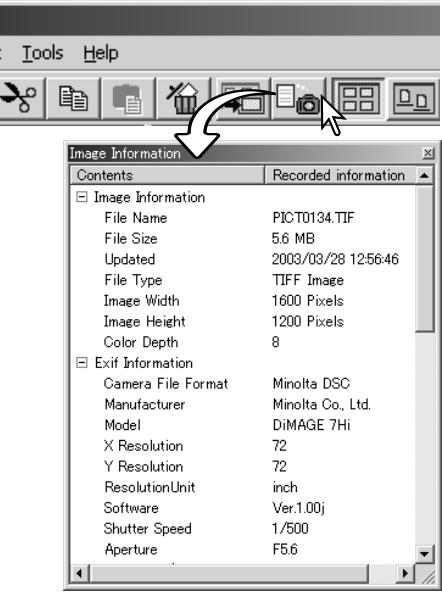
Tools Help Image Information Contents Recorded information □ Image Information File Name PICT0134.TIF File Size 5.6 MB Updated 2003/03/28 12:56:46 File Type TIFF Image Image Width 1600 Pixels Image Height 1200 Pixels Color Depth 8 □ Exif Information Camera File Format Minolta DSC Manufacturer Minolta Co., Ltd. Model DiMAGE 7Hi X Resolution 72 Y Resolution 72 ResolutionUnit-inch Software Ver.1.00j Shutter Speed 1/500 Aperture F5.6With an image selected in the thumbnail window, click the image-information button. If more than one thumbnail image is selected, one window for each image will open.
To close the window, click the close button in the top right corner. The information displayed in the window may vary between camera models.
Recording data is contained in an exif tag attached to the image file. If an image is opened in a image-processing application that does not support exif tag data, and then the image is saved overwriting the original data, the exif tag information will be erased. When using software other than the DiMAGE Viewer, always rename the image file to protect the exif tag data.
text_image
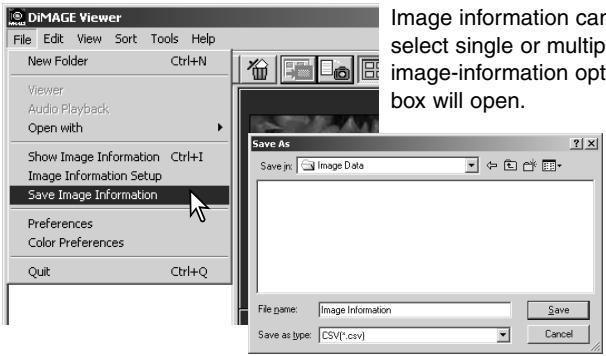
DiIMAGE Viewer File Edit View Sort Tools Help New Folder Ctrl+N Viewer Audio Playback Open with Show Image Information Ctrl+I Image Information Setup Save Image Information Preferences Color Preferences Quit Ctrl+Q Save As Save jn: Image Data File name: Image Information Save as type: CSV(*.csv) Save CancelImage information can be saved as a special text file. Simply select single or multiple thumbnails and then select the save-image-information option from the file menu; the save-as dialog box will open.
The image-information file can be opened in spreadsheet software such as Microsoft Excel or with word processing application like Simple Text.
IMAGE INFORMATION SETUP
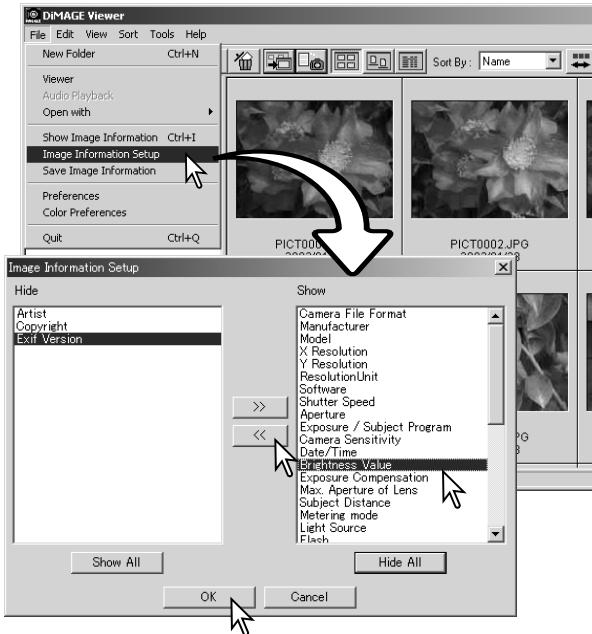
The Exif information displayed in the image information window can be edited. Select the image-information-setup option from the file menu to open the setup window.
Click on the item to be added to or removed from the image information display and click the appropriate move button.
: to move to the show list.
<<: to move to the hide list.
The show-all and hide-all buttons adds or removes all Exif information in the image-information display.
Click "OK" to save the setup.
EDITING THE SUBJECT LINE
Cameras like the DiMAGE A1 can attach text to an image's Exif data. This is shown in the subject field in the image-information display. Exif 2.1 or later format images can have a subject line added or edited.
Select the image(s) to be edited. Choose the edit-subject-line option from the tool menu to open the edit window. Enter the subject line and click the save button to complete the operation.
text_image
DiIMAGE Viewer File Edit View Sort Tools Help New Folder Ctrl+N Viewer Audio Playback Open with Show Image Information Ctrl+I Image Information Setup Save Image Information Preferences Color Preferences Quit Ctrl+Q PiCT0002.JPG PiCT0002.JPG PiCT0002.JPG PiCT0002.JPG PiCT0002.JPG PiCT0002.JPG PiCT0002.JPG PiCT0002.JPG PiCT0002.JPG PiCT0002.JPG PiCT0002.JPG PiCT0002.JPG PiCT0002.JPG PiCTO0002.JPG PiCTO0002.JPG PiCTO0002.JPG PiCTO0002.JPG PiCTO0002.JPG PiCTO0002.JPG PiCTO0002.JPG PiCTO0002.JPG PiCTO0002.JPG PiCTO0002.JPG PiCTO0002.JPG PiCTO319999999999999999999999999999999999999999999999999999999999999999999999999999999999999999999999999999 PiCTO319999999999999 PiCTO319999999999999 PiCTO31986666666666666666666666666666666666666666666666666666666666666666666666666666666666666666666666666666 < >> PiCTO3185444444444444444444444444444444444444444444444444444444444444444444444444444444444444444 < >> PiCTO31837777777777777777777777777777777777777777777777777777777777777777777777777777777777777777 PiCTO3183555555555555555555555555555555555555555555555555555555555555555555555555555555 < >> PiCTO31833333333333333333333333333333333333333333333333333333333333333333333333333333333333333333 < >> PiCTO318211111111111111111111111111111111111111111111111111111111111111111111111111111111111111111 PiCTO3182888888888888888888888888888888888888888888888888888888888888 < >> PiCTO3182222222222222222222222222222222222222222222222222222222222 < >> PiCTO3182888888888888888888888888888888888888888888888888888888 < >> PiCTO31822222222222222222222222222222222222 < >> PiCTO318288888888888888888888888888888 < >> PiCTO31BAAAAGAAGAAGAAGAAGAAGAAGAAGAAGAAGAAGAAGAAGAAGAAGAAGAAGAAGAAGAAGAAGAAGAAGAAGAAGAAGAAGAAGAAGAAGAAGAAGAAGAAGAAGAAGAAGAAGAAGAAGAAGAAGAAGAAGAAGAAGAAGAAGAAGAAGA < >> PiCTO31BAAAAGAAGAAGAAGAAGAAGAAGAAGAAGAAGAAGAAGAAGAAGAAGAAGAAGAAGAAGAAGAAGAAGAAGAAGAAGAAGAAGAAGAAGAAGAAGAAGAAGAAGAAGAAGAAGAAGA < >> PiCTO31BAAUAAUAAUAAUAAUAAUAAUAAUAAUAAUAAUAAUAAUAAUAAUAAUAAUAAUAAUAAUAAUAAUAAUAAUAAUAAUAAUAAUAAUAAUAAUAAUAAUAAUAAUAAUAAUAAUAAUAAUAAUAAUAAUAAUAAUAAUAAUAAUAAUAAUAA U A U A U A U A U A U A U A U A U A U A U A U A U A U A U A U A U A U A U A U A U A U A U A U A U A U A U A U A U A U A U A U A U A U A U A U A U A U A U A U A U A U A U A U A U A U A U A U A U A U A U < >> PiCTO31BAAUAAUAAUAAUAAUAAUAAUAAUAAUAAUAAUAAUAAUAAUAAUAAUAAUAAUAAUAAUAAUAAUAAUAAUAAUAAU AA U A U A U A U A U A U A U A U A U A U A U A U A U A U A U A U A U A U A U A U A U A U A U A U A U A U A U A U A U A U A U A U A U A U A U A U A U A U A U A U A U A U A U A U A U A U A U A U A U A U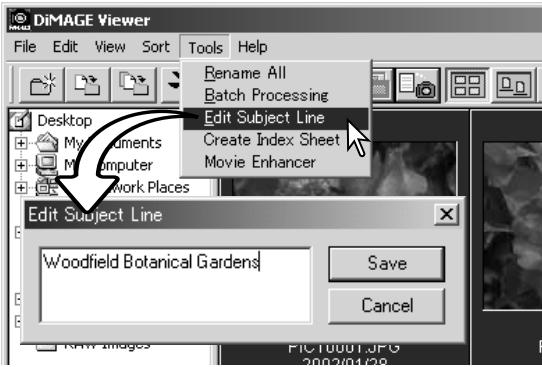
text_image
DiMAGE Viewer File Edit View Sort Tools Help Rename All Batch Processing Edit Subject Line Create Index Sheet Movie Enhancer Desktop My Documents My Computer Newwork Places Edit Subject Line Woodfield Botanical Gardens Save Cancel PICT0001.JPG 2003/04/28BASIC IMAGE PROCESSING
IMAGE-CORRECTION WINDOW
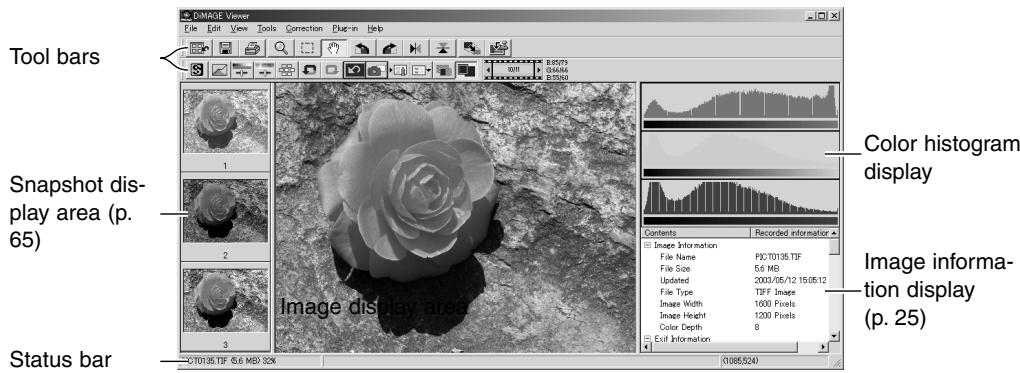
The image-correction window displays the utility's image-processing tools. Adjustments to color, contrast, brightness, and saturation can be made. This section contains details on the basic image-processing tools. For descriptions of the advanced tools, see pages 46 though 73.
text_image
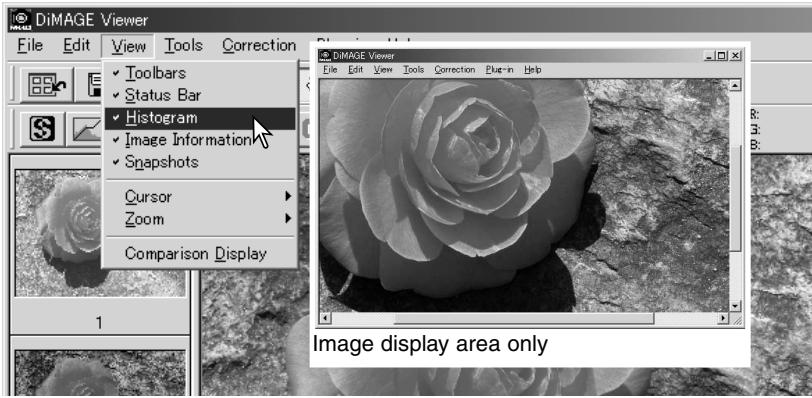
D:\IMAGE Viewer File Edit View Tools Correction Play-in Help Tool bars Snapshot dis- play area (p. 65) Status bar Image display area Color histogram display Images information display (p. 25) Images Colored information Images Information File Name: PKCT0135.TTF File Size: 5.6 MB Updated: 2003/05/12 15/05/12 File Type: T3FF Image Image Width: 1600 Pixels Image Height: 1200 Pixels Color Depth: B Exit Information (0188,524)The view menu can turn the tool bars, snapshot display area, status bar, image information display, and color histograms on and off. Simple choose the menu option to show or hide the display.
text_image
DiMAGE Viewer File Edit View Tools Correction Toolbars Status Bar Histogram Image Information Snapshots Cursor Zoom Comparison Display 1 DiMAGE Viewer File Edit View Tools Correction Plug-in Help R: B: Image display area onlyTool bars
text_image
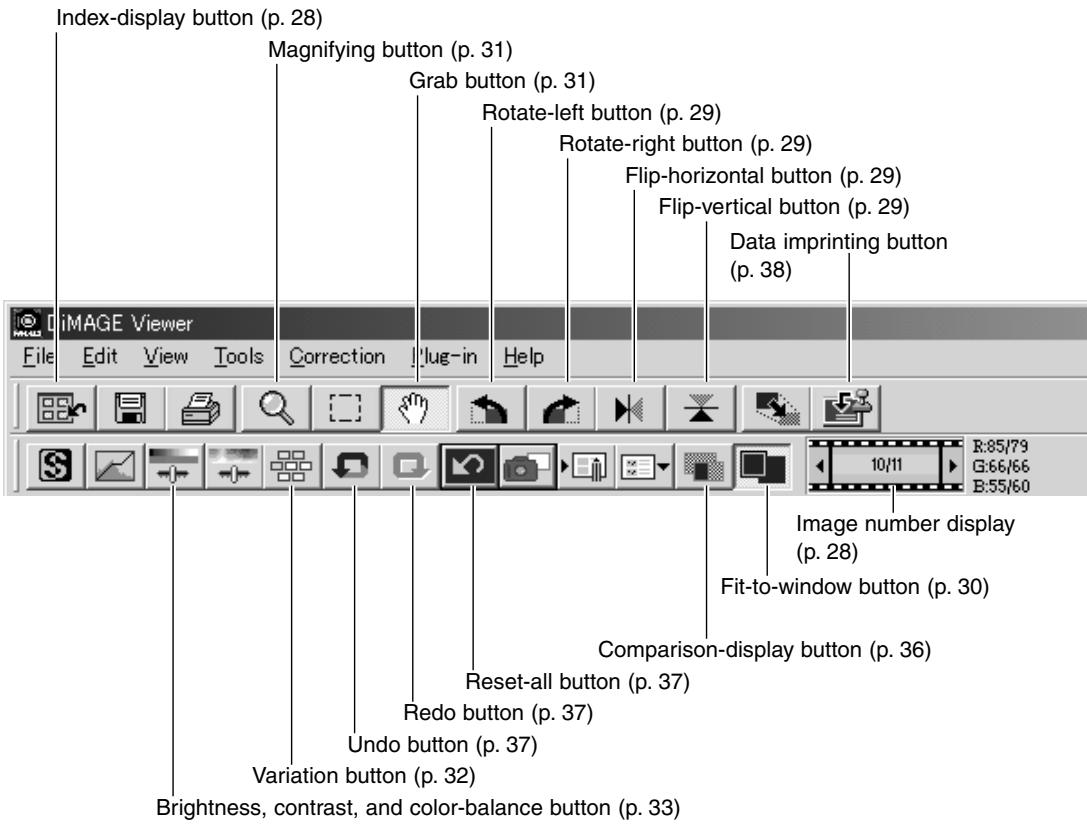
Index-display button (p. 28) Magnifying button (p. 31) Grab button (p. 31) Rotate-left button (p. 29) Rotate-right button (p. 29) Flip-horizontal button (p. 29) Flip-vertical button (p. 29) Data imprinting button (p. 38) iIMAGE Viewer File Edit View Tools Correction Plug-in Help Image number display (p. 28) Fit-to-window button (p. 30) Comparison-display button (p. 36) Reset-all button (p. 37) Redo button (p. 37) Undo button (p. 37) Variation button (p. 32) Brightness, contrast, and color-balance button (p. 33)DISPLAYING IMAGES IN THE IMAGE-CORRECTION WINDOW
text_image
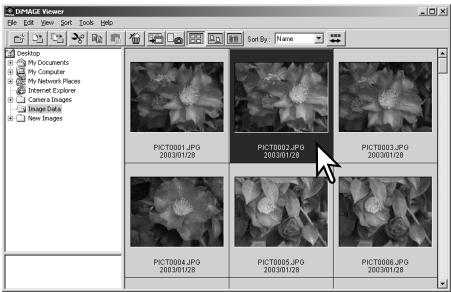
DIMAGE Viewer File Edit View Sort Tools Help Desktop My Documents My Computer My Network Places Internet Explorer Camera Images Image Data New Images Set By: Name PCT0001.JPG 200301/28 PCT0002.JPG 200301/28 PCT0003.JPG 200301/28 PCT0004.JPG 200301/28 PCT0005.JPG 200301/28 PCT0006.JPG 200301/28In the index display, an image can automatically be loaded into the image-correction window. Simply double-click on a thumbnail or icon to display the image in the image-correction window.
To return to the index display, click the index-display button.
text_image
DiMAGE Viewer File Edit View ToolsThe color-correction window will display the image number and the total number of images loaded. Clicking on the arrows on each side of the display will load the previous or next image.
text_image
Image number of the image currently displayed Total number of images loaded in the utility Plug-in Help 10/11 R:85/79 G:66/66 B:55/60 Click to display the previous image Click to display the next imageFLIP AND ROTATE IMAGES

text_image
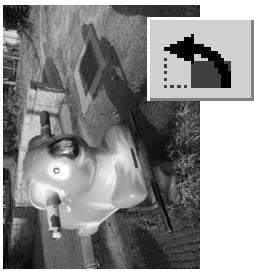
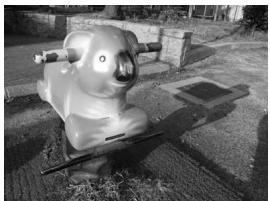
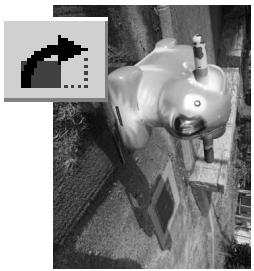
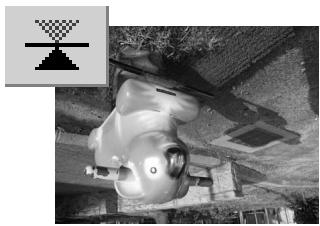
DiMAGE Viewer File Edit View Tools Correction Plug-in HelpThe orientation of the displayed image can be changed with the flip and rotate buttons on the tool bar or with the tool menu. Any changes to image orientation will be applied to the thumbnail image in the index display.
natural_image
Top-down view of a small white object on a textured surface, with a small pixelated inset showing a pixelated arrow (no text or symbols)Rotate - the rotate-right button rotates the thumbnail 90° clockwise and the rotate-left button rotates the thumbnail 90° counterclockwise each time the buttons are clicked.
natural_image
Black-and-white photo of a small animal sculpture on a grassy slope, no visible text or symbolsOriginal image
natural_image
Black-and-white photo of a sculpted mechanical figure with a tool, partially visible through a window (no text or symbols)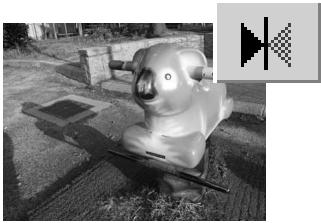
natural_image
Exterior view of a metallic sculpture resembling a bull or horse, mounted on a paved surface with no visible text or symbols.Flip - when an image is flipped, it will create a mirror image.
natural_image
Exterior view of a modern office building (no signage)CONTROLLING THE IMAGE DISPLAY
Fit-to-window button

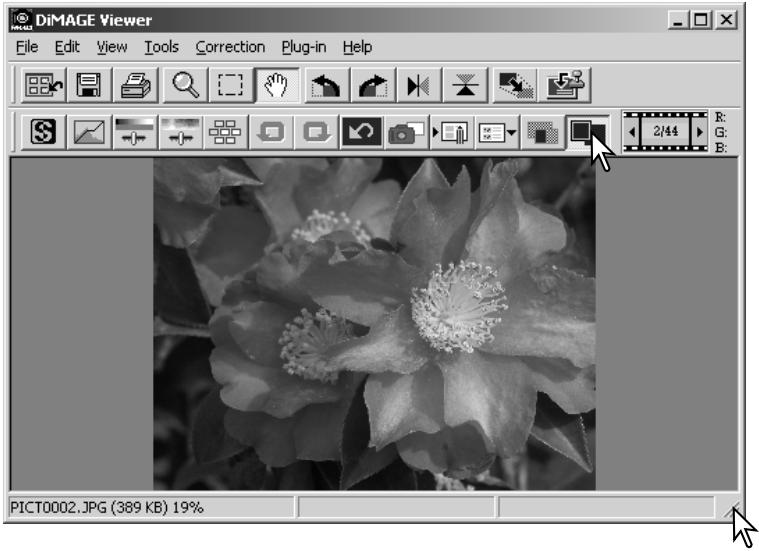
Normally, an image is displayed based on its size and resolution. When the image is too large for the display area, clicking the fit-to-window button will automatically resize the image to fit the display area. Clicking the button again displays the image at its original
size. The grab and zoom tool cannot be used with the fit-to-window function.
text_image
DiMAGE Viewer File Edit View Tools Correction Plug-in Help PICT0002.JPG (389 KB) 19%Resizing the viewer window
The utility window can be resized by clicking and dragging the bottom right corner. If the fit-to-window function is active, the displayed image will automatically adjust to fit the display area.
Grab tool

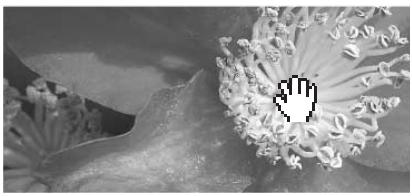
When an image is larger than the display area, the grab tool can be used to scroll the image. Click the grab button on the tool bar or select
Grab Tool from the cursor option on the view menu. Click and drag on the image to scroll.
natural_image
Close-up of a flower with visible petals and stamens, no text or symbols presentMagnifying tool

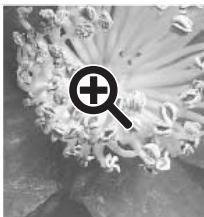
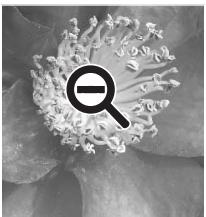
The display image can be enlarged or reduced. Click the magnifying button on the tool bar or select Magnifying Tool from the cursor option on
the view menu. Click on the image to enlarge. To reduce, hold down the shift (Windows) or option key (Macintosh) and click on the image. When the image has reached the magnification limit, the plus or minus sign in the magnifying icon will disappear.
natural_image
Close-up of a magnifying glass icon overlaying a textured, flower-like structure (no text or symbols)Enlarge
natural_image
Close-up of a flower's center with visible stamens and petals, overlaid with a magnifying glass icon (no text or symbols)Reduce
Menu options
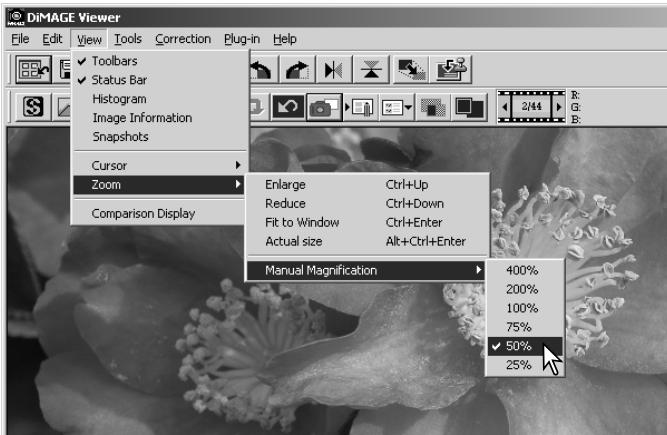
The zoom option on the view menu controls the size of the display image. As well as the magnifying tool's enlarge and reduce functions and fit-to-window function, the menu can display the image at actual size or at preset magnifications. The tool bar, status bar, histogram, image information, and snapshot display areas can be hidden or shown by selecting the appropriate option on the menu.
text_image
DiIMAGE Viewer File Edit View Tools Correction Plug-in Help Toolbars Status Bar Histogram Image Information Snapshots Cursor Zoom Comparison Display Enlarge Ctrl+Up Reduce Ctrl+Down Fit to Window Ctrl+Enter Actual size Alt+Ctrl+Enter Manual Magnification 400% 200% 100% 75% 50% 25%VARIATION PALETTE
The variation palette allows an image to be corrected by comparing it to other slightly corrected images surrounding it. This is an easy method to correct images for individuals who are inexperienced in image processing or photofinishing.

Click the variation button or select Variation from the image-correction option on the correction menu to display the palette.
text_image
DiMAGE Viewer File Edit View Tools Correction Plug-in HelpClick the arrow next to the variation list box to select the image quality to be corrected: color balance, brightness and contrast, or saturation. Each variation palette shows the current image in the center with corrected samples displayed around it.
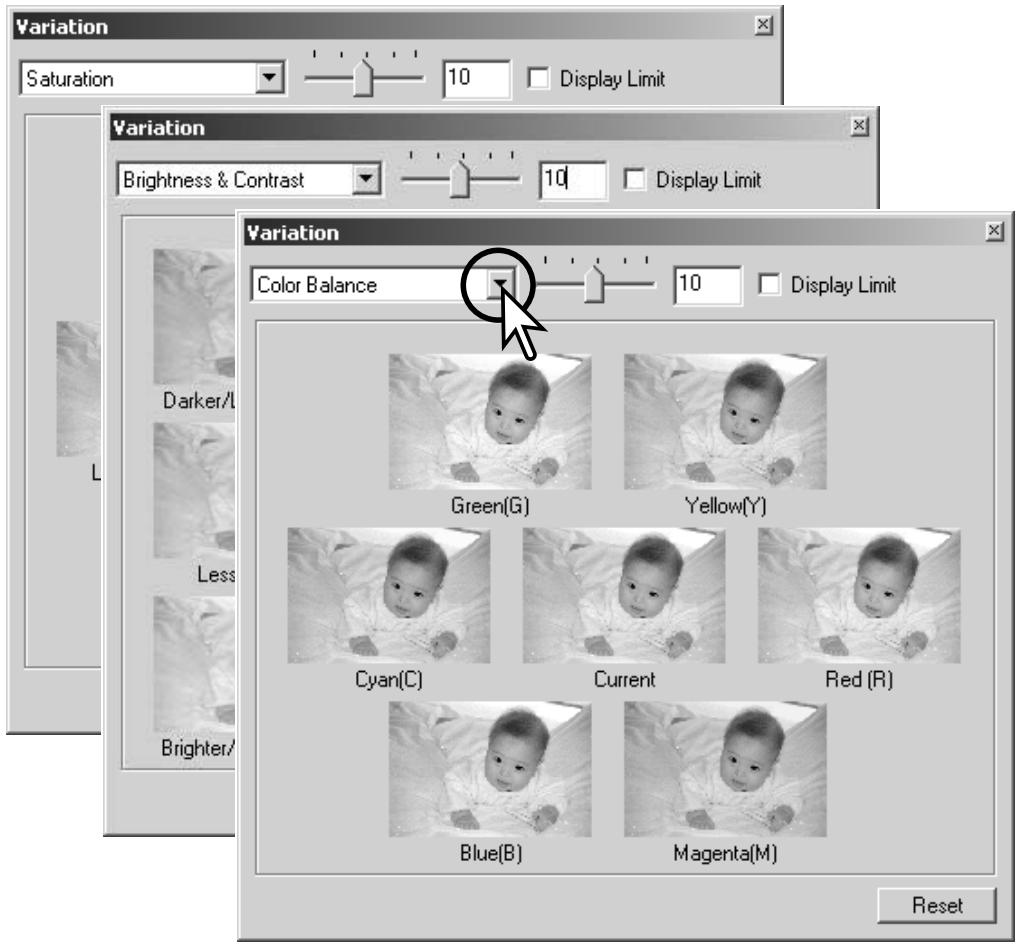
text_image
Variation Saturation 10 Display Limit Variation Brightness & Contrast 10 Display Limit Variation Color Balance 10 Display Limit Darker/L Less Brighter/ Green(G) Yellow(Y) Cyan(C) Current Red (R) Blue(B) Magenta(M) Reset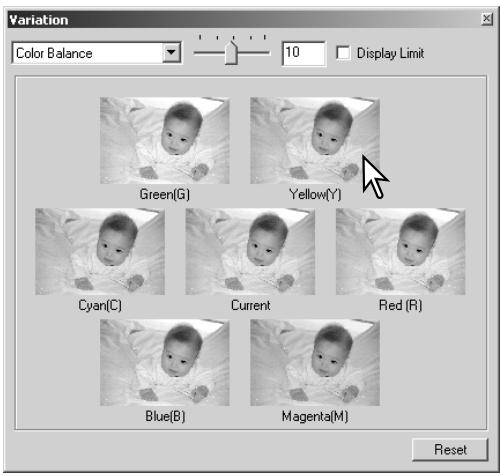
text_image
Variation Color Balance 10 Display Limit Green(G) Yellow(Y) Cyan(C) Current Red (R) Blue(B) Magenta(M) ResetClick the best image among the frames. The selected image becomes the new center surrounded by a set of new images and the change is applied to the prescan image. This procedure can be repeated until the desired correction is obtained. Click the reset button to cancel all changes.
text_image
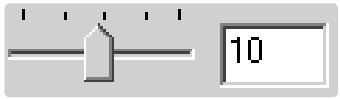
10The difference between the samples can be changed. Drag the variation-step slider, or enter a value into the text box to set the degree of correction. The initial setting is 10. The correction step can be set between 1 and 20.

Display Limit
Checking the display-limit check box will indicate when any of the image values exceed 0 (black limit) or 255 (white limit) with the complementary color. For example, if the blue area of the image exceeds those values, the limit is displayed with the complementary color, yellow.
text_image
_imitClick the close button to close the palette to apply any image corrections.
BRIGHTNESS, CONTRAST, AND COLOR-BALANCE PALETTE

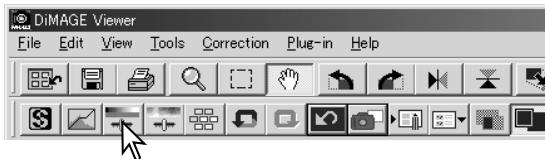
Click the brightness, contrast, color-balance button or select Brightness, Contrast, Color Balance from the image-correction option on the correction menu to display the palette.
text_image
DiMAGE Viewer File Edit View Tools Correction Plug-in Help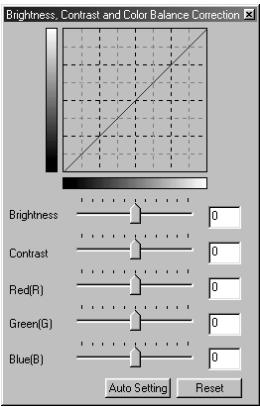
text_image
Brightness, Contrast and Color Balance Correction Brightness 0 Contrast 0 Red(R) 0 Green(G) 0 Blue(B) 0 Auto Setting ResetDrag the brightness, contrast, or color sliders, or enter specific values in the corresponding text box to make corrections. Dragging each slider to the right or inputting a positive number in the text box increases the brightness, contrast, and color.
Changes will be reflected in the displayed image and in the graph at the top of the palette. The horizontal axis of the chart indicates the original image values and the vertical axis the new values. Click the reset button to cancel all changes.
Clicking the auto-setting button corrects the brightness and contrast automatically without affecting the color balance. Click the reset button to cancel the changes.
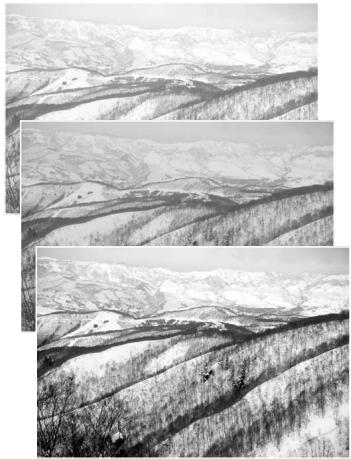
Is this picture too light? Adjusting brightness and contrast can be more difficult than it looks. The top image looks too bright, especially the mountains in the background.
Simply making everything darker with the brightness control creates a muddy image - the snow and sky are a dull gray and there are no strong blacks.
By adding contrast to the image, the snow is brightened while the darker trees are accentuated. The extra contrast also gives the image the appearance of being sharper as well as revealing fine details.
natural_image
Three-panel black-and-white landscape photo showing snow-covered mountains, forested slopes, and a small bird in flight (no text or symbols)AN INTRODUCTION TO COLOR
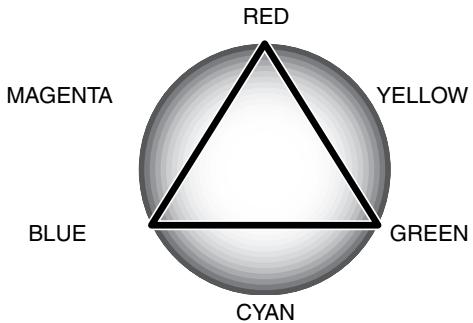
In photography, red, green, and blue are the primary colors. The secondary colors, cyan, magenta, and yellow, are made from combining the primary colors: cyan = blue + green, magenta = blue + red, and yellow = red + green. The primary and secondary colors are grouped in complementary pairs: red and cyan, green and magenta, and blue and yellow.
text_image
RED YELLOW GREEN CYAN BLUE MAGENTAKnowing the complementary colors is very important in color balancing. If the image has a specific color cast, either subtracting the color or adding its complementary color will create a natural looking image. For example, if the image is too red, decrease the amount of red; if the image is too yellow, increase the amount of blue.
Adding or subtracting equal parts of red, green, and blue will have no affect on the color balance. However, it can change the overall image brightness and contrast. Usually, no more than two color channels are needed to color balance an image.
Color balancing is a skill that develops with practice. While the human eye is extremely sensitive in making comparative judgements, it is a poor tool when making absolute measurements of color. Initially, it can be very difficult to distinguish between blue and cyan, and red and magenta. However, adjusting the wrong color channel never improves an image; subtracting blue from an image that is too cyan will give a green cast to the image.
COMPARING PRE AND POST CORRECTION IMAGES

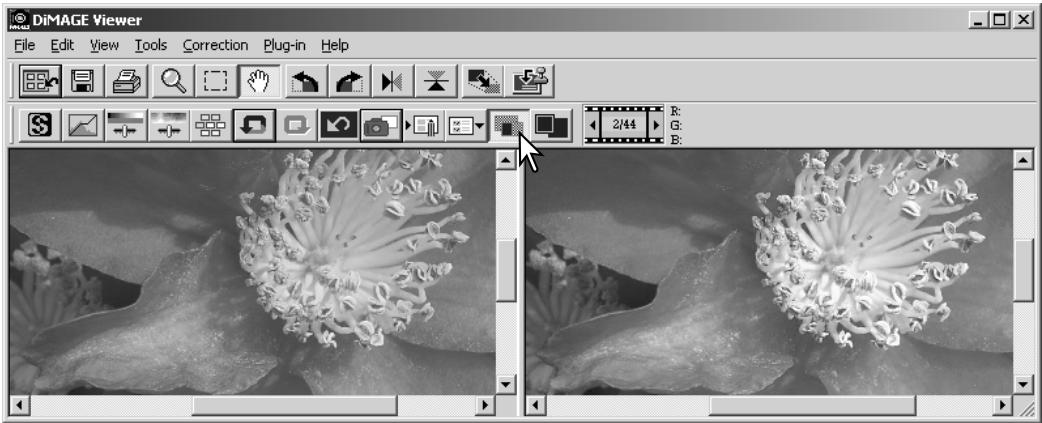
Clicking the comparison display button divides the image display area in two. The original image is on the left and the corrected image is on the right. To display the corrected image only, click the comparison display button again.
text_image
DiMAGE Viewer File Edit View Tools Correction Plug-in Help 2/44 R: G: B:Original image
Corrected image
Changes made with the magnifying tool, grab tool, or scroll bars on one image will be applied to the other. Using the fit-to-window button automatically resizes both images to fit the display area.
UNDOING AND REDOING AN IMAGE CORRECTION
text_image
DiMAGE Viewer File Edit View Tools Correction Plug-in Help
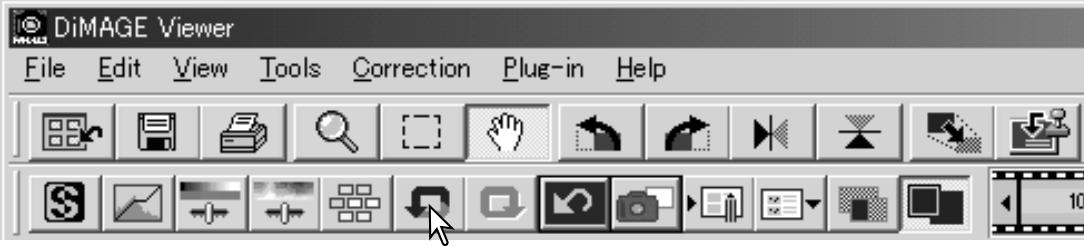
Click the undo button to cancel the last image correction applied to the image. Image corrections can continue to be undone as far as the computer memory capacity allows.

Click the redo button to reapply the last image correction canceled with the undo button.

Click the reset-all button to cancel all image corrections applied to the image.
PROCESSING IMAGES TEXT AND LINE ART
Images of black text or line art on white backgrounds can be processed to sharpen detail and reduce uneven illumination. Only images with horizontal and vertical dimensions between 240 pixels and 3072 pixels can be processed.
text_image
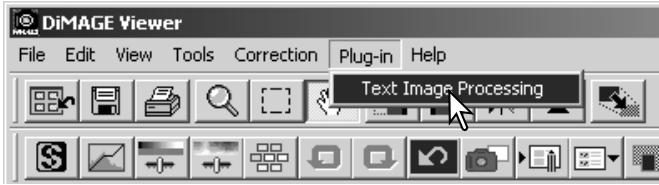
DiMAGE Viewer File Edit View Tools Correction Plug-in Help Text Image ProcessingSimply display the image in the correction window and select the text-image-processing option from the plug-in menu. To reset the correction, select the text-image-processing option again from the plug-in menu.
DATA IMPRINTING
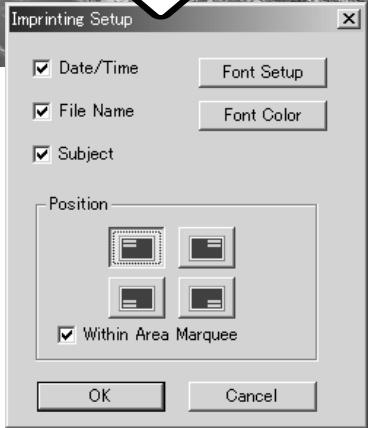
The date and time of recording, file name, and the subject line can be imprinted into the image. To add a subject line to an image, see page 25.
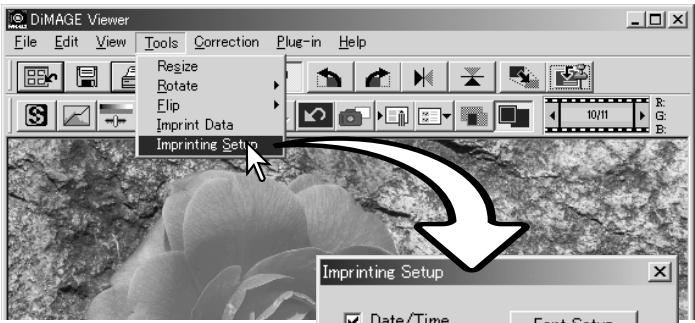
Select the imprinting-setup option from the tool menu to open the setup dialog box.
text_image
DiMAGE Viewer File Edit View Tools Correction Plug-in Help Resize Rotate Flip Imprint Data Imprinting Setup 10/11 R: G: B: Imprinting Setup Date/Time Font Setup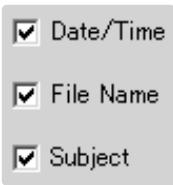
text_image
✓ Date/Time ✓ File Name ✓ SubjectSelect the information to be imprinted by checking the appropriate boxes.
Click the appropriate button to select the corner to imprint the data. If the within-area-marquee check box is selected, the data will appear inside the area marquee in the position selected. For more about the area marquee, see page 64.
The font, font style, and point size can be specified. Simply click the font-setup button to open the font dialog box. The sample area will reflect the settings. The script can be selected from the drop-down menu at the bottom of the window. The fonts and scripts available vary with the computer system.
text_image
Imprinting Setup Date/Time Font Setup File Name Font Color Subject Position Within Area Marquee OK Cancel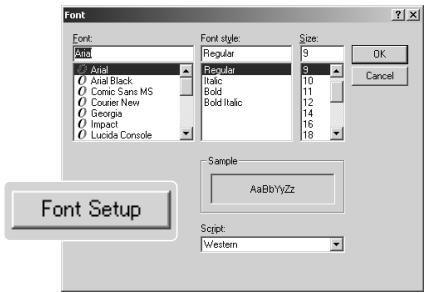
text_image
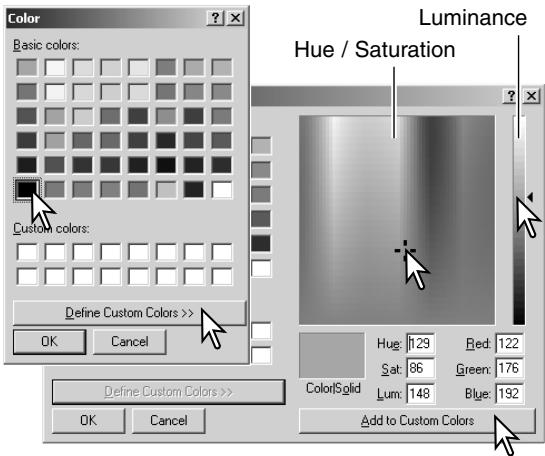
Font Arial Arial Black Comic Sans MS Couser New Georgia Impact Lucida Console Font style: Regular Italic Bold Bold Italic Size: 9 9 10 11 12 14 16 18 Sample: AaBbYyZz Script: Western OK Cancel Font SetupThe font color can be specified. Click the font-color button to open the color dialog box. 48 colors are available. Click on the color sample to select it.
Custom samples can be created; click the define-custom-colors button to open the palette. Values can be entered into the text boxes or a color can be created by clicking on the hue/saturation and luminance fields. Click the add-to-custom-colors button to add the color to the custom palette. Click the custom sample and then the OK button.
Click the OK button in the data-imprinting dialog box to complete the operation. Select the data-imprint option from the tool menu or click the data-imprinting button to apply the settings.
text_image
Color Basic colors: Custom colors: Define Custom Colors >> OK Cancel Define Custom Colors >> OK Cancel Luminance Hue / Saturation Hug: 129 Red: 122 Sat: 86 Green: 176 Lum: 148 Blue: 192 ColorSolid Add to Custom Colors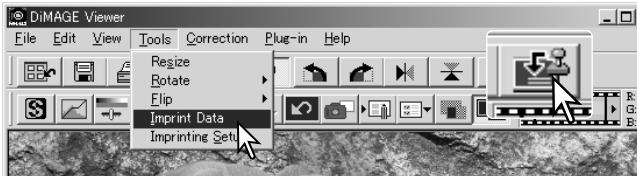
text_image
DiMAGE Viewer File Edit View Tools Correction Plug-in Help Resize Rotate Flip Imprint Data Imprinting Setu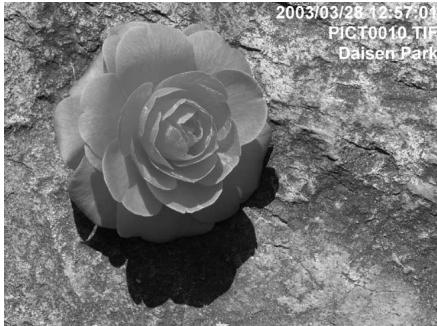
natural_image
Black-and-white close-up of a rose flower on a textured rock surface (no text or symbols visible)The relative size of the imprinted data varies with image size. To cancel the imprinting function, select the data-imprint option from the tool menu or click the data-imprinting button again.
When the image is saved, the data will be embedded into the image. Always rename the file to protect the original image.
SAVING IMAGES
RESIZING AN IMAGE TO BE SAVED
text_image
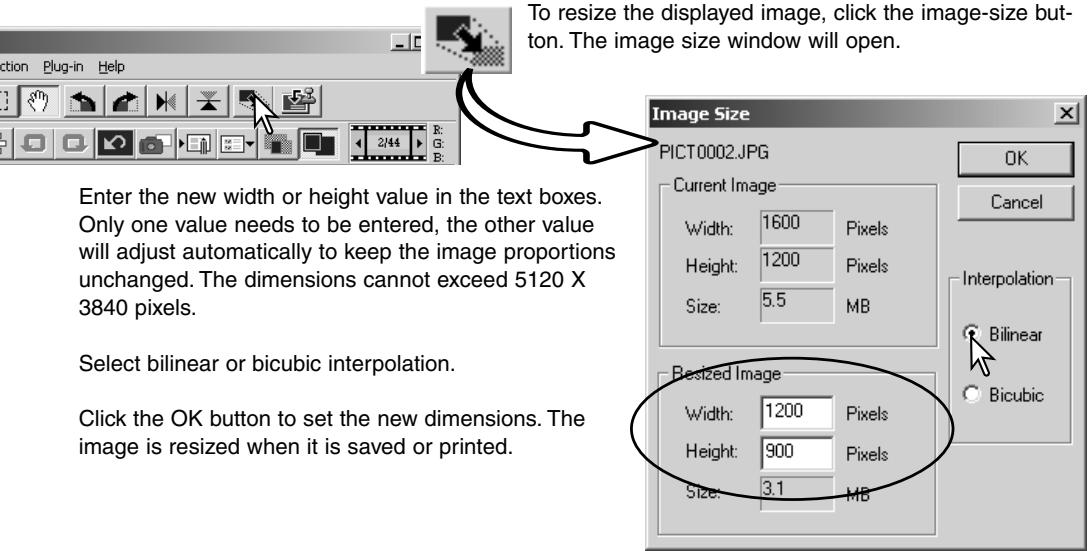
To resize the displayed image, click the image-size button. The image size window will open. Enter the new width or height value in the text boxes. Only one value needs to be entered, the other value will adjust automatically to keep the image proportions unchanged. The dimensions cannot exceed 5120 X 3840 pixels. Select bilinear or bicubic interpolation. Click the OK button to set the new dimensions. The image is resized when it is saved or printed. PICT0002.JPG Current Image Width: 1600 Pixels Height: 1200 Pixels Size: 5.5 MB Restzed Image Width: 1200 Pixels Height: 900 Pixels Size: 3.1 MB OK Cancel Interpolation Bilinear BicubicSAVING AN IMAGE
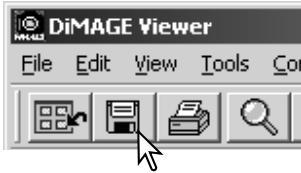
Click the save button on the tool bar or select the save option on the file menu. The image will be saved in its original location overwriting the current file. If a JPEG image is saved, the save-as dialog box will open; the location and compression rate must be specified, see next page.
text_image
DiMAGE Viewer File Edit View Tools CorCHANGING THE IMAGE NAME OR FORMAT
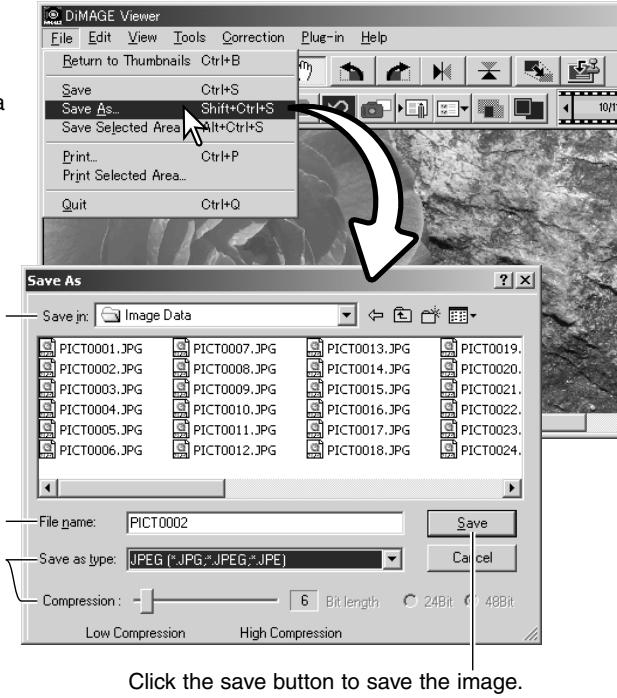
To save an image file under a new name or in a new file format, select the save-as option from the file menu. The save-as dialog box will open.
Specify the location to save the file.
Enter the file name without an extension.
Specify the file format of the image from the drop-down menu. The file does not need to be saved in the original file format. If JPEG is selected, the compression rate must be fixed using the slide bar at the bottom of the dialog box. The higher the compression rate, the smaller the file size, and the lower the image quality.
text_image
DiIMAGE Viewer File Edit View Tools Correction Plug-in Help Return to Thumbnails Ctrl+B Save Ctrl+S Save As... Shift+Ctrl+S Save Selected Area Alt+Ctrl+S Print... Ctrl+P Print Selected Area... Quit Ctrl+Q Save As Save in: Image Data PICT0001.JPG PICT0007.JPG PICT0013.JPG PICT0019. PICT0002.JPG PICT0008.JPG PICT0014.JPG PICT0020. PICT0003.JPG PICT0009.JPG PICT0015.JPG PICT0021. PICT0004.JPG PICT0010.JPG PICT0016.JPG PICT0022. PICT0005.JPG PICT0011.JPG PICT0017.JPG PICT0023. PICT0006.JPG PICT0012.JPG PICT0018.JPG PICT0024. File name: PICT0002 Save Save as type: JPEG (".JPG,".JPEG,".JPE) Cancel Compression : 6 Bit length 24Bit 48Bit Low Compression High Compression Click the save button to save the image.PRINTING
With the image to be printed displayed in the correction window, click the print button or select the print option from the file menu to open the print setup window.
text_image
DiMAGE Viewer File Edit View Tools Correction Plug-in Help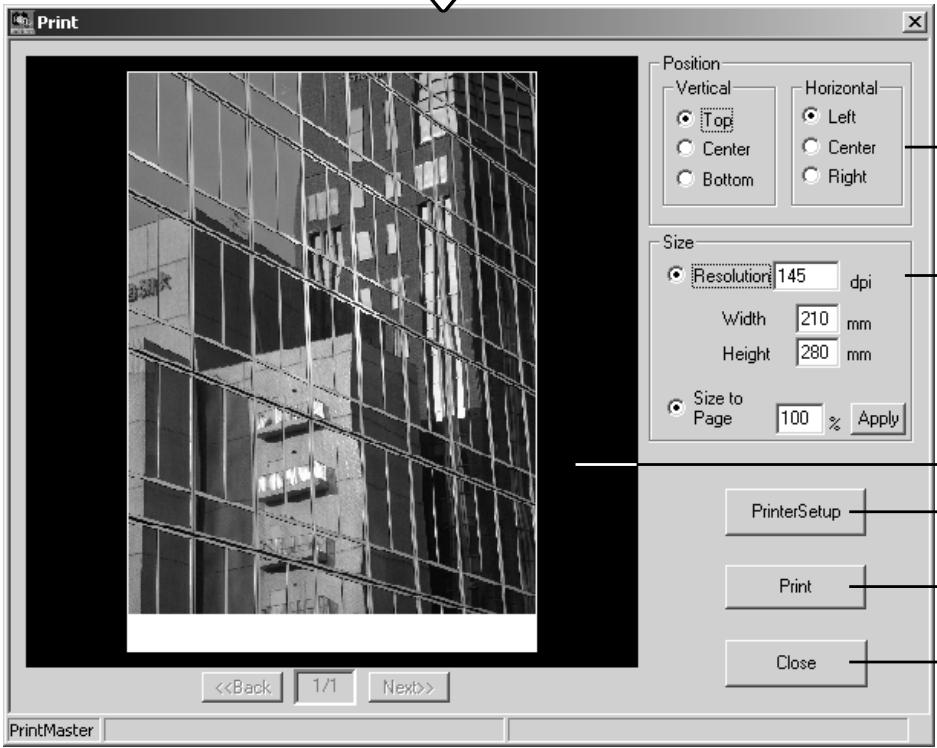
text_image
Print Position Vertical Top Center Bottom Horizontal Left Center Right Size Resolution 145 dpi Width 210 mm Height 280 mm Size to Page 100 % Apply PrinterSetup Print Close <Position
The image can be positioned within the printing area. Simply click on the appropriate radio buttons. Changes are immediately displayed in the preview area.
Size
Clicking the top radio button allows manual adjustments based on printing resolution or dimensions. Enter the print resolution or one of the dimensions in the text box and click the apply button; the other two values and the preview display change accordingly. With manual adjustments the print image can be made bleed to the edge of the printing area by setting the dimensions larger than the area.
Click the size-to-page radio button to automatically size the image to the printing area. The print size can be adjusted between 1% and 100% of the printing area in integers. Click the apply button each time the percentage of reproduction is change to see the result in the preview area.
Preview area
To preview the affect of the printing parameters. When the any of the size settings are changed, the apply button must be used to view the change.
Printer setup
To access the setup dialog box of the printer.
To print the image.
Close
To close the print window without printing the image.
CREATING AN INDEX SHEET
Multiple images can be laid out in index sheets. Select the images in the thumbnail display choose the create-index-sheet option from the tool menu.

Create Index Sheet
<< Index Print Preview >>
D:\My Documents\Images
1/1
A trip to Middleton
PICT0002.TIF
2002/06/12 14:29
PICT0003.TIF
2002/06/12 14:03

PICT0006.TIF
2002/06/13 15:03

PICT0007.TIF
2002/07/17 9:01
PICT0009.TIF
2003/03/28 12:56
PICT0010.TIF
2003/03/28 12:57
Number of Pages : 1
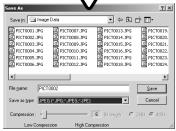
Save
text_image
Save As Save Image Data PCT0001.JPG PCT0002.JPG PCT0003.JPG PCT0004.JPG PCT0005.JPG PCT0006.JPG PCT0007.JPG PCT0008.JPG PCT0009.JPG PCT0010.JPG PCT0011.JPG PCT0012.JPG PCT0013.JPG PCT0014.JPG PCT0015.JPG PCT0016.JPG PCT0017.JPG PCT0018.JPG PCT0019.JPG PCT0020.JPG PCT0021.JPG PCT0022.JPG PCT0023.JPG PCT0024.JPG PCT0025.JPG PCT0026.JPG PCT0027.JPG PCT0028.JPG PCT0029.JPG PCT0030.JPG Save Save as type: PCT01.JPG (PCT_1).PRET. Compression: Low Compression High CompressionClick the save button to save the index sheet as a file.

DiMAGE Viewer
File
Eo
m = 311
Vie
1
ort
To
ols
Help


Rename All
Batch Processing
Edit Subject Line
Create Index Sheet
Movie Enhancer
natural_image
Computer interface with multiple camera and document icons (no readable text or symbols)
Desktop
+
公
My
+
□
My
,
mp
er
[Non-Text]
m = 311
Mo
ie
En
and
er
m = 311
↓
Z
1
The image is too blurry to recognize any text content.
The image is too blurry to recognize any text content.
m = 311
1
m = 311
The image is too blurry to recognize any text content.
图
The image is too blurry to recognize any text content.

品
K
L
7
. □
lac
-
10
m = 311
1 + u1 - 1 = ( 1 + u) u1 < 1 = u
The image is too blurry to recognize any text content.
[Unreadable]
The image is too blurry to recognize any text content.
m = 311
m = 311
m = 311
m = 311
m = 311
-
+
The image is too blurry to recognize any text content.
The image is too blurry to recognize any text content.

1 + u1 - 1 = ( 1 + u) u1 < 1 = u
1 + u1 - 1 = ( 1 + u) u1 < 1 = u
/
1 + u1 - 1 = ( 1 + u) u1 < 1 = u
1 + u1 - 1 = ( 1 + u) u1 < 1 = u
1 + u1 - 1 = ( 1 + u) u1 < 1 = u
1 + u1 - 1 = ( 1 + u) u1 < 1 = u
1 + u1 - 1 = ( 1 + u) u1 < 1 = u
1 + u1 - 1 = ( 1 + u) u1 < 1 = u

×
m = 311
1
m = 311
-
,
▲
4c
ol
LNV
20

els
The image is too blurry to recognize any text content.
1 + u7 = 7019
The image is too blurry to recognize any text content.
The image is too blurry to recognize any text content.
The image is too blurry to recognize any text content.
The image is too blurry to recognize any text content.
The image is too blurry to recognize any text content.
The image is too blurry to recognize any text content.

The Ground Truth image displays a single, solid horizontal line. According to Rule 2 (UNDERSCORE & LINE RULES), if the GT contains lines used for stylistic emphasis or as background elements (like a ruled line), the OCR result must ignore them. The provided OCR content is "____", which consists of four underscores. This is an incorrect interpretation of the line as a placeholder symbol, violating the rule that stylistic lines must be ignored. Therefore, the OCR output hallucinated symbols where none should exist. Hence, the result is inconsistent with the Ground Truth.
1 + u1 - 1 = ( 1 + u) u1 < 1 = u
1 + u1 - 1 = ( 1 + u) u1 < 1 = u
1 + u1 - 1 = ( 1 + u) u1 < 1 = u
1 + u1 - 1 = ( 1 + u) u1 < 1 = u
1 + u1 - 1 = ( 1 + u) u1 < 1 = u
1 + u1 - 1 = ( 1 + u) u1 < 1 = u

m = 311
m = 311
m = 311
0
•
No

—
1 + u1 - 1 = ( 1 + u) u1 < 1 = u
1 + u1 - 1 = ( 1 + u) u1 < 1 = u
1 + u1 - 1 = ( 1 + u) u1 < 1 = u
1 + u1 - 1 = ( 1 + u) u1 < 1 = u
1 + u1 - 1 = ( 1 + u) u1 < 1 = u
1 + u1 - 1 = ( 1 + u) u1 < 1 = u

m = 311
m = 311
√
N
lu
nb
er
of
P
ago
es
m = 311
m = 311
m = 311
The image is too blurry to recognize any text content.
The image is too blurry to recognize any text content.
Fo
nt
Se
tu
C:
Pic
tui
eV
MIN
OL
TA
1
3
m = 311
m = 311
m = 311
m = 311
m = 311
m = 311
m = 311
m = 311
m = 311
m = 311
m = 311
m = 311
m = 311

The Ground Truth image displays a single, solid horizontal line. According to Rule 2 (UNDERSCORE & LINE RULES), this is a stylistic or background line, not a placeholder underscore. Therefore, the OCR result must ignore it. The provided OCR content is "____", which consists of four underscores. This is an incorrect interpretation of the line as a placeholder, violating the rule that stylistic lines must be ignored. The OCR has hallucinated underscores where none should exist based on the GT's visual context. Hence, the OCR result is inconsistent with the Ground Truth.
1 + u1 - 1 = ( 1 + u) u1 < 1 = u
1 + u1 - 1 = ( 1 + u) u1 < 1 = u
1 + u1 - 1 = ( 1 + u) u1 < 1 = u
1 + u1 - 1 = ( 1 + u) u1 < 1 = u
1 + u1 - 1 = ( 1 + u) u1 < 1 = u
1 + u1 - 1 = ( 1 + u) u1 < 1 = u
1 + u1 - 1 = ( 1 + u) u1 < 1 = u
1 + u1 - 1 = ( 1 + u) u1 < 1 = u
1 + u1 - 1 = ( 1 + u) u1 < 1 = u
1 + u1 - 1 = ( 1 + u) u1 < 1 = u
1 + u1 - 1 = ( 1 + u) u1 < 1 = u
1 + u1 - 1 = ( 1 + u) u1 < 1 = u
1 + u1 - 1 = ( 1 + u) u1 < 1 = u
1 + u1 - 1 = ( 1 + u) u1 < 1 = u
1 + u1 - 1 = ( 1 + u) u1 < 1 = u
1 + u1 - 1 = ( 1 + u) u1 < 1 = u
1 + u1 - 1 = ( 1 + u) u1 < 1 = u
1 + u1 - 1 = ( 1 + u) u1 < 1 = u
1 + u1 - 1 = ( 1 + u) u1 < 1 = u
1 + u1 - 1 = ( 1 + u) u1 < 1 = u

m = 311
m = 311
√
□
at
e
an
B
ir
ne
m = 311
m = 311
m = 311
m = 311
The image is too blurry to recognize any text content.
The image is too blurry to recognize any text content.
F
on
9
et
up
m = 311
|
m = 311
m = 311
m = 311
m = 311
200
10
DD 130
01 01
17
05
m = 311
m = 311
m = 311
m = 311
m = 311
m = 311
m = 311
m = 311
m = 311
m = 311
m = 311

1 + u1 - 1 = ( 1 + u) u1 < 1 = u
1 + u1 - 1 = ( 1 + u) u1 < 1 = u
1 + u1 - 1 = ( 1 + u) u1 < 1 = u
1 + u1 - 1 = ( 1 + u) u1 < 1 = u
1 + u1 - 1 = ( 1 + u) u1 < 1 = u
1 + u1 - 1 = ( 1 + u) u1 < 1 = u
1 + u1 - 1 = ( 1 + u) u1 < 1 = u
1 + u1 - 1 = ( 1 + u) u1 < 1 = u
1 + u1 - 1 = ( 1 + u) u1 < 1 = u
1 + u1 - 1 = ( 1 + u) u1 < 1 = u
1 + u1 - 1 = ( 1 + u) u1 < 1 = u
1 + u1 - 1 = ( 1 + u) u1 < 1 = u
1 + u1 - 1 = ( 1 + u) u1 < 1 = u
1 + u1 - 1 = ( 1 + u) u1 < 1 = u
1 + u1 - 1 = ( 1 + u) u1 < 1 = u
1 + u1 - 1 = ( 1 + u) u1 < 1 = u
1 + u1 - 1 = ( 1 + u) u1 < 1 = u
1 + u1 - 1 = ( 1 + u) u1 < 1 = u
1 + u1 - 1 = ( 1 + u) u1 < 1 = u
1 + u1 - 1 = ( 1 + u) u1 < 1 = u
1 + u1 - 1 = ( 1 + u) u1 < 1 = u

m = 311
m = 311
m = 311
m = 311
m = 311
m = 311
m = 311
m = 311
m = 311
m = 311
m = 311
m = 311
m = 311
m = 311
m = 311
Select from the following setting to lay out the index sheets. All changes are reflected in the preview display.
Rows x Column - to lay out the images in a specified number of horizontal rows and vertical columns.
Size - to select the pixel dimensions of the index sheet. The greater the number of pixels, the fine the image resolution and the larger the file size.
Thumbnail frame - to print a black frame around each image. The frame can indicate the extent of an image that has a large area of white near the edges such as a cloudy sky.
Folder & Page Number - to print the folder name and location of the images and the page number and total number of pages.
Caption - to print the file name and date and time of recording under each image.
Title - to print a title at the top of each sheet.
text_image
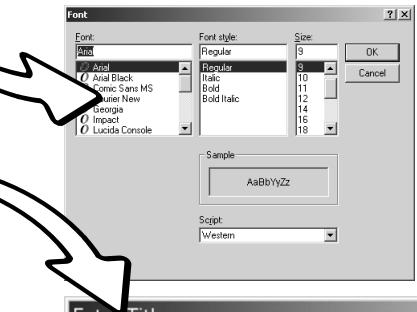
Font Font: Arial Arial Black Atomic Sans MS New New Georgia Impact Lucida Console Font style: Regular Regular Italic Bold Bold Italic Size: 9 9 10 11 12 14 16 18 OK Cancel Sample AaBbYyZz Script: WesternThe font, font style, and point size can be specified for the folder path and page number, caption, and title. Simply click the font-setup button to open the font dialog box. The sample area will reflect the settings. The script can be selected from the dropdown menu at the bottom of the window. The fonts and scripts available vary with the computer system.
text_image
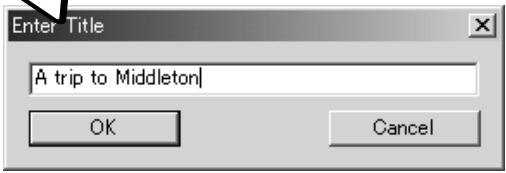
Enter Title A trip to Middleton OK CancelEnter the title of the index sheets in the dialog box. Click the OK button; the title will appear in the title field as well as at the top of the preview display.
ADVANCED IMAGE PROCESSING
This section covers the advanced image-processing tools in the DiMAGE Viewer. Adjustments to color, contrast, brightness, hue, and saturation can be made. Functions to view and save image corrections are also available. The basic image-processing section on pages 26 through 39 should be read before continuing.
text_image
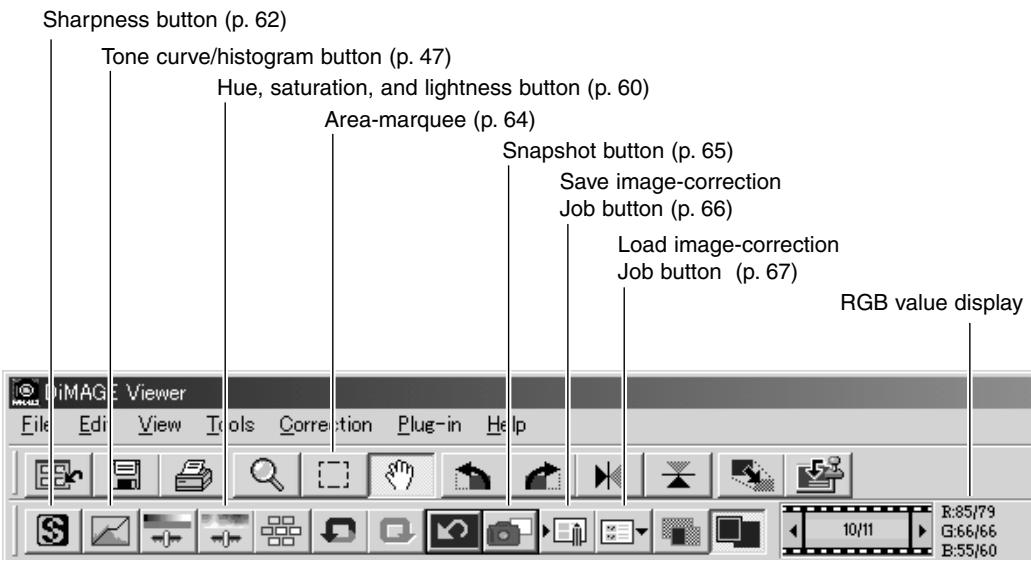
Sharpness button (p. 62) Tone curve/histogram button (p. 47) Hue, saturation, and lightness button (p. 60) Area-marquee (p. 64) Snapshot button (p. 65) Save image-correction Job button (p. 66) Load image-correction Job button (p. 67) RGB value displayThe RGB display will show the color values for any point on the image. The first number are the values for the original image before corrections are applied followed by the current values. Simply place the mouse pointer on the image area to see the RGB values of that point. Pressing the shift key (Windows) or command key (Macintosh) will display the CMY values.
THE TONE-CURVE / HISTOGRAM PALETTE
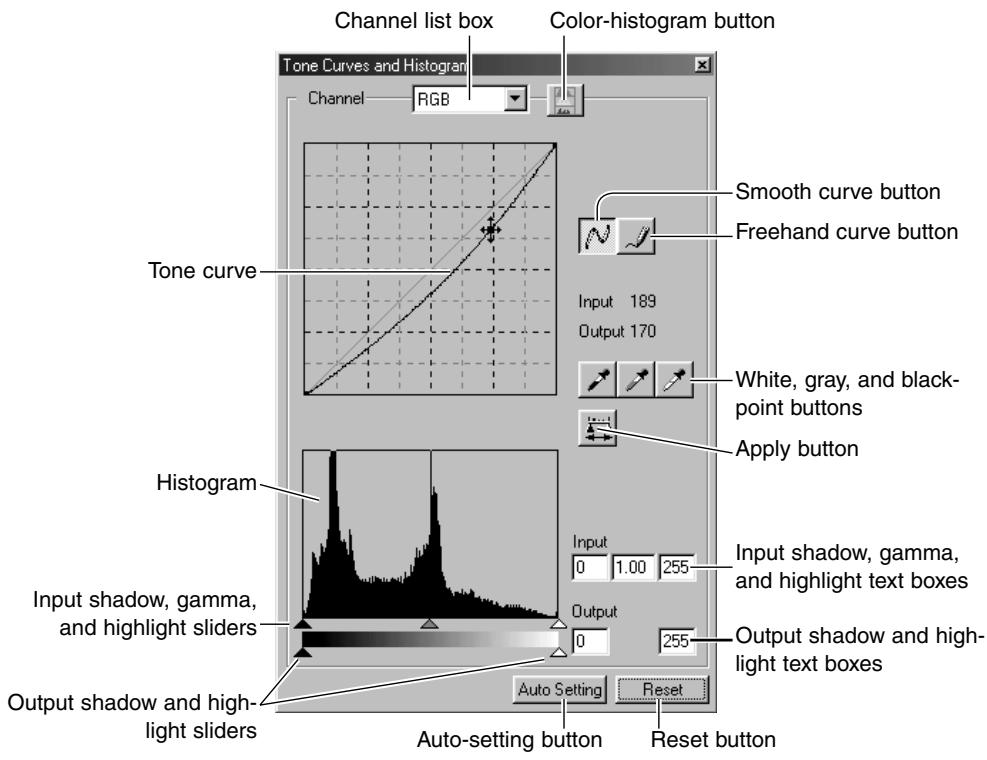
Click the tone-curve/histogram button to display the palette.
text_image
Channel list box Color-histogram button Tone Curves and Histogram Channel RGB Smooth curve button Freehand curve button Input 189 Output 170 White, gray, and black- point buttons Apply button Tone curve Histogram Input shadow, gamma, and highlight text boxes Input shadow, gamma, and highlight sliders Output shadow and high- light sliders Output shadow and high- light sliders Auto-setting button Reset button Auto Setting ResetUSING THE TONE CURVE
Tone Curves and Histogram
text_image
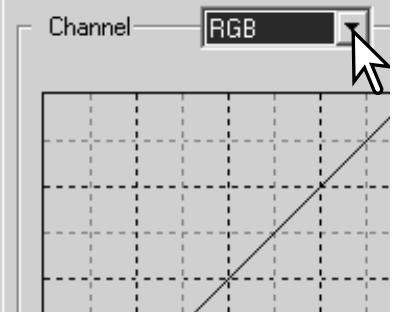
Channel RGBClick the arrow next to the channel box to select the channel from the drop-down menu. To make adjustments to the color balance of the image, select the appropriate color channel. To adjust the contrast or brightness of the image without affecting the color, select the RGB channel.
The tone curves can be displayed with keyboard shortcuts. While holding the control key (Windows) or command key (Macintosh), press "1" to display the red channel, "2" to display the green channel, "3" to display the blue channel, or "0" (zero) to display the RGB channel.
text_image
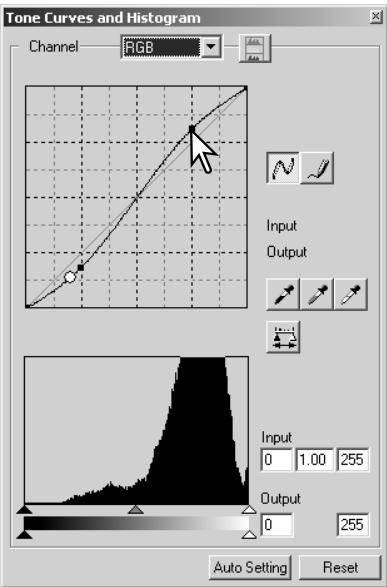
Tone Curves and Histogram Channel RGB Input Output Input 0 1.00 255 Output 0 255 Auto Setting ResetPlace the mouse pointer over the tone curve. Click and drag the curve.
Each time the tone curve is clicked, a new node will be attached to the curve. The nodes can be moved by clicking and dragging. The input and output levels of the node are displayed as it is moved. The input level (horizontal axis) refers to the original image, and the output level (vertical axis) refers to the correction applied to the image.
Any corrections made on the tone curve are immediately applied to the displayed image. By placing the mouse pointer on the displayed image, the grey or color level of that point will be indicated on the tone curve by a white circle.
The reset button cancels all corrections in all channels.
DRAWING TONE CURVES BY FREEHAND
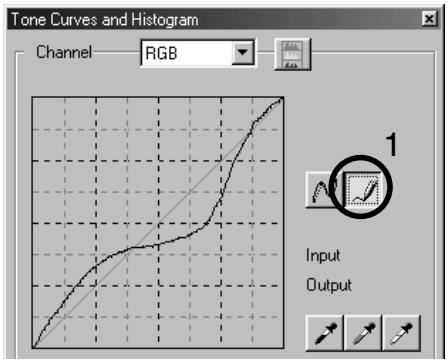
Click the freehand-curve button (1). The mouse pointer changes to the pencil tool when placed in the tone-curve box.
Click and drag the pointer to draw a new curve. Extreme image manipulations are possible with the freehand curve tool.
To smooth a rough freehand curve, click the smooth-curve button (2). Nodes will be automatically placed on the curve and can be adjusted with the mouse.
With extreme freehand curves, the smooth curve button may significantly change the shape of the curve. Click the undo button to return to the original free-hand curve.
text_image
Tone Curves and Histogram Channel RGB 1 Input Output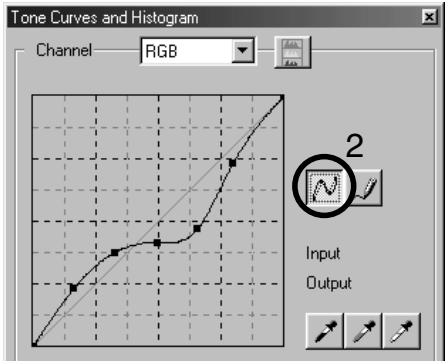
text_image
Tone Curves and Histogram Channel RGB 2 Input OutputA SHORT GUIDE TO TONE-CURVE CORRECTIONS
line
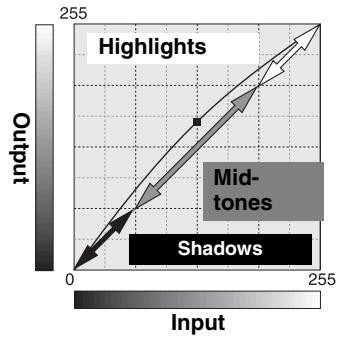
| Input | Output | |-------|--------| | 0 | 0 | | 255 | 255 |The tone curve is a graphic representation of the brightness and color levels of the image. The bottom axis is the 256 levels of the original image (input data) from black to white. The vertical axis is the corrected image (output data) with the same scale from top to bottom.
The bottom left portion of the graph represents the dark colors and shadow areas of the image. The middle section represents the mid-tones: skin, grass, blue sky. The top right section is the highlights: clouds, lights. Changing the tone curve can affect the brightness, contrast, and color of the image.
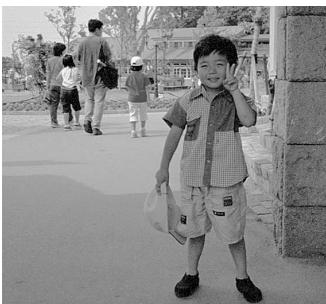
Bring out detail in the shadows
natural_image
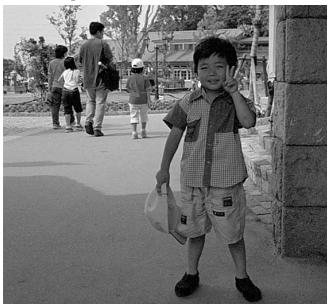
Black-and-white photo of a smiling boy walking on a paved path, with pedestrians and stone pillars in the background (no visible text or symbols)This is a simple technique to make a subject hidden in the shadows brighter. Unlike the brightness level control (page 33), this method of correction will not loose details in the highlight areas of the image.
natural_image
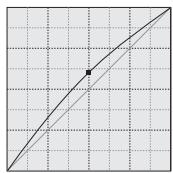
Geometric diagram showing a diagonal line intersecting a grid, with a shaded triangular region and a black square marker (no text or symbols)With the RGB channel selected, place the smooth-curve cursor on the center of the curve. Click and drag the curve up. Look at the displayed image to judge the result. The adjustment can be very small and still have a significant impact on the image. Moving the tone curve down will make the image darker.
natural_image
Black-and-white photo of a smiling boy walking outdoors, with other children and buildings in the background (no visible text or symbols)Increasing contrast
The contrast of an image can be changed. The light blue 45^ line on the tone-curve graph represents the original contrast of the image. Making the angle of the tone curve greater than 45^ will increase the contrast of the image. Making the angle less than 45^ will reduce the contrast.
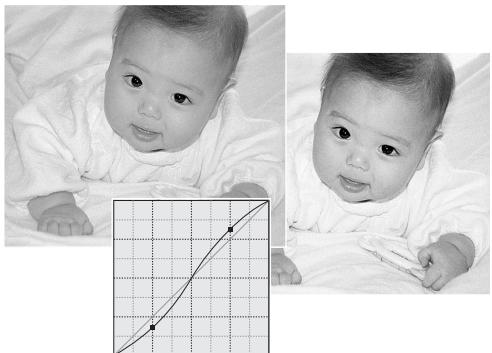
With the RGB channel selected, click on the tone curve near the top and bottom to add two nodes. Slightly move the top node up and the bottom node down. This will increase the angle of the central portion of the tone curve and increase the contrast of the image without making an overall change in image brightness.
Correcting color
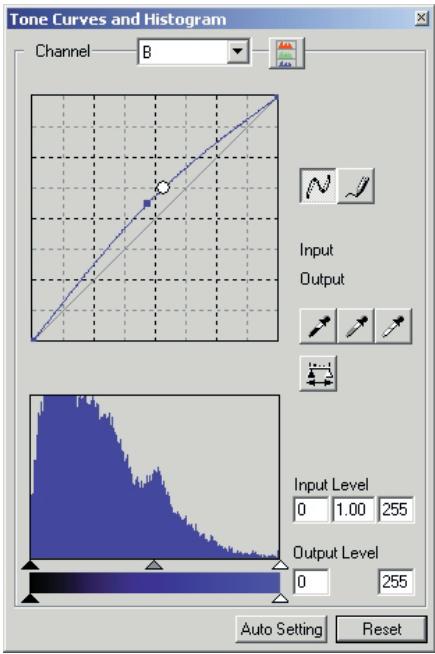
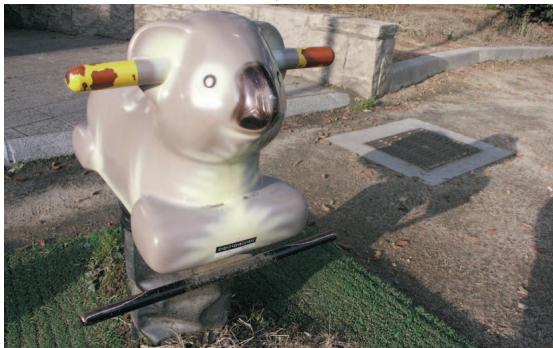
By selecting individual color channels on the tone curve, adjustments to the overall color of an image can be made. This can be used to eliminate unnatural color casts or add warmth to a picture.
If the image is too red, green, or blue, simply drag the corresponding color-channel curve down until the color appears natural. If the color cast is predominantly one of the secondary colors, cyan, magenta, or yellow, move the curve of the complementary color up. For example, if the image is too yellow, move the blue curve up. For more on color, see page 35.
text_image
Tone Curves and Histogram Channel B Input Output Input Level 0 1.00 255 Output Level 0 255 Auto Setting Reset
natural_image
Exterior view of a white cartoon animal-shaped object with yellow and red elements, parked outdoors on grass near stone pavement (no signage or text visible)
natural_image
White cartoon-style scooter with red and yellow stripes parked outdoors on grass, no visible text or symbolsWHITE, BLACK, AND GRAY-POINT CORRECTIONS
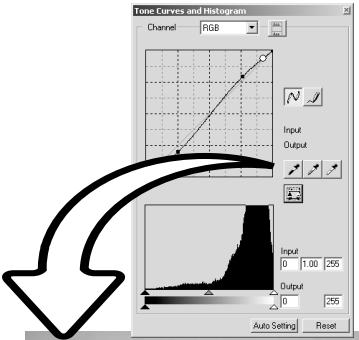
On the tone-curve / histogram palette, corrections can be made by specifying a white, black, and gray point within the image. Locating an appropriate neutral area within the image is critical to correctly calibrate the software. When the dropper tool is selected, the RGB display is active and can be used to evaluate the image area. All changes are immediately reflected in the displayed image.
Click the white-point button; the mouse pointer changes to the white dropper tool.
With the dropper tool, click on the brightest neutral area of the image to define it as the white point. The values of the image will be adjusted based on the selected point. The default level for the white point is 255 for each RGB channel.
Click the black-point button.
With the dropper tool, click on the darkest neutral area of the image to define it as the black point. The values of the image will be adjusted based on the selected point. The default level for the black point is 0 for each RGB channel.
text_image
Tone Curves and Histogram Channel RGB Input Output Input 0 1.00 255 Output 0 255 Auto Setting Reset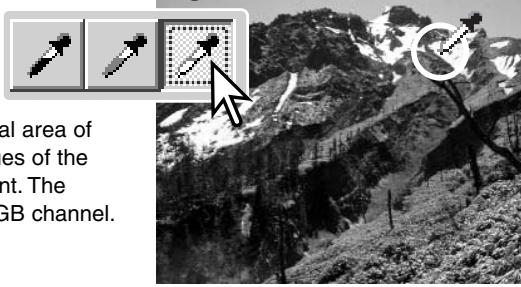
text_image
al area of es of the nt. The GB channel.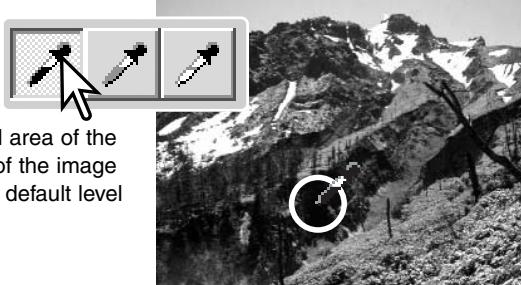
text_image
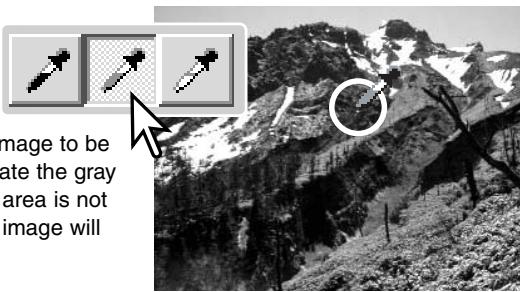
area of the of the image default levelClick the gray-point button. The grey point controls the color of the image.
With the dropper tool, click a neutral area of the image to be defined as the gray point. The area used to calibrate the gray point must be neutral. The brightness level of the area is not important, but if the area has a definite color, the image will not be color balanced correctly.
text_image
Image to be late the gray area is not image will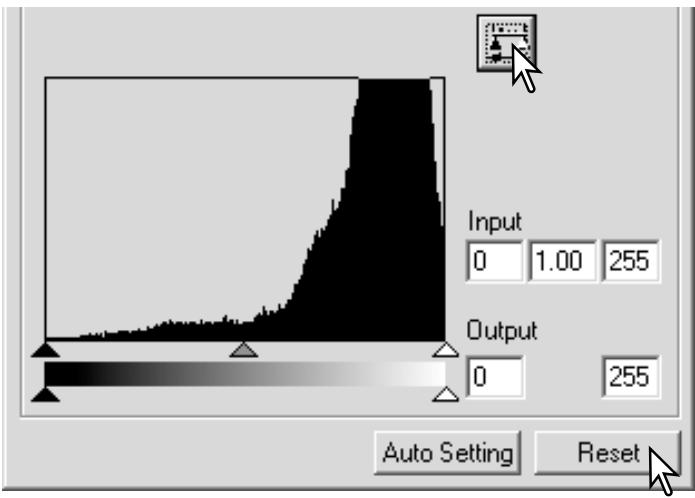
text_image
Input 0 1.00 255 Output 0 255 Auto Setting ResetClick and hold the apply button to show the change on the histogram.
Click the reset button to cancel all corrections.
SETTING THE WHITE AND BLACK-POINT VALUES
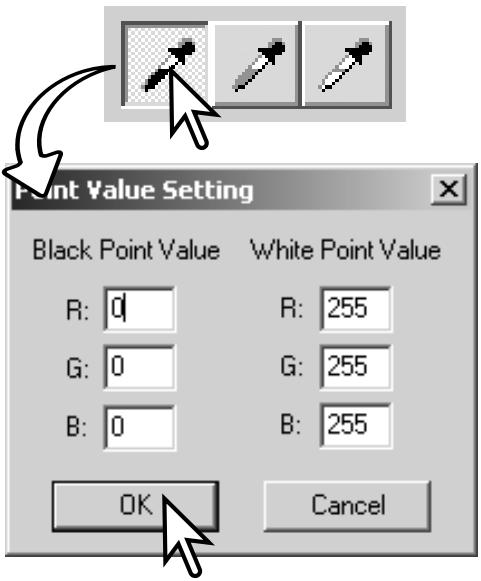
The white and black-point values are set to 255 and 0 for each RGB level. Changing these values allow the calibration of an image with no true white or black. This is an advanced image-processing tool.
Double-click on either the white-point or black-point button to activate the point-value-setting dialog box.
Input the new white-point or black-point values. Click [OK].
With the point-value-setting dialog box open, the mouse pointer can be used to measure the color of any point on the displayed image. Press the shift key (Windows) or command key (Macintosh) to display the CMY levels in the RGB display. The RGB display shows the original values for the image on the left and the current values for the image on the right.
Calibrate the image following the steps in white, black, and gray point corrections section.
text_image
Point Value Setting Black Point Value White Point Value R: 0 R: 255 G: 0 G: 255 B: 0 B: 255 OK CancelTONE-CURVE / HISTOGRAM AUTO SETTING
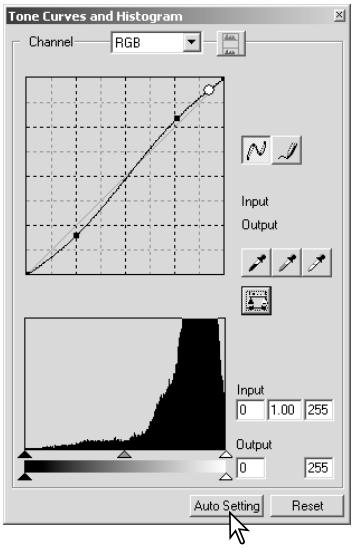
Click the auto-setting button. The change is immediately reflected in the displayed image.
The auto-setting function automatically adjusts the tone curve and histogram to maximize image data. The darkest pixels in the image are set to a black level for 0, the brightest pixels are set to a white level of 255, and the rest of the pixels are distributed between them equally. To view the change in the histogram, press the apply button. Click the reset button to cancel the auto setting.
text_image
Tone Curves and Histogram Channel RGB Input Output Auto Setting ResetDISPLAYING THE COLOR HISTOGRAMS
text_image
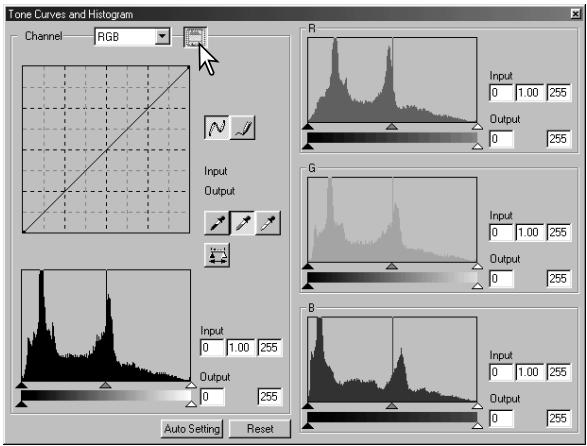
Tone Curves and Histogram Channel RGB Input Output Auto Setting Reset R Input 0 1.00 255 Output 0 255 G Input 0 1.00 255 Output 0 255 B Input 0 1.00 255 Output 0 255Click the color-histogram button to view the red, green, and blue histograms.
Click the histogram RGB display button again to close the color histogram display.
HISTOGRAM CORRECTIONS
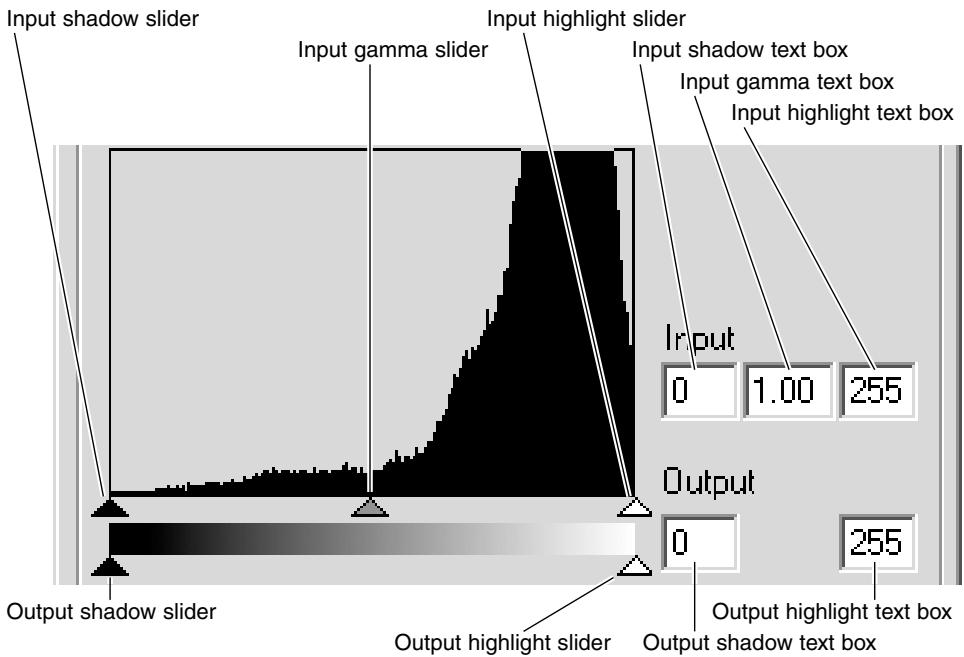
The histogram indicates the distribution of pixels with specific brightness and color values of the displayed image. Using the histogram can maximize the output of the image data. Changes made with the histogram are also displayed on the tone curve.
text_image
Input shadow slider Input gamma slider Input highlight slider Input shadow text box Input gamma text box Input highlight text box Input 0 1.00 255 Output 0 255 Output shadow slider Output highlight slider Output shadow text boxThe color histograms can be displayed with the channel list box or with keyboard shortcuts. While holding the shift key (Windows) or command key (Macintosh), press "1" to display the red channel, "2" to display the green channel, "3" to display the blue channel, or "0" (zero) to display the RGB channel.
The highlight level, shadow level, and gamma can be set manually. The histogram can be used to maximize the distribution of the pixels in the image. All the levels on the histogram are displayed numerically to the right of the sliders. These numbers can be changed with the keyboard.
The gamma slider defines the mid-tones of the image. Dragging the gamma slider to the right will darken the image, and dragging it to the left will brighten it. Similar to the tone-curve correction described on page 50, the gamma slider allows the brightness of the image to be adjusted without loosing image information.
The input highlight slider sets the white level. As the slider is moved to the left, an apparent increase in contrast can be seen in the displayed image. All pixels to the right of the slider are set to 255 and any image detail they may contain will be lost. This can be an important tool for improving copy images of text on a white background. Uneven illumination, or faded or stained paper can be distracting when copying text or line art. By adjusting the white level, the imperfections of the white background can be eliminated leaving only the darker text visible.
The input shadow slider sets the black level. As the slider is moved to the right, an apparent increase in contrast can be seen in the displayed image. All pixels to the left of the slider are set to 0 and any image detail they may contain will be lost.
The black and white output levels can be adjusted. By moving the output highlight and shadow sliders, the contrast of the image can be reduced.
For examples of histogram corrections, see the following section.
A SHORT GUIDE TO HISTOGRAM CORRECTIONS
This guide shows simple corrections that can be made with a histogram. Unlike the tone curve, the histogram provides information on a specific image. This can used to evaluate the image and make adjustments accordingly.
The histogram of the cherry blossoms shows a gap at the right and the flowers look a little grey. This is caused by slight underexposure when the image was captured.
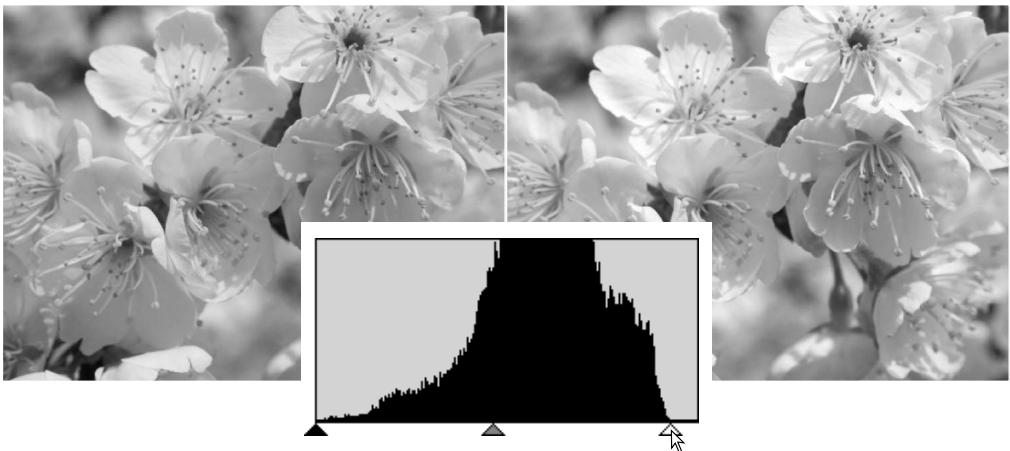
natural_image
Black-and-white photo collage showing blooming flowers alongside a histogram overlay (no text or symbols)By moving the highlight slider to the left to set the white point to where the pixel distribution ends, the whites become more brilliant and the contrast increases.
This image is flat. The pixel distribution in the histogram reflects the low-contrast scene. The lack of any strong shadows or dark tones is indicated by the absence of pixels on the left of the histogram. Most of the detail is concentrated in a narrow range in the mid-tones.
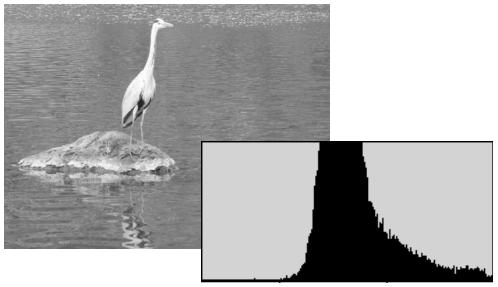
natural_image
Black-and-white photo of a heron standing on a rock in water, with a corresponding grayscale histogram overlay (no text or symbols)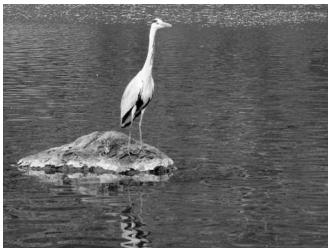
natural_image
Black-and-white photo of a heron standing on a rock in calm water, with reflection visible (no text or symbols)By moving the shadow slider to the right to set the black level to where the pixel distribution begins, image contrast is improved.
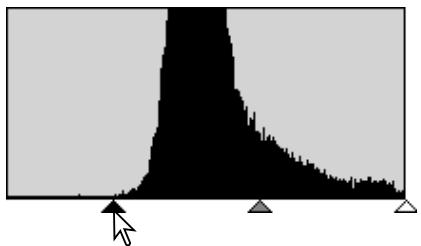
area
| X Value | Y Value | | ------- | ------- | | 0 | 0 | | 1 | 0.5 | | 2 | 1.2 | | 3 | 2.8 | | 4 | 4.5 | | 5 | 6.0 | | 6 | 7.5 | | 7 | 8.8 | | 8 | 9.5 | | 9 | 9.8 | | 10 | 9.9 | | 11 | 9.7 | | 12 | 9.3 | | 13 | 8.6 | | 14 | 7.2 | | 15 | 5.8 | | 16 | 4.5 | | 17 | 3.2 | | 18 | 2.0 | | 19 | 1.0 | | 20 | 0.5 |The gamma slider can be used to change the relative distribution of the tones in the image. By moving the gamma slider to the left toward the shadows, the image becomes lighter. By moving the gamma slider in the opposite direction, the image becomes darker. However, unlike the brightness control in the brightness, contrast, and color-balance palette (p. 33), details are not lost in the shadows or highlights.
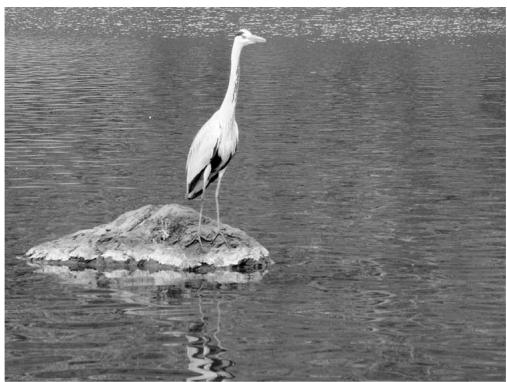
natural_image
Black-and-white photo of a heron standing on a rock in calm water, with reflections visible below (no text or symbols)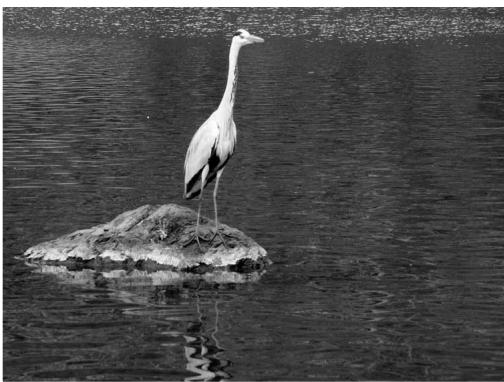
natural_image
Black-and-white photo of a heron standing on a rock in calm water, reflecting on the surface (no text or symbols visible)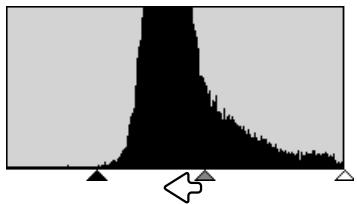
area
| X | Y | |---|---| | 0 | 0 | | 1 | 0.5 | | 2 | 1.2 | | 3 | 2.8 | | 4 | 4.5 | | 5 | 6.0 | | 6 | 7.5 | | 7 | 9.0 | | 8 | 10.5 | | 9 | 12.0 | | 10 | 13.5 | | 11 | 15.0 | | 12 | 16.5 | | 13 | 18.0 | | 14 | 19.5 | | 15 | 21.0 | | 16 | 22.5 | | 17 | 24.0 | | 18 | 25.5 | | 19 | 27.0 | | 20 | 28.5 | | 21 | 30.0 | | 22 | 31.5 | | 23 | 33.0 | | 24 | 34.5 | | 25 | 36.0 | | 26 | 37.5 | | 27 | 39.0 | | 28 | 40.5 | | 29 | 42.0 | | 30 | 43.5 | | 31 | 45.0 | | 32 | 46.5 | | 33 | 48.0 | | 34 | 49.5 | | 35 | 51.0 | | 36 | 52.5 | | 37 | 54.0 | | 38 | 55.5 | | 39 | 57.0 | | 40 | 58.5 | | 41 | 60.0 | | 42 | 61.5 | | 43 | 63.0 | | 44 | 64.5 | | 45 | 66.0 | | 46 | 67.5 | | 47 | 69.0 | | 48 | 70.5 | | 49 | 72.0 | | 50 | 73.5 | | 51 | 75.0 | | 52 | 76.5 | | 53 | 78.0 | | 54 | 79.5 | | 55 | 81.0 | | 56 | 82.5 | | 57 | 84.0 | | 58 | 85.5 | | 59 | 87.0 | | 60 | 88.5 | | 61 | 90.0 | | 62 | 91.5 | | 63 | 93.0 | | 64 | 94.5 | | 65 | 96.0 | | 66 | 97.5 | | 67 | 99.0 | | 68 | 100.5 | | 69 | 102.0 | | 70 | 103.5 | | 71 | 105.0 | | 72 | 106.5 | | 73 | 108.0 | | 74 | 109.5 | | 75 | 111.0 | | 76 | 112.5 | | 77 | 114.0 | | 78 | 115.5 | | 79 | 117.0 | | 80 | 118.5 | | 81 | 120.0 | | 82 | 121.5 | | 83 | 123.0 | | 84 | 124.5 | | 85 | 126.0 | | 86 | 127.5 | | 87 | 129.0 | | 88 | 130.5 | | 89 | 132.0 | | 90 | 133.5 | | 91 | 135.0 | | 92 | 136.5 | | 93 | 138.0 | | 94 | 139.5 | | 95 | 141.0 | | 96 | 142.5 | | 97 | 144.0 | | 98 | 145.5 | | 99 | 147.0 | | Note: The actual values may vary due to the random nature of the data generation.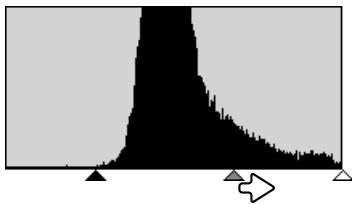
area
| X | Y | |----|------| | 0 | 0.0 | | 1 | 0.1 | | 2 | 0.3 | | 3 | 0.6 | | 4 | 0.9 | | 5 | 1.2 | | 6 | 1.5 | | 7 | 1.8 | | 8 | 2.0 | | 9 | 1.8 | | 10 | 1.5 | | 11 | 1.2 | | 12 | 0.9 | | 13 | 0.6 | | 14 | 0.3 | | 15 | 0.1 | | 16 | 0.05 | | 17 | 0.02 | | 18 | 0.01 | | 19 | 0.005| | 20 | 0.002| | 21 | 0.001| | 22 | 0.0005| | 23 | 0.0002| | 24 | 0.0001| | 25 | 0.00005| | 26 | 0.00002| | 27 | 0.00001| | 28 | 0.000005| | 29 | 0.000002| | 30 | 0.000001| | 31 | 0.0000005| | 32 | 0.0000002| | 33 | 0.0000001| | 34 | 0.00000005| | 35 | 0.00000002| | 36 | 0.00000001| | 37 | 0.000000005| | 38 | 0.000000002| | 39 | 0.000000001| | 40 | 0.0000000005| | 41 | 0.0000000002| | 42 | 0.0000000001| | 43 | 0.00000000005| | 44 | 0.00000000002| | 45 | 0.00000000001| | 46 | 0.000000000005| | 47 | 0.000000000002| | 48 | 0.000000000001| | 49 | 0.00000000000 | | 5HUE, SATURATION, AND LIGHTNESS PALETTE
This palette adjusts the image in reference to the HSB color model. These controls can be used to manipulate the color image rather than producing a realistic representation.
The HSB color model defines color based upon human perception rather than photographic processes. Hue refers to each separate color in the model. Saturation is how vivid each colors is. Lightness describes how bright or dark a color is in the color space.
The hue control is not a color balancing tool. It is a creative tool. When changing hue in the palette, each color is assigned a new hue depending on the degree of rotation through the color space. For example, a very simple color space could have three colors: red, green, and blue. I have a red barn next to a green tree with a blue sky. Now I rotate the my image in the color space; the colors are reassigned a new hue based on the position - the barn is green, the tree is blue, and the sky is red. The HSB color space is similar, but with many more hues; see the color example on page 91.
Unlike the brightness control in the brightness, contrast, color balance palette, the lightness control does not change the apparent density of the colors equally. For example, with an extreme increase in lightness, blue will not appear as light as yellow.
Click the hue, saturation, and lightness button to open the palette.
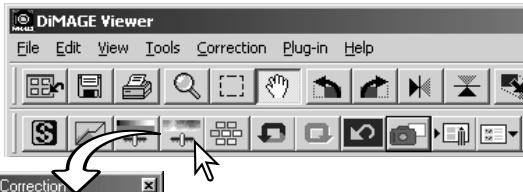
text_image
DiMAGE Viewer File Edit View Tools Correction Plug-in Help Correction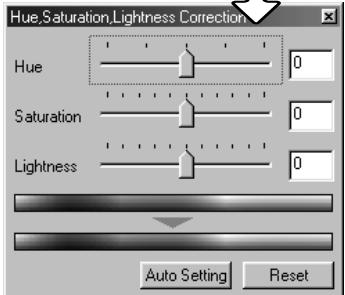
text_image
Hue,Saturation,Lightness Correction Hue 0 Saturation 0 Lightness 0 Auto Setting ResetDrag the hue, saturation, or lightness slider, or enter specific values in the corresponding text box to make corrections.
Dragging each slider to the right or inputting a positive number in the text box increases the saturation, and lightness. The hue slider rotates the colors in the image through the color space; the maximum position to the right (180°) is the same as the maximum position to the left (-180°).
Two color spaces are displayed at the bottom of the palette. The top bar indicates the color space of the original image. The bottom bar displays the relative changes to the color space.
Changes will be reflected in the displayed image. Click the reset button to cancel any changes.
HUE CORRECTION EXAMPLE
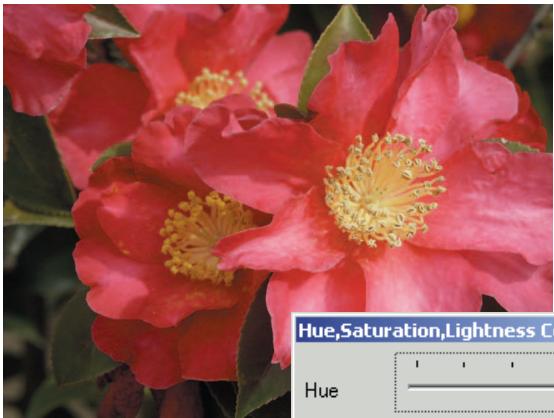
text_image
Hue,Saturation,Lightness C HueChanges in hue rotate the original color values though a color space and reassigns a new hue depending on the new position in the color space. In this example, the original image was rotated 180^ through the color space. For more on the hue, saturation, and brightness palette, see page 60.
Original color space
New color space

text_image
Hue,Saturation,Lightness Correction Hue 180 Saturation 0 Lightness 0 Auto Setting Reset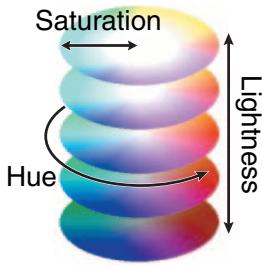
text_image
Saturation Hue Lightness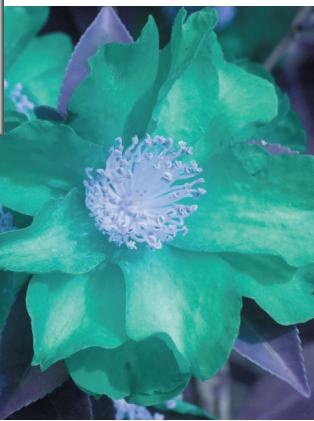
natural_image
Close-up of a vibrant green flower with white stamens and visible petals (no text or symbols)Two color spaces are displayed at the bottom of the palette. The top bar indicates the color space of the original image. The bottom bar displays the relative shift to the color space. In the example, the reds have been shifted to cyan and the yellows to lavender.
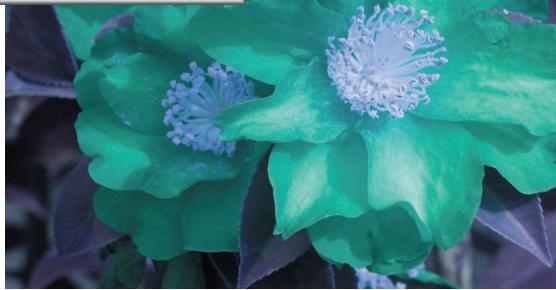
natural_image
Close-up of vibrant green flowers with white stamens and dark leaves (no text or symbols)Auto-setting button
Clicking the auto-setting button adjusts the saturation automatically without affecting the hue or lightness. Click the reset button to cancel any changes.
SHARPNESS
The apparent sharpness of the image can be increased. Sharpness is a very subtle, but can have a powerful affect on overall image quality. Click the sharpness button or select Sharpness from the image-correction option in the correction menu to open the palette.
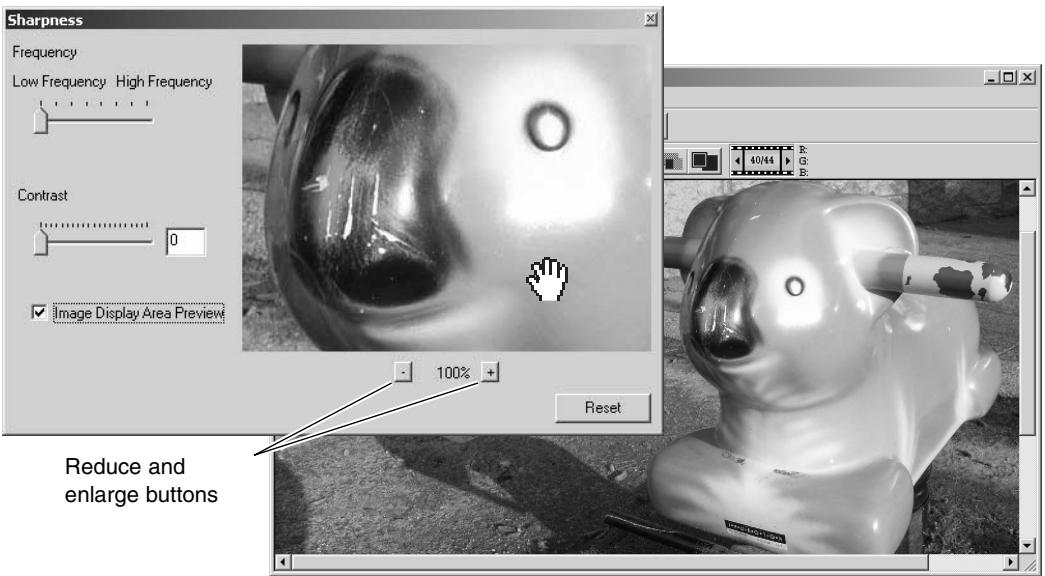
text_image
Sharpness Frequency Low Frequency High Frequency Contrast 0 ✓ Image Display Area Preview Reduce and enlarge buttons - 100% + ResetThe preview image can be scrolled using the mouse. Place the mouse pointer over the image area; it will change to the grab tool. Click and drag the image to scroll. Click the display-area-preview check box to view the effects of the sharpness controls on the image displayed in the main window.
Frequency slider - affects the sharpness of image details. The high frequency setting maximizes resolution, and the low-frequency setting maximizes acutance. The optimal frequency setting will vary from image to image. It is recommended to view the image at various magnifications to judge the results.
natural_image
Close-up of a dark, glossy, circular object with a small circular hole on top (no visible text or symbols)High-frequency setting
natural_image
Close-up of a metallic bowl with dark liquid, possibly a container or container, against a textured surface (no visible text or symbols)Low-frequency setting
Contrast slider - controls the contrast of the set frequency. The degree of sharpness can be set between 0 and 2 in 0.1 increments. The higher the value, the greater the contrast; compare the examples above, which are at the maximum setting, with the original image on the facing page. The degree of sharpness can also be entered in the text box next to the slider. Like frequency, the optimal contrast setting will vary from image to image.
Reduce and enlarge button - to adjust the size of the preview image in the sharpness window. The preview image can be displayed at 25%, 50%, 100%, and 200%.
Reset button - resets all changes made to the image.
AREA MARQUEE - SAVING OR PRINTING A PORTION OF AN IMAGE

An area of an image can be selected and saved as a separate image file or printed. The marquee can also be used to specify the area used for data imprinting (p. 38). Click on the area-marquee button on the tool bar or select the area marquee from the cursor option of the view menu.
Click and drag over the area of the image to be selected. The area-marquee tool will create a rectangle with a dashed boarder.
The marquee can be moved by placing the cursor within the area and clicking and dragging. It can be resized by clicking and dragging on the boarders.
Select the save-selected-area option or the print-selected-area option from the view menu.

text_image
DiIMAGE Viewer File Edit View Tools Correction Plug-in Help Return to Thumbnails Ctrl+B Save Ctrl+S Save As... Shift+Ctrl+S Save Selected Area Alt+Ctrl+S Print... Ctrl+P Print Selected Area... Quit Ctrl+AArea marquee
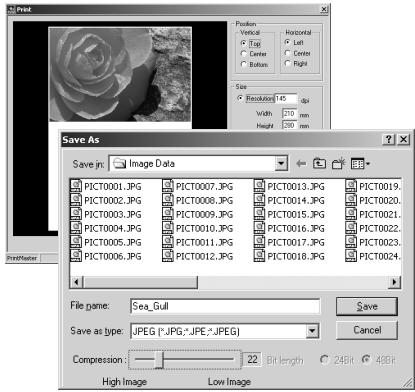
text_image
Print Position Vertical Horizontal Top Left Center Right Bottom Size Resolution: 45 dpi Width: 210 mm Height: 200 mm Save As Save in: Image Data PICT0001.JPG PICT0007.JPG PICT0013.JPG PICT0019. PICT0002.JPG PICT0008.JPG PICT0014.JPG PICT0020. PICT0003.JPG PICT0009.JPG PICT0015.JPG PICT0021. PICT0004.JPG PICT0010.JPG PICT0016.JPG PICT0022. PICT0005.JPG PICT0011.JPG PICT0017.JPG PICT0023. PICT0006.JPG PICT0012.JPG PICT0018.JPG PICT0024. File name: Sea_Gull Save as type: JPEG (*.JPG;*.JPE;*.JPEG) Compression: 32 Bit length 24Bit 49Bit High Image Low ImageWhen the print-selected-area option is chosen, the print dialog box open. The selected area will be seen in the preview display. See page 42 on how to make print settings.
When the save-selected-area option is chosen, the save-as dialog box will open. Enter the file name for the selected area, choose the file format, specify the location to which to save the file, and save the image (p. 40).
TRACKING IMAGE CORRECTIONS - SNAPSHOT BUTTON

Image corrections can be stored temporarily as a thumbnail next to the displayed image. Simply click the snapshot button on the tool bar or select the snapshot option from the correction menu to create a thumbnail with the current image corrections.
To return to a previous image correction, click on the corresponding thumbnail. The thumbnail image will replace the displayed image. The number of snapshots that can be made is only limited by the computer memory. To delete a snapshot, click on the thumbnail and press the keyboard delete key.
Snapshot display area
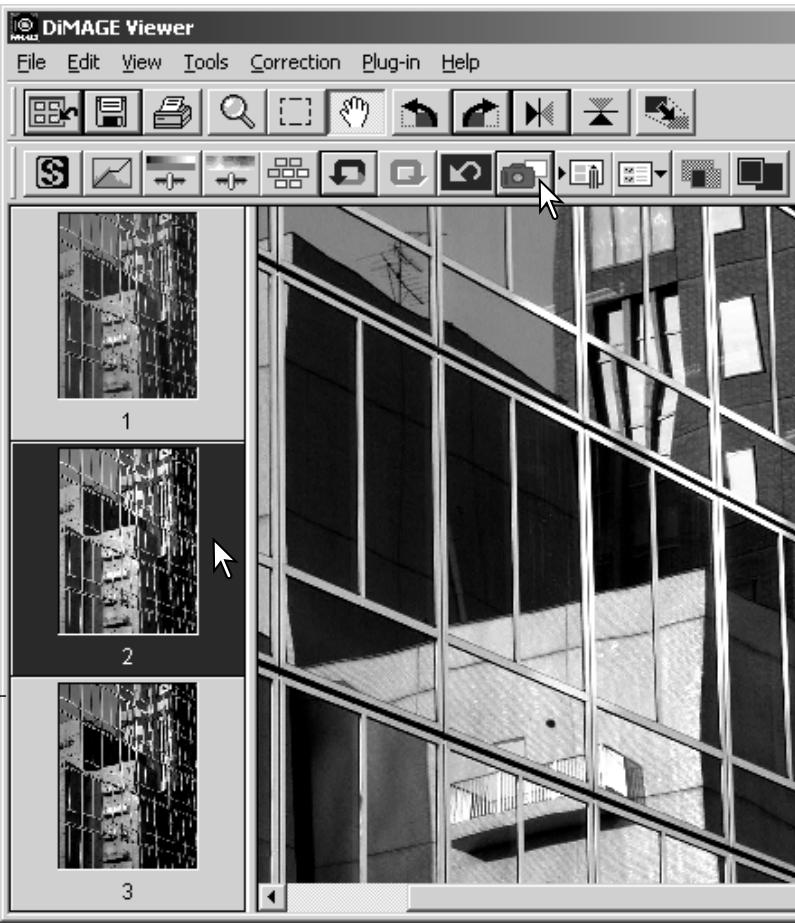
text_image
DiMAGE Viewer File Edit View Tools Correction Plug-in Help 1 2 3SAVING IMAGE CORRECTIONS
All corrections applied to an image can be saved as an image-correction Job. The Job can be loaded into the utility at any time and applied to different images. This is a time-saving function when a large number of images need too be processed with the same correction settings.

Click the save image-correction Job button or select the save-image-correction-Job option from the correction menu to save the current image-correction settings.
Enter the Job name. Click the OK button to save the settings.
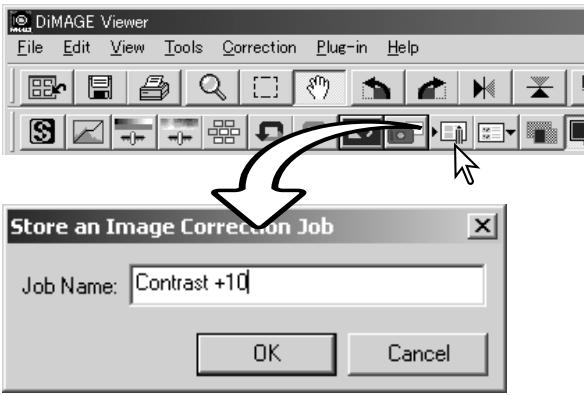
text_image
DiMAGE Viewer File Edit View Tools Correction Plug-in Help Store an Image Correction Job Job Name: Contrast +10 OK CancelLOADING IMAGE-CORRECTION JOBS

Display the image to be corrected in the image-correction window. Click the load image-correction Job button or select the
load-image-correction-Job option from the correction menu to load a saved image-correction setting.
Click on an image-correction Job thumbnail to select it. Click the OK button to apply the Job to the displayed image.
Jobs are loaded into the snapshot display area. Multiple Jobs can be loaded.
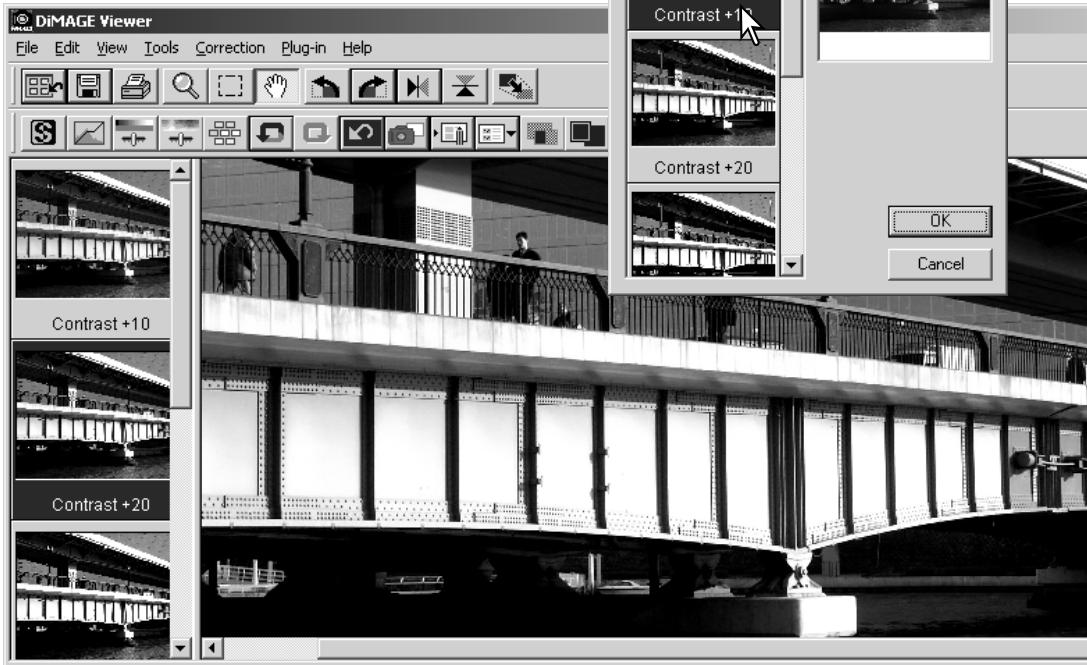
text_image
DiMAGE Viewer File Edit View Tools Correction Plug-in Help Contrast +1 Contrast +20 OK Cancel Contrast +10 Contrast +20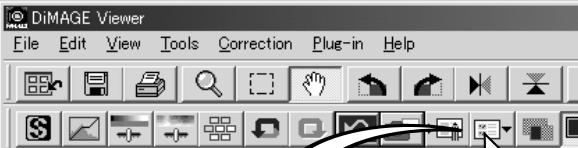
text_image
DiMAGE Viewer File Edit View Tools Correction Plug-in Help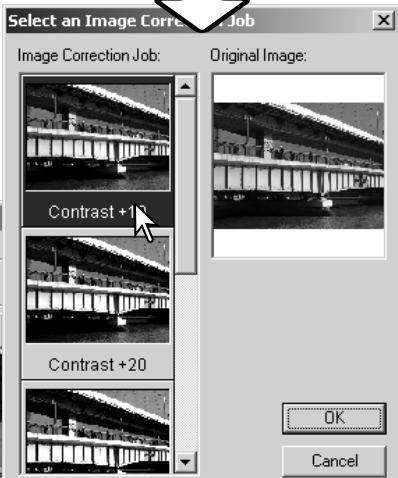
text_image
Select an Image Correct Job Image Correction Job: Original Image: Contrast +1 Contrast +20 OK CancelPROCESSING RAW IMAGES
Certain digital cameras, such as the DiMAGE 7Hi, or DiMAGE A1, use a special file format called Minolta-RAW. This file can only be read and processed by the DiMAGE Viewer software. To open a RAW file, simply double click on it in the thumbnail display
The open dialog box is used to define the parameters for the image. First the color mode of the image should be selected; if black and white is chosen, the white-balance and filter controls are not available.
White balance controls the overall color of the image. The drop-down menu automatically applies the camera setting used when the image was captured or balances it to a specific light source. The preset white-balance settings vary between camera model.
Click on the manual-setting check box for fine control over white balance. The grey-point dropper tool can be used to balance the image in reference to a neutral point within the image area. The color-temperature and CC index slider and text box can be used to enter the color temperature of the scene when the image was recorded.
Before adjusting white balance, set the filter and saturation sliders to zero (0) so that image color can be judged accurately.
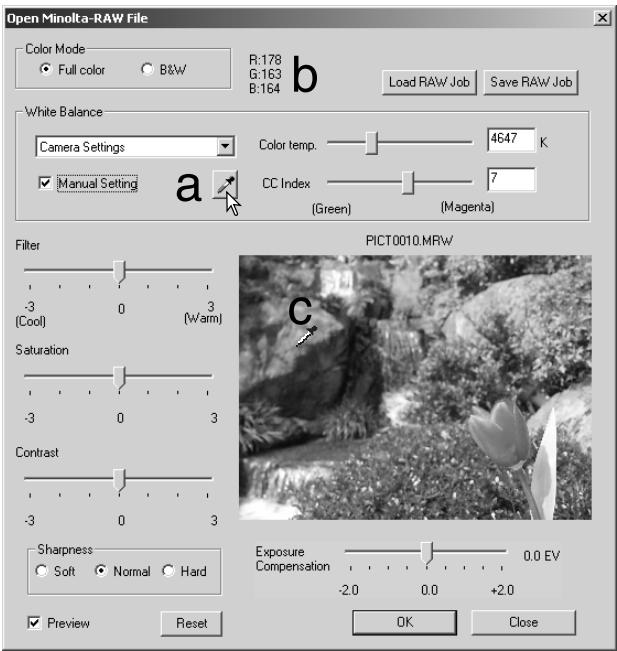
text_image
Open Minolta-RAW File Color Mode Full color B&W R:178 G:163 B:164 Load RAW Job Save RAW Job White Balance Camera Settings a Color temp. 4647 K Manual Setting CC Index 7 (Green) [Magenta] Filter PICT0010.MRW -3 0 3 [Cool] (Warm) Saturation -3 0 3 Contrast -3 0 3 Sharpness Soft Normal Hard Exposure Compensation 0.0 EV -2.0 0.0 +2.0 Preview Reset OK CloseClick on the gray-point button (a) to calibrate the white balance to a point within the image; the cursor will change to the gray-point dropper tool. When the dropper is placed in the image area, the RGB values of that point are displayed at the top of the window (b). Click on a neutral point within the image to make the calibration (c). The point chosen can be at any brightness level, but it must have no definite color. Although the filter and saturation setting in the dialog box will not affect the calibration, the sliders should be set to zero so that the results can be judged.
A Minolta color meter can be used to measure the approximate color temperature of a scene when the RAW image is captured. The recorded color temperature and CC index value from the meter can be entered in the text boxes to set the white balance. A green CC value should be entered as a negative integer and a magenta value as a positive integer. When making the reading, both the the color temperature and the CC value must be recorded. See page 90 for information on color measurement.
If the camera's filter, saturation, contrast, or sharpness controls were used when the picture was taken, the settings will be displayed in the dialog box. Changes to these settings are reflected in the preview image. The cursor can be used to measure the RGB values of any point within the image. When a Vivid color image is opened, the saturation level will be set to zero (0), but the high saturation level of the color mode will be applied to the image. If color matching is on (p. 82), except when using the original color space, any changes to the contrast will not be applied when the file is opened.
The image brightness can be adjust by ±2.0E_v with the exposure-compensation slider. The slider will not reflect the degree of exposure compensation used when the image was captured. Like the brightness control in the brightness, contrast, and color-balance palette, detail can be lost in the highlights and shadows. To preserve these details, it is recommended to open the image without compensating the exposure and adjust the image brightness with the tone-curve / histogram palette (p. 47).
The reset button returns all setting to their initial position. The close button cancels any settings made and closes the window without processing the RAW image. To apply the settings to the image data and open the file, click the OK button.
SAVING RAW IMAGES
Click the save button on the tool bar or select the save option from the file menu to save the displayed image. In the save-as window, specify the location to save the file (1). Enter the file name without an extension (2).
Specify the file type of the image (3). If saved as a TIFF file, the bit length must be selected (4): 24 bit or 48 bit. Once saved as 24 bit, the image cannot be saved as a 48-bit file. If the data imprinting function is used (p. 38), the file can only be saved as 24 bit. If saved as a JPEG file, the compression rate should also be set (5). The higher the compression rate the smaller the file size and the lower the image quality.
Click the save button to complete the operation.
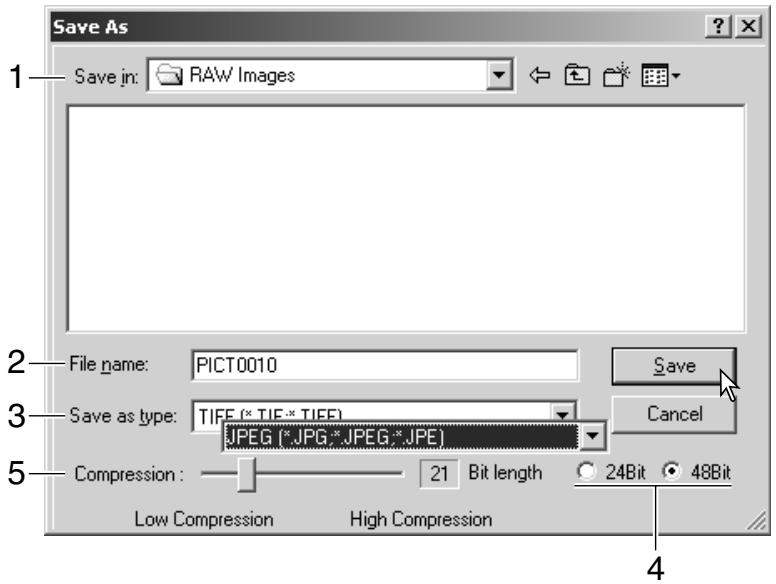
text_image
Save As 1 Save in: RAW Images 2 File name: PICT0010 3 Save as type: TIFF (*.TIF;*.TIFF) 4 Compression : 21 Bit length 24Bit 48Bit Low Compression High CompressionSAVING RAW JOBS
RAW processing settings can be saved and applied to other images.
After all setting have been made on the open-Minolta-RAW-file dialog box, click the save-RAW-Job button. Enter the name of the Job in the save-RAW-Job window and click save.
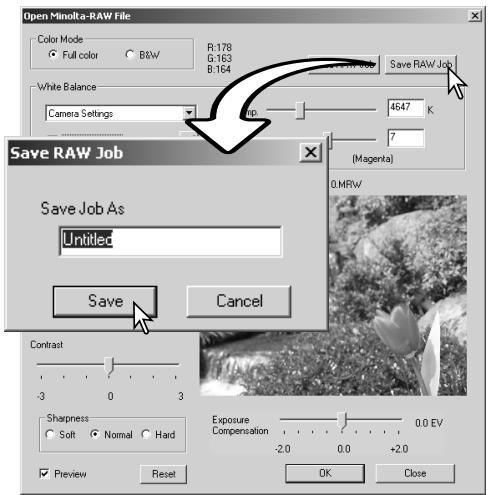
text_image
Open Minolta-RAW File Color Mode Full color B&W R:178 G:163 B:164 Save RAW Job White Balance Camera Settings Skip 4647 K Save RAW Job (Magenta) 0.MRW Save Job As Untitled Save Cancel Contrast Sharpness Soft Normal Hard Exposure Compensation 0.0 EV -2.0 0.0 +2.0 Preview Reset OK CloseLOADING RAW JOBS
To apply a RAW Job to another image, click on the load-RAW-Job button in the open-Minolta-RAW-file dialog box.
Select the Job in the load-RAW-Job window and click the load button to apply the settings to the image.
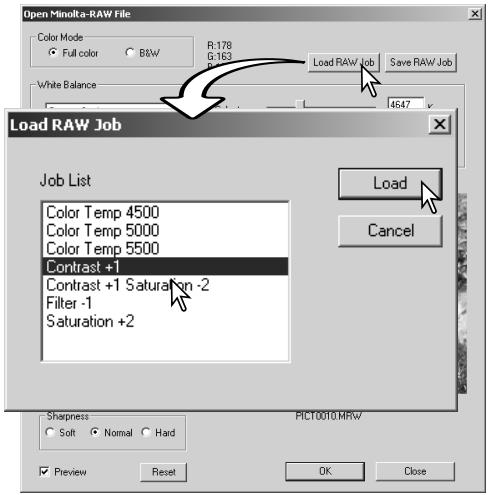
text_image
Open Minolta-RAW File Color Mode Full color B&W R:178 G:163 Write Balance Load RAW Job Save RAW Job Load RAW Job Job List Color Temp 4500 Color Temp 5000 Color Temp 5500 Contrast +1 Contrast +1 Saturation -2 Filter -1 Saturation +2 Load Cancel Sharpness Soft Normal Hard Preview Reset OK Close PICT0010.MRWBATCH PROCESSING
Multiple images can be processed and saved at one time. Highlight the images to be processed on the thumbnail display and then select the batch-processing option from the tools menu. The batch-processing dialog box will open.
Except for RAW processing, the settings in the dialog box are applied equally to all images. If RAW images are included in the batch, they can be processed with the camera settings used when they were recorded, or a RAW Job can be used (p. 71). Click the select button to open the load-RAW Job window and select the Job.
Images can be rotated or flipped.
To apply an image-correction Job click the image-correction check box. The select button opens the load-image-correction-Job window (p. 67). Select the Job to be applied to the images in the batch and click "OK." If a RAW Job and image-correction Job are selected for batch processing, RAW images will have both Jobs applied to them.

text_image
DiMAGE Viewer File Edit View Sort Tools Help Rename All Batch Processing Edit Subject Line Create Index Sheet Movie Enhancer Batch Processing Minolta-RAW Processing Use Camera Settings Current Job Job Name: Select... Rotate(Clockwise) 90 degrees 180 degrees 270 degrees Flip Vertically Flip Horizontally Image Correction Job Name: Select... Fsize Magnification: 100 % Interpolation Bilinear Bicubic OK CancelImages can be resized between 10% and 200%. If the result of the resizing exceeds the maximum pixel size of 5120 X 3840, an alert message will be displayed. Reenter a new magnification. When resizing images, select either bilinear or bicubic interpolation.
Click the OK button to begin processing. The save-in dialog box will open.
Select the location to save the images on the folder tree (1).
Specify the file type of the images (2). If saved in the TIFF format, the bit length must be selected (3): 24 bit or 48 bit. Once saved as 24 bit, images cannot be resaved as a 48-bit file. If saved in the JPEG format, the compression rate should also be set (4). The higher the compression rate the smaller the file size and the lower the image quality.
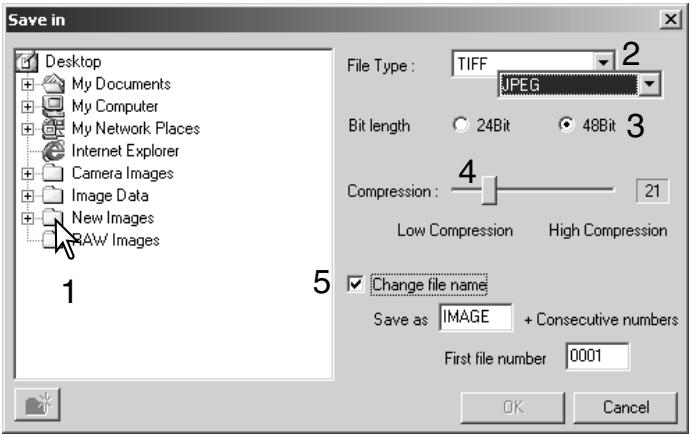
text_image
Save in Desktop My Documents My Computer My Network Places Internet Explorer Camera Images Image Data New Images RAW Images 1 File Type: TIFF 2 JPEG Bit length 24Bit 48Bit 3 Compression: 21 Low Compression High Compression ✓ Change file name Save as IMAGE + Consecutive numbers First file number 0001 OK CancelClick the change-file-name check box (5) to rename the image files. Enter the file name up to ten characters and enter the first serial number up to five digits.
Click the OK button to begin batch processing.
MOVIE ENHANCER
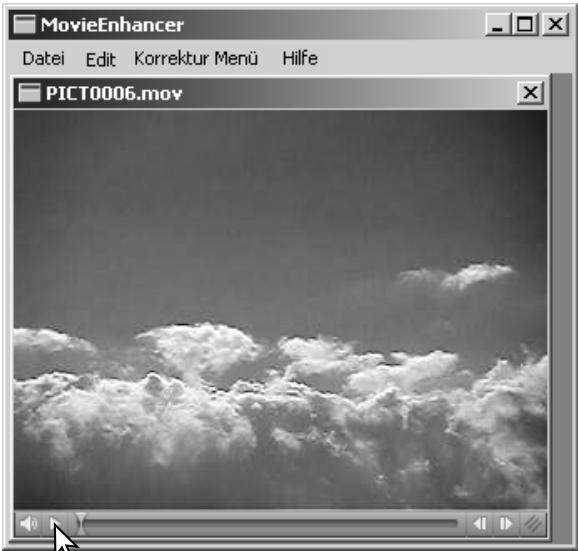
text_image
MovieEnhancer Datei Edit Korrektur Menü Hilfe PICT0006.movQuickTime must be installed on the computer system for the Movie Enhancer to be used. For QuickTime system requirements, see page 7.
To open a movie file in this application, simply double click on the thumbnail in the DiMAGE Viewer thumbnail display. To play the movie clip back, use the controls at the bottom of the screen. Only MOV or AVI format images can be opened.

text_image
Volume Jog slider Play / Pause Reverse Forward ResizeWhen the resize button is clicked and dragged, there is a maximum limit to how large the screen area can be. The jog slider is used in editing (p. 76).
FLICKER CORRECTION
The Movie Enhancer can minimize flicker in 640 X 480 (VGA) or smaller movie files. General flicker effects the overall image area evenly. Localized flicker is isolated to only a portion of the image area; a scene with natural light and fluorescent lighting may only show flicker in the area illuminated by the fluorescent lights.
With the movie displayed in the main window, select the flicker-correction option from the correction menu.
Choose the type of flicker to be corrected on the drop-down menu in the flicker-correction window. Click the OK button to process the movie file.
The save dialog box will open; enter a new file name and specify the location to save the file. The file can only be saved in the MOV format.
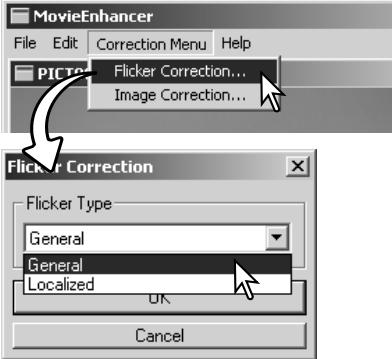
text_image
MovieEnhancer File Edit Correction Menu Help PICTC Flicker Correction... Image Correction... Flicker Correction Flicker Type General General Localized OK Cancel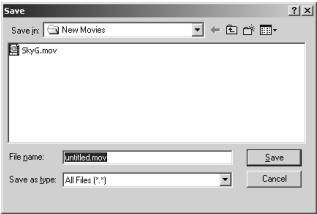
text_image
Save Save in: New Movies SkyLG.mov File name: untitled.mov Save as type: All Files (*.*) Save CancelEDITING MOVIE FILES
The Movie Enhancer can join movie clips together, cut sections from a clip, or copy sections from one clip to another with the edit menu. Open the necessary movie files in the main window with the file menu.
Splicing two movie clips
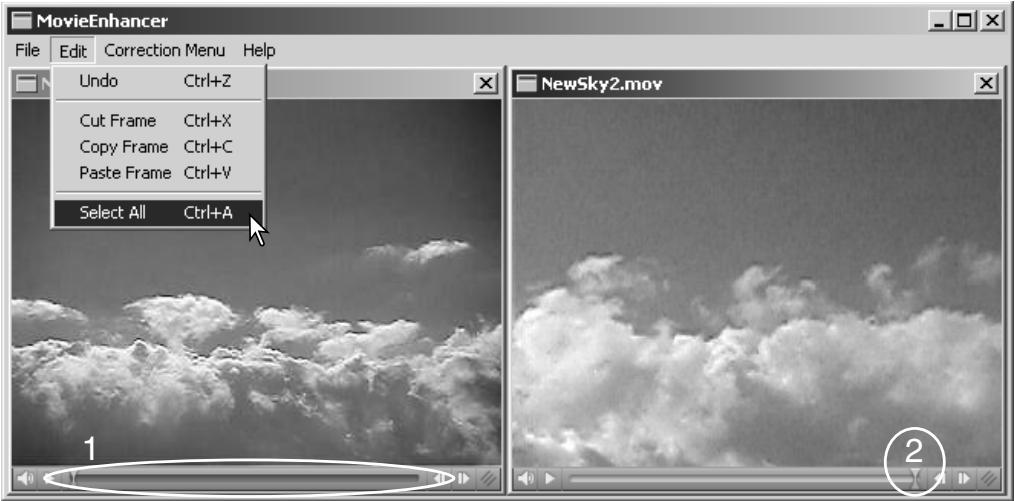
text_image
MovieEnhancer File Edit Correction Menu Help Undo Ctrl+Z Cut Frame Ctrl+X Copy Frame Ctrl+C Paste Frame Ctrl+V Select All Ctrl+A NewSky2.mov 1 2Click on the first movie clip to select it; the slider bar should be dark (1). If not, choose the select-all option from the edit menu to darken the bar and indicate the selection.
Select the copy-frame option from the edit menu.
Click on the second clip. Position the jog slider all the way to the left to attach the first clip to the beginning of the second or all the way to the right to attach it to the end (2).
Select the paste-frame option from the edit menu to complete the operation.
Copying sections from one movie to another

text_image
MovieEnhancer File Edit Correction Menu Help Undo Ctrl+Z Cut Frame Ctrl+X Copy Frame Ctrl+C Paste Frame Ctrl+V Select All Ctrl+A NewSky2.mov 1 2In the first movie file, use the jog slider to locate the beginning of the section to be pasted.
While pressing the shift key, drag the jog slider to mark the frames in the section (1); the slider bar darkens to indicate the selected section. To deselect the section, click on a gray area on the slider bar.
Select the copy-frame option from the edit menu.
On the second movie clip, use the jog slider to locate the point to paste the copied section (2).
Select the paste-frame option from the menu to complete the operation.
CORRECTING MOVIE IMAGES
The image quality of a 640 X 480 (VGA) or smaller movie clip can be adjusted. If both flicker correction and image correction is applied to the same movie clip, the flicker correction processing should be done first. With the movie displayed in the movie enhancer, select the image-correction option from the correction menu to open the palette.
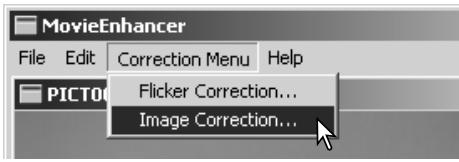
text_image
MovieEnhancer File Edit Correction Menu Help PICTO Flicker Correction... Image Correction...The drop-down menu at the top of the window switches between the basic and advance setup palettes. Both palettes control the same image qualities, but the advance setup palette allows finer adjustments.
The correction-preview display shows the original image and the corrected image. To initially display the corrected image, press the preview button. Use the preview button to update the image display every time a setting is changed. The frame-selection slider can display any frame in the movie clip.
The basic setup palette allows corrections to color, contrast, saturation, sharpness, and brightness in three degrees. "Low" makes a slight adjustment to the quality, whereas "High" makes a large change.
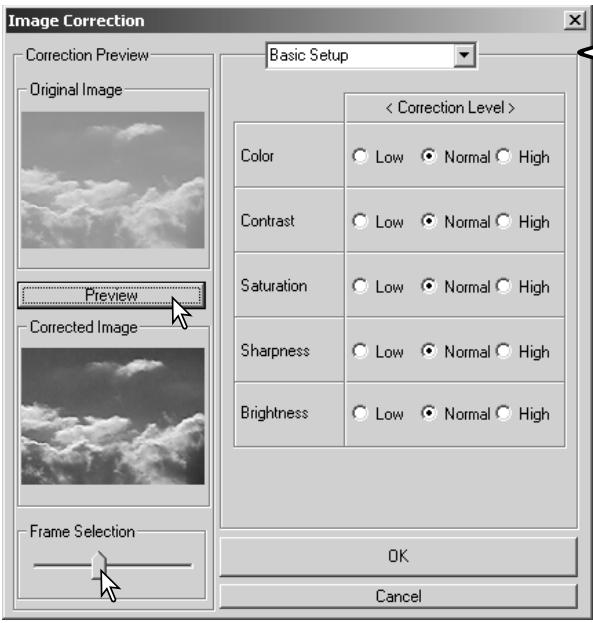
text_image
Image Correction Correction Preview Original Image Preview Corrected Image Frame Selection Basic Setup < Correction Level > Color Low Normal High Contrast Low Normal High Saturation Low Normal High Sharpness Low Normal High Brightness Low Normal High OK CancelColor corrects the overall color cast of an image. The higher the level, the greater the color balance is shifted toward neutral. Contrast controls the relative brightness levels. The higher the level, the brighter the highlights and the darker the shadows. Saturation controls the vividness of colors. Sharpness controls the sharpness of image details. Brightness controls how bright the image is.
The advanced setup palette has five correction settings for color, contrast, saturation, sharpness, and brightness. Selected with the drop-down menu for each of the five image qualities, low, standard, and high are preset levels, manual setup activates the slider for manual adjustments, and no correction turns off the correction function.

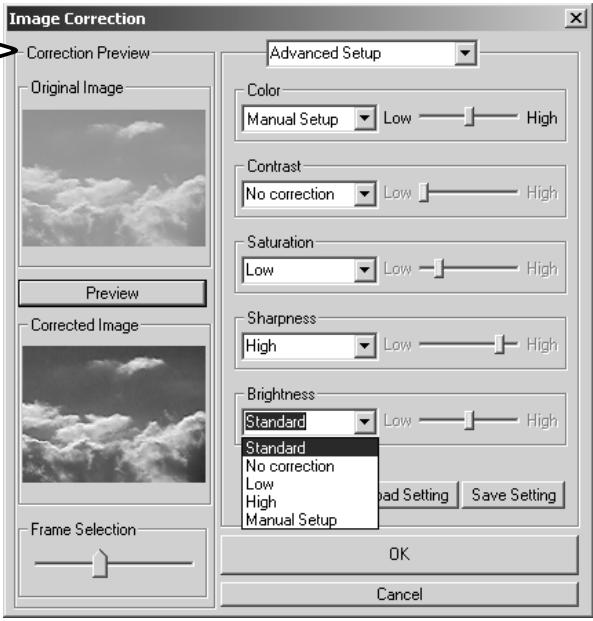
text_image
Image Correction Correction Preview Original Image Preview Corrected Image Frame Selection Advanced Setup Color Manual Setup Low High Contrast No correction Low High Saturation Low Low High Sharpness High Low High Brightness Standard Low High Standard No correction Low High Manual Setup OK CancelWhen all settings have been made, press the preview button to confirm the effect on the image.
Click the OK button to begin processing. The save dialog box will open; rename the file and specify the location to save it. The file can only be saved in the MOV format.
Save Setting
To save the current settings. Only one set of settings can be saved. Each time the function is used, the previous setting are replaced with the new ones.
Load Setting
To apply the last set of settings saved.
ADVANCED SETUP
CUSTOMIZING THE VIEWER - PREFERENCES
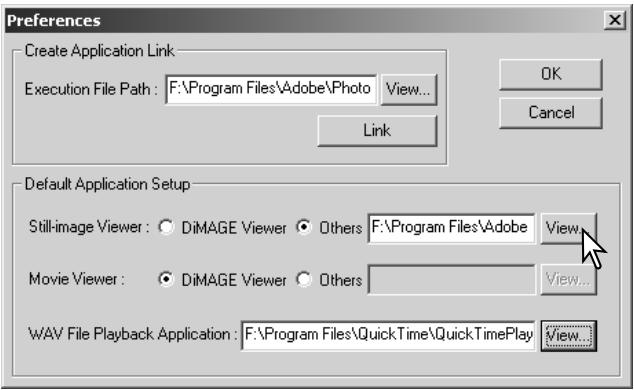
text_image
Preferences Create Application Link Execution File Path: F:\Program Files\Adobe\Photo View... Link Default Application Setup Still-image Viewer: ○ DiMAGE Viewer ○ Others F:\Program Files\Adobe View Movie Viewer: ○ DiMAGE Viewer ○ Others WAV File Playback Application: F:\Program Files\QuickTime\QuickTimePlay View...The application software to open still images, movie clips, and audio files can be specified in the preferences dialog box. To open the dialog box, select the preferences option from the file menu.
The default application setup specifies the software used to open certain files. When a thumbnail is double clicked in the DiMAGE Viewer, it will be opened in the specified application.
The radio button indicates the application used to open still images and movie clips. To link a new application, click the others radio button and then the view button; the open dialog box will be displayed. Select the new application and click the open button. The file path will be displayed in the preference window. Click OK to complete the setup.
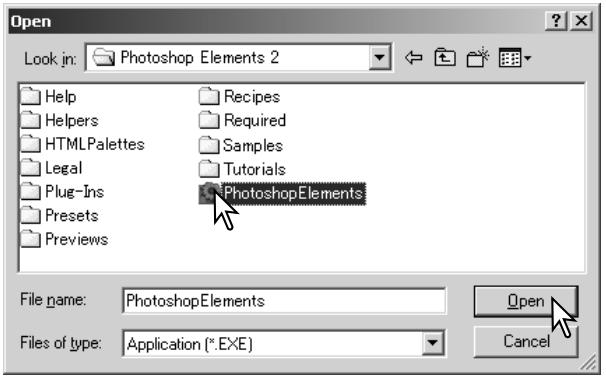
text_image
Open Look in: Photoshop Elements 2 Help Helpers HTML Palettes Legal Plug-Ins Presets Previews Recipes Required Samples Tutorials PhotoshopElements File name: PhotoshopElements Files of type: Application (*.EXE) Open CancelThe create-application-link function links another image-processing application to the DiMAGE Viewer. When the link is made, the application icon is displayed in the thumbnail window.
To create the link, click the view button; the open dialog box will be displayed. Select the new application and click the open button. The file path will be displayed in the preference window. Click the link button.
Click OK to complete the operation. The application icon will be displayed in an area below the folder tree.
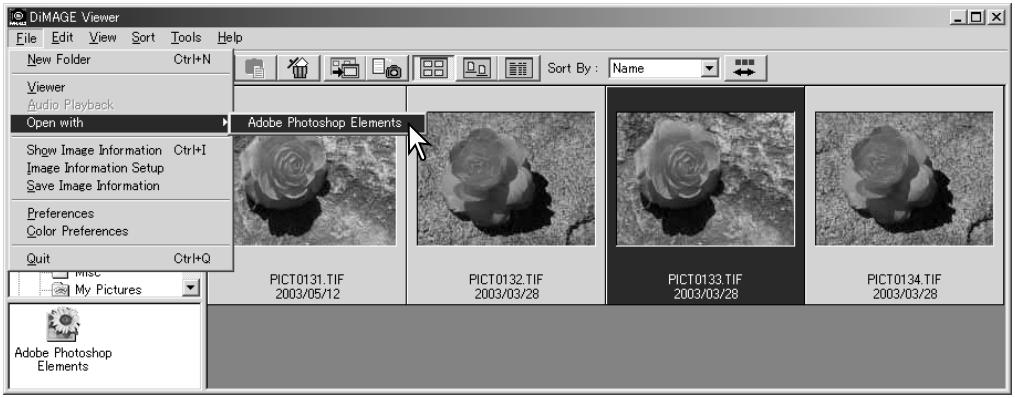
text_image
DiMAGE Viewer File Edit View Sort Tools Help New Folder Ctrl+N Viewer Audio Playback Open with Show Image Information Ctrl+I Image Information Setup Save Image Information Preferences Color Preferences Quit Ctrl+Q Misc My Pictures Adobe Photoshop Elements Adobe Photoshop Elements Sort By: Name PICT0131.TIF 2003/05/12 PICT0132.TIF 2003/03/28 PICT0133.TIF 2003/03/28 PICT0134.TIF 2003/03/28To open a file in the application, drag and drop the file onto the icon or highlight the file and select the application from the open-with option on the file menu.
To remove the application from the display, click on the icon and then use the delete button on the tool bar or keyboard to delete it. This also resets the preference box.
COLOR MATCHING - COLOR PREFERENCES
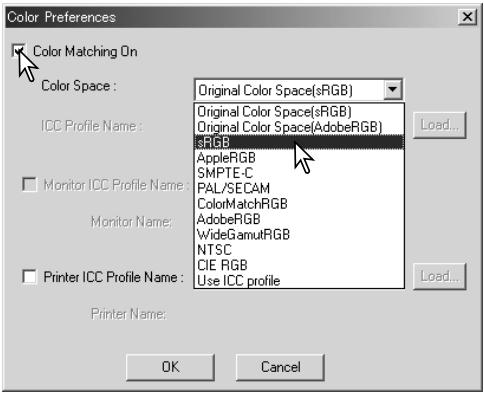
text_image
Color Preferences Color Matching On Color Space: Original Color Space(sRGB) Original Color Space(sRGB) Original Color Space(AdobeRGB) sRGB AppleRGB SMPTE-C PAL/SECAM ColorMatchRGB AdobeRGB WideGamutRGB NTSC CIE RGB Use ICC profile Monitor ICC Profile Name: Monitor Name: Printer ICC Profile Name: Printer Name: OK CancelEach output device (monitor or printer) defines color and contrast differently. To ensure accurate reproduction, the output color space must be defined. Color matching is used for professional color management. It is not needed for normal personal use.
Select the color-preferences option from the file menu to open the dialog box.
In the dialog box, click the color-matching-on check box.
Select a color space from the drop-down list. The following color spaces are available:
Original Color Space (sRGB) - the color space of the camera image is not converted to a standard color space. This color space is recommended for images captured with a Minolta DiMAGE digital camera. The DiMAGE Viewer, monitor, and printer interprets the color as sRGB for reproduction purposes, but does not convert the original camera color space.
Original Color Space (Adobe RGB) - Adobe-RGB color-mode images captured with a Minolta digital camera such as the DiMAGE 7Hi or DiMAGE A1 must be opened with this color space unless the color profile has been embedded; see the embedded camera profiles section on page 90. As with Original Color Space (sRGB), the color space of the camera image is not converted to a standard color space. The DiMAGE Viewer, monitor, and printer interprets the color as Adobe RGB for reproduction purposes, but does not convert the original camera color space.
sRGB - the color space promoted by Hewlett Packard and Microsoft. Since it reflects the average PC monitor characteristics, it is widely used around the world, and is considered to be the standard for multi-media and Internet usage. sRGB is not suitable for professional prepress applications because of its narrow reproduction range.
Apple RGB - widely used in DTP. It is the standard color space in many common graphic arts and design applications: Adobe Illustrator, Photoshop, etc.
SMPTE-C - the current television broadcasting standard used in the United States.
PAL/SECAM - the current television broadcasting standard used in Europe.
ColorMatch RGB - this standard has a wide color space and is ideal for use with Radius Press View monitors, which are commonly used in prepress production.
Adobe RGB - this color space is wider than ColorMatch RGB. The extensive color range makes it ideal for prepress use. However, the range is so great that it includes many colors that cannot be reproduced with a four-color printing process.
Wide-gamut RGB - utilizing the color coordinates of the spectrum, this standard offers an extreme range of colors. Many of the colors that can be generated cannot be reproduced on standard computer monitors or by printing technology.
NTSC - the current television broadcasting standard used in Japan.
CIE RGB - this color space is defined by the CIE.
Use ICC Profile - to employ a specific ICC profile.
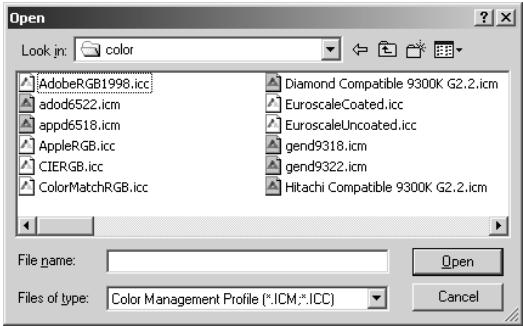
text_image
Open Look in: color [AdobeRGB1998.icc] Diamond Compatible 9300K G2.2.icm adod6522.icm EuroscaleCoated.icc appd6518.icm EuroscaleUncoated.icc AppleRGB.icc gend9318.icm CIERGB.icc gend9322.icm ColorMatchRGB.icc Hitachi Compatible 9300K G2.2.icm File name: Files of type: Color Management Profile (*.ICM;*.ICC) Open CancelTo use a specific profile, select the use-ICC-profile option. Click the load button and use the open window to open the profile; the profile name will appear in the color-preferences window. Click the OK button to set the color space and close the color-preferences window.
USING PRINTER ICC PROFILES
Specific printer ICC profiles can be used with the DiMAGE Viewer. Select the color-preferences option from the file menu to open the dialog box.
In the dialog box, click the color-matching-on and printer-ICC-profile check boxes.
Click on the printer ICC profile load button to display the open window.
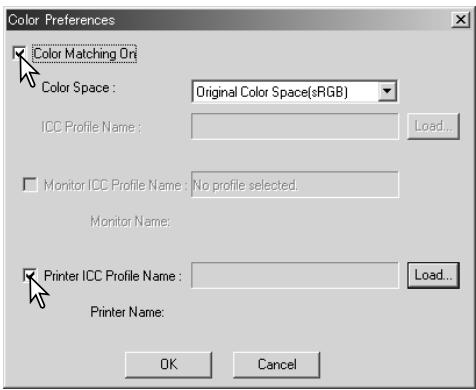
text_image
Color Preferences Color Matching Oni Color Space : Original Color Space(sRGB) ICC Profile Name : Load... Monitor ICC Profile Name: No profile selected. Monitor Name: Printer ICC Profile Name : Load... Printer Name: OK Cancel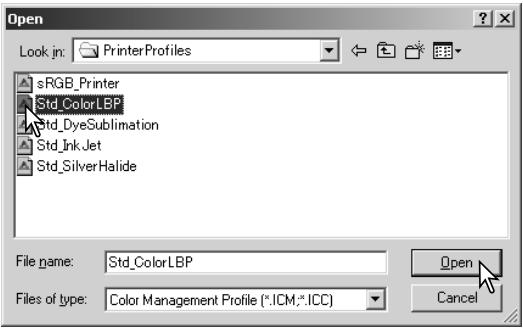
text_image
Open Look in: PrinterProfiles sRGB_Printer Std_ColorLBP Std_DyeSublimation Std_Ink.Jet Std_SilverHalide File name: Std_ColorLBP Files of type: Color Management Profile (*.ICM;*.ICC) Open CancelLocate the ICC profile for the specific device; for profile locations, see page 86. Click the open button to complete the operation.
CMY or CMYK printer profiles are not compatible with the DiMAGE Viewer software.
When loaded correctly, the ICC profile will be displayed in the color preference window. The profile can be temporarily disabled by clicking on the printer-ICC-profile check box.

Printer ICC Profile Name :
Std_ColorLBP.icc
Printer Name:
Standard Color LBP (Minolta 2002)
USING MONITOR ICC PROFILES
The computer system's monitor ICC profiles can be used with the DiMAGE Viewer. Select the color-pref-erences option from the file menu to open the dialog box. In the dialog box, click the color-matching-on and monitor-ICC-profile check boxes.
If the monitor ICC profile fields are gray, the monitor profile has not been specified with the operating system. Refer to your operating system's manual or help on how to install monitor ICC profiles. For profile locations, see page 86.
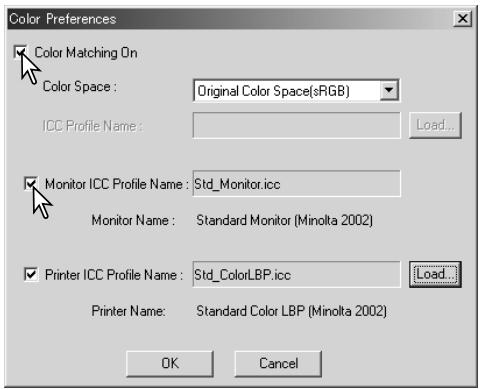
text_image
Color Preferences Color Matching On Color Space: Original Color Space(sRGB) ICC Profile Name: Monitor ICC Profile Name: Std_Monitor.icc Monitor Name: Standard Monitor (Minolta 2002) Printer ICC Profile Name: Std_ColorLBP.icc Printer Name: Standard Color LBP (Minolta 2002) OK CancelABOUT DAMAGE VIEWER ICC PROFILES
Generic monitor and printer profiles are supplied with the DiMAGE Viewer. In Windows, the profiles folder is located in the DiMAGE Viewer application folder. The profiles are in the following location in a Macintosh: [System]>[Preferences]>[7300]>[Profiles]; or for Mac OS X:
[Library]>[Preferences]>[7300]>[Profiles].
Monitor profiles
| Std_Monitor.icc | For average monitors. |
| sRGB_Monitor.icc | For Windows sRGB monitors. |
| Apple_Monitor.icc | For Apple monitors. |
| Printer profiles | |
| Std_ColorLBP.icc | For color laser printers. |
| Std_DyeSublimation.icc | For dye-sublimation printers. |
| Std_InkJet.icc | For inkjet printers. |
| Std_SilverHalide.icc | For silver-halide dye-transfer printers. |
| sRGB_Printer.icc | For printers which use sRGB color space. |
ICC PROFILE LOCATIONS
ICC profiles can be found in the following locations:
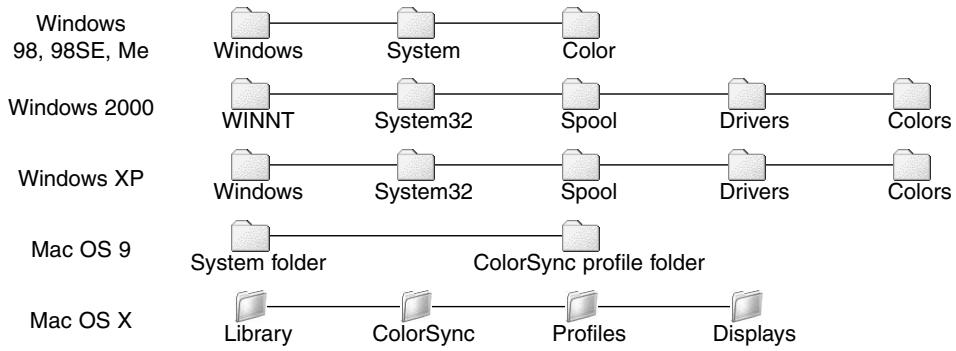
flowchart
graph TD
    A["Windows 98, 98SE, Me"] --> B["Windows"]
    A --> C["System"]
    A --> D["Color"]
    E["Windows 2000"] --> F["WINNT"]
    E --> G["System32"]
    E --> H["Spool"]
    E --> I["Drivers"]
    E --> J["Colors"]
    K["Windows XP"] --> L["Windows"]
    K --> M["System32"]
    K --> N["Spool"]
    K --> O["Drivers"]
    K --> P["Colors"]
    Q["Mac OS 9"] --> R["System folder"]
    Q --> S["ColorSync profile folder"]
    T["Mac OS X"] --> U["Library"]
    T --> V["ColorSync"]
    T --> W["Profiles"]
    T --> X["Displays"]
ICC profiles for a specific monitors or printers are available from the manufacturer. These may be downloaded from the manufacturer's web site. See the instruction manual of the specific device on how to install the ICC profile.
VIEWER NOTES
UNINSTALLING THE DAMAGE VIEWER
Windows
Uninstall the DiMAGE Viewer using the add/remove programs or add/remove applications (XP) routine in the control panel. Afterwards, place the 7300 folder in the trash and empty it to complete the operation. The folder contains the Job files.

flowchart
graph LR
    A["Windows 2000 and XP"] --> B["Documents and settings"]
    B --> C["(Logon name)"]
    C --> D["Application data"]
    D --> E["DiMAGE"]
    E --> F["7300"]
    G["Windows 98, 98SE, and Me"] --> H["Windows"]
    I["Delete"] --> J["Icon: Down Arrow"]
Macintosh
As well as the DiMAGE Viewer application folder, the following files and folders should also be deleted:
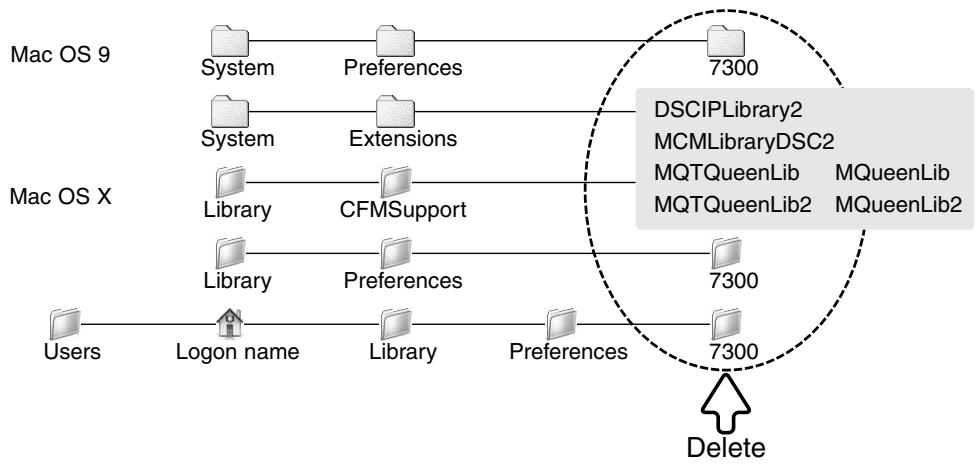
flowchart
graph TD
    A["Mac OS 9"] --> B["System"]
    A --> C["Preferences"]
    A --> D["7300"]
    E["Mac OS X"] --> F["System"]
    E --> G["Extensions"]
    E --> H["Library"]
    E --> I["CFMSupport"]
    E --> J["Library"]
    E --> K["Preferences"]
    E --> L["7300"]
    M["Users"] --> N["Logon name"]
    N --> O["Library"]
    O --> P["Preferences"]
    P --> Q["7300"]
    R["Delete"] --> S["DSCIPLibrary2 MCMLibraryDSC2 MQTQueenLib MQTQueenLib2 MQueenLib2"]
COPYING JOB FILES
If you are upgrading the DiMAGE Viewer from a version earlier than 2.2, the following procedure can be used to copy Job files from the old application to the new one. This is not necessary for Macintosh OS 9 operating systems.
Windows
- Log on to your computer as an administrator. Open the DiMAGE Viewer application folder. If the standard installation was used, it will be located in C:\Program Files\DiMAGE Viewer. Letters designating the hard drive can vary between computers.
- Copy the Prefs folder into another folder in a different location. Example, C:\Job_Move.
- Uninstall the old version of the DiMAGE Viewer using the add/remove programs or add/remove applications (XP) routine in the control panel.
- Install the new DiMAGE Viewer. See page 8.
- While logging on as a user, launch the DiMAGE Viewer once and close it to create the necessary folders.
- Open the Prefs folder that was copied from the old DiMAGE Viewer application to show the ImageCorrectJob and MRWCorrectJob folders.
- Copy all the files in the ImageCorrectJob folder with an .icj extension to the following location:
Windows XP/2000: C:Document and Settings \ (Logon user name) \ ApplicationData \ DiMAGE \ 7300 \ Prefs \ ImageCorrectJob.
Windows 98/98SE/Me: C:\ Windows \ ApplicationData \ DiMAGE \ 7300 \ Prefs \ ImageCorrectJob. - Copy the MRWCorrectJob folder to the following location:
Windows XP/2000: C:Document and Settings \ (Logon user name) \ ApplicationData \ DiMAGE \ 7300 \ Prefs.
Windows 98/98SE/Me: C:\ Windows \ ApplicationData \ DiMAGE \ 7300 \ Prefs. - Open the DiMAGE Viewer to confirm the Jobs can be loaded.
Macintosh OS X
- Log on to your computer an administrator. Open the 7300 folder: /Library/Preferences/7300.
- Copy the Prefs folder into another folder in a different location. Example, /Job_Move.
- Delete the old DiMAGE Viewer application folder.
- Install the new DiMAGE Viewer. See page 10.
- While logging on as a user, launch the DiMAGE Viewer once and close it to create the necessary folders.
- Open the Prefs folder that was copied from the old DiMAGE Viewer application. Copy all the files with an .icj and .mrj extension to the following location: /Users/(logon user name)/Library/Preferences/7300/Prefs.
- Open the DiMAGE Viewer to confirm the Jobs can be loaded.
EMBEDDED CAMERA COLOR PROFILES
Certain Minolta digital cameras, such as the DiMAGE 7Hi or DiMAGE A1, can embed the camera's color profile into the image data for color matching. The color mode on the camera determines the profile: sRGB, used with Natural and Vivid Color, or Adobe RGB. By setting the color space to either Original Color Space (sRGB) or Original Color Space (Adobe RGB) in the color preference window, the DiMAGE Viewer can determine the color space embedded in the image and adjust accordingly. If the color space is not embedded in the image, the color space must be set manually for both color spaces, see color matching on page 82.
NOTES ON COLOR MEASUREMENT
When opening a Minolta-RAW image (p. 68), color information recorded on location with a Minolta color meter can be used to set the white balance of the image. If the image is captured under a continuous source like the sun or tungsten lighting, the corresponding measurement can be very effective in balancing the color of the image. However, because the spectral response of the camera's CCD and the color meter are not the same, if images are captured under lighting with a discontinuous line spectrum like fluorescent or mercury vapor, the values recorded with the color meter may not result in an accurate reproduction.
Microsoft and Windows are registered trademarks in the United States and other countries of Microsoft Corporation. The official name of Windows is Microsoft Windows Operating System. Pentium is a registered trademark of Intel Corporation. Apple, the Apple logo, Macintosh, Power Macintosh, Mac OS and the Mac OS logo are registered trademarks of Apple Computer, Inc. Minolta, The essentials of imaging, and DiMAGE are trademarks or registered trademarks of Minolta Co., Ltd. All other brand and product names are are trademarks or registered trademarks of their respective owners.
MINOLTA
We offer support for our digital products 24 hours per day on www.minoltasupport.com.
Camera know-how, image composition, digital image editing: discover more about Minolta's new internet world and visit www.minoltaphotoworld.com
©2003 Minolta Co., Ltd. under the Berne Convention and the Universal Copyright Convention.
1AG6P1P1616--
Printed in Japan
2.2.0
9222-7300-11 SY-A306