
SW1 - Smartwatch Bea-fon - Free user manual and instructions
Find the device manual for free SW1 Bea-fon in PDF.


| Product type | Smartwatch |
| Brand | Bea-fon |
| Model | SW1 |
| Dimensions | 40 mm diameter, 10 mm thickness |
| Weight | 50 g |
| Display | 1.3 inch LCD, touch screen |
| Battery capacity | 300 mAh lithium-ion |
| Charging method | Magnetic charging cable |
| Connectivity | Bluetooth 5.0 |
| Water resistance | IP67 (splash and dust proof) |
| Sensors | Heart rate, pedometer, sleep monitor |
| Compatibility | iOS 9.0+ / Android 4.4+ |
| Main functions | Step counting, heart rate monitoring, sleep tracking, notifications, alarm |
| Maintenance | Clean with a soft, dry cloth. Avoid contact with water except for brief splashes. |
| Safety | Do not expose to extreme temperatures. Keep out of reach of children under 3 years. |
| Spare parts and reparability | Replaceable wristbands (20 mm). Battery replacement by authorized service. |
| General information | User manual available for download. For assistance, visit beafon.com/support. |
Frequently Asked Questions - SW1 Bea-fon
User questions about SW1 Bea-fon
0 question about this device. Answer the ones you know or ask your own.
Ask a new question about this device
Download the instructions for your Smartwatch in PDF format for free! Find your manual SW1 - Bea-fon and take your electronic device back in hand. On this page are published all the documents necessary for the use of your device. SW1 by Bea-fon.
USER MANUAL SW1 Bea-fon
natural_image
Two smartwatches with black, pink, and blue designs, displaying analog clocks (no text or symbols visible)Dear Kids SW1 Owner,
Thank you for purchasing the Bea-fon Kids smart watch.
Read this user manual carefully before using the device for the first time to ensure safe and proper use.
The Bea-fon Team hopes you have fun and enjoy using your new smart watch.
The complete and up-to-date operating instructions are available for download on the Bea-fon website www.beafon.com.
Package contents:
- Smart watch
- USB cable
- User Guide
- Warranty card
For your safety
 | Do not turn on the phone if the use of mobile phones is prohibited, or may cause interferences or danger. |
 | Traffic safetyDo not use your phone when driving a vehicle. |
 | Turn off the phone during a flightMobile phones can cause interferences with aircraft systems. |
 | Turn off the phone in hospitalsFollow all rules and regulations. Turn off the phone near medical equipment. |
 | Turn off the phone at filling stationsThe mobile phone must be turned off in the vicinity of filling stations and other places with explosive goods. |
 | InterferencesMobile phones may cause interferences that could affect the performance. |
Recycling
Always return your used electronic products, batteries, accumulators, and packaging materials to dedicated collection points. In this way you help
prevent the uncontrolled waste disposal and promote the reuse of material resources.
SIM card format

Inserting the SIM card
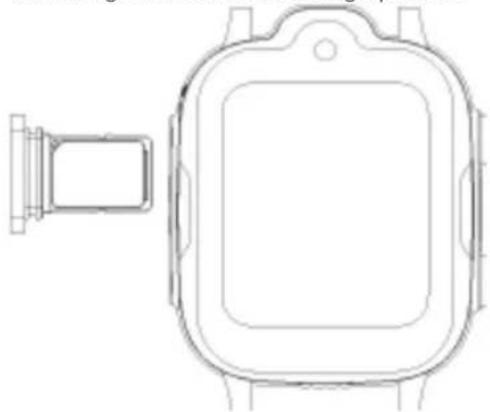
Open the SIM card tray on the left side of the watch and insert the nano SIM card with the golden contacts facing upwards:
natural_image
Technical line drawing of a smartwatch with front and side views (no text or symbols)PIN code entry
The code from the network operator provided with the SIM card prevents unauthorised use of the card. To activate a PIN for your SIM card, use the numeric keypad on the display of your watch.
Charging the battery
Connect the USB charging cable with the magnetic charging adapter on the back to the golden contacts of your smart watch.

natural_image
Illustration of a gray remote network device connected to a white USB port (no text or symbols visible)- It could take several hours to charge the battery.
- An icon indicates that your watch is charging.
- Disconnect the charger from the network and from the device when it is no longer needed!
Note:
You cannot use the watch while it is charging.
Switching on
With the device switched off, press and hold the on/off button to switch it on.
Switching off
- Press and hold the on/off button and confirm the prompt.
- Open the "Settings" menu and select "Power off".
My smart watch
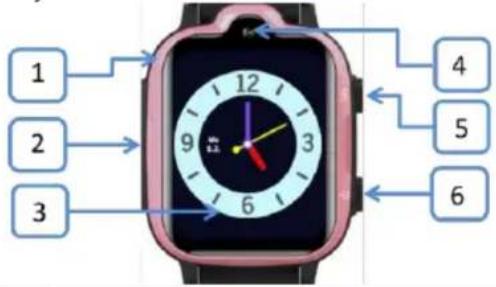
| 1 | Microphone |
| 2 | SIM slot |
| 3 | Touch screen |
| 4 | Camera |
| 5 | SOS key |
| 6 | On/off button and standby and back button |
Icon description – status bar
Swipe the watch display from top to bottom to access the status displays. Here you will find the following icons (if active).
 | Reception strengthThe vertical bars show the strength of the reception of your network operator. |
| [1C8K] | GPS*Geolocation |
| [9C4G] | Wi-Fi signal is used exclusively for positioning |
| 4G/3G/2G | 4G, 3G or 2G network in use |
 | Send and receive data |
| [WWH6] | Battery indicatorThis icon shows the battery status: |
*GPS positioning consumes a lot of power: the more frequently you use this feature, the faster the watch battery depletes.
Downloading the app
Open the "Settings" menu on your watch and choose "QR Code - App Download".
- Use your smartphone to scan the QR code to download and install the Beafon Watch App.
- The QR code below is linked directly to the Play Store download:

QR code for the Beafon Smart Watch App download
Or search for the “Beafon Smart Watch” app in the Apple App Store or Google Play Store, depending on which smartphone you are using.


Note:
Please confirm all rights during installation to enjoy the full functionality of the Beafon Watch App.
Registering and logging in to the app
- Create an account by tapping "Register".
- Enter your email address and password.
- Confirm the user agreement.
- Confirm the automatically generated email you will receive on the email address you entered (check your spam folder).
- Finally, log in to the app.
Note: Optionally, you can use the Auto Login function so that you do not have to enter your login data every time you launch the app.

Linking the watch to an app account
- Switch on your watch.
- Open the "Settings" menu on your watch and choose "QR Code - Registration Code".
- Open the Beafon Watch App.
- Select "Add Device".
- Tap the icon to scan the QR code from your watch or enter it in the input field.
Smart watch menu

Home screen
Phone
You can save up to 15 contacts to communicate with the watch and vice versa.
Note: Input telephone numbers without country code and deactivate automatic country code.
Chat
You can send short voice messages (up to 15 seconds) or text messages.
Note: The watch can only retrieve the last message sent.
Call
Enter the telephone number of your watch so that you can call it directly from this menu.
Map
Here you can see the geolocation of your watch with the address and date when it was determined and the battery status.
When you tap on the map, the image expands and on the right you will see the following icons as different options:
Map icons
| Show one or more watches | |
| Get current location | |
| Show your own location | |
| Show and edit safety zone | |
| Show route history | |
| Show satellite view |
Family member
This option shows the Smart Watch App users that are linked to the watch and can be removed by the administrator.
Alerts
This option shows the alerts related to SOS emergency calls, safety zones and low battery status.
Mode
This option enables you to select how often the watch should send positioning data.
Note: This feature consumes a lot of your battery life.
SOS emergency numbers
You can save up to three SOS emergency numbers; if the first number is unavailable, the remaining numbers will be called automatically one after the other.
Video call
This feature allows you to make a video call from your watch.
Do not disturb
You can set up to 4 periods in which your watch blocks all incoming calls and activates silent mode.
Alarm
You can set up to 3 alarm times on your watch.
Search watch
This feature makes your watch chime so that you can figure out where it is.
Set telephone numbers to receive notifications (battery status alert, SOS message).
Disable function
This feature enables or disables the dial keypad on your watch.
Pedometer
With a built-in motion sensor, your steps can be tracked and displayed on the watch and in the app.
Photos
Here you can see the photos uploaded by your watch.
Use the “Take photo” button to take a photo with your watch camera and upload it via this menu.
SMS history
This feature enables you to store the SMS messages received by your watch and forward them to the app.
Note: The watch cannot receive SMS messages.
Decline unknown calls
This feature enables you to block and log all incoming calls from telephone numbers not stored in your phonebook.
Time zones
Here you can select your time zone.
Languages
Here you can select the language of your watch interface.
LBS
Here you can enable and disable LBS. LBS is a very inaccurate positioning function. We recommend that you disable this function if the difference between the actual position of your watch and the one shown is quite significant.
Note: Disabling the LBS function only applies to the route history.
Reset watch
This feature resets your watch to factory defaults.
Restart watch
This feature restarts your watch with no data loss.
Power off watch
Use this feature to power off your watch.

I Personal data
Here you can see and edit your personal data:
- Profile picture
- Account
- Name
- Sex
- Telephone number
Change password
This option enables you to change the access password to the app.
Device list
Here you can see and edit your personal
data:
- This feature shows the list of paired devices.
- Add watch
- Remove watch
Device registration code
This option displays the registration code of your watch.
Delete account
Please note! Make sure you cancel and delete your account only if you will no longer be using the app in the future.
Watch menu
Swipe the watch display to the left or right to access the desired menu.
| Home screen | |
| Watch display | |
| Menu page 1 | |
| Video call | Phonebook |
| Voice chat | Dial keypad* |
| Menu page 2 | |
| Gallery | Calculator |
| Camera | Alarm |
| Menu page 3 | |
| Math game | Settings |
| Stopwatch | Pedometer |
Video call
This feature enables you to make phone calls to the watches paired with your watch via the Beafon Watch App.
Phonebook
Only contacts that have been saved in the phonebook by the administrator can be called.
Voice chat
You can send short voice messages up to 15 seconds.
These voice messages can be sent to all devices paired with your watch.
Dial buttons
Using the dial keypad, you can dial any telephone number. You can enable or disable this function via the Beafon Watch App.
Camera
Tap the camera icon to take photos.
Note: The photos taken are saved in the gallery.
Gallery
All pictures are stored in the gallery, which is only enough to store up to 3 pictures. You can also share the pictures in the gallery or upload them to the Beafon Smart Watch App under “Pictures”.
Note: Pictures can be sent to all devices or contacts paired with your watch.
Calculator
This function enables you to use your watch as a calculator.
The calculator can perform basic arithmetic functions.
Alarm
You can set up to 3 alarms using the Smart Watch App.
Math game
The watch has a math game for solving arithmetical problems in the shortest possible time.
Alarm
You can set up to 3 alarms using the Smart Watch App.
Stopwatch
Regular stopwatch with start/stop/pause function.
Pedometer
With a built-in motion sensor, your steps can be tracked and displayed on the watch and in the app.
Settings
- Change watch face
• Volume (Level 0 to 10)
• Brightness (Level 0 to 10) - Date and time
- Change ringtone
- Display time (15 seconds, 30 seconds, 1 minute)
• VoLTE (4G telephony on/off)
• Languages (set your language)
• Power off (switch off the watch)
• Information: (SW version and IMEI)
SOS key
Press and hold the SOS button for 3 seconds to make an emergency call to the specified SOS contacts one by one. If no one answers, the watch will dial the SOS contacts a second time and then stop.
Location
The watch supports GPS + AGPS + WIFI
+ LBS real-time location on the map.
Important:
Accurate positioning data can only be obtained via GPS. If no GPS feature is available, the watch uses less accurate positioning methods such as Wi-Fi and LBS with deviations up to several hundred metres.
Quick settings and status display
To access the quick settings, swipe the watch display from top to bottom.
You will see the following settings:
- Display brightness
- Volume
- Common settings
Specifications
| GSM band | 900/1800 |
| UMTS band | 2100/900 |
| LTE band | 2100/1800/2600/900/800(1,3,7,8,20) |
| Battery: | Li-ion 3.7 V - 850 mAh |
| Dimensions: | 108 x 56.5 x 20.5 mm |
| Standby time: | Up to 80 hours* |
| Talk time: | Up to 200 minutes* |
| Charger: | Output: 5V/1A |
* Battery life depends on the SIM card, network, applied settings (GPS), usage, and the environment.
| Max. transmission power | Values |
| GSM900 | 32.64 dBm |
| GSM1800 | 30.30 dBm |
| WCDMA 900 | 22.96 dBm |
| WCDMA 2100 | 22.98 dBm |
| LTE B1 | 23.07 dBm |
| LTE B3 | 22.85 dBm |
| LTE B7 | 23.02 dBm |
| LTE B8 | 23.74 dBm |
| LTE B20 | 23.11 dBm |
| SAR (0 mm distance) | Wrist |
| GSM900 | 0.557 W/kg |
| DCS1800 | 1.48 W/kg |
| WCDMA 900 | 1.48 W/kg |
| WCDMA 2100 | 0.615 W/kg |
| LTE band 1 | 1.28 W/kg |
| LTE band 3 | 1.97 W/kg |
| LTE band 7 | 1.87 W/kg |
| LTE band 8 | 0.897 W/kg |
| LTE band 20 | 0.775 W/kg |
Declaration of conformity
This phone model meets the requirements for electromagnetic fields.
The SAR (Specific Absorption Rate) regulates a standard value of 2.0 W/kg averaged over 10 grammes of tissue for the body, and this type of device has a test value of 1.97 W/kg that complies with Radio Equipment Directive (RED) 2014/53/EU. The SAR values may vary depending on national regulations and the network band.
You can download a copy of the declaration of conformity at any time from our home page at:
http://beafon.com/service/certification/
RoHS approval
This device complies with EU Directive 2011/65/EU (RoHS II) on the restriction of the use of certain hazardous substances in electrical and electronic equipment.
Disclaimer
- Bea-fon Mobile GmbH shall not bear any liability for any relevant, indirect, special, incidental, or inevitable injuries caused by using this product, including injuries that can be predictable or not.
- We assume no responsibility or liability for any losses due to natural disasters (e.g. earthquakes, floods, etc.) or other incidents or accidents (including intentional or accidental misuse by the manufacturer in the context of such accidents or other unusual circumstances) that are beyond our scope of liability.
Warranty
The 24-month warranty period begins on the date of purchase of the device. The 6-month warranty period applies to accessories from the date of purchase.
More information
If you have any questions or would like to learn more about one of our devices, feel free to contact us or visit our website www.beafon.com.
E-mail: service@beafon.com
Address: BEA-FON MOBILE GmbH 4722 Peuerbach Enzing 4 Austria
The up-to-date operating instructions are available for download on the Bea-fon website www.beafon.com/produkt/modell-KidsSW1/.

We reserve the right to make technical changes without prior notice.
v.1.0

CE

- Dear Kids SW1 Owner,
- Package contents:
- Recycling
- SIM card format
- Inserting the SIM card
- PIN code entry
- Charging the battery
- Note:
- Switching on
- Switching off
- Icon description – status bar
- Downloading the app
- Registering and logging in to the app
- Home screen
- Phone
- Chat
- Call
- Map
- Family member
- Alerts
- Mode
- SOS emergency numbers
- Video call
- Do not disturb
- Alarm
- Search watch
- Disable function
- Pedometer
- Photos
- SMS history
- Decline unknown calls
- Time zones
- Languages
- LBS
- Reset watch
- Restart watch
- Power off watch
- Change password
- Device list
- Delete account
- Watch menu
- Phonebook
- Voice chat
- Dial buttons
- Camera
- Gallery
- Calculator
- Math game
- Stopwatch
- Settings
- SOS key
- Location
- Important:
- Quick settings and status display
- Declaration of conformity
- RoHS approval
- Disclaimer
- Warranty
- More information
Brand : Bea-fon
Model : SW1
Category : Smartwatch