ManualGo.com
GA-6VXC7-4X-P - Motherboard GIGABYTE - Free user manual and instructions
Find the device manual for free GA-6VXC7-4X-P GIGABYTE in PDF.


Download the instructions for your Motherboard in PDF format for free! Find your manual GA-6VXC7-4X-P - GIGABYTE and take your electronic device back in hand. On this page are published all the documents necessary for the use of your device. GA-6VXC7-4X-P by GIGABYTE.
USER MANUAL GA-6VXC7-4X-P GIGABYTE
FCC Compliance Statement: This equipment has been tested and found to comply with limits for a Class B digital device , pursuant to Part 15 of the FCC rules. These limits are designed to provide reasonable protection against harmful interference in residential installations. This equipment generates, uses, and can radiate radio frequency energy, and if not installed and used in accordance with the instructions, may cause harmful interference to radio communications However, there is no guarantee that interference will not occur in a particular installation. If this equipment does cause interference to radio or television equipment reception, which can be determined by turning the equipment off and on, the user is encouraged to try to correct the interference by one or more of the following measures: -Reorient or relocate the receiving antenna -Move the equipment away from the receiver -Plug the equipment into an outlet on a circuit different from that to which the receiver is connected -Consult the dealer or an experienced radio/television technician for additional suggestions You are cautioned that any change or modifications to the equipment not expressly approve by the party responsible for compliance could void Your authority to operate such equipment. This device complies with Part 15 of the FCC Rules. Operation is subjected to the following two conditions 1) this device may not cause harmful interference and 2) this device must accept any interference received, including interference that may cause undesired operation.
Declaration of Conformity We, Manufacturer/mporter (full address) G.B.T. Technology Träding GMbH Ausschlager Weg 41, 1F, 20537 Hamburg, Germany declare that the product {description ofthe apparatus, system, installation to which it refers) Mother Board GA-6VXCT-AX-P is in conformity with {reference to the specification under which conformiy is declared) in accordance with 89/336 EEC-EMC Directive [JnSson Limits and methods ofmeasurement [JEN 6100032 Disturbancesin suppl systems caused cf rad distumbance charactersties ot D] ENGOS55-2 by householé applances and similar industrial, scie and medical (SM lectcal equipment Hamonics” High frequency equipment [I ENSS013 Limits and methods afmeasurement [J EN6100033* Disturbancesin suppl systems caused fra distumance characterstes ot D] EN6O5553 y householé applances and similar broadcast receivers and associated electrical equipment Voltage fuctations* equipment [JENSSo14 Limits and methods ofmeasurement [ EN 500811 Generic emission standard Par 1 cf rad disturbance characteñstis af Residual, commercial and light industry household electrical appliances, portable tools and similar electrical HI EN 500821 Generic immunty standard Par aposraus Resiual, commercial and gt Industry [I ENSso1S Limits and methods ofmeasurement C] EN 550812 Generic emission standard Part 2 cf rad disturbance characteñstis af Andustial environment fluorescent lamps and luminaries [I ENSs020 | Immuniy from radio interference of [I En 550822 Generic immuniy standard Par 2: broadcast receivers and associated industrial environment equipment I ENSS022 Limits and methods ofmeasurement [] ENV 55104 Aimmuniy requirements for hauschold cf rad disturbance characters af applances als and similar apparatus information technology equipment [2 DNVDEOSS Cable disibuion systems: Equipment C] EN 50091-2 EMC requirements for uninterupble À par 10 for receiving andor distribution from power systems (UPS) D pat12 sound and elevsion signals D CE marking (EC conformisy marting) ‘The manufacturer also declares the conformity of above mentioned product with the actual required safety standards n accordance it LVD 73/23 EEC CD EN6006S Salctyrequirement formainseperted CI EN 60950 Safety fr information technology equipment electronic and related apparatus for including electrical business equipment, ouscholé and similar general use [I EN 60335 Sañet of househoid and similar [I En so Seneral and Safety requirements for electrical applances uninterupible power systems (UPS) Manufacturerlmporter Signature Ræ&xLin sans Date : Mar 7, 2001 Name Rex Lin
How This Manual Is Organized This manual is divided into the following sections:
4) Hardware Setup Instructions on setting up the motherboard
5.0 Initial release ofthe 6VXC7-4X-P motherboard user's : Mar. 2001
5.0 Second release of the 6VXC7-4X-P motherboard Jun.2001
user's manual. The author assumes no responsibility for any errors or omissions that may appear in this document nor does the author make a commitment to update the information contained herein Third-party brands and names are the property of their respective owners. Jun. 27, 2001 Taipei, Taiwan, R.O.C
Summary of Features Hardware Monitor CPU / System fan revolution detect CPU / System temperature detect System voltage detect (Vcore,Vcc3,Vcc,+12V) CPU overheat shutdown detect ACPI Shutdown Temperature PS/2 Connector PS/2_ Keyboard interface and PS/2_ Mouse interface BIOS Licensed AMI BIOS, 2M bit flash ROM Additional Features Support Wake-On-LAN (WOL) Support Internal / External Modem Ring On. Includes 3 fan power connectors. Poly fuse for keyboard over-current protection
6VXC7-4X-P Motherboard CPU Speed Setup The system bus speed is selectable at 66,100,133MHz and Auto. The user can select the system bus speed (SW1) and change the DIP switch (SW2) selection to set up the CPU speed for 500 - 1G Hz processor. Set System Bus Speed
CPU (MHz) 1 2 3 4 5 6 PCI(MHz) Auto x x X x 0 0 333 66 0 0 X x x X 333 75 0 0 0 x X X 37.5 83 0 0 X 0 x X 416 100 0 x X x X X 333 112 0 x 0 x x X 373 124 x x X 0 x X 31 133 x x X x X X 333 140 x x 0 0 x X 35 150 x x 0 x X X 37.5 the frequency ratio is higher than that of CPU. SW2: The CPU speed must match with the frequency ratio. It will cause system hanging up if FREQ. RATIO DIP SWITCH
CPU Speed Setup XB X X X © X14 Q Q Q X X15 X 0 0 X X16 o x 0 X For Auto J umper Setting: x Note:
1. If you use 66/100/133 MHz CPU, We recommend you to setup your system speed to
2. We don't recommend you to set up your system speed to 75, 83, 112 , 124, 140 ,150
MHz because these frequencies are not the standard specifications for CPU, Chipset and most of the peripherals. Whether your system can run under 75,83 ,112 ,124 ,140 ,150 MHz properly will depend on your hardware configurations: CPU, SDRAM, Cards, etc.
6VXC7-4X-P Motherboard IDE1(Primary), IDE2(Secondary) Port Red Line IDE 1 IDE 2 J3 : Ring Power On (Internal Modem Card Wake Up)
6VXC7-4X-P Motherboard Panel and J umper Definition J2:2x11 Pins | umper PW__p+#pp-— EE = nn 2E=-1u LL:
Panel and } umper Definition JP1: Clear CMOS Function
Panel and } umper Definition JP30 : Over Voltage CPU Speed Up (Optional)(Magic Booster) Pin No.| Definition 12 à close 40% 3-4 0 close 30% 5-6 à close 20% 7-8 n close 10% 9-10 Normal close (Default) © Danger of explosion if battery is incorrectiy replaced. Replace only with the same or equivalent type recommended by the manufacturer. Dispose of used batteries according to the manufacturer's instructions.
6VXC7-4X-P Motherboard The following performance data list is the testing results of some popular benchmark testing programs. These data are just referred by users, and there is no responsibility for different testing data values gotten by users. (The different Hardware & Software configuration will result in different benchmark testing results.)
6VXC7-4X-P Motherboard Memory Installation The motherboard has 3 dual inline memory module (DIMM) sockets. The BIOS will automatically detects memory type and size. To install the memory module, just push it vertically into the DIMM Slot .The DIMM module can only fit in one direction due to the two notch. Memory size can vary between sockets. Install memory in any combination table: DIMM 168-pin SDRAM DIMM Modules DIMM 1} Supports 16/32/64/128/256/512 MB X1pcs DIMM 2j Supports 16/32/64 /128/256/512 MB X1pcs DIMM 3°: Supports 16/32/64/128/256/512 MB XIpcs XTotal System Memory (Max 1.5GB)
6VXC7-4X-P Motherboard BIOS Setup is an overview of the BIOS Setup Program. The program that allows users to modify the basic system configuration. This type of information is stored in battery-backed CMOS RAM so thatitretains the Setup information when the power is tumed off. ENTERING SETUP Power ON the computer and press <Del> immediately will allow you to enter Setup. If the message disappears before you respond and you still wish to enter Setup, restart the system to ty again by tuming it OFF then ON or pressing the "RESET" bottom on the system case. You may also restart by simultaneously press <Ct> —<Alt>—<Del> keys. CONTROL KEYS <> Move to previous item <> Move to next item <> Move to the item in the left hand <> Move to the item in the right hand <Æsc> Main Menu - Quit and not save changes into CMOS Status Page Setup Menu and Option P age Setup Menu - Exit current page and retum to Main Menu <#PqgUp> : Increase the numeric value or make changes <-/PgDn> Decrease the numeric value or make changes <1> General help, only for Status Page Setup Menu and Option Page Setup Menu <2> Reserved <#3> Reserved <F4> Reserved <F5> Restore the previous CMOS value from CMOS, only for Option Page Setup Menu <6> Load the default CMOS value from BIOS default table, only for Option Page Setup Menu <F7> Load the Setup Defaults. <F8> Reserved <9> Reserved <10> Save allthe CMOS changes, only for Main Menu
BIOS Setup GETTING HELP Main Menu The on-line description of the highlighted setup function is displayed at the bottom of the screen. Status Page Setup Menu / Option Page Setup Menu Press F1 to pop up a small help window that describes the appropriate keys to use and the possible selections for the highlighted item. To exitthe Help Window press <Esc>. The Main Menu Once you enter AMI BIOS CMOS Setup Utility, the Main Menu (Figure 1) will appear on the screen. The Main Menu allows you to select from nine setup functions and two exit choices. Use arrow keys to select among the items and press <Enter> to accept or enter the sub-menu
AMIBIOS SIMPLE SETUP UTILITY-VERSION 1.21
(C ) 1999 American Megatrends, Inc. AI Rights Reserved
LOAD SETUP DEFAULTS EXIT WITHOUT SAVING
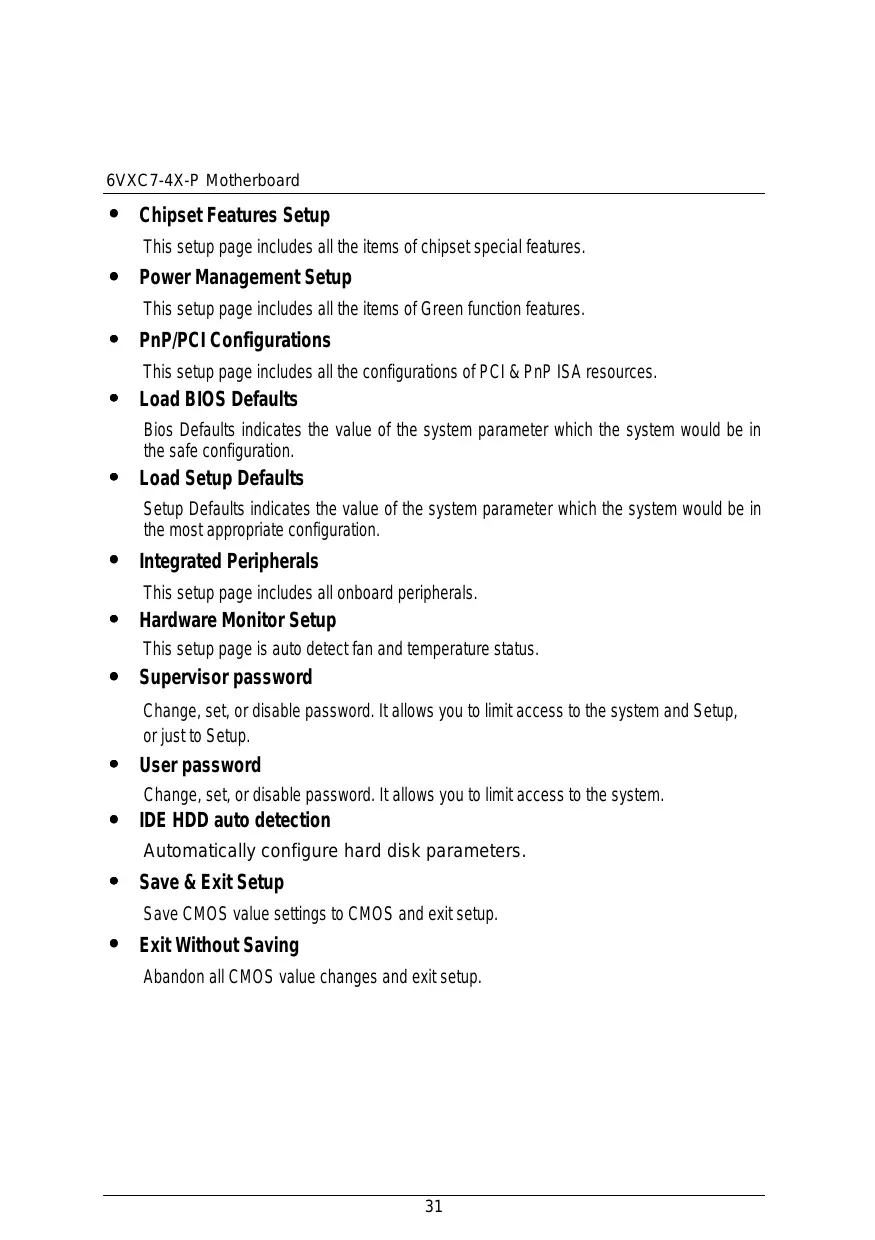
6VXC7-4X-P Motherboard ° Chipset Features Setup This setup page includes all the items of chipset special features. + Power Management Setup This setup page includes all the items of Green function features. °° PnP/PCI Configurations This setup page includes all the configurations of PCI & PnP ISA resources. + Load BIOS Defaults Bios Defaults indicates the value of the system parameter which the system would be in the safe configuration + Load Setup Defaults Setup Defaults indicates the value of the system parameter which the system would be in the most appropriate configuration. ° Integrated Peripherals This setup page includes all onboard peripherals + Hardware Monitor Setup This setup page is auto detect fan and temperature status. °__ Supervisor password Change, set, or disable password. It allows you to limit access to the system and Setup, or just to Setup. ° User password Change, set, or disable password. It allows you to limit access to the system. + IDE HDD auto detection Automatically configure hard disk parameters. e Save & Exit Setup Save CMOS value settings to CMOS and exit setup. + Exit Without Saving Abandon all CMOS value changes and exit setup.
BIOS Setup Standard CMOS Setup The items in Standard CMOS Features Menu (Figure 2) are divided into 9 categories. Each category includes no, one or more than one setup items. Use the arrows to highlight the item and then use the < gUp> or <P gDn> keys to select the value you want in each item.
AMIBIOS SETUP - STANDARD CMOS SETUP
(C ) 1999 American Megatrends, Inc. All Rights Reserved Date (mm/dd/yyyy) : Tue J an 25, 2000 Time (hh/mm/ss) _ : 10:36:24 TYPE SIZE CYLS HEAD PRECOMP LANDZ SECTOR MODE PriMaster : Auto PriSlave : Auto Sec Master : Auto SecSlave : Auto Floppy Drive A: 1.44 MB 3 Base Wemory : 640 Kb Floppy Drive 8: Not Installed Other Memory: 384 Kb Extended Memory: 30Mb Boot Sector Virus Protection : Disabled Total Memory: 31Mb Month: Jan- Dec ESC : Exit Days O1 -31 T4: Selectitem Year: 1990- 2099 PU/PD/#- : Modify (ShiflF2 _: Color Figure 2: Standard CMOS Setup ° Date The date format is AVeek>, <Month>, <Day>, <Year>. Week The week, from Sun to Sat, determined by the BIOS and is display-only Month The month, Jan. Through Dec. Day The day, from 1 to 31 (or the maximum allowed in the month) Year The year, from 1990 through 2099
6VXC7-4X-P Motherboard Time The times format in <hour> <minute> <second>. The time is calculated base on the 24-hour military-time clock. For example, 1 p.m. is 13:00:00 IDE Primary Master, Slave / Secondary Master, Slave The category identifies the types of hard disk from drive C to F that has been installed in the computer. There are two types: auto type, and user definable type. User type is user-definable; Auto type which will automatically detect HDD type. Note that the specifications of your drive must match with the drive table. The hard disk will not work properly if you enter improper information for this category. If you select User Type, related information will be asked to enter to the following items Enter the information directly from the keyboard and press <Enter>. Such information should be provided in the documentation form your hard disk vendor or the system manufacturer. CYLS. Number of cylinders HEADS number of heads PRECOMP write precomp LANDZONE Landing zone SECTORS number of sectors fa hard disk has not been installed select NONE and press <Enter>. Drive A type / Drive B type The category identifies the types of floppy disk drive À or drive B that has been installed in the computer. None No floppy drive installed 360K, 5.25 in. 5.25 inch PC-type standard drive; 360K byte capacity. 1.2M, 5.25 in. 5.25 inch AT-type high-density drive; 1.2M byte capacity (3.5 inch when 3 Mode is Enabled), 720K, 3.5 in 3.5 inch double-sided drive; 720K byte capacity 1.44M, 3.5 in. 3.5 inch double-sided drive; 1.44M byte capacity. 2.88M, 3.5 in. 3.5 inch double-sided drive; 2.88M byte capacity.
BIOS Setup + Boot Sector Virus Protection Ifitis set to enable, the category will flash on the screen when there is any attempt to write to the boot sector or partition table of the hard disk drive. The system will halt and the following error message will appear in the mean time. You can run anti-virus program to locate the problem. Enabled Activate automatically when the system boots up causing a warning message to appear when anything attempts to access the boot sector or hard disk partition table Disabled No warning message to appear when anything attempts to access the boot sector or hard disk partition table. (Default Value) ° Memory The category is display-only which is determined by POST (Power On Self Test) of the BIOS Base Memory The POST of the BIOS will determine the amount of base (or conventional) memory installed in the system. The value of the base memory is typically 512 K for systems with 512 K memory installed on the motherboard, or 640 K for systems with 640 K or more memory installed on the motherboard Extended Memory The BIOS determines how much extended memory is present during the POST. This is the amount of memory located above 1 MB in the CPU's memory address map. Other Memory This refers to the memory located in the 640 K to 1024 K address space. This is memory that can be used for different applications. DOS uses this area to load device drivers to keep as much base memory free for application programs. Most use for this area is Shadow RAM
BIOS Setup SMART. for Hard Disks Enable Enable S.M.A.R.T. Hard for Disks. Disable Disable S.M.A.R.T. Hard for Disks. (Default Value) Boot Up Num-Lock On Keypad is number keys. (Default Value) off Keypad is arrow keys. Floppy Drive Seek During POST, BIOS will determine if the floppy disk drive installed is 40 or 80 tracks. 360 type is 40 tracks while 720 , 1.2 and 1.44 are all 80 tracks Enabled BIOS searches for floppy disk drive to determine if it is 40 or 80 tracks. Note that BIOS can not tell from 720, 1.2 or 1.44 drive type as they are all 80 tracks Disabled BIOS will not search for the type of floppy disk drive by track number. Note that there will not be any warning message if the drive installed is
360. (Default Value)
Password Check Setup SetPassword Check to Setup. (Default Value) Always SetPassword Check to Always. Processor Serial Number Disabled Disabled CPU Serial Number. (Default Value) Enabled Enabled CPU Serial Number.
6VXC7-4X-P Motherboard Suspend Time Out (Minute.) Disabled Disabled Suspend Time Out Function. (Default Value) 1 Enabled Suspend Time Out after 1min. 2 Enabled Suspend Time Out after 2min. 4 Enabled Suspend Time Out after 4min. 8 Enabled Suspend Time Out after 8min. 10 Enabled Suspend Time Out after 10min. 20 Enabled Suspend Time Out after 20min. 30 Enabled Suspend Time Out after 30min. 40 Enabled Suspend Time Out after 40min. 50 Enabled Suspend Time Out after 50min. 60 Enabled Suspend Time Out after 60min. Display Activity Ignore Ignore Display Activity. (Default Value) Monitor Monitor Display Activity.
Ignore Ignore IRQ3 -RQ15 Monitor Monitor IRQ3-1RQ15 Soft-off by Power Button Instant off Soft switch ON/OFF for Power Button. (Default Value) Delay-4Sec Soft switch ON 4 Sec for Power off. AC Back Function Power Off SetRestore on AC/Power Loss is Power off. Power On SetRestore on AC/Power Loss is Power on. Memory SetRestore on AC/Power Loss is Last state mode. (Default Value) MODEM Use IRQ NA Set MODEM Use IRQ to NA 3 Set MODEM Use IRQ to 3. 4 Set MODEM Use IRQ to 4. (Default Value) 5 Set MODEM Use IRQ to 5. 7 Set MODEM Use IRQ to 7.
Disabled this function. (Default Value) °_ VGABootFrom AGP Primary Graphics Adapter From Add-on AGP. (Default Value) PCI Primary Graphics Adapter From OnBoard PCI. °__ PCIVGA Palette Snoop Enabled For having Video Card on ISA Bus and VGA Card on PCI Bus. Disabled For VGA Card only. (Default Value) fe]
BIOS Setup + DMA Channel (0,1,3,5,6,7) PnP The resource is used by PnP device ISA /EISA The resource is used by ISA / EISA device (PCI or ISA) ° IRQ (3,4,5,7, 9,10,11,14,15) PCIPnP The resource is used by PCI/PnP device. ISA /EISA The resource is used by ISA / EISA device (PCI or ISA)
(C ) 1999 American Megatrends, Inc. All Rights Reserved
LOAD SETUP DEFAULTS EXIT WITHOUT SAVING
(C } 1999 American Megatrends, Inc. AIl Rights Reserved
{C ) 1999 American Megatrends, Inc. All Rights Reserved OnBoard IDE Bo OnBoard FDC “Auto OnBoard Serial Port 1 “Auto OnBoard Serial Port 2 “Auto Serial Port 2 Mode ‘Normal Duplex Mode ANA OnBoard Parallel Port “Auto Parallel Port Mode ÆECP Parallel Port DMA “Auto Parallel Port IRQ “Auto OnBoard AC'97 Audio “Auto OnBoard MC'97 Modem “Auto ESC : Quit Ti: Selectitem Fi ‘Help PU/PD/#- : Modify F5 :Old Values (Shif)F2 :Color F6 : Load BIOS Defauits F7 __: Load Setup Defaults ° OnBoardIDE Figure 9: Integrated Peripherals Disabled Disabled OnBoard IDE Both SetOnBoard IDE is Both (Default Value) Primary SetOnBoard IDE is Primary Secondary SetOnBoard IDE is Secondary ° OnBoard FDC Auto SetOn Board FDC is Auto (Default Value), Disabled Disabled On Board FDC Enabled Enabled On Board FDC ° Onboard Serial Port1 Auto BIOS will automatically setup the port 1 address (Default Value). 3F8/COM1 Enable onboard Serial port 1 and address is 3F8. 2F8/COM2 Enable onboard Serial port 1 and address is 2F8. 3E8/COM3 Enable onboard Serial port 1 and address is 3E8. 2E8/COM4 Enable onboard Serial port 1 and address is 2E8. Disabled Disable onboard Serial port 1.
BIOS Setup Onboard Serial Port 2 Auto BIOS will automatically setup the port 2 address (Default Value). 3F8/COM1 Enable onboard Serial port 2 and address is 3F8. 2F8/COM2 Enable onboard Serial port 2 and address is 2F8. 3E8/COM3 Enable onboard Serial port 2 and address is 3E8. 2E8/COM4 Enable onboard Serial port 2 and address is 2E8. Disabled Disable onboard Serial port 2. Serial Port 2 Mode ASKIR Setonboard 1/0 chip Serial Port 2 to ASKIR Mode. IrDA Setonboard 1/0 chip Serial Port 2 to IrDA Mode. Normal Setonboard 1/0 chip Serial Port 2 to Normal Mode. (Default Value) Duplex Mode Half Duplex TR Function Duplex Haïf. N/A Disabled this function. (Default Value) Full Duplex IR Function Duplex Full. On Board Parallel port 378 Enable On Board LPT port and address is 378. 218 Enable On Board LPT port and address is 278. 3BC Enable On Board LPT port and address is 3BC. Auto Set On Board LPT portis Auto. (Default Value). Disabled Disable On Board LPT port. Parallel Port Mode EPP Using Parallel port as Enhanced Parallel Port. ECP Using Parallel port as Extended Capabilities Port. (Default Value) Normal Normal Operation. Parallel Port DMA Auto Set Auto to parallel port mode DMA Channel. (Default Value) N/A Disabled this function. 3 Set Parallel Port DMA is 3. 1 Set Parallel Port DMA is 1. 0 Set Parallel Port DMA is 0. Parallel Port IRQ 7 Set Parallel PortIRQ is 7. Auto Set Auto to parallel PortIRQ DMA Channel... (Default Value). 5 Set Parallel PortIRQ is 5.
6VXC7-4X-P Motherboard Case Status Ifthe case is closed, ‘Case Status” will show “Closed” Ifthe case have been opened, “Case Opened" will show “Open”. Current CPU FAN Speed Detect CPU Fan speed status automatically Current System FAN Speed Detect System Fan speed status automatically Current Voltage (V) VCORE / +3.3V / +12V / +5V Detect system's voltage status automatically.
BIOS Setup Set Supervisor / User Password When you select this function, the following message will appear at the center of the screen to assist you in creating a password.
AMIBIOS SIMPLE SETUP UTILITY-VERSION 1.21
(C ) 1999 American Megatrends, Inc. All Rights Reserved
LOAD SETUP DEFAULTS EXIT WITHOUT SAVING
ESC:Quit Tire :Selectiem (ShfÜF2:Change Color F5 : Old Values F6 : Load BIOS Defaults F7: Load Setup Defauits F10: Save & Exit Chang /Set /Disabled Password Figure 11: Password Setting Type the password, up to eight characters, and press <Ænter>. The password typed now will clear the previously entered password from CMOS memory. You will be asked to confirm the password. Type the password again and press <Enter>. You may also press <Esc> to abort the selection and not enter a password. To disable password, just press <Enter> when you are prompted to enter password. À message “PASSWORD DISABLED” will appear to confirm the password being disabled. Once the password is disabled, the system will boot and you can enter Setup freely. If you select Always” at ‘Password Check” Option in BIOS Features Setup Menu, you will be prompted for the password every time the system is rebooted or any time you try to enter Setup Menu. If you select “Setup” at ‘Password Check” Option in BIOS Features Setup Menu, you will be prompted only when you try to enter Setup.
(C ) 1999 American Megatrends, Inc. All Rights Reserved
SAVE to CMOS and EXIT(Y/N)? Y
LOAD SETUP DEFAULTS EXIT WITHOUT SAVING
(C ) 1999 American Megatrends, Inc. All Rights Reserved
INTEGRATED PERIPHERALS
Appendix Appendix Appendix À : VIA Chipsets Driver Installation AVIA 4 in 1 Service Pack Utility: Insert the support CD that came with your motherboard into your CD-ROM driver or double -click the CD driver icon in My Computer to bring up the screen. 1.Press “VIA din 1 Service Pack Utility" item. 4.Press “Next”. tm) =) EAU Em AU ne tm Eu
“Finish” to restart your Computer. (9) t0)
BIOS update procedure: Please check your BIOS vendor (AMI or AWAR D) on the motherboard. Itis recommended you copy the AWDF lash.exe or AMIF lash.exe in driver CD {D:\>Utilit\BIOSF lash) and the BIOS binary files into the directory you made in your hard disk. Cie:C:\>Utility\ (C:\>Utility : denotes the driver and the directory where you put the flash utilities and BIOS file in.) } Restart your computer into MS-DOS mode or command prompt only for Win95/98, go into the directory where the new BIOS file are located use the utility AWDFlash.exe or AMIFlash.exe to update the BIOS Type the following command once you have enter the directory where all the files are located C:\utility\ AWDF lash or AMIFlash <filename of the BIOS binary file intended for flashing> Once the process is finished, reboot the system € Note: Please download the newest BIOS from our website (www.gigabyte.com.tw) or contact your local dealer for the file