
G52-75991XR - Laptop MSI - Free user manual and instructions
Find the device manual for free G52-75991XR MSI in PDF.



| Product type | MSI 870A-G55/870U-G55 Motherboard |
| Supported processors | AMD Phenom II, Athlon II, Sempron (Socket AM3) |
| Chipset | North Bridge: AMD RX780; South Bridge: AMD SB710 |
| Memory | DDR3 1600/1333/1066/800, up to 16 GB, 4 DIMM slots, dual channel |
| Network | Gigabit LAN via Realtek RTL8111E |
| Audio | HD Audio 8-channel Realtek ALC892/ALC887 |
| Storage | 6 SATA 3Gb/s ports (SB710) + 2 SATA 6Gb/s ports (Marvell 88SE9128) (870A-G55 model) |
| USB | 6 USB 2.0 ports, 1 USB 3.0 port (NEC uPD720200F1) |
| IEEE 1394 | 1 port via VIA VT6308P |
| Expansion slots | 2 PCIe x16 (1 x16, 1 x4), 1 PCIe x1, 3 PCI |
| Dimensions | ATX (22.5 cm x 30.5 cm) |
| Power supply | ATX 24-pin and 8-pin connectors |
| Safety | Avoid overheating: use CPU fan, thermal paste; overclocking warning; assembly instructions |
| Maintenance | Clean with dry cloth; do not touch circuits; comply with environmental standards |
| Special features | OC Genie (automatic overclocking), Cool'n'Quiet, CrossFireX |
| Environment | Compliant with WEEE directive 2002/96/EC; separate disposal |
Frequently Asked Questions - G52-75991XR MSI
User questions about G52-75991XR MSI
0 question about this device. Answer the ones you know or ask your own.
Ask a new question about this device
Download the instructions for your Laptop in PDF format for free! Find your manual G52-75991XR - MSI and take your electronic device back in hand. On this page are published all the documents necessary for the use of your device. G52-75991XR by MSI.
USER MANUAL G52-75991XR MSI
The material in this document is the intellectual property of MICRO-STAR INTERNATIONAL. We take every care in the preparation of this document, but no guarantee is given as to the correctness of its contents. Our products are under continual improvement and we reserve the right to make changes without notice.
Trademarks
All trademarks are the properties of their respective owners.
MSI is a registered trademark of Micro-Star Int'l Co., Ltd. NVIDIA® is a registered trademark of NVIDIA Corporation. ATI® is a registered trademark of ATI Technologies, Inc. AMD® is a registered trademark of AMD Corporation. Intel® is a registered trademark of Intel Corporation. Windows® is a registered trademark of Microsoft Corporation. AMI is a registered trademark of American Megatrends, Inc. Award® is a registered trademark of Phoenix Technologies Ltd. Sound Blaster® is a registered trademark of Creative Technology Ltd. Realtek® is a registered trademark of Realtek Semiconductor Corporation. JMicron® is a registered trademark of JMicron Technology Corporation. Netware® is a registered trademark of Novell, Inc. Lucid® is a trademark of LucidLogix Technologies, Ltd.
Revision History
| Revision | Revision History | Date |
| V5.1 | Update for PCB 5.X (Europe version) | August 2010 |
Technical Support
If a problem arises with your system and no solution can be obtained from the user's manual, please contact your place of purchase or local distributor. Alternatively, please try the following help resources for further guidance.
Visit the MSI website for FAQ, technical guide, BIOS updates, driver updates, and other information: http://www.msi.com/index.php?func=service Contact our technical staff at: http://ocss.msi.com
Safety Instructions
Always read the safety instructions carefully. Keep this User's Manual for future reference. Keep this equipment away from humidity. Lay this equipment on a reliable flat surface before setting it up. The openings on the enclosure are for air convection hence protect the equipment from overheating. DO NOT COVER THE OPENINGS. Make sure the voltage of the power source is at 110/220V before connecting the equipment to the power inlet. Place the power cord such a way that people cannot step on it. Do not place anything over the power cord. Always unplug the power cord before inserting any add-on card or module. All cautions and warnings on the equipment should be noted. Never pour any liquid into the opening that can cause damage or cause electrical shock. If any of the following situations arises, get the equipment checked by service personnel:
The power cord or plug is damaged. Liquid has penetrated into the equipment. The equipment has been exposed to moisture. The equipment does not work well or you cannot get it to work according to the User's Manual. The equipment has been dropped and damaged. The equipment has obvious signs of breakage.
DO NOT LEAVE THIS EQUIPMENT IN AN ENVIRONMENT ABOVE 60°C (140°F), IT MAY DAMAGE THE EQUIPMENT.
CAUTION: Danger of explosion if battery is incorrectly replaced.
Replace only with the same or equivalent type recommended by the manufacturer.
Warning to users:
For better environmental protection, waste batteries should be collected separately for recycling or special disposal.
FCC-B Radio Frequency Interference Statement
This equipment has been tested and found to comply with the limits for a Class B digital device, pursuant to Part 15 of the FCC Rules. These limits are designed to provide reasonable protection against harmful interference in a residential installation.

This equipment generates, uses and can radiate radio frequency energy and, if not installed and used in accordance with the instructions, may cause harmful interference to radio communications. However, there is no guarantee that interference will not occur in a particular installation. If this equipment does cause harmful interference to radio or television reception, which can be determined by turning the equipment off and on, the user is encouraged to try to correct the interference by one or more of the measures listed below.
Reorient or relocate the receiving antenna. - Increase the separation between the equipment and receiver. - Connect the equipment into an outlet on a circuit different from that to which the receiver is connected. - Consult the dealer or an experienced radio/television technician for help.
Notice 1
The changes or modifications not expressly approved by the party responsible for compliance could void the user's authority to operate the equipment.
Notice 2
Shielded interface cables and A.C. power cord, if any, must be used in order to comply with the emission limits.
SEE THE INSTALLATION NOTICE BEFORE CONNECTING TO THE NETWORK.

Micro-Star International
MS-7599
This device complies with Part 15 of the FCC Rules. Operation is subject to the following two conditions:
1) this device may not cause harmful interference, and 2) this device must accept any interference received, including interference that may cause undesired operation.
WEEE (Waste Electrical and Electronic Equipment) Statement
ENGLISH
To protect the global environment and as an environmentalist, MSI must remind you that...
Under the European Union ("EU") Directive on Waste Electrical and Electronic Equipment, Directive 2002/96/EC, which takes effect on August 13, 2005, products of "electrical and electronic equipment" cannot be discarded
as municipal wastes anymore and manufacturers of covered electronic equipment will be obligated to take back such products at the end of their useful life. MSI will comply with the product take back requirements at the end of life of MSI-branded products that are sold into the EU. You can return these products to local collection points.

DEUTSCH
Mainboard Specifications
Processor Support
■ AMD® Phenom™ II series, Athlon™ II series and Sempron™ series processor in the AM3 package.
(For the latest information about CPU, please visit http://www.msi.com/index.php?func=cpuform2)
HyperTransport
HyperTransportTM 3.0, supports up to 5.2 GT/s
Chipset
North Bridge: AMD® RX780 chipset South Bridge: AMD® SB710 chipset
Memory Support
DDR3 1600 (OC) / 1333 / 1066 / 800 DRAM (total 16GB Max) - 4 DDR3 DIMMs, support Dual-Channel mode (* OC= overclocking, for more information on compatible components, please visit http://www.msi.com/index.php?func=testreport)
LAN
Supports Gb LAN (10/100/1000) by Realtek® RTL8111E
IEEE 1394
Chip integrated by VIA® VT6308P Supports 1 IEEE 1394 port (back panel) & 1 IEEE 1394 connector
Audio
- HD audio codec integrated by Realtek® ALC892/ ALC887 (optional)
- Flexible 8-channel audio with jack sensing
SATA
6 SATA 3Gb/s (SATA1~6) ports by AMD® SB710 2 SATA 6Gb/s (SATA7~8) ports by Marvell® 88SE9128 (for 870A-G55) Supports hot plug & asynchronous notification
Important
Please note that setting the "PCI Express x4/x1 Slot" as [x4] under "Integrated Peripherals" in BIOS will disable the SATA 6 Gb/s ports (SATA7~8) and PCIe x1 slot (PCI_E1).
USB 3.0
2 USB 3.0 ports by NEC uPD720200F1
RAID
SATA1~6 ports support RAID 0/1/10 mode by AMD® SB710. SATA7~8 ports support RAID 0/1 mode by Marvell® 88SE9128 (for 870A-G55).
Floppy
1 floppy port. Supports 1 FDD with 360KB, 720KB, 1.2MB, 1.44MB and 2.88MB.
Connectors
Back panel
- 1 PS/2 keyboard port
- 1 PS/2 mouse port
- 1 Clear CMOS button
- 1 Coaxial S/PDIF-Out port
- 1 Optical S/PDIF-Out port
- 6 USB 2.0 ports
- 1 USB 3.0 port
- 1 IEEE 1394 port
- 1 LAN port
- 6 flexible audio ports
On-Board
- 2 USB 2.0 connectors
- 1 USB 3.0 connector
- 1 IEEE 1394 connector
- 1 Chassis Intrusion connector
- 1 S/PDIF-Out connector
- 1 Front Panel Audio connector
- 1 Serial Port connector
- 1 TPM Module connector
- 1 CD-In connector
- 1 OC Genie button
Slots
2 PCIE x16 slots - PCI_E2 supports up to PCIE x16 speed, PCI_E3 supports up to PCIE x4 speed. Supports ATI CrossFireX™ Technology. 1 PCIE x1 slot. 3 PCI slots, supporting 3.3V/5V PCI bus interface.
Important
Please note that setting the "PCI Express x4/x1 Slot" as [x4] under "Integrated Peripherals" in BIOS will disable the SATA 6 Gb/s ports (SATA7~8) and PCIe x1 slot (PCI_E1).
Form Factor
ATX (22.5 cm × 30.5 cm)
Mounting
6 mounting holes
- If you need to purchase accessories and request the part numbers, you could search the product web page and find details on our web address http://www.msi.com/index.php
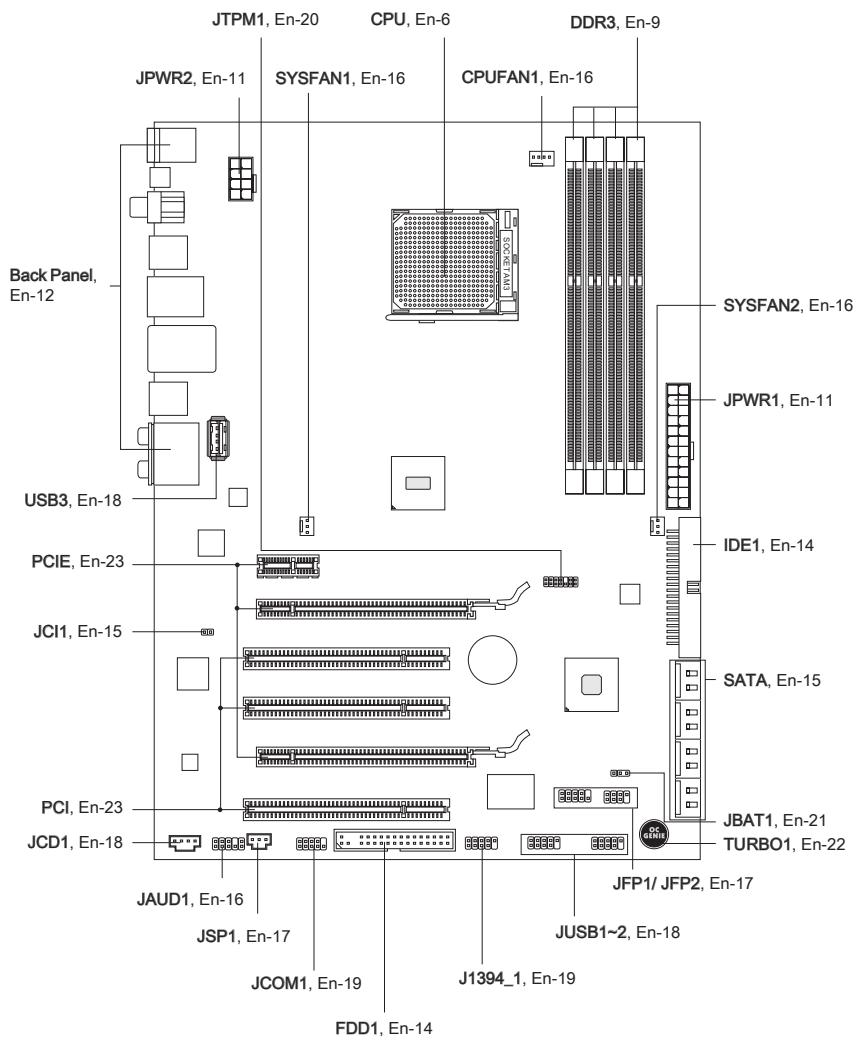
Quick Components Guide
Screw Holes
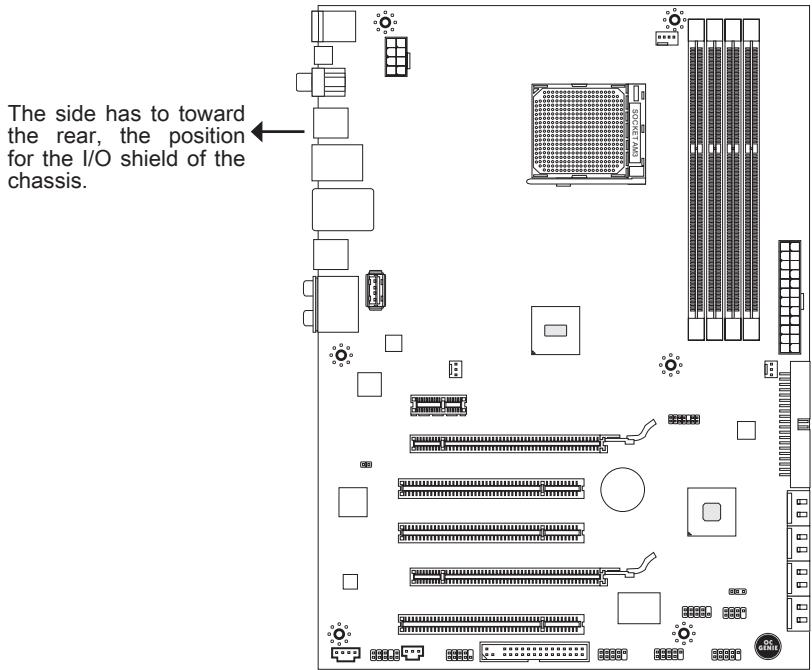
When you install the mainboard, you have to place the mainboard into the chassis in the correct direction. The locations of screws holes on the mainboard are shown as below.


Screw holes
Refer above picture to install standoffs in the appropriate locations on chassis and then screw through the mainboard screw holes into the standoffs.
Important
- To prevent damage to the mainboard, any contact between the mainboard circuit and chassis or unnecessary standoffs mounted on the chassis is prohibited.
- Please make sure there are no metal components placed on the mainboard or within the chassis that may cause short circuit of the mainboard.
CPU (Central Processing Unit)
When you are installing the CPU, make sure to install the cooler to prevent overheating. If you do not have the CPU cooler, consult your dealer before turning on the computer. For the latest information about CPU, please visit http://www.msi.com/index.php?func=cpuform2
Important
Overheating
Overheating will seriously damage the CPU and system. Always make sure the cooling fan can work properly to protect the CPU from overheating. Make sure that you apply an even layer of thermal paste (or thermal tape) between the CPU and the heatsink to enhance heat dissipation.
Replacing the CPU
While replacing the CPU, always turn off the ATX power supply or unplug the power supply's power cord from the grounded outlet first to ensure the safety of CPU.
Overclocking
This mainboard is designed to support overclocking. However, please make sure your components are able to tolerate such abnormal setting, while doing overclocking. Any attempt to operate beyond product specifications is not recommended. We do not guarantee the damages or risks caused by inadequate operation or beyond product specifications.
Introduction to AM3 CPU
The surface of CPU. Remember to apply some thermal paste on it for better heat dispersion.
Gold arrow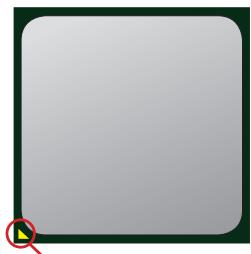
CPU & Cooler Installation
When you are installing the CPU, make sure the CPU has a cooler attached on the top to prevent overheating. Meanwhile, do not forget to apply some thermal paste on CPU before installing the heat sink/cooler fan for better heat dispersion.
Follow the steps below to install the CPU & cooler correctly. Wrong installation will cause the damage of your CPU & mainboard
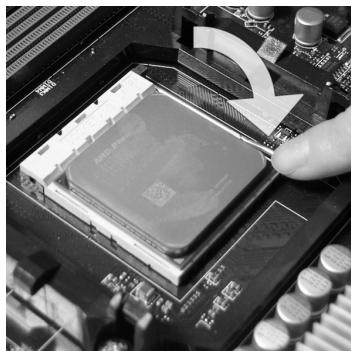
- Pull the lever sideways away from the socket. Make sure to raise the lever up to a 90-degree angle.
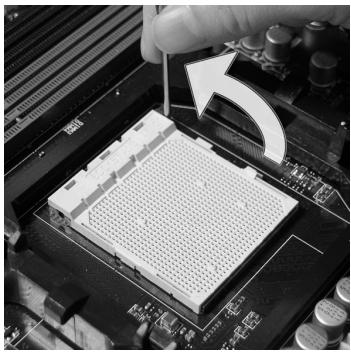
- If the CPU is correctly installed, the pins should be completely embedded into the socket and can not be seen. Please note that any violation of the correct installation procedures may cause permanent damages to your mainboard.
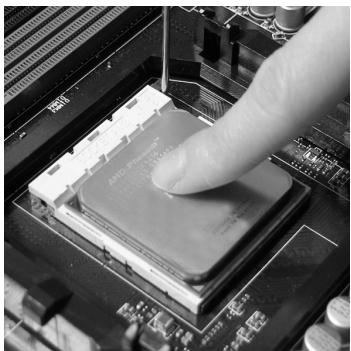
- Look for the gold arrow of the CPU. The gold arrow should point as shown in the picture. The CPU can only fit in the correct orientation.
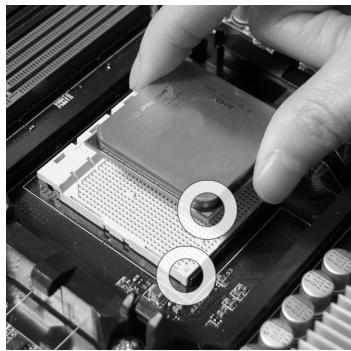
- Press the CPU down firmly into the socket and close the lever. As the CPU is likely to move while the lever is being closed, always close the lever with your fingers pressing tightly on top of the CPU to make sure the CPU is properly and completely embedded into the socket.
- Position the cooling set onto the retention mechanism.
Hook one end of the clip to hook first.
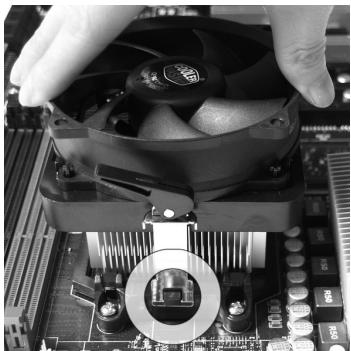
- Fasten down the lever.
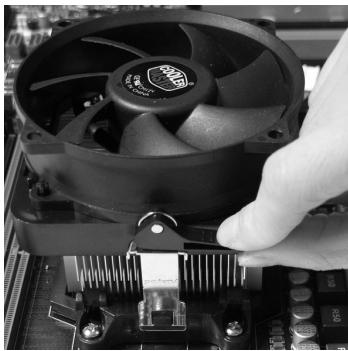
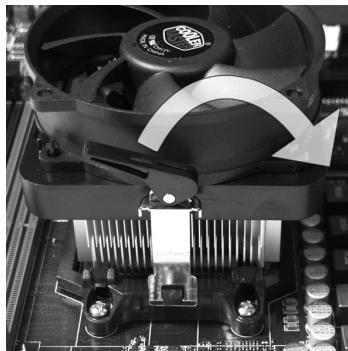
- Then press down the other end of the clip to fasten the cooling set on the top of the retention mechanism.
Locate the Fix Lever and lift up it.
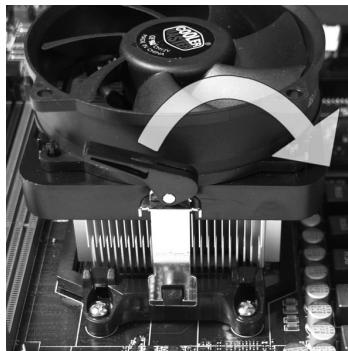
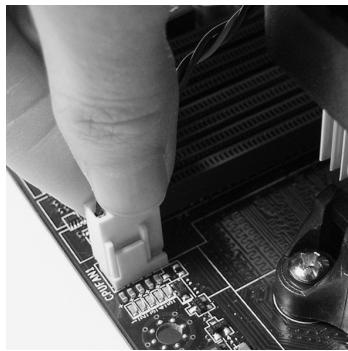
- Attach the CPU Fan cable to the CPU fan connector on the mainboard.
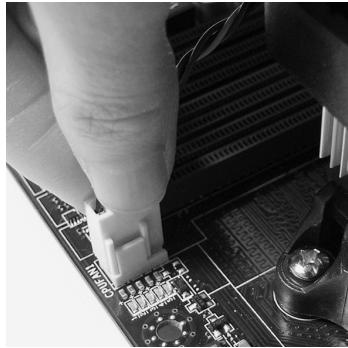
Important
- Mainboard photos shown in this section are for demonstration only. The appearance of your mainboard may vary depending on the model you purchase.
- While disconnecting the Safety Hook from the fixed bolt, it is necessary to keep an eye on your fingers, because once the Safety Hook is disconnected from the fixed bolt, the fixed lever will spring back instantly.
Memory
These DIMM slots are used for installing memory modules. For more information on compatible components, please visit http://www.msi.com/index.php?func=testreport
DDR3
240-pin, 1.5V

Dual-Channel mode Population Rule
In Dual-Channel mode, the memory modules can transmit and receive data with two data bus lines simultaneously. Enabling Dual-Channel mode can enhance the system performance. The following illustrations explain the population rules for Dual-Channel mode.

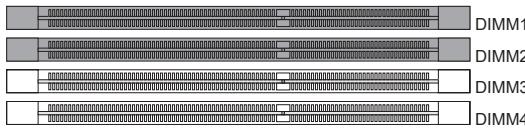

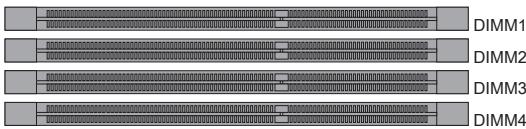
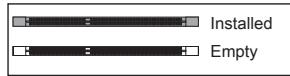
Important
- DDR3 memory modules are not interchangeable with DDR2 and the DDR3 standard is not backwards compatible. You should always install DDR3 memory modules in the DDR3 DIMM slots.
- In Dual-Channel mode, make sure that you install memory modules of the same type and density in different channel DIMM slots.
- To ensure a successful system boot-up, always insert the memory modules into the DIMM1 first.
- Due to the chipset resource deployment, the system density will only be detected up to 15+GB (not full 16GB) when each DIMM is installed with a 4GB memory module.
Installing Memory Modules
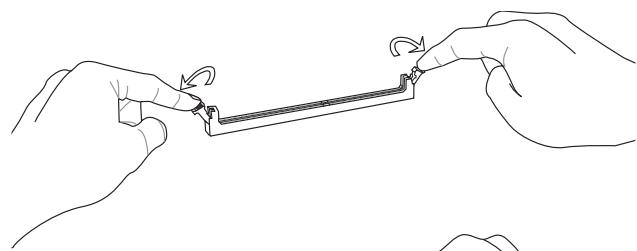
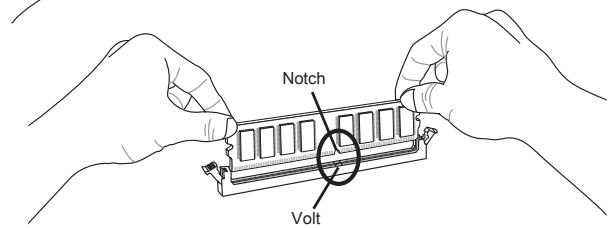
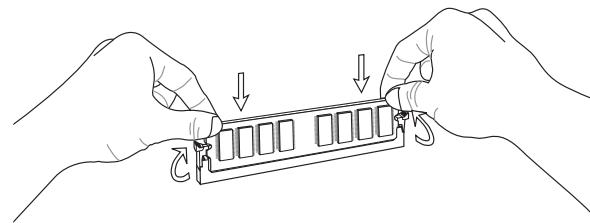
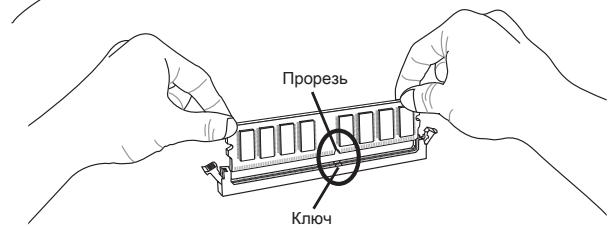
- The memory module has only one notch on the center and will only fit in the right orientation.
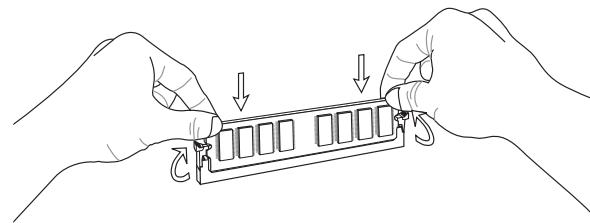
- Insert the memory module vertically into the DIMM slot. Then push it in until the golden finger on the memory module is deeply inserted in the DIMM slot. The plastic clip at each side of the DIMM slot will automatically close when the memory module is properly seated.
- Manually check if the memory module has been locked in place by the DIMM slot clips at the sides.
Important
You can barely see the golden finger if the memory module is properly inserted in the DIMM slot.
Power Supply
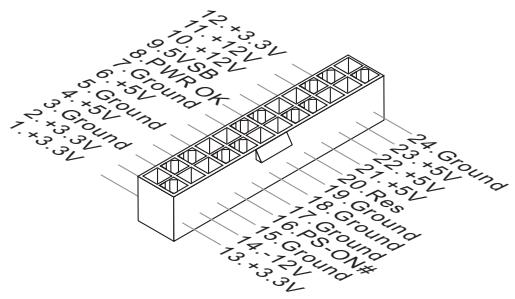
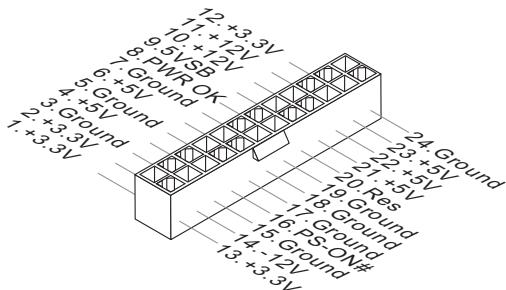
ATX 24-pin Power Connector: JPWR1
This connector allows you to connect an ATX 24-pin power supply. To connect the ATX 24-pin power supply, make sure the plug of the power supply is inserted in the proper orientation and the pins are aligned. Then push down the power supply firmly into the connector.
You may use the 20-pin ATX power supply as you like. If you'd like to use the 20-pin ATX power supply, please plug your power supply along with pin 1 & pin 13.
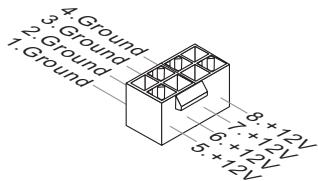
ATX 8-pin Power Connector: JPWR2
This connector provides 12V power output to the CPU.
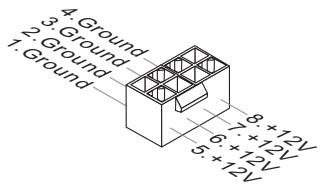
Important
- Make sure that all the connectors are connected to proper ATX power supplies to ensure stable operation of the mainboard.
Back Panel
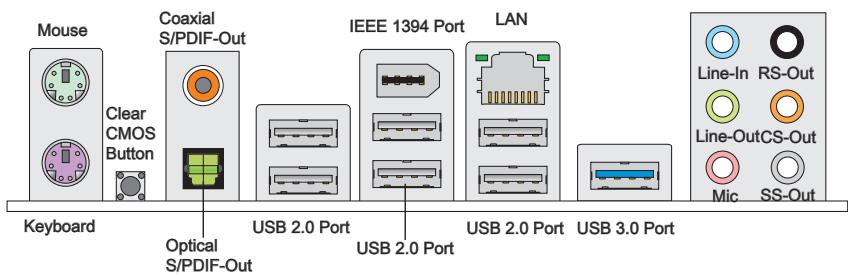
Mouse/Keyboard
The standard PS/2 mouse/keyboard DIN connector is for a PS/2 mouse/keyboard.
Clear CMOS Button
There is a CMOS RAM on board with an external battery power supply to preserve the system configuration data. With the CMOS RAM, the system can automatically boot OS every time it is turned on. If you want to clear the system configuration, use the button to clear data. Press the button to clear the data.
Important
Make sure that you power off the system before clearing CMOS data.
After pressing this button to clear CMOS data in power off (G3) state, the system will boot automatically.
Coaxial S/PDIF-Out
This S/PDIF (Sony & Philips Digital Interconnect Format) connector is provided for digital audio transmission to external speakers through a coaxial cable.
Optical S/PDIF-Out
This S/PDIF (Sony & Philips Digital Interconnect Format) connector is provided for digital audio transmission to external speakers through an optical fiber cable.
USB 2.0 Port
The USB (Universal Serial Bus) port is for attaching USB devices such as keyboard, mouse, or other USB-compatible devices. Supports data transfer rate up to 480Mbit/s (Hi-Speed).
- IEEE 1394 Port (optional)
The IEEE 1394 port on the back panel provides connection to IEEE 1394 devices.
USB 3.0 Port
USB 3.0 port is backward-compatible with USB 2.0 devices. It supports data transfer rate up to 5 Gbit/s (SuperSpeed).
Important
If you want to use a USB 3.0 device, you must use the USB 3.0 cable to connect to the USB 3.0 port.
LAN
The standard RJ-45 LAN jack is for connection to the Local Area Network (LAN). You can connect a network cable to it.
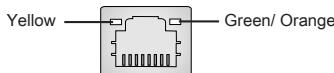
| LED | Color | LED State | Condition |
| Left | Yellow | Off | LAN link is not established. |
| On(Steady state) | LAN link is established. | ||
| On(brighter & pulsing) | The computer is communicating with another computer on the LAN. | ||
| Right | Green | Off | 10 Mbits/sec data rate is selected. |
| On | 100 Mbits/sec data rate is selected. | ||
| Orange | On | 1000 Mbits/sec data rate is selected. |
Audio Ports
These audio connectors are used for audio devices. It is easy to differentiate between audio effects according to the color of audio jacks.
- Line-In (Blue) - Line In, is used for external CD player, tape-player or other audio devices. Line-Out (Green) - Line Out, is a connector for speakers or headphones.
- Mic (Pink) - Mic, is a connector for microphones. RS-Out (Black) - Rear-Surround Out in 4/5.1/7.1 channel mode. CS-Out (Orange) - Center/ Subwoofer Out in 5.1/7.1 channel mode. SS-Out (Gray) - Side-Surround Out 7.1 channel mode.
Connectors
Floppy Disk Drive Connector: FDD1
This connector supports 360 KB, 720 KB, 1.2 MB, 1.44 MB or 2.88 MB floppy disk drive.
* The MB layout in this figure is for reference only.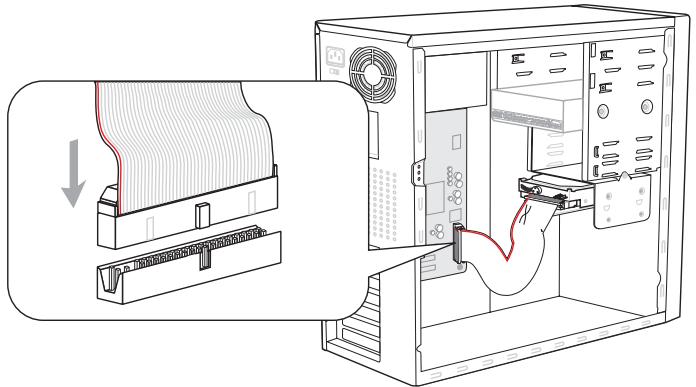
IDE Connector: IDE1
This connector supports IDE hard disk drives, optical disk drives and other IDE devices.
* The MB layout in this figure is for reference only.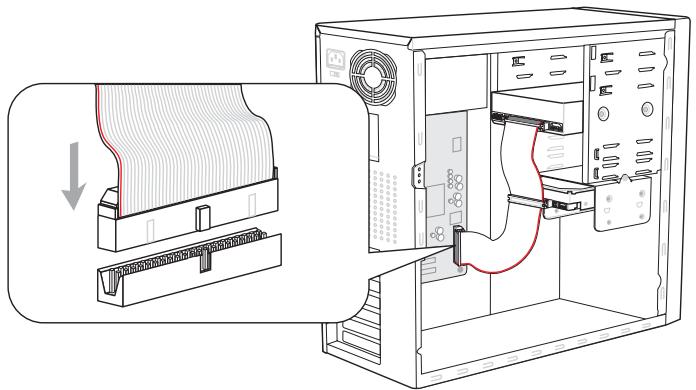
Important
If you install two IDE devices on the same cable, you must configure the drives separately to master / slave mode by setting jumpers. Refer to IDE device's documentation supplied by the vendors for jumper setting instructions.
Serial ATA Connector: SATA1~8
This connector is a high-speed Serial ATA interface port. Each connector can connect to one Serial ATA device.
* The MB layout in this figure is for reference only.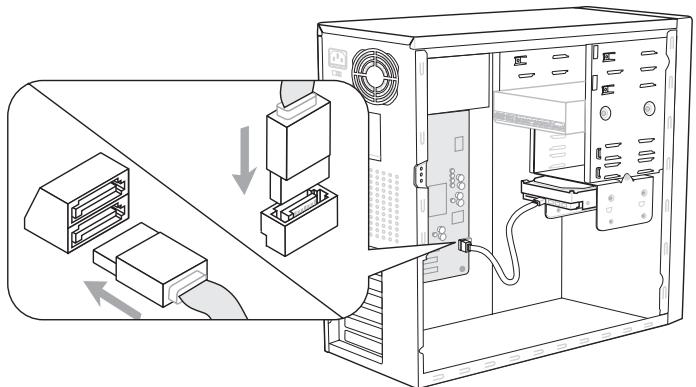
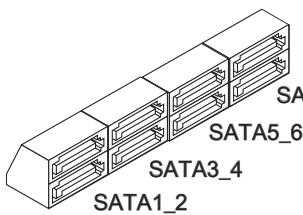
SATA7/ SATA8 (6Gb/s)
supported by Marvell® 88SE9128 (optional)
SATA1~6 (3Gb/s)
supported by AMD® SB710
Important
- Please do not fold the Serial ATA cable into a 90-degree angle. Otherwise, data loss may occur during transmission.
- Please note that setting the "PCI Express x4/x1 Slot" as [x4] under "Integrated Peripherals" in BIOS will disable the SATA 6 Gb/s ports (SATA7~8) and PCIE x1 slot (PCI_E1).
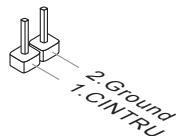
Chassis Intrusion Connector: JCI1
This connector connects to the chassis intrusion switch cable. If the chassis is opened, the chassis intrusion mechanism will be activated. The system will record this status and show a warning message on the screen. To clear the warning, you must enter the BIOS utility and clear the record.
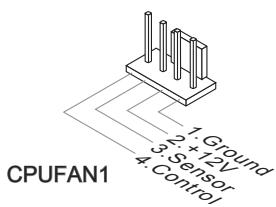
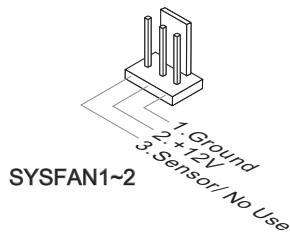
Fan Power Connectors: CPUFAN1, SYSFAN1~2
The fan power connectors support system cooling fan with +12V. When connecting the wire to the connectors, always note that the red wire is the positive and should be connected to the +12V; the black wire is Ground and should be connected to GND. If the mainboard has a System Hardware Monitor chipset on-board, you must use a specially designed fan with speed sensor to take advantage of the CPU fan control.
Important
- Please refer to the recommended CPU fans at processor's official website or consult the vendors for proper CPU cooling fan.
- CPUFAN1 supports fan control. You can install Control Center utility that will automatically control the CPU fan speed according to the actual CPU temperature.
- Fan cooler set with 3 or 4 pins power connector are both available for CPUFAN1.
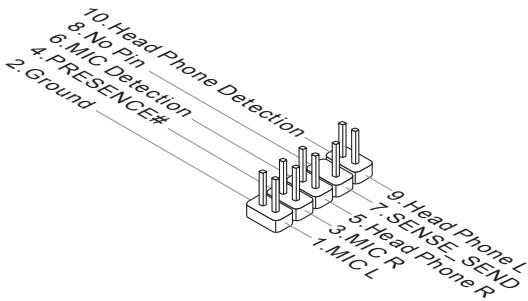
Front Panel Audio Connector: JAUD1
This connector allows you to connect the front panel audio and is compliant with Intel® Front Panel I/O Connectivity Design Guide.
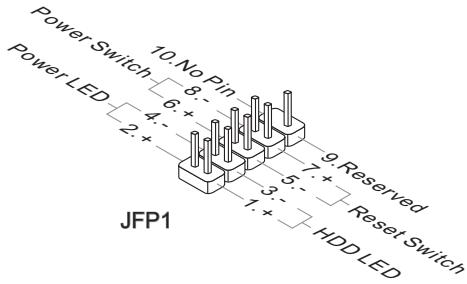
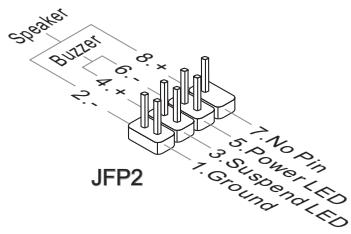
Front Panel Connectors: JFP1, JFP2
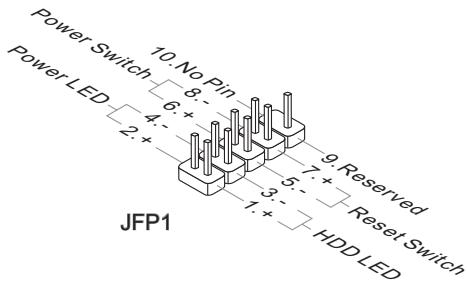
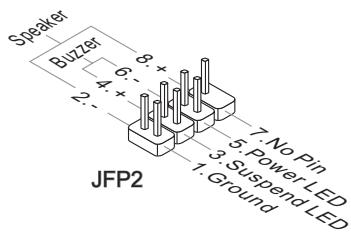
These connectors are for electrical connection to the front panel switches and LEDs. The JFP1 is compliant with Intel® Front Panel I/O Connectivity Design Guide.
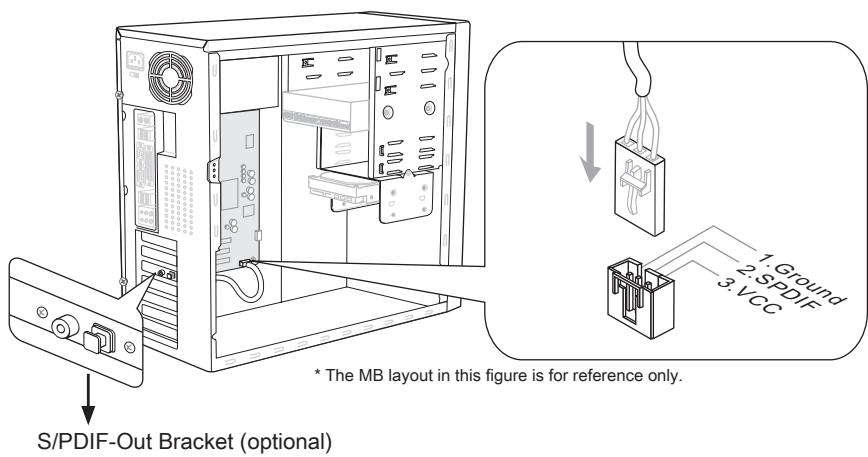
S/PDIF-Out Connector: JSP1
This connector is used to connect S/PDIF (Sony & Philips Digital Interconnect Format) interface for digital audio transmission.
Front USB Connector: JUSB1 / JUSB2 / USB3
In addition to being compliant with Intel® I/O Connectivity Design Guide, this connector is also ideal for connecting high-speed USB interface peripherals such as USB HDD, digital cameras, MP3 players, printers, modems and the like.
USB 2.0 Bracket (optional)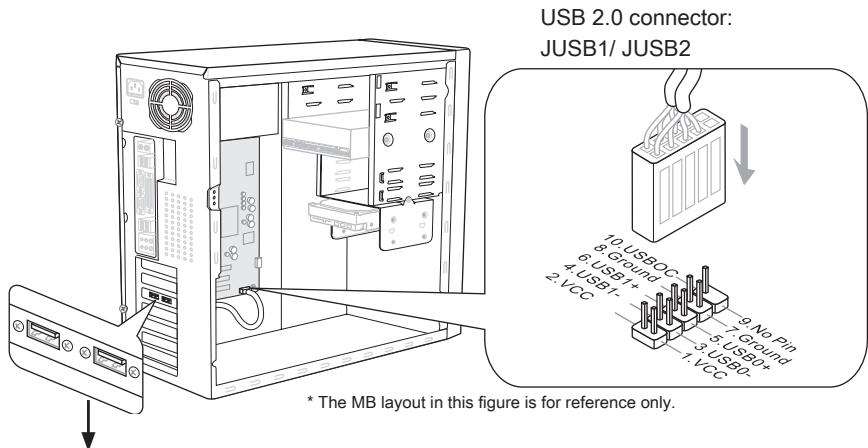
USB 3.0 connector: USB3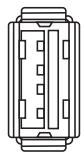
Important
- Note that the pins of VCC and GND must be connected correctly to avoid possible damage.
- If you want to use a USB 3.0 device, you must use the USB 3.0 cable to connect to the USB 3.0 connector.
CD-In Connector: JCD1
This connector is provided for external audio input.
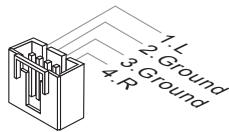
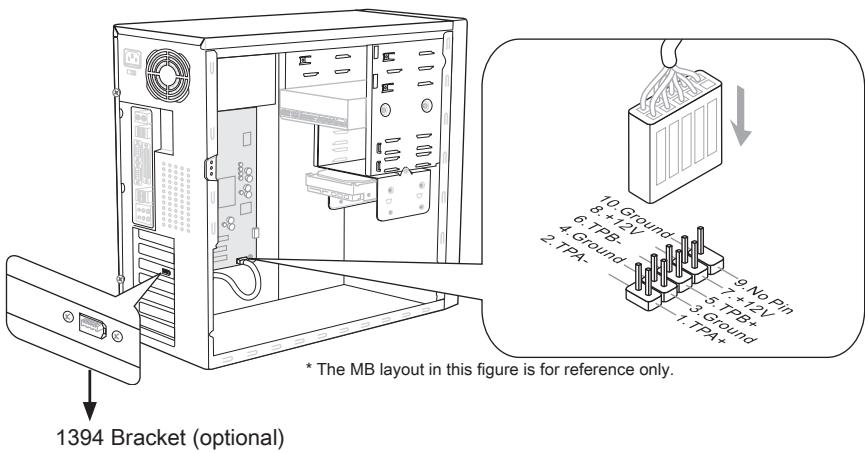
IEEE 1394 Connector: J1394_1
This connector allows you to connect an IEEE 1394 device via an optional IEEE 1394 bracket.
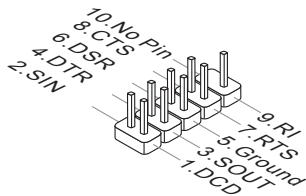
Serial Port Connector: JCOM1
This connector is a 16550A high-speed communication port that sends/receives 16-byte FIFOs. You can attach a serial device.
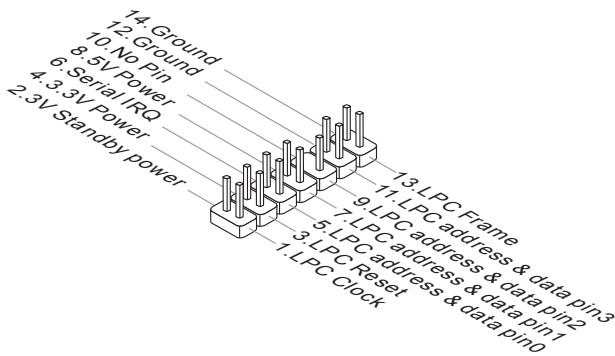
TPM Module Connector: JTPM1
This connector connects to a TPM (Trusted Platform Module) module (optional). Please refer to the TPM security platform manual for more details and usage.
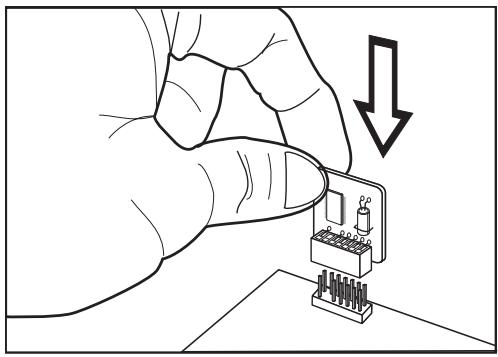
Jumpers
Clear CMOS Jumper: JBAT1
There is a CMOS RAM on board with an external battery power supply to preserve the system configuration data. With the CMOS RAM, the system can automatically boot the OS every time it is turned on. If you want to clear the system configuration, set the jumper to clear data.

JBAT1

Keep Data

Clear Data
Important
You can clear CMOS by shorting pins 2-3 while the system is off. Then return to pins 1-2 position. Avoid clearing the CMOS while the system is on; it will damage the mainboard.
Button
This section will explain how to change your mainboard's function through the use of the OC Genie button.
OC Genie Button: TURBO1
This button is used to auto-overclock the system. When the system is in a power off state, pressing the button will enable OC Genie. The button will light up and lock into place. After booting up, the system will automatically detect the optimum values to overclock. To disable the OC Genie function, please press the button again after powering off the system. The button light will turn off, and the system will restore the default setting.

Important
- When using OC Genie, installation of DDR3 1333 and up memory and a better CPU cooler is highly recommended.
- We do not guarantee the OC Genie overclocking range and the damages or risks caused by the OC Genie overclocking behavior.
- You can disable the OC Genie function in BIOS setup. And we suggest you to save the OC Genie configuration to overclocking profile in BIOS for future using.
- The usage of OC Genie is at your own risk. Overclocking is never guaranteed by MSI.
Slots
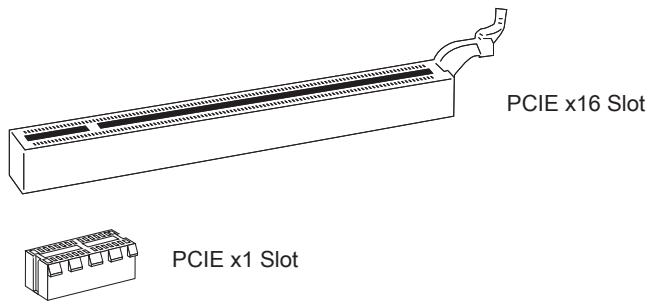
PCIE (Peripheral Component Interconnect Express) Slot
The PCIE slot supports the PCIE interface expansion card.
PCI (Peripheral Component Interconnect) Slot
The PCI slot supports LAN card, SCSI card, USB card, and other add-on cards that comply with PCI specifications.
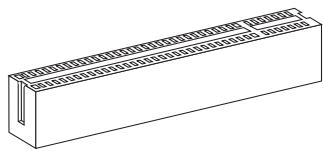
32-bit PCI Slot
Important
When adding or removing expansion cards, make sure that you unplug the power supply first. Read the documentation for the expansion card to configure any necessary hardware or software settings for it, such as jumpers, switches or BIOS configuration.
PCI Interrupt Request Routing
IRQ, or interrupt request line, are hardware lines over which devices can send interrupt signals to the microprocessor. The PCI IRQ pins are typically connected to the PCI bus pins as follows:
| Order1 | Order2 | Order3 | Order4 | |
| PCI Slot1 | INT E# | INT F# | INT G# | INT H# |
| PCI Slot2 | INT F# | INT G# | INT H# | INT E# |
| PCI Slot3 | INT G# | INT H# | INT E# | INT F# |
LED Status Indicators
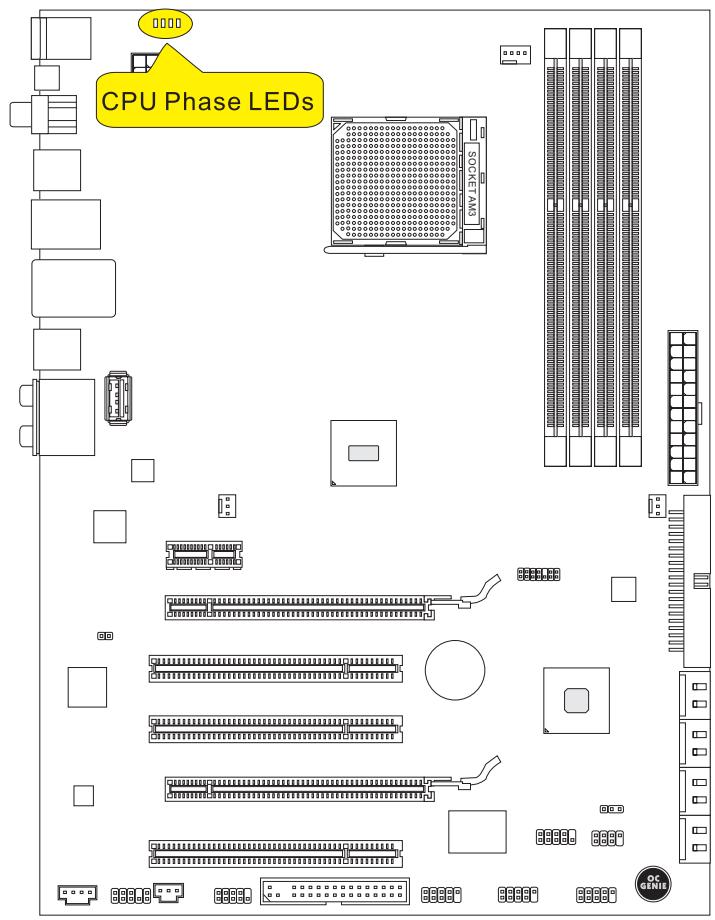
CPU Phase LEDs
These LEDs indicate the current CPU power phase mode. Follow the instructions below to read.
Lights Off
| CPU is in 1 phase power mode. | |
| CPU is in 4 phase power mode. |
BIOS Setup
This chapter provides basic information on the BIOS Setup program and allows you to configure the system for optimum use. You may need to run the Setup program when:
- An error message appears on the screen during the system booting up, and requests you to run BIOS SETUP. You want to change the default settings for customized features.
Important
- The items under each BIOS category described in this chapter are under continuous update for better system performance. Therefore, the description may be slightly different from the latest BIOS and should be held for reference only.
- Upon boot-up, the 1st line appearing after the memory count is the BIOS version. It is usually in the format:
A7599AMS V25.X 071010 where:
1st digit refers to BIOS maker as A = AMI , W = AWARD , and P = PHOENIX . 2nd - 5th digit refers to the model number.
6th digit refers to the chipset as I = Intel, N = NVIDIA, A = AMD and V = VIA. 7th - 8th digit refers to the customer as MS = all standard customers.
V25.X refers to the BIOS version.
071010 refers to the date this BIOS was released.
Entering Setup
Power on the computer and the system will start POST (Power On Self Test) process. When the message below appears on the screen, press key to enter Setup.
Press DEL to enter SETUP
If the message disappears before you respond and you still wish to enter Setup, restart the system by turning it OFF and On or pressing the RESET button. You may also restart the system by simultaneously pressing , , and keys.
Getting Help
After entering the Setup menu, the first menu you will see is the Main Menu.
Main Menu
The main menu lists the setup functions you can make changes to. You can use the arrow keys (↑↓) to select the item. The on-line description of the highlighted setup function is displayed at the bottom of the screen.
Sub-Menu
If you find a right pointer symbol appears to the left of certain fields that means a submenu can be launched from this field. A sub-menu contains additional options for a field parameter. You can use arrow keys (↑↓) to highlight the field and press to call up the sub-menu. Then you can use the control keys to enter values and move from field to field within a sub-menu. If you want to return to the main menu, just press the .
The BIOS setup program provides a General Help screen. You can call up this screen from any menu by simply pressing <F1> . The Help screen lists the appropriate keys to use and the possible selections for the highlighted item. Press <Esc> to exit the Help screen.
The Main Menu
Once you enter BIOS CMOS Setup Utility, the Main Menu will appear on the screen. The Main Menu allows you to select from the setup functions and two exit choices. Use arrow keys to select among the items and press to accept or enter the sub-menu.
Standard CMOS Features
Advanced BIOS Features Integrated Peripherals Power Management Setup H/V Monitor Green Power BIOS Setting Password
Cell Menu M-Flash Overclocking Profile
Load Fail-Safe Defaults
Load Optimized Defaults
Save & Exit Setup
Exit Without Saving
Standard CMOS Features
Use this menu for basic system configurations, such as time, date etc.
Advanced BIOS Features
Use this menu to setup the items of the BIOS special enhanced features.
Integrated Peripherals
Use this menu to specify your settings for integrated peripherals.
Power Management Setup
Use this menu to specify your settings for power management.
H/W Monitor
This entry shows your PC health status.
Green Power
Use this menu to specify the power phase.
BIOS Setting Password
Use this menu to set the password for BIOS.
Cell Menu
Use this menu to specify your settings for frequency/voltage control and overclocking.
M-Flash: Use this menu to read/flash the BIOS from a storage drive (FAT/FAT32 format only). Overclocking Profile: Use this menu to save/load your settings to/from CMOS for BIOS.
Load Fail-Safe Defaults: Use this menu to load the default values set by the BIOS vendor for stable system performance. Load Optimized Defaults: Use this menu to load the default values set by the mainboard manufacturer specifically for optimal performance of the mainboard. Save & Exit Setup: Save changes to CMOS and exit setup. Exit Without Saving: Abandon all changes and exit setup.
When entering the BIOS Setup utility, follow the processes below for general use.
- Load Optimized Defaults: Use control keys (up/down) to highlight the Load Optimized Defaults field and press <Enter>, a message as below appears:
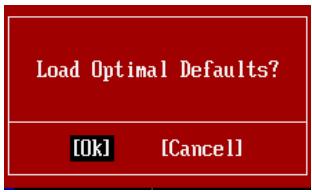
Select [Ok] and press Enter to load the default settings for optimal system performance.
- Setup Date/Time: Select the Standard CMOS Features and press to enter the Standard CMOS Features menu. Adjust the Date, Time fields.

- Save & Exit Setup: Use the control keys (up/down arrows) to highlight the Save & Exit Setup field and press Enter. A message will appear as shown below:
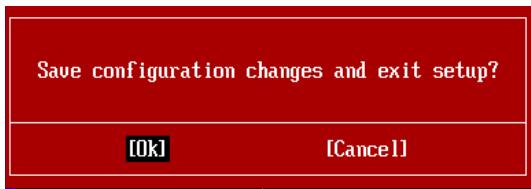
Select [Ok] and press Enter to save the configurations and exit the BIOS Setup utility.
Important
The configurations above are for general use only. If you need detailed BIOS settings, please refer to the English manual on the MSI website.
- Cell Menu Introduction: This menu is for advanced users who want to overclock the mainboard.
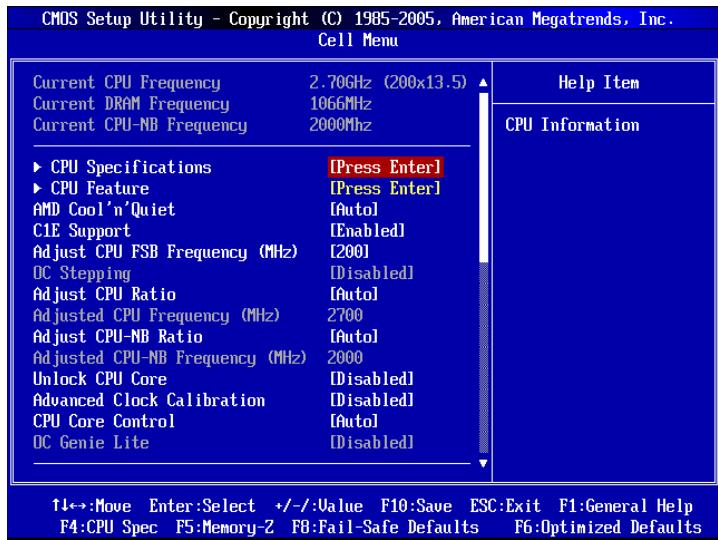
Important
Change these settings only if you are familiar with the chipset.
Current CPU / DRAM / CPU-NB Frequency: These items show the current clocks of the CPU, memory, and CPU-NB speed. Read-only. ▸ CPU Specifications
Press Enter to enter the sub-menu. This submenu shows the information of the installed CPU.
▸ CPU Technology Support
Press Enter to enter the sub-menu. This sub-menu shows the technologies that the installed CPU supports.
▸ CPU Feature
Press Enter to enter the sub-menu.
AMD Cool'n'Quiet
The Cool'n'Quiet technology can effectively and dynamically lower CPU speed and power consumption.
Important
To ensure that Cool'n'Quiet function is activated and will be working properly, it is required to double confirm that:
- Run BIOS Setup, and select Cell Menu. Under Cell Menu, find AMD Cool'n'Quiet, and set this item to "Enabled".
- Enter Windows, and select [Start]->[Settings]->[Control Panel]->[Power Options]. Enter Power Options Properties tag, and select Minimal Power Management under Power schemes.
C1E Support To enable this item to read the CPU power consumption while idle. Not all processors support Enhanced Halt state (C1E). SVM Support
This item is used to enable/disable SVM.
AMD Cool'n'Quiet
The Cool'n'Quiet technology can effectively and dynamically lower CPU speed and power consumption.
C1E Support To enable this item to read the CPU power consumption while idle. Not all processors support Enhanced Halt state (C1E). Adjust CPU FSB Frequency (MHz) This item allows you to select the CPU Front Side Bus clock frequency (in MHz). OC Stepping
This item will be enabled after you set the overclocking frequency in the "Adjust CPU FSB Frequency (MHz)". And the following items will appear. This items will help the system to overclock step by step after system booting up.
Start OC Stepping From (MHz) This item is used to set the initial FSB clock. The system will boot with the initial FSB clock, and start to overclock from initial FSB clock to set FSB clock that you set in "Adjust CPU FSB Frequency (MHz)" step by step. OC Step This item is used to set how many steps for FSB clock overclocking. OC Step Count Timer
This item is used to set the buffer time for every step.
Adjust CPU Ratio
This item is used to adjust CPU clock multiplier (ratio). It is available only when the processor supports this function.
Adjusted CPU Frequency (MHz) It shows the adjusted CPU frequency. Read-only. Adjust CPU-NB Ratio
This item is used to adjust CPU-NB ratio.
Adjusted CPU-NB Frequency (MHz)
It shows the adjusted CPU NB frequency. Read-only.
Unlock CPU Core
This item is used to unlock the CPU core. Please refer to the procedures below for CPU core unlocked in BIOS setup.
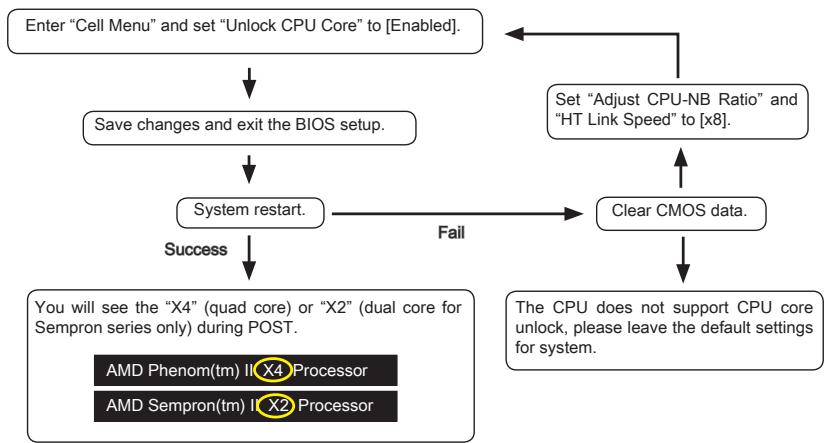
Important
- This CPU core unlocked behavior depends on the CPU ability/ characteristic, and it is not guaranteed.
- Depend on CPU's characteristic, once you get instable scenario, please restore the default settings for system.
- You can also check the core numbers in performance tab of Windows task manager.
Advanced Clock Calibration
This item is for overclocking. Setting to [Enabled] allows you to set the CPU Ratio higher. It is available only when the processor supports this function.
▸ CPU Core Control
This item allows you to select the number of active processor cores.
▸ OC Genie Lite
Setting this item to [Enabled] allows the system to detect the maximum FSB clock and to overclock automatically. If overclocking fails to run, you can try the lower FSB clock for overclocking successfully.
▸ MEMORY-Z
Press to enter the sub-menu.
> DIMM1~4 Memory SPD Information
Press to enter the sub-menu. The sub-menu displays the information of installed memory.
▸ Advance DRAM Configuration
Press to enter the sub-menu.
DRAM Timing Mode This field has the capacity to automatically detect all of the DRAM timing. ▸ DRAM Drive Strength
This item allows you to control the memory data bus' signal strength. Increasing the drive strength of the memory bus can increase stability during overclocking. DRAM Advance Control
This field has the capacity to automatically detect the advanced DRAM timing. If you set this field to [DCT 0], [DCT 1] or [Auto], some fields will appear and selectable.
1T/2T Memory Timing
This item controls the SDRAM command rate. Selecting [1T] makes the SDRAM signal controller run at 1T (T=clock cycles) rate. Selecting [2T] makes the SDRAM signal controller run at 2T rate. DCT Unganged Mode
This feature is used to integrate two 64-bit DCTs into a 128-bit interface.
Bank Interleaving
Bank Interleaving is an important parameter for improving the overclocking capability of memory. It allows the system to access multiple banks simultaneously. Power Down Enable
This is a memory power-saving technology. When the system does not access memory over a period of time, it will automatically reduce the memory power supply. MemClk Tristate C3/ATLVID
This setting allows you to enable/disable the MemClk Tristating during C3 and ATLVID.
FSB/DRAM Ratio
This item allows you to select the ratio of FSB/DRAM.
Adjusted DRAM Frequency (MHz)
It shows the adjusted memory frequency. Read-only.
HT Link Control
Press to enter the sub-menu.
HT Incoming/Outgoing Link Width
These items allow you to set the Hyper-Transport link width. Setting to [Auto], the system will detect the HT link width automatically.
HT Link Speed
This item allows you to set the Hyper-Transport Link speed. Setting to [Auto], the system will detect the HT link speed automatically.
Adjusted HT Link Frequency (MHz)
It shows the adjusted HT Link frequency. Read-only.
Adjust PCI-E Frequency (MHz)
This field allows you to select the PCIE frequency (in MHz).
Auto Disable DRAM/PCI Frequency
When set to [Enabled], the system will remove (turn off) clocks from empty DRAM/PCI slots to minimize the electromagnetic interference (EMI).
- CPU VDD Voltage (V)/CPU-NB VDD Voltage (V)/CPU Voltage (V)/CPU-NB Voltage (V)/CPU DDR-PHY Voltage (V)/DRAM Voltage (V)/NB Voltage (V)/NB PCI-E Voltage (V)/SB Voltage (V)/HT Link Voltage (V)
These items are used to adjust the voltage of CPU, Memory and chipset.
Spread Spectrum
When the mainboard's clock generator pulses, the extreme values (spikes) of the pulses create EMI (Electromagnetic Interference). The Spread Spectrum function reduces the EMI generated by modulating the pulses so that the spikes of the pulses are reduced to flatter curves.
Important
- If you do not have any EMI problem, leave the setting at [Disabled] for optimal system stability and performance. But if you are plagued by EMI, select the value of Spread Spectrum for EMI reduction.
- The greater the Spread Spectrum value is, the greater the EMI is reduced, and the system will become less stable. For the most suitable Spread Spectrum value, please consult your local EMI regulation.
- Remember to disable Spread Spectrum if you are overclocking because even a slight jitter can introduce a temporary boost in clock speed which may just cause your overclocked processor to lock up.
Software Information
Take out the Driver/Utility DVD that is included in the mainboard package, and place it into the DVD-ROM drive. The installation will auto-run, simply click the driver or utility and follow the pop-up screen to complete the installation. The Driver/Utility DVD contains the:
- Driver menu: The Driver menu shows the available drivers. Install the driver by your desire and to activate the device.
- Utility menu: The Utility menu shows the software applications that the mainboard supports.
Important
Please visit the MSI website to get the latest drivers and BIOS for better system performance.

German
870A-G55/
870U-G55 Series
Specifications
Processors
Front panel connectors: JFP1, JFP2

Important
Press DEL to enter SETUP
Advanced BIOS Features Integrated Peripherals Power Management Setup H/W Monitor Green Power BIOS Setting Password
Cell Menu M-Flash Overclocking Profile
Load Fail-Safe Defaults
Load Optimized Defaults
Save & Exit Setup
Exit Without Saving
Standard CMOS Features
Advanced BIOS Features
Integrated Peripherals
BIOS Setting Password
Overclocking Profile
Current CPU / DRAM / CPU-NB Frequency
CPU Technology Support
Adjust CPU FSB Frequency (MHz)
Start OC Stepping From (MHz)
Adjusted CPU Frequency (MHz)
Adjusted CPU-NB Frequency (MHz)
Advanced Clock Calibration
Adjusted DRAM Frequency (MHz)
HT Incoming/Outgoing Link Width
Adjusted HT Link Frequency (MHz)
Adjust PCI-E Frequency (MHz)
CPU VDD Voltage (V)/CPU-NB VDD Voltage (V)/CPU Voltage (V)/CPU-NB Voltage (V)/CPU DDR-PHY Voltage (V)/DRAM Voltage (V)/NB Voltage (V)/NB PCI-E Voltage (V)/SB Voltage (V)/HT Link Voltage (V)
PCIE Slot (Peripheral Component Interconnect Express)
PCI Slot (Peripheral Component Interconnect)
Press DEL to enter SETUP
Advanced BIOS Features Integrated Peripherals Power Management Setup H/W Monitor Green Power BIOS Setting Password
Cell Menu > N-Flash Overclocking Profile
Load Fail-Safe Defaults
Load Optimized Defaults
Save 8 Exit Setup
Exit Without Saving
Standard CMOS Features
CPU Technology Support
Adjust CPU FSB Frequency (MHz)
Adjusted CPU Frequency (MHz)
It shows the adjusted CPU frequency. Read-only.
Adjust CPU-NB Ratio
Adjusted CPU-NB Frequency (MHz)
Advanced Clock Calibration
Adjusted DRAM Frequency (MHz)
HT Incoming/Outgoing Link Width
Adjusted HT Link Frequency (MHz)
Adjust PCI-E Frequency (MHz)
Placement of System Board Components
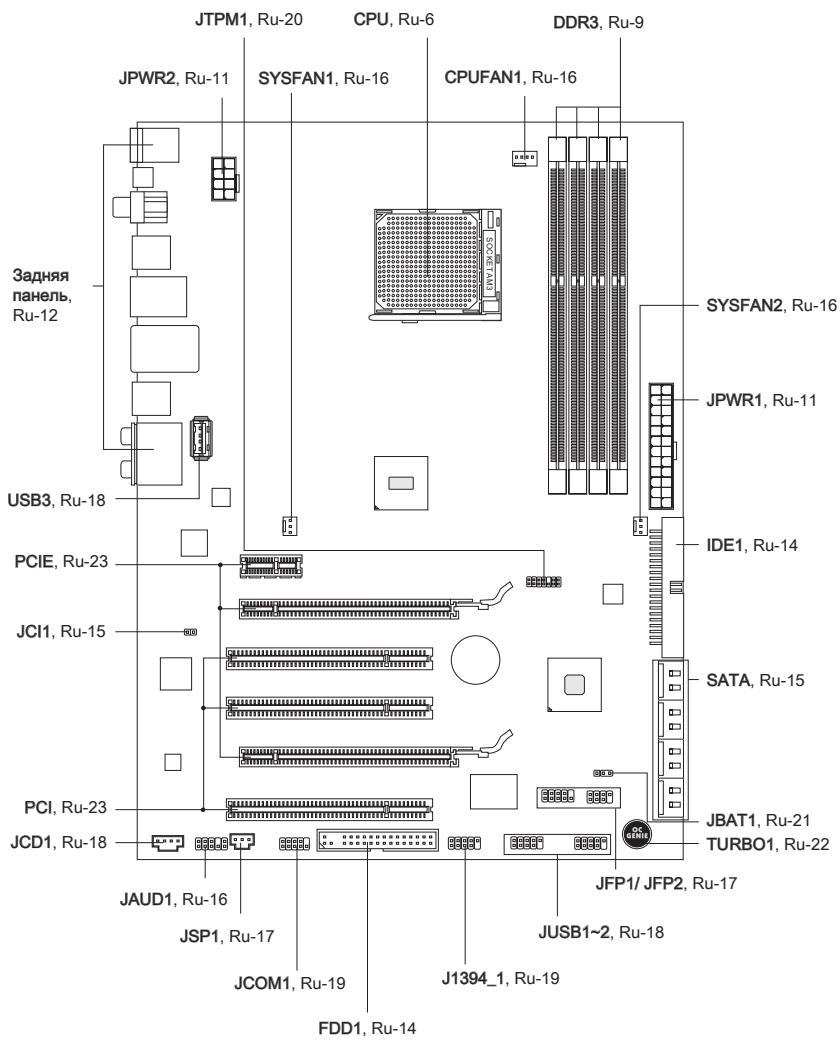
When installing the system board, you must insert it into the chassis in the correct orientation. The positions of the screw holes are shown in the figure.
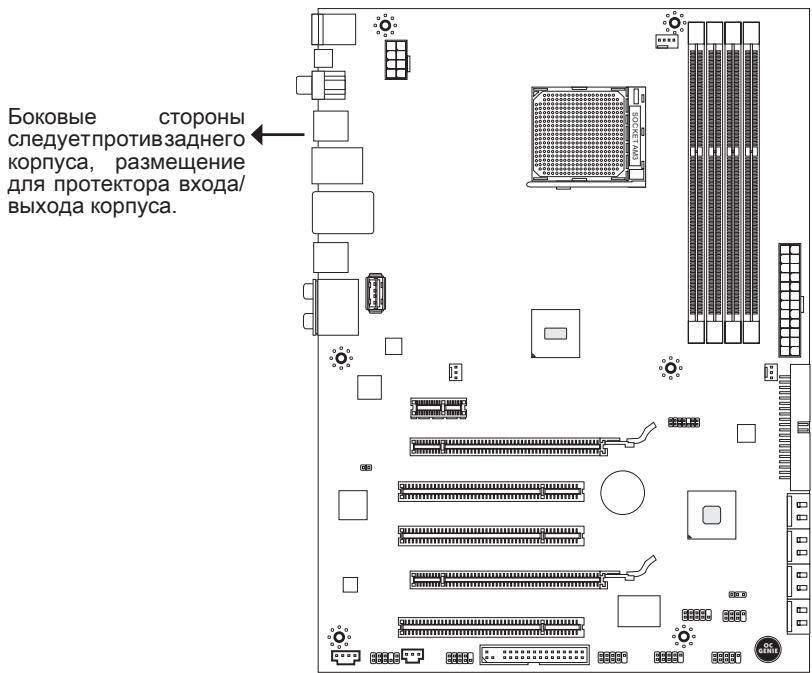

Follow the instructions above to install the bracket in the correct place in the chassis, and then insert the screws through the screw holes in the bracket.
Warning
To avoid damage to the system board, contact between the wires of the system board and the chassis is not allowed. The bracket must be installed in the chassis. - Make sure that there is no metal component on the system board that can cause a short circuit.
CPU (Central Processor Unit)
When installing the CPU, to prevent the processor from overheating, do not forget to install the processor cooler. If you do not have a processor cooler, please contact your dealer to purchase and install it before turning on the computer.
- Then press on the other side to install the heatsink onto the retention module. Pull the locking lever and lift it.
- Connect the CPU fan cable to the corresponding connector on the system board.
Warning
- The photos of the system board in this section are for demonstration only. The appearance of your model may differ from what is shown here.
- When releasing the locking lever, be careful, as the lever is spring-loaded and will return to its original position when released.
Memory
DIMM modules are used for installing memory modules. For more information about compatible components, please visit our website.
http://www.msi.com/index.php?func=testreport
DDR3
240-pin, 1.5V

Rules for installing memory modules for operation in
dual-channel mode
In dual-channel mode, memory modules can transmit and receive data on 2 channels simultaneously. When using dual-channel mode, system performance is increased. Below are the rules for filling memory slots to work in dual-channel mode.
①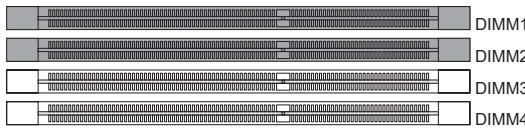
②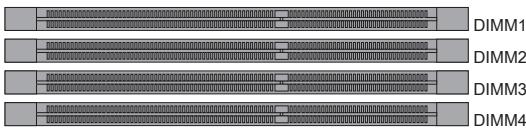
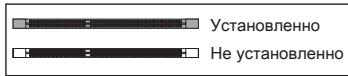
WARNING
- DDR3 modules are not interchangeable with DDR2 modules, and DDR3 slots are not backward compatible. Always install DDR3 memory modules into DDR3 DIMM slots. -For operation in dual-channel mode, make sure that in the slots of different channels you have installed modules of the same type and identical capacity.
- For the system to boot, first install the module into the DIMM1 slot.
- Due to system resource allocation specifications, the total available memory may be up to 15+GB (but not 16GB) when installing 4GB memory modules in each of the slots.
Installing memory modules
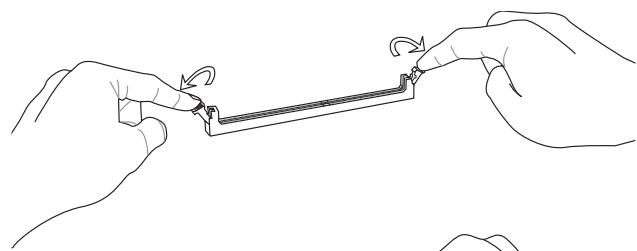
- Memory modules have one notch in the middle part. The module will fit into the slot only with correct orientation.
- Insert the module into the DIMM slot in a vertical direction. Then press on it so that the gold contacts are deeply inserted into the DIMM slot. If the memory module is inserted correctly, the plastic clips on both sides will close automatically.
- Visually verify that the module is secured in the DIMM slot by the clips on both sides.
BhimaHue
30-pin connector for ATX power supply, if the memory modules are correctly placed in the DIMM slots.
Power Connectors
24-pin ATX Power Connector: JPWR1
This connector allows you to connect a 24-pin ATX power supply. Before plugging it in, make sure that the connector and the pins of the connector are correctly oriented. Then firmly insert it into the connector on the system board.
You can also use a 20-pin ATX power block. When using a 20-pin connector, plug it in along pins 1 and 13.
8-pin Power Connector for CPU: JPWR2
This power connector is used to provide 12V power to the processor.
CAUTION
- Make sure that all connectors are connected to the ATX power supply for stable operation of the system board.
Back Panel
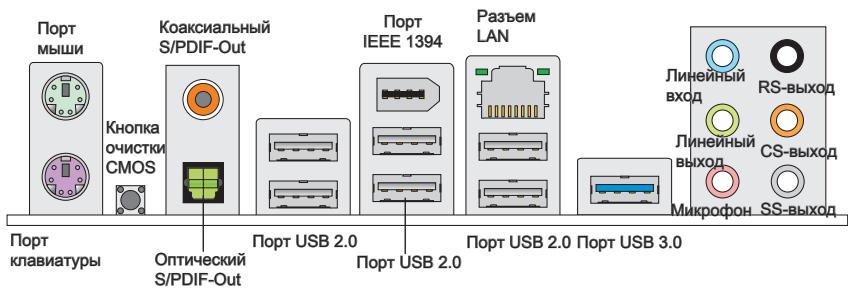
* Components of the system board in the illustration are for reference only.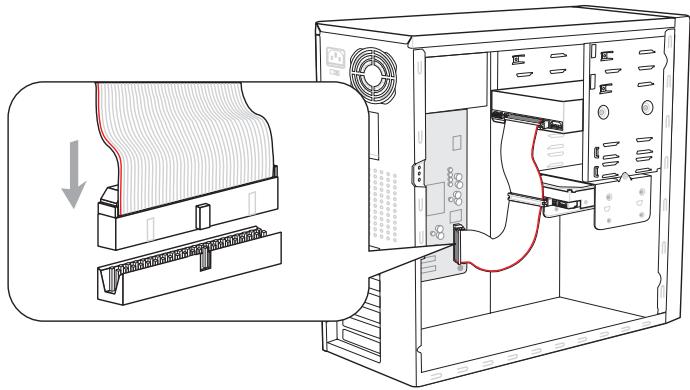
CAUTION
These connectors are used to connect buttons and indicators located on the front panel of the chassis. The connector JFP1 corresponds to the Intel® Front Panel I/O Connectivity Design Guide.
S/PDIF-Out Connector: JSP1
PCIe (Peripheral Component Interconnect Express) slot
The PCIe slot allows you to install PCI Express interface cards.
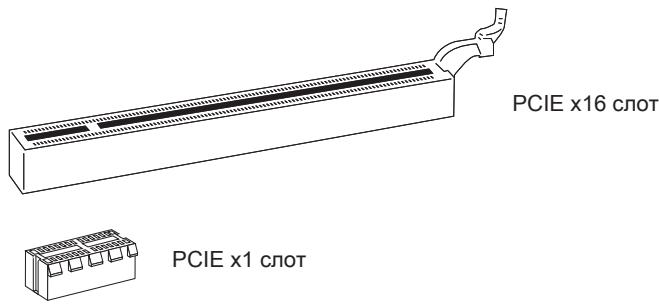
PCI (Peripheral Component Interconnect) slot
The PCI slot allows you to install LAN, SCSI, USB, and other expansion cards that comply with the PCI specification.
32-bit PCI slot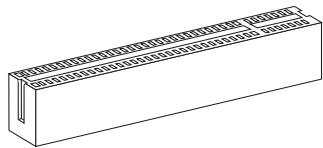
Attention
Before installing or removing expansion cards, make sure that the power cables are disconnected from the electrical outlet. Read the documentation that came with the expansion card and perform any necessary hardware or software settings for that card, such as jumpers, switches, or BIOS configuration.
PCI interrupt request mapping
IRQ - abbreviation for interrupt request (line) - a hardware line through which devices can send interrupt signals to the microprocessor. The typical connection of PCI IRQ to the PCI slot pins is shown below:
| Приказ1 | Приказ2 | Приказ3 | Приказ4 | |
| PCI сnot1 | INT E# | INT F# | INT G# | INT H# |
| PCI сnot2 | INT F# | INT G# | INT H# | INT E# |
| PCI сnot3 | INT G# | INT H# | INT E# | INT F# |
LED indicators
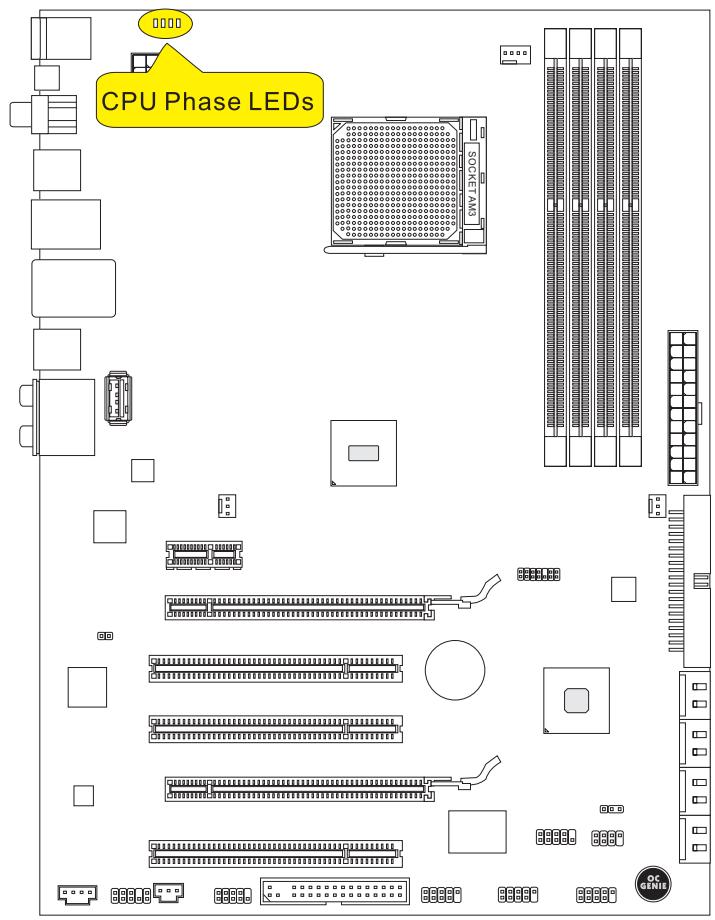
Indicator 1: CPU
These indicators show the working mode of the CPU power supply. Information about the state of the indicators is given in the table.

On

Off
| CPU IncpnoIb3yET 1 φa3y pIITAHIA. | |
| CPU IncpnoIb3yET 4 φa3bI pIITAHIA. |
BIOS setup
When the computer boots, new information about the BIOS setup mode (BIOS SETUP) appears, which allows you to set the optimal system configuration. This mode may be needed in the following cases:
During system boot, a message about an error appears with a request to run BIOS SETUP. It is necessary to replace the factory settings with your own.
Warning
The first letter corresponds to the BIOS manufacturer (A = AMI, W = AWARD, and P = PHOENIX).
The next four digits correspond to the model number.
The next two letters indicate the chipset manufacturer (I = Intel, N = Nvidia, A = AMD, and V = VIA).
The next two letters indicate the language (MS = standard language).
V25.X corresponds to the BIOS version number.
Press DEL to enter SETUP
(Press DEL to enter SETUP)
If the message disappears and you did not have time to press the key, restart the system by turning off and on the power, or by pressing the RESET button. You can also restart the system by pressing the keys , , and simultaneously.
Setup Mode
After entering the setup mode, you will see the main menu.
Main Menu
The main menu contains a list of settings that you can change. To select, you can use the arrow keys (↑↓). Information about the selected setting is displayed at the bottom of the screen.
Submenu
If you notice that a menu item has a right-pointing arrow sign, it means there is a submenu containing additional settings that can be made in this item. Use the control keys (↑ ↓) to select, and then press to invoke the submenu. Then you can use the control keys to enter parameters and move through the submenu items. To return to the main menu, simply press .
Help
In the BIOS setup mode, there is a possibility to get detailed help. It can be invoked from any menu by simply pressing . In the help window, all possible settings in the selected menu item will be listed. Press to turn off the help.
The Main Menu
When entering the setup mode, the main menu is displayed on the screen. The main menu allows you to select setup functions and has two exit options. To navigate through the items, use the arrow keys and to confirm or enter the submenu.
Standard CMOS Features
Advanced BIOS Features Integrated Peripherals Power Management Setup H/W Monitor Green Power BIOS Setting Password
Cell Menu > N-Flash Overclocking Profile
Load Fail-Safe Defaults
Load Optimized Defaults
Save & Exit Setup
Exit Without Saving
> Standard CMOS Features
This menu allows you to set the basic parameters of the system configuration (date, time, etc.).
Advanced BIOS Features
This menu is used to configure special functions.
Integrated Peripherals
This menu is used to configure parameters of built-in peripheral devices.
Power Management Setup
This menu allows you to set power management parameters for the system.
H/W Monitor
This item displays the hardware status of the PC.
Green Power
This menu is used for power saving modes.
BIOS Setting Password
This menu is used to set a password.
Cell Menu
This menu allows you to control clock frequencies and voltages when overclocking the system.
M-Flash is used to read/flash BIOS from an external storage device (FAT/FAT32 only). Overclocking Profile is used to save and load overclocking parameters in/from CMOS BIOS.
Load Fail-Safe Defaults
This menu is used to load the BIOS values set by the manufacturer for stable system operation.
Load Optimized Defaults (Set Optimized Defaults) This menu is used to load the default settings for optimal performance of the motherboard. Save & Exit Setup (Exit with saving settings) Saves changes to CMOS and exits the setup mode. Exit Without Saving (Exit without saving)
Cancels all changes and exits the setup mode.
In general, while in the BIOS setup mode, it is recommended to perform the following actions.
- Load Optimized Defaults: Using the arrow keys ( ), select the item Load Optimized Defaults and press , the following message will appear:
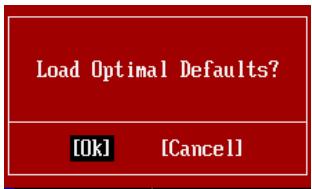
Press [Ok] to load the default settings for optimal system performance.
Do not change these settings if you are not familiar with the fine-tuning features.
Current CPU / DRAM / CPU-NB Frequency
These items show the current CPU frequency and memory speed and CPU-NB. For information only.
CPU Specifications
Press to enter the submenu. The submenu shows information about the installed CPU.
CPU Technology Support
Press to enter the submenu. The submenu shows the technologies supported by the installed CPU.
CPU Feature
Press Enter to enter the item.
AMD Cool'n'Quiet
The Cool'n'Quiet technology allows you to effectively dynamically change the CPU frequency and system power consumption.
ATTENTION
To make sure that the Cool'n'Quiet technology is enabled and works correctly, you must:
- Enter the BIOS Setup program and select the Cell Menu. Find AMD Cool'n'Quiet under Cell Menu, and set it to "Enabled".
- In Windows, select [Start]->[Settings]->[Control Panel]->[Power Options]. Enter Power Options Properties, select Minimal Power Management in Power schemes.
C1E Support
Enable this item to reduce CPU power consumption when it is not working. Not all processors support Enhanced Halt state (C1E). SVM Support
This item is used to enable/disable SVM.
AMD Cool'n'Quiet
The Cool'n'Quiet technology allows you to effectively dynamically change the CPU frequency and system power consumption.
C1E Support
Enable this item to reduce power consumption when the CPU is not working. Not all processors support Enhanced Halt state (C1E). Adjust CPU FSB Frequency (MHz) This item allows you to select the CPU FSB frequency (in MHz). OC Stepping
This item appears after setting the overclocking frequency in "Adjust CPU FSB Frequency (MHz)". It allows you to overclock step by step after system boot.
Start OC Stepping From (MHz)
This item allows you to set the initial value of the FSB clock. The system will boot with the initial FSB clock value, and then start overclocking the system step by step from the initial value as set in "Adjust CPU FSB Frequency (MHz)".
OC Step This item is used to set the step size for overclocking the FSB clock. ► OC Step Count Timer
This item is used to set the delay time for each step.
Adjust CPU Ratio This item is used to adjust the CPU multiplier. It is only available when the CPU supports this function. Adjusted CPU Frequency (MHz) This item displays the current CPU frequency. For reference only. Adjust CPU-NB Ratio This item is used to adjust the CPU-NB frequency. Adjusted CPU-NB Frequency (MHz) This item displays the current CPU-NB frequency. For reference only.
Unlock CPU Core
This item is used to unlock the CPU core. Follow the instructions to unlock the CPU core in the BIOS setup.
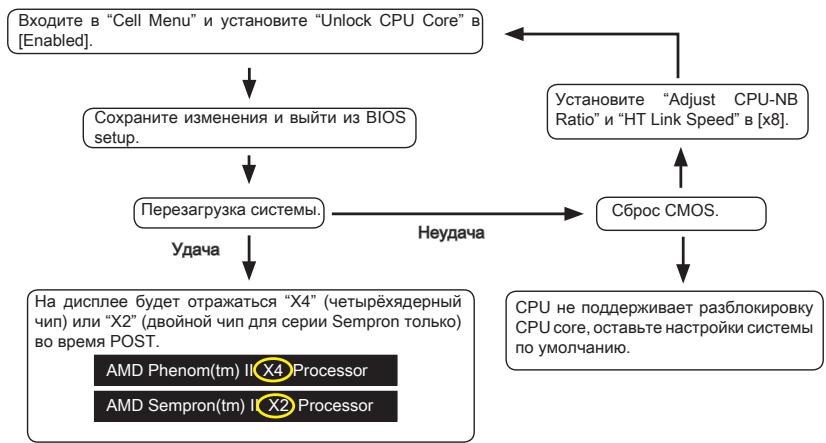
Caution
- The action of unlocking the CPU core depends on the CPU's capabilities/characteristics and is not guaranteed.
Depending on the CPU characteristics, if an unstable situation occurs, please restore the system settings to default.
- You can also check the number of cores in the Windows Task Manager.
Advanced Clock Calibration
This item is used for overclocking. Setting it to [Enabled] allows you to set the CPU frequency higher. It is only available when the CPU supports this function.
► CPU Core Control
This item is used to select the number of active CPU cores.
▸ OC Genie Lite
Setting this item to [Enabled] allows the system to automatically determine the maximum FSB frequency for overclocking. If overclocking fails, you can reduce the FSB clock frequency to overclock successfully.
▸ MEMORY-Z
Press <Enter> to enter the submenu.
DIMM1~4 Memory SPD Information
Press <Enter> to enter the submenu. This item displays the information about the installed memory modules.
▸ Advance DRAM Configuration
Press <Enter> to enter the submenu.
DRAM Timing Mode
This item allows the system to automatically determine all DRAM timing parameters. ▸ DRAM Drive Strength
This option allows you to control the signal shape of the data lines of the memory. Increasing the steepness of the signal front may improve system stability when overclocking. DRAM Advance Control
This item allows the system to automatically determine all DRAM timing parameters. When setting the value to [DCT 0], [DCT 1] or [Auto], some items will appear and become accessible.
1T/2T Memory Timing
This item determines the speed of SDRAM command issuance. Selecting [1T] puts the SDRAM signal controller into 1T mode (T=clock cycles). Selecting [2T] puts the SDRAM signal controller into 2T mode.
DCT Unganged Mode
This item allows combining 64-bit data into a single 128-bit interface. Bank Interleaving
Bank Interleaving is an important parameter that affects memory performance. Enabling it allows accessing multiple memory banks simultaneously. Power Down Enable This item controls the power saving technology. When there is no access to memory for some time, the system automatically reduces power to the memory. MemCik Tristate C3/ATLVID
This item allows enabling/disabling the operating mode with three states during C3 and ATLVID.
FSB/DRAM Ratio
This item allows adjusting the FSB and DRAM frequencies.
Adjusted DRAM Frequency (MHz)
This item displays the actual memory frequency. For information only.
HT Link Control
Press Enter to enter the submenu.
HT Incoming/Outgoing Link Width
This item determines the width of the incoming/outgoing HT link. When set to [Auto], the system automatically determines the HT link width.
HT Link Speed
This item allows setting the transfer speed over the HyperTransport link. When set to [Auto], the system automatically determines the HT link speed.
Adjusted HT Link Frequency (MHz) This item displays the actual clock frequency of the HT link. For information only. Adjust PCI-E Frequency (MHz) This item allows setting the PCIE frequency (MHz). Auto Disable DRAM/PCI Frequency
When set to [Enabled], the system will disable unused PCI and DRAM frequencies, which reduces the level of electromagnetic interference (EMI). CPU VDD Voltage (V)/CPU-NB VDD Voltage (V)/CPU Voltage (V)/CPU-NB Voltage (V)/CPU DDR-PHY Voltage (V)/DRAM Voltage (V)/NB Voltage (V)/NB PCI-E Voltage (V)/SB Voltage (V)/HT Link Voltage (V) These items allow adjusting the voltage of the CPU, memory, and chipset. Spread Spectrum
The spread spectrum function of the system board generates smoothed pulses, which reduces electromagnetic interference (EMI).
Deletion
- If you do not have interference problems, leave the value [Disabled] for better stability and performance. However, if you encounter electromagnetic interference, select Spread Spectrum to reduce it. The lower the Spread Spectrum value, the less stable the system becomes. To choose the appropriate Spread Spectrum value, refer to the electromagnetic interference levels set by legislation.
- Do not forget to disable the Spread Spectrum function if you are overclocking the system board. This is necessary because even slight jitter in the clock generator signals can cause the overclocked processor to fail.
Software Information
Insert the Driver/Utility DVD into the DVD drive. The installation will start automatically. Click on the driver/utility name and follow the on-screen instructions to complete the installation. The Driver/Utility disc contains:
- Driver menu - Displays a list of available drivers. Install the drivers for the devices you need.
- Utility menu - Shows utilities that are supported by the system board.
WARNING
Please visit the MSI website for the latest drivers and BIOS, which can improve system performance.
- TRADEMARKS
- REVISION HISTORY
- TECHNICAL SUPPORT
- SAFETY INSTRUCTIONS
- FCC-B RADIO FREQUENCY INTERFERENCE STATEMENT
- NOTICE
- WEEE (WASTE ELECTRICAL AND ELECTRONIC EQUIPMENT) STATEMENT
- ENGLISH
- DEUTSCH
- MAINBOARD SPECIFICATIONS
- PROCESSOR SUPPORT
- HYPERTRANSPORT
- CHIPSET
- MEMORY SUPPORT
- LAN
- IEEE
- AUDIO
- SATA
- IMPORTANT
- USB
- RAID
- FLOPPY
- CONNECTORS
- SLOTS
- FORM FACTOR
- MOUNTING
- QUICK COMPONENTS GUIDE
- SCREW HOLES
- CPU (CENTRAL PROCESSING UNIT)
- OVERHEATING
- REPLACING THE CPU
- OVERCLOCKING
- INTRODUCTION TO AM3 CPU
- CPU & COOLER INSTALLATION
- MEMORY
- DUAL-CHANNEL MODE POPULATION RULE
- INSTALLING MEMORY MODULES
- POWER SUPPLY
- ATX 24-PIN POWER CONNECTOR: JPWR
- ATX 8-PIN POWER CONNECTOR: JPWR
- BACK PANEL
- MOUSE/KEYBOARD
- CLEAR CMOS BUTTON
- COAXIAL S/PDIF-OUT
- OPTICAL S/PDIF-OUT
- USB 2.0 PORT
- FLOPPY DISK DRIVE CONNECTOR: FDD
- IDE CONNECTOR: IDE
- SERIAL ATA CONNECTOR: SATA
- CHASSIS INTRUSION CONNECTOR: JCI
- FAN POWER CONNECTORS: CPUFAN1, SYSFAN
- FRONT PANEL AUDIO CONNECTOR: JAUD
- FRONT PANEL CONNECTORS: JFP1, JFP
- S/PDIF-OUT CONNECTOR: JSP
- FRONT USB CONNECTOR: JUSB1 / JUSB2 / USB
- CD-IN CONNECTOR: JCD
- IEEE 1394 CONNECTOR: J
- SERIAL PORT CONNECTOR: JCOM
- TPM MODULE CONNECTOR: JTPM
- JUMPERS
- CLEAR CMOS JUMPER: JBAT
- BUTTON
- OC GENIE BUTTON: TURBO
- PCIE (PERIPHERAL COMPONENT INTERCONNECT EXPRESS) SLOT
- PCI (PERIPHERAL COMPONENT INTERCONNECT) SLOT
- PCI INTERRUPT REQUEST ROUTING
- LED STATUS INDICATORS
- CPU PHASE LEDS
- BIOS SETUP
- ENTERING SETUP
- PRESS DEL TO ENTER SETUP
- GETTING HELP
- MAIN MENU
- SUB-MENU
- THE MAIN MENU
- STANDARD CMOS FEATURES
- UNLOCK CPU CORE
- ADVANCED CLOCK CALIBRATION
- ▸ CPU CORE CONTROL
- ▸ OC GENIE LITE
- ▸ MEMORY-Z
- DIMM1~4 MEMORY SPD INFORMATION
- SOFTWARE INFORMATION
- SPECIFICATIONS
- PROCESSORS
- OVERCLOCKING PROFILE
- ADJUSTED DRAM FREQUENCY (MHZ)
- PCIE SLOT (PERIPHERAL COMPONENT INTERCONNECT EXPRESS)
- PCI SLOT (PERIPHERAL COMPONENT INTERCONNECT)
- PLACEMENT OF SYSTEM BOARD COMPONENTS
- WARNING
- CPU (CENTRAL PROCESSOR UNIT)
- RULES FOR INSTALLING MEMORY MODULES FOR OPERATION IN
- DUAL-CHANNEL MODE
- BHIMAHUE
- POWER CONNECTORS
- PIN ATX POWER CONNECTOR: JPWR
- PIN POWER CONNECTOR FOR CPU: JPWR
- CAUTION
- ATTENTION
- PCI INTERRUPT REQUEST MAPPING
- LED INDICATORS
- INDICATOR 1: CPU
- (PRESS DEL TO ENTER SETUP)
- SETUP MODE
- SUBMENU
- HELP
- CPU CORE CONTROL
- DELETION
Brand : MSI
Model : G52-75991XR
Category : Laptop