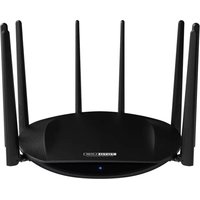
A7000R - Router Totolink - Free user manual and instructions
Find the device manual for free A7000R Totolink in PDF.


| Product Type | Wireless Router |
| Brand | Totolink |
| Model | A7000R |
| Wireless Standard | IEEE 802.11ac/n/g/b/a |
| Frequency Band | Dual Band 2.4 GHz & 5 GHz |
| Max Speed | Up to 1200 Mbps (300 Mbps on 2.4 GHz + 867 Mbps on 5 GHz) |
| Ports | 1x WAN (10/100/1000 Mbps), 4x LAN (10/100/1000 Mbps) |
| Antennas | 4x External Fixed Antennas |
| Dimensions (W x D x H) | Approx. 150 x 100 x 30 mm |
| Weight | Approx. 200 g |
| Power Supply | DC 12V / 1A |
| Security | WPA2-PSK, WPA/WPA2, WEP, SPI Firewall |
| Management | Web-based GUI, WPS Button, Reset Button |
| Special Features | Guest Network, Parental Control, QoS, IPv6 Support |
| Care & Cleaning | Keep away from moisture, clean with soft dry cloth |
| Spare Parts & Repairability | No user-serviceable parts inside; contact support for repairs |
| Certifications | FCC, CE, RoHS |
Frequently Asked Questions - A7000R Totolink
User questions about A7000R Totolink
0 question about this device. Answer the ones you know or ask your own.
Ask a new question about this device
Download the instructions for your Router in PDF format for free! Find your manual A7000R - Totolink and take your electronic device back in hand. On this page are published all the documents necessary for the use of your device. A7000R by Totolink.
USER MANUAL A7000R Totolink
- Plug in Adapter to Wall Socket, and connect the power cable to DC IN at behind of router.
- Wait router to boot up (Approximate 40-60seconds)
***If Setup using LAN Cable (Refer Left), wait until LAN ready
***If Setup using WiFi (Refer Right), select TOTOLINK_A7000R and click connect (no password require).

NOTE\*\* For best experience!
Please use Firefox / Internet Explorer / Microsoft Edge

for Setup
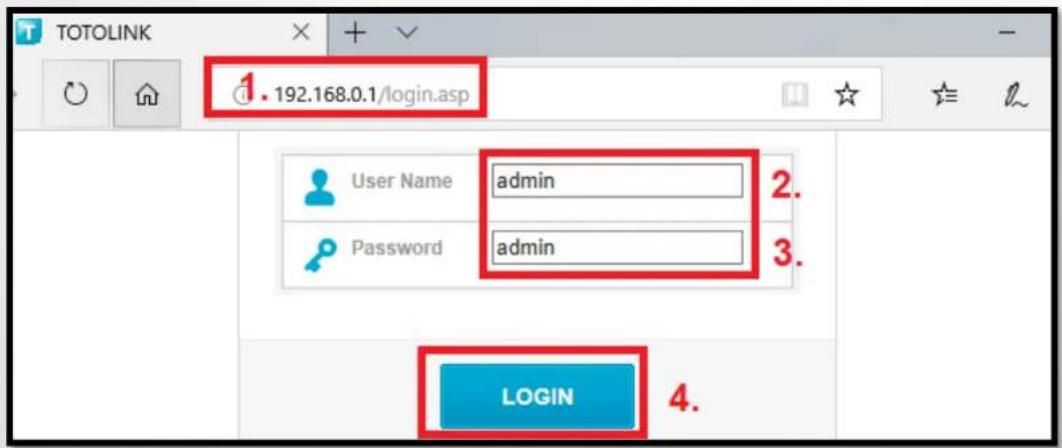
- At browser Address, type in 192.168.0.1 and enter.
- Follow steps 1>2>3>4 (Refer below image).
- User Name: admin, Password: admin > LOGIN
*Note : If unable log in FireFox
Goto – Option > Privacy & Security > History> Clear History > Tick Cookies + Active Logins + Cache> Clear Now
*Note : If unable log in Microsoft Edge
Goto – Option > Settings > Choose What to Clear > TICK ALL OPTION > Clear
NOTE: By doing above steps will clear all Browsing History
After login, follow steps 1>2>3>4 (Refer below image).
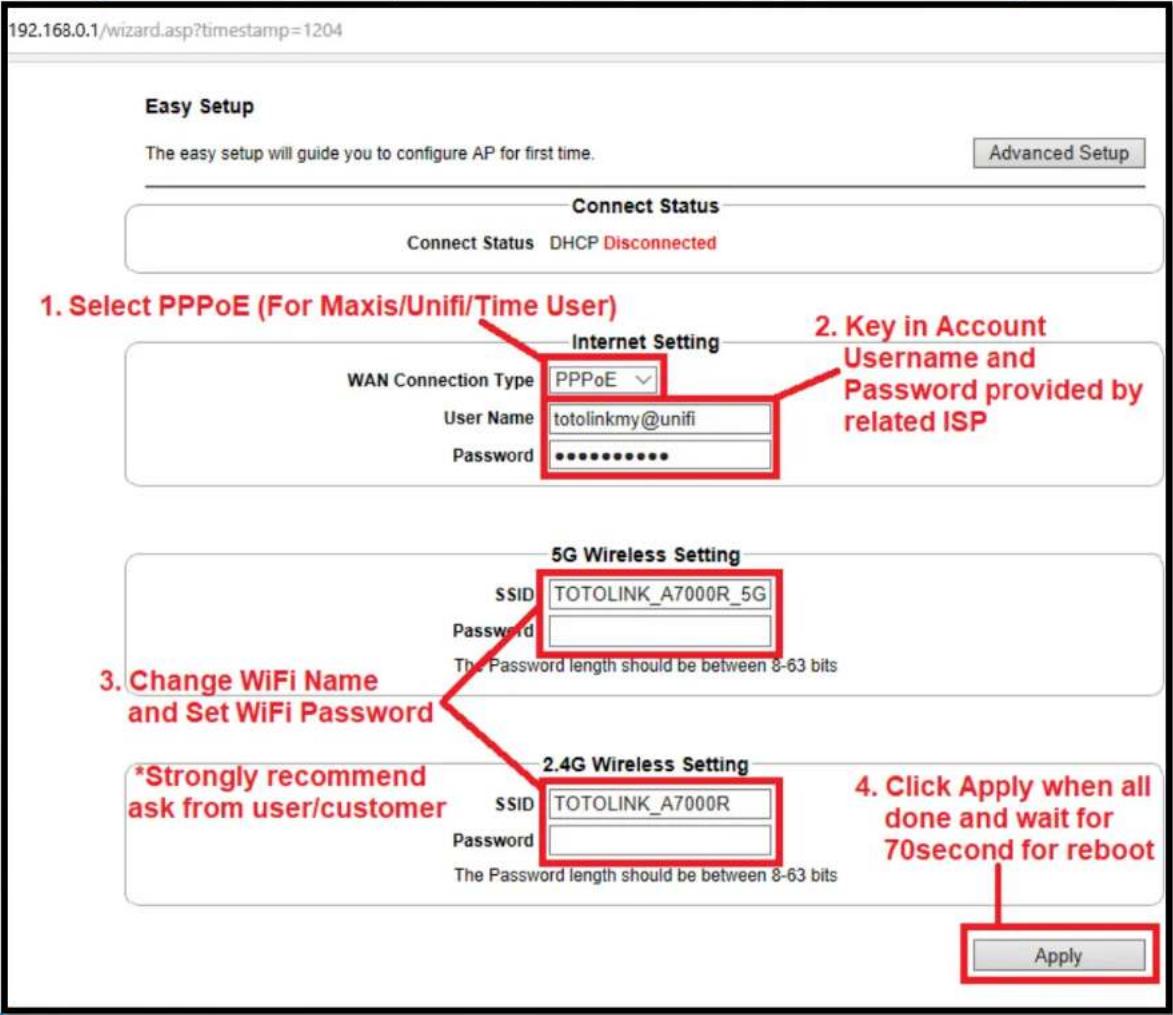
Once reboot done
***If connected with LAN Cable, open browser and repeat Page 3 log in steps.
***If connected with WiFi, select the WiFi name been change, key in WiFi password, and repeat Page 3 log in step
After Login, select "Advanced Setup" on right top of the page, Refer below image and follow steps 1>2>3


Inside the IPTV Setting, follow Steps 1>2>3 – Refer below image

Additional Information -1
IPTV
Enable
Mode
Malaysia-Unifi
Internet VLAN ID
500
Internet VLAN Priority
0
-
m = 311
m = 311
m = 311
m = 311
m = 311
m = 311
•
-
√8
02
IPTV VLAN ID
600
IPTV VLAN Priority
0
m = 311
-
m = 311
注:
m = 311
[Table_Title]
(五)
-
LAN1
IPTV
LAN2
Internet
LAN3
Internet
LAN4
Internet
WLANO
Internet
Only for IPTV purpose, if LAN cable connected here is unable to access internet.
For LAN connection only (access to Internet), if IPTV connected to these ports, it will not function.
IPTV
Enable
Mode
Malaysia-Maxis
Internet VLAN ID
IP-Phone VLAN ID
IPTV VLAN ID
621
Internet VLAN Priority
822
IP-Phone VLAN Priority
823
IPTV VLAN Priority
802.1Q Tag
For IPTV only, LAN / Phone connected here will not function.
For LAN (internet access) only.
For Phone only, if IPTV/LAN connected here will not function.
| LAN1 | IPTV |
| LAN2 | Internet |
| LAN3 | Internet |
| LAN4 | IP-Phone |
| WLAN0 | Internet |
Additional Information - 2

TOTO LINK
The Smartest Network Device
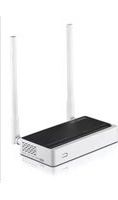
Brand : Totolink
Model : A7000R
Category : Router