
TM-U295P - Printer EPSON - Free user manual and instructions
Find the device manual for free TM-U295P EPSON in PDF.
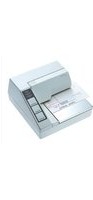


| Product Type | Thermal Receipt Printer |
| Brand | Epson |
| Model | TM-U295P |
| Dimensions (W x D x H) | 160 x 270 x 150 mm (approx.) |
| Weight | Approx. 2.5 kg |
| Power Supply | 24 VDC ±5%, 2.5 A (external adapter) |
| Power Consumption | Approx. 30 W max. |
| Printing Method | Thermal line printing |
| Print Speed | Up to 150 mm/s |
| Resolution | 203 dpi (8 dots/mm) |
| Paper Width | 80 mm (max.) / 58 mm with adapter |
| Paper Type | Roll thermal paper |
| Auto Cutter | Yes, partial cut |
| Interfaces | Serial (RS-232), USB, Ethernet (optional) |
| Barcode Printing | Support for UPC, EAN, Code 39, etc. |
| Maintenance | Clean print head with alcohol swab; avoid dust |
| Safety | Overheat protection, auto-shutdown |
| Spare Parts | Print head, cutter blade, rollers, power adapter |
| Repairability | Modular design; parts easily replaceable |
| General | Compatible with ESC/POS commands |
Frequently Asked Questions - TM-U295P EPSON
User questions about TM-U295P EPSON
0 question about this device. Answer the ones you know or ask your own.
Ask a new question about this device
Download the instructions for your Printer in PDF format for free! Find your manual TM-U295P - EPSON and take your electronic device back in hand. On this page are published all the documents necessary for the use of your device. TM-U295P by EPSON.
USER MANUAL TM-U295P EPSON
3rd floor Cibis Business Park, Jalan
T.B.Simatupang No. 2, Jakarta 12560
Reg. No: 03/DJPDN/MG/III/2001
Date: March 13, 2001
TM-U295/TM-U295P
User's Manual
No part of this publication may be reproduced, stored in a retrieval system, or transmitted in any form or by any means, electronic, mechanical, photocopying, recording, or otherwise, without the prior written permission of Seiko Epson Corporation. No patent liability is assumed with respect to the use of the information contained herein. While every precaution has been taken in the preparation of this book, Seiko Epson Corporation assumes no responsibility for errors or omissions. Neither is any liability assumed for damages resulting from the use of the information contained herein.
Neither Seiko Epson Corporation nor its affiliates shall be liable to the purchaser of this product or third parties for damages, losses, costs, or expenses incurred by purchaser or third parties as a result of: accident, misuse, or abuse of this product or unauthorized modifications, repairs, or alterations to this product, or (excluding the U.S.) failure to strictly comply with Seiko Epson Corporation's operating and maintenance instructions.
Seiko Epson Corporation shall not be liable against any damages or problems arising from the use of any options or any consumable products other than those designated as Original Epson Products or Epson Approved Products by Seiko Epson Corporation.
EPSON is a registered trademark of Seiko Epson Corporation.
Exceed Your Vision is a registered trademark or trademark of Seiko Epson Corporation.
All other trademarks are the property of their respective owners and used for identification purpose only. Product information is subject to change without due notice.
NOTICE: The contents of this manual are subject to change without notice.
©Seiko Epson Corporation 2010-2018. All rights reserved.
Safety Precautions
This section presents important information intended to ensure safe and effective use of this product. Please read this section carefully and store it in an accessible location.

WARNING:
Shut down your equipment immediately if it produces smoke, a strange odor, or unusual noise. Continued use may lead to fire. Immediately unplug the equipment and contact your dealer or a Seiko Epson service center for advice.
Never attempt to repair this product yourself. Improper repair work can be dangerous.
Never disassemble or modify this product. Tampering with this product may result in injury or fire.
Do not use this product with any voltage other than the specified one. Doing so may lead to fire or electric shock.
Do not allow foreign matter to fall into the equipment. Penetration by foreign objects may lead to fire.
If water or other liquid spills into this equipment, unplug the power cord immediately, and then contact your dealer or a Seiko Epson service center for advice. Continued usage may lead to fire.
Do not use aerosol sprayers containing flammable gas inside or around this product.
Doing so may cause fire.

CAUTION:
Do not connect cables in ways other than those mentioned in this manual. Different connections may cause equipment damage and burning.
Be sure to set this equipment on a firm, stable, horizontal surface. The product may break or cause injury if it falls.
Do not use in locations subject to high humidity or dust levels. Excessive humidity and dust may cause equipment damage or fire.
Do not place heavy objects on top of this product. Never stand or lean on this product.
Equipment may fall or collapse, causing breakage and possible injury.
To ensure safety, unplug this product before leaving it unused for an extended period.
Safety Label
The caution labels on the product indicate the following precautions.

WARNING:
Do not connect a telephone line to the drawer kick-out connector; otherwise, the printer and the telephone line may be damaged.
Restriction of Use
When this product is used for applications requiring high reliability/safety, such as transportation devices related to aviation, rail, marine, automotive, etc.; disaster prevention devices; various safety devices, etc.; or functional/precision devices, etc.; you should use this product only after giving consideration to including fail-safes and redundancies into your design to maintain safety and total system reliability. Because this product was not intended for use in applications requiring extremely high reliability/safety, such as aerospace equipment, main communication equipment, nuclear power control equipment, or medical equipment related to direct medical care, etc., please make your own judgment on this product's suitability after a full evaluation.
Downloading Drivers, Utilities, and Manuals
Drivers, utilities, and manuals can be downloaded from the following URL. http://download.epson-biz.com/?service=pos
Unpacking
The following items are included with the standard specification printer. If any item is damaged, contact your dealer.
Printer □Damper □Ribbon cassette
Printer Parts

Control Panel
RELEASE button
Press this button to insert or remove paper.
REVERSE button
Feeds paper backward.
FORWARD button
Feeds paper forward.
POWER LED
ON when the printer is on.
RELEASE LED
ON when the printer is in release mode (to insert or remove paper).
OFF when the printer is in clamp mode (to hold paper).
FLASHES to indicate an error.
PAPER OUT LED
ON when paper is not inserted or is not inserted correctly.
Removing the Transportation Damper
The printer is protected during shipping by a transportation damper that you must remove before you turn on the printer.
Pull the damper out and remove the strip of tape from the top of the printer, as shown in illustration 1.

Note:
Prepare the printer to ship or store with these steps: turn on the printer, press the RELEASE button, press the FORWARD button, turn off the printer, and reinstall the transportation damper.
Prepare the printer to ship or store with these steps: turn on the printer, press the RELEASE button, press the FORWARD button, turn off the printer, and reinstall the transportation damper.
Prepare the printer to ship or store with these steps: turn on the printer, press the RELEASE button, press the FORWARD button, turn off the printer, and reinstall the transportation damper.
Installing a Ribbon
Use the EPSON ERC-27 ribbon cassette. The use of any ribbon cassettes other than those approved by Epson may damage the printer and will void the warranty.
- Turn the printer on using the power switch on the left side.
- Press the RELEASE button (the RELEASE LED lights). This puts the printer in the paper release mode.
- Turn the printer off.

CAUTION:
Perform the steps above to make sure the printer is in the paper release mode before you install or remove a ribbon cassette.
- Open the printer cover by first pressing the ridges on the top to the left slightly and then pulling the cover forward, as shown in illustration 2.
- If there is a used ribbon, remove it by grasping the handle and pull it straight out, as shown by the arrow in illustration 3.

- Before installing the new ribbon, check that it is not creased or twisted. Then turn the feed knob in the direction of the arrow on the ribbon cassette to take up any slack in the ribbon.
- Carefully insert the ribbon cassette in the printer as shown in illustration 4. Notice exactly where the ribbon must go.
- Push firmly on the right side and then the left side of the ribbon cartridge until each side clicks into place.
- To put the cover back on the printer, first align the left side of the cover; then insert the tab on the top; then press the bottom until it clicks into place (see illustration 2).

Inserting Paper
Note:
Do not use wrinkled or curled paper. Be sure to use roll paper that meets the specifications.
- Make sure a ribbon cassette is installed in the printer.
- Turn on the printer. The POWER light comes on.
- Press the RELEASE button. The RELEASE light comes on to show that the printer is in release mode. In this mode, paper can be inserted and removed.
- Insert the paper from either the front or the side, as shown in illustration 5, until the form stopper stops it. Use the markings on the side of the printer to judge how far to insert paper.

- Check the PAPER OUT light.
When you insert the paper correctly, the PAPER OUT light goes out. If the PAPER OUT light is still on, remove the paper and reinsert it.
Troubleshooting
No lights on the control panel
Check that power supply cables are plugged into the printer correctly, the power unit, and power outlet.
Make sure power is supplied to the power outlet. If the outlet is controlled by a switch or timer, use another outlet.
The PAPER OUT light is on, and nothing is printing
Paper is not inserted or is not inserted correctly.
The RELEASE light is flashing, and nothing is printed
Indicates an error. Turn off the printer, be sure no paper is jammed, and turn it back on. If the RELEASE light still flashes, contact a qualified service person.
DIP Switch Tables
Serial interface
| SW Function ON OFF | |||
| 1 Data receive error Ignored Prints “?” | |||
| 2 Receive buffer 35 bytes 512 bytes | |||
| 3 Handshaking XON/XOFF DTR/DSR | |||
| 4 Data word length 7 bits 8 bits | |||
| 5 Parity check Yes No | |||
| 6 Parity selection Even | Odd | ||
| 7, 8 Transmission speed(See Serial transmission speed table.) | |||
| 9 Pin | 6 reset Used | Not used | |
| 10 | Pin 25 reset | Used | Not used |
Serial transmission speed
| 8 | 7 | Transmission speed |
| ON | ON | 1200 bps |
| ON | OFF 2 | 400 bps |
| OFF | ON | 4800 bps |
| OFF | OFF 9 | 600 bps |
Parallel interface
| SW | Function | ON | OFF |
| 1 | Auto line feed | Enabled | Disabled |
| 2 | Receive buffer | 35 bytes | 512 bytes |
| 3~9 | Undefined — | — | |
| 10 | Internal use | Fixed to ON |
TM-U295/TM-U295P Specifications
| Printing method Impact dot matrix, 7-pin shuttle type | |
| Printing direction Unidirectional | |
| Characters per line (default) | 5 × 7 font: 35; 7 × 7 font: 42 |
| Character matrix 5 × 7 with 1-dot spacing (normal dots)7 × 7 with 3-dot spacing (half dots) | |
| Character size 5 × 7 font: 1.6 × 2.9 mm7 × 7 font: 1.3 × 2.9 mm | |
| Number of characters | Alphanumeric characters: 95; International characters: 32Extended graphics: 128' 4 |
| Print speed 1.9 to 2.3/lines/sec. (both 5 × 7 and 7 × 7 fonts) | |
| Paper feed speed Approx. | 12.5 lines/second (52.9 mm/second) |
| Line spacing (default) 4.23 mm | |
| Paper types Normal, pressure-sensitive, and carbon-copy | |
| Paper size | 80 × 69 mm (W × L) to 182 × 257 mm (W × L) |
| Total thickness Single-ply: | 0.09 to 0.25 mmCopy paper: 0.09 to 0.35 mm |
| Number of copies Original | + 1 or 2 copies at 5 to 40°C |
| Ribbon cassette ERC-27 | |
| Interface (compatible) RS-232 serial or IEEE 1284 parallel | |
| Receive buffer 512 bytes or 35 bytes | |
| DKD Function 2 drives | |
| Power supply*1 | DC + 24 V ± 10% |
| Current consumption (at 24V) | Operating: Mean: Approx. 600 mA Peak: Approx. 5.5 AStandby: Approx 100 mA |
| Life | Mechanism: 3,000,000 linesPrint head: 150 million characters (at 2 dots/wire per character)Ribbon: 1.5 million characters (using a 5 × 7 font) |
| MTBF | 180,000 hours |
| MCBF | 7,000,000 lines |
| Temperature | Operating: 5 to 40°CStorage: -10 to 50°C, except ribbon and paper |
| Humidity | Operating: 30 to 85% RHStorage: 30 to 90% RH, except ribbon and paper |
| Overall dimensions | 101.5 × 180 × 190.5 mm (H × W × D) |
| Weight (mass) | Approximately 1.6 kg |
*1: Be sure to use a safety-standards-applied power source that meets the following specifications. Rated output: 24 V/2.0 - 10.0 A, Maximum output: 240 VA or less
TM-U295/TM-U295P
User's Guide
Note:
Indonesian
Contacting Customer Support
CIBIS Tower 9, 3rd floor Cibis Business Park, Jalan
T.B.Simatupang No. 2, Jakarta 12560
Help Desk: (021) 80866766, Fax: (021) 80866799
EPSON SUPPORT CENTER:
Jakarta: (021) 62301104, 62301103
Bandung: (022) 4207033
Surabaya: (031) 5355035
Yogyakarta: (0274) 581065
Medan: (061) 42066090, 42066091
Makassar: (0411) 8911071
Pontianak: (0561) 735507
Pekanbaru: (0761) 45895
- TM-U295/TM-U295P
- USER'S MANUAL
- SAFETY PRECAUTIONS
- WARNING
- CAUTION
- SAFETY LABEL
- RESTRICTION OF USE
- DOWNLOADING DRIVERS, UTILITIES, AND MANUALS
- UNPACKING
- PRINTER PARTS
- CONTROL PANEL
- RELEASE BUTTON
- REVERSE BUTTON
- FORWARD BUTTON
- POWER LED
- RELEASE LED
- PAPER OUT LED
- REMOVING THE TRANSPORTATION DAMPER
- NOTE
- INSTALLING A RIBBON
- INSERTING PAPER
- TROUBLESHOOTING
- NO LIGHTS ON THE CONTROL PANEL
- THE PAPER OUT LIGHT IS ON, AND NOTHING IS PRINTING
- THE RELEASE LIGHT IS FLASHING, AND NOTHING IS PRINTED
- DIP SWITCH TABLES
- USER'S GUIDE
- INDONESIAN
- CONTACTING CUSTOMER SUPPORT
- EPSON SUPPORT CENTER
Brand : EPSON
Model : TM-U295P
Category : Printer