
AFICIO SP 5100N - Laser printer RICOH - Free user manual and instructions
Find the device manual for free AFICIO SP 5100N RICOH in PDF.


| Product type | Monochrome laser printer |
| Brand | RICOH |
| Model | AFICIO SP 5100N |
| Print speed | Up to 43 ppm (A4) / 45 ppm (Letter) |
| Resolution | Up to 1200 x 1200 effective dpi |
| Memory | 128 MB (expandable to 512 MB via DIMM) |
| Standard paper capacity | Tray 1: 500 sheets (75 g/m²) |
| Multipurpose tray | 100 sheets |
| Maximum paper capacity | Up to 2500 sheets with options (3 additional trays) |
| Paper sizes | A4, A5, A6, B5, Letter, Legal, Executive, Envelopes (10 types), etc. |
| Supported weight | Tray: 60-105 g/m²; Multipurpose tray: 60-163 g/m² |
| Duplex printing | Optional (duplex unit) |
| Connectivity | USB 2.0, Parallel IEEE 1284, Ethernet 10/100 Base-TX |
| Printer languages | PCL 6, PostScript 3 (emulation), Zoran IPS |
| Toner cartridge | Standard: 10,000 pages; High capacity: 20,000 pages (ISO/IEC 19752) |
| Toner replacement | Top access, easy |
| Maintenance | Automatic cleaning (cleaning sheet), manual toner distribution |
| Consumable parts | Transfer roller (150k), fuser unit (150k), feed roller (150k), rubber pad (150k) |
| Safety | Class 1 laser, auto shutoff, energy saving |
| Supported operating systems | Windows 98/Me/NT4.0/2000/XP/2003, Mac OS 8.6-9.2, 10.1-10.4 |
Frequently Asked Questions - AFICIO SP 5100N RICOH
User questions about AFICIO SP 5100N RICOH
0 question about this device. Answer the ones you know or ask your own.
Ask a new question about this device
Download the instructions for your Laser printer in PDF format for free! Find your manual AFICIO SP 5100N - RICOH and take your electronic device back in hand. On this page are published all the documents necessary for the use of your device. AFICIO SP 5100N by RICOH.
USER MANUAL AFICIO SP 5100N RICOH
Contents of this manual are subject to change without prior notice. In no event will the company be liable for direct, indirect, incidental or consequential damages as a result of handling or operating the machine.
Copyright © 2007.
- Centronics is a trademark of Centronics Data Computer Corporation.
- PCL and PCL 6 are trademarks of Hewlett-Packard company.
Microsoft, Windows, Windows 98, Windows Me, Windows 2000, Windows NT 4.0, Windows XP, and Windows 2003 are registered trademarks of Microsoft Corporation.
PostScript 3 is a trademark of Adobe System, Inc. - UFST® and MicroType™ are registered trademarks of Monotype Imaging Inc.
- TrueType, LaserWriter, and Macintosh are trademarks of Apple Computer, Inc.
- All other brand or product names are trademarks of their respective companies or organizations.
CONTENTS
1. Introduction
Special features 1.1
Printer overview 1.3
Finding more information 1.4
Selecting a location 1.5
2. System setup
Using control panel menus 2.1
Menu overview 2.2
Printing a demo page 2.7
Changing the display language 2.7
Using toner save mode 2.7
3. Software overview
Supplied software 3.1
Printer driver features 3.2
System requirements 3.2
4. Network setup
Introduction 4.1
Supported operating systems 4.2
Configuring TCP/IP 4.2
Configuring EtherTalk 4.2
Setting Ethernet speed 4.3
Restoring the network configuration 4.3
Printing a network configuration page 4.3
5. Loading print media
Selecting print media 5.1
Loading paper 5.4
Selecting an output location 5.8
6. Basic printing
Printing a document 6.1
Canceling a print job 6.1
7. Supplies and accessories
Toner cartridges 7.1
Accessories 7.1
8. Maintenance
Printing information pages 8.1
Cleaning the printer 8.1
Maintaining the toner cartridge 8.3
Maintenance parts 8.7
9. Troubleshooting
Clearing paper jams 9.1
Troubleshooting checklist 9.5
Understanding the status LED 9.6
Understanding display messages 9.6
Toner cartridge-related messages 9.8
Solving general printing problems 9.9
Solving print quality problems 9.11
Common Windows problems 9.13
Common PostScript problems 9.13
Common Macintosh problems 9.14
10. Installing accessories
Precautions when installing accessories 10.1
Installing a dual in-line memory module (DIMM) 10.1
Using the hard disk 10.3
11. Specifications
Printer specifications 11.1
Safety Information
When using this machine, the following safety precautions should always be followed.
Safety During Operation
In this manual, the following important symbols are used:

WARNING:
Indicates a potentially hazardous situation which, if instructions are not followed, could result in death or serious injury.

CAUTION:
Indicates a potentially hazardous situation which, if instructions are not followed, may result in minor or moderate injury or damage to property.

WARNING:
- Disconnect the power plug (by pulling the plug, not the cable) if the power cable or plug becomes frayed or otherwise damaged.
- To avoid hazardous electric shock or laser radiation exposure, do not remove any covers or screws other than those specified in this manual.
-
Turn off the power and disconnect the power plug (by pulling the plug, not the cable) if any of the following occurs:
-
You spill something into the machine.
- You suspect that your machine needs service or repair.
-
The external housing of your machine has been damaged.
-
Do not incinerate used toner or toner containers. Toner dust might ignite when exposed to an open flame.
- Disposal can take place at our authorized dealer.
- Dispose of used toner containers in accordance with local regulations.
- Keep the machine away from flammable liquids, gases, and aerosols. A fire or an electric shock might occur.
- Connect the machine only to the power source described on the inside front cover of this manual. Connect the power cord directly into a wall outlet and do not use an extension cord.
- Do not damage, break or make any modifications to the power cord.
- Do not place heavy objects on it. Do not pull it hard nor bend it more than necessary. These actions could cause an electric shock or fire.
-
If the power cord is damaged (exposure of the core, disconnection, etc.), contact your service representative to change a new one. Operating the machine with a damaged power cord may cause an electric shock or fire.
-
Protect the machine from dampness or wet weather, such as rain and snow.
- Unplug the power cord from the wall outlet before you move the machine. While moving the machine, you should take care that the power cord will not be damaged under the machine.
- Before moving the machine, be sure to disconnect all external connections, especially the power cord from the wall outlet. Damaged power cords are a fire and electric shock hazard.
- When you disconnect the power plug from the wall outlet, always pull the plug (not the cable).
- To disconnect the power cord, pull it out by plug. Do not drag the cord itself. Doing so may result in damage to the cord, leading to fire or electric shock.
- For safety reason, unplug the power cord from the wall outlet if the machine will not be used for an extended period of time such as holidays.
- Do not allow paper clips, staples, or other small metallic objects to fall inside the machine.
- Keep toner (used or unused) and toner bottle out of the reach of children.
- Be careful not to cut yourself on any sharp edges when you reach inside the product to remove misfed sheets of paper or masters.
- For environmental reasons, do not dispose of the machine or expended supply waste at household waste collection points. Disposal can take place at an authorized dealer.
- The inside of the machine could be very hot. Do not touch the parts with a label indicating the "hot surface". Otherwise, an injury might occur.
- The fusing section of this machine might be very hot. Caution should be taken when removing misfed paper.
- Keep the machine away from humidity and dust. Otherwise a fire or an electric shock might occur.
- Do not place the machine on an unstable or tilted surface. If it topples over, an injury might occur.
- Do not use aluminum foil, carbon paper, or similar conductive paper to avoid a fire or machine failure.
- Make sure the room where you are using the machine is well ventilated and spacious. Good ventilation is especially important when the machine is used heavily.
- Do not open toner containers forcefully. Toner can spill, dirtying your clothes or hands, and possibly resulting in accidental ingestion.
- If toner or used toner is inhaled, gargle with plenty of water and move into a fresh air environment. Consult a doctor if necessary.
- If toner or used toner gets into your eyes, flush immediately with large amounts of water. Consult a doctor if necessary.
- If toner or used toner is swallowed, dilute by drinking a large amount of water. Consult a doctor if necessary.
- Avoid getting toner on your clothes or skin when removing a paper jam or replacing toner. If your skin comes into contact with toner, wash the affected area thoroughly with soap and water.
-
If toner gets on your clothing, wash with cold water. Hot water will set the toner into the fabric and may make removing the stain impossible.
-
Do not look into the lamp - it can damage your eyes.
- When loading paper, take care not to trap or injure your fingers.
- During operation, rollers for transporting the paper and originals revolve. A safety device is being installed so that the machine can be operated safely. But take care not to touch the rollers during operation. An injury might occur.
- Fire and breakdown can result from heavy accumulation of dust inside this machine. Consult your service representative for details about and charges for cleaning the machine's interior.
- If you have to move the machine when the optional paper tray unit is attached, do not push on the main unit's top section. Doing so can cause the optional paper tray unit to detach, possibly resulting in injury.
- Before moving the machine, be sure to pull all four handles fully out. If not, an injury might occur. After moving the machine, return the four handles to their original positions.
- After you move the machine, use the caster fixture to fix it in place. Otherwise the machine might move or come down to cause an injury.
Power Supply
The socket-outlet shall be installed near the product and shall be easily accessible.
Laser Safety:
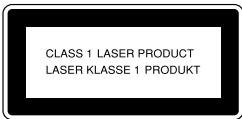
This equipment is considered a class 1 laser device. This equipment contains a 15 milliwatt, 788 nanometer wavelength, AlGaAs laser diode. The following marking is attached on the inside of front cover of the equipment.
Caution:
Use of controls or adjustment or performance of procedures other than those specified in this User's Guide might result in hazardous radiation exposure.
For North America
Laser Safety:
This equipment complies with requirements of 21 CFR subchapter J for class 1 laser products. This equipment contains a 15 milliwatt, 788 nanometer wavelength, AlGaAs laser diode.
Caution:
Use of controls or adjustment or performance of procedures other than those specified in this User's Guide might result in hazardous radiation exposure.
Positions of Labels and Hallmarks for WARNING and CAUTION Labels
This machine has labels for WARNING and CAUTION at the positions shown below. For safety, please follow the instructions and handle the machine as indicated.
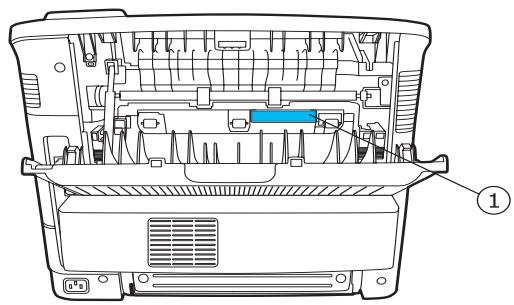

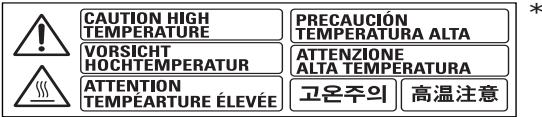
*This label is stuck to hot surfaces. Be careful not to touch these areas.
In accordance with IEC 60417, this machine uses the following symbols for the main power switch:
| means POWER ON.
means POWER OFF.
CE Marking Traceability Information (For EU Countries Only.)
Manufacturer:
Ricoh Co., Ltd.
3-6 Nakamagome 1-chome, Ohta-ku, Tokyo, 143-8555 Japan
Authorized representative:
RICOH EUROPE B.V.
Prof. W.H. Keesomlaan 1
1183 DJ Amstelveen
The Netherlands
Power Saver
This printer contains advanced energy conservation technology that reduces power consumption when it is not in active use.
When the printer does not receive data for an extended period of time, power consumption is automatically lowered.
Recycling

Please recycle or dispose of packaging materials for this product in an environmentally responsible manner.
User Information on Electrical & Electronic Equipment
Users in the EU, Switzerland and Norway
Our Products contain high quality components and are designed to facilitate recycling.
Our products or product packaging are marked with the symbol below.

The symbol indicates that the product must not be treated as municipal waste. It must be disposed of separately via the appropriate return and collection systems available. By following these instructions you ensure that this product is treated correctly and help to reduce potential impacts on the environment and human health, which could otherwise result from inappropriate handling. Recycling of products helps to
conserve natural resources and protect the environment. For more detailed information on collection and recycling systems for this product, please contact the shop where you purchased it, your local dealer or sales/service representatives.
All Other Users
If you wish to discard this product, please contact your local authorities, the shop where you bought this product, your local dealer or sales/service representatives.
Note to users in the United States of America
Notice:
This equipment has been tested and found to comply with the limits for a Class A digital devices, pursuant to Part 15 of the FCC Rules. These limits are designed to provide reasonable protection against harmful interference when the equipment is operated in a commercial environment. This equipment generates, uses and can radiate radio frequency energy and, if not installed and used in accordance with the instruction manual, may cause harmful interference to radio communications. Operation of this equipment in a residential area is likely to cause harmful interference in which case the user will be required to correct the interference at his own expense.
Warning:
Changes or modifications not expressly approved by the party responsible for compliance could void the user's authority to operate the equipment.
Note to users in Canada
This Class A digital apparatus complies with Canadian ICES-003.
Operation is subject to the following two conditions:
(1) This device may not cause interference, and (2) this device must accept any interference, including interference that may cause undesired operation of the device.
1 Introduction
Congratulations on the purchase of your printer!
This chapter includes:
Special features
- Printer overview
Finding more information
- Selecting a location
Special features
Your new printer is equipped with several special features that improve the print quality. You can:
Print with excellent quality and high speed

- You can print up to 1200 x 1200 dpi effective output. See the Software Section.
- Your printer prints A4-sized paper at up to 43~ppm^a and letter-sized paper at up to 45 ppm. For duplex printing, your printer prints A4-sized paper at up to 29 ipmb and letter-sized paper at up to 30 ipm.
Handle paper flexibly
- The multi-purpose tray supports letterheads, envelopes, labels, transparencies, custom-sized materials, postcards, and heavy paper. The multipurpose tray holds up to 100 sheets of plain paper.
- The 500-sheet standard tray 1 supports plain paper in various sizes.
- The 500-sheet optional tray support plain paper in various sizes. You can install up to 3 additional trays.
- Two output tray; select either the output tray (face-down) or the rear cover (face-up) for the most convenient access.
- Straight-through paper path capability from the multi-purpose tray to the rear cover.
Create professional documents

- Print Watermarks. You can customize your documents with words, such as "Confidential." See the Software Section.
- Print Posters. The text and pictures of each page of your document are magnified and printed across the sheet of paper and can then be taped together to form a poster. See the Software Section.
a. pages per minute
b. images per minute
Save time and money
- This printer allows you to use toner save mode to save toner. See page 2.7.
- You can print on both sides of the paper to save paper (double-sided printing) if you install the optional duplex unit.
- You can print multiple pages on a single sheet of paper to save paper (N-Up printing). See the Software Section.
- You can use preprinted forms and letterhead with plain paper. See the Software Section.
- This printer automatically conserves electricity by substantially reducing power consumption when not in use.
Expand the printer capacity
- Your printer has 128 MB of memory which can be expanded to 512 MB. See page 10.1.
- A Network interface enables network printing.
- You can add 500-sheet optional trays to your printer. These trays let you add paper to the printer less often.
-
A PostScript 3 Emulation* (PS) enables PS printing.
-
Zoran IPS Emulation compatible with PostScript 3

Copyright 1995-2005, Zoran Corporation. All rights reserved. Zoran, the Zoran logo, IPS/PS3 and Onelmage are trademarks of Zoran Corporation.
- 136 PS3 fonts
- Contains UFST and MicroType from Monotype Imaging Inc..
Use the optional hard disk
You can install an optional hard disk in your printer.
- The 40 GB hard disk can store the data from your computer in the print queue. This decreases the workload of the computer.
- You can use various print features, such as storing a job in the hard disk, proofing a job, and printing private documents.
- You can manage the print jobs in the print queue of the printer hard disk.
For details, see page 10.3.
Print in various environments
- You can print in Windows 98/Me/NT 4.0/2000/XP/2003.
- Your printer is compatible with Macintosh.
- Your printer comes with both Parallel and USB interfaces.
- You can also use a network interface. Your printer comes with a built-in network interface, 10/100 Base TX.
Printer features
The table below lists a general overview of features supported by your printer.
(I: Installed, O: Option)
| Features | SP 5100N |
| IEEE 1284 Parallel | I |
| USB 2.0 | I |
| Network Interface (Ethernet 10/100 Base TX) | I |
| Hard Disk | O |
| PostScript* Emulation | I |
| Duplex Unit | O |
| Optional Tray 2 | O |
| Optional Tray 3 | O |
| Optional Tray 4 | O |
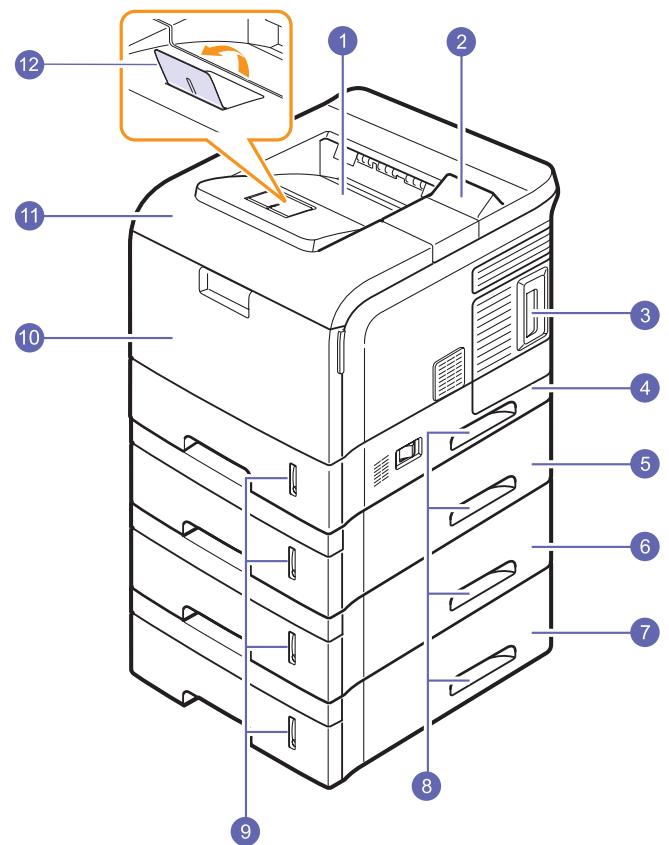
Front view
* The figure above shows an SP 5100N with all available options.
| 1 | output tray | 8 | handle |
| 2 | control panel | 9 | paper level indicator |
| 3 | control board cover | 10 | multi-purpose tray |
| 4 | tray 1 | 11 | top cover |
| 5 | optional tray 2 | 12 | output support |
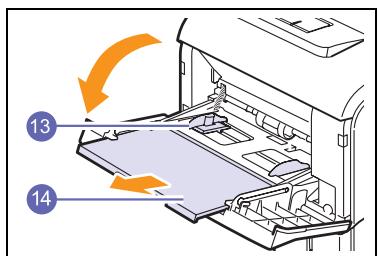
| 6 | optional tray 3 | 13 | multi-purpose tray paper width guides |
| 7 | optional tray 4 | 14 | multi-purpose tray extension |
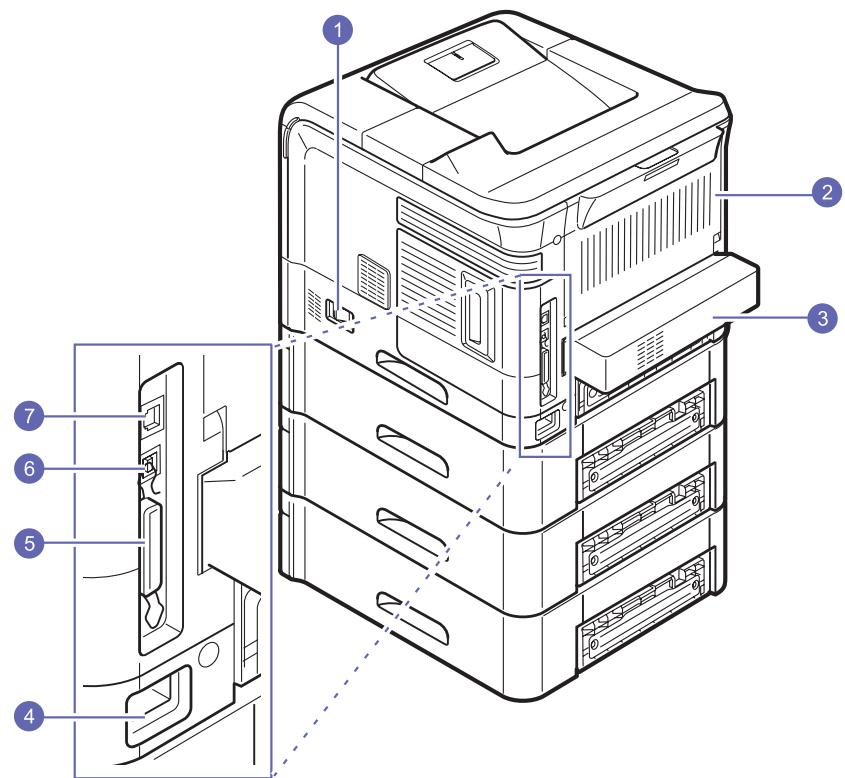
Rear view
* The figure above shows an SP 5100N with all available options.
| 1 | power switch | 5 | parallel port |
| 2 | rear cover | 6 | USB port |
| 3 | duplex unit | 7 | network port |
| 4 | power receptacle |
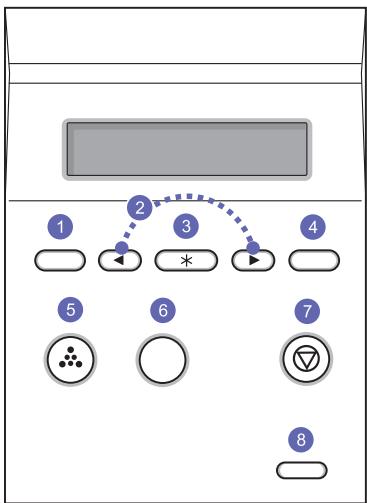
| 1 | Menu: Enters Menu mode and scrolls through the available menus. |
| 2 | Scroll buttons: Scroll through the options available in the selected menu, and increase or decrease values. |
| 3 | OK: Confirms the selection on the display. |
| 4 | Back: Sends you back to the upper menu level. |
| 5 | Toner Save: Allows you to save on toner by using less toner in printing. |
| 6 | Demo: Prints a demo page. |
| 7 | Stop: Stops an operation at any time. |
| 8 | Status: Indicates the status of your printer. See page 9.6. |
Finding more information
You can find information for setting up and using your printer from the following resources, either printed or onscreen.
Quick Install Guide
Provides information on setting up your printer and, therefore, be sure to follow the instructions in the guide to get the printer ready.

Online User's Guide
Provides you with step-by-step instructions for using your printer's full features, and contains information for maintaining your printer, troubleshooting, and installing accessories.
This user's guide also contains Network Printer User's Guide and the Software Section. Network Printer User's Guide provides you with information on setting up and connecting your printer to a network. Software Section provides you with information on how to print documents with your printer on various operating systems, and how to use the supplied software utilities..

Note
- You can access the user's guides in other languages from the Manual folder on the printer driver CD.
Printer Driver Help
Provides you with help information on printer driver properties and instructions for setting up the properties for printing. To access a printer driver help screen, click Help from the printer properties dialog box.
Selecting a location
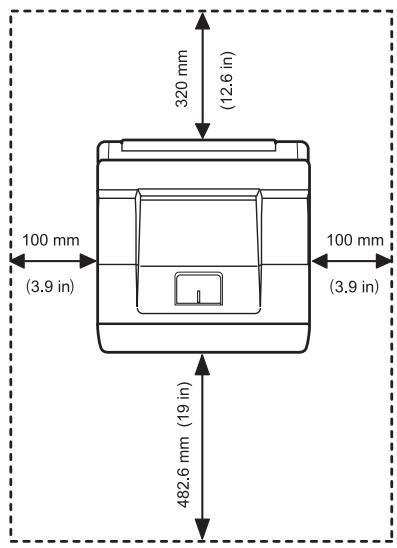
Select a level, stable place with adequate space for air circulation. Allow extra space for opening covers and trays.
The area should be well-ventilated and away from direct sunlight or sources of heat, cold, and humidity. Do not set the printer close to the edge of your desk or table.
Clearance space
Front: 482.6 mm (enough space so that trays can be opened or removed)
Back: 320 mm (enough space to allow opening of the rear cover or the duplex unit)
Right: 100mm (enough space to allow opening of the control board cover)
Left: 100mm (enough space for ventilation)
2 System setup
This chapter shows menus you can set and provides basic settings for your printer.
This chapter includes:
Using control panel menus
- Menu overview
- Printing a demo page
Changing the display language
Using toner save mode
Using control panel menus
A number of menus are available to make it easy for you to change the printer settings. The diagram on the next column shows the menus and all of the menu items available in each menu. The items in each menu and the options you can select are described in more detail in the tables beginning on page 2.2.
Accessing control panel menus
You can control your printer from the printer's control panel. You can also set the control panel menus while printing.
1 Press Menu until the menu you want appears on the bottom line of the display and press OK.
2 Press the Scroll buttons until the desired menu item appears and press OK.
3 If the menu item has sub menus, repeat step 2.
4 Press the Scroll buttons to access the desired setting option or the required value.
5 Press OK to save your selection.
An asterisk (*) appears next to the selection on the display, indicating that it is now the default.
6 Press Stop to return to Standby mode.

Note
- Print settings made from the printer driver on a connected computer override the settings on the control panel.
Menu overview
The control panel menus are used to configure the printer. The control panel provides access to the foling menus.
The menus in the colored characters appear only when the optional items are installed.
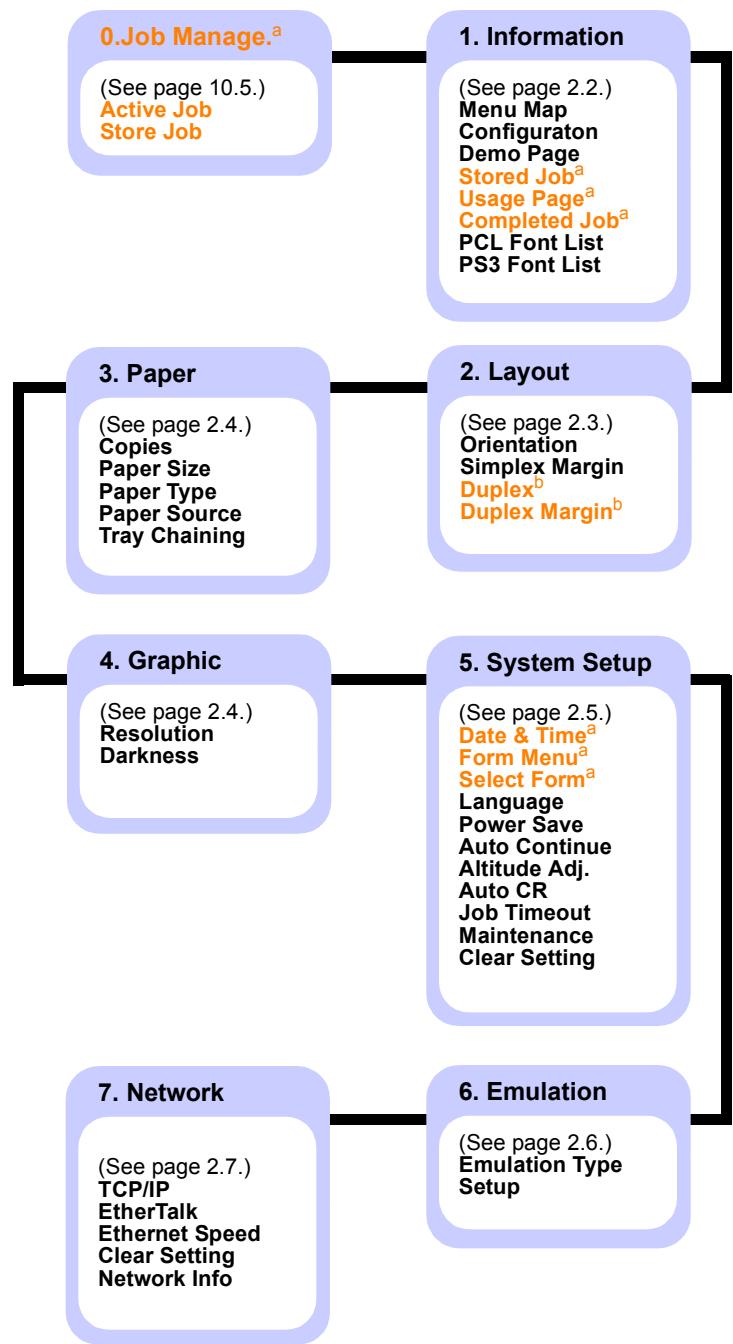
a. Available with an optional hard disk.
b. Available with an optional duplex unit.

Note
- The default settings and available values of your printer could be differ from this guide.
Job manager menu
This menu is available when the optional hard disk is installed.
| Item | Explanation |
| Active Job | This menu shows the print jobs waiting to be printed. See page 10.6. |
| Store Job | This menu shows the print jobs stored in the installed hard disk. See page 10.5. |
1. Information menu
This menu allows you to print printer information pages that give details about the printer and its configuration.
| Item | Explanation |
| Menu Map | The menu map shows the layout and current settings of the control panel menu items. |
| Configurator | The configuration page shows the printer's current configuration. |
| Demo Page | The demo page allows you to check if your printer properly performs printing. See page 2.7. |
| Stored Job | The stored job page shows the print file list stored in the optional hard disk. Note ·This menu item is available when the optional hard disk is installed. |
| Usage Page | The usage page contains the total number of pages printed by person or group. This page can be used for cost accounting. Note ·This menu item is available when the optional hard disk is installed. |
| Completed Job | The Completed Job page shows the list of completed print jobs. The list contains up to 50 files from the latest print jobs. |
| PCL Font List PS3 Font List | The font sample list shows all of the fonts currently available for the selected language. |
2. Layout menu
Use the 2. Layout menu to define all settings relating to output.
| Item | Explanation |
| Orientation | Values: Portrait, Landscape Choose the default orientation of the print image on the page. Portrait Landscape |
| Simplex Margin | Values: Top Margin: 0, Left Margin: 0 Set the margin of print materials for one-sided printing. You can increase or decrease the value in 0.1 mm increments. • Top Margin: Set the top margin, from 0 to 9.9 mm. • Left Margin: Set the left margin, from 0 to 6.5 mm. |
| Item | Explanation |
| Duplex | Values: Off, Long Edge, Short Edge To print on both sides of paper, choose the binding edge as follows. • Long Edge: Flip on the long edge. • Short Edge: Flip on the short edge. |
| Long Edge in the Portrait orientation Short Edge in the Portrait orientation Select Off to print on one side of the paper. Note • This menu item is available when the optional duplex unit is installed. | |
| Duplex Margin | Values: Top Margin/ Left Margin: 5.0, Short Binding/ Long Binding: 0 In this menu, you can set the margins for double-sided printing. You can increase or decrease the value in 0.1 mm increments. • Top Margin: Set the top margin, from 0.0 to 9.9 mm. • Left Margin: Set the left margin, from 0.0 to 9.9 mm. • Short Binding: Set the bottom margin of the back of the page for short binding, from 0 to 22 mm. • Long Binding: Set the right margin of the back of the page for long binding, from 0 to 22 mm. Note • This menu item is available when the optional duplex unit is installed. |
3. Paper menu
Use the 3. Paper menu to define all settings relating to print materials such as paper feed and exit, as well as size and type the specific print materials you are using with your printer.
| Item | Explanation |
| Copies | Values: 1 ~ 999 Set the default number of copies by selecting any number from 1 to 999. |
| Paper Size | Values: A4, A5, A6, JIS B5, ISO B5, Letter, Legal, Executive, No.10 Env., Monarch Env., DL Env., C5 Env., C6 Env., US Folio, Oficio, Custom Paper Depending on the paper source or duplex setting, available options vary. Select the paper size currently loaded in the tray. |
| Paper Type | Values: Plain Paper, Bond, Transparency, Envelope, Labels, CardStock, Preprinted, Color Paper, Thick, Thin Select the paper type currently loaded in the tray. |
| Paper Source | Values: Tray 1, Tray 2, Tray 3, Tray 4, MP Tray, Manual Tray, Auto Select which tray you want to use. • If you select Auto, the printer can automatically determine the source. • Select MP Tray or Manual Tray to use the multi-purpose tray. If you select Manual Tray, you need to press OK each time you print a page. • Tray 2, Tray 3, or Tray 4 is available only when the corresponding tray is installed. |
| Tray Chaining | Values: Off, On When you select any other value except Auto from Paper Source and the selected tray is empty, you can set the printer automatically to print from other trays. If this menu item is set to Off, the default LED lights red and the printer doesn't work until you insert paper into the specified tray. |
Graphic menu
Use the 4. Graphic menu to change settings affecting the quality of the printed characters and images.
| Item | Explanation |
| Resolution | Values: 600dpi-Normal, 1200dpi-Best Specify the number of dots printed per inch (dpi). The higher the setting, the sharper printed characters and graphics. • If your print jobs are mostly text, select 600dpi-Normal for the highest quality printing. • Select 1200dpi-Best when your job contains bitmapped images, such as scanned photos or some graphics, that will benefit from enhanced line screening. |
| Darkness | Values: Normal, Light, Dark You can lighten or darken the print on the page by changing the toner density setting. The Normal setting usually produces the best result. Use the Light toner density setting to save toner. |
System Setup menu
Use the 5. System Setup menu to configure a variety of printer features.
| Item | Explanation | |
| Date & Time Form Menu Select Form | See page 10.5 and 10.6. Note · This menu item is available when the optional hard disk is installed. | |
| Language | Values: English, FRANCAIS, Espanol, Portugues E., Portugues B., Deutsch, Italiano... This setting determines the language of the text that appears on the control panel display and information printing. | |
| Power Save | Values: [5] Min, [10] Min, [15] Min, [30] Min, [60] Min, [120] Min When the printer does not receive data for an extended period of time, power consumption is automatically lowered. You can set how long the printer waits before going to power save mode. | |
| Auto Continue | Values: Off, On This item determines whether or not the printer continues printing when it detects the paper unmatched to your paper setting. · Off: If a paper mismatch occurs, an error message will remain on the display and the printer will remain off-line until you insert the correct paper. · On: If the paper mismatch occurs, an error message will display. The printer will go offline for 30 seconds, then automatically clear the message and continue printing. | |
| Altitude Adj. | Values: Plain, High, Higher, Highest You can optimize print quality according to your altitude. | |
| Auto CR | Values: LF, LF+CR This item allows you to append the required carriage return to each line feed. Refer to the following samples: AA BB CC LF | AA BB CC LF+CR |
| Item | Explanation |
| Job Timeout | Values:[0-1800] sec:15You can set the length of time the printer waits before printing the last page of a print job that does not end with a command to print the page.When a print time-out occurs, the printer prints the page in the print buffer. |
| Maintenance | This item allows you to maintain your printer.Clean Drum: Cleans the OPC drum of the toner cartridge and produces a cleaning sheet with toner debris on it.Clean Fuser: Cleans the fuser unit inside of the printer and produces a cleaning sheet with toner debris on it.CLRR Empty MSG.: Prevents the Toner Low Replace Toner message from appearing on the display. Once you have selected On, this setting will be permanently written to the memory of the toner cartridge, and this menu will be disappeared from the Maintenance menu.Supplies Life: Allows you to check how many pages have been printed and how much toner are left in the cartridge. |
| Clear Setting | This menu item allows you to restore the printer's factory default settings. |
Emulation menu
Use the 6. Emulation menu to configure printer language emulation.
| Item | Explanation |
| Emulation Type | Values: Auto, PCL, PostScript, HEXDUMP, PS3 |
| The printer language defines how the computer communicates with the printer. | |
| If you select Auto, your printer can change the printer language automatically. | |
| Setup | Values: PCL, PostScript, |
| See the following tables to configure properties of the printer language. |
PCL
This menu sets the PCL emulation configuration. You can set the font type, symbol type, lines per page, and font size.
| Item | Explanation |
| Typeface | Values: PCL1 ~ PCL54You can select the standard font to be used in PCL emulation.PCL1~PCL7's interval between letters is fixed, and PCL8~PCL45's interval is proportional to the font type and font size. You can adjust the font size of PCL1~PCL7 using the Pitch item, and PCL8~PCL45 can do using Point Size item.PCL46~PCL54's interval and font size are fixed. |
| Symbol | Values: ROMAN8 ~ PCCYRILThis item selects the symbol set to be used in PCL emulation. The symbol is the group of numbers, marks, and special signs being used when printing letters.Depending on the Typeface setting, available symbol sets vary. |
| Point Size | Values: 4.00 ~ 999.75 (0.25 unit)When you select one between PCL8 and PCL45 from the Typeface menu, you can determine the font size by setting the height of the characters in the font. |
| Courier | Values: Regular, DarkThis item lets you select the version of Courier font to use. |
| Item | Explanation |
| Pitch | Values: 0.44 ~ 99.99 (0.01 unit)When you select one between PCL1 and PCL7 from the Typeface menu, you can determine the font size by setting the number of characters that will print in one horizontal inch of type. The default value, 10 is the best size. |
| Lines | Values: [5 ~ 128]:64This item allows you to set vertical spacing from 5 to 128 lines for the default paper size. The default number of lines may differ according to the paper size and printing orientation. |
PostScript
This menu provides you with the Print PS Error menu item.
| Item | Explanation |
| Print PS Error | Values: On, Off |
| You can select whether or not your printer prints an error list when a PS error occurs. • Select On to print PS 3 emulation errors. If an error occurs, the job stops processing, the error message prints, and the printer flushes the job. • If this menu is set to Off, the job is flushed without an indication of the error. |
Network menu
This menu lets you configure the network interface installed in your printer. You can reset the network interface and print a configuration page. For details, see page 4.1.
| Item | Explanation |
| TCP/IP | Values: DHCP, BOOTP, StaticThis item allows you to manually set the TCP/IP addresses or receive the addresses from the network.DHCP: The DHCP server allots the IP address to you automatically.BootP: The BOOTP server allots the IP address to you automaticallyynamic: You can enter IP Address, Subnet Mask, and Gateway manually. |
| EtherTalk | Values: Off, OnThis item lets you select whether or not you use the EtherTalk protocol. Select On to use the protocol. |
| Ethernet Speed | Values: Auto, 10M Half, 10M Full, 100M Half, 100M FullThis item allows you to select the ethernet speed. |
| Clear Setting | This item performs a simple reset and restores the factory default settings for the network configuration. This setting will only take effect after you restart the printer. |
| Network Info | This item prints a page showing the network parameters you set. |
Printing a demo page
After setting up your printer, print a demo page to make sure that the printer is operating correctly.
Press and hold Demo for about 2 seconds.
Or,
1 Press Menu and then OK when 1. Information appears.
2 Press the Scroll buttons until Demo Page appears and press OK.
3 Press OK when Yes appears.
A demo page prints out.
Changing the display language
To change the language that is displayed on the control panel, follow these steps:
1 Press Menu until 5. System Setup appears on the bottom line of the display and press OK.
2 Press the Scroll buttons until Language appears and press OK.
3 Press the Scroll buttons to select the language you want and press OK.
4 Press Stop to return to Standby mode.
Using toner save mode
Toner save mode allows the printer to use less toner on each page. Activating this mode extends the life of your toner cartridge and reduces your cost per page beyond what one would experience in the normal mode, but it reduces print quality. This setting is not available with the 1200dpi-Best setting.
There are two ways to enable this mode:
Using the control panel button
Press Toner Save on the control panel. The printer must be in Standby mode; the Status LED lights green and Ready is shown on the display.
- If the button backlight is on, the mode is enabled and the printer uses less toner to print a page.
- If the button backlight is off, the mode is disabled and the printer prints in normal mode.
From the software application
You can set toner save mode from the printer properties window on your printer driver. See the Software Section.
3 Software overview
This chapter gives you an overview of the software that comes with your printer. Further details about installing and using the software are exed in the Software Section.
This chapter includes:
- Supplied software
- Printer driver features
- System requirements
Supplied software
You must install the printer software using the supplied CD after you have set up your printer and connected it to your computer.
The CD provides you with the following software:
| Contents | |
| Windows | ·Printer driver: Use this driver to take full advantage of your printer's features. ·Status Monitor: This program allows you to monitor the printer's status and alerts you when an error occurs during printing. ·Direct Printing Utility: This program allows you to print PDF files easily. ·Postscript Printer Description (PPD) file: Use the PostScript driver to print documents with complex fonts and graphics in the PostScript language. ·SetIP: Use this program to set your printer's TCP/IP addresses. ·User's Guide in PDF ·Network Printer User's Guide in PDF |
| Macintosh | ·Postscript Printer Description (PPD) file: Use this file to run your printer from a Macintosh computer and print documents. ·Status Monitor: This program allows you to monitor the printer's status and alerts you when an error occurs during printing. |
Printer driver features
Your printer drivers support the following standard features:
- Paper source selection
- Paper size, orientation and media type
Number of copies
In addition, you can use various special printing features. The following table shows a general overview of features supported by your printer drivers:
| Feature | PCL 6 | PostScript | |
| Windows | Windows | Macintosh | |
| Toner save | O | O | X |
| Print quality option | O | O | O |
| Poster printing | O | X | X |
| Multiple pages per sheet (N-up) | O | O | O |
| Fit to page printing | O | O | O |
| Scale printing | O | O | O |
| Different source for first page | O | X | O |
| Watermark | O | X | X |
| Overlay | O | X | X |

Note
- Overlay is not supported in Windows NT 4.0.
System requirements
Before you begin, ensure that your system meets the following requirements:
Windows
| Item | Requirements | Recommended | |
| Operating system | Windows 98/Me/NT 4.0/2000/XP/2003 | ||
| CPU | Windows 98/ Me/NT 4.0/2000 | Pentium II 400 MHz or higher | Pentium III 933 MHz |
| Windows XP/ 2003 | Pentium III 933 MHz or higher | Pentium IV 1 GHz | |
| RAM | Windows 98/ Me/NT 4.0/2000 | 64 MB or more | 128 MB |
| Windows XP/ 2003 | 128 MB or more | 256 MB | |
| Free disk space | Windows 98/ Me/NT 4.0/2000 | 300 MB or more | 1 GB |
| Windows XP/ 2003 | 1 GB or more | 5 GB | |
| Internet Explorer | 5.0 or higher | ||

Note
- For Windows NT 4.0/2000/XP/2003, users who have an administrator right can install the software.
Macintosh
| Item | Requirements |
| Operating system | 8.6 ~ 9.2 and 10.1 ~ 10.4 |
| RAM | 128 MB |
| Free disk space | 200 MB |
| Connection | USB interface, Network interface |
4 Network setup
This chapter gives you step-by-step instructions for setting up your printer for network connections.
This chapter includes:
Introduction
Supported operating systems
- Configuring TCP/IP
- Setting Ethernet speed
- Restoring the network configuration
- Printing a network configuration page
Introduction
Once you have connected your printer to a network with an RJ-45 Ethernet cable, you can share the printer with other network users.
You need to set up the network protocols on the printer to use it as your network printer. Protocols can be set up by the following two methods:
Via network administration programs
You can configure your printer's print server settings and manage the printer via the following programs that came with your printer:
- Web Image Monitor SP 5100N: A web server embedded to your network print server, which allows you to configure the network parameters necessary for the printer to connect to various network environments.
- SetIP: A utility program allowing you to select a network interface and manually configure the addresses for use with the TCP/IP protocol.
For further details, refer to the user's guide on the supplied CD that came with your printer.
Via the control panel
You can set up the following basic network parameters through the printer's control panel:
- Configure TCP/IP
- Configure EtherTalk
Supported operating systems
The following table shows the network environments supported by the printer:
| Item | Requirements |
| Network interface | • 10/100 Base-TX |
| Network operating system | • Windows 98/Me/NT 4.0/2000/XP/2003 • Mac OS 10.3 and above (TCP/IP only) |
| Network protocols | • TCP/IP • EtherTalk • HTTP 1.1 • SNMP |
| Dynamic addressing server | • DHCP, BOOTP |
- TCP/IP: Transmission Control Protocol/Internet Protocol
- DHCP: Dynamic Host Configuration Protocol
- BOOTP: Bootstrap Protocol
Configuring TCP/IP
Your printer can be set up with a variety of TCP/IP network information, such as an IP address, a subnet mask, a gateway, and DNS addresses. There are several ways in which your printer can be assigned a TCP/IP address, depending on your network.
- Static addressing: A TCP/IP address is assigned manually by the system administrator.
- Dynamic addressing via BOOTP/DHCP (default): A TCP/IP address is assigned automatically by the server.

Note
- Before configuring TCP/IP, you need to set the network protocol to TCP/IP.
Static addressing
To enter a TCP/IP address from your printer's control panel, take the following steps:
1 Press Menu until Network appears on the bottom line of the display and press OK.
2 Press OK when TCP/IP appears.
3 Press the Scroll buttons until Static appears and press OK.
4 Press OK when IP Address appears.
5 Set the first byte between 0 and 255 using the Scroll buttons and press OK to move to the next byte.
Repeat this to complete the address from the 1st byte to the 4th byte.
6 When you have finished, press OK.
7 Repeat step 5 and 6 to configure the other TCP/IP parameters: Subnet Mask and Gateway address.
8 Press Stop to return to Standby mode.
Dynamic addressing (BOOTP/DHCP)
To have a TCP/IP address assigned automatically by the server, take the following steps:
1 Press Menu until Network appears on the bottom line of the display and press OK.
2 Press OK when TCP/IP appears.
3 Press the Scroll buttons until DHCP or BOOTP appears and press OK.
4 Press Stop to return to Standby mode.
Configuring EtherTalk
Ethernet is AppleTalk used in an Ethernet network. This protocol is widely used in Macintosh network environments. To use EtherTalk, take the following steps:
1 Press Menu until Network appears on the bottom line of the display and press OK.
2 Press the Scroll buttons until EtherTalk appears and press OK.
3 Press the Scroll buttons until On appears and press OK.
4 Press Stop to return to Standby mode.
Setting Ethernet speed
You can select the communication speed for Ethernet connections.
1 Press Menu until Network appears on the bottom line of the display and press OK.
2 Press the Scroll buttons until Ethernet Speed appears and press OK.
3 Press the Scroll buttons until the speed you want appears and press OK.
4 Press Stop to return to Standby mode.
Restoring the network configuration
You can return the network configuration to its default settings.
1 Press Menu until Network appears on the bottom line of the display and press OK.
2 Press the Scroll buttons until Clear Setting appears and press OK.
3 Press OK when Yes appears to restore the network configuration.
4 Power the printer off and back on.
Printing a network configuration page
The network configuration page shows how the network interface card on your printer is configured.
1 Press Menu until Network appears on the bottom line of the display and press OK.
2 Press the Scroll buttons until Network Info appears and press OK.
3 Press OK when Yes appears.
The network configuration page prints out.
5 Loading print media
This chapter will help you understand types of paper you can use with your printer and how to properly load paper in the different paper trays for the best print quality.
This chapter includes:
- Selecting print media
- Loading paper
- Selecting an output location
Selecting print media
You can print on a variety of print media, such as plain paper, envelopes, labels, and transparencies. Always use print media that meet the guidelines for use with your printer. Print media that does not meet the guidelines outlined in this user's guide may cause the following problems:
Poor print quality
- Increased paper jams
- Premature wear on the printer
Properties, such as weight, composition, grain, and moisture content, are important factors that affect the printer's performance and the output quality. When you choose print media, consider the following:
- Desired outcome: The print media you choose should be appropriate for your project.
- Size: You can use any size media that fits easily within the paper adjusters of the paper tray.
-
Weight: Your printer supports print media weights as follows:
-
16 to 28 lb bond (60 to 105g / m^2 ) for the tray 1 and optional tray 2, tray 3, tray 4
- 16 to 43 lb bond (60 to 163g / m^2 ) for the multi-purpose tray
-
20 to 24 lb (75 to 90g / m^2 ) for the duplex printing
-
Brightness: Some print media are whiter than others and produce sharper, more vibrant images.
- Surface smoothness: The smoothness of the print media affects how crisp the printing looks on the paper.

Notes
- Some print media may meet all of the guidelines in this section and still not produce satisfactory results. This may be the result of improper handling, unacceptable temperature and humidity levels, or other variables over which manufacturer has no control.
- Before purchasing large quantities of print media, ensure that it meets the requirements specified in this user's guide.
- Using print media that does not meet these specifications may cause problems, requiring repairs. Such repairs are not covered by the warranty or service agreements.
| Type | Size | Dimensions | Weighta | Capacityb |
| Plain paper | Letter | 216 x 279 mm (8.5 x 11 inches) | 60 to 105 g/m2(16 to 28 lb bond) for the tray60 to 163 g/m2(16 to 43 lb bond) for the multi-purpose tray | 500 sheets of 75 g/m2(20 lb bond) paper for the tray100 sheets for the multi-purpose tray |
| Legal | 216 x 356 mm (8.5 x 14 inches) | |||
| Folio | 216 x 330.2 mm (8.5 x 13 inches) | |||
| Oficio | 216 x 343 mm (8.5 x 13.5 inches) | |||
| A4 | 210 x 297 mm (8.27 x 11.69 inches) | |||
| JIS B5 | 182 x 257 mm (7.18 x 10.12 inches) | |||
| ISO B5 | 176 x 250 mm (6.93 x 9.84 inches) | |||
| Executive | 184.2 x 266.7 mm (7.25 x 10.5 inches) | |||
| A5 | 148.5 x 210 mm (5.85 x 8.27 inches) | |||
| A6 | 105 x 148.5 mm (4.13 x 5.85 inches) | |||
| Envelope | Envelope B5 | 176 x 250 mm (6.93 x 9.84 inches) | 60 to 90 g/m2(16 to 24 lb) | 10 sheets of 75 g/m2(20 lb) in the multi-purpose tray |
| Envelope Monarch | 98.4 x 190.5 mm (3.88 x 7.5 inches) | |||
| Envelope COM-10 | 105 x 241 mm (4.12 x 9.5 inches) | |||
| Envelope DL | 110 x 220 mm (4.33 x 8.66 inches) | |||
| Envelope C5 | 162 x 229 mm (6.38 x 9.02 inches) | |||
| Envelope C6 | 114 x 162 mm (4.49 x 6.38 inches) | |||
| Transparency | Letter, A4 | Refer to the Plain paper section | 138 to 146 g/m2(37 to 39 lb) | 50 sheets of 75 g/m2(20 lb) in the multi-purpose tray |
| Labels | Letter, Legal, Folio, Oficio, A4, JIS B5, ISO B5, Executive, A5, A6 | Refer to the Plain paper section | 120 to 150 g/m2(32 to 40 lb) | 25 sheets of 75 g/m2(20 lb) in the multi-purpose tray |
| Card stock | Letter, Legal, Folio, Oficio, A4, JIS B5, ISO B5, Executive, A5, A6 | Refer to the Plain paper section | 60 to 163 g/m2(16 to 43 lb) | 10 sheets of 75 g/m2(20 lb) in the multi-purpose tray |
| Minimum size (custom) | 76 x 127 mm (3 x 5 inches) | 60 to 163 g/m2(16 to 43 lb) | Refer to the above Capacity sections | |
| Maximum size (custom) | 216 x 356 mm (8.5 x 14 inches) | |||
a. If media weight is over 28 lb (105 g/m²), use the multi-purpose tray.
b. Maximum capacity may differ depending on media weight, thickness, and environmental conditions.
Print media for duplex printing
| Type | Size | Weight |
| Plain paper | A4, Letter, Oficio, Legal, and Folio | 75 ~ 90 g/m2(20 to 24 lb) |
Guidelines for selecting and storing print media
When selecting or loading paper, envelopes, or other print media, keep these guidelines in mind:
- Always use print media that conform with the specifications listed on the next column.
- Attempting to print on damp, curled, wrinkled, or torn paper can cause paper jams and poor print quality.
- For the best print quality, use only high quality copier grade paper specifically recommended for use in laser printers.
-
Avoid using the following media types:
-
Paper with embossed lettering, perforations, or a texture that is too smooth or too rough
- Erasable bond paper
- Multi-paged paper
- Synthetic paper and thermally reactive paper
-
Carbonless paper and Tracing paper.
-
Use of these types of paper could result in paper jams, chemical smells, and damage to your printer.
- Store print media in its ream wrapper until you are ready to use it. Place cartons on pallets or shelves, not on the floor. Do not place heavy objects on top of the paper, whether it is packaged or unpackaged. Keep it away from moisture or other conditions that can cause it to wrinkle or curl.
- Store unused print media at temperatures between 15^ and 30^ ( 59^ to 86^ ). The relative humidity should be between 10% and 70% .
- Store unused print media in a moisture-proof wrap, such as a plastic container or bag, to prevent dust and moisture from contaminating your paper.
- Load special media types one sheet at a time through the multipurpose tray to avoid paper jams.
- To prevent print media, such as transparencies and label sheets, from sticking together, remove them as they print out.
Guidelines for special print media
| Media type | Guidelines |
| Envelopes | ·Successful printing on envelopes depends upon the quality of the envelopes. When selecting envelopes, consider the following factors: ·Weight: The weight of the envelope paper should not exceed 90 g/m2(24 lb) or jamming may occur. ·Construction: Prior to printing, envelopes should lie flat with less than 6 mm (0.25 inches) curl, and should not contain air. ·Condition: Envelopes should not be wrinkled, nicked, or otherwise damaged. ·Temperature: You should use envelopes that are compatible with the heat and pressure of the printer during operation. ·Use only well-constructed envelopes with sharp and well creased folds. ·Do not use stamped envelopes. ·Do not use envelopes with clasps, snaps, windows, coated lining, self-adhesive seals, or other synthetic materials. ·Do not use damaged or poorly made envelopes. ·Be sure the seam at both ends of the envelope extends all the way to the corner of the envelope. Acceptable Unacceptable ·Envelopes with a peel-off adhesive strip or with more than one flap that folds over to seal must use adhesives compatible with the printer's fusing temperature of 195°C (383°F) for 0.1 second. The extra flaps and strips might cause wrinkling, creasing, or jams, and may even damage the fuser. ·For the best print quality, position margins no closer than 15 mm (0.6 inches) from the edges of the envelope. ·Avoid printing over the area where the envelope's seams meet. |
| Transparencies | ·To avoid damaging the printer, use only transparencies designed for use in laser printers. ·Transparencies used in the printer must be able to withstand 195° C (383° F), the printer's fusing temperature. ·Place them on a flat surface after removing them from the printer. ·Do not leave them in the paper tray for long periods of time. Dust and dirt may accumulate on them, resulting in spotty printing. ·To avoid smudging caused by fingerprints, handle them carefully. ·To avoid fading, do not expose printed transparencies to prolonged sunlight. ·Ensure that transparencies are not wrinkled, curled, or have any torn edges. |
| Labels | ·To avoid damaging the printer, use only labels designed for use in laser printers. ·When selecting labels, consider the following factors: - Adhesives: The adhesive material should be stable at 195° C (383° F), the printer's fusing temperature. - Arrangement: Only use labels with no exposed backing between them. Labels can peel off sheets that have spaces between the labels, causing serious jams. - Curl: Prior to printing, labels must lie flat with no more than 13 mm (5 inches) of curl in any direction. - Condition: Do not use labels with wrinkles, bubbles, or other indications of separation. ·Make sure that there is no exposed adhesive material between labels. Exposed areas can cause labels to peel off during printing, which can cause paper jams. Exposed adhesive can also cause damage to printer components. ·Do not run a sheet of labels through the printer more than once. The adhesive backing is designed for only a single pass through the printer. ·Do not use labels that are separating from the backing sheet or are wrinkled, bubbled, or otherwise damaged. |
| Card stock or custom-sized materials | ·Do not print on media smaller than 76 mm (3 inches) wide or 127 mm (5 inches) long. ·In the software application, set margins at least 6.4 mm (0.25 inches) away from the edges of the material. |
| Media type | Guidelines |
| Preprinted paper | • Letterhead must be printed with heat-resistant ink that will not melt, vaporize, or release hazardous emissions when subjected to the printer's fusing temperature of 195°C (383°F) for 0.1 second. • Letterhead ink must be non-flammable and should not adversely affect printer rollers. • Forms and letterhead should be sealed in a moisture-proof wrapping to prevent changes during storage. • Before you load preprinted paper, such as forms and letterhead, verify that the ink on the paper is dry. During the fusing process, wet ink can come off preprinted paper, reducing print quality. |
Loading paper
Load the print media you use for the majority of your print jobs in the tray 1. The tray 1 can hold a maximum of 500 sheets of 75g / m^2 (20 lb) plain paper.
You can purchase optional trays and attach them below the standard tray to load an additional 500 sheets of paper for each tray. You can attach up to three additional trays. For order information for optional trays, see page 7.1.
The paper level indicator on the front of the tray 1 and the optional trays shows the amount of paper currently left in the tray. When the tray is empty, the indicator of the bar is completely lowered.
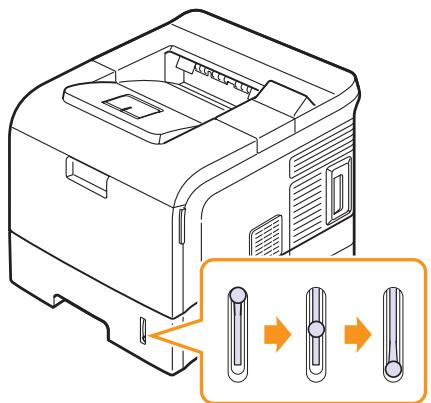
Full
Empty
Using the standard tray or the optional trays
Load the print media you use for the majority of your print jobs in the standard tray. The standard tray can hold a maximum of 500 sheets of 75g / m^2 (20 lb) paper.
To load paper, pull open the tray and load paper with the side to be printed on face down.
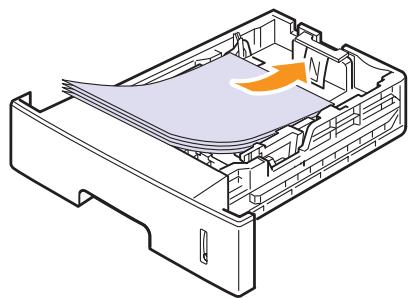
You can load letterhead paper with the design side face down. The top edge of the sheet with the logo should be placed at the front of the tray.

Notes
- If you experience problems with paper feed, place one sheet at a time in the multi-purpose tray.
- You can load previously printed paper. The printed side should be facing up with an uncurved edge at the front of the tray. If you experience problems with paper feed, turn the paper around. Note that the print quality is not guaranteed.
Changing the size of the paper in the tray
The tray is preset to Letter or A4 size, depending on your country. To change the size, you need to adjust the paper guides.
1 Push the back plate of the tray outwards completely so that it can extend the length of the tray.
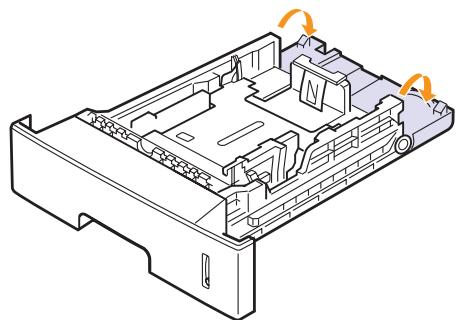
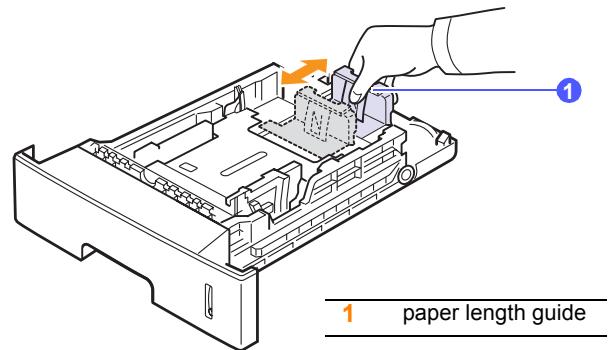
2 Squeeze the paper length guide and slide it to the correct position for the paper size you are loading, which is marked at the bottom of the tray.
3 Squeeze the paper width guides and slide them to the desired paper size marked at the bottom of the tray.
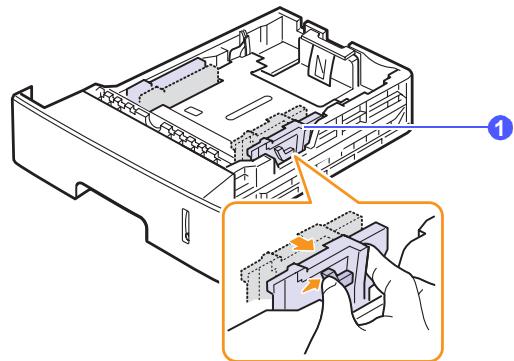
1 paper width guide

Notes
- Do not push the paper width guide far enough to cause the media to warp.
- If you do not adjust the paper width guide, it may cause paper jams.
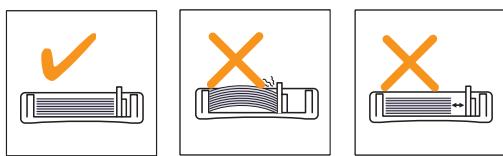
4 Load paper with the print side down.
Using the multi-purpose tray
The multi-purpose tray can hold special sizes and types of print media, such as transparencies, postcards, note cards, and envelopes. It is useful for single page printing on letterhead or colored paper.
To load paper in the multi-purpose tray:
1 Pull the multi-purpose tray down towards you and pull the multipurpose tray extension to hold longer paper.
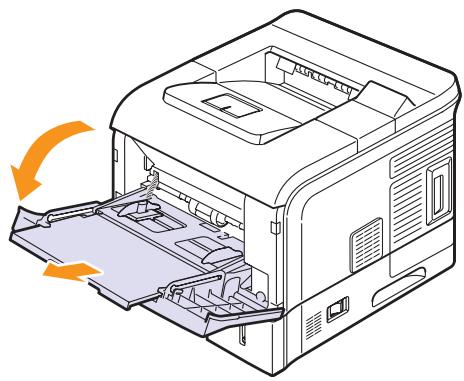
2 If you are using paper, flex or fan the edge of the paper stack to separate the pages before loading.
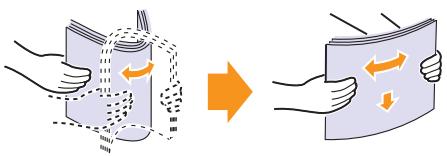
For transparencies, hold them by the edges and avoid touching the print side. Oils from your fingers can cause print quality problems.
3 Load the paper with the side to be printed on facing up.
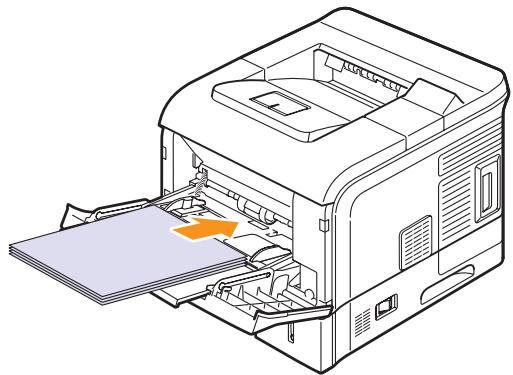
Depending on the media type you are using, keep the following loading guidelines:
- Envelopes: Flap side down and with the stamp area on the top left side.

Caution
- The inside of this machine gets very hot. Do not touch parts labelled "△" (hot surface). Touching "△" labelled parts could result in burns.

Note
- To print on envelopes, you must open the rear cover and push the fuser levers upwards. The print quality will be enhanced.
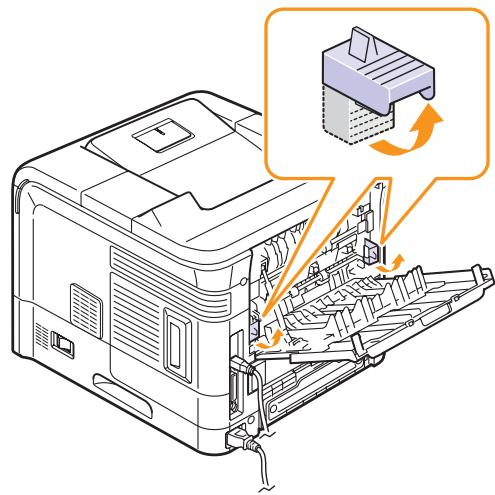
- Transparencies: Print side up and the top with the adhesive strip entering the printer first.
- Labels: Print side up and the top short edge entering the printer first.
- Preprinted paper: Design side up and the top edge entering the printer first.
- Card stock: Print side up and the short edge entering the printer first.
- Previously printed paper: Previously printed side down and an uncurled edge entering the printer first.

Notes
- Make sure that you have not loaded too much print media. The print media buckles if you load a stack that is too deep or if you push it in too far.
- When you print on special media like envelopes, labels, transparencies, or cards, the output location should be the rear cover. Open the rear cover to use it. See page 5.8.
4 Squeeze the multi-purpose tray paper width guides and adjust them to the width of the paper. Do not force too much, or the paper will be bent, which will result in a paper jam or skew.
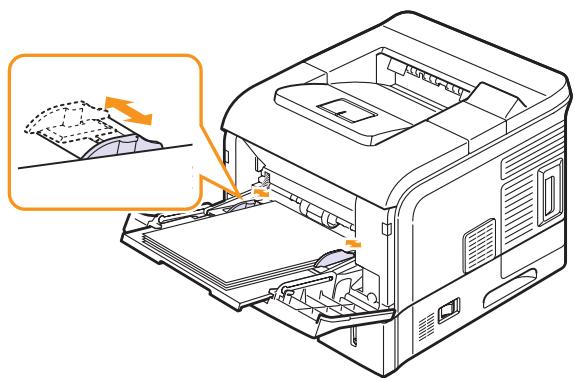
5 When you print a document, set the paper source and type in the software application. See the Software Section.
For information about setting the paper source and type on the control panel, see page 2.4.
6 After printing, put the multi-purpose tray extension back to its place and close the multi-purpose tray.
Tips on using the multi-purpose tray
- Load only one size of print media at a time in the multi-purpose tray.
- To prevent paper jams, do not add paper when there is still paper in the multi-purpose tray. This also applies to other tray.
- Print media should be loaded face up with the top edge going into the multi-purpose tray first and be placed in the center of the tray.
- Always load only the print media specified in page 5.2 to avoid paper jams and print quality problems.
- Flatten any curl on postcards, envelopes, and labels before loading them into the multi-purpose tray.
- When you print on 76 ~mm × 127 ~mm (3 x 5 inches) sized media on the multi-purpose tray, open the rear cover for straight paper path to avoid paper jams.
- When you print on transparencies, open the rear cover. If not they may tear while exiting the printer.
Using manual feed mode
You can manually load a sheet of print media in the multi-purpose tray if you select Manual Feed in the Source option from the Paper tab when you change print settings to print a document. See the Software Section. Manually loading paper can be helpful when you want to check the print quality after each page is printed.
This loading procedure is almost the same as the procedure for loading in the multi-purpose tray, except you load paper sheet-by-sheet in the tray, send print data to print the first page, and press OK on the control panel to print each following page.
1 Load the paper with the side to be printed on facing up.
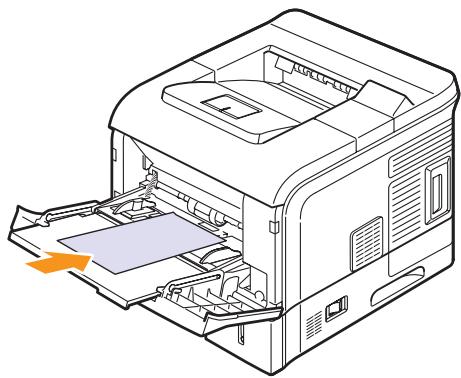
2 Squeeze the multi-purpose tray paper width guides and adjust them to the width of the paper. Do not force too much, or the paper will be bent, which will result in a paper jam or skew.
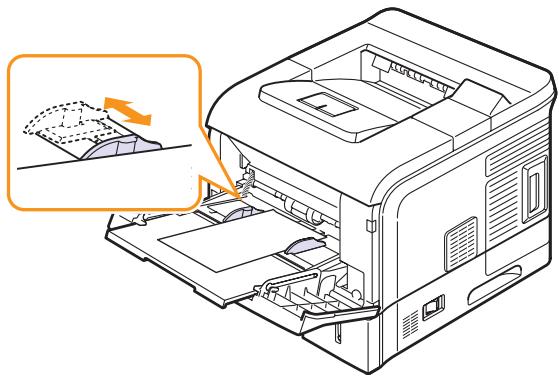
3 When you print a document, set the paper source to Manual Feed and select the appropriate paper size and type in the software application. See the Software Section.
4 Print a document.
The display shows a message prompting you to load paper and press OK.
5 Press OK.
The printer picks up the print media and prints. After one page is printed, the message appears again.

Note
- If you do not press the button, after a pause the printer will automatically pick the print media.
6 Insert the next sheet into the multi-purpose tray and press OK.
Repeat this step for every page to be printed.
Selecting an output location
The printer has two output locations; the rear cover (face up) and the output tray (face down).
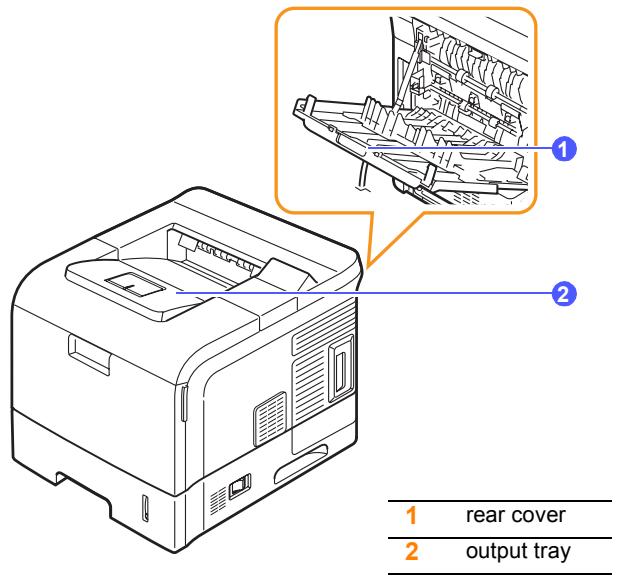
The printer sends output to the output tray by default. To use the output tray, make sure that the rear cover is closed.

Notes
- If paper coming out of the output tray has problems, such as excessive curl, try printing to the rear cover.
- To avoid paper jams, do not open or close the rear cover while the printer is printing.
Printing to the output tray (Face down)
The output tray collects paper face down, in the order in which the sheets were printed. The tray should be used for most print jobs.
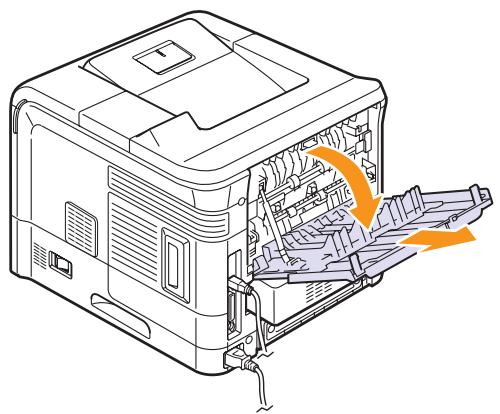
Printing to the rear cover (Face up)
Using the rear cover, paper comes out of the printer face up.
Printing from the multi-purpose tray to the rear cover provides a straight paper path. Using the rear cover might improve the output quality with special print media.
To use the rear cover, open it by pulling down and pull the rear cover extension.

Caution
- The inside of this machine gets very hot. Do not touch parts labelled "△" (hot surface). Touching "△" labelled parts could result in burns.
- The fuser area inside the rear cover of your printer becomes very hot when in use. Take care when you access this area.
6 Basic printing
This chapter explains common printing tasks.
This chapter includes:
- Printing a document
- Canceling a print job
Printing a document
This printer allows you to print from various Windows, Macintosh. The exact steps for printing a document may vary depending on the application you use.
For details about printing, see the Software Section.
Canceling a print job
If the print job is waiting in a print queue or print spooler, such as the printer group in Windows, delete the job as follows:
1 Click the Windows Start button.
2 For Windows 98/Me/NT 4.0/2000, select Settings and then Printers.
For Windows XP/2003, select Printers and Faxes.
3 Double-click the SP 5100N PCL 6 or SP 5100N PS icon.
4 From the Document menu, select Cancel Printing (Windows 98/ Me) or Cancel (Windows NT 4.0/2000/XP/2003).

Note
- You can access this window simply by double-clicking the printer icon at the bottom right corner of the Windows desktop.
You can also cancel the current job by pressing Stop on the control panel of your printer.
7 Supplies and accessories
This chapter provides information on purchasing toner cartridges and accessories available for your printer.
- Toner cartridges
- Accessories
Toner cartridges
When the toner runs out, you can order the following types of toner cartridges for your printer:
| Type | Yielda |
| Standard yield | 10,000 pages |
| High yield | 20,000 pages |
a. Declared yield value in accordance with ISO/IEC 19752.
Accessories
You can purchase and install accessories to enhance your printer's performance and capacity.
The following accessories are available for your printer:
| Accessory | Description |
| Optional Tray | If you are experiencing frequent paper supply problems, you can attach additional 500 sheet trays up to three. You can print documents on various sizes and types of print media. |
| DIMM | Extends your printer's memory capacity. |
| Duplex Unit | Allows you to print on both sides of the paper. |
| Hard Disk | Allows you to enhance the printer's capability and print in various ways. |
8 Maintenance
This chapter provides information for maintaining your printer and the toner cartridge, as well as suggestions for high-quality and economical printing.
This chapter includes:
- Printing information pages
- Cleaning the printer
- Maintaining the toner cartridge
- Maintenance parts
Printing information pages
From the printer's control panel, you can print pages that give detailed information about the printer. They can help you check your printer's status and maintain the printer.
1 Press Menu until Information appears on the bottom line of the display and press OK.
2 Press the Scroll buttons until the information page you want appears and press OK.
3 Press OK when Yes appears. A page prints out.
Cleaning the printer
During the printing process, paper, toner, and dust particles can accumulate inside the printer. This buildup can cause print quality problems, such as toner specks or smearing. Your printer has a cleaning mode that can correct and prevent these types of problems.

Note
- Cleaning the cabinet of the printer with cleaning materials containing large amounts of alcohol, solvents, or other strong substances can discolor or crack the cabinet.
Cleaning the outside of the printer
Clean the cabinet of the printer with a soft, lint-free cloth. You can dampen the cloth slightly with water, but be careful not to let any water drip onto or into the printer.
Cleaning the inside of the printer
There are two methods to clean the inside of the printer:
- Clean the inside manually.
- Print a cleaning sheet, which can be done from the control panel.
Cleaning the inside of the printer manually
1 Turn the printer off and unplug the power cord. Wait for the printer to cool down.
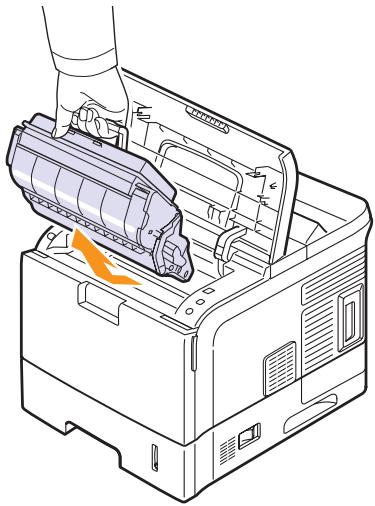
2 Open the top cover and pull the toner cartridge out. Set it on a clean flat surface.

Notes
- To prevent damage to the toner cartridge, do not expose it to light for more than a few minutes. Cover it with a piece of paper, if necessary.
- Do not touch the green surface underside of the toner cartridge. Use the handle on the cartridge to avoid touching this area.
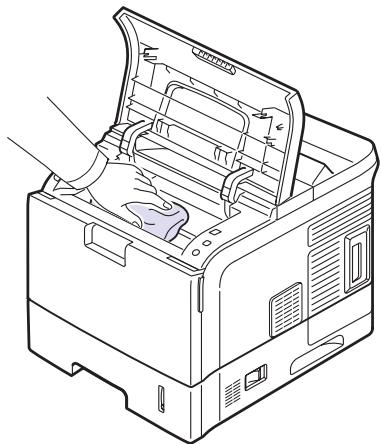
3 With a dry lint-free cloth, wipe away any dust and spilled toner from the toner cartridge area and the toner cartridge cavity.

Note
- While cleaning the inside of the printer, be careful not to touch the transfer roller, located underneath the toner cartridge. Oil from your fingers can cause print quality problems.
4 Gently swab the long strip of glass (LSU) inside the top of the cartridge cavity and check for dirt or dust.
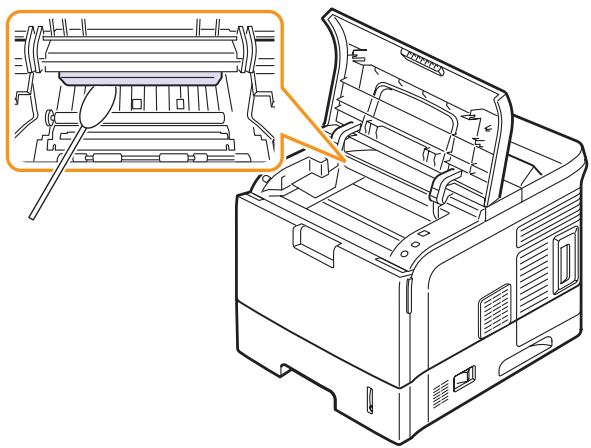

Note
- The long strip of glass is hard to locate.
5 Locate the PTL lens by flipping up the guide feed and gently swab the lens with the pointed white cotton.
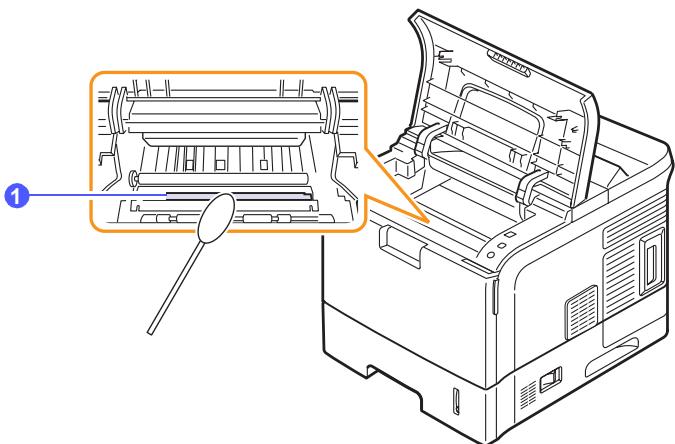

PTL lens
6 Clean a feed sensor with a cotton bud.
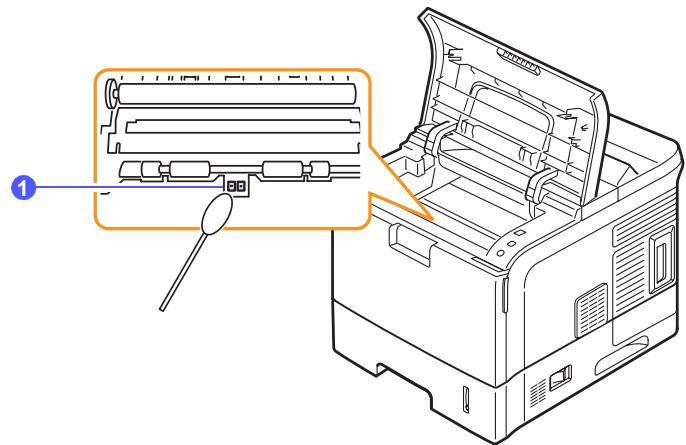
Feed Sensor
7 Reinsert the toner cartridge and close the top cover.
8 Plug in the power cord and turn the printer on.
Printing a cleaning sheet
If you are experiencing blurred, faded, or smeared printouts, you can clear the problem by printing a cleaning sheet, provided by your printer. You can print:
- OPC cleaning sheet: cleans the OPC drum of the toner cartridge.
- Fuser cleaning sheet: cleans the fuser unit inside the printer.
This process will produce a page with toner debris, which should be discarded.
1 Make sure that the printer is turned on with paper loaded in the tray.
2 Press Menu until System Setup appears on the bottom line of the display and press OK.
3 Press the Scroll buttons until Maintenance appears and press OK.
4 Press the Scroll buttons until Clean Fuser or Clean Drum appears and press OK.
Your printer automatically picks up a sheet of paper from the tray and prints out a cleaning sheet with dust or toner particles on it.
Maintaining the toner cartridge

Warning
- Do not incinerate spilled toner or used toner. Toner dust is flammable and might ignite when exposed to an open flame.
- Disposal should take place at an authorized dealer or an appropriate collection site.
- If you dispose of the used toner cartridges yourself, dispose of them according to local regulations.
- Do not store toner, used toner, or toner containers in a place with an open flame. The toner might ignite and cause burns or a fire.

Caution
- Keep toner (used or unused) and the toner cartridge out of reach of children.
- If toner or used toner is inhaled, gargle with plenty of water and move into a fresh air environment. Consult a doctor if necessary.
- If your skin comes into contact with toner or used toner, wash the affected area thoroughly with soap and water.
- If toner or used toner gets into your eyes, flush immediately with large amounts of water. Consult a doctor if necessary.

Caution
- If toner or used toner is swallowed, dilute by drinking a large amount of water. Consult a doctor if necessary.
- Avoid getting toner on your clothes or skin when removing a paper jam or replacing toner. If your skin comes into contact with toner, wash the affected area thoroughly with soap and water.
- If toner gets on your clothing, wash with cold water. Hot water will set the toner into the fabric and may make removing the stain impossible.
Toner cartridge storage
To get the most from the toner cartridge, keep the following guidelines in mind:
- Do not remove the toner cartridge from its package until ready for use.
- Do not refill the toner cartridge. The printer warranty does not cover damage caused by using a refilled cartridge.
- Store toner cartridge in the same environment as the printer.
- To prevent damage to the toner cartridge, do not expose it to light for more than a few minute.
Expected cartridge yield
The toner cartridge yield depends on the amount of toner that print jobs require. The actual number may also be different depending on the print density of the pages you print on, and the number of pages may be affected by operating environment, printing interval, media type, and media size. If you print a lot of graphics, you may need to change the cartridge more often.
Saving toner
To save toner, press Toner Save on the control panel. The button backlight turns on.
Using this feature extends the life of the toner cartridge and reduce your cost per page, but it also reduces print quality.
Checking the remaining toner
You can check the level of toner left in the cartridge.
If you are having print quality problems, this can help you determine if the problem is caused by low toner.
1 Press Menu until System Setup appears on the bottom line of the display and press OK.
2 Press the Scroll buttons until Maintenance appears and press OK.
3 Press the Scroll buttons until Supplies Life appears and press OK.
4 Press the Scroll buttons until Toner Remains appears and press OK.
The display shows the percentage of the remaining toner.

Note
While the following messages are appearing on the display, the sub-menu(s) under Supplies Life can be changed:
- Invalid Toner, NonGenuine Toner, Replace Toner, Toner Exhausted
Redistributing toner cartridge
When the toner cartridge is near the end of its life:
- White streaks and light printing occur.
- Toner Low appears on the display.
- The Status LED blinks red.
If this happens, you can temporarily reestablish print quality by redistributing the remaining toner in the cartridge. In some cases, white streaks or light printing will still occur even after you have redistributed the toner.
1 Open the top cover.
2 Pull the toner cartridge out.
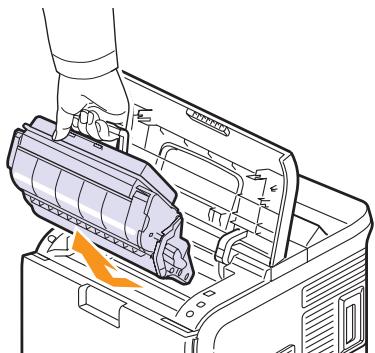

Caution
- Avoid reaching too far into the printer. The fusing area may be hot.

Notes
- To prevent damage to the toner cartridge, do not expose it to light for more than a few minutes. Cover it with a piece of paper, if necessary.
- Do not touch the green surface underside of the toner cartridge. Use the handle on the cartridge to avoid touching this area.
3 Thoroughly shake the cartridge 4 or 6 times to distribute the toner evenly inside the cartridge.
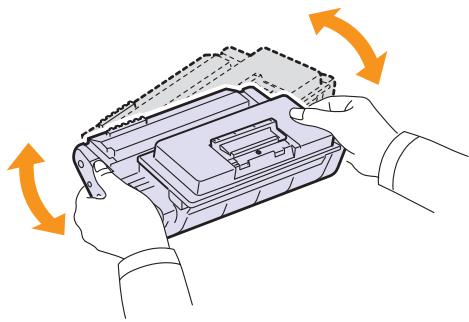

Note
- If toner gets on your clothing, wipe it off with a dry cloth and wash clothing in cold water. Hot water sets toner into fabric.
4 Hold the toner cartridge by the handle and slowly insert the cartridge into the opening in the printer.
Tabs on the sides of the cartridge and corresponding grooves within the printer will guide the cartridge into the correct position until it locks into place completely.
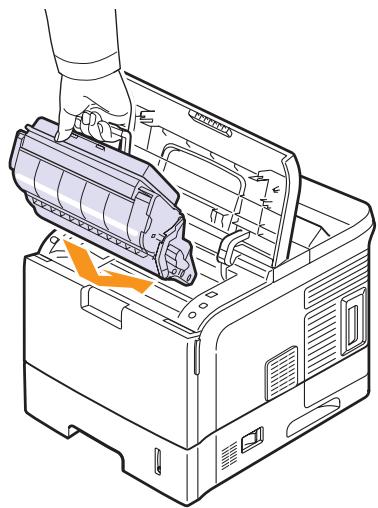
5 Close the top cover. Make sure that the cover is securely closed.
Replacing the toner cartridge

Warning
- Do not incinerate spilled toner or used toner. Toner dust is flammable and might ignite when exposed to an open flame. Disposal should take place at an authorized dealer or an appropriate collection site. If you dispose of the used toner containers yourself, dispose of them according to local regulations.

Caution
- Keep toner (used or unused) and the toner cartridge out of reach of children.
- Do not put an object on the right cover when it is open.
When the toner cartridge is completely empty:
- Toner Empty appears on the display.
The Status LED lights red.
At this stage, the toner cartridge needs to be replaced. For order information for toner cartridges, see page 7.1.
1 Open the top cover.
2 Pull the toner cartridge out.
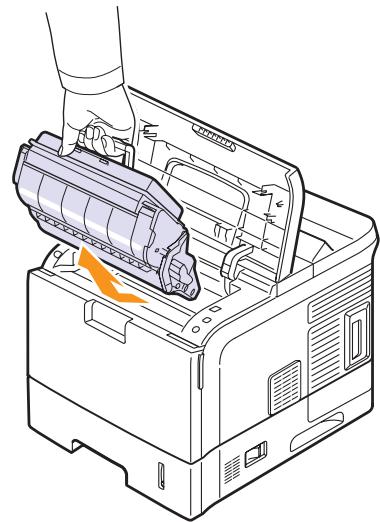
3 Remove the new toner cartridge from its bag.
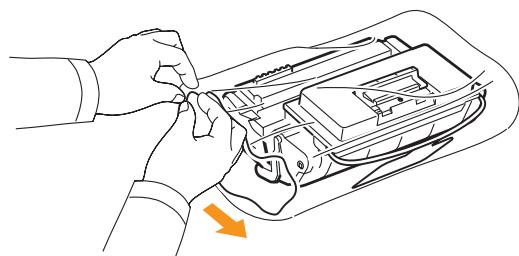

Note
- Do not use sharp objects, such as a knife or scissors, to open the toner cartridge package. They might scratch the drum of the cartridge.
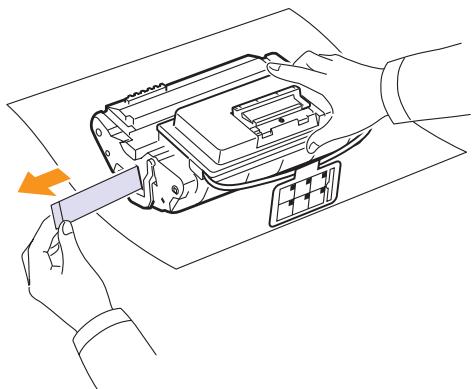
4 Locate the sealing tape at the end of the toner cartridge. Carefully pull the tape completely out of the cartridge and discard it.

Notes
- The sealing tape should be longer than 60~cm when correctly removed.
- Holding the toner cartridge, pull the sealing tape straight to remove it from the cartridge. Be careful not to cut the tape. If this happens, you cannot use the toner cartridge.
Refer to the helpful pictures on the cartridge wrapping paper.
5 Thoroughly shake the cartridge 4 or 6 times to distribute the toner evenly inside the cartridge.
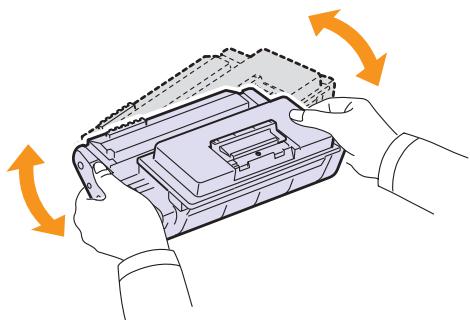
Thoroughly roll the cartridge to assure maximum copies per cartridge. Save the box and the plastic bag for shipping.

Notes
- If toner gets on your clothing, wipe it off with a dry cloth and wash clothing in cold water. Hot water sets toner into fabric.
- To prevent damage to the toner cartridge, do not expose it to light for more than a few minutes. Cover it with a piece of paper, if necessary.
- Do not touch the green surface underside of the toner cartridge. Use the handle on the cartridge to avoid touching this area.
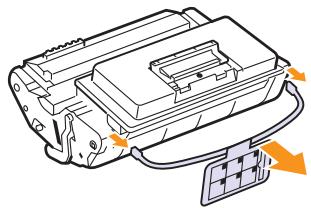
6 Remove the flexible plastic holder out of the toner cartridge.
7 Hold the toner cartridge by the handle and slowly insert the cartridge into the opening in the printer.
Tabs on the sides of the cartridge and corresponding grooves within the printer will guide the cartridge into the correct position until it locks into place completely.
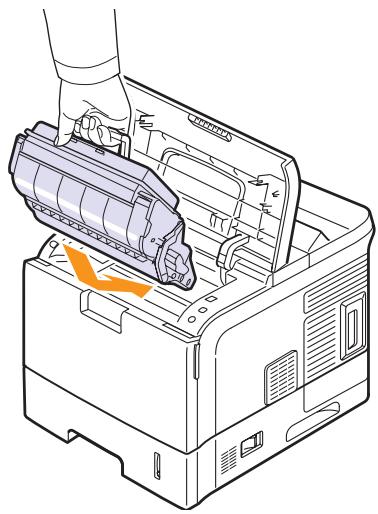
8 Close the top cover. Make sure that the cover is securely closed.
Clearing the Toner Low Replace Toner message
When the Toner Low Replace Toner message appears you can configure not to see this message again not to disturb you.
1 Press Menu until System Setup appears on the bottom line of the display and press OK.
2 Press the Scroll buttons until Maintenance appears and press OK.
3 Press the Scroll buttons until CLR Empty Msg. appears and press OK.
4 Select On and press OK.
5 Now the Toner Low Replace Toner message does not appear but the Replace Toner message will remain for reminding you that the new cartridge needs to be installed for quality.

Note
- Once you have selected On, this setting will be permanently written to the memory of the toner cartridge, and this menu will be disappeared from the Maintenance menu.
Maintenance parts
To avoid print quality and paper feed problems resulting from worn parts and to maintain your printer in top working condition, the following items will need to be replaced when the specified number of pages have been printed or when the life span of each item has expired.
| Items | Yield (Average) |
| Transfer roller | 150,000 |
| Fuser unit | 150,000 |
| Paper feeding roller | 150,000 |
| Rubber pad | 150,000 |
We highly recommends that an authorized service provider, dealer or the retailer where you bought printer performs this maintenance activity.
This chapter provides helpful information for what to do if you encounter an error while using your printer.
This chapter includes:
Clearing paper jams
Troubleshooting checklist
Understanding the status LED
Understanding display messages
- Toner cartridge-related messages
- Solving general printing problems
- Solving print quality problems
Common Windows problems
Common Macintosh problems
Common PostScript problems

Note
- When removing paper that is jammed in the printer, if possible always pull the paper in the direction that it normally moves so as not to damage internal components. Always pull firmly and evenly; do not jerk the paper. If the paper tears, ensure that all fragments of paper are removed; otherwise a jam will occur again.
When a paper jam occurs, the Status LED lights red. Open and close the top cover. The jammed paper automatically exits the printer.
If the paper does not exit, check the display on the control panel. The message indicating the corresponding location of the paper jam appears. Refer to the table below to locate the paper jam and to clear it:
| Message | Location of Jam | Go To |
| Paper Jam 0 Open/Close Door | In the paper feed area (tray 1, optional tray 2, optional tray 3, optional tray 4, multi-purpose tray) | the next column |
| Paper Jam 1 Open/Close Door | Around the toner cartridge | page 9.3 |
| Paper Jam 2 Check Inside | In the paper exit area | page 9.4 |
| Paper Exit Jam 1 Open/Close Door | Between the toner cartridge and the paper exit area | page 9.3 |
| Paper Tray 2 Jam Open Tray 2 | In the optional tray 2 | page 9.2 |
| Paper Tray 3 Jam Open Tray 3 | In the optional tray 3 | page 9.2 |
| Paper Tray 4 Jam Open Tray 4 | In the optional tray 4 | page 9.2 |
| Duplex Jam 0a Check Inside | In the duplex area | page 9.4 |
| Duplex Jam 1a Open/Close Door | In the duplex area | page 9.5 |
a. Available with the optional duplex unit.
In the paper feed area
In the tray 1
1 Pull the tray 1 open.
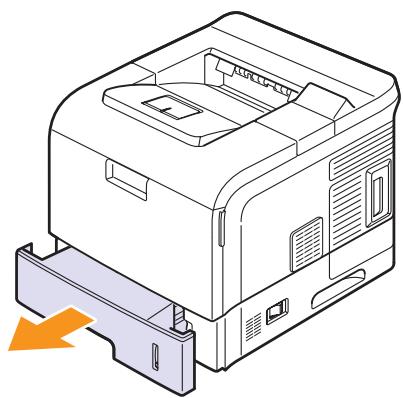
2 Remove the jammed paper by gently pulling it straight out. Make sure that all of the paper is properly aligned in the tray 1.
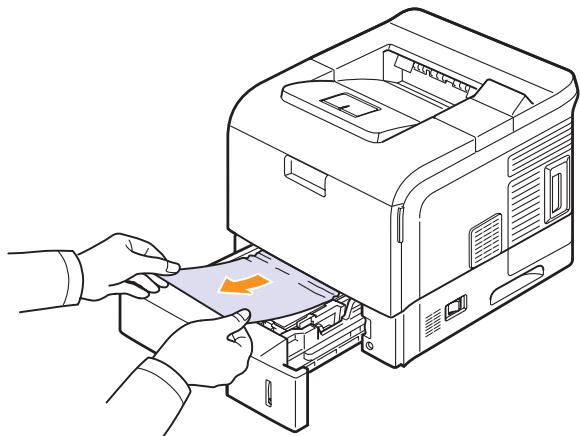
If the paper does not move when you pull, or if you do not see the paper in this area, check the fuser area around the toner cartridge. See page 9.3.
3 Insert the tray 1 into the printer until it snaps into place. Printing automatically resumes.
In the optional tray
1 Pull the optional tray open.
2 Remove the jammed paper from the printer.
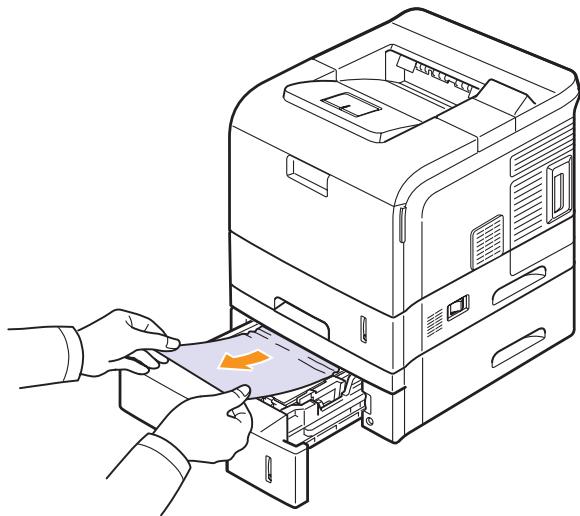
If the paper does not move when you pull, or if you do not see the paper in this area, stop and go to step 3.
3 Pull the upper tray half way out.
4 Pull the jammed paper straight up and out.
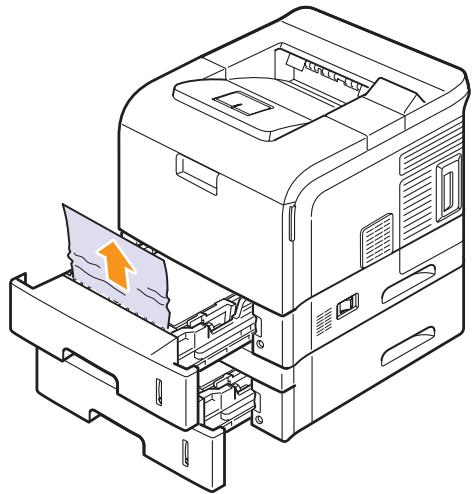
5 Fully insert the trays back into the printer. Printing automatically resumes.
In the multi-purpose tray
1 If the paper is not feeding properly, pull the paper out of the printer.
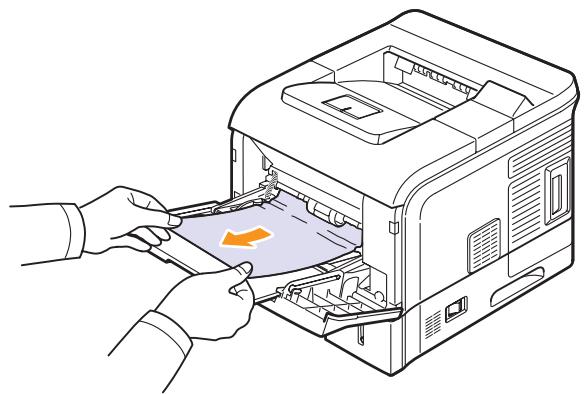
2 Open and close the top cover to resume printing.
Around the toner cartridge

Note
- The fuser area is hot. Take care when removing paper from the printer.
1 Open the top cover and pull the toner cartridge out.
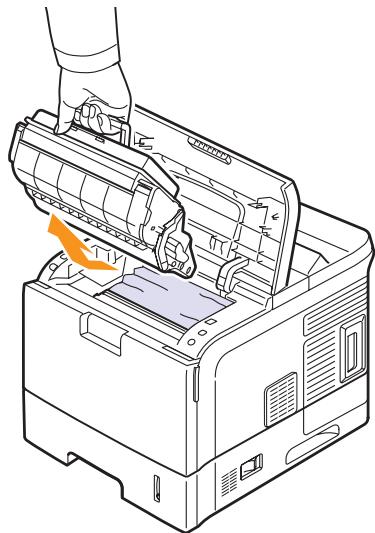

Notes
- To prevent damage to the toner cartridge, do not expose it to light for more than a few minutes. Cover it with a piece of paper, if necessary.
- Do not touch the green surface underside of the toner cartridge. Use the handle on the cartridge to avoid touching this area.
2 Carefully lift up the guide feed.
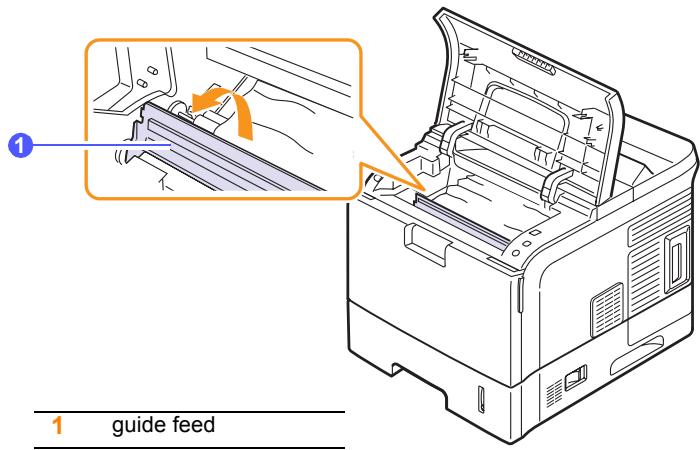
3 Remove the jammed paper by gently pulling it straight out.
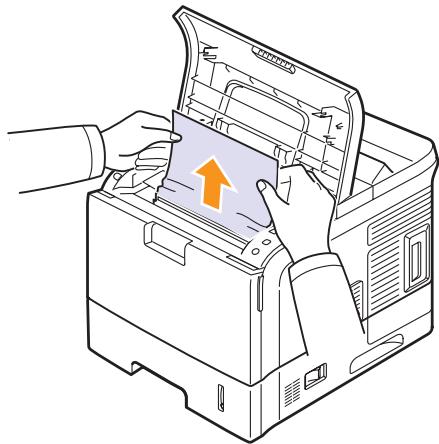
If you do not see the jammed paper or if there is any resistance removing the paper, stop pulling and go to the paper exit area. See page 9.4.
4 Flip down the guide feed.
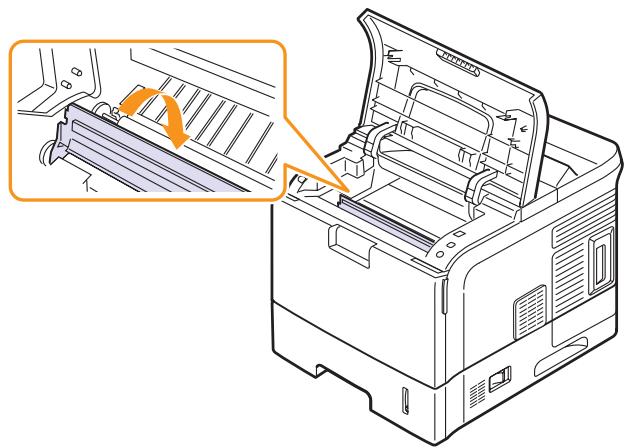
5 Replace the toner cartridge and close the top cover. Printing automatically resumes.

Note
- If it is difficult to reinstall the toner cartridge, make sure that the guide feed has been flipped back down into position.
In the paper exit area

Caution
- The inside of this machine gets very hot. Do not touch parts labelled "△" (hot surface). Touching "△" labelled parts could result in burns.
1 Open and close the top cover. The jammed paper is automatically ejected from the printer.
2 Gently pull the paper out of the output tray.
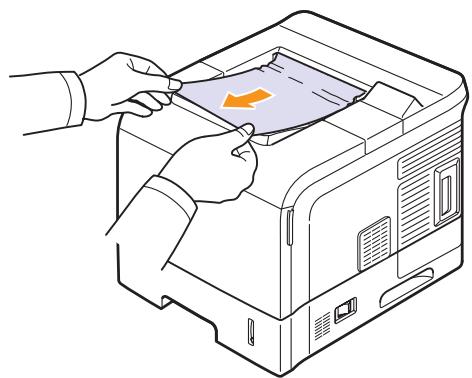
If you do not see the jammed paper or if there is any resistance when you pull, stop and go to the next step.
3 Open the rear cover.
4 By pusing the fuser levers upwards, loosen the jammed paper. Then gently pull the paper straight out.
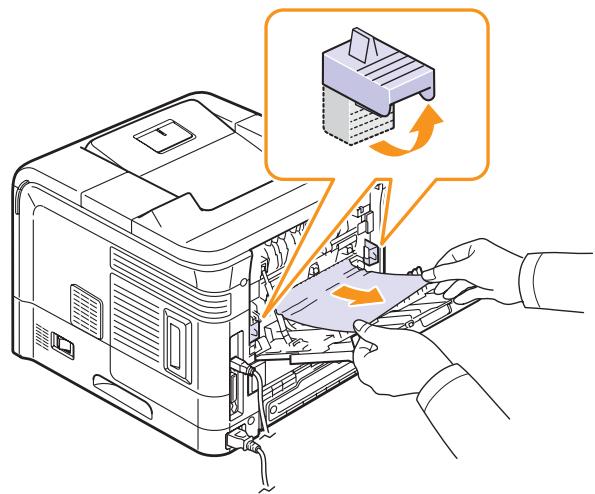
5 Put the fuser levers to their original position and close the rear cover. Printing automatically resumes.
In the duplex unit area
If the duplex unit is not inserted correctly, paper jam may occur. Make sure that the duplex unit is inserted correctly.
Duplex jam 0
1 Pull the duplex unit out of the printer.
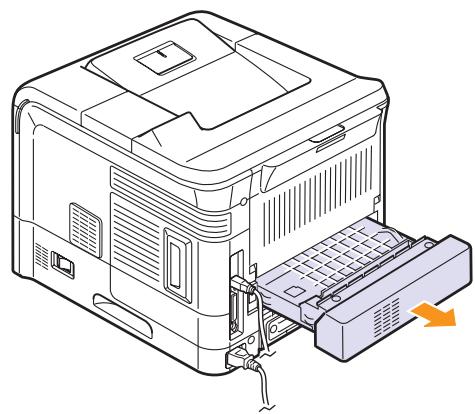
2 Locate the jammed paper and remove it.
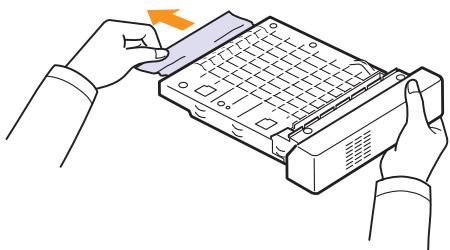
3 Insert the duplex unit into the slot.
4 Open and close the top cover. The printer will resume printing.
Duplex jam 1
1 Open the rear cover.
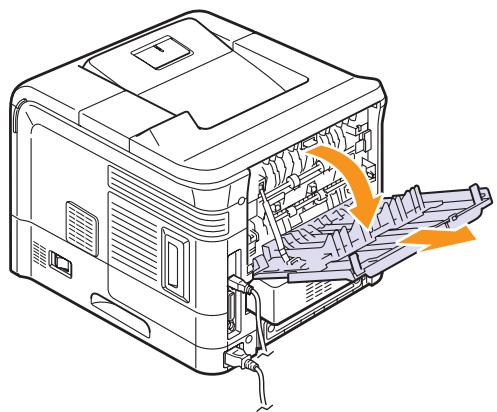
2 Gently pull the jammed paper straight up.
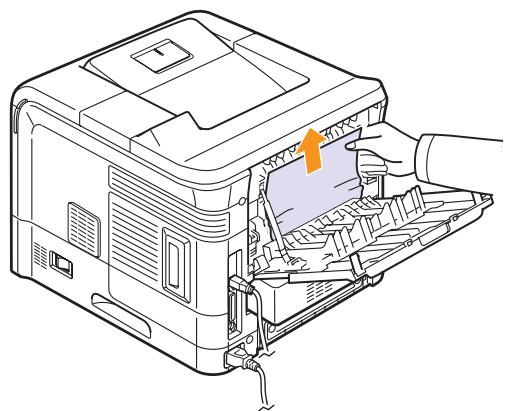
3 Close the rear cover.
4 Open and close the top cover. The printer will resume printing.
Tips for avoiding paper jams
By selecting the correct media types, most paper jams can be avoided. When a paper jam occurs, follow the steps outlined on page 9.1.
- Follow the procedures on page 5.5. Ensure that the adjustable guides are positioned correctly.
- Do not overload the tray. Ensure that the paper level is below the paper capacity mark on the inside wall of the tray.
- Do not remove paper from the tray while your printer is printing.
- Flex, fan, and straighten paper before loading.
- Do not use creased, damp, or highly curled paper.
- Do not mix paper types in a tray.
- Use only recommended print media. See page 5.1.
- Ensure that the recommended print side of print media is facing down in the tray, or facing up in the multi-purpose tray.
Troubleshooting checklist
If the printer is not working properly, consult the following checklist. If the printer does not pass a step, follow the corresponding suggested solutions.
| Condition | Suggested solutions |
| Make sure that the Status LED on the control panel lights green and Ready is shown on the display. | ·If the Status LED is off, check the power cord connection. Check the power switch. Check the power source by plugging the power cord into another outlet. ·If the Status LED lights red, check the display message. See page 9.6. |
| Print a demo page to verify that the printer is feeding paper correctly. See page 2.7. | ·If a demo page does not print, check the paper supply in the tray. ·If the paper jams in the printer, see page 9.1. ·If an error message appears on the display, see page 9.6. |
| Check the demo page to see if it printed correctly. | If there is a print quality problem, see page 9.11. |
| Print a short document from a software application to verify that the computer and printer are connected and are communicating correctly. | ·If the page does not print, check the cable connection between the printer and the computer. ·Check the print queue or print spooler to see if the printer has been paused. ·Check the software application to ensure that you are using the proper printer driver and communication port. If the page is interrupted during printing, see page 9.9. |
| If completing the checklist does not resolve the printer problem, check the following troubleshooting sections. | ·“Understanding the status LED” on page 9.6. ·“Understanding display messages” on page 9.6. ·“Solving general printing problems” on page 9.9. ·“Common Windows problems” on page 9.13. ·“Common PostScript problems” on page 9.13. ·“Common Macintosh problems” on page 9.14. |
Understanding the status LED
| Status | Description | |
| Off | ·The printer is off-line and cannot print. ·The printer is in power save mode. When data is received, it switches to on-line automatically. | |
| Green | On | The printer is on-line and can receive data from the computer. |
| Blinking | ·When the backlight blinks slowly, the printer is receiving data from the computer. ·When the backlight blinks quickly, the printer is printing data. | |
| Red | On | ·The toner is totally exhausted. Remove the old toner cartridge and install a new one. See page 8.5. ·A paper jam has occurred. To solve the problem, see page 9.1. ·The top cover is open. Close the top cover. ·There is no paper in the tray. Load paper in the tray. ·The toner cartridge installed is not a genuine cartridge, and you selected Stop at the NonGenuine Toner prompt. See page 9.6. ·The lifespan of the toner cartridge is reached, and you selected Stop at the Toner Exhausted prompt. See page 9.6. ·The printer has stopped printing due to a major error. Check the display message. See page 9.6 for details on the meaning of the error message. |
| Blinking | ·A minor error is occurring and the printer is waiting for the error to be cleared. Check the display message. When the problem is cleared, the printer resumes printing. ·The toner cartridge is low. Order a new toner cartridge. You can temporarily improve print quality by redistributing the toner. See page 8.4. | |
Understanding display messages
Messages appear on the Status Monitor program window or the control panel display to indicate the printer's status or errors. Refer to the tables below to understand the messages' meaning and correct the problem if necessary. Messages and their meanings are listed in alphabetical order.

Note
- When you call for service, it is very convenient to tell the service representative the display message.
| Message | Meaning | Suggested solutions |
| ADC Not Confirm Error | There is a problem in your printer system. | Unplug the power cord and plug it back in. If the problem persists, please call for service. |
| Door Open | The top cover or rear cover is not securely latched. | Close the cover until it locks into place. |
| Duplex Jam 0 Check Inside | Paper has jammed during duplex printing. | Clear the jam. See page 9.4. |
| Duplex Jam 1 Open/Close Door | Paper has jammed during duplex printing. | Clear the jam. See page 9.5. |
| Fuser Door Open | The fuser door is not securely latched. | Open the rear cover and close the fuser door until it locks into place. |
| Fuser is Cleaning | Your printer is printing a Cleaning sheet now. | Please wait a few minutes. |
| Inner Temp. Open Cycle Power | There is a problem in your printer system. | Unplug the power cord and plug it back in. If the problem persists, please call for service. |
| Inner Temp. Error Cycle Power | There is a problem in your printer system. | Unplug the power cord and plug it back in. If the problem persists, please call for service. |
| Load [Size] In [Tray] | The paper size specified in the printer properties does not match the paper you are loading. | Load the correct paper in the tray. |
| Load Manual Press Cont Key | The multi-purpose tray is empty in manual feed mode. | Load a sheet of print media and press OK. You need to press OK each page to be printed. |
| Low Heat Error Cycle Power | There is a problem in the fuser unit. | Unplug the power cord and plug it back in. If the problem persists, please call for service. |
| LSU Motor Error Cycle Power | A problem has occurred in the LSU (Laser Scanning Unit). | Unplug the power cord and plug it back in. If the problem persists, please call for service. |
| MP Tray Paper Empty | There is no paper in the multi-purpose tray. | Load paper in the multi-purpose tray. See page 5.6. |
| OPC is Cleaning | Your printer is printing a cleaning sheet now. | Please wait a few minutes. |
| Open Heat Error Cycle Power | There is a problem in the fuser unit. | Unplug the power cord and plug it back in. If the problem persists, please call for service. |
| Out-Bin Full | The output tray is full. | It can hold up to 250 sheets of plain paper. Once the paper is removed from the output tray, the printer resumes printing. |
| Over Heat Error Cycle Power | There is a problem in the fuser unit. | Unplug the power cord and plug it back in. If the problem persists, please call for service. |
| Paper Exit Jam 1 Open/Close Door | Paper has jammed before reaching to the exit sensor. | Clear the jam. See page 9.3. |
| Message | Meaning | Suggested solutions |
| Paper Jam 0 Open/Close Door | Paper has jammed in the feeding area of the tray. | Clear the jam. See page 9.2. |
| Paper Jam 1 Open/Close Door | Paper has jammed in the fuser area. There are toner powders on a feed sensor. | Clear the jam. See page 9.3. Clean a feed sensor. see page 8.1. |
| Paper Jam 2 Check Inside | Paper has jammed in the paper exit area. | Clear the jam. See page 9.4. |
| Paper [Tray] Jam Open [Tray] | Paper has jammed in the displayed optional tray. | Clear the jam. See page 9.2. |
| Printing... | The printer is printing jobs. | Complete your printing. |
| Ready | The printer is on-line and ready to print. | Use your printer. |
| Self Diagnostic LSU | The LSU (Laser Scanning Unit) in your printer is checking some problems detected. | Please wait a few minutes. |
| Self Diagnostic Temperature | The engine in your printer is checking some problems detected. | Please wait a few minutes. |
| Sleeping... | The printer is in power save mode. | When data is received, it switches to on-line automatically. |
| [Tray] Cassette Out | The displayed tray is open. | Close the tray until it locks into place. |
| [Tray] Paper Empty | There is no paper in the tray. | Load paper in the tray. See page 5.5. |
| Warming Up Please Wait... | Your printer is warming up now. | Please wait a few minutes. |
| Message | Meaning | Suggested solutions |
| Install Toner | A toner cartridge is not installed. | Install a toner cartridge. |
| Invalid Toner | The toner cartridge you have installed is not for your printer. | Install a genuine toner cartridge, designed for your printer. |
| Toner Low | The toner cartridge is almost empty. | Take out the toner cartridge and thoroughly shake it. By doing this, you can temporarily reestablish printing operations. |
| NonGenuine Toner Stop ▶ | The toner cartridge installed is not a genuine cartridge. | You can select either Stop or Continue. If you do not select any, the printer will work as Stop is selected. If you select Stop, you cannot print until the genuine cartridge is installed. However, you can still print any kind of reports. If you select Continue, you can keep printing but the quality cannot be guaranteed, and the product support is no longer provided. If you want to change the selection, turn the printer off and on to have this message appear again, and then re-select Stop or Continue. |
| NonGenuine Toner Replace Toner1 | The toner cartridge installed is not a genuine cartridge. | This message appears when you selected Stop at the NonGenuine Toner prompt. Install the genuine toner cartridge. |
| NonGenuine Toner Replace Toner | The toner cartridge installed is not a genuine cartridge. | This message appears when you selected Continue at the NonGenuine Toner prompt. Install the genuine toner cartridge. |
| Toner Low Replace Toner | The toner in the cartridge has run out. | Install a new genuine toner cartridge. You can keep printing but the quality cannot be guaranteed, and the product support is no longer provided. You can configure not to see the Toner Low Replace Toner message. See page 8.4. |
| Replace Toner | The toner in the cartridge has run out. | This message appears when you turned off the Toner Low Replace Toner message. See page 8.4. Install a new genuine toner cartridge. You can keep printing but the quality cannot be guaranteed, and the product support is no longer provided. |
| Toner Exhausted Stop ▶ | The lifespan of the toner cartridge is reached. | You can select either Stop or Continue. If you do not select any, the printer will work as Stop is selected. If you select Stop, you cannot print until the genuine cartridge is installed. If you select Continue, you can keep printing but the quality cannot be guaranteed, and the product support is no longer provided. If you want to change the selection, turn the printer off and on to have this message appear again, and then re-select Stop or Continue. |
| Toner Exhausted Replace Toner1 | The lifespan of the toner cartridge is reached. | This message appears when you selected Stop at the Toner Exhausted prompt. Install the genuine toner cartridge. |
| Toner Exhausted Replace Toner | The lifespan of the toner cartridge is reached. | This message appears when you selected Continue at the Toner Exhausted prompt. Install the genuine toner cartridge. |
Solving general printing problems
For problems with the operation of your printer, refer to the table for suggested solutions.
| Condition | Possible cause | Suggested solutions |
| The printer does not print. | The printer is not receiving power. | Check the power cord connections. Check the power switch and the power source. |
| The printer is not selected as the default printer. | Select SP 5100N PCL 6 or SP 5100N PS as your default printer. | |
| The printer cover is not closed. | Close the printer cover. | |
| Paper is jammed. | Clear the paper jam. See page 9.1. | |
| No paper is loaded. | Load paper. See page 5.4. | |
| The toner cartridge is not installed. | Install the toner cartridge. | |
| The printer may be in manual feed mode and out of paper. | Check the display message, add paper to the multi-purpose tray, and press OK on the printer's control panel. | |
| The connection cable between the computer and the printer is not connected properly. | Disconnect the printer cable and reconnect it. | |
| The connection cable between the computer and the printer is defective. | If possible, attach the cable to another computer that is working properly and try to print a document. You can also try using a different printer cable. | |
| The port setting is incorrect. | Check the Windows printer setting to make sure that the print job is sent to the correct port. If the computer has more than one port, make sure that the printer is attached to the correct one. |
| Condition | Possible cause | Suggested solutions |
| The printer does not print.(Continued) | The printer may be configured incorrectly. | Check the printer properties to ensure that all of the print settings are correct. |
| The printer driver may be incorrectly installed. | Reinstall the printer driver; See the Software Section. Try printing a test page. | |
| The printer is malfunctioning. | Check the display message on the control panel to determine if the printer is indicating a system error. | |
| Printer selects print media from the wrong paper source. | The paper source selection in the printer properties may be incorrect. | For many software applications, the paper source selection is found under the Paper tab within the printer properties. Select the correct paper source. See the Software Section. |
| Paper does not feed into the printer. | Paper has not been loaded correctly. | Remove paper from the tray and reload it correctly. Check that the paper size guides are set correctly. |
| There is too much paper in the tray. | Remove excess paper from the tray. | |
| The paper is too thick. | Use only paper that meets printer specifications. | |
| Print job is extremely slow. | The job may be very complex. | Reduce the complexity of the page(s) or try adjusting the print quality settings. To adjust the print quality settings, reduce the resolution. If you have set the resolution to 1200 dpi (Best), change it to 600 dpi (Normal). See the Software Section. Change the port setting to the USB or network port to improve print speed. Your printer prints A4-sized paper at 43 ppm and letter-sized paper at 45 ppm. If you install an option duplex unit your printer prints A4-sized paper at 29 ipm and letter-sized paper at 30 ipm in the duplex printing mode. |
| Print job is extremely slow. (Continued) | If using Windows 98/Me, the Spooling Setting may be set incorrectly. | From the Start menu, choose Settings and Printers. Right-click the SP 5100N PCL 6 printer icon, choose Properties, click the Details tab, and then choose the Spool Settings button. Select the desired spool setting. |
| The computer may have insufficient random-access memory (RAM). | Install more memory in your printer. See page 10.1. | |
| Half the page is blank. | The page layout is too complex. | Simplify the page layout and remove any unnecessary graphics from the document. Install more memory in your printer. See page 10.1. |
| The page orientation setting may be incorrect. | Change the page orientation in your application. See the Software Section. | |
| The paper size and the paper size settings do not match. | Ensure that the paper size in the printer driver settings matches the paper in the tray. Or, ensure that the paper size in the printer driver settings matches the paper selection in the software application settings you use. | |
| The paper keeps jamming. | There is too much paper in the tray. | Remove excess paper from the tray. If printing on special media, use the multi-purpose tray and open the rear cover. |
| An incorrect type of paper is being used. | Use only paper that meets printer specifications. If printing on special media, use the multi-purpose tray and open the rear cover. | |
| An incorrect output method is being used. | Special print media, such as thick paper, should not be printed using the output tray (face-down). Use the rear cover (face-up) instead. | |
| There may be debris inside the printer. | Open the top cover and remove the debris. |
| Condition | Possible cause | Suggested solutions |
| The printer prints, but the text is wrong, garbled, or incomplete. | The printer cable is loose or defective. | Disconnect and reconnect the printer cable. Try a print job that you have already printed successfully. If possible, attach the cable and printer to another computer and try a print job that you know works. Finally, try a new printer cable. |
| The wrong printer driver was selected. | Check the application's printer selection menu to ensure that your printer is selected. | |
| The software application is malfunctioning. | Try printing a job from another application. | |
| The operating system is malfunctioning. | If printing from Windows (any version), exit to a DOS prompt and verify functionality with the following command: At a C:\ prompt, type Dir LPT1, and press Enter. (This assumes you are connected to LPT1.) Exit Windows and reboot the computer. Turn the printer off and then back on again. | |
| Pages print, but are blank. | The toner cartridge is defective or out of toner. | Redistribute the toner cartridge. See page 8.4. If necessary, replace the toner cartridge. See page 8.5. |
| The file may have blank pages. | Check the file to ensure that it does not contain blank pages. | |
| Some parts, such as the controller or the board, may be defective. | Contact a service representative. | |
| The illustrations print incorrectly in Adobe Illustrator. | The setting in the software application is wrong. | Select Download as Bitmap in the Advanced Options window of the graphic properties. Print the document again. |
Solving print quality problems
Dirt inside of the printer or improper paper loading may reduce print quality. See the table below to troubleshoot problems.
| Condition | Suggested solutions |
| Light or faded print AaBbCc AaBbCc AaBbCc AaBbCc AaBbCc | If a vertical white streak or faded area appears on the page: ·The toner supply is low. You may be able to temporarily extend the toner cartridge life. See page 8.4. If this does not improve print quality, install a new toner cartridge. ·The paper may not meet paper specifications (for example, the paper is too moist or too rough). See page 5.3. ·If the entire page is light, the print resolution setting is too light or toner save mode is on. Adjust the print resolution and toner save mode in the printer properties. See the Software Section. ·If the entire page is faded with "Toner Low Replace Toner" message on LCD, set "CLR Empty Msg." to "On" referring to page 8.7. In this case, you can keep printing but the quality cannot be guaranteed, and the product support is no longer provided. ·A combination of faded or smeared defects may indicate that the printer needs cleaning. See page 8.1. ·The surface of LSU may be dirty. Clean the LSU. See page 8.2. |
| Toner spots AaBbCc AaBbCc AaBbCc AaBbCc AaBbCc | ·The paper may not meet specifications (for example, the paper is too moist or too rough). See page 5.3. ·The transfer roller or paper path may be dirty. See page 8.1. |
| Condition | Suggested solutions |
| Dropouts AaBbCc AaBbCc AaBbCc AaBbCc AaBbCc | If generally rounded, faded areas occur randomly on the page: · A single sheet of paper may be defective. Try reprinting the job. · The moisture content of the paper is uneven or the paper has moist spots on its surface. Try a different brand of paper. See page 5.3. · The paper lot is bad. The manufacturing processes can cause some areas to reject toner. Try a different kind or brand of paper. · The toner cartridge may be defective. See “Vertical repetitive defects” on the next page. · If these steps do not correct the problems, contact a service representative. |
| Vertical lines AaBbCc AaBbCc AaBbCc AaBbCc AaBbCc AaBbCc | If black vertical streaks appear on the page: · The drum inside the toner cartridge has probably been scratched. Install a new toner cartridge. See page 8.5. If white vertical streaks appear on the page: · The surface of the LSU part inside the printer may be dirty. Clean the LSU. See page 8.2. |
| Gray background AaBbCc AaBbCc AaBbCc AaBbCc AaBbCc AaBbCc | If the amount of background shading becomes unacceptable, the procedures below may fix the problem. · Change to lighter weight pages. See page 5.3. · Check the printer's environment; very dry (low humidity) or high humidity (higher than 80% RH) conditions can increase the amount of background shading. · Remove the old toner cartridge and install a new one. See page 8.5. |
| Toner smear AaBbCc AaBbCc AaBbCc AaBbCc AaBbCc | · Clean the inside of the printer. See page 8.1. · Check the type and quality. See page 5.2. · Remove the toner cartridge and install a new one. See page 8.5. |
| Vertical repetitive defects AaBbCc AaBbCc AaBbCc AaBbCc AaBbCc | If marks repeatedly appear on the printed side of the page at even intervals: ·The toner cartridge may be damaged. If a repetitive mark occurs on the page, print a cleaning sheet several times to clean the cartridge; see page 8.3. After the printout, if you still have the same problems, install a new toner cartridge. See page 8.5. ·Parts of the printer may have toner on them. If the defects occur on the back of the page, the problem will likely correct itself after a few more pages. ·The fusing assembly may be damaged. Contact a service representative. |
| Background scatter A | Background scatter results from bits of toner distributed on the printed page. ·The paper may be too damp. Try printing with a different batch of paper. Do not open packages of paper until necessary so that the paper does not absorb too much moisture. ·If background scatter occurs on an envelope, change the printing layout to avoid printing over areas that have overlapping seams on the reverse side. Printing on seams can cause problems. ·If background scatter covers the entire surface area of a printed page, adjust the print resolution through your software application or via the printer properties window. |
| Misformed characters AaBbCc AaBbCc AaBbCc AaBbCc AaBbCc AaBbCc | ·If characters are improperly formed and producing hollowed images, the paper stock may be too slick. Try a different paper. See page 5.3. ·If characters are improperly formed and producing a wavy effect, the scanner unit may need service. Verify that it also occurs on a demo page (see page 2.7). For service, contact a service representative. |
| Page skew AaBbCc AaBbCc AaBbCc AaBbCc AaBbCc AaBbCc | ·Ensure that the paper is loaded properly. ·Check the paper type and quality. See page 5.2. ·Ensure that the paper or other media is loaded correctly and the guides are not too tight or too loose against the paper stack. |
| Condition | Suggested solutions |
| Curl or wave AaBbCc AaBbCc AaBbCc AaBbCc AaBbCc AaBbCc | ·Ensure that the paper is loaded properly. ·Check the type and quality. Both high temperature and humidity can cause paper curl. See page 5.2. ·Turn over the stack of paper in the tray. Also try rotating the paper 180° in the tray. ·Try printing to the rear cover (face-up). |
| Wrinkles or creases AaBbCc AaBbCc AaBbCc AaBbCc AaBbCc AaBbCc | ·Ensure that the paper is loaded properly. ·Check the paper type and quality. See page 5.2. ·Open the rear cover and try printing to the rear cover (face-up). ·Turn over the stack of paper in the tray. Also try rotating the paper 180° in the tray. |
| Back of printouts are dirty AaBbCc AaBbCc AaBbCc AaBbCc AaBbCc | ·The transfer roller may be dirty. See page 8.1. ·Check for leaking toner. Clean the inside of the printer. |
| Solid color or Black pages | ·The toner cartridge may not be installed properly. Remove the cartridge and reinsert. ·The toner cartridge may be defective and need replacing. Install a new toner cartridge. ·The printer may require repair. Contact a service representative. |
| Loose toner AaBbCc AaBbCc AaBbCc AaBbCc AaBbCc | ·Clean the inside of the printer. ·Check the paper type and quality. See page 5.2. ·Install a new toner cartridge. See page 8.5. ·If the problem persists, the printer may require repair. Contact a service representative. |
| Character Voids | Character voids are white areas within characters that should be solid black: ·If you are using transparencies, try another type of transparency. Because of the composition of the transparency, some character voids may be normal. ·You may be printing on the wrong surface on the paper. Remove the paper and turn it around. ·The paper may not meet paper specifications. See page 5.3. |
| Horizontal stripes | If horizontally aligned black streaks or smears appear: ·The toner cartridge may be installed improperly. Remove the cartridge and reinsert. ·The toner cartridge may be defective. Install a new toner cartridge. See page 8.5. ·If the problem persists, the printer may require repair. Contact a service representative. |
| Curl | If the printed paper is curled or paper does not feed into the printer: ·Turn over the stack of paper in the tray. Also try rotating the paper 180° in the tray. ·Try printing to rear cover (face up). |
| An unknown image repetitively appears on a next few sheets or loose toner, light print or contamination occurs. | Your printer is probably being used at an altitude of 2,500 m (8,200 ft) or above. The high altitude may affect the print quality such as loose toner or light imaging. You can set this option through Printer Settings Utility or Printer Tab in printer driver's properties. Refer to the Software Section for details. |
Common Windows problems
| Condition | Suggested solutions |
| “File in Use”message appearsduring installation. | Exit all software applications. Remove allsoftware from the StartUp Group, then restartWindows. Reinstall the printer driver. |
| Condition | Suggested solutions |
| “Error Writing to LPTx” message appears. | ·Ensure that the cables are connected correctly, the printer is on. ·If bi-directional communication is not turned on in the driver, it will also cause this message. |
| “General Protection Fault”, “Exception OE”, “Spool32”, or “Illegal Operation” messages appear. | Close all other applications, reboot Windows, and try printing again. |
| “Fail To Print,” “A printer timeout error occurred,” messages appear. | These messages may appear during printing. Just keep waiting until the printer finishes printing. If the message appears in standby mode or after printing has been completed, check the connection and/or whether an error has occurred. |

Note
- Refer to Microsoft Windows 98/Me/NT 4.0/2000/XP/2003 User's Guide that came with your PC for further information on Windows error messages.
Common PostScript problems
The following situations are PostScript language specific and may occur when several printer languages are being used.

Note
- To receive a printed or screen displayed message when PostScript errors occur, open the Print Options window and click the desired selection next to the PostScript errors section.
| Condition | Possible cause | Suggested solutions |
| PostScript file can not be printed. | The PostScript driver may not be installed correctly. | • Print a configuration page and verify that the PostScript version is available for printing. • Install the PostScript driver; to installing the PS printer driver, see the Software Section. • If problem consists, contact a service representative. |
| “Limit Check Error” message appears. | The print job was too complex. | You might need to reduce the complexity of the page or install more memory. |
| A PostScript error page prints. | Print job may not be PostScript. | Make sure that the print job is a PostScript job. Check to see whether the software application expected a setup or PostScript header file to be sent to the printer. |
| The optional tray 2 (tray 3 or tray 4) is not selected in the driver. | The printer driver has not been configured to recognize the optional tray 2 (tray 3 or tray 4). | Open the PostScript driver properties, select the Device Settings tab, and set the Tray2 (Tray3 or Tray4) option of the Installable Options section to Installed. |
| When print a document in Macintosh with Acrobat Reader 6.0 or higher, colors print incorrectly. | The resolution setting in the printer driver may not be matched with that in Acrobat Reader. | Make sure that the resolution setting in your printer driver matches that in Acrobat Reader. |
Common Macintosh problems
| Condition | Suggested solutions |
| The printer does not print a document from Acrobat Reader. | Change the Print Method option to Print as Image when you print from Acrobat Reader. |
| The document has printed, but the print job has not disappeared from the spooler in Mac OS 10.3.2. | Update your Mac OS to OS 10.3.3 or higher. |
| The printer does not print a document from Illustrator on IPP printing. | Change the Data type option in the Adobe Illustrator print menu to Binary. Or, you can use Appletalk printing. |
10 Installing accessories
Your printer is a full-featured laser printer that has been optimized to meet the majority of your printing needs. Recognizing that each user may have different requirements, however, Manufacturer makes several accessories available to enhance the printer's capabilities.
This chapter includes:
- Precautions when installing accessories
- Installing a dual in-line memory module (DIMM)
Using the hard disk
Precautions when installing accessories
Disconnect the power cord:
Never remove the control board cover while the printer is plugged in.
To avoid the possibility of an electrical shock, always disconnect the power cord when installing or removing ANY internal or external accessories.
Discharge static electricity:
The control board and internal accessories (DIMM, and hard disk) are sensitive to static electricity. Before installing or removing internal accessories, discharge static electricity from your body by touching something metal, such as the metal back plate on any device plugged into a grounded power source. If you walk round before finishing installation, discharge any static electricity once again.
Installing a dual in-line memory module (DIMM)
Your printer has a dual in-line memory module (DIMM) slot. Use this DIMM slot to install additional memory.
Your printer has 128 MB of memory which can be expanded to 512 MB. For information about ordering optional DIMMs, see page 7.1.
1 Turn the printer power off and unplug the power cord and printer cable from the printer.
2 Remove the duplex-slot cover or the duplex unit from the back of the printer.
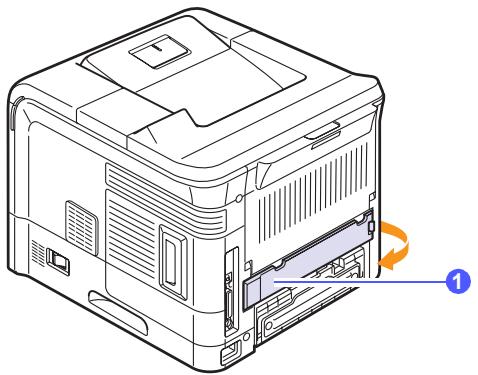
1 duplex-slot cover
3 Grasp the control board cover and remove it.
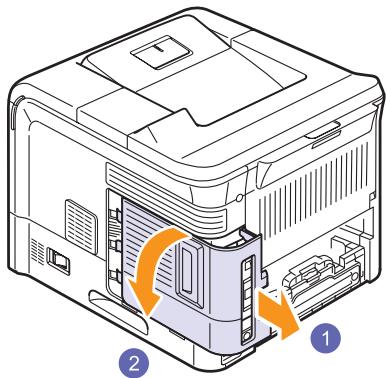
4 Take out a new DIMM from its plastic bag.
5 Locate the extra DMM slot and align the notch on the DIMM with the groove at the DIMM slot, holding the DIMM by its edges.
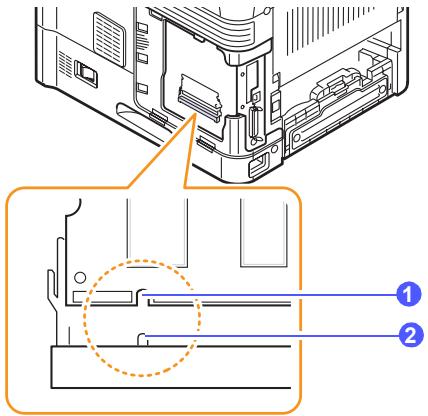
| 1 | notch |
| 2 | groove |
6 Push the DIMM into the printer until it snaps into place. Make sure that the latches fit over the notches located on either side of the DIMM.
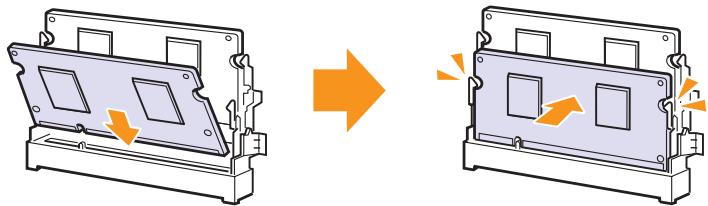
7 Close the control board cover by aligning the groove on it with the notch on the printer and sliding it.
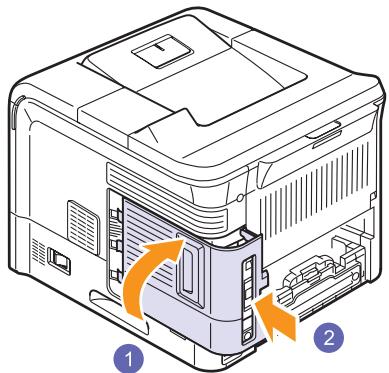
8 Reinstall the duplex-slot cover or the duplex unit.
9 Reconnect the power cord and printer cable, and turn the printer on.
Setting the memory in the PostScript printer properties
After installing the DIMM, you need to select it in the printer properties of the PostScript printer driver to enable its use.
1 Make sure that the PostScript printer driver is installed on your computer. To install the PostScript printer driver, see the Software Section.
2 Click the Windows Start menu.
3 For Windows 98/Me/NT 4.0/2000, select Settings and then Printers.
For Windows XP/2003, select Printers and Faxes.
4 Select the SP 5100N PS printer.
5 Click the right mouse button on the printer icon and select Properties.
6 For Windows 98/Me, select the Device Option tab.
For Windows NT 4.0/2000/XP/2003, select the Device Settings tab.
7 Select the amount of memory you installed from Printer Memory in the Installable Options section.
For Windows 98, select Installable Options VMOption change setting for: NMOption change memory.
8 Click OK.
Removing a DIMM
To expand the printer memory to 512 MB, you need to remove the preinstalled 128 MB DIMM and install two 256 MB DIMMs into the DIMM slots.
Push the latches at both ends of the DIMM slot away to remove the DIMM and pull out the DIMM.
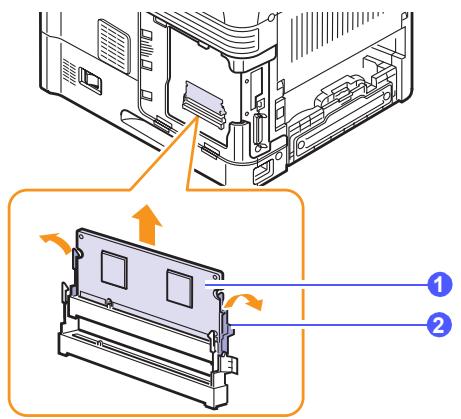
| 1 | latch |
| 2 | DIMM |
Using the hard disk
Installing the hard disk allows the data from your computer to be sent to the print queue of the printer hard disk. This decreases the workload of the computer. You can also use various print features, such as storing a job in the hard disk, proofing a job, and printing private documents.
Installing the hard disk
For order information, see page 7.1.
Review the precautions on page 10.1.
1 Turn the printer power off and unplug the power cord and printer cable from the printer.
2 Remove the duplex-slot cover or the duplex unit from the back of the printer.
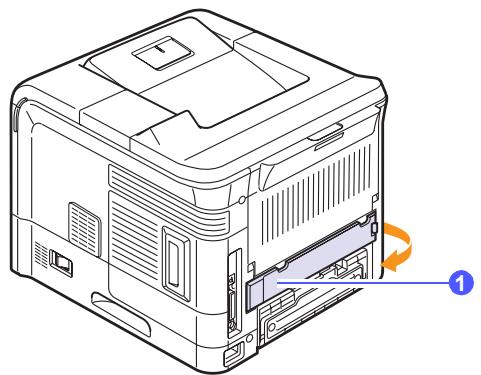
1 duplex-slot cover
3 Grasp the control board cover and remove it.
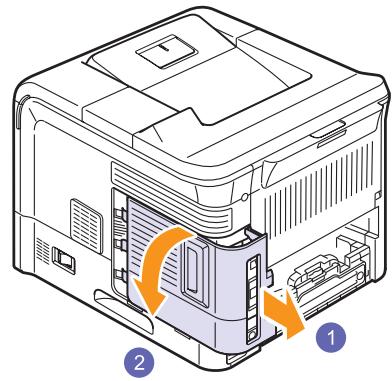
4 Align the connector on the hard disk with the connector on the control board. Push the hard disk in until it is latched into place.
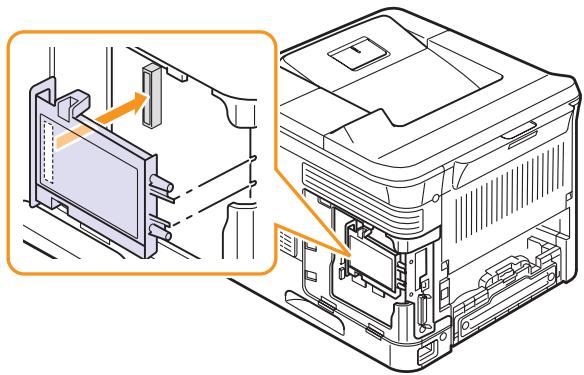
5 Fasten the four screws supplied with your new hard disk.
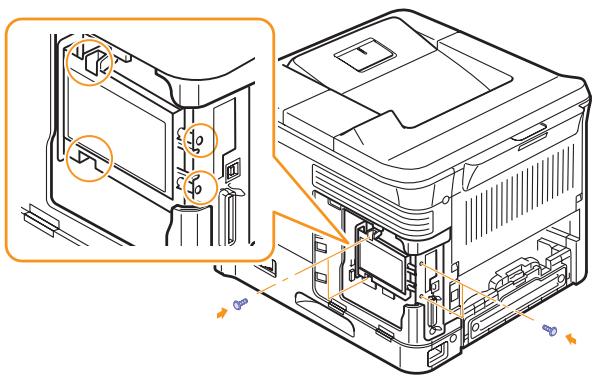
6 Close the control board cover by aligning the groove on it with the notch on the printer and sliding it.
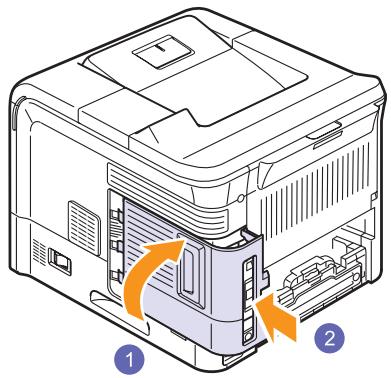
7 Reinstall the duplex-slot cover or the duplex unit.
8 Reconnect the power cord and printer cable, and turn the printer on.
9 Print a configuration page from the control panel to check if the hard disk is correctly installed. See page 8.1.
Setting the hard disk in the printer properties
After installing the hard disk, you need to select it in the printer properties to enable its use. Take the following steps:
1 Click the Windows Start menu.
2 For Windows 98/Me/NT 4.0/2000, select Settings and then Printers.
For Windows XP/2003, select Printers and Faxes.
3 Select the SP 5100N PCL 6 printer icon or SP 5100N PS printer icon.
4 Click the right mouse button on the printer icon and select Properties.
5 In PCL 6 Properties, click the Printer tab and then check Optional Hard Disk Drive (HDD).
In PS Properties, click the Device Option or Device Settings tab and set the Optional Hard Disk Drive (HDD) option to Installed.
6 Click OK.
Printing with the optional hard disk
After installing the optional hard disk, you can use advanced printing features, such as storing or spooling a print job to the hard disk, proofing a job, and specifying of printing a private job in the printer properties window.
Once you have stored files in the hard disk, you can easily print or delete the stored files using the control panel of your printer.
Setting the time and date
1 Press Menu until System Setup appears on the bottom line of the display and press OK.
2 Press OK when Date & Time appears.
3 Press the Scroll buttons until the digit you want appears and press OK.
You can enter from 2000 to 2065 in the year input section. The cursor moves to the next position.
4 Repeat step 3 until all digits appear correctly.
5 Press OK.
Storing a job
You can store jobs in the installed hard disk.
1 Open the file you want to store.
2 Select Print from the File menu. The Print window displays.
3 Click Properties. If you see Setup, Print or Options, click the button instead.
4 Click the Extra tab and click Print and Hold.
5 Select the print mode you want from the drop-down list.
Normal: prints in normal mode.
- Proof: prints the first file and after a pause prints the next file.
- Confidential: stores the files, securing them with a password.
- Store: stores the file to the hard disk.
- Spool: spools the file into the hard disk and prints it from the hard disk queue.
- Delay: prints the file at a specified time.
6 Enter the user's name and file name.
7 Click OK until the Print window is displayed.
8 Click OK or Print to start printing.
Printing a stored job
You can print jobs currently stored in the hard disk.
1 Press Menu until Job Manage. appears on the bottom line of the display and press OK.
2 Press the Scroll buttons until Store Job appears and press OK.
3 Press the Scroll buttons until the user's name and file name you want appear and press OK.
4 If the select file is a confidential print job, enter the specified 4-digit password.
Press the Scroll buttons to enter the first digit and press OK. The cursor automatically moves to the next digit position. Enter the 2nd, 3rd, and 4th digit in the same way.
5 When Print appears, press OK.
If you enter the incorrect password, Invalid Password appears. Reenter the correct password.
6 Press the Scroll buttons until the number of copies you want appears and press OK.
7 Press OK. Printing starts.
Deleting a stored job
You can delete jobs currently stored in the hard disk.
1 Press Menu until Job Manage. appears on the bottom line of the display and press OK.
2 Press the Scroll buttons until Store Job appears and press OK.
3 Press the Scroll buttons until the user's name and file name you want appear and press OK.
4 If the select file is a confidential print job, enter the specified 4-digit password.
Press the Scroll buttons to enter the first digit and press OK. The cursor automatically moves to the next digit position. Enter the 2nd, 3rd, and 4th digit in the same way.
5 Press the Scroll buttons until Delete appears and press OK.
If you enter the incorrect password, Invalid Password appears. Reenter the correct password.
6 When Yes appears, press OK.
Controlling the active job queue
All of the print jobs waiting to be printed are listed in the Active Job Queue in the order you sent them to the printer. You can delete a job from the queue before printing, or promote a job to print sooner.
To delete a file from the queue:
1 Press Menu until Job Manage. appears on the bottom line of the display and press OK.
2 Press the Scroll buttons until Active Job appears and press OK.
3 Press the Scroll buttons until the user's name and file name you want appear and press OK.
4 If the select file is a confidential print job, enter the specified 4-digit password.
Press the Scroll buttons to enter the first digit and press OK. The cursor automatically moves to the next digit position. Enter the 2nd, 3rd, and 4th digit in the same way.
5 Press the Scroll buttons until Cancel appears and press OK.
If you enter the incorrect password, Invalid Password appears. Reenter the correct password.
6 Press the Scroll buttons until Yes appears and press OK.
To promote a file from the queue:
You can select a job waiting in the Active Job Queue and change its print order so that it can be printed sooner.
1 Press Menu until Job Manage. appears on the bottom line of the display and press OK.
2 Press the Scroll buttons until Active Job appears and press OK.
3 Press the Scroll buttons until the user's name and file name you want appear and press OK.
4 If the select file is a confidential print job, enter the specified 4-digit password.
Press the Scroll buttons to enter the first digit and press OK. The cursor automatically moves to the next digit position. Enter the 2nd, 3rd, and 4th digit in the same way.
5 Press the Scroll buttons until Promote appears and press OK.
If you enter the incorrect password, Invalid Password appears. Reenter the correct password.
To print a file immediately:
You can print a job scheduled to be printed at a specified time immediately. In this case, the job currently printing is stopped and the selected job will be printed. This function is available when the job is scheduled for later printing.
1 Press Menu until Job Manage. appears on the bottom line of the display and press OK.
2 Press the Scroll buttons until Active Job appears and press OK.
3 Press the Scroll buttons until the user's name and file name you want appear and press OK.
4 If the select file is a confidential print job, enter the specified 4-digit password.
Press the Scroll buttons to enter the first digit and press OK. The cursor automatically moves to the next digit position. Enter the 2nd, 3rd, and 4th digit in the same way.
5 Press the Scroll buttons until Release appears and press OK.
This option appears only when you select a Delay print job. See page 10.5.
If you enter the incorrect password, Invalid Password appears. Reenter the correct password.
Printing using the form files
You can store up to 10 form files in the hard disk and make them printed with your document.
First, you need to create a form file using the printer driver. See the Software Section.
1 Press Menu until System Setup appears on the bottom line of the display and press OK.
2 Press the Scroll buttons until Form Menu appears and press OK.
3 Press the Scroll buttons until the form you want appears and press OK.
- Off: prints in normal mode.
- Single Form: prints all page using the first form.
- Double Form: prints the front page using the first form and the back page using the second form.
4 Press Back to return to the upper menu level.
5 Press the Scroll buttons until Select Form appears and press OK.
6 Press OK when 1st Form appears.
7 Press the Scroll buttons until the form file you want appears and press OK.
If you select Double Form, continue the next step.
8 Press the Scroll buttons until 2nd Form appears and press OK.
9 Press the Scroll buttons until the form file for the second form appears and press OK.
Printer specifications
| Item | Specifications and Description |
| Printing speeda | Up to 43 ppm in A4 (45 ppm in Letter) Duplex: 29 ipm (A4); 30 ipm (Letter) |
| Resolution | Up to 1200 x 1200 dpi |
| Warm-up time | Less than 45 seconds |
| First print out time | 8.5 seconds (From Ready) Sleep mode: 35 seconds |
| Power rating | 110 - 127 VAC or 220 - 240 VAC See the Rating label on the machine for the correct voltage, hertz and current of your machine. |
| Power consumption | Average: 650 W Power save mode: Less than 13 W |
| Noise levelb | Standby mode: Less than 35 dBA Printing mode: Less than 57 dBA |
| Toner cartridge yieldc | 20,000 pages (for starter, 10,000 pages) |
| Duty cycle | Monthly: Up to 200,000 pages |
| Weight | 17.5 Kg (38.6lb) (incluging consumables) |
| Package weight | Paper: 2.8 Kg (6.2lb), Plastic: 0.7 Kg (1.6lb) |
| External dimensions (W x D x H) | 15.6 X 17.8 X 13.9 inches (396 X 453 X 353 mm) |
| Operating environment | Temperature: 50° F to 90° F (10°C to 32.5°C) Humidity: 20% to 80% RH |
| Printer language | PCL 6d, PostScript 3 |
| Memory | 128 MB (Max. 512 MB) |
| 128, or 256 MB optional memory available. | |
| Display | 16 characters x 2 lines |
| Fonts | 1 bitmap, 45 scalable, 136 PostScript 3 fonts, Bar Code fonts, OCR fonts |
| Item | Specifications and Description |
| Interface | ·IEEE 1284 Bidirectional Parallel Standard - Modes supported: Compatible, Nibble, Byte, ECP ·USB Interface Standard - USB 2.0 compliant - 480 Mbps 1 port ·Network Interface Standard - enternet 10/100 Base TX wired LAN |
| OS compatibility | ·Windows 98/Me/NT 4.0/2000/XP/2003 ·Mac 8.6 ~ 9.2/10.1 ~ 10.4 |
| Printer drivers | ·PCL driver: Windows 98/Me/NT 4.0/2000/XP/2003 ·PostScript driver: Windows 98/Me/NT 4.0/2000/XP/2003, Macintosh OS 8.6 ~ 9.2/10.1 ~ 10.4 |
| Options | 500-sheet trays, hard disk, duplex unit, DIMM |
a. Print speed will be affected by operating system used, computing performance, application software, connection method, media type, media size, and job complexity.
b. Sound pressure Level, ISO7779
c. Average cartridge yield declared in accordance with ISO/IEC 19752.
The number of pages may be affected by operating environment, printing interval, media type, and media size.
d. Compatible with PCL6 Version 2.1
INDEX
A
accessories
installing
DIMM 10.1
hard disk 10.3
C
cleaning
drum 8.3
inside 8.1
outside 8.1
cleaning sheet, print 8.3
component location 1.3
control panel
buttons 1.4
menus 2.1
status LED 9.6
D
demo page, print 2.7
DIMM, install 10.1
display language, change
control panel 2.7
display messages 9.6
drum, clean 8.3
E
error messages 9.6
H
hard disk
installing 10.3
use 10.5
1
installing accessories
hard disk 10.3
memory 10.1
J
jam, clear 9.1
L
loading paper
multi-purpose tray 5.6
tray 5.5
M
Macintosh problems 9.14
maintenance parts 8.7
manual feed mode 5.7
memory 10.1
multi-purpose tray 5.6
N
network setup
EtherTalk 4.2
operating systems 4.2
TCP/IP 4.2
0
output location, select 5.8
output tray 5.8
P
paper guidelines 5.3
paper jam, clear
around the toner cartridge 9.3
duplex area 9.4
multi-purpose tray 9.3
optional tray 2 9.2
optional tray 3 9.2
optional tray 4 9.2
paper exit area 9.4
tray 1 9.2
paper level indicator 5.4
paper load
multi-purpose tray 5.6
tray 5.5
paper size
setting 2.4
specifications 5.2
paper type
setting 2.4
specifications 5.2
PostScript problems 9.13
print quality problems, solve 9.11
printing
demo page 2.7
information page 8.1
problems 9.9
problem, solve
checklist 9.5
error messages 9.6
Macintosh 9.14
paper jams 9.1
printing 9.9
printing quality 9.11
PS errors 9.13
Windows 9.13
Q
quality problems 9.11
R
rear cover, use 5.8
redistributing, toner cartridge 8.4
replacing, toner cartridge 8.5, 8.7
S
special print media, guidelines 5.3
specification, printer 11.1
status LED, meaning 9.6
supplies
checking life 8.4
system requirements
Macintosh 3.2
Windows 3.2
T
toner cartridge
checkig remaining toner 8.4
cleaning 8.3
maintaining 8.3
redistributing 8.4
replacing 8.5, 8.7
toner save mode, use 2.7
troubleshooting 9.1
W
Windows problems 9.13

Software section
SOFTWARE SECTION
CONTENTS
Chapter 1: INSTALLING PRINTER SOFTWARE IN WINDOWS
Installing Printer Software 4
Installing Software for Local Printing 4
Installing Software for Network Printing 7
Changing the Software Language 10
Reinstalling Printer Software 10
Removing Printer Software 11
Chapter 2: BASIC PRINTING
Printing a Document 12
Printer Settings 13
Layout Tab 13
Paper Tab 14
Graphics Tab 15
Extras Tab 16
About Tab 17
Printer Tab 17
Using a Favorite Setting 17
Using Help 17
Chapter 3: ADVANCED PRINTING
Printing Multiple Pages on One Sheet of Paper (N-Up Printing) 18
Printing Posters 19
Printing Booklets 19
Printing on Both Sides of Paper 20
Printing a Reduced or Enlarged Document 20
Fitting Your Document to a Selected Paper Size 20
Using Watermarks 21
Using an Existing Watermark 21
Creating a Watermark 21
Editing a Watermark 21
Deleting a Watermark 21
Using Overlays 22
What is an Overlay? 22
Creating a New Page Overlay 22
Using a Page Overlay 22
Deleting a Page Overlay 22
Chapter 4: USING WINDOWS POSTSCRIPT DRIVER
Printer Settings 23
Advanced 23
Using Help 23
Chapter 5: USING DIRECT PRINT UTILITY
Overview Direct Print Utility 24
Printing 24
From the Direct Print Utility window 24
Using the shortcut icon 24
Using the right-click menu 24
Chapter 6: SHARING THE PRINTER LOCALLY
Setting Up a Host Computer 25
Setting Up a Client Computer 25
Chapter 7: USING UTILITY APPLICATIONS
Using Printer Settings Utility 26
Using Onscreen Help 26
Opening the Troubleshooting Guide 26
Changing the Status Monitor Program Settings 26
Chapter 8: USING YOUR PRINTER WITH A MACINTOSH
Installing Software for Macintosh 27
Setting Up the Printer 28
For a Network-connected Macintosh 28
For a USB-connected Macintosh 28
Printing 29
Printing a Document 29
Changing Printer Settings 29
Printing Multiple Pages on One Sheet of Paper 30
Duplex Printing 31
1 Installing Printer Software in Windows
This chapter includes:
- Installing Printer Software
- Changing the Software Language
Reinstalling Printer Software - Removing Printer Software
Installing Printer Software
You can install the printer software for local printing or network printing. To install the printer software on the computer, perform the appropriate installation procedure depending on the printer in use.
A printer driver is software that lets your computer communicate with your printer. The procedure to install drivers may differ depending on the operating system you are using.
All applications should be closed on your PC before beginning installation.
Installing Software for Local Printing
A local printer is a printer directly attached to your computer using the printer cable supplied with your printer, such as a USB or parallel cable. If your printer is attached to a network, skip this step and go to "Installing Software for Network Printing" on page 7.
You can install the printer software using the typical or custom method.
NOTE: If the "New Hardware Wizard" window appears during the installation procedure, click in the upper right corner of the box to close the window, or click Cancel.
Typical Installation
This is recommended for most users. All components necessary for printer operations will be installed.
1 Make sure that the printer is connected to your computer and powered on.
2 Insert the supplied CD-ROM into your CD-ROM drive. The CD-ROM should automatically run, and an installation window appears.
If the installation window does not appear, click Start and then Run. Type X:\Setup.exe, replacing "X" with the letter which represents your drive and click OK.
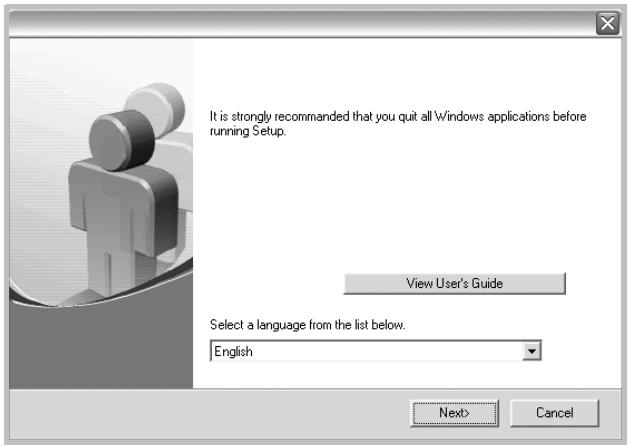
3 Click Next.
- If necessary, select a language from the drop-down list.
- View User's Guide: Allows you to view the User's Guide. If your computer doesn't have Adobe Acrobat, click on this option and it will automatically install Adobe Acrobat Reader for you.
4 Select Typical installation for a local printer. Click Next.
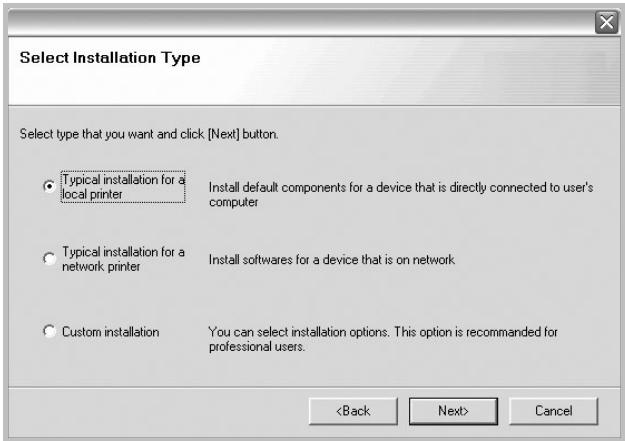
NOTE: If your printer is not already connected to the computer, the following window will appear.
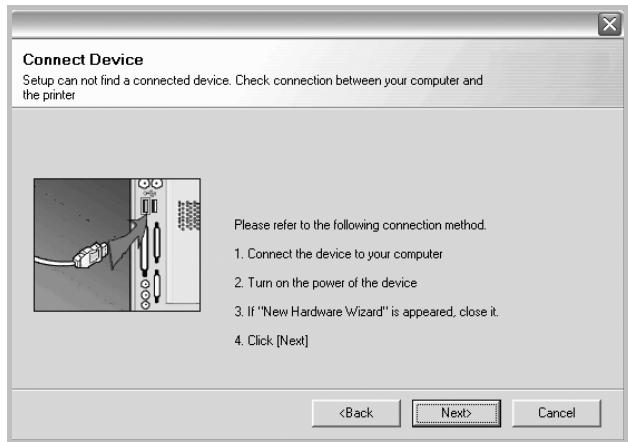
- After connecting the printer, click Next.
- If you don't want to connect the printer at this time, click Next, and No on the following screen. Then the installation will start and a test page will not be printed at the end of the installation.
- The installation window that appears in this User's Guide may differ depending on the printer and interface in use.
5 After the installation is finished, a window asking you to print a test page appears. If you choose to print a test page, select the checkbox and click Next.
Otherwise, just click Next and skip to step 7.
6 If the test page prints out correctly, click Yes. If not, click No to reprint it.
7 Click Finish.
NOTE: After setup is complete, if your printer driver doesn't work properly, reinstall the printer driver. See "Reinstalling Printer Software" on page 10.
Custom Installation
You can choose individual components to install.
1 Make sure that the printer is connected to your computer and powered on.
2 Insert the supplied CD-ROM into your CD-ROM drive. The CD-ROM should automatically run, and an installation window appears. If the installation window does not appear, click Start and then Run. Type X:\Setup.exe, replacing "X" with the letter which represents your drive and click OK.
3 Click Next.
- If necessary, select a language from the drop-down list.
- View User's Guide: Allows you to view the User's Guide. If your computer doesn't have Adobe Acrobat, click on this option and it will automatically install Adobe Acrobat Reader for you.
4 Select Custom installation. Click Next.
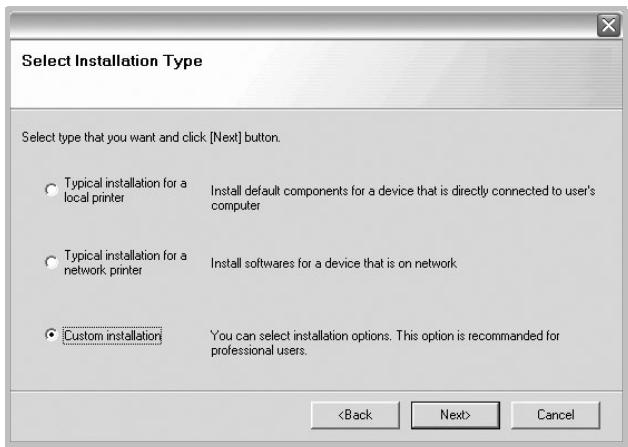
5 Select your printer and click Next.
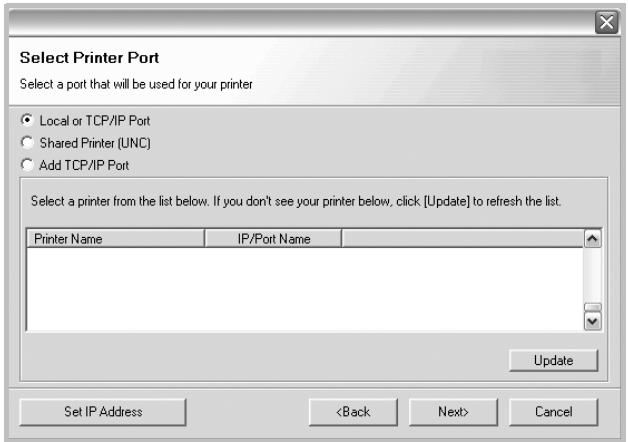
NOTE: If your printer is not already connected to the computer, the following window will appear.
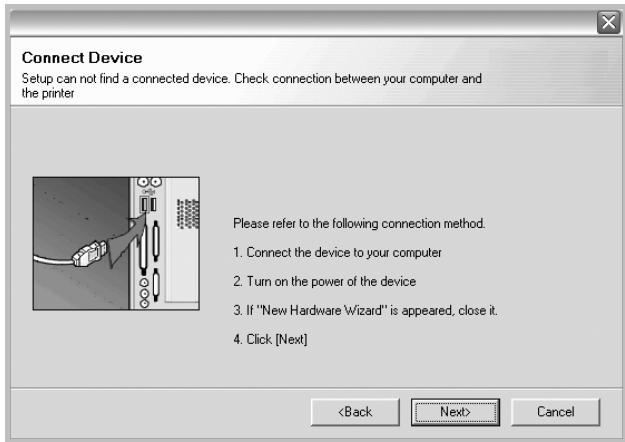
- After connecting the printer, click Next.
- If you don't want to connect the printer at this time, click Next, and No on the following screen. Then the installation will start and a test page will not be printed at the end of the installation.
- The installation window that appears in this User's Guide may differ depending on the printer and interface in use.
6 Select the components to be installed and click Next.
NOTE: You can change the desired installation folder by clicking [Browse].
7 After the installation is finished, a window asking you to print a test page appears. If you choose to print a test page, select the checkbox and click Next. Otherwise, just click Next and skip to step 9.
8 If the test page prints out correctly, click Yes. If not, click No to reprint it.
9 Click Finish.
Installing Software for Network Printing
When you connect your printer to a network, you must first configure the TCP/IP settings for the printer. After you have assigned and verified the TCP/IP settings, you are ready to install the software on each computer on the network.
You can install the printer software using the typical or custom method.
Typical Installation
This is recommended for most users. All components necessary for printer operations will be installed.
1 Make sure that the printer is connected to your network and powered on. For details about connecting to the network, see the supplied printer's User's Guide.
2 Insert the supplied CD-ROM into your CD-ROM drive. The CD-ROM should automatically run, and an installation window appears.
If the installation window does not appear, click Start and then Run. Type X:\Setup.exe, replacing "X" with the letter which represents your drive and click OK.
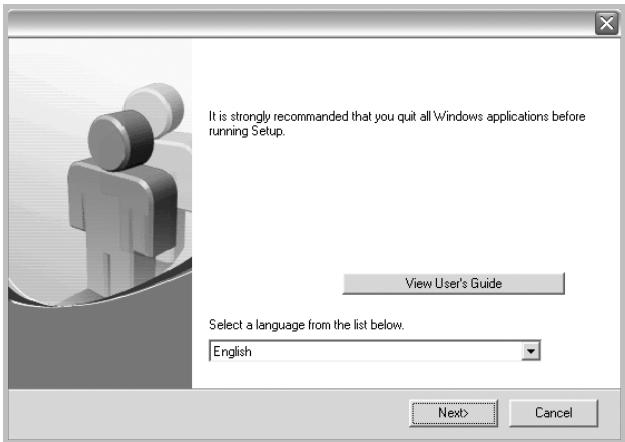
3 Click Next.
- If necessary, select a language from the drop-down list.
- View User's Guide: Allows you to view the User's Guide. If your computer doesn't have Adobe Acrobat, click on this option and it will automatically install Adobe Acrobat Reader for you.
4 Select Typical installation for a network printer. Click Next.
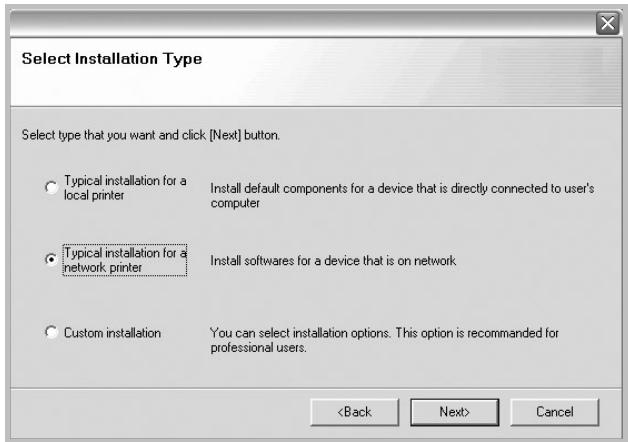
5 The list of printers available on the network appears. Select the printer you want to install from the list and then click Next.
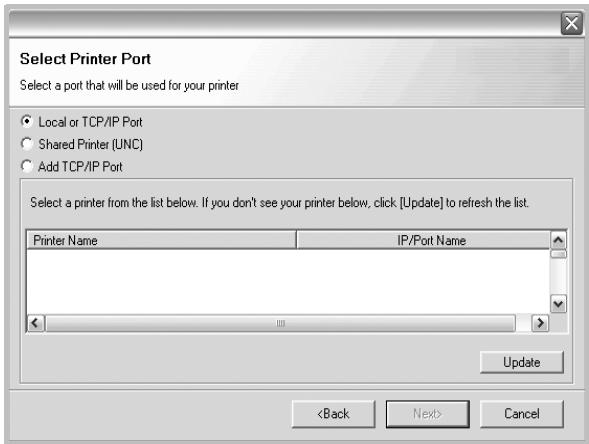
- If you do not see your printer on the list, click Update to refresh the list, or select Add TCP/IP Port to add your printer to the network. To add the printer to the network, enter the port name and the IP address for the printer.
- To find a shared network printer (UNC Path), select Shared Printer [UNC] and enter the shared name manually or find a shared printer by clicking the Browse button.
6 After the installation is finished, a window appears asking you to print a test page. If you so desire, select the corresponding checkbox and click Finish.
Otherwise, just click Finish.
NOTE: After setup is complete, if your printer driver doesn't work properly, reinstall the printer driver. See "Reinstalling Printer Software" on page 10.
Custom Installation
You can choose individual components to install and set a specific IP address.
1 Make sure that the printer is connected to your network and powered on. For details about connecting to the network, see the supplied printer's User's Guide.
2 Insert the supplied CD-ROM into your CD-ROM drive. The CD-ROM should automatically run, and an installation window appears.
If the installation window does not appear, click Start and then Run. Type X:\Setup.exe, replacing "X" with the letter which represents your drive and click OK.
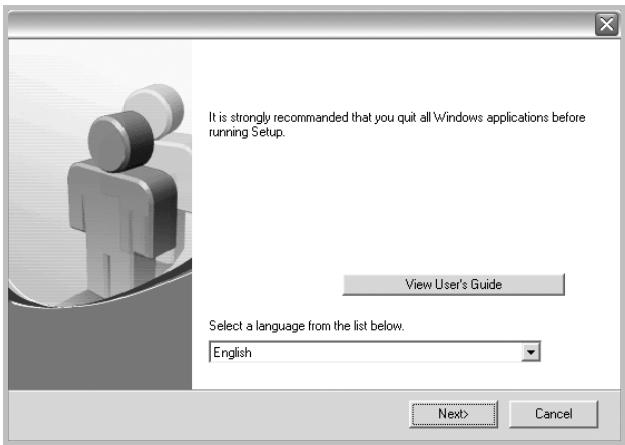
3 Click Next.
- If necessary, select a language from the drop-down list.
- View User's Guide: Allows you to view the User's Guide. If your computer doesn't have Adobe Acrobat, click on this option and it will automatically install Adobe Acrobat Reader for you.
4 Select Custom installation. Click Next.
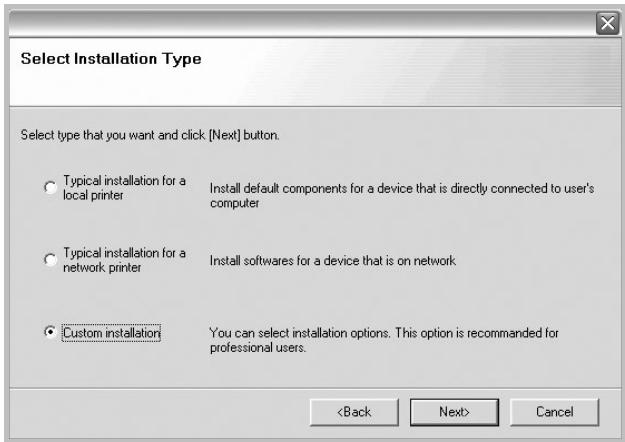
5 The list of printers available on the network appears. Select the printer you want to install from the list and then click Next.
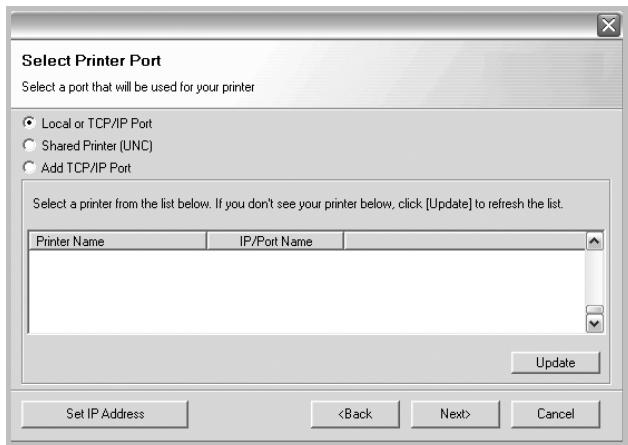
- If you do not see your printer on the list, click Update to refresh the list, or select Add TCP/IP Port to add your printer to the network. To add the printer to the network, enter the port name and the IP address for the printer.
- To find a shared network printer (UNC Path), select Shared Printer [UNC] and enter the shared name manually or find a shared printer by clicking the Browse button.
TIP: If you want to set a specific IP address on a specific network printer, click the Set IP Address button. The Set IP Address window appears. Do as follows:
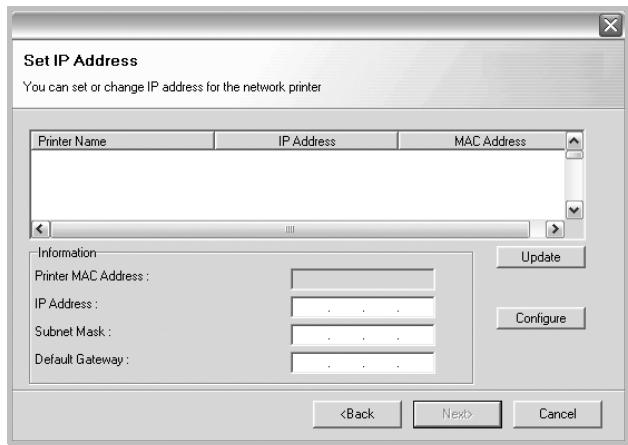
a. Select a printer to be set with a specific IP address from the list. To verify your printer's IP address or MAC address, print a Network Configuration page.
b. Configure an IP address, subnet mask, and gateway for the printer manually and click Configure to set the specific IP address for the network printer.
c. Click Next.
6 Select the components to be installed. After selecting the components, the following window appears. You can also change the printer name, set the printer to be shared on the network, set the printer as the default printer, and change the port name of each printer. Click Next.
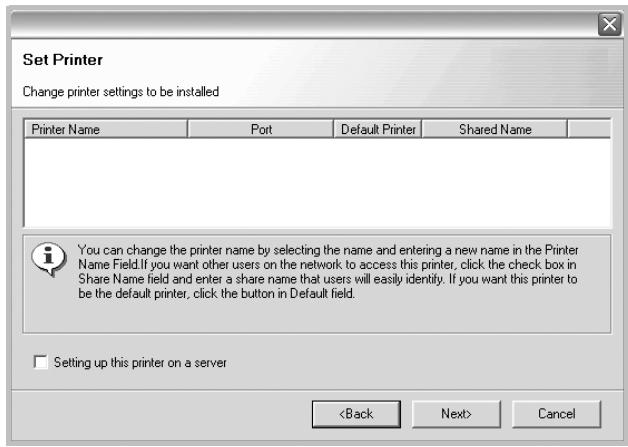
To install this software on a server, select the Setting up this printer on a server checkbox.
7 After the installation is finished, a window appears asking you to print a test page. If you so desire, select the corresponding checkbox and click Finish.
Otherwise, just click Finish.
NOTE: After setup is complete, if your printer driver doesn't work properly, reinstall the printer driver. See "Reinstalling Printer Software" on page 10.
Changing the Software Language
After installation of the software, you can change the display language.
1 Click the Windows Start menu.
2 Select Programs or All Programs and then SP 5100N.
3 Select Language Selection.
4 Select the desired language from the language selection window, and click OK.
Reinstalling Printer Software
You can reinstall the software if installation fails.
1 Start Windows.
2 From the Start menu select Programs or All Programs → SP 5100N → Maintenance.
3 Select Repair and click Next.
4 The list of printers available on the network appears. Select the printer you want to install from the list and then click Next.
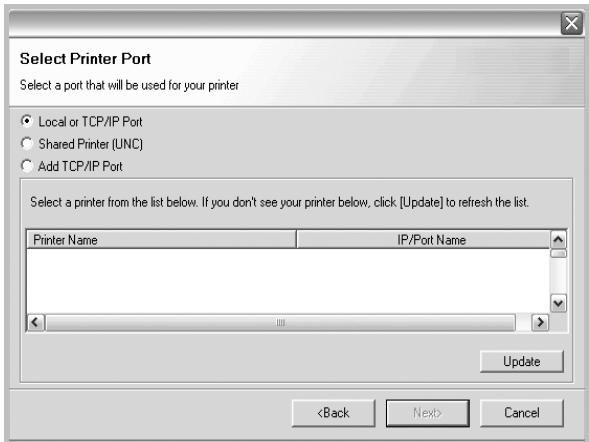
- If you do not see your printer on the list, click Update to refresh the list, or select Add TCP/IP Port to add your printer to the network. To add the printer to the network, enter the port name and the IP address for the printer.
- To find a shared network printer (UNC Path), select Shared Printer [UNC] and enter the shared name manually or find a shared printer by clicking the Browse button.
You will see a component list so that you can reinstall any item individually.
NOTE: If your printer is not already connected to the computer, the following window will appear.
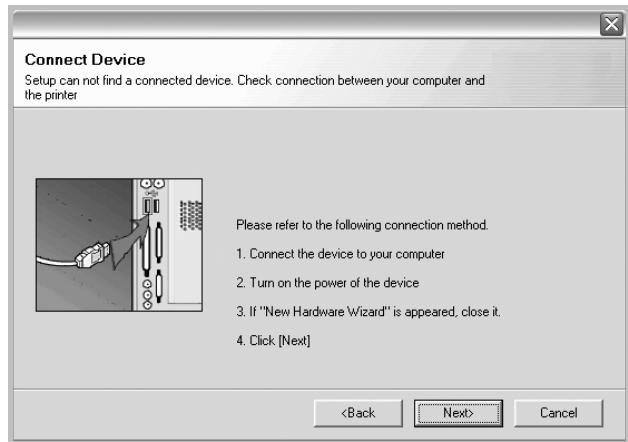
- After connecting the printer, click Next.
- If you don't want to connect the printer at this time, click Next, and No on the following screen. Then the installation will start and a test page will not be printed at the end of the installation.
- The reinstallation window that appears in this User's Guide may differ depending on the printer and interface in use.
5 Select the components you want to reinstall and click Next.
If you installed the printer software for local printing and you select SP 5100N, the window asking you to print a test page appears. Do as follows:
a. To print a test page, select the check box and click Next.
b. If the test page prints out correctly, click Yes.
If it doesn't, click No to reprint it.
6 When the reinstallation is done, click Finish.
Removing Printer Software
1 Start Windows.
2 From the Start menu select Programs or All Programs SP 5100N Maintenance.
3 Select Remove and click Next.
You will see a component list so that you can remove any item individually.
4 Select the components you want to remove and then click Next.
5 When your computer asks you to confirm your selection, click Yes.
The selected driver and all of its components are removed from your computer.
6 After the software is removed, click Finish.
2 Basic Printing
This chapter explains the printing options and common printing tasks in Windows.
This chapter includes:
- Printing a Document
-
Printer Settings
-
Layout Tab
- Paper Tab
- Graphics Tab
-ExtrasTab - About Tab
- Printer Tab
- Using a Favorite Setting
- Using Help
Printing a Document
NOTES:
- Your printer driver Properties window that appears in this User's Guide may differ depending on the printer in use. However the composition of the printer properties window is similar.
- Check the Operating System(s) that are compatible with your printer. Please refer to the OS Compatibility section of Printer Specifications in your Printer User's Guide.
- If you need to know the exact name of your printer, you can check the supplied CD-ROM.
The following procedure describes the general steps required for printing from various Windows applications. The exact steps for printing a document may vary depending on the application program you are using. Refer to the User's Guide of your software application for the exact printing procedure.
1 Open the document you want to print.
2 Select Print from the File menu. The Print window is displayed. It may look slightly different depending on your application.
The basic print settings are selected within the Print window. These settings include the number of copies and print range.
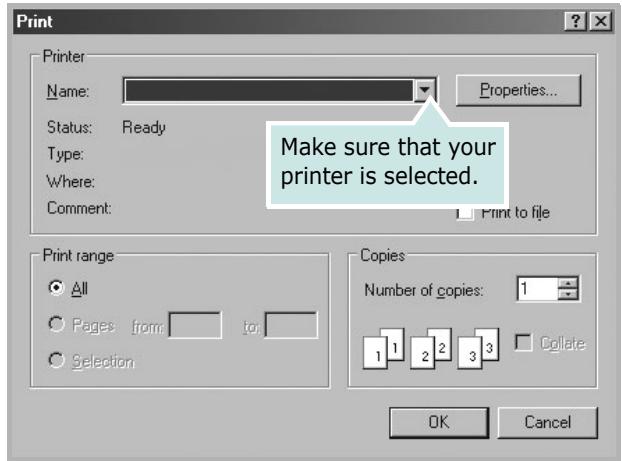
3 Select your printer driver from the Name drop-down list.
4 To take advantage of the printer features provided by your printer driver, click Properties or Preferences in the application's Print window. For details, see "Printer Settings" on page 13.
If you see Setup, Printer, or Options in your Print window, click it instead. Then click Properties on the next screen.
5 Click OK to close the printer properties window.
6 To start the print job, click OK or Print in the Print window.
Printer Settings
You can use the printer properties window, which allows you to access all of the printer options you need when using your printer. When the printer properties are displayed, you can review and change the settings needed for your print job.
Your printer properties window may differ, depending on your operating system. This Software User's Guide shows the Properties window for Windows XP.
Your printer driver Properties window that appears in this User's Guide may differ depending on the printer in use.
If you access printer properties through the Printers folder, you can view additional Windows-based tabs (refer to your Windows User's Guide) and the Printer tab (see "Printer Tab" on page 17).
NOTES:
- Most Windows applications will override settings you specify in the printer driver. Change all print settings available in the software application first, and change any remaining settings using the printer driver.
- The settings you change remain in effect only while you are using the current program. To make your changes permanent, make them in the Printers folder.
-
The following procedure is for Windows XP. For other Windows OS, refer to the corresponding Windows User's Guide or online help.
-
Click the Windows Start button.
- Select Printers and Faxes.
- Select your printer driver icon.
- Right-click on the printer driver icon and select Printing Preferences.
- Change the settings on each tab, click OK.
Layout Tab
The Layout tab provides options to adjust how the document appears on the printed page. The Layout Options includes Multiple Pages per Side and Poster Printing. See "Printing a Document" on page 12 for more information on accessing printer properties.
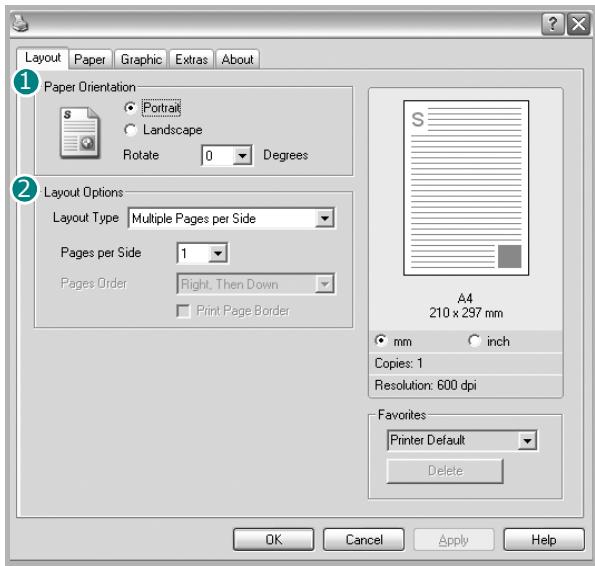
Paper Orientation
Paper Orientation allows you to select the direction in which information is printed on a page.
- Portrait prints across the width of the page, letter style.
- Landscape prints across the length of the page, spreadsheet style.
- Rotate allows you to rotate the page the selected degrees.

Portrait
Landscape
Layout Options
Layout Options allows you to select advanced printing options. You can choose Multiple Pages per Side and Poster Printing.
- For details, see "Printing Multiple Pages on One Sheet of Paper (N-Up Printing)" on page 18.
- For details, see "Printing Posters" on page 19.
Double-sided Printing
Double-sided Printing allows you to print on both sides of paper. If this option does not appear, your printer does not have this feature.
- For details, see "Printing on Both Sides of Paper" on page 20.
Paper Tab
Use the following options to set the basic paper handling specifications when you access the printer properties. See "Printing a Document" on page 12 for more information on accessing printer properties.
Click the Paper tab to access various paper properties.
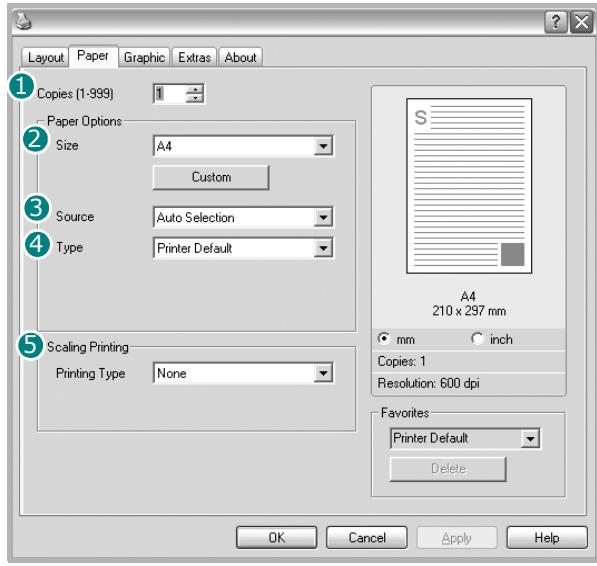
1 Copies
Copies allows you to choose the number of copies to be printed. You can select 1 to 999 copies.
Size
Size allows you to set the size of paper you loaded in the tray. If the required size is not listed in the Size box, click Custom. When the Custom Paper Setting window appears, set the paper size and click OK. The setting appears in the list so that you can select it.
3 Source
Make sure that Source is set to the corresponding paper tray. Use Manual Feeder when printing on special materials like envelopes and transparencies. You have to load one sheet at a time into the Manual Tray or Multi-Purpose Tray. If the paper source is set to Auto Selection, the printer automatically picks up print material in the following tray order: Manual Tray or Multi-Purpose Tray, Tray n.
4 Type
Set Type to correspond to the paper loaded in the tray from which you want to print. This will let you get the best quality printout. If not, print quality may not be achieved as you want. Cotton: 20 lb to 24 lb (75~90 g/m2) cotton paper such as Gilbert 25 % and Gilbert 100 %. Plain Paper: Normal plain paper. Select this type if your printer is monochrome and printing on the 16 lb (60 g/m2) cotton paper. Recycled Paper: 20 lb to 24 lb (75~90 g/m2) recycled paper. Color Paper: 20 lb to 24 lb (75~90 g/m2) color-background paper.
First Page
This property allows you to print the first page using a different paper type from the rest of the document. You can select the paper source for the first page.
For example, load thick stock for the first page into the Multi-purpose Tray, and plain paper into Tray n. Then, select Tray n in the Source option and Multi-Purpose Tray in the First Page option. Some printers do not support this feature.
Scaling Printing
Scaling Printing allows you to automatically or manually scale your print job on a page. You can choose from None, Reduce/Enlarge, and Fit to Page.
- For details, see "Printing a Reduced or Enlarged Document" on page 20.
- For details, see "Fitting Your Document to a Selected Paper Size" on page 20.
Graphics Tab
Use the following Graphic options to adjust the print quality for your specific printing needs. See "Printing a Document" on page 12 for more information on accessing printer properties. Click the Graphic tab to display the properties shown below..
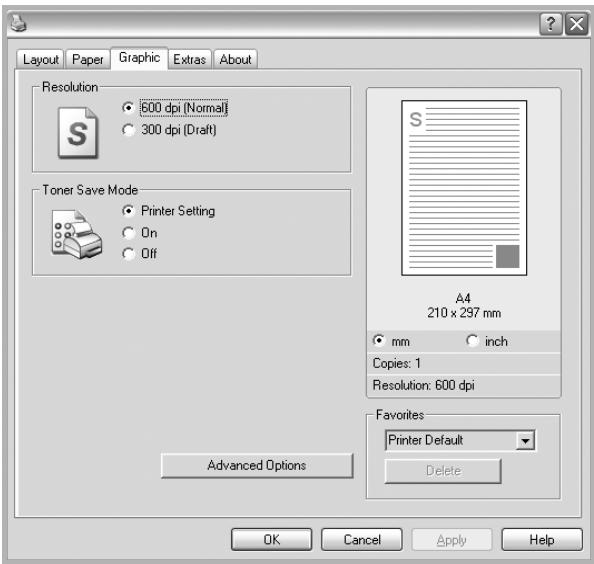
Resolution
The Resolution options you can select may vary depending on your printer model. The higher the setting, the sharper the clarity of printed characters and graphics. The higher setting also may increase the time it takes to print a document.
Toner Save Mode
Selecting this option extends the life of your toner cartridge and reduces your cost per page without a significant reduction in print quality. Some printers do not support this feature.
- Printer Setting: If you select this option, this feature is determined by the setting you've made on the control panel of the printer.
- On: Select this option to allow the printer to use less toner on each page.
- Off: If you don't need to save toner when printing a document, select this option.
Advanced Options
You can set advanced settings by clicking the Advanced Options button.
-
TrueType Options: This option determines what the driver tells the printer about how to image the text in your document. Select the appropriate setting according to the status of your document. This option may be available only in Windows 9x/Me, depending on your particular printer model.
-
Download as Outline: When this option is selected, the driver will download any TrueType fonts that are used in your document not already stored (resident) on your printer. If, after printing a document, you find that the fonts did not print correctly, choose Download as bit image and resubmit your print job. The Download as bit image setting is often useful when printing Adobe. This feature is available only when you use the PCL printer driver.
- Download as Bitmap: When this option is selected, the driver will download the font data as bitmap images. Documents with complicated fonts, such as Korean or Chinese, or various other fonts, will print faster in this setting.
- Print as Graphics: When this option is selected, the driver will download any fonts as graphics. When printing documents with high graphic content and relatively few TrueType fonts, printing performance (speed) may be enhanced in this setting.
- Print All Text To Black: When the Print All Text To Black option is checked, all text in your document prints solid black, regardless of the color it appears on the screen.
Extras Tab
You can select output options for your document. See "Printing a Document" on page 12 for more information about accessing the printer properties.
Click the Extras tab to access the following feature:
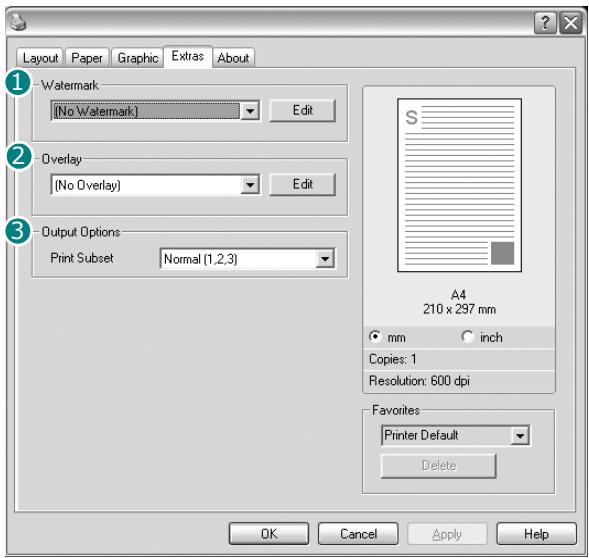
Watermark
You can create a background text image to be printed on each page of your document. For details, see "Using Watermarks" on page 21.
2 Overlay
Overlays are often used to take the place of preprinted forms and letterhead paper. For details, see "Using Overlays" on page 22.
Output Options
- Print Subset: You can set the sequence in which the pages print. Select the print order from the drop-down list.
- Normal(1,2,3): Your printer prints all pages from the first page to the last page.
- Reverse All Pages(3,2,1): Your printer prints all pages from the last page to the first page.
- Print Odd Pages: Your printer prints only the odd numbered pages of the document.
- Print Even Pages: Your printer prints only the even numbered pages of the document.
-
Information Page: Select Banner Page to print a banner sheet containing the printer name, the network user ID, job name before printing the document. When several users send a print job to the printer, this option allows you to easily find your printing from the output tray. Some printers do not support this feature.
-
Use Printer Fonts: When Use Printer Fonts is checked, the printer uses the fonts that are stored in its memory (resident fonts) to print your document, rather than downloading the fonts used in your document. Because downloading fonts takes time, selecting this option can speed up your printing time. When using Printer fonts, the printer will try to match the fonts used in your document to those stored in its memory. If, however, you use fonts in your document that are very different from those resident in the printer, your printed output will appear very different from what it looks like on the screen.
This feature is available only when you use the PCL printer driver.
- Save as Form for Overlay: Select Save as Form for Overlay to save the document as a form file (C:\FORMOVER*.FOM). Once this option is selected, the printer driver requires the file name and the destination path each time you print. If you want to preset the file name and specify the path, click on the button in the Output to area, and type the file name and specify the path.
This feature is available only when you use the PCL printer driver.
4 Job Setting
Print and Hold dialog allows you to select how to print or save the printing file by using the optional HDD. Some printers do not support this feature.
Using Onscreen Help File
- For more information about Job Setting, click at the top right corner of the window. The Job Setting Help window opens and allows you to view onscreen help supplied on the Job Setting.
About Tab
Use the About tab to display the copyright notice and the version number of the driver. See "Printing a Document" on page 12 for more information about accessing printer properties.
Printer Tab
If you access printer properties through the Printers folder, you can view the Printer tab. You can set the printer configuration.
The following procedure is for Windows XP. For other Windows OS, refer to the corresponding Windows User's Guide or online help.
1 Click the Windows Start menu.
2 Select Printers and Faxes.
3 Select your printer driver icon.
4 Right-click on the printer driver icon and select Properties.
5 Click the Printer tab and set the options.
Using a Favorite Setting
The Favorites option, which is visible on each properties tab, allows you to save the current properties settings for future use.
To save a Favorites item:
1 Change the settings as needed on each tab.
2 Enter a name for the item in the Favorites input box.
3 Click Save.
When you save Favorites, all current driver settings are saved.
To use a saved setting, select the item from the Favorites drop down list. The printer is now set to print according to the Favorites setting you selected.
To delete a Favorites item, select it from the list and click Delete.
You can also restore the printer driver's default settings by selecting Printer Default from the list.
Using Help
Your printer has a help screen that can be activated by clicking the Help button in the printer properties window. These help screens give detailed information about the printer features provided by the printer driver.
You can also click from the upper right corner of the window, and then click on any setting.
3
Advanced Printing
This chapter explains printing options and advanced printing tasks.
NOTE:
- Your printer driver Properties window that appears in this User's Guide may differ depending on the printer in use. However the composition of the printer properties window is similar.
- If you need to know the exact name of your printer, you can check the supplied CD-ROM.
This chapter includes:
- Printing Multiple Pages on One Sheet of Paper (N-Up Printing)
- Printing Posters
- Printing Booklets
- Printing on Both Sides of Paper
- Printing a Reduced or Enlarged Document
- Fitting Your Document to a Selected Paper Size
Using Watermarks
Using Overlays
Printing Multiple Pages on One Sheet of Paper (N-Up Printing)
You can select the number of pages to print on a single sheet of paper. To print more than one page per sheet, the pages will be reduced in size and arranged in the order you specify. You can print up to 16 pages on one sheet.
1 To change the print settings from your software application, access printer properties. See "Printing a Document" on page 12.
2 From the Layout tab, choose Multiple Pages per Side in the Layout Type drop-down list.
3 Select the number of pages you want to print per sheet (1, 2, 4, 6, 9, or 16) in the Pages per Side drop-down list.
4 Select the page order from the Page Order drop-down list, if necessary. Check Print Page Border to print a border around each page on the sheet.
5 Click the Paper tab, select the paper source, size, and type.
6 Click OK and print the document.
Printing Posters
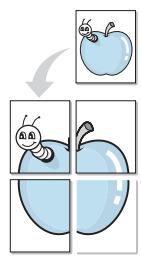
This feature allows you to print a single-page document onto 4, 9, or 16 sheets of paper, for the purpose of pasting the sheets together to form one poster-size document.
1 To change the print settings from your software application, access printer properties. See "Printing a Document" on page 12.
2 Click the Layout tab, select Poster Printing in the Layout Type drop-down list.
3 Configure the poster option:
You can select the page layout from Poster<2x2>, Poster<3x3>, or Poster<4x4>. If you select Poster<2x2>, the output will be automatically stretched to cover 4 physical pages.

2x2
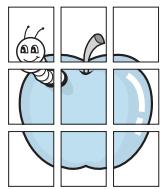
3x3
Specify an overlap in millimeters or inches to make it easier to pasting the sheets together.
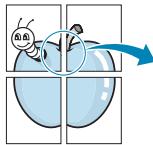
0.15 inches

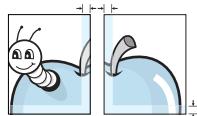
0.15 inches
4 Click the Paper tab, select the paper source, size, and type.
5 Click OK and print the document. You can complete the poster by pasting the sheets together.
Printing Booklets


This printer feature allows you to print your document on both sides of the paper and arranges the pages so that the paper can be folded in half after printing to produce a booklet.
1 To change the print settings from your software application, access the printer properties. See "Printing a Document" on page 12.
2 From the Layout tab, choose Booklet Printing from the Type drop-down list.
NOTE: The booklet printing option is available when A4, Letter, Legal, or Folio size is selected in the Size option on the Paper tab.
3 Click the Paper tab, and select the paper source, size, and type.
4 Click OK and print the document.
5 After printing, fold and staple the pages.
Printing on Both Sides of Paper
You can print on both sides of a sheet of paper. Before printing, decide how you want your document oriented.
The options are:
- Printer Setting, if you select this option, this feature is determined by the setting you've made on the control panel of the printer. If this option does not appear, your printer does not have this feature.
None - Long Edge, which is the conventional layout used in book binding.
- Short Edge, which is the type often used with calendars.
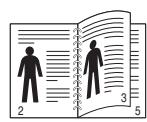
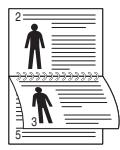
Long Edge

Short Edge
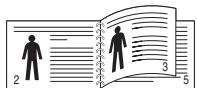
- Reverse Duplex, allows you to select general print order compare to duplex print order. If this option does not appear, your printer does not have this feature.
NOTE:
- Do not print on both sides of labels, transparencies, envelopes, or thick paper. Paper jamming and damage to the printer may result.
- To use double-sided printing, you can use only the following paper sizes: A4, Letter, Legal, and Folio, with a weight of 20 24 lbs ( 75 90 g/m²).
1 To change the print settings from your software application, access printer properties. "Printing a Document" on page 12.
2 From the Layout tab, select the paper orientation.
3 From the Double-sided Printing section, select the binding option you want.
4 Click the Paper tab and select the paper source, size, and type.
5 Click OK and print the document.
NOTE: If your printer does not have a duplex unit, you should complete the printing job manually. The printer prints every other page of the document first. After printing the first side of your job, the Printing Tip window appears. Follow the on-screen instructions to complete the printing job.
Printing a Reduced or Enlarged Document


You can change the size of a page's content to appear larger or smaller on the printed page.
1 To change the print settings from your software application, access printer properties. See "Printing a Document" on page 12.
2 From the Paper tab, select Reduce/Enlarge in the Printing Type drop-down list.
3 Enter the scaling rate in the Percentage input box. You can also click the or button.
4 Select the paper source, size, and type in Paper Options.
5 Click OK and print the document.
Fitting Your Document to a Selected Paper Size
This printer feature allows you to scale your print job to any selected paper size regardless of the digital document size. This can be useful when you want to check fine details on a small document.
1 To change the print settings from your software application, access printer properties. See "Printing a Document" on page 12.
2 From the Paper tab, select Fit to Page in the Printing Type drop-down list.
3 Select the correct size from the Target Page drop-down list.
4 Select the paper source, size, and type in Paper Options.
5 Click OK and print the document.
Using Watermarks
The Watermark option allows you to print text over an existing document. For example, you may want to have large gray letters reading "DRAFT" or "CONFIDENTIAL" printed diagonally across the first page or all pages of a document.
There are several predefined watermarks that come with the printer, and they can be modified, or you can add new ones to the list.
Using an Existing Watermark
1 To change the print settings from your software application, access printer properties. See "Printing a Document" on page 12.
2 Click the Extras tab, and select the desired watermark from the Watermark drop-down list. You will see the selected watermark in the preview image.
3 Click OK and start printing.
NOTE: The preview image shows how the page will look when it is printed.
Creating a Watermark
1 To change the print settings from your software application, access printer properties. See "Printing a Document" on page 12.
2 Click the Extras tab, and click the Edit button in the Watermark section. The Edit Watermark window appears.
3 Enter a text message in the Watermark Message box. You can enter up to 40 characters. The message displays in the preview window.
When the First Page Only box is checked, the watermark prints on the first page only.
4 Select watermark options.
You can select the font name, style, size, or grayscale level from the Font Attributes section and set the angle of the watermark from the Message Angle section.
5 Click Add to add a new watermark to the list.
6 When you have finished editing, click OK and start printing.
To stop printing the watermark, select
Editing a Watermark
1 To change the print settings from your software application, access printer properties. See "Printing a Document" on page 12.
2 Click the Extras tab and click the Edit button in the Watermark section. The Edit Watermark window appears.
3 Select the watermark you want to edit from the Current Watermarks list and change the watermark message and options.
4 Click Update to save the changes.
5 Click OK until you exit the Print window.
Deleting a Watermark
1 To change the print settings from your software application, access printer properties. See "Printing a Document" on page 12.
2 From the Extras tab, click the Edit button in the Watermark section. The Edit Watermark window appears.
3 Select the watermark you want to delete from the Current Watermarks list and click Delete.
4 Click OK until you exit the Print window.
Using Overlays
What is an Overlay?
An overlay is text and/or images stored in the computer hard disk drive (HDD) as a special file format that can be printed on any document. Overlays are often used to take the place of preprinted forms and letterhead paper. Rather than using preprinted letterhead, you can create an overlay containing the exact same information that is currently on your letterhead. To print a letter with your company's letterhead, you do not need to load preprinted letterhead paper in the printer. You need only tell the printer to print the letterhead overlay on your document.
Creating a New Page Overlay
To use a page overlay, you must create a new page overlay containing your logo or image.
1 Create or open a document containing text or an image for use in a new page overlay. Position the items exactly as you wish them to appear when printed as an overlay.
2 To save the document as an overlay, access printer properties. See "Printing a Document" on page 12.
3 Click the Extras tab, and click Edit button in the Overlay section.
4 In the Edit Overlay window, click Create Overlay.
In the Create Overlay window, type a name of up to eight characters in the File name box. Select the destination path, if necessary. (The default is C:\Formover).
6 Click Save. The name appears on the Overlay List box.
7 Click OK or Yes to finish creating.
The file is not printed. Instead it is stored on your computer hard disk drive.
NOTE: The overlay document size must be the same as the documents you print with the overlay. Do not create an overlay with a watermark.
Using a Page Overlay
After an overlay has been created, it is ready to be printed with your document. To print an overlay with a document:
1 Create or open the document you want to print.
2 To change the print settings from your software application, access printer properties. See "Printing a Document" on page 12.
3 Click the Extras tab.
4 Select the desired overlay from the Overlay drop-down list box.
5 If the overlay file you want does not appear in the Overlay list, click Edit button and Load Overlay, and select the overlay file.
If you have stored the overlay file you want to use in an external source, you can also load the file when you access the Load Overlay window.
After you select the file, click Open. The file appears in the Overlay List box and is available for printing. Select the overlay from the Overlay List box.
6 If necessary, click Confirm Page Overlay When Printing. If this box is checked, a message window appears each time you submit a document for printing, asking you to confirm your wish to print an overlay on your document.
If this box is not checked and an overlay has been selected, the overlay automatically prints with your document.
7 Click OK or Yes until printing begins.
The selected overlay downloads with your print job and prints on your document.
NOTE: The resolution of the overlay document must be the same as that of the document you will print with the overlay.
Deleting a Page Overlay
You can delete page overlays that you no longer use.
1 In the printer properties window, click the Extras tab.
2 Click the Edit button in the Overlay section.
3 Select the overlay you want to delete from the Overlay List box.
4 Click Delete Overlay.
5 When a confirming message window appears, click Yes.
6 Click OK until you exit the Print window.


4
Using Windows PostScript Driver
If you want to use the PostScript driver provided with your system CD-ROM to print a document.
PPDs, in combination with the PostScript driver, access printer features and allow the computer to communicate with the printer. An installation program for the PPDs is provided on the supplied software CD-ROM.
This chapter includes:
Printer Settings
You can use the printer properties window, which allows you to access all of the printer options you need when using your printer. When the printer properties are displayed, you can review and change the settings needed for your print job.
Your printer properties window may differ, depending on your operating system. This Software User's Guide shows the Properties window for Windows XP.
Your printer driver Properties window that appears in this User's Guide may differ depending on the printer in use.
NOTES:
- Most Windows applications will override settings you specify in the printer driver. Change all print settings available in the software application first, and change any remaining settings using the printer driver.
- The settings you change remain in effect only while you are using the current program. To make your changes permanent, make them in the Printers folder.
-
The following procedure is for Windows XP. For other Windows OS, refer to the corresponding Windows User's Guide or online help.
-
Click the Windows Start button.
- Select Printers and Faxes.
- Select your printer driver icon.
- Right-click on the printer driver icon and select Printing Preferences.
- Change the settings on each tab, click OK.
Advanced
You can use advanced settings by clicking the Advanced button.
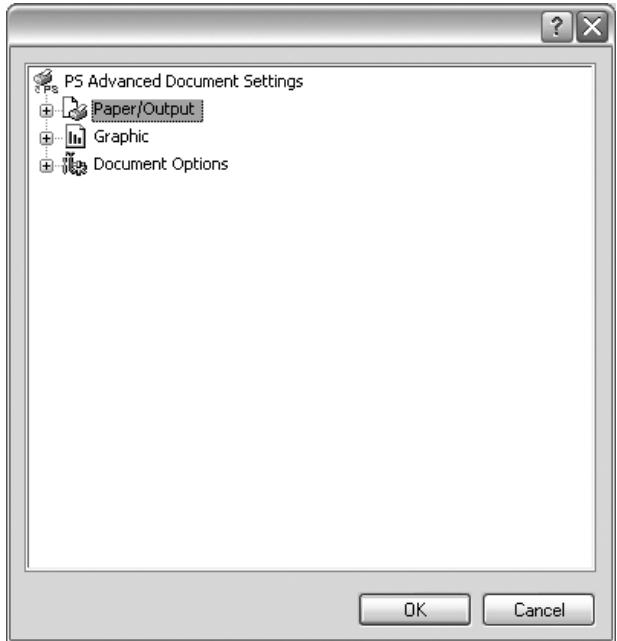
- Paper/Output this option allows you to select the size of the paper loaded in the tray.
- Graphic this option allows you to adjust the print quality for your specific printing needs.
- Document Options this options allow you to set the PostScript options or printer features.
Using Help
You can click from the upper right corner of the window, and then click on any setting.
5
Using Direct Print Utility
This chapter explains how to use Direct Print Utility to print PDF files without having to open the files.
Overview Direct Print Utility
Direct Print Utility is a program that sends a PDF file directly to your printer without having to open the file. It sends data through the Windows spooler using the port of the printer driver. It only supports PDF format.
To installing this program, you should select Custom and put a check mark in this program when you install the printer driver.
Printing
There are several ways you can print using Direct Print Utility.
From the Direct Print Utility window
1 From the Start menu select Programs or All Programs Direct Print Utility Direct Print Utility.
Or, double-click the Direct Print Utility shortcut icon on your desk top.
The Direct Print Utility window opens.
2 Select the printer you will use in the Select Printer section and click Browse.
3 Select the PDF file you will print and click Open.
The PDF file is added in the Select Files section.
4 Customize the printer settings for your needs. See the next column.
5 Click Print.
The selected PDF file is sent to the printer.
Using the shortcut icon
1 Select the PDF file you will print and by dragging drop it to the Direct Print Utility shortcut icon on your desk top. The selected PDF file is sent to the default printer.
NOTE : If the default printer does not support Direct Print Utility, the message window alerting you to select the appropriate printer opens. Select the appropriate printer in the Select Printer section.
2 Customize the printer settings for your needs.
3 Click Print.
The selected PDF file is sent to the printer.
Using the right-click menu
1 Right-click on the PDF file you will print and select Direct Printing.
The Direct Print Utility window opens with the PDF file is added.
2 Select the printer you will use.
3 Customize the printer settings for your needs. See the below part.
4 Click Print.
The selected PDF file is sent to the printer.
6
Sharing the Printer Locally
You can connect the printer directly to a selected computer, which is called "host computer," on the network.
The following procedure is for Windows XP. For other Windows OS, refer to the corresponding Windows User's Guide or online help.
NOTES:
- Check the Operating System(s) that are compatible with your printer. Please refer to the OS Compatibility section of Printer Specifications in your Printer User's Guide.
- If you need to know the exact name of your printer, you can check the supplied CD-ROM.
Setting Up a Host Computer
1 Start Windows.
2 From the Start menu select Printers and Faxes.
3 Double-click your printer driver icon.
4 From the Printer menu, select Sharing.
5 Check the Share this printer box.
6 Fill in the Shared Name field, and then click OK.
Setting Up a Client Computer
1 Right-click the Windows Start button and select Explorer.
2 Open your network folder in the left column.
3 Click the shared name.
4 From the Start menu select Printers and Faxes.
5 Double-click your printer driver icon.
6 From the Printer menu, select Properties.
7 From the Ports tab, click Add Port.
8 Select Local Port and click New Port.
9 Fill in the Enter a port name field with the shared name.
10 Click OK and click Close.
11 Click Apply and click OK.
7
Using Utility Applications
If an error occurs while printing, the Status Monitor window appears, showing the error.
NOTES:
- To use the this program, you need:
- Windows 98 or higher (Windows NT 4.0 can be used only for network-supported printers.) To check for Operating System(s) that are compatible with your printer, refer to Printer Specifications in your Printer User's Guide.
- Internet Explorer version 5.0 or higher for flash animation in HTML Help.
- If you need to know the exact name of your printer, you can check the supplied CD-ROM.
Using Printer Settings Utility
Using the Printer Settings Utility, you can configure and check print settings.
1 from the Start menu, select Programs or All Programs SP 5100N Printer Settings Utility.
2 Change the settings.
3 To send the changes to the printer, click the Apply button.
Using Onscreen Help
For more information about Printer Settings Utility, click
Opening the Troubleshooting Guide
Double click the Status Monitor icon on the Windows task bar.
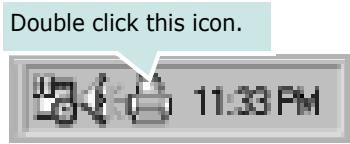
Or, from the Start menu, select Programs or All Programs → SP 5100N → Troubleshooting Guide.
Changing the Status Monitor Program Settings
Select the Status Monitor icon on the Windows task bar and right-click on the Status Monitor icon. Select Option.
The following window opens.
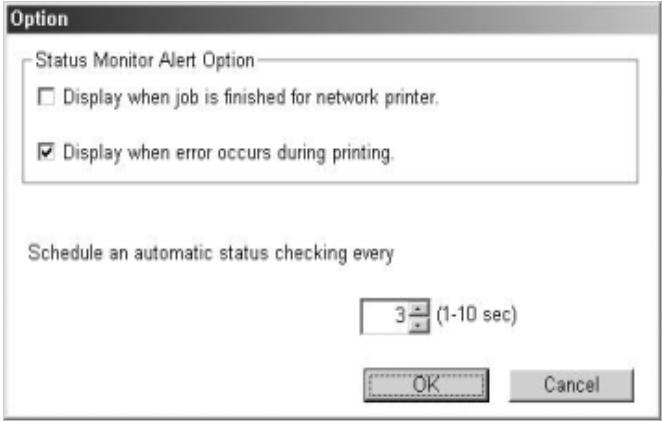
- Display when job is finished for network printer shows the Status Monitor balloon when your job is complete.
- Display when error occurs during printing shows the Status Monitor balloon when an error occurs during printing.
Schedule an automatic status checking every allows the computer to update the printer status regularly. Setting the value close to 1 second causes the computer to check the printer status more frequently, thereby allowing a faster response to any printer error.
8
Using Your Printer with a Macintosh
Your machine supports Macintosh systems with a built-in USB interface or a 10/100 Base-TX network interface card. When you print a file from a Macintosh computer, you can use the PostScript driver by installing the PPD file.
This chapter includes:
- Installing Software for Macintosh
- Setting Up the Printer
- Printing
Installing Software for Macintosh
The PostScript driver CD-ROM that came with your machine provides you with the PPD file to use the PS driver, Apple LaserWriter driver, for printing on a Macintosh computer.
1 Connect your machine to the computer using the USB cable or the Ethernet cable.
2 Turn on your computer and the machine.
3 Insert the PostScript driver CD-ROM which came with your machine into the CD-ROM drive.
4 Double-click the CD-ROM icon on your Macintosh desktop.
5 Double-click the MAC Installer folder.
6 Double-click the MACPrinter folder.
7 For Mac OS 8.6~9.2, double-click the LBP Installer Classic icon. For Mac OS 10.1 or higher, double-click the LBP Installer OSX icon.
8 Click Continue.
9 Click Install.
10 After the installation is finished, click Quit.
Setting Up the Printer
Set up for your printer will be different depending on which cable you use to connect the printer to your computer—the network cable or the USB cable.
For a Network-connected Macintosh
Mac OS 8.6 ~ 9.2
1 Follow the instructions on "Installing Software for Macintosh" on page 27 to install the PPD file on your computer.
2 From the Apple menu, select Chooser.
3 Click LaserWriter 8 (the PostScript driver provided with your Macintosh). The name of your machine appears on the list.
4 Select RNP0000xxxxxxxxxx from the printer box (where thexxxxxxxxxx varies depending on each of the machines) and Click Select. If Auto Setup does not work properly, click Select PPD, choose your printer name, and click OK.
5 When the setup is complete, you see your machine icon created as a desktop printer.
6 Close the Chooser.
7 When a message window appears telling you that you have changed your current machine, click OK.
Mac OS 10.1 or higher
1 Follow the instructions on "Installing Software for Macintosh" on page 27 to install the PPD file on your computer.
2 Open Print Center or Printer Setup Utility from the Utilities folder.
3 Click Add on the Printer List.
4 Select the AppleTalk tab.
The name of your machine appears on the list. Select RNP0000xxxxxxxxxx from the printer box, where thexxxxxxxxxx varies depending on your machine.
5 Click Add.
6 If Auto Select does not work properly, select in Printer Model and your printer name in Model Name.
Your machine appears on the Printer List and is set as the default printer.
For a USB-connected Macintosh
Mac OS 10.1 or higher
1 Follow the instructions on "Installing Software for Macintosh" on page 27 to install the PPD file on your computer.
2 Open Print Center or Printer Setup Utility from the Utilities folder.
3 Click Add on the Printer List.
4 Select the USB tab.
5 Select your printer name and click Add.
6 If Auto Select does not work properly, select in Printer Model and your printer name in Model Name. Your machine appears on the Printer List and is set as the default printer.
Printing
NOTES:
- The Macintosh printer's properties window that appears in this User's Guide may differ depending on the printer in use. However the composition of the printer properties window is similar.
- You can check your printer name in the supplied CD-ROM.
Printing a Document
When you print with a Macintosh, you need to check the printer software setting in each application you use. Follow these steps to print from a Macintosh.
1 Open a Macintosh application and select the file you want to print.
2 Open the File menu and click Page Setup (Document Setup in some applications).
3 Choose your paper size, orientation, scaling, and other options and click OK.
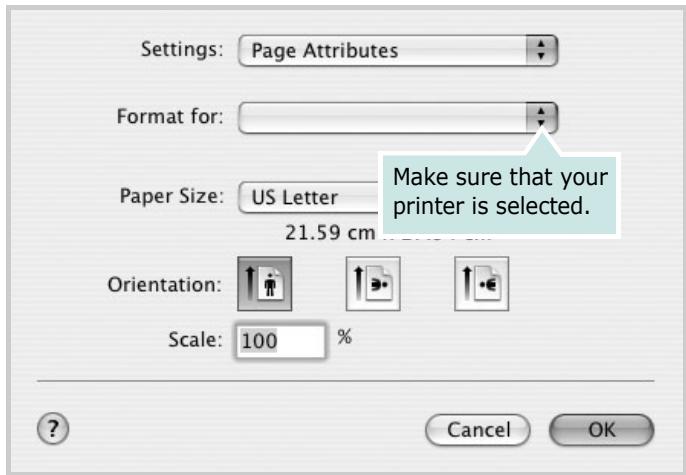
Mac OS 10.3
4 Open the File menu and click Print.
5 Choose the number of copies you want and indicate which pages you want to print.
6 Click Print when you finish setting the options.
Changing Printer Settings
You can use advanced printing features when using your printer.
From your Macintosh application, select Print from the File menu. The printer name which appears in the printer properties window may differ depending on the printer in use. Except for the name, the composition of the printer properties window is similar.
Layout Setting
The Layout tab provides options to adjust how the document appears on the printed page. You can print multiple pages on one sheet of paper.
Select Layout from the Presets drop-down list to access the following features. For details, see "Printing Multiple Pages on One Sheet of Paper" on the next column.
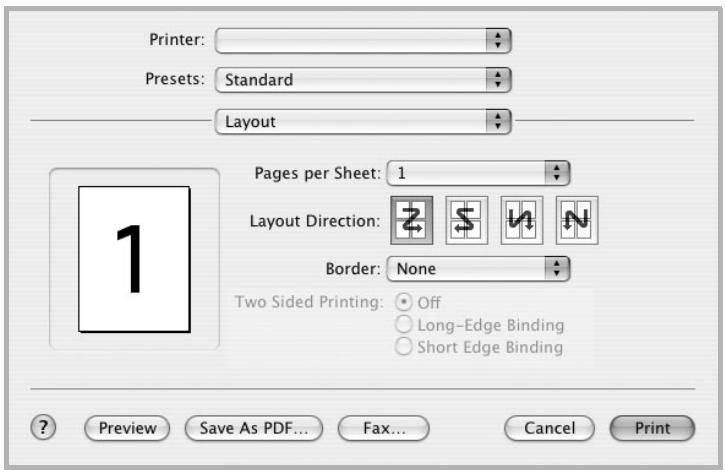
Mac OS 10.3
Printer Features Setting
The Printer Features tab provides options for selecting the paper type and adjusting print quality.
Select Printer Features from the Presets drop-down list to access the following features:
Mac OS 10.3
Reverse Duplex
Allows you to select general print order compare to duplex print order.
Fit to Page
This printer feature allows you to scale your print job to any selected paper size regardless of the digital document size. This can be useful when you want to check fine details on a small document.
Paper Type
Set Type to correspond to the paper loaded in the tray from which you want to print. This will let you get the best quality printout. If you load a different type of print material, select the corresponding paper type.
Resolution(Quality)
The Resolution options you can select may vary depending on your printer model. You can select the printing resolution. The higher the setting, the sharper the clarity of printed characters and graphics. The higher setting also may increase the time it takes to print a document.
Printing Multiple Pages on One Sheet of Paper
You can print more than one page on a single sheet of paper. This feature provides a cost-effective way to print draft pages.
1 From your Macintosh application, select Print from the File menu.
2 Select Layout.
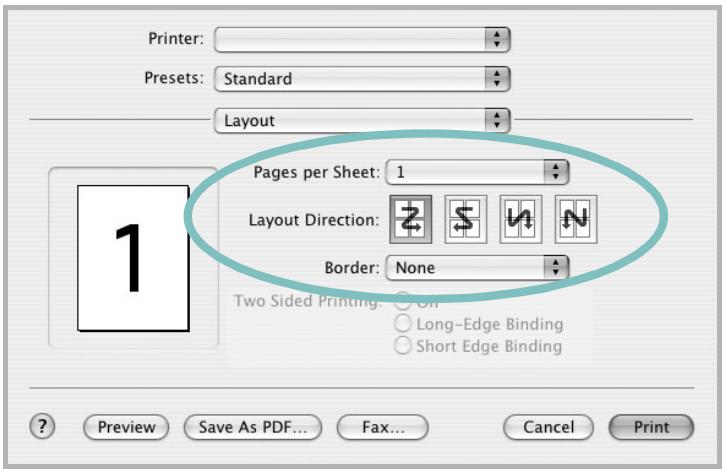
Mac OS 10.3
3 Select the number of pages you want to print on one sheet of paper on the Pages per Sheet drop-down list.
4 Select the page order from the Layout Direction option. To print a border around each page on the sheet, select the option you want from the Border drop-down list.
5 Click Print, and the printer prints the selected number of pages on one side of each page.
Duplex Printing
You can print on both sides of the paper. Before printing in the duplex mode, decide on which edge you will be binding your finished document. The binding options are:
Long-Edge Binding: Which is the conventional layout used in book binding.
Short-Edge Binding: Which is the type often used with calendars.
1 From your Macintosh application, select Print from the File menu.
2 Select the Layout.
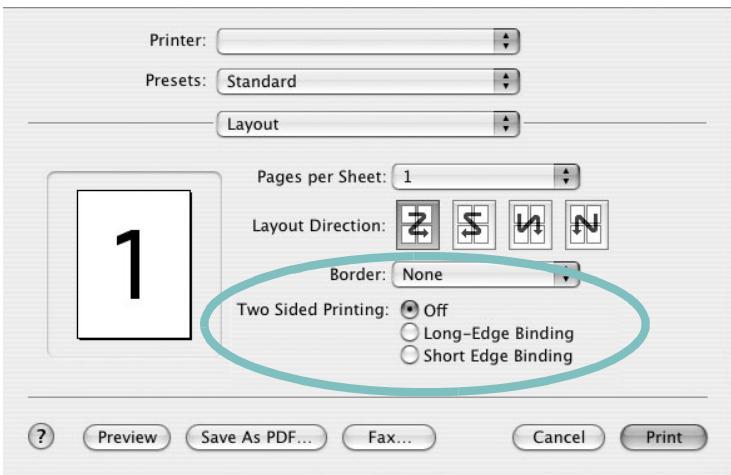
Mac OS 10.3
3 Select a binding orientation from Two Sided Printing option.
4 Click Print and the printer prints on both sides of the paper.
NOTE: If you have selected duplex printing and then try to print multiple copies of a document, the printer may not print the document in the way you want. In case of "Collated copy", if your document has odd pages, the last page of the first copy and the first page of the next copy will be printed on the front and back of one sheet. In case of "Uncollated copy", the same page will be printed on the front and back of one sheet. Therefore, if you need multiple copies of a document and you want those copies on both sides of the paper, you must print them one at a time, as separate print jobs.
SOFTWARE SECTION
INDEX
A
advanced printing, use 18
B
booklet printing 19
D
document, print
Macintosh 29
Windows 12
double-sided printing 20
E
Extras properties, set 16
F
favorites settings, use 17
G
Graphics properties, set 15
H
help,use17,23
I
install
printer driver
Macintosh 27
Windows 4
L
language, change 10
Layout properties, set
Macintosh 29
Windows 13
M
Macintosh
driver
install 27
printing 29
setting up the printer 28
N
n-up printing
Macintosh 30
Windows 18
0
orientation, print
Windows 13
overlay
create 22
delete 22
print 22
P
Paper properties, set 14
paper size, set 14
paper source, set
Windows 14
paper type, set
Macintosh 30
poster, print 19
PostScript driver
installing 23
document 12
fit to page 20
from Macintosh 29
from Windows 12
N-up
Macintosh 30
Windows 18
overlay 22
scaling 20
watermark 21
prinert properties, set
Macintosh 29
Windows 13, 23
prinerteresolution,set
Macintosh 30
Windows 15
prinser software
install
Macintosh 27
Windows 4
uninstall
Windows 11
printing
booklets 19
double-sided 20
S
setting
darkness 15
favorites 17
image mode 15
resolution
Macintosh 30
Windows 15
toner save 15
true-type option 15
software
install
Macintosh 27
Windows 4
reinstall
Windows 10
system requirements
Macintosh 27
uninstall
Windows 11
status monitor, use 26
T
toner save, set 15
U
uninstall, software
Windows 11
W
watermark
create 21
delete 21
edit 21
print 21

SP 5100N
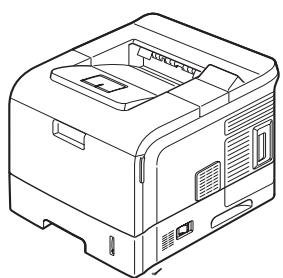
User's Guide
Network Printer User's Guide
Contents of this manual are subject to change without prior notice. In no event will the company be liable for direct, indirect, incidental or consequential damages as a result of handling or operating the machine.
Copyright © 2007.
- Microsoft, Windows, Windows 98, Windows NT, Windows Me, Windows 2000, Windows XP, and Windows 2003 are registered trademarks of Microsoft Corporation.
- Macintosh, AppleTalk, and EtherTalk are registered trademarks of Apple Computer, Inc.
- All other brand or product names are trademarks of their respective companies or organizations.
1. Getting started
Introduction 1.1
Supported network environments 1.1
Network Printer Card 1.1
System requirements 1.1
Connecting your Network Printer Card 1.1
2. Programs supplied on CD
System requirements 2.1
Installing software 2.1
Uninstalling software 2.1
IP address setup 2.2
3. Print Driver Installation for Networked Printers
Workstation Setup 3.1
Windows XP (TCP/IP) 3.1
Windows 2000 (TCP/IP) 3.2
Windows NT V4.0 (TCP/IP) 3.2
Windows 98/Me 3.3
Test Print 3.3
4. TCP/IP environment
Management protocols 4.1
DHCP/BOOTP 4.1
HTTP 4.1
SNMP 4.1
SLP 4.2
Dynamic DNS (DDNS) 4.2
WINS 4.2
Bonjour 4.3
UPnP 4.3
Printing protocols 4.4
Standard TCP/IP port 4.4
LPR port 4.4
Printer Port 4.5
IPP port 4.5
Additional functions 4.6
5. EtherTalk environment
EtherTalk printing 5.1
Configuring EtherTalk 5.1
Configuring the printer 5.1
TCP/IP printing 5.2
Bonjour printer 5.2
6. Administration Tools
Maintenance using Internet Services 6.1
Enabling Internet Services 6.1
Checking Printer Status 6.1
Printing Reports 6.1
Making and Changing Network Admin Password 6.1
Upgrading Firmware 6.2
7. Appendix
Specifications 7.1
OpenSSL Statements 7.1
OpenSSL License 7.1
INDEX
1 Getting started
NOTE: Your printer may not support all of the listed computing environments (operating systems). Therefore, check the network environment your printer supports in the user's guide that came with the printer.
Introduction
The Network Printer Card allows you to connect your printer directly to a network to share the printer among multiple users. The printer functions as a network print server supporting various network environments, such as Windows 98/Me/NT/2000/XP/2003, UNIX, and Macintosh 8.6 or higher.
This guide explains how to install the Network Printer Card and set up your printer as a print sever over the network.
This guide assumes that you have:
- A good working knowledge of your network utilities
- A supported network operating system
- A fully operational computer system
- Access to the supervisor account as a network administrator, or access to an account that has supervisor and print server operator privileges
Supported network environments
Administrators and users can configure, and use printers on the following supported network operating systems:
| Operating system | Network environment | Printing protocol | Action |
| Windows | 98, NT, ME, 2000, XP, 2003 | TCP/IP, LPD (LPR), IPP | See Chapter 4, "TCP/IP environment." |
| Unix | AT&T system V (Rel 4.2), BSD4.3, HP-UX (Rel 9.x & Rel 10.x), SCO 5.x, SUNOS 5.5, Sparc or Solaris 2.5. | TCP/IP, LPD (LPR) | See Chapter 4, "TCP/IP environment." |
| Macintosh | Macintosh 8.6 ~ 9.2, 10.1 ~ 10.3, or higher | TCP/IP, EtherTalk, Bonjour | See Chapter 5, "EtherTalk environment." |
Network Printer Card
System requirements
The following hardware is required to configure your printer for network applications.
| Computer | Requirements |
| IBM - compatible PC | • 80486 CPU or higher • Minimum of 16 MB of RAM • 2 MB of free disk space |
| Macintosh | • PowerPC 68020 or higher • Minimum of 8 MB of RAM • 2 MB of free disk space |
Connecting your Network Printer Card
1 Use a twisted pair cable with an RJ-45 connector to connect the printer to your network.
Once a connection is established between the wired network printer card and your network, the link LEDs on the card light.
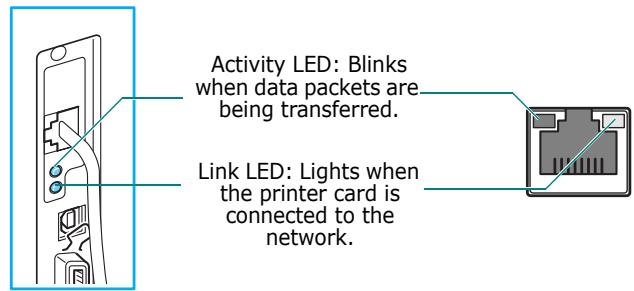
2 Set up your printer's IP address. See "IP address setup" on page 2.2.
2 Programs supplied on CD
The CD-ROM supplied with your printer card provides you with:
- SetIP: A utility program allowing you to select a network printer card and manually configure the addresses for use with the TCP/IP protocol.
System requirements
To install SetIP, the following are required:
- Operating system: Windows 2000/XP/2003
- Computer/Processor: 133 MHz or faster Pentium-compatible processor
- Memory: 256 MB (recommended)
- Hard Disk space: 2 GB hard disk with 1.5 GB available hard-disk space
- Internet Explorer 5.5 or later, or Mozilla 1.0
Installing software
1 Insert the supplied CD-ROM into your CD-ROM drive.
The CD-ROM will automatically run. If it does not, click Start Run, enter x:/cdsetup.exe (x represents your CD-ROM drive), and click OK.
2 Select the language you want.
3 Click Install SetIP.
4 Follow the onscreen instructions to complete installation.
5 Click Finish when installation is done.
Uninstalling software
You should remove the Network utilities if you are upgrading the software or if the installation fails.
NOTE: Close all programs before uninstalling software.
1 Click Start Programs Network Utilities SetIP Uninstall SetIP.
2 Click OK to confirm uninstallation.
3 Click Finish when uninstallation is done.
IP address setup
Before using your network print server in your network, you must set TCP/IP addresses for the print server. You will need your printer card's MAC address, IP address, subnet mask, and gateway address. First, check with your network administrator for the TCP/IP addresses.
NOTE: The MAC address is the hardware serial number of the network printer card. You can check the address by printing the Network Printer Configuration Page. For printing the page, refer to your printer user's guide.
You can set your print server's IP address via the following methods:
- Printer control panel: If your printer has a control panel and the network configuration menu, you can set the IP address directly from the printer. Refer to your printer user's guide.
- SetIP program: Go to the Using SetIP.
- Web Image Monitor SP 5100N: Once you have set an IP address for your network print server, you can use the embedded web server in the network printer card to change the address. Go to next column.
- DHCP: You can use Dynamic Host Configuration Protocol (DHCP) to get an IP address automatically assigned by your network administrator, if your network system supports this protocol.
- BOOTP: A network-based server using the BootStrap protocol (BOOTP) can notify the network printer card of its assigned IP address each time the printer turns on, if your network system supports this protocol.
NOTE: To get an IP address from the DHCP or BOOTP server, the IP assignment method must be set to DHCP or BOOTP.
Using SetIP
1 From the Windows Start menu, select Programs SP 5100N SetIP.
The program automatically detects and displays new and configured print servers on your network.
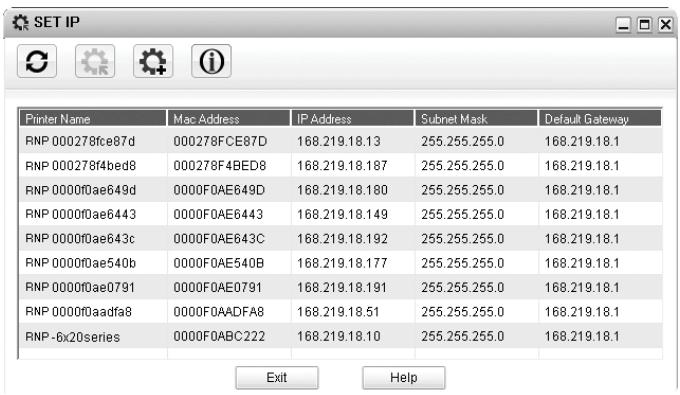
2 Select the name of your printer and click . If you cannot find your printer name, click to refresh the list. Even with this step, if you cannot find your printer name, then contact Network Administrator.
3 Enter your network printer card's MAC address (hardware address), IP address, subnet mask, default gateway, and then click Apply.
4 Click OK to confirm the settings.
5 Click Exit to close the SetIP program.
Using Web Image Monitor SP 5100N
1 Run your web browser.
2 Enter your print server's IP address in the URL field and click Go.
3 Click Network Settings TCP/IP.
4 Select Static from IP Address Assignment Method.
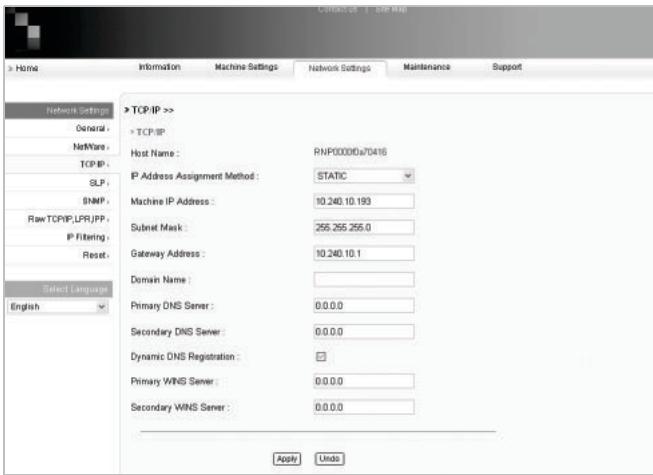
5 Enter your print server's TCP/IP addresses and click Apply.
3
Print Driver Installation for Networked Printers
This chapter explains how to install the print drivers for networked printers.
Workstation Setup
This section includes the setup procedures for the various Windows workstation environments.
Windows XP (TCP/IP)
Note: Windows XP supports printing via TCP/IP as standard when TCP/IP is installed on a Windows XP Workstation.
Use the Add Printer Wizard to add the printer to the network.
1 Select [Start], select [Printers and Faxes].
Double-click on the [Add a printer] icon to display the Add Printer Wizard.
2 Select [Local Printer attached to this computer], uncheck the box labelled [Automatically detect and install my Plug and Play printer.]and then select [Next] to display the dialog box listing available ports.
3 Select [Create a new port] to display the Printer Ports dialog box.
Select [Standard TCP/IP Port] and select [Next] to display the Add Standard TCP/IP Port dialog box.
Enter the IP Address of the printer in the [Printer Name or IP Address] field (you can optionally enter a friendly name for the printer port you are creating or use the default name created). Then select [Next] to continue. If the network printer settings are not automatically detected, click on the [Custom] button to setup the network printer port settings.
It is recommended that you select [Raw] as the Print Protocol.
If you prefer to use LPR:
Select [LPR] as the Print Protocol.
Enter [Ip] (in lower case) in the [Queue Name] field.
Uncheck the box labelled [LPR Byte Counting Enabled]
Check the box labelled [SNMP Status Enabled].
The [Community Name] should normally be set to "public" (unless you have configured the device to have a custom SNMP community name) and the [SNMP Device Index] should be set to 1.
Select [OK].
4 The Add Printer Wizard will then request that you select the driver to be used for this printer.
Insert the CD ROM with the printer drivers into the workstation and select [Have Disk].
Browse to the required Windows XP driver on the CDROM and select [OK].
Note: The driver will be found in the Printer folder on the CD in the appropriate PCL folder. The driver is identified by the file extension .inf.
Select [Next], and select [Next] again and the printer driver will be loaded onto the workstation.
Enter the Printer Name and select [Next].
5 If you wish to share the printer over the network Select [Share name]. You may also wish to install printer drivers for other operating systems that will access the printer.
A dialog box will be displayed with a message regarding the printing of a test page.
Select [Finish] to accept the Yes choice.
6 Continue with Test Print.
Windows 2000 (TCP/IP)
Note: Windows 2000 supports printing via TCP/IP as standard when TCP/IP is installed on a Windows 2000 Workstation.
Use the Add Printer Wizard to add the printer to the network.
1 Select [Start], select [Settings], and then select [Printers].
Double-click on the [Add Printer] icon to display the Add Printer Wizard.
2 Select [Local printer], uncheck the box labelled [Automatically detect and install my Plug and Play printer.]and then select [Next] to display the dialog box listing available ports.
3 Select [Create a new port] to display the Printer Ports dialog box.
Select [Standard TCP/IP Port] and select [Next] to display the Add Standard TCP/IP Port dialog box.
Enter the IP Address of the printer in the [Printer Name or IP Address] field (you can optionally enter a friendly name for the printer port you are creating or use the default name created). Then select [Next] to continue.
If the network printer settings are not automatically detected, click on the [Custom] button to setup the network printer port settings.
It is recommended that you select [Raw] as the Print Protocol.
If you prefer to use LPR:
Select [LPR] as the Print Protocol.
Enter [Ip] (in lower case) in the [Queue Name] field.
Uncheck the box labelled [LPR Byte Counting Enabled]
Check the box labelled [SNMP Status Enabled].
The [Community Name] should normally be set to "public" (unless you have configured the device to have a custom SNMP community name) and the [SNMP Device Index] should be set to 1.
Select [OK].
4 The Add Printer Wizard will then request that you select the driver to be used for this printer.
Insert the CD ROM with the printer drivers into the workstation and select [Have Disk].
Browse to the required Windows 2000 driver on the CDROM and select [OK].
Note: The driver will be found in the Printer folder on the CD in the appropriate PCL folder. The driver is identified by the file extension .inf.
Select [Next], and select [Next] again and the printer driver will be loaded onto the workstation.
Enter the Printer Name and select [Next].
5 If you wish to share the printer over the network Select [Share as]. You may also wish to install printer drivers for other operating systems that will access the printer.
A dialog box will be displayed with a message regarding the printing of a test page.
Select [Finish] to accept the Yes choice.
6 Continue with Test Print.
Windows NT V4.0 (TCP/IP)
Note: MicroSoft TCP/IP Printing must be installed and running on the workstation.
Use the Add Printer Wizard to add the printer to the network.
1 At the Windows NT workstation, select [Start], select [Settings], and then select [Control Panel].
Double-click on the [Network] icon and then select [Services].
Ensure that Microsoft TCP/IP Print Service is running and select [Start], select [Settings], and then select [Printers].
Double-click on the [Add Printer] icon to display the Add Printer Wizard.
2 Select [My Computer] and then select [Next] to display the dialog box listing available ports.
Select [Add Port] to display the Printer Ports dialog box.
Select [LPR Port] and select [New Port] to display the Add LPR compatible printer dialog box.
3 Enter the IP Address of the printer in the [Name or address of server providing lpd] field.
Enter [lp] (in lower case) in the [Name of printer or print queue on that server] field.
Note: lp must be entered regardless of the name of the printer or print queue. lp is the name of the remote printer/ server on the printer. This name does not change.
Select [OK].
Select [Close].
4 With the New Port selected, select [Next].
Insert the CD ROM with the printer drivers into the workstation and select [Have Disk].
Browse to the required Windows NT driver on the CD ROM and select [OK].
Note: The driver will be found in the Print folder on the CD in the appropriate PCL folder. The driver is identified by the file extension .inf.
Select [Next], and select [Next] again and the printer driver will be loaded onto the workstation.
5 Enter the Printer Name and select [Next].
Select [Shared], if you want to share. Otherwise, just select [Next].
A dialog box will be displayed with a message regarding the printing of a test page.
Select [Finish] to accept the Yes choice.
6 Continue with Test Print.
Windows 98/Me
- IP Address
- IPX/SPX Address
- DNS Name
- Auto detection on the network
1 Refer to "Installing Printer Software for Network Printing" Software Section "User's Guide" to install and setup the printer drivers on the workstation. Once the drivers are installed, connect a driver to the printer on the network by selecting [Multi Direct Print Type S] for the network port.
1. Select [Start], select [Settings], and then select [Printers]. Right-click on the installed Printer icon and select [Properties].
2. Select [Details] tab, and Click [Add Port]. The [Add Port] screen will be displayed.
3. Select [Other] Radio button. Select [Multi Direct Print Type S], and then click [OK].
4. Search a printer using the following radio button options and click [Next].
5. If you select "Auto detection on the network" in the step 4, printers on the network are listed up. Select a printer in the list and click [Next]. Other options in the step 4 skip this step.
6. Insert port name and click [Finish].
2 Continue with Test Print.
Test Print
To ensure the printer has been installed on the network correctly a test print should be submitted from a client workstation. Perform the following steps:
1 Open a document on a client workstation.
2 Select the SP 5100N as the printer for sending documents to.
3 Print the document on the device and verify that it prints correctly.
4 Ensure the print driver is installed on every workstation that will be sending jobs to the device.
5 Repeat the test for all workstations that will be sending jobs to the device.
4 TCP/IP environment
A TCP/IP network provides you with various protocols for using printing devices and managing various types of networked devices.
In this chapter, you will learn which management protocols are available in TCP/IP network environments, and how to print via your network print server using TCP/IP protocol.
Management protocols
Before beginning to print documents via your network printer, you need to check or configure some parameters using management protocols.
DHCP/BOOTP
Dynamic Host Configuration Protocol (DHCP) is a communication protocol enabling network administrators to centrally manage and to automate the assignment of IP addresses in a network. In an IP network, each device needs a unique IP address. DHCP lets a network administrator supervise and distribute IP addresses from a central point and automatically sends a new IP address when a device is plugged into a different place in the network.
Bootstrap Protocol (BOOTP) is UDP/IP-based protocol which allows a booting host to configure itself dynamically and without user supervision. BOOTP provides means to notify a host of its assigned IP address, the IP address of a boot server host, and other configuration information, such as the local subnet mask, the local time offset, and the addresses of default routers. Addresses of various Internet servers can also be transferred to a host using BOOTP.
DHCP is active by factory default on your network print server. After boot up, the network print server will get an IP address automatically from the DHCP server, if one exists. To set an IP address manually, see page 2.2.
Configuring DHCP/BOOTP
To enable or disable DHCP/BOOTP, use one of the following methods:
- Printer's control panel: Refer to Network Menu settings in your printer user's guide.
- Web Image Monitor SP 5100N: Select Network Settings TCP/IP and select DHCP or BOOTP from the IP Address Assignment Method list.
HTTP
Hypertext Transfer Protocol (HTTP) is an application layer protocol for distributed, collaborative, hypermedia information systems. It is a generic, stateless protocol which can be used for many tasks beyond its use for hypertext, such as with name servers and distributed object management systems. You are using HTTP when you connect your network printer via a web browser.
The Network Printer Card has a built-in web server, Web Image Monitor SP 5100N. You can configure and manage your network print server through Web Image Monitor SP 5100N using HTTP over TCP/IP.
SNMP
Simple Network Management Protocol (SNMP), which is part of the TCP/IP protocol suite, is an application layer protocol that facilitates the exchange of management information between network devices. It enables network administrators to remotely monitor and configure network devices, find and solve network problems, and plan for network growth.
Network devices are monitored and controlled using four basic SNMP commands:
- read: is used by a Network Management server to monitor network devices. The server examines different variables that are maintained by the devices.
- write: is used by a Network Management server to control managed devices. The server changes the values of variables stored within the devices.
- trap: is used by network devices to asynchronously report events to a Network Management server. When certain types of events occur, a device sends a trap to the specified server.
- Traversal operations: are used by a Network Management server to determine which variables a network device supports and to sequentially gather information in variable tables, such as a routing table.
Configuring SNMP
To access your network print server using SNMP, Community Name/Access Permission pair must be properly specified. There are two access permission: read and write.
Assign the IP addresses of trap hosts and community names (IP addresses) of network devices in Web Image Monitor SP 5100N select Network Settings SNMP.
Using SNMP
Web Image Monitor SP 5100N accesses, configures, and manages network devices using SNMP. You can use other MIB (Management Information Base) browser software, which allows you to access management information gathered from network devices.
SLP
Service Location Protocol (SLP) is an Internet standard network protocol that provides a framework to allow networking applications to discover the existence, location, and configuration of networked services in enterprise networks, such as printers, Web servers, fax machines, video cameras, file systems, backup devices (tape drives), databases, directories, mail servers, and calendars.
In order to locate services on the network, users of network applications are required to supply the host name or network address of the device that supplies a desired service. However, SLP eliminates the need for a user to know the name of a network host supporting a service. Rather, the user only needs to supply the desired type of service and set of attributes or keywords, which describe the service.
Based on that description, SLP also resolves the network address of the service of the user. Administrators do not need to help clients find new services or to remove services when they are no longer available. SLP uses multicasting and can work over subnet boundaries.
Configuring SLP
You can configure SLP protocol settings through Web Image Monitor SP 5100N. Select Network Settings SLP.
- SLP Protocol: You can enable or disable SLP.
- Port Number: The port number is fixed to 427.
- Scope 1 ~ 3: A scope is a set of services and a string used to group resources by location, network, or administrative category. Each scope should not be more than 32 characters.
- Message Type: You can select the outgoing SLP message type sent to network devices. The default value is Multicast.
- Multi Cast Radius: You can specify the maximum number of subnets that SLP multicasts can travel across. This value is also called the "hop count" or "time-to-live" (TTL). The default value is 255.
- Registration Lifetime: You can define the time in seconds before the Server Agents registration expires.
- Multicast Address: The Multicast Address value is fixed to 239.255.255.253, 224.0.1.127.
Using SLP
Once SLP enabled is checked, the network print server works as a Service Agent and the User Agent.
Dynamic DNS (DDNS)
DNS (Domain Name System) is used for registration of domain names and provides Host names to an IP address resolution service. For printer devices, DNS may be utilised for printer domain name registration, so that print server clients may refer to the printer by its host name rather than by its IP address. Even though a printer's IP address is changed, all clients can operate this printer without reconfiguration. Addressing to a printer device by IP address is not convenient and may often go stale if an IP address to a device is assigned dynamically via a DHCP server. If the DHCP server can provide information about a printer's changing IP address to the DNS server automatically, user convenience is increased. The printer's name will be used as its DNS name.
Configuring DDNS
1 Let the DHCP server provide updated information to the DNS server.
2 Configure the same DDNS domain through Web Image Monitor SP 5100N as entered in the DNS server.
If you connect your network printer via a web browser, you can enable this by selecting Network Setting TCP/IP Dynamic DNS Registration.
3 Set the IP assignment method of your network print server to DHCP and reboot the printer.
The DNS server will update its database and users can use the printer's name instead of its IP address.
WINS
Before Dynamic DNS was defined, DNS could only be updated manually when DHCP servers automatically provided (or removed) IP addresses. As a result, DNS servers often contained obsolete listings. In response, Microsoft developed Windows Internet Name Service (WINS) to solve this problem for NetBIOS names.
Microsoft now recommends moving to Dynamic DNS and away from WINS. However, many customers including Microsoft maintain WINS systems and need devices to interoperate with WINS. So devices must, at least for now, support WINS interoperability to allow for dynamic NetBIOS name to IP address registration and resolution.
WINS provides a distributed database for registering and querying dynamic NetBIOS names to IP address mapping in a routed network environment. This is the best choice for NetBIOS name resolution in such a routed network because it is designed to solve the problems that occur with name resolution in complex Internet networks.
Configuring WINS
Access Web Image Monitor SP 5100N and select Network Settings TCP/IP. You will configure two WINS server addresses, the Primary WINS Server or the Secondary WINS Server. The default value is 0.0.0.0.
In a DHCP server
A DHCP server can support the NBNS (NetBIOS Name Server) option. An administrator has to set the WINS server IP address in the NBNS option.
1 Set the IP assignment method of your network print server to DHCP.
2 Reboot the print server.
The WINS server will update the printer's NetBIOS name in its database. Users can use the printer name instead of its IP address.
In the network print server
1 Configure the WINS server address through Web Image Monitor SP 5100N.
2 Reboot the print server.
The WINS server will update the printer's NetBIOS name in its database. Users can use the printer name instead of its IP address.
Bonjour
Bonjour allows for a network system to be easily discovered and its capabilities to be revealed by any Bonjour-compliant client software, such as Print Center Utility built in to Mac OS X. For details, see page 5.2.
UPnP
UPnP is an architecture for pervasive peer-to-peer network connectivity of intelligent appliances, and PCs of all form factors. It is designed to bring easy-to-use, flexible, standards-based connectivity to ad-hoc or unmanaged networks whether in the home, in a small business, public spaces, or attached to the Internet.
UPnP is a distributed, open networking architecture that leverages TCP/IP and Web technologies to enable seamless proximity networking in addition to control and data transfer among networked devices in the home, office, and public spaces.
UPnP is more than just a simple extension of the plug and play peripheral model. It is designed to support zero-configuration, "invisible" networking, and automatic discovery for a wide breadth of device categories from a wide range of vendors. This
means a device can dynamically join a network, obtain an IP address, convey its capabilities, and learn about the presence and capabilities of other devices. DHCP and DNS servers are optional and are used only if available on the network, while a device can leave a network smoothly and automatically without leaving any unwanted state issues behind.
UPnP supports 6 protocol stacks for addressing, discovery, description, control, eventing, and presentation, but the Network Printer Card supports only Simple Service Discovery Protocol (SSDP) which allows addressing, description, and discovery.
Configuring UPnP
-
Control panel: Refer to the Network Menu setting in your printer user's guide.
Web Image Monitor SP 5100N: Select Network Settings UPnP. -
Auto IP Enabled: You can enable or disable Auto IP. When this option is selected, the network print server cannot find the control point and receive an IP address from the control point. The network print server will create an IP address of "169.254.XXX.XXX."
-
Multicast DNS Enabled: SSDP can use Multicast DNS.
- SSDP Enabled: You can enable or disable SSDP.
- SSDP TTL: You can specify the maximum number of subnets that SSPD multicasts can travel across.
Using UPnP
If SSDP (Simple Service Discovery Protocol) is enabled, your network print server is checked by a control point. This control point is an application which supports finding UPnP devices. Information on searching and control functions or your network print server's device information is displayed in an XML page (http://xxx.xxx.xxx.xxx:5200/printer.xml).
Printing protocols
Before setting the network printing ports, you must install the printer driver with the local port (LPT) on the system. Refer to your printer user's guide.
Standard TCP/IP port
You can print your documents to your network printer by creating a Standard TCP/IP port.
Configuring Standard TCP/IP in Windows 2000/XP/2003
You can enable or disable the Standard TCP/IP Printing port through Web Image Monitor SP 5100N. Select Network Settings Raw TCP/IP, LPR, IPP.
You can also change the port number of the Standard TCP/IP port. The default port number is 9100.
Creating a Standard TCP/IP port
1 In Windows XP, click Start Printers and Faxes. In Windows 2000/2003, click Start Settings Printers.
2 Click Add a printer or double-click Add Printer, and then Next.
3 Click Local printer attached to this computer and then Next.
Make sure that Automatically detect and install my Plug and Play printer is not selected.
4 Click Create a new port, select Standard TCP/IP port from the Type of port list, and click Next.
5 Click Next.
6 Enter the IP address or DNS name of your network printer and click Next. For the port name, a default name will be entered by Windows. You can change it to a more user-friendly name.
7 Follow the instructions on the screen to complete installation. Now, you can select your printer from the Print Set dialogue box.
LPR port
LPD, Line Printer Daemon, is the protocol associated with line-printer spooling services. Users can use the printing service from LPD running on a network print server through the LPR port. Most operating systems, such as Microsoft Windows NT/2000/XP/2003, and Unix, support LPR port printing.
Configuring an LPR port
You can enable or disable the LPR Printing port through Web Image Monitor SP 5100N. Select Network Settings RawTCP/IP, LPR, IPP. You can also change the port number of LPR/LPD. The default port number is 515.
In Windows NT
Before adding an LPR printing port, make sure that Microsoft TCP/IP printing service is installed on your Windows NT computer, or install the software, if necessary.
Installing the TCP/IP printing service
1 Make sure your computer supports Microsoft TCP/IP printing service.
1) From the Windows Start menu, select Settings Control Panel.
2) Double-click Network.
3) Make sure that TCP/IP protocol is listed in the Protocols tab and Microsoft TCP/IP printing is listed in the Services tab. If not, go to step 2.
2 Install TCP/IP printing service:
Click Add and select TCP/IP Protocol Microsoft TCP/IP Printing. Follow the onscreen instructions to complete installation.
NOTES:
- During the installation process, you may need the Windows Installation CD-ROM.
- You can only install Microsoft TCP/IP Printing if you have administrator privileges.
After installing the service, restart your computer.
Adding an LPR port
1 From the Windows Start menu, select Settings Printers.
2 Click Add Printer.
3 Click My Computer and then Next.
4 Click Add Port and select LPR Port from the port type list.
5 Click New Port.
6 Enter the IP address or DNS name of the printer and the name of a user-defined print queue.
7 Click OK.
8 Follow the onscreen instructions to complete installation.
In Windows 2000/XP/2003
To add an LPR port to Windows 2000/XP/2003, users must install a Standard TCP/IP port by default, then change the printing protocol in the printer properties. For installing the Standard TCP/IP port, see page 4.4.
1 From the Windows Start menu, select Settings Printers, or Printers and Faxes.
2 Right-click the printer you want and select Properties.
3 Click Ports.
4 Make sure that the appropriate Standard TCP/IP port is selected and click Configure Port.
5 Select LPR from the Protocol section.
6 Enter the print queue name and click OK.
7 Click OK to close the properties window.
In Unix
Depending on your particular Unix system, LPD configuration may vary. See your system documentation for the correct syntax for the system.
Printer Port
A Network Printer port is used to send print jobs from network computers running Windows OS that do not support the Standard TCP/IP port or LPR port. Adding a Network Printer port
1 From the Windows Start menu, select Settings Printers.
2 Right-click the printer you want and select Properties.
3 Open the Details tab and click Add Port.
4 Select Network Printer Port from the Other list and click OK.
5 Select the print server you want to use and click OK. If you cannot find the print server, click Add New Print Server to list, specify information for the print server, such as print server name, IP address, or MAC address, and click OK.
6 When the port name displays in the Print to the following port list, click OK or Close.
IPP port
Internet Printing Protocol (IPP) allows printing across the Internet, meaning that you can send a print job to your printer from a remote place if you are an Internet user, no matter what operating system you use or where you are.
Configuring IPP in the print server
The network administrator must specify information required for IPP, such as the URI (Uniform Resource Identifier).
1 Run your web browser and access Web Image Monitor SP 5100N.
2 Click Network Settings Raw TCP/IP, LPR, IPP.
3 Configure the IPP parameters:
- Printer Name: Enter the network printer's name to be used with IPP printing.
- Printer URI: Enter the URL of the printer using the following format: ipp://the IP address of the printer or http://the IP address of the printer:631 (Ex:ipp:// 168.10.17.82 or http://168.10.17.82:631) 631 is the IPP port number.
- Printer Information: Enter additional information about the printer.
- More Printer Information: Enter more additional information about the printer.
- Printer Location: Enter the name of the location where the printer is physically located.
- Multiple Operation Timeout: Enter the time to elapse before the printer ends a print job. When there is no incoming data after the specified number of seconds, the printer ends reception.
- Time to Keep Jobs in History: Set the length of time the IPP printer keeps job information.
- Operator Message: Enter printer information for printer users.
- Job Count: shows the number of print jobs.
- Driver Installer: shows the URL where you can get the driver installer.
- Manufacturer: shows the URL where you can get manufacturer information.
4 Click Apply.
Configuring a Windows client
After the network administrator has configured the network print server, each printer user must install the printer driver and set the print port to IPP 1.1 Port Monitor.
NOTE: Before following the steps below, each printer user should install the printer driver. If the printer driver is not already installed on the computer, install the printer driver that came with the printer. Select the local port (LPT) when you install the driver.
1 From the Windows Start menu, select Settings Printers, or select Printers and Faxes.
2 Right-click the printer you want and select Properties.
3 In Windows 95/98/Me, click Details.
In Windows NT4.0/2000/XP/2003, click Ports.
4 Click Add Port.
5 Select IPP Port from the Other list and click OK.
6 Enter the printer URL and port name and click OK.
7 When the port name displays on the print port list, click OK.
Now you can select the network print server from the Print Setup dialogue box to send a job.
Setting IPP security
Web Image Monitor SP 5100N allows administrators to choose an authentication method and to create or modify user accounts.
1 Run your web browser and access Web Image Monitor SP 5100N.
2 Click Network Settings Raw TCP/IP, LPR, IPP.
- Authentication: You can set a user name and password encryption method (refer to http digest authentication in RFC).
- User DB: You can set a user name and password for IPP printing. You can set up the user database for up to 10 items.
3 Click Apply.
NOTE: A user name should be unique for all slots and should not include symbols. The length of the user name and the password should each be less than 7 characters.
Additional functions
The following are additional functions you can use through Web Image Monitor SP 5100N.
Printer properties settings
You can check and modify printer and document properties for an installed printer. For properties that are not supported by the printer driver, an error message indicating that the property is not supported is displayed. These settings are used only for printing from this system to the printer. However, these settings do not affect the printer properties of the network printer.
Firmware upgrade (HTTP)
You can upgrade your printer's firmware using the HTTP protocol. First, you need to download firmware from the website.
NOTE: Before upgrading the firmware, make sure that TCP/IP parameters are entered in the print server.
1 Run your web browser and access Web Image Monitor SP 5100N.
2 Click Maintenance Firmware Upgrade.
3 Select a firmware type, Printer Firmware or Network Firmware.
4 Click Browse, and then select the downloaded new firmware.
5 Click Upgrade.
NOTE: It takes a few minutes to upgrading the firmware. After completely upgrade, the printer will be reset.
Default setting (HTTP/SNMP)
You can reset all of your network parameter settings to their default status.
NOTE: All default parameters will be applied after the print server restarts.
IP filtering
This security feature (IP Filtering) provides the ability to prevent unauthorised network access to the network print server based on IP addresses set by a network administrator using Web Image Monitor SP 5100N.
1 Run your web browser and access Web Image Monitor SP 5100N.
2 Select Network Settings IP filtering.
3 Configure an IP filter.
- IP Filtering: You can enable or disable IP filtering.
- IP Address1 ~ Address10: You can enter filtered IP addresses. Users having the IP addresses set here are able to access the network print server.
4 Click Apply.
Only system administrators or authorised users can set, via Web Image Monitor SP 5100N, IP addresses that can access the device. Up to 10 addresses or ranges of address choices can be made and set. Authorised users are able to change the action (Apply/ Undo) and to print to the network print server.
NOTE: Ranges of addresses shouldn't contain "null" or "0.0.0.0" values.
Reset
1 Run your web browser and access Web Image Monitor SP 5100N.
2 Click Network Settings Reset.
You can reboot the network print server, if your network settings are not applied correctly or the network card is disconnected from your network.
Ethernet speed
You can set the communication speed for Ethernet connections.
1 Run your web browser and access Web Image Monitor SP 5100N.
2 Click Network Settings General.
- Speed Rate: Automatic, 10 Mbps(Harf Duplex), 10 Mbps(Full Duplex), 100 Mbps(Harf Duplex), 100 Mbps(Full Duplex). select a Ethernet speed from the drop-down list.
3 Click Apply.
5
EtherTalk environment
Ethernet is AppleTalk used in an Ethernet network. This protocol is widely used in Macintosh network environments. Microsoft Windows system also supports this protocol. Like TCP/IP, EtherTalk also provides packet transmission and routing functionality.
The network printer card works on EtherTalk networks, if the host printer supports PostScript. The description in this chapter applies to network printing from a Macintosh computer.
EtherTalk printing
Printing in an EtherTalk network is possible with several different hardware and software configurations. When you issue a command to print a document, the application begins a series of EtherTalk calls attempting to establish a connection to the printer. The calls first initiate the NBP (Name Binding Protocol) name-lookup process to find the currently selected printer and its EtherTalk address. Then the Printer Access Protocol (PAP) is used to open a connection with the printer.
Once the connection has been established, the workstation and printer interact over a PAP connection. PAP uses lower-level protocols, such as ATP and DDP, to provide a data-stream service for sending print data to the printer.
Configuring EtherTalk
You can configure EtherTalk using the following methods:
Control Panel
Refer to the Network Menu setting in your printer user's guide.
Web Image Monitor SP 5100N
1 Run your web browser.
2 Enter the printer's IP address in the URL field and click Go.
3 Select Network Settings EtherTalk.
- EtherTalk Protocol: allows you to enable or disable the EtherTalk protocol.
- Printer Name: allows you to set the printer name for EtherTalk protocol. The default name is RNP+MAC address. This name is automatically displayed on Chooser.
- Printer Type: shows the printer type.
-
Last Error Occurred: shows the last error.
-
RTMP: allows you to set the time in seconds after which the routing table entry maintained by the RTMP protocol times out.
- ZIP (current zone): shows the AppleTalk Zone name. If there is no configured zone, *(asterisk) should be displayed.
- PAP (wait time before transmitting a tickle packet): enables you to define the time interval in seconds after which the PAP protocol should resend a tickle packet to verify the status of the PAP connection between the printer and your Macintosh.
4 Click Apply.
Configuring the printer
Note: The following instructions are for Mac OS 10.3, but similar for other versions.
The following steps must be taken to configure the network printer for use on a Macintosh system. If the network printer you want to use is not listed in the printer pop-up menu when you try to print a document, you should add it to your list of available printers.
1 Open System Preferences and click Print & Fax.
2 Click Printing Set Up Printers.
3 If the printer already appears in the printer list, select the In Menu check box to add it to your list of available printers. You will see the printer in the Printer pop-up menu the next time you print.
4 Choose Printers Add Printer.
5 Choose AppleTalk from the pop-up menu list on the top.
6 If necessary, choose an AppleTalk zone from the pop-up menu that appears directly below it. Any AppleTalk printers in the zone you have chosen appear in the Printer List.
7 Select the printer in the Printer List.
8 To use printer-specific features, choose the item appropriate for your printer from the Printer Model pop-up menu, then select your printer in the Model Name list.
9 Click Add.
The printer appears in the Printer List as the default printer (in boldface). It also appears in the Printer pop-up menu when you print a document.
TCP/IP printing
Apple added TCP/IP printing to all versions including and after OS 8.6.
NOTE: Ensure that the Macintosh has version 8.6 or later. Earlier versions do not support TCP/IP printing as standard.
An IP printer is a network printer that uses TCP/IP protocols (such as LPD/LPR, IPP, or Socket or Jet Direct) to make itself accessible to your computer. If the IP printer you want to use is not listed when you want to print, you can add it to your list of available printers. To add an IP printer, you need to know its IP address or DNS name.
1 Open System Preferences and click Print & Fax.
2 Click Printing Set Up Printers.
3 If the printer already appears on the Printer List, select the In Menu check box to add it to your list of available printers. You will see the printer in the Printer pop-up menu the next time you print.
4 Choose Printers Add Printer.
5 Choose IP Printing from the pop-up menu.
6 Select the appropriate printing protocol from the Printer Type pop-up menu.
7 Enter the IP address or DNS name for the printer in the Printer Address field.
8 If your printer requires it, type the queue name for your printer in the Queue Name field.
9 To use printer-specific features, choose the item appropriate for your printer from the Printer Model pop-up menu, then select your printer in the Model Name list.
10 Click Add.
The printer appears on the Printer List as the default printer (in boldface). It also appears in the Printer pop-up menu when you print a document.
Bonjour printer
Usually used in Macintosh networks to search for network devices, Bonjour consists of IPv4 Link-Local Addressing, Multicast DNS, and DNS Service Discovery. Known as zero configuration networking, Bonjour uses industry standard IP protocols to allow devices to automatically find each other without the need to enter IP addresses or configure DNS servers.
In order to provide a true zero configuration experience, meaning that you do not need to configure network parameters, the printer MUST have Bonjour enabled by default. It is NOT possible to disable any part of Bonjour.
After boot up, check the Bonjour printer name of this printer network card in Mac OS X.
1 Open System Preferences and select Print & Fax.
2 Click Printing Set Up Printers.
3 If the printer already appears on the Printer List, select the In Menu check box to add it to your list of available printers. You will see the printer in the Printer pop-up menu the next time you print.
4 Choose Printers Add Printer.
5 Choose Bonjour from the pop-up menu. Any Bonjour-enabled printers on your local network or subnetwork appear on the Printer List.
6 Select your printer from the Printer List.
7 To use printer-specific features, choose the item appropriate for your printer from the Printer Model pop-up menu, then select your printer in the Model Name list.
8 Click Add.
The printer appears on the Printer List as the default printer (in boldface). It also appears in the Printer pop-up menu when you print a document.
This chapter explains how to configure or use the various administration tools found in the SP 5100N. The following information is provided:
Maintenance using Internet Services
Enabling Internet Services
1 At a client workstation on the network, launch the Internet Browser.
2 In the URL field, enter http:// followed by the IP Address of the SP 5100N. Then select the [Enter] key.
Example: If the IP Address is 192.168.100.100, enter the following in the URL field:
http://192.168.100.100
Checking Printer Status
Use these instructions to check the status of the SP 5100N, the paper trays and consumables.
To check the status, perform these steps:
1 Enable SP 5100N (see "Enabling Internet Services").
2 At the SP 5100N Home Page for the SP 5100N, select the [Information] tab.
3 Click [Print Information] in the left frame.
Printing Reports
Use these instructions to print the printer's reports or to send a test print file to the SP 5100N.
To print reports, perform these steps:
1 Enable SP 5100N (see "Enabling Internet Services").
2 At the SP 5100N Home Page for the SP 5100N, click [Information].
3 Click Print Information menu in the left frame. Then click the appropriate [Print] link to print:
Print Information
Print Printer Configuration Page
Print Demo Page
Print Menu Map
Print PCL Font List
Print PS3 Font List
Network Information Page
Print Network Configuration Page
Making and Changing Network Admin Password
Use these instructions to change the admin user's password.
To make admin user's password settings, perform these steps:
1 Enable SP 5100N (see "Enabling Internet Services").
2 At the SP 5100N Home Page for the SP 5100N, click [Maintenance].
3 Click Security menu in the left frame.
4 Select the checkbox to [Enable Security] for using security.
5 To change the Admin User Password, in the Change Admin User Name and Password area:
Enter the [New Admin Name] and [Old Admin Name].
Enter the [New Admin Password] and [Old Admin Password].
6 Click the [Apply] button to implement any changes.
Note: Click the [Undo] button to cancel any changes made and return to the previous values.
Upgrading Firmware
Firmware upgrades may supplied on a CD or as a download from the internet. Use these instructions to install firmware upgrades in the SP 5100N.
To upgrade the firmware, perform these steps:
1 Enable SP 5100N (see "Enabling Internet Services").
2 At the SP 5100N Home Page for the SP 5100N, click [Maintenance] tab.
3 Click [Firmware Upgrade] in the left frame.
4 Insert the CD or download the upgrade from the internet.
5 Enter the file name and location or [Browse] to the location and select the file.
6 Click the [Upgrade] button.
7 Appendix
Specifications
| Items | Specifications |
| Supported networks | ·Windows: 98, NT, ME, 2000, XP, 2003 ·Unix: AT&T system V (Rel 4.2), BSD4.3, HP-UX (Rel 9.x & Rel 10.x), SCO 5.x, SUNOS 5.5, Sparc or Solaris 2.5. ·Macintosh: Macintosh 8.6 ~ 9.2, 10.1 ~ 10.3, or higher |
| Protocol | TCP/IP, LPD (LPR), IPP, EtherTalk, Bonjour. |
| Configuration utilities | SetIP, Web Image Monitor SP 5100N |
| Hardware requirements | ·PC: - 80486 CPU or higher - Minimum of 16 MB of RAM - 2 MB of free disk space ·Macintosh: - PowerPC 68020 or higher - Minimum of 8 MB of RAM - 2 MB of free disk space |
OpenSSL Statements
OpenSSL License
Copyright © 1998-2000 The OpenSSL Project. All rights reserved.
Redistribution and use in source and binary forms, with or without modification, are permitted provided that the following conditions are met:
1 Redistributions of source code must retain the above copyright notice, this list of conditions and the following disclaimer.
2 Redistributions in binary form must reproduce the above copyright notice, this list of conditions and the following disclaimer in the documentation and/or other materials provided with the distribution.
3 All advertising materials mentioning features or use of this software must display the following acknowledgment:
4 "This product includes software developed by the OpenSSL Project for use in the OpenSSL Toolkit. (http:// www.openss.org/)
5 The names "OpenSSL Toolkit" and "OpenSSL Project" must not be used to endorse or promote products derived from this software without prior written permission.
6 For written permission, please contact openssllcore@openssl.org.
7 Products derived from this software may not be called "OpenSSL" nor may "OpenSSL" appear in their names without prior written permission of the OpenSSL Project.
8 Redistributions of any form whatsoever must retain the following acknowledgment:
"This product includes software developed by the OpenSSL Project for use in the OpenSSL Toolkit (http:// www.openss.org/)
THIS SOFTWARE IS PROVIDED BY THE OpensSL PROJECT "AS IS" AND ANY EXPRESSED OR IMPLIED WARRANTYES, INCLUDING, BUT NOT LIMITED TO, THE IMPLIED WARRANTYES OF MERCHANTABILITY AND FITNESS FOR A PARTICULAR PURPOSE ARE DISCLAIMED. IN NO EVENT SHALL THE OpensSL PROJECT OR ITS COLNTRIButors BE LIABLE FOR ANY DIRECT, INDIRECT, INCIDENTAL, SPECIAL, EXEMPLARY, OR CONSEQUENTIAL DAMAGES (INCLUDING, BUT NOT LIMITED TO, PROCEDURE OF SUBSTITUTE GOODS OR SERVICES; LOSS OF USE, DATA, OR PROFITS; OR BUSINESS INTERRUPTION) HOWEVER CAUSED AND ON ANY THEORY OF LIABILITY, WHETHER IN CONTRACT, STRICT LIABILITY, OR TORT (INCLUDING NEGLIGENCE OR OTHERWISE) ARISING IN ANY WAY OUT OF THE USE OF THIS SOFTWARE, EVEN IF ADVISED OF THE POSSIBILITY OF SUCH DAMAGE.
This product includes cryptographic software written by Eric Young (eay@cryptsoft.com).
This product includes software written by Tim Hudson (tjh@cryptsoft.com).
INDEX
A
Administration Tools 6.1
Internet Services 6.1
B
Bonjour 5.2
BOOTP 4.1
D
DDNS 4.2
DHCP 4.1
E
EtherTalk
Bonjour 5.2
configuring EtherTalk 5.1
configuring the printer 5.1
TCP/IP printing 5.2
F
Firmware upgrade 4.6
H
HTTP 4.1
I
Installing software 2.1
Internet Services
Printer Status 6.1
Printing Reports 6.1
Upgrading Firmware 6.2
IP address setup
2.2
BOOTP 2.2
DHCP 2.2
Printer control panel 2.2
SetIP 2.2
IP filtering 4.6
IPP port 4.5
L
LEDs 1.1
LPR port 4.4
N
Network administration software, install 2.1
Network environments, supported 1.1
Network Printer Card 1.1
Network Printer Card, install 1.1
Networked Printers 3.1
Test Print 3.3
Workstation Setup 3.1
P
Printer Status 6.1
Printing Reports 6.1
s
SetIP 2.1
SLP 4.2
SNMP 4.1
Specifications 7.1
Standard TCP/IP port 4.4
T
TCP/IP
in Macintosh 5.2
management protocol
BOOTP 4.1
DDNS 4.2
DHCP 4.1
HTTP 4.1
SLP 4.2
SNMP 4.1
UPnP 4.3
WINS 4.2
printing protocol
IPP port 4.5
LPR port 4.4
Standard TCP/IP port 4.4
U
Uninstalling software 2.1
Upgrading Firmware Using Internet Services 6.2
UPnP 4.3
W
WINS 4.2
Workstation Setup
Windows 2000 (TCP/IP) 3.2
Windows 98/me 3.3
Windows NT V4.0 (TCP/IP) 3.2
Windows XP (TCP/IP) 3.1
- CONTENTS
- Introduction
- System setup
- Software overview
- Network setup
- Loading print media
- Basic printing
- Supplies and accessories
- Maintenance
- Troubleshooting
- Installing accessories
- Specifications
- Safety Information
- Safety During Operation
- WARNING:
- CAUTION:
- Power Supply
- Laser Safety:
- For North America
- Positions of Labels and Hallmarks for WARNING and CAUTION Labels
- CE Marking Traceability Information (For EU Countries Only.)
- Manufacturer:
- Authorized representative:
- Power Saver
- Recycling
- User Information on Electrical & Electronic Equipment
- Users in the EU, Switzerland and Norway
- All Other Users
- Note to users in the United States of America
- Notice:
- Note to users in Canada
- Introduction
- Special features
- Print with excellent quality and high speed
- Handle paper flexibly
- Create professional documents
- Save time and money
- Expand the printer capacity
- Use the optional hard disk
- Print in various environments
- Printer features
- Finding more information
- Note
- Selecting a location
- Clearance space
- System setup
- Using control panel menus
- Accessing control panel menus
- Menu overview
- Job manager menu
- Information menu
- Layout menu
- Paper menu
- Graphic menu
- System Setup menu
- Emulation menu
- PCL
- PostScript
- Network menu
- Printing a demo page
- Changing the display language
- Using toner save mode
- Using the control panel button
- From the software application
- Software overview
- Supplied software
- Printer driver features
- System requirements
- Network setup
- Introduction
- Via network administration programs
- Via the control panel
- Supported operating systems
- Configuring TCP/IP
- Static addressing
- Dynamic addressing (BOOTP/DHCP)
- Configuring EtherTalk
- Setting Ethernet speed
- Restoring the network configuration
- Printing a network configuration page
- Loading print media
- Selecting print media
- Notes
- Guidelines for selecting and storing print media
- Guidelines for special print media
- Loading paper
- Using the standard tray or the optional trays
- Changing the size of the paper in the tray
- Using the multi-purpose tray
- Caution
- Tips on using the multi-purpose tray
- Using manual feed mode
- Selecting an output location
- Printing to the output tray (Face down)
- Printing to the rear cover (Face up)
- Basic printing
- Printing a document
- Canceling a print job
- Supplies and accessories
- Toner cartridges
- Accessories
- Maintenance
- Printing information pages
- Cleaning the printer
- Cleaning the outside of the printer
- Cleaning the inside of the printer
- Cleaning the inside of the printer manually
- Feed Sensor
- Printing a cleaning sheet
- Maintaining the toner cartridge
- Warning
- Toner cartridge storage
- Expected cartridge yield
- Saving toner
- Checking the remaining toner
- Redistributing toner cartridge
- Replacing the toner cartridge
- Clearing the Toner Low Replace Toner message
- Maintenance parts
- In the paper feed area
- In the tray 1
- In the optional tray
- In the multi-purpose tray
- Around the toner cartridge
- In the paper exit area
- In the duplex unit area
- Duplex jam 0
- Duplex jam 1
- Tips for avoiding paper jams
- Troubleshooting checklist
- Understanding the status LED
- Understanding display messages
- Solving general printing problems
- Solving print quality problems
- Common PostScript problems
- Common Macintosh problems
- Installing accessories
- Precautions when installing accessories
- Disconnect the power cord:
- Discharge static electricity:
- Installing a dual in-line memory module (DIMM)
- Setting the memory in the PostScript printer properties
- Removing a DIMM
- Using the hard disk
- Installing the hard disk
- Setting the hard disk in the printer properties
- Printing with the optional hard disk
- Setting the time and date
- Storing a job
- Printing a stored job
- Deleting a stored job
- Controlling the active job queue
- To delete a file from the queue:
- To promote a file from the queue:
- To print a file immediately:
- Printing using the form files
- INDEX
- A
- C
- D
- E
- H
- 1
- J
- L
- M
- N
- 0
- P
- Q
- R
- S
- T
- W
- Software section
- Chapter 1: INSTALLING PRINTER SOFTWARE IN WINDOWS
- Chapter 2: BASIC PRINTING
- Chapter 3: ADVANCED PRINTING
- Chapter 4: USING WINDOWS POSTSCRIPT DRIVER
- Chapter 5: USING DIRECT PRINT UTILITY
- Chapter 6: SHARING THE PRINTER LOCALLY
- Chapter 7: USING UTILITY APPLICATIONS
- Chapter 8: USING YOUR PRINTER WITH A MACINTOSH
- Installing Printer Software in Windows
- Installing Printer Software
- Installing Software for Local Printing
- Typical Installation
- Click Next.
- Select Typical installation for a local printer. Click Next.
- Click Finish.
- Custom Installation
- Select Custom installation. Click Next.
- Select your printer and click Next.
- Select the components to be installed and click Next.
- Click Finish.
- Installing Software for Network Printing
- Select Typical installation for a network printer. Click Next.
- Changing the Software Language
- Reinstalling Printer Software
- Removing Printer Software
- Basic Printing
- NOTES:
- Printer Settings
- Layout Tab
- Paper Orientation
- Layout Options
- Double-sided Printing
- Paper Tab
- Copies
- Size
- Source
- Type
- First Page
- Scaling Printing
- Graphics Tab
- Resolution
- Toner Save Mode
- Advanced Options
- Extras Tab
- Watermark
- Overlay
- Output Options
- This feature is available only when you use the PCL printer driver.
- Job Setting
- About Tab
- Printer Tab
- Using a Favorite Setting
- Click Save.
- Using Help
- 3
- Advanced Printing
- NOTE:
- Printing Multiple Pages on One Sheet of Paper (N-Up Printing)
- Printing Posters
- Printing Booklets
- Printing on Both Sides of Paper
- Printing a Reduced or Enlarged Document
- Fitting Your Document to a Selected Paper Size
- Using Watermarks
- Using an Existing Watermark
- Creating a Watermark
- Editing a Watermark
- Deleting a Watermark
- Using Overlays
- What is an Overlay?
- Creating a New Page Overlay
- Using a Page Overlay
- Deleting a Page Overlay
- 4
- Using Windows PostScript Driver
- Advanced
- 5
- Using Direct Print Utility
- Overview Direct Print Utility
- Printing
- From the Direct Print Utility window
- Using the shortcut icon
- Using the right-click menu
- 6
- Sharing the Printer Locally
- Setting Up a Host Computer
- Setting Up a Client Computer
- 7
- Using Utility Applications
- Using Printer Settings Utility
- Using Onscreen Help
- Opening the Troubleshooting Guide
- Changing the Status Monitor Program Settings
- 8
- Using Your Printer with a Macintosh
- Installing Software for Macintosh
- Setting Up the Printer
- For a Network-connected Macintosh
- Mac OS 8.6 ~ 9.2
- Mac OS 10.1 or higher
- For a USB-connected Macintosh
- Changing Printer Settings
- Layout Setting
- Printer Features Setting
- Reverse Duplex
- Fit to Page
- Paper Type
- Resolution(Quality)
- Printing Multiple Pages on One Sheet of Paper
- Duplex Printing
- B
- F
- G
- I
- U
- Network Printer User's Guide
- Copyright © 2007.
- Getting started
- Programs supplied on CD
- Print Driver Installation for Networked Printers
- TCP/IP environment
- EtherTalk environment
- Administration Tools
- Appendix
- Getting started
- Supported network environments
- Network Printer Card
- Connecting your Network Printer Card
- Programs supplied on CD
- Installing software
- Uninstalling software
- IP address setup
- Using SetIP
- Using Web Image Monitor SP 5100N
- Print Driver Installation for Networked Printers
- Workstation Setup
- Windows XP (TCP/IP)
- Windows 2000 (TCP/IP)
- Windows NT V4.0 (TCP/IP)
- Windows 98/Me
- Test Print
- TCP/IP environment
- Management protocols
- DHCP/BOOTP
- Configuring DHCP/BOOTP
- HTTP
- SNMP
- Configuring SNMP
- Using SNMP
- SLP
- Configuring SLP
- Using SLP
- Dynamic DNS (DDNS)
- Configuring DDNS
- WINS
- Configuring WINS
- In a DHCP server
- In the network print server
- Bonjour
- UPnP
- Configuring UPnP
- Using UPnP
- Printing protocols
- Standard TCP/IP port
- Configuring Standard TCP/IP in Windows 2000/XP/2003
- Creating a Standard TCP/IP port
- LPR port
- Configuring an LPR port
- In Windows NT
- Installing the TCP/IP printing service
- Adding an LPR port
- In Windows 2000/XP/2003
- In Unix
- Printer Port
- IPP port
- Configuring IPP in the print server
- Click Apply.
- Configuring a Windows client
- Setting IPP security
- Click Apply.
- Additional functions
- Printer properties settings
- Firmware upgrade (HTTP)
- Default setting (HTTP/SNMP)
- IP filtering
- Reset
- Ethernet speed
- EtherTalk environment
- EtherTalk printing
- Control Panel
- Web Image Monitor SP 5100N
- Configuring the printer
- TCP/IP printing
- Bonjour printer
- Maintenance using Internet Services
- Enabling Internet Services
- Checking Printer Status
- Printing Reports
- Making and Changing Network Admin Password
- Upgrading Firmware
- Appendix
- Specifications
- OpenSSL Statements
- OpenSSL License
Brand : RICOH
Model : AFICIO SP 5100N
Category : Laser printer