
EF-NG991 - Smartphone accessory SAMSUNG - Free user manual and instructions
Find the device manual for free EF-NG991 SAMSUNG in PDF.


 FR
FR
 BG
BG
 CS
CS
 DA
DA
 DE
DE
 EL
EL
 EN
EN
 ES
ES
 ET
ET
 FI
FI
 HU
HU
 IT
IT
 KK
KK
 KO
KO
 LT
LT
 LV
LV
 NL
NL
 NO
NO
 PL
PL
 PT
PT
 RO
RO
 RU
RU
 SK
SK
 SL
SL
 SV
SV
 TR
TR
 UK
UK
 ZH
ZH
| Product type | Protective cover/case |
| Brand | Samsung |
| Model | EF-NG991 |
| Compatibility | Samsung Galaxy Tab S9 / S8 / S7 tablet (specific size) |
| Material | Polyurethane, polycarbonate |
| Dimensions (approx.) | 253 x 165 x 12 mm |
| Weight (approx.) | 200 g |
| Power supply | No power supply |
| Main functions | Protection, viewing stand, keyboard mode |
| Viewing angle | Multiple positions (30° to 70°) |
| Care and cleaning | Clean with a soft, dry cloth. Do not use chemicals. |
| Safety | Compliant with safety standards. No sharp edges. |
| Spare parts and repairability | Parts not available separately. Product not user-serviceable. |
| Package contents | 1 case |
| Color | Black (depending on version) |
| Warranty | 1 year |
Frequently Asked Questions - EF-NG991 SAMSUNG
User questions about EF-NG991 SAMSUNG
0 question about this device. Answer the ones you know or ask your own.
Ask a new question about this device
Download the instructions for your Smartphone accessory in PDF format for free! Find your manual EF-NG991 - SAMSUNG and take your electronic device back in hand. On this page are published all the documents necessary for the use of your device. EF-NG991 by SAMSUNG.
USER MANUAL EF-NG991 SAMSUNG
Please read this manual before using the device to ensure safe and proper use.
- Images may differ in appearance from the actual product. Content is subject to change without prior notice.
- Before using the LED View Cover, make sure it is compatible with your device.
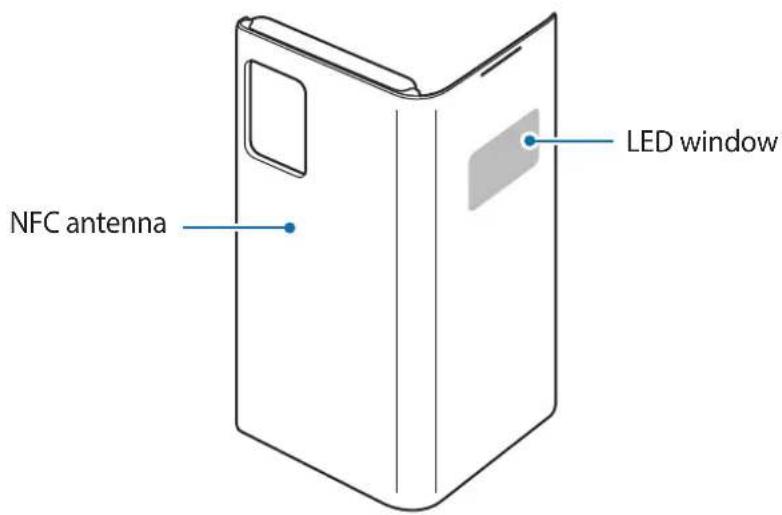
- Verify that the NFC function is working properly before using the device with the LED window functions, Auto Screen On/Off feature, or Theme Curation Service feature active.
- If your device is running Mobile Device Management (MDM) or is located near a metallic object, the NFC function may not work properly.
- If you flip the front cover and block the back of the mobile device, the NFC function may not work properly.
- The LED View Cover contains magnets. Keep cards with magnetic strips only in the pocket of the LED View Cover.
- It is recommended to remove your device cover before using the Wireless PowerShare feature.
- When you are wirelessly charging your mobile device with the Samsung Wireless Charger Convertible (EP-PG950) and this product is attached, we recommend that you use the charger in pad mode.
- It is recommended to use your device cover without flipping it back before using the UWB feature.
- If the product is exposed to humidity, solvents such as acetone or alcohol, or very hot temperatures, it may be stained, wrinkled, misshapen, or change colour.
- While using the case, be cautious to prevent scratches or damage from debris.
Instructional icons

Warning: situations that could cause injury to yourself or others

Caution: situations that could cause damage to your device or other equipment

Notice: notes, usage tips, or additional information
Getting started
Package contents
Check the product box for the following items:
- LED View Cover
- Quick start guide

- The items supplied with the device and any available accessories may vary depending on the region or service provider.
- The supplied items are designed only for this device and may not be compatible with other devices. Appearances and specifications are subject to change without prior notice.
- You can purchase additional accessories from your local Samsung retailer. Make sure they are compatible with the device before purchase.
- Use only Samsung-approved accessories. Using unapproved accessories may cause performance problems and malfunctions that are not covered by the warranty.
- Availability of all accessories is subject to change depending entirely on manufacturing companies. For more information about available accessories, refer to the Samsung website.
Device layout

Using the LED View Cover
Attaching or detaching the LED View Cover
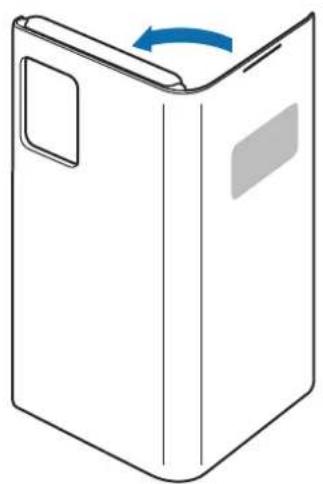
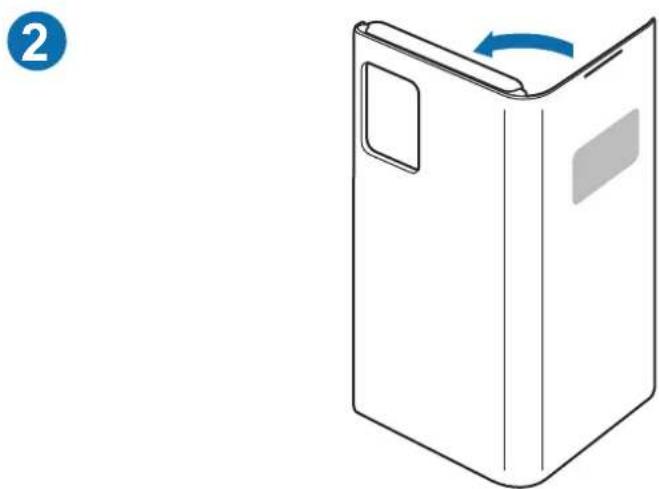
Attach the LED View Cover to your mobile device (1) and close the cover (2) to use it.
1
2

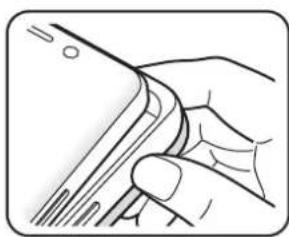
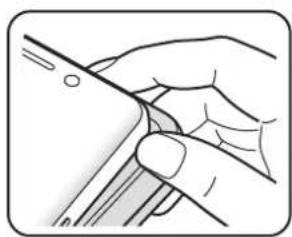
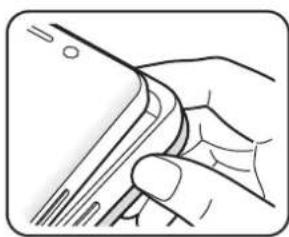
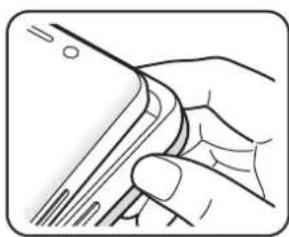
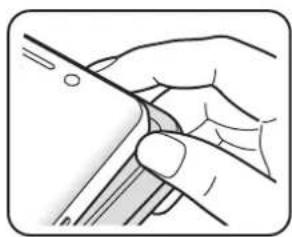
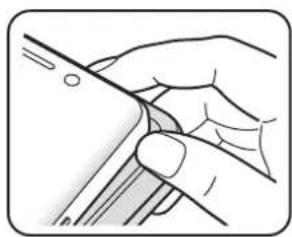
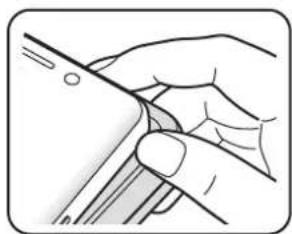
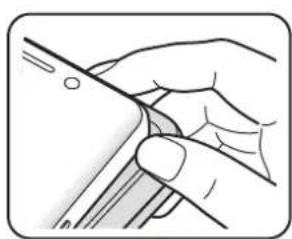
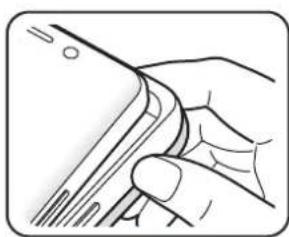
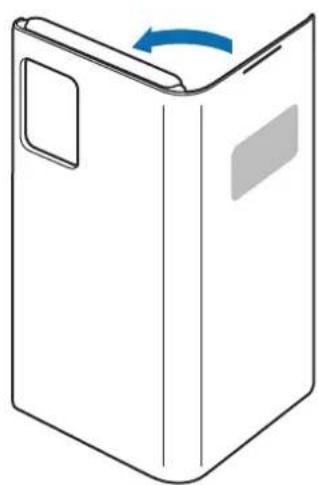
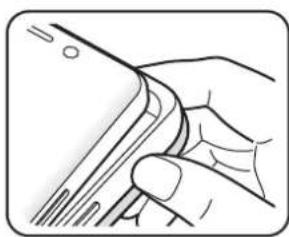
To detach the LED View Cover, open the cover and hold the part where the mobile device is inserted to remove it.

Answering or rejecting calls
You can answer or reject a call on your mobile device using the LED window without opening the LED View Cover.
To answer a call, drag your finger to the right on the LED window. To reject a call, drag your finger to the left on the LED window.
To stop an alarm or timer, drag your finger to the right on the LED window.

- You cannot answer or reject an incoming call on the LED View Cover during a video call. • The LED window may not work while wireless charging.
Unlocking the mobile device's screen automatically
You can set your mobile device to unlock automatically when the LED View Cover is opened.
On your mobile device, tap Settings → Advanced features → Accessories, and then activate the automatic unlock feature.

This feature is available only when secure lock is disabled.
Setting LED images
Using your mobile device, you can create and set LED images to display for contacts during incoming calls or for notifications on the LED window.
On your mobile device, tap Settings → Advanced features → Accessories, and then use the LED icon editor feature.
You can also use the LED icon editor app that appears when you attach the LED View Cover to the mobile device.
Copyright
Copyright © 2020 Samsung Electronics Co., Ltd.
This manual is protected under international copyright laws.
No part of this manual may be reproduced, distributed, translated, or transmitted in any form or by any means, electronic or mechanical, including photocopying, recording, or storing in any information storage and retrieval system.
Trademarks
- SAMSUNG and the SAMSUNG logo are registered trademarks of Samsung Electronics Co., Ltd. All other trademarks and copyrights are the property of their respective owners.




Copyright © 2020 Samsung Electronics Co., Ltd.
2

O

Copyright © 2020 Samsung Electronics Co., Ltd.
2

Copyright © 2020 Samsung Electronics Co., Ltd.

O
Copyright © 2020 Samsung Electronics Co., Ltd.
2

O
Accepting or rejecting calls
You can accept or reject a call using the LED window without opening the LED View Cover.
2


O

Copyright © 2020 Samsung Electronics Co., Ltd.
- LED View Cover
- Quick Start Guide

Using the LED View Cover
Attaching or removing the LED View Cover
2

To detach the LED View Cover, open the cover and hold the part where the mobile device is inserted to remove it.


O

Answering or rejecting calls
You can answer or reject a call on your mobile device using the LED window without opening the LED View Cover.
To answer a call, swipe your finger to the right on the LED window. To reject a call, swipe your finger to the left on the LED window.
To stop an alarm or timer, swipe your finger to the right on the LED window.

2

This manual is protected by international copyright laws.
No part of this manual may be reproduced, distributed, translated, or transmitted in any form or by any means, electronic or mechanical, including photocopying, recording, or storage in any information storage and retrieval system.
Trademarks
- SAMSUNG and the SAMSUNG logo are registered trademarks of Samsung Electronics Co., Ltd.
- All other trademarks and copyrights are the property of their respective owners.
Read first
Using the LED View Cover
Attaching or removing the LED View Cover
2

O

Copyright © 2020 Samsung Electronics Co., Ltd.
This manual is protected by international copyright laws.
2


O

2

2

Copyright © 2020 Samsung Electronics Co., Ltd.
- LED View Cover
- Quick Start Guide

Copyright © 2020 Samsung Electronics Co., Ltd.
2

Copyright © 2020 Samsung Electronics Co., Ltd.
Using the LED View Cover
2

O

Set up LED images
- LED View Cover
- Quick Guide

2

Copyright © 2020 Samsung Electronics Co., Ltd.
- LED View Cover
- Quick Start

2


O

2

O

Using the LED View Cover
Attaching or removing the LED View Cover
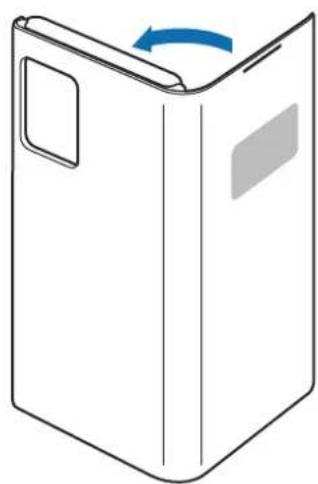
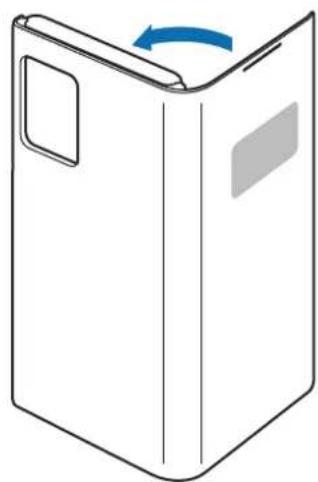
Attach the LED View Cover to your mobile device (1) and close the cover (2) to use it.
1
2
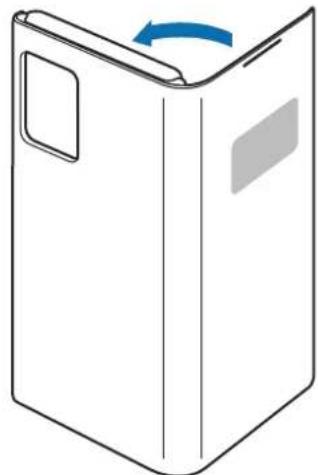
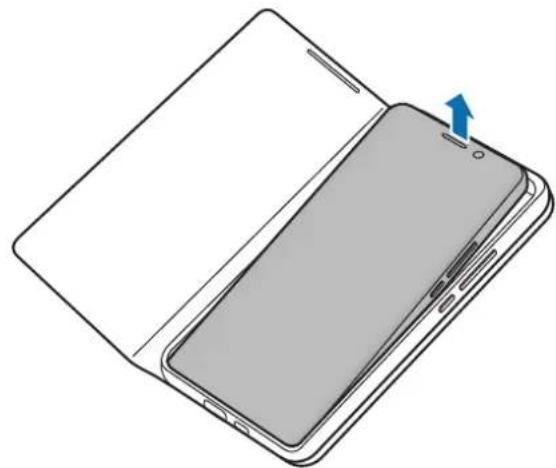
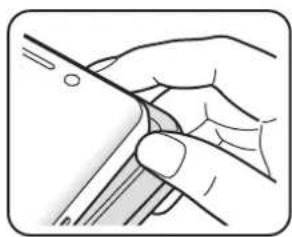
To remove the LED View Cover, open the cover and hold the part where you insert the mobile device to remove it.
O

2

Copyright © 2020 Samsung Electronics Co., Ltd.


O

Copyright © 2020 Samsung Electronics Co., Ltd.
2


Copyright © 2020 Samsung Electronics Co., Ltd.


Copyright © 2020 Samsung Electronics Co., Ltd.



Copyright © 2020 Samsung Electronics Co., Ltd.



© Samsung Electronics Co., Ltd., 2020


Copyright © 2020 Samsung Electronics Co., Ltd.
Please read this manual before using the device to ensure safe and proper use.
- Images may differ in appearance from the actual product. Content is subject to change without prior notice.
- Before using the LED View Cover, make sure it is compatible with your device.
- Verify that the NFC function is working properly before using the device with the LED window functions, Auto Screen On/Off feature, or Theme Curation Service feature active.
- If your device is running Mobile Device Management (MDM) or is located near a metallic object, the NFC function may not work properly.
- If you flip the front cover and block the back of the mobile device, the NFC function may not work properly.
- The LED View Cover contains magnets. Keep cards with magnetic strips only in the pocket of the LED View Cover.
- It is recommended to remove your device cover before using the Wireless PowerShare feature.
- When you are wirelessly charging your mobile device with the Samsung Wireless Charger Convertible (EP-PG950) and this product is attached, we recommend that you use the charger in pad mode.
- It is recommended to use your device cover without flipping it back before using the UWB feature.
- If the product is exposed to humidity, solvents such as acetone or alcohol, or very hot temperatures, it may be stained, wrinkled, misshapen, or change color.
- While using the case, be cautious to prevent scratches or damage from debris.
Instructional icons

Warning: situations that could cause injury to yourself or others

Caution: situations that could cause damage to your device or other equipment

Notice: notes, usage tips, or additional information
Getting started
Package contents
Check the product box for the following items:
- LED View Cover
- Quick start guide

- The items supplied with the device and any available accessories may vary depending on the region or service provider.
- The supplied items are designed only for this device and may not be compatible with other devices. Appearances and specifications are subject to change without prior notice.
- You can purchase additional accessories from your local Samsung retailer. Make sure they are compatible with the device before purchase.
- Use only Samsung-approved accessories. Using unapproved accessories may cause performance problems and malfunctions that are not covered by the warranty.
- Availability of all accessories is subject to change depending entirely on manufacturing companies. For more information about available accessories, refer to the Samsung website.
Device layout
Using the LED View Cover
Attaching or detaching the LED View Cover
Attach the LED View Cover to your mobile device (1) and close the cover (2) to use it.
1
2

To detach the LED View Cover, open the cover and hold the part where the mobile device is inserted to remove it.

Answering or rejecting calls
You can answer or reject a call on your mobile device using the LED window without opening the LED View Cover.
To answer a call, drag your finger to the right on the LED window. To reject a call, drag your finger to the left on the LED window.
To stop an alarm or timer, drag your finger to the right on the LED window.

- You cannot answer or reject an incoming call on the LED View Cover during a video call. • The LED window may not work while wireless charging.
Unlocking the mobile device's screen automatically
You can set your mobile device to unlock automatically when the LED View Cover is opened.
On your mobile device, tap Settings → Advanced features → Accessories, and then activate the automatic unlock feature.

This feature is available only when secure lock is disabled.
Setting LED images
Using your mobile device, you can create and set LED images to display for contacts during incoming calls or for notifications on the LED window.
On your mobile device, tap Settings → Advanced features → Accessories, and then use the LED icon editor feature.
You can also use the LED icon editor app that appears when you attach the LED View Cover to the mobile device.
Copyright
Copyright © 2020 Samsung Electronics Co., Ltd.
This manual is protected under international copyright laws.
No part of this manual may be reproduced, distributed, translated, or transmitted in any form or by any means, electronic or mechanical, including photocopying, recording, or storing in any information storage and retrieval system.
Trademarks
- SAMSUNG and the SAMSUNG logo are registered trademarks of Samsung Electronics Co., Ltd. All other trademarks and copyrights are the property of their respective owners.
To use the LED View Cover
To attach or remove the LED View Cover
2

Copyright © 2020 Samsung Electronics Co., Ltd.
Attach or remove the LED View Cover
2

2


O

Answer or reject calls
Copyright © 2020 Samsung Electronics Co., Ltd.
This manual is protected by international copyright laws.
2

O
Copyright © 2020 Samsung Electronics Co., Ltd.
Using the LED View Cover
Attaching or removing the LED View Cover
2

2


O

Answering or rejecting calls


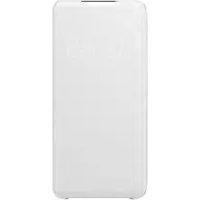
- INSTRUCTIONAL ICONS
- GETTING STARTED
- PACKAGE CONTENTS
- DEVICE LAYOUT
- USING THE LED VIEW COVER
- ATTACHING OR DETACHING THE LED VIEW COVER
- ANSWERING OR REJECTING CALLS
- UNLOCKING THE MOBILE DEVICE'S SCREEN AUTOMATICALLY
- SETTING LED IMAGES
- COPYRIGHT
- TRADEMARKS
- ACCEPTING OR REJECTING CALLS
- ATTACHING OR REMOVING THE LED VIEW COVER
- READ FIRST
- SET UP LED IMAGES
- TO USE THE LED VIEW COVER
- TO ATTACH OR REMOVE THE LED VIEW COVER
- ATTACH OR REMOVE THE LED VIEW COVER
- ANSWER OR REJECT CALLS
Brand : SAMSUNG
Model : EF-NG991
Category : Smartphone accessory