USER MANUAL KV-S1015C PANASONIC
These instructions contain information on operating the scanner. Before reading these instructions, please read the Safety Guide and the Quick Reference Guide enclosed with this unit.
Please carefully read these instructions and the enclosed Safety Guide and Quick Reference Guide.
Keep all documentation in a safe place for future reference.
Introduction
Thank you for purchasing a Panasonic Document Scanner.
About the documentation
The scanner documentation consists of 3 manuals: the Operating Manual (this manual), the Safety Guide and the Quick Reference Guide.
| Operating Manual (this manual) | This manual provides all information required to use the scanner. |
| Safety Guide | The Safety Guide explains safety precautions and other important information. |
| Quick Reference Guide | The Quick Reference Guide explains the installation of the unit and software. |
About the Software Help
Each software contains help files.
For details about viewing the help files, see "To view the help" (page 26).
Software / Manual DVD-ROM Contents
| Drivers | Device Driver | - |
| TWAIN | - |
| ISIS | KV-S1026C only |
| Applications | Image Capture Plus*1 | - |
| Presto! PageManager 9*2 | KV-S1015C only |
| Presto! BizCard 6*3 | KV-S1015C only |
| Utilities | User Utility | - |
| Scan Button Setting Tool | - |
| \( Documents^{*4} \) | Operating Manual | - |
| Separation Sheet*5 | - |
*1 Image Capture Plus is a Panasonic original application for configuring advanced scanning settings. The edition of Image Capture Plus included with KV-S1015C does not support high-compression PDFs or searchable PDFs. *2 Presto! PageManager® 9 is an application for scanning, sharing and organizing documents. The edition of Presto! PageManager 9 included with this scanner is different to the commercially available one. *3 Presto! BizCard® 6 is an application for organizing and managing business cards. Each document is a PDF document. To view documents correctly, install Adobe Reader. For details about the separation sheet, see "Using Separation Sheets" (page 38).
System Requirements
| Computer | IBM® PC/AT or compatible machine with a DVD-ROM drive |
| CPU | Intel® Core™2 Duo 1.8 GHz or higher |
| Interface | USB 2.0 |
Note
For details about the system requirements, refer to [Read me first] in the Software / Manual DVD-ROM. The above system requirements may not satisfy the requirements of all operating systems. - The scanning speed differs depending on the host computer's operating environment or the application used. - Due to the slower speed of USB 1.1, it is recommended to use a USB 2.0 interface. If you connect the scanner to a USB hub, it is not guaranteed to work.
Abbreviations
- Windows® refers to the Microsoft® Windows® operating system (hereafter Windows).
- Windows® XP refers to the Microsoft® Windows® XP operating system (hereafter Windows XP).
- Windows Vista® refers to the Microsoft® Windows Vista® operating system (hereafter Windows Vista).
- Windows® 7 refers to the Microsoft® Windows® 7 operating system (hereafter Windows 7).
- The explanations and screen shots in this manual are based on the Windows 7 operating system. The screen shots used in this manual may differ from the screens displayed on your computer.
- The contents and design of the software are subject to change without notice. The explanations in this manual are based on the KV-S1026C.
Trademarks
Microsoft, Windows, Windows Vista, and Internet Explorer are either registered trademarks or trademarks of Microsoft Corporation in the United States and/or other countries. - ISIS is a registered trademark or trademark of EMC Corporation in the United States and other countries. - IBM is a trademark of International Business Machines Corporation in the United States, other countries, or both. Intel and Intel Core are trademarks of Intel Corporation in the U.S. and other countries. Adobe and Adobe Reader are either registered trademarks or trademarks of Adobe Systems Incorporated in the United States and/or other countries. - Presto! PageManager and Presto! BizCard are registered trademarks of NewSoft Technology Corporation in the United States and/or other countries. All other trademarks identified herein are the property of their respective owners.
About Consumables and Optional Accessories
Consumables and optional accessories available for this scanner are as follows:
Consumables - Roller exchange kit (Part No.: KV-SS058) for the KV-S1026C - Roller exchange kit (Part No.: KV-SS059) for the KV-S1015C - Optional Accessories Roller cleaning paper (Part No.: KV-SS03)
For details, see "Replacement Parts and Optional Units" (page 50).
International ENERGY STAR Program [For United States, Canada, and EU only]
![PANASONIC KV-S1015C - International ENERGY STAR Program [For United States, Canada, and EU only] - 1](/content/2019/10/1361/images/f14a0194d4b9d8595348318d594e1b711d3b772b9ccbd73728d35cef7b38a476.jpg)
As an ENERGY STAR® Partner, Panasonic has determined that this product meets the ENERGY STAR guidelines for energy efficiency.
Federal Communications Commission Requirements (For United States only)
This equipment has been tested and found to comply with the limits for a Class B digital device, pursuant to Part 15 of the FCC Rules. These limits are designed to provide reasonable protection against harmful interference in a residential installation. This equipment generates, uses, and can radiate radio frequency energy and, if not installed and used in accordance with the instructions, may cause harmful interference to radio communications.
However, there is no guarantee that interference will not occur in a particular installation. If this equipment does cause harmful interference to radio or television reception, which can be determined by turning the equipment off and on, the user is encouraged to try to correct the interference by one or more of the following measures:
Reorient or relocate the receiving antenna. - Increase the separation between the equipment and receiver. - Connect the equipment into an outlet on a circuit different from that to which the receiver is connected. - Consult the dealer or an experienced radio/TV technician for help. - The user may find the booklet "Something About Interference" available from FCC local regional offices helpful.
FCC Warning: To assure continued FCC emission limit compliance, the user must use the recommended shielded interfacing cable when connecting to a host computer. Also, any unauthorized changes or modifications to this equipment would void the user's authority to operate this device.
Trade Name: Panasonic
Model Number: KV-S1026C
KV-S1015C
Responsible Party: Panasonic Corporation of North America
One Panasonic Way
Secaucus, NJ 07094 U.S.A.
Telephone No.: 1-800-726-2797
This device complies with Part 15 of the FCC Rules.
Operation is subject to the following two conditions:
(1) This device may not cause harmful interference, and (2) this device must accept any interference received, including interference that may cause undesired operation.
For FRG Users (For Germany Only)
- Machine noise information regulation - 3.GPSGV, the maximum sound pressure level is 70 dB(A) or less, in conformity with EN ISO 7779.
- This device is not intended for use in the direct field of view at visual display workplaces. To avoid incommodesing reflexions at visual display workplaces this device must not be placed in the direct field of view.
For Korean Only
This unit is residential (Class B) EMC device that is primarily intended to use at home, and are available in all areas.
Table of Contents
Before You Start 8
For Your Safety 8 Safety Information (For United Kingdom only) 11 Precautions 11
Installation 14
Check the Accessories 14 Location of Controls 15
Main Unit 15 Control Panel and LED Indicators 17
Installing the Unit 19 Installing Software 23
Software Installation and Connection 23
Viewing Operation Manual and Help Installed 26 Starting Up Scanner Applications Automatically 27
Single Touch Scan Settings 27
Deleting Installed Software 29
Operation 30
Preparing Documents 30 Acceptable Documents 30 Acceptable Cards 30 Unacceptable Documents 31
Scanning Documents 33 Mixed Batch Card Guide 37
Installing the Mixed Batch Card Guide 37 Using the Mixed Batch Card Guide 37
Using Separation Sheets 38
About Printing Separation Sheets 39
Care and Maintenance 40
Clearing Paper Jams 40 Cleaning the Scanner 42
Outside of the Scanner 42 Inside of the Scanner 43 Cleaning the Rollers 44 Cleaning the Scanning Glass, Reference Area, and Double Feed Detectors 48
Replacement Parts and Optional Units 50
Replacement Parts and Optional Units 50 Replacing Parts 51
Replacing the Rollers 51
Appendix 56
Troubleshooting 56, Repacking Instructions 59, Specifications 61
Index 63
For Your Safety
To prevent severe injury and loss of life, read this section carefully before using the unit to ensure proper and safe operation of your unit.
- This section explains the graphic symbols used in this manual.
| WARNING | Denotes a potential hazard that could result in serious injury or death. |
| CAUTION | Denotes hazards that could result in minor injury or damage to the unit. |
| These symbols are used to
alert operators to a specific
operating procedure that
must not be performed. |
| These symbols are used to
alert operators to a specific
operating procedure that
must be emphasized in
order to operate the unit
safely. |
For Users
WARNING
Power

The power source voltage of this unit is listed on the nameplate.
Only plug the unit into an AC outlet with the proper voltage.
If you use a cord with an unspecified current rating, the unit or plug may emit smoke or become hot to the touch.

When you operate this product, the power outlet should be near the product and easily accessible.

Connect the AC adaptor firmly to the power cord, and plug the power cord firmly into an AC outlet. Otherwise, it can cause fire or electric shock.

Do not use a damaged power cord or plug. Use of damaged components can cause electric shock, a short, or fire. Contact your dealer for a replacement.

Do not pull, bend, rest objects on, or chafe the power cord, plug, and AC adaptor. Damage to the power cord or plug can cause fire or electric shock.

Do not attempt to repair the power cord, plug, or AC adaptor. If the power cord or plug is damaged or frayed, contact your dealer for a replacement.

Do not splash water on the unit, the AC adaptor, or the power cord, nor get them wet. Doing so can result in fire, electric shock, or injury. If they do get wet, immediately disconnect the AC adaptor and power cord, and contact your dealer.

Ensure that the plug connection is free of dust. In a damp environment, a contaminated connector can draw a significant amount of current that can generate heat, and eventually cause fire if left unattended over an extended period of time.

Never touch the plug or AC adaptor with wet hands. Danger of electric shock exists.

Stop operation immediately if the unit emits smoke, excessive heat, abnormal smell, or unusual noise. These conditions can cause fire or electric shock. Immediately turn the unit off, unplug the power cord, and contact your dealer for service.

When disconnecting the unit, grasp the plug instead of the cord. Pulling on a cord forcibly can damage it, and cause fire or electric shock.
Operating Safeguards

If metallic materials or water gets into the unit, turn the unit off, and unplug the unit immediately. Contact your dealer for service. Operating the contaminated unit can cause fire or electric shock.

Do not open covers, and do not attempt to repair the unit yourself. Contact your dealer for service.

Do not alter the unit or modify any parts. Alteration or modification can cause fire or electric shock.

During thunderstorms, do not touch the unit, plug, and AC adaptor. It may cause an electric shock.
Roller Cleaning Paper

Do not drink or inhale the roller cleaning paper fluid including isopropyl alcohol.

The roller cleaning paper may be harmful to sensitive skin. Please use protective gloves.

Do not use the roller cleaning paper near a heater or open flame.

CAUTION
Power

The unit should be used only with the power cord and AC adaptor enclosed with the unit.

When the unit is not used over an extended period of time, turn the unit off, and unplug the power cord. If an unused unit is left connected to a power source for a long period, degraded insulation may cause electric shock, current leakage, or fire.
Installation and Relocation

Do not position the unit in a location where it is unstable.

To prevent fire or shock hazard, do not expose this unit to rain or any type of moisture.

Do not place the unit in a hot humid or dusty environment.
Prolonged exposure to these adverse conditions may cause fire or electric shock.

When moving the unit, be sure to unplug the power cord from the AC outlet. If the unit is moved with the power cord attached, it can cause damage to the cord which could result in fire or electric shock.

Do not use the exit tray hanging out of a table.

When carrying the unit, do not use the trays as handles.
Operating Safeguards

If the unit falls down or gets damaged, turn the unit off, and unplug the power cord. Otherwise, it may cause fire or electric shock.

Do not place any liquids or heavy items on the unit.
Accidental spillage of liquid into the unit may cause severe damage. If this occurs, turn the unit off, unplug the power cord, and contact your dealer for service.
This appliance is supplied with a molded three pin mains plug for your safety and convenience.
Should the fuse need to be replaced please ensure that the replacement fuse is of the same rating and that it is approved by ASTA or BSI to BS1362.
Check for the ASTA mark or the BSI mark on the body of the fuse.
If the plug contains a removable fuse cover you must ensure that it is refitted when the fuse is replaced.
If you lose the fuse cover the plug must not be used until a replacement cover is obtained.
A replacement fuse cover can be purchased from your local Panasonic dealer.
IF THE FITTED MOLDED PLUG IS UNSUITABLE FOR THE SOCKET OUTLET IN YOUR HOME THEN THE FUSE SHOULD BE REMOVED AND THE PLUG CUT OFF AND DISPOSED OF SAFELY.
THERE IS A DANGER OF SEVERE ELECTRICAL SHOCK IF THE CUT OFF PLUG IS INSERTED INTO ANY 13 AMP SOCKET.
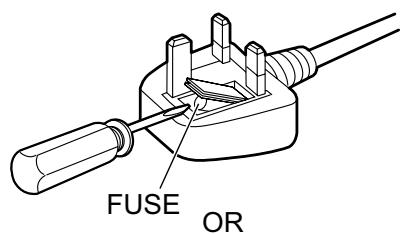
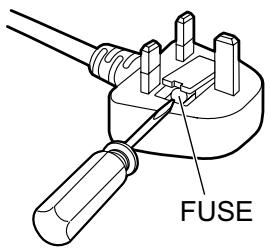
How to replace the fuse:
Open the fuse compartment with a screwdriver and replace the fuse (and fuse cover).
Precautions
Installation
- Do not place the unit in direct sunlight, in a cold draft, or near heating apparatus.
- Do not place the unit near apparatus which generate electronic or magnetic noise.
- Protect the unit from static electricity.
- Do not move the unit immediately from a cold place to a warm place. It may cause dew.
CD-ROM
- Do not write or stick paper on the front and/or back of CD-ROM.
- Do not touch the data side of the CD-ROM. When handling the CD-ROM, be careful not to leave fingerprints or otherwise damage the CD-ROM.
- Do not leave the CD-ROM where it is directly exposed to sunlight or near a heater for extended periods.
- Do not throw or bend the CD-ROM.
Roller Cleaning Paper (sold separately)
- Keep the roller cleaning paper out of reach of small children.
- Do not store the roller cleaning paper in direct sunlight or in a place with a temperature over 40°C (104°F).
- Only use the roller cleaning paper to clean the rollers.
- For details about the roller cleaning paper, please refer to the Material Safety Data Sheet (MSDS). Please ask your Panasonic sales company about obtaining the Material Safety Data Sheet.
KEEP AWAY FROM FIRE.
Others
- Make sure to remove paper clips and staples from documents before scanning. Failing to do so can damage the unit, document, or both.
- Do not use thinner, benzine, or cleaners containing abrasives or surfactants, for cleaning the outside of scanner.
- Plug the power cord into an outlet from which you can easily unplug it.
Illegal Duplication
It is unlawful to make duplication of certain documents.
Duplicating certain documents may be illegal in your country/area.
Penalties of fines and/or imprisonment may be imposed on those found guilty. The following are examples of items that may be illegal to duplicate in your country/area.
- Currency Bank notes and checks Bank and government bonds, and securities Passports, licenses, official or private documents, identification cards, and the like Copyright materials, or trademarks without the consent of the owner Postage stamps, and other negotiable instruments
This list is not inclusive, and no liability is assumed for either its completeness or accuracy. In case of doubt, contact your legal counsel.
Notice
Install your machine near a supervised area to prevent illegal duplication from being made.
Security Notice
The management of documents and scanned data is the responsibility of the user. In particular, pay attention to the following points.
- Make sure you have the same number of pages for important documents both before and after scanning, and take care not to leave any pages in the scanner. Periodically back up important data.
- When having your computer or hard disk serviced, or when disposing of your computer or hard disk, completely erase any stored image data.
Check the Accessories
Check that all accessories are included before installing the scanner. In the event that an item is missing, please contact your dealer.
| Accessories | Name | Notes |
| Power cord | Two power cords may be included. Use the power cord appropriate for where you use the unit. |
| AC adaptor | Panasonic AC adaptor PJSWC0004 |
| USB cable | — |
| Mixed batch card guide | It is pre-installed and fixed to the unit. |
| Software / Manual DVD-ROM | Drivers, Applications, Utilities, Documents |
| Safety Guide | — |
| Quick Reference Guide | The number of Quick Reference Guide may vary depending on the country/area. Please use whichever is appropriate for the country/area. |
| Correction sticker | When the information written on the guidance sticker (page 15) has been changed, you can attach a new sticker with the changed information.
The number of correction sticker may vary depending on the country/area. Please use whichever is appropriate for the country/area. |
| Warranty | — |
Note
- It is highly recommended to keep the original carton and all packing materials. They are necessary when repacking.
Location of Controls
Main Unit
Front
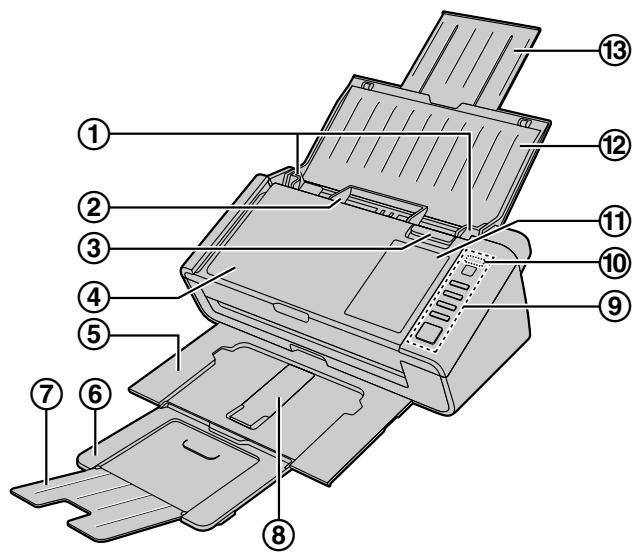
① Document guides ② Mixed batch card guide
Useful when scanning business cards (page 37).
③ Door open button
Used to open the ADF door.
④ ADF door ⑤ Exit tray ⑥ Exit extension tray ⑦ Exit stopper ⑧ Exit support
Used if paper curls and cannot be fed properly when scanning thin paper (page 35).
Control Panel
For details, refer to "Control Panel and LED Indicators" (page 17).
⑩ LED (Red) / LED (Green)
Shows the scanner's status. For details, see "Control Panel and LED Indicators" (page 17).
You can write the information registered on the single touch scan button here.
Guidance sticker ⑫ Feed tray ③ Feed extension tray
Rear
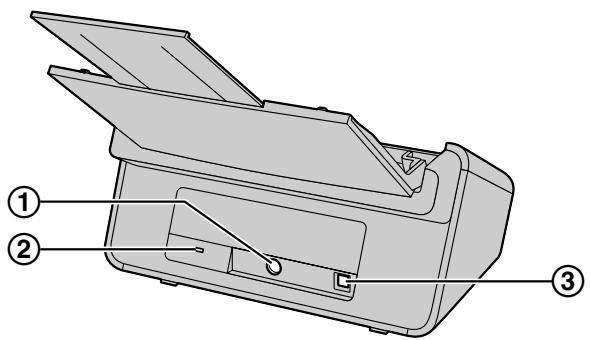
① Power connector ② Security slot
Use a commercially available security cable.
③ USB connector
Control Panel and LED Indicators
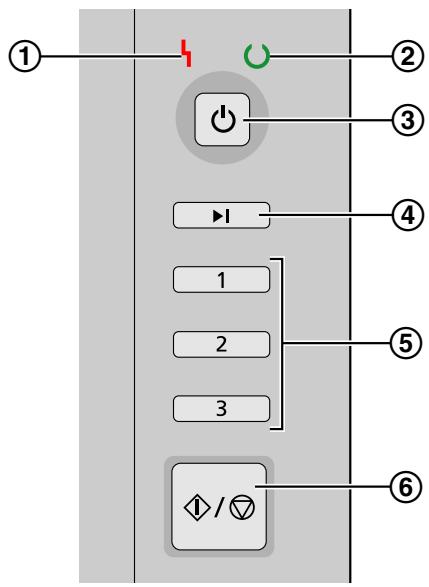
① LED (Red)
Turns on when an error occurs.
② LED (Green)
Shows the scanner's status.
③ Power button (
Press the power button for more than one second to turn the scanner off.
④ Skip button (KV-S1026C only)
If you press this button when a double feed occurs, the document that was detected as a double feed will be scanned, and scanning will continue.
⑤ Start/Stop button
- If you set [Wait Key] for "Manual Feed Mode" in your application, pushing this button starts scanning. If the scanner is in Sleep mode, press the Start/Stop button to return to Ready mode first. During scanning, pushing this button stops scanning.
- If you press this button when a double feed occurs, the document that was detected as a double feed will not be scanned. Scanning will stop.
For details on "Manual Feed Mode", refer to the help for Image Capture Plus.
About LED
| ① LED (Red) | ② LED (Green) | Status |
| OFF | OFF | Power is off.1 |
| OFF | ON | Ready or Scanning |
| OFF | Blink (Fast) | Warming up |
| OFF | Blink (Slow) | Sleep |
| OFF | Blink (2 times consecutively) | Double feed detected error |
| ON | OFF | Error |
| Blink (Slow) | ON | Caution |
*1 If no operation is performed for 30 minutes or longer, the scanner will be turned OFF automatically. The time until the scanner turns OFF can be changed with the User Utility.
Installing the Unit
About the installation location
Notice
- Do not connect the scanner to a computer before installing the software.
- Do not move the unit immediately from a cold place to a warm place. It may cause dew.
In order to ensure proper operation, install the unit maintaining the proper distances from surrounding objects, as shown in the following illustration.
*1 Clearance required to set the feed tray and exit tray.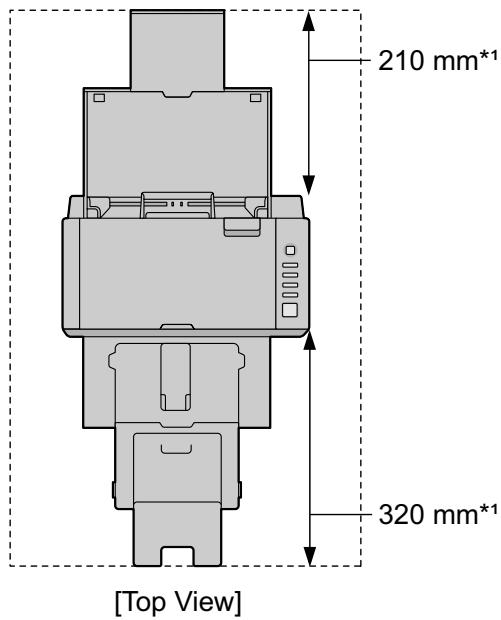
- Remove all packing tape.
- Set the feed tray.
a. Open the feed tray.
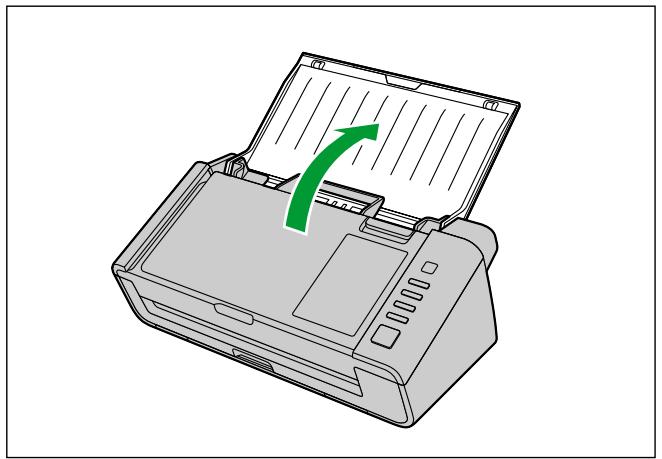
b. Pull out the feed extension tray.
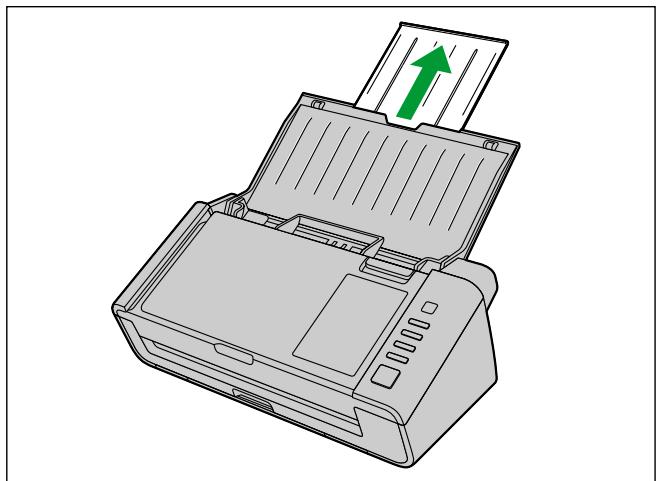
Note
- If the length of the document is short (e.g., a card or a business card), you may be able to scan the document without opening the feed tray.
- Set the exit tray.
a. Pull out the exit tray.
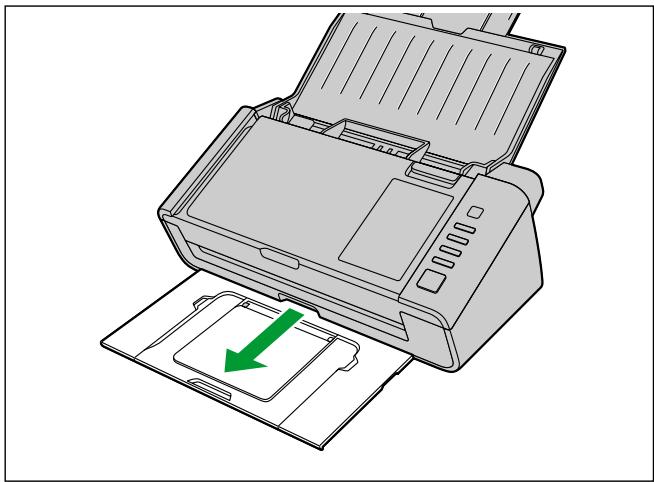
b. Open the feed extension tray.
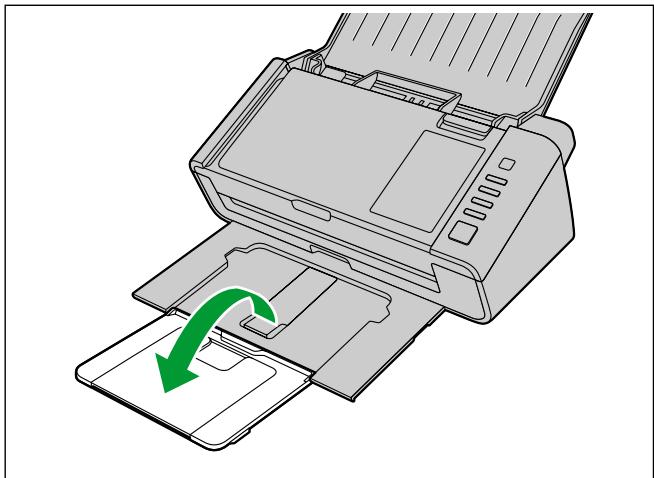
c. Open the exit stopper.
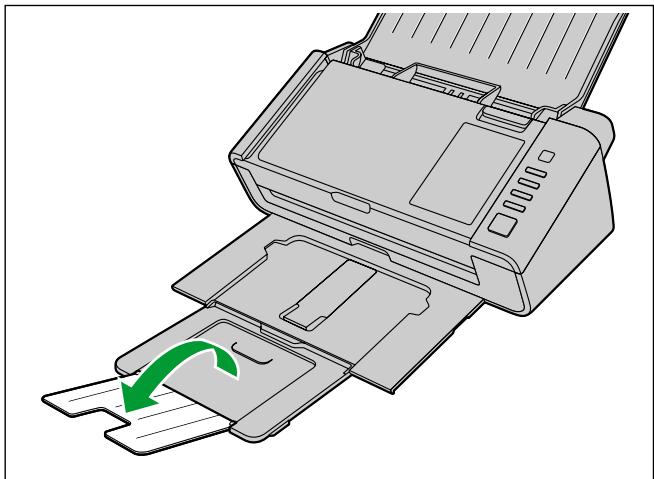
- Connect the AC adaptor (①) and the power cord (②).
- Connect the power cord to the AC adaptor.
- Connect the AC adaptor to the scanner. Plug into the AC outlet.
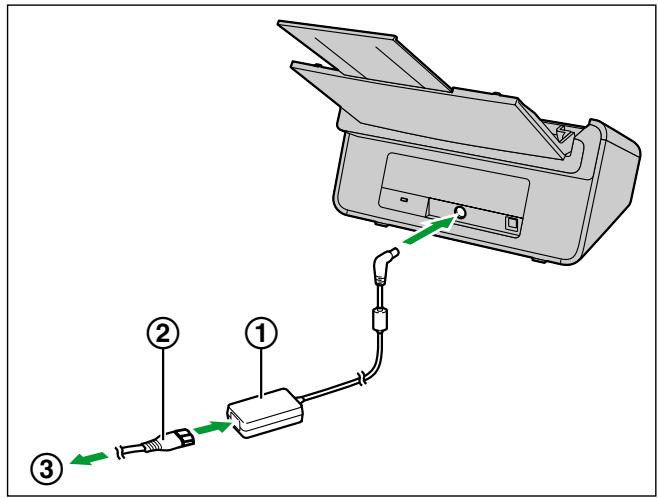
① AC adaptor ② Power cord ③ To AC outlet
Notice
- Use only with the power cord and the AC adaptor enclosed with the unit.
- When the unit is not used over an extended period of time, turn the unit off, and unplug the power cord. The scanner consumes approximately 0.3W of electricity even when the main unit is turned off.
Installing Software
Software Installation and Connection
The software on the enclosed Software / Manual DVD-ROM can be installed on your computer.
You can select from the 3 installation methods below, depending on your needs.
a. Complete: Install all the drivers, applications, utilities and Operation Manual. b. All Drivers & Utilities: Install the drivers, utilities and Operation Manual. c. Custom: Install one of the drivers or Operation Manual.
Note
Normally, it is recommended to select [Complete].
Notice
- Make sure to log on as an administrator to install the software.
- Check that the scanner has been turned off.
- Press the power button for more than one second to turn the scanner off.
- Insert the Software / Manual DVD-ROM into the CD/DVD drive on your computer.
If you have a feature called "Autorun" activated, the installation process will start automatically. The setup window will appear.
Note
- If the AutoPlay dialog box is displayed in Windows Vista or Windows 7, select "CDRun.exe".
- If the program does not start automatically, from [Computer] ([Computer] in Windows Vista, [My Computer] in Windows XP), select the CD/DVD drive, and then double-click "CDRun.exe".
- Select your scanner model.
- Check the [Read me first] file.
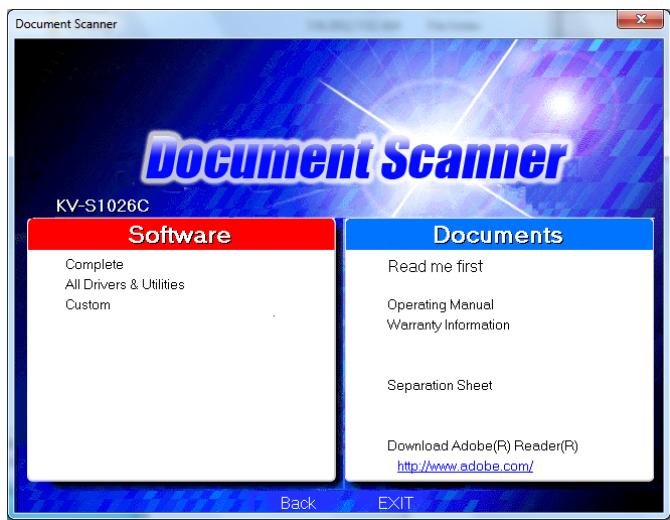
- Select the desired installation methods from the "Software" list on the left side of the screen.
If you selected [Complete] or [All Drivers & Utilities], continue to step 7.
If you selected [Custom], continue to step 6.
- If you selected [Custom] for the installation type in step 5, select the item that you want to install.
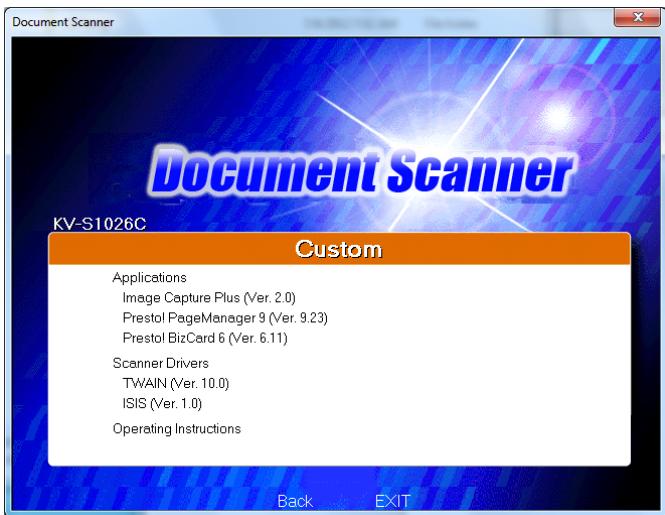
- Follow the instructions on the screen.
- Connect the scanner and computer using the USB cable (①).
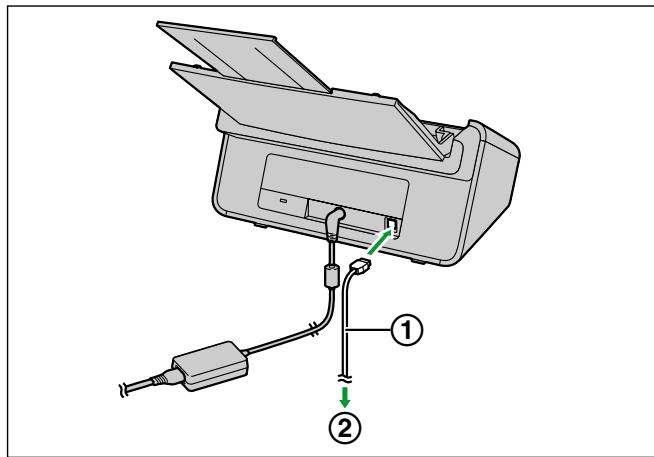
① USB cable ② To computer
Notice
- Be sure to use the USB cable supplied with this unit.
- Press the power button (①) to turn ON the scanner power.
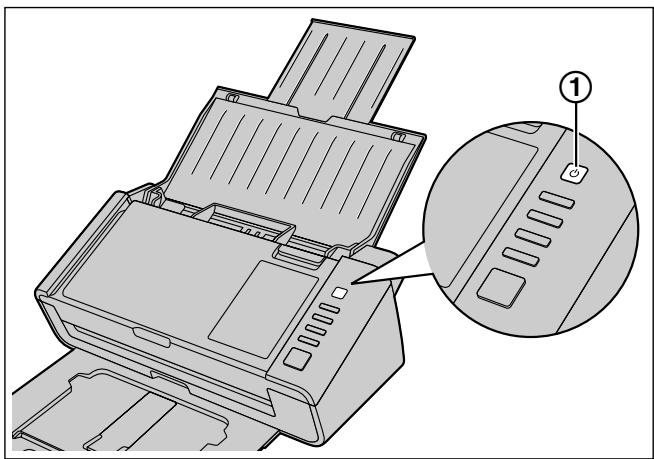
- The LED (green) will flash and then turn on. If the device driver is installed, follow the hardware wizard's on-screen instructions to complete installation. If you are using Windows Vista or Windows 7, this will be performed automatically.
Note
- Continue with the installation even if a window appears with the message "Digital Signature Not Found" or "has not passed Windows Logo testing...".
Viewing Operation Manual and Help Installed
If the manuals and software that were included on the Software / Manual DVD-ROM have been installed on your computer, you can use the following procedure to view the Operation Manual and the software's help.
To view the Operation Manual
- On the [Start] menu, point to [All Programs], then [Panasonic], and select [Scanner Manuals].
- Select the desired manual.
The selected manual will open.
To view the help
For Image Capture Plus
- On the [Start] menu, point to [All Programs], [Panasonic], [Image Capture Plus], and then select [Image Capture Plus Help].
For User Utility
- On the [Start] menu, point to [All Programs], [Panasonic], [Scanner Tools], and then select [User Utility Help].
For Presto! PageManager 9
- On the [Start] menu, point to [All Programs], [NewSoft], [Presto! PageManager 9.XX Standard] and then select [Presto! PageManager User's Manual].
For Presto! BizCard 6
- On the [Start] menu, point to [All Programs], [NewSoft], [Presto! BizCard 6] 1 , and then select [Presto! BizCard User's Manual]. "1 "X.XX" and the number that follows a program name are the software version. When you upgrade the software, the numbers above may be different from the actual software version.
Note
We recommend that you view the help using Internet Explorer® 6.0 or later for Windows.
Starting Up Scanner Applications Automatically
Single Touch Scan Settings
You can configure settings so that the application starts up automatically "when a document is placed on the scanner's feed tray" ("place to scan") and "when a single touch scan button (1-3) is pressed".
Setting the application to start up
Set whether an application will automatically start up and select under which conditions it will start up in the Scan Button Setting Tool.
- Double click the ( ) icon in the notification area of the task bar to open the Scan Button Setting Tool.
- Select Scan button or Place to Scan for the condition to automatically start up the application.
- Select the application to start up.
Note
- The application can be selected from Presto! PageManager 9 and Image Capture Plus.
- The set application is enabled for both "place to scan" and "when a single touch scan button (1-3) is pressed".
- For details about the Scan Button Setting Tool, refer to the Scan Button Setting Tool help.
Setting the scanning conditions
Scanning conditions are set on the setting screen of each application.
- Open the setting screen.
- When "single touch scan button (1-3)" is selected: Press a button for more than 2 seconds to open the setting screen of each application. (If the scanner is in Sleep mode, press the Start/Stop button to return to Ready mode first.)
- When "place to scan" is selected: Open the setting screen of each application manually.
- Set the scanning conditions.
For details about the setting screen of each application, refer to the manual or help for that application.
Checking events
Check the following if an application does not start up after being set.
- Click [Start], and then click [Control Panel].
- Select this scanner in [Devices and Printers], right-click the icon, and display the [Scan Properties] screen.
- When using Windows Vista, click the scanner icon, and then click the Properties button.
- When using Windows XP, select this scanner in [Scanners and Cameras], right-click the icon, and display the Properties screen.
- Click the [Events] tab.
- Check that "Scan Button Setting Tool" is selected for "Send to this application" when each condition is selected in "Scanner events".
- If an application other than "Scan Button Setting Tool" is selected, change the application to "Scan Button Setting Tool".
- Check that the "Disable device events" checkbox is unchecked. If the checkbox is checked, uncheck it.
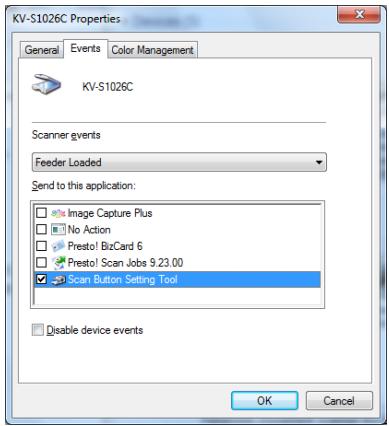
- Click [OK].
- Restart the computer.
Deleting Installed Software
If you want to remove the software that is installed on your computer, follow the procedure below to uninstall it.
- In [Control Panel], open [Uninstall a program].
- In Windows XP, select [Add or Remove Programs].
- Select the item that you want to uninstall.
- The software is displayed with the program names below:
| Software | Program Name |
| Device driver | Panasonic Document Device Driver X.XX*1 |
| TWAIN | KV-S1026C KV-S1015C TWAIN Driver |
| ISIS | KV-S1026C ISIS Driver |
| Image Capture Plus | Image Capture Plus |
| Presto! PageManager 9 | Presto! PageManager 9.XX*1 |
| Presto! BizCard 6 | Presto! BizCard 6*1 |
| User Utility | Panasonic Scanner User Utility |
| Manuals | Panasonic Scanner Manuals |
"1 "X.XX" and the number that follows a program name are the software version. When you upgrade the software, the numbers above may be different from the actual software version.
- Follow the instructions on the screen.
Preparing Documents
Acceptable Documents
The acceptable documents for this scanner are as follows.
Document size:
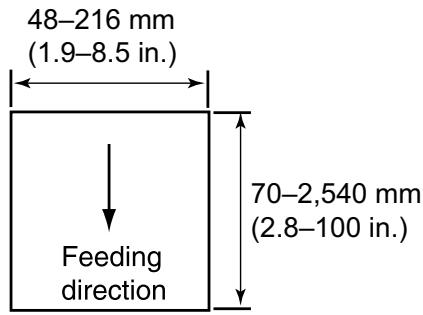
Paper thickness for Feeding:
KV-S1026C: 20-209 g/m²
KV-S1015C: 40-209 g/m²
The height of all the documents on the tray should be less than 5 mm. This compares to 50 sheets (80 g/m² or 20 lb.) of new paper. - With the exception of ISO format cards, the minimum guaranteed feeding length is 70 mm (2.8 in.). - Single paper feeding is recommended for papers exceeding the legal size length.
Recommended paper: Plain paper
Acceptable cards
ISO format card:
Size: 85.6 x 54 mm (3.4 x 2.1 in.)
Thickness: 0.76 mm (0.03 in.)
Embossed card is also acceptable.
A maximum of 3 cards can be loaded on the feed tray.
The height of the total cards (the total thickness including the embossing on each card) should be less than 5 mm (0.2 in.). Additionally, the embossing on each card must not get entangled with others.
- Use the landscape orientation when scanning an embossed card.
If the scanning fails, place the card upside down, and then try again.
- Use the mixed batch card guide (page 37) when scanning mixed media (cards and papers) at the same time.
Unacceptable Documents
The following types of documents may not scan properly:
- Curled, wrinkled or folded documents
Documents must also meet the following conditions.
| Curl | Feeding direction
Less than
5 mm
(0.2 in.) |
| Folding | Feeding direction
Less than
5 mm
(0.2 in.) |
Carbon paper - Thick or irregular documents such as envelopes - Perforated or punched paper - Non-rectangular or irregularly shaped paper, such as documents with tags - Coated paper - Torn or frayed documents - Extremely smooth, shiny paper, or paper that is highly textured - Carbonless copy paper - Transparent or partially transparent documents such as OHP sheets and tracing paper - Photographs
Photographs may become scratched or damaged, etc.
Do not scan the following types of paper:
Damaged or notched documents/cards - Documents out of specified size, thickness, and weight - Documents containing hard attachments such as metal or plastic (e.g., clips or staples) - Bound or glued documents - Cloths, metallic sheets, OHP sheets, plastic films, etc. - Documents with wet ink or cinnabar seal ink - Thermal or photosensitive paper
Notes about documents for scanning
- Documents may not be able to be scanned due to poor paper quality, even if the thickness is within the specified limits.
If a paper jam or double feeding occurs, try scanning again after doing the following:
- Clean the rollers and sensors.
- Reduce the number of sheets of paper loaded on the feed tray.
- Scan one sheet at a time.
Notes about double feed detection
This scanner is equipped with an ultrasonic sensor to detect double feeding.
Scanning Documents
Notice
- Make sure to remove paper clips and staples from documents before scanning. Failing to do so can damage the unit, document, or both.

- Before feeding, ensure that the document is not creased or folded. If the document is creased or folded, a paper jam or damage to the document may occur.
- When scanning important documents, confirm that the number of scanned images matches the number of pages in the document. Also, check the condition of scanned documents.
- Remove documents from the exit tray after they have been scanned. Unsupported thin paper types may not exit at the exit slot correctly.
1. Fan the documents.
- Documents that have been stapled together or stacked together (as in a file folder) will need to be separated.
1. Fan the stack of documents to separate all the edges. Hold both ends and bend the documents as shown in the illustration. 2. To flatten the documents, hold firmly and pull them apart as shown in the illustration.
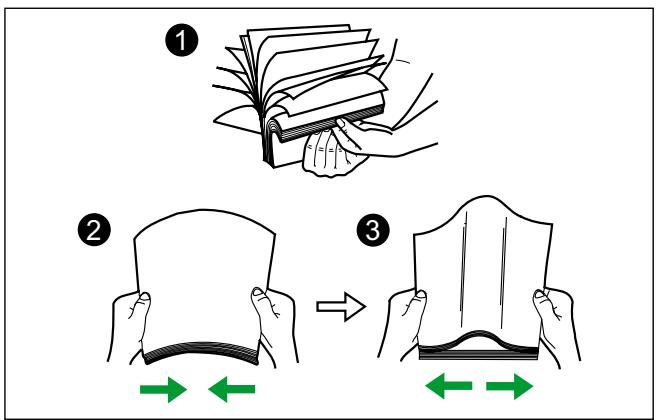
Repeat these steps as necessary.
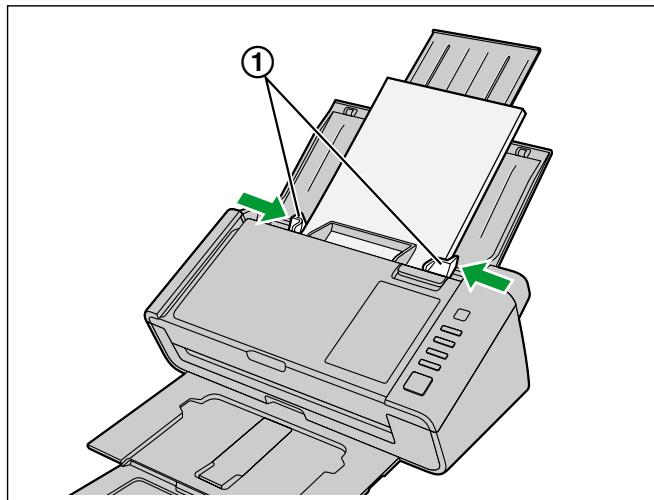
- Adjust the document guides (1) slightly larger than the actual size of the documents.
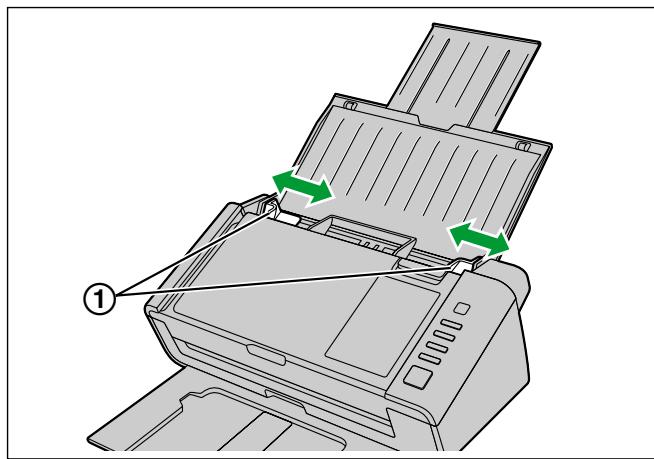
- Carefully align the documents.
The documents feed better when the leading edges are aligned slantwise as shown in the illustration.
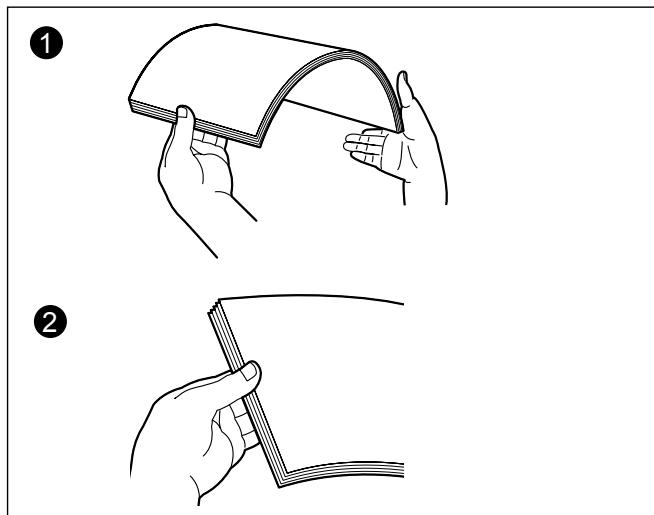
- Place the documents on the feed tray with the side to be scanned facing down.
- Set the leading edge of documents as shown in the illustration (1).
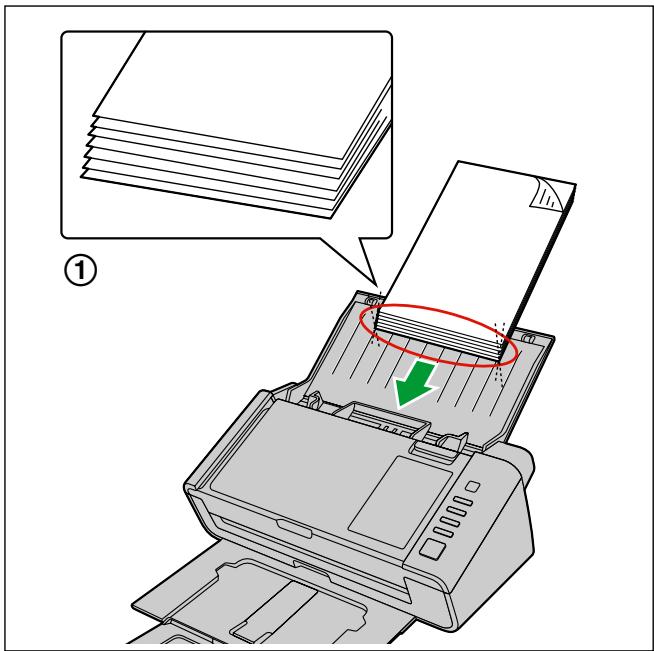
Note
- Place the documents as shown in the illustration. The height of all the documents on the tray should be less than 5 mm.
Exceeding this height might cause paper jams or skewing.
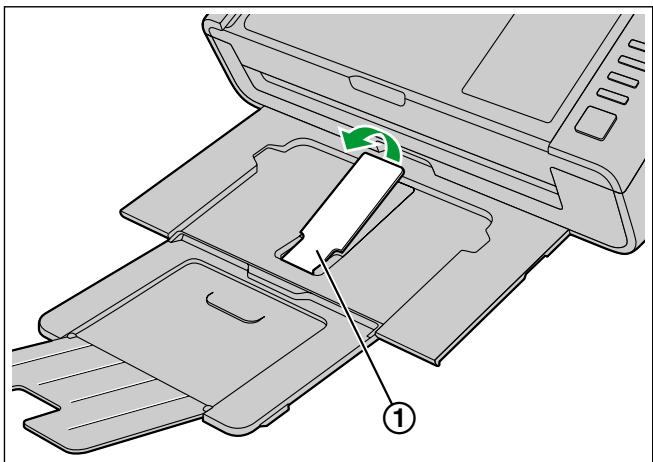
- When the paper is thin, it may not be fed properly due to curls in the paper. In that case, press the front part of the exit support (①) to use the exit support.
- Adjust the document guides (①) to the size of the documents to be scanned.
- Open your scanning application and scan the documents.
- For details about the application, refer to the help of each application.
- You can also start up applications automatically to scan documents (Single Touch Scan). For details about Single Touch Scan settings, see "Single Touch Scan Settings" (page 27).
Mixed Batch Card Guide
No adjustment to the document guide is required when using the mixed batch card guide. The mixed batch card guide prevents a card from skewing when scanning paper documents and a card simultaneously. The mixed batch card guide is attached to the scanner during shipping. If you remove the mixed batch card guide, keep it in a safe place.
Installing the mixed batch card guide
Install the mixed batch card guide as shown in the following illustration.
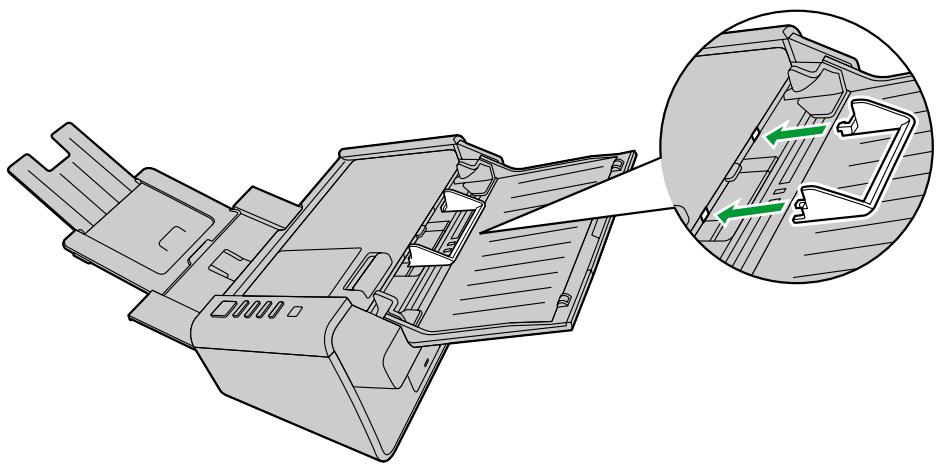
Using the mixed batch card guide
Set paper documents on the feed tray, and a card on the mixed batch card guide respectively.
The card set on the mixed batch card guide is fed after completing the paper document scanning. - The mixed batch card guide is suitable for the following card.
Size: 85.6 × 54 mm (3.4 x 2.1 in.)
Thickness: 0.76 mm (0.03 in.)
Embossed card is also available.
- Set the card horizontally.
Note
- When using the mixed batch card guide, the document guides cannot be adjusted to less than A5 size.
- Up to 3 cards can be set on the mixed batch card guide.
- Make sure that the total height of the paper on the feed tray does not exceed 2 mm (0.08 in.). This is equivalent to about 20 sheets at 80 g/m² or 20 lb.
Using Separation Sheets
By using separation sheets, you can change the folder directory for saving the scanned documents in the middle of scanning. If you scan using a separation sheet between documents, the document following the separation sheet will be saved in a different folder.
Print out separation sheets from the Software / Manual DVD-ROM.
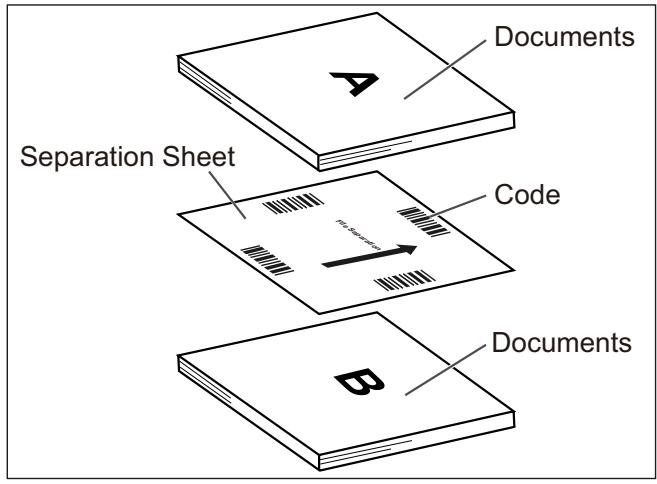
Note
- Multiple separation sheets can be used.
- To use separation sheet functions, your scanning application must support separation sheets. When using separation sheets, refer to the instruction manual or the help of your scanning application.
About Printing Separation Sheets
- Print the control sheet at the specified size; do not enlarge or reduce the size.
- When printing the control sheet, make sure that the pattern is 25 mm (1 in.) from the top of the page and centered horizontally.
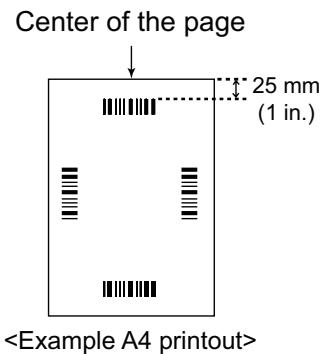
- Use the control sheet that is the same size as the document you are scanning.
- Be careful not to get the control sheet dirty. Do not fold or crease the control sheet. Scanning will not be performed properly.
- For details on control sheet and separation sheet, refer to section "Detect Separation Sheet" in the help for PIE.
Printing separation sheets
Note
In order to print separation sheets, Adobe Reader must be installed on your computer. Refer to the instruction manual for your printer for details about changing print settings.
- Insert the Software / Manual DVD-ROM into the CD/DVD drive on your computer.
If you have a feature called "Autorun" activated, the installation process will start automatically. The setup window will appear.
Note
- If the AutoPlay dialog box is displayed in Windows Vista or Windows 7, select "CDRun.exe".
- If the program does not start automatically, from [Computer] ([Computer] in Windows Vista, [My Computer] in Windows XP), select the CD/DVD drive, and then double-click "CDRun.exe".
- Select your scanner.
- Select [Separation Sheet] from the "Documents" list on the right side of the screen.
- Print the separation sheets at the same size as your document.
Clearing Paper Jams
If a paper jam occurs, the message "A paper jam has occurred" and an error code (Uxx) is displayed in the User Utility application. Remove the jammed sheet according to the following instructions.
- Remove all documents from the feed tray.
- Press the door open button (①), and open the ADF door (②).
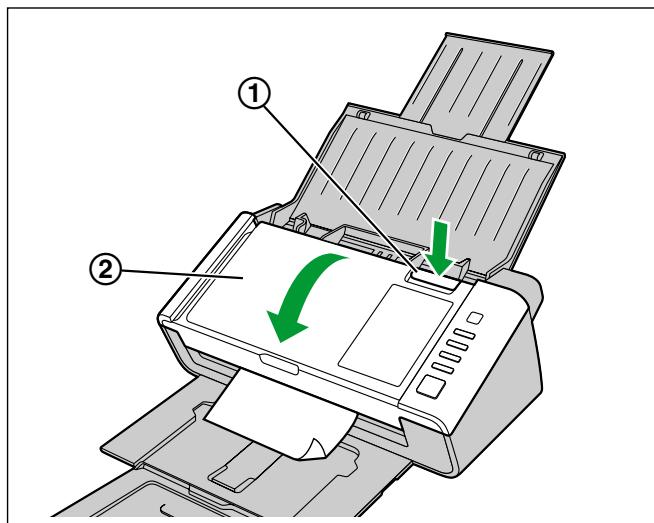
- Remove the jammed document.
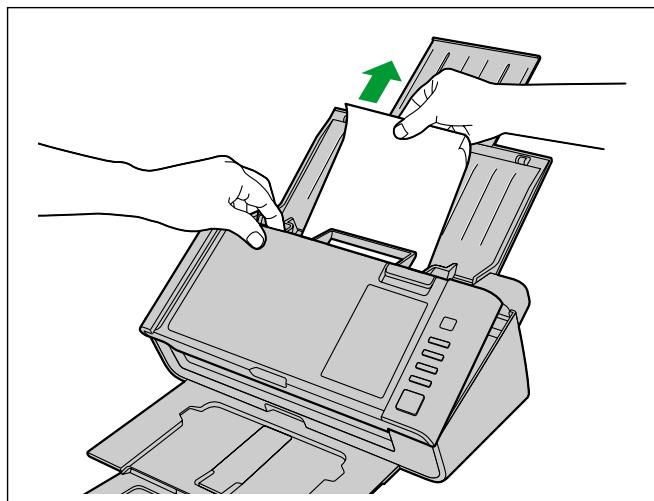
If the document is jammed in the feed tray area, pull it backwards as shown in the illustration.
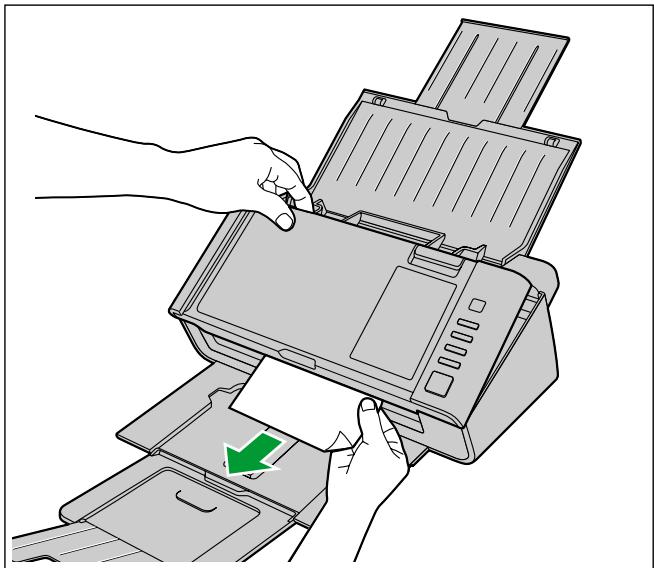
If the document is jammed in the exit area, pull it forward as shown in the illustration.
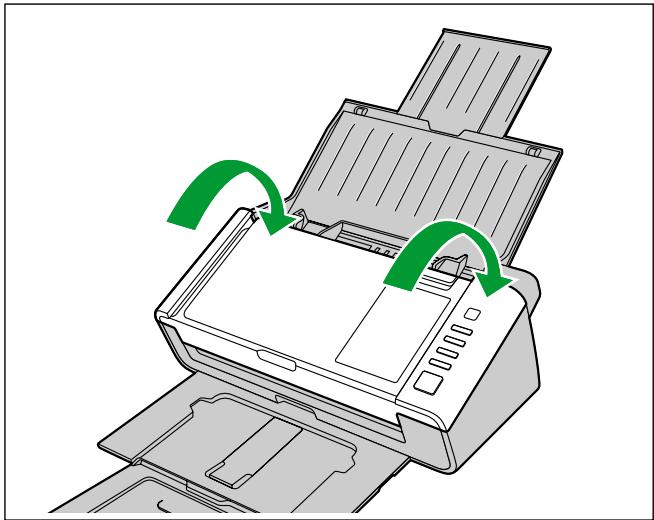
- Close the ADF door.
- Push both sides of the ADF door down slowly until it clicks into place.
Cleaning the Scanner
Outside of the Scanner
Notice
- Do not use thinner, benzine, or cleaners containing abrasives or surfactants, for cleaning the outside of the scanner.
- Clean the scanner at least once a month.
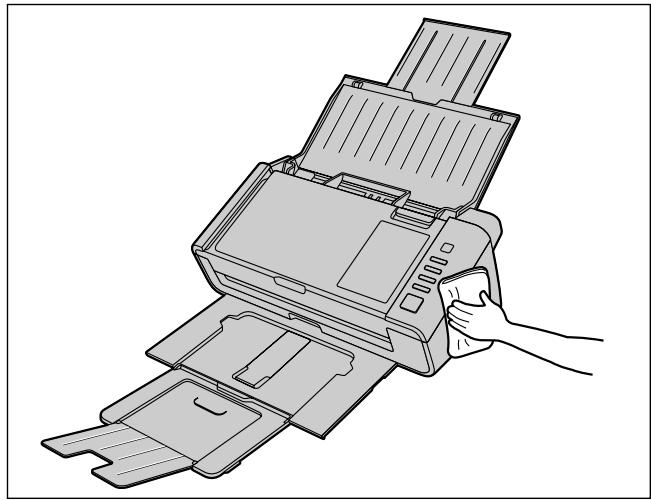
- Press and hold the power button for one second or more to turn off the scanner power.
- Clean the cover with a soft cloth.
Inside of the Scanner
Notice
- Clean the scanner at least once a week or when 2,000 sheets have been scanned, whichever comes first.
- Clean the rollers and sensors if paper jamming or double feeding occurs frequently.
- If double feed detection does not function properly, clean the double feed detectors.
- Clean the scanning glass area and reference area when black or white lines appear on the scanned images.
- If the documents you are scanning are dirty, then the scanner parts will also become dirty. To maintain proper scanning, clean the scanner parts frequently.
About the roller cleaning paper (sold separately)
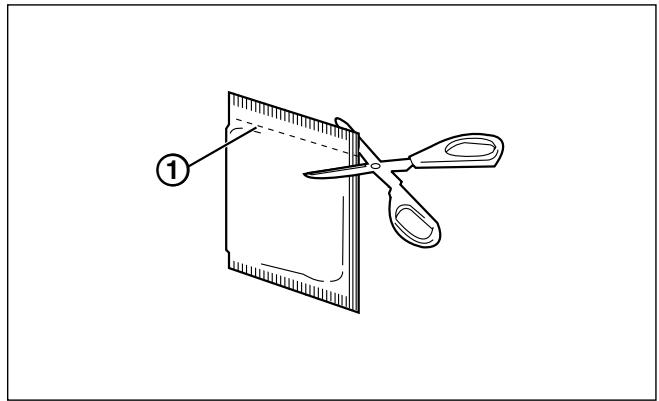
Open the roller cleaning paper on the dotted line (①), and take out the roller cleaning paper.
Notice
- Keep the roller cleaning paper out of reach of small children.
- Do not store the roller cleaning paper in direct sunlight or in a place with temperature over 40°C (104°F) . Only use the roller cleaning paper to clean the rollers.
- For details about the roller cleaning paper, please refer to the Material Safety Data Sheet (MSDS). Please ask your Panasonic sales company about obtaining the Material Safety Data Sheet.
Note
- If the bag is left opened for a long period of time before using it, the alcohol will evaporate. Please use the roller cleaning paper immediately after opening the bag. To purchase roller cleaning paper (KV-SS03), you can contact the dealer where the scanner was purchased, or you can call our Supplies and Accessories department at 1-800-726-2797 (U.S.A. only).
Cleaning the Rollers
- Press and hold the power button for one second or more to turn off the scanner power.
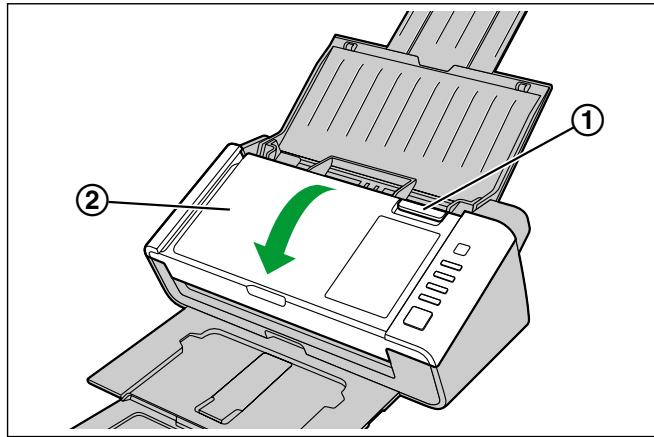
- Press the door open button (①), and open the ADF door (②).
- Open the paper feed roller cover (①).
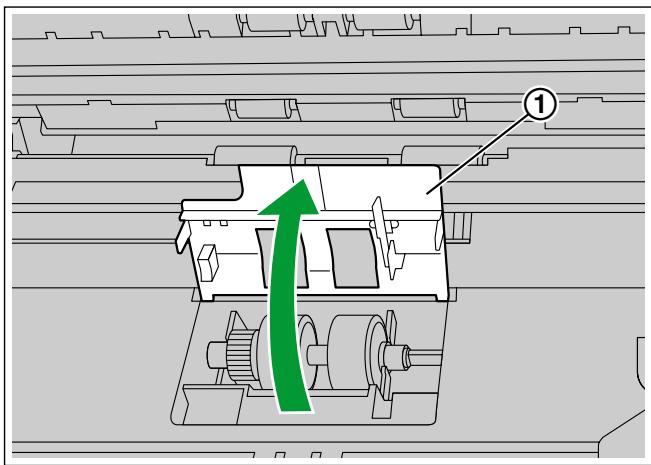
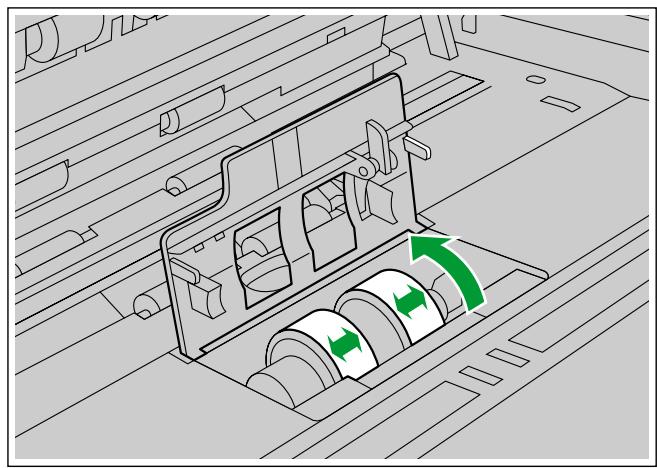
- Use the separately sold roller cleaning paper (KV-SS03) to remove the dirt from the surface of all rollers.
- When wiping dirt off the roller surface, hold the roller to prevent it from rotating. Wipe the roller from one end to the other in the direction indicated by the arrow, all the way around.
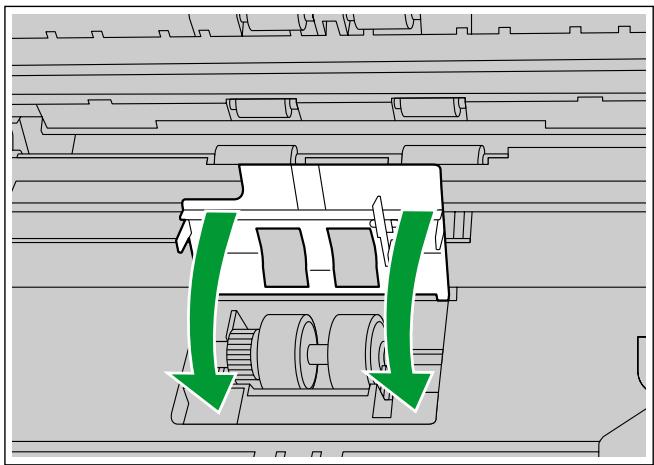
- Close the paper feed roller cover firmly.
- Make sure to close both sides of the paper feed roller cover until they click into place.
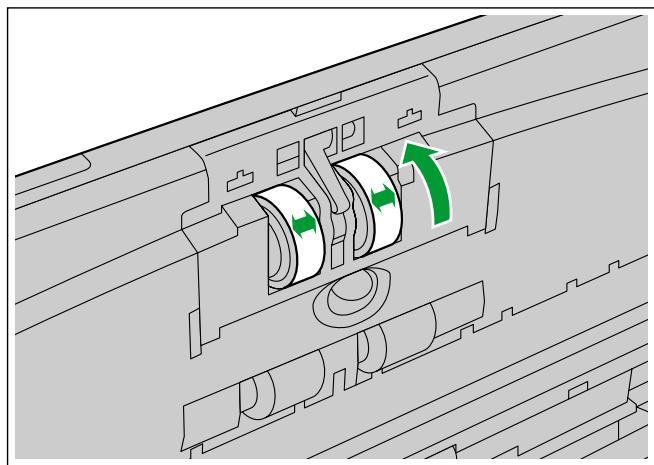
- Use the roller cleaning paper to clean the surface of the double feed prevention roller.
- Wipe the roller from one end to the other (in the direction of the arrow) all the way around them, as shown in the illustration.
- Use the roller cleaning paper to clean the surface of the conveyor rollers (①) and exit rollers (②).
- Wipe the rollers from one end to the other (in the direction of the arrow) all the way around them, as shown in the illustration.
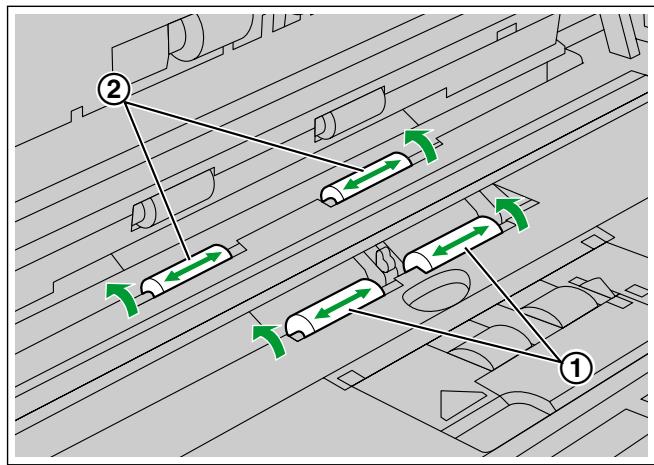
- Use the roller cleaning paper to clean the surface of the free rollers (①).
- Wipe the rollers from one end to the other (in the direction of the arrow) all the way around them, as shown in the illustration.
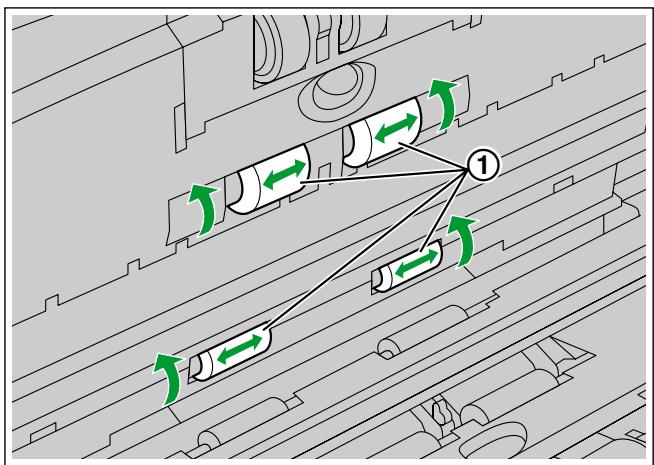
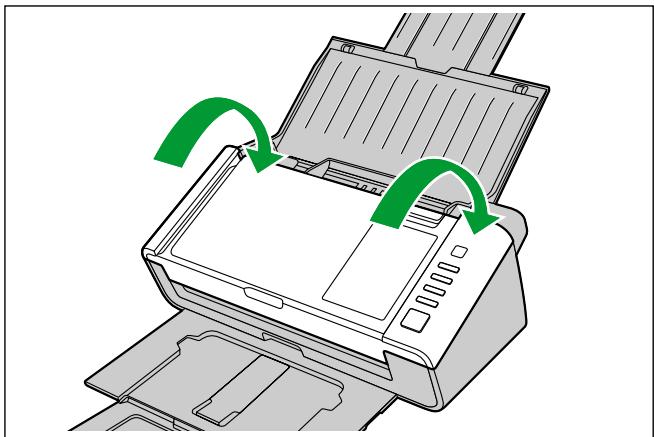
- Close the ADF door.
- Push both sides of the ADF door down slowly until it clicks into place.
- Reset the roller cleaning counter in User Utility to 0.
- Turn ON the scanner power.
- Start User Utility, and in the window, click the [Clear Counter] button for "After Clean Roller" to reset to counter to 0.
- For details, refer to the User Utility help.
Cleaning the Scanning glass, Reference area, and Double feed detectors
Notice
- Do not use the roller cleaning paper for cleaning the scanning glass, reference area, or double feed detectors.
- Press and hold the power button for one second or more to turn off the scanner power.
- Press the door open button (①), and open the ADF door (②).
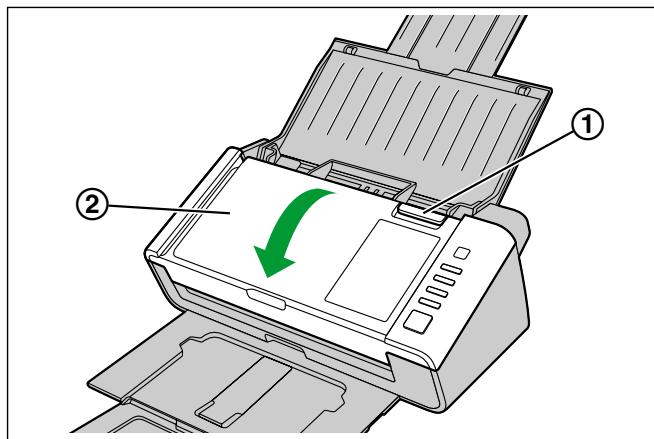
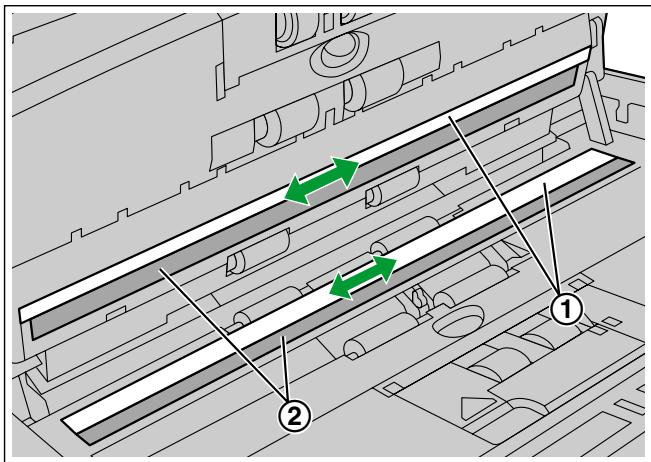
- Clean the scanning glass area (①) and reference area (②) using a soft and dry cloth.
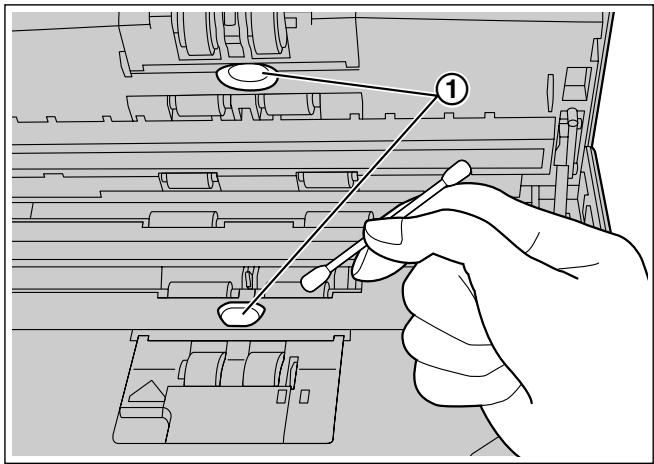
- Remove dust on the double feed detectors (①) with a cotton swab.
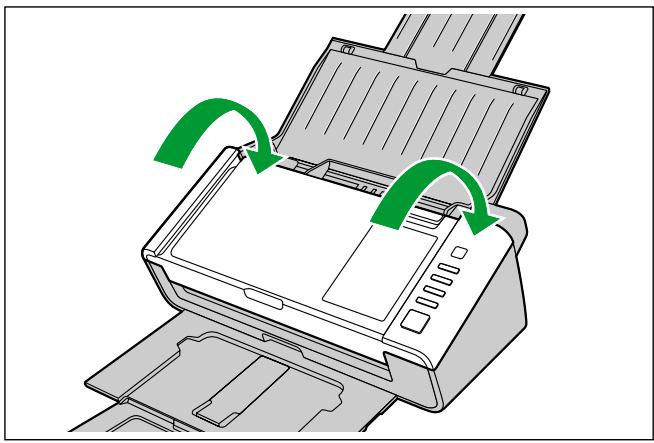
- Close the ADF door.
- Push both sides of the ADF door down slowly until it clicks into place.
Replacement Parts and Optional Units
The double feed prevention roller and the paper feed roller are consumables. Purchase the roller exchange kit for your scanner and exchange the roller regularly.
The usable life of each roller is as follows.
- Paper feed roller / Double feed prevention roller: 100,000 sheets
| Part Name | Part Number | Notes |
| Replacement Parts | Roller exchange kit
• Paper feed roller (1 piece)
• Double feed prevention roller (1 piece) | KV-SS058 | For KV-S1026C |
| KV-SS059 | For KV-S1015C |
| Optional Units | Roller cleaning paper | KV-SS03 | See "About the roller cleaning paper (sold separately)" (page 43). |
Note
To purchase replacement parts or optional units, please contact your dealer. The scanner counter can be confirmed by using the User Utility.
Replacing Parts
If double feeding or paper jam occurs frequently even after cleaning the roller (page 44), please call your dealer to order a roller exchange kit, and replace the double feed prevention roller and paper feed roller.
Replacing the Rollers
- Press and hold the power button for one second or more to turn off the scanner power.
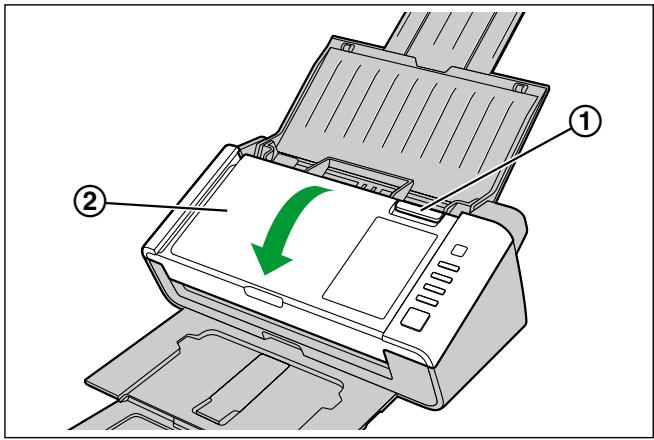
- Press the door open button (①), and open the ADF door (②).
- Open the double feed prevention roller cover (①).
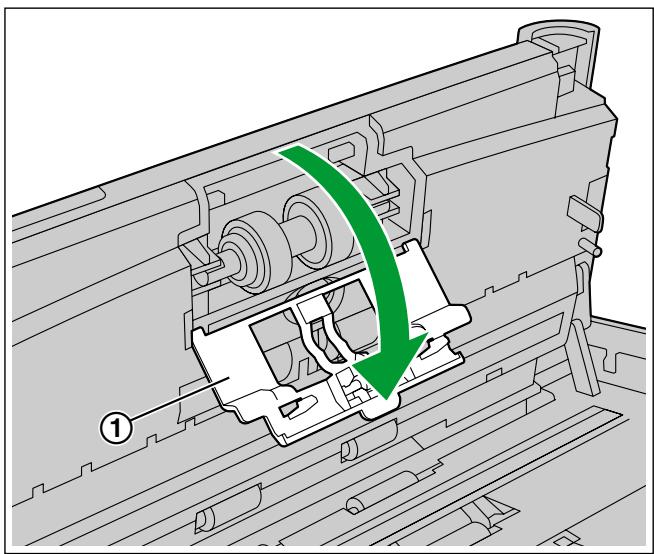
- Remove the double feed prevention roller (①).
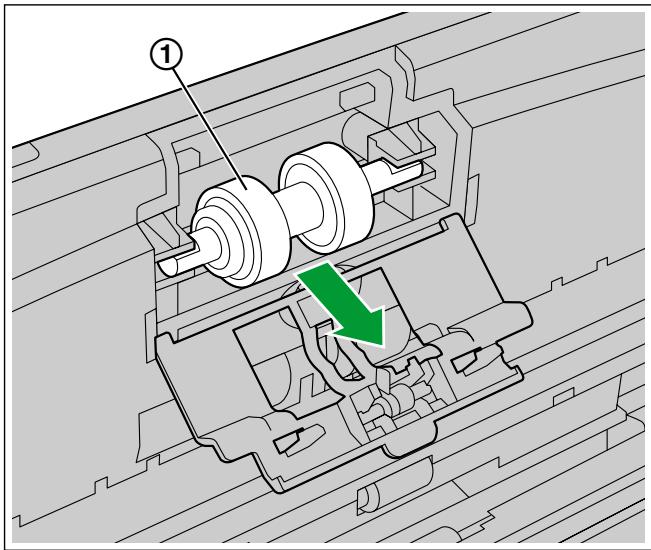
- Take out the new double feed prevention roller in the roller exchange kit.
- Install the new double feed prevention roller into the metal holder with the longer groove facing to the right-side (rear view).
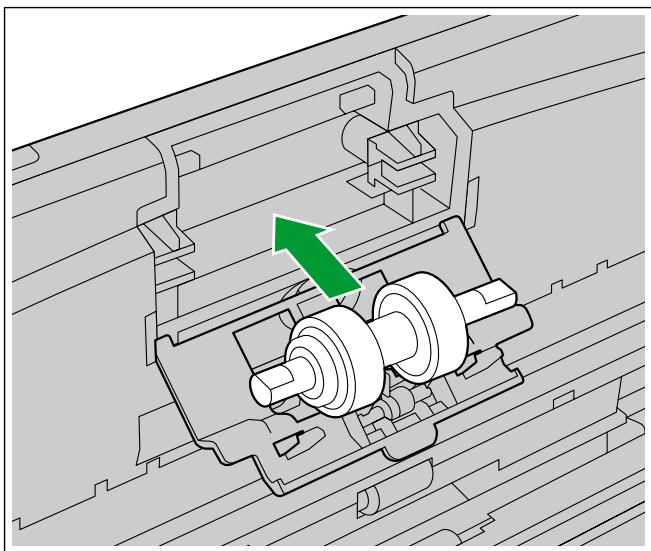
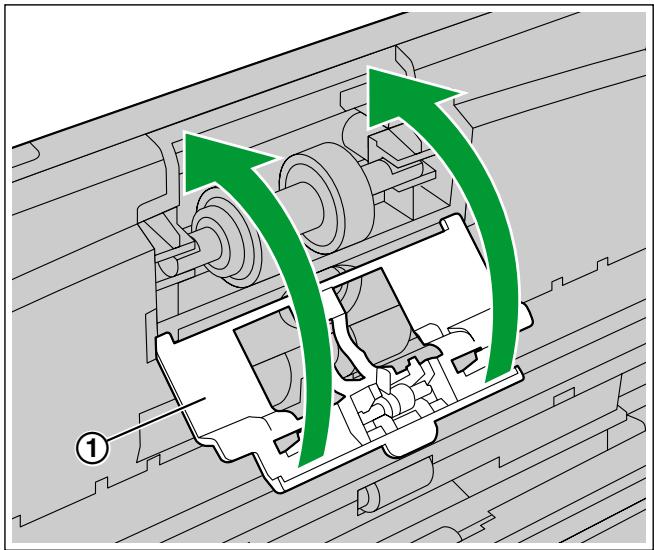
- Close the double feed prevention roller cover (①) firmly.
Notice
- Be sure to close the double feed prevention roller cover until it clicks into place.
- Open the paper feed roller cover (①).
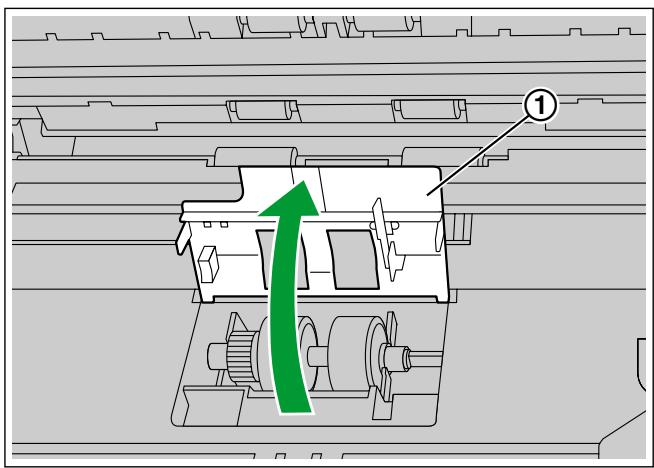
- Remove the paper feed roller (①).
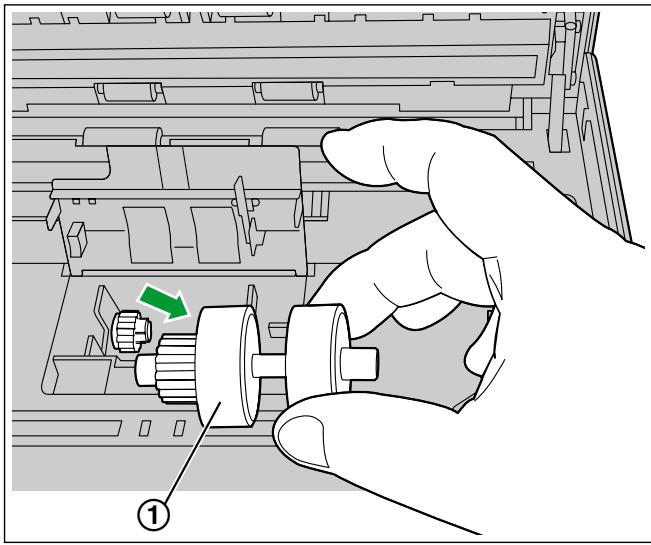
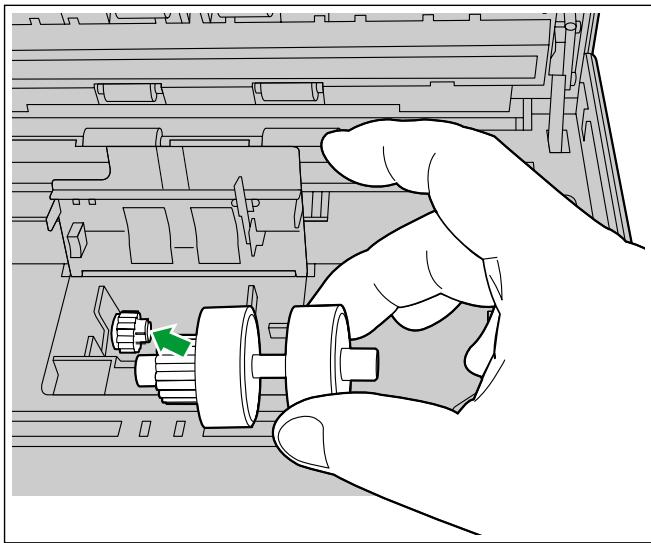
- Take out the new paper feed roller in the roller exchange kit.
- Install the new paper feed roller with the gear on the left side.
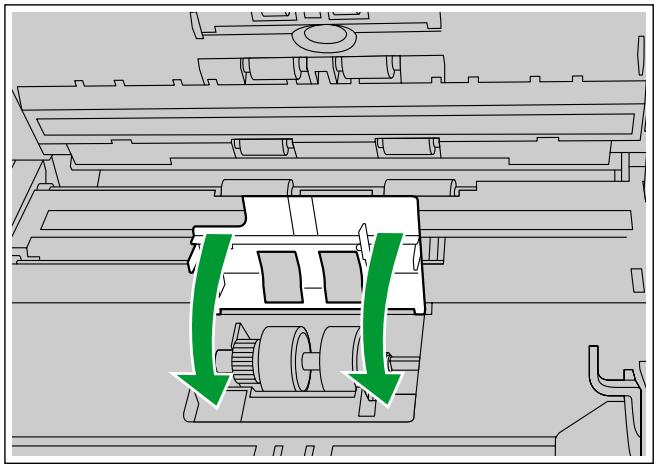
- Close the paper feed roller cover firmly.
Notice
- Make sure to close both sides of the paper feed roller cover until they click into place. After installing the paper feed roller, confirm that the paper feed roller can rotate in the feeding direction.
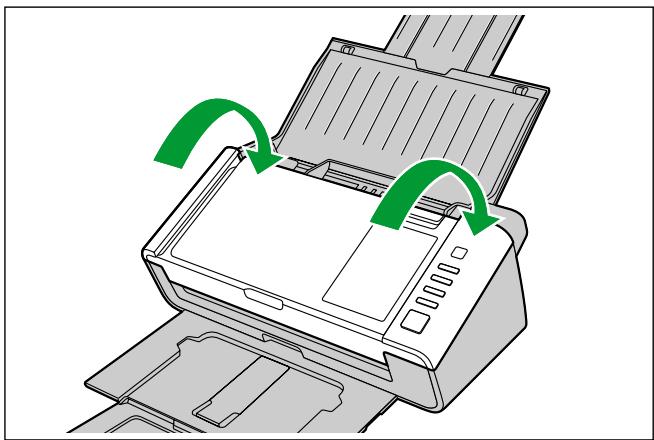
- Close the ADF door.
- Push both sides of the ADF door down slowly until it clicks into place.
- Reset the roller replacing counter in User Utility to 0.
- Turn ON the scanner power.
- Start User Utility, and in the window, click the [Clear Counter] button for "After Replace Roller" to reset the counter to 0.
- For details, refer to the User Utility help.
Troubleshooting
If a problem occurs while the scanner is being used, check the following items and check the scanner status with User Utility. If the unit still malfunctions, turn it OFF, unplug the power cord from the AC outlet, and call for service.
| Symptom | Possible Cause | Remedy |
| The ready indicator does not light when the power button is turned ON. | The power cord is not plugged in. | Insert the power plug firmly. |
| Problem with the AC adaptor. | Unplug the power cord from the AC outlet, and call for service. |
| The computer does not recognize the scanner.
The scanner is not functioning correctly. | The scanner is not connected to the computer correctly. | Connect the USB cable correctly. |
| The software is not installed correctly. | Uninstall the software from the computer, and then install the software again. (page 23) |
| The scanner is connected to the computer via a USB hub, and the USB hub is not functioning well. | Do not connect via the USB hub.
Connect the unit to the computer directly. |
| There is a problem with the USB cable. | Use the included USB cable or a certified Hi-speed USB 2.0 cable. |
| The power of the unit is turned OFF because no operation was performed for a certain period of time. | Press the power button to turn ON the scanner power. |
| Scan speed is slow. | The scanner is connected over a USB 1.1 connection. | Connect over USB 2.0. |
| The document has been loaded on the feed tray, but the scanner does not start scanning. | The document is not loaded properly. | Load the document correctly.
(page 33) |
| The sensor cannot detect the document as the edge of the document is curled. | Flatten the document (page 31) and load it again (page 33). |
| Double feeding occurs frequently or the scanner stops loading while scanning. | The rollers are dirty. | Clean the rollers. (page 44) |
| The paper feed roller, or double feed prevention roller have become worn down. | Replace the paper feed roller or double feed prevention roller. (page 51) |
| Right and left sides of the document to be scanned are not the same in height, because of curling or folding. | Flatten the document (page 33) and load it again after reducing the pages. |
| The document is printed on an unsupported type of paper or thick paper. | Make a copy of the document on paper of an acceptable type and thickness (page 30), and scan the copy. |
| The length of the paper is too short. | Make a copy of the document on paper of an acceptable size (page 30), and scan the copy. |
| The document is not aligned correctly. | Realign the document. (page 33) |
| The document set on the feed tray has too many pages. | Remove pages from the document until it is under the limit mark on the document guides. |
| Paper jams occur frequently. | The document is wrinkled. | Smooth out the document. |
| The rollers are dirty. | Clean the rollers. (page 44) |
| The document is not aligned correctly. | Realign the document. (page 33) |
| The document set on the feed tray has too many pages. | Remove pages from the document until it is under the limit mark on the document guides. |
| Scanned image is skewed. | The document guides are not adjusted to the size of the document to be scanned, or the document to be scanned is set slanted on the feed tray. | Adjust the document guides properly to the size of the document to be scanned. (page 33) |
| Right and left sides of the document to be scanned are not the same in height, because of curling or folding. | Flatten the document (page 31) and load it again after reducing the pages. |
| The scanned document is blank. | The document to be scanned was loaded upside down. | Load the document correctly. (page 33) |
| Vertical lines appear on the scanned document. | The scanning glass is dirty. | Clean the scanning glass. (page 48) |
| The scanning density is uneven. | The scanning glass is dirty. | Clean the scanning glass. (page 48) |
| The color of the scanned document is extremely different from the original document. | The settings of the computer monitor are wrong. | Adjust the computer monitor settings. |
| Dark spots or noise appear on the scanned documents. | The scanning glass is dirty. | Clean the scanning glass. (page 48) |
| There is noise or wave patterns (moire pattern) on the scanned image. | The scanning resolution settings, combined with patterns within the scanned image, may cause this problem. | Change the scanning resolution, and perform scanning again. |
| When you scan short documents, the sound made by paper being ejected will be higher than usual. | If the length of a document is less than about 148 mm, feeding speed control will be activated for exiting documents; this is normal behavior. | — |
If you still experience problems after following these suggestions, please contact our Technical Support Department at 1-800-726-2797 for further assistance (U.S.A. only).
Repacking Instructions
It is highly recommended that you keep the original carton and ALL packing materials. If you need to transport or ship the scanner, please follow these instructions.
Note
- Improper repacking of the scanner may result in a service charge to repair the scanner.
- Please use the original carton and all of the original packing materials.
- The scanner should be handled in the correct (horizontal) position.
Required Materials
- Original scanner carton and packing materials Shipping tape and scissors
- Press and hold the power button for one second or more to turn off the scanner power.
- Unplug the power cord from the outlet, and remove the AC adaptor and USB cable from the scanner.
- Close the feed tray and exit tray.
If the mixed batch card guide is not attached to the scanner, attach it.
- Pack the scanner with the AC adaptor, power cord, USB cable, DVD-ROM, Safety Guide and Quick Reference Guide.

① AC adaptor ② USB cable ③ Safety Guide and Quick Reference Guide ④ Software / Manual DVD-ROM ⑤ Power cord
Specifications
| Item | KV-S1026C | KV-S1015C |
| Scanning | Scanning face | Duplex |
| Scanning method | Color CIS (600 dpi)
Background: Black |
| Scanning size | 216 mm (8.5 in.) |
| Scanning speed*1
(portrait, 200 dpi) | Binary | Simplex
Letter: 30 pages/min.
A4: 30 pages/min.
Duplex
Letter: 60 images/min.
A4: 60 images/min. | Simplex
Letter: 20 pages/min.
A4: 20 pages/min.
Duplex
Letter: 40 images/min.
A4: 40 images/min. |
| Color | Simplex
Letter: 20 pages/min.
A4: 20 pages/min.
Duplex
Letter: 40 images/min.
A4: 40 images/min. | Simplex
Letter: 20 pages/min.
A4: 20 pages/min.
Duplex
Letter: 40 images/min.
A4: 40 images/min. |
| Resolution | 100–600 dpi (1 dpi step)
Optical: 300 dpi / 600 dpi (Automatic switch) |
| Scanning mode | Binary, 256 levels grayscale, 24-bit color,
MultiStream: Binary & Grayscale, Binary & Color |
| Scanning function | Single touch scan (3 buttons)
Place to scan
Ultrasonic double-feed detection
Double Feed Skip |
| Skip button | - |
| Compression | JPEG (color, grayscale) |
| Paper | Width | 48–216 mm |
| Length | When feeding one sheet: 70–2,540 mm
When feeding multiple sheets: 70–356 mm |
| Thickness | 0.04–0.2 mm (1.6–7.9 mils.)
Note: 1 mil = 0.001 in. | 0.09–0.2 mm |
| Paper thickness for Feeding | 20–209 g/m² (5.4–55 lb.) | 40–209 g/m² (11–55 lb.) |
| Card*3 | Format | ISO format |
| Size | 85.6 × 54 mm (3.4 × 2.1 in.) |
| Thickness | 0.76 mm (0.03 in.) |
| Scanning | Feed tray capacity | 50 sheets (80 g/m² New Paper) |
| Exit tray capacity | 50 sheets (80 g/m² New Paper) |
| Life*4 | 300,000 sheets |
| Roller replacement*4 | 100,000 sheets |
| Maintenance | Clean the rollers, sensors, and scanning glass once a week or every 2,000 sheets scanned. |
| Scanner | External dimensions (Width×Depth×Height) | 303 × 177 × 137 mm (When the exit tray and feed tray is closed) |
| Weight | 2.7 kg (5.9 lb.) |
| Power requirement | External power supply (AC adaptor) AC100-240 V, 50/60 Hz |
| Power consumption | Scanning | 17 W or less |
| Ready | 4.5 W or less |
| Sleep | 1.6 W or less |
| Power OFF | 0.3 W or less (While the AC adaptor is connected to the AC outlet) |
| Operating Environment | Temperature:15-35 °C, Humidity: 20-80 % RH |
| Storage Environment | Temperature: 0-40 °C (32-104 °F), Humidity: 10-80 % RH |
The scanning speed differs depending on the host computer, operating system, application, measuring method, the data quantity of the image, and paper type. The scanning speed was measured using a proprietary method. Although you can specify other paper sizes, scanning quality cannot be guaranteed. 3 Embossed card is also available. 4 The life of the scanner and the rollers is the estimated value when using the A4 or Letter sized standard paper (64 g/m² or 80 g/m² [20 lb.]). It may vary depending on the kinds of paper, usage and cleaning intervals.
"Weight in pounds" of paper represents the weight of 500 (432 × 559 mm [17 × 22 in]) sheets.
Index
A
AC adaptor 60
ADF door 15
C
Card 61
Check the accessories 14
Cleaning
Cleaning outside of the scanner 42
Cleaning the rollers 44
Scanning glass, reference area, and Double feed detectors 48
Cleaning the scanner 42
Compression 61
Control Panel 15, 17
Control sheets 38
D
Document guides 15
Documents
Acceptable documents 30
Scanning documents 33
Unacceptable documents 31
Door open button 15
Double feed detection 32
Double feed detectors 43, 49
E
Exit extension tray 15
Exit stopper 15
Exit support 15
Exit tray 15
Exit tray capacity 62
External dimensions 62
F
Feed extension tray 15
Feed tray 15
Feed tray capacity 62
G
Guidance sticker 15
L
LED 17
LED (Green) 15, 17
LED (Red) 15, 17
Life 62
M
Maintenance 62
Mixed batch card guide 15
0
Operating Environment 62
P
Paper jams 40
Power button 17
Power connector 16
Power consumption 62
Power cord 14,60
Power requirements 62
Precautions 11
R
Repacking 59
Replacement parts 50
Replacing parts 51
Resolution 61
Roller cleaning paper 12,43,50
Roller exchange kit 50
Roller replacement 62
Rollers
Double feed prevention roller 51
Paper feed roller 51
s
Scanning face 61
Scanning method 61
Scanning speed 61
Security slot 16
Skip button 17
Software/Manual DVD-ROM 2,14
Specifications 61
Start/Stop button 17
Storage Environment 62
T
Troubleshooting 56
U
USB cable 24,60
USB connector 16
User Utility 47,55
W
Weight 62

This symbol on the products and/or accompanying documents means that used electrical and electronic products should not be mixed with general household waste.
For proper treatment, recovery and recycling, please take these products to designated collection points, where they will be accepted on a free of charge basis. Alternatively, in some countries you may be able to return your products to your local retailer upon the purchase of an equivalent new product.
Disposing of this product correctly will help to save valuable resources and prevent any potential negative effects on human health and the environment which could otherwise arise from inappropriate
waste handling. Please contact your local authority for further details of your nearest designated collection point.
Penalties may be applicable for incorrect disposal of this waste, in accordance with national legislation.
For business users in the European Union
If you wish to discard electrical and electronic equipment, please contact your dealer or supplier for further information.
This symbol is only valid in the European Union.
If you wish to discard this product, please contact your local authorities or dealer and ask for the correct method of disposal.

For the purpose of recycling to facilitate effective utilization of resources, please return this product to a nearby authorized collection center, registered dismantler or recycler, or Panasonic service center when disposing of this product.
Please see the Panasonic website for further information on collection centers, etc.
http://www.panasonic.co.in/wps/portal/home
Notice [For United States only]
Disposal may be regulated in your community due to environmental considerations. For disposal or recycling information, please visit Panasonic website: http://www.panasonic.com/environmental or call 1-888-769-0149.
Things you should keep a record of:
For your future reference
Date of purchase
Model number
Serial number
Dealer's name and address
Dealer's telephone number
Panasonic Corporation of North America
One Panasonic Way, Secaucus, New Jersey 07094
Panasonic Canada Inc.
5770 Ambler Drive, Mississauga, Ontario, L4W 2T3
Panasonic Marketing Europe GmbH
Hagenauer Strasse 43, 65203 Wiesbaden, Germany
For information on compliance with EU relevant regulatory directives, contact the authorized representative:
Directives, Contact to Authorised Representative:
Panasonic Marketing Europe GmbH
Winsbergring 15, 22525 Hamburg, Germany
For users in Turkey
EEE complies with the Directive of Turkey.
EEE Complies with Directive of Turkey.