
ELVOX 5721 - Intercom Vimar - Free user manual and instructions
Find the device manual for free ELVOX 5721 Vimar in PDF.


Pick your language and provide your email: we'll send you a specifically translated version.
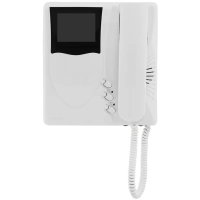
| Product Type | Video Door Intercom (Monitor) |
| Brand | Vimar |
| Model | ELVOX 5721 |
| Dimensions (W x H x D) | 200 x 120 x 30 mm |
| Weight | 0.5 kg |
| Power Supply | 12V DC via included adapter or PoE (IEEE 802.3af) |
| Display | 7-inch color TFT LCD, 800x480 resolution |
| Audio | Full-duplex hands-free speakerphone |
| Video | CMOS camera, night vision (infrared LEDs) |
| Connectivity | RJ45 for network, 2-wire bus for door station |
| Main Functions | Two-way audio/video, door unlock, call forwarding, intercom, monitor |
| Mounting | Wall-mounted (flush or surface) or desktop stand |
| Cleaning | Wipe with a soft, dry cloth; avoid harsh chemicals |
| Security | Encrypted video stream, privacy mode |
| Spare Parts | Available through Vimar service centers (power supply, camera module, etc.) |
| Repairability | Modular design; components replaceable by qualified technician |
| Warranty | 2 years (check local regulations) |
Frequently Asked Questions - ELVOX 5721 Vimar
How do I install the ELVOX 5721 intercom?
Mount the monitor on the wall using the supplied bracket. Connect the power supply and the two-wire bus from the door station. For PoE, connect an Ethernet cable from a PoE switch. Refer to the manual for detailed wiring.
Can I pair multiple monitors with one door station?
Yes, the ELVOX system supports up to 4 monitors per door station. Each monitor must be assigned a unique address via DIP switches or software.
How do I adjust the volume?
Press the Volume +/- buttons on the side of the monitor. The setting is saved automatically.
Why is there no video from the door station?
Check the camera connection and ensure the door station is powered. Verify that the monitor is set to the correct channel. If using PoE, confirm the switch provides adequate power.
How do I unlock the door from the monitor?
Press the Door Unlock icon on the touchscreen or the dedicated button. This activates the electric strike for a preset time (adjustable in settings).
Can I view the door camera remotely?
No, the ELVOX 5721 is a local system without remote app support. For remote access, consider Vimar's IP-based models.
How do I reset the monitor to factory defaults?
Press and hold the Reset button (located on the back) for 10 seconds. The monitor will reboot and lose all custom settings.
What should I do if the monitor shows 'No Signal'?
Ensure the door station is powered and the bus cable is properly connected. Check for short circuits or damaged wires. Also verify the monitor's address matches the door station.
Is the ELVOX 5721 compatible with third-party door stations?
It is designed to work with Vimar ELVOX door stations only. Using other brands may require adapters or may not function.
How do I clean the touchscreen?
Turn off the monitor and wipe gently with a soft, lint-free cloth slightly dampened with water. Do not use alcohol or abrasive cleaners.
User questions about ELVOX 5721 Vimar
0 question about this device. Answer the ones you know or ask your own.
Ask a new question about this device
No questions yet. Be the first to ask one.
Download the instructions for your Intercom in PDF format for free! Find your manual ELVOX 5721 - Vimar and take your electronic device back in hand. On this page are published all the documents necessary for the use of your device. ELVOX 5721 by Vimar.
USER MANUAL ELVOX 5721 Vimar
Manual assistant
Powered by Anthropic
Waiting for your message
Product information
Brand : Vimar
Model : ELVOX 5721
Category : Intercom