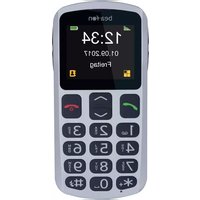
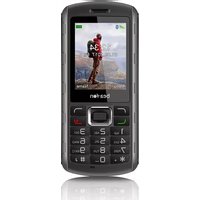
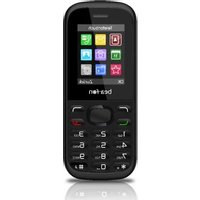
SL250 - Smartphone Bea-fon - Free user manual and instructions
Find the device manual for free SL250 Bea-fon in PDF.


| Product Type | Smartphone |
| Brand | Bea-fon |
| Model | SL250 |
| Dimensions (approx.) | 140 x 60 x 10 mm |
| Weight (approx.) | 120 g |
| Display Size | 2.4 inches |
| Display Type | LCD color screen |
| Battery Type | Removable Li-Ion |
| Battery Capacity | 1500 mAh |
| Operating System | Android (likely Go edition) |
| Main Functions | Calling, texting, camera, FM radio, music player, internet browsing |
| Camera | Rear VGA camera |
| Connectivity | 2G/3G, Bluetooth, Wi-Fi (if supported) |
| Memory | MicroSD card slot, internal storage (approx. 4 GB) |
| Special Features | Easy mode for seniors, SOS button, loud speaker |
| Cleaning & Maintenance | Wipe with dry soft cloth, avoid liquids |
| Safety | Do not expose to water or extreme temperatures |
| Spare Parts & Repairability | Battery and charger available; service by authorized center |
| General Information | User manual available in PDF format |
Frequently Asked Questions - SL250 Bea-fon
User questions about SL250 Bea-fon
0 question about this device. Answer the ones you know or ask your own.
Ask a new question about this device
Download the instructions for your Smartphone in PDF format for free! Find your manual SL250 - Bea-fon and take your electronic device back in hand. On this page are published all the documents necessary for the use of your device. SL250 by Bea-fon.
USER MANUAL SL250 Bea-fon
Congratulations on your purchase of Bea-fon SL250!
Please read this information for better handling of the telephone. We do not assume any liability due to improper use.
We are constantly striving to improve our products and our service. Therefore, Bea-fon reserves the right to make modifications and improvements to any of the products described in this documentation without prior notice.
The content of this User Manual is presented as it is. Bea-fon does not assume any responsibility for the accuracy and completeness of the content of this user manual.
There may be slight differences between the images in the user guide and the phone; these are examples, please refer to the phone. Some functions are dependent on a network operator; for further information, contact your network operator.
Please check the supplied accessories to ensure that the accessories are all there. Should one of the components be missing or defective, please contact the dealer where you purchased the telephone.
Bea-fon SL250 package content:
• 1 Phone (SL250)
• 1 Charging station (SL250)
• 1 Charger (SL250)
• 1 Battery (SL250)
• User manual (SL250)
Should the font be too small and hardly legible for you, you may view a larger version of the user manual on our website.
Go to Products on our website:
www.beafon.com
Device Code:
The use of this code can prevent unauthorized persons from using this telephone. The factory default code is:
0000
PIN Code:
The code from the network operator that is provided with the SIM card prevents the use of the card by unauthorized persons. You can activate/deactivate or change the PIN code.
Table of contents
General Information ......2
Device Code: 4
PIN Code: 4
Table of contents 5
My Telephone ......9
Getting Started ....11
What is a SIM card? 11
Inserting the SIM card and Micro SD card 11
Inserting the Battery 13
Charging the Battery 13
Switching the telephone on/off: .....14
Standby 15
Torch....15
Display (Home screen)....15
Display symbols 16
Headset/Bluetooth mode....17
Adjust volume ......17
Menu function....18
Lock screen 18
Call functions....19
Call 19
Making a call using the phonebook ... 19
Answering a call 20
Functions during a conversation .....20
Hands-free 21
Menu 22
Phonebook 23
Accessing your telephone numbers...23
New contact 23
Editing a contact 24
Speed dial 24
Messages 25
Write SMS 25
Text input 25
Inbox 26
Outbox 27
Drafts 27
Sent messages 27
SMS (Settings) 28
Setting SIM 28
Voicemail server 28
Call history 30
Call history....30
Delete call logs 30
Call duration....30
Extras....31
Alarm 31
Calendar 31
Reminders....32
Calculator 32
Images 33
File manager 33
Radio 34
FM radio....34
Connect the telephone to the computer 35
Settings 36
Profile (Tone settings) 36
Silent mode....36
Phone settings 37
Time and Date 37
Set home city 37
Set format......37
Update with time zone 37
Language 37
Define time of switching on/off ......37
Preferred input method 38
Auto. Lock screen 38
Show date and time: 38
Display 38
LCD illumination: 38
Key pad light: 39
Call settings 39
Caller ID 39
Security settings 40
SIM security 41
Telephone lock: 41
Network settings:....41
Network selection: 41
Bluetooth 42
SOS settings 45
SOS number......45
SOS Status....45
SOS message 45
SOS alarm tone 46
Restore settings 46
Specifications 46
SAR values....46
Troubleshooting 47
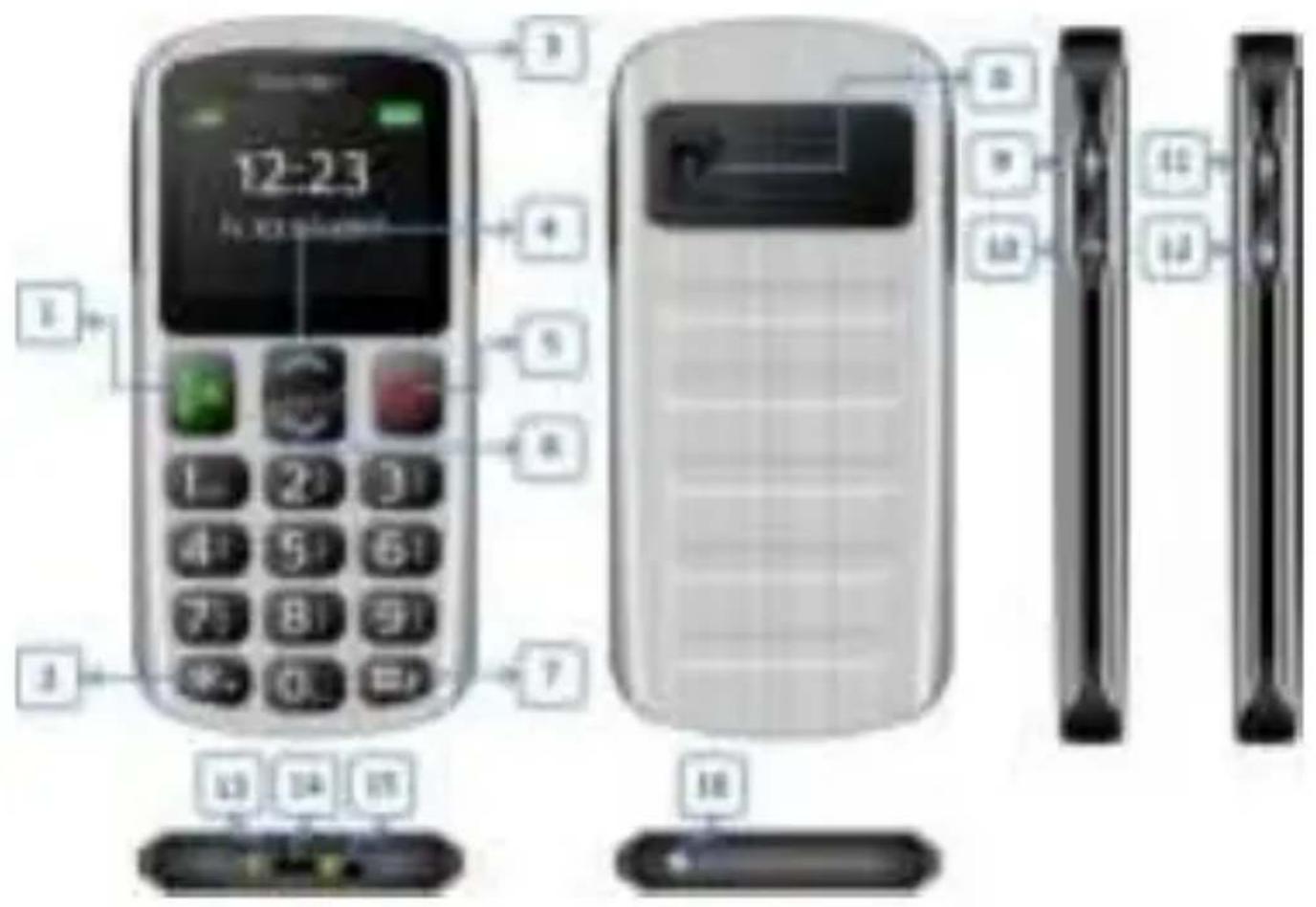
My Telephone
SL250
| 1 | OK key/green call key/call list:In standby mode, call up the call list by the "OK" key in the menu |
| 2 | * Key:Press this key in standby mode in order to enter the following characters: */+/P/W. |
| 3 | Speaker |
| 4 | Arrow key upwards: In standby mode, press to enter the main menu |
| 5 | Red button: Power on/off, End conversation, Reject call, "Return key" in the menu |
| 6 | Arrow key downwards: In standby mode, call up contacts |
| 7 | # Pound keyPress and hold in standby mode to activate/deactivate the silent mode.In Edit mode; change the input method. |
| 8 | Emergency call button |
| 9 | Volume + key: increases conversation volume |
| 10 | Volume - key: reduces conversation volume |
| 11 | Torch key |
| 12 | Screen lock key: you can lock or unlock the screen by this key |
| 13 | Connectors table charger |
| 14 | Micro USB charging port |
| 15 | 3.5mm socket for headset |
| 16 | LED - torch |
What is a SIM card?
Every mobile telephone requires an SIM card (Subscriber Identity Module); without the SIM card, you cannot make phone calls. The SIM card is a microprocessor that saves your data and contacts. Therefore, handle the card with care and exercise caution when inserting or removing the card. SIM card must be kept out of reach of small children.
Inserting the SIM card and Micro SD card
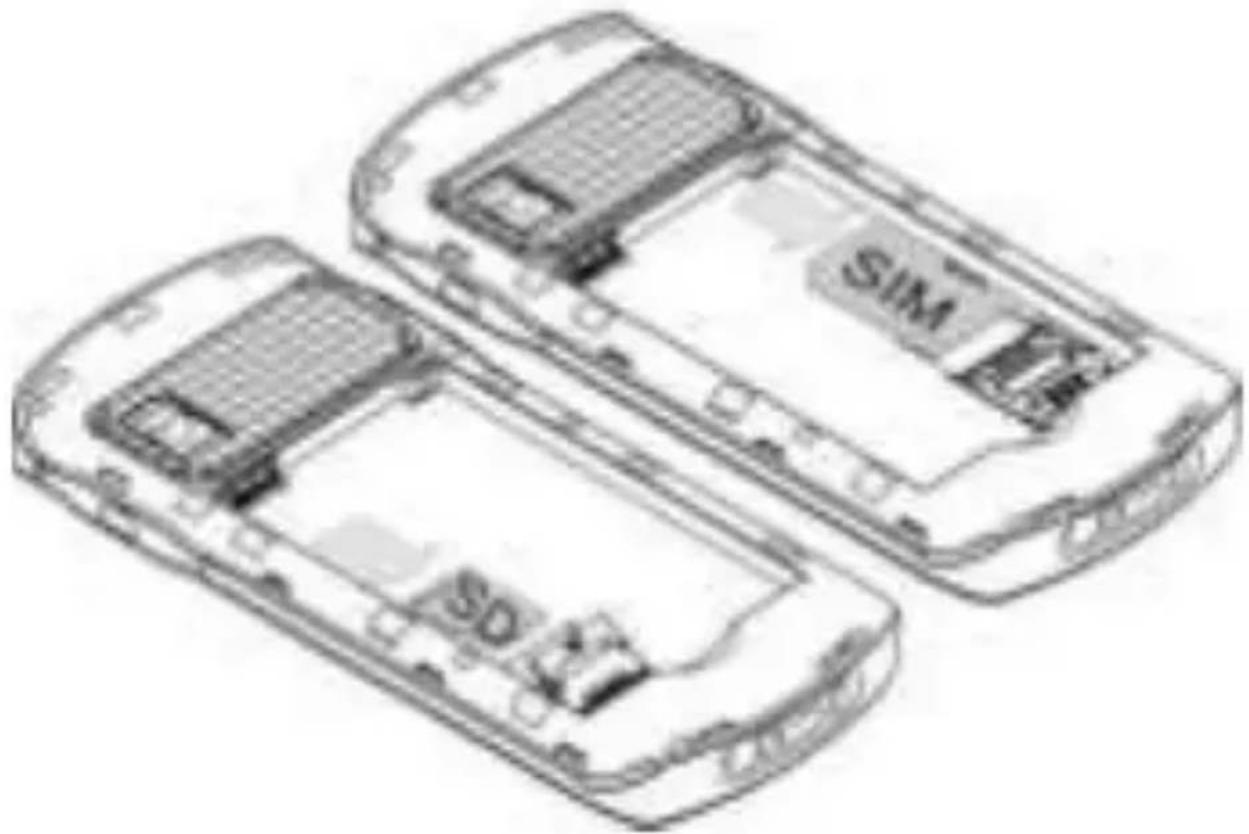
- The telephone must be switched off and disconnected from the charger.
- Remove the battery cover on the back by pushing it off on the bottom left side using your thumbnail. If there is a battery in the device, remove it please.

natural_image
Technical line drawing of a mechanical component or device (no visible text or symbols)- You will see 2 card holders: for the SIM card on the bottom right and for Micro SD card on the bottom right. Slide the SIM card carefully into the SIM card slot. Make sure that the gold-colored contacts on the card are facing downwards and the tapered corner is facing left.
natural_image
Line drawing of two mobile phones with visible internal components and branding (SIM, SD), no text or symbols present.- Gently insert the Micro SD card in the SD Micro SD card slot (2) and lock it eventually in place.
Inserting the Battery
- Align the gold-colored contacts of the battery with the corresponding contacts of the phone.
- Press the other end of the battery until it snaps into place.
- Slide the battery cover on the device until it locks into place.
Charging the Battery
You have two options to charge the SL250 battery:
A. Charging station
B. Charger
-
Insert the charger connector into the telephone.
-
Connect the charger to a power outlet.
-
It could take several hours to charge the battery. If the telephone is charged while it is switched off, it takes a few seconds before the charging indicator appears in the display.
-
If the telephone is charged while switched on, the battery indicator begins to go up. The battery is fully charged when the battery indicator no longer goes up.
- Disconnect the charger from the network and from the device when it is no longer needed!
Note: The initial charging of the battery should take at least 12 hours.
Switching the telephone on/off:
Make sure that the SIM card is in the telephone and that the battery is charged.
- Press and hold the red key for 2-3 seconds in order to switch on the telephone.
- If the PIN code is activated, the phone will now prompt you for your PIN code; please enter it and confirm your entry with OK.
- Please select your language and confirm your selection with OK. Press and hold the red key for 2-3 seconds in order to switch off the telephone.
Without the SIM card, only the emergency call number can be dialed.
Note: If you enter the PIN code incorrectly 3 times, the phone will ask for the PUK code that you have received together with the SIM card.
Standby
If you do not use the telephone for a short time period, the telephone automatically switches to standby mode. Press any key to exit this mode. Calls can be answered in standby mode.
Torch
Press and hold the torch key on the right side of the phone to switch it on or off.
Display (Home screen)
| 1 | 2 | 3 |
| 4 | ||
| 5 | ||
| 6 | ||
| 1. Reception strength | 4. Network operator |
| 2. Symbols | 5. Time |
| 3. Battery status | 6. Date |
Display symbols
 | Reception strength:The vertical bars show the strength of the reception of your network operator. |
 | New MessagesThis symbol is displayed when you receive a new message.SIM card has an unread message. This symbol  blinks when the Inbox folder is full. You have to delete some messages in order to be able to receive new messages. blinks when the Inbox folder is full. You have to delete some messages in order to be able to receive new messages. |
 | HeadphonesThis symbol is displayed when headphones are plugged in. |
 | Missed callsThis symbol is displayed when you did not answer a call. |
 | Call signalOnly ringSilent mode and vibrateVibrate and ring |
 | Call forwardingThis symbol is displayed when all calls are being forwarded. |
 | AlarmThis symbol is displayed when alarm clock is switched on. |
 | BluetoothThis symbol is displayed when the Bluetooth is switched on. |
 | Screen lock activatedPress and hold the side screen lock key to unlock screen |
| SOS | SOS mode deactivated |
 | Battery indicatorThis symbol changes color depending on the status of the battery: |
Headset/Bluetooth mode
If a headset is connected (also a Bluetooth headset), you can answer the call using the button on the headset.
Note: The phone needs a 3.5mm headset.
Adjust volume
During a call, you can adjust the conversation volume using the right side +/- key.
Menu function
Press the Arrow key upwards on the home screen.
to go to the Main menu and the arrow key downwards to go to the Contacts.
Lock screen
To avoid accidental pressing keys, press and hold the side screen lock key on the default screen to lock or unlock the screen.
To receive a call with keylock activated, press the green dialling key. When you end or reject the call, the keypad automatically locks again.
Additional functions:
Auto keypad lock; see menu item:
Settings - Phone settings - Show Extras - Auto. Lock screen.
Call
-
Enter the telephone number including the area code and press the green key. International Calls: Prior to entering the area code, enter a + - symbol by pressing * twice as well as the country (or regional) code. (If necessary, omit 0 before the area code).
-
Press the red key (Delete) to delete the figure to the left of the cursor.
-
Press the green key to call the number.
Making a call using the phonebook
If there are contacts saved in the Phonebook, you can make a call using the Phonebook.
-
To go to the Phonebook, press the Arrow key downwards on the default screen.
-
Scroll upwards or downwards with the arrow to the desired telephone number.
-
Press the green key to call the number.
- Press the red key in order to cancel or end the call.
Answering a call
When you receive a call and the phone rings or vibrates, the number or name appears on the display.
- If you would like to answer the call, press the green key or OK.
- If you would like to decline the call, press the red key.
- You can use the Menu key to silence the incoming call.
Functions during a conversation
Click on the Options button during a call to be able to access the following functions:
Hands-free:
Switch
between headset and loudspeaker
Hold*:
Sets up a call queue.
End single call*:
End call.
Phonebook:
To go to the Phonebook.
Call logs:
Shows the call list
Messages:
Enters the messages.
Mute:
Switch the microphone on/off
Note: The menu items marked with * must be supported by the SIM card. For more information, please contact your network operator.
Hands-free
You can activate/deactivate the hands-free mode during a call by pressing Arrow key downwards (H-free).
| 1. Phonebook1. Add new contact2. Messages1. Write SMS2. Inbox3. Drafts4. Outbox5. Sent messages SMS (Settings)3. Call list1. Missed calls2. Dialled calls3. Received calls4. Delete call logs | 4. Extras1. Alarm2. Calendar3. Reminders4. Calculator5. Images6. File manager5. FM radio6. Settings1. Profile (Tone settings)2. Phone settings3. Call settings4. Safety settings5. Network settings6. Bluetooth7. SOS settings8. Restore setting |
You can save up to 200 phone numbers in your SL250 telephone. On the SIM card, there is room for up to 250 phone numbers.
Accessing your telephone numbers
You have two options to go to the contacts:
- Press the Arrow key downwards in the home screen mode.
Note: Symbolizes a SIM card entry. Symbolizes a telephone entry.
New contact
- Select Add new contact in the Phonebook menu.
- Select Select and press OK
- Select memory: SIM card or telephone.
SIM storage: Only the Name and Mobile number can be stored.
-
Telephone storage: Name and Number can be saved.
-
To save the contact press Options and Save.
Editing a contact
- Select a name and press Options and select Edit and confirm with OK.
- Edit the entries. To save the changes, press Options and select Save and confirm with OK
Speed dial
- Select Main menu - Phonebook and press OK
- Press OK (options) and select Settings
- Select Speed dial and press OK
You can turn theSpeed dial status on or off.
Up to 8 numbers can be saved as speed dial numbers (2-9)
- Select Set numbers and press OK.
- Select the desired number (2-9) and click on Options.
- Select the desired name from the Phonebook and press OK (the desired name must already be stored under Contacts).
On the default screen, press and hold down the desired number (2-9) for 2-3 seconds to select the assigned number.
You can receive and send messages: SMS, however, it is dependent on the carrier. For more information, please contact your carrier.
Write SMS
- Select Menu, Messages and press OK
- Select Write SMS and press OK
Text input
The following functions are available:
- Press 0 to add a space
- Press the * key to add special characters, you can use "Arrow keys" to navigate to the desired symbols
- Press the arrow key to move the position indicator to the left or right.
- Press the right menu key (Delete) to delete a letter, and press and hold down the right menu key (Delete) to delete the entire text.
- Press the # key to toggle between lower and upper case: De, ABC, Abc, abc, 123 and pay attention to the symbol in the top left corner of the display.
After you have finished the message, press Options and select Send.
Here you have the option to add one or more Contacts to the Message
Other Options:
The number of letters used can be seen at the upper right edge of the display.
After you have finished the message, press Options and select Send.
Here you have the option to add one or more Contacts to the Message
Other options:
Input method, Insert and Save.
Inbox
-
Select Menu, Messages and press OK
-
Select Inbox and press OK
In this menu, you can view new or already read Messages.
Depending on the mode selected, the telephone vibrates or rings if you receive a new Message and you see this symbol on the default screen in the display.
Press OK (Options) for the following functions:
Show, Answer, Call sender, Forward, Delete, Delete all, Save to Phonebook and Details.
Note: If the short message memory is full, the symbol blinks on the default screen. Please delete some messages to be able to receive new ones again.
Outbox
- Select Menu, Messages and press OK
- Select Outbox and press OK
In the Outbox, unsent SMS messages are saved.
Drafts
In Drafts you can see saved unsent SMS messages.
Sent messages
- Select Menu, Messages and press OK
- Select Sent messages and press OK In this menu, you can view already sent Messages. The following functions are available:
Show, Forward, Delete, Delete all and Details
SMS (Settings)
- Select Menu, Messages and press OK
- Select Settings and press OK
Setting SIM
Here you can set, among others, the message service centre number (SMSC) (dependent on the network operator) and other SMS settings.
Common settings:
Enable or disable the Delivery report, Answer path and Sent messages
Memory status:
This option enables SMS memory status of your SIM card and phone.
Memory status:
Counts the SMS messages sent and received
Voicemail server
Voice mail is a network function. If a voice mail has been received, the receipt of a new message will be shown on the display of your telephone.
- Select Menu, Messages and press OK
- Select SMS settings and press OK
- Select SIM and press OK
- Select Voice mail and press OK.
- Select 1.
and press OK (Options). - Select Select or Edit
- If you select Edit, enter a name and the number of your voice mailbox number.
On the default screen: Press and hold the number 1 and your telephone will call the corresponding number saved in the Voicemail server.
Note: This service must be supported by the network operator.
Call history
- Select Menu, Call logs and press OK
Your phone saves Missed calls, Dialled calls and Received calls lists
The newest entries are at the top of the list.
With Options the following functions are available:
Select, Show, Send SMS, Add to black list and Delete.
Delete call logs
You can delete the logs from Missed, Dialed and Received calls individually or delete all call logs.
Call duration
Here you can call up duration of all Dialled and Received calls and the last call.
Alarm
- Select Menu, Extras and press OK
- Select Alarm and press OK
Up to a maximum of 5 alarms can be set.
Setting the alarm:
- Select an alarm and press OK (Edit) and "Select".
- Set the status: Switch on or off using the star and hash key
- Set the Time, Repeat, and Alarm tone.
- To save the alarm press in the Time menu item the OK key (Save).
When the alarm sounds, click on the Stop button to stop it or click on the Snooze button. In this case, the alarm will snooze and sound again after approx. 5 minutes (default setting).
Calendar
- Select Menu, Extras and press OK
- Select Calendar and press OK
In the calendar interface, press the arrow key and the "4" and "6" keys to browse between different days.
Reminders
- Select Menu, Extras and press OK
- Select Reminders and press OK
You can enter reminders here.
Add reminders:
Press OK (Options) and select Add reminders.
Enter the desired details.
To save the event, press Options and Save.
In the Reminders menu, the following
Options are available: Show, Show all,
Add, Delete reminder, Go to date and Go to today.
Calculator
With this function, you can use your mobile telephone as a pocket calculator. The pocket calculator can perform basic arithmetic functions.
Functions:
• Enter the numbers (1 to 0).
- Press # for the decimal point.
- Press arrow keys to select computational tasks
Press OK for the result, press the red key to delete numbers or start a new computational task.
Images
- Select Menu, Multimedia and press OK
- Select Images and press OK
View the saved photos (in .jpg format).
You can send and also receive the photos via Bluetooth.
The following functions are available to your under Options: Show, Send, Use, Rename, Delete, Sort by, Save and Image information.
File manager
- Select Menu, Multimedia and press OK
- Select File manager and press OK
Use the file manager to manage your files and folders in the phone memory and on the memory card.
Open:
To display the content of the selected folder.
New folder:
To create a new folder.
Rename
To rename a folder.
Delete: To delete a folder.
FM radio
- Select Menu, Multimedia and press OK
- Select FM radio and press OK
This function allows you to listen to FM radio. In FM mode, the following keys are available:
| Key | Function |
| * Key | Radio OFF/ON |
| * Key | Change search mode |
| Side key + | Turn up the volume |
| Side key - | Turn down the volume |
| Arrow key (upwards) | Frequency - search |
| Arrow key (downwards) | Frequency + search |
| Number field | Call up the stored stations |
To improve the reception, use the 3.5mm headset (not included).
Your options include:
List of stations:
Play, edit, or delete the saved channels.
Manual search:
Manual channel search.
Create automatic channel lists:
Create a list of stations.
Settings
This function enables you to operate the radio in the background and to leave this menu
Connect the telephone to the computer
Proceed as follows:
-
Connect the phone to the computer using a Micro USB cable (not included).
-
After that, a menu appears on the telephone -select "Mass storage" and confirm with "OK"
-
The computer will recognize the telephone as removable media.
-
Using the Windows Explorer, now you can process the data as usual or copy it onto the computer.
Profile (Tone settings)
- Select Menu, Settings and press OK
- Select Profiles and press OK
Display of profile mode list: General, Silent, Conference, Outdoors.
Select a mode (General is a standard mode) and press OK.
Select editing and press OK. Call up the options menu:
The following tone settings are available: Alert type, Ring type, Ring tone, Ring volume, Message, SMS volume, Key tone, Key tone volume, Power on, Power off and System alert.
Silent mode
When you turn on the silent mode, all ringing and warning tones are muted. Use this mode, for example, in the cinema or in a meeting.
To toggle to the Silent mode, press and hold down the "#" pound key in standby mode.
To toggle back to the "General" mode, press the "#" pound key again.
Phone settings
- Select Menu, Settings and press OK
- Select Phone settings and press OK.
The following menu items are available:
Time and Date
Set the Time and Date.
Set home city
Select your time zone.
Set format
Set the time and date format.
Update with time zone
If this menu item is active, the time is adjusted to the time zone
Language
In this menu, you can set the display language.
Define time of switching on/off
Set the time when the phone will switch on and off automatically.
Preferred input method
In this menu you can define your preferred input methods (ABC, Abc, abc, 123).
Display Extras
Auto. Lock screen
Select "Off" to disable the auto keypad lock, or select a period when the auto keypad lock should be enabled.
Show date and time:
Turn the display on or off.
Flight mode
If the Flight mode, all sending and receiving functions (calling, messages and Bluetooth) are suspended
Display
LCD illumination:
Here you can deactivate key pad light permanently
Key pad light:
Set the display brightness and lighting duration using the "#" pound key and "*" star key.
Call settings
- Select Menu, Settings and press OK
- Select Call settings and press OK
Depending on the network operator, you can use the following services:
Caller ID
Here you can define whether your number is withheld or visible for the person being called.
Call waiting
You will be informed during a call when another call come in. Press OK or the left menu key Answer to answer the call. The first call remains in the other line; if you do not want to answer the call, press the Decline key.
Call forwarding
With this network service, you can redirect incoming calls to another telephone specified by you. Several call
forwarding actions can be activated at the same time.
Call barring
With this network service, you can restrict your calls.
Advanced settings
Black list:
In this menu, it is possible to add phone numbers to the Black list in order to block them for incoming calls.
Automatic redial
A number is called repeatedly until the call is taken.
Call duration reminder
A signal tone sounds during the call
Answer mode:
Select the method you would like to use to answer the call.
Security settings
- Select Menu, Settings and press OK
- Select Phone settings and press OK.
The following functions are available:
SIM security
PIN lock: When switching the prompt for a PIN on or off, you will be prompted to enter the correct PIN code of the SIM card. You can change the PIN code of the SIM card at any time.
Changing PIN/PIN2: To the change the password, enter current password and then the new passwords: PIN or PIN2
Telephone lock:
Telephone lock: While powering the PIN prompt on or off, you will be prompted to enter the correct Phone password of the telephone.
Changing the password: To change the password, enter the actual password and then the new password 2x.
Network settings:
- Select Menu, Settings and press OK
- Select Network settings and press OK Depending on the network operator, you can use the following services:
Network selection:
Here you can set the Network selection as Manual or Automatic
Bluetooth
With Bluetooth, you can connect your telephone with a compatible Bluetooth device.
The following functions are available:
Bluetooth:
Press the OK key to switch the Bluetooth function on or off.
Visible
You can set your telephone so that it can be recognized by other Bluetooth devices.
Recognized devices
In this menu, you can establish connection with already recognized Bluetooth devices or search for a new one:
Search for audio device
In this menu, you can establish a connection with Bluetooth-enabled audio accessories.
Change device name
Change the names of the Bluetooth devices.
Search for Bluetooth audio device:
To begin the search for another Bluetooth device, select Search found devices and new device and press OK.
- Select the desired device and press Pair.
- If a connection with another Bluetooth device is established, you require a Password. Enter the password and confirm with OK.
Under Options, the following functions can be found: Connect, Rename, Authorize, Delete and Delete all.
SOS
The SOS function is a simple function that can save lives at a critical point in time. You can save up to 5 SOS contacts and one SMS. These numbers, which you have to save one after another, are automatically dialed in case of emergency if you press the emergency call button on the back of the mobile phone. During the emergency call, a warning tone will be given. If the first number cannot be reached, the next number is automatically dialed, etc.
If a SOS number cannot be reached, the phone sends a SOS message.
If no emergency call number is saved or your telephone card is empty or you are in a foreign network (e.g. roaming is not activated), you can still call 112 or other
emergency call numbers using the numeric keys.
If the SOS call is answered, the telephone switches to hands-free mode.
If no emergency call has been received, the phone will remain in the SOS mode for an hour:
It means that, within an hour, every call is automatically received and switched to hands-free mode.
This mode is indicated by "SOS" symbol on the display.
To end the SOS mode, press and hold the SOS key.
Note:
- If you want to stop or undo the emergency call press the SOS key.
- When using a Prepaid card: Always ensure for sufficient funds on your prepaid card, since private emergency call numbers cannot be dialed without sufficient funds.
Outside of your network operator's home network, the international SOS 112 can usually still be called.
Attention: If you save emergency call numbers such as rescue, police, fire department, etc., you must clarify this in advance with the respective institutions. No liability is assumed for possibly incurred costs if you call by mistake.
SOS settings
- Select Menu, Settings and press OK
- Select SOS settings and press OK
SOS number
Define a maximum of 5 SOS numbers and their priority sequence.
SOS Status
Here you can switch the SOS function on/off.
SOS message
Using the Status menu item, you can switch the SOS message function on or off
If the SOS call is started and not answered, this text will be sent to SOS numbers. The text can be changed as desired.
SOS alarm tone
In this menu your can switch the SOS alarm tone off/on.
Restore settings
With this function, you can reset the telephone settings to the factory default configuration.
You have to enter the password to restore the factory settings. The default password is: 0000.
Specifications
| Dual Band Network: | GSM 900/1800 |
| Battery | Li-ion 3.7V - 700mAh |
| Dimensions: | 121.5X57X12.5 mm |
| Standby time: | < 200 hours* |
| Talk time: | < 300 minutes* |
* The operating life of the battery is dependent on the SIM card, network, settings applies and usage as well as the environment.
SAR values
| Head | 1.29 W/kg |
| Body | 1.07 W/kg |
If problems or irregularities occur while using the phone, please refer to the information in the following table. If a particular problem can not be solved using the following information, please contact the dealer where you purchased the phone.
The phone cannot be turned on:
- Check whether the battery is correctly inserted into the telephone.
- Check the battery status, charge the battery, or replace it.
- Check whether the PIN code was entered correctly.
If the PIN code is entered incorrectly 3 times, the SIM card will be blocked and you will need the PUK code (please contact your carrier for your PUK code).
SIM card error:
- Dirt on the contact areas of the SIM card? Clean the contact areas of the SIM card.
- SIM card is not inserted properly, insert the SIM card correctly.
- SIM card does not function or is damaged? Get your SIM card checked by your network operator.
Network connection cannot be made:
- Bad reception? Move to an open space or if you are in an enclosed space, near the window.
- You are out of range of the mobile network. For information about coverage, please contact your network operator.
- SIM card is invalid. Contact your service provider.
Bad voice quality:
- Poor network connection quality on the part of the network provider? Press the end key and select again. You may be routed to a network connection or phone line with better quality.
- Poor quality of the local telephone line? Press the end key and select again. You may be routed to a network connection or phone line with better quality.
- Try turning the volume up louder.
Send SMS does not work
- Please check the SMSC number (message centre number) in the following menu item: "Messages - Settings - SMS settings - Profile settings - SMSC - Address": Your carrier's message centre number should appear here.
Outgoing calls cannot be made:
- Check the phone number and try again.
- Have you activated call barring? If so, please disable all call barring.
- Check whether the SIM card is registered on the network.
- Check whether enough credit is on your SIM card.
You do not receive incoming calls:
- Check whether the SIM card is registered on the network.
- Check whether the phone is turned on.
- Check the signal strength
- Have you activated call barring? If so, please disable all call barring.
Display is black:
- Check the battery status, charge the battery, or replace it.
- Check the background image.
• Did the phone get wet?
Blocked PIN:
- Check whether the PIN code was entered correctly. If the PIN code has been entered incorrectly 3x, the SIM card is locked and you will need the PUK code: (Please contact your network operator for your PUK code).
Note: If a specific problem can not be solved using the information above, visit our website www.beafon.com and select the product page of your phone and read the FAQ (Frequently Asked Questions) or contact the customer support. Please do not try to repair the phone yourself.
- Bea-fon SL250 package content:
- Device Code:
- PIN Code:
- Table of contents
- General Information ......2
- Table of contents 5
- My Telephone ......9
- Getting Started ....11
- Call functions....19
- Menu 22
- Phonebook 23
- Messages 25
- Call history 30
- Extras....31
- Radio 34
- Settings 36
- My Telephone
- What is a SIM card?
- Inserting the SIM card and Micro SD card
- Inserting the Battery
- Charging the Battery
- Switching the telephone on/off:
- Standby
- Torch
- Display (Home screen)
- Headset/Bluetooth mode
- Adjust volume
- Menu function
- Lock screen
- Call
- Making a call using the phonebook
- Answering a call
- Functions during a conversation
- Hands-free
- Accessing your telephone numbers
- New contact
- Editing a contact
- Speed dial
- Write SMS
- Text input
- Inbox
- Outbox
- Drafts
- Sent messages
- SMS (Settings)
- Setting SIM
- Common settings:
- Memory status:
- Voicemail server
- Call history
- Delete call logs
- Call duration
- Alarm
- Calendar
- Reminders
- Calculator
- Functions:
- Images
- File manager
- Open:
- FM radio
- Settings
- Connect the telephone to the computer
- Profile (Tone settings)
- Silent mode
- Phone settings
- Preferred input method
- Display Extras
- Flight mode
- Display
- Key pad light:
- Call settings
- Caller ID
- Call waiting
- Call forwarding
- Call barring
- Advanced settings
- Black list:
- Automatic redial
- Call duration reminder
- Answer mode:
- Security settings
- SIM security
- Telephone lock:
- Network settings:
- Network selection:
- Bluetooth
- SOS
- Note:
- SOS settings
- SOS number
- SOS Status
- SOS message
- SOS alarm tone
- Restore settings
- The phone cannot be turned on:
- SIM card error:
- Network connection cannot be made:
- Bad voice quality:
- Send SMS does not work
- Outgoing calls cannot be made:
- You do not receive incoming calls:
- Display is black:
- Blocked PIN:
Brand : Bea-fon
Model : SL250
Category : Smartphone