ManualGo.com
AVR-4310CI - AV Receiver DENON - Free user manual and instructions
Find the device manual for free AVR-4310CI DENON in PDF.


Download the instructions for your AV Receiver in PDF format for free! Find your manual AVR-4310CI - DENON and take your electronic device back in hand. On this page are published all the documents necessary for the use of your device. AVR-4310CI by DENON.
USER MANUAL AVR-4310CI DENON
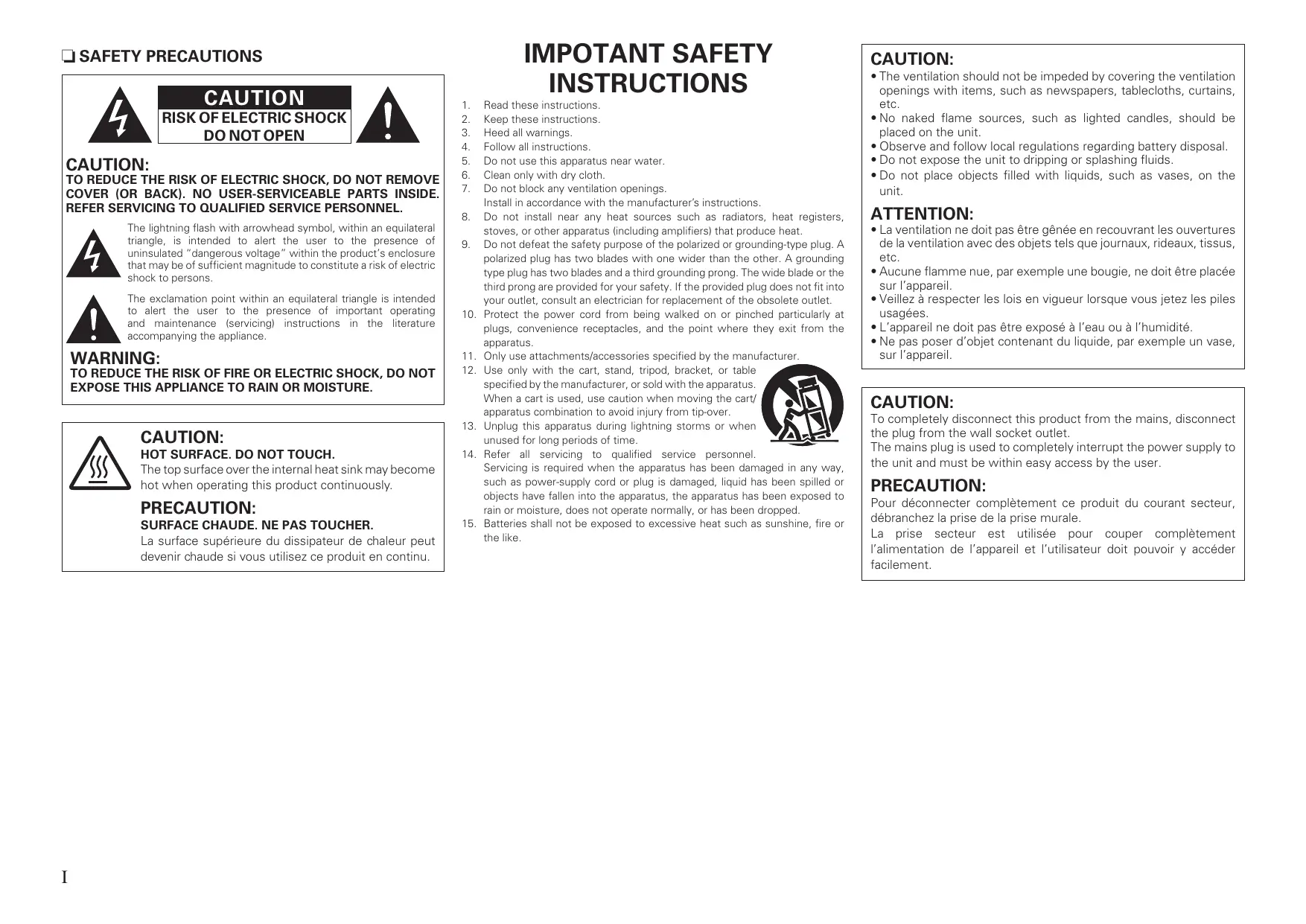
CAUTION: TO REDUCE THE RISK OF ELECTRIC SHOCK, DO NOT REMOVE COVER (OR BACK). NO USER-SERVICEABLE PARTS INSIDE. REFER SERVICING TO QUALIFIED SERVICE PERSONNEL. The lightning flash with arrowhead symbol, within an equilateral triangle, is intended to alert the user to the presence of uninsulated “dangerous voltage” within the product’s enclosure that may be of sufficient magnitude to constitute a risk of electric shock to persons. The exclamation point within an equilateral triangle is intended to alert the user to the presence of important operating and maintenance (servicing) instructions in the literature accompanying the appliance.
IMPOTANT SAFETY INSTRUCTIONS Read these instructions. Keep these instructions. Heed all warnings. Follow all instructions. Do not use this apparatus near water. Clean only with dry cloth. Do not block any ventilation openings. Install in accordance with the manufacturer’s instructions. Do not install near any heat sources such as radiators, heat registers, stoves, or other apparatus (including amplifiers) that produce heat. Do not defeat the safety purpose of the polarized or grounding-type plug. A polarized plug has two blades with one wider than the other. A grounding type plug has two blades and a third grounding prong. The wide blade or the third prong are provided for your safety. If the provided plug does not fit into your outlet, consult an electrician for replacement of the obsolete outlet. Protect the power cord from being walked on or pinched particularly at plugs, convenience receptacles, and the point where they exit from the apparatus. Only use attachments/accessories specified by the manufacturer. Use only with the cart, stand, tripod, bracket, or table specified by the manufacturer, or sold with the apparatus. When a cart is used, use caution when moving the cart/ apparatus combination to avoid injury from tip-over. Unplug this apparatus during lightning storms or when unused for long periods of time. Refer all servicing to qualified service personnel. Servicing is required when the apparatus has been damaged in any way, such as power-supply cord or plug is damaged, liquid has been spilled or objects have fallen into the apparatus, the apparatus has been exposed to rain or moisture, does not operate normally, or has been dropped. Batteries shall not be exposed to excessive heat such as sunshine, fire or the like. CAUTION:
- The ventilation should not be impeded by covering the ventilation openings with items, such as newspapers, tablecloths, curtains, etc.
- No naked flame sources, such as lighted candles, should be placed on the unit.
- Observe and follow local regulations regarding battery disposal.
- Do not expose the unit to dripping or splashing fluids.
- Do not place objects filled with liquids, such as vases, on the unit. ATTENTION:
Product Name: AV Surround Receiver Model Number: AVR-4310CI This product complies with Part 15 of the FCC Rules. Operation is subject to the following two conditions: (1) this product may not cause harmful interference, and (2) this product must accept any interference received, including interference that may cause undesired operation. Denon Electronics (USA), LLC (a D & M Holdings Company) 100 Corporate Drive Mahwah, NJ 07430-2041 Tel. (800) 497-8921
- Keep the unit free from moisture, water, and dust.
This product, when installed as indicated in the instructions contained in this manual, meets FCC requirements. Modification not expressly approved by DENON may void your authority, granted by the FCC, to use the product.
When connecting this product to network hub or router, use only shielded STP or FTP LAN cables which is available at retailer. Follow all installation instructions. Failure to follow instructions could void your authority, granted by the FCC, to use the product.
- Do not let foreign objects into the unit.
- Ne pas laisser des objets étrangers dans l’appareil.
- Avoid high temperatures. Allow for sufficient heat dispersion when installed in a rack.
This product has been tested and found to comply with the limits for a Class B digital device, pursuant to Part 15 of the FCC Rules. These limits are designed to provide reasonable protection against harmful interference in a residential installation. This product generates, uses and can radiate radio frequency energy and, if not installed and used in accordance with the instructions, may cause harmful interference to radio communications. However, there is no guarantee that interference will not occur in a particular installation. If this product does cause harmful interference to radio or television reception, which can be determined by turning the product OFF and ON, the user is encouraged to try to correct the interference by one or more of the following measures:
- Reorient or relocate the receiving antenna.
- Increase the separation between the equipment and receiver.
- Connect the product into an outlet on a circuit different from that to which the receiver is connected.
- Consult the local retailer authorized to distribute this type of product or an experienced radio/TV technician for help.
- Do not let insecticides, benzene, and thinner come in contact with the unit.
- Unplug the power cord when not using the • Ne pas mettre en contact des insecticides, du benzène et un diluant avec l’appareil. unit for long periods of time.
- Débrancher le cordon d’alimentation lorsque l’appareil n’est pas utilisé pendant de longues périodes. For Canadian customers This Class B digital apparatus complies with Canadian ICES-003. Cet appareil numérique de la classe B est conforme à la norme NMB-003 du Canada.
- Handle the power cord carefully. Hold the plug when unplugging the cord.
- Do not obstruct the ventilation holes.
- Ne pas obstruer les trous d’aération.
- Never disassemble or modify the unit in any way.
n Contents Getting Started·······································································2 Playback····················································································53 Flow of Operations Through Playback·········································2 Cautions on Handling····································································2 Cautions on Installation································································2 Preparations···················································································3 Accessories···················································································3 Insert Batteries in the Remote Control Unit··································3 Operating Range of the Remote Control Unit·······························3 Part Names and Functions····························································4 Front Panel·····················································································4 Display···························································································5 Rear Panel······················································································6 Remote Control Unit······································································7 Important Information·································································53 Playing Components····································································53 Playing a Blu-ray Disc Player/DVD Player·····································53 Playing an iPod® Using a Control Dock for iPod··························53 Playing an iPod® Connected Directly to the AVR-4310CI’s USB Port Tuning in Radio Stations·····························································56 Important Information··································································56 Listening to XM Satellite Radio····················································57 Listening to SIRIUS Satellite Radio··············································58 Listening to HD Radio Stations····················································60 Playing Network Audio, USB Memory Devices························62 Important Information··································································62 Listening to Internet Radio··························································63 Playing Files Stored on a Computer·············································65 Playing Files Stored on USB Memory Devices····························66 Listening to Napster····································································66 Listening to Rhapsody·································································68 Operations During Playback·······················································70 Adjusting the Master Volume·······················································70 Turning Off the Sound Temporarily (Muting)································70 Listening with Headphones·························································70 To Stop·························································································70 Stopping Playback Temporarily·····················································70 Fast-forwarding or Fast-reversing················································70 To Cue to the Beginning of a Track···············································70 Playing Repeatedly······································································70 Selecting Tracks············································································70 Shuffling Playback········································································70 Playing in Random Order·····························································70 Searching Pages··········································································70 Searching by First Letter······························································70 Selecting the Surround Mode (Surround Mode)······················71 Adjusting the Sound and Picture Quality (Audio/Video Adjust)
- ······································································································73 Adjusting the Sound (Audio Adjust)·············································73 Adjusting the Picture Quality (Picture Adjust)······························77 Connections··············································································9 Important Information···································································9 Cables Used for Connections························································9 Converting Input Video Signals for Output (Video Conversion Function)······················································································ 10 Installing / Setting the Speakers················································11 Speaker Connections···································································13 Connecting Devices·····································································14 Connecting the Power Cord························································24 Once Connections are Completed··············································24 Turning the Power On··································································24 Turning the Power Off··································································24 Settings·····················································································25 GUI Menu Map·············································································25 GUI Menu Operation····································································26 Example of the Display of the GUI Mark at a Title·······················26 Examples of GUI Menu Screen Displays·····································26 Selecting the Input Source··························································27 Make the Optimal Speaker Settings, and Correct the Room Acoustics (Audyssey™ Auto Setup)··········································28 Making Detailed Settings (Manual Setup)································34 Making the Input Settings (Source Select)·······························46 Important Information··································································46
Checking the Status (Information)······························78 Other Operations and Convenient Functions········79 Other Operations·········································································79 Playing a Blu-ray Disc Player Compatible with DENON LINK 4th79 Playing Super Audio CD·······························································79 Recording on an External Device (REC OUT mode)····················80 Convenient Functions··································································80 HDMI Control Function································································80 Setting the Power to Standby After a Certain Amount of Time ··81 (Sleep Timer Function)·································································81 Adjust the Volume of the Speakers··············································81 Saving Frequently Used Settings ················································82 (Quick Select Function)································································82 Playing the Same Network Audio on Different Devices Connected in a Network (Party Mode Function)············································82 Operating a Wireless LAN-Compatible Mobile Terminal to Play Music and Still Pictures·······························································83 Operating the AVR-4310CI with a Browser (Web Control Function)································································84 Various Memory Functions··························································85 Playing in ZONE2/ZONE3 (Multi-zone Function)·························································86 Audio Output················································································86 q Zone Playback by Speaker Output···········································86 w Zone Playback by Audio Output (PRE OUT)····························86 Video Output················································································86 Video Connection········································································86 Playback························································································87 Menu Operation···········································································88 Quick Select Function··································································88 Sleep Timer Function···································································88 Installing/Setting the Speakers (vpage 11) Speaker Connections (vpage 13) Connecting Devices (vpage 14) Turning the Power On (vpage 24) Audyssey™ Auto Setup (vpage 28) Manual Setup (vpage 34)
- Cautions on using mobile phones Using a mobile phone near this unit may result in noise. If so, move the mobile phone away from this unit when it is in use.
- Moving the unit Turn off the power and unplug the power cord from the power outlet. Next, disconnect the connection cables to other system units before moving the unit.
- Note that the illustrations in these instructions may differ from the actual unit for explanation purposes. b Perform “Manual Setup” as necessary. Source Select (vpage 46) List of preset codes···································End of this manual Cautions on Installation Note: For proper heat dispersal, do not install this unit in a confined space, such as a bookcase or similar enclosure. Playback
b Note Troubleshooting Specifications·······································································112 Remote Control Information Settings
- About condensation If there is a major difference in temperature between the inside of the unit and the surroundings, condensation (dew) may form on the operating parts inside the unit, causing the unit not to operate properly. If this happens, let the unit sit for an hour or two with the power turned off and wait until there is little difference in temperature before using the unit. Multi-zone Restoring All the Settings to as They were at the Time of Purchase (Resetting the Microprocessor)································111 Connections
- Power is supplied to some of the circuitry even when the unit is set to the standby mode. When traveling or leaving home for long periods of time, be sure to unplug the power cord from the power outlet. Playback Troubleshooting·································································108 Perform the operations leading to playback on the AVR-4310CI in the order shown below. Cautions on Handling
- Before turning the power switch on Check once again that all connections are correct and that there are no problems with the connection cables. Settings Other Information································································99 Flow of Operations Through Playback Connections Operating the Main Remote Control Unit·································89 Operating AV Equipment·····························································89 Presetting·····················································································90 Operating Preset Components····················································90 Setting the Remote ID·································································93 Learning Function········································································94 MACRO Function·········································································94 Punch Through Function·······························································95 Setting the Time the Backlight Stays Lit······································95 Adjusting the Backlight’s Brightness············································95 Specifying the Zone Used with the Main Remote Control··········96 Resetting the Main Remote Control Unit····································96 Operating the Sub Remote Control Unit···································97 Switching Zones··········································································98 Switching the Multi-zone Input Source to the Same Input Source as Used in the MAIN ZONE·························································98 Setting the Zone for Which the Sub Remote Control Unit is Used (ZONE SELECT LOCK Mode)······················································98 Setting the Remote ID·································································98 Resetting the Settings·································································98 Getting Started Getting Started Operating the Connected Devices by Remote Control Unit············································································89 Getting Started Preparations Connections Thank you for purchasing this DENON product. To ensure proper operation, please read this owner’s manual carefully before using the product. After reading them, be sure to keep them for future reference. Accessories Check that the following parts are supplied with the product. Settings Playback Multi-zone Remote Control Information q Owner’s manual....................................................................... 1 w Getting started......................................................................... 1 e Warranty (for North America model only)................................. 1 r Service station list.................................................................... 1 t Power cord (Cord length: Approx. 6.2 ft / 1.9 m)..................... 1 y Main remote control unit (RC-1116)......................................... 1 u LR6/AA batteries (for RC-1116)................................................ 2 i Sub remote control unit (RC-1121)........................................... 1 o R03/AAA batteries (for RC-1121).............................................. 2 Q0 AM loop antenna (for HD Radio broadcasts)............................ 1 Q1 Dipole antenna (for HD Radio broadcasts)............................... 1 Q2 Setup microphone (DM-A409, Cord length: Approx. 25 ft / 7.6 m)........................ 1
Insert Batteries in the Remote Control Unit In addition to the AVR-4310CI, the included main remote control unit (RC-1116) can also be used to operate the equipment listed below. q DENON system components w Non-DENON system components
- To operate component products other than DENON, you must set the preset code (vpage 90 “Presetting”).
- When using component products other than DENON, if you cannot set the preset code, use the learning function (vpage 94 “Learning Function”). Inserting the Batteries q Lift the clasp and remove the rear lid. (RC-1116) (RC-1121) NOTE
- Insert the specified batteries in the remote control unit.
- Replace the batteries with new ones if the set does not operate even when the remote control unit is operated close to the unit. (The supplied batteries are only for verifying operation.)
- When inserting the batteries, be sure to do so in the proper direction, following the “q” and “w” marks in the battery compartment.
- To prevent damage or leakage of battery fluid:
- Do not use a new battery together with an old one.
- Do not use two different types of batteries.
- Do not attempt to charge dry batteries.
- Do not short-circuit, disassemble, heat or dispose of batteries in flames.
- If the battery fluid should leak, carefully wipe the fluid off the inside of the battery compartment and insert new batteries.
- Remove the batteries from the remote control unit if it will not be in use for long periods.
- Used batteries should be disposed of in accordance with the local regulations regarding battery disposal. Operating Range of the Remote Control Unit w Load the two batteries properly as indicated by the marks in the battery compartment. (RC-1116) (RC-1121) Point the remote control unit at the remote sensor when operating it. R03/AAA LR6/AA
e Put the rear cover back on. Approx. 23 feet / 7 m Specifications (RC-1116) NOTE The set may function improperly or the remote control unit may not operate if the remote control sensor is exposed to direct sunlight, strong artificial light from an inverter type fluorescent lamp or infrared light.
Getting Started GWith the door openH Part Names and Functions
Front Panel For buttons not explained here, see the page indicated in parentheses ( ).
q Power operation button····························· (24) w Power indicator··········································· (24) e Power switch··············································· (24) r Door t QUICK SELECT buttons······························ (82) y MASTER VOLUME control knob················ (70) u AUDYSSEY Q7 Headphones jack········································· (70) Q8 ZONE2 ON/OFF button······························· (87) Q9 ZONE3 ON/OFF button······························· (87) W0 INPUT MODE button··································· (49) W1 MENU button··············································· (26) W2 Cursor buttons (uio p)··························· (26) W3 ENTER button·············································· (26) W4 RETURN button··········································· (26) W5 V.AUX INPUT connectors··························· (20) W6 SETUP MIC jack··········································· (29) W3 W4
W7 HDMI IN connector······································ (14) W8 USB (iPod DIRECT) port······························ (21) W9 STATUS button··········································· (78) E0 DSX button·················································· (76) E1 RESTORER button······································· (77) E2 DIRECT/STEREO button····························· (72) E3 PURE DIRECT button·································· (72) E4 DSP SIMULATION button··························· (72) E5 STANDARD button······································ (71) DYNAMIC VOLUME™ indicator················· (75) i AUDYSSEY DSX indicator·························· (76) o Master volume indicator Q0 Display Q1 Remote control sensor································· (3) Q2 SOURCE SELECT knob······························· (27) Q3 SOURCE button··········································· (27) Q4 TUNING PRESET button················· (58, 59, 61) Q5 ZONE 2/3 / REC SELECT button·········· (80, 87) Q6 VIDEO SELECT button································ (48) Troubleshooting When you are using buttons and/or terminals behind the door, press the bottom of the door to open it. When not using buttons and/or terminals behind the door, close it. Be careful not to catch your fingers when closing the door.
Getting Started Part Names and Functions Display
Multi-zone q Input signal indicators w Input signal channel indicators Remote Control Information These light when digital signals are input. When playing HD Audio sources, the“ indicator lights when an extension channel (a channel other than the front, center, surround, surround back or LFE channel) is input. If there are two or more extension channels, the “ and “ ” indicators light.
Q1 AUDYSSEY MULTEQ XT indicators Lighting is as follows, depending on the setting of “Dynamic EQ” (vpage 75) and “Dynamic Volume” (vpage 76).
: When “Dynamic EQ” and “Dynamic Volume” are “ON”.
: When the “Dynamic EQ” setting is “ON” and the “Dynamic Volume” setting is “OFF”.
: When “Dynamic EQ” and “Dynamic Volume” are “OFF”. e Information display The input source name, surround mode, setting values and other information are displayed here. r Output signal channel indicators t Surround speaker indicators These light according to the settings of the surround A and B speakers. Troubleshooting y Monitor output indicators These light according to the HDMI monitor output setting. When set to “Auto (Dual)”, the indicators light according to the connection status. Specifications u QUICK SELECT indicators i Master volume indicator o MUTE indicator This lights when the mute mode is selected. Q0 PARTY indicators These indicators light during party mode.
- ORGANIZER This lights to indicate that party mode has started as Organizer.
- ATTENDEE This lights to indicate that party mode has started as Attendee.
Q2 SLEEP indicator This lights when the sleep mode is selected. Q3 RESTORER indicator This lights when the RESTORER mode is selected. Q4 Multi zone indicators These light when the power for the respective zone is turned on. Q5 AL24 indicator This lights when AL24 Processing Plus (vpage
Q6 Input mode indicators Q7 D.LINK indicator This lights when playing using DENON LINK connections. r t y Q8 HDMI indicator This lights when playing using HDMI connections. Q9 Tuner reception mode indicators These light according to the reception conditions when the input source is set to “HD Radio”.
- STEREO In the FM mode, these light when receiving analog stereo broadcasts.
- TUNED Lights when the broadcast is properly tuned in.
- AUTO These light when in the auto tuning mode. W0 Recording output source indicator This lights when the REC OUT mode is selected. W1 Decoder indicators These light when the respective decoders are operating. W2 HD indicator This lights during HD Radio reception. Rear Panel
Getting Started Part Names and Functions Connections Settings Playback
i AC inlet························································· (24) o AC OUTLETS················································ (24) Q0 HD Radio antenna terminals················ (19, 20) Q1 ETHERNET connector································· (23) Q2 USB (iPod DIRECT) port······························ (21) Q3 XM connector·············································· (18) Q4 Digital audio connectors····················· (15 ~ 19)
Q5 DENON LINK connector······························ (20) Q6 COMPONENT VIDEO connectors··········(15, 17) Q7 HDMI connectors········································· (14) Q8 VIDEO / S-VIDEO connectors············· (15 ~ 18) Q9 Analog audio connectors···················· (15 ~ 18) W0 PRE OUT connectors····························· (22, 86) W1 EXT. IN connectors······································ (21) Specifications q SIRIUS connector········································ (19) w RS-232C connector······································ (22) e REMOTE CONTROL jacks··························· (22) r TRIGGER OUT jacks···································· (22) t DOCK CONTROL jack·································· (16) y Speaker terminals······································· (13) u SIGNAL GND terminal································ (16)
Getting Started Part Names and Functions n Operations Possible by Main Remote Control Unit Remote Control Unit Operations on the AVR-4310CI Operations on 9 devices other that the AVR-4310CI Main Remote Control Unit (RC-1116) Connections
q Signal transmission indicator···················· (89) w Device select buttons·································· (89) e Zone indicators / MACRO indicator··········· (89) r MENU / SEARCH button···························· (26) t RESTORER button······································· (76) y CHANNEL LEVEL button···························· (81) u Channel buttons (CH)··························(58 ~ 61) i Input source select buttons························ (27) Number buttons····························(58 ~ 61, 64) o TV INPUT button········································· (91) Q0 Remote control signal transmitter·············· (3) Q1 QUICK SELECT button·························· (82, 88)
- Preset the remote control codes of the devices to be operated (vpage 90).
- The function button indicator changes depending on the Device select button you have selected. Selected Device select button Function button indicator
MACRO button············································ (94) Remote Control Information See “Operations Possible by Main Remote Control Unit” (vpage 7, 8) for more information. Q3 Power operation buttons
(POWER ON / OFF)································ (24, 87) Q4 Cursor buttons (uio p)·························· (26) Q5 ENTER button·············································· (26) Q6 Return button (RTN)··································· (26) Q7 SOURCE SELECT button···························· (27) Q8 Master volume control buttons (VOL)······ (70) Q9 Muting button (MUTE)······························· (70) W0 RC SETUP button········································ (90) NOTE Specifications The ZONE4 mode cannot be used.
- DSP SIMULATION button (SIMU) W7 PARTY button··················································· (82) W8 Monitor select button (M.SEL)······················· (37) W9 Video select button (V.SEL)···························· (48) E0 Multi-zone power buttons······························· (87) Q2 Function buttons
W1 MULTEQ® XT button (MULTEQ)···················· (75) W2 DSX button (SPKR)·········································· (76) W3 Sleep timer button (SLEEP)······················ (81, 88) W4 DYNAMIC EQ™ button (DYN EQ)··················· (75) W5 DYNAMIC VOLUME™ button (DYN VOL)······ (75) W6 Surround mode buttons···························· (71, 72)
- Muiti-zone power on button (ON)
- Muiti-zone power off button (OFF) E1 Device power buttons······························· (90, 91)
- Device power on button (ON)
- Device power off button (OFF) E2 System buttons··································(70, 90 ~ 92)
- Stop button (2) QUICK SELECT button······························· (82, 88)
MACRO button················································· (94)
(DIRECT PLAY) button································ (97) W3 USB (DIRECT PLAY) button·················· (66, 97) Remote Control Information
Multi-zone The time for which the backlight stays on can be changed (vpage 95 “Setting the Time the Backlight Stays Lit”). Playback n Multi-zone (ZONE2 / ZONE3) operations (vpage 86) n Punch through setting (vpage 95) Settings
- Tuning down / Channel down button (TU f)
- Tuning up / Channel up button (TU d)
- FM/AM band switching button (BAND)z
- Tuning mode (Auto / Manual) button (MODE)
- Preset memory button (MEMO) z : HD Radio only q ZONE indicators·········································· (98) w QUICK SELECT buttons························ (82, 88) e Input source select buttons························ (97) r SHIFT button··································(57 ~ 59, 97) t CHANNEL button········································ (97) y MENU button········································· (88, 97) u Cursor buttons (uio p)·························· (97) i SEARCH button····································· (70, 97) o REPEAT button······································ (70, 97) Q0 RANDOM button··································· (70, 97) Q1 Remote control signal transmitter·············· (3) Q2 ZONE SELECT button································· (98) Q3 Zone power on/off buttons························ (87) Q4 Advanced setup button······························ (98) Q5 MAIN ZONE call button······························ (98) Q6 Master volume control buttons················· (87) Q7 Muting button (MUTE)······························· (87) Q8 MEMORY button········································· (97) Q9 ENTER button·············································· (97) W0 RETURN button··········································· (97) W1 System buttons··········································· (97)
W2 ALL MUSIC/FAVORITES
Connections E5 Preset Channel buttons·····················(58 ~ 61, 64) E6 Tuner system buttons·····························(57 ~ 60) Getting Started Part Names and Functions
Getting Started Connections Important Information Connections Settings Connections for all compatible audio and video signal formats are described in this owner’s manual. Please select the types of connections suited for the equipment you are connecting. After connections are completed, certain settings must be made on the receiver. Make the settings indicated “ Set as Necessary ” for the individual items. Cables Used for Connections Select the cables (sold separately) according to the equipment being connected. Audio cables Playback Coaxial digital connections Multi-zone Optical digital connections Analog (White) connections (Red) (stereo, surround) Remote Control Information Analog connections (monaural, for subwoofer) Coaxial digital cable Optical cable Video connections
(Blue) (Red) S-Video cable (Yellow) Video cable Other cables Audio cable DENON LINK connections Audio cable Network connections Speaker cables (Green) Component video cable S-Video connections Speaker connections Troubleshooting Specifications
Component video connections HDMI cable NOTE
- Do not plug in the power cord until all connections have been completed.
- When making connections, also refer to the operating instructions of the other components.
- Be sure to connect the left and right channels properly (left with left, right with right).
- Do not bundle power cords together with connection cables. Doing so can result in humming or noise. Video cables Audio and video cables HDMI connections DENON LINK cable Ethernet cable Set as Necessary Converting Input Video Signals for Output (Video Conversion Function) AVR-4310CI NOTE Input (IN) HDMI connector HDMI connector HDMI connector HDMI connector Component video connectors Component video connectors Component video connectors Component video connectors S-Video connector S-Video connector S-Video connector S-Video connector Video connector Video connector Video connector Video connector Multi-zone Output (MONITOR OUT) Output Input Remote Control Information Troubleshooting : When 480i/576i signals are input GFlow of video signals for ZONE2H AVR-4310CI Monitor Output Input (IN) S-Video connector S-Video connector Video connector Video connector Output (MONITOR OUT) Video connector Specifications Video device Playback Monitor Video device
- HDMI signals cannot be converted into analog signals.
- When a non-standard video signal from a game machine or some other source is input, the video conversion function might not operate.
- 480p/576p/1080i/720p/1080p component video input signals cannot be converted into S-Video or Video format. Settings GFlow of video signals for MAIN ZONEH Resolutions of HDMI-compatible TVs can be checked at “HDMI Information” – “Monitor1” or “Monitor2” (vpage 78). Connections The AVR-4310CI has 4 different types of video input/output terminal (HDMI, Component video, S-Video, Video). Use the terminals according to the devices to be connected. This function automatically converts various formats of video signals input to the AVR-4310CI into the format used to output the video signals from the AVR-4310CI to a monitor. (vpage 107 “Relationship Between Video Signals and Monitor Output”).
n When 7.1ch (Front Height Speaker) Connected Subwoofer Center speaker Monitor Subwoofer Point slightly downwards Front height speaker Front speaker Surround speaker
Multi-zone Surround speakers GAs seen from aboveH GAs seen from aboveH n When 7.1ch (Surround Back Speaker) Connected 2 to 3 feet / 60 to 90 cm GAs seen from the sideH Front speakers Remote Control Information Center speaker Monitor Front speakers Center speaker Monitor Front wide speakers
Troubleshooting Surround speakers Surround Surround Surround back speakers speaker A speaker A Surround Surround speaker B speaker B Specifications NOTE
- It is not possible to use the surround back speakers, front height speakers and front wide speakers simultaneously.
- Connect the surround speakers for watching movies to the surround A terminals, and the surround speakers for multichannel audio listening to the surround B terminals.
- The same surround signals are output from the surround A and surround B terminals. z1: 22 ~ 30˚ z2: 90˚ ~ 110˚ z3: 135˚ ~ 150˚ GAs seen from aboveH Front speakers Center speaker Monitor Subwoofer z1: 22 ~ 30˚ z2: 90˚ ~ 110˚ Subwoofer
Surround Surround back speaker speaker Front speaker 2 to 3 feet / 60 to 90 cm Point slightly downwards
Surround speakers GAs seen from aboveH GAs seen from the sideH Surround Surround back speaker speaker Front speaker 2 to 3 feet / 60 to 90 cm Point slightly downwards Surround back speaker Surround back speakers GAs seen from the sideH n When 5.1ch Connected Front speakers Center speaker Monitor z1: 22 ~ 30˚ z2: 90˚ ~ 110˚ z3: 120˚ z1: 22 ~ 30˚ z2: 120˚ Subwoofer
Surround speakers A Surround speakers B Surround back speakers GAs seen from aboveH
Front speaker Front wide speaker Surround speakers Subwoofer Subwoofer Surround speaker
2 to 3 feet / 60 to 90 cm GAs seen from the sideH z1: 22 ~ 30˚ z2: 55 ~ 60˚ z3: 90 ~ 110˚ Surround Surround back speaker A speaker Front speaker 2 to 3 feet / Point slightly 60 to 90 cm downwards Surround speaker B GAs seen from the sideH
Playback Front wide speakers
Settings Installing All the Speakers Front wide speakers Front speakers
Center speaker a Determine the Speaker Layout Below we introduce examples of speaker layouts. Refer to these to arrange your speakers according to their type and how you want to use them. n When 7.1ch (Front Wide Speaker) Connected Front height speakers Front speakers
the surround space to create an even wider and deeper perspective. To use Audyssey DSX, install front wide or front height speakers. To use Dolby Pro Logic gz, install front height speakers.
Getting Started Installing / Setting the Speakers Front speaker Surround speaker 2 to 3 feet / 60 to 90 cm Surround speakers GAs seen from aboveH GAs seen from the sideH s Set the “Amp Assign” Mode According to the Speaker Layout The signals output from the AVR-4310CI’s SURR. BACK/AMP ASSIGN speaker terminals can be switched (vpage 34 “Amp Assign”). SURR. BACK / AMP ASSIGN Speaker connections Amp assign mode (vpage 34) Example of speaker installation (Number of channels played) SURR. BACK / AMP ASSIGN Speaker connections Example of speaker installation (Number of channels played) MAIN ZONE ZONE (MONO) ZONE2 speaker R ch : ZONE3 speaker (5.1) Normal Front Speakers Bi-Amp (6.1) (5.1) Multi channel surround Exclusively for 2-channel playback Front Speakers b Set “Surround Back” (vpage 35) to “None”. 2CH (5.1) b Connect the speakers for 2-channel playback to the SURR. BACK/AMP ASSIGN terminal. ZONE2 ZONE2 speakers (5.1) Switching (5.1) (2) Front Height Speakers Specifications Front Height DIRECT/ STEREO (2) (7.1) MAIN ZONE ZONE3 ZONE3 ZONE3 speakers Front Wide (5.1) (2) Troubleshooting MAIN ZONE ZONE2 (Default) b For connections, see “About Bi-amp Connections” (vpage 13). Remote Control Information b Connect to the “L” speaker terminal. b Set “Surround Back” (vpage 35) “1spkr”. Not connected Normal (1) Multi-zone Surround Back L Speaker (1 speaker) Playback (7.1) L ch : ZONE2 or ZONE3 Settings Normal Surround Back Speakers (2 speakers) Connections Amp assign mode (vpage 34) Getting Started Installing/Setting the Speakers Front Wide Speakers (7.1)
Getting Started Speaker Connections Front speakers Connections (L) Settings
Center speaker Surround speakers A (L) (R) q w
Connecting the Speaker Cables
Subwoofer Subwoofer with built-in amplifier (R)
Carefully check the left (L) and right (R) channels and + (red) and – (black) polarities on the speakers being connected to the AVR-4310CI, and be sure to interconnect the channels and polarities correctly.
About Bi-amp Connections These connections make for higher quality playback sound with no interference between the signals of the bass and treble units. When the “Amp Assign” setting (vpage 34) is “Bi-Amp”, connect as follows. Front speakers Peel off about 0.03 ft/10 mm of sheathing from the tip of the speaker cable, then either twist the core wire tightly or terminate it.
(R) AVR-4310CI Multi-zone Turn the speaker terminal counterclockwise loosen it. the speaker cable’s 3 Insert core wire to the hilt into Remote Control Information the speaker terminal. the speaker terminal 4 Turn clockwise to tighten it. n When using a banana plug Troubleshooting For connections of the SURR. BACK/AMP ASSIGN speaker terminals, see “Set the “Amp Assign” Mode According to the Speaker Layout” (vpage 12). Protection Circuit Specifications If the core wires touch the rear panel and the screws etc., or the ± sides touch each other, the protection circuit will be activated and the power indicator will flash red at intervals of 0.5 secs. If the protection circuit is activated, the speaker output is isolated, and the power supply goes to the standby state. If the power supply is turned off, after the power supply cord is withdrawn, please confirm that speaker cable and input cable are connected. Also, if replaying large sound levels by using a speaker having an impedance less than that specified (eg, 4 Ω/ohms), the temperature will rise, and the protection circuit might be activated. The power supply will go into the standby state, and the power indicator will flash red at 2 second intervals.
In this case, please switch off the power supply, and wait until the AVR-4310CI has cooled down, and the surrounding ventilation is good. Even if there are no problems with the surrounding ventilation and connections, in the event of the protection circuit becoming activated, due to thinking that the AVR-4310CI has failed, please contact DENON Service center after switching off. Tighten the speaker terminal firmly before inserting the banana plug. Use speakers with an impedance of 6 to 16 Ω/ ohms. When using surround A and B speakers simultaneously, use speakers with an impedance of 8 to 16 Ω/ohms. NOTE
- Connect so that the speaker cable core wires do not protrude from the speaker terminal. The protection circuit may be activated if the core wires touch the rear panel or if the + and – sides touch each other (v“Protection Circuit”).
- Never touch the speaker terminals while the power supply is connected. Doing so could result in electric shock. When making a bi-amp connection, the same signal is output from the front speaker terminal and the SURR.BACK/AMP ASSIGN terminal. NOTE
- Use speakers compatible with bi-amp connections.
- When making bi-amp connections, be sure to remove the short-circuiting plate or wire between the speaker’s woofer and tweeter terminals. Connecting Devices (vpage 14) (vpage 14) n Connecting the Recording Components n Connect the Tuner n Connections to Other Devices n Connecting to a Home Network (LAN) (vpage 23) Digital video recorder
“HDMI”, “HDMI logo” and “High-Definition Multimedia Interface” are trademarks or registered trademarks of HDMI Licensing LLC. n Functions Usable with HDMI Connections Deep Color Eliminates on-screen color banding, for smooth tonal transitions and subtle gradations between colors. Enables increased contrast ratio. x.v.Color Lets HDTVs display colors more accurately. Enables displays with natural, vivid colors. “x.v.Color” is a Sony registered trademark. [Rear Panel] Auto Lip Sync (vpage 37) NOTE If you connect the receiver to a TV that supports the Auto Lip Sync function, it can automatically correct delay between the audio and video. HDMI Control Function (vpage 80) This function allows you to operate external devices from the receiver and operate the receiver from external devices. NOTE
n Copyright Protection System (HDCP) The AVR-4310CI supports HDCP (High-bandwidth Digital Contents Protection). HDCP is a copyright protection technology for digital video signals. The devices connected to the AVR-4310CI must also support HDCP. [Front Panel] NOTE When a device that does not support HDCP is connected, video signals are not properly output.
- These functions will not work if the device connected to the HDMI terminal does not support Deep Color or x.v.Color signal transfer or the Auto Lip Sync function.
- The HDMI control function may not work depending on the device it is connected to and its settings.
- You cannot operate a TV or Blu-ray Disc player / DVD player that is not compatible with the HDMI control function.
Depending on the monitor you have connected, the display may not be correct when you set to “Auto (Dual)”. In such a case, set to either “Monitor 1” or “Monitor 2” (vpage 37). Troubleshooting
HD player Satellite receiver Multi-zone
- Digital Video Recorder (vpage 17)
- Video Cassette Recorder (vpage 17) “HDMI” is the abbreviation of “High Definition Multimedia Interface”. This interface allows transfer of digital video signals and digital audio signals over a single HDMI cable. DVD player Playback
- Record Player (vpage 16) n About HDMI The AVR-4310CI allows connection of inputs from up to 6 HDMI devices and output to 2 monitors. Settings n Connecting the Monitor (vpage 15) n Connecting the Playback Components Important Information Connections Connections n Connecting Devices Equipped with HDMI Terminals Connecting Devices Equipped with HDMI Terminals Getting Started Connecting Devices Getting Started Connecting Devices Connections Settings
- Use a cable on which the HDMI logo is indicated (a certified HDMI product) for connection to the HDMI connector. Normal playback may not be possible when using a cable other than one on which the HDMI logo is indicated (a non-HDMI-certified product).
- When the AVR-4310CI is connected to other devices with HDMI cables, also connect the AVR-4310CI and TV using an HDMI cable.
- When a device supporting Deep Color signal transfer is connected, use a cable compatible with HDMI version 1.3a.
- Video signals are not output if the input video signals do not match the monitor’s resolution. In this case, switch the Blu-ray Disc/ DVD player’s resolution to a resolution with which the monitor is compatible. Connecting the Monitor
- Select the terminal to use and connect the device.
- For video connections, see “Converting Input Video Signals for Output (Video Conversion Function)” (vpage 10). For instructions on HDMI connections, see “Connecting Devices Equipped with HDMI Terminals” on page 14. Monitor 7*%&0
Blu-ray Disc Player / DVD Player Select the terminal to use and connect the device. For instructions on HDMI connections, see “Connecting Devices Equipped with HDMI Terminals” on page 14. Blu-ray Disc player / DVD player 7*%&0 47*%&0
- If the GUI menu “HDMI Audio Out” setting (vpage 37) is set to “Amp”, the sound may be interrupted when the monitor’s power is turned off.
- The audio signal from the HDMI output terminal (sampling frequency, number of channels, etc.) may be limited by the HDMI audio specifications of the connected device regarding permissible inputs. "6%*0
$0"9*"065 n Connecting to a Device Equipped with a DVI-D Terminal When an HDMI/DVI conversion cable (sold separately) is used, the HDMI video signals are converted to DVI signals, allowing connection to a device equipped with a DVI-D terminal. NOTE Troubleshooting
- No sound is output when connected to a device equipped with a DVI-D terminal. Also make the audio connections.
- Signals cannot be output to DVI-D devices that do not support HDCP.
- Depending on the combination of devices, the video signals may not be output. Settings Related to HDMI Connections Set as necessary. For details, see the respective reference pages. Specifications n Input Assign (vpage 46) Set this to change the HDMI input terminal to which the input source is assigned. n HDMI Setup (vpage 37) Make settings for HDMI video/audio output.
- HDMI Control NOTE The audio signals output from the HDMI connectors are only the HDMI input signals.
To listen to TV audio through this device, use the optical digital or analog connection. Set as Necessary Set this to change the input signal to which the input source is assigned. “Input Assign” (vpage 46) NOTE In the case of HD audio (Dolby TrueHD, DTS-HD and Dolby Digital Plus and DTS Express) audio playback, connect with HDMI (vpage 14, “Connecting Devices Equipped with HDMI Terminals”). Control Dock for iPod CD Player Use a DENON control dock for iPod (ASD-1R or ASD-11R, sold separately) to connect the iPod to the AVR-4310CI. For instructions on the control dock for iPod settings, refer to the control dock for iPod’s operating instructions. Select the terminal to use and connect the device. Turntable (MM cartridge) CD player Connections Control dock for iPod Record Player "6%*0 "6%*0
Getting Started Connecting Devices Remote Control Information Set as Necessary
- With the default settings, the iPod can be used connected to the VCR (iPod) connector.
- You can also connect the iPod you are using directly to the USB port of the AVR-4310CI (vpage 21 “USB Port”). NOTE The SIGNAL GND terminal of the AVR-4310CI is not a safety ground connection. Connect it to reduce noise when noise is excessive. Note that depending on the record player, connecting the ground line may have the reverse effect of increasing noise. In this case, it is not necessary to connect the ground line.
Specifications Set other than when iPod is assigned to the VCR (iPod) terminal. “Input Assign” – “iPod dock“ (vpage 48) Troubleshooting Set as Necessary Set this to change the input signal to which the input source is assigned. “Input Assign” (vpage 46)
- The AVR-4310CI is compatible with record players with an MM cartridge. When you connect to a record player with an MC cartridge, use a commercially available MC head amp or a step-up transformer.
- When you increase the volume without connecting the record player, there may be “booming” noise from the speakers. Getting Started Connecting Devices Video Cassette Recorder Connecting the Recording Components Select the terminal to use and connect the device. Digital Video Recorder Connections For instructions on HDMI connections, see “Connecting Devices Equipped with HDMI Terminals” on page 14. Select the terminal to use and connect the device. For instructions on HDMI connections, see “Connecting Devices Equipped with HDMI Terminals” on page 14. Video cassette recorder "6%*0 Settings Digital video recorder "6%*0 015*$"065 7*%&0 "6%*0
Remote Control Information Troubleshooting Set as Necessary Specifications Set as Necessary Set this to change the input signal to which the input source is assigned. “Input Assign” (vpage 46)
- To record video signals through the AVR-4310CI, use the same type of video cable for connection between the AVR-4310CI and the player as the cable used for connection between the AVR-4310CI and the recorder.
- Do not connect the output of the component connected to the AVR4310CI’s OPTICAL2 (DVR) output connector to any input connector other than OPTICAL2 (DVR). Set this to change the input signal to which the input source is assigned. “Input Assign” (vpage 46) NOTE To record video signals through the AVR-4310CI, use the same type of video cable for connection between the AVR-4310CI and the player as the cable used for connection between the AVR-4310CI and the recorder. Connect the Tuner For instructions on HDMI connections, see “Connecting Devices Equipped with HDMI Terminals” on page 14.
- The AVR-4310CI is an XM Ready® receiver. You can receive XM® Satellite Radio by connecting to the XM Mini-Tuner and Home Dock (includes home antenna, each sold separately) and subscribing to the XM service.
- Plug the XM Mini-Tuner and Home Dock into the XM connector on the rear panel.
- Position the Home Dock antenna near a south-facing window to receive the best signal. For details, see “Listening to XM Satellite Radio” (vpage 57). When making connections, also refer to the operating instructions of the XM Mini-Tuner and Home Dock. For instructions on HDMI connections, see “Connecting Devices Equipped with HDMI Terminals” on page 14. Satellite Receiver / Cable Tuner 47*%&0
XM Mini-Tuner and Home Dock
"6%*0 7*%&0 Settings Select the terminal to use and connect the device. 7*%&0
XM Connector Connections Select the terminal to use and connect the device. Satellite Receiver / Cable Tuner (Set Top Box) Getting Started Connecting Devices
Remote Control Information Set as Necessary SIRIUS, XM and all related marks and logos are trademarks of Sirius XM Radio Inc. and its subsidiaries. All rights reserved. Service not available in Alaska and Hawaii.
Specifications Set as Necessary Set this to change the input signal to which the input source is assigned. “Input Assign” (vpage 46) Set this to change the input signal to which the input source is assigned. “Input Assign” (vpage 46) Troubleshooting NOTE Keep the power cord unplugged until the XM Mini-Tuner and Home Dock connection have been completed. Getting Started Connecting Devices SIRIUS Connector HD Radio Terminals NOTE Connections Settings
- The AVR-4310CI is a SIRIUS Satellite Radio Ready® receiver. You can receive SIRIUS® Satellite Radio by connecting to the SiriusConnect Home Tuner and subscribing to the SIRIUS service.
- Plug the SIRIUS connector on the SIRIUS service.
- Position the Home Tuner antenna near a south-facing window to receive the best signal. For details, see “Listening to SIRIUS Satellite Radio” (vpage 58). When making connections, also refer to the operating instructions of the SiriusConnect Home Tuner. SiriusConnect Home Tuner Keep the power cord unplugged until the SiriusConnect Home Tuner connection have been completed. HD Radio is a service that is only available within the United States. SIRIUS, XM and all related marks and logos are trademarks of Sirius XM Radio Inc. and its subsidiaries. All rights reserved. Service not available in Alaska and Hawaii. n Positioning the Antenna For a consistent satellite signal, the antenna must be positioned correctly. Use the following map to determine which area you are in and position the antenna accordingly. Direction of broadcasting station AM loop antenna (for HD Radio broadcasting, supplied)
- To prevent interference, install at least 3.3 feet/ 1 m away from the antenna connected to the AVR-4310CI’s other AM tuner terminal. Playback FM antenna SKY Multi-zone NORTH Remote Control Information WEST
b When connecting digital audio
SOUTH HORIZON FM indoor antenna (dipole, for HD Radio broadcasting, supplied) Area 1 : Point the antenna toward the sky in the east, northeast, or southeast, either through a window or outside. Troubleshooting Area 2 : Point the antenna toward the sky in the north or northeast, either through a window or outside. Area 3 : Point the antenna toward the sky in the north or northwest, either through a window or outside. Area 4 : Point the antenna toward the sky in the west, northwest, or southwest, either through a window or outside. Specifications Area 5 : Put the antenna outside and point it straight up. The antenna cannot be used indoors. Set as Necessary When connecting digital of the SiriusConnect Home Tuner, perform the setting “Digital”. “Input Assign” (vpage 47)
Ground AM outdoor antenna n AM loop antenna assembly Remove the vinyl tie and take out the connection line. Mount For instructions on HDMI connections, see “Connecting Devices Equipped with HDMI Terminals” on page 14. Video camera / Game console 7*%&0 47*%&0
015*$"065 Blu-ray Disc player / DVD player "6%*0
Playback b. With the antenna attached to a wall. Multichannel playback is possible, including DVD-Audio and Super Audio CD (vpage 79 “Playing Super Audio CD”). In addition, refer to page 79 “Playing a Blu-ray Disc Player Compatible with DENON LINK 4th” for information on connecting a player that supports DENON LINK 4th edition. Select the terminal to use and connect the device. Settings a. With the antenna on top of any stable surface. Components Equipped with a DENON LINK Connector Video Camera / Game Console %&/0/-*/, Multi-zone Installation hole Mount on wall, etc. Connection of AM antennas
Connections Bend in the reverse direction. Connections to Other Devices Getting Started Connecting Devices
- Do not connect two FM antennas simultaneously.
- Even if an external AM antenna is used, do not disconnect the AM loop antenna.
- Make sure the AM loop antenna lead terminals do not touch metal parts of the panel. Set as Necessary Set as Necessary When connecting by use of DENON LINK, set “Digital” to “D.LINK”. “Input Assign” (vpage 47) NOTE When a non-standard video signal from a game machine or some other source is input, the video conversion function might not operate.
Specifications Set this to change the input signal to which the input source is assigned. “Input Assign” (vpage 46) Getting Started Connecting Devices USB Port Component with Multi-channel Output connectors When you connect an iPod or USB memory device to the USB port, you can enjoy music, etc., stored on the iPod or USB memory device. The video signal can be connected in the same way as a Blu-ray Disc player / DVD player (vpage 15 “Blu-ray Disc Player / DVD Player”). Connections n Front panel n Rear panel iPod iPod USB memory device USB memory device Settings
Blu-ray Disc player / DVD player / External decoder "6%*0 46# 800'&3 '30/5
- In the initial status, USB memory devices can be used by connecting them to the USB port on the front panel.
- To connect an iPod to the AVR-4310CI, use the USB cable supplied with the iPod.
- When you want to playback a movie file stored on the iPod, use the DENON control dock for iPod (ASD-11R or ASD-1R, sold separately) (vpage 16 “Control Dock for iPod”).
- For iPods, playback is possible on iPod touch, classic and nano sold from generation 5 on. For details, check the Web or page 55.
Set as Necessary NOTE
- You cannot use the USB port on the front panel and rear panel simultaneously. Select and connect the USB port you are to use.
- Do not use an extension cable when connecting a USB memory device. This may cause radio interference with other devices. To play analog signals input from the external input (EXT. IN) terminal, set “Input Mode” (vpage 49) to “EXT. IN”. “EXT. IN” can also be selected with INPUT MODE on the main unit. When a device is connected to the SBL/SBR terminal of the external input terminals (EXT. IN), set “Amp Assign” (vpage 34) to “Normal”. External Controller External Power Amplifier
- Select the terminal to use and connect the device.
- Connect when using an external power amp or an amp you already have. "6%*0 46# 800'&3 '30/5
Input Output Extension jack for future use. (Connect devices corresponding with room to room function to this jack.) Multi-zone
Infrared retransmitter q Turn on the AVR-4310CI’s power. w Turn off the AVR-4310CI’s power from the external e Check that the AVR-4310CI is in the standby mode.
$&/5&3 When you connect an external control device, you can control the AVR-4310CI with the external control device. Perform the operation below beforehand. Connections Power amplifier n RS-232C connector Getting Started Connecting Devices Remote Control Information
- When speakers have been connected to PRE OUT terminals, do not connect the speakers to the speaker terminals.
- The channel output from the PRE OUT SBL and SBR terminals changes depending on the “Amp Assign” setting (vpage 34). When using the AVR-4310CI in combination with the DENON RF remote controller (RC-7000CI, sold separately) or RF remote receiver (RC-7001RCI, sold separately), two-way communication is enabled. The AVR-4310CI’s status information as well as iPod and Internet audio music files can be browsed watching the RF Remote Controller’s display. For details, refer to the operating instructions of the respective devices. NOTE On the GUI menu, when setting “232C Port” to “2Way Remote”, you cannot use the RS-232C connector as an external controller (vpage 44). n TRIGGER OUT jacks The TRIGGER OUT output terminal outputs a maximum 12 V/150 mA electrical signal. When a device with TRIGGER IN terminal is connected via a monaural mini-plug, the connected device’s power on/standby can be controlled through linked operation to the AVR-4310CI. Set as Necessary Set to change the conditions for linked operation via the TRIGGER OUT 1 or TRIGGER OUT 2 terminal. “Trigger Out1” or “Trigger Out2” (vpage 44) When connecting a 2nd device, connect to the TRIGGER OUT 2 terminal in the same way as the TRIGGER OUT 1 terminal.
Specifications NOTE Set as Necessary Set this to use the RS-232C connector for the DENON RF remote controller. “232C Port” (vpage 44) Troubleshooting
- When using just one surround back speaker, connect it to the left channel (L).
- Use the volume control on the subwoofer to control subwoofer volume.
- If the subwoofer volume sounds low, use the volume control provided on the subwoofer to adjust the volume. Getting Started Connecting Devices Connecting to a Home Network (LAN) Connections When you connect the AVR-4310CI to a home network, you can enjoy listening to music files stored on your PC, internet radio audio and other sources. You can also control the AVR-4310CI from your PC via the Web browser. Internet Settings Modem Computer Required system n Broadband Internet connection n Modem n Router Playback When using the AVR-4310CI, we recommend you use a router equipped with the following functions:
- Built-in DHCP server This function automatically assigns IP addresses on the LAN.
- Built-in 100BASE-TX switch When connecting multiple devices, we recommend a switching hub with a speed of 100 Mbps or greater. n Ethernet cable (CAT-5 or greater recommended) Some flat type Ethernet cables are easily affected by noise. We recommend using a normal type cable. To WAN side Multi-zone n Computer To LAN port To LAN port Remote Control Information LAN port/ Ethernet connector Router Troubleshooting GRecommended systemH
- OS : Windows® XP Service Pack2 or later, Windows Vista
- Software (Prepare one of the following.)
- 300 MB or more free disk space b Operation is possible with DLNA servers other than the above, but such DLNA servers are not supported. For details, check the Web. NOTE For connections to the Internet, contact an ISP (Internet Service Provider) or a computer shop. Specifications
- A contract with an ISP is required to connect to the Internet. No additional contract is needed if you already have a broadband connection to the Internet.
- The types of routers that can be used depend on the ISP. Contact an ISP or a computer shop for details.
- Depending on the server, video files may be displayed, but they cannot be played on the AVR-4310CI.
- If you have an Internet provider contract for a line on which network settings are made manually, make the settings at “Network Connecting” (vpage 39).
- With the AVR-4310CI, it is possible to use the DHCP and Auto IP functions to make the network settings automatically.
- When using the AVR-4310CI with the broadband router’s DHCP function enabled, the AVR-4310CI automatically performs the IP address setting and other settings. When using the AVR-4310CI connected to a network with no DHCP function, make the settings for the IP address, etc., at “Network Connecting” (vpage 39).
- The AVR-4310CI is not compatible with PPPoE. A PPPoE-compatible router is required if you have a contract for a line of the type with which the PPPoE is set.
- Depending on the ISP with which you have your contract, it may be necessary to make proxy server settings to use the Internet radio function. If you made proxy server settings on the computer to connect to the Internet, make the proxy server settings on the AVR4310CI in the same way. Wait until all connections have been completed before connecting the power cord. Connection to the AC outlet Turning the Power On 1 Press <POWER>. The power indicator lights red and the power is set to the standby mode. [MAIN] to switch the main remote control unit 2 Press to “MAIN” mode (vpage 89 “Operating the Main Playback Remote Control Unit”). 3 Press [POWER ON] or <ON/STANDBY>. The power indicator flashes green and the power turns on. QUICK SELECT Power cord (included) Turning the Power Off [MAIN] to switch the main remote control unit 1 Press to “MAIN” mode (vpage 89 “Operating the Main Remote Control Unit”). Troubleshooting [POWER ON] [POWER OFF] NOTE
- Insert the AC plugs securely. Incomplete connections could cause noise.
- Only use the AC outlets to plug in audio equipment. Do not use them as power supplies for hairdryers or anything other than audio equipment. The power indicator turns off, and so does the power. NOTE ower continues to be supplied to some of the circuitry even when the power is in the standby mode. When leaving home for long periods of time or when traveling, either press <POWER> to turn off the power, or unplug the power cord from the power outlet.
MAIN] QUICK SELECT To household power outlet (AC 120 V, 60 Hz) b Also press [INPUT SOURCE SELECT] or QUICK SELECT when in standby mode, the power turns on. When [INPUT SOURCE SELECT] has been pressed, the input source set with the [INPUT SOURCE SELECT] is set. If a QUICK SELECT has been pressed, the input source stored in the memory for the quick select function is set (vpage 82 “Saving Frequently Used Settings (Quick Select Function)”). Multi-zone
- These outlets supply power to external audio equipment.
- Audio equipment with a total power consumption of 120 W (1 A) can be connected.
- The power supply turns on and off together with <ON/STANDBY>. When set to “ON”, power is supplied from the outlet. When set to “STANDBY”, no power is supplied. Once Connections are Completed Connections BUTTON <BUTTON> [BUTTON] Connecting the Power Cord Getting Started Symbols used to indicate buttons in this manual Button located on both the main unit and the remote control unit Button only on the main unit Button only on the remote control unit Getting Started Settings Symbols used to indicate buttons in this manual Connections Button located on both the main unit and the remote control unit Button only on the main unit Button only on the remote control unit BUTTON <BUTTON> [BUTTON] GUI Menu Map Pressing MENU displays the GUI menu. From this menu, you can move to various setting screens. Setting ENTER Playback Multi-zone Remote Control Information RETURN SAT/CBL, VCR, DVR, V.AUX, NET/USB, Favorites, Internet Radio, Media Server, USB/iPod, Napster, Rhapsody, XM, SIRIUS, HD Radio, PHONO, CD, DVD, HDP, TV Select input source and make playback settings. Surround Mode (vpage 71) b The displayed menu differs according to the selected input source. Select the surround mode. STEREO DIRECT STANDARD DOLBY PLgz DOLBY PLgx, DOLBY PLg or DOLBY PL n DTS NEO:6 n neural n 7CH STEREO
- Trigger Out 2 n Option Setup (Continued)
- Add New Feature n Language The GUI menu is displayed on the TV screen. Examples of GUI Menu Screen Displays Typical examples are described below. GExample 1H Menu selection screen (Top menu)
z11 Auto Setup Start z12 Start Auto Setup z1 : List GUI menu setup icons z2 : Currently selected setup icon z3 : Currently selected setup item z4 : List of currently selected setup items z5 : G uide text for the currently selected setup item Press i to select “ and then press p. (Or press ENTER.)
z10 Connect the speakers and place them according to the recommendations in the manual. Set the following items if nesessary. Amp Assign Channel Skip
n Icon Switch the selected item (Use u to switch.) Selected item
Enter Stereo playback mode with tone controls z6 : Selected setup icon z7 : Options of the selected setup item Switch the selected item Specifications SURROUND MODE (Use p or ENTER to switch.) (Use i to switch.) n List Input Assign Video Input Mode Rename Source Level Troubleshooting Switch to the next item Making Detailed Settings (Manual Setup) This is the GUI icon for this setting item or for the menu series to which this item belongs.
STEP1 Preparation Remote Control Information Press MENU while the GUI menu is displayed. The GUI menu display disappears. Items for which this mark is indicated at the title can be operated from the GUI. We recommend performing such operations from the GUI.
Select input source and make playback setteings n Exiting the GUI Menu Example of the Display of the GUI Mark at a Title
Multi-zone 3 Press ENTER to enter the setting. SAT/CBL VCR/iPod DVR V.AUX NET/USB Favorites
Playback b To return to the previous item, press o or RETURN. SOURCE SELECT GExample 2H Audyssey Auto Setup screen (with illustration) Setting
Connections 1 Press MENU. uip to select the menu to be set or 2 Press operated. Getting Started GUI Menu Operation
- When a TV is connected to the AVR-4310CI, the GUI menu, sound field parameters, etc., can be displayed on the TV. This allows you to operate the AVR-4310CI and make settings on it while looking at the GUI menu displayed on the TV.
- Operate with the main remote control unit switched to the “MAIN” mode (vpage 89 “Operating the Main Remote Control Unit”). Switch to the next item (Use p or ENTER to switch.) Selected item b Switch the selected item using ui.
Getting Started GUI Menu Operation Selecting the Input Source Connections
- Use the device selection buttons on the main remote control unit to set the device to be operated beforehand.
- When using with an iPod connected directly to the AVR-4310CI’s USB pot, select “USB/iPod” for the input source.
- Input sources that are not going to be used can be set ahead of time. Make this setting at “Source Delete” (vpage 42).
- To turn off the source selection menu without selecting an input source, press [SOURCE SELECT] again. There are three ways to select the input source, as described below. q Selecting the input source using the Source Select menu (GUI menu) w Selecting the input source using the [SOURCE SELECT] (Main remote control unit) e Selecting the input source using the <SOURCE SELECT> (Main unit) q Using the Source Select Menu Setting Playback
- The input source can also be selected using the source selection menu.
- Switch the main remote control unit to the “MAIN” or “MACRO” mode when performing this operation (vpage 89 “Operating the Main Remote Control Unit”). If the main remote control unit is in “ZONE2”, “ZONE3” or “ZONE4” mode, the “Source Select” menu will not be displayed when [SOURCE SELECT] is pressed. Multi-zone 1 Press [SOURCE SELECT]. Display the “Source Select” menu. Remote Control Information The currently selected input source is highlighted. SOURCE SELECT
Player a Control dock for iPod. ” is displayed when using Network Troubleshooting Tuner Specifications q Input Source : The name of the highlighted input source is displayed. w Recently used sources : The recently used input sources (up to 5) are displayed. e Icons for the input sources in the different categories are displayed.
(XM), (SIRIUS), (HD Radio) 2 Use uio p to select the input source icon, then press ENTER. The input source is set and the source selection menu is turned off.
b To operate the AVR-4310CI using the main remote control unit, set the remote control unit to the MAIN mode (vpage 89 “Operating the Connected Devices by Remote Control Unit”). b Pressing the VCR/DVR button and the CD/PHONO button on the main remote control unit will switch between the following. VCR DVR VCR/DVR :
PHONO e Operating on the Main Unit Video Video Press [SOURCE SELECT]. The desired input source can be selected directly. CD/PHONO : Move DVD w Operating on the Main Remote Control Unit (Napster), Turn <SOURCE SELECT>. b If “ZONE2/3/ Rec Select”, “Video Select” or “Tuning Preset” mode is selected for the input source, press <SOURCE> before turning the <SOURCE SELECT>. Getting Started Make the Optimal Speaker Settings, and Correct the Room Acoustics (Audyssey™ Auto Setup) The acoustic characteristics of the connected speakers and listening room are measured and the optimum settings are made automatically.
SL (A) SR (A) SL (A) SR (A)
SL (B) SR (B) SBL SBR SL (A) SL (B) SR (B) SBL SBR SR (A) SR (A) SW : Subwoofer SL (A) : Surround A speaker (L) SR (A) : Surround A speaker (R) SL (B) : Surround B speaker (L) SR (B) : Surround B speaker (R) SBL : Surround back speaker (L) SBR : Surround back speaker (R) About the main listening position (*M) The main listening position refers to the position where listeners would normally sit or where one would normally sit alone within the listening environment. Audyssey MultEQ XT uses the measurements from this position to calculate speaker distance, level, polarity, and the optimum crossover value for the subwoofer.
Specifications FL : Front speaker (L) FR : Front speaker (R) FHL : Front height speaker (L) FHR : Front height speaker (R) FWL : Front wide speaker (L) FWR : Front wide speaker (R) C : Center speaker SL (A) Troubleshooting Check the Measuring Results and Equalizer Type after Audyssey Auto Setup (Parameter Check) (vpage 33) Remote Control Information
- When performing Audyssey Auto Setup, the MultEQ® XT / Dynamic EQ™ / Dynamic Volume™ functions become valid (vpage 75, 76).
- Use the included setup microphone (DM-A409) to perform Audyssey Auto Setup.
- Measurements are performed by placing the setup microphone successively at multiple positions throughout the entire listening area, as shown in GExample qH. For best results, we recommend you measure in 6 or more positions, as shown in the illustration. Even if the listening environment is small as shown in GExample wH, measuring at multiple points throughout the listening environment results in more effective correction. FHL Multi-zone n Change the Amplifier Assignment (Amp Assign) (vpage 30) n Set the Channels You will not Use (Channel Skip) (vpage 30) GExample qH Audyssey MultEQ® XT automatically measures the acoustical problems in the listening environment to create the best audio experience for your home theater. Playback s Audyssey Auto Setup Preparations n When Using the Front Height Speakers Important information Setting (vpage 29) Connections n Audyssey Auto Setup Flow Getting Started Make the Optimal Speaker Settings, and Correct the Room Acoustics (Audyssey™ Auto Setup) NOTE Connections Setting Playback Multi-zone
- Loud test sounds may be played during Audyssey Auto Setup. This is part of normal operation. If there is background noise in room, these test signals will increase in volume.
- Do not stand between the speakers and setup microphone or allow obstacles in the path while the measurements are being made. This will cause inaccurate readings.
- Make the room as quiet as possible. Background noise can disrupt the room measurements. Close windows, silence cell phones, televisions, radios, air conditioners, fluorescent lights, home appliances, light dimmers, or other devices as measurements may be affected by these sounds. Cell phones should be placed away from all audio electronics during the measurement process as Radio Frequency Interference (RFI) may cause measurement disruptions (even if the cell phone is not in use).
- Operating MASTER VOLUME during the measurements will cancel the measurements. a Connect the Included Setup Microphone
- Do not remove the setup microphone until Audyssey Auto Setup is completed.
- When using headphones, unplug the headphones before starting Audyssey Auto Setup. 1 Check the speaker connections. 2 Turn on the TV and subwoofer power. 3 Turn on the AVR-4310CI power. the setup microphone to the SETUP MIC 4 Connect jack of the AVR-4310CI. When placing the setup microphone, adjust the height of the sound receiver part to the level of the listener’s ear. (vpage 13 “Speaker Connections”) Setup microphone Change the TV input to AVR-4310CI input. (vpage 24 “Turning the Power On”) Remote Control Information Sound receptor Troubleshooting “Audyssey Auto Setup” screen is displayed when you connect the setup microphone. Specifications
the setup microphone on a tripod or stand 5 Mount and place it in the main listening position. If you subwoofer provides volume and crossover settings, set these as shown below before starting Audyssey Auto Setup.
- Volume setting : “12 o’clock” position” or the middle of the gain knob’s range.
- Low path filter setting is “Off”, or Crossover Frequency setting is “Maximum/Highest Frequency”
- Standby mode setting : “Off” NOTE
- Do not hold the microphone in your hand during measurements.
- Avoid placing the microphone close to a seat back or wall as sound reflections may give inaccurate results. s Audyssey Auto Setup Preparations d Perform Audyssey Auto Setup around items indicate the settings. The signal output from the SURR.BACK/AMP ASSIGN speaker terminal of the AVR-4310CI can be switched to match your speaker environment (vpage 34 “Amp Assign”). If you set the channels you will not use beforehand, those channels will not be measured. Therefore, you can save an amount of time commensurate with that which would have been taken to measure those channels. “Amp Assign” 1 Select and then press “Channel 1 Select Skip” and then press q Measure the subwoofer level ENTER. Normal : Outputs surround back channel audio. ZONE2 : Outputs ZONE2 audio. ZONE3 : Outputs ZONE3 audio. ui to select a channel, press o p to select 2 Press the item, and then press ENTER. n Configurable channels : Outputs front channel audio during 2-channel DIRECT and STEREO mode. Front Height
utputs front height channel audio. Front Wide
utputs front wide channel audio. : Set the subwoofer channel. : Set the surround B channel. When an error message is displayed, check “Error Messages” for details (vpage 32). Surround Back : Set the surround back channel. n Settings Measure : Default setting. Measure the selected channel. Skip : Skip the selected channel and do not measure. e Check the speaker detection results When measuring ends, the speaker detection results are displayed. b Select “Next → Measurement” and press ENTER to proceed to “ STEP3 ”. b Press u to select “Retry”, and when you press ENTER, measuring at the main listening position starts again. b To cancel, press RETURN.
- When you are using surround back speakers with ZONE2/ZONE3, set to “ZONE2” or “ZONE3”.
- You can set in the same way as described in “Amp Assign” on page
w Measure each speaker b Once the measurements in step q are complete, the measurements in step w start automatically. b The measuring channel changes depending on the setting of “Amp Assign” (vpage 30) and “Channel Skip” (vpage 30). When “Amp Assign” is set to “Normal”, only then is “Surround Back” displayed. See overleaf NOTE Since “Amp Assign” of AVR-4310CI is set to “ZONE2” by default, audio is not output from the surround back speakers. When using the surround back speakers with MAIN ZONE, change the “Amp Assign” setting to “Normal”. Main remote control operation buttons :Displaying the menu Cancel the menu :Moves the cursor (Up/Down/Left/Right) :Confirm the setting :Return to previous menu
Specifications b To cancel, press RETURN. Subwoofer Surround B b When “Subwoofer” is set to “Skip” with “Channel Skip”, this measurement is not taken, and the process proceeds to “w Measure each speaker”. Troubleshooting ZONE (MONO) : Outputs ZONE2 / ZONE3 monaural audio. : Outputs front channel audio for bi-amp use. Bi-Amp 2CH b To stop measuring, select “Cancel” and then press ENTER. Remote Control Information 2 Press ui to select an item, and then press ENTER. “Measure” and 1 Select then press ENTER. Multi-zone ENTER. STEP2 Speaker Detection Playback Set the Channels You will not Use (Channel Skip) Setting Change the Amplifier Assignment (Amp Assign) Connections STEP1 Preparation Perform the following settings if adjustments, etc., are required for the speaker environment you’re using. If you do not need to perform the following settings, or have already completed them, select “Auto Setup Start” and then press ENTER. Proceed to “ STEP2 ”.
- Audyssey Auto Setup detects the presence of each speaker and automatically calculates the speaker size, channel level, distance and crossover frequency settings. In addition, acoustical distortions are corrected within the listening area.
- When measuring begins, a test tone is output from each speaker.
- Position and connect all speakers before commencing Audyssey Auto Setup. Getting Started Make the Optimal Speaker Settings, and Correct the Room Acoustics (Audyssey™ Auto Setup) Getting Started Make the Optimal Speaker Settings, and Correct the Room Acoustics (Audyssey™ Auto Setup) STEP3 Measurement
Connections Move the setup microphone position 2, select “Measure”, and then press ENTER. Setting The measurement of the 2nd position starts. Press MENU while the GUI menu is displayed. The GUI menu display disappears. STEP5 the screen, press ui to select the item you want to check, and then press ENTER. NOTE After performing Audyssey Auto Setup, do not change the speaker connections or subwoofer volume. In event of a change, perform Audyssey Auto Setup again. Speaker Config. Check Distance Check Channel Level Check Playback b To skip this step, select “Next → Calculation” and proceed to STEP4 . Multi-zone
Repeat step measuring positions 3 ~ 8. The measurement result of each speaker is displayed. Remote Control Information b If you want to check another item, press RETURN. b Select “Next → Store” and press ENTER to proceed to “ STEP6 ”. STEP6 Store b To skip this step, select “Next → Calculation” and proceed to STEP4 . b Measure in at least 6 positions in and around the main listening position. Even though you can complete measurement with at least 6 positions, it is advisable to use more than 6 (a maximum of 8 positions). Troubleshooting STEP4 Calculation STEP3 the 4 On screen, select “Next “Store” and 7 Select then press ENTER. Save the results. measuring b The save operation takes about 30 seconds to complete. NOTE During saving of measuring results, be sure not to turn off the power. Specifications
- Calculation”, and then press ENTER. the screen 8 When shown on the right Measuring results are analyzed, and the frequency response of each speaker in the listening room is determined. b Analysis takes several minutes to complete. The time required for this analysis depends on the number of speakers connected. The more connected speakers there are, the longer it takes to perform analysis. Main remote control operation buttons b Subwoofers may measure a greater reported distance than the actual distance due to added electrical delay common in subwoofers. 6 Press ui to select the channel you want to check. When measurement of position 8 is completed, “Measurements finished.” message is displayed.
Crossover Freq. Check
- If there is a disparity between the results and the connection status, or if an error message is displayed, check the error message against the errors listed in the “Error Messages” section (vpage 32) and perform Audyssey Auto Setup again.
- If the result still differs from the actual connection status after remeasurement or the error message still appears, it is possible that the speakers are not connected properly. Turn the AVR-4310CI off, check the speaker connections and repeat the measurement process from the beginning. Turn the AVR-4310CI off, check the speaker connections and repeat the measurement process from the beginning.
- If you change a speaker position or orientation, perform Audyssey Auto Setup again to obtain optimal equalizer correction. :Displaying the menu Cancel the menu appears, unplug the setup microphone from the AVR-4310CI SETUP MIC jack. 9 Select “Exit” and then press ENTER. :Moves the cursor (Up/Down/Left/Right) :Confirm the setting :Return to previous menu Error messages (examples) Error Messages Measures
- Correct measurement is not possible due to • When using a subwoofer with built-in amplifier inappropriate subwoofer volume. (active type), use “SW Level Matching” to adjust the subwoofer volume (vpage 33).
- When using a subwoofer without a built-in amplifier, select “Skip”, and then press ENTER. NOTE n When Performing Audyssey Auto Setup Over Again n When Measuring has Stopped
- Not all speakers could be detected.
- The front L speaker was not properly detected.
- Connect the included setup microphone to the SETUP MIC jack of the AVR-4310CI.
- Check the speaker connections. Multi-zone ress RETURN, the “Cancel auto setup?” prompt is displayed. Press o p and select “Yes”, then press ENTER. Playback Press ui to select “Retry”, and then press ENTER.
- Included setup microphone is not connected. Setting Be sure to turn off the power before checking speaker connections. Connections An error message is displayed if it was not possible to complete Audyssey Auto Setup due to speaker placement, the measurement environment, etc. If this happens, check the relevant items, be sure to take the necessary measures, then perform Audyssey Auto Setup over again. Error contents Getting Started Make the Optimal Speaker Settings, and Correct the Room Acoustics (Audyssey™ Auto Setup)
- Displayed speaker could not be detected.
- Check the connections of the displayed speaker. Remote Control Information
- Too much noise in the room for accurate • Either turn off any device generating noise or measurements to be made. move it away.
- Perform again when the surroundings are quieter.
- Speaker or subwoofer sound is too low for • Check the speaker installation and the direction in accurate measurements to be made. which the speakers are facing.
- Adjust the subwoofer’s volume. Troubleshooting Main remote control operation buttons :Displaying the menu Cancel the menu :Moves the cursor (Up/Down/Left/Right) :Confirm the setting :Return to previous menu
- Displayed speaker connected with the polarities • Check the polarities of the displayed speaker. reversed.
- For some speakers, this error message may be displayed even if the speaker is properly connected. If you are sure the connection is correct, press ui to select “Skip”, then press ENTER. Getting Started Make the Optimal Speaker Settings, and Correct the Room Acoustics (Audyssey™ Auto Setup) Subwoofer Level Error Message and How to Adjust Connections The optimal level of the subwoofer channel is 75 dB. During subwoofer level measurement (“d:Perform Audyssey Auto Setup, 1 - q STEP2 : Speaker Detection” (vpage 30)), an error message is displayed when the subwoofer level is outside the 72 ~ 78 dB range. When using a subwoofer with built-in amplifier (active type), adjust the subwoofer volume so that the subwoofer level is within the 72 ~ 78 dB range. “SW Level 1 Select Matching” and then 3 Adjust control Setting Playback Multi-zone “SW Test 2 Select Start” and then press and
“Next” and 5 Select then press ENTER. Remote Control Information Proceed “d: Perform Audyssey Auto Setup, 1 - w STEP2 : Speaker Detection” (vpage 30). Troubleshooting Red press ui to select the item you want to check, and 2 Press then press ENTER or p. Speaker Config. Check Distance Check Crossover Freq. Check EQ Check Channel Level Check 3 Press ui to select the channel you want to check. The measurement result of each speaker is displayed. b When you selected “EQ Check” in step 2, press ui to select the Correction curve you want to check (“Audyssey” or “Audyssey Flat”). b When you want to check another item, press RETURN. Pressing RETURN returns you to step 2; from there, proceed to steps 2 and 3. Specifications If you set “Restore” to “Yes”, you can return to Audyssey Auto Setup measurement result (value calculated at the start by MultEQ XT) even when you have changed each setting manually. b If the measured level is outside the 72 ~ 78 dB range, the level indicator is red. b When measuring stops, press ENTER. :Displaying the menu Cancel the menu then ENTER or p. When the measured level is within the 72 ~ 78 dB range, press ENTER. Subwoofer level measurement begins. During measuring, a “Testing …” message is displayed. The measured level appears on the level indicator after about 3 ~ 5 seconds. Main remote control operation buttons i to select 1 Press “Parameter Check”, b If the measured level is within the 72 ~ 78 dB range, the level indicator is blue. ENTER.
This is displayed after Audyssey Auto Setup is completed. the volume on your subwoofer so that the measured level is within the 72 ~ 78 dB Blue range. press ENTER. Check the Measuring Results and Equalizer Type after Audyssey Auto Setup (Parameter Check) :Moves the cursor (Up/Down/Left/Right) :Confirm the setting :Return to previous menu Making the Speaker Settings (Speaker Setup) Default settings are underlined. For details on how to select, set and cancel settings for each menu, see “GUI Menu Operation” (vpage 26). Making the speaker settings (Speaker Setup) vpage 34 Making the HDMI settings (HDMI Setup) vpage 37 Making the network settings (Network Setup) vpage 39 OPTION Making other settings (Option Setup) vpage 42 Making language settings (Language) vpage 45 NOTE
- When “Subwoofer” is set to “No”, “Front” can automatically set to “Large”.
- When “Front” is set to “Small”, “Center”, “Surround A“, “Surround B”, “Surround Back”, “Front Height” and “Front Wide“ can not be set to “Large”. Center : Set the presence and size of the center speaker.
- Large : Use of a large speaker that can adequately playback low frequencies.
- Small : Use of a small speaker that has inadequate playback capacity for low frequencies.
- None : Select when a center speaker is not connected. Subwoofer : Set the presence of a subwoofer.
- Yes : Use a subwoofer.
- No : Select when a subwoofer is not connected. hen “Front” is set to “Small”, “Subwoofer” can automatically set to “Yes”. See overleaf Main remote control operation buttons :Displaying the menu Cancel the menu :Moves the cursor (Up/Down/Left/Right) :Confirm the setting :Return to previous menu
Specifications “Large” is not displayed when “Front” is set to “Small”. Troubleshooting elect “Large” or “Small” not according the physical size of the speaker but according to the low frequency reproduction capabilities based on the frequency set at “Crossover Frequency” (vpage 36). Remote Control Information Making the Multi-zone settings (Zone Setup) vpage 41 Speaker Configuration Front : Set the front speaker size. Select speaker configuration • Large : Use of a large speaker that can adequately playback low and size (bass reproduction frequencies. capability).
- Small : Use of a small speaker that has inadequate playback capacity for low frequencies. Multi-zone ince “Amp Assign” of AVR-4310CI is set to “ZONE2” by default, audio is not output from the surround back speakers. When using the surround back speakers with MAIN ZONE, change the “Amp Assign” setting to “Normal”. Making the audio settings (Audio Setup) vpage 38 Playback Setting contents Normal : Outputs surround back channel audio. ZONE2 : Outputs ZONE2 audio. ZONE3 : Outputs ZONE3 audio. ZONE (MONO) : Outputs ZONE2 / ZONE3 monaural audio. Bi-Amp : Outputs front channel audio for bi-amp use. 2CH : Outputs front channel audio during 2-channel DIRECT and STEREO mode. Front Height : Outputs front height channel audio. Front Wide : Outputs front wide channel audio. Setting Setting items Amp Assign Sets the signal output to the speaker connected to the
SURR. BACK/AMP ASSIGN
terminals. Connections n Items that can be set with the Manual Setup procedure Perform when setting the speakers manually or when changing settings made in Audyssey Auto Setup. Getting Started Making Detailed Settings (Manual Setup) Getting Started Making Detailed Settings (Manual Setup) Setting items Speaker Configuration (Continued) Setting contents Setting items Connections Surround A : Set the presence and size of the surround speakers A.
- Large : Use of a large speaker that can adequately playback low frequencies.
- Small : Use of a small speaker that has inadequate playback capacity for low frequencies.
- None : Select when the surround speakers A are not connected. Speaker Configuration (Continued) Setting Playback Multi-zone Remote Control Information hen “Surround A” or “Surround B” is set to “Large”, “Surround Back”, “Front Height” and “Front Wide“ can be set to “Large”. Surround Back : Set the presence, size and number of surround back speakers.
- Large : Use of a large speaker that can adequately playback low frequencies.
- Small : Use of a small speaker that has inadequate playback capacity for low frequencies. Front Wide : Set the presence and size of the front wide speakers.
- Large : Use of a large speaker that can adequately playback low frequencies.
- Small : Use of a small speaker that has inadequate playback capacity for low frequencies.
- None : Select when the front wide speakers are not connected. hen the “Amp Assign” setting (vpage 34) is other than “Front Wide, you cannot make the “Front Wide” setting. Bass Setting Subwoofer Mode : Select low range signals to be reproduced by Settings for subwoofer and subwoofer. LFE signal range playback.
- LFE : The low range signal of the channel set to “Small” speaker size is added to the LFE signal output from the subwoofer.
- LFE+Main : The low range signal of all channels is added to the LFE signal output from the subwoofer.
- This can be set when “Speaker Configuration” – “Subwoofer” (vpage
34) is set to “Yes”.
- Play music or a movie source and select the mode offering the strongest bass.
- Select “LFE+Main” if you want the bass signals to always be produced from the subwoofer. Troubleshooting
- None : Select when the surround back speakers are not connected.
- 2spkrs : Use two surround back speakers.
- 1spkr : Use only one surround back speaker. When you select this setting, connect the surround back speaker to the left (L) channel. Specifications
- When the “Amp Assign” setting (vpage 34) is other than “Normal”, you cannot make the “Surround Back” setting.
- Even when the Surround Back Speaker setting is other than “None”, sound may not be emitted from the surround back speaker, depending on the playback source. In this case, “Surround Parameters” – “Surround Back” setting other than “OFF” (vpage 74). Front Height : Set the presence and size of the front height speakers.
- Large : Use of a large speaker that can adequately playback low frequencies.
- Small : Use of a small speaker that has inadequate playback capacity for low frequencies.
- None : Select when the front height speakers are not connected. hen the “Amp Assign” setting (vpage 34) is other than “Front Height”, you cannot make the “Front Height” setting.
- When “Surround A” or “Surround B” is set to “Large”, “Surround Back”, “Front Height” and “Front Wide“ can be set to “Large”.
- When “Surround A” is set to “None”, “Surround B”, “Surround Back”, “Front Height” and “Front Wide” can automatically set to “None”. Surround B : Set the presence and size of the surround speakers B.
- Large : Use of a large speaker that can adequately playback low frequencies.
- Small : Use of a small speaker that has inadequate playback capacity for low frequencies.
- None : Select when the surround speakers B are not connected. Setting contents LPF for LFE : Set LFE signal playback range.
- 80Hz / 90Hz / 100Hz / 110Hz / 120Hz / 150Hz / 200Hz / 250Hz Distance Set distance from listening position to speakers. Measure beforehand the distance from the listening position to each speaker. Feet / Meters : Set the unit of distance. Step : Set the minimum variable width of the distance.
- 0.1m / 0.01m Default : Reset all distance settings to factory default.
- No : Do not reset to the defaults. hen you select “Default” and press ENTER, the “Return all settings to the default?” prompt is displayed. Select either “Yes” or “No”, and press ENTER. See overleaf
Main remote control operation buttons :Displaying the menu Cancel the menu :Moves the cursor (Up/Down/Left/Right) :Confirm the setting :Return to previous menu Setting items Setting contents Front L / Front R / Center / Subwoofer / Surround A L / Surround A R / Surround B L / Surround B R / Surr. Back Lz / Surr. Back Rz / Front Height L / Front Height R / Front Wide L / Front Wide R : Select the speaker. Crossover Frequency Outputs at below set frequency, each speaker’s bass signal output from the subwoofer. Set this according the low frequency reproduction capabilities of the speakers you are using. 40Hz / 60Hz / 80Hz / 90Hz / 100Hz / 110Hz / 120Hz / 150Hz / 200Hz / 250Hz : Set the crossover frequency. Advanced : Specify crossover frequency for each speaker.
- Front / Center / Surround A / Surround B / Surround A+B / Surround Back / Front Height / Front Wide : Select the speaker.
- 40Hz / 60Hz / 80Hz / 90Hz / 100Hz / 110Hz / 120Hz /150Hz / 200Hz / 250Hz : Set the crossover frequency. Connections Setting items Distance (Continued) z: When the “Speaker Configuration” – “Surround Back” setting (vpage 35) is set to “1spkr”, “Surr. Back” is displayed.
- 0.0ft ~ 60.0ft / 0.00m ~ 18.00m : Set the distance. an be set when the “Speaker Configuration” – “Surround A” or “Surround B” setting is “Large” or “Small” (vpage 35).
- –12dB ~ +12dB (0dB) : Adjust the volume. Default : Reset all channel level settings to factory default.
- No : Do not reset to the defaults. Main remote control operation buttons :Displaying the menu Cancel the menu
- A : Use surround speakers A.
- A+B : Use surround speakers A and B. Surround Speaker” is displayed when “Speaker Configuration” – “Surround A” and “Surround B” setting (vpage 35) is set to “Large” or “Small”. See overleaf :Moves the cursor (Up/Down/Left/Right) :Confirm the setting :Return to previous menu
- Speakers set to “None” in the “Speaker Configuration” (vpage 34) settings are not displayed.
- When o is pressed while the subwoofer volume is set to “–12 dB”, the “Subwoofer” setting switches to “OFF”.
- When using surround speakers, be sure to adjust the volume of the different speakers.
- When a headphones jack is inserted in the PHONES terminal of the AVR4310CI, the “Channel Level” is not displayed.
- You can also press CHANNEL LEVEL to set (vpage 81 “Adjust the Volume of the Different Speakers“). OLBY/DTS Cinema : Set the surround speakers to use during Dolby/ DTS Cinema mode. DOLBY/DTS Music : Set the surround speakers to use during Dolby/DTS Music mode. DOLBY Game : Set the surround speakers to use during Dolby Game mode. DOLBY Height : Set the surround speakers to use during Dolby Height mode. WIDE SCREEN : Set the surround speakers to use during WIDE SCREEN mode. 7CH STEREO : Set the surround speakers to use during 7CH STEREO mode. DSP SIMULATION : Set the surround speakers to use during the DENON original surround mode. MULTI CH MODE : Set the surround speakers to use during PCM or DSD multi-channel mode. Troubleshooting Test Tone : Output test tone.
- Front L / Front Height L / Center / Front Height R / Front R / Front Wide R / Surround R /Surr. Back Rz /Surr. Back Lz / Surround L / Front Wide L / Subwoofer : Select the speaker. z : When the “Speaker Configuration” – “Surround Back” setting (vpage 35) is set to “1spkr”, “Surr. Back” is displayed. Surround Speaker Set the surround speakers to use for every surround mode. Remote Control Information Surround Speaker : Set the surround speakers to output the test tone.
- A : Output test tone from surround speakers A.
- B : Output test tone from surround speakers B.
- A+B : Output test tone from surround speakers A and B. Multi-zone Channel Level Set the volume of the test tone to be the same when it is output from each speaker. Playback
- Can be set when the “Speaker Configuration” – “Subwoofer” (vpage
34) setting is “Yes”, or when you have a speaker that is set to “Small”.
- Always set the crossover frequency to “80Hz”. When using small speakers, however, we recommend setting the crossover frequency to a higher frequency.
- For speakers set to “Small”, sound below the crossover frequency is cut from the sound output. The cut bass sound is output from the subwoofer or front speakers.
- The speakers that can be set when “Advanced” is selected differ according to the “Subwoofer Mode” setting (vpage 35).
- When “LFE” is selected, speakers set to “Small” at “Speaker Configuration” can be set. If the speakers are set to “Large”, “Full Band” is displayed and the setting cannot be made.
- If set to “LFE+Main”, this setting can be made regardless of the speaker size.
- Speakers set to “None” in “Speaker Configuration” (vpage 34) are not displayed.
- The speakers that can be selected differ depending on the “Amp Assign” (vpage 34) and “Speaker Configuration” (vpage 34) settings.
- Default settings : Front / Center / Subwoofer / Front Height / Front Wide : 12.0 ft (3.60 m) Surround A / Surround B / Surround Back : 10.0 ft (3.00 m)
- Set the difference in the distance between the speakers to less than 20 feet (6.0 meters). Setting Setting contents Getting Started Making Detailed Settings (Manual Setup) Getting Started Making Detailed Settings (Manual Setup) Setting items Surround Speaker (Continued) Setting contents Setting items Connections Setting
- When using the PRE OUT terminal, set to “A” or “B”.
- Make the surround speaker settings when the input mode is set to “EXT. IN” at “EXT. IN Setup” (vpage 38).
- When the “Speaker Configuration” – “Surround A” or “Surround B” setting (vpage 35) is “Small”, and using surround speakers A and B simultaneously, playback is with the same output as when “Surround A” and “Surround B” are set to “Small”. Playback Making the HDMI Settings (HDMI Setup) Default settings are underlined. Multi-zone Make settings for HDMI video/audio output. Setting items Remote Control Information RGB Range Set the video range of RGB output from the HDMI terminal. Vertical Stretch Expand image signal in vertical direction. Setting contents Monitor Out (Continued) Setting contents
- If both the Monitor 1 and 2 connectors are connected and “Resolution” (vpage 49) is set to “Auto”, the signals are output with a resolution compatible with both TV.
- With “Resolution” (vpage 49) not set to “Auto”, check whether the TV you are using is compatible with the resolution under “HDMI Information” – “Monitor 1” and “Monitor 2” (vpage 78).
- Depending on the monitor you have connected, the display may not be correct when you set to “Auto (Dual)”. In such a case, set to either “Monitor 1” or “Monitor 2”.
- You can also set “Monitor Out” by pressing [M.SEL]. HDMI Control Control External devices can be • ON : Use HDMI control function controlled from the AVR- • OFF : Do not use HDMI control function 4310CI and the AVR-4310CI When a device that is not compatible with the HDMI control function can be controlled from is connected, set “Control” to “OFF”. external devices. NOTE Normal : Output with RGB video range (16 (black) to 235 (white)). Enhanced : Output with RGB video range (0 (black) to 255 (white)). This setting is valid when using a TV equipped with a DVI terminal. ON : Expand image signal in vertical direction. OFF : Do not expand signal in vertical direction. Troubleshooting Specifications his setting is valid with respect to the HDMI output when using an HDMI-compatible TV. When not using an HDMI-compatible TV, it is valid with respect to the analog output. Auto Lip Sync ON : Compensated. Automatic compensation OFF : Not compensated. for timing shift in audio and video output. HDMI Audio Out Amp : Playback through speakers connected to the receiver. Select HDMI audio output TV : Playback through TV connected to the receiver. device. When the HDMI control function is operating, the setting of audio playback in the connected TV takes priority (vpage 80 “HDMI Control Function”). Monitor Out Auto (Dual) : The presence of a TV connected to the MONITOR 1 or Make settings for HDMI MONITOR 2 terminal is detected automatically, and that TV connection monitor output. is used. Monitor 1 : A TV connected to the MONITOR 1 terminal is always used. Monitor 2 : A TV connected to the MONITOR 2 terminal is always used.
- When “Control” is set to “ON”, it consumes more standby power.
- When not using this unit for a long period, we recommend that you press <POWER> on the main unit to turn off the power.
- “HDMI Control” does not work when the power to the equipment is off. Either power on or set to standby. Standby Source : Set the HDMI connector for HDMI signal input during standby.
- Last : Standby with last used input source during power on.
- HDMI1 / HDMI2 / HDMI3 / HDMI4 / HDMI5 / HDMI6 : The standby mode is set at the input source assigned to the respective.
- Please consult the operating instructions for each connected device to check the settings.
- Refer to “HDMI Control Function” (vpage 80) for more information about the HDMI control function. the “Control”
- When setting has been changed, always turn off the power This can be set when “Control“ is set to “ON“. to the connecting devices afterwards and then turn Control Monitor : Set the HDMI MONITOR terminal to output the HDMI control signal. back on.
- Monitor 1 : Output from the MONITOR 1 terminal. NOTE
- Monitor 2 : Output from the MONITOR 2 terminal. The HDMI control function This can be set when “Control“ is set to “ON“. controls operations of a TV that is compatible with Power Off Control : The power of the AVR-4310CI and external device the HDMI control function. turn off together. Make sure that the TV and • ON : Interlock. HDMI are connected when • OFF : Do not interlock. you perform HDMI control. This can be set when “Control“ is set to “ON“. See overleaf
Main remote control operation buttons :Displaying the menu Cancel the menu :Moves the cursor (Up/Down/Left/Right) :Confirm the setting :Return to previous menu Setting items Making the Audio Settings (Audio Setup) Default settings are underlined. 2ch Direct/Stereo (Continued) Setting contents Surround Speaker : Set the surround speakers to use during playback in EXT. IN mode.
- A : Use surround speakers A.
- B : Use surround speakers B.
- A+B : Use surround speakers A and B. his can be set when “2ch Direct/Stereo” – “Subwoofer” is set to “Yes”. 2ch Direct/Stereo Setting : Select the method for setting the speakers used in the 2-channel Make speaker settings for 2- direct and stereo playback modes. channel mode playback.
- Basic : The settings at “Speaker Setup” (vpage 34) are applied.
- Custom : Make separate settings for 2-channel. Distance FL / Distance FR : Select the speaker.
- 0.0ft ~ 60.0ft (12.0ft) / 0.00m ~ 18.00m (3.60m) : Set the distance to the speaker. Front : Set the front speaker size.
- Large : Use of a large speaker that can adequately playback low frequencies.
- Small : Use of a small speaker that has inadequate playback capacity for low frequencies. If “Speaker Configuration” – “Subwoofer” (vpage 34) is set to “No”, the setting is automatically set to “Large”. Level FL / Level FR : Select the speaker.
- –12.0dB ~ +12.0dB (0.0dB) : Adjust the level of each channel. Auto Surround Mode Make setting for memorizing surround mode setting for each input signal type.
- The auto surround mode function lets you store in the memory the surround mode last used for playing the four types of input signals listed below. q Analog and PCM 2-channel signals w Dolby Digital and DTS 2-channel signals e Dolby Digital and DTS multi-channel signals r Multi-channel signals other than Dolby Digital and DTS (PCM, DSD, etc.)
- When playing in the PURE DIRECT, the surround mode does not change even if the input signal is changed. See overleaf Main remote control operation buttons :Displaying the menu Cancel the menu :Moves the cursor (Up/Down/Left/Right) :Confirm the setting :Return to previous menu
Specifications If “Speaker Configuration” – “Subwoofer” (vpage 34) is set to “No”, the setting is automatically set to “No”. If the “Front” setting is “Small”, the setting is automatically “Yes”. ON : Memorize settings. Automatically play with the last used surround mode. OFF : Do not memorize settings. Surround mode does not change according to input signal Troubleshooting Subwoofer : Set the presence of a subwoofer.
- Yes : Use a subwoofer.
- No : Select when a subwoofer is not connected. et so that the difference between the front left speaker and front right speaker distances is 6.0 m (20.0 ft) or less. Remote Control Information
- This can be set when “2ch Direct/Stereo” – “Subwoofer” is set to “Yes”.
- If the “2ch Direct/Stereo” – “Front” setting is “Large” and the “SW Mode” setting is “LFE”, “Full Band” is displayed and the setting cannot be made. Multi-zone Subwoofer Level : Set playback level of subwoofer signal input from the external input connector (EXT. IN).
- +15dB : This is the recommended level.
- +10dB / +5dB / 0dB : Select the level according to the player being used. Playback Crossover : Outputs at below set frequency, each speaker’s bass signal output from the subwoofer.
- 40Hz / 60Hz / 80Hz / 90Hz / 100Hz / 110Hz / 120Hz / 150Hz / 200Hz / 250Hz an be set when the “Speaker Configuration” – “Surround A” or “Surround B” setting (vpage 35) is “Large” or “Small”. Setting Setting items EXT. IN Setup Setup playback method for analog signals inputted from external input connectors (EXT. IN). SW Mode : Select low range signal to be reproduced by subwoofer.
- LFE : When the “2ch Direct/Stereo” – “Front” setting is set to “Large”, the LFE signal alone is output from the subwoofer. Also, when the “2ch Direct/Stereo” – “Front” setting is set to “Small”, the front channel low range signal is added to the LFE signal output from the subwoofer.
- LFE+Main : The front channel low range signal is added to the LFE signal output from the subwoofer. Connections Make settings for audio playback. Setting contents Getting Started Making Detailed Settings (Manual Setup) Getting Started Making Detailed Settings (Manual Setup) Setting items Setting contents Setting items Connections EQ Customize Audyssey Byp. L/R : Set when not using “Audyssey Byp L/R” equalizer. Set so that unused equalizer • Used : Use. settings are not displayed • Not Used : Do not use. when [MULTEQ XT] is Set so that “Audyssey Byp. L/R” settings can be made when Audyssey pressed. Auto Setup is performed. Network Connecting Make settings for wired LAN. Setting Audyssey Flat : Set when not using “Audyssey Flat” equalizer. Equalizer settings for which • Used : Use. “Not Used” is set with the • Not Used : Do not use. Quick Select function cannot Set so that “Audyssey Flat” settings can be made when Audyssey be stored and called out. Auto Setup is performed. Playback Manual : Set when not using the “Manual” equalizer.
- Not Used : Do not use. Multi-zone Remote Control Information Making the Network Settings (Network Setup) Default settings are underlined. Make network settings. Setting items Setting contents Network Connecting Troubleshooting
1. Connect the LAN cable (vpage 23 “Connecting to a Home Network
Make settings for wired (LAN)”). LAN.
2. Turn on the AVR-4310CI (vpage 24 “Turning the Power On”).
AVR-4310CI performs automatic network setup due to the DHCP function. When connecting to a network that has no DHCP function, perform the setting in step 3.
3. Set the IP address at the “Network Connecting”.
NETWORK CONNECTING Specifications DHCP IP Address Exit Detail
Enter Set IP address and proxy manually
Main remote control operation buttons NETWORK CONNECTING
DHCP IP Address Subnet Mask Default Gateway Primary DNS Secondary DNS OFF
RETURN Set IP address manually
Setting contents q On the GUI menu, select “Network Connecting” – “Detail” and press ENTER. w Use o p to set “DHCP” to “OFF”, then press i. The DHCP function is disabled. e Use uip to input the address and press ENTER.
- IP Address : Set the IP address within the ranges shown below. The Network Audio function cannot be used if other IP addresses are set. CLASS A: 10.0.0.0 ~ 10.255.255.255 CLASS B: 172.16.0.0 ~ 172.31.255.255 CLASS C: 192.168.0.0 ~ 192.168.255.255
- Subnet Mask : When connecting an xDSL modem or terminal adapter directly to the AVR-4310CI, input the subnet mask indicated in the documentation supplied by your provider. Normally input 255.255.255.0.
- Default Gateway : When connected to a gateway (router), input its IP address.
- Primary DNS, Secondary DNS : If there is only one DNS address indicated in the documentation supplied by your provider, input it at “Primary DNS”. If there are two or more DNS addresses, input the first one at “Secondary DNS”. r Use i to select “Exit” and press ENTER. Setup is complete. b When connecting to the network via a Proxy server, select “Proxy” and press ENTER (vpage 40 “Proxy settings”).
- If you are using a broadband router (DHCP function), there is no need to make the settings at “IP Address” and “Proxy”, since the DHCP function is set to “ON” in the AVR-4310CI’s default settings.
- If the AVR-4310CI is being used connected to a network without the DHCP function, the network settings must be made. In this case, some knowledge of networks is required. For details, consult a network administrator.
- If you cannot connect to the Internet, recheck the connections and settings (vpage 23).
- If you do not understand about Internet connection, contact your ISP (Internet Service Provider) or the store from which you purchased your computer.
- When you want to cancel the setting during IP address input, press RETURN. See overleaf Cancel :Moves the cursor (Up/Down/Left/Right) :Confirm the setting :Return to previous menu Setting items Network Connecting (Continued) Setting contents Setting items Proxy settings : Make this setting when connecting to the Internet via a proxy server. DHCP IP Address NETWORK CONNCTING
Other Network Standby : Set the network function on/off during standby. Network function on/off • ON : Network is on during standby. Main unit operable with a networksetting during standby, and compatible controller.
- OFF : Suspend network function during standby. PC language setting.
Address If the characters are not properly displayed when set to “Auto”, set to “Latin” or “Japanese”.
RETURN Proxy server is used Cancel You can change the character type when you press [SEARCH] or MENU during character input. Default : Reset all settings to factory default.
- Yes : Reset to the defaults.
- No : Do not reset to the defaults. Party Mode Function : Set the Party Mode function.
- OFF : Disable Party Mode function.
- ON : Enable Party Mode function. efer to page 82, “Playing the Same Network Audio on Different Devices Connected in a Network (Party Mode Function)” for more information on the party mode function. You can change the character type when you press [SEARCH] or See overleaf MENU during character input. Main remote control operation buttons :Displaying the menu Cancel the menu :Moves the cursor (Up/Down/Left/Right) :Confirm the setting :Return to previous menu
GLower case charactersH abcdefghijklmnopqrstuvwxyz GUpper case charactersH ABCDEFGHIJKLMNOPQRSTUVWXYZ GSymbolsH ! # “ $ % & ’ ( ) * + , - . / : ; < = > ? @ [ \ ] ˆ _ ` { | } ˜ (Space) GNumbersH 0123456789 Troubleshooting q On the GUI menu, select “Manual Setup” – “Network Setup” – “Network Connecting” – “Detail” and press ENTER. w Use ui to set “Proxy” and press ENTER. e Use o p to set “Proxy” to “ON” and press i. The proxy server is enabled. r Use o p to select the proxy server input method, and then press i. Address : Select when inputting by address. Name : Select when inputting by domain name. t Use uio p to input the proxy server address or domain name and press ENTER. When “Address” is selected in step r : Input the address When“Name” is selected in step r : Input the domain name The types of characters that can be input are as shown below. Friendly Name Edit : The Friendly Name is the name AVR-4310CI displayed on the network. Up to 63 characters can be input. The default Friendly Name on first use is “DENON:[AVR-4310CI]”. The types of characters that can be input are as shown below. Remote Control Information PC Language : Select computer environment language.
Multi-zone Proxy Proxy Character : When characters are not displayed correctly, set the MP3 ID3Tag character code type reproduced by the USB memory device.
- Auto : Auto-select character code.
- Latin : Select ISO 8859-1 Latin-1.
- Japanese : Select Shift-JIS. Playback Enter Set IP address and proxy manually
Setting Exit Detail DHCP IP Address Subnet Mask Default Gateway Primary DNS Secondary DNS y Use uio p to input the proxy server port number and press ENTER. u Use i to select “Exit” and press ENTER. Setup is complete. Connections NETWORK CONNECTING Network Connecting (Continued) Setting contents Getting Started Making Detailed Settings (Manual Setup) Getting Started Making Detailed Settings (Manual Setup) Setting items Other (Continued) Setting contents Setting items Connections Party Start Level : Make settings for volume level when the Party Mode is started.
- Last : The same volume as set before the party mode was started.
- – – – (0) : Always use the muting on condition when the Party Mode is started.
- –80dB ~ 18dB (1 ~ 99) : Start party mode with your preferred volume. Rhapsody Account Username / Password Set or change Username The types of characters that can be input are as shown below. and Password (vpage 68 GLower case charactersH abcdefghijklmnopqrstuvwxyz “Listening to Rhapsody“). GUpper case charactersH ABCDEFGHIJKLMNOPQRSTUVWXYZ GSymbolsH ! # “ $ % & ’ ( ) * + , - . / : ; < = > ? @ [ \ ] ˆ _ ` { | } ˜ (Space) GNumbersH 0123456789 Setting
- This can be set when “Party Mode Function“ is set to “ON“.
- This is displayed from 0 to 99 when “Volume Display” (vpage 42) is set to “Absolute”.
- You can set to the upper limit set with “Volume Limit” (vpage 42) . Playback Network Status : Displays up to a maximum of 10 DENON products connected on the same network.
- Friendly Name / Model Name / Power ON/Standby / Select Source / Volume Level / Party Mode status Multi-zone Network Status” is only displayed for DENON products supporting the Network Status function. Remote Control Information Update Notification : Displays a notification message on the AVR4310CI’s GUI screen when the latest firmware is released with “Firmware Update”. The notification message is displayed for about 20 seconds when the power is turned on. Connect to broadband Internet (vpage
23) when using this function.
- When you press ENTER during display of the notification message, the “Check for Update” screen is displayed. (Refer to page 44 for more information on “Firmware Update”)
- Press RETURN to erase the notification message. Specifications Upgrade Notification : Display a notification message on the AVR4310CI’s GUI screen when downloadable firmware is released with “Add New Feature”. The notification message is displayed for about 20 seconds when the power is turned on. Connect to broadband Internet (vpage 23) when using this function.
- ON : Display update message.
- OFF : Do not display upgrade message.
- When you press ENTER during display of the notification message, the “Add New Feature” screen is displayed. (Refer to page 45 for more information on “Add New Feature”)
- Press RETURN to erase the notification message. Setting contents
- You can change the character type when you press [SEARCH] or MENU during character input.
- The password may not contain underscores ( _ ). Napster Account Username / Password Set or change Username The types of characters that can be input are as shown below. and Password (vpage 66 GLower case charactersH abcdefghijklmnopqrstuvwxyz “Listening to Napster“). GUpper case charactersH ABCDEFGHIJKLMNOPQRSTUVWXYZ GSymbolsH ! # “ $ % & ’ ( ) * + , - . / : ; < = > ? @ [ \ ] ˆ _ ` { | } ˜ (Space) GNumbersH 0123456789
- You can change the character type when you press [SEARCH] or MENU during character input.
- The password may not contain underscores ( _ ). Network Information Friendly Name / DHCP= ON/OFF / IP Address / MAC Address Display network information. Making the Multi-zone Settings (Zone Setup) Default settings are underlined. Set the audio to playback with multi-zone (ZONE2, ZONE3). Setting items Bass Adjust low frequency range (bass). Treble Adjust high frequency range (treble). HPF Make settings for cutting the low range to reduce distortion in the bass. Lch Level Adjust the left channel output level. Setting contents –10dB ~ +10dB (0dB) –10dB ~ +10dB (0dB) OFF : The low range is not attenuated. ON : The low range is attenuated. –12dB ~ +12dB (0dB) he “Lch Level” can be set when “Channel“ (vpage 42) is set to “Stereo“. See overleaf
Main remote control operation buttons :Displaying the menu Cancel the menu :Moves the cursor (Up/Down/Left/Right) :Confirm the setting :Return to previous menu Setting items Rch Level Adjust the right output level. Setting contents –12dB ~ +12dB (0dB) OPTION channel Setting items Setting contents Volume Control Volume Display : Set how volume is displayed. Set the MAIN ZONE volume • Relative : Display ---dB (Min), in the range –80 dB ~ 18 dB. setting.
- Delete : Do not use this source. NOTE GUI Make GUI related settings. Wall Paper : Set wallpaper to display the background when playback is stopped, etc.
- Picture : Set the background to a picture (DENON logo).
- Black : Set the background to black.
- Gray : Set the background to gray.
- Blue : Set the background to blue. See overleaf Main remote control operation buttons :Displaying the menu Cancel the menu :Moves the cursor (Up/Down/Left/Right) :Confirm the setting :Return to previous menu
Specifications Screensaver : Make screensaver settings.
- ON : The screen saver is activated during GUI menu display or NET/ USB / iPod / XM / SIRIUS / HD Radio screen display if no operation is performed approximately for a continuous 3-minute period. When you press uio p, the screen saver is cancelled and the screen before that screen saver started is displayed.
- OFF : Screen saver is not activated. Troubleshooting
- Input sources being used in the various zones cannot be deleted.
- Input sources set to “Delete” cannot be selected using SOURCE SELECT. Remote Control Information Mute Level : Set the amount of attenuation when muting is on.
- Full : The sound is muted entirely.
- –40dB : The sound is attenuated by 40 dB down.
- –20dB : The sound is attenuated by 20 dB down. Multi-zone Power On Level : Define the volume setting that is active when the power is turned on.
- Last : Use the memorized setting from the last session.
- – – – (0) : Always use the muting on condition when power is turned on.
- –80dB ~ 18dB (1 ~ 99) : The volume is adjusted to the set level. Source Delete Remove input sources that are not used from the display. Setting
- The “Volume Display” setting is applied also to the “Volume Limit” and “Power On Level” display method.
- The “Volume Display” setting applies to all zones.
- The “Volume Display” setting is applied also to the “Volume Level”, “Volume Limit” and “Power On Level” display method.
- The “Volume Display” setting applies to all zones. Volume Level Variable : Volume adjustment enabled by main unit and remote Set the volume output level. controller. –40dB (41) : Fix volume at –40 dB. Set when adjusting volume by external amp. 0dB (81) : Fix volume at 0 dB. Set when adjusting volume by external amp. hen “Amp Assign” (vpage 34) is set to “ZONE2”, “ZONE3” or “ZONE (MONO)”, the “Volume Level” setting is automatically set to “Variable”. Volume Limit OFF : Do not set a maximum volume. Make a setting for maximum –20dB (61) / –10dB (71) / 0dB (81) volume. Can be set when the multi-zone “Volume Level” setting (vpage 42) is “Variable”. Power On Level Last : Use the memorized setting from the last session. Define the volume setting – – – (0) : Always use the muting on condition when power is turned on. that is active when the –80dB ~ 18dB (1 ~ 99) : The volume is adjusted to the set level. power is turned on. Can be set when the multi-zone “Volume Level” setting (vpage 42) is “Variable”. Mute Level Full : The sound is muted entirely. Set the amount of attenuation –40dB : The sound is attenuated by 40 dB down. when muting is on. –20dB : The sound is attenuated by 20 dB down. Default settings are underlined. Connections he “Rch Level” can be set when “Channel“ (vpage 42) is set to “Stereo“. Channel Stereo : Select stereo output. Set the signal output from Mono : Select mono output. multi-zone. When “Amp Assign” (vpage 34) is set to “ZONE (MONO)”, the “Channel” setting is automatically set to “Mono”. Volume Display Relative : Display - - - dB (Min), in the range –80 dB ~ 18 dB. Set how volume is Absolute : Display in the range 0 (Min) ~ 99. displayed. Making Other Settings (Option Setup) Getting Started Making Detailed Settings (Manual Setup) Getting Started Making Detailed Settings (Manual Setup) Setting items GUI (Continued) Setting contents Setting items Connections Format : Set the video signal format to be output for the TV you are using.
- NTSC : Select NTSC output.
- PAL : Select PAL output. The “Format” can also be set by the following procedure. However, the GUI screen is not displayed. Setting
1. Press and hold the <DSX> and <RETURN> for at least 3 seconds.
“Video Format” appears on the display.
2. Press o p and set the video signal format.
3. Press the <ENTER>, <MENU> or <RETURN> to complete the
setting. Quick Select Name
1. Use ui to select the name of the Quick Select setting you want to
Change the “Quick Select” change, then press p or ENTER. display title to one you 2. Use o p to set the cursor to the character you want to change. prefer.
3. Use ui to change the character, then press ENTER.
- Up to 16 characters can be input.
- You can change the character type when you press [SEARCH] or MENU during character input.
- The types of characters that can be input are as shown below. Playback GUpper case charactersH ABCDEFGHIJKLMNOPQRSTUVWXYZ GLower case charactersH abcdefghijklmnopqrstuvwxyz GSymbolsH ! # % & ‘ ( ) * + , - . / : ; < = “ > ? @ [ \ ] (Space) GNumbersH 0123456789 NOTE Multi-zone When a format other than the video format of the connected TV is set, the picture will not be displayed properly. Text : Display the content of operation during switching of surround mode, input mode, etc.
- ON : Turn display on.
- OFF : Turn display off. Remote Control Information Master Volume : Master volume display during adjustment.
- Bottom : Display at the bottom.
- Top : Display at the top.
- OFF : Turn display off. Setting contents
Change the display title of want to change, then press p or ENTER. each zone to one you prefer. 2. Use o p to set the cursor to the character you want to change.
3. Use ui to change the character, then press ENTER.
- Up to 10 characters can be input.
- You can change the character type when you press [SEARCH] or MENU during character input.
- The types of characters that can be input are as shown below. hen the master volume display is hard to see when superimposed on movie subtitles, set to “Top”. Troubleshooting NET/USB : Set the NET/USB screen display time when the input source is “NET/USB”.
- Always : Show display continuously.
- 30s : Show display for 30 seconds after operation.
- 10s : Show display for 10 seconds after operation.
- OFF : Turn display off. GUpper case charactersH ABCDEFGHIJKLMNOPQRSTUVWXYZ GLower case charactersH abcdefghijklmnopqrstuvwxyz GSymbolsH ! # % & ‘ ( ) * + , - . / : ; < = “ > ? @ [ \ ] (Space) GNumbersH 0123456789
4. Repeat steps 1 ~ 3 to change the display name.
See overleaf Specifications iPod : Set the iPod screen display time when the input source is “iPod”.
- Always : Show display continuously.
- 30s : Show display for 30 seconds after operation.
- 10s : Show display for 10 seconds after operation.
- OFF : Turn display off. Tuner : Set the tuner screen display time when the input source is “XM”, “SIRIUS” or “HD Radio”.
- Always : Show display continuously.
- 30s : Show display for 30 seconds after operation.
- 10s : Show display for 10 seconds after operation.
- OFF : Turn display off.
Main remote control operation buttons :Displaying the menu Cancel the menu :Moves the cursor (Up/Down/Left/Right) :Confirm the setting :Return to previous menu Setting items Setting contents Setting items Dimmer Bright : Normal display brightness. Adjust display brightness of Dim : Reduced display brightness. the receiver. Dark : Very low display brightness. OFF : Turns the display off. Setup Lock Protect settings inadvertent change. Description Specifications Display Updating failed Login failed Server is busy Connection fail Download fail Updating failed. Failure to log into server. Server is busy. Wait a while then try again. Failure connecting to server. Downloading of the firmware has failed. See overleaf NOTE When setting to “2Way Remote”, you can not use the RS-232C connector as an external controller. Main remote control operation buttons :Displaying the menu Cancel the menu :Moves the cursor (Up/Down/Left/Right) :Confirm the setting :Return to previous menu Troubleshooting 232C Port Serial Control : Set when using an external controller. Set when using an external 2Way Remote : Set when using a 2-way remote control unit. controller or two-way remote When using a DENON two-way remote control (RC-7000CI or RCcontrol connected to the RS7001RCI, sold separately), set to “2Way Remote”. 232C terminal. b If updating fails, the set automatically retries, but if updating is still not possible, one of the messages shown below is displayed. If the display reads as shown below, check the settings and network environment, then update again. Remote Control Information Remote ID 1/2/3/4 Set when you operate When changing the remote ID, also change the “MAIN”, “iPod”, another DENON AV amplifier “SAT TU”, “DTU” and “NET/USB” modes of the main remote control with the remote control unit unit at the same time. Also change the sub remote control unit at the of the AVR-4310CI. Match same time (vpage 93, 98 “Setting the Remote ID”). the remote control unit you are using with the remote ID of the AVR-4310CI. Multi-zone Remote (SIRIUS / XM) SAT TU : XM : Set when operating XM. Set to SAT TU operating SAT TU : SIRIUS : Set when operating SIRIUS. mode on the included remote control unit. Firmware Update Check for Update : You can check for firmware updates. You can also Update the firmware of the check approximately how long it will take to complete an update. receiver. Start : Execute the update process. When updating starts, the power indicator becomes red and the GUI screen is shut down. The amount of update time which has elapsed is displayed. When updating is complete the power indicator becomes green and normal status is resumed. Playback
- ON : Activate trigger on this mode.
- – – – : Do not activate trigger on this mode. Maintenance Mode NOTE Used when receiving Only use this function if so instructed by a DENON serviceperson or maintenance from a DENON installer. service engineer or custom installer. Setting n When setting for “Vertical Stretch” Activate trigger out through linkage when “Vertical Stretch” (vpage
OFF : Turn protection off. from ON : Turn protection on.
- When “Setup Lock” is set to “ON”, the settings listed below can no longer be changed. Also, “SETUP LOCKED!” is displayed if you attempt to operate related settings.
- When canceling the setting, set “Setup Lock” to “OFF”. n When Setting for HDMI Monitor Activate trigger out when the HDMI monitor set to “ON” is selected. alid when the “MAIN ZONE” set to “ON” with “When Setting for Zone” is selected, and when the input source set to “ON” with “When Setting for Input Source” is selected. Connections Trigger Out 1 n When Setting for Zone (MAIN ZONE / ZONE2 / ZONE3) Select the condition for Trigger out is activated through linkage to the power of the zone set to activating Trigger Out 1 for “ON”. the input source, surround n When Setting for Input Source mode, etc. Activate trigger out when the input source set to “ON” is selected. See “TRIGGER OUT jacks” (vpage 22) for more Valid for the zone set to “ON” with “When Setting for Zone”. information on trigger out. n When Setting for Surround Mode Trigger Out 2 Activate trigger out when the surround mode set to “ON” is selected. As with “Trigger Out 1”, Valid when the “MAIN ZONE” set to “ON” with “When Setting select the condition for for Zone” is selected, and when the input source set to “ON” with activating Trigger Out 2. “When Setting for Input Source” is selected. Setting contents Getting Started Making Detailed Settings (Manual Setup)
Getting Started Making Detailed Settings (Manual Setup) Connections Setting Playback Setting items Setting contents Add New Feature Display the new functions (payment required) which can be purchased for downloading to the AVR4310CI and upgrade. When you purchase a new function and register your user information, “Registered” is displayed on this menu and you can proceed with the upgrade. Upgrade : Execute the upgrade process. When updating starts, the power indicator becomes red and the GUI screen is shut down. The amount of update time which has elapsed is displayed. When updating is complete the power indicator becomes green and normal status is resumed. b If the upgrade is not successful, an error message identical to those in “Firmware Update” will appear on the display, check the settings and network environment, then update again. Upgrade Status : A list of the additional functions provided by the Upgrade will be displayed. Multi-zone When “Not Registered” is displayed on the Add New Feature screen, you cannot upgrade. To use the upgrade function, you should purchase an upgrade package from the DENON website. To purchase the package, you will need the ID number shown on this screen. To display the ID number on the screen, hold <p> and <STATUS> down for 3 seconds or more. Making Language Settings (Language) Default settings are underlined. Set the language for display on the GUI screen. Setting contents English / Français The “Language” can also be set by the following procedure. However, the GUI screen is not displayed.
1. Press and hold the <DSX> and <RETURN> for at least 3 seconds.
“Video Format” appears on the display.
2. Use ui to set “GUI Language”.
3. Press o p and set the language.
4. Press the <ENTER>, <MENU> or <RETURN> to complete the setting.
Remote Control Information Notes concerning use of “Firmware Update” and “Add New Feature” Troubleshooting Specifications
- In order to use these functions, you must have the correct system requirements and settings for a broadband Internet connection.
- Do not turn off the power until updating or upgrating is completed.
- Even with a broadband connection to the Internet, approximately 1 hour is required for the updating/ upgrading procedure to be completed. Once updating/upgrade starts, normal operations on the AVR-4310CI cannot be performed until updating/upgrading is completed. Furthermore, updating/upgrading the firmware may reset the backup data for the parameters, etc., set for the AVR-4310CI.
- The following backup data may be erased after an update or upgrade.
- Internet radio preset channel
- Internet radio Recently Played data
- Care of data in Internet radio, media server and USB memory device
- In the event of an update error during update or upgrade, turn the AVR-4310CI’s power off and then on again. “Update Retry” appears on the display and update restarts from the point at which update failed. If the error continues despite this, check the network environment.
- Information regarding the “Firmware Update” function and “Add New Feature” will be announced on the DENON web site each time related plans are defined.
- When usable new firmware is released with “Firmware Update” or “Add New Feature”, a notification message is displayed on the GUI screen. When you do not want to be notified, set “Update Notification” (vpage 41) and “Upgrade Notification” (vpage 41) to “OFF”.
Main remote control operation buttons :Displaying the menu Cancel the menu :Moves the cursor (Up/Down/Left/Right) :Confirm the setting :Return to previous menu For details on how to select, set and cancel settings for each menu, see “GUI Menu Operation” (vpage 26). In this manual, the names of input sources that can be set at the different items are indicated as shown below. Select input source and make playback settings. PHONO
Media Server n Items that can be set with the Source Select procedure DVD HDP USB/iPod
Napster SAT/CBL VCR Rhapsody
DVR V.AUX SIRIUS NET/USB Internet Radio HD Radio NOTE Changing the Input Terminal Assignments (Input Assign) vpage 46 Setting Input sources that have been set to “Delete” at “Source Delete” (vpage 42) cannot be selected. Making the Video Settings (Video) vpage 48 Default settings are underlined. Multi-zone Changing the Input Source’s Display Name (Rename) vpage 50 n Examples of Input Assign Menu Screen Displays Correcting the Input Source’s Playback Level (Source Level) vpage 50 INPUT ASSIGN
Getting Started Making the Input Settings (Source Select) n Input Assignments Menu Operations
Use uio p to move the gray highlight to the item you want to set. INPUT ASSIGN Default DVD HDP SAT/CBL VCR/iPod DVR V.AUX HDMI1 HDMI2 None HDMI3 HDMI4 HDMI5 HDMI6 COAX1 None OPT1 COAX2 None OPT2 OPT3 COMP 1-RCA 2-RCA None None None 3-RCA None iPod b Upon purchase, the settings of the different input sources are as shown below. None None None None Assign None None Input source Default setting Multi-zone ENTER, then use o p to select 5 Press the input terminal to be assigned. Remote Control Information ui to select the input source 2 Press you want to set, then press p. DVD Input Assign Video Input Mode Rename Source Level INPUT ASSIGN Default DVD HDP SAT/CBL VCR/iPod DVR V.AUX DIGITAL HDMI1 HDMI2 None HDMI3 HDMI4 HDMI5 HDMI6 COAX1 None OPT1 COAX2 None OPT2 OPT3 Troubleshooting The “INPUT ASSIGN” screen is displayed. Specifications [1/2] HDMI DIGITAL HDMI1 HDMI2 None HDMI3 HDMI4 HDMI5 HDMI6 COAX1 None OPT1 COAX2 None OPT2 OPT3 RETURN iPod None None None None Assign None None Return 6 Press ENTER to enter the setting. “Input Assign”, then press 3 Select ENTER or p. INPUT ASSIGN COMP 1-RCA 2-RCA None None None 3-RCA None COMP 1-RCA 2-RCA None None None 3-RCA None iPod None None None None Assign None None DVD HDP HDMI HDMI
Main remote control operation buttons HDMI
Digital DIGITAL DVD HDP SAT/CBL VCR DVR V.AUX SIRIUS The CD Set this to change the digital input sources are assigned to the digital input terminals as shown below. input terminals assigned to COAX 1 (COAXIAL) / COAX 2 / COAX 3 / OPT 1 (OPTICAL) / OPT 2 / OPT the input sources. 3 / D.LINK (DENON LINK)z z:“ D.LINK” is set when the AVR-4310CI is connected by DENON LINK to a DENON Blu-ray disc / DVD player (vpage 20 “Components Equipped with a DENON LINK Connector”). None : Do not assign a digital input terminal to the selected input source. See overleaf RETURN Return Select Enter Change HDMI input connector assignment
- An input source to which an HDMI input terminal cannot be assigned is displayed as “– – –”.
- To play the video signal assigned at “HDMI” combined with the audio signal assigned at “Input Assign“ – “Digital”, select “Digital” at “Input Mode” (vpage 49).
- When the AVR-4310CI and monitor are connected with an HDMI cable, if the monitor is not compatible with HDMI audio signal playback, only the video signals are output to the monitor.
- The audio signals input from the analog, digital and EXT. IN connectors are not output to the monitor.
- When control dock for iPod is used as the input source, assignment of the HDMI input terminal is disabled, even if it is assigned.
- When “HDMI Control” – “Control” (vpage 37) is set to “ON”, HDMI input terminal cannot be assigned to “TV”. [1/2] HDMI Select Enter Assign COAXIAL 2 input connector The input source is “DVD” DVD HDP SAT/CBL VCR/iPod DVR V.AUX DIGITAL HDMI HDMI
DVR V.AUX input sources The DVD HDP Set this to change the HDMI are assigned to the HDMI input terminals as shown below. input terminals assigned to
HDMI 1 / HDMI 2 / HDMI 3 / HDMI 4 / HDMI 5 / HDMI 6
the input sources. None : Do not assign an HDMI input terminal to the selected input source. RETURN Return Select Enter Change digital input connector assignment Select input source and make playback setteings Default [1/2] HDMI Setting contents :Displaying the menu Cancel the menu :Moves the cursor (Up/Down/Left/Right) :Confirm the setting :Return to previous menu Setting items Digital DIGITAL (Continued) Setting contents Setting items b Upon purchase, the settings of the different input sources are as shown below. HDP
SAT/CBL VCR Default setting COAX
- By default on first use, it is assigned to “VCR (iPod)”.
- An input source to which control dock for iPod cannot be assigned is displayed as “– – –”.
- If control dock for iPod is not connected to the AVR-4310CI, assignment of the “iPod dock” is disabled, and you can use it as a standard input source. hen control dock for iPod is used as the input source, assignment of the digital input terminal is disabled, even if it is assigned. The DVD HDP
DVR V.AUX input sources are assigned to the component video input terminals as shown below. Making the Video Settings (Video) b Upon purchase, the settings of the different input sources are as shown below. Input source DVD HDP
SAT/ CBL VCR DVR V.AUX Default setting 1-RCA 2-RCA None None None 3-RCA None Default settings are underlined. Setting items Setting contents Video Select SOURCE : Play the picture and sound of the input source. Change video input to your DVD / HDP / TV / SAT/CBL / VCR / DVR / V.AUX : Select video input source to view. This can be set for individual input sources. preferred input source. NOTE
- It is not possible to select HDMI input signals.
- The video select function does not work with HDMI signals.
- Input sources for which “Delete” is selected at “Source Delete” (vpage 42) cannot be selected. See overleaf Main remote control operation buttons :Displaying the menu Cancel the menu :Moves the cursor (Up/Down/Left/Right) :Confirm the setting :Return to previous menu
Specifications Set by either pressing <VIDEO SELECT> on the main unit or [VIDEO SELECT] on the main remote control.
- When operating from the main remote control unit Press [VIDEO SELECT] repeatedly until the picture you want to see is displayed. To cancel, press [VIDEO SELECT], and select “SOURCE”
- When operating from the main unit After pressing <VIDEO SELECT> on the main unit, turn the <SOURCE SELECT> on the main unit until the picture you want to see is displayed. To cancel, press <VIDEO SELECT>, then turn <SOURCE SELECT> and select “SOURCE”. Troubleshooting
- An input source to which a component video input terminal cannot be assigned is displayed as “– – –”.
- When control dock for iPod is used as the input source, assignment of the component video input terminal is disabled, even if it is assigned. Remote Control Information -RCA (Component video 1) / 2-RCA (Component video 2) / 3-RCA (Component video 3) None : Do not assign a component video input terminal to the selected input source. If you select “Default” and press ENTER the message “Return all settings to the default?” is displayed. Select “Yes” or “No”, and then press ENTER. Multi-zone Component COMP Set this to change the component video input terminals assigned to the input sources. Default Yes : Reset to the defaults. Reset all settings to factory No : Do not reset to the defaults. default. Playback DVD Setting
The control dock for iPod can be assigned to the CD DVD HDP iPod iPod dock SAT/CBL VCR DVR V.AUX input sources. Assign the control dock for iPod input. Assign : Assign the control dock for iPod to the selected input source. None : Do not assign the control dock for iPod to the selected input source. Connections Input source Setting contents Getting Started Making the Input Settings (Source Select) Getting Started Making the Input Settings (Source Select) Setting items Connections Video Convert The input video signal is converted automatically in function of the connected TV (vpage 10 “Converting Input Video Signals for Output (Video Conversion Function)”). Setting contents This can be set when the input source is DVD VCR DVR V.AUX . Setting items HDP
SAT/CBL ON : The input video signal is converted. OFF : The input video signal is not converted. Setting contents Aspect This can be set when the input source is DVD Set the aspect ratio for the VCR DVR V.AUX NET/USB . video signals output to the Full : Output at 16:9 aspect ratio. HDMI. Normal : Output at 4:3 aspect ratio. HDP
This can be set when “i/p Scaler” is set to anything other than “OFF”. Setting Playback
- When a non-standard video signal from a game machine or some other source is input, the video conversion function might not operate. In this case set “Video Convert” to “OFF”.
- When “Video Convert” is set to “OFF”, the video conversion function does not work. In this case, connect the AVR-4310CI and TV with the same type of cable. Multi-zone i/p Scaler Analog : Use i/p scaler function for analog video signal. The input source’s resolution Analog & HDMI : Use i/p scaler function for analog and HDMI video signal. is converted to the resolution OFF : Do not use i/p scaler function. set at “Resolution”. Remote Control Information
- This can be set when “Video Convert” is set to “ON”.
- “Analog & HDMI” can be set for input sources for which an HDMI input terminal is assigned.
- When “i/p Scaler” is set to “Analog & HDMI”, it has no effect on the x.v. Color signal or computer resolutions. Changing the Input Mode and Decoding Mode (Input Mode) Default settings are underlined. The selectable input modes depend on the input source and “Input Assign” (vpage 46) setting. Setting items Setting contents Input Mode Auto : Automatically detect input signal and perform playback. Set the audio input modes for HDMI : Play only signals from HDMI input. the different input sources. Digital : Play only signals from digital input. Analog : Play only signals from analog input. EXT. IN : Play only signals from EXT. IN input. Resolution
- Auto : The number of pixels the TV connected to the HDMI output Set resolution of the video terminal supports is detected automatically and the appropriate output signal output to HDMI. resolution is set. 480p/576p / 1080i / 720p / 1080p / 1080p:24Hz : Set the output resolution. Troubleshooting
- This can be set when “i/p Scaler” is set to anything other than “OFF”.
- When “i/p Scaler” is set to ”Analog & HDMI”, the resolution of both the analog video input signal and HDMI input signal can be set.
- To watch 1080p/24Hz pictures, use a TV that supports 1080p/24Hz video signals.
- When set to “1080p/24Hz”, you can enjoy film-like pictures for film sources (in 24 Hz). For video sources and mixed sources, we recommend setting the resolution to “1080p”.
- It is not possible to convert a 50 Hz signal into 1080p/24Hz. It is output at a resolution of 1080p/50Hz.
- “HDMI” can be set for input sources for which “HDMI” is assigned at “Input Assign”.
- “Digital” can be set for input sources for which “Digital” is assigned at “Input Assign”.
- When digital signals are properly input, the ” ” indicator lights on the display. If the ” ” indicator does not light, check the digital input connector assignment and the connections.
- The surround mode cannot be set if the input mode is set to “EXT. IN”.
- This can also be set by pressing <INPUT MODE>. Each time you press the button, the input mode display will change. Auto Specifications EXT. IN HDMI Digital Analog See overleaf Progressive Mode This can be set when the input source is DVD HDP SAT/CBL Select optimum progressive VCR DVR V.AUX . mode for video material. Auto : The video material is automatically detected and the appropriate mode is set. Video 1 : Select mode suitable for video playback Video 2 : Select mode suitable for video and 30-frame film material playback. his can be set when “i/p Scaler” is set to anything other than “OFF”.
SAT/CBL Main remote control operation buttons :Displaying the menu Cancel the menu :Moves the cursor (Up/Down/Left/Right) :Confirm the setting :Return to previous menu Setting items Setting contents Correcting the Input Source’s Playback Level (Source Level) Default settings are underlined. Connections Decode Mode This can be set when the input source is CD DVD HDP Set the decode mode for SAT/CBL VCR DVR V.AUX . input source Auto : Detect type of digital input signal and decode and play automatically. PCM : Decode and play only PCM input signals. DTS : Decode and play only DTS input signals.
- Corrects the playback level of the selected input source’s audio input.
- Set this if there are differences in the input volume levels between the different sources. Setting contents :Displaying the menu Cancel the menu Setting items Setting contents Repeat All : Repeat all songs. Make settings for repeat One : Repeat the current song. mode. OFF : Cancel repeat mode. Shuffle Songs : Shuffle all songs. Make settings for shuffle Albums : Shuffle songs from current album only. mode. OFF : Cancel shuffle mode. See overleaf :Moves the cursor (Up/Down/Left/Right) :Confirm the setting :Return to previous menu Specifications Main remote control operation buttons This can be set for the input source for which “iPod dock” is assigned at “Input Assign” (vpage 48). Troubleshooting
4. Repeat steps 2 and 3 to change the display name.
Default Yes : Reset to the defaults. Reset all settings to factory No : Do not reset to the defaults. default. Setting the iPod with iPod Dock Playback Mode (Playback Mode) Remote Control Information Rename
1. Press p or ENTER.
Change the display name of 2. Use o p to set the cursor to the character you want to change. the selected input source.
3. Use ui to change the character, then press ENTER.
- Up to 8 characters can be input.
- The input character type can be switched by pressing [SEARCH] or MENU while the display name is being changed.
- The types of characters that can be input are as shown below. Napster Multi-zone When the input source is “ NET/USB ( Favorites ) Internet Radio Media Server USB/iPod Rhapsody XM SIRIUS HD Radio ( iPod )”, the corresponding screen can be displayed. Setting contents GUpper case charactersH ABCDEFGHIJKLMNOPQRSTUVWXYZ GLower case charactersH abcdefghijklmnopqrstuvwxyz GSymbolsH ! # % & ‘ ( ) * + , - . / : ; < = “ > ? @ [ \ ] (Space) GNumbersH 0123456789 Playback Displaying the Playback Screen for the Different Input Sources (Play) Changing the Input Source’s Display Name (Rename) Setting items The analog input level and digital input level can be adjusted independently for input sources for which “HDMI” or “Digital” is assigned at “Input Assign“ (vpage 47). Setting –12dB ~ +12dB (0dB)
- This can be set for input sources for which “HDMI” or “Digital” is assigned at “Input Assign” (vpage 47).
- Normally set this to “Auto”. Set “PCM” and “DTS” when inputting the corresponding input signal. Getting Started Making the Input Settings (Source Select)
Getting Started Making the Input Settings (Source Select) Setting the NET/USB Playback Mode (Playback Mode) Automatically Presetting Radio Stations (Auto Preset) Default settings are underlined. Connections This can be set when the input source is NET/USB . Setting items Default settings are underlined. Setting items Setting contents Start Start the process. Setting USB Select Front : Select front-panel port. Set the USB port to be Rear : Select rear-panel port. used. Playback Direct Play Favorites : Play songs registered as “Favorites”. Use DIRECT PLAY on the All Music : Play the songs saved on the PC media. sub remote control unit to set the folder to be played. auto preset Setting contents This can be set when the input source is HD Radio . If an FM station cannot be preset automatically, select the desired station by tuning it in manually, then preset it manually. Setting Preset Channels so that They are not Displayed When Tuning (Preset Skip) Multi-zone Default settings are underlined. Setting the Media Server, USB/iPod, Napster and Rhapsody Playback Mode (Playback Mode) Setting items Remote Control Information This can be set when the input source is Media Server USB/iPod Napster Rhapsody . Setting items Setting contents Repeat All : Repeat all files. Make settings for repeat One : Repeat the current file. mode. OFF : Cancel repeat mode. Random Make random settings. Setting contents A~G SIRIUS HD Radio . This can be set when the input source is XM Set the preset channels that All : All the preset channels in the selected memory block are skipped. you do not want to display. 1 ~ 8 : Set the preset channels you do not want to displayed.
- ON : Display the selected preset channel.
- Skip : Do not display the selected preset channel. hen set to “All” to “Skip”, it is possible to skip entire preset memory blocks (A to G). ON : Enable random playback. mode OFF : Disable random playback. See overleaf Troubleshooting Making the Settings to Play Still Pictures (Still Picture) Default settings are underlined. Specifications This can be set when the input source is NET/USB . Setting items Slide Show Make slide show settings. Setting contents ON : Display still picture images in a slide show. OFF : Display only the selected still picture image. Interval 5s ~ 60s (5s) Set the playback time per image.
Main remote control operation buttons :Displaying the menu Cancel the menu :Moves the cursor (Up/Down/Left/Right) :Confirm the setting :Return to previous menu Giving Names to Preset Stations (Preset Name) Default settings are underlined. Setting contents Default settings are underlined.
- This can be set when the input source is SIRIUS .
- For any channel, set the radio reception limits. This can be set when the input source is HD Radio . Setting items Lock Setting Set the channel reception limits. Check the XM Radio and SIRIUS Radio Reception Sensitivity (Antenna Aiming) Default settings are underlined. Satellite Indicate strength. satellite signal n When the input source is
Main remote control operation buttons Condition Signal strength is excellent Signal strength is good Signal strength is weak No signal :Displaying the menu Cancel the menu :Moves the cursor (Up/Down/Left/Right) :Confirm the setting :Return to previous menu
Specifications Signal strength is strong Signal strength is good Signal strength is marginal Signal strength is weak No signal
Terrestrial Indicate terrestrial strength.
- If the old password is incorrectly input, “Current Lock Code is incorrect” is displayed, and proceed again from step 1.
- If the password input is 3 digits or less, “Enter 4 digits number” is displayed, and input again with a 4 digit password.
- If the new password is not correctly input, “New Lock Codes do not match” is displayed and the password does not change. Setting contents Troubleshooting
- This can be set when the input source is XM SIRIUS .
- Install the antenna with radio reception sensitivity set to maximum.
4. Input new lock code (4 digits) again using uio p, and press ENTER.
5. Press ui to select “Execute”, and then press ENTER.
If the correct password is input, “Completed” is displayed, and the new password is modified. Remote Control Information Edit Lock Code Change the password. Multi-zone
- The default password is “0000”.
- If the password is wrong, “Lock Code is incorrect” is displayed. Input the correct password.
- While listening to the channel being played, you can also set parental lock (vpage 60).
4. Repeat steps 2 and 3 to change the display name.
radio 2. Pressing uio p, input the password (4 digits number) and press ENTER.
3. Select channel by pressing ui, and set the lock by pressing o p.
Unlock : Do not lock selected channel(s). Lock : Lock selected channel(s). When a Parental Locked channel is tuned, “Enter Lock Code” is displayed, then input the password. Playback GUpper case charactersH ABCDEFGHIJKLMNOPQRSTUVWXYZ GLower case charactersH abcdefghijklmnopqrstuvwxyz GSymbolsH ! # % & ‘ ( ) * + , - . / : ; < = “ > ? @ [ \ ] (Space) GNumbersH 0123456789 Setting contents Setting
1. Press p or ENTER.
2. Use o p to set the cursor to the character you want to change.
3. Use ui to change the character, then press ENTER.
- Up to 8 characters can be input.
- The input character type can be switched by pressing [SEARCH] or MENU while the display name is being changed.
- The types of characters that can be input are as shown below. Setting items Connections Setting items A1 ~ G8 Select the preset channel. Setting SIRIUS Radio Reception Restrictions (Parental Lock) Getting Started Making the Input Settings (Source Select) Getting Started Playback Symbols used to indicate buttons in this manual Connections Button located on both the main unit and the remote control unit Button only on the main unit Button only on the remote control unit Settings <SOURCE> BUTTON <BUTTON> [BUTTON] ENTER Important Information Before starting playback, make the connections between the different components and the settings on the receiver. NOTE
- Also refer to the operating instructions of the connected components when playing them.
- External devices can be controlled by remote control unit (vpage 89 “Operating the Connected Devices by Remote Control Unit”). Playback Playing Components Multi-zone Playing a Blu-ray Disc Player/DVD Player Remote Control Information
- The following describes the procedure for playing Blu-ray disc player / DVD player. Use the same procedure to play other components.
- Switch the main remote control unit to the “MAIN” mode when performing this operation (vpage 89 “Operating the Main Remote Control Unit”). <ON/STANDBY> uip <STATUS>
[ iPod] Playback preparation. q Turn on the power of the TV, subwoofer and player. w Switch the TV’s input to the AVR-4310CI. e Load the disc in the player.
3 Press [SOURCE SELECT] and select the input source. 4 Play the component connected to the AVR-4310CI. Turn the AVR-4310CI power on. Playing an iPod® Using a Control Dock for iPod When a DENON control dock for iPod (ASD-1R or ASD-11R, sold separately) is used, you can play images and music stored on an iPod®. Listening to music on an iPod® 1 Playback preparation. q Connecting the DENON control dock for iPod to the AVR4310CI (vpage 16 “Control Dock for iPod”). w Set the iPod® in the DENON control dock for iPod. 2 Turn the AVR-4310CI power on. [SOURCE SELECT] to display the GUI Source 3 Press Select menu, then select “ ” (vpage 27). (vpage 24 “Turning the Power On“) The input source switches to the source to which the control dock for iPod is assigned and the iPod menu is displayed. – GUI screen – [1/6] Music Playlistes Artists Albums Songs [1/2] iPod Music Videos Genres Composers Troubleshooting (vpage 24 “Turning the Power On“) Display the source select menu (vpage 27). Specifications [SEARCH] uip ENTER Make the necessary settings on the player (language setting, subtitles setting, etc.) beforehand. [SOURCE SELECT] (MAIN mode) [iPod] (MAIN mode)
5 Adjust the items below. n Adjusting the master volume (vpage 70) n Selecting the surround mode (vpage 71) n Adjusting the Sound and Picture Quality (vpage 73) (When using an ASD-1R) (When using an ASD-11R) b When using an ASD-11R, the “Music” and “Videos” folders are displayed on the top menu. b Once communications between the AVR-4310CI and the iPod are completed, the connections screen is displayed on the iPod. b If the connections screen is not displayed, the iPod may not be properly connected. Reconnect it. the main remote control unit to the “iPod” mode 4 Set (vpage 89 “Operating the Main Remote Control Unit”).
Press [SEARCH] and hold it down for a 2 seconds or more to select the display mode.
Audio file Playable Picture file files Movie file Active buttons
- Use the RESTORER mode to expand the low and high frequency components of compressed audio files and achieve a richer sound (vpage 77). The default setting is “Mode 3”.
- The title name, artist name and album name can be checked by pressing <STATUS> during playback.
- The time (default : 30 sec) for which the GUI menus are displayed can be set at “GUI” – “iPod” (vpage 43). Press uio p to return to the original screen.
- Press [POWER OFF] or <ON/STANDBY> and set the AVR-4310CI’s power to the standby mode before disconnecting the iPod. Also switch the input source to one to which the menu “iPod” is not assigned before disconnecting the iPod. b Depending on the iPod model, it may be necessary to operate the iPod unit directly. Press ENTER until the image you want to view is 3 displayed. “TV Out” at the iPod’s “Slide show Settings” or “Video Settings” must be set to “On” in order to display the iPod’s photo data or videos on the monitor. For details, see the iPod’s operating instructions. NOTE Video may not be output, depending on the combination of ASD-1R or ASD-11R DENON control dock for iPod and iPod. NOTE
- Depending on the type of iPod and the software version, some functions may not operate.
- DENON will accept no responsibility whatsoever for any loss of iPod data. Viewing Videos on an iPod® in the Browse Mode When an iPod equipped with a video function is connected to a DENON ASD-11R control dock for iPod, image files can be played in the browse mode. Specifications
7 Press ENTER, p or [1]. 8 Adjust the items below. Use ui to select the item, then press ENTER or p to select the file to be played. n Searching pages (vpage 70) “Remote iPod” is displayed on the AVR-4310CI’s display. Troubleshooting z1 : When using an ASD-11R DENON control dock for iPod. z2 : Video may not be output, depending on the combination of ASD-1R or ASD-11R DENON control dock for iPod and iPod. n Shuffling playback (vpage 70) 1 Press and hold [SEARCH] to set the Remote mode. the iPod’s screen, use ui to select 2 Watching “Photos” or “Videos”. Remote Control Information Remote mode n Playing repeatedly (vpage 70) Multi-zone Browse mode Display mode n To cue to the beginning of a track (vpage 70) Photos and videos on an iPod® equipped with a slide show or video function can be played using a DENON ASD-1R control dock for iPod. Playback Remote mode This is the mode for performing operations directly on the iPod itself while watching the screen displayed on the iPod. In this mode, the GUI screen is not displayed. z“Remote iPod” is displayed on the AVR-4310CI’s display. n Fast-forwarding or fast-reversing (vpage 70) Settings Browse mode This is the mode for displaying the iPod information on the GUI screen to operate the iPod. In this mode, you cannot perform operations directly on the iPod itself. z With the AVR-4310CI’s display, only English letters and numbers and certain symbols can be displayed. Any characters that cannot be displayed are replaced with “. (period)”. n Stopping playback temporarily (vpage 70) Viewing Still Pictures and Videos on an iPod® in the Remote Mode Connections b There are two modes for display the contents recorded on the iPod. n To stop (vpage 70) Getting Started Playing Components ui to select “Videos”, then press ENTER or 1 Use ui to select the search item or folder, then 2 Use press ENTER or p. ui to select the video file, then press ENTER 3 Use or p. Playback starts.
Getting Started Playing Components Symbols used to indicate buttons in this manual Connections Button located on both the main unit and the remote control unit Button only on the main unit Button only on the remote control unit BUTTON <BUTTON> [BUTTON] Settings Playback Multi-zone uip ENTER Remote Control Information [ iPod] Playing an iPod® Connected Directly to the AVR-4310CI’s USB Port
- Music stored on an iPod can be played on the AVR-4310CI when the AVR-4310CI and iPod are connected by USB cable.
- The AVR-4310CI supports the audio on iPods of generations 5 and later and iPod nano, iPod classic and iPod touch (not iPod shuffle). For some models, however, some of the functions may be restricted.
- The operation may not work properly if the iPod’s software is old. Be sure to use the latest version of iPod software.
- With iPods, non-copyrighted material and material for which duplication and playback is authorized by law can be duplicated and played by individuals for their personal enjoyment. Infringement of copyrights is prohibited by law.
- Note that DENON will accept no responsibility whatsoever for any problems arising with the data on an iPod when using the AVR4310CI in conjunction with the iPod. Listening to music on an iPod® Connect the iPod® to the AVR-4310CI’s USB port using the USB cable included with the iPod (vpage 21 “USB Port”). NET/USB] Turn the AVR-4310CI power on.
Troubleshooting [SEARCH] uip ENTER [SOURCE SELECT] (MAIN mode) Specifications [iPod] (MAIN mode) b When no control dock for iPod is connected, this operation is also possible in the “iPod” mode.
[SEARCH] uip ENTER [SOURCE SELECT] (MAIN mode) – GUI screen – DENON’s iPod [1/9] Playlistes Artists Albums Songs Podcasts Genres Composers the main remote control unit to the “NET/USB” 4 Set mode (vpage 89 “Operating the Main Remote Control Unit”). b When no control dock for iPod is connected, this operation is also possible in the “iPod” mode. [SEARCH] and hold it down for a 2 seconds or 5 Press more to select the display mode. b There are two modes for display the contents recorded on the iPod. Browse mode his is the mode for displaying the iPod information on the GUI screen to operate the iPod. In this mode, you cannot perform operations directly on the iPod itself. z With the AVR-4310CI’s display, only English letters and numbers and certain symbols can be displayed. Any characters that cannot be displayed are replaced with “. (period)”. Remote mode This is the mode for performing operations directly on the iPod itself while watching the screen displayed on the iPod. In this mode, the GUI screen is not displayed. z “Remote iPod” appears on the main unit’s display. b The Remote mode is not supported on 5th generation iPods or iPod nanos. Display mode Search b When the iPod is connected directly to the USB port, menus under “Music” are displayed. b If the screens above are not displayed, the iPod may not be properly connected. Try connecting again. b When no control dock for iPod is connected, this can also be selected by pressing [iPod]. Remote mode
Main remote control unit (AVR-4310CI)
z:O nly the sound is played. ui to select the item, then press ENTER or p to 6 Use select the file to be played. 7 Press 1, ENTER or p. Playback starts.
Adjust the items below. (vpage 73) n To stop (vpage 70) n Fast-forwarding or fast-reversing (vpage 70) n Playing repeatedly (vpage 70) n Playing in random order (vpage 70) Family friendly packages are also available to restrict channels featuring content that may be inappropriate for children. To subscribe to XM, U.S. customers should visit xmradio.com or call 1-800-XMRADIO (1-800-967-2346); Canadian customers should visit xmradio.ca or call XM Listener Care at 1-877-GETXMSR (1-877-4389677). To subscribe to SIRIUS, U.S. and Canadian customers can call 1-888539-SIRI (1-888-539-7474) or visit sirius.com (US) or siriuscanada.ca (Canada). HD radio stations offer higher sound quality than conventional FM/ AM broadcasts. It is also possible to receive data services and select broadcasts from among up to eight multicast programs. HD Radio technology provides higher quality sound than conventional broadcasts and allows reception of data services.
- FM sounds as sensational as CDs
- AM sounds as rich as analog FM stereo
- A variety of “data services”, including text-based information, song title, artist name, album name, genre, etc. can be received. Furthermore, in addition to conventional broadcasts, with HD Radio broadcasting it is possible to choose from up to 8 multicast programs. For detailed information on HD Radio technology, please go to “www. ibiquity.com”. “Made for iPod” means that an electronic accessory has been designed to connect specifically to iPod and has been certified by the developer to meet Apple performance standards. Apple is not responsible for the operation of this device or its compliance with safety and regulatory standards. iPod is a trademark of Apple Inc., registered in the U.S. and other countries. b The iPod may only be used to copy or play contents that are not copyrighted or contents for which copying or playback is legally permitted for your private use as an individual. Be sure to comply with applicable copyright legislation.
Specifications HD Radio™ technology manufactured under license from iBiquity Digital Corporation. iBiquity Digital, the HD Radio logo, and the HD logo are registered trademarks of iBiquity Digital Corporation. HD Radio™ is a trademark of iBiquity Digital Corporation. U.S. and Foreign Patents. Troubleshooting NOTE
- Depending on the type of iPod and the software version, some functions may not operate.
- DENON will accept no responsibility whatsoever for any loss of iPod data. Whether you purchase a SIRIUS or XM tuner, you’ll need to activate and subscribe to begin enjoying the service. Easy to follow installation and setup instructions are provided with the satellite tuners. Whichever service you choose, there are a variety of programming packages available, including the option of adding “The Best of SIRIUS” programming to your XM tuner or “The Best of XM” programming to your SIRIUS tuner, enabling you to enjoy the most popular programming among both services. The “Best of” packages are not available to SIRIUS or XM Canada subscribers at this time. Using the HD Radio™ Receiver Remote Control Information
- The Remote mode is not supported on 5th generation iPods or iPod nanos.
- Use the RESTORER mode to expand the low and high frequency components of compressed audio files and achieve a richer sound (vpage 77). The default setting is “Mode3”.
- The title name, artist name and album name can be checked by pressing <STATUS> during playback.
- The time (default : 30 sec) for which the GUI menus are displayed can be set at “GUI” – “iPod” (vpage 43). Press uio p to return to the original screen. Satellite Radio delivers a variety of commercial-free music from categories ranging from Pop, Rock, Country, R&B, Dance, Jazz, Classical and many more plus coverage of all the top professional and college sports including play by play games from select leagues and teams. Additional programming includes expert sports talk, uncensored entertainment, comedy, family programming, local traffic and weather and news from your most trusted sources. Multi-zone n Searching pages (vpage 70) To listen to Satellite Radio, you’ll need to connect either a SIRIUS or XM Satellite Radio tuner (sold separately) to your satellite-ready receiver. Satellite Radio is available to residents of the US (except Alaska and Hawaii) and Canada. SIRIUS, XM and all related marks and logos are trademarks of Sirius XM Radio Inc. and its subsidiaries. All other marks and logos are the property of their respective owners. All rights reserved. SIRIUS and XM subscriptions sold separately. Taxes and a one-time activation fee may apply. XM tuners and home docks or SIRIUS tuners (each sold separately) are required to receive the SIRIUS or XM satellite radio service. All programming and fees subject to change. It is prohibited to copy, decompile, disassemble, reverse engineer, hack, manipulate or otherwise make available any technology or software incorporated in receivers compatible with the SIRIUS or XM Satellite Radio Systems. Service not available in Alaska and Hawaii. Playback n To cue to the beginning of a track (vpage 70) About SIRIUS XM Radio SIRIUS XM Radio Legal Settings n Stopping playback temporarily (vpage 70) Important Information Connections n Adjusting the master volume (vpage 70) n Selecting the surround mode (vpage 71) n Adjusting the Sound and Picture Quality Tuning in Radio Stations Getting Started Playing Components Getting Started Tuning in Radio Stations – XM Satellite Radio Symbols used to indicate buttons in this manual Connections Button located on both the main unit and the remote control unit Button only on the main unit Button only on the remote control unit <SOURCE SELECT> BUTTON <BUTTON> [BUTTON] ENTER Listening to XM Satellite Radio When operating XM with the AVR-4310CI via the main remote control unit or sub remote control unit, use [SAT TU]. Before operating, set to [SAT TU] operating mode. [SAT TU] of [SOURCE SELECT] and [SAT TU] of [DEVICE SELECT] mode can use only either XM or SIRIUS. The default setting is for SIRIUS operation. Checking the XM Signal Strength and Radio ID <STATUS> until “SIGNAL” appears on the 1 Press display. The display will switch as shown below, depending on the reception conditions. Settings Display GOOD MARGINAL WEAK
GUI Status Signal strength is good Signal strength is marginal Signal strength is weak No signal Playback Multi-zone GUI menu “Option Setup” – “Remote (SIRIUS/ 1 Set XM)” (vpage 44) to “SAT TU : XM”. [SOURCE SELECT] to display the GUI Source the position of the antenna until “SIGNAL: 2 Press Select menu, then select “ ” (vpage 27). 2 Adjust GOOD” is shown on the display. Press <STATUS> until the channel (example: Set the main remote control unit to the “SAT TU” is displayed. 3 mode (vpage 89 “Operating the Main Remote “XM001”) [TU d] or [TU f] and select channel 0 Control Unit”). 4 Press (XM000). 4 Use [TU d] or [TU f] to select the channel. The input source becomes that set in step 1. <TUNING PRESET> uio p <STATUS> Remote Control Information
When the channel is tuned in, the name of the song and artist are displayed. SAT TU] [A ~ G] [MEMO] You can then operate the input source you set in step 1. [TU d] [TU f] 5 Adjust the items below. n Adjusting the master volume (vpage 70) n Selecting the surround mode (vpage 71) n Adjusting the Sound and Picture Quality (vpage 73) Troubleshooting [SEARCH] ENTER Specifications [CHANNEL] uio p [SOURCE SELECT] (MAIN mode) [0 ~ 9] [SAT TU] (MAIN mode) [SAT TU] [SHIFT] Sub remote control unit
- The channel switches continuously when [TU d] or [TU f] is pressed and held.
- The artist name, song title, category and reception level can be checked by pressing <STATUS>.
- The time (default : 30 sec) for which the GUI menus are displayed can be set “GUI” – “Tuner” (vpage 43). Press uio p to return to the original screen. The radio ID is shown on the display. Radio ID The strength of both the XM satellite and terrestrial signals can be checked “Antenna Aiming” (vpage 52). Presetting Radio Channels (Preset Memory) Your favorite broadcast channels can be preset so that you can tune them in easily. Up to 56 stations can be preset. Searching Categories
Listening to SIRIUS Satellite Radio Press o p. Channel category The input source becomes that set in step 1. b If no button is pressed within several seconds, the channel automatically switches to the one whose number has been input. NOTE 3 Press ENTER to set that channel. Reception switches to the selected channel. Preset channels are erased by overwriting them. Listening to Preset Channels 5 Adjust the items below. n Adjusting the master volume (vpage 70) n Selecting the surround mode (vpage 71) n Adjusting the Sound and Picture Quality (vpage 73)
- The channel switches continuously when [TU d] or [TU f] is pressed and held.
- The song title, artist name, composer name, category and reception level can be checked by pressing <STATUS>.
- The time (default : 30 sec) for which the GUI menu are displayed can be set “GUI” – “Tuner” (vpage 43). Press uio p to return to the original screen.
Specifications You can also operate via the main unit. In this case, perform the following operations. Press <TUNING PRESET>, then turn <SOURCE SELECT> to select the preset radio channel. When the channel is tuned in, the name of the song and artist are displayed. Troubleshooting 1 Press [A ~ G] to select the memory block. [CHANNEL] or [1 ~ 8] to select the desired 2 Press preset channel.
- “LOADING” is displayed while channels or data are being received.
- Refer to “Troubleshooting“ – “XM Satellite Radio“ (vpage 111) regarding other messages. 4 Use [TU d] or [TU f] to select the channel. Remote Control Information To preset other channels, repeat steps 1 to 4. You can then operate the input source you set in step 1. Multi-zone Example: Accessing channel “XM123”: Press [1], [2] and [3]. Playback b The memory block can also be selected by pressing [SHIFT] on the sub-remote unit. Settings 1 Tune in the broadcast channel you want to preset. o p to select the category, to use ui to select 2 Press [MEMO]. 2 Use the desired channel. Set GUI menu “Option Setup” – “Remote (SIRIUS/ Press [A ~ G] to select the block in which the channel XM)” (vpage 44) to “SAT TU : SIRIUS”. 3 is to be preset, then press [CHANNEL] or [1 ~ 8] to Accessing XM Radio Channels Directly [SOURCE SELECT] to display the GUI Source select the preset number. 2 Press Select menu, then select “ ” (vpage 27). Press [SEARCH]. Press [0 ~ 9] to input the channel. the main remote control unit to the “SAT TU” Press [MEMO] again to complete the setting. 3 Set mode (vpage 89 “Operating the Main Remote Control Unit”). Connections When operating SIRIUS with the AVR-4310CI via the main remote control unit or sub remote control unit, use [SAT TU]. Before operating, set to [SAT TU] operating mode. [SAT TU] of [SOURCE SELECT] and [SAT TU] of [DEVICE SELECT] mode can use only either XM or SIRIUS. The default setting is for SIRIUS operation. Getting Started Tuning in Radio Stations – XM Satellite Radio and SIRIUS Satellite Radio Getting Started Tuning in Radio Stations – SIRIUS Satellite Radio Checking the SIRIUS Signal Strength and Radio ID Symbols used to indicate buttons in this manual Connections Button located on both the main unit and the remote control unit Button only on the main unit Button only on the remote control unit <SOURCE SELECT> BUTTON <BUTTON> [BUTTON] ENTER <STATUS> until “SIGNAL” appears on the 1 Press display. The display will switch as shown below, depending on the reception conditions. Settings Display EXCELLENT GOOD WEAK NO SIGNAL Status Signal strength is excellent Signal strength is good Signal strength is weak No signal Presetting Radio Channels (Preset Memory) Your favorite broadcast channels can be preset so that you can tune them in easily. Up to 56 channels can be preset. 1 Tune in the broadcast channel you want to preset. 2 Press [MEMO]. [A ~ G] to select the block in which the channel 3 Press is to be preset, then press [CHANNEL] or [1 ~ 8] to Playback the position of the antenna until “SIGNAL: select the preset number. 2 Adjust EXCELLENT” is shown on the display. <STATUS> until the channel (example: 3 Press “SR001”) is displayed. Press [MEMO] again to complete the setting. Press [TU d] or [TU f] and select channel 0 (SR000).
b The memory block can also be selected by pressing [SHIFT] on the sub-remote unit. Multi-zone <TUNING PRESET> uio p <STATUS> Remote Control Information
DTU] Troubleshooting Specifications [TU d] [A ~ G] [A ~ G] [TU d] [TU f] [MEMO] [MODE] [BAND] uio p [CHANNEL] [SOURCE SELECT] [TU f] [MEMO] [SEARCH] uio p ENTER [SOURCE SELECT] (MAIN mode) (MAIN mode) [CHANNEL] [0 ~ 9] [1 ~ 8] [DTU] (MAIN mode) [SAT TU] (MAIN mode) [SHIFT] [DTU] [SAT TU] Sub remote control unit
Channel No. and Sirius ID are alternately shown on the display. SR000 SiriusID
Sirius ID b Write your own SIRIUS ID for storage use. Sirius ID : To preset other channels, repeat steps 1 to 4. NOTE Preset channels are erased by overwriting them. Listening to Preset Channels The strength of both the SIRIUS satellite and terrestrial signals can be checked “Antenna Aiming” (vpage 52). Press [CHANNEL] to select the desired preset channel, then press ENTER. b Selection is still possible if you press [1 ~ 8] after pressing [A ~ G]. You can also operate via the main unit. In this case, perform the following operations. Press <TUNING PRESET>, then turn <SOURCE SELECT> to select the preset radio channel. Searching Categories 1 Press o p. Channel category b If no button is pressed within several seconds, the channel automatically switches to the one whose number has been input. Reception switches to the selected channel. Parental Lock “Enter Lock Code” is displayed. When you enter the correct code, the corresponding channel is locked. 4 Press ENTER. 3 Press [BAND] to select “FM” or “AM”. 4 Tune in the desired broadcast station. q To tune in automatically (Auto Tuning) Press [MODE] to select “HD-AUTO” or “AUTO”, then use [TU d] or [TU f] to select the station you want to hear.
- The “ ” indicator lights on the display when an HD Radio station is tuned in.
- When “HD-AUTO” (tuning mode) is selected, only HD Radio stations are tuned in.
- If “AUTO” (tuning mode) is selected, both HD Radio and analog stations are tuned in. w To tune in manually (Manual Tuning) Press [MODE] to select “MANUAL”, then use [TU d] or [TU f]. 5 Adjust the items below. n Adjusting the master volume (vpage 70) n Selecting the surround mode (vpage 71) n Adjusting the Sound and Picture Quality (vpage 73) Your favorite broadcast stations can be preset so that you can tune them in easily. Up to 56 stations can be preset. 1 Tune in the broadcast station you want to preset. 2 Press [MEMO]. [A ~ G] to select the block in which the channel 3 Press is to be preset, then press [CHANNEL] or [1 ~ 8] to select the preset number. b The memory block can also be selected by pressing [SHIFT] on the sub remote control unit. 4 Press [MEMO] again to complete the setting.
- To preset other stations, repeat steps 1 to 4.
- Multicasts can also be preset.
- Stations can be preset automatically at “Auto Preset” (vpage 51). NOTE Preset stations are erased by overwriting them.
2 Press ENTER for at least 3 seconds. 3 Enter the 4-digit lock code using uio p. Tune to the channel you want to lock. Unit”). Presetting Radio Stations (Preset Memory) Troubleshooting
- “UPDATING” is displayed while the encording code is being updated.
- Refer to “Troubleshooting” – “SIRIUS Satellite Radio” (vpage
the main remote control unit to the “DTU” mode 2 Set (vpage 89 “Operating the Main Remote Control If the station you are listening to has multiple audio programs, “HD1” is indicated on the display. If it only has one audio program, “HD” is indicated. Remote Control Information 3 Press ENTER to set that channel. Press [SOURCE SELECT] to display the GUI Source 1 Select menu, then select “ ” (vpage 27). Press ui to select the audio program. Multi-zone Example: Accessing channel “SR123”: Press [1], [2] and [3]. Listening to HD Radio Stations Playback HD Radio includes up to 9 audio programs (HD1 to HD8 and Analog). The different audio programs also have data programs. Accessing SIRIUS Satellite Radio Channels Directly 1 Press [SEARCH]. 2 Press [0 ~ 9] to input the channel. Selecting Audio Programs Settings o p to select the category, to use ui to select 2 Use the desired channel.
- If the desired station cannot be tuned in with auto tuning, tune it in manually.
- When tuning in stations manually, press and hold [TU d] or [TU f] to change frequencies continuously.
- The time (default : 30 sec) for which the GUI menu is displayed can be set “GUI” - “Tuner” (vpage 43). Press uio p to return to the original screen. Connections SR001 Hits 1 CAT : Pops
- Channels under Parental Lock cannot be tuned in by performing Tuning Up/Down or by category search.
- Channels stored in preset memory can be tuned in by the preset channel select operation, even if Parental Lock is applied.
- When a channel to which Parental Lock is applied is being played, Parental Lock for that channel is cancelled by performing step 2.
- See “Edit Lock Cord” (vpage 52) for the method of changing Parental Lock Cord.
- You can also set “Parental Lock” (vpage 52) from the menu. Getting Started Tuning in Radio Stations – SIRIUS Satellite Radio and HD Radio Getting Started Tuning in Radio Stations – HD Radio Symbols used to indicate buttons in this manual Connections Button located on both the main unit and the remote control unit Button only on the main unit Button only on the remote control unit Settings <SOURCE SELECT> BUTTON <BUTTON> [BUTTON] ENTER Listening to Preset Stations 1 Press [A ~ G] to select the memory block (A to G). Press [SEARCH]. Press [CHANNEL] or [1 ~ 8] to select the desired preset 2 station. 2 Input frequencies by means of [0 ~ 9]. You can enter the receiving frequency directly to tune in. Playback
- You can also operate via the main unit. In this case, perform the following operations. Press <TUNING PRESET>, then turn <SOURCE SELECT> to select the preset radio station.
- If an audio program from HD2 to HD8 has been interrupted or if a program is called out using the preset buttons after it has been interrupted, HD1 is automatically selected after about 20 seconds. Multi-zone n Default settings <TUNING PRESET> Remote Control Information
b If o is pressed, the immediately preceding input is cancelled. 3 When setting is completed, press ENTER. The preset frequency is tuned in. Check the HD Radio Reception Information Press <STATUS> while an HD Radio broadcast is being received. The current reception information is shown on the display. q Normal w Frequency / Signal strength e Long station name / Program and Program type r Title name / Artist name t Album name / Genre name NOTE Troubleshooting [SEARCH]
If the station signal weakens while receiving a digital broadcast (while “ ” and text is displayed), the mode automatically switches to the analog reception mode (the reception frequency is displayed). Because of this, the “ ” indicator and text may flicker if the station signal level is weak and unstable. Important Information hen still picture (JPEG) files are played on the AVR-4310CI, they are played in the direction in which they are stored in the folder, so store in them in the direction in which you want them to play. GCompatible formatsH Internet radio Media serverz1 WMA (Windows Media Audio)
or music files in WMA (Windows Media Audio) format, the album art is only played when using Windows Media Player ver. 11. n Slide Show Function Still picture (JPEG) files stored in folders on a media server can be played as slide shows. The time for which each picture is displayed can be set. hen still picture (JPEG) files are played on the AVR-4310CI, they are played in the direction in which they are stored in the folder, so store in them in the direction in which you want them to play. USB Memory Devices A server or server software compatible with distribution in the corresponding formats is required to play music files via a network.
Specifications z1 : Media server and USB
- The AVR-4310CI is compatible with MP3 ID3-Tag (Ver. 2) standards.
- The AVR-4310CI is compatible with WMA META tags.
- WAV format Quantization bit rate: 16 bits. z2 : Only files that are not protected by copyright can be played on the AVR-4310CI. Contents downloaded from pay sites on the Internet are copyright protected. Also, files encoded in WMA format when ripped from a CD, etc., on a computer may be copyright protected, depending on the computer’s settings. z3 : C opyright-protected files can be played on certain portable players compatible with MTP. Troubleshooting A USB memory device can be connected to the AVR-4310CI’s USB port to play music and still picture (JPEG) files stored on the USB memory device. Also, files stored on an iPod can be played when the iPod is connected directly to the AVR-4310CI’s USB port. See “Playing an iPod® Connected Directly to the AVR-4310CI’s USB Port” (vpage 55).
- Only USB memory devices conforming to mass storage class and MTP (Media Transfer Protocol) standards can be played on the AVR4310CI.
- The AVR-4310CI is compatible with USB memory devices in “FAT16” or “FAT32” format. USB memory devicesz1 Remote Control Information
- The AVR-4310CI’s Internet radio station list is created using a radio station database service (vTuner). This database service provides a list edited and created for the AVR-4310CI. Still picture (JPEG) files stored on USB memory devices can be played as slide shows. The time for which each picture is displayed can be set. Multi-zone b The function is managed for individual users, so you must provide your MAC or e-mail address. Exclusive URL: http://www.radiodenon.com b The radio station database service may be suspended without notice. When a WMA (Windows Media Audio), MP3 or MPEG-4 AAC file includes album art data, the album art can be displayed while the music files are playing. n Slide Show Function Playback
- Internet radio refers to radio broadcasts distributed over the Internet. Internet radio stations from around the world can be tuned in. The AVR-4310CI is equipped with the following Internet radio functions:
- Stations can be selected by genre and region.
- Up to 56 Internet radio stations can be preset.
- Internet radio stations in MP3 and WMA (Windows Media Audio) format can be listened to.
- Your favorite radio stations can be registered by accessing an exclusive DENON Internet radio URL from a Web browser on a computer. n Album Art Function When an MP3 music file includes album art data, the album art can be displayed while playing the file. Settings About the Internet Radio Function This function lets you play music files and playlists (m3u, wpl) stored on a computer (media server) connected to the AVR-4310CI via a network. With the AVR-4310CI’s network audio playback function, connection to the server is possible using one of the technologies below.
- Windows Media Player Network Sharing Service
- Windows Media DRM10 n Album Art Function Connections This procedure can be used to play Internet radio stations or music or still picture (JPEG) files stored on a computer or USB memory device. Media Player Getting Started Playing Network Audio, USB Memory Devices Getting Started Playing Network Audio, USB Memory Devices GCompatible formatsH Symbols used to indicate buttons in this manual Connections Button located on both the main unit and the remote control unit Button only on the main unit Button only on the remote control unit BUTTON <BUTTON> [BUTTON] Settings ENTER Playback Multi-zone Sampling frequency Bit rate WMA (Windows Media Audio) 32/44.1/48kHz 48 ~ 192kbps .wma MP3 (MPEG-1 Audio Layer-3) 32/44.1/48kHz 32 ~ 320kbps .mp3 WAV 32/44.1/48kHz
Listening to Internet Radio Napster is a monthly subscription music distribution service provided by Napster. This service allows users to download and play pieces of music they want to hear on the AVR-4310CI. Before you can use Napster, you will need to visit the Napster website on your PC to create an account and register as a member. For details, access the following site: NET/USB] http://www.napster.com/choose/index_default.html [A ~ G] About Rhapsody Troubleshooting [MEMO] ENTER uio p Specifications [SOURCE SELECT] (MAIN mode) [1 ~ 8]
Rhapsody is a paid music broadcast service of RealNetworks. When you first listen to Rhapsody, it is necessary to subscribe to a Rhapsody account at the Rhapsody homepage by your PC and register this machine. See the Rhapsody homepage for details. www.rhapsody.com/denon 1 Playback preparation. q Check the network environment, then turn on the AVR4310CI’s power (vpage 23 “Connecting to a Home Network (LAN)”). w If settings are required, make the “Network Connecting” (vpage 39). [SOURCE SELECT] to display the GUI Source 2 Press Select menu, then select “ ” (vpage 27). the main remote control unit to the “NET/USB” 3 Set mode (vpage 89 “Operating the Main Remote Control Unit”). ui to select the item you want to play, then 4 Press press ENTER or p. The station list is displayed. ui to select the station, then press ENTER 5 Press or p. Playback starts once buffering reaches “100%”. 6 Adjust the items below. n Adjusting the master volume (vpage 70) n Selecting the surround mode (vpage 71) n Adjusting the Sound and Picture Quality (vpage 73) n To stop (vpage 70) n Searching up or down pages (vpage 70) n Searching by first letter (vpage 70) Search Stations by Keyword (Alphabetic Strings) Enter Station Input SEARCH Submit A/O 2 Enter the characters, then press ENTER. Presetting Internet Radio Stations The Internet radio station is registered. b If you do not want to register it, press p. Listening to Internet Radio Stations Registered in Your Favorites [SOURCE SELECT] to display the GUI Source 1 Press Select menu, then select “ ” (vpage 27). The AVR-4310CI automatically connects to the Internet and playback begins.
ui to select the item you want to play, then 2 Press press ENTER or p. Press [MEMO] again to complete the setting. The Internet radio station is now preset. NOTE Listening to Preset Internet Radio Stations After pressing [A ~ G], press [1 ~ 8] to select the registered preset number. [SOURCE SELECT] to display the GUI Source 1 Press Select menu, then select “ ” (vpage 27). ui to select the Internet radio station you 2 Press want to clear, then press [MEMO]. 3 Press o to select “Delete”. The selected Internet radio station is cleared. b To cancel the operation without clearing the station, press p. The AVR-4310CI automatically connects to the Internet and playback begins.
Specifications If registered at a number that has already been preset, the previously registered setting is cleared. Favorites Troubleshooting
Press ui to select the Internet radio station, then Press ui to select “Preset”, then press ENTER. press ENTER or p. [A ~ G], then press [1 ~ 8] to select the desired 3 Press preset number. Clearing Internet Radio Stations from Your While the Internet radio station you want to preset is playing, press [MEMO]. Remote Control Information Preset Internet radio stations can be selected directly. [MEMO] while the Internet radio station you 1 Press want to register is playing. 2 Press ui to select “Favorites”, then press ENTER. 3 Press o to select “Yes”. Multi-zone ui to select “Recently Played”, then press 1 Press ENTER or p. Search by Keyword Favorites are listed at the top of the menu screen, so when a station is registered as a favorite it can be tuned in easily. Playback Recently played internet radio stations can be selected from “Recently Played”. Up to 20 stations stored in “Recently Played”. The search display appear. Settings Recently Played Internet Radio Stations ui to select “Search by Keyword”, then press 1 Press ENTER or p. Registering Internet Radio Stations as Your Favorites Connections
- There are many Internet radio stations on the Internet, and the quality of the programs they broadcast as well as the bit rate of the tracks varies widely. Generally, the higher the bit rate, the higher the sound quality, but depending on the communication lines and server traffic, the music or audio signals being streamed may be interrupted. Inversely, lower bit rates mean a lower sound quality but less tendency for the sound to be interrupted.
- “Server Full” or “Connection Down” is displayed if the station is busy or not broadcasting.
- On the AVR-4310CI, folder and file names can be displayed as titles. Any characters that cannot be displayed are replaced with “. (period)”.
- Use the RESTORER mode to expand the low and high frequency components of compressed audio files and achieve a richer sound “RESTORER” (vpage 77). The default setting is “Mode 3”.
- When <STATUS> is pressed, the display can be switched between the title name and radio station name.
- The time (default : 30 sec) for which the GUI menu are displayed can be set at GUI menu “GUI” – “NET/USB” (vpage 43). Press uio p to return to the original screen. Getting Started Playing Network Audio, USB Memory Devices Getting Started Playing Network Audio, USB Memory Devices Symbols used to indicate buttons in this manual Connections Button located on both the main unit and the remote control unit Button only on the main unit Button only on the remote control unit BUTTON <BUTTON> [BUTTON] Playing Files Stored on a Computer Use this procedure to play music files, image files or playlists. Playback preparation.
Switching the main remote control unit to the “NET/USB” mode (vpage 89 “Operating the Main Remote Control Unit”).
Use ui to select the server including the file to be played, then press ENTER or p. Settings
- When playing still picture (JPEG) files, files can also be selected using the operation described below. During playback, either press [TU d] (previous file) or [TU f] (next file).
- Connections to the required system and specific settings must be made in order to play music files (vpage 23).
- Before starting, you must launch the computer’s server software and set the files as server contents. For details, see the operating instructions of your server software.
- Depending on the size of the still picture (JPEG) file, some time may be required for the file to be displayed.
- The order in which the tracks/files are displayed depends on the server specifications. If due to the server specifications the tracks/ files are not displayed in alphabetical order, searching by the first letter may not work properly.
- WMA Lossless files can be played when using a server supporting transcoding, such as Windows Media Player Ver. 11.
- Use the RESTORER mode to expand the low and high frequency components of compressed audio files and achieve a richer sound. The default setting is “Mode3”.
- The time (default : 30 sec) for which the GUI menus are displayed can be set at “GUI” – “NET/USB”.
- Use <STATUS> to switch between displaying the title name, artist name or album name. Playing files that have been Preset or Registered in Your Favorites Files can be preset, registered in your favorites and played using the same operations as for Internet radio stations (vpage 64). NOTE
- Presettings are erased by overwriting them.
- When the operation described below is performed, the media server’s database is updated and it may no longer be possible to play preset or favorite music files.
- When you quit the media server and then restart it.
- When music files are deleted or added on the media server.
- When using an ESCIENT server, place “ESCIENT” before the server name. Playing Files Stored on USB Memory Devices Playback preparation.
Set the main remote control unit to the “NET/USB” mode (vpage 89 “Operating the Main Remote Control Unit”).
- The AVR-4310CI is equipped with two USB ports, one each on the front and rear panels. It is not possible to use the set with USB memory devices connected to both the ports at the same time. Select the USB port you want to use at “USB Select” (vpage 51).
- DENON will accept no responsibility whatsoever for any loss or damage to data on USB memory devices when using the USB memory device connected to the AVR-4310CI.
- USB memory devices will not work via a USB hub.
- DENON does not guarantee that all USB memory devices will operate or receive power. When using a portable USB connection type HDD of the kind to which an AC adapter can be connected to supply power, use the AC adapter.
- It is not possible to connect and use a computer via the AVR-4310CI’s USB port using a USB cable.
- The AVR-4310CI is not compatible with the iPod shuffle.
NOTE Username Playback q At “USB Select” (vpage 51), select the USB port to be used. w Connect the USB memory device to the USB port set in
4 Use ui p to input “Username” and “Password”. Connections Only USB memory devices conforming to mass storage class and MTP (Media Transfer Protocol) standards can be played on the AVR4310CI.
- By default, the front panel’s USB port will be used.
- Depending on the size of the still picture (JPEG) file, some time may be required for the file to be displayed.
- During playback of still picture (JPEG) files, the files can also be switched using [TU d] (previous file) and [TU f] (next file).
- If the USB memory device is divided into multiple partitions, only the top partition can be selected.
- The AVR-4310CI is compatible with MP3 files conforming to “MPEG1 Audio Layer-3” standards.
- When [USB] on the sub remote control unit is pressed, playback starts from the first file stored on the USB memory device. Getting Started Playing Network Audio, USB Memory Devices (vpage 73) Search From Napster Menu ui to select search item or folder, then press 1 Use ENTER or p. the main remote control unit to the “NET/USB” Use ui to select the track item, then press ENTER 3 Set mode (vpage 89 “Operating the Main Remote or p. Control Unit”).
Getting Started Playing Napster Symbols used to indicate buttons in this manual Connections Button located on both the main unit and the remote control unit Button only on the main unit Button only on the remote control unit BUTTON <BUTTON> [BUTTON] Enter a Character Search For the Track You Want to Listen to
Press [SEARCH]. [1/7] Napster Settings My Napster Library Top Search 100s by Artist New Releases Search by Arbums Radio Search by Track Napster Playlists Staff Picks Genres Playback b You can search by artist name, album name or track name. Multi-zone ui p ENTER RETURN The track is entered in the Library. n Listening to Tracks Registered In My Napster Library ui to select “My Library”, then press ENTER 1 Use or p. After selecting, the information is displayed. Remote Control Information n To stop (vpage 70) NET/USB] n Selecting tracks (vpage 70) Input SEARCH
Troubleshooting [SEARCH] Specifications ui p RETURN [SOURCE SELECT] (MAIN mode)
The search display appears. Enter Artist Name ENTER p while the track you wish to register is 1 Press playing. 2 Use ui to select the search item, then press ENTER. 2 Use ui to select the information or track, then press ENTER. Search by Artist
Registering Tracks in My Napster Library Submit A/O Enter the characters, then press ENTER. n Playing repeatedly (vpage 70) n Playing in random order (vpage 70) n Searching pages (vpage 70)
- Use the RESTORER mode to expand the low and high frequency components of compressed audio files and achieve a richer sound. The default setting is “Mode 3”.
- The time (default : 30 sec) for which the GUI menus are displayed can be set at “GUI” – “NET/USB” (vpage 43).
- Use <STATUS> to switch between displaying the title name, artist name or album name. q Check the network environment, then turn on the AVR4310CI’s power (vpage 23 “Connecting to a Home Network (LAN)”). w If settings are required, make the “Network Connecting” (vpage 39). n Password : [Input characters] GLower case charactersH abcdefghijklmnopqrstuvwxyz GUpper case charactersH ABCDEFGHIJKLMNOPQRSTUVWXYZ GSymbolsH ! # “ $ % & ’ ( ) * + , - . / : ; < = > ? @ [ \ ] ˆ ` { | } ˜ (Space) GNumbersH 0123456789
Start a 30-day trial Sign in to your account Adjust the items below. n Adjusting the master volume (vpage 70) n Selecting the surround mode (vpage 71) n Adjusting the Sound and Picture Quality (vpage 73) Enter NOTE Enter Username and Password.
- The password should be no longer than 99 characters.
- The password may not contain underscores ( _ ).
- Press RETURN to cancel the input. When “Cancel input?” is displayed, select “Yes”, then press ENTER. Rhapsody Account Sign In Username Password
Specifications b You can search by artist name, album name, track name or keyword.
Use ui to select “Sign in your account”, then press ENTER or p. [Input characters]
Switching the main remote control unit to the “NET/ USB” mode (vpage 89 “Operating the Main Remote Control Unit”). n Username : Select the Search Mode Settings [SOURCE SELECT] to display the GUI Source 2 Press Select menu, then select “ ” (vpage 27). If the “Username” and “Password” match, the top menu for Rhapsody is displayed. Connections
Playback preparation. After inputting the “Username” and “Password”, select “OK”, then press ENTER. Getting Started
Listening to Rhapsody Playing Rhapsody Getting Started Playing Rhapsody Symbols used to indicate buttons in this manual Connections Button located on both the main unit and the remote control unit Button only on the main unit Button only on the remote control unit <SOURCE SELECT> uio p BUTTON <BUTTON> [BUTTON] MASTER VOLUME e Search From the Rhapsody Internet Radio Station
ui to select radio station, then press ENTER 2 Use or p. Use ui to select “Rhapsody Channels”, then press ENTER or p. Track Menu Press p during playback to display the Track Menu. Jamp to artist Jamp to album Similar artist Similar albums Settings Playback ui to select “My Library”, then press ENTER 1 Use or p. Multi-zone Remote Control Information
Add to my library Rating r Listening to Tracks Registered In My Library PHONES jack [1/6] Introduction w Registering Tracks in My Library Use ui to select “Add to My Library”, then press ENTER or p. The track is entered in the Library. e Rating Function 1 Use ui to select “Rating”, then press ENTER or p. 2 Use o p to select the rating, then press ENTER.
- Use the RESTORER mode to expand the low and high frequency components of compressed audio files and achieve a richer sound. The default setting is “Mode3”.
- The time (default : 30 sec) for which the GUI menus are displayed can be set at “GUI” – “NET/USB” (vpage 43).
- Use <STATUS> to switch between displaying the title name, artist name or album name. Adjusting the Master Volume n When the “Volume Display” setting (vpage 42) is “Relative” GAdjustable rangeH – – – –80.5dB ~ 18.0dB b The adjustable range depends on the input signal, the channel level settings, etc.
- The sound is reduced to the level set at “Mute Level” (vpage 42).
- To cancel, press [MUTE] again. Muting can also be canceled by adjusting the master volume. Plug the headphones into the PHONES jack on the main unit. The sound from the speakers and pre-out connectors is automatically cut. During playback, press and hold [6] (fast-reverse) or [7] (fast-forward), or press and hold ui. To Cue to the Beginning of a Track During playback, either press [8] (to search for previous tracks) or [9] (to search for subsequent tracks), or press ui. Playing Repeatedly Playing in Random Order Press [RANDOM].
: Enable random playback. OFF : Disable random playback. b GUI menu “Random” (vpage 51) can be set in the same way. The random mode applies when playing tracks on the USB memory device and on the media server. Searching Pages Press [SEARCH], then press o (previous page) or p (next page). b To cancel, press ui or [SEARCH]. Press [REPEAT]. All : Repeat all songs. One : Repeat the current song. OFF : Disable repeat playback. b GUI menu “Repeat” (vpage 50, 51) can be set in the same way. The repeat mode applies when playing tracks on the USB memory device and on the media server. Selecting Tracks During playback, either press u (previous track) or i (next track). Searching by First Letter This operation is convenient for choosing items from the menu screens for Internet radio stations or files stored on the computer. When the menu screen is displayed, press [SEARCH] twice, then press o p to select the first letter you want to search for.
- If there are multiple items starting with the selected letter, they are displayed in alphabetical order.
- If it is not possible to search the list, “unsorted list.” is displayed. b To cancel, press ui or [SEARCH]. If the list is not in alphabetical order, you may not be able to perform a character search.
- To prevent hearing loss, do not raise the volume level excessively when using headphones.
- Remove your headphones when performing Audyssey Auto Setup or adjusting the speaker volume. b GUI menu “Shuffle” (vpage 50) can be set in the same way. Troubleshooting Listening with Headphones Fast-forwarding or Fast-reversing : Cancel shuffle mode. Remote Control Information Press [MUTE]. Press again to resume playback. OFF Multi-zone Turning Off the Sound Temporarily (Muting) During playback, press ENTER, [3] or [1/3] on the sub remote control unit. Albums : Shuffle songs from current album only. Songs : Shuffle all songs. Playback GAdjustable rangeH 0.0 ~ 99.0 Stopping Playback Temporarily Press [RANDOM]. Settings n When the “Volume Display” setting (vpage 42) is “Absolute” During playback, either press and hold ENTER or press [2]. Shuffling Playback Connections Use MASTER VOLUME to adjust the volume. To Stop Getting Started Operations During Playback Getting Started Selecting the Surround Mode (Surround Mode) Symbols used to indicate buttons in this manual Connections Button located on both the main unit and the remote control unit Button only on the main unit Button only on the remote control unit BUTTON <BUTTON> [BUTTON] q Playing Sources According to the Sources’ Audio Signal Format/ Number of Channels (Standard Playback) Operations Settings DSP SIMULATION PURE DIRECT Playback The selectable surround modes depend on the following:
- Format of the audio signals being input
- Number of channels of the audio signals being input
- The set amplifier assignment (vpage 34)
2 Press STANDARD to select the surround mode. Playing the source (vpage 53). Multi-zone Remote Control Information STANDARD DIRECT/STEREO n Surround Playback of 2-channel Sources q The mode switches as shown below each time STANDARD is pressed. DOLBY PLgz z1 : The signals are decoded in DOLBY PLgz for playback.
MAIN] STANDARD Troubleshooting PURE DIRECT DIRECT/STEREO DSP SIMULATION DOLBY PLgx z2 : The signals are decoded in DOLBY PLgx for playback. DOLBY PLg : The signals are decoded in DOLBY PLg for playback. DTS NEO:6 : The signals are decoded in DTS NEO:6 for playback. : It is possible to play analog input signals and PCM (2-channel, 48 kHz or less) in the surround mode. This is the optimum mode for playing sources recorded in XM HD Surround (vpage 100). z1 : This can be set when “Amp Assign” is set to “Front Height” and “Speaker Configuration” – “Front Height” is set to something other than “None”. z2 : This can be set when “Amp Assign” is set to “Normal” and “Speaker Configuration” – “Surround Back” is set to something other than “None”. neural Specifications
w Select the mode for the source at “Mode” (vpage 73). Cinema : This mode is suited for movie sources. Music : This mode is suited for music sources. Game : This mode is suited for games. Pro Logic : This is the Pro Logic playback mode. This can be selected when playing with a DOLBY PLg decoder. Height : This is the Front Height playback mode. Set “Front Height” to “ON” (vpage 74). b The modes that can be selected depend on the input source being played.
urround Playback of Multi-channel Sources (Dolby Digital, DTS, etc.) In the case of standard playback of multi channel sources, the AVR-4310CI recognizes the format of the multi-channel audio input signal and automatically operates the appropriate decoder for surround sound. Displaying the Currently Playing Surround Mode Input signal Display DOLBY DIGITAL DOLBY DIGITAL
DOLBY DIGITAL+ + PLgx CINEMA DOLBY DIGITAL Plus DOLBY DIGITAL+ + PLgx MUSIC DOLBY DIGITAL+ + PLgz HEIGHT DOLBY TrueHD DOLBY TrueHD+EX DOLBY TrueHD+PLgx CINEMA DOLBY TrueHD DOLBY TrueHD+PLgx MUSIC DOLBY TrueHD+PLgz HEIGHT DTS SURROUND DTS+PLgx CINEMA DTS (5.1ch) / DTS+PLgx MUSIC DTS-ES Discrete 6.1 / DTS+PLgz HEIGHT DTS+NEO:6 DTS-ES Matrix 6.1 / DTS ES MTRX6.1 (z1) DTS 96/24 DTS ES DSCRT6.1 (z2) DTS 96/24 (z3) z1 : T his is displayed when the input signal is “DTS-ES Matrix 6.1” and the AVR-4310CI’s “AFDM” setting is set to “ON” z2 : T his is displayed when the input signal is “DTS-ES Discrete 6.1”. z3 : T his is displayed when the input signal is “DTS 96/24”. For details, see page 104. Input signal 7CH STEREO WIDE SCREEN Displaying the Currently Playing Surround Mode Input signal pressing DSP : This mode is for enjoying stereo sound from all speakers. : This mode is for enjoying the atmosphere of viewing a movie on a large screen. JAZZ CLUB DSD (2ch)
MULTI CH DIRECT + Dolby EX PCM (multi ch) VIDEO GAME : This mode is suited for achieving surround sound with video games. MATRIX : This mode lets you add a sense of expansion to stereo music sources. VIRTUAL : This mode is for enjoying surround effects using only the front speakers or headphones. z:W hen playing sources recorded in monaural in the “MONO MOVIE” mode, the sound will be off balance with a single channel (left or right), so input to both channels. MULTI CH DIRECT + PLgx MUSIC 1 Playing the source (vpage 53). 2 Press PURE DIRECT.
- To cancel, press PURE DIRECT again.
- During playback in PURE DIRECT mode, the surround parameters are the same as in DIRECT mode.
- Video signals are only output when HDMI signals are played in the PURE DIRECT mode. NOTE When in the PURE DIRECT mode, the GUI menu display is not displayed and the display on the main unit is turned off.
DSD (multi ch) DSD MULT DIRECT (z) Specifications MONO MOVIE z : This mode is for playing monaural movie sources with surround sound. MULTI CH DIRECT + PLgx CINEMA MULTI CH DIRECT + PLgz HEIGHT : This mode is for enjoying the atmosphere of a live concert in a jazz club. CLASSIC CONCERT : This mode is for appreciating classical concert programs. DSD DIRECT (z) This is the mode that recreates the original sound most faithfully, providing extremely high quality sound. Troubleshooting SUPER STADIUM : This mode is suited for viewing sports programs. ROCK ARENA : This mode is for enjoying the atmosphere of a live concert in an arena. Display Analog signal / PCM (2ch) / Dolby Digital source / DIRECT DTS source / Other 2-channel digital signals t Playing the Pure Direct Mode Remote Control Information 1 Playing the source (vpage 53). the surround mode by 2 Select SIMULATION. 1 Playing the source (vpage 53). 2 Press DIRECT/STEREO to select the “DIRECT”. 1 Playing the source (vpage 53). 2 Press DIRECT/STEREO to select the “STEREO”. Multi-zone The desired mode according to the program source and viewing situation can be selected from among 10 DENON original surround modes. In this mode the signals bypass the tone control circuitry for high quality sound. The sound is output to the same channels as the input signal. This is the mode for playing in stereo. The tone can be adjusted. Sound is output from the front left and right speakers and subwoofer. Playback w Playing in a DENON Original Surround Mode e Direct Playback r Stereo Playback Settings PCM (multi ch) / DSD (multi ch) Depending on the program source being played, it may not be possible to achieve a satisfactory surround effect. In this case, try other modes to achieve a sound field suited to your tastes. Connections DTS-HD Display
Getting Started Selecting the Surround Mode (Surround Mode) z : When DSD signals are converted to PCM signals as set by the audio parameters and speaker settings, “DIRECT” or “MULTI CH DIRECT” is displayed. For details, see page 105.
Getting Started Adjusting the Sound and Picture Quality (Audio/Video Adjust) For details on how to select, set and cancel settings for each menu, see “GUI Menu Operation” (vpage 26). Setting items Adjusting the Sound (Audio Adjust) Connections Default settings are underlined. Surround Parameters (Continued) Settings The sound being played in the surround mode can be adjusted to your liking. The items (parameters) that can be adjusted depend on the signal being input and the currently set surround mode. For details on the adjustable parameters, see “Surround Modes and Parameters” (vpage 102). Setting items Setting contents Playback Multi-zone Surround Parameters Mode : Set the play modes for the different surround modes. Adjust surround sound n In the PLgx or PLg mode parameters. Cinema : Surround sound mode optimized for movie sources. Music : Surround sound mode optimized for music sources. Game : Surround sound mode optimized for games. Pro Logic : Dolby Pro Logic playback mode (PLg mode only). n In the PLgz mode Height : Dolby PLgz Height playback mode. Remote Control Information n In the DTS NEO:6 mode Cinema : Surround sound mode optimized for movie sources. Music : Surround sound mode optimized for music sources. Troubleshooting
- When “Surround Parameters” – “Front Height” (vpage 74) is set to “ON”, the “Height” mode is set automatically.
- The “Music” mode is also effective for movie sources including a lot of stereo music. Cinema EQ : Soften the treble range of movie soundtracks for better understanding.
- OFF : “Cinema EQ” is not used.
- ON : “Cinema EQ” is used. DRC : Compress dynamic range (difference between loud and soft sounds)
- Auto : Automatic dynamic range compression on/off control according to source. This can be set in the Dolby TrueHD mode.
- Low / Middle / High : These set the compression level.
- OFF : Dynamic range compression always off D.COMP : Compress dynamic range (difference between loud and soft sounds).
- OFF : Turn dynamic range compression off.
- Low / Middle / High : These set the compression level. Setting contents LFE : Adjust the low-frequency effects level (LFE).
- –10dB ~ 0dB For proper playback of the different sources, we recommend setting to the values below.
- Dolby Digital sources : “0dB”
- DTS movie sources : “0dB”
- DTS music sources : “–10dB” Center Image : Assign center channel signal to front left and right channels for wider sound.
- 0.0 ~ 1.0 (0.3) Panorama : Assign front L/R signal also to surround channels, for wider sound.
- ON : Set. Dimension : Shift sound image center to front or rear, to adjust playback balance.
- 0 ~ 6 (3) Center Width : Assign center channel signal to front left and right channels for wider sound.
- 0 ~ 7 (3) Delay Time : Adjust delay time to control sound stage size.
- 0ms ~ 300ms (30ms) Effect : Switch effect signal for multi-surround speakers on and off.
- ON : Create a wider sound stage.
- OFF : The effect is not set. Effect Level : Adjust effect signal level.
- 1 ~ 15 (10) Specifications et to a lower level if the positioning and sense of phase of the surround signals seems unnatural. Room Size : Determine size of acoustic environment.
- Small : Simulate acoustics of a small room.
- Medium small : Simulate acoustics of a medium-small room.
- Medium : Simulate acoustics of a medium room.
- Medium large : Simulate acoustics of a medium-large room.
- Large : Simulate acoustics of a large room NOTE “Room Size” does not indicate the size of the room in which sources are played. See overleaf
Main remote control operation buttons :Displaying the menu Cancel the menu :Moves the cursor (Up/Down/Left/Right) :Confirm the setting :Return to previous menu Setting items Surround Parameters (Continued) Setting contents Setting items Surround Parameters (Continued) Front Height : Set the Dolby PLgz Height mode to ON or OFF.
- ON : Switch to Dolby PLgz Height mode.
- OFF : Do not switch to Dolby PLgz Height mode. Specifications This can be set when “Tone Control” (vpage 74) is set to “ON”. Treble : Adjust high frequency range (treble).
- –6dB ~ +6dB This can be set when “Tone Control” (vpage 74) is set to “ON”. See overleaf Main remote control operation buttons :Displaying the menu Cancel the menu :Moves the cursor (Up/Down/Left/Right) :Confirm the setting :Return to previous menu Troubleshooting DSCRT ON : Play the surround back signals included in the 7.1-channel source. MTRX ON : Generate and play the surround back signals from the surround channel signals. ES MTRXz1 : Generate and play the surround back signals from the surround channel signals of the DTS source. ES DSCRTz2 : Play the surround back signals included in the 6.1channel DTS source.
- This can be set when “Dynamic EQ” (vpage 75) is set to “OFF”.
- The tone cannot be adjusted in the direct mode. Bass : Adjust low frequency range (bass).
- –6dB ~ +6dB Remote Control Information n For multi-channel sources Set the decoding method for the surround back channel. Multi-zone n For 2-channel sources ON : The surround back channel is used. OFF : No signal is played from the surround back channels. Set this to “ON” if the subwoofer channel level seems too high when playing audio signal. Subwoofer : Turn subwoofer output on and off.
- ON : The subwoofer is used.
- OFF : The subwoofer is not used. Default : Restores all the surround parameter settings to their defaults.
- No : Do not reset to the defaults.
- Yes : Reset to the defaults. Tone Tone Control : Sets the tone control function ON and OFF. Adjust the tonal quality of • ON : Allow tone adjustment (treble, bass). the sound.
- OFF : Playback without tone adjustment. Playback
- Some Dolby Digital EX sources do not include EX flags. If the playback mode does not switch automatically even when “AFDM” is set to “ON”, set “Surround Back” to “MTRX ON” or “PLgx CINEMA”.
- If the setting in “Speaker Configuration” – “Surround Back” (vpage
35) is “None”, “Surround Back” is not displayed.
Surround Back : Sets the method of generating of the surround back channel.
- This can also be set by pressing [STANDARD].
- If the source being played contains a surround back signal, the decoder type is automatically selected by the AFDM function. Set “AFDM” to “OFF” to switch to your preferred decoder.
- If the setting in “Speaker Configuration” – “Surround Back” (vpage
35) is “None”, “Surround Back” is not displayed.
Subwoofer Att. : Attenuate subwoofer level when using EXT. IN input.
- OFF : Do not set. Usually use in this mode. Settings [Example] Playing Dolby Digital software (with EX flag)
- When “AFDM” is set to “ON”, the surround mode is automatically set to the DOLBY D + PLgx C mode.
- To play in the DOLBY DIGITAL EX mode, set “AFDM” to “OFF” and “Surround Back” to “MTRX ON”. z1 : T his can be selected when playing DTS sources. z2 : T his can be selected when playing DTS sources including a signal to identify discrete 6.1-channel signals. z3 : T his can be selected when “Speaker Configuration” – “Surround Back” (vpage 35) is set to “2spkrs”. Connections
- “Front Height” is not displayed with the settings listed below.
- When the ”Amp Assign” setting (vpage 34) is set to something other than “Front Height”
- When the “Speaker Configuration” – “Front Height” setting (vpage
35) is set to “None”
- When “Surround Mode” (vpage 71) is set to something other than “STANDARD”
- “Front Height” cannot be set if the HD Audio source being played includes a front height channel. In this case, the Front height channel is played back without decoding in PLgz mode, using the input signal. AFDM (Auto flag detect mode) : Detects the source’s surround back channel signal and sets the optimum surround mode automatically.
- ON : Set. Setting contents PLgx CINEMAz3 : Generate and play the surround back signals by decoding the signals in the Dolby Pro Logic gx Cinema mode. PLgx MUSIC : Generate and play the surround back signals by decoding the signals in the Dolby Pro Logic gx Music mode. OFF : The surround back channel is not played. Getting Started Adjusting the Sound and Picture Quality (Audio/Video Adjust)
Getting Started Adjusting the Sound and Picture Quality (Audio/Video Adjust) Setting items Setting contents Setting items Connections Settings Playback Multi-zone Audyssey Settings MultEQ XT : Corrects both time and frequency response problems in the Set MultEQ XT, Dynamic EQ listening area. and Dynamic Volume.
- Audyssey : Optimize the frequency response of all speakers.
- Audyssey Byp.L/R : Optimize frequency response of speakers except front L and R speakers. NOTE If you have not performed • Audyssey Flat : Optimize frequency response of all speakers to flat Auto Setup, or if you change response. the speaker settings after • Manual : Apply frequency response set with “Manual EQ” (vpage performing Auto Setup, you 76). may not be able to select • OFF : Turn “MultEQ XT” equalizer off. Dynamic EQ/Dynamic Volume, and “Run Audyssey” • “Audyssey”, “Audyssey Byp. L/R” and “Audyssey Flat” can be may be displayed. selected after Audyssey Auto Setup has been performed. “Audyssey” In this case, either perform is automatically selected after performing Audyssey Auto Setup. “When Audyssey Auto Setup over “Audyssey”, “Audyssey Byp. L/R” or “Audyssey Flat” is selected, “ again or perform “Restore” lights. (vpage 33) to return to the • After running Audyssey Auto Setup, if the Speaker Configuration, settings after Audyssey Auto Distance, Channel Level, and Crossover Frequency have changed without Setup was run. increasing the number of speakers measured, only “ ” lights. Audyssey Settings (Continued) Remote Control Information
- If “Dynamic EQ” or “Dynamic Volume” is set to “ON” when “MultEQ XT” is set to either “OFF” or “Manual”, “MultEQ XT” is automatically set to “Audyssey”.
- You can also press [MULTEQ XT] to set. NOTE Troubleshooting
- “MultEQ XT” and “Manual EQ” cannot be selected when “EQ Customize” is set to “Not Used” (vpage 39).
- When using headphones, “MultEQ XT” is set to “OFF”. Dynamic EQ : Solves the problem of deteriorating sound quality as volume is decreased by taking into account human perception and room acoustics.
- ON : Use the Dynamic EQ equalizer.
- OFF : Do not use the Dynamic EQ equalizer. Setting contents Dynamic EQ : ON/Volume : OFF Dynamic EQ / Volume : OFF “Red” “Green” “Off” “OFF” About Dynamic EQ Audyssey Dynamic EQ™ solves the problem of deteriorating sound quality as volume is decreased by taking into account human perception and room acoustics. Audyssey Dynamic EQ works in tandem with Audyssey MultEQ® XT to provide well-balanced sound for every listener at any volume level. Reference Level Offset : Audyssey Dynamic EQ is referenced to the standard film mix level. It makes adjustments to maintain the reference response and surround envelopment when the volume is turned down from 0 dB. However, film reference level is not always used in music or other non-film content. The Dynamic EQ Reference Level Offset provides three offsets from the film level reference (5 dB, 10 dB, and 15 dB) that can be selected when the mix level of the content is not within the standard.
- 0dB (Film Ref) : This is the default setting and should be used when listening to movies.
- 5dB : Select this setting for content that has a very wide dynamic range, such as classical music.
- 10dB : Select this setting for jazz or other music that has a wider dynamic range. This setting should also be selected for TV content as that is usually mixed at 10 dB below film reference.
- 15dB : Select this setting for pop/rock music or other program material that is mixed at very high listening levels and has a compressed dynamic range. Setting is enabled when “Dynamic EQ” is “ON” (vpage 75). See overleaf Specifications
- After performing “Audyssey Auto Setup”, the “Dynamic EQ” setting automatically becomes “ON”. ” is displayed when set to “ON”.
- When “MultEQ XT” is set to “OFF” or “Manual”, “Dynamic EQ” is automatically set to “OFF”.
- If “Dynamic Volume” is set to “ON”, “Dynamic EQ” is automatically set to “ON”.
- When you set ”Dynamic EQ” to ”ON”, “Tone Control” is switched ”OFF”.
- You can also press [DYNAMIC EQ] to set.
Main remote control operation buttons :Displaying the menu Cancel the menu :Moves the cursor (Up/Down/Left/Right) :Confirm the setting :Return to previous menu Setting items Audyssey Settings (Continued) Setting contents Setting items ” is displayed when set to “ON”. Dynamic EQ / Volume : ON Dynamic EQ : ON / Volume : OFF “Red” About Audyssey Dynamic Surround Expansion (DSX) Audyssey DSX is a scalable surround expansion system that adds new channels to improve the surround impression. Based on research in human hearing DSX adds a pair of Wide channels in the front because that information is critical in the rendering of a realistic soundstage. DSX then adds a pair of Height channels above the main front channels to reproduce the next most important acoustical and perceptual cues related to soundstage depth. In addition to creating these new channels, DSX applies Surround Envelopment Processing to enhance the blend between the front and side/back surround channels. The result is a much more seamless and enveloping home theater experience. See overleaf Specifications Can be set when “Dynamic Volume” is set to “ON”. Main remote control operation buttons :Displaying the menu Cancel the menu Troubleshooting Setting : Set “Dynamic Volume” equalizer effect.
- Midnight : High setting affects volume the most, causing all sounds to be of equal loudness.
- Evening : Middle setting prevents loud and soft sounds from being much louder and softer respectively than average sounds.
- Day : Low setting provides the least adjustments to the loudest and softest of sounds.
- “DSX” can be set when you are using front height speakers or front wide speakers.
- “DSX” is only valid when using a center speaker.
- “DSX” is valid when surround mode is STANDARD mode other than PLgz Height.
- “DSX” can be operated by <DSX> and [SPEAKER]. The “ indicator lights on the display.
- “Audyssey DSX Settings” cannot be configured if the HD Audio source being played includes Front height and Front wide channels. In this case, the respective channels are played back using the input signals. Remote Control Information About Dynamic Volume Audyssey Dynamic Volume™ solves the problem of large variations in volume level between television programs, commercials, and between the soft and loud passages of movies. Audyssey Dynamic EQ™ is integrated into Dynamic Volume so that as the playback volume is adjusted automatically, the perceived bass response, tonal balance, surround impression, and dialog clarity remain the same. Stage Height : Adjust sound stage height when using front height speakers.
- –10 ~ 0 Multi-zone “Green” Stage Width : Adjust sound stage width when using front wide speakers.
- When “MultEQ XT” is set to “OFF”, “Dynamic Volume” is automatically set to “OFF”.
- You can also press [DYNAMIC VOLUME] to set. Audyssey DSX Settings” cannot be configured if the HD Audio source being played includes Front height and Front wide channels. In this case, the respective channels are played back using the input signals. Settings
Audyssey DSX Settings DSX : Provides more immersive surround sound by adding the new Adjust DSX setting and channels.
- ON : Set Audyssey DSX to expand surround. sound stage parameters.
- OFF : Do not set Audyssey DSX. Connections Dynamic Volume : Solves the problem of large variations in volume level between TV, movies and other content (between quiet passages and loud passages, etc.) by automatically adjusting to the user’s preferred volume setting.
- ON : Use the “Dynamic Volume” equalizer. The Dynamic Volume effect will be at the level of the “Setting” (vpage 76).
- OFF : Do not use the “Dynamic Volume” equalizer. Setting contents Getting Started Adjusting the Sound and Picture Quality (Audio/Video Adjust) :Moves the cursor (Up/Down/Left/Right) :Confirm the setting :Return to previous menu
Getting Started Adjusting the Sound and Picture Quality (Audio/Video Adjust) Setting items Setting contents Setting items Connections Settings Playback Manual EQ Adjust CH : Correct the tone of each speaker. Use the graphic equalizer q Select the speaker tone adjustment method. to adjust the tone of each All : Adjust the tone of all speakers together. speaker. L/R : Adjust the tone of left and right speakers together. Each : Adjust the tone of each speaker. w Select the speaker. e Select the adjustment frequency band. 63Hz / 125Hz / 250Hz / 500Hz / 1kHz / 2kHz / 4kHz / 8kHz / 16kHz b Select the speakers you want to adjust when “L/R” or “Each” is selected. r Adjust the level. –20.0dB ~ +6.0dB (0dB) Multi-zone Can be set when “MultEQ XT” setting (vpage 75) is “Manual”. Curve Copy : Copy “Audyssey Flat” curve from MultEQ® XT. Yes : Copy. No : Do not copy. “Curve Copy” is displayed after Audyssey Auto Setup has been performed. Remote Control Information Troubleshooting RESTORER This function restores compressed audio signals to how they were before compression and corrects the sense of volume of the bass and treble to obtain richer playback sound. Default : Reset the settings to the default values.
- No : Do not Reset. OFF : Do not use RESTORER. Mode 1 (RESTORER 64) : Optimized mode for compressed sources with very weak highs. Mode 2 (RESTORER 96) : Apply suitable bass and treble boost for all compressed sources. Mode 3 (RESTORER HQ) : Optimized mode for compressed sources with normal highs. Specifications
- This can be set with analog signals or when a PCM signal (fs = 44.1/48 kHz) is input. This cannot be set when the input mode is set to “EXT. IN” or when the surround mode is set to “DIRECT”.
- The default setting for “iPod” and “NET/USB” are “Mode 3”. All others are set to “OFF”.
- When set to something other than “OFF”, “ ” is displayed.
- This can also be set by pressing [RESTORER] during playback. OFF Mode 1 (RESTORER 64) Mode 3 (RESTORER HQ) Mode 2 (RESTORER 96) RESTORER (Continued) Setting contents About the RESTORER function
- Such compressed audio formats as MP3, WMA (Windows Media Audio) and MPEG-4 AAC reduce the amount of data by eliminating signal components that are hard for the human ear to hear. The RESTORER function generates the signals eliminated upon compression, restoring the sound to conditions near those of the original sound before compression. It also corrects the sense of volume of the bass to obtain richer sound with compressed audio signals.
- This is displayed on the GUI menu and can be set when the input source is set to “XM”, “HD Radio” or “NET/USB”, or when analog signals (including FM/AM signals) or PCM signals (fs = 44.1/48 kHz) are input. Audio Delay 0ms ~ 200ms While viewing video, manually adjust the time to
- This can be set within the range of 0 to 100 ms when “Auto Lip delay audio output. Sync” is set to “ON” and when a TV compatible with Auto Lipsync is connected.
- Store “Audio Delay” for each input source. Adjusting the Picture Quality (Picture Adjust) Default settings are underlined. SAT/CBL VCR DVR V.AUX NET/USB .
- This can be set when the input source is DVD HDP b With input sources other than the ones above, this can be set when “Video Select” is selected. In this case, the original input source settings are called out.
- Can be set when the “Video Convert” setting (vpage 49) is “ON”. Setting items Contrast Adjust picture contrast. Brightness Adjust picture brightness. Chroma Level Adjust picture chroma level (saturation). Hue Adjust color hue. DNR Reduce overall picture noise. Enhancer Emphasize picture contours. Setting contents –6 ~ 0 ~ +6 0 ~ +12 –6 ~ 0 ~ +6 –6 ~ 0 ~ +6 OFF / Low / Middle / High 0 ~ +12
- “DNR” and “Enhancer” are each effective with HDMI output.
- The value set at “Picture Adjust” is stored in the memory individually for each input source.
Main remote control operation buttons :Displaying the menu Cancel the menu :Moves the cursor (Up/Down/Left/Right) :Confirm the setting :Return to previous menu Setting items Setting items Setting contents Setting contents Preset Channel
Playback Shows information preset channels. This can be checked when the input source is set to NET/USB SIRIUS HD Radio . about A / B / C / D / E / F / G
- A1 ~ A8 / B1 ~ B8 / C1 ~ C8 / D1 ~ D8 / E1 ~ E8 / F1 ~ F8 / G1 ~ G8 Multi-zone Remote Control Information Dialogue normalization function This is automatically activated when playing Dolby Digital sources. This function automatically corrects the standard signal level for individual program sources. The correction value can be checked using the <STATUS>. Troubleshooting The figure is the correction value when the standard level is corrected. Signal Info.
- Resolution / Color Space / Pixel Depth Monitor 1 / Monitor 2 Shows information about • Interface / Supported resol. HDMI input/output signals and monitor. Analog/PCM 2ch / Digital 2ch / Digital 5.1ch / Multi ch Auto Surround Mode Shows information about auto This can be displayed when “Auto Surround Mode” is set to “ON”. surround mode settings. HDMI Information :Displaying the menu Cancel the menu Specifications Main remote control operation buttons Settings Quick Select 1 / Quick Select 2 / Quick Select 3 / ZONE2 Quick Select Quick Select / ZONE3 Quick Select
- Select Source / Video Select / MultEQ XT / Dynamic EQ / Dynamic Shows information about Volume / Auto Surround Mode (Analog/PCM 2ch / Digital 2ch / “Saving Frequently Used Digital 5.1ch / Multi ch) / Volume Level Settings (Quick Select Function)” (vpage 82) settings. Connections n MAIN ZONE Status Shows information about settings for MAIN ZONE. The items displayed differ according to the input source. Shows information about Select Source / Name / Zone Rename / Surround Mode / Input Mode current settings. / Decode Mode / HDMI / Digital / Component / iPod dock / Rec Select / Video Select / Video Convert / i/p Scaler / Resolution / Progressive Mode / Aspect etc. n ZONE2 / ZONE3 Shows information about settings for multi-zone. Zone Rename / Power / Select Source / Volume Level Surround Mode : The currently set surround mode Audio Input Signal Signal : The input signal type fs : The input signal’s sampling frequency Shows information about Format : The number of channels in the input signal (front, surround, audio input signals. LFE) Offset : The dialogue normalization correction value Flag : This is displayed when inputting signals including a surround back channel. “MATRIX” is displayed with Dolby Digital EX and DTS-ES Matrix signals, “DISCRETE” with DTS-ES Discrete signals. Getting Started Checking the Status (Information) :Moves the cursor (Up/Down/Left/Right) :Confirm the setting :Return to previous menu
Getting Started Other Operations and Convenient Functions Symbols used to indicate buttons in this manual Connections Button located on both the main unit and the remote control unit Button only on the main unit Button only on the remote control unit BUTTON <BUTTON> [BUTTON] Settings
<SOURCE SELECT> <ZONE2/3 / REC SELECT>
Other Operations Playing a Blu-ray Disc Player Compatible with DENON LINK 4th To play DENON LINK 4th signals, make HDMI and DENON LINK connections with the compatible Blu-ray disc player. Playback DENON LINK 4th uses the clock of the AV amplifier connected by DENON LINK to achieve HDMI signal transfer with little jitter when playing BD. Multi-zone “HDMI” to the input source to be used, and 1 Assign assign “D.LINK” to the “Digital” setting (vpage 47 “Input Assign”). Remote Control Information <INPUT MODE>
- Set the Blu-ray disc player’s “HDMI Control” setting to “ON”, the “DENON LINK” setting to “4th”. For instructions on operation, refer to the Blu-ray disc player’s manual.
- The jitter-free function does not work except during BD playback. In this case, the video signal is output from the HDMI OUT terminal, and the audio signal from the DENON LINK terminal.
- When a BD is played with the input mode set to “Auto”, playback is performed in the DENON LINK 4th mode. When a disc other than a BD is played with the input mode set to “Auto”, playback is automatically performed in the DENON LINK 3rd mode.
- When the input mode is set to “HDMI”, normal HDMI playback is performed.
- When the input mode is set to “Digital”, playback is fixed to the DENON LINK 3rd mode and BDs cannot be played. Playing Super Audio CD assign the input source to be used to “HDMI” 1 Either (vpage 47), or assign “D.LINK” at the “Digital” setting (vpage 47 “Input Assign”). turn <SOURCE SELECT> or press [INPUT 2 Either SOURCE SELECT] to select the input source assigned in step 1. The “ ” or “ ” indicator lights on the display. the surround mode (vpage 71 “Selecting the 3 Select surround mode). b We recommend playing in the DIRECT mode. 4 Start playing the Super Audio CD. The “ ” indicator lights on the display. b For operating instructions, refer to the respective equipment’s operating instructions.
- When playing DSD signals in the DIRECT or PURE DIRECT mode, the DSD signals are converted as such into analog signals. When playing in other surround modes, the DSD signals are first converted into PCM format, then into analog signals.
- “DSD DIRECT” is shown on the display when playing DSD 2channel signals in the DIRECT mode. “DSD MULTI DIRECT” is shown on the display when playing DSD multi-channel signals in the DIRECT mode. Recording on an External Device (REC OUT mode) “ZONE2 SOURCE” is shown on the display. The “ ” indicator lights. RECOUT HD Radio RECOUT SIRIUS
ZONE2 HD Radio RECOUT SOURCE When you make an HDMI connection with a TV or player compatible with AVR-4310CI and HDMI control functions, you can perform the following operations by setting the HDMI control function of each device. n AVR-4310CI power off can be linked to the TV power off step. n You can switch audio output devices with a TV operation. 5 Start recording. n You can switch AVR-4310CI input source through linkage to TV input switching. b For operating instructions, refer to the respective equipment’s operating instructions. b For operating instructions, refer to the respective equipment’s operating instructions. n You can adjust AVR-4310CI volume in the TV volume adjustment operation. n When playing the player, the AVR-4310CI input function switches to the function of that player. goes on standby. If the HDMI control function does not operate properly, check the following points.
- Is the TV or player compatible with the HDMI control function?
- Is the AVR-4310CI properly set?
- Is the “HDMI Control” – “Control” (vpage 37) set to “ON”?
- Is the “Power Off Control” (vpage 37) set to “ON”?
- Is the “Control Monitor” (vpage 37) set for the monitor output connected to television?
- Are the HDMI control function settings of all equipment correct? NOTE
- When you want to listen to TV audio by AVR-4310CI, connect optical digital or analog audio (vpage 18 “Connecting the TV“).
- When using these functions set as follows: “HDMI Control” – “Control” (vpage 37) set to “ON“.
- When “Control” is set to “ON”, it consumes more standby power.
- The HDMI control function controls operations of a TV that is compatible with the HDMI control function. Make sure that the TV and HDMI are connected when you perform HDMI control.
- When you power off AVR-4310CI, the HDMI control function does not operate. Either power on or set to standby.
- Some functions may not operate depending on the connected TV or player. Check the owner’s manual of each device for details beforehand.
- When “Control” is set to “ON”, it is not possible to assign an HDMI terminal to “TV” at “Input Assign” (vpage 47).
Specifications NOTE Should any of the operations below be performed, the interlocking function may be reset, in which case, repeat step’s 1 and 2.
- “Input Assign” – “HDMI” (vpage 47) setting has changed.
- “Monitor Out” (vpage 37) setting is changed.
- There is a change to the connection between the equipment and the HDMI, or an increase in equipment. Troubleshooting
- To cancel, press <ZONE2/3 / REC SELECT>, then turn <SOURCE SELECT> until “ZONE2 SOURCE” is displayed.
- Make a test recording before starting the actual recording.
- Signals are only output to the analog REC OUT connectors when the digital signals input to the digital input connectors (OPTICAL/ COAXIAL) are PCM (2-channel) signals.
- Digital audio signals input to the DENON LINK or HDMI connectors are not output to the REC OUT connectors, so connect using the OPTICAL or COAXIAL connectors.
- Sources selected with the REC OUT mode are output from ZONE2 as well.
- In the REC OUT mode, the remote control unit’s ZONE2 mode buttons cannot be operated.
- The “XM” and “HD Radio” digital audio output signals are not output from the OPTICAL2 output connectors. Also, network audio signals (Internet radio, music server, USB) are not output if they are copyright-protected. When you set “Output audio from amp” in the TV audio output setup operation, you can switch the amp power on. Remote Control Information <SOURCE SELECT> to choose the input source 3 Turn to be recorded. 4 Play the program source. the television input to the HDMI connected to 3 Switch the AVR-4310CI. the AVR-4310CI input to the HDMI input 4 Switch source and check if the picture from the player is ok. you turn the TV’s power to standby, check 5 When that the power of the AVR-4310CI and player also Multi-zone ZONE2 PHONO HDMI Control Function Playback ZONE2 SOURCE
Convenient Functions Set “HDMI Control” – “Control” (vpage 37) to “ON“. b Please consult the operating instructions for the connected equipment to check the settings. b Carryout steps 1 and 2 should any of the equipment be plugged out. Settings 1 Press <ZONE2/3 / REC SELECT> . <SOURCE SELECT> until “RECOUT SOURCE” 2 Turn is displayed.
- Recordings you make are for your personal enjoyment and should not be used for other purposes without permission of the copyright holder.
- Input sources for which “Delete” is selected at “Source Delete” (vpage 42)cannot be selected. the power on for all the equipment connected 1 Turn by HDMI cable. the HDMI control function for all equipment 2 Set connected by HDMI cable. Connections You can listen to one program source while recording a different program source. NOTE Getting Started Other Operations Getting Started Convenient Functions Symbols used to indicate buttons in this manual Connections Button located on both the main unit and the remote control unit Button only on the main unit Button only on the remote control unit BUTTON <BUTTON> [BUTTON] Settings ENTER Setting the Power to Standby After a Certain Amount of Time (Sleep Timer Function) With this function, you can set the AVR-4310CI so that the power is automatically switched to standby after the set amount of time has passed. This is convenient for playing sources while going to sleep. Press [SLEEP] and display the time you want to set. Playback The “ ” indicator on the display lights.
- The time switches as shown below each time [SLEEP] is pressed. OFF 120 min 30 min Multi-zone uio p QUICK SELECT 90 min 60 min n To cancel the sleep timer Press [SLEEP] to set “OFF”. Remote Control Information The “ Adjust the Volume of the Speakers You can adjust the channel level either according to the playback sources or to suit your taste, as described below. Adjust the Volume of the Different Speakers 1 Press [CHANNEL LEVEL]. 2 Use ui to select the speaker. The speaker that can be set switches each time one of the buttons is pressed. 3 Use o p to adjust the volume. b In the case of a subwoofer, press o when it is at “–12 dB” will change the setting to “OFF”. ” indicator on the display turns off. When a headphone jack is inserted, the headphone channel level can be adjusted.
- The sleep timer setting is canceled if the AVR-4310CI’s power is set to standby or turned off.
- The sleep timer function can be set separately for the different zones (vpage 88 “Sleep Timer”). djusting the Volume of Groups of Speakers (Fader Function) This function lets you adjust (fade) the sound from all the front (Front speaker / Front height speaker / Front wide speaker / Center speaker) or rear (Surround speaker / Surround Back speaker) speakers at once. i to select “Fader”, then select the item to be 1 Use adjusting using o or p. ENTER 2 Use o p to adjust the volume of the speakers. (o : front, p: rear) Specifications [CHANNEL LEVEL]
- The fader function does not affect the subwoofer.
- The fader can be adjusted until the volume of the speaker adjusted to the lowest value is –12 dB.
Saving Frequently Used Settings (Quick Select Function) Saving the Settings Quick Select 1 Quick Select 2 Quick Select 3 GQuick Select DefaultsH Input Source DVD SAT/CBL VCR Volume –40dB –40dB –40dB “Enter Party Mode?” is displayed. b An error message is displayed when you are not connected to a network. 2 Press o p to select “Yes”, then press ENTER. The “ ” indicator on the display lights. The input source automatically switches to “NET/USB” and the attendees are automatically selected.
Press QUICK SELECT at which the settings you want to call out are saved. n To Cancel the Party Mode The “
” or “ ” indicator lights on the display. n Naming Quick Select settings See “Quick Select Name” (vpage 43). 2 Press o p to select “Yes”, then press ENTER. n To Cancel the Party Mode 1 While in the party mode, press [PARTY]. 2 Press o p to select “Yes”, then press ENTER. “Exit Party Mode?” is displayed on the GUI screen. In this case, the other devices remain in the party mode. Play the desired track. 1 While in the party mode, press [PARTY]. 2 Press o p to select “Yes”, then press ENTER. o p to select “Yes” or “No”, then press 3 Press ENTER. “Rhapsody”, “Napster” and “USB” are not available in the Party Mode. There can only be one organizer in the network. To form a new party mode, first cancel the current party mode. “Exit Party Mode?” is displayed on the GUI screen. Specifications “Power off Attendees component?” is displayed. The Quick Select function can be set separately for the different zones (vpage 88 “Quick Select Function”). NOTE Input sources stored with the quick select function cannot be selected if they have been deleted at “Source Delete” (vpage 42). In this case, store them again. Yes
Troubleshooting Calling the Settings Out b An error message is displayed when you are not connected to a network. Remote Control Information The current settings will be memorized.
Press [PARTY] to become the organizer. “Enter Party Mode?” is displayed. Multi-zone
- When the organizer starts the party mode, up to four attendees are selected automatically. No operation is required.
- When a device becomes an attendee, “ ” appears on the display. The input source automatically switches to “NET/USB” and the same network audio as on the organizer is played.
- If there are fewer than four attendees, a device can join the party mode after it has started. To participate in the party mode, perform the operation described below. Settings 1 Set the items below to the settings you want to save. The same network audio (Internet Radio, Media Server or iPod DIRECT) can be played on multiple DENON products equipped with the Party Mode function and connected in a network. The party mode consists of one organizer and up to four attendees. When one unit starts the party mode as the organizer, up to four devices on which the party mode function is activated automatically participate in the party as attendees. “Party Mode Function” (vpage
40) must be set to “ON” ahead of time in order to use the party mode
function. Participating in the Party Mode as an Attendee Connections All of the settings in step 1 can be memorized together. By memorizing frequently used settings, you can quickly access and enjoy a playback environment that is consistently the same. Playing the Same Network Audio on Different Devices Connected in a Network (Party Mode Function) Getting Started Convenient Functions : The power of the attendees is turned off and the party mode is canceled. : The party mode is canceled without turning off the power of the attendees.
- Perform this procedure using a wireless LAN-compatible mobile terminal conforming to the DLNA (Digital Living Network Alliance) standard.
- This function allows you to play contents located on a computer (music server) or mobile terminal device connected in a network by operating a mobile terminal device in the same network.
- There are two types of operations on the mobile terminal device. e Playback starts. r Operation. Settings Playing Contents on a Computer (Media Server) Wireless LANcompatible router AVR-4310CI Playback Computer (Media server) Streaming Streaming Multi-zone Remote Control Information e Playback starts. r Operation. Mobile terminal device q Select a content Mobile terminal device q Select a content w Select a player 1 Select the contents you want to play from among the mobile terminal devices. the mobile terminal device, select the AVR-4310CI among the products in the 2 From network. w Select a player Troubleshooting the mobile terminal device, browse the media server in the same network and 1 From choose the contents you want to play. the mobile terminal device, select the AVR-4310CI among the products in the 2 From network. Playback of the contents selected in step 1 begins. b When selecting the AVR-4310CI from the mobile terminal device, the name of the AVR-4310CI is displayed at “Friendly Name” (vpage 40 “Friendly Name Edit”). b The following operations are possible from the mobile terminal device:
- File operations (play, stop, pause, track search)
- Play mode settings (repeat/random)
- Volume adjustment Playback of the contents selected in step 1 begins. Specifications b When selecting the AVR-4310CI from the mobile terminal device, the name of the AVR-4310CI is displayed at “Friendly Name” (vpage 40 “Friendly Name Edit”). b The following operations are possible from the mobile terminal device:
- File operations (play, stop, pause, track search)
- Play mode settings (repeat/random)
” is displayed on the GUI screen while the mobile terminal device is being operated.
- For the various settings and operating procedures, see the operating instructions of the mobile terminal devices being used.
- When selecting the AVR-4310CI from the mobile terminal device, the name of the AVR-4310CI is displayed at “Friendly Name”. “Friendly Name” can be edited at “Friendly Name Edit” (vpage 40) as desired so that it is easily distinguishable from other devices.
- When playback is started from the mobile terminal device, the AVR-4310CI’s input source automatically switches to “NET/USB”. Also, when the “Network Standby” setting (vpage 40) is set to “ON”, the power automatically turns on. NOTE
When operations related to browsing or playback (play, stop, pause, track search) are performed on the AVR-4310CI while operating the mobile terminal device, the connection to the network is disconnected. The network connection is also disconnected when the party mode is started. Operating the AVR-4310CI with a Browser (Web Control Function) the top menu is displayed, click on the menu 4 When 5 Operate. you want to operate. GExample 1H Main zone control screen
Checking the IP address. Return the AVR-4310CI IP address in browser’s 3 Enter address box. For example, if the IP address of AVR-4310CI is “192.168.100.33”, enter “http://192.168.100.33”.
z2: Click when you operate each zone (vGExample 1H) z3: Click when you operate the setup menu (vGExample 2H) z4: Click to change the Web control screen setting. (vGExample 3H) z5: Click when you operate a small screen such as a PDA screen, etc. (vGExample 4H)
Troubleshooting z6: Click to perform each operation. Changes to each operation screen (vGExample 5H) z7: Click when you update to the latest information. Normally, there is a change to the latest information each time you operate. When operated from the main unit, click because the screen is not updated. z8: Click to return to the top menu. Displayed when setting “Top Menu Link Setup” to “ON” in GExample 3H z9: Click to add a setting to the “Favorites” in your browser. We recommend registering the setting screens for the different zones in the browser’s favorites so as not to accidentally perform menu operations for zones you do not intend to operate. Remote Control Information RETURN
Playback Friendly Name DHCP IP Address Mac Address Getting Started Convenient Functions Specifications z1: Entering the IP address.
Getting Started Convenient Functions GExample 2H Setup menu screen z10 GExample 4H PDA menu screen GExample 6H Dedicated iPod Touch screen b When accessed from the iPod Touch browser, an optimized operation screen is displayed. z12 Connections z13 z18 z18: Select to operate each zone. Settings z11 NOTE You cannot change setup menu operations and zone name on the PDA menu screen. Playback GExample 5H Net Audio operating screen z14 Multi-zone z15 Remote Control Information z10: Click the menu from which you want to make settings. The display on the right becomes each setting screen. z11: Click “SAVE” when you want to save settings, and click “LOAD” when you want to call settings. Becomes each operation screen. z12: Click “v” and select from the displayed items. z13: Click to determine a setting. z14: After entering characters, click “Set” to set, or click “Def” to return to initial setting. z15: Enter figures or click “<” or “>” to make the setting, and then click “Set”. GExample 3H Web configuration screen Troubleshooting z16 z17 Specifications z16: Click “ON” when performing Top Menu Link Setup. When set up, return to the top menu from each operation screen. (Default setting : “OFF”) z17: Click to return to the top menu.
z19 z20 z21 Various Memory Functions z22 z23 z24 z25 z26 z19: Click the menu from which you want to make settings. z20: Click “v” to select the preset channel you want to play. z21: Click to stop play. z22: When registering presets, click “v” to select the channel you want to register, and then click “MEMORY”. z23: When searching using an acronym, click “v” and select from the displayed characters. z24: Click when selecting menu. z25: Click to repeat play. z26: Click to random play. Personal Memory Plus Function This function sets the settings (input mode, surround mode, MultEQ XT, Dynamic EQ, Dynamic Volume, audio delay etc.) last selected for the individual input sources. Last Function Memory This stores the settings as they were directly before the standby mode was set. When the power is turned back on, the settings are restored to as they were directly before the standby mode was set. This function allows you to play sound in rooms other than the main zone where multi-channel sound is played. Video Connection Audio Connections (ZONE2, ZONE3) The audio signals of the AVR-4310CI’s ZONE2 and ZONE3 audio output terminals are output to the ZONE2 and ZONE3 amplifiers and played on these amplifiers. ZONE2 MAIN ZONE AVR-4310CI 7*%&0 ;0/& MAIN ZONE
NOTE ZONE3 q Zone Playback by Speaker Output It is not possible to output video signals input to the HDMI or component terminals to ZONE2.
Remote Control Information The ZONE2 and ZONE3 audio signals are output from the AVR4310CI’s SURR BACK/AMP ASSIGN speaker terminals using the amplifier assignment function.
"69*/ Connecting and Setting the Speakers Amp Assign mode setting (vpage 34) and the audio signals that are output Connecting the speakers Output signal : Stereo (L / R)
- We recommend using high quality pin-plug cables for audio connections in order to prevent noise.
- When the input source to which the digital input connectors (OPTICAL/COAXIAL) are assigned is selected in ZONE2 or ZONE3, playback is only possible if the digital signal being input is in PCM (2-channel) format.
- It is not possible to play the digital audio signals input from the HDMI or DENON LINK terminals in ZONE2 and ZONE3.
- When certain digital signals are being input, noise may be output from the ZONE2 and ZONE3 audio output connectors. ZONE2 ZONE2 Adjust the volume on the connected amplifier. Also be sure to read the operating instructions of the connected devices. NOTE ZONE2 ZONE2 (MONO) Output signal : Monaural
Playback There are two methods to do this, as described below. Choose one of the methods. q Zone playback by speaker output w Zone playback by audio output (PRE OUT) Use an external amplifier. The video signals of the AVR-4310CI’s ZONE2 video output terminal are played by the ZONE2 TV. Settings Audio Output Video Output w Zone Playback by Audio Output (PRE OUT) Connections The source selected for ZONE2 is also output from the recording output connectors. Getting Started Playing in ZONE2/ZONE3 (Multi-zone Function)
Getting Started Playback Symbols used to indicate buttons in this manual Connections Button located on both the main unit and the remote control unit Button only on the main unit Button only on the remote control unit BUTTON <BUTTON> [BUTTON] <SOURCE SELECT>
<ZONE2/3/ REC SELECT> <MASTER VOLUME>
The operating procedure is the same for “q Zone Playback by Speaker Output” and “w Zone Playback by Audio Output (PRE OUT)”.
2 Turn on the zone power. Turn on the AVR-4310CI’s power. to be adjusted. Operation on the remote control unit Settings <ZONE2 ON/OFF> or <ZONE3 ON/OFF> for the zone to be operated. Playback ” or “ ” indicator lights Operation on the remote control unit [MAIN] to display the mode for the zone to be operated, the press [ZONE ON]. Multi-zone Press When the power turns on, the “ on the display.
Specifications [INPUT SOURCE SELECT]
” or “ ” indicator lights b Also press [INPUT SOURCE SELECT] when in standby mode, the power turns on. b When using ZONE2 or ZONE3, it is possible to turn the power for the MAIN ZONE only on or off by pressing [MAIN ZONE ON] or [MAIN ZONE OFF]. 3 Select the input source. Operation on the main unit <ZONE2/3/ REC SELECT> and select the zone to be adjusted. urn <SOURCE SELECT> to choose the input source. ress Operation on the remote control unit [VOLUME] [MUTE] MAIN] Sub remote control unit In the zone mode you want to operate, press SOURCE SELECT]. Operation on the main unit
urn <MASTER VOLUME> to adjust. Operation on the main unit When the power turns on, the “ on the display. n Adjust the Volume
ress <ZONE2/3/ REC SELECT> and select the zone (vpage 24 “Turning the Power On“) Press 4 Adjust the item below. [INPUT b The same input source as in the main zone can be selected easily by pressing the [M.ZONE CALL] on the sub remote control unit. In the zone mode whose volume you want to adjust, press [VOLUME]. GAdjustable rangeH – – – –80dB ~ –40dB ~ 18dB (When the “Volume Display” setting is “Relative”) GAdjustable rangeH 0 ~ 41 ~ 99 (When the “Volume Display” setting is “Absolute”) b Upon purchase, “Volume Limit” is set to “-10dB (71)”. n Turning off the Sound Temporarily (MUTE) In the zone mode for which you want to mute the sound, press [MUTE]. The sound is reduced to the level set at menu “Mute Level” (vpage 42). b To cancel, either adjust the volume or press [MUTE] again. b The setting is canceled when the zone’s power is turned off. Quick Select Function The settings related to tone adjustment and volume can be made. Sleep Timer Function It is also possible to save three settings for multi-zone. This is convenient for playing sources while going to sleep. The ZONE2 or ZONE3 menu is displayed on the ZONE2 monitor. q Input Source (vpage 87) w Volume Level (vpage 87) The time switches as shown below each time [SLEEP] is pressed. MENU ZONE2 MENU ZONE2 0dB 0dB OFF 0dB 0dB STEREO Relative - VAR -10dB LAST FULL For ZONE2, the “Zone Setup” can be made while watching the onscreen display. Also, when ZONE3 is operated, the on-screen display appears on the ZONE2 monitor, so operation can be performed watching this onscreen display. GQuick Select DefaultsH Input Source Z2/Z3 Quick Select 1 DVD Z2/Z3 Quick Select 2 SAT/CBL Z2/Z3 Quick Select 3 VCR OFF 120 min 30 min Volume –40dB –40dB –40dB Calling the Settings Out 90 min 60 min n To cancel the sleep timer Press [SLEEP] to set “OFF”. The sleep timer is also canceled when the AVR-4310CI is set to the standby mode or the ZONE2 or ZONE3 power is turned off. Press [QUICK SELECT] at which the settings you want to call out are saved. Remote Control Information The on-screen display disappears. The current settings will be memorized. Multi-zone uio p to select the menu to be set or 2 Press operated. 3 Press [MENU] to enter the setting. “Memory” appears on the on-screen display. Playback >Bass Treble HPF Lch Lev. Rch Lev. >Channel Vol.Disp Vol.Lev. Vol.Limit P.On Lev. Mute Lev. Settings
SIGNAL:ANALOG VOL. :-40dB Connections Press [MAIN] to display the mode for the zone to be zone mode for which you want to operate, 1 Inpressthe[MENU] 1 Set the items below to the settings you want to save. 1 operated. 2 Press [SLEEP] and display the time you want to set. In the zone mode for which you want to operate, 2 press and hold the desired [QUICK SELECT] until Getting Started Menu Operation n Naming Quick Select settings See “Quick Select Name” (vpage 43). Troubleshooting Specifications
Getting Started Operating the Connected Devices by Remote Control Unit Connections Operating the Main Remote Control Unit Settings
- On the main remote control unit, the display switches according to the device being operated and the mode.
- In the “MAIN”, “SAT TU”, “DTU”, “iPod” and “NET/USB” modes, when the remote ID is set, the AVR-4310CI can be used independently even in an environment containing multiple DENON amplifiers. (vpage 93 “Setting the Remote ID”) Playback Multi-zone Remote Control Information [POWER ON] [POWER OFF] [MASTER VOLUME] [MUTE] Troubleshooting [0 ~ 9]
Press [DEVICE SELECTOR] for the component to be operated. b The mode switches each time [MAIN] is pressed. GMAIN modeH GZONE2 modeH GZONE3 modeH The indicator for the component to be operated flashes. : MAIN / ZONE2 / ZONE3 / ZONE4z / MACRO : Cannot be used. : XM / SIRIUS Signal transmission indicator [DEVICE SELECTOR] MAIN] [QUICK SELECT] Operating AV Equipment : HD Radio (Digital Tuner)
SAT/CBL] [ DVD/HDP] : Satellite Receiver / Cable Tuner / IPTV / HDTV (Set Top Box) [ VCR/DVR] [ TV] : iPod GMACRO modeH GZONE4 modeH : Network / USB : Blu-ray Disc Player / HD DVD Player / DVD Player (Recorder) / CD Player (Recorder) : Digital Video Recorder : TV z: The AVR-4310CI cannot be used in the ZONE4 mode. 2 Operate the component. b For details, refer to the component’s operating instructions. [RC SETUP] Specifications
- In ZONE2, ZONE3 and ZONE4 modes, you can switch the main zone power on or off by pressing [POWER ON] or [POWER OFF].
- [QUICK SELECT], [MUTE] and [MASTER VOLUME] can also be operated when the device selected is something other than [MAIN]. In this case, the zone you used last can be operated. Check using the zone indicator.
Presetting The included main remote control unit can be preset to operate devices of various brands. Operating Preset Components The signal transmission indicator flashes twice. Device select button b For details, refer to the component’s operating instructions. EL Display EL Display Device select button
- Some brands have more than one preset code. If the component does not operate, try inputting a different code. b Depending on the model and year of manufacture of your equipment, some buttons may not operate. In such cases we recommend using the learning function. (vpage 94 “Learning Function”) )z1 )z1 RPT Repeat RND Random SKIP+ Disc Skip (For charger-compatible devices)
Manual search (fast-reverse/fast-forward)
Power on z2 Power offz2 ENTER Amp enter Stop SETUP/RSTR RESTORER Power on z2 Power offz2 RTN Amp return 0 ~ 9, +10 Track Selection Buttons (Popup) Menu uio p Cursor ENTER Enter SETUP/RSTR Setup RTN Return CH +, – Switch channels (up/down) 0 ~ 9, +10 Select title or chapter or channel selection Specifications MENU/ SEARCH z1: P reset registration is also possible for the Device Select buttons in ( ). z2: T his may power some devices ON/OFF. Troubleshooting RPT OFF Buttons
Remote Control Information b The input mode is canceled if no button is operated for 10 seconds.
EL Display Multi-zone When the code is registered, the signal transmission indicator flashes twice. When the preset code is transmitted, the mode indicator for the component to which that code belongs flashes. EL Display Playback are shown in the Preset Code Table (vEnd of this manual). The mode indicator of the device to be operated flashes. Settings
2 Operate the component. Press and hold in [RC SETUP] for at least 3 seconds. [0 ~ 9] and input the 5-digit number of the Blu-ray Disc Player / HD DVD Player / DVD Player / 3 Press brand of the component to be preset. The numbers DVD Recorder Press [DVD/HDP], [VCR/DVR], [TV] or [SAT/CABLE] for the device you want to preset. CD Player / CD Recorder Connections [DEVICE SELECTOR] for the component to be 1 Press operated. Getting Started Operating the Main Remote Control Unit z1: Preset registration is also possible for the Device Select buttons in ( ). z2: This may power some devices ON/OFF.
Manual search (fast-reverse/fast-forward)
Manual search (fast-reverse/fast-forward)
Manual search (fast-reverse/fast-forward)
EL Display Device select button Buttons Buttons Set top box for Satellite / Cable / IP TV / HD TV Buttons TV INPUT TV inputs z1: Preset registration is also possible for the Device Select buttons in ( ). z2: This may power some devices ON/OFF. Buttons z1: P reset registration is also possible for the Device Select buttons in ( ). z2: T his may power some devices ON/OFF. iPod EL Display XM / SIRIUS EL Display EL Display RND 1-track/album shuffle play
Manual search (fast-reverse/fast-forward)
MAIN] Setting the Remote ID When using multiple DENON AV receivers in the same room, make this setting so that only the desired AV receiver operates. 1 Press [MAIN] to light the “MAIN” zone indicator. 2 Press and hold in [RC SETUP] for at least 3 seconds. to the table at the right, and use [0 ~ 9] to input 3 Refer the 5-digit number corresponding to the remote ID The signal transmission indicator flashes twice. [POWER OFF] [POWER ON] [SOURCE SELECT] [MASTER VOLUME] [MUTE] [0 ~ 9] [RC SETUP] Signal transmission indicator Troubleshooting [DEVICE SELECTOR] [MACRO] to be changed. The signal transmission indicator flashes twice. [SAT TU], [DTU], [iPod] or [NET/USB] to select 4 Press the mode to be set. steps 2 to 4 to set the remote IDs for all 5 Repeat modes. DEVICE SELECTOR MAIN SAT TU (SIRIUS, XM) iPod DTU NET/USB
- When changing a setting, be sure to set the same remote ID as the AVR-4310CI’s (vpage 44).
- When changing the MAIN mode’s remote ID, also change the “SAT TU”, “DTU” “iPod”, and “NET/USB” remote ID at the same time. [0 ~ 9] [RC SETUP]
Learning Function The signal transmission indicator flashes twice. The main remote control unit’s display turns off. the main remote control units directly at each 5 Point other and press and hold the button on the other device’s remote control unit that you want to learn. Once learning is completed normally, the display lights and the signal transmission indicator flashes twice. The signal transmission indicator flashes twice. The signal transmission indicator flashes twice and the system call registration mode is set. [MACRO] (1 ~ 3) at which you want to register 3 Press the signals. the buttons you want to register in the same 4 Press sequence as the operations you want to perform. The signal transmission indicator lights when a button is pressed. Example : Press [POWER ON]. Press [DEVICE SELECTOR] – [DVD/HDP]. Press [1]. 5 Press and hold in [RC SETUP] for at least 3 seconds. The signal transmission indicator flashes twice and the setting is completed. NOTE Registration is not possible in ZONE2, ZONE3, ZONE4 and MACRO modes. 6 Press and hold in [RC SETUP] for at least 3 seconds. The signal transmission indicator flashes twice and the setting is completed.
Specifications b If you want to learn other buttons, repeat steps 4 and 5. b The mode can be switched by pressing [DEVICE SELECTOR]. b The signal transmission indicator lights once for a long time if learning was not possible Troubleshooting b The mode can be switched by pressing [DEVICE SELECTOR]. b Perform the registration procedure for all the buttons you want to register. Remote Control Information b If a button that cannot be learned is pressed, the signal transmission indicator lights but the signal is not learned. 1 Press and hold in [RC SETUP] for at least 3 seconds. 2 Press [9], [7] and [8], in that order. Multi-zone [DEVICE SELECTOR] for the device you want 3 Press to set 4 Press the button to be set. Registering learned.
- Do not learn any remote control signals at [RC SETUP].
- The MAIN, ZONE2, ZONE3, ZONE4 and MACRO modes cannot be learned.
- Codes cannot be learned at [MASTER VOLUME] or [MUTE] when the main remote control unit is set to “TUNER”, “SAT TU”, “DTU”, “NET/USB” or “iPod”. Up to 32 signals each can be registered at [MACRO] (1 ~ 3). Playback The signal transmission indicator flashes twice and the learning mode is set. NOTE
- [POWER ON], [POWER OFF] and [SOURCE SELECT] cannot be Settings 1 Press and hold in [RC SETUP] for at least 3 seconds. 2 Press [9], [7] and [5], in that order. This function lets you register a series of operations at a single button. For example, the amplifier can be turned on, the input source selected, the monitor’s power turned on, the source device’s power turned on and the play mode set all by pressing a single button. Connections If your AV devices are of a brand other than DENON or if they cannot be operated with the preset memory function, their remote control signals can be transfered to stored in the AVR-4310CI’s main remote control unit. MACRO Function
- With some remote control units, the signals cannot be learned or the device will not operate properly even when the signals have been learned. In this case, use the device’s own remote control unit.
- Learned buttons have priority over the preset memory. If you no longer need the learned setting, reset the learning function (vpage 96). Getting Started Operating the Main Remote Control Unit Getting Started Operating the Main Remote Control Unit Calling out Signal transmission indicator Connections
SAT/CBL] [ DVD/HDP] [DEVICE SELECTOR] MAIN] [ VCR/DVR] [ TV] Settings [8], [1], [9], [6], [3], [7], [2] The signal transmission indicator flashes twice. The registered signals are transmitted in the registered sequence. The signal transmission indicator flashes twice and the backlight on time setting mode is set. 3 Set the light on time. The signal transmission indicator flashes twice. Playback Punch Through Function Multi-zone DVD/HDP (including BD and CD) or VCR/DVR mode buttons can be stored at unused TV or SAT/CBL mode buttons. For example, when DVD mode buttons are assigned to the TV mode, the DVD mode operations can be performed while in the TV mode. [CHANNEL +, –] 1 Press and hold in [RC SETUP] for at least 3 seconds. 2 Press [9], [8] and [4], in that order. [0 ~ 9] Remote Control Information The signal transmission indicator flashes twice. [RC SETUP] The signal transmission indicator flashes twice and the punch through setting mode is set. [MACRO] Troubleshooting Specifications
Press [DEVICE SELECTOR] for the device you want to punch through ([DVD/HDP] or [VCR/DVR]).
Press the button you want to punch through ([1], [2], [6], [7], [8], [9] or [3]).
Press [DEVICE SELECTOR] for the device you want to punch through ( [TV] or [SAT/CBL]). Each time the button is pressed, the signal transmission indicator flashes once. 6 Press and hold in [RC SETUP] for at least 3 seconds. The signal transmission indicator flashes twice and the setting is completed.
Setting the Time the Backlight Stays Lit Press and hold in [RC SETUP] for at least 3 seconds.
[MACRO] (1 ~ 3) at which the signals were 2 Press registered. 2 Press [9], [7] and [3], in that order. Press [MAIN], to select “MACRO”. [Settable times] : [1] : 5 sec. [2] : 10 sec. (Default) [3] : 15 sec. [4] : 20 sec. [5] : 25 sec. Adjusting the Backlight’s Brightness The display’s brightness can be adjusted in 5 steps. (Default: Step 5) 1 Press and hold in [RC SETUP] for at least 3 seconds. 2 Press [CHANNEL +] or [CHANNEL –]. The signal transmission indicator flashes twice. The display gets one step brighter when [CHANNEL +] is pressed. The display gets one step darker when [CHANNEL –] is pressed. 3 Press [RC SETUP] to complete the setting. Specifying the Zone Used with the Main Remote Control The signal transmission indicator flashes twice. The signal transmission indicator flashes twice. The signal transmission indicator flashes twice. The signal transmission indicator flashes twice. n Resetting by Device Mode
2 Press [9], [7] and [6], in that order. [DEVICE SELECTOR] for the device you want to 3 Press reset twice. Press and hold in [RC SETUP] for at least 3 seconds. The signal transmission indicator flashes twice. The signal transmission indicator flashes twice. The signal transmission indicator flashes twice. The signal transmission indicator flashes twice. The signal transmission indicator flashes twice. Punch-Through Function 1 Press and hold in [RC SETUP] for at least 3 seconds. 2 Press [9], [8] and [4], in that order. 3 Press and hold in [RC SETUP] for at least 3 seconds. The signal transmission indicator flashes twice. The signal transmission indicator flashes twice. The signal transmission indicator flashes twice. All Settings The signal transmission indicator flashes twice. The signal transmission indicator flashes 4 times. All the settings are restored to their defaults. Troubleshooting 1 Press and hold in [RC SETUP] for at least 3 seconds. 2 Press [9], [8] and [1], in that order. Remote Control Information [Settable items] [1] : When only using “MAIN” / “MACRO” [2] : When using “MAIN” / “Z2” / “MACRO” [3] : When using “MAIN” / “Z2” / “Z3” / “MACRO” [4] : When using “MAIN” / “Z2” / “Z3” / “Z4” / “MACRO” (Default) The signal transmission indicator flashes twice. Multi-zone
Press [1 ~ 4] to set. 1 Press and hold in [RC SETUP] for at least 3 seconds. 2 Press [9], [7] and [6], in that order. 3 Press the button you want to reset twice. The signal transmission indicator flashes twice. Playback The signal transmission indicator flashes twice and the backlight on time setting mode is set. n Resetting Button by Button 1 Press and hold in [RC SETUP] for at least 3 seconds. 2 Press [9], [7] and [8], in that order. 3 Press [MACRO] (1 ~ 3) you want to reset. 4 Press and hold in [RC SETUP] for at least 3 seconds. Settings
2 Press and hold in [RC SETUP] for at least 3 seconds. 3 Press [9], [9] and [9], in that order. Press [MAIN] to light the “MAIN” zone indicator. Learning Function MACRO Function Connections When the [MAIN] Device Select button is pressed, only the set zone can be operated with the main remote control unit. Resetting the Main Remote Control Unit Getting Started Operating the Main Remote Control Unit Specifications
Getting Started Operating the Sub Remote Control Unit Connections Settings Playback
- The sub remote control unit is equipped with frequently used buttons, so it can be used for simple remote control unit operations.
- The sub remote control unit can also be used for multi-zone, so you can use it to control the AVR-4310CI from other rooms.
- The operations listed below can be performed with the sub remote control unit.
- Switching the input source
- Adjusting the volume
- XM, SIRIUS, HD Radio and iPod operations
- GUI menu and ZONE2 on-screen display operations
- It is not possible to operate devices other than the amplifier. Multi-zone The AVR-4310CI cannot be used in the ZONE4 mode. Remote Control Information [ZONE OFF] [ADVANCED SETUP] Troubleshooting [SHIFT] [CHANNEL +, –] [MUTE] [MENU] [SEARCH] Specifications [8, 9], [2], [1/3], [TUNINGdf] [REPEAT] [RANDOM] [ZONE SELECT] [ZONE ON] [INPUT SOURCE SELECT]
[VOLUME +, –] [MEMORY] [ENTER] uio p [RETURN] [ALL MUSIC/ FAVORITES] [USB] Functions of Buttons by Component Device operated Zone selection ZONE SELECT ZONE OFF ZONE ON
Zone operation mode selection Power turned off (b1) Power turned on (b1) Input source selection Preset channel selection Preset channel memory block selection Adjustment of volume (b1) Muting (b1) Selected zone menu Preset memory registration Multicast switching (ui) / Category search / Cursor Cursor To Parental Lock password check screen iPod
Return Return Tuning Channel selection
Track search Stop Play/pause 1-track/All-track repeat play 1-track/All-track repeat play 1-track random play 1-track/album shuffle play
b1: Affects the currently selected zone. b2: The input source switches to “NET/USB” and the files on the USB memory device are played. b3: The input source switches to “NET/USB” and the files in “All Music” on the music server are played. b4: The input source switches to “NET/USB” and the files in “Favorites” are played. *: Whether “All Music” or “Favorites” is selected depends on the “Direct Play” setting (vpage 51). DIRECT PLAY button
- Playback is possible in the mode selected at GUI menu “Direct Play”. FAVORITES: Playback starts from the first track registered in the favorites. ALL MUSIC: Playback starts from the first track registered in the “All Music” folder.
- When [USB] is pressed, playback starts from the first track on the USB memory device. NOTE When the music server is stopped or restarted, it may no longer be possible to play tracks stored in the favorites.
Switching Zones Use this procedure to select the zone to be operated by the sub remote control unit. Setting the Zone for Which the Sub Remote Control Unit is Used (ZONE SELECT LOCK Mode) The currently selected multi-zone indicator lights. We recommend always using the sub remote control unit for the same room. When this is done, the unit can be set so that the zone does not switch when buttons are operated. This function is convenient for example when you want to listen to the same song as the one playing in the MAIN ZONE while in a different zone. The currently selected multi-zone indicator lights. The multi-zone input source switches to the MAIN ZONE’s input source. To Cancel 1 Use the tip of a pen to press [ADVANCED SETUP]. 2 Press [ZONE SELECT]. 3 Use the tip of a pen to press [ADVANCED SETUP]. The currently selected multi-zone indicator lights. pressing [MENU], press [ADVANCED SETUP] 3 While with the tip of a pen. The multi-zone indicator turns off. NOTE When changing a setting, be sure to set the same remote ID as the AVR-4310CI’s (vpage 44). All the multi-zone indicators light. The multi-zone indicator turns off. Resetting the Settings While pressing [ZONE OFF], press [ADVANCED SETUP] with the tip of a pen. All the multi-zone indicators flash 4 times, then all the settings are restored to their defaults.
- This cannot be used for the MAIN ZONE or ZONE4.
- When [M.ZONE CALL] is pressed while the multi-zone power is off, the multi-zone power turns on and the input source switches to the MAIN ZONE’s input source.
Specifications NOTE The multi-zone indicator turns off. Troubleshooting 1 Press [ZONE SELECT] and set to ZONE2 or ZONE3. 2 Press [M.ZONE CALL] on the sub remote control unit. 3 Use the tip of a pen to press [ADVANCED SETUP]. q To set to 1 : Press [REPEAT]. The “M” indicator flashes. w To set to 2 : Press [RANDOM]. The “Z2” indicator flashes. e To set to 3 : Press [USB]. The “Z3” indicator flashes. r To set to 4 : Press [ALL MUSIC/FAVORITES]. The “Z4” indicator flashes. Remote Control Information Switching the Multi-zone Input Source to the Same Input Source as Used in the MAIN ZONE To set to “MAIN ZONE” : Press [REPEAT]. To set to “ZONE2” : Press [RANDOM]. To set to “ZONE3” : Press [USB]. To set to “ZONE4” : Press [ALL MUSIC/FAVORITES]. 2 Select the remote ID to be set. Multi-zone
The multi-zone indicator corresponding to the currently selected remote ID flashes. Playback The selected multi-zone indicator lights. pressing [MENU], press [ADVANCED SETUP] 1 While with the tip of a pen. Settings All the multi-zone indicators light. The currently selected multi-zone indicator lights. When using multiple DENON AV receivers in the same room, make this setting so that no AV receiver other than the desired one operates. Connections 1 Press [ZONE SELECT]. the multi-zone indicator is light, press [ZONE 2 While SELECT] to select the zone to be operated. 1 Use the tip of a pen to press [ADVANCED SETUP]. 2 Select the multi-zone to be set. Setting the Remote ID Getting Started Operating the Sub Remote Control Unit Getting Started Other Information Explanation of Terms Connections The AVR-4310CI is equipped with a digital signal processing circuit that lets you play program sources in the surround mode to achieve the same sense of presence as in a movie theater. Settings Dolby Digital Dolby Pro Logic gx Dolby Pro Logic gx is a further improved version of the Dolby Pro Logic g matrix decoding technology. Audio signals recorded in 2-channels are decoded to achieve a natural sound with up to 7.1-channels. There are 3 modes: “Music” suited for playing music, “Cinema” suited for playing movies, and “Game” which is optimized for playing games. DTS Surround DTS Digital Surround DTS Digital Surround is the standard digital surround format of DTS, Inc., compatible with a sampling frequency of 44.1 or 48 kHz and up to 5.1-channels of digital discrete surround sound. DTS-HD High Resolution Audio Playback Multi-zone Remote Control Information Troubleshooting Specifications Dolby Digital Dolby Digital EX Dolby Digital is a multi-channel digital signal format developed by Dolby Laboratories. A total of 5.1-channels are played: 3 front channels (“FL” , “FR” and “C”), 2 surround channels (“SL” and “SR”) and the “LFE” channel for low frequencies. Because of this, there is no crosstalk between channels and a realistic sound field with a “three-dimensional” feeling (sense of distance, movement and positioning) is achieved. A real, overpowering sense of presence is achieved when playing movie sources in AV rooms as well. Dolby Digital EX is a 6.1-channel surround format proposed by Dolby Laboratories that allows users to enjoy in their homes the “DOLBY DIGITAL SURROUND EX” audio format jointly developed by Dolby Laboratories and Lucas Films. The 6.1 channels of sound, including surround back channels, provide improved sound positioning and expression of space. DTS-HD High Resolution Audio is an improved version of the conventional DTS, DTS-ES and DTS 96/24 signals formats, compatible with sampling frequencies of 96 or 48 kHz and up to 7.1-channels of discrete digital sound. High data bit rate performance provides high quality sound. This format is fully compatible with conventional products, including conventional DTS digital surround 5.1-channel data. Dolby Pro Logic IIz DTS-HD Master Audio Dolby Pro Logic gz introduces a new dimension to Home Entertainment through the addition of a pair of front height channels. Compatible with stereo, 5.1 and 7.1 content, Dolby Pro Logic gz provides enhanced spaciousness, depth and dimension to movies, concert video and video game playback while maintaining the full integrity of the source mix. Dolby Pro Logic gz identifies and decodes spatial cues that occur naturally in all content, directing this information to the front height channels, complementing the performance of left and right surround sound speakers. Content that is encoded with Dolby Pro Logic gz height channel information can be even more revealing, with perceptually discrete height channel information bringing an exciting new dimension to home entertainment. Dolby Pro Logic gz, with front height channels is also an ideal alternative for households that cannot support the placement of back surround speakers of a typical 7.1 channel system but may have bookshelf space available to support the addition of height speakers. DTS-HD Master Audio is DTS, Inc’s lossless audio format compatible with up to 96 kHz/7.1-channels. The lossless audio coding technology faithfully reproduces the sound of the studio master. It is fully compatible with conventional products, including conventional DTS digital surround 5.1-channel data. Dolby Digital Plus Dolby Digital Plus is an improved Dolby Digital signal format that is compatible with up to 7.1-channels of discrete digital sound and also improves sound quality thanks to extra data bit rate performance. It is upwardly compatible with conventional Dolby Digital, so it offers greater flexibility in response to the source signal and the conditions of the playback equipment. Dolby TrueHD Dolby TrueHD is a high definition audio technology developed by Dolby Laboratories, using lossless coding technology to faithfully reproduce the sound of the studio master. This format is compatible with a maximum sampling frequency of 96 kHz and up to 7.1-channels, so it is used for applications particularly prioritizing sound quality. Dolby Pro Logic g Dolby Pro Logic g is a matrix decoding technology developed by Dolby Laboratories. Regular music such as that on CDs is encoded into 5-channels to achieve an excellent surround effect. The surround channel signals are converted into stereo and full band signals (with a frequency response of 20 Hz to 20 kHz or greater) to create a “three-dimensional” sound image offering a rich sense of presence for all stereo sources.
Manufactured under license from Dolby Laboratories. “Dolby”, “Pro Logic” and the double-D symbol are trademarks of Dolby Laboratories. DTS-ES™ Discrete 6.1 DTS-ES™ Discrete 6.1 is a 6.1-channel discrete digital audio format adding a surround back (SB) channel to the DTS digital surround sound. Decoding of conventional 5.1-channel audio signals is also possible according to the decoder. DTS-ES™ Matrix 6.1 DTS-ES™ Matrix 6.1 is a 6.1-channel discrete digital audio format inserting a surround back (SB) channel to the DTS digital surround sound through matrix encoding. Decoding of conventional 5.1-channel audio signals is also possible according to the decoder. DTS NEO:6™ Surround DTS NEO:6™ is a matrix decoding technology for achieving 6.1channel surround playback with 2-channel sources. It includes “DTS NEO:6 Cinema” suited for playing movies and “DTS NEO:6 Music” suited for playing music. DTS 96/24 DTS Express DTS Express is an audio format supporting low bit rates (max. 5.1channels, 24 to 256 kbps). Audyssey Dynamic Volume™ Audyssey Dynamic Volume solves the problem of large variations in volume level between television programs, commercials, and between the soft and loud passages of movies. Audyssey Dynamic EQ is integrated into Dynamic Volume so that as the playback volume is adjusted automatically, the perceived bass response, tonal balance, surround impression, and dialog clarity remain the same. Troubleshooting Specifications
Remote Control Information This product is manufactured under license from Neural Audio Corporation. D&M Holdings Inc. hereby grants the user a non-exclusive, nontransferable, limited license right exercisable to use the NA SURROUND Technology and other US and World Wide Patents Pending technology. “Neural” and “Neural Audio” and “Neural Surround” are trademarks of Neural Audio Corporation. All Rights Reserved. Audyssey Dynamic EQ solves the problem of deteriorating sound quality as volume is decreased by taking into account human perception and room acoustics. Audyssey Dynamic EQ works in tandem with Audyssey MultEQ XT to provide well-balanced sound for every listener at any volume level. Multi-zone Neural Surround™, a breakthrough in audio technology, will bring the excitement of surround music to more of America’s listening audience. It provides the rich envelopment and discrete image detail of surround sound in a format 100 % compatible with stereo. With superior spectral resolution and channel separation, Neural Surround™ draws the brain’s attention to sonic details in musical instruments, vocals, and ambience that are typically masked by other playback systems. This allows the listener to fully experience the richness and subtleties in recorded performance as never before. As the chosen format for XM Satellite Radio’s new XM HD surround programming, Neural Surround will help deliver more surround music to more listeners than any other broadcast format. XM Satellite Radio will be the first radio company to broadcast surround sound on the radio 24 hours a day and will offer three channels fully dedicated to Neural Surround™ music. This alone will amount to more than 25,000 hours of Neural Surround™ music each year. Audyssey Dynamic EQ™ Playback Neural Surround Audyssey MultEQ XT is a room equalization solution that calibrates any audio system so that it can achieve optimum performance for every listener in a large listening area. Based on several room measurements, MultEQ XT calculates an equalization solution that corrects for both time and frequency response problems in the listening area and also performs a fully automated surround system setup. Realistic reproduction of sound relies on the ability of audio systems to match human hearing performance. Three key requirements are: (i) frequency response; (2) dynamic range; and (3) accurate spatial reproduction. The requirements for frequency response have already been surpassed with sampling rates that exceed human hearing. The dynamic range limits of human perception have also been met with current digital audio systems operating capable of signal to noise ratios that approach 120 dB. Accurate spatial sound rendering, however, has not yet reached the limits of perception as human perception relies on the combination of sounds arriving from many more directions than what 5.1 surround sound systems provide. Audyssey DSX technology was developed to overcome the spatial sound rendering limitations faced by 5.1 surround sound formats. The ITU 5.1 channel standard recommends three front loudspeakers and two rear loudspeakers. The Left (L) and Right (R) front loudspeakers should be placed at ±30° relative to the central listening position. The Center (C) loudspeaker should be at 0° and the surround loudspeakers (SL, SR) should be placed between 100° and 120°. All loudspeakers must be equidistant from the center listening position or compensated with time delay if that is not possible. A separate lowfrequency effects (LFE) channel is used to reproduce additional bass content from the subwoofer. There are certain things that 5.1 surround sound systems do well compared to 2-channel stereo. For example, it is possible to move sounds across the front seamlessly. It is also possible to create ambience behind the listener. But 5.1 channel surround systems do not provide enough channels from which to render the required reflected sound components for a seamless and enveloping soundstage. Unfortunately, the additional two back surround channels in 7.1 systems are not in the right place to provide a significant perceptual improvement. Adding more channels to a surround system is not for special effects. Accurate spatial sound reproduction requires rendering of directional sound cues and non-directional ambient cues. Reflections arriving after the direct sound play a critical role in the perception of soundstage width and depth. To have the most impact, additional surround channels should be used to control the direction, time of arrival, and frequency response of the reflected sound to render an expanded soundstage that reproduces sound with better localization and envelopment than what 5.1 systems provide. Settings Manufactured under license under U.S. Patent #’s: 5,451,942; 5,956,674; 5,974,380; 5,978,762; 6,226,616; 6,487,535; 7,212,872; 7,333,929; 7,392,195; 7,272,567 & other U.S. and worldwide patents issued & pending. DTS is a registered trademark and the DTS logos, Symbol, DTS-HD and DTS-HD Master Audio are trademarks of DTS, Inc. © 1996-2008 DTS, Inc. All Rights Reserved. Audyssey MultEQ® XT Audyssey Dynamic Surround Expansion™ (DSX) Connections DTS 96/24 is a digital audio format enabling high sound quality playback in 5.1-channels with a sampling frequency of 96 kHz and 24 bit quantization on DVD-Video. Audyssey Getting Started Explanation of Terms Getting Started Explanation of Terms Connections Settings Playback Multi-zone Remote Control Information Research in the perception of auditory source width has shown that there are strong preferences in the direction of reflected sound and the perception of soundstage width and spaciousness. The single most important direction of side-wall reflections is ±60°. DSX provides a pair of Wide channels (LW and RW) at ±60° with appropriate frequency response and perceptual processing to match the requirements of human hearing. In fact, the Wide channels are much more critical in the presentation of a realistic soundstage than then Back Surround channels found in traditional 7.1 systems. A more enveloping 7.1 channel system is one in which Wide speakers are used instead of Back Surround speakers. Adding surround channels behind the listener has a very small impact compared to the increase in envelopment and soundstage width that the front wide channels will provide. After side reflections, the next most important acoustical and perceptual cues come from reflections above the front stage. DSX provides a pair of Height channels (LH and RH) at a ±45° azimuth angle and elevated to a 45° angle in the median plane. In addition to creating new Wide and Height channels, DSX also provides Surround Processing to enhance the envelopment of the Surround and Back Surround channels (if present). DSX Surround Processing processes the standard surround signals in the time and frequency domains to improve the perceived sense of envelopment and blending with the other speakers in the surround system. Audyssey Dynamic Surround Expansion is a scalable system that can adapt to the practical needs of the user. The first level of surround stage enhancement comes from adding the Wide channels. The second level comes from adding the Height channels. If it is practical to have both Wides and Heights then the surround performance will be further enhanced. DSX automatically reconfigures its processing to optimize surround rendering over any number of available speakers beyond 5.1. Troubleshooting Specifications Manufactured under license from Audyssey Laboratories. U.S. and foreign patents pending. Audyssey MultEQ® XT is a registered trademark of Audyssey Laboratories. Audyssey Dynamic EQ™ is a trademark of Audyssey Laboratories. Audyssey Dynamic Volume™ is a trademark of Audyssey Laboratories. Audyssey Dynamic Surround Expansion™ is a trademark of Audyssey Laboratories.
HDCD® HDCD® is an encoding/decoding technology that greatly reduces the distortion that occurs upon digital recording while maintaining compatibility with the conventional CD format, thus expanding the dynamic range and achieving a high resolution. Conventional CDs and HDCD compatible CDs are identified automatically to select the optimum digital processing. ®, HDCD®, High Definition Compatible Digital® and Microsoft® are either registered trademarks or trademarks of Microsoft Corporation, Inc. in the United States and/or other countries. HDCD system manufactured under license from Microsoft Corporation, Inc. This product is covered by one or more of the following: In the USA: 5,479,168, 5,638,074, 5,640,161, 5,808,574, 5,838,274, 5,854,600, 5,864,311, 5,872,531, and in Australia: 669114. Other patents pending. DENON LINK DENON LINK is a unique digital, balanced transfer type interface developed by DENON. It offers high speed, high quality transfer of digital audio data with low signal loss. It can be used together with DENON AV Amplifier equipped with a special DENON LINK connector using a single cable to enable playback with high sound quality. It allows digital transfer of the 192 kHz/24 bit 2-channel digital signals of DVDAudio discs, PCM multi-channel signals, etc. Full-spec digital transfer of the audio contents of Super Audio CD is possible by connecting a player equipped for DENON LINK 3rd Edition. During processing of DENON LINK, the “ ” indicator of the display lights. DENON LINK 4th uses the clock of the AV amplifier connected by DENON LINK to achieve HDMI signal transfer with little jitter when playing BD. AL24 Processing Plus AL24 Processing for All Channels DENON has further developed its proprietary AL24 Processing, an analog waveform reproduction technology, to support the 192 kHz sampling frequency. AL24 Processing Plus, thoroughly suppresses quantization noise associated with D/A conversion of LPCM signals to reproduce the low-level signals with optimum clarity that will bring out all the delicate nuances of the music. Equipped foe not only front left and right channels but also for the surround left and right, center and subwoofer channels. About Networks Windows Media Player Ver.11 This is a media player distributed free of charge by Microsoft Corporation. It can be used to play playlists created with Windows Media Player Ver. 11 as well as files in such formats as WMA, DRM WMA, MP3 and WAV. vTuner This is a free online contents server for Internet radio. Note that usage fees are included in upgrade costs. For inquiries about this service, visit the vTuner site below. vTuner website: http://www.radiodenon.com This product is protected by certain intellectual property rights of Nothing Else Matters Software and BridgeCo. Use or distribution of such technology outside of this product is prohibited without a license from Nothing Else Matters Software and BridgeCo or an authorized subsidiary. DLNA
- DLNA and DLNA CERTIFIED are trademarks and/or service marks of Digital Living Network Alliance.
- Some contents may not be compatible with other DLNA CERTIFIED™ products. Windows Media DRM A copyright-protected technology developed by Microsoft. Content providers are using the digital rights management technology for Windows Media contained in this device (WM-DRM) to protect the integrity of their content (Secure Content) so that their intellectual property, including copyright, in such content is not misappropriated. This device uses WM-DRM software to play Secure Content (WMDRM Software). If the security of the WM-DRM Software in this device has been compromised, owners of Secure Content (Secure Content Owners) may request that Microsoft revoke the WM-DRM Software’s right to acquire new licenses to copy, display and/or play Secure Content. Revocation does not alter the WM-DRM Software’s ability to play unprotected content. A list of revoked WM-DRM Software is sent to your device whenever you download a license for Secure Content from the Internet or from a PC. Microsoft may, in conjunction with such license, also download revocation list onto your device on behalf of Secure Content Owners. Getting Started Surround Surround Modes and Parameters Signals and adjustability in the different modes Front L/R Center Surround L/R Parameter (default values are shown in parentheses) Surround Subwoofer Back L/R Front Wide L/R Front Height L/R D. COMP DRC
S (NOTE1) S (Cinema)
D (NOTE4) D (NOTE4) S (OFF) S (Auto)
D (NOTE4) D (NOTE4) S (OFF) S (Auto)
S (NOTE1) S (Cinema)
D (NOTE4) D (NOTE3) S (OFF)
D (NOTE4) D (NOTE3) S (OFF)
D (NOTE4) D (NOTE3) S (OFF)
D (NOTE4) D (NOTE3) S (OFF)
D (NOTE4) D (NOTE3) S (OFF)
D (NOTE4) D (NOTE3) S (OFF)
DIGITAL DIGITAL DIGITAL
neural NOTE: z1: This mode is not available when the surround back speaker setup is set to “None” z2: This mode is not available when the surround back speaker setup is set to “1spkr” or “None” z3: This mode is not available when the front height speaker setup is set to “None”
Mode selectable in initial status Mode fixed when “AFDM” is “ON” Selectable mode Non-selectable mode
DIGITAL DIGITAL DIGITAL
Specifications NOTE : z1: This mode is not available when the surround back speaker setup is set to “None” z2: This mode is not available when the surround back speaker setup is set to “1spkr” or “None” z3: This mode is not available when the front height speaker setup is set to “None”
DIGITAL DIGITAL DIGITAL
STEREO STEREO Remote Control Information NOTE : z4 : If the surround back, front wide and front height speaker setup is set to “None” , then “5CH STEREO” is displayed. Multi-zone
Getting Started Relationship Between Video Signals and Monitor Output Video Convert Connections Settings Playback Multi-zone Remote Control Information ON/OFF
S (1080p) S (1080i ~ 480p) S (480i/576i) S (1080p) S (1080p) S (1080i ~ 480p) S (480i/576i) S (1080p) S (1080p) S (1080i ~ 480p) S (480i/576i) S (1080p) S (1080p) S (1080i ~ 480p) S (480i/576i)
VIDEO S ( ) : Superimposed on the picture indicated in ( ). VIDEO On-screen display Only the OSD menu is displayed S (VIDEO) S (S-VIDEO) S (S-VIDEO) S ( ) : Superimposed on the picture indicated in ( ).
A ( ) : Only the picture in ( ) is output. A : Neither the picture nor the GUI menu is output. z2 : Only the GUI menu is displayed when no HDMI monitor is connected or the HDMI monitor’s power is not on. Symptom Cause / Countermeasure Page
Power does not turn on, or turns off directly after it was turned on.
- Check that the power plugs are securely inserted into the AVR4310CI’s AC inlet and the wall power outlet.
“DOLBY DIGITAL” indicator does not appear on display.
- Set the dimmer function to a setting other than “OFF”.
- Check the Blu-ray Disc player / DVD player’s audio output setting. For details, read the Blu-ray Disc player / DVD player’s operating instructions.
- Please use speakers which have the specified impedance.
- The protection circuit has been activated because the core wires of different speaker cables have touched each other or a core wire has slipped out of the terminal and is touching the AVR4310CI’s rear panel. Unplug the power cord, then after twisting the core wires together tightly again, or effecting termination treatments etc, please reconnect once again.
Even applying power, the power display flashes red at intervals of approximately 0.5 seconds.
- The AVR-4310CI amplifier circuit has failed. Switch off the power and please contact the DENON service adviser.
Specifications Set does not work
- Batteries are worn. Replace with new batteries. properly when remote • Operate the remote control unit within a distance of about 7 m control unit operated. from the AVR-4310CI and at an angle of within 30°.
- Remove the obstacle between the AVR-4310CI and the remote control unit.
- Insert the batteries in the proper direction, checking the q and w marks.
- The set’s remote control sensor is exposed to strong light (direct sunlight, inverter type fluorescent bulb light, etc.). Move the set to a place in which the remote control sensor will not be exposed to strong light.
- Make sure the remote control IDs of the main unit and remote control unit match.
- Set the remote control unit’s function button properly. Troubleshooting Display is off. Power switches off suddenly while you are using the AVR4310CI, the power indicator will flash red at intervals of approximately 0.5 seconds.
Remote Control Information No sound is produced • Check the connections to the input devices and the speaker cable 13 ~ 23 from speakers. connections.
- Check the connections to the playback devices and select the 14 ~ 23, 27 appropriate input source.
- Adjust the master volume to an appropriate level.
- Cancel the mute mode.
- Disconnect the headphones. No sound is output from the speakers or the PRE OUT terminals when headphones are connected.
- Select an input source for which the digital input setting has been 47, 48 made.
- Match the terminal to which the digital input terminal is assigned with the input mode.
- The protection circuit will be activated depending upon the temperature rise in the internal parts of the unit. Please switch off power at once, and re-apply the power after the body temperature has fallen sufficiently.
- Please re-install AVR-4310CI in a place having good ventilation. Playback Set does not operate properly. Symptom Settings GGeneralH Cause / Countermeasure Power switches off suddenly while you are using the AVR4310CI, the power indicator will flash in red at intervals of approximately 2 seconds. Connections If a problem should arise, first check the following:
1. Are the connections correct?
2. Is the set being operated as described in the owner’s manual?
3. Are the other components operating properly?
If this unit does not operate properly, check the items listed in the table below. Should the problem persist, there may be a malfunction. In this case, disconnect the power immediately and contact your store of purchase. Getting Started Troubleshooting Getting Started GAudioH GVideoH Symptom Cause / Countermeasure Page Connections No sound is produced • When playing monaural audio sources, select a surround mode from center speaker. other than “STANDARD” (Dolby/DTS Surround). 71, 72 No sound is produced • Set the surround mode to a mode for surround playback. from surround speakers. 71, 72 Settings Playback No sound is produced • Check that the surround back speaker’s power amplifier from surround back assignment is set to “Normal”. speaker.
- Set the surround back speakers to something other than “None”.
- Set “Surround Parameter” – “Surround Back” to something other than “OFF”.
- Set the surround mode to the surround playback mode. Multi-zone No sound is produced • Turn on the subwoofer’s power. from subwoofer.
- Set the subwoofer to “Yes”.
- Check the subwoofer connections.
- Increase the subwoofer’s channel level. DTS sound is not output. Remote Control Information
- Set the Blu-ray disc/DVD player’s audio output setting to “Bitstream”. For details, refer to the Blu-ray disc/DVD player’s operating instructions.
- Use a DTS-compatible Blu-ray disc player/DVD player.
- Set the decode mode to “Auto” or “DTS”. Dolby TrueHD, DTS• Make HDMI connections. HD, Dolby Digital Plus • Set the Blu-ray disc/DVD player’s audio output setting to “Bitaudio is not output. stream”. For details, refer to the Blu-ray disc/DVD player’s operating instructions.
- Use a DTS-compatible Blu-ray disc player.
Troubleshooting iPod cannot played. Specifications
Cause / Countermeasure be • Connect to the terminal to which “iPod dock” was assigned and switch the input source.
- Check the iPod connections.
- Plug the control dock for iPod’s AC adapter into a power outlet. Communications with the AVR-4310CI are not possible unless the AC adapter is plugged in.
- Some iPods do not support being used connected directly to the USB port. Picture cannot recorded.
Cause / Countermeasure Page
- Check the connections of the AVR-4310CI’s video output terminals and the TV’s input terminals.
- Make the proper input setting for the input terminals of the TV connected to the AVR-4310CI.
- Cancel the PURE DIRECT mode.
- High definition (1080i/720p) and progressive (480p/576p) video signals are not down-converted. Set the player to interlace (480i/576i) signals.
- Check the “Video Select” setting. 14, 15
be • The REC OUT video terminal does not have a video conversion function, so use a video cable to input video signals, an S-Video cable to input S-Video signals.
DVDs cannot be • This is not a malfunction. Most movie software includes copy copied on a VCR. prevention signals and cannot be copied. GUI is not displayed. • Set “Format” according to the format (NTSC or PAL) of the TV being used.
GControl dock for iPodH Symptom Symptom No picture appears. Cause / Countermeasure Page HDMI audio signals are not output from speakers.
- Set “HDMI Audio Out” to “AMP” to output HDMI audio signals from the speakers.
No picture appears with HDMI connections.
- Check the connection of the HDMI connectors.
- Select the input source assigned to the HDMI terminal at “HDMI”.
- Connect a monitor that is compatible with copyright protection (HDCP).
- Check that the output format (HDMI FORMAT) of the connected player, etc., matches the TV’s compatible input formats.
- Depending on the monitor you have connected, the display may not be correct when you set to “Auto (Dual)”. In such a case, set to either “Monitor 1” or “Monitor 2”.
27, 47 No sound is output
- Set “HDMI Audio Out” to ”TV” to output HDMI audio signals from the monitor from the TV. connected with HDMI connections. When performing the • Set “HDMI Control” – “Control” to “OFF”. When you only want following operations to operate the power on/off each device, set “Power Off Control” on a connected to “OFF”. device, AVR-4310CI has the same operations.
Symptom Cause / Countermeasure Server is not found,
- The computer’s or router’s firewall is activated. Check the or it is not possible to computer’s or router’s firewall settings. connect to the server. • Computer’s power is not turned on. Turn on the power.
- Server is not running. Launch the server.
- Set’s IP address is wrong. Check the set’s IP address. Cannot connect to
- Radio station is not currently broadcasting. Wait a while before preset or favorite trying again. radio stations.
- Radio station is not currently in service. It is not possible to connect to radio stations that are no longer in service. For some radio
- Station is congested or not currently broadcasting. Wait a while stations, “Server before trying again. Full” or “Connection Down” is displayed and station cannot be connected to. Sound is broken
- Network’s signal transfer speed is slow or communications lines during playback. or radio station is congested. This is not a malfunction. When playing broadcast data with a high bit rate, the sound may be broken, depending on the communications conditions. Sound quality is poor • File being played has a low bit rate. This is not a malfunction. or played sound is noisy. Cannot login to
- Login information is incorrect. Check if the Username for Rhapsody. (“Incorrect Rhapsody has been properly entered. Re-enter the Password. Username or (Password is not displayed.) Password” is www.rhapsody.com/denon displayed.) Cannot compile
- The AVR-4310CI does not respond to playlist compilation. When Playlist. the playlist is compiled in “PC Application”, it is registered to “My Library”. In this way, the playlist can be played in AVR-4310CI. Cannot delete
- Cannot be done with AVR-4310CI. Delete from “PC Application”. Rhapsody Channel registered in “My Channels”. Cannot delete Tracks, • Cannot be done with AVR-4310CI. Delete from “PC Application”. Playlists, Channels registered in “My Library”. Cannot login to
- Login information is incorrect. Check if the Username for Napster Napster. (“Incorrect has been properly entered. Re-enter the Password. (Password is Username or not displayed.) Password” is http://www.napster.com/choose/index_default.html displayed.) Connections Symptom Cause / Countermeasure When a USB memory • The set cannot recognize a USB memory device. Check the device is connected, connection. “USB” is not
- A USB memory device not conforming to mass storage class or displayed on the GUI MTP standards is connected. Connect a USB memory device menu. conforming to mass storage class or MTP standards.
- The set port and the connected port do not match. Connect to the port set at “USB Select”.
- A USB memory device that the set cannot recognize is connected. This is not a malfunction. DENON does not guarantee that all USB memory devices will operate or receive power.
- USB memory device is connected via USB hub. Connect the USB memory device directly to the USB port. Files on a USB
- USB memory device is in format other than FAT16 or FAT32. memory device Set the format to FAT16 or FAT32. For details, refer to the USB cannot be played. memory device’s operating instructions.
- USB memory device is divided into multiple partitions. When divided into multiple partitions, only files stored in the top partition can be played.
- Files are stored in a non-compatible format. Record the files in a compatible format.
- You are attempting to play a file that is copyright protected. Files that are copyright protected cannot be played on this set. The file names are
- Characters that cannot be displayed are used. This is not a not displayed properly malfunction. On this set, characters that cannot be displayed are (“...”, etc.). replaced with a “ . (period)”. Internet radio cannot • Ethernet cable is not properly connected or network is be played. disconnected. Check the connection status.
- Program is being broadcast in non-compatible format. Only Internet radio programs in MP3 and WMA can be played on this set.
- The computer’s or router’s firewall is activated. Check the computer’s or router’s firewall settings.
- Radio station is not currently broadcasting. Choose a radio station that is currently broadcasting.
- IP address is wrong. Check the set’s IP address. Files stored on a
- Files are stored in a non-compatible format. Record in a compatible computer cannot be format. played.
- You are attempting to play a file that is copyright protected. Files that are copyright protected cannot be played on this set.
- Set and computer are connected by USB cable. The set’s USB port cannot be used for connection to a computer. Getting Started GNET/USB / Rhapsody/ NapsterH Getting Started GXM Satellite RadioH Symptom “CHECK XM TUNER” is displayed. Connections ”CHECK ANTENNA” is displayed. Settings Playback Multi-zone ”NO SIGNAL” is displayed. ”OFF AIR” is displayed. Receiving only XM channels 0 and 1. “XM - - - ” is displayed. Remote Control Information Troubleshooting “CH UNAVAILABLE” is displayed. “CH UNAUTHORIZED” is displayed. “UPGRADE XM TUNER” is displayed. GSIRIUS Satellite RadioH Cause / Countermeasure
- The XM Mini-Tuner is not installed or not fully seated in the XM Mini-Tuner Dock or the XM Mini-Tuner dock is not connected to the AVR-4310CI. Confirm the XM Mini-Tuner is fully seated in the dock and check the XM Mini-Tuner dock cable is connected to the AVR-4310CI.
- The XM antenna is not connected to the XM Mini-Tuner Dock or the XM antenna cable is damaged. Check that the XM antenna is securely connected to the XM Mini-Tuner Dock and check the antenna cable for damage. Replace the XM antenna if the cable is damaged.
- The signal cannot be received. Reposition your XM Mini-Tuner and Home Dock antenna.
- The selected channel is not currently broadcasting. Select another channel.
- The XM Mini-Tuner is not activated. Contact XM Radio. Page
- The selected channel is not available. The channel may have been reassigned to a different channel number. This message may occur initially with a new radio or a radio that has not received XM’s signal for an extended period. Consult the latest channel guide at www.xmradio.com or www.xmradio.ca for the current list of channels. For cases of a new radio or a radio that has not received XM’s signal for an extended period, allow the radio to receive the XM satellite signal for at least 5 minutes and then try to select the channel again.
- Channel is not present. Select another channel.
- You selected an XM channel that is blocked or cannot be received with your XM subscription package. Consult the latest channel guide at www.xmradio.com or www.xmradio.ca for the current list of channels. For information on receiving this channel, visit www.xmradio.com or www.xmradio.ca contact XM Satellite Radio at 1-800-967-2346 or 1-877-438-9677.
- The connected XM Mini-Tuner is not compatible with the AVR4310CI. Please use an XM Rev4x-compatible XM Mini-Tuner.
Symptom “CHECK SIRIUS TUNER” is displayed. ”ANTENNA ERROR” is displayed. ”NO SIGNAL” is displayed. ”INVALID CHANNEL” is displayed. ”ACQUIRING SIGNAL” is displayed.
”Call SIRIUS”z is displayed. ”SUBSCRIPTION UPDATED” is displayed. ”Enter Lock Code ]” is displayed. Cause / Countermeasure
- The SiriusConnect Home Tuner unit is not connected. Check that the connections are correct.
- The antenna is not connected. Check that the connections are correct.
- The signal cannot be received. Reposition the antenna.
- Channel is not present. Select another channel.
- The signal cannot be received. Reposition your SiriusConnect Home Tuner and Home Dock antenna.
- Displays while SiriusConnect HomeTuner is connected. Reposition your SiriusConnect Home Tuner and Home Dock antenna.
- Channels are not subscribed to. If you subscribe to the channel, you can receive the channel.
- While updating contract information.
- Selected channels are locked. Please insert pass word (4 digits) into “[
Restoring All the Settings to as They were at the Time of Purchase (Resetting the Microprocessor) Perform this procedure if the display is abnormal or if operations cannot be performed. When the microprocessor is reset, all the settings are reset to their default values. Specifications 1 Turn off the power using <POWER>. <POWER> while simultaneously pressing <STANDARD> and <DSP 2 Press SIMULATION>. the display starts flashing at intervals of about 1 second, release the two 3 Once buttons. If in step 3 the display does not flash at intervals of about 1 second, start over from step 1.
Total harmonic Distortion (at 1 kHz):
[FM] (note: µV at 75 Ω/ohms, 0 dBf = 1 x 10-15 W)
87.5 MHz ~ 107.9 MHz
Input sensitivity: ±1 dB (20 Hz to 20 kHz) RIAA deviation: 74 dB (A weighting, with 5 mV input) S/N: 150 mV Rated output:
Playback Multi-zone Power supply: Power consumption: Maximum external dimensions: Weight: n Main remote control unit (RC-1116) LR6/AA Type (two batteries) 63 (W) x 238 (H) x 31 (D) mm (2-31/64” x 9-3/8” x 1-7/32”) 190 g (Approx 6.7 oz) (including batteries) Remote Control Information Batteries: Maximum external dimensions: Weight: n Sub remote control unit (RC-1121) Batteries: Maximum external dimensions: Weight: R03/AAA Type (two batteries) 49 (W) x 220 (H) x 24.5 (D) mm (1-59/64” x 8-21/32” x 31/32”) 114 g (Approx 4 oz) (including batteries) b For purposes of improvement, specifications and design are subject to change without notice. Troubleshooting n Video section Specifications
- Standard video connectors Input / output level and impedance: Frequency response:
- S-Video connectors Input / output level and impedance: Frequency response:
- Color component video connector Input / output level and impedance:
Frequency response: Connections n Audio section Getting Started Specifications 1 Vp-p, 75 Ω/ohms 5 Hz ~ 10 MHz — +0, –3 dB (when video convert set to “OFF”) Y (brightness) signal — 1 Vp-p, 75 Ω/ohms C (color) signal — 0.286 Vp-p, 75 Ω/ohms 5 Hz ~ 10 MHz — +0, –3 dB (when video convert set to “OFF”) Y (brightness) signal — 1 Vp-p, 75 Ω/ohms PB / CB signal — 0.7 Vp-p, 75 Ω/ohms PR / CR signal — 0.7 Vp-p, 75 Ω/ohms 5 Hz ~ 100 MHz — +0, –3 dB (when video convert set to “OFF”)
20094, 20097 American High
Starcom Supercable Torx United Cable US Electronics