USER MANUAL GDV 120 GRUNDIG
Special features of your DVD player Packing contents
5 Set-up and safety
7 Overview
The front of the DVD player
The DVD player display
The back of the DVD player
The remote control
12 Connection and preparation
- Connecting to a television
- Connecting to a HiFi system with analog two-channel stereo sound
- Connecting to a digital multi-channel audio/video amplifier
- Connecting headphones
- Connecting the mains cable
- Inserting batteries in the remote control
16 DVD/video CD playback
DVD und video CD features
Special features of DVDs
Before playback
Playing back a title
Calling up the function display
Selecting titles or chapters
Interrupting/resuming playback
Ending playback
Removing DVD/video CDs
Additional playback functions
Creating a title or chapter program
Selecting and playing bookmarks
CONTENTS
29
Audio CD playback
Audio CD features
Before playback
Audio functions
Creating a music program
33
Parental control system
Activating the DVD player's parental control system
Changing the code number
35
Operation with a HiFi system
Connecting to a HiFi system with digital two-channel stereo sound (PCM) or a digital multichannel audio receiver
36
Settings
Settings in the menu (Language)
Settings in the menu (Display)
Settings in the menu (Sound)
41
Technical data
Cleaning DVDs/CDs
General instructions for laser devices
Rectifying minor problems
GRUNDIG customer service locations
Special features of your DVD player
Your DVD player gives you perfect digital video playback in studio quality.
It also provides superb cinema-quality audio playback - in stereo or with digital multi-channel sound - depending on the type of DVD and the HiFI system or stereo television.
Other features of DVD video include the choice of audio channel and language, choice of subtitle language, and various camera recording angles.
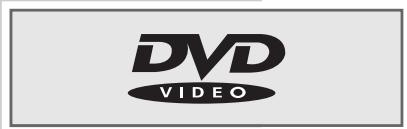
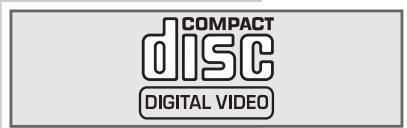
In addition to DVDs, your DVD player can also play all other video and audio CDs. DVDs and CDs can be identified by one of the logos shown to the left.
Your DVD player is designed for DVDs with region code 2.
Packing contents
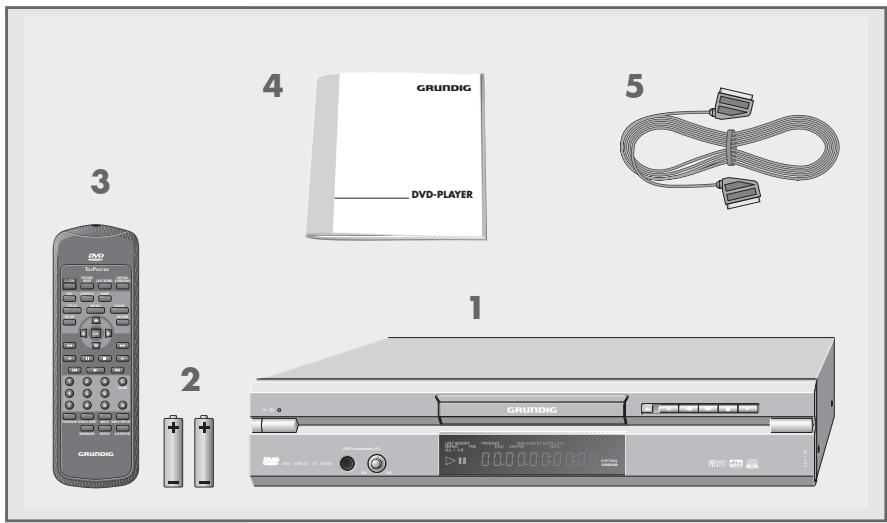
DVD player GDV 120
2 2 Batteries, 1.5 V, type AA
3 Remote control
4 Operating manual
5 EURO-AV cable
SET-UP AND SAFETY


To ensure that this high-quality, easy-to-use DVD player provides you with lasting satisfaction and enjoyment, please observe the following instructions when setting it up.
This DVD player set is designed to play audio and video signals from compact discs (DVD and CD).
Any other use is expressly prohibited.
When the DVD player is subject to extreme variations in temperature, for example during transportation from a cold area to a warm one, connect it to the mains supply and let it stand for at least two hours before you insert a DVD. The DVD player is designed for use in dry rooms. If, however, you use it in the open, it is essential to ensure that it is protected from moisture (rain, lawn sprinklers).
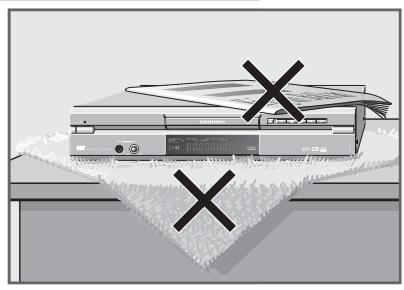
Place the combined DVD player on an even and solid surface. Do not place any objects (newspapers, for example) on the DVD player or any cloth or similar articles underneath it.
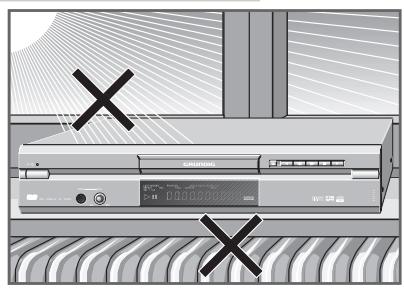
Do not place the DVD player close to heating units or in direct sunlight, as this will impair cooling.
Do not insert foreign objects in the air vents or the disc compartment.
Never open the DVD player casing under any circumstances. The manufacturer accepts no liability for damage resulting from improper handling.
Do not place any containers filled with liquids (vases or similar) on the DVD player. The container could fall over and the liquid may present an electrical safety risk.
SET-UP AND SAFETY

Thunderstorms present a danger to all electrical devices. Even if the DVD player is switched off, it can be damaged by a lightning strike to the mains. Always remove the mains plug during an electrical storm.
If the DVD player is unable to scan DVDs or CDs perfectly, use a standard commercial cleaning CD to clean the laser optics. Other cleaning methods may damage the laser optics.
Always keep the disc compartment closed to prevent dust from collecting on the laser optics.
This DVD player successfully fuses technology and environmental friendliness into a coherent package. Only ecologically compatible, high quality materials have been used. The batteries included are free of mercury and cadmium.
The range of materials used has been deliberately reduced to a minimum and all the larger plastic parts have been labelled to enable effective recycling at the end of the system's service life. This DVD player is easily disassembled to make servicing easier and optimise recycling.

The front of the DVD player
Switches the DVD player to and from Stand-by mode. Switching the DVD player off does not completely separate it from the mains.
- Stand-by display.
PHONE Headphone socket for connecting a stereo headphone set with a jack plug (ø 6.3 mm).
LEVEL Adjusts the volume for headphones connected to the PHONE socket.
A Compartment for DVDs/CDs.
B Display.
Indicator light for Virtual Surround function.
Opens and closes the disc compartment.
Freeze-frame for DVDs and video CDs; pause for audio CDs.
Selects the previous title or section during playback.
Selects the next title or section during playback.
Interrupts the current, switches to "STOP".
Starts playback.
The DVD player display

LAST MEMORY> Function is activated.
PBCVideo CD in use.
PROGRAM>> Function is activated.
»OITITLE« Number of the title of a DVD.
CHP/TRK< Number of the chapter (CHP) on a DVD or CD, or number of the title (TRK) on a DVD, or number of the track on a CD.
ANGLE Angle function is activated.
DOLBY DIGITAL《 The DVD provides a Dolby Digital audio signal.
»DTS « The DVD provides a DTS audio signal.
96 kHzAudio clock frequency 96 kHz.
00:00:00< Total or elapsed playing time in hours, minutes and seconds.
REPEAT ALL 1 A-B< One of the Repeat functions is activated.
Pause/Freeze-Frame.
Playback.

The back of the DVD player
OPT. DIGITAL OUT Audio output socket (optical) for PCM/MPEG2/AC3/DTS signals, for connecting to a digital HiFi system.
R AUDIO OUT L Audio output sockets (right/left channel) for connecting a HiFi system.
VIDEO OUT Video output socket for connecting a television with a video socket.
TV SYSTEM For specifying the TV system (PAL or NTSC). PAL NTSC
S-VIDEO OUT Video output socket for connecting a television with S-VHS socket.
VIDEO OUT SELECT Switches the video output signal to the «A/V EURO S RGB CONNECTOR« or «S-VIDEO OUT« socket.
A/V EURO Video/audio output socket for connecting a teleCONNECTOR vision.

Mains cable.
Caution:
Do not connect any devices while the DVD player is switched on.
Never touch the inside of the sockets and plugs of the connecting cables.
An electrostatic discharge can damage the DVD player.
The remote control
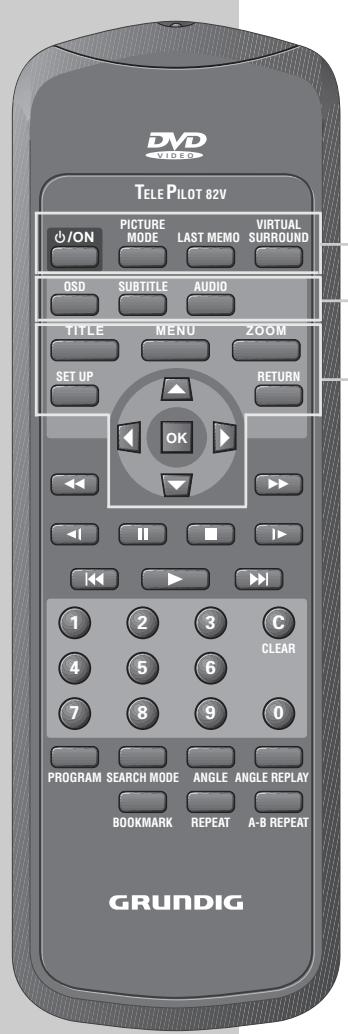
ON Switches the DVD player to and from Stand-by mode.
The display on the DVD player is red in Stand-by mode.
PICTURE MODE For adjusting the picture during playback.
LAST MEMO Selects a position on the DVD during playback.
VIRTUAL Activates the Virtual Surround function.
OSD Displays/conceals the menus on the television screen.
SUBTITLE Displays subtitles during DVD playback.
AUDIO Switches between original and dubbed language during DVD playback.
TITLE Calls up the main menu during DVD/video CD playback (depends on DVD).
MENU Calls up the DVD/video CD title menu during playback.
ZOOM Enlarges freeze-frames.
SETUP Calls up the DVD player's main menu (in STOP mode).
Select various functions in the menus.
OK Confirmsmenuentries.
RETURN Calls up the previous DVD menu.
| Tele Pilot 82V
O/N PICTURE MODE LAST MEMO VIRTUAL SURROUND
OSD SUBTITLE AUDIO
TITLE MENU ZOOM
SET UP RETURN
OK
1 2 3 CLEAR
7 8 9 0 | Switches to backwards frame search at various speeds during playback.
Switches to forwards frame search at various speeds during playback.
Slow-motion backwards with DVDs and video CDs.
Freeze-frame for DVDs and video CDs;
pause for audio CDs.
Terminates all functions, switches the DVD player to "STOP".
Slow-motion with DVDs.
Select the previous or next title/chapter during playback.
Starts playback.
C CLEAR Deletes the title or chapter from the program.
Numeric keys for various inputs.
For programming titles or chapters.
For selecting titles or chapters.
Selects various camera angles for certain scenes or passages of the DVD during playback.
Repeats the selected angle.
Selects scenes on the DVD.
Repeats sections, titles or DVDs/CDs.
Repeats selected sections. |
CONNECTION AND PREPARATION
Connecting to a television…

… with a EURO-AV cable
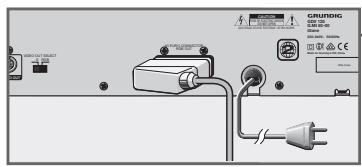
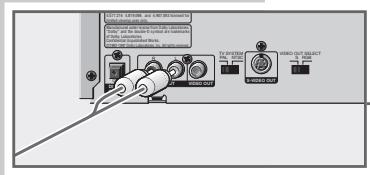
Plug the supplied EURO-AV cable into the «A/V EURO CONNECTOR« socket on the DVD player and into the AV 1 socket on the television, and switch the «VIDEO OUT SELECT S RGB« switch to «RGB«;
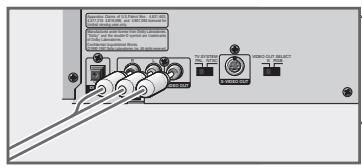
or
… with a cinch cable
Plug a standard cinch cable into the «VIDEO OUT« socket on the DVD player and into the VIDEO IN socket on the television.
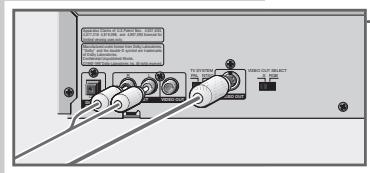
2 Plug a standard cinch AV cable into the R AUDIO L sockets of the DVD player and into the AUDIO IN sockets of the television,
or
... with a Y/C cable (S-VHS)
Plug a standard cinch AV cable into the R AUDIO L sockets of the DVD player and into the AUDIO IN sockets of the television.
2 Plug a standard Y/C cable into the «S-VIDEO OUT« socket on the DVD player and into the S-VIDEO IN socket on the television, and switch the «VIDEO OUT SELECT S RGB« switch to «S«.
Note:
If the DVD player is connected to a television set with a 16:9 format, observe the settings described in the "Television format" section on page 38.
The colour norm of the DVD player's screen menus has to be adapted to the format of the television.
Set the «TV SYSTEM« switch of the DVD player to «PAL« (television with PAL norm) or «NTSC« (television with NTSC norm).
Connecting to a HiFi system with analog two-channel stereo sound
As an alternative to using the television's speakers, the sound can also be played back through a HiFi system.
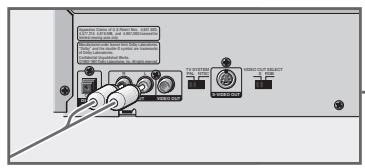
1 Plug a standard cinch cable into the «R AUDIO L« sockets of the DVD player and into the appropriate sockets of the HiFi system.
Caution:
The DVD player's «R AUDIO L« sockets may not be connected to the PHONO sockets (record player input) of the HiFi system.
Note:
The «R AUDIO L« sockets can also be used for connection to a Pro Logic audio/video receiver.
Connecting to a digital multi-channel audio/video amplifier
The digital multi-channel sound of a DVD can best be decoded and played with a multi-channel audio/video receiver (MPEG 2 multi-channel decoder or Dolby* digital decoder).
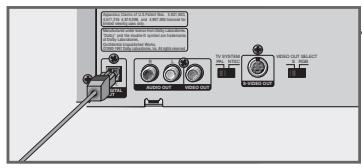
1 Plug a standard optical cable into the «OPT. DIGITAL OUT« socket on the DVD player and into the appropriate socket on the digital multi-channel amplifier.
- Manufactured under license from Dolby Laboratories Licensing Corporation. "Dolby", "Dolby Pro Logic", "AC 3" and the double-D symbol "D" are trademarks of the Dolby Laboratories Licensing Corporation. Copyright 1992 Dolby Laboratories, Inc. All rights reserved.
Note:
You have to activate the digital output on the DVD player and set the correct digital output format (MPEG or PCM). Make sure to observe the settings described in the "Settings in the »Ton« menu" section on Page 39.
The audio/video receiver has to be able to process the DTS audio signal in order to play a DVD with DTS. If it cannot, then you will not be able to hear the DVD.
Connecting headphones
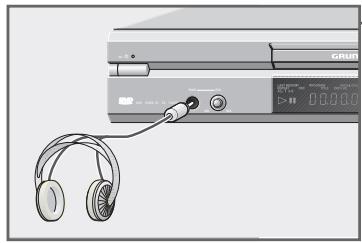
1 Plug the headphone plug into the PHONE socket on the DVD player.
Note:
The volume of the headphones is adjusted with the LEVEL knob.
Connecting the mains cable

1 Plug the mains cable into the socket.
Caution:
The only way to isolate the DVD player from the mains supply is to pull the plug.
Inserting batteries in the remote control
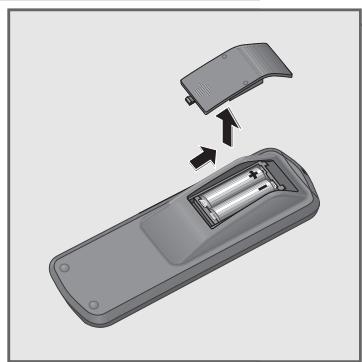
1 Open the battery compartment by pressing the arrow on it and pulling off the lid.
2 When inserting the batteries (UM-3 or AA, 2 × 1.5V ), observe the polarity marked on the base of the battery compartment.
Note:
If the DVD player no longer reacts properly to remote control commands, the batteries may be flat. Always remove flat batteries. No liability is accepted for damage resulting from leaking batteries.
Environmental note
Batteries, including those which are heavy metal-free, may not be disposed of with household waste. Please dispose of used batteries in and environmentally sound way, for example at public collection points. Find out about the legal regulations which apply in your area.

VIDEO

DIGITALVIDEO
DVD and video CD features
You can recognise DVDs and video CDs by their label.
Depending on the contents of the DVD or video CD (films, music videos etc.), they may carry one or more titles.
Each title may contain one or more chapters. Titles and chapters can be selected easily and conveniently.
Playback of a DVD or video CD can be controlled and directed via the menu of the DVD player on the television screen.
Special features of DVDs
DVDs may contain titles and passages which have been arranged in fixed order by the manufacturer. You can also select the individual titles and passages of your choice and then play them back.
DVDs have a title menu which provides an overview of the contained titles and/or passages of titles.
Some DVD player functions, such as slow motion, freeze-frame and auto-play, can also be controlled by the DVD itself. It is thus possible that the freeze-frame function, for example, cannot be selected in certain scenes.
Many DVDs have audio tracks recorded in up to eight languages.
You may select the language you prefer.
Many DVDs are recorded by the manufacturer with subtitles in several different languages. You can select subtitle superimposition from up to 32 different languages.
Since films are released in different parts of the world at different times, all DVD players world-wide are provided with a regional code. Your DVD player is designed for region code 2.
DVDs can also be provided with a supplementary regional code. When you insert a DVD with a non-corresponding regional code in the DVD player, a reference to the regional code appears on the TV screen. The DVD player will not be able to play back such a DVD.
Before playback
Preparation
1 Switch on the television and select the channel for the DVD player.
2 Switch on the HiFi system and select the audio input for the DVD player.
3 Press ON to switch the DVD player on.
- The DVD player display reads: READING then NO DISC.

Inserting a DVD/video CD
Press on the DVD player. The disc compartment opens. The DVD player display reads: OPEN
2 Insert the desired DVD/video CD in the compartment, with the labelling facing upwards.
3 Press on the DVD player.
- The DVD player display reads: CLOSE , READING , DVD , then the number of titles/chapters and the elapsed DVD playing time. Playback starts automatically.
Note:
If parental control is activated and the DVD/video CD is not authorised (see "PARENTAL CONTROL SYSTEM" on Page 33), you will have to enter the code number.
If the DVD/video CD was inserted with the label facing downwards, N0 PLRy « appears in the display. Insert the DVD/video CD correctly.
Playing back a title
Play
After the disc compartment closes and the DVD is scanned, playback starts automatically.
Pause II
2 To switch to playback-pause (freeze-frame), press II\ll.
3 To resume playback, press
Stop
4 To end playback, press
Note:
Depending on the DVD/video CD you are using, you may have to select a title or chapter from the DVD's/video CD's table of contents.
To select, use the or keys; to activate, use the OK key. If the selections are numbered, use the 1 ... 0 keys.
If the symbol appears on the television screen, then the selected function is not possible with this DVD/video CD.
Calling up the function display
DVD
TITLE:01
CHAPTER:02
Play
Chapter pass time 00:03:25
AUDIO:ENG
MPEG
SUBTITLE:ENG
ANGLE: 1
Every function you select can be displayed on the screen (playing time, current title, etc.).
1 To display the function, press OSD .
2 To hide the function display, press OSD again.
Selecting titles or chapters ...
If a DVD/video CD contains several titles and/or chapters, you can select from among them.
TITLE/CHAPTER SEARCH
1 Display the menu by pressing SEARCH MODE
- The TITLE line is highlighted.
2 Enter the one or two-digit title number with the 1 0 buttons.
3 Select the CHAPTER line with
4 Enter the one or two-digit chapter number with the 1 ... 0 buttons.
Note:
If you enter the wrong number, you can delete it by pressing CLEAR
5 Confirm your entry with OK .
- Playback starts with the selected title or chapter.
Note:
If the symbol appears, then this function is not possible with this DVD/video CD.
The title menu of the DVD/video CD may contain selection options for titles, sections or scenes.
1 Call up the contents of the DVD/video CD by pressing MENU - If the DVD/video CD possesses a title menu, it appears on the screen.
2 If the selection options are numbered, select the desired title and section with 1 0
3 If the options are not numbered, select titles and sections with , , or , and activate with OK .
Selecting a section to the nearest minute
TITLE/CHAPTER SEARCH
TITLE : -
CHAPTER : --
TIME SEARCH
TIME:--h:--m:--s
TIME SEARCH
TIME:--h:30m:15s
Search 05
Search 02
1 Display the menu by pressing SEARCH MODE «. - The TITLE« line is highlighted.
2 Press SEARCH MODE again.
- The TIME SEARCH line appears.
3 Enter the desired playing time with 1 ... 0 and confirm with OK . Example: 30 minutes, 15 seconds - enter 3 0 1 5 . 1 hour, 5 minutes, 30 seconds - enter 1 0 5 3 0 .
Note:
If you enter the wrong time, you can delete it by pressing C CLEAR .
4 Confirm your entry with OK.
- The DVD player locates the section and starts playback.
Selecting a chapter directly
To select the next chapter, press repeatedly during playback.
2 To select the beginning of the current title, briefly press » | «. To select previous titles, press » | « repeatedly.
Interrupting/resuming playback …
The playback of a DVD/video CD can be interrupted at any point and then resumed from the same place.
... for a DVD
When PLAY is pushed, the player will play from where you stopped. To start from the beginning, press STOP again.
Interrupt playback by pressing once.
2 Resume playback at the same point by pressing
... for the last five DVDs played
Note:
You need to activate this function in the menu (Display), see Settings on Page 38.
Last Memo
1 During playback, press LAST MEMO at the point from which you want to resume playback later.
2 End playback and remove the DVD from the player.
3 Insert the DVD. - Playback starts at the point you previously selected with LAST MEMO
Ending playback
DVD/video CD playback automatically stops at the end of a title. Playback can be also be ended at any time with «.
Removing DVD/video CDs
Press on the DVD player, the disc compartment opens.
Additional playback functions
Note:
The sound is muted with the "frame-search", "slow-motion" and "freeze-frame" functions.
Frame search
You can choose from among three different speeds (forwards or backwards).
1 During playback, select the desired playback speed with or .
2 To resume playback, press
Slow motion
You can choose from among three different speeds (forwards or backwards).
During playback, select the desired slow-motion speed with or .
2 To resume playback, press
Advancing freeze-frames step-by-step
During playback, press to switch to freeze-frame (playback pause).
2 During the freeze-frame (playback pause), press repeatedly. - The picture is advanced step-by-step to the next freeze-frame.
3 To resume playback, press
All Repeat
Title Repeat
Chapter Repeat
Clear
Repeat A-
Repeat A-B
Clear
Repeating a section, a title or a DVD (Repeat)
These functions repeat the currently running section, title, or the entire DVD.
Press REPEAT once, twice or three times during playback.
- The selected function is briefly displayed:
»All Repeat « - the DVD is repeated;
»Title Repeat« - the current title of the DVD is repeated;
Chapter Repeat - the current chapter of the DVD is repeated.
2 To stop this function, press REPEAT a fourth time.
- The display reads: Clear - the function is stopped.
Repeating a selected scene (A-B Repeat)
You can use this function to select the beginning and end of a scene, and then play it over and over.
1 During playback, mark the beginning of the scene with REPEAT A-B .
- REPEAT A-B« appears on the DVD player display, and »Repeat A-« appears on the screen.
2 To mark the end of the scene, press REPEAT A-B again.
- The selected scene is repeated over and over.
3 To stop this function, press REPEAT A-B again.
Selecting the camera angle of particular scenes or passages
Many DVDs contain scenes or passages which were filmed several times from different camera angles.
You can choose from among these different angles.
If the DVD offers this function, the word «Angel« appears on the television screen.
Play
Angle 01
Angle 03
Press to start playback.
2 Press ANGLE to select the angle function.
- The Angle 1 display indicates the camera angle - number 1 in this example.
3 Select a different camera angle by pressing ANGLE
Note:
If you would like to repeat the selected angle, press ANGLE REPLAY while the function is active.
The DVD player displays the scene again for about ten seconds.
Enlarging the picture and moving screen sections (Zoom)
1 Press ZOOM during playback or pause.
- The DVD player enlarges a screen section.
2 Move the screen section with , , or .
3 Deactivate the function by pressing ZOOM*.
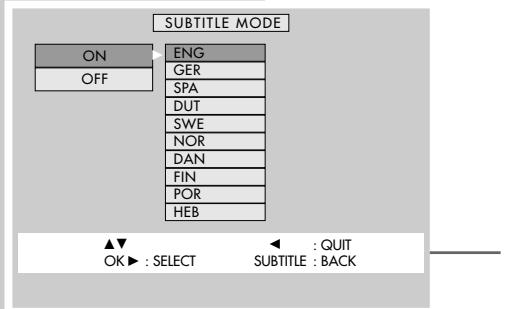
Selecting and displaying subtitles
When subtitles are available on a DVD, they can be displayed on your TV screen.
When subtitles in several languages are available, you can select your language of choice.
1 Press SUBTITLE during playback.
- The SUBTITLE MODE< menu is displayed.
2 To select the desired subtitle language, press once, select the language with or and confirm with OK.
- The menu disappears from the screen.
Note:
To switch off the subtitles, repeat step 1, press ▲ or ▼ to select OFF, and confirm with OK.

Switching to dubbing
These settings switch away from the preset dubbed language if the DVD offers several alternatives.
Language Change 01 ENG
1 Press AUDIO during playback.
- «Language Change« appears briefly, and the current dubbed language is displayed.
Language change 02 GER
2 To set the desired language, press AUDIO repeatedly.
Creating a title or chapter program
If a DVD/video CD contains several titles and/or chapters, you can assemble them to create your own program.
The program may contain up to 32 titles, which are displayed in a list.
Note:
Opening the disc compartment deletes the program.
Selecting titles or chapters
1 Open the disc compartment, insert the desired CD and close the disc compartment again.
2 Call up the PROGRAM menu by pressing PROGRAM . - The menu appears with the first item in the list highlighted.
3 Select the title to be stored in memory by pressing once, then or for the desired title, and confirming with OK;
or
select the chapter to be stored in memory by pressing twice, then or for the desired chapter, and confirming with OK.
Note:
Repeat step 3 to program the rest of the titles/chapters.
4 Start playback of the program by pressing
Note:
If you would like to play the program again, call up the PROGRAM menu with PROGRAM and press to start playback.
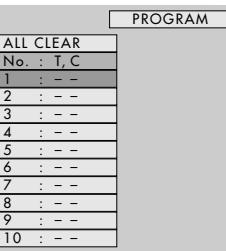

▲▼ OK▶SELECT CLEAR:CLEAR PROGRAM:QUIT PLA
AY:PLAY


Deleting individual titles or chapters
1 Call up the PROGRAM menu with the PROGRAM button.
- The menu appears.
2 Select the titles/chapters to be deleted with or and press CLEAR to delete.
3 Quit the title memory by pressing PROGRAM*.

Deleting all titles or chapters
1 Call up the PROGRAM menu with the PROGRAM button.
- The menu appears with the first item in the list highlighted.
2 Select the ALL CLEAR line with or and press C CLEAR to delete.
3 Quit the title memory by pressing PROGRAM*.
Setting and playing bookmarks
You can set up to five bookmarks for the last five DVDs played, and then select them directly for playback.
Setting or deleting bookmarks
BOOKMARK
| No.: T, C |
| 1: NONE |
| 2: NONE |
| 3: NONE |
| 4: NONE |
| 5: NONE |
OK:SET
CLEAR:CLEAR
PLAY:PLAY
BOOKMARK:QUIT
BOOKMARK
| No.: T, C |
| 1: ENTRY 1,2 |
| 2: NONE |
| 3: ENTRY 1,4 |
| 4: ENTRY 1,6 |
| 5: NONE |
OK:SET
CLEAR:CLEAR
PLAY:PLAY
BOOKMARK:QUIT
1 During playback, call up the «BOOKMARK« menu with the «BOOKMARK« button.
- The menu appears with the first item in the list highlighted.
2 Press OK on the item where you would like the bookmark to be set.
Note:
Repeat step 2 to program additional bookmarks.
3 Quit the BOOKMARK menu by pressing BOOKMARK .
Note:
To delete a bookmark, call up the BOOKMARK menu with BOOKMARK . Select the bookmark to be deleted with ▲ or and press C CLEAR to delete it.
Playing selected scenes
1 Call up the BOOKMARK menu with the BOOKMARK button.
2 Select the desired bookmark with or and press to start playback.
- Playback begins starting at the bookmarked scene.
3 To play back a different bookmark, repeat steps 1 and 2.

Audio CD features
An audio CD is identified by this label.
Audio CDs contain only music recordings. They can be played, as usual, on a HiFi system.
You can use the DVD player menus - on the television screen - to create your own music archive by selecting or deselecting the desired tracks.
Before playback
Preparation
Switch on the HiFi system and select the audio input for the DVD player.
2 Press ON/OFF « to switch the DVD player on. - The DVD player display reads: »NO DISC «.

Inserting an audio CD
Press on the DVD player.
- The disc compartment opens. The DVD player display reads: OPEN .
2 Insert the audio CD in the disc compartment, with the labelling facing upwards.
3 Press on the DVD player.
- The DVD player display reads: CLOSE , READING , CD , then the number of titles and the elapsed disc playing time.
Audio functions
Playing back a track
CHP/TRK 1. 00:15
1 Start playback by pressing
- Playback stops automatically at the end of the CD.
CHP/TRK 1. 00:15
2 To pause playback, press » || «.
Selecting a different track
CHP/TRK 3. 00:00
CHP/TRK 10. 00:00
1 To select the next track, press | briefly during playback.
2 To select the beginning of the current track, briefly press
3 To select the previous track, press « briefly again during playback.
4 To select a track directly, enter the one or two-digit number of the track with 1 ... 0 and confirm with OK .
Searching for a passage within a track
Press or once or twice during playback.
2 To resume playback, press .
Ending playback
Playback stops automatically at the end of the CD.
Playback can be also be ended at any time with «.
REPEAT
ALL
CHP/TRK
- 00:15
REPEAT

CHP/TRK
- 00:15
REPEAT

CHP/TRK
- 00:15
Repeating a track or a CD (Repeat)
These functions repeat the current track or the entire CD.
Press REPEAT during playback.
- The display reads: »All Repeat«, and the CD is repeated from the beginning.
2 During playback, press REPEAT twice.
- The display reads: Repeat 1 , and the current track is repeated.
3 To stop this function, press REPEAT again.
Repeating a selected section (A-B Repeat)
You can use this function to select the beginning and end of a selection, and then play it over and over.
1 During playback, mark the beginning of the section with REPEAT A-B .
2 To mark the end of the section, press REPEAT A-B again.
- The selected section is repeated over and over.
3 To stop this function, press REPEAT A-B again.
Removing the CD
Press on the DVD player.
Creating a music program
You can use this function to create your very own music program.
Note:
Opening the disc compartment deletes the program.

Selecting tracks
Switch on the television and select the channel for the DVD player, open the disc compartment, insert the desired CD and close the compartment.
2 Call up the PROGRAM menu by pressing PROGRAM . - The menu appears with the first item in the list highlighted.
3 Select a track by pressing once, then or for the desired track, and confirming with OK.
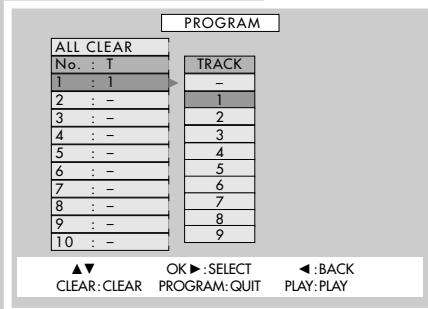
Note:
Repeat step 3 to program additional tracks
4 Start playback of the music program by pressing
5 Stop playback of the program by pressing «.
Deleting individual or all tracks
1 Call up the PROGRAM menu with the PROGRAM button. - The menu appears with the first item in the list highlighted.
2 Select the track to be deleted with or , and then press C CLEAR to delete.
Note:
To delete all tracks, select the ALL CLEAR line with ▲ or and press C CLEAR to delete.
3 Quit the menu by pressing PROGRAM

Activating the DVD player's parental control system
DVDs may offer films whose content or individual scenes are not appropriate for children. These DVDs contain information which identifies these scenes, providing them with ratings from 1 to 8. You can select one of the ratings and thereby authorise alternative scenes for playback.
1 In "Stop" mode, call up the main menu with SET UP «. - The menu appears.
2 Select the line with and press to activate.
3 Enter the four-digit code number with 1 0 and confirm with OK . - A submenu appears with the LEVEL line highlighted.
4 Activate the LEVEL submenu with
5 Select the desired rating (1 to 8) with or , and press OK to confirm.
6 Conclude the setting by pressing SET UP «.
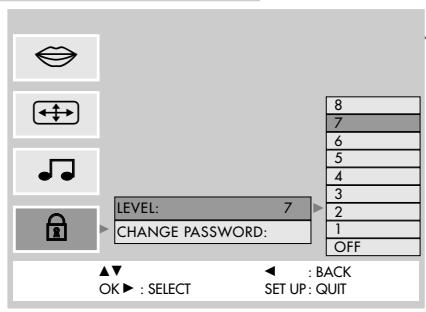
Note:
If a DVD with the rating you selected is loaded into the player, the message «locked« appears, and you have to enter the four-digit code number.
Note:
To deactivate this function, repeat steps 1 to 5 and press ▲ or ▼ to select OFF.
If you forget or lose the code number, read the section entitled "Rectifying minor problems" on Page 43.
Changing the code number

1 Call up the main menu with SET UP «.
- The menu appears.
2 Select the line with and press to activate.
3 Enter the four-digit code number with 1 0 and confirm with OK - A submenu appears with the LEVEL line highlighted.
4 Select the CHANGE PASSWORD line with and press to activate.
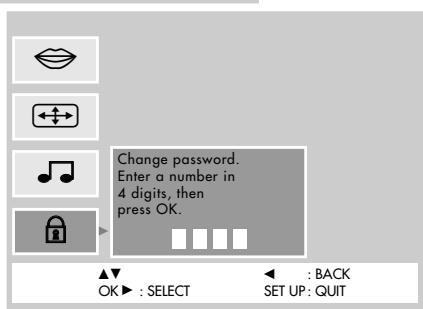
5 Enter the new four-digit code number with 1 0 and confirm with OK.
Enter the four-digit code number again with 1 0 and confirm with OK.
6 Conclude the setting by pressing SET UP «.
Connecting to a HiFi system with digital two-channel stereo sound (PCM) or a digital multi-channel audio receiver
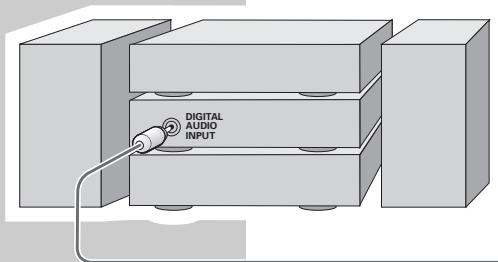


Plug a standard optical cable into the «OPT DIGITAL OUT« socket on the DVD player and into the appropriate socket on the HiFi system.
Note:
The digital output must be activated on the DVD player. Make sure to observe the settings described in the "Settings in the >> menu (SOUND)" on Page 39.
You can select a personal setting for certain playback functions in the Language menu of the DVD player.

1 In "Stop" mode, call up the main menu with SET UP «. - The menu appears.
2 Select the line with and press to activate. -A submenu appears.
Note:
For further operation, see the following sections, each one starting from step 1.
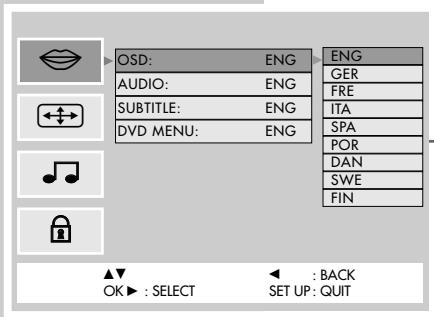
1 Select the OSD line with or and press to activate.
2 Select the desired language for the screen menus with or
3 Quit the menu with the SET UP button.

Selecting the dubbed language
If several languages are available on the DVD, the sound is played back in the language you have selected.
If the language you select is not on the DVD, the first dubbed language available is automatically selected.
1 Select the AUDIO line with or and press to activate.
2 Select the desired dubbed language with or
3 Quit the menu with the SET UP button.

Selecting the language of the subtitles
When subtitles are available on the inserted DVD, they are played back in the language you have selected.
If the language you have selected for the subtitles is not on the DVD, the first language available is automatically selected.
1 Select the SUBTITLE line with or and press to activate.
2 Select the desired language with or
3 Quit the menu with the SET UP button.
Note:
Subtitles can be switched on and off during playback with SUBTITLE
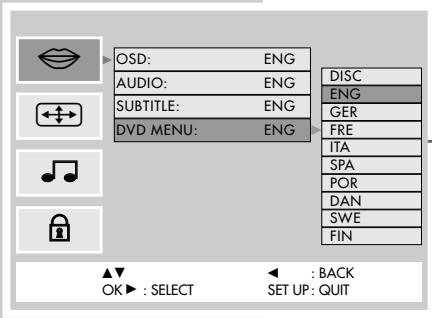
If a DVD has menus in several languages, you can select the language of your choice.
1 Select the DVD MENU line with or and press to activate.
2 Select the desired language of the DVD menus with or .
3 Switch off the menu with the SET UP button.
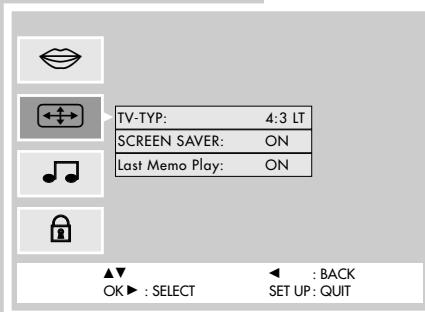
1 In "Stop" mode, call up the main menu with SET UP «.
2 Select the line with and press to activate.
-A submenu appears.
Note:
For further operation, see the following sections, each one starting from step 1.
If you have a television with 4:3 picture format, you do not need to make any changes - 4:3 is the default setting.
You can select a different format:
-
4:3 Letterbox « for letterbox playback with black bars on the top and bottom edges of the screen,
or
-»16:9« for televisions with 16:9 picture format.
1 Select the TV-TYP line with or and press to activate.
2 Select the required picture format, 4:3LT or 4:3PS or 16:9 , with or .
3 Quit the menu with the SET UP button.

Switching the screen saver on/off
1 Select the «SCREEN Saver« line with «▲« or «▼« and press «» to activate.
2 Switch the function on/off with or .
3 Quit the menu with the SET UP button.
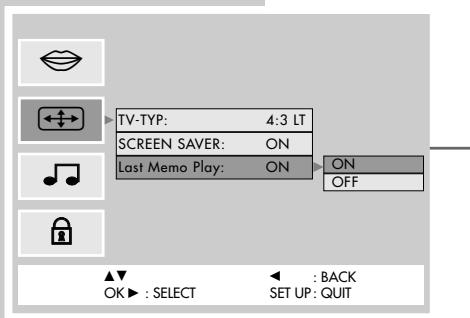
Switching the Last Memory function on/off
1 Select the Last Memo Play line with or and press to activate.
2 Switch the function on/off with or
3 Quit the menu with the SET UP button.

1 In "Stopp" mode, call up the main menu with SET UP «. - The menu appears.
2 Select the line with and press to activate. -A submenu appears.
Note:
For further operation, see the following sections, each one starting from step 1.

Selecting audio types for the digital output
1 Select the Dolby Digital « line with ▲ « or ▼ « and press ▷ « to activate;
2 Select the desired format with or
3 Quit the menu with the SET UP button.
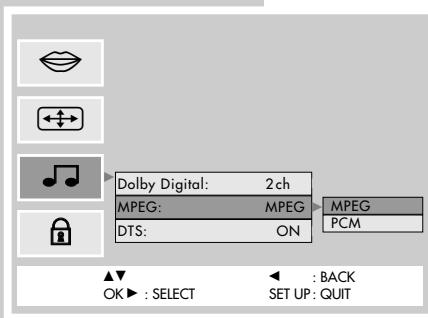
1 Select the MPEG line with ▲or or ▼ and press to activate;
2 Switch the desired format on/off with or
3 Quit the menu with the SET UP button.

Switching the DTS audio signal for the digital output on/off
1 Select the DTS line with or and press to activate;
2 Switch the DTS audio signal on/off with or
3 Quit the menu with the SET UP button.
CE
Technical data
This product fulfils the European directives 89/336/EEC, 73/23/EEC and 93/68/EEC.
This device conforms to the safety regulation DIN EN 60065 (VDE 0860) and therefore the international safety regulation IEC 60065.
You may not open the DVD player. The manufacturer accepts no liability for damage resulting from improper handling.
Mains voltage:
220 - 240V + / - 10% 50 / 60Hz
Power consumption:
Operating: approx. 16 W
Stand-by: ≤ 2 W
Digital: MPEG/AC-3
Compressed Digital,
PCM, DTS
Analog: Stereo sound, Dolby
prologic
Ambient temperature:
+10°C to +35°C
Playback standard:
PAL, 50 Hz, 625 lines
NTSC, 60 Hz, 525 lines
Audio:
Signal: Analog
DVD: 96 kHz 17Hz-20 kHz
48 kHz 17Hz-20 kHz
Video-CD: 48 kHz 17Hz-20 kHz
CD: 44,1 kH
44,1 kHz 20Hz-20 kHz
Playback system:
DVD-Video, Video CD, Audio CD
Signal-to-noise ratio
(at 1 Hz): 100 dB
Sound volume
(at 1 Hz): 95 dB
Laser:
Semiconductor laser
Wavelength 650 nm
Dimensions and weight:
Dimensions
W×H×D 435×87×275mm
Weight 4 kg
Cleaning DVDs/CDs
Wipe the dirty DVD/CD with a cloth from the centre outwards in a straight line.
Do not use any solvents such as benzene, flux, conventional cleaner or antistatic spray for analog records.
CLASS 1 LASER PRODUCT

General instructions for laser devices
You will find a sign resembling the adjacent illustration on the back of your unit. CLASS 1 LASER PRODUCT signifies that the laser is safeguarded in such a way that the maximum allowed radiation value can never be exceeded under any circumstances.
Caution:
If operation devices or methods other than those specified here are employed, this may lead to dangerous exposure to emissions.
This device emits laser radiation. Because of the danger of eye injuries, the unit may only be opened or serviced by trained personnel.
If settings other than those specified here are employed or OTHER PROCEDURES are carried out, this may lead to dangerous radiation exposure.
This product contains components which are covered by certain U.S. patents or for other reasons are considered intellectual property of the Macrovision Corporation and other proprietors. Use of this protected technology must be approved by the Macrovision Company and is only permissible for private presentation at home or for other limited applications, where no special permission has been granted by Macrovision. Reproduction or disassembly of the device is prohibited.
Manufactured with permission from Dolby Laboratories. The "Dolby" label and the double-D logo "D D" are trademarks of Dolby Laboratories. Confidential unpublished material.
(c)1992-1997 Dolby Laboratories, Inc. All rights reserved.
Rectifying minor problems
Not every picture or sound problem is caused by a defect in your DVD player. Impairment can also be caused by leads having been accidentally pulled out, damaged DVDs/CDs and worn-out batteries in the remote control.
If the following measures do not bring about satisfactory results, consult an authorised dealer.
| Problem | Cause/Remedy |
| No return to start-up screen when the DVD/CD is removed | Switch the DVD player off and back on. |
| Check if another DVD/CD needs to be inserted for the program. |
| DVD player does not respond to remote control | Point the remote control directly at the DVD player. |
| Remove all obstacles which may interfere with the path of the remote control signal. |
| No picture | Check or replace the remote control batteries. |
| Distorted image | Check the video connection. |
| Make sure that there are no fingerprints on the DVD/CD, follow the cleaning instructions on Page 41. |
| Check if the DVD/CD labelling is facing upwards. |
| DVD/CD cannot be played | Clean the DVD/CD. |
| Check if the DVD/CD is damaged by testing out another DVD/CD. |
| Check the audio connections. |
| Try another playback source. |
| No sound | Ensure that the audio connections have not been connected at the phono input on the amplifier. |
| Distorted sound from HiFi system |
| Parental control system is active but you do not know the four-digit code number | Remove parental control at the "Enter Code" prompt enter the digits «» 8«» 8«» 4«» 4«» 4«. |
GRUNDIG customer service locations

GRUNDIG
Kundendienst Nord
Kolumbusstraße 14
D-22113 Hamburg
+49/40-73331-0
GRUNDIG
Kundendienst West
Horbeller Straße 19
D-50858 Köln
+49/22 34-95 81-2 51
GRUNDIG
Kundendienst Mitte
Dudenstraße 45-53
D-68167 Mannheim
+49/6 21-33-76-70
GRUNDIG
Kundendienst Süd
Beuthener StraBe 65
D-90471 Nurnberg
+49/9 11-7 03-0
GRUNDIG
Kundendienst Ost
Wittestraße 30e
D-13509 Berlin
+49/30-4 38 03-21
GRUNDIG BELUX N.V.
Deltapark, Weihoek 3, Unit 3G
B-1930 Zaventem
+32/2-7 16 04 00
GRUNDIG UK LTD.
Elstree Way, Borehamwood,
Herts,WD61RX
Unit 35, Woodside Park, Wood Street
Rugby, Warwickshire, CV21 2NP
2 Waverley Office Park, Old
Naas Road
EIR Dublin 12
+353/1-4509717
GRUNDIG FRANCE S.A.