EasyManual
GDV 100 D (VERS.2) - DVD player GRUNDIG - Free user manual and instructions
Find the device manual for free GDV 100 D (VERS.2) GRUNDIG in PDF.


Download the instructions for your DVD player in PDF format for free! Find your manual GDV 100 D (VERS.2) - GRUNDIG and take your electronic device back in hand. On this page are published all the documents necessary for the use of your device. GDV 100 D (VERS.2) by GRUNDIG.
USER MANUAL GDV 100 D (VERS.2) GRUNDIG
General Notes for Devices with Lasers
CLASS 1 LASER PRODUCT
A mark with this sign can be found at the rear side of your device.
CLASS 1 LASER PRODUCT means that the laser is intrinsically safe due to its technical construction, ensuring that the maximum radiation value can not, under any circumstance, be exceeded.
CAUTION:

Dangerous radiation exposure can occur if other operating devices than those specified here are used or other measures of procedure are carried out.
Tips for the Operating Manual 2
Special Features of the DVD-Player 2
Set-Up and Safety 3
The DVD-Player at a Glance 4
The front side 4
The display 5
The rear side 5
Connection 6-7
The Remote Control 8
Inserting batteries into the remote control 8
At a glance 8
The Compact Disk (CD), Language Selection 9
Inserting Compact Disk (CD) 9
Selecting the OSD-language for user guidance 9
DVD-Video-CD Playback 10-13
Playback information 10
What are DVD-Video or Video-CDs 10
What are Audio-CDs 10
Title playback 11
Additional functions of Playback 12-13
Video-CD Playback 14-15
Selection of another title 14
Selection of another section 14
Playback with Play Back Control (PBC) 14
Additional functions of playback 15
Audio-CD Playback 16-17
Selection of another title 16
Additional functions of playback 16
Arrange your own music programme 17
Individual Settings 18
The Child Lock 19
Switching the child lock on/off 19
Releasing CDs (authorising) 19
Re-blocking CDs 19
Important Information 20
Rectifying malfunctions 20
Technical data 21
GRUNDIG Service Centre 21
GRUNDIG Service Germany/Europe 22
Tips for the Operating Manual
Please read carefully through this operating manual to ensure that the diverse functions of your new DVD-player can be used without problems being created.
- The table of contents on page 1 gives you an overview of every chapter.
1 The digits in the boxes indicate the order of operation.
i With this sign, you will be made aware of additional options or information.
With this sign, hazards are indicated.
- Most functions can be carried out with the buttons on the remote control and with the buttons on the DVD-player.
- This is shown in the operating manual ()/ - first symbol is the remote control button, second symbol is the button on the DVD-player).
Should the operation only be possible using the remote control buttons or the buttons on the DVDplayer, then it will be stated before that chapter or next to the respective button.
Special Features of the DVD-Player

This DVD-player works in accordance with the universal DVD-Video-Norm
This DVD-player belongs to the first generation of playback devices for Digital-Video-Disks in accordance with the universal DVD-Video-Norm.
You will never have experienced "Video" in this way!
Perfect digital video playback with studio quality. The sound reproduction in stereo or three-dimensional digital multichannel sound is possible in excellent cinema quality depending on the type of CD and Stereo or TV set in use.
You can easily use every outstanding feature of the DVD-Video, for example the selection of the sound channel, the language selection at subtitle fade in and the choice of various camera angles at camera location.
In addition to the DVD-Video-CDs, every other type of Video and Audio-CD can also be played. These CDs are marked with one or more of the following logos on the packaging.

DIGITAL AUDIO

DIGITALVIDEO

VIDEO
The remote control ...
... is the central control unit for this DVD-player and for several functions in suitable GRUNDIG TV sets.
You can comfortably use the remote control for almost every function from your seat.
GRUNDIG on-screen dialogue – what is that?
The user guide, by way of the on-screen dialogue, enables supposedly complicated settings and entries to be displayed simply and comprehensively for everyone.
The correct symbols and fade ins, on which the next operating steps are found, always appear on the TV screen.
You are guided systematically and step for step to the desired result.
Reducing brightness = saving energy
This DVD-player is equipped with an economy switch.
If the OSD (ON SCREEN DISPLAY)-menu-mode detects no change after a prolonged period of time, then after approximately five minutes the TV's screen brightness will be reduced. In doing so, energy is saved.
Selecting language in the user guide
The user guide language can be changed. You can choose the desired dialogue language from several languages.
Selecting the subtitle language
Many DVD-Video-CDs have been played by the manufacturers with subtitles in several languages. During playback, you can choose a fade in of subtitles in up to 32 languages.
Selecting the sound reproduction language
With many DVD-Video-CDs, the sound tracks have been played in up to 8 languages.
You can choose the desired sound track language before playback.
The child lock
Playing the CD can be blocked using the child lock. The child lock can be activated in such a way that every CD is blocked, or
that for certain age groups the CDs are authorised by you for release.
This DVD-player is designated to play screen and sound signals from Compact Disks (CD). Every other use is implicitly out of the question.
If the DVD-player is exposed to temperature deviations, for example when transporting from the cold into the warm, connect it to the mains and leave it for at least two hours without an inserted CD.

Place the DVD-player on a level and hard surface.
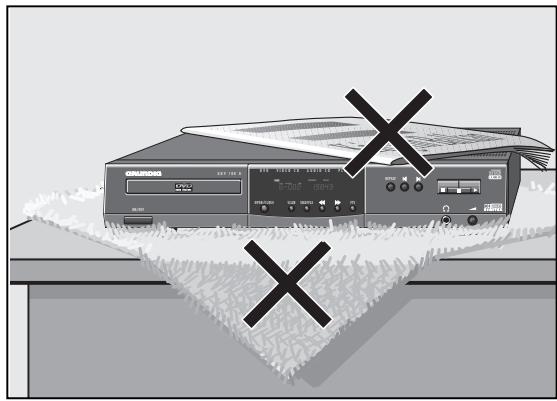
Do not place the DVD-player on small covers or similar things. Do not place objects (for example newspapers) on the DVD-player, otherwise the vents, which are necessary for cooling, could be covered.
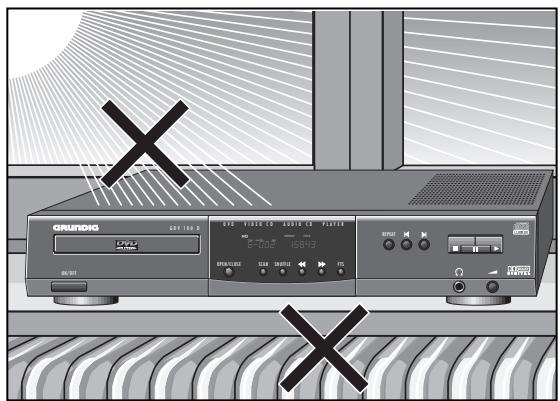
Do not place the DVD-player in the immediate surroundings of the heating or in the blazing sunshine, otherwise the cooling could be damaged.
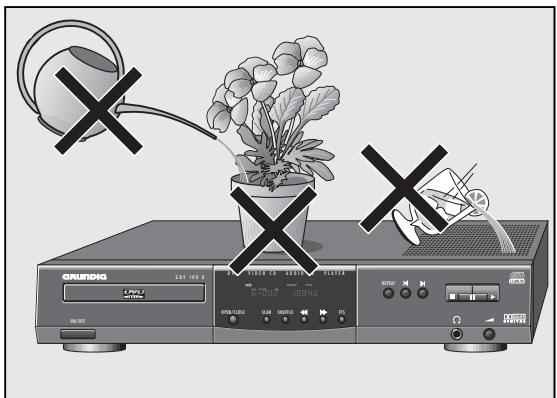
Do not expose the DVD-player and CD to any form of dampness.
The DVD-player is designated for operation in dry rooms.
Should you nevertheless operate it outside, make absolutely sure that it is protected against dampness (rain, water sprinklers).
Do not place vessels filled with fluid (vases or similar things) on the DVD-player. The vessel can tip over and any fluid getting into the device can duly affect the electrical safety.
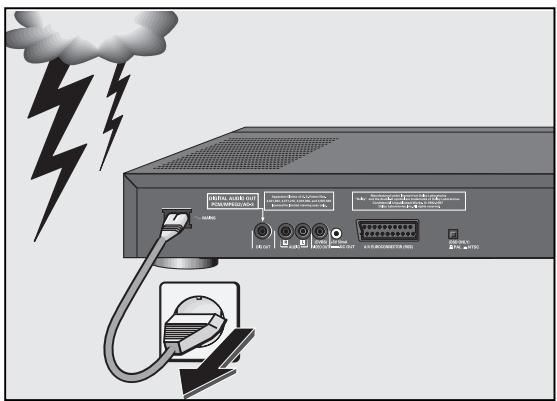
Storms represent a danger for every type of electrical device. Even if the DVD-player is switched off, it can be damaged by a lightning strike hitting the mains.
Therefore, always pull the plug out of the mains socket when storms are apparent.
Do not place any foreign bodies in the DVD-player's CD compartment.
Do not open the DVD-player under any circumstance.
The manufacturer will offer no guarantee for damage resulting from unqualified tampering.
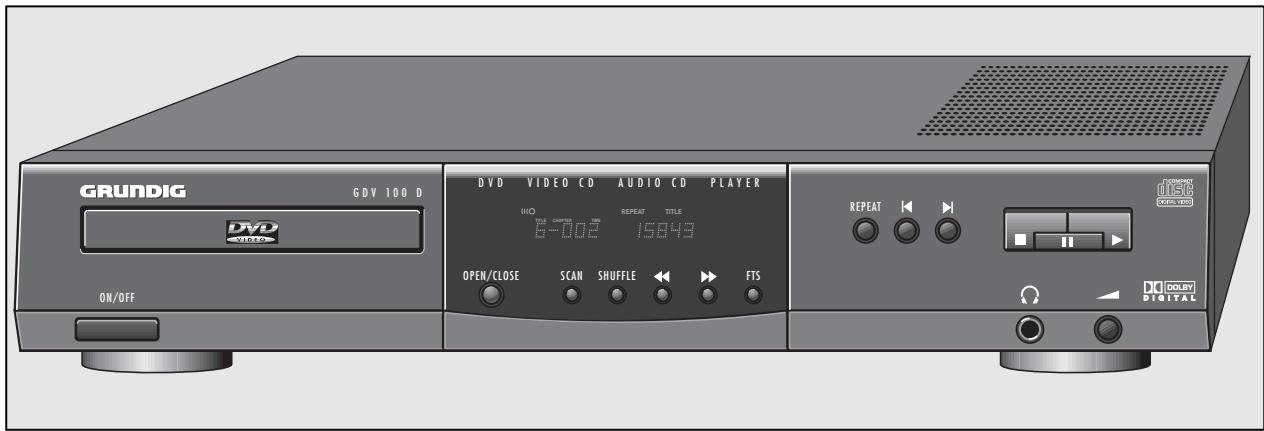
The Front Side
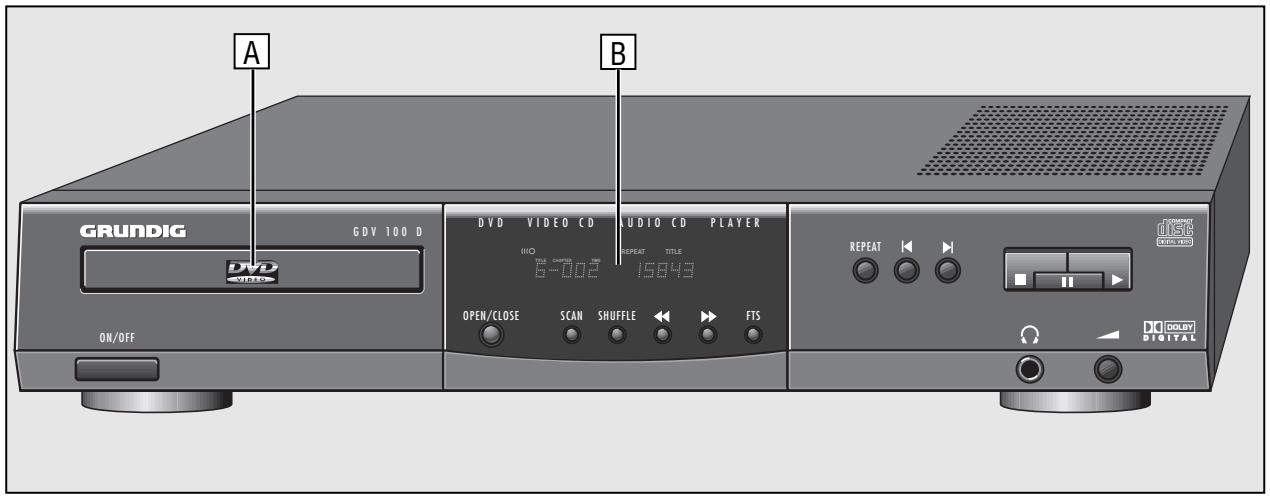

Switches the DVD-player on and off. The DVD-player will not be completely separated from the mains.

CD compartment.

Display.

For opening and closing the CD compartment.

Playing the beginning of all CD titles.

Playing the titles of a CD in a random sequence.

With OSD (ON SCREEN DISPLAY) menu-mode:
Cursor-button, left.
During playback: switches to
various playback speeds, reverse.

With OSD menu-mode:
Cursor-button, right.
During playback: switches to various playback speeds, forward.

Activates the "Favourite Track Selection" (FTS) function, which means you can compile your own favourite title tracks.

During playback: repeats the selected title/section/ music track.

During playback: selects the previous title/section/ music track.

During playback: Selects the next title/section/ music track.

Interrupts every drive mechanism function, switches to "STOP".

Pause/still picture during playback. With Video-CDs: repeated pressing switches the still picture forward step by step.

Starts playback.

Headphones socket for connecting the stereo headphones with the jack (Ø 6.3 mm).

Volume control for connected headphones.
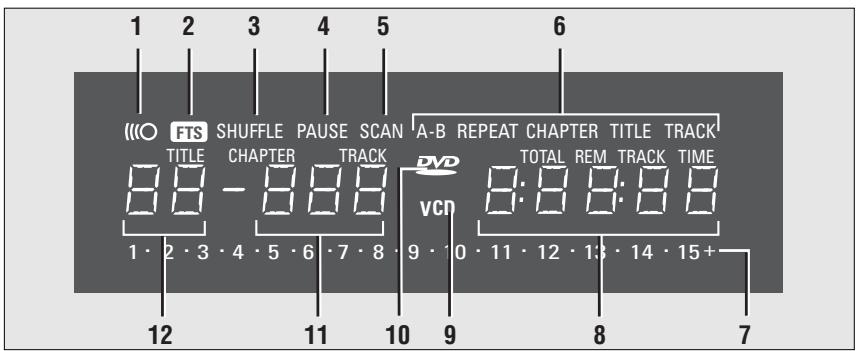
1 Display ((O) illuminates if the remote control is set.
2 FTS function is set.
3 SHUFFLE function is set.
4 PAUSE function is set.
5 SCAN function is set.
6 One of the operating modes REPEAT/CHAPTER/TITLE/TRACK is set.
7 Indicator scale for section or title numbers.
8 TOTAL/REM total playing time/remaining playingtime TRACK TIME title playing time in hours, minutes and seconds
9 (V)CD playback function is set.
10 DVD playback function is set.
11 DVD CHAPTER or VCD/CD TRACK number.
12 DVD-TITLE number.
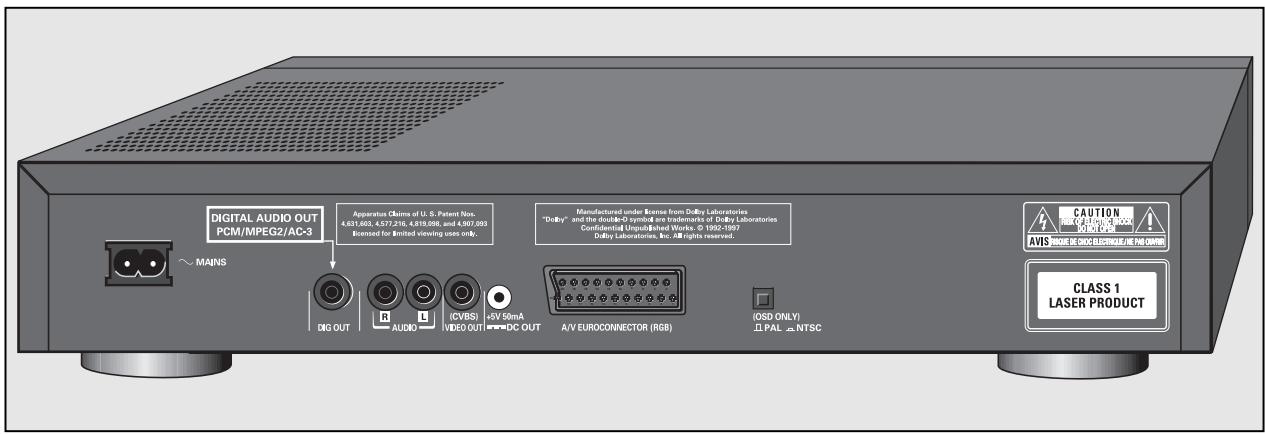
The Rear Side
MAINS
DIGITAL AUDIO OUT (PCM/MPEG2/AC3)
R AUDIO L
VIDEO OUT (CVBS)
DC OUT (+5V / 50mA)
Mains socket.
Audio-output socket, for the connection of audio system.
Audio-output sockets, right channel/left channel.
Picture-output socket.
No function.

A/V EURO-CONNECTOR (RGB)
PAL/NTSC
Connection socket for the TV set.
Switch for the colour norms before playing Video-CDs.
Do not connect things together if the DVD-player is switched on.
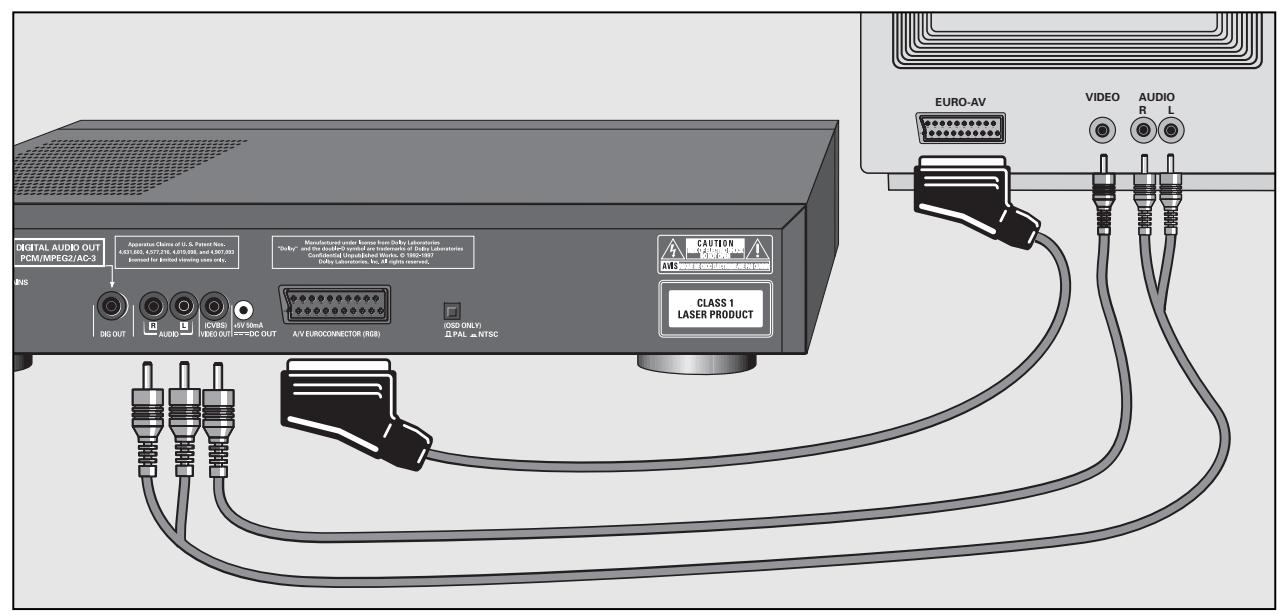
Depending on which TV set and which auxiliary devices you own, there are a various number of connection options for your DVD-player. These will be defined in the following sections. Please read about how these devices can be optimally connected in the operating manuals for your TV set, video recorder, stereo system and similar.
- Connecting the DVD-player and TV set with the EURO-AV cable
1 Connect A/V EUROCONNECTOR socket of DVD-player and Euro-AV (Audio-Visual) socket of TV set with the supplied EURO-AV cable.
i You can also connect the audio-output sockets R AUDIO L on the rear side of the DVD-player and the corresponding audio input sockets of the stereo system with the supplied audio cable (cinch cable).
- Connecting the DVD-player and TV set with a video-playback cable
1 Connect picture-output socket video out on the rear side of the DVD-player and corresponding TV set sockets with a commercially available videopayoutback cable.
2 Connect the audio-output sockets R AUDIO L on the rear side of the DVD-player and the corresponding audio input sockets of the stereo TV set or the stereo system with the supplied audio cable (cinch cable).
The audio-output sockets R AUDIO L in the DVD-player should not be connected with the PHONO input-sockets (record player-input) in the stereo system.
Should a DVD-player be connected to a TV set with a 16:9 format, then please observe the adaptation in the chapter "Individual Settings" on page 18.
Connecting headphones
1 When necessary: insert (ø 6.3 mm) headphone jack into the socket at the front side of the DVD-player.
2 Adjust to the desired volume for the headphones with the aid of the volume control at the front side of the DVD-player.
NTSC/PAL setting
i Adjustment of the basic format (colour norms) of the DVD-player screen menu to the TV set.
1 Adjust the NTSC/PAL selection switch at the rear side of the DVD-player to correspond with PAL or NTSC.
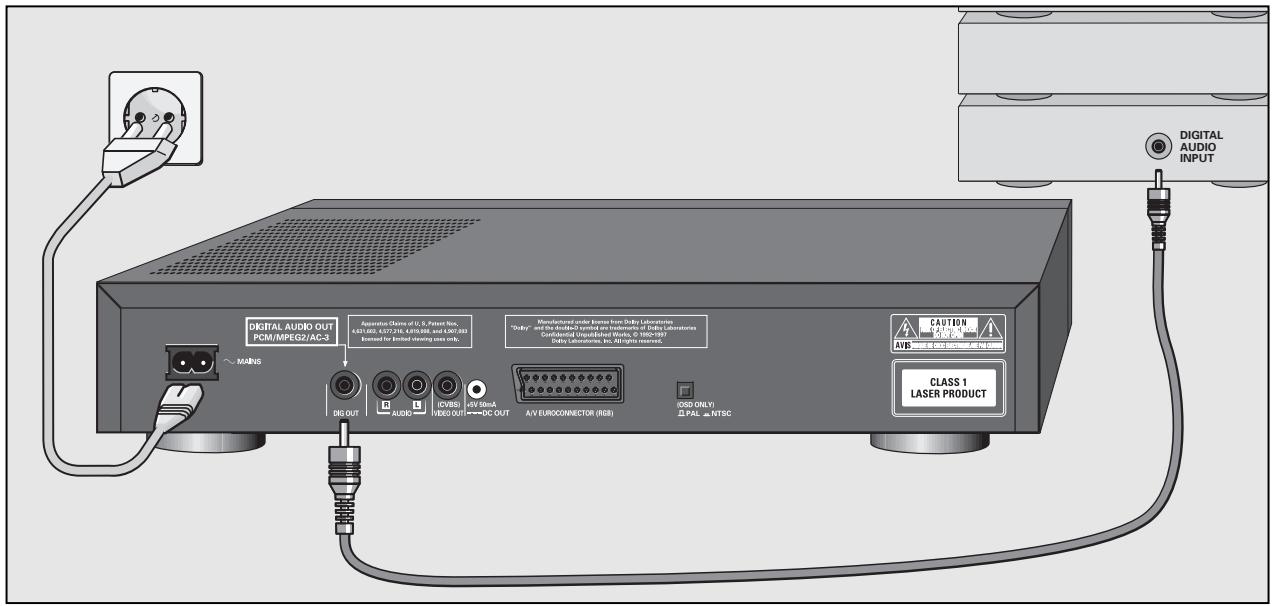
Connecting DVD-player to a stereo system with digital audio input
If you own an audio amplifier or a stereo system with digital-audio input, then the best possible stereo sound quality will be attained via this connection.
Connect the output socket DIGITAL AUDIO OUT in the DVD-player with the corresponding digital-input jack in the audio amplifier or the stereo system.
Do not use the left and right audio-output socket in the DVD-player.
Connecting DVD-player to a digital multichannel audio/video-receiver (MPEG 2 multichannel decoder or *Dolby Digital decoder)
You require a digital multichannel audio/video-receiver for this multichannel sound reproduction.
Connect the output socket DIGITAL AUDIO OUT in the DVD-player with the corresponding digital-input jack in the multichannel audio/video-receiver.
Do not use the left and right audio-output socket in the DVD-player.
At the DVD-player, the digital output must be switched on and the correct digital basic format must be set (MPEG or AC 3), see page 18, Chapter "Individual Settings", (DIGITAL OUTPUT).
Connecting a DVD-player to an analogue multichannel-audio/video receiver or to a TV set with *Dolby Pro Logic decoder
i If your TV set is equipped with a Dolby Pro Logic decoder you can connect the DVD-player via the A/V EUROCONNECTOR connection or the VIDEO (CVBS) and audio connection (see page 6).
1 Connect audio-output sockets R AUDIO L on the rear side of the DVD-player and the corresponding audio input socket of a Dolby Pro Logic-audio/video-receiver with an audio cable.
i With regard to connecting the speakers, read the operating manual for the TV set or the audio/video-receivers.
- Connecting the DVD-player to the mains supply
1 Insert the supplied mains cable into the mains socket MAINS on the rear side of the DVD-player. Insert the mains cable plug into the socket.
2 The DVD-player is switched on and off using the ON/OFF button at the front side.
The DVD-player can only be separated from the mains by pulling the mains plug.
- Manufactured under license from Dolby Laboratories Licensing Corporation.
"Dolby", "Dolby Pro Logic", "AC 3" and the double-D symbol "D" are trademarks of the Dolby Laboratories Licensing Corporation. Copyright 1992 Dolby
Laboratories, Inc. All rights reserved.
Inserting batteries into the remote control
1 Remove battery compartment cover, to do this press catch and remove cover.
2 Insert batteries (2 x1,5 V, type Mignon RO3P).
! Observe the polarity of the batteries; highlighted at the bottom of the battery compartment.
i Direct the remote control at the DVD-player display.
If your DVD-player does not react to the remote control commands correctly, then the batteries could be used up.
Remove the used batteries immediately.
Used batteries should be dispatched into special containers (environmental protection).
There is no liability for damages arising through dead batteries.
The remote control at a glance
The buttons on the remote control are briefly explained on this page.
To operate, please refer to the respective chapter in this operating manual.
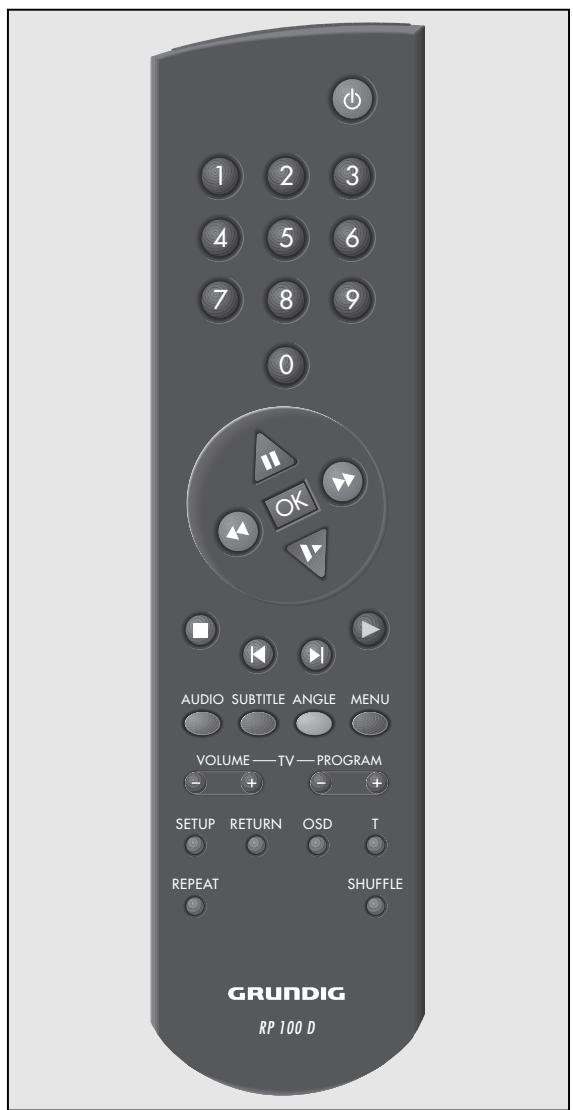
The buttons on the remote control
Switches the DVD-player off (Stand-by). Switch on again with any button.
① ... ⑥ Digit buttons for various entries.

Cursor buttons for OSD menu-mode, Pause button for CD-mode. For Video-CDs: still picture during playback.

Selection of various
playback speeds, forward or reverse.

With Video-CDs: switches to slow motion.

Confirms entries.

Stops all functions, switches the DVDplayer to "STOP".

During playback: selects various titles and a section of a title, reverse.

During playback: selects various titles and a section of a title, forward.

Starts playback.

During playback: switches over between the original and synchronized language on a digital Video-CD.
SUBTITLE During playback: fadein of subtitles on digital Video-CDs.

During playback of digital Video-CDs: selects various camera angles (camera locations) of certain scenes or parts.

During playback: calls up the table of contents for the inserted CD.

At STOP: calls up the OSD-menu "Settings".
RETURN At OSD menu-mode: calls up theprevious menu.

During playback: for the fading in or out of symbols and displays on the TV screen.

Selection button for single titles.

During playback: for repeatingsections, titles or CDs.

Playing every CD title in a random sequence.
Remote control with TV set:
(GRUNDIG television sets from TP 590 remote control).

UME TV volume - / +

PROGRAM TVprogramme selection-/+

Preparation
1 Turn on your television set and select the programme position for the DVD-player.
2 Switch on stereo system and select the corresponding audio input for the DVD-player.
3 Switch on DVD-player with the ON/OFF button.
- The display on the DVD-player illuminates.
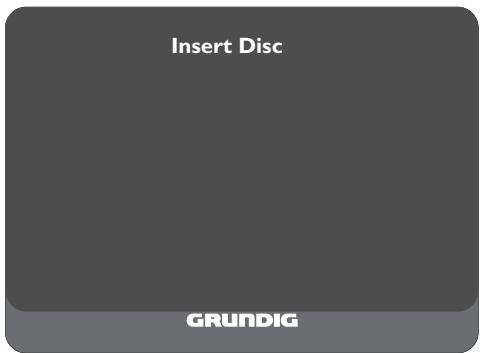
- After a short time the OSD-menu appears on the TV screen and requests that you insert a CD.

Inserting a Compact Disk (CD)
Press the button OPEN/CLOSE at the front side of the DVD-player.
- The CD compartment opens.
2 Insert the desired CD into the compartment with the label facing upwards. Check that it is inserted into the correct indentation in the compartment.
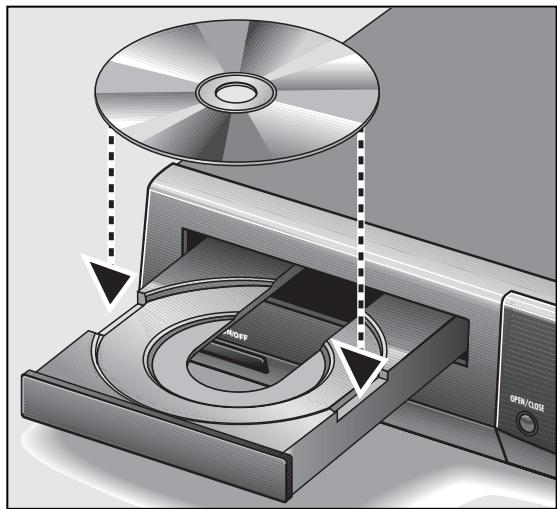

Press the OPEN/CLOSE button once again, or carefully press the front side of the compartment. - The CD compartment closes automatically.

If the function "Autplay" is switched on (factory-set), then playback will start immediately. - In the DVD-player display, the total playing time of the CD will appear.
i If the "Autplay" function is switched off, then the OSD-menu "Play" will appear on the TV screen with information about the type of CD and the CD contents.
In the DVD-player's display, the total playing time of the CD will appear.
Please read the chapter "Individual Settings" on page 18 regarding how the "Autplay" function is switched off and on.

Removing CD
1 Press l button.
Press OPEN/CLOSE button, the CD compartment opens. Now you can remove the CD.
i Always place the CD back into the CD-case after playing it, in this way damage to its surface can be avoided (e.g. through scratching).

Please observe:
i Because films are normally released at differing times in different places throughout the world, all DVD-players worldwide have a regional code given to them.
This DVD-player is released for regional code 2. DVDs can also be given an additional regional code. If you insert a DVD with a differing regional code into the DVD-player, you will become aware of a note on the TV screen indicating the regional code. The DVD can not be played and should be removed from the DVD-player.
Selecting OSD language for user guide
The OSD language for the user guide can be changed. You can select the desired dialogue language from several languages.
1 Press l button and after that press the SETUP button.
- The OSD menu "Settings" appears on the screen.
2 Press the cursor button repeatedly until the second "Settings" menu page appears, and then select the line "OSD Language".
3 Select the desired language using the / or / cursor buttons.
4 Finish settings using SETUP button or RETURN button.
Playback information
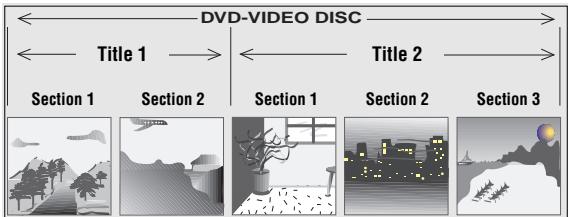
What are DVD-Video or Video-CDs
DVD-Video-CDs and Video-CDs are recognizable by their logos.
The playing of these CDs can be monitored and controlled via the OSD-menu on the TV screen.
They can have one or more titles depending on the contents of the CDs (films, videoclips, television series etc.).
Every title can contain one or more sections. One can not only easily and simply switch over between titles but between sections as well.
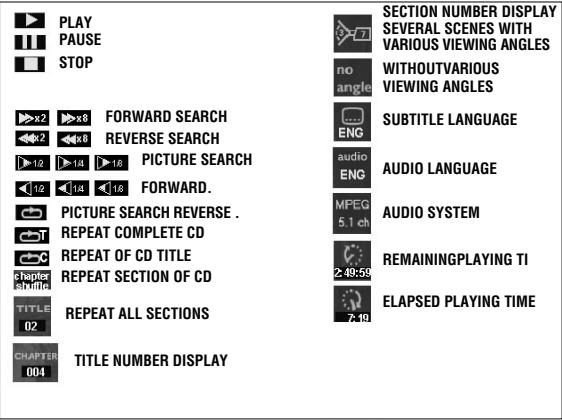
Various symbols can appear for approximately 10 seconds on the TV screen during play if certain fuctions are selected.
These symbols can be deleted by pressing the
Oosd button.
□ Autplay
Certain DVD-Video-CDs contain their own Autopy command so that playback can be started at any time.
Play Back Control (PBC)
Certain Video-CDs (e.g. classical CDs) contain several titles and sections which are ordered in a set sequence by the manufacturer. But you can directly select single titles and sections separately and then play them.
Play stops at the end of every title.
Audio-CDs
Audio-CDs only include music recordings. These CDs are recognizable by their logos. You can play them as normal on the stereo system or via the TV screen with the aid of the OSD-menu.
You can also create your own music archive with the aid of the OSD-menu (FTS-function) by selecting and rejecting certain titles.
You can simply and easily control play via the OSDmenu or, when playing over a stereo system, with the remote control buttons or on the DVD-player itself.
If the "Autplay" or "FTS" functions are switched on, then play will commence immediately after closing the CD compartment.
The OSD-menu can also be called up with the OSD button which displays the functions that have been activated for approximately 10 seconds. If the OSD-menu is supposed to appear permanently on the TV screen, press the OSD button and keep it pressed down for a few seconds.
Press the Oosd button again to delete the menu.
During the time in which the CD is playing, the display on the DVD-player shows the current title and section being played and the elapsed playing time.
i Play stops at the end of the last title.
Preparation
Switch on DVD-player.
Turn on your television set and select the programme position for the DVD-player.
Switch on stereo system and select the corresponding audio input for the DVD-player.
Open CD compartment, insert desired CD and then close the compartment again.
- An OSD-menu appears after a short time with data of the inserted CD.
Certain DVD-Video-CDs contain their own Autopy command so that the playing can be started at any time.
If the function "Autplay" is switchedon, then play will also start immediately.
Please observe the user guide on the TV screen.
Title playback
To start playback, press 口 button.
To select play pause (still picture), press the button during playback.
Playback stops at the end of every title.
To continue playback with the next title, press the l button again.
To finish playback, press the button.
The "Resume" function: continue playback, at that point at which it had finished, to do this press the / button twice.
The "Resume" function not only works with just that CD inserted into the device, it also functions with the previous four CDs played by you. Simply insert the CD again and press the button l twice.
Selection of another title
If a CD includes several titles (this will be shown on the TV screen and in the DVD-player display if you press the / button), you can select another title in the following way:
Start playback using 口 / 口 button.
To select next title, press T button and after that briefly press the / button.
To select beginning of current title, press the button and after that briefly press the (串) / (串) button.
To select previous title, briefly press the 14 button once again.
To select a desired title directly, press the button and after that enter the number of the required title with the digit buttons ① ... ⑤ using one or two digits.
Finish play using 串 button.
Selection of another section
If a title of a CD consists of several sections (this will be shown on the DVD-player display), you can select another section in the following way:
To select next section, briefly press 串 / 串 button.
To select the beginning of the current section, briefly press 14 button.
To select previous section, briefly press 14 button.
To select a desired section directly, enter the number of the required section with the digit buttons ① ... ⑤ using one or two digits.
Finish play using 口 button.
Additional Functions of Playback

Slow motion
i You can choose between three various playback speeds.
1 To select slow motion playback, press the button repeatedly until the desired playback speed is reached.
i When pressing the button, the respective playback speed will always be displayed for approximately 10 seconds on the TV screen.
2 To return to normal play, press the 口 button.

Switching still picture step by step

SEARCH - selecting various playback speeds
1 During Play/Pause (still picture) press button repeatedly.
- Every time you press this button, the still picture will be switched step by step.
2 To return to normal play, press the l button.
1 When pressing the playback button l / (forward) or the l button (reverse), the symbol “ ” appears on the screen.
- The DVD-player switches to double playback speed, forward or reverse.
2 During activation of the playback button / (forward) oder / button (reverse), press until the symbol “ 串 ” appears on the screen.
- The DVD-player switches to the 8-fold playback speed, forward or reverse.
3 To switch back to double playback speed, press the / button (forward) or the / button (reverse) again.
4 To return to normal play, press the button.
i With the functions "slow motion", "still picture" and "selection of various playback speeds", the sound will become muted.
SCAN - quickly "flip through" all titles
i Every beginning of a title will be repeated for approximately 10 seconds with this function.
1 Press scan button.
- The scan symbol will be displayed for approximately 10 seconds on the TV screen.
2 To continue playback of current title, press the scan button or the button.
SHUFFLE - play all sections of a title
i With this function, the sections of a title are repeated in a random sequence if the title includes several sections.
1 Press the O SHUFFLE button during playback.
- The Shuffle symbol will be displayed for approximately 10 seconds on the TV screen.
- Every time a new section is repeated, the corresponding number in the DVD-player display will disappear.
2 To return to normal playback, press the SHUFFLE button again.
REPEAT - repeating a section, a title or a CD.
i With these functions, the currently running section, or the currently running title or the total contents of the CD is repeated.
1 Press the REPEAT button during playback.
- "REPEAT CHAPTER" appears on the DVD-player display. The section running is repeated.
Press the REPEAT button twice during playback.
- "REPEAT TITLE" appears on the DVD-player display. The title running is repeated.
3 Press the REPEAT button three times during playback.
- "REPEAT" appears on the DVD-player display. The contents of the CD are repeated.
4 To finish the REPEAT functions, press the REPEAT button a fourth time.
Determine the viewing angle of certain scenes or parts yourself.
Many DVDs contain scenes or parts which have been repeatedly filmed from varying camera locations (differing viewing angles).
You can select various viewing angles during playback.
With these types of DVDs, the angle symbol “57”, which indicates how many scenes (in example 7) are found on this DVD with how many viewing angles (in example 5), appears on the TV screen as well as the momentarily set viewing angle.
To select another viewing angle, press the ANGLE button.
- The angle symbol “ 37^ ” on the TV screen displays the “new” viewing angle, in example 3.
To select another viewing angle directly, enter the number of the required viewing angle with the digit buttons ① ... ⑤
The angle symbol “ 37 ” appears on the TV screen until you switch the function off. This could be necessary, for example, if you wanted to use the digit buttons for selecting another title or section.
This function can be swiched on or off with the OSD button.
- The angle symbol “ ” either disappears or appears on the TV screen.
Fading in of subtitles
If subtitles are available on a DVD, you can fade them in on the TV screen.
If the subtitles are available in several languages, then you can select your desired dialogue language.
Press the SUBTITLE button during playback until the subtitles are faded in on the TV screen.
To select the language of the subtitles, press the SUBTITLE button until the desired subtitle dialogue language is faded in on the TV screen.
To finish the subtitle function, press the SUBTITLE button once again.
Switching synchronized language over, setting sound reproduction
The synchronized language is switched over and the corresponding sound reproduction selected with these settings if the DVD in question supplies these alternatives.
1 Press the AUDIO button during playback.
- The symbols for the synchronized language and the sound reproduction appear on the TV screen for 10 seconds.
2 To run through the selection options, press the AUDIO button a few times. A different synchronized language is selected at every interval.
This will also be displayed if the sound reproduction is changed (for example from Dolby Surround Sound to stereo).
□ Checking the contents of a DVD-VIDEO-CD
i The DVD can include selection menus for titles and sections. This DVD-player menu function enables you to call up all of these menus. If the selection options are numbered, then press the corresponding numeric button ① ... ⑨
If the selection options are not numbered, then you will have to choose the selection options with the cursor buttons / or / and then call them up with the OK button.
During the time in which the DVD is playing, the display on the DVD-player shows the current title and section being played and the elapsed playing time.
Calling up the title menu
1 To call up the DVD title menu, press the button.
- If the DVD includes a title menu, then this will appear on the TV screen.
2 To delete title menu, press the T button, or
Call up selection menu
3 Press the MENU button.
If the chosen title includes a selection menu, then this will appear on the TV screen.
The selection menu can contain selection options for viewing angles, synchronized languages and subtitles and sections of titles.
4 To delete the selection menu, press the MENU button again.
5 Finish check with button.
Preparation
1 Turn on your television set and select the programme position for the DVD-player.
2 Switch on stereo system and select the corresponding audio input for the DVD-player.
3 Switch on DVD-player. Open CD compartment, insert desired CD and close compartment again.
- An OSD-menu appears after a short time with data of the inserted CD.
i Certain DVD-Video-CDs include their own Autopy command, playback can be started immediately. Playback will also start immediately if the function "Autopy" is switched on.
i Please observe the user guide on the TV screen.
Playback
1 To start playback, press the l button. -Playback stops at the end of the Video-CD.
2 To select playback pause (still picture), press the button during playback.
3 To continue playback, press the l button again.
4 To finish playback, press the l button.
5 The "Resume" function: to continue playback at that point at which it had finished, press the l button twice.
The "Resume" function not only works with just that CD inserted into the device, it also functions with the previous four CDs played by you. Simply insert the CD again and press the button twice / .
Selection of another title
i If a CD includes several titles (this will be shown on the TV screen and in the DVD-playback displayback if you press the l button), you can select another title in the following way:
1 Start playback with the l button. To select next title, press the button and then briefly press the l button. To select the beginning of the current title, press the button and then briefly press the l button. To select previous title, briefly press the l button again.
2 To select a desired title directly, press the button and after that enter the number of the required title with the digit buttons ① ... ⑧ with one or two digits.
3 Finish playback with the l button.
Selection of another section (index)
i If the title of a Video-CD consists of several sections (index points) (this will be shown on the DVD-player display), you can select another section (index) in the following way:
1 To select the next section (index), briefly press the / button.
To select the beginning of the current section (index), briefly press the 串 / 串 button.
To select the previous section (index), briefly press the 14 button again.
2 To select a desired section (index point) directly, enter the number of the required section (index point) with the digit buttons ① ... ⑧ using one or two digits.
3 Finish playback with l button.
Playback with Play Back Control (PBC)
What does Play Back Control (PBC) mean?
Certain Video-CDs (e.g. classical CDs) include several titles and parts which have been ordered in a set sequence by the manufacturer. But you can directly select single titles and parts separately and then play them.
1 Insert a Video-CD with PBC and press the l button. - The PBC-menu appears on the TV screen.
2 Select the desired parts with the faded in buttons on the TV screen, playback is started.
i If the PBC-menu consists of a list of titles, you can directly select a title.
3 To select a desired title directly, press the l or l button, or enter the number of the required title using the digit buttons ① ... ① entering with one or two digits.
4 Start playback with 包 button.
5 To select previous menu item or title, press the RETURN button.
6 Finish playback with l button.
Additional Functions of Playback
Slow motion
You can choose between three various playback speeds.
1 To select slow motion playback, press the button repeatedly until the desired playback speed is reached.
i When pressing the button, the respective playback speed will always be displayed for approximately 10 seconds on the TV screen.
2 To return to normal playback, press the l button.
Switching still picture step by step
1 During Play/Pause (still picture), press the button repeatedly.
- Every time you press this button, the still picture will be switched step by step.
2 To return to normal playback, press the l button.
SEARCH - selecting various playback speeds
During playback, press the / (forward) or the / button (reverse), the symbol “ ” appears on the screen.
- The DVD-player switches to double playback speed, forward or reverse.
2 During playback, keep_pressing the / (forward) or / (reverse) button, until the symbol “ 三 ” appears on the screen.
- The DVD-player switches to the 8-fold playback speed, forward or reverse.
3 To switch back to double playback speed, press the / (forward) or / (reverse) button again.
4 To return to normal playback, press the l button.
i With the functions "slow motion", "still picture" and "selection of various playback speeds", the sound will become muted.
SCAN - quickly "flip through" all titles
i Every title beginning will be played for approximately 10 seconds with this function.
Press the scan button.
- The scan symbol will be displayed for approximately 10 seconds on the TV screen.
To continue playback of current title, press the SCAN or the l button.
SHUFFLE - playing all sections of a title
i With this function, the sections of a title are played in a random sequence if the title includes several sections.
Press the O SHUFFLE button during playback.
- The Shuffle symbol will be displayed for approximately 10 seconds on the TV screen.
- Every time a new section is played, the corresponding number in the DVD-player will disappear.
2 To return to normal playback, press the SHUFFLE button again.
REPEAT - repeating a section, a title, or a CD.
i With these functions, the currently running section, or the currently running title, or the total contents of the CD is repeated.
1 Press the REPEAT button during playback.
- "REPEAT CHAPTER" appears on the DVD-player display.
The section currently running is repeated.
Press the _REPEAT button twice during playback.
- "REPEAT TITLE" appears on the DVD-player display. The title currently running is repeated.
3 Press the REPEAT button three times during playback.
- "REPEAT" appears on the DVD-player display. The contents of the CD are repeated.
4 To finish the REPEAT functions, press the REPEAT button a fourth time.

Preparation
1 If desired, turn on your television set and select the programme position for the DVD-player.
- You can control Audio-CD playback using the OSD-menu.
Switch on stereo system and select the corresponding audio input for the DVD-player.
3 Switch on DVD-player.
Open CD compartment, insert desired CD and then close the compartment again.
- An OSD-menu appears after a short time with data of the inserted CD.
i If the function "Autplay" is switched on, then the playback will start immediately.
i Please observe the user guide on the TV screen.

Playback
1 To start playback, press the > button.
-Playback stops at the end of the Audio-CD.
2 To select play pause, press the || button during playback.
3 To continue playback, press the l button again.
4 To finish playback, press the l button.
The function "Resume": to continue playback at that point at which it had finished, press the button twice.
The "Resume" function not only works with the CD just inserted into the device, it also functions with the previous four CDs played by you. Simply insert the CD again and press the button twice l

Selection of another title
1 To select the next title: press the / button during playback.
To select the beginning of the current title, briefly press the 14 button.
To select the previous title: briefly press the (14) / (14) button once again.
2 To select a desired section directly, enter the number of the required section with the digit buttons ① ... ⑤ using one or two digits.
3 Finish playback using the l button.
Additional Functions of Playback

SEARCH - selecting various playback speeds

The volume will be reduced when using the "selection of various playback speeds" function.

During playback, press the / (forward) or / (reverse) button, the symbol “ ” appears on the screen.
- The DVD-player switches to double playback speed, forward or reverse.

During playback, keep pressing the / (forward) or / (reverse) button, until the symbol “ ” appears on the screen.
- The DVD-player switches to the 8-fold playback speed, forward or reverse.

To switch back to double playback speed, press the / (forward) or / (reverse) button again.

To return to normal playback, press the l button.

SCAN - quickly "flip through" all titles

Every title beginning will be played for approximately 10 seconds with this function.

Press the scan button.
- The scan symbol will be displayed for approximately 10 seconds on the TV screen.

To continue playback of current title, press the SCAN or l button.

SHUFFLE – playing the titles of a CD in a random sequence

With this function, the titles are played in a random sequence. The title sequence is changed every time.

Press the OSHUFFLE button during playback.
-
The Shuffle symbol will be displayed for approximately 10 seconds on the TV screen.
-
Every time a new title is played, the corresponding number in the DVD-player display will disappear.

To return to normal playback, press the OSHUFFLE button again.

REPEAT - repeating a title or a CD.
i With these functions, the currently running title or the total contents of the CD is repeated.
1 Press the REPEAT button during playback.
- "REPEAT TRACK" appears on the DVD-player display. The title running is repeated.
Press the REPEAT button twice during playback.
- "REPEAT" appears on the DVD-player display. The contents of the CD are repeated.
3 To finish the REPEAT functions, press the REPEAT button a third time.
Arrange your own music programme
i With the DVD-player "Favourite Track Selection (FTS)" function you can compile your favourite titles from various Audio-CDs.
You can either select the desired title (»Track Selection" or "Title Selection«), or ignore the titles that you do not want to play (»Exclude Tracks" or "Reject Title«).
Self-compiled music programmes can be made for more than a total of 100 Audio-CDs.
If too many music programmes are made (over 100), then the less frequently played music programmes are automatically deleted.
These settings can only be activated on the OSD-screen menu.
Compiling music programme
1 Open CD compartment, insert desired CD and then close the compartment again.
i If the "AUTO FTS" function is switched on, then the FTS-Routine playback will start immediately. If it is not:
Press the OFTS button.
- The "FTS" symbol illuminates on the DVD-player display.
3 Press the l button.
- The FTS-playback will be started.
4 To switch over to normal playback, press the FTS button once again.
Rejecting title (ignore):
1 Open CD compartment, insert desired CD and then close the compartment again.
2 To switch DVD-player to “STOP”, press the button.
3 Press the / button.
4 Select the first title you wish to ignore with the cursor buttons / or / .
5 Press the button.
6 Select the other title numbers you wish to ignore with the cursor buttons 念 / 念 or 念 /念
i If you want to add a rejected title number into the title selection again, then you will have to select that title again and activate it by pressing the cursor button.
i If you want to ignore the complete selection and repeat programming, then press the l button.
Selecting title:
1 Open CD compartment, insert desired CD and then close the compartment again.
2 To switch DVD-player to “STOP”, press the button.
3 Press the / cursor button.
4 Select the first title you wish to play with the / or / cursor buttons.
5 Press the cursor button.
6 Select the other title numbers you wish to play with the / or / cursor buttons.
i If you want to remove a selected title number from the title selection, then you will have to select that title again and delete it by pressing the cursor button
i If you want to delete the complete selection and repeat programming, then press the l button.
7 If you have finished compiling your music programme, then press the button to start the FTS-playback or
press the RETURN button, the DVD-player switches to "STOP".
-In both cases, your music programme will be automaticallystored.
Setting your Individual Operating Convenience on the DVD-Player
i You can determine your personal basic settings beforehand using certain playback functions. You will find detailed explanations regarding these functions in the appropriate chapter.
Proceed in this way for all settings!
1 Press the button.
2 Call up the OSD-screen menu using the SETUP button.
- The "Audio" line is set.
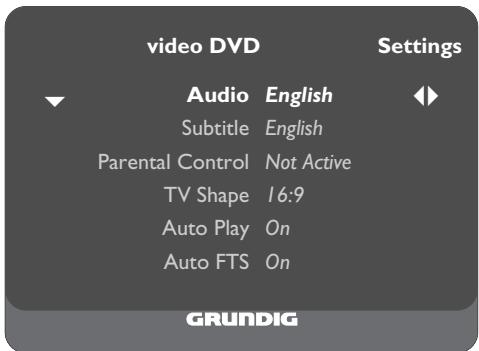
3 Select the function (line) you wish to be changed using the / cursor button(s).
4 Select the desired basic setting using the / or / cursor buttons.
5 Finish settings using SETUP button or the RETURN button.
Audio - select synchronized language for the sound (AUDIO LANGUAGE)
The sound is played in the language chosen by you, providing it is available on the CD inserted.
If not, the language playback switches back to the first synchronized language on the CD.
Select language for the subtitles (SUBTITLE LANGUAGE)
The subtitles are shown in the language chosen by you, providing they are available on the CD inserted.
If not, the subtitle playback switches back to the first language on the CD.
Switch child lock on and off (PARENTAL CONTROL)
i This is explained in more detail in the following section "Child lock".
Select picture format (TV ASPECT RATIO )
i Ex-works setting: Widescreen (16:9).
With a conventional TV set (4:3), you can select the following settings:
"4:3 Letterbox" (letterbox format), for playback with a black bar on the upper and lower edge of the TV screen, or
"4:3 Pan Scan" (panorama format), for a widscreen playback enlarged to full screen height, in which the left and right edge of the screen is cut.
Audiomatic playback (AUTO PLAY)
This function is switched on ex-works, which means that playback automatically starts when a CD is inserted.
You can switch this function off should you wish to start playback manually.
Audiomatic playback of your music programme (AUTO FTS)
This function is switched on ex-works, which means that the playback of a FTS-programme automatically starts when an Audio-CD, for which a FTS-programme has been made, is inserted (see page 17, chapter "Compile your own music programme").
You can switch this function off should you wish to control the FTS programme function manually.
Select digital output (DIGITAL OUTPUT)
i With the factory setting "Off", a sound signal is not sent via the digital output of the DVD-player. If you use a digital multichannel A/V-receiver, then select, using the information in the operating manual for the receiver, either the setting "All" (MPEG, AC 3 and PCM) or "PCM" (normal stereo sound).
Video Shift - setting_picture position
The picture is centred on the screen with the factory setting.
Use this setting function to adjust the picture position to your personal taste by moving it to the left or right.
Selecting OSD language for user guide (PLAYER OSD LANGUAGE)
The OSD-screen menus appear in the language chosen by you.
The child Lock
i CD playback can be blocked by implementing the child lock.
The child lock can be activated in such a way that every CD is blocked.
or
that for certain age groups, the CDs are authorised by you for release.

1 Press the l button.
2 Call up the OSD-screen menu using the SETUP button.
- The "Audio" line is set.
3 Select [n]12 the line "Parental Control" with the cursor buttons.
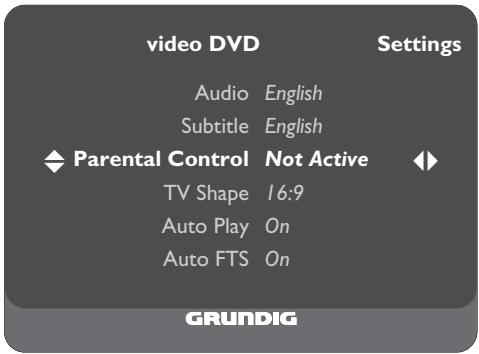
4 Select the display "Enter Pin" using the / or / cursor buttons.
- The OSD-menu requests you to enter 4-number code.
5 Enter 4-number code using the ① ... ① digit buttons. - The "Confirm Pin" display appears.
6 Confirm the code number by entering the same four-digit code number again.
The DVD-player is blocked.


Your personal code
Should you forget or misplace the code, then please read more about this in the chapter "Rectifying malfunctions" on page 20.
The 4-number code must be entered before each CD playback using the digit buttons ① ... ① unless you released (authorized) the CD in question for certain age groups beforehand.
Switching Off Child Lock
i Repeat the entries in steps 1 til 6.
i The DVD-player is now released again.
Releasing CDs
You can release (authorise) CDs for certain age groups.
1 Open CD compartment, insert desired CD and then close the compartment again.
- The OSD-menu requests you to enter your personal code.
2 Enter 4-number code using the ① ... ⑧ digit buttons.
3 Press the l button.
4 Activate the function "Parental Control" with the / cursor button.
- The OSD-menu requests you to enter your personal code.
5 Enter 4-number code using the ① ... ⑧ digit buttons.
i The CD has now been released and can play without entering the code.
Re-blocking CDs
i Repeat the entries in steps 4 til 5.
It is possible to release a total of 50 CDs. If too many are released, then the less frequently played CDs are automatically deleted.

Rectifying malfunctions
Not every picture and sound disturbance need be referred back to a defect in your DVD-player.
Connecting cables accidentally pulled out, damaged CDs and used batteries in the remote control can lead to functional defects.
Should the measures stated below not provide a satisfactory answer, then please consult a specialist!
Should the measures stated below not provide a satisfactory answer, then please consult a specialist!
| Malfunction | Reason/Correction |
| No return to Start-Up screen when the disk is removed | •Re-set the player to the basic setting by switching it on and off. •Check to see if another disk should be inserted for that programme. |
| Device does not react to remote control | •Point your remote control directly at the player sensor. •Move all obstacles out of the way which could hinder the signal beam. •Check or replace the batteries. |
| No picture | •Select the programme position for the DVD-player on the TV set. •Check the video-connection. |
| Fuzzy picture | •Make sure no fingerprints are on the disk and clean it with a soft cloth by wiping it from the middle to the edge. |
| Very fuzzy picture in OSD-screen menu | •NTSC/PAL switch is not set correctly for this CD. |
| No colour on the OSD-screen menu | •NTSC/PAL switch is not set correctly for this CD. |
| CD does not play | •Check that the CD label is facing upwards. •Clean the disk. •Check for damage to the disk by trying out another disk. |
| No sound | •Check the audio connections. •Test another source of playback should you be using an Hi-Fi amplifier. |
| Distorted sound from the Hi-Fi amplifiers | •Make sure that the “audio connections” are not leading to the phono input on the amplifier. |
| Child lock is set, the 4-number code is unknown. Cancel child lock | •See page 19: instead of “Enter code”, press the button four times. |

Cleaning of CDs
If the CD is dirty this can lead to problems.
To avoid these problems clean your CDs regularly in the following way:
Clean the dirty CD with a cloth using a straight-lined movement from the middle to the edge.

Do not use solvents such as petrol, diluting agents, use commercially available cleaning agents or antistatic spray for analog records.
Technical data
This DVD player complies with the safety regulations in accordance with the VDE (Association of German Electrical Engineers) 0860 and consequently with the international safety regulations IEC 65 bzw. CEE 1.
Do not open the DVD-player under any circumstance. The manufacturer will offer no guarantee for damage resulting from unqualified tampering.
Supply Voltage: 100V - 240V ,50 / 60Hz
Weight: approx. 4 kg
Power Requirement: approx. 23 W - Stand by: approx. ≤5W
Dimensions in mm (w x h x d): 435 x 70 x 305
Operating Position: horizontal
Ambient Temperature: +10^ til +35^
Relative Air Humidity: up to 80%
Playback Norm: PAL, 50 Hz, 625 lines NTSC, 60 Hz, 525 lines
Playback System: DVD-Video, Video-CD, Audio-CD Multi-standard PAL/NTSC
DVD Disk Format: Diameter 12cm and 8cm
- Playing time (ø 12 cm)
One layer one-sided, approx. 2:13 hours
Two layers one-sided, approx. 4:26 hours two-sided, approx. 8:02 hours
Video Format
Signal: Digital
Digital compression: MPEG2 for DVD
MPEG1 for VCD
DVD 50 Hz 60 Hz
Horiz. resolution: 720 pixel 720 pixel
Vert. resolution: 576 lines 480 lines
VCD 50 Hz 60 Hz
Horiz. resolution: 352 pixel 352 pixel
Audio Format Digital: MPEG/AC-3 Compressed Digital PCM 16,20,24 bit 48/96 khz Analog: stereo sound and Dolby Pro Logic (with VCDs: multi channel sound with downmix)
Audio Performance
Signal: Analog
DVD: fs 96 khz 4Hz-44 khz
fs 48 khz 4Hz-22 khz
VCD: fs 44,1 khz 4Hz-20 khz
CD: fs 44,1 khz 4Hz-20 khz
Signal-to-noise ratio (at 1 khz): 100 db
Dynamic range (at 1 khz): 96 db
Crosstalk damping (at 1 khz): 115 db
Connection sockets/Switches
Headphones Sockets: 6,3 mm, impedance 8 - 2000 Ohm
Mains Socket: 2-poled
Digital Audio Socket: 1 Cinch
2 Audio Sockets: 2 Cinch R AUDIO L
Video Sockets: 1 Cinch
CVBS 1 Vss at
Euro-AV Socket: 21-poled with RGB output 0.7 Vss at 75 Ohm
DC out: No function +5V/50mA
Switch: for PAL/NTSC playback
Supplied Accessories:
2 DVD-Video-CDs
RP 100 D remote control
2 batteries, 1,5 V-, Mignon RO3P type
Operating manual
Mains cable
Audio cable (cinch cable)
AV-Eurocable (SCART cable)
You will find the complete accessories programme in GRUNDIG-REVUE , which can be picked up at your specialists.

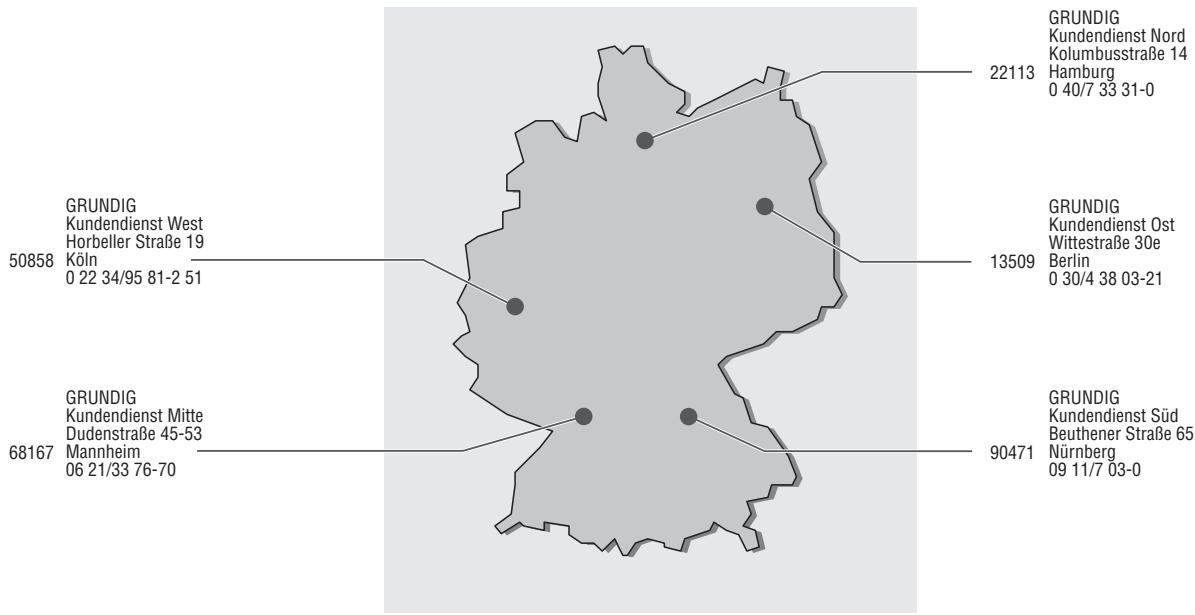
GRUNDIG Service Germany

GRUNDIG Service Europe