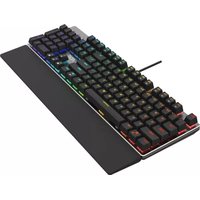
GK500 - Keyboard AOC - Free user manual and instructions
Find the device manual for free GK500 AOC in PDF.


| Brand | AOC |
| Model | GK500 |
| Product Type | Keyboard |
| Connectivity | Wired USB 2.0 |
| Layout | Full-size US Layout |
| Key Switch Type | Membrane |
| Number of Keys | 104 |
| Multimedia Keys | Yes, 12 dedicated keys |
| Wrist Rest | Detachable, padded |
| Dimensions (W x D x H) | 17.5 x 6.5 x 1.2 inches (445 x 165 x 30 mm) |
| Weight | 1.2 lbs (540 g) |
| Cable Length | 6 ft (1.8 m) braided cable |
| Power Source | USB bus power |
| Operating System Compatibility | Windows, macOS, Linux |
| Color | Black |
| Features | Anti-ghosting (26-key rollover), splash-resistant, adjustable tilt legs |
| Cleaning and Maintenance | Unplug before cleaning; use a soft, damp cloth; avoid liquids; do not use abrasive cleaners |
| Safety | Complies with FCC and CE standards; keep away from heat sources and moisture |
| Spare Parts and Repairability | Not user-serviceable; contact AOC support for service or replacement |
| General Information | Designed for office and daily use; plug & play; no driver required |
Frequently Asked Questions - GK500 AOC
User questions about GK500 AOC
0 question about this device. Answer the ones you know or ask your own.
Ask a new question about this device
Download the instructions for your Keyboard in PDF format for free! Find your manual GK500 - AOC and take your electronic device back in hand. On this page are published all the documents necessary for the use of your device. GK500 by AOC.
USER MANUAL GK500 AOC
AOC GK500 Mechanical Gaming Keyboard
USER'S GUIDE
Ver.:1.00

CAUTION: To use this product properly, please read the user's guide before installing.
Contents
- PACKAGE CONTENTS/SYSTEM REQUIREMENTS 1
- SPECIFICATIONS 1
- DEVICE LAYOUT AND FUNCTIONAL INTRODUCTION 2
- AOC G-TOOLS INSTALLATION 3
- AOC G-TOOLS INTRODUCTION 4
- SAFETY GUIDE AND MAINTENANCE 13
PACKAGE CONTENTS/SYSTEM REQUIREMENTS
Package Contents
■ AOC GK500 Mechanical Gaming Keyboard
■ Quick Setup Guide
■ Wrist Rest
■ Gaming Keycap Kit
Product System Requirements
■ Windows ^® 7/8/8.1/10
MAC OS X (V10.7 to 10.9)
■ Available USB port
■ 160MB free hard disk space
■ Internet connection
AOC G-Tools System Requirements
■ Windows ^® 7 or above
■ 160MB free hard disk space
■ Internet connection
Technical Support
■ 2 years limited warranty
■ Free online technical support at www.aoc.com
SPECIFICATIONS
Technical Specifications
■ 50 Million keystroke lifespan with Outemu blue mechanical switches.
■ All key programmable
■ All key roll-over anti-ghosting
■ Up to 1000Hz/ms report rate
- Customizable RGB lighting effect syncing with other AOC gaming devices
■ 1.8M Braided cable
Approximate Size & Weight
■ Length: 433 mm/190.5 in
■ Width: 191.6 mm/75.4 in
■ Height: 36.94 mm/14.5 in
■ Weight: 875 g/1.9 lbs
■ Cable Length: 1.8 m/ 5.9 ft
Operating Environment
■ Operating Temperature: 0 °C - 40 °C
■ Operating Humidity: 10% - 85%
DEVICE LAYOUT AND FUNCTIONAL INTRODUCTION
Device Layout

Wrist Rest
| Key Function (* compound key, press together with Fn key to operate) | ||
| Ctrl+G Switching Key Mode | Switch to All Keys | |
| Ctrl+N Switching Key Mode | Switch to Standard | |
| F6- "Mute | Turn off computer sound | |
| F7-◄Volume down(Voice-) | Decrease computer sound volume | |
| F8-◄Volume up(Voice+) | Increase computer sound volume | |
| F9-◄Previous | Switch to previous media track | |
| F10-►Next | Switch to next media track | |
| F11-►Play/Pause | Switch between playing and pausing media | |
| F12- ►Stop media | Stop playing the media | |
| W | Switch WASD keys with arrow keys. | Switch back by pressing again. |
| Switch Win Lock | Turn on/off the function of the Win Key | |
| Increase backlight brightness/ lower backlight brightness | Up for brighter/ Down for darker | |
| Go to previous lighting effect/ go to next lighting effect | Switch between the lighting effects of Light FX cycle | |
| Turn on/off backlight | Switch between turning on/off the backlight | |
AOC G-TOOLS INSTALLATION
Step 1: Plug the device into a USB port on your computer.
Step 2: The computer operating system will automatically detect the device.
Step 3: For more information on programming the device, go to http://www.aoc.com and follow the instruction to find the AOC G-Tools.
Step 4: Download AOC G-Tools.
Step 5: Start the installation by clicking on the file "Setup.exe".
Step 6: Windows® will prompt you if installation should continue; install the driver despite this.

Note:
The driver will automatically uninstall its last version; for this reason, it may take a while for the driver to install before you can start to program the device.
Step 7: When the installation process is completed, please reboot your computer system to assure the smooth running of the program.
Step 8: The AOC G-Tools icon is displayed in the Windows® taskbar while it is running. Access the configuration menu by right clicking the icon.
AOC G-TOOLS INSTRUCTION
Game Profile Management
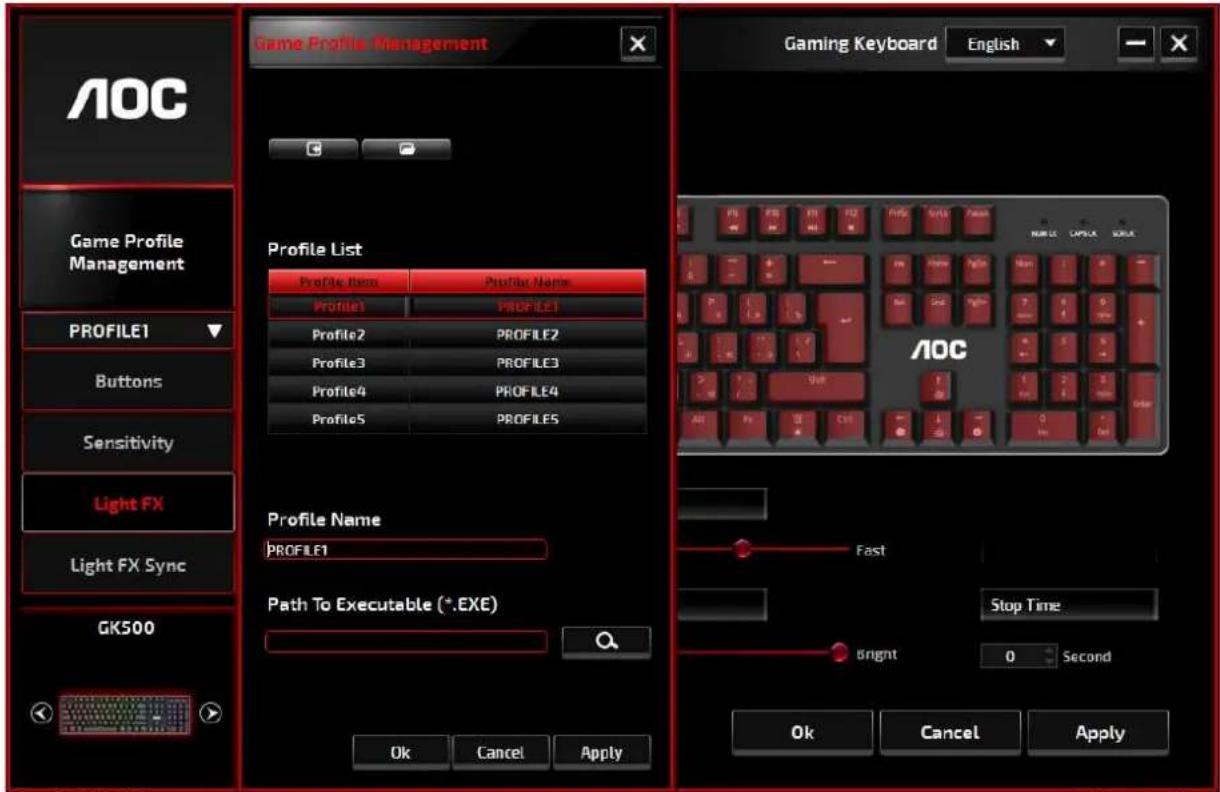
You can export a profile customized by clicking or import a profile from your computer by clicking.
The default profile names are Profile 1 to Profile 5. You can rename your profiles by typing on the text field below Profile Name.
Each profile can be activated along with a linked program. To do so, put the executable path of the program you want to link in the text field of Path To Executable (*EXE).
Buttons
■ Button Assignment
For each key other than Fn, Win, ESC, and Shift keys, you could assign an action from the menu, which will be shown when you left-click on the key. Options available from the menu include Macro Manager, Multimedia, Window Management, Text Editor, etc. Options listed are explained in the following.
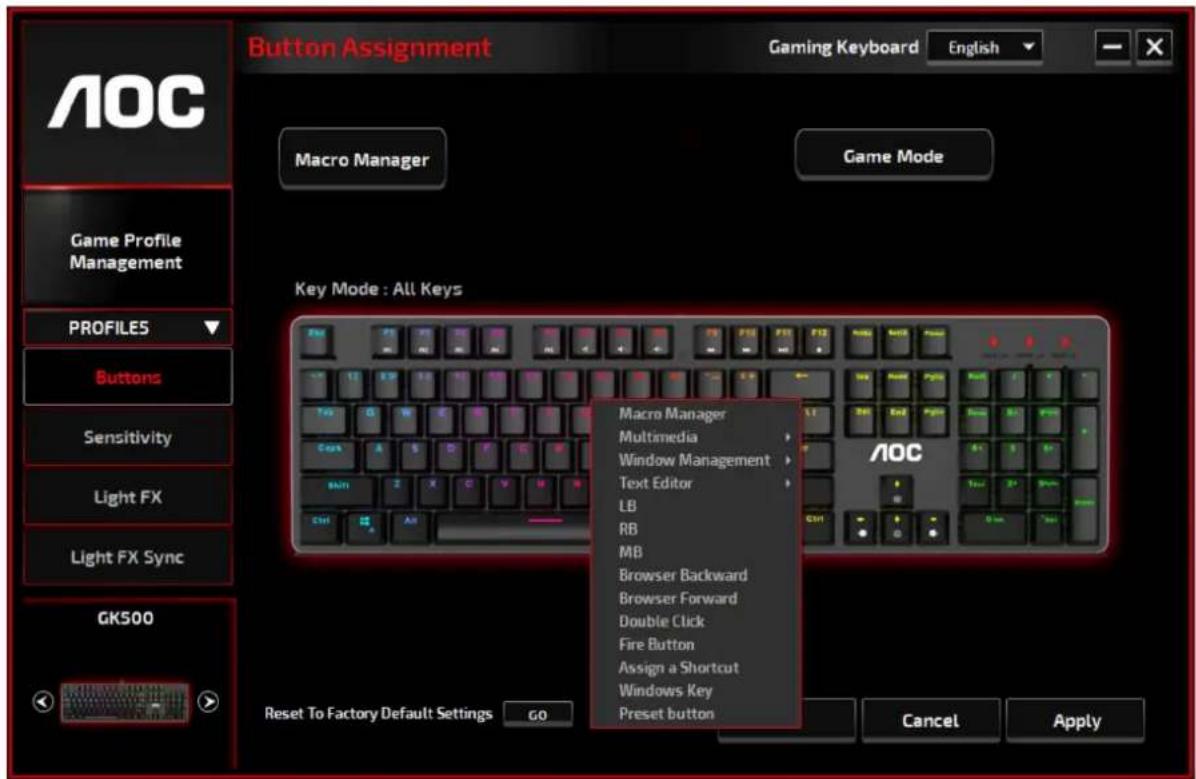
→Macro Manager
When choose this option from the menu, the Macro Manager window will pop-up; you could select an existing macro as the assignment of the button, or start to record a new macro and assign it to the button. For more info on Macro Manager, please refer to the Macro Manager section.
→Multimedia
Open Player: Start media player.
Pre Track: Toggle to the previous media track.
Next Track: Toggle to the next media track.
Play/Pause: Toggle between playing and pausing media.
Stop: Stop playing the media.
Mute: Turn off the computer sound.
Volume +: Increase the computer sound volume.
Volume -: Decrease the computer sound volume.
→Window Management
Calculator: Start Microsoft Calculator.
Email: Start the default mail program.
WWW Favorites: Open the Internet Explorer Favorites.
WWW Forward: Go to the next webpage.
WWW Back: Go to the previous webpage.
WWW Stop: Stop loading webpage.
My Computer: Open the My Computer window (or This PC for Win10).
WWW Refresh: Refresh the current webpage.
WWW Home: Start the default web browser and load the homepage.
WWW Search: Go to web browser's search bar or Search Windows.
Show Desktop: Switch between desktop and the current view.
→Text Editor
9 text commands available: Cut, Copy, Paste, Undo, Select All, Find, New, Safe, and Open.
→Left Click
Perform a left-click.
→Right Click
Perform a right-click and quick function menu.
→Middle Click
Activate the universal scrolling function.
→Browser Backward
Perform "Backward" command for most internet browsers.
→Browser Forward
Perform a "Forward" command for most internet browsers.
→Double Click
Perform a double-click.
→Fire Button
Perform a fire button until release.
→Assign a Shortcut
Assign a shortcut combination.
→Windows Key
Start Windows menu.
→Preset Button
Remove the assigned action and restore the original one.
■ Macro Manager
A macro is a prerecorded sequence of keystrokes and button presses executed with precise timing. By assigning a macro to a button, you can execute complex combinations with ease. The device allows you to create, delete, import, and export your customized macros. Click the Macro Manager button, and a pop-up box will show for further operations.


1. Create a Macro
(1) Click + and name the macro you are about to record. Confirm the name by hitting the enter key on your keyboard.
(2) Set the delay time between events:
-Recording: The delay between events are registered as they are recorded.
-Fixed: Use a predefined time (shown in millisecond) for the delay.
- Ignore: Omit all the pauses between keystrokes and button presses.
(3) Click Start to record all your keystrokes and mouse button commands into the macro. When done, click Stop to complete this recording.
(4) Click Cancel if you want to discard this recording, or Ok to confirm this recording. Successfully recorded macros can be found from the drop-down list of the Macro Select.
(5) For any recorded macro, you could later delete or adjust its event sequences, or add new events by initiating another recording session.
2. Delete a Macro
Select the macro to be deleted and click on the trash bin button down below. A message window will pop up to confirm your decision. Click Ok to delete the macro.

3. Edit Delay
To adjust the delay time, double-click the field to be revised and enter the new value. Some games may not be able to detect short delays.
4. Delete Recorded Actions
To delete a single or multiple actions or delay time of the macro, click the trash bin button.
5. Insert Macro Item
Click + to start inserting another macro to an existing macro. Choose to record this new macro before or after the existing one; then click Start to start the recording. When done, click Stop to complete the session and Save to keep the recording. You can also insert delay time before/after the selected event. After entering the desired time value, click Save.
■ Game Mode
→Disable Alt + Tab
Alt + Tab switches between application-level windows. Click on this option to turn off this keyboard shortcut; click again to turn it on.
→Disable Alt + F4
Alt + F4 most often used to close the current active window. If no programs are open or you are at the desktop, Alt+F4 opens the Shutdown window. Click on this option to turn off this keyboard shortcut; click again to turn it on.

→Disable Windows Key
Windows key opens the Start menu. Click on this option to turn off this keyboard shortcut; click again to turn it on.
→Switch WASD and Arrow Key
Option to switch the function of WASD keys and arrow keys. Click to make the switch; click again to switch back.
→Key Mode
- Standard: Standard 6 buttons anti-ghosting.
- All Keys: N-key rollover anti-ghosting.
G1-G5 Key
G1-G5 keys are designed at the spots of F1\~F5 for your easy and intuitive access. Assign your favorite gaming commands here and remember them with ease.

Sensitivity

■ Polling Rate
Choose from 4 options of polling rate: 125Hz/8ms, 250Hz/4ms, 500Hz/2ms, 1000Hz/1ms(default).
■ Repeat Delay
Drag the slider bar knob toward left or right to set the Repeat Delay; 4 options available from Long to Short.
■ Repeat Rate
Drag the slider bar knob toward left or right to adjust the Repeat Rate, set the speed at any point of the slider.
■ Repeat Rate Test
For speed test of Repeat Rate & Repeat Delay, hold down a key to type in this text field and check how the setting works.

Light FX
Choose from the drop-down menu for your favorite light setting. Options are: Static, Breathing, React, Flashing, Ripple, Radar, Fireworks, Blink, Wave, Custom setup, Concentric Circle, W Wave. Related setting options like Direction and Stop Time will be displayed when applicable to the selected Light FX.
■ LED Settings
Decide your favorite color by picking a color from the RGB color panel or entering the RGB values for your lighting effect, or take the Random color option for the lighting effect to display RGB colors that continuously change.
Pulsation
Drag the slider bar knob toward left or right to set up the speed of the lighting effect, three options are available from Slow to Fast. This setting option is available for most of the lighting effects except Static and Custom Setup.
■ Brightness
Drag the slider bar knob toward left or right to set up the brightness of the lighting effect, four levels of lighting brightness are available from Off to Bright. This setting option is available for all of the lighting effects.
■ Direction
Set up the direction of the chosen lighting effect. This setting option is available for the lighting effects of Flashing, Radar, Wave, and Concentric Circles.
■ Stop Time
Set up the length of time of the chosen lighting effect. This setting option is available for the lighting effects of Static, Breathing, Flashing, Radar, Wave, Custom Setup, Concentric Circles, and W Wave.
■ Number of Stops
Set up the number of times for the chosen lighting effects to be displayed. This setting option is available for the lighting effect of Blink.
Light FX Sync
The lighting effect of the device can be synchronized with other AOC gaming devices that support the AOC Light FX Sync. To sync the devices, select the icons of the devices of your choice and click Apply. The synchronized devices are lighted up in red.

■ Reset To Factory Default Settings
By clicking the GO button, all the settings you have made will be reset to factory default settings.
Online Update

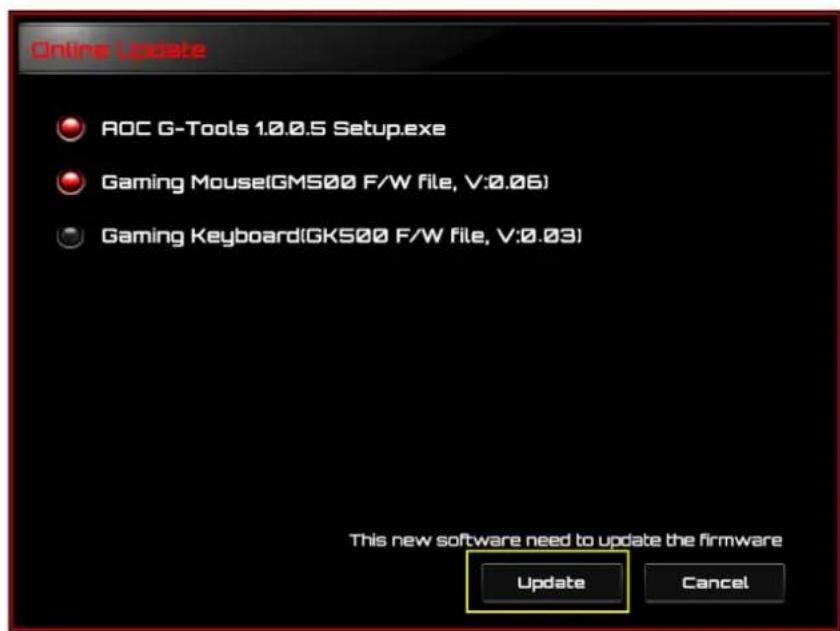
When there is new updated available, a notice balloon would show on the upper right corner along with the tool icon.
Click on the notice balloon, a pop-up window will show the update options. Click Update and follow the process to complete the update.
SAFETY AND MAINTENANCE
Important
For your safety, please carefully read the following guidelines on the device.
- Do not operate the device under abnormal conditions.
- Do not disassemble the device (this will void the warranty) and do not attempt to operate under abnormal current loads.
- Keep the device away from liquid or moisture. Operate the device only within the indicated temperature range: 0^ C ( 32^ F) to 40^ C ( 104^ F). If the temperature is too high, unplug the device to lower the temperature.
- Avoid any liquid spill on the device, which would cause damage to the device and result in malfunction.
- Unplug and replug the device if the RGB lighting is not running properly or the device is not functioning, or if there is thermal abnormal situation.
- If the troubleshooting is not working, unplug the device and visit www.aoc.com for support. Do not attempt to repair the device by yourself.
Safety
Federal Communication Commission Interference Statement.
This device complies with part 15 of the FCC Rules. Operation is subject to the following two conditions:
(1) This device may not cause harmful interference.
(2) This device must accept any interference received, including interference that may cause undesired operation.
Note:
This device has been tested and found to comply with the limits for a Class B digital device, pursuant to Part 15 of the FCC Rules. These limits are designed to provide reasonable protection against harmful interference in a residential installation. This device generates uses and can radiate radio frequency energy and, if not installed and used in accordance with the instructions, may cause harmful interference to radio communications. However, there is no guarantee that interference will not occur in a particular installation. If this device does cause harmful interference to radio or television reception, which can be determined by turning the device off and on, the user is encouraged to try to correct the interference by one or more of the following measures:
—Reorient or relocate the receiving antenna.
—Increase the separation between the device and receiver.
—Connect the device into an outlet on a circuit different from that to which the receiver is connected.
—Consult the dealer or an experienced radio/TV technician for help.

- AOC GK500 Mechanical Gaming Keyboard
- Contents
- PACKAGE CONTENTS/SYSTEM REQUIREMENTS
- Package Contents
- Product System Requirements
- AOC G-Tools System Requirements
- Technical Support
- SPECIFICATIONS
- Technical Specifications
- Approximate Size & Weight
- Operating Environment
- DEVICE LAYOUT AND FUNCTIONAL INTRODUCTION
- AOC G-TOOLS INSTALLATION
- Note:
- AOC G-TOOLS INSTRUCTION
- Game Profile Management
- Buttons
- ■ Button Assignment
- →Macro Manager
- →Multimedia
- →Window Management
- →Text Editor
- →Left Click
- →Right Click
- →Middle Click
- →Browser Backward
- →Browser Forward
- →Double Click
- →Fire Button
- →Assign a Shortcut
- →Windows Key
- →Preset Button
- ■ Macro Manager
- Create a Macro
- Delete a Macro
- Edit Delay
- Delete Recorded Actions
- Insert Macro Item
- ■ Game Mode
- →Disable Alt + Tab
- →Disable Alt + F4
- →Disable Windows Key
- →Switch WASD and Arrow Key
- →Key Mode
- G1-G5 Key
- Sensitivity
- ■ Polling Rate
- ■ Repeat Delay
- ■ Repeat Rate
- ■ Repeat Rate Test
- Light FX
- ■ LED Settings
- Pulsation
- ■ Brightness
- ■ Direction
- ■ Stop Time
- ■ Number of Stops
- Light FX Sync
- ■ Reset To Factory Default Settings
- Online Update
- SAFETY AND MAINTENANCE
- Important
- Safety
- Federal Communication Commission Interference Statement.
Brand : AOC
Model : GK500
Category : Keyboard