T400, T650, T620 - Mouse LOGITECH - Free user manual and instructions
Find the device manual for free T400, T650, T620 LOGITECH in PDF.

| Brand | Logitech |
| Models | T400, T650, T620 |
| Product Type | Wireless Touch Mouse |
| Connection Technology | Logitech Unifying (2.4 GHz) |
| Compatibility | Windows, Mac (depending on model) |
| Power Source | 2 AA batteries |
| Battery Life | Approximately 6 months (normal use) |
| Charge Indicator | Red indicator when batteries low |
| Buttons | Left click, right click, touch wheel (touch strip) |
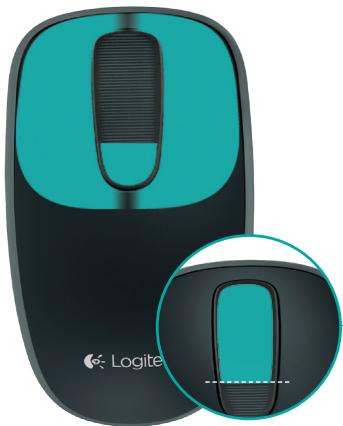
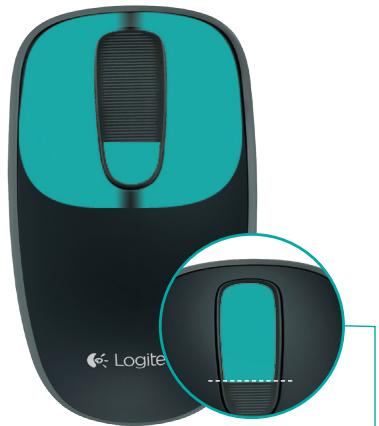
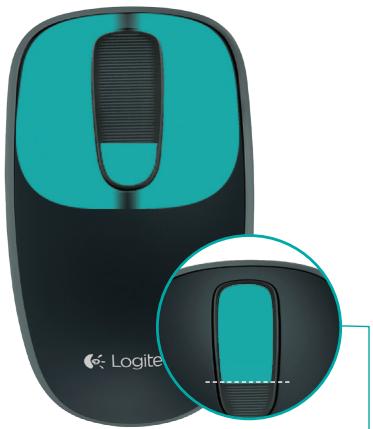
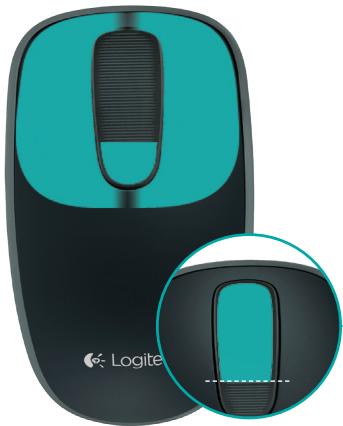
| Touch Functions | One-finger scrolling (up/down/sides); tap on upper two-thirds for Start screen |
| Wireless Range | Approximately 10 meters |
| Dimensions (approx.) | 110 x 70 x 35 mm |
| Weight (approx.) | ~100 g (without batteries) |
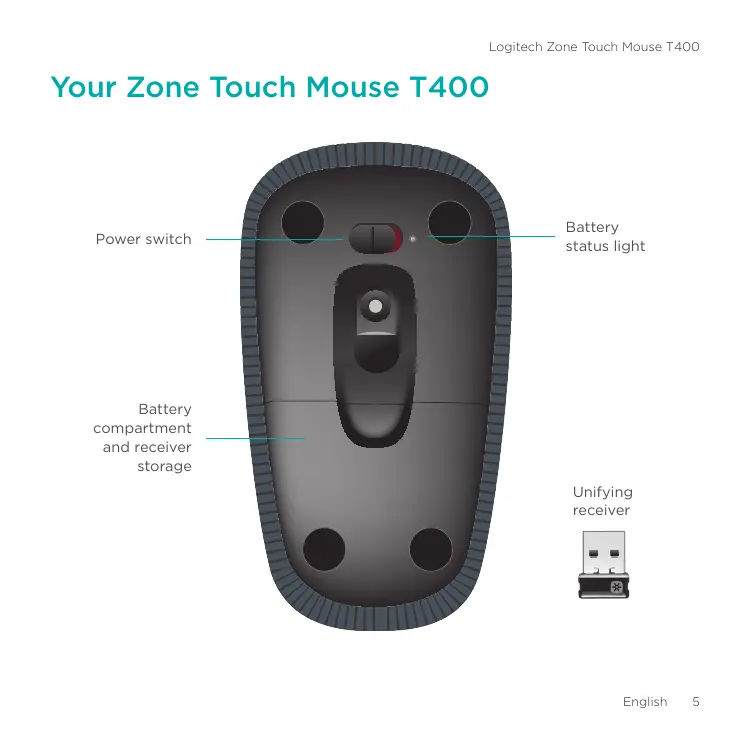
| Receiver | Unifying USB (stored in mouse) |
| Software | Logitech Options (download recommended) |
| Installation | Plug in receiver, turn on power, install software if desired |
| Maintenance and Cleaning | Clean with a soft, dry cloth; do not use abrasive products |
| Safety | Do not expose to moisture; do not disassemble; use only recommended batteries |
| Spare Parts and Repairability | AA batteries (easy replacement); Unifying receiver available separately |
| General Information | Logitech touch mouse with touch strip for scrolling and clicks; compatible with up to 6 Unifying devices |
Frequently Asked Questions - T400, T650, T620 LOGITECH
User questions about T400, T650, T620 LOGITECH
0 question about this device. Answer the ones you know or ask your own.
Ask a new question about this device
Download the instructions for your Mouse in PDF format for free! Find your manual T400, T650, T620 - LOGITECH and take your electronic device back in hand. On this page are published all the documents necessary for the use of your device. T400, T650, T620 by LOGITECH.
USER MANUAL T400, T650, T620 LOGITECH
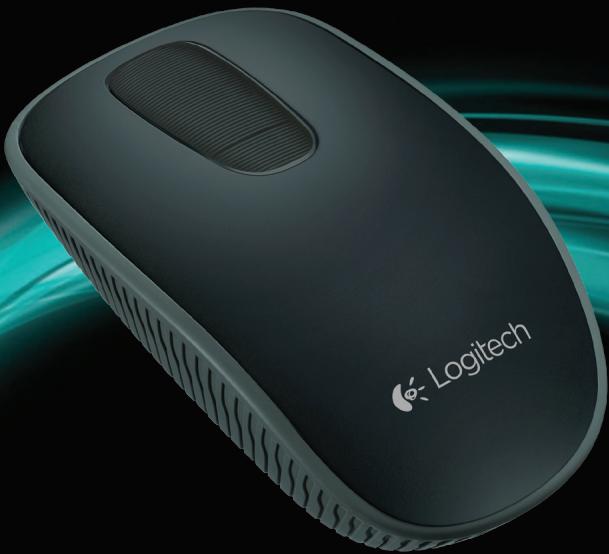
Zone Touch Mouse T400
Setup Guide
natural_image
Logitech computer mouse with visible branding and abstract teal background (no text or symbols on device body)English. 4
Deutsch 11
Français 18
Italiano. 25
Español 32
Português....39
Nederlands 46
Svenska 53
Dansk 60
Norsk 67
Suomi 74
Ελληνικά. 81
Türkçe 88
95 . . . . . . . . . . . . . . . . . . . . . . . . . . . . . . . . . . . . . . . . . . . . . . . . . . . . . . . . . . . . . . . . . . . . . ..العربيية
www.logitech.com/support 103
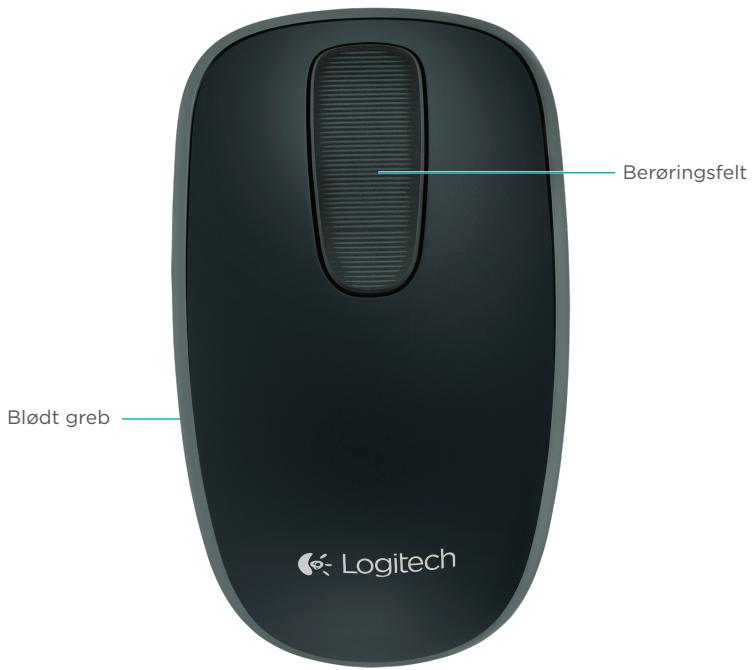
Your Zone Touch Mouse T400
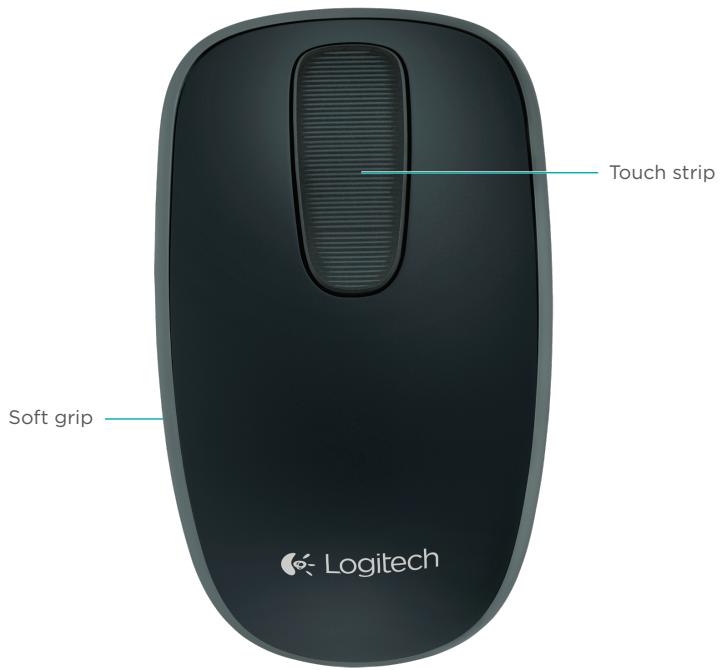
Your Zone Touch Mouse T400
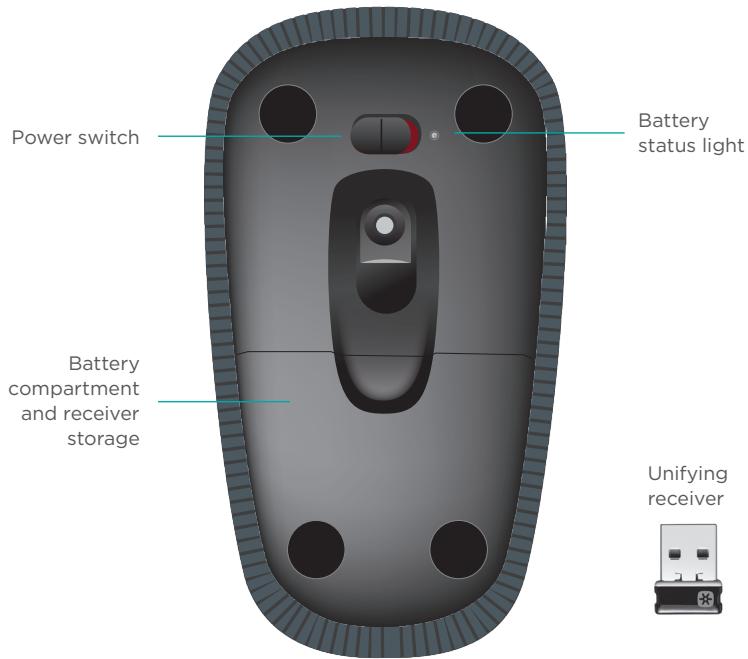
Set up your mouse
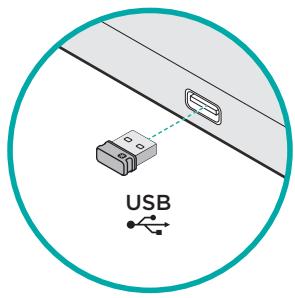
1. Plug in the receiver
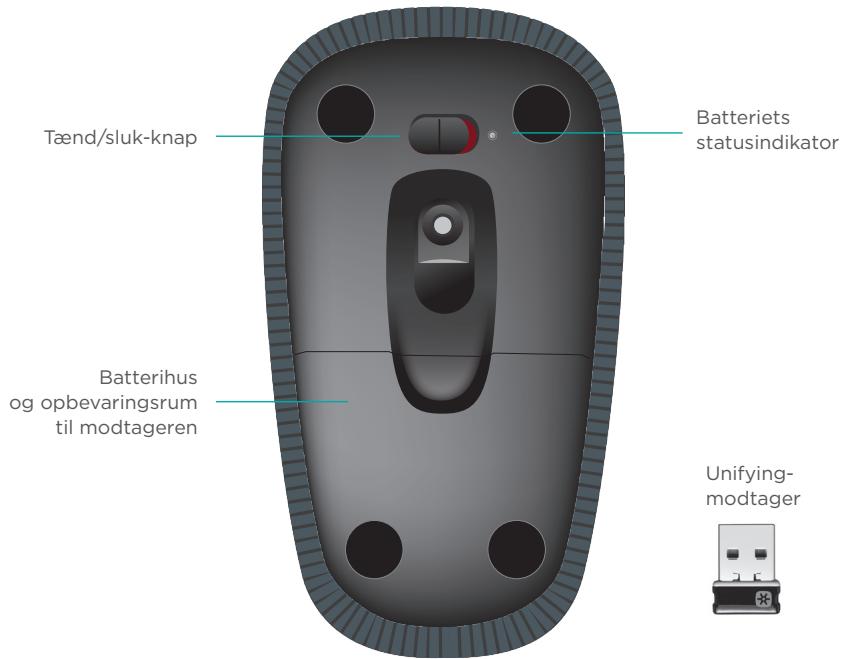
Plug the Unifying receiver into a USB port.
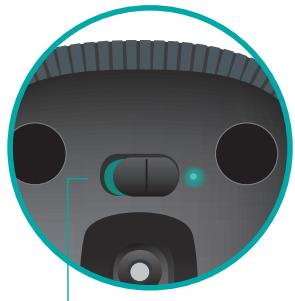
2. Power on the mouse
Move the power switch to the On position.
Check the battery status light. Red means its time to change the battery.


natural_image
Close-up of a cartoon-style robot head with visible joints and a handle, enclosed in a teal circular frame (no text or symbols)Power switch in the On position
3. Software installation
You are prompted to install Logitech software that enhances your Touch Mouse experience with additional gestures, smoother performance, and personalized settings.

natural_image
Illustration of a laptop with a cloud icon above it, symbolizing cloud computing or cloud services (no text or symbols present)Follow the onscreen instructions to complete installation.

No prompt?
Download the software from:
www.logitech.com/download/t400
Visit the Product Page
While you're online, check out the Zone Touch Mouse T400 Product Page, your destination for world-class support.
www.logitech.com/support/t400
In addition to software, you'll find tutorials, troubleshooting tips, and guidelines for using your new Touch Mouse.
The Product Page is also home to live forums that connect you to a global community of knowledgeable users.
Using the mouse
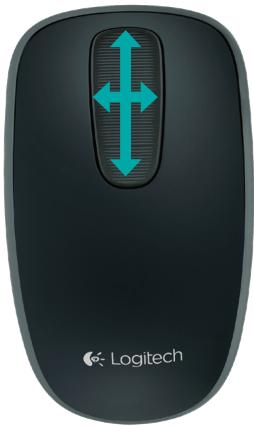
One finger scrolling
Swipe up, down, or sideways on the touch strip.
natural_image
Logitech computer mouse with dual vertical scroll arrows (no text or symbols on device body)Clicking
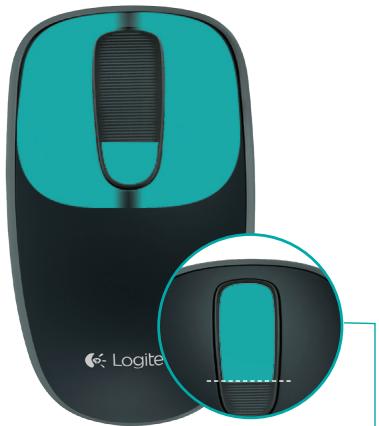
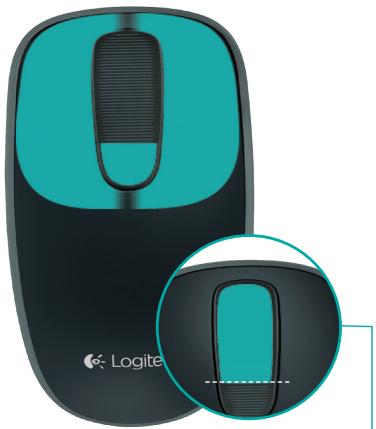
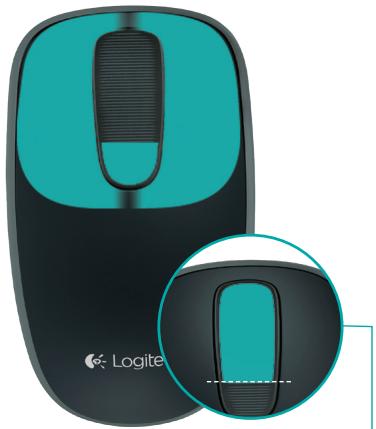
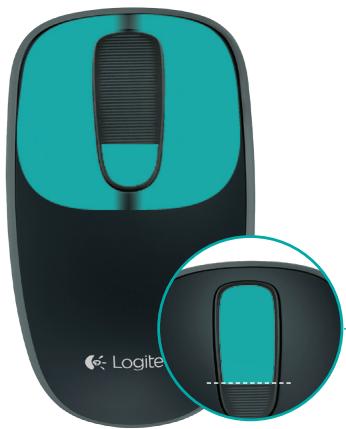
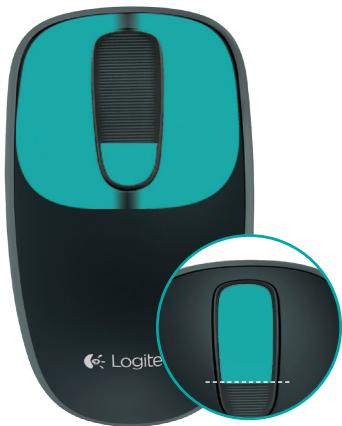
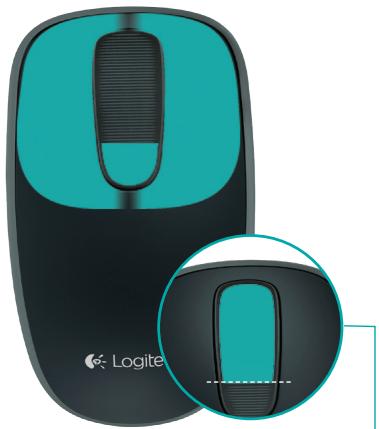
The Touch Mouse provides full 3-button operation. Click the left, right, or middle area of the mouse surface.
natural_image
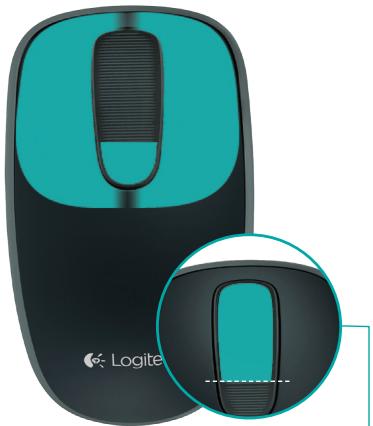
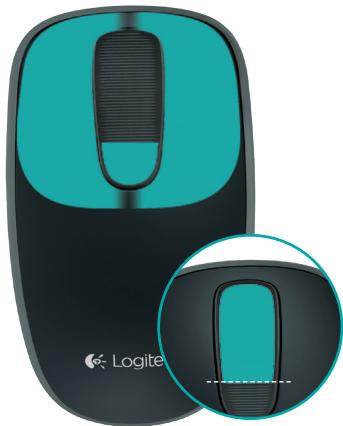
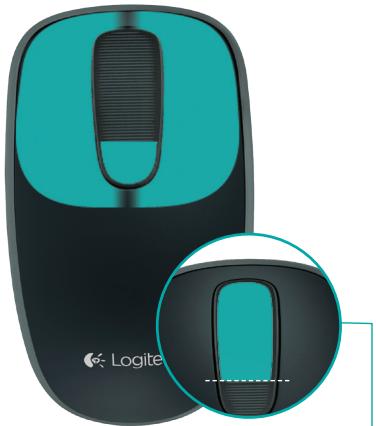
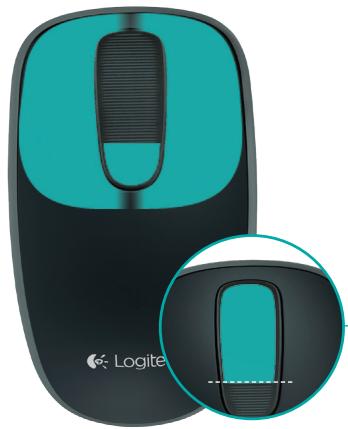
Logite computer mouse with teal and black casing, shown in side profile (no text or symbols on the device itself)Click the top 2/3 of the touch strip to go to the Windows Start screen.
Replace batteries
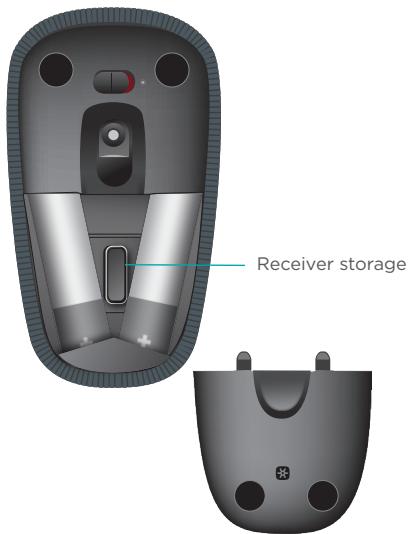
Remove the battery cover and insert new batteries into the compartment.
Unifying
Logitech® Unifying technology connects up to six compatible Logitech mice and keyboards to the same receiver, using only one USB port for multiple devices. To learn more, visit:
www.logitech.com/support/unifying

unifying™
Troubleshooting
Touch Mouse not working?
- Restart the mouse by turning it off and then back on.
- Check if your Unifying receiver is properly connected to a USB Port.
- Move the Unifying receiver to another USB port on your computer. (Try connecting directly to your computer instead of using a USB hub.)
- Remove any metallic objects near the mouse.
- If the status light blinks red, replace the battery.
natural_image
Close-up of a cartoon-style robot face with visible teeth and nose, enclosed in a teal circular frame (no text or symbols)natural_image
Illustration of a laptop with a cloud icon above it, symbolizing cloud computing or cloud services (no text or symbols present)natural_image
Logitech computer mouse with dual vertical scroll arrows (no text or symbols on device body)
natural_image
Logite computer mouse with teal and black casing, shown in side profile (no text or symbols on the device itself)www.logitech.com/support/unifying

Fehlerbehebung
natural_image
Close-up of a cartoon-style robot head with visible joints and a handle, enclosed in a teal circular frame (no text or symbols)natural_image
Illustration of a laptop with a cloud icon and a window, symbolizing cloud computing or cloud services (no text or symbols present)natural_image
Logitech computer mouse with dual vertical scroll arrows (no text or symbols on device body)
natural_image
Logite computer mouse with teal and black casing, shown in side profile (no text or symbols on the device itself)www.logitech.com/support/unifying

unifying™
Dépannage
natural_image
Close-up of a stylized robot head with circular head and visible teeth, enclosed in a teal circular border (no text or symbols)natural_image
Illustration of a laptop with a cloud icon above it, symbolizing cloud computing or cloud services (no text or symbols present)natural_image
Logitech computer mouse with dual vertical scroll arrows (no text or symbols on device body)
natural_image
Logite computer mouse with teal and black casing, shown in side profile (no text or symbols on the device itself)www.logitech.com/support/unifying

unifying™
natural_image
Close-up of a cartoon-style robot face with visible teeth and control buttons (no text or symbols)natural_image
Illustration of a laptop with a cloud icon above it, symbolizing cloud computing or cloud services (no text or symbols present)natural_image
Logitech computer mouse with dual vertical scroll arrows (no text or symbols on device body)
natural_image
Logite computer mouse with black and teal casing, shown in side profile (no text or symbols on the device itself)www.logitech.com/support/unifying

unifying™
natural_image
Close-up of a cartoon-style robot face with large eyes and a small mouth, enclosed in a teal circular frame (no text or symbols)natural_image
Illustration of a laptop with a cloud icon above it, no text or symbols present.natural_image
Logitech computer mouse with double-headed scroll arrows (no text or symbols on device body)
natural_image
Logite computer mouse with black and teal casing, shown in two views (no text or symbols on the device itself)www.logitech.com/support/unifying

natural_image
Close-up of a cartoon-style robot face with visible teeth and nose, enclosed in a teal circular frame (no text or symbols)natural_image
Illustration of a laptop with a cloud icon above it, symbolizing cloud computing or cloud services (no text or symbols present)natural_image
Logitech computer mouse with double-headed scroll arrows (no text or symbols on device body)
natural_image
Logite computer mouse with teal and black casing, shown in side profile (no text or symbols on the device itself)Unifying
www.logitech.com/support/unifying

unifying™
Probleemoplossing
natural_image
Close-up of a cartoon-style robot face with visible teeth and nose, enclosed in a teal circular frame (no text or symbols)3. Programvaruinstallation
natural_image
Illustration of a laptop with a cloud icon and a generic app interface (no text or symbols)natural_image
Logitech computer mouse with dual vertical scroll arrows (no text or symbols on device body)
natural_image
Logite computer mouse with teal and black casing, shown in side profile (no text or symbols on the device itself)www.logitech.com/support/unifying

unifying™
Felsökning
Din Zone Touch Mouse T400

Din Zone Touch Mouse T400
natural_image
Close-up of a cartoon-style robot face with visible teeth and nose, enclosed in a teal circular frame (no text or symbols)natural_image
Illustration of a laptop with a cloud icon above it, symbolizing cloud computing (no text or symbols present)natural_image
Logitech computer mouse with double-headed scroll arrows (no text or symbols on device body)
natural_image
Logite computer mouse with teal and black casing, shown in side profile (no text or symbols on the device itself)www.logitech.com/support/unifying

unifying™
Problemløsning
natural_image
Close-up of a cartoon-style robot face with visible teeth and control buttons (no text or symbols)natural_image
Illustration of a laptop with a cloud icon above it, symbolizing cloud computing or cloud services (no text or symbols present)natural_image
Logitech computer mouse with dual vertical scroll arrows (no text or symbols on device body)
natural_image
Logite computer mouse with black and teal casing, showing front and side views (no text or symbols on the device itself)Unifying
www.logitech.com/support/unifying

unifying™
Feilsøking
Fungerer ikke Touch Mouse?
natural_image
Close-up of a cartoon-style robot face with visible teeth and control buttons (no text or symbols)Virtakytkin On-asennossa
natural_image
Illustration of a laptop with a cloud icon and a window, symbolizing cloud computing (no text or symbols present)natural_image
Logitech computer mouse with dual vertical scroll arrows (no text or symbols on device body)
natural_image
Logite computer mouse with teal and black casing, shown in side profile (no text or symbols on the device itself)www.logitech.com/support/unifying

unifying™
Vianmääritys
natural_image
Close-up of a cartoon-style robot face with large eyes and a small mouth, enclosed in a teal circular frame (no text or symbols)natural_image
Illustration of a laptop with a cloud icon above it, symbolizing cloud computing or cloud services (no text or symbols present)natural_image
Logitech computer mouse with dual vertical scroll arrows (no text or symbols on device body)
natural_image
Logite computer mouse with teal and black casing, shown in side profile (no text or symbols on the device itself)www.logitech.com/support/unifying

unifying™
natural_image
Close-up of a cartoon-style robot face with visible teeth and nose, enclosed in a teal circular frame (no text or symbols)natural_image
Illustration of a laptop with a cloud icon above it, symbolizing cloud computing or cloud services (no text or symbols present)natural_image
Logitech computer mouse with dual vertical scroll arrows (no text or symbols on device body)
natural_image
Logite computer mouse with teal and black casing, shown in side profile (no text or symbols on device)www.logitech.com/support/unifying

Sorun giderme
natural_image
Illustration of a laptop with a cloud icon and a generic app interface (no text or symbols)natural_image
Close-up of a cartoon-style robot face with visible teeth and control buttons (no text or symbols)Unifying التقبية
www.logitech.com/support/unifying

unifying™
استخدام الماوس
ال tmير ياصبع واحد
natural_image
Logitech computer mouse with dual blue double-headed scroll arrows (no text or symbols on device body)
natural_image
Logite computer mouse with black and teal casing, shown in side profile (no text or symbols on device)Rating: 5V === 100mA
FCC ID: JNZCU0007
IC: 4418A-CU0007
MADE IN CHINA
CNC:C-8941
CFT:RCPLOCU10-1356
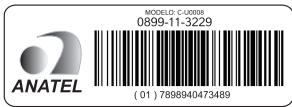
M/N:C-U0008
Rating: 5V --- 100mA
FCC ID: JNZCU0008
IC: 4418A-CU0008
MADE IN CHINA
SUBTEL: 2217
CNC: C-9341
CFT: RCPLOCU11-0321
Support
www.logitech.com/support/t400

België/Belgique Dutch: +32-(0)2 200 64 44; French: +32-(0)2 200 64 40
Česká Republika +420 239 000 335
European, English: +41-(0)22 761 40 25
Mid. East., & Fax: +41-(0)21 863 54 02
Morges, Switzerland
Eastern Europe English: 41-(0)22 761 40 25
United States +1 646-454-3200
Argentina +0800 555 3284
Brasil +0800 891 4173
Canada +1-866-934-5644
Chile +1230 020 5484
Colombia 01-800-913-6668
Latin America +1 800-578-9619
Mexico 01.800.800.4500