
GPS Navigation - GPS Navigator Sygic - Free user manual and instructions
Find the device manual for free GPS Navigation Sygic in PDF.


| Product Type | GPS Navigation Software |
| Supported Platforms | iOS, Android |
| Maps | Offline maps from TomTom, including 3D landmarks |
| Navigation Features | Turn-by-turn voice guidance, lane assistant, speed limit warnings |
| Traffic | Real-time traffic information (via internet or TMC) |
| Route Planning | Multi-waypoint routes, route avoidance, eco-friendly routes |
| Points of Interest | Extensive POI database with search and categories |
| Speed Cameras | Speed camera alerts (paid subscription required) |
| User Interface | Multi-language support, day/night mode, 2D/3D view |
| Updates | Map updates via Sygic GPS Navigation Software |
| Maintenance | Keep app updated via app store; clear cache if needed |
| Safety | Do not operate while driving; use hands-free |
| Spare Parts | Not applicable (software only) |
| Repairability | Reinstall app if corrupted; contact support |
| General Information | Sygic is a Slovak company founded in 2004 |
Frequently Asked Questions - GPS Navigation Sygic
User questions about GPS Navigation Sygic
0 question about this device. Answer the ones you know or ask your own.
Ask a new question about this device
Download the instructions for your GPS Navigator in PDF format for free! Find your manual GPS Navigation - Sygic and take your electronic device back in hand. On this page are published all the documents necessary for the use of your device. GPS Navigation by Sygic.
USER MANUAL GPS Navigation Sygic
Sygic GPS Navigation for Android - User Guide
Manual
1 — Last update: June 13, 2014
Sygic
Table of Contents
Prologue 2
Getting started.... 3
Personalise your navi 5
Manage maps 5
Map 6
Connection 7
Notification & Sounds....8
Route planning 9
Hardware 10
Regional 11
Battery management.... 12
Information bar.... 13
Side bar 14
Travel book.... 15
Autoclose dialog.... 16
Favourite POI.... 16
About 17
Reset to defaults.... 18
Set up your first route 19
Searching and Entering a Destination 19
Quick search.... 19
Navigating to an address 20
Navigating to a Point of Interest.... 21
Searching POI by Categories.... 22
Navigating Home 23
Navigating to Recent Destinations / History 24
Navigating to Favourite Destinations.... 25
Adding a new Favourite destination 26
Choosing your route.... 26
Editing & Avoiding parts of route 27
Route Summary 28
Avoid Motorways, Toll roads, Ferries.... 28
Important places 29
Other options in Route summary menu 29
Route options - Demonstrate & Save route 30
Adding waypoints to your route 30
Optimize route with multiple waypoints 30
Drag & Drop route editing.... 31
Turn by turn navigation 31
Useful database of POI 32
Create an account to boost your Sygic with special features 34
Traffic information 35
How to buy Traffic.... 35
How to activate Traffic 36
How to use Traffic.... 37
Premium Speed Cameras 38
How to buy Premium Speed Cameras Subscription(1 Month) 39
How to activate Premium Speed Cameras 40
Head up display 41
How to buy Head up display 42
How to activate Head up display 43
Celebrity Voices 44
How to buy Celebrity Voices 44
How to activate Celebrity Voices.... 45
Troubleshooting 47
Acquiring GPS position 47
Problem entering a destination.... 47
Problem downloading maps on Android 48
Frequent freezing and crashing on Android device 48
Problem downloading application on Android 49
Traffic is not working 49
Blackscreen, the application stopped working 49
Trouble downloading resources from Google Play.... 50
List of our video tutorials 51
How to purchase Sygic GPS Navigation on Android 51
How to install Sygic GPS Navigation on Android 52
How to purchase Real-Time Traffic subscription for Sygic Navigation 52
How to activate Real-Time Traffic Subscription on Android 53
How to install a Celebrity voice in Sygic Navigation.... 53
How to purchase Head-up display for Sygic Navigation.... 54
How to install Head-up display in Sygic Navigation 54
Prologue
Dear customer,
Thank you for choosing Sygic GPS Navigation.
Sygic GPS Navigation software is a complete navigation system with realistic 3D maps, accurate search and precise route computing. Sygic GPS Navigation goes beyond professional car navigation, supporting pedestrian navigation and basic level for outdoor activities.
We wish you a pleasant and safe journey.
Sygic | Bringing life to maps

Sygic®
Getting started
Sygic GPS Navigation is offline navigation software and does not require online connection to operate.
Online connection is only necessary during initial installation and activation of the software and for installing maps and updates.
Online connection is also necessary for optional add-on services such as Traffic information and crowdsourced Police trap alerts.
Your safety and the safety of your passengers is of utmost importance, that is why you should always plan your route before the beginning of the journey. Also make sure that you have installed all maps and updates while in the comfort of your home or at a place with solid Wi-Fi connection. For longer trips make sure that you have a compatible charger to avoid draining the device battery.
Compatibility:
| Device specifications Minimum requirements Recommended requirements | ||
| Processor frequency 600 MHz | Single Core Dual-Core 1.2 GHz | |
| Memory (RAM) 512 MB 1 GB | ||
| Graphics card Adreno 200 or better | Adreno 220 or better | |
| Android version 2.3.x 4.x | ||
| Free space 150 MB 150 MB | ||
Please note: Your device needs to support Google Play Store in order to install the application. Custom ROM is also not supported as we cannot guarantee compatibility with other than stock ROM from the manufacturer. 150 megabytes of free space in your internal memory is required in order to install the application and resource files.
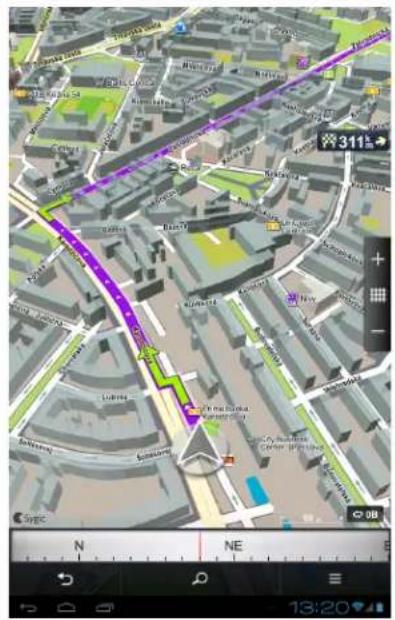
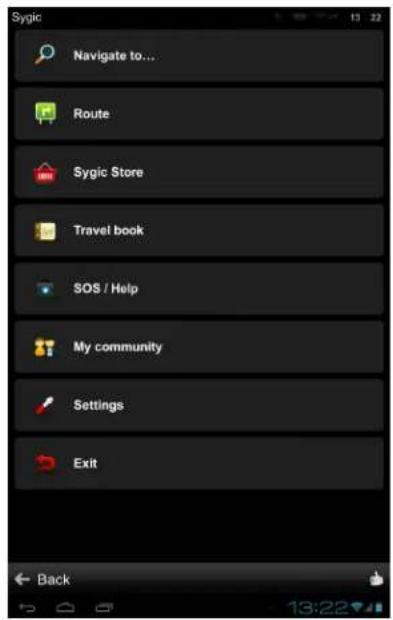
In Navigation Mode (Pic.1), the software tracks your position for visual reference of the route and map around you. (Please note that it is necessary to have GPS Module enabled on your device during usage). If you want to explore other locations, drag the map with your fingers to switch to Map Browsing Mode (Pic.2). To select destinations, review information about your route and alter settings, go to Menu (Pic.3).
| (Pic.1) Navigation mode | (Pic.2) Map browsing mode | (Pic.3) Menu screen |

Personalise your navi
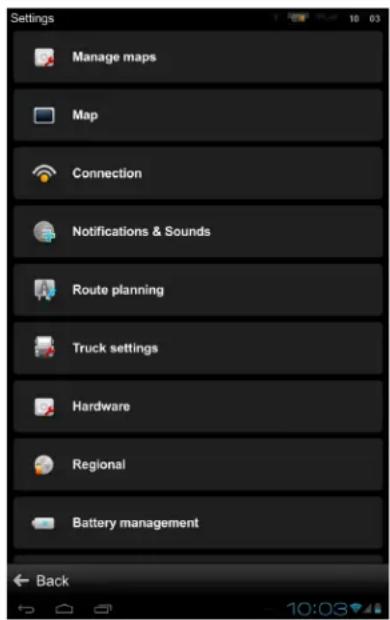
If you want to personalise your settings, it is enough to go to Menu > Settings, and pick which setting you would like to modify.
Menu>Settings
Please note, that you can easily use Sygic GPS Navigation without changing anything in Sygic settings.
Manage maps
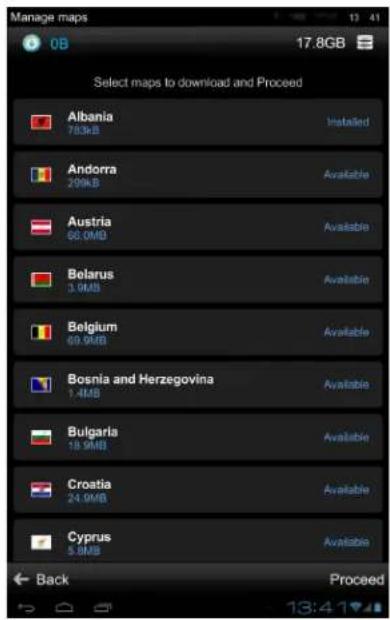
You are able to manage your purchased map packages in Manage maps menu
To do so, just go to:
Menu > Settings > Manage Maps
Map
You can easily personalise your map settings by going to Menu > Settings > Map, and pick which setting you would like to modify:
- Colour scheme
Switch between Day/Night color scheme. Default setting is automatically switching between Day/Night colors
- Point of interest
Choose which categories of POI you wish to see on the map. POIs are visible in Map browsing mode and hidden in Navigation mode
• Buildings
Switch between Elevated / Footprint / Off
- Landmarks
Switch landmarks on/off
- Signpost info
Switch signpost on/off
- 2D/3D map view
Switch between 2D/3D map view
- North up
Enable to keep the maps always north up.
- Lane guidance
Switch between Dynamic/ Simplified/Off
• Data traffic counter
Enable to monitor data usage
- POI on route
Choose which categories of POI you wish to see on the route. Switch between Dynamic/Always on/Off.
- Autozoom
Automatically zooms-in and out of map in Navigation mode for optimal overview of the route ahead.
- Photos
Turn on to see photos on map in Map Browsing mode.
- Friends
Turn on to see photos on to Friends using Sygic Navigation on map in Map Browsing mode.
- Traffic info
Turn on to see Traffic on map. An ad-on service
- Fullscreen
Fullscreen mode for smartphone devices.
- Current street
Enable to see current street.
- Junction view
Enable to see junction view.
- Lock screen rotation
Prevents automatic rotation – for bikers.
- Font size
Choose font size
Connection
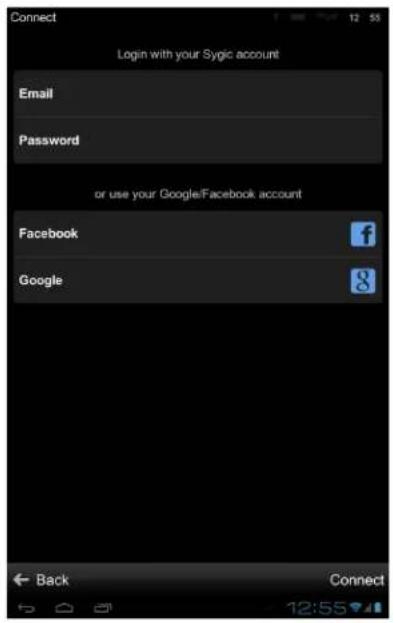
Creating a Sygic account is free of charge. If you purchase any item from Sygic online shop at www.sygic.com, the email used for making a purchase becomes your Sygic account.
You can log in to Sygic GPS Navigation with multiple types of accounts:
- Sygic (recommended)
To do so, it is enough to go to Menu > Settings > Connection.
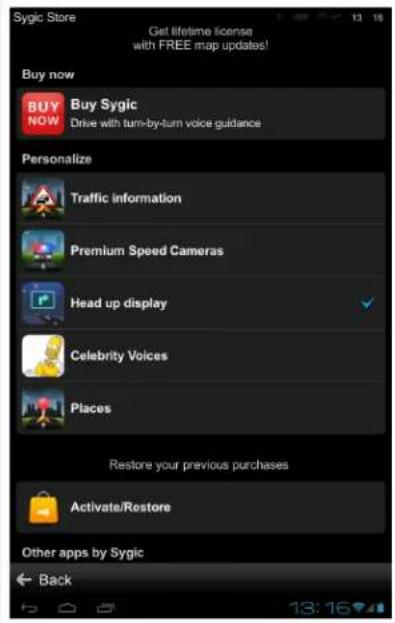
After successful login you will be able to use additional features via Sygic Store, such as Traffic, Head Up Display, Celebrity voices, Premium Speed Cameras etc.
Menu > Settings > Connection > Connection
Menu > Sygic Store
Notification & Sounds
- Enable sounds
Enables/Disables sounds.
• Voice instructions
Enables/Disables Voice instructions.
Enables/Disables Road numbers.
- Advanced
Enables/Disables Phone speaker
- Notifications – Set sounds of notifications for:
- Speed cameras
- Speed limits
- Railway crossings
- Points of interest
- Friend notifications
- Message notification
- Traffic notification
- Sharp curve warning
- Offroad
Menu > Settings > Notification & Sounds

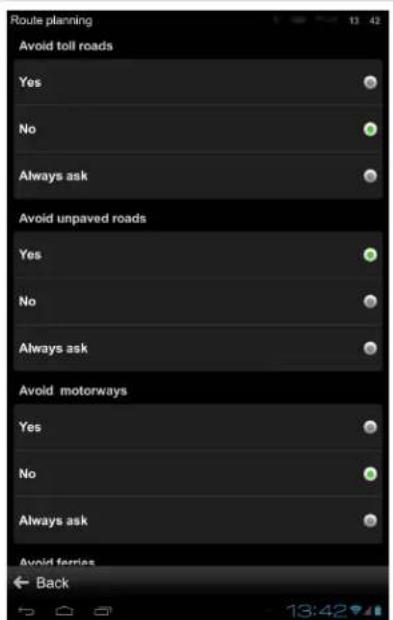
Route planning
- Avoid toll roads
Choose between Yes/ No/Always ask - Avoid unpaved roads
Choose between Yes/ No/Always ask - Avoid motorways
Choose between Yes/ No/Always ask - Avoid ferries
Choose between Yes/ No/Always ask - Route computing
Choose between Fastest/ Shortest/Economic route
- Traffic incidents
Set this preference to avoid incidents automatically
- Backtrack
Backtrack for Offroad. Tracks your progress when you leave mapped area and can route you back the way you came from
• Compute alternative routes
Set this preference to calculate alternatives when planning a route
Menu > Settings > Route planning
Hardware
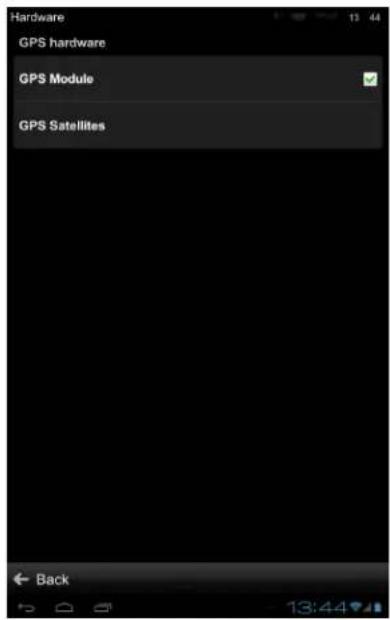
Settings for advanced users only. You are able to set the GPS communication port manually and enhance positioning using compass.
Menu > Settings > Hardware
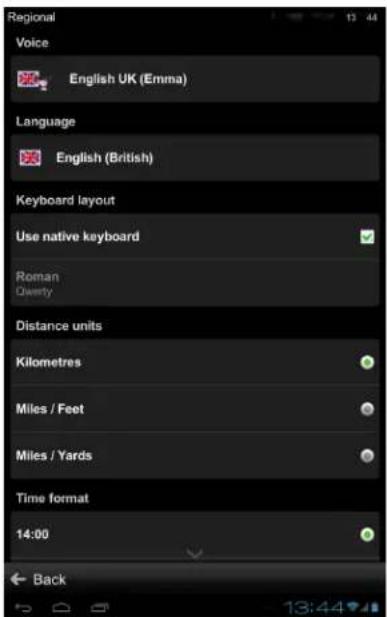
Regional
• Voice
Set language of voice instructions.
- Language
Set language of user interface.
- Keyboard layout
Choose keyboard layout.
- Distance units – Kilometres/Metres – Miles/Feet – Miles/Yards
• Time format - 14:00 - 2:00 PM - 2:00
- Temperature
Temperature in Celsius/Fahrenheit
• GPS Coordinates
Set entry detail(degrees, minutes, seconds)
Menu > Settings > Regional
Battery management
- Run in background On smartphone/tablet devices the app stays running while in background.
- On external power Choose High performance/Optimized/Power saver
- On battery Choose High performance/Optimized/Power saver
Menu > Settings > Battery management

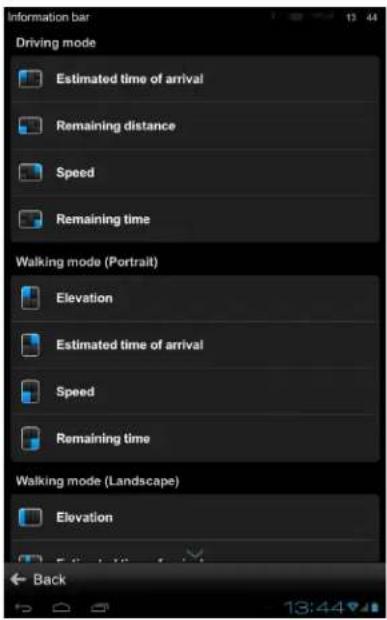
Information bar
Set which information you want to see on Information bar in driving or walking mode.
• Estimated time of arrival
- Speed
- Elevation
- Remaining distance
• Time
- Signal level
- Route length
- Travelled distance
Menu > Settings > Information bar
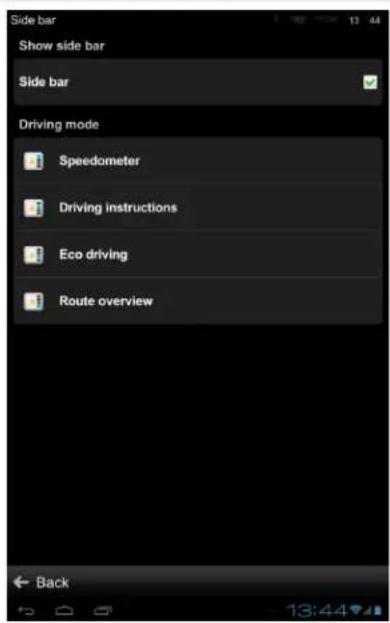
Side bar
Switch sidebar for tablets on/off.
Choose information that will be displayed in the sidebar while driving:
- Traffic on route
- Driving instructions
- Eco driving
- Speedometer
• History - Favorites
- Route overview
Menu > Settings > Side bar
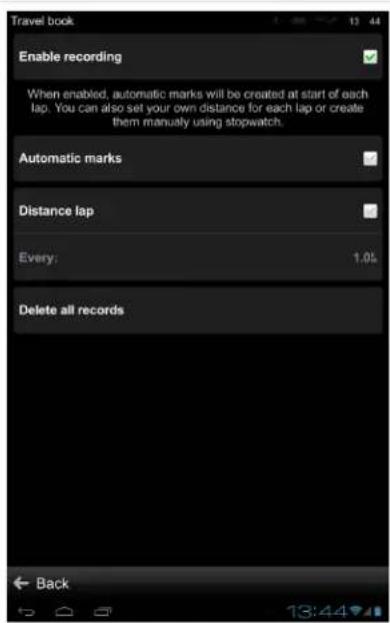
Travel book
Set laps while in walking mode to be Stopwatch triggered, Distance triggered or on automatic Lap detection.
Menu > Settings > Travel book
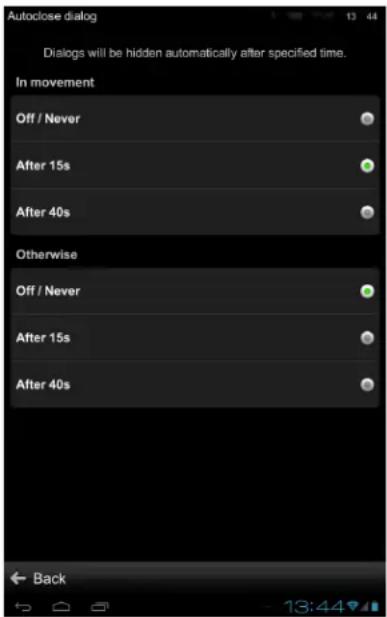
Autoclose dialog
Dialogs will be hidden automatically after specified time.
Menu > Settings > Autoclose dialog
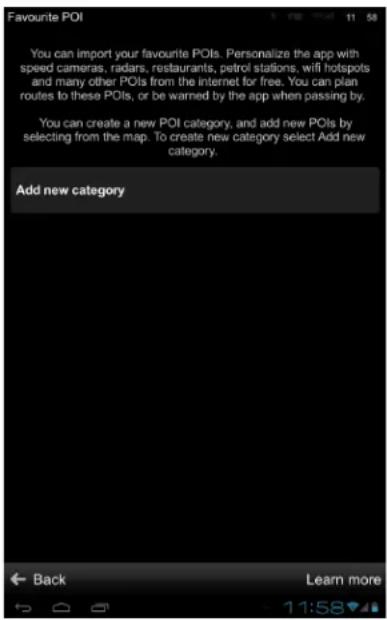
Favourite POI
You can add your own POIs, create new categories and manage them.
For more information visit www.sygic.com/poi
Menu > Settings > Favourite POI
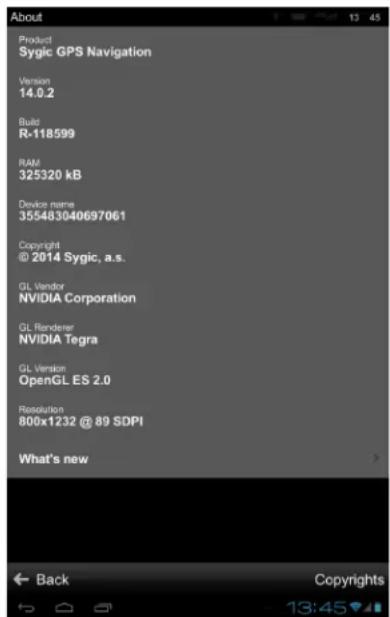
About
Information about version, device code and available application memory.
Please provide this information in communication with Sygic support.
Menu > Settings > About
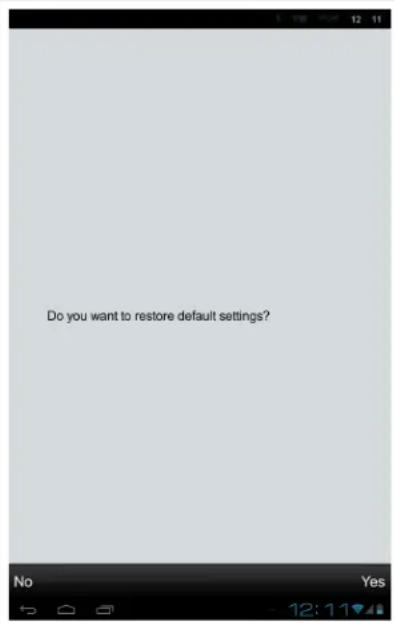
Reset to defaults
Whenever you can get back to default state of your Sygic application by resetting it to default settings.
Menu > Settings > Reset to defaults
Set up your first route
Dear customer,
this category contains information about how to set and modify route and all other routing possibilities.
Searching and Entering a Destination
This chapter includes information about Quick search option and “Navigation to” option(to Address, POI, Home, Favourite Destinations etc.)
Please, to choose your topic, click on particular menu item of list on the left side of this article.
Quick search
You can look for any Address, POI, Contact, History or Favorite with the Quick search function. Quick search is available in:
- Navigation mode
- Map Browsing mode
Type the name of the City, Street, POI, Contact, History, or Favorite into the search field.
Quick search
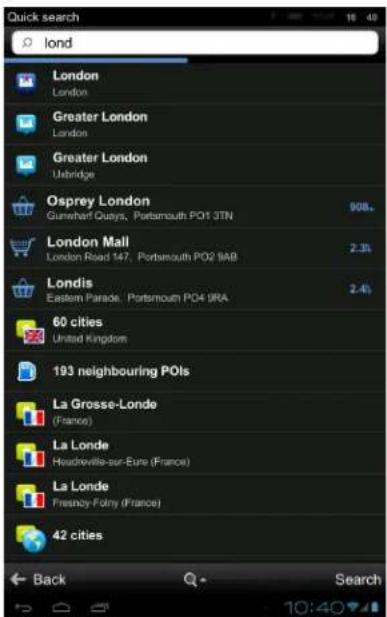
If there are no results are available you can continue searching with Detailed search or Google local search. To set chosen location as your destination, tap the Drive to, Walk there or Travel via button.
To select a different place altogether, tap the Back button.
Navigating to an address
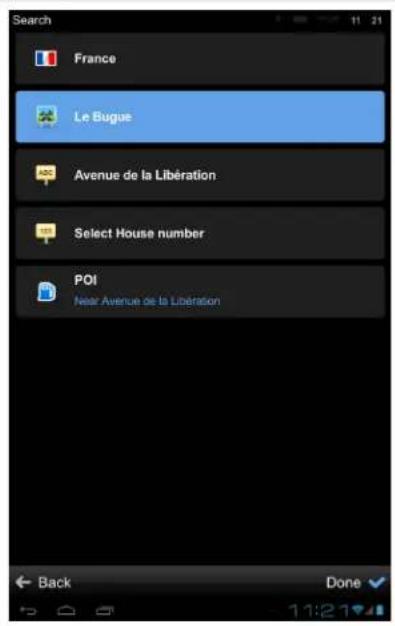
To set your destination by entering its address select:
Menu > Navigate to... > Address or POI
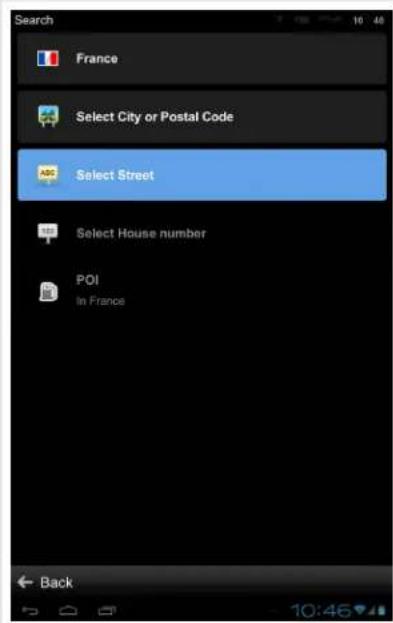
Afterwards you can proceed to Select City or Postal Code or Select Street directly.
Enter the first few letters of the City/Street name to see a list of suggestions.
Once you select street name, you will be able to select House number.
To set chosen location as your destination, tap Drive to or Walk there.
Sygic supports City-first and Street-first address entry.
| Navigate to > Address or POI > City-first search | Navigate to > Address or POI > Street-first search |
Navigating to a Point of Interest
In addition to the road network, the map also contains the details of thousands of Points of Interest (POIs) such as gas stations, restaurants, hotels, tourist attractions and other facilities.
To set a POI as your destination, you have multiple options:
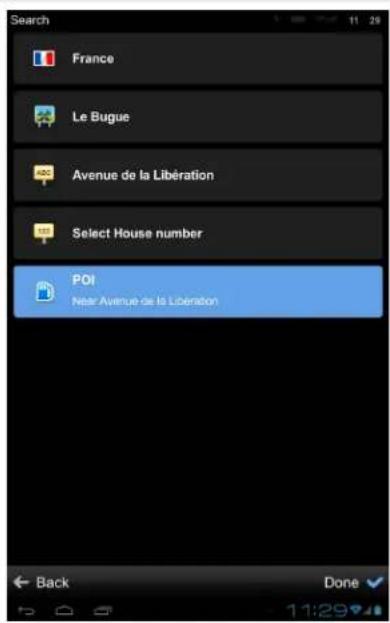
- Menu > Navigate to... > Address or POI
Finds POI near the selected address
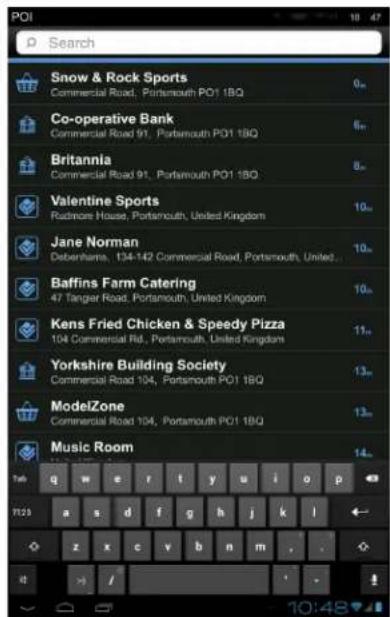
- Menu > Navigate to... > Nearby POI
Shows a list of POIs near your current (or last valid) position.
In Map Browsing Mode tap on any location and choose Nearby POI from Action Menu or tap on any POI that you can see on the map.
POI near selected address List view
Searching POI by Categories
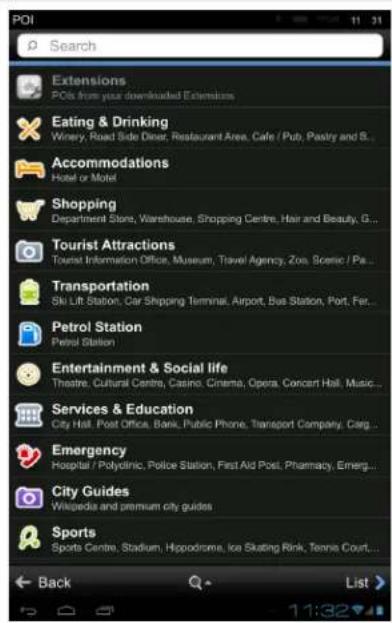
You can switch between:
- Groups view (Pic.1) Shows POI categories and subcategories
- List view (Pic.2) Shows a list of POIs nearest to chosen location
To refine your search results, tap the search icon at the bottom of the screen and type the name of the POI you are looking for. You can also enter partial names. When finished, the Action Menu pops up.
Pic.1 POI Groups view
Pic.2 Searching selected POI group

If you want to navigate to a Contact from your phone, you can select their name directly from your contact list:
Menu > Navigate to... > Contacts
In the list, scroll to the desired contact, or tap on the magnifying glass and enter their name. You can also enter partial names. Tap on the name of the Contact and action menu will appear. To set the address assigned to a contact as your destination, tap the Drive to, Walk there or Travel via button.
NOTE: To set your destination from the contact list, the selected contact must be stored with a full address.
Navigating Home
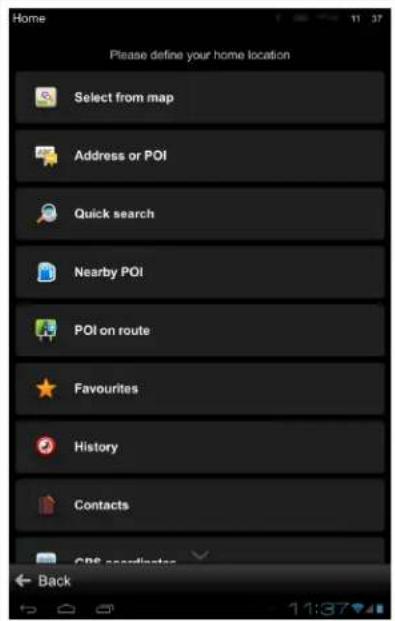
To start using this feature, you need to set your home location (Pic.1) first, select:
Menu > Navigate to... > Home
Following options will appear:
- Current position
Sets your last valid GPS position as your home address - Select form map
Opens map browsing mode so you can select a location
- Address or POI
You can choose home location from particular POI or address
Once your home address is stored, you can navigate home by choosing:
Menu > Navigate to... > Home (Pic.2)
(Pic.1) Setting the Home location
(Pic.2) Navigate home

If you wish to change your Home address, tap the Set button.
Navigating to Recent Destinations / History
Sygic keeps tracking your recent destinations, making it easy to return to a place that you have been navigated to before.
When entering an address through Menu > Navigate to...> Address or POI, the last address entered is preselected.
When selecting a City or a Street, the list of previous selections will appear.
You can also go directly to a list of recent destinations by selecting Menu >Navigate to...> History and start navigation by selecting a previous destination from the list shown.
Menu > Navigate to...> History
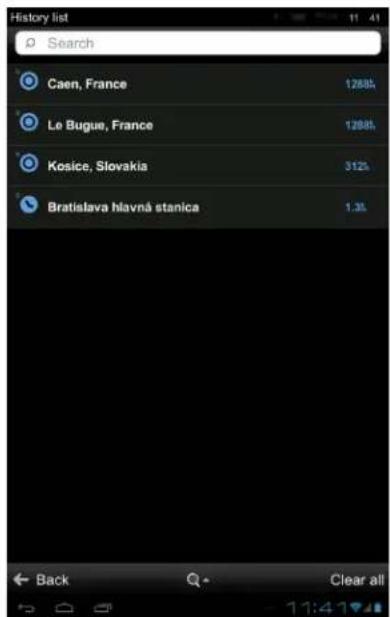
Tap on the item and select action.
Navigating to Favourite Destinations
To view the list of your favourite destinations, select Menu > Navigate to...> Favourites
You can start navigation by selecting a Favourite destination from the list shown.
Menu > Navigate to...> Favourites
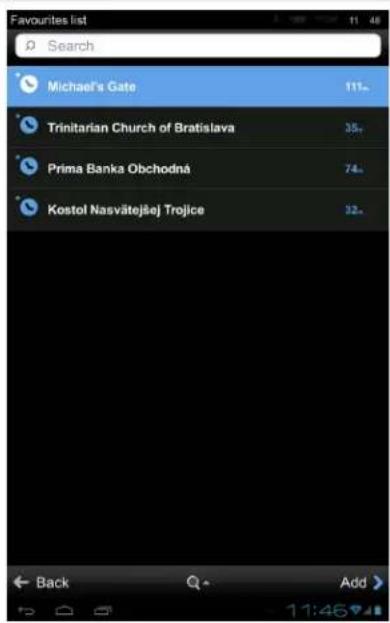
Select the desired Favorite destination by tapping it and then select your next option from the Action Menu.
Adding a new Favourite destination
To add new item to the list of your Favourite destinations tap on Add then set address by choosing from following options:
- Current position
Sets your last valid GPS position as your home address
- Select form map
Opens map browsing mode so you can select a location
- Address or POI
You can add Favourite destination by selecting a place in the Map Browsing mode and choosing Add Favourite in the Action Menu
Choosing your route
Once you select a destination, tap the Done button and Action Menu with options Drive to and Walk there will appear.
Choose navigation for cars (Drive to) or pedestrians (Walk there) to start route calculation.
If your device can determine your current position, your route will be calculated immediately from that position.
If your current position cannot be determined, please see chapter Acquiring GPS position.
When route calculation is complete, the entire route is displayed on map.
If there are several route alternatives possible the software will offer up to three routes to choose from.
Three alternative routes

For each route the distance and time to destination is shown on the top of the screen.
You can switch between routes by tapping on the different route summaries on the top of the screen. Selected route will be highlighted. Select your route and tap Navigate to start navigation.
Editing & Avoiding parts of route
This chapter contains information about setting and editing your Route.
Please, to choose your topic, click on particular menu item of list on the left side of this article.
Route Summary
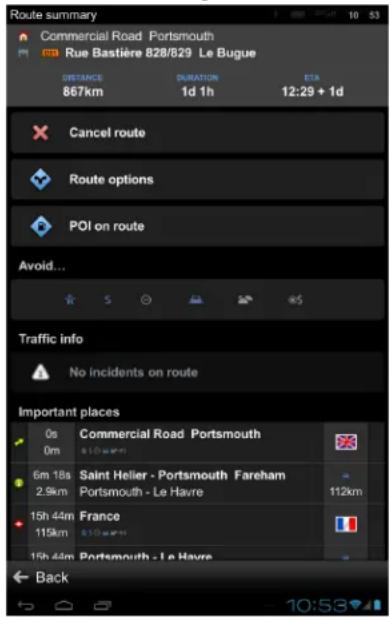
Each time a route is calculated, you can either choose to start navigation or tap on Options to access the Route summary for detailed information about your route and route editing options. You can also return to a planned route and enter Route summary through Menu > Route.
Route summary
Avoid Motorways, Toll roads, Ferries...
If there are any Motorways, Toll roads, Restricted areas, Ferries, Unpaved roads or Special areas along the route, you can avoid them. If you have added waypoints to your route, or if your route takes you through several countries you can avoid Motorways, Toll roads, Restricted areas, Ferries, Unpaved roads, Special areas for each via point, or each country separately by tapping on the flag of selected country.
You can also Avoid next...
- 250 meters
- 1 kilometer
- 5 kilometers
Important places
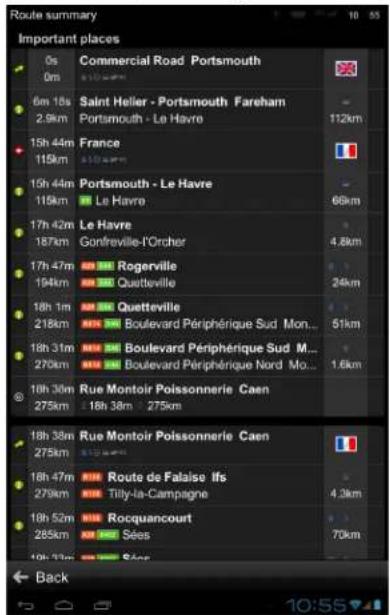
Shows a list of Important places like waypoints, crossings and cities near the route. Tap on items on items on the list to modify them.
List of important places
Other options in Route summary menu
- Cancel route
Cancels the calculated route entirely, so you can use the navigation system only as an indicator of your current position.
- Route options
Lets you access the Route options submenu.
- Traffic
Shows traffic along your route. (Availability of the traffic service depends on your product configuration.)
• Show all instructions
Shows a detailed list of all junctions and directions along the route. Tap on any item on the list to view the junction on the map.
Route options - Demonstrate & Save route
Tap on Route > Route options to access menu with following functions:
- Demonstrate Lets you see the calculated route as if you were driving along.
• Show on map Lets you see the entire route on the map.
- Change start point / Change destination Lets you change your start point or destination.
- Travel via Adds a waypoint to your route.
- Save route To save the route to your Saved routes.
- Add shortcut to home screen Adds a shortcut to actual route to your Android device home screen.
Adding waypoints to your route
To travel through a certain place on your trip you can add waypoints by:
- Select a location on the map and use option Travel via or Pass by in Action Menu.
- Tap on Route > Route options > Travel via and set address by choosing from following options:
- Current position – Sets your last valid GPS position as your home address
- Select form map – Opens map browsing mode so you can select a location
- Address or POI
Optimize route with multiple waypoints
You can optimize a route with multiple waypoints. This function will reorder the waypoints and change the route in a way that will help you to save time and fuel.
This option is only available if the route planned contains more than two waypoints.
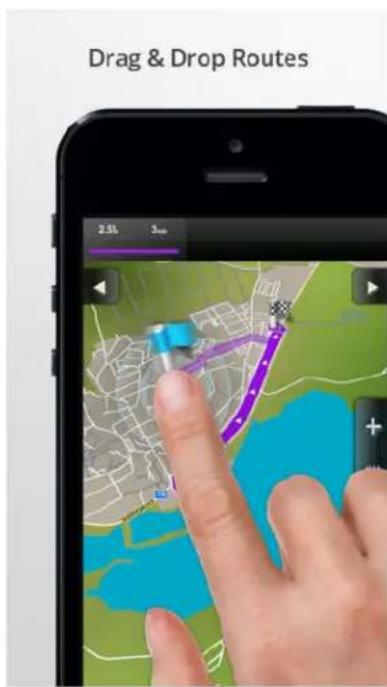
Drag & Drop route editing
In Map Browsing mode you can edit the route by holding your finger on the route a bit longer until blue flag appears, then drag the blue flag to a new position. The route will be altered to pass through that place.
Turn by turn navigation
In Navigation mode the navigation screen will show the map of surrounding area with the calculated route highlighted in violet. As you approach a junction, further directions are displayed to indicate which road to take.
In addition to turn by turn directions, the navigation screen also provides a range of further useful information:
- Traffic with current delay (if Traffic is enabled)
- Speed camera warning
- Destination marker (if destination is within sight)
- Upcoming speed limit change with distance to where it becomes effective
- Estimated time of arrival at destination
- Quick search
-
Distance to destination
-
Next maneuver
- Distance to next change of direction
- Upcoming maneuver (if distance between maneuvers is short)
11 Estimated time until arrival - Menu
- Current speed
- Current road/street
- Start point
- Vehicle indicator (Navigation arrow)
- Dynamic Lane Guidance
- Speeding warning
- Current speed limit
- Next road/street to take
Useful database of POI
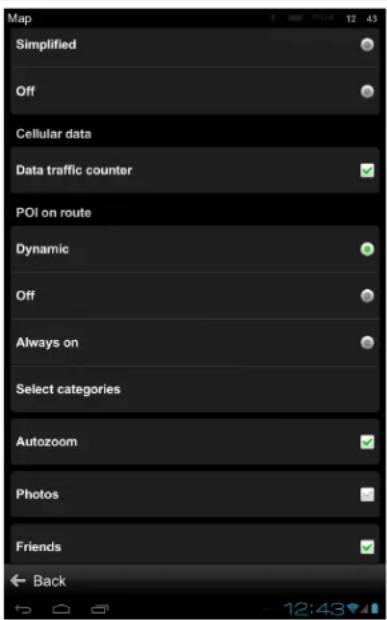
With POI on route option you are able to see all POIs(Point of interests) you need directly on your route.
You can choose any POI category in:
Menu > Settings > Map > POI on Route > Select categories
If you wish to be warned about specific POIs on route with sound notification, you can do so in:
Menu > Settings > Notifications & Sounds > Points of Interest
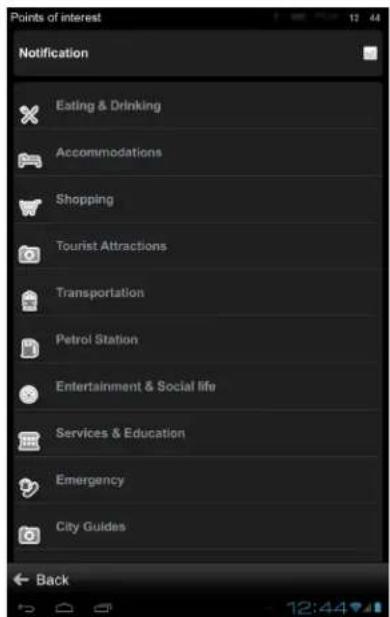
After choosing a category or a single POI, you will be able to set notifications in radius from 100m to 500m in 100m steps or turn it off.
Create an account to boost your Sygic with special features
Creating a Sygic account is free of charge. If you purchase any item from Sygic online shop at www.sygic.com, the email used for making a purchase becomes your Sygic account.
You can log in to Sygic GPS Navigation with multiple types of accounts:
- Sygic (recommended)
- Facebook
• Google
To do so, it is enough to go to Menu > Settings > Connection.
Menu > Settings > Connection

After successful login with your Sygic account, you will be able to use additional features through Sygic Store, such as Traffic, Head Up Display, Celebrity voices, Speed Cameras etc.
Menu > Sygic Store
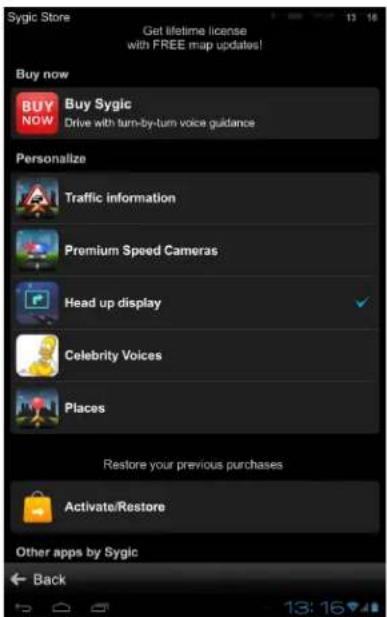
Traffic information
You can avoid delays in your everyday commute with precise, up-to-date reports on traffic jams, road works and incidents.
With Traffic you will know what lies on the road ahead and save time and fuel.
Please note : Traffic is an add-on service that can only be used in Sygic GPS Navigation apps. Traffic information is an online service that requires internet connection to work.
How to buy Traffic
If your device is a Smartphone you can subscribe to Traffic within your app in:
Menu > Sygic Store > Traffic information
Visit our Traffic webpage for more information about availability and pricing of Traffic service in your region.
Traffic feature requires online connection. Depending on your product configuration you may have to sign-in with your Sygic account.
Menu > Sygic Store > Traffic information
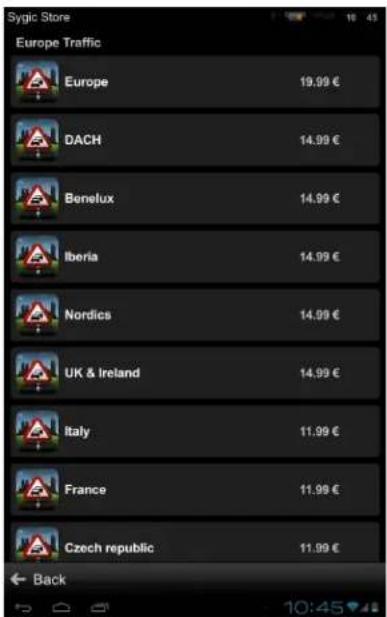
Please note that Traffic is an add-on service and its availability depends on your product configuration.
How to activate Traffic
After purchase, Traffic subscription is bound to the e-mail account you've used for purchasing the subscription, so it requires no product code.
All you have to do to use Traffic is to start our app, go into Menu > Settings > Connection and login with the e-mail you've used for purchasing the subscription.
Menu > Settings > Connection

How to use Traffic
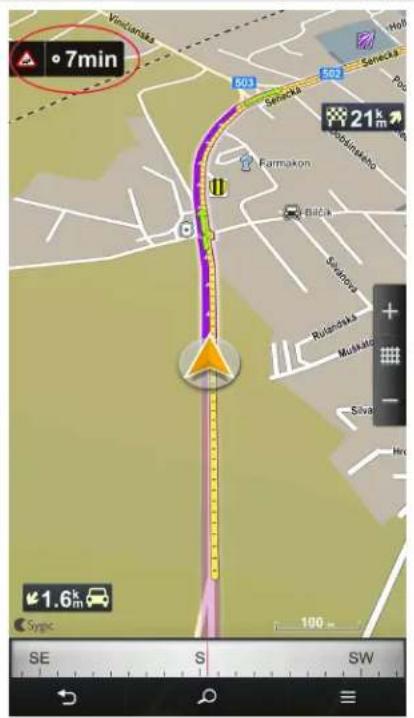
To view real time alerts of traffic incidents along your calculated route, tap on Traffic icon (Pic.1) on the upper left side of the screen either in the Navigation mode or in the Map browsing mode.
If you go to:
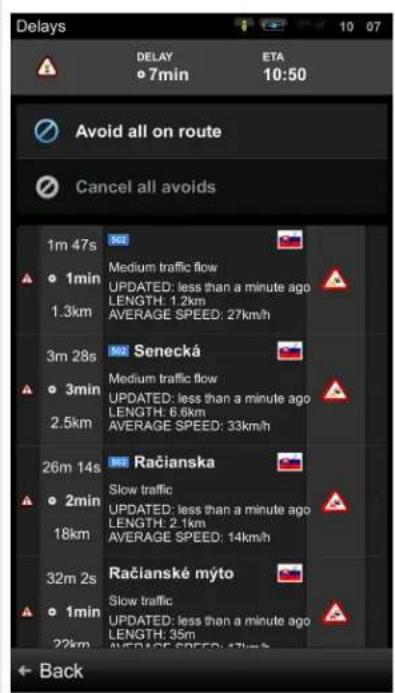
Menu > Route > Traffic info
The screen will show you the incidents ordered by their distance from your current position(Pic.2). You can select which of them you want to avoid.
To select all the listed incidents, tap the Avoid all on route button(Pic.2). Incidents selected for avoidance are marked with a solid black circle.
To select individual incidents, first tap on the incident. To show its extension on the map, tap on Show on map, to avoid it tap Avoid.
| (Pic.) Extent of incident of the map | (Pic.2) List of Traffic incidents |
Premium Speed Cameras
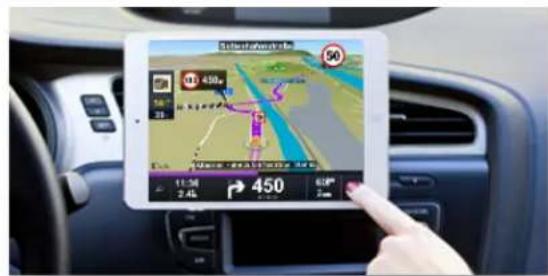
Premium speed cameras are available as an add-on feature in Sygic GPS Navigation app and require network connection. You don't have to worry about getting a ticket with our on-going monthly subscription and you can cancel it anytime.
• Real-time alerts
Premium speed cameras are constantly updated with information about new mobile camera locations to protect your wallet from speeding fines. This way your Sygic GPS Navigation app warns you whenever a new speed trap appears on your route.
For every type of camera you get a visual alert and a warning sound. You can set your own preferred alert sound that you will hear whenever you are in close proximity to a camera.
Premium Speed Cameras
How to buy Premium Speed Cameras Subscription(1 Month)
You can purchase the monthly subscription for Premium Speed Cameras via Sygic application by going to
Menu > Sygic Store > Premium Speed cameras > Buy.
Or you can visit our website to purchase. You can also find here some more information about the service here.
It is important to know that since this purchase is the monthly subscription, the PayPal account is required. Therefore you will need to create or use an existing PayPal account to successfully complete the purchase and to properly assign the license to your Sygic account.
Menu > Sygic Store > Premium Speed cameras > Buy

Please note: purchasing Premium Speed cameras won't give you a product code – the subscription will be bound to your Sygic account.
How to activate Premium Speed Cameras
Subscription of Premium Speed Cameras is bound to the email address used during purchase – the Sygic account.
To activate/restore your Premium Speed Cameras subscription, please, just log into the application: Menu > Settings > Connection and select the Sygic account to enter your email address and password.
Menu > Settings > Connection
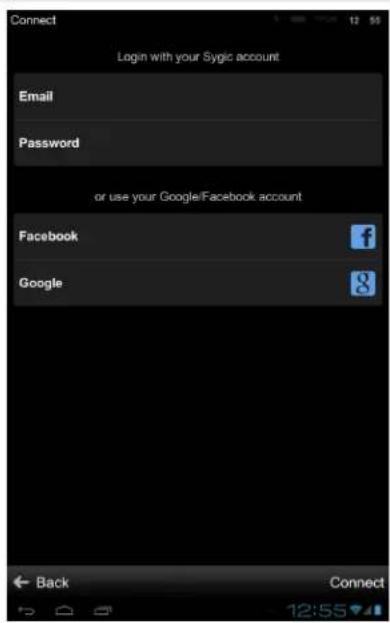
Once you connect with your account to the application, the service becomes active immediately. Although you will not be able to see any indication directly on the map, don't worry, the service is running.
You can verify this by going to Menu > Sygic Store, where you will be able to see your licenses and activations.
Please note: purchasing a Premium Speed Cameras subscription won't give you a product code – the subscription will be bound to your Sygic account
Head up display
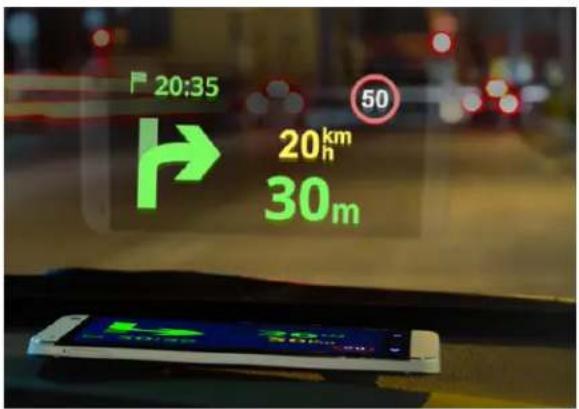
With Head up display feature, you are able to see all navigation instructions projected directly into your line of sight – the windshield.
Keep your attention on the road and enjoy a safe & comfortable drive at night.
Head up display
How to buy Head up display
You can purchase a Head Up Display feature via Sygic application by going to:
Menu > Sygic Store > Head Up Display > Buy and finish the purchase via our mobile e-shop.
Or you can visit Sygic e-shop via computer and make the purchase on our e-shop.
Menu > Sygic Store > Head Up Display > Buy
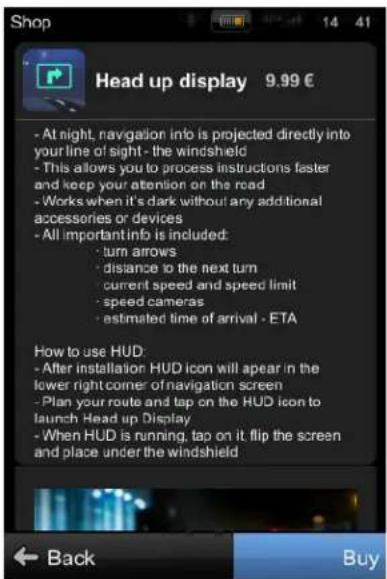
Please note: purchasing Head Up Display won't give you a product code – the feature will be bound to your Sygic account.
How to activate Head up display
Head up Display purchase is bound to the e-mail address you have used during purchase – your Sygic account.
To restore/activate your purchased Head up Display feature, please, log into the application by going to:
Menu > Settings > Connection
and selecting the Sygic account option to enter your e-mail address and your password.
Menu > Settings > Connection
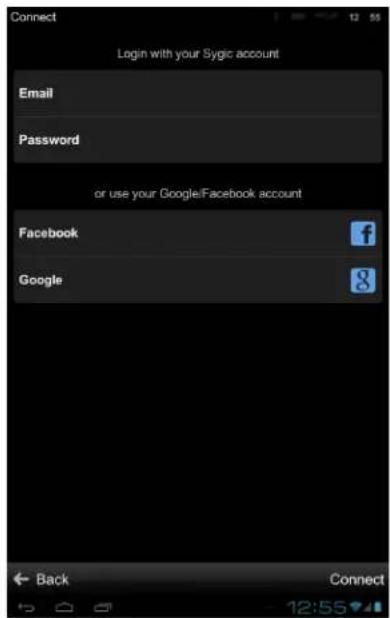
After you successfully connect with your account, your purchases will be restored.
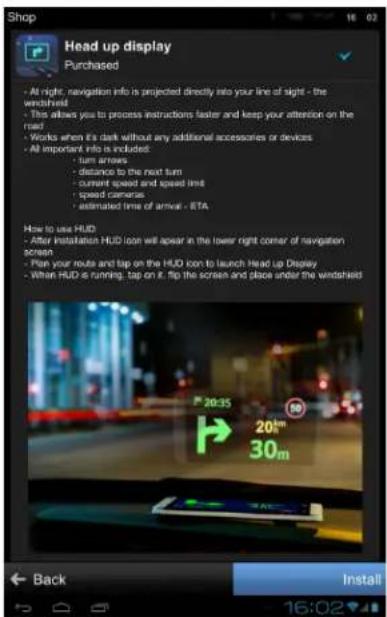
Now it is important to install Head up display feature. Please go to:
Menu > Sygic Store > Head up display > Install
This will install the feature in your Sygic and you will be able to use HUD by tapping on the HUD icon on the map view.
Menu > Sygic Store > Head up display > Install
Celebrity Voices
Let Homer, Mr. Burns or Snoop Dogg be your guide!



How to buy Celebrity Voices
You can purchase a Celebrity Voices in app by going to:
Menu > Sygic Store > Celebrity Voices
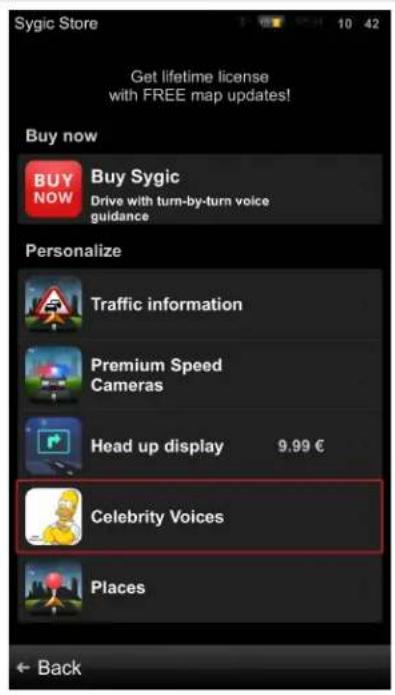
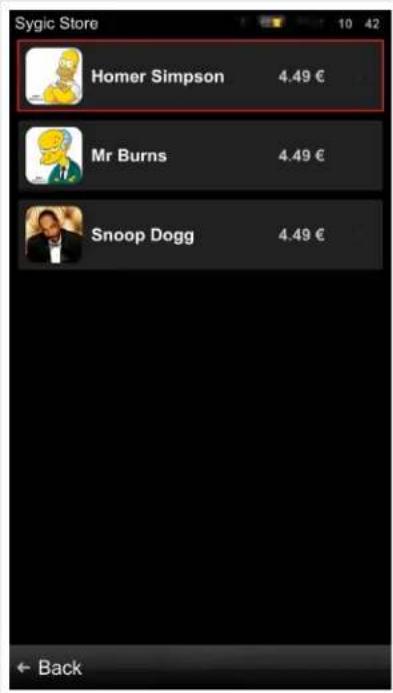
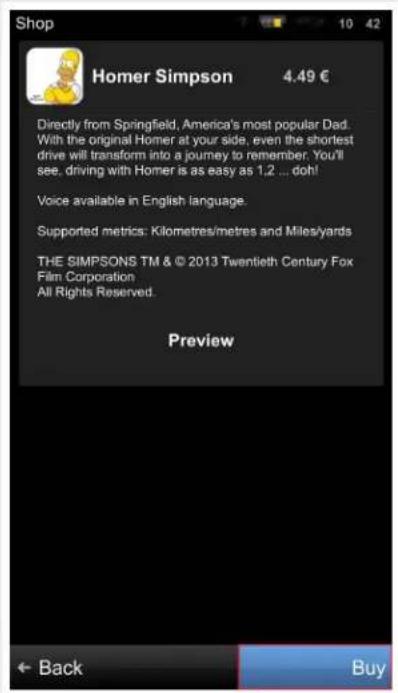
Please note: purchasing Celebrity Voices won't give you a product code – the subscription will be bound to your Sygic account.
How to activate Celebrity Voices
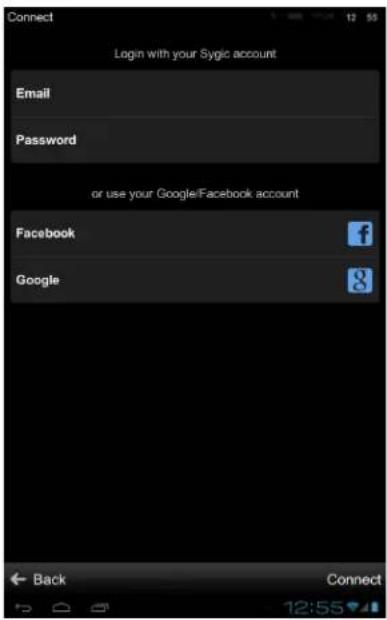
Celebrity voices license is bound to the e-mail address you have used during purchase (your Sygic account).
To access the subscription, please, log into the application: Menu > Settings > Connection with your e-mail adress used during the purchase.
Menu > Settings > Connection
Troubleshooting
Dear customer,
if you are experiencing any issues with Sygic GPS Navigation, this category will help you solve it.
Please, choose your type of issue from the menu on the left side.
If you would not find proper solution in this User Guide, please contact our Customer support.
Acquiring GPS position
Your device may lose GPS signal under any of the following conditions:
- The device is in a building, tunnel or at a location where signals from the GPS satellites are obstructed by buildings, trees, electric cables or other objects.
- Device system settings may be set incorrectly
- On a smartphone/tablet device location services are turned off
- Product settings may be set incorrectly
If your device can't determine your current position you will be offered the following options:
- Wait for valid position (Recommended)
Your route will be calculated from your current position as soon as a valid GPS signal is available.
- Last valid position
Your route will be calculated from your last known position (i.e. where you were just before the device lost GPS signal).
- Select from map
Allows you to select any starting point for the route calculation.
If problem continues. please contact our Customer support.
Problem entering a destination
If you have trouble entering a destination in
Menu > Navigate to... > Address or POI
Please check if you have selected the correct country in
Menu > Navigate to... > Address or POI > Select country
The map for selected country or state may be missing on you device. Depending on your product configuration it may be possible to download missing map in:
Menu > Settings > Manage maps
or
Menu > Sygic Store > Manage maps
If problem continues. please contact our Customer support.
Problem downloading maps on Android
Availability of Manage maps feature depends on your product configuration.
If you have trouble downloading maps, or if the download freezes, please check size of selected maps in:
Menu > Settings > Manage maps
or
Menu > Sygic Store > Manage maps
Make sure you have sufficient free space available on your device.
If there is enough space, but you are still unable to download maps, you can try deleting the content.info and content.lic files.
If problem continues please contact our Customer support.
Frequent freezing and crashing on Android device
Please make sure that your device meets the system requirement specified at this page.
If your device does not meet these requirements, please contact our Customer support.
Depending on the specifications of your device an application downgrade may resolve the issue.
If your device meets these requirements, please try uninstalling and reinstalling the application.
If problems continue, please contact our Customer support.
Problem downloading application on Android
Please, make sure your online connection is stable, that you are not connected via proxy and your APN is not set to wap.
Then please go to:
Device settings > Applications > Google Play Store > Force close the app
Then try to download again.
If problems continue, please contact our Customer support.
Traffic is not working
Please, check if online connection is available.
Depending on your product configuration, Traffic service may or may not be a part of your license, in which case you have to purchase it separately.
If you purchased Traffic in Sygic online shop at www.sygic.com, please make sure that you are logged into the application with the same email that used to make your purchase.
To connect go to:
Menu > Settings > Connection
If problem continues. please contact our Customer support.
Blackscreen, the application stopped working
If the application was working but now there is a black screen when you try to launch it go to:
Device settings > Applications > Sygic > Clear data
Device settings > Applications > Sygic > Force close the app
Then try launching the application again.
If the application does not start, uninstall and reinstall the application.
If problem continues. please contact our Customer support.
Trouble downloading resources from Google Play
If you have trouble downloading application resources from Google Play go to:
Device settings > Applications > Sygic > Clear data
Device settings > Applications > Sygic > Force quit the app
Afterwards go to:
Device settings > Applications > Google Play Store > Clear data
Device settings > Applications > Google Play Store > Force quit the app
Then try to download again.
If problem continues. please contact our Customer support.
List of our video tutorials
See our new step-by-step video guides about installation and activation of Sygic GPS Navigation and its add-on features, such as Traffic information, Head up Display and Celebrity voices.
Our video guides are available to see also via Sygic Youtube channel.
How to purchase Sygic GPS Navigation on Android
How to install Sygic GPS Navigation on Android
How to purchase Real-Time Traffic subscription for Sygic Navigation
How to activate Real-Time Traffic Subscription on Android
How to install a Celebrity voice in Sygic Navigation
How to purchase Head-up display for Sygic Navigation
How to install Head-up display in Sygic Navigation


- SYGIC GPS NAVIGATION FOR ANDROID - USER GUIDE
- TABLE OF CONTENTS
- PROLOGUE 2
- GETTING STARTED.... 3
- PERSONALISE YOUR NAVI 5
- SET UP YOUR FIRST ROUTE 19
- CREATE AN ACCOUNT TO BOOST YOUR SYGIC WITH SPECIAL FEATURES 34
- TROUBLESHOOTING 47
- LIST OF OUR VIDEO TUTORIALS 51
- PROLOGUE
- GETTING STARTED
- COMPATIBILITY
- PERSONALISE YOUR NAVI
- MANAGE MAPS
- MAP
- CONNECTION
- NOTIFICATION & SOUNDS
- ROUTE PLANNING
- HARDWARE
- REGIONAL
- BATTERY MANAGEMENT
- INFORMATION BAR
- SIDE BAR
- TRAVEL BOOK
- AUTOCLOSE DIALOG
- FAVOURITE POI
- ABOUT
- RESET TO DEFAULTS
- SET UP YOUR FIRST ROUTE
- SEARCHING AND ENTERING A DESTINATION
- QUICK SEARCH
- NAVIGATING TO AN ADDRESS
- NAVIGATING TO A POINT OF INTEREST
- SEARCHING POI BY CATEGORIES
- MENU > NAVIGATE TO... > CONTACTS
- NAVIGATING HOME
- NAVIGATING TO RECENT DESTINATIONS / HISTORY
- NAVIGATING TO FAVOURITE DESTINATIONS
- ADDING A NEW FAVOURITE DESTINATION
- CHOOSING YOUR ROUTE
- EDITING & AVOIDING PARTS OF ROUTE
- ROUTE SUMMARY
- AVOID MOTORWAYS, TOLL ROADS, FERRIES
- IMPORTANT PLACES
- LIST OF IMPORTANT PLACES
- OTHER OPTIONS IN ROUTE SUMMARY MENU
- CANCEL ROUTE
- ROUTE OPTIONS
- TRAFFIC
- SHOW ALL INSTRUCTIONS
- ROUTE OPTIONS - DEMONSTRATE & SAVE ROUTE
- ADDING WAYPOINTS TO YOUR ROUTE
- OPTIMIZE ROUTE WITH MULTIPLE WAYPOINTS
- DRAG & DROP ROUTE EDITING
- TURN BY TURN NAVIGATION
- USEFUL DATABASE OF POI
- CREATE AN ACCOUNT TO BOOST YOUR SYGIC WITH SPECIAL FEATURES
- TRAFFIC INFORMATION
- HOW TO BUY TRAFFIC
- HOW TO ACTIVATE TRAFFIC
- HOW TO USE TRAFFIC
- MENU > ROUTE > TRAFFIC INFO
- PREMIUM SPEED CAMERAS
- REAL-TIME ALERTS
- HOW TO BUY PREMIUM SPEED CAMERAS SUBSCRIPTION(1 MONTH)
- HOW TO ACTIVATE PREMIUM SPEED CAMERAS
- HEAD UP DISPLAY
- HOW TO BUY HEAD UP DISPLAY
- HOW TO ACTIVATE HEAD UP DISPLAY
- CELEBRITY VOICES
- HOW TO BUY CELEBRITY VOICES
- HOW TO ACTIVATE CELEBRITY VOICES
- TROUBLESHOOTING
- ACQUIRING GPS POSITION
- PROBLEM ENTERING A DESTINATION
- PROBLEM DOWNLOADING MAPS ON ANDROID
- FREQUENT FREEZING AND CRASHING ON ANDROID DEVICE
- PROBLEM DOWNLOADING APPLICATION ON ANDROID
- TRAFFIC IS NOT WORKING
- BLACKSCREEN, THE APPLICATION STOPPED WORKING
- TROUBLE DOWNLOADING RESOURCES FROM GOOGLE PLAY
- LIST OF OUR VIDEO TUTORIALS
- HOW TO PURCHASE SYGIC GPS NAVIGATION ON ANDROID
- HOW TO INSTALL SYGIC GPS NAVIGATION ON ANDROID
- HOW TO PURCHASE REAL-TIME TRAFFIC SUBSCRIPTION FOR SYGIC NAVIGATION
- HOW TO ACTIVATE REAL-TIME TRAFFIC SUBSCRIPTION ON ANDROID
- HOW TO PURCHASE HEAD-UP DISPLAY FOR SYGIC NAVIGATION
- HOW TO INSTALL HEAD-UP DISPLAY IN SYGIC NAVIGATION
Brand : Sygic
Model : GPS Navigation
Category : GPS Navigator