
Fleet Navigation 2D software - Browser Sygic - Free user manual and instructions
Find the device manual for free Fleet Navigation 2D software Sygic in PDF.


| Product Type | Offline navigation software (2D) |
| Brand | Sygic |
| Model | Fleet Navigation 2D software |
| Supported Platforms | Windows CE 6.0, Android 2.3.x and higher |
| Minimum Requirements | Processor: 600 MHz, RAM: 128 MB, Screen resolution: 240x240 px and higher |
| Main Functions | Turn-by-turn navigation, truck attributes, traffic, POI search, multi-stop route planning, speed camera warnings |
| Map View | 2D and 3D modes, day/night colors |
| Route Calculation Methods | Fastest, Economic, Shortest, Pedestrian, Bicycle |
| Traffic Service | Online TMC and RDS TMC (requires internet connection) |
| Language Support | Multiple languages for UI and voice instructions |
| Additional Features | World clock, calculator, unit converter, country info |
| Safety Features | Speed camera warnings, lane assistant, railway crossing warnings |
| Battery | N/A (software; requires device power) |
| Dimensions | N/A (software) |
| Weight | N/A (software) |
| Maintenance | Regular map updates recommended; no physical maintenance |
| Spare Parts / Repairability | N/A (software; updates available from Sygic) |
Frequently Asked Questions - Fleet Navigation 2D software Sygic
User questions about Fleet Navigation 2D software Sygic
0 question about this device. Answer the ones you know or ask your own.
Ask a new question about this device
Download the instructions for your Browser in PDF format for free! Find your manual Fleet Navigation 2D software - Sygic and take your electronic device back in hand. On this page are published all the documents necessary for the use of your device. Fleet Navigation 2D software by Sygic.
USER MANUAL Fleet Navigation 2D software Sygic
Sygic Fleet Navigation
2D software
...... 1
I. Prologue....1
II. Getting Started....2
Compatibility 2
The Navigation Screen 3
Turn by Turn Navigation 9
III. Navigation with Truck Attributes ....12
IV. Planning the Route 14
Navigating to a Point of Interest....14
Navigating Home 17
Navigating to Recent Destinations ....17
Navigating to Favourite Destinations....18
Navigating to point on map....20
Navigating to last valid position....20
Navigating to a GPS position 21
V. Altering the Route....22
Route Menu 22
Modifying the Route 25
Map Browsing Mode 26
Multi-stop route planning....28
VI. Settings 31
ii User Guide
VII. Traffic....36
Logging in....36
Traffic menu 37
Re-compute a route....37
VIII. Extras....38
I. Prologue
Dear Customer,
Thank you for choosing Sygic navigation.
Sygic Fleet navigation software (version 2D) is a complete well-established navigation system with high quality and stability, accurate search and precise route computing. It is an offline turn-by-turn navigation with rich set of features and easy to use driver friendly user interface.
We wish you a pleasant and safe journey.
Sygic® | Business Solutions
II. Getting Started
Sygic Fleet navigation is offline navigation software and does not require online connection to operate. Online connection is only necessary for optional add-on services such as Traffic information and crowd-sourced Police trap alerts.
Your safety is of utmost importance that is why you should always plan your route before the beginning of the journey. For longer trips make sure that you have a compatible charger to avoid draining the device battery.
While driving always keep your eyes on the road and avoid operating the software. Local roadway signs and regulations
take precedence over indications of this navigation software. Please take reasonable care and keep your own sound judgment while following instructions.
Compatibility
Minimum requirements are:
Processor frequency: 600 MHz
Device memory (RAM): 128 MB
Supported platforms:
WindowsCE 6.0, Android 2.3.x and higher
Screen resolution: 240x240 px and higher
Please note: Custom ROM is not supported as we cannot guarantee compatibility with other than stock ROM from the manufacturer.

Please note, that some menu items might not be available in your package. Their availability depends on configuration of the product you purchased.
2 User Guide
The Navigation Screen
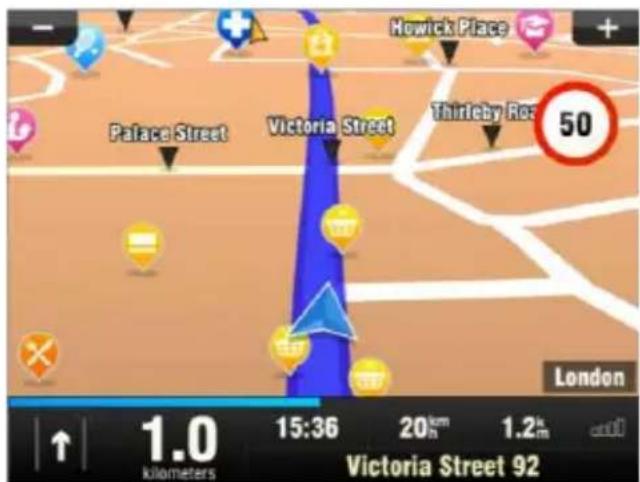
On start-up, the application opens with the Navigation Screen, showing your position as a blue arrow. You can zoom in and out of the map by tapping the + and - buttons in the top corners of the screen.
For further functions, enter the Main menu by tapping the map area on the Navigation Screen.
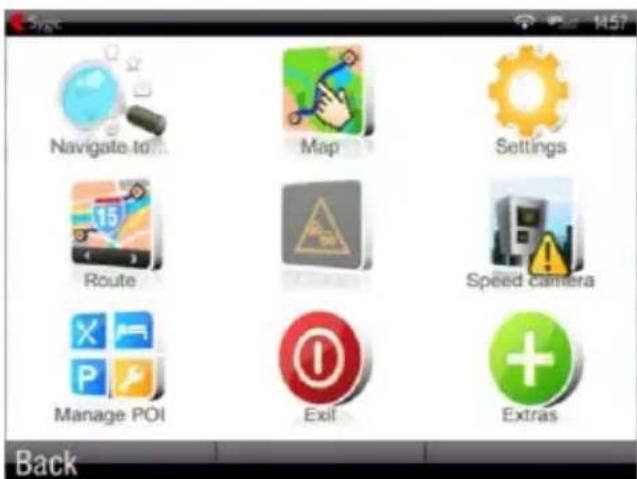
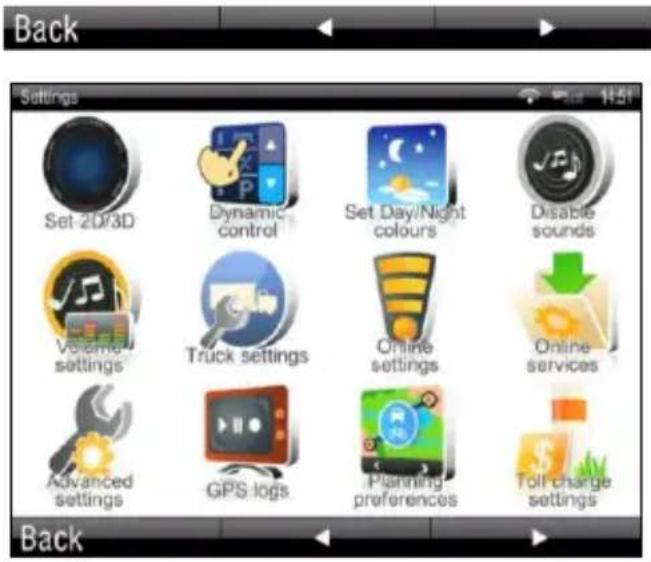
You can scroll between the menu pages by tapping the arrow buttons at the bottom of the screen or by sliding a finger across the screen.
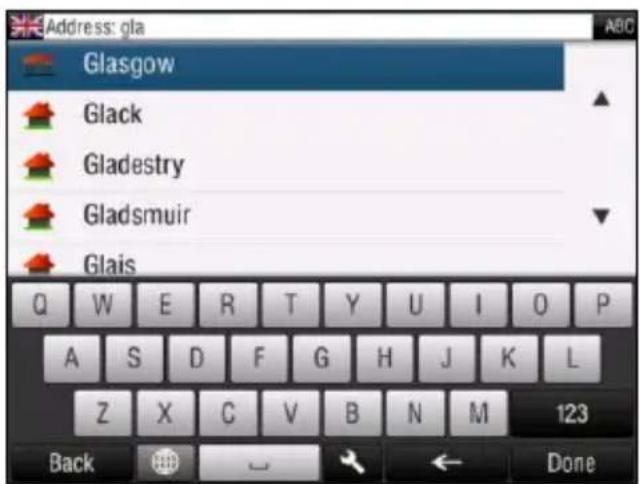
Entering an Address
To set your destination by entering its address select
Main menu >

Navigate to... >

Address or Zip code.
Next, you will be asked to select a Country a City, Street and House number or Street crossing. Enter the required names and numbers.
Alternatively, just enter the first few letters of the city/street name to see a list of similar names.
4 User Guide
The list also features explanatory icons left to the city/street name:

City

Capital city

Village

City center

Street

Street crossing
Select the desired city/street from the list.
When finished, a Confirmation Screen pops up showing the address entered.
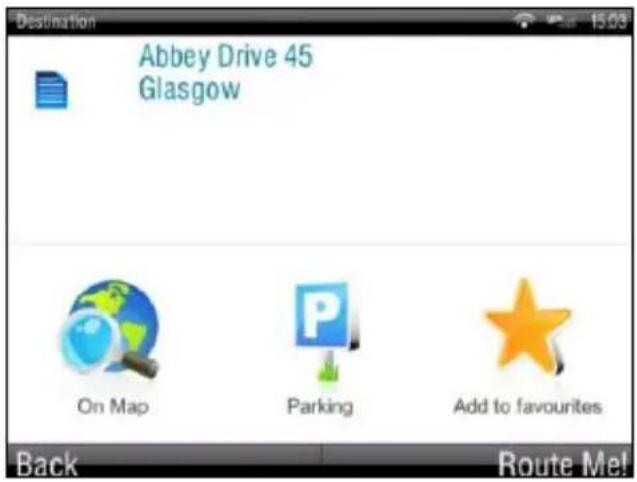
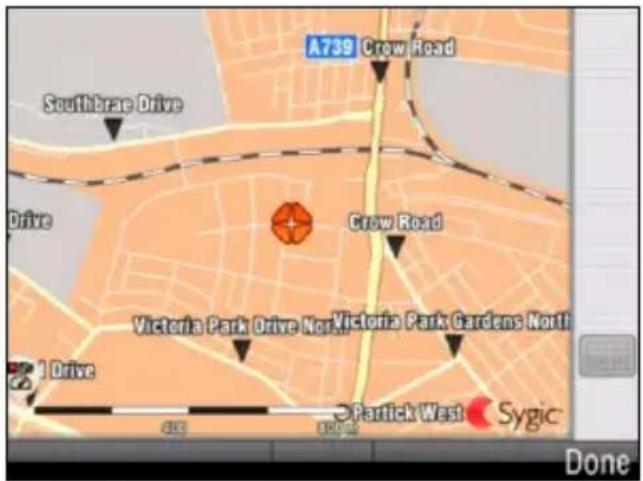
Before routing to your destination, you can display the exact location of the address on map by tapping "On Map".
You can also store the location as a favourite destination by tapping on "Add to favourites" (see section
Navigating to Favourite Destinations").
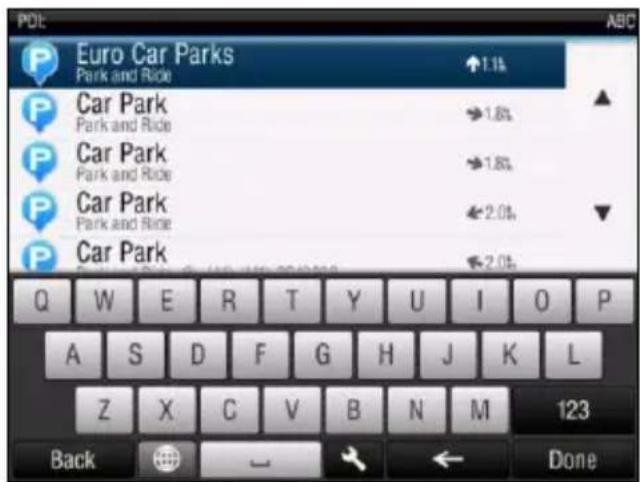
If you would rather be directed to a parking nearby, tap "Parking" and select from the list shown.
To select a different address altogether, tap the "Back" button.
To set the address shown as your destination, tap the "Route Me!" button at the bottom right of the screen.
If your device can determine your current position, your route will be calculated immediately from that positon. If your current position cannot be determined, you will be offered the following options:

Wait for valid signal (Recommended)
Your route will be calculated from your current position as soon as a valid GPS signal is available (see section "
Acquiring GPS Position
Acquiring GPS Position").

Last valid position
Your route will be calculated from your last known position (i.e. where you were just before the device lost GPS signal).

Select from map
Allows you to select any starting point for the route calculation. You can choose the point from the map manually or use the
Options menu>

Find...
You can find a position by using one of the options described in "Planning the route" section.
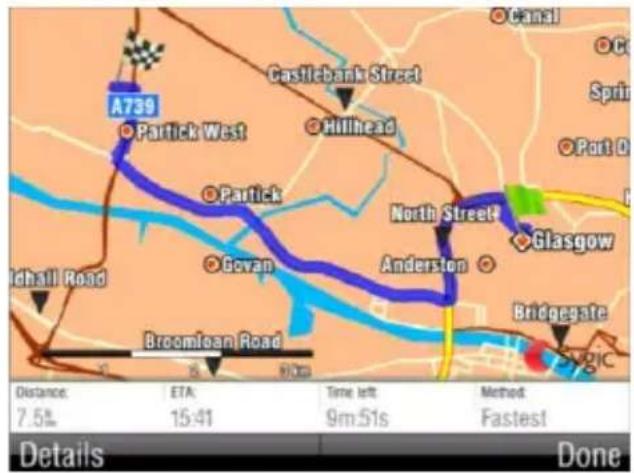
When route calculation is complete, the entire route is displayed on the map (in blue) with total distance, estimated time of arrival (ETA), time left to destination and route calculation method (Fastest, Economic, Shortest, Pedestrian, Bicycle) shown below the map.
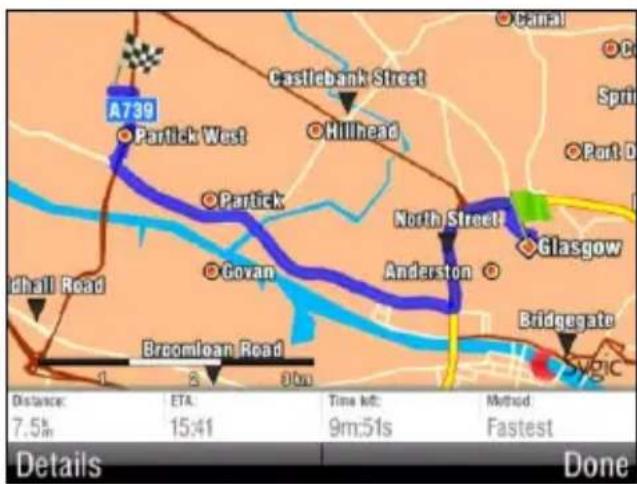
NOTE: By default, the method of route calculation is set to "Fastest".
To accept the route and start turn by turn navigation, tap "Done".
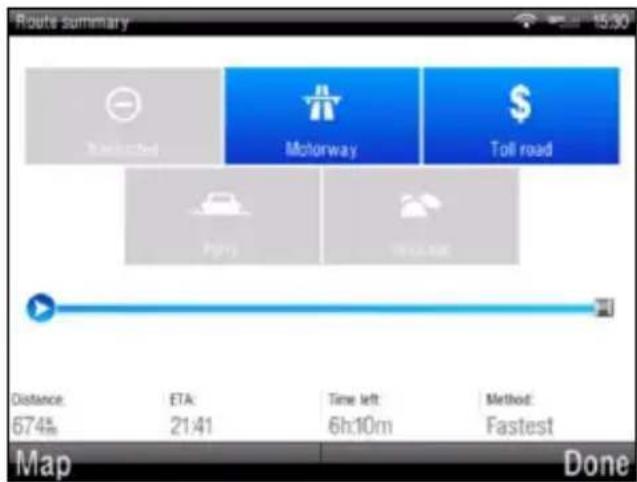
For further information on the route, tap "Details". In Detail view the icons highlighted in blue indicate specific types of roads included in the route.
To avoid a specific road type (e.g. Highways), tap the blue highlighted button.
8 User Guide
Turn by Turn Navigation
The Navigation Screen will show the map of your surrounding area with the calculated route highlighted in blue.
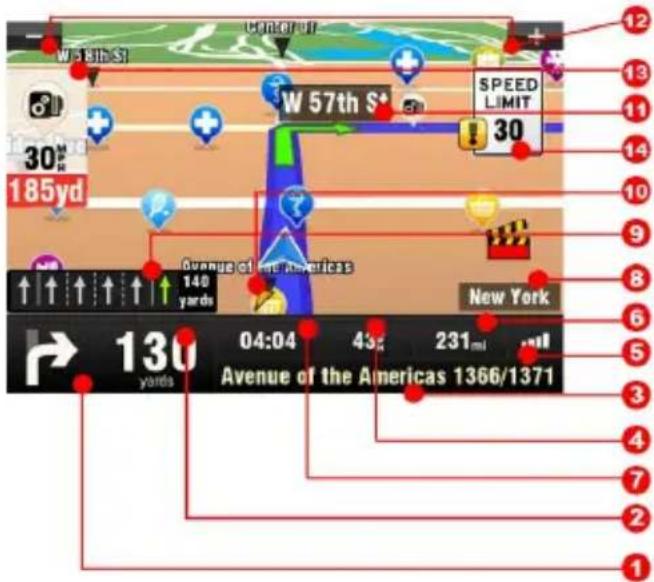
As you approach a junction, further directions are displayed to indicate which road to take.
In addition to turn by turn directions, the Navigation Screen also provides a range of further useful information:
1 Next maneuver
2 Distance to next change of direction
3 Current road/street
4 Distance to destination
5 GPS signal strength
6 Current speed
7 Estimated time of arrival at destination
8 Current city
9 Lane Assistant
10 Heading to destination
11 Next road/street to take
12 Map zoom in/out
13 Speed camera warning
14 Current speed limit
Acquiring GPS Position
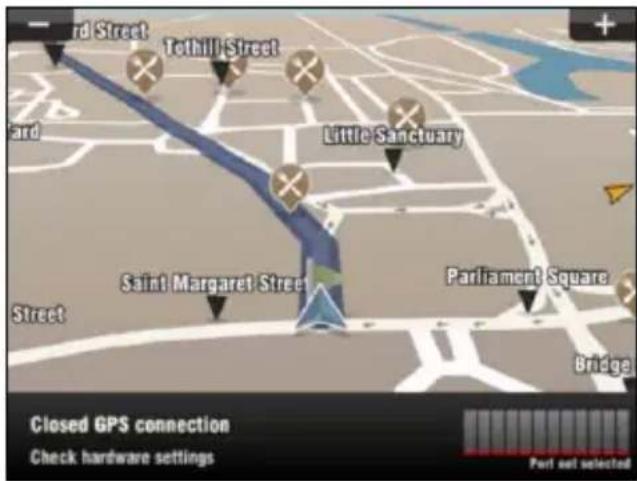
If there is no GPS signal, the screen becomes grey. This can happen under any of the following conditions:
The device is in a tunnel or at a location where signals from the GPS satellites are obstructed by buildings, trees, electric cables or other objects.
■ Device system settings or Product Settings are set incorrectly.

The information below is not available on Android devices.
The signal strength bars at the bottom of the screen provide additional information:
If the colour of the bars or the GPS port name/number turns red, re-check the GPS settings.
If the bars are grey, move the device to an outdoor location with good visibility of the sky until the signal is regained and the bars
become green. Tap the signal bars or select
Main menu >

to see more detailed GPS information.
(If not visible in the menu, you can access this setting by tapping Signal Bars)
You will see GPS status information. By tapping on
Hardware in bottom right part of the screen you can get to menu enabling you to set your GPS and TMC hardware if available on your device. The settings are described in Settings section.
Once GPS signal is regained turn by turn navigation resumes automatically.
III. Navigation with Truck Attributes

Truck navigation is not available on all the devices. It's presence depends on the product you purchased.
The truck attributes of the map allow setting up the dimensions of the truck and then the route is calculated avoiding the routes, where the truck is not allowed to drive.
To set up the truck dimensions, enter the Main menu, select Settings and then select Truck settings.
In the settings screen you can set:
Use truck attributes (Yes/No) Draw only relevant trucks signs (Yes/No)
Yes – all the truck limitation signs will be displayed
No – only sings applicable for your truck will be displayed
Max speed
Total weight
Axle weight
Total vehicle length
Vehicle width
Maximum height
After the parameters are set, they are used in route calculation from that time on. The calculated route will look like on the example:
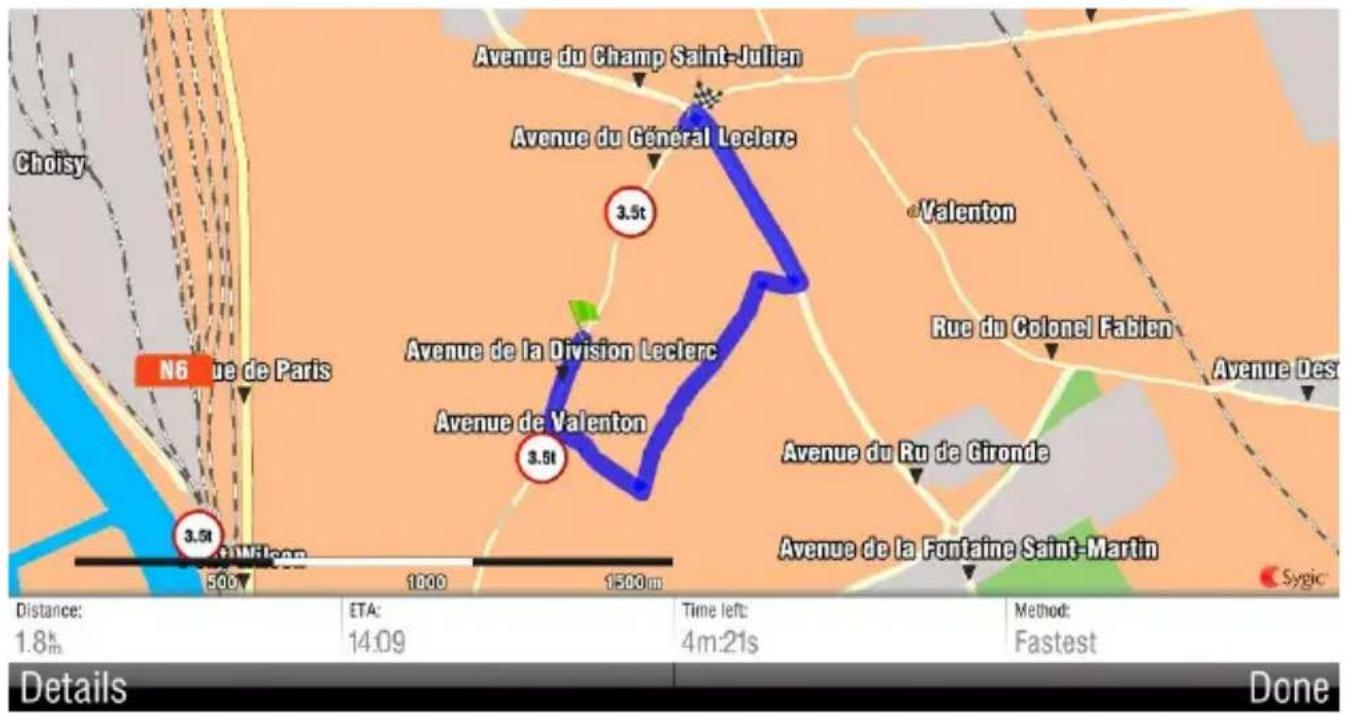
The truck attributes of the roads are also displayed during the navigation.
IV. Planning the Route
Navigating to a Point of Interest
In addition to the road network, the map also stores the details of thousands of Points of Interest (POIs) such as gas stations, restaurants, hotels, tourist attractions and other facilities.
To set a POI as your destination, first select
Main menu >

Navigate to... >
Point of Interest
Next, define the area where you want to search for the POI. Select

Near my position
to search POIs around your current position;

Near address...
to search POIs near a particular address (to be entered in the next step);

Near destination
to search POIs near the current destination (if set);

In City...
to search POIs in a particular city (to be entered in the next step);
Searching POIs
POIs are arranged in groups (such as Food, Hotel or Motel etc.) to help find a facility even when you do not know its name or address.
Once the search area is selected, a list of the POI groups is displayed.
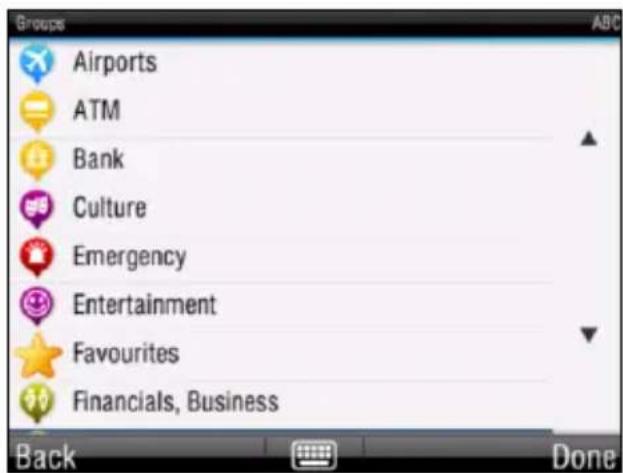
Tap on the POI group and you will see the list of all POIs that are nearby.
NOTE: The distances shown in the list are relative to the search location.
Scroll down the list and select your POI by tapping its name.
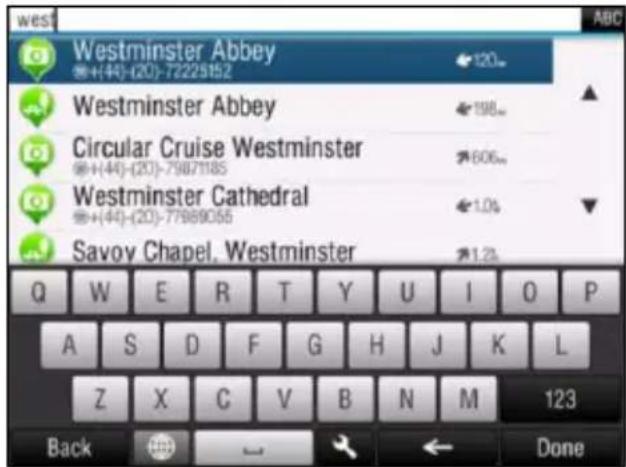
To refine your search results, tap the keyboard icon at the bottom of the screen and type the name of the POI you are looking for. You can also enter partial names.
When finished, a Confirmation Screen pops up showing the POI selected.
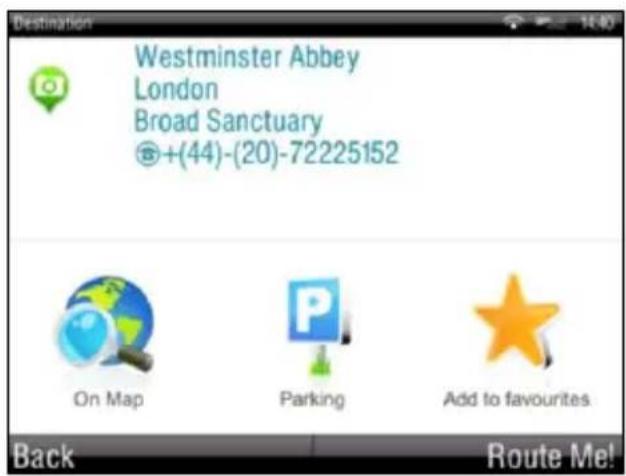
To set the selected POI as your destination, tap the "Route Me!" button.
Managing POIs
Manage POIs in
Main menu > Manage POI

Add POI
Select a destination of the POI. Select the category to add it to. Default category is Favourites.
Create new custom categories by tapping on New.

Edit POI name

Delete POI

Delete POI category

Show/hide POIs
Select the POI categories, which should be displayed on map.

Warn when near POI
Select a POI category to set a warning for. Set the distance and choose a sound for the warning. Choose whether to warn only if the POI is on the route.
Navigating Home
To start using this feature, you need to set your home location first. Select
Main menu >

Settings >

Set home location
and enter your home address.
Once your home address is stored, you can navigate home by simply selecting
Main menu >

Navigate to... >

Home
Navigating to Recent Destinations
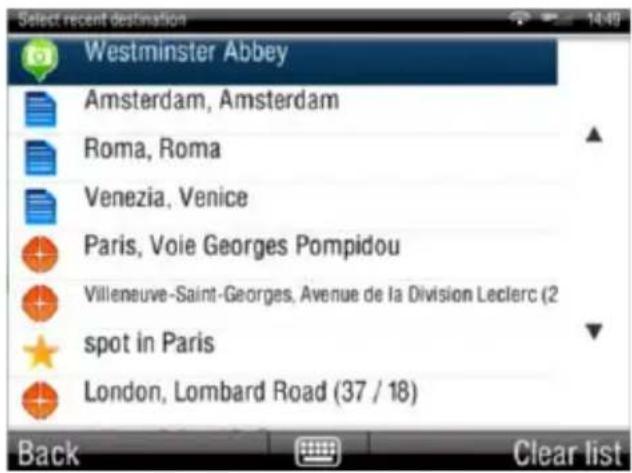
Sygic 2D Navigaiton keeps track of your recent destinations, making it easy to return to a previously set location.
When entering an address through
Main menu >

Navigate to... >

Address or Zip code
a list of previously selected Countries/Cities/Streets appears, as you go through the address details.
They are marked with

You can directly go to a list of recent destination by selecting
Main menu>

Navigate to... >

History
and start navigation by selecting a previous destination from the list shown.
Navigating to Favourite Destinations
To view a list of your Favourite destinations, select
Main menu >

Navigate to... >

Favourite
and start navigation by selecting a Favorite destination from the list shown.
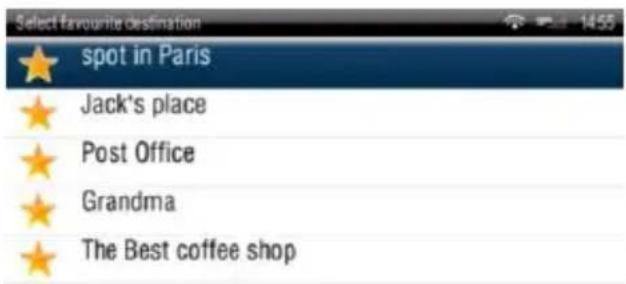

Select the desired Favorite destination by tapping it and then select your next option from the Confirmation Screen.
Defining a new Favourite destination
To add a new address to your Favourites tap "Add to favourites" in the Confirmation Screen
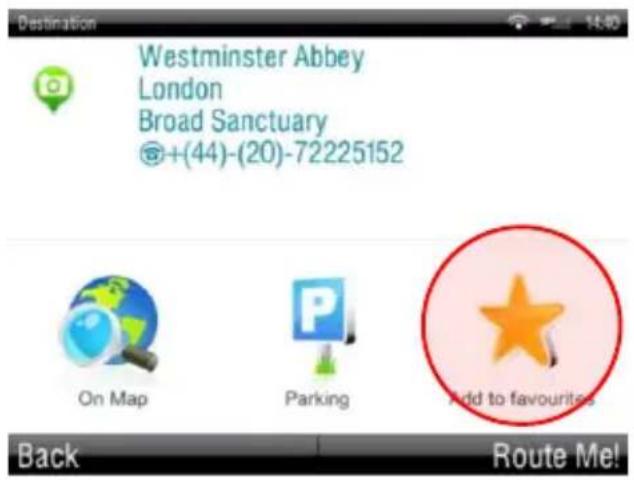
or select
Main menu >

Map >
Select point on map >


Add as POI > Favorites
or select
Main menu >

Manage POI > Add POI
Navigating to point on map
To navigate to point on map select
Main menu > Navigate to
Point on Map > Select point on map > Done
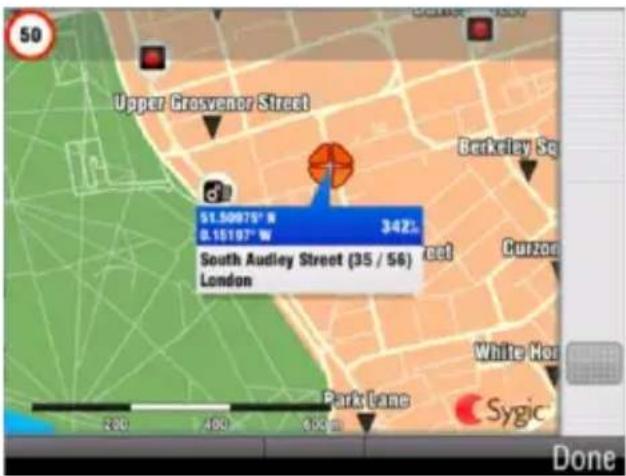
or select
Main menu >

Map >
20 User Guide
Select point on map > Navigate there


Navigating to last valid position
To navigate to your last valid position, where you have been receiving GPS signal, select
Main menu > Navigate to
Last valid position
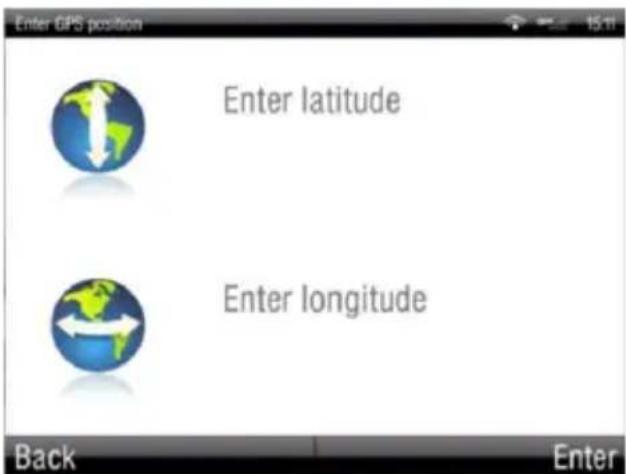
Navigating to a GPS position
To navigate to a GPS position, select
Main menu > Navigate to
Enter GPS position
V. Altering the Route
Route Menu
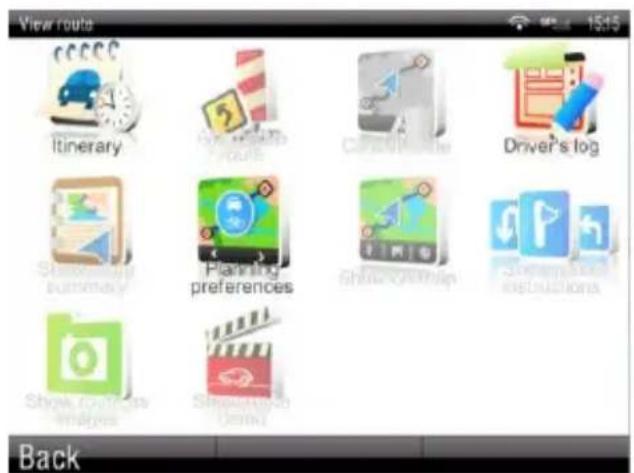
You can access detailed information about the calculated route from the Route menu. Select
Main menu >

Route
To get a schematic overview of the route, select
Show route summary > Details
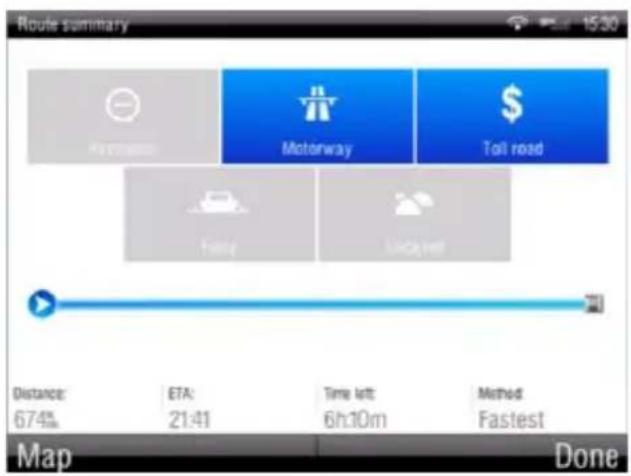
The icons highlighted in blue indicate specific types of roads included in the route.
22 User Guide
To avoid a specific road type (e.g. Highways), tap the blue highlighted button.
To see the entire route on the map, select
Show on map
To get a detailed list of junctions and directions along the route, select
Show route instructions
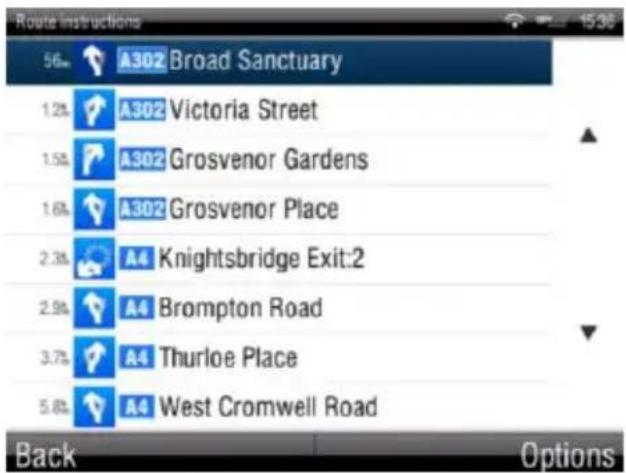
Click on the particular instructions to display the image of them.
To see the same junctions as a series of images, select Show route as images
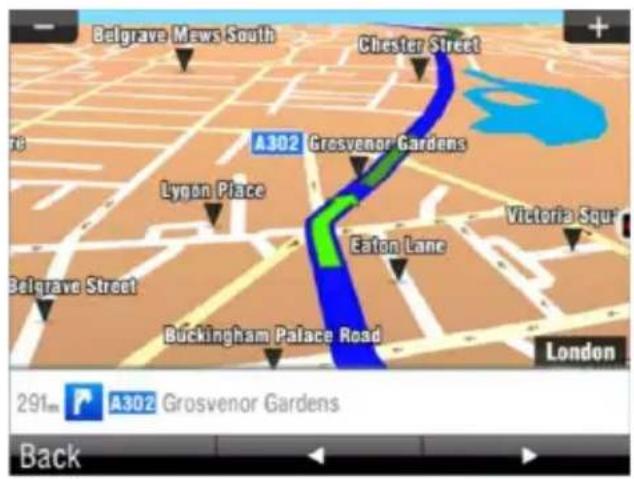
To see the calculated route as if you were driving along (fly over mode) select
Show route demo
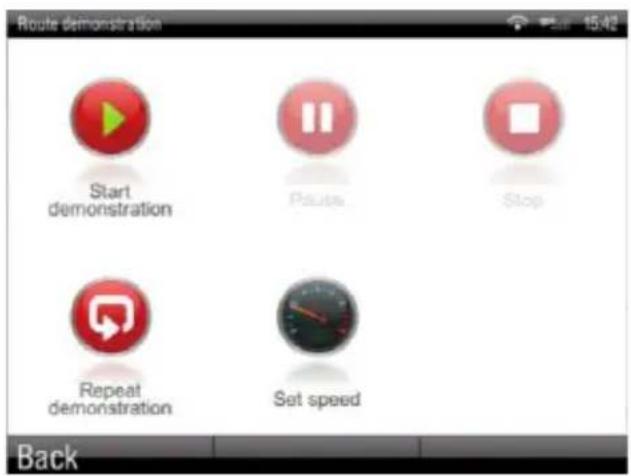
Modifying the Route
To modify an existing route, first open the Alternative route menu:
Main menu >

Route >

Alternative route
To calculate a detour (e.g. because the road ahead is closed), select

Avoid next...
If you wish to avoid traffic delays which might be on your route, select

Avoid traffic delays
If you wish to travel through a certain place on your trip, select

Travel via...
and add a waypoint the same
Sygic 2D Navigation 25
way, as setting the destination in chapter "Planning the Route".
If you want to cancel your modifications to the route, select

Reset to original.
If you wish to cancel the calculated route entirely, and use the navigation system only as an indicator of your current position, select
Main menu >

Route >

Cancel route
NOTE: You can find additional information about modification of calculated route in chapters "Map Browsing Mode" and "Multi-stop route planning".
Map Browsing Mode
You can easily check and plan/modify your route in Map Browsing Mode. Select
Main menu >

Map
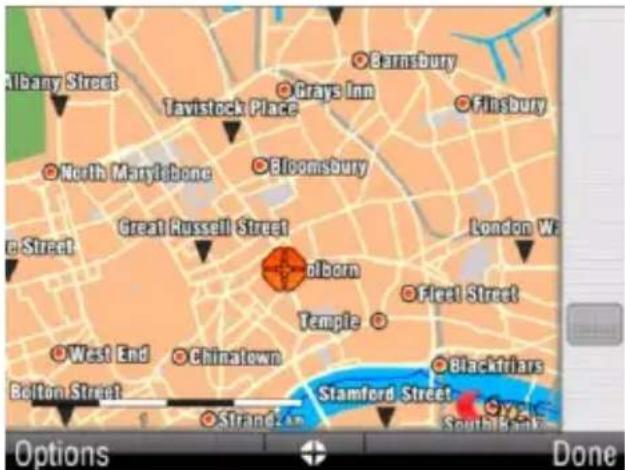
Drag the map by sliding your finger across the screen. Tap the map to select specific location. Use the right slider to zooming in and out.
For map display options and additional functions tap the "Options" button and select one of the following items.

Find...
You can find a position by using one of the options described in chapter IV. Planning the Route.

Show current position

Show entire route

Show city
Shows entire city on map screen.

Show/Hide POIs...
You can select, which types of POI types are displayed when browsing the map.
To plan/modify your route, tap on a location on the map, then tap the button marked as “ ” to choose what you want to do with the selected point.

Navigate there
Sets the location as destination. The previously selected route will be deleted.

Travel via
Adds the location as a new waypoint to your existing route between start and finish.

Continue
Adds the location as a new waypoint after the existing destination.

Add as POI
Stores the location in Favorites or in other POI category.

Find nearby POI
Searches POIs around the location.

Avoid...
Recalculates the route avoiding a set radius around the location. You will be asked to set the radius in the next step.
Multi-stop route planning
If you have added some waypoints to your route via Map or Alternative route, you can edit them in Itinerary. It is also possible to optimize waypoints along the route, plan a new route or store it for future use.
To edit the current route, select
Main menu >

Route >

Itinerary
and select the [Current route] to see the list of waypoints.
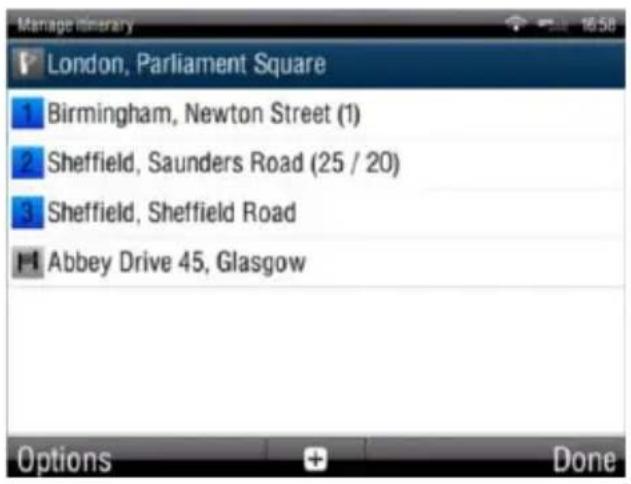
The itinerary shows the starting point (marked with ), the numbered waypoints and the final destination (marked with ). The waypoints that you have already passed are greyed out.
You can add a waypoint to the itinerary by taping the 📄 button.
Waypoint options
Tapping on any waypoint in the itinerary brings up the following list of options:

Set as visited
Stops navigating to the selected waypoint and recalculates the route to the next waypoint in the itinerary.

Set as finish point
Puts the waypoint to the end and moves others upwards in the itinerary.

Set as via point
Changes the final destination to an intermediate waypoint.

Set as start
Stores the selected waypoint as the starting
point of the route.

Add nearby POI
Use this option to search for a POI (e.g. a hotel) near the selected waypoint, and then add it to the itinerary.

Move up
Moves the selected waypoint up in the itinerary.

Move down
Moves the selected waypoint down in the itinerary.

Delete
Deletes the selected waypoint from the itinerary.
Itinerary options
For additional itinerary functions tap the "Options" button at the bottom of the Itinerary Screen and select one of the following items.

Optimize itinerary
Optimizes the waypoint sequence in the itinerary.

Delete itinerary
Deletes the itinerary.

Save itinerary
Saves the itinerary for future use.
VI. Settings

IMPORTANT: Menu items marked with * are not available in all devices.
To change factory settings, select
Main menu

Settings
NOTE: Icons always display the setting that will be activated when they are tapped. E.g.
- means that voice output and sounds are currently enabled, and tapping this button will disable the sounds.

Set 2D/3D
Change between 2D and 3D map view or choose to display it always with North up.

Dynamic control
Sygic 2D Navigation 31
Set the preference how to scroll within lists and menus.

Set Day/Night colors
Choose between day and night colours or set them to switch automatically.

Disable sounds

Enable sounds

Volume settings *
Set the sound intensity separately for low driving speed and for high speeds. Tapping on Options set the maximum speed.
Online settings*
By tapping on Connection
status button or signal icon in the middle of bottom panel connect or disconnect to internet. To be able to connect you have to login in Online services section.
In Options adapt your online settings: enable data roaming, ask before going online, reset counters.
Online services*
Tap on Fill login info to login and enable online services. Tick the online services to enable them: Police traps Traffic* Workmates*

Advanced settings
(for advanced users only) Enable/disable the advanced features:
Avoid U-Turns

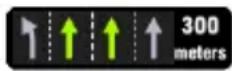
Enable lane assistant
Lane
assistant helps you to choose which lane to drive in.
Enable Autozoom
Zoom is bigger with low speeds and the application zooms out on high speeds, so that the driver gets better route overview.
Warn if Railway crossing

Planning preferences
Set the routing algorithm: Fastest, Economic, Shortest, Pedestrian, Bicycle.
Specify your planning preferences – choose what elements to avoid: motorways, ferries, toll roads, unpaved roads.

Toll charge settings
Set the preference of paid road segments: avoid them, do not avoid them, or always ask.
Congestion zone settings
Set the preferences on
avoiding congestion zones – always ask, always avoid, do not avoid.

GPS hardware *
Detailed configuration of GPS and TMC hardware.

Signpost settings
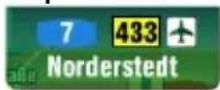
Sets the number of signpost tables displayed at one time (all directions, preferred direction or disable signposts) and the level of detail (Full, Simplified, Single line).
Preferred

Other

Rotate display *
Change the display orientation (landscape /
portrait).

Keyboard settings
Choose the keyboard layouts to use. You can switch between preferred keyboard layouts using 📂tton, that is available in every keyboard.

Regional settings
Set preferred format for distances (kilometers, miles/yards, miles/feet), time, latitude and longitude.

Set language - language of user interface.

Set voice - language of voice instructions.

Set home location
Gps Hardware*
Settings of GPS and TMC hardware if available on your device.

Do not change the values unless you know the correct settings for your hardware.

COM port
Setting of GPS COM port

Baud rate
Setting of GPS Baud rate

About
Information about version, device code and available application memory. Please provide this information in communication with
Sygic support.

Turn GPS module On / Off

Synchronize time

Autodetect
Autodetects your hardware's COM port and Baud rate values

Wizard
Autodetect or manual setting of GPS and TMC COM ports and baud rates.
Backlight
Set the backlight intensity for day and night mode.
Main menu > Speed camera
Set speedcamera warnings: enable radar warnings, enable warning sound, show radars on map. Set the radar limit for inside and outside built-up areas.
VII. Traffic

Traffic is not available on all the devices. It is an online service and requires internet connection. The availability depends on product you bought. If you wish to buy traffic additionally, go to www.sygic.com.
Traffic service is provided via RDS (RDS TMC) or internet (Online TMC).
RDS TMC is preconfigured in your package and no login is needed.
For Online TMC please follow the login instructions below.
Logging in
To enable traffic, it is necessary to log in:
Main menu > Settings > Online services > Fill login info
Insert your login data and tap on Fill login info.
Make sure, that Traffic is ticked.

Traffic
logged
After successful login, traffic icon in Main menu will be enabled and traffic incidents will be displayed on map.
Traffic menu
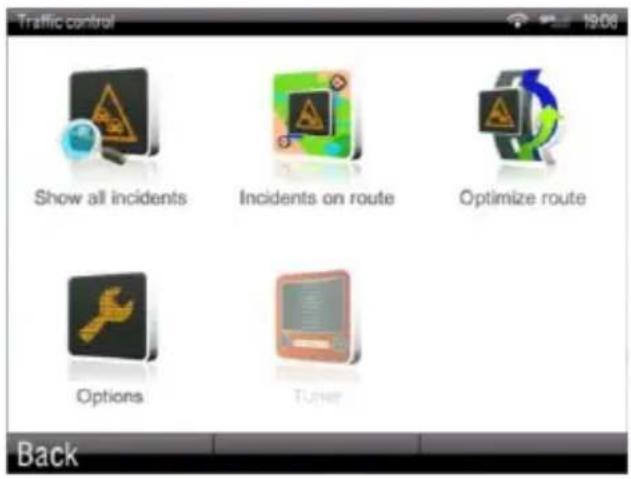
Select Main menu > Traffic

Show all incidents
All the incidents around you will be displayed. Click Avoid all to re-compute a route avoiding all the incidents.
When clicking on an incident, it will be displayed on a map. Click Avoid to avoid this particular incident.

Incidents on route
Only the incidents on computed route are displayed. They can be displayed and avoided the same way as in Show all incidents menu.

Optimize route
Sygic 2D Navigation 37
Re-computes a route

Options
Enable/disable automatic route recalculation based on traffic, notifications of incidents on route and displaying traffic on map.
Re-compute a route
The route can be re-computed taking traffic events into consideration by selecting
Main menu > Traffic > Optimize route

Or by selecting
Main menu > Route >
Alternative route > Avoid traffic delays
VIII. Extras
To go to extras, select
Main menu > Extras

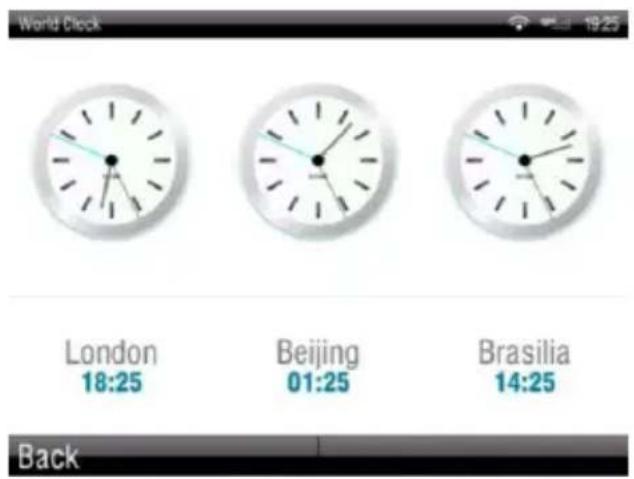
World clock
3 clocks are displayed. Tap on clock to select a time-zone and a city to be displayed.

Calculator
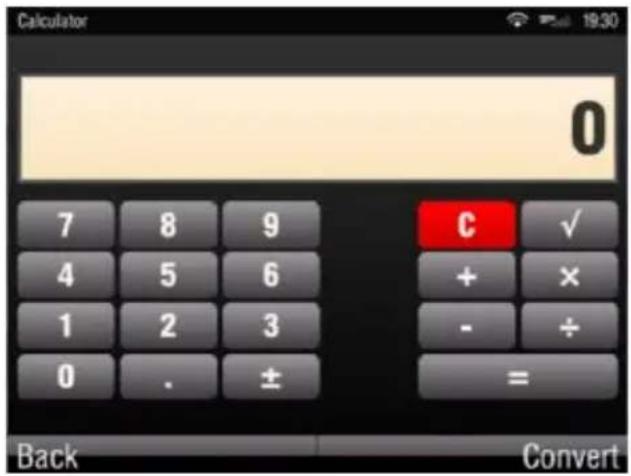
Tap Convert to switch to Unit Converter.

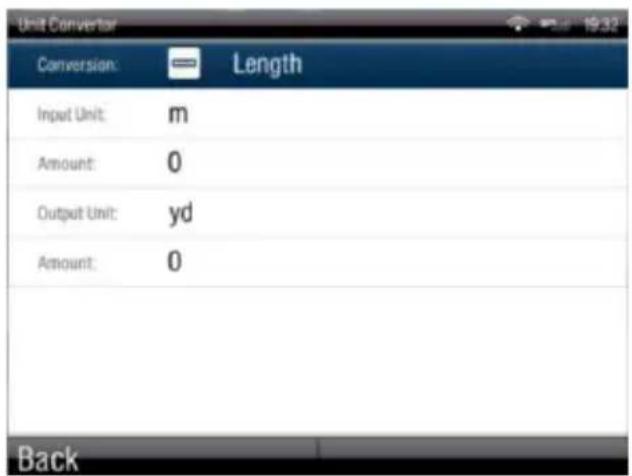
Unit Convertor
Tap on Conversion row to select the units category to convert - currency, length, area, volume, mass, pressure, power, energy, temperature.

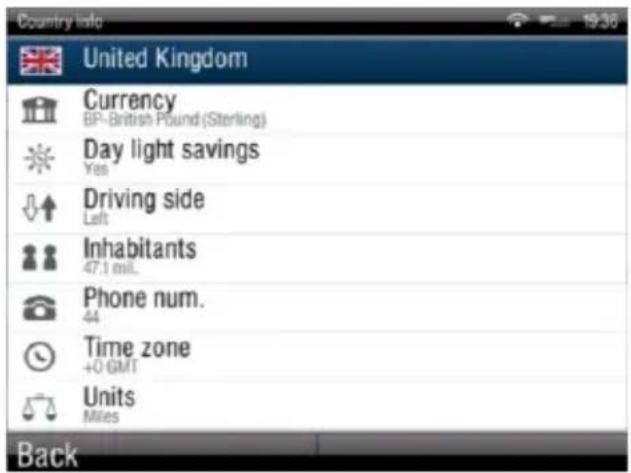
Country info
Select a country from the list and tap it. The basic information will be displayed.
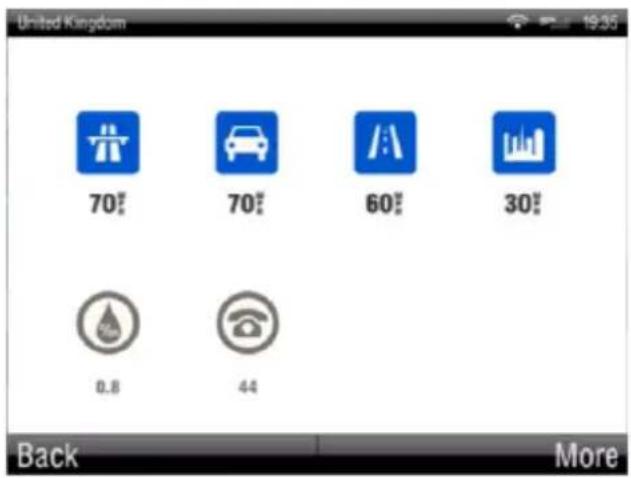
Tap More to get more country information.
Disclaimer
The information contained in this document is the property of Sygic a.s. and may be used only for the purposes of operating and supporting the relevant software created by Sygic a.s.
Sygic a.s. reserves all rights concerning the information contained herein. This document or any part thereof may not be reproduced, distributed, or translated into other languages in any way or form except with the written approval of Sygic a.s.
This document is provided to the user on an 'as is' basis. Although maximum care was taken during preparation of this manual to provide accurate information and to avoid errors, some technical inaccuracies or editorial errors may occur, for which Sygic a.s. accepts no responsibility.
In the interest of improving the content of the document, Sygic a.s. reserves the right to modify, amend or delete any part of the document at any time without prior notice.
For more information and updates, visit www.sygic.com

- SYGIC FLEET NAVIGATION
- 2D SOFTWARE
- PROLOGUE....1
- GETTING STARTED....2
- NAVIGATION WITH TRUCK ATTRIBUTES ....12
- PLANNING THE ROUTE 14
- ALTERING THE ROUTE....22
- SETTINGS 31
- TRAFFIC....36
- EXTRAS....38
- PROLOGUE
- GETTING STARTED
- COMPATIBILITY
- THE NAVIGATION SCREEN
- ENTERING AN ADDRESS
- MAIN MENU
- 4 USER GUIDE
- WAIT FOR VALID SIGNAL (RECOMMENDED)
- LAST VALID POSITION
- SELECT FROM MAP
- OPTIONS MENU
- FIND
- TURN BY TURN NAVIGATION
- ACQUIRING GPS POSITION
- NAVIGATION WITH TRUCK ATTRIBUTES
- PLANNING THE ROUTE
- NAVIGATING TO A POINT OF INTEREST
- NEAR MY POSITION
- NEAR ADDRESS
- NEAR DESTINATION
- IN CITY
- SEARCHING POIS
- MANAGING POIS
- ADD POI
- EDIT POI NAME
- DELETE POI
- DELETE POI CATEGORY
- SHOW/HIDE POIS
- WARN WHEN NEAR POI
- NAVIGATING HOME
- NAVIGATING TO RECENT DESTINATIONS
- NAVIGATING TO FAVOURITE DESTINATIONS
- DEFINING A NEW FAVOURITE DESTINATION
- NAVIGATING TO POINT ON MAP
- NAVIGATING TO LAST VALID POSITION
- NAVIGATING TO A GPS POSITION
- ALTERING THE ROUTE
- ROUTE MENU
- MODIFYING THE ROUTE
- MAP BROWSING MODE
- MAP
- SHOW CURRENT POSITION
- SHOW ENTIRE ROUTE
- SHOW CITY
- NAVIGATE THERE
- TRAVEL VIA
- CONTINUE
- ADD AS POI
- FIND NEARBY POI
- AVOID
- MULTI-STOP ROUTE PLANNING
- WAYPOINT OPTIONS
- SET AS VISITED
- SET AS FINISH POINT
- SET AS VIA POINT
- SET AS START
- ADD NEARBY POI
- MOVE UP
- MOVE DOWN
- DELETE
- ITINERARY OPTIONS
- OPTIMIZE ITINERARY
- DELETE ITINERARY
- SAVE ITINERARY
- SETTINGS
- SET 2D/3D
- DYNAMIC CONTROL
- SET DAY/NIGHT COLORS
- DISABLE SOUNDS
- ENABLE SOUNDS
- VOLUME SETTINGS
- ONLINE SETTINGS
- ONLINE SERVICES
- ADVANCED SETTINGS
- AVOID U-TURNS
- ENABLE LANE ASSISTANT
- ENABLE AUTOZOOM
- WARN IF RAILWAY CROSSING
- PLANNING PREFERENCES
- TOLL CHARGE SETTINGS
- CONGESTION ZONE SETTINGS
- GPS HARDWARE
- SIGNPOST SETTINGS
- ROTATE DISPLAY
- KEYBOARD SETTINGS
- REGIONAL SETTINGS
- SET HOME LOCATION
- COM PORT
- BAUD RATE
- ABOUT
- TURN GPS MODULE ON / OFF
- SYNCHRONIZE TIME
- AUTODETECT
- WIZARD
- BACKLIGHT
- MAIN MENU > SPEED CAMERA
- TRAFFIC
- LOGGING IN
- TRAFFIC MENU
- SHOW ALL INCIDENTS
- INCIDENTS ON ROUTE
- OPTIMIZE ROUTE
- OPTIONS
- RE-COMPUTE A ROUTE
- EXTRAS
- WORLD CLOCK
- CALCULATOR
- UNIT CONVERTOR
- COUNTRY INFO
- DISCLAIMER
Brand : Sygic
Model : Fleet Navigation 2D software
Category : Browser