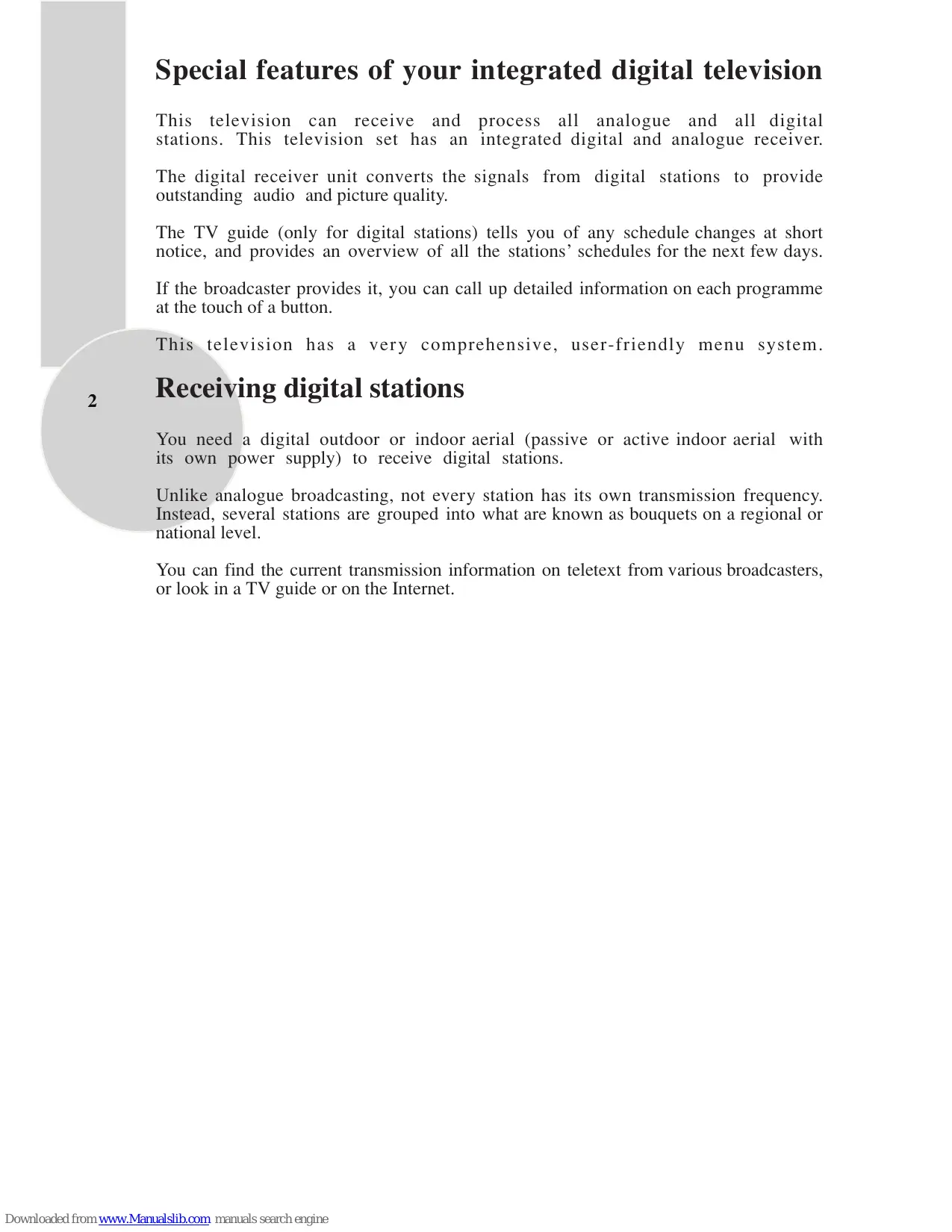
USER MANUAL ACTIVE PRO 32-012B BEKO
Operating Instructions
CONTENTS
Special features of your integrated digital television. 2
Receiving digital stations. 2
Safety Instructions 3
Special features. 4
Electrical connections. 5
Connection/Preparation 6
Connecting the aerial and the mains cable. 6
Inserting batteries into the remote control. 6
Control unit 7
Front panel/External connections. 7
External connections table. 8
Remote control. 8
Television operation 9
Basic functions 9
Settings. 10
Searching for television stations. 10
Tuning digital television stations. 10
Automatic search. 10
Manual search. 11
Resetting the receiver. 11
Installation. 12
Access control. 13
Special features for digital stations. 14
TV guide. 16
Tuning analogue television stations. 16
Autoprogramming. 16
Tuning channels using the search. 17
Fine tuning analogue television stations. 17
Tuning the analogue television channels by entering the channel numbers. 18
Moving to digital setup menu. 18
Special features for analogue stations. 18
Sound settings. 20-21
Picture settings. 22
Special features. 23-24
Teletext mode 25
Fastext, Toptext (Model Dependant). 25-26
Connecting external equipment 27
Connecting a video recorder 27-28
Connecting a DVD player 29
Connecting a decoder 30
Connecting TV with video and satellite/digital receiver. 31
Troubleshooting 32
Technical specifications table 33
Guarantee 34
Service 35
Special features of your integrated digital television
This television can receive and process all analogue and all digital stations. This television set has an integrated digital and analogue receiver.
The digital receiver unit converts the signals from digital stations to provide outstanding audio and picture quality.
The TV guide (only for digital stations) tells you of any schedule changes at short notice, and provides an overview of all the stations' schedules for the next few days.
If the broadcaster provides it, you can call up detailed information on each programme at the touch of a button.
This television has a very comprehensive, user-friendly menu system.
Receiving digital stations
You need a digital outdoor or indoor aerial (passive or active indoor aerial with its own power supply) to receive digital stations.
Unlike analogue broadcasting, not every station has its own transmission frequency. Instead, several stations are grouped into what are known as bouquets on a regional or national level.
You can find the current transmission information on teletext from various broadcasters, or look in a TV guide or on the Internet.
Safety is Important
Your safety and the safety of others is important. Please, therefore, ensure you read the Safety instructions before you operate this television.
Safety instructions
Read all the safety instructions before first use of your TV.
- Position the television so that direct light does not fall on the screen. Excessive light will cause a washed out effect.

- Position the power supply lead and other leads so that they are not likely to be walked on or pinched by things placed on or against them.

- Do not use the appliance in humid or damp conditions. Do not allow the appliance to get wet, i.e. dripping or splashing, as this may be dangerous. Do not place water filled objects, such as vases and flower pots on top of the appliance.

-
Make sure that no naked flame sources, such as lighted candles, are placed on top of the appliance.
-
Do not place the television near heat sources such as radiators, ovens, stoves, etc.

- Do not use the television near any apparatus that produces a magnetic field such as HI-FI speakers or electric motors otherwise colourpurity may be affected.

-
The heat built up in the set escapes through ventilation holes, so do not cover the set by drapes, clothes etc. that may block air circulation. Do not place the television on carpet or soft furnishings.
-
NEVER let children push anything into the holes or slots on the case.

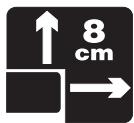
- If you wish to place the television on a shelf or in a wall unit always ensure there is a minimum air gap of 8cm around the top, sides and rear of the television, to assist ventilation.

-
Your TV set is designed to operate with mains voltages 230VAC; 50Hz . Do not connect your TV set to power sources other than the mains supply.
-
To fully disconnect the TV, the mains plug is used as a disconnecting device and therefore shall be readily accessible.
Television
Thank you for buying this television which is designed to give you many years of satisfactory service.
You may already be familiar with using a television but do please take time to read these instructions. They are designed to familiarise you with the unit's many new features and to ensure you get the very best out of your purchase.
Special features
Automatic tuning system with country selection
899 Digital, 100 Analog programme memory
- Available for cable channels (A decoder maybe required)
- Manual fine tuning for analogue channels
- S-Video connection (Model dependant)
- Audio/Video PHONO sockets (Model dependant)
- Back audio out (Model dependant)
- CI slot (Model dependant)
- Component input via PHONO (Model dependant)
- Component input via scart (Model dependant)
- SPDIF coaxial output (Model dependant)
- Stereo headphone socket (Model dependant)
- 2 Scart Socket: Video cassette recorder, satellite receiver, video disc player,DVD, TV games or a home computer can be connected to this AV socket with an appropriate connecting cable.
- Third scart socket (Model dependant)
- Stereo sound system (Nicam) (Model dependant)
- Spatial sound effect
Equalizer sound setup
Automatic Volume Leveling
- Virtual Dolby Surround (Model dependant)
- Subwoofer (Model dependant)
- Picture adjustment using one button (Smart control)
Sound adjustment using one button (Smart control)
- User friendly on screen display system
Infrared remote control
- Multilanguage menu system
- On timer
- Off timer
- Child lock-Adult lock
- Return to the last channel viewed (SWAP)
- Alarm timer (Model dependant)
- 4:3, 16:9, Zoom, Letterbox, Subtitle, Panaroma (optional), picture formats (for Widescreen TV sets)
- Naming the channels
- Teletext reception
- Digital teletext
- Auto recognition of the broadcasting format (4:3, 16-9 or Letterbox) via WSS feature
- Digital Colour Transition Improvement (DCTI).
- Digital Comb Filter (DCF)
- Digital Luminance Transition Improvement (DLTI)
- Dynamic Digital Video Adaption (Model dependant)
- TILT function (Model dependant)
MHEG-5
- Favorite channel listing
DVB subtitling
- OAD (Over air download)
Electrical connections
1.SECTION: INSTALLATION AND PRECAUTIONS
ELECTRICAL CONNECTIONS
For your own safety read the following instructions carefully before attempting to connect this unit to the mains supply.
For your convenience a mains plug with a fuse has been fitted to this appliance. For your safety please observe the following information.
The moulded plug on this appliance incorporates a 5A fuse. Should the fuse need to be replaced an ASTA approved BS 1362 fuse of the same rating must be used. Do not forget to refit the fuse cover. In the event of losing the fuse cover the plug must not be used until a replacement fuse cover which must be the same colour as that visible on the pin face of the plug has been fitted. Fuse covers are available from any good electrical store.
If the fitted moulded plug is not suitable for your socket, then the plug should be cut off and an appropriate plug fitted.
IMPORTANT! FITTING A DIFFERENT PLUG.
If the mains plug is cut off from the mains cable rewire the replacement plug in accordance with these instructions.
IMPORTANT
The wires in this mains lead are coloured in accordance with the following code:
Blue - Neutral
Brown - Live
As the colours in the mains lead may not correspond with the coloured markings identifying the terminals in your plug proceed as follows:
The wire coloured BLUE must be connected to the terminal marked with the letter N or coloured BLACK.
The wire coloured BROWN must be connected to the terminal marked with the letter L or coloured RED.
Do not make any connection to the terminal marked E or 1 OR COLOURED GREEN,
GREEN/YELLOW.
The television receiver must be protected by a 5A fuse if a fused plug is fitted.
For any other plug fit a 5A fuse at the distribution board.

13 A PLUG
Caution: - Under no circumstances should the discarded plug be inserted into a mains socket. To prevent shock hazard carefully dispose of the discarded plug into your dustbin, do not leave the plug lying around where children might see it.
CONNECTION/PREPARATION
In the box
Inside this package you should have:
Television,Remote control,User guide,AAA batteries x 2
Read these instructions before use.
Connecting the aerial and the mains cable

Plug the cable of the outdoor or indoor aerial (passive or active indoor aerial with its own power supply) into the aerial socket of the television set.
Please note:
When connecting an indoor aerial, you may have to try it out at different positions until you get the best reception.
Connect the TV mains plug into your domestic mains socket outlet. (230V 50Hz A.C.)
Please note:
Only plug the TV into the mains socket after you have connected the external equipment and the aerial.
Inserting batteries into the remote control
Open the battery compartment by removing the lid.
Insert the batteries (Mignon type, for example UM-3 or AAA, 2x1,5V). Observe the polarity (marked on the base of the battery compartment).
Close the battery compartment.

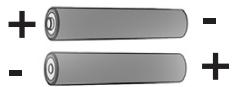
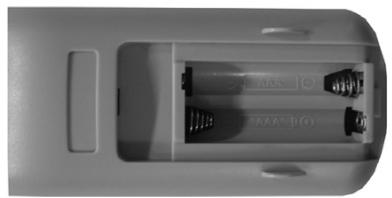
Note:
If the television no longer reacts properly to remote control commands, the batteries may be flat. Be sure to remove used batteries. The manufacturer accepts no liability for damage resulting from used batteries.
Environmental note
Batteries, including those which contain no heavy metal, may not be disposed of with household waste. Please dispose of used batteries in an environmentally sound manner. Find out about the legal regulations which apply in your area.
Control Unit
Front Panel


P-
P+
Program Down/Up button


or
.
V-

Volume Down/Up button.
General

ON/OFF switch

Stand by (Model dependant)

Stand by indicator
External Connections: (Front or side)
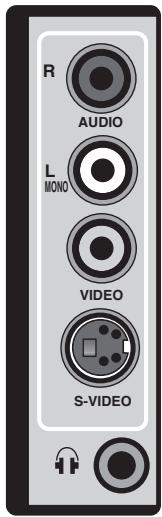
Right audio PHONO (Red)
Left audio PHONO/Mono PHONO (White)
Video PHONO (Yellow)
S-Video connection
Headphone socket
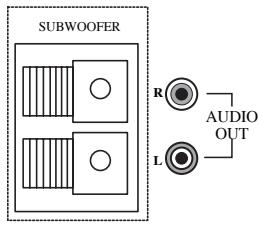
(Model Dependant)
It is used for external
subwoofer in 33" televisions
You may wish to connect an audio amplifier or any similar devices to audio out. The output is always the current channel you are watching.
(External connections: (Rear)
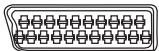
AV1 scart

AV2 scart
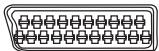
AV3 scart (Model dependant)

Coaxial output (Model dependant)
CI slot (Model dependant)
This common interface (C.I) slot works with an external module, and for use with top up TV conditional access module and smart card.

Aerial socket
Please note
- See the external connections table on next page for available connections depending the size and model of your TV set.
- Do not use Video PHONO and S-Video connections at the same time, otherwise they will effect the picture each other.
External connections table
| Picture tube size/type | 28”16:9 | 29”4:3 |
| AV1 Scart | STD. | STD. |
| AV2 Scart | STD. | STD. |
| AV3 Scart | X | X |
| Headphone socket | X | X |
| Audio/Video PHONO | X | X |
| S-Video socket | X | X |
| Back Audio Out | X | X |
| Coaxial Out | X | X |
| CI Slot | X | X |
STD : Standard
X : Model Dependant
Please note:
The Audio/Video PHONO, S-Video and Headphone socket can be placed on the front panel or on the right-hand side of the cabinet depending to the model of your TV.
Remote control

TELEVISION OPERATIONS
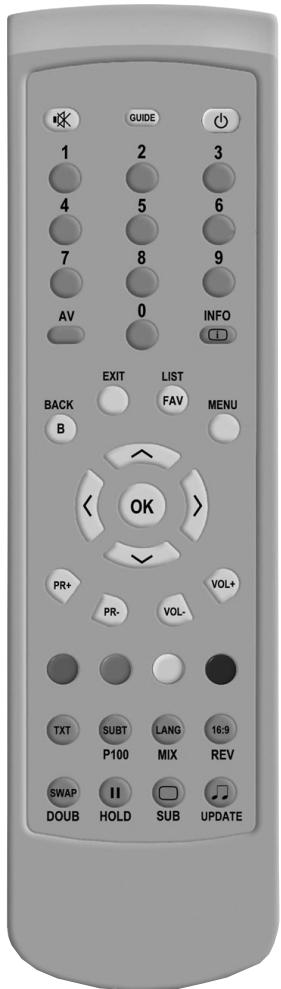
Basic functions
Switching on and off
Switch on the television by pressing the 1 button on the television set. The device switches to standby mode, and the stand-by indicator will illuminate.
Switch the television on with any Numeric button or PR+ , PR- .
Press the 0 button to switch the television to standby mode.
Completely switch the television off by pressing 1 on the television set. This saves electricity.
Selecting channels
Enter single-digit or multi-digit preset channel numbers by pressing 1 ... 0 on the remote control.
- Channels with no stations assigned are ignored.
Press PR+ , PR. to move up and down channels.
Selecting AV channel positions
Use AV to select AV channels directly.
Adjusting the volume
Adjust the volume with VOL or VOL +
Muting
Use to switch the sound off (mute) and to switch it on again.
Selecting stations from lists
You can select stations from various lists (e.g. all stations, favourites).
LIST
Press FAV to open the station list. The station list All programmes appears.
Press , to select the station and press to call it up.
- You can switch between the station list and your favourites by pressing «.
Press to finish the settings.
Picture settings
Select the desired picture setting from USER , SOFT , NATURAL or RICH with
- You can alter the
User picture setting, see the "PICTURE SETTINGS" chapter on page 19.
Sound settings
Press to select the audio setting USER, MUSIC, SPORTS, CINEMA or SPEECH.
- You can alter the USER\ll audio setting - see the "EQUALIZER" chapter on page 18.
Swap function
Allows you to swap between the program you are watching and the last selected program. i.e. If you were watching Program 1 and change to Program 11, press the SWAP button to go back to Program 1. Press it again to return to Program 11.
SETTINGS
Searching for television stations
The television is equipped with an automatic station search system. You can start the search and can then sort the television stations into your order of preference. There are 899 preset positions for digital stations and 100 for analogue stations, to which you can assign television stations from the aerial or from the cable connection (analogue programmes).
Switch on the television with 1 on the television set, then press PR + , PR - on the remote control or the TV, or by using any numeric button on the remote control.

- The «LANGUAGE« menu appears when the television is first switched on.
Hint:
If the LANGUAGE menu does not appear on the screen, follow the instructions on pages 10 and 16 to retune all television channels using the automatic search.
Select language with , or and press 0k to confirm.
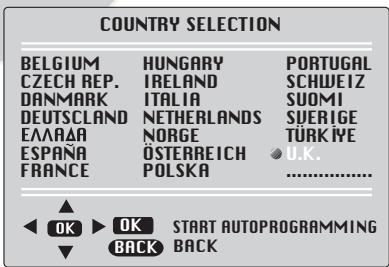
The country menu will now appear. Using select the appropriate country in which the television will be used. Press 0K to confirm selection. Search and storing of analogue channels will begin.
Digital channels will be searched. The search is finished when the message DONE appears. Press (Green) to quit the station search.
Press EXIT to finish the settings.
Tuning digital television stations
Select a program between 1 and 899.
Automatic search

Press to open the MAIN MENU menu. - The MAIN MENU menu appears.
Select DIGITAL SETUP with , and press OK to confirm.
- The DVB MENU appears.
Select AUTOMATIC SEARCH with , and press OK to confirm.
-
The CHANNEL SEARCH - DIGITAL menu appears and the search begins. The automatic search may last several minutes depending on the number of television channels received. The search is finished when the message DONE appears.
-
At the end of the search, new TV or radio stations are automatically added to the end of the station list.
BACK Press B or (Green) to quit the station search. The DVB MENU appears. EXIT Press to finish the setting.
Manual search
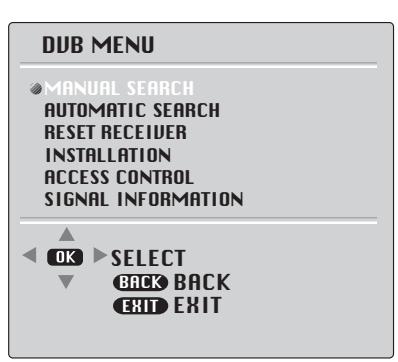
Press to open the MAIN MENU menu. - The MAIN MENU menu appears.
Select DIGITAL SETUP with and press OK to confirm.
- The DVB MENU appears.
Select MANUAL SEARCH using and press OK to confirm. - The MANUAL SEARCH menu appears.
Press or to select the channel number and press OK to confirm. The search begins. -The search is finished when the message DONE appears.
- At the end of the search, new TV or radio stations are automatically added to the end of the station list.
BACK Press or (Green) to quit the station search. The DVB MENU appears. Press to finish the setting.
Resetting the TV
This function enables you to delete the station lists and all custom settings.
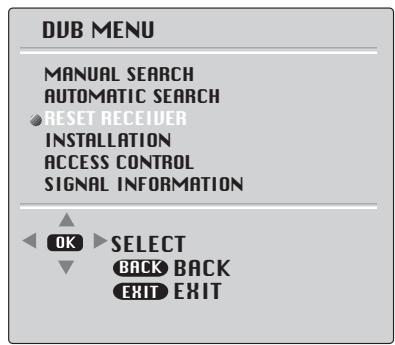
Press to open the MAIN MENU menu. - The MAIN MENU menu appears.
Select DIGITAL SETUP with , and press OK to confirm.
- The DVB MENU appears.
Select RESET RECEIVER with , and press to confirm.
Use 0 - 9 to enter the password 1234 and confirm with (Green).
- The DVB MENU appears.
Select AUTOMATIC SEARCH with , and press OK to confirm.
- The CHANNEL SEARCH - DIGITAL menu appears and the search begins. The automatic search may last several minutes depending on the number of television channels received.
- The search is finished when the message DONE appears.
BACK
Press B or (Green) to quit the station search. The DVB MENU appears.
Press EXIT to finish the setting.
Installation
Selecting the audio language
You can set a preferred language for all digital channels. This function activates only if the SERVICE PREFERENCE is selected as "SUBTITLE".
In some areas you may be able to select a preferred audio language if it is available in the transmission. You can select from english, gaelic or welsh. If not available english will be automatically selected as the default language.
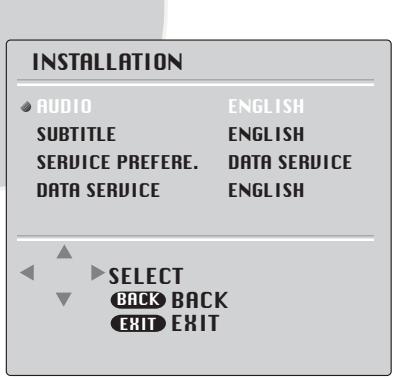
Menu Press to open the MAIN MENU. - The MAIN MENU\~ appears. Select DIGITAL SETUP\~ with αdot and press OK to confirm. - The DVB MENU\~ appears. Select INSTALLATION\~ by pressing αdot and press OK to confirm. - The INSTALLATION\~ menu appears. Select the AUDIO\~ line with αdot . Press or to select the language. Press EXIT
Note: Scene-descriptions may be available for some programmes. You can skip between different audio modes by pressing MIX .
Selecting the subtitle language
You can select the preferred subtitle language for digital channels. This function activates only if the SERVICE PREFERENCE is selected as "SUBTITLE".
In some areas you may be able to select a preferred subtitle language if it is available in the transmission. You can select from english, gaelic or welsh. To activate subtitle press subtitle (SUBT) button on remote control. If program does not have a subtitle in selected language, no subtitle is displayed even if subtitle display is activated by subtitle button on remote control.
MENU
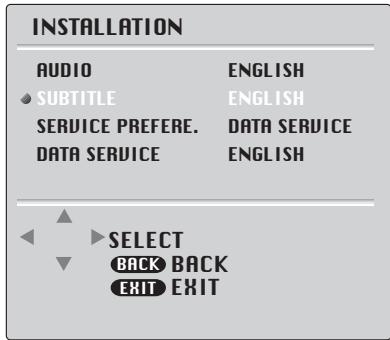
Press to open the MAIN MENU .
Select INSTALLATION by pressing , , and press OK to confirm.
- The INSTALLATION menu appears.
Select SUBTITLE with , . Press
Note: Subtitle mode may be selected as on or off via button. If is not working, check with that the preset position is on.
Service Preference
You can select the service preference as DATA SERVICE or SUBTITLE when data service is selected, MHEG (Interactive text) is available if transmission programme has this data. If data service is not selected this function will not operate even if transmission programme, is carrying this data. When subtitles are selected subtitles are displayed in the preferred language selected, if not selected subtitle (SUBT) button on remote control will not work.
INSTALLATION
AUDIO
SUBTITLE
SERVICE PREFERE.
DATA SERVICE
ENGLISH
ENGLISH
DATA SERVICE
ENGLISH

SELECT
BACK BACK
EXIT EXIT
Press to open the MAIN MENU*.
Select DIGITAL SETUP with , and press
OK to confirm.
Select INSTALLATION by pressing , and press OK to confirm.
- The INSTALLATION menu appears.
Select SERVICE PREFERE. with , .Press or to make the preference.
Press to finish the setting.
Data Service
You can select the language for the data service.
In some areas you may be able to select a preferred language for the data service if it is available in the transmission. Therefore the MHEG (Interactive text) data can be displayed in either english, gaelic or welsh. If not available english will be automatically selected as the default language.
INSTALLATION
AUDIO
SUBTITLE
SERVICE PREFERE.
DATA SERVICE
ENGLISH
ENGLISH
DATA SERVICE
ENGLISH

SELECT
BACK BACK
EXIT EXIT
Access control (optional)
You can use the DVB card menu via ACCESS CONTROL. After inserting the card to CI slot (Model dependant);
In this menu you can access information on the module and smart card.
MANUAL SEARCH
AUTOMATIC SEARCH
RESET RECEIVER
INSTALLATION
ACCESS CONTROL
SIGNAL INFORMATION

SELECT
BACK BACK
EXIT EXIT
Press to open the MAIN MENU menu. - The MAIN MENU menu appears.
Select DIGITAL SETUP with , and press OK to confirm.
Select ACCESS CONTROL with , and press to confirm the card.

Press to open the MAIN MENU menu. - The MAIN MENU menu appears.
Select DIGITAL SETUP with , and press OK to confirm. The DVB MENU appears.
Select SIGNAL INFORMATION with , and press to confirm.
Notes:
The lower section of the menu shows the signal properties. The further the bar for Quality and Signal Strength extends to the right, the better the reception signal.
The signal level not only depends on the settings of your receiver unit, but also on the channel which is currently active. Remember this when aligning your aerial using the signal level display.
Other items in this menu are for service information.
Press EXIT to quit the menu.
Special features for digital stations
You can block channel positions (adult lock) and create favourite lists.
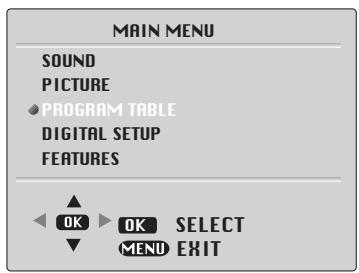

Press to open the MAIN MENU . - The MAIN MENU appears.
Select PROGRAM TABLE with , and press OK to confirm.

- The menu »EDIT CHANNELS - TV « appears.
Adult lock (block channel positions)
You can block channels which are unsuitable for children.
Select the desired television channel with , and confirm with 0k on the program table.
Select Adult Lock with , and activate it with or .
Press (green) to confirm the setting. The blocked TV station is marked with a key.
Creating a list of favourites
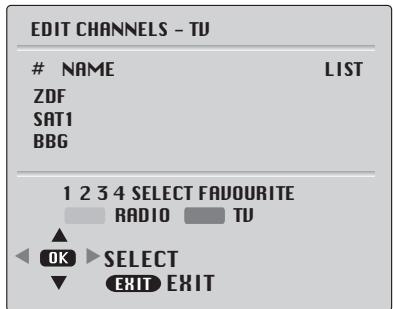
Press to open the MAIN MENU . The MAIN MENU appears.
Select PROGRAM TABLE with , and press OK to confirm.
- The menu »EDIT CHANNELS - TV « appears.
You can select your favourite stations and save them in up to four lists.
Select the station with , and press 1 - 4 to enter it into lists of favourites 1 - 4
- To remove, press the corresponding number button again.
- You can enter the selected station in more than one favourite list.
Press to finish the settings.
Displaying television and radio channel lists.
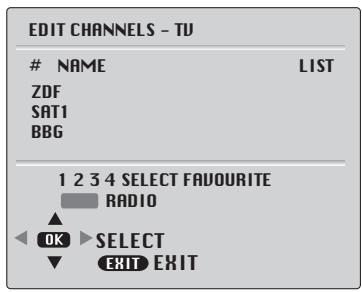
Menu Press to open the MAIN MENU<. - The MAIN MENU appears.
Select PROGRAM TABLE with , and press to confirm.
You can skip between favourite channel lists, radio list (if available) and program table by pressing (green).
Radio channels, may be available with digital broadcast. You can skip between radio and television channel list by pressing (red). Television channels are not display in radio mode.
Selecting and moving channel functions operate similarly to television mode.
Note:
Favourite lists are available if favourite channels are selected.
Moving channels (Favourite channels only)
You can change the order of the preset digital channels in favourite channel list.
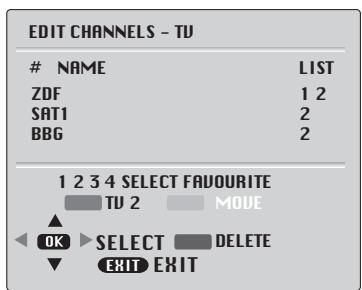
Menu Press to open the MAIN MENU*. -The MAIN MENU* appears.
Select PROGRAM TABLE with , and press to confirm.
- The menu EDIT CHANNELS - TV appears. (If you wish to move radio channels press (RED). Now press (Green) twice. The yellow "MOVE" option will now appear in the menu.
Select the channel you wish to move with , Press (yellow) to move the channel.
Now, the channel is selected. Choose the new position for the selected channel and press (yellow) again to confirm. Press to finish the setting.
Note:
The channel is moved to the previous position of the selected one.
TV guide
The electronic TV guide offers an overview of all programmes that will be broadcast in the next week (only for digital stations).
Press GUIDE to view the station information.
- Information about the current and following programme appears.
Please note:
Not all stations supply a detailed TV guide.
Many broadcasters supply the daily programme but no detailed descriptions.
Some broadcasters do not supply any information.
Scroll through the station information with , . Select the next programme with or . Press to quit the TV guide.
16
Tuning analogue television stations
When digital channels are present, the analogue television channels will be assigned to channel positions 900-999 during automatic search and when no digital channels are present the analogue channels are present the analogue channels will be assigned to channel positions 1-100.
Autoprogramming
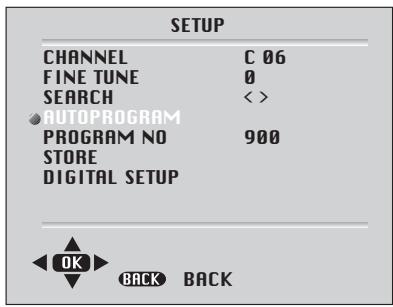
Use 0 - 9 to select station position 900.
Press to open the MAIN MENU .
Select SETUP with , and confirm with
. 0 K . .
Select PROGRAM NO with , and using
or enter the channel numbers from the point they
should be saved.

Select AUTOPROGRAM with , and confirm with .
- The COUNTRY SELECTION menu appears.
Select the country using , or and confirm with 0k
- The automatic search may last a few minutes, depending on the number of television channels received.
Note:
You can interrupt the search by pressing EXIT.
Tuning channels using the search

Use 0 - 9 to select station position 900.
Menu Press to open the MAIN MENU<. - The MAIN MENU < appears.
Select SETUP with , and confirm with .
- The SETUP menu appears.

Select Program No with , and set the preset channel with or .
Select Search with , and start the search with or .
- If a strong station signal is received, the search is interrupted and the picture appears. Repeat the search until the channel you want appears on the screen.
Select STORE with , and confirm with OK . The STORED message appears.
Press EXIT to finish the setting.
Fine tuning analogue television stations
The television automatically tunes itself to the best possible reception. You may need to carry out manual fine tuning in areas where there is poor reception.
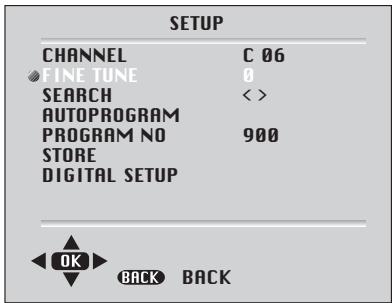
Menu Press to open the MAIN MENU*. -The MAIN MENU* appears.
Select SETUP with , and confirm with . The SETUP menu appears.
Select FINE TUNE with , and set it with or .
Select STORE with , and confirm with . The STORED message appears.
Press EXIT « to finish the setting.
Tuning the analogue television channels by entering the channel numbers
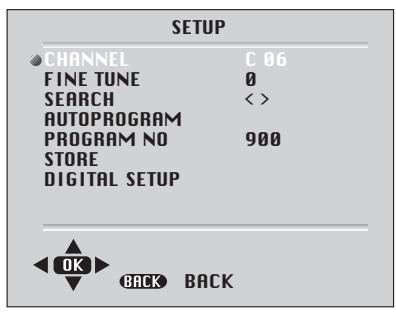
Use 0 - 9 to select station position 900.
Press to open the MAIN MENU
Select SETUP with , and confirm with OK . - The SETUP menu appears.
Select PROGRAM NO with , and set the channel with or .
Select Channel with , and confirm with OK . Press OK to choose between S (cable channel) and C (terrestrial channel). Press or to switch up and down channels or use 1...0 to enter the channel number directly.
Select STORE with , and confirm with OK .
Press to finish the setting.
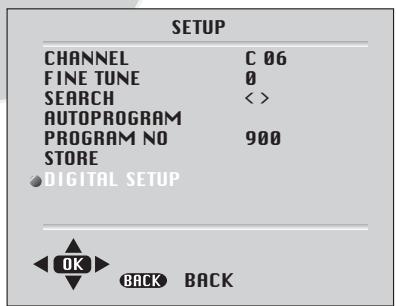
MENUPress to open the MAIN MENU<. The MAIN MENU\~ appears. Select SETUP\~ with 一 , 一 and confirm with OK .-The SETUP\~ menu appears.
Select DIGITAL SETUP with , .
The DVB MENU with appears.
Special features for analogue stations
You can delete stations that have been stored more than once during the automatic search. You can also store stations in a different preset position, change or enter the name of a stations as well as skip channels.
Deleting stations
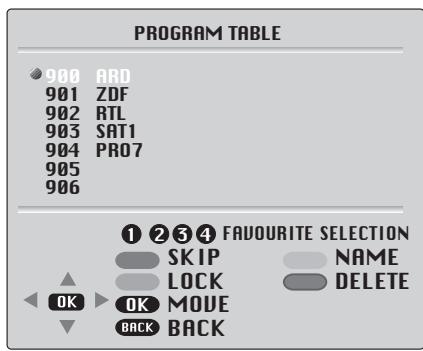
Menu Press to open the MAIN MENU. - The MAIN MENU appears.
Select PROGRAM TABLE with and press OK to confirm.
- The PROGRAM TABLE menu appears.
Select the channel you wish to delete with , Press (blue) to prepare the channel for deletion and press 0k to delete.
Sorting television analog stations
In the PROGRAM TABLE menu, select the station to be moved by pressing , . Highlight the channel with OK
Select a new station with , and then press 0 to confirm. All of the stations that follow move up one position.
Entering station names (maximum of 5 characters)
In the PROGRAM TABLE menu, select the station with , . Highlight the channel with (yellow).
Select letters or numbers with , , move to the next position with or and repeat. Store the channel name with (yellow).
Skipping television stations
You can mark television channels to be skipped on the program table with , . You can still select the station using the numerical buttons.
After selecting the channel, highlight the channel with (red).
- The station is now displayed on a red background. You can deselect the station by pressing the red button again.
Parental lock (block channel positions)
You can block channels which are unsuitable for children. Select the desired television channel with ,
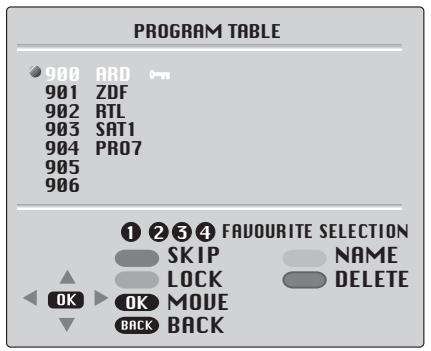
To block the channel, press (green). The blocked TV station is marked with a key.
Notes:
You can unlock the station by pressing the red button again.
Creating a list of favourites
You can select your favourite stations and save them in up to four lists. Select the station with , and press 1 - 4 to enter it into lists of favourites 1-4 .
- To remove, press the corresponding number button again.
- You can enter the selected station in more than one favourite list.
Sound settings
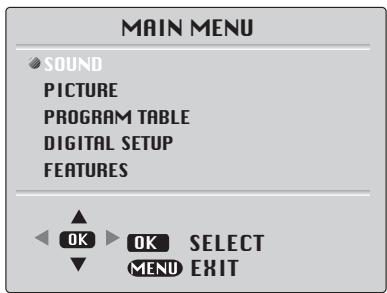
Menu Press to open the MAIN MENU. - The MAIN MENU appears.
Select SOUND with , and confirm with OK .
- The SOUND menu appears.

Volume
The standard volume is set here. This is the volume of the television after switching on.
Select VOLUME with , and adjust the setting with or .
Balance
Select BALANCE with and adjust the setting with or .
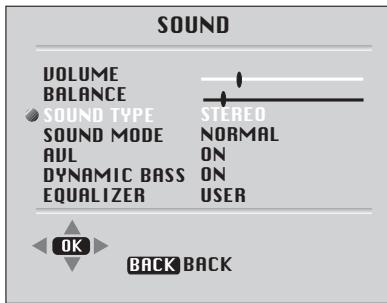
Sound type
If the device receives two channel programmes, e.g. a film with the original sound on sound channel B (display: Dual II ) and the dubbed version on sound channel A (display: Dual I ), you can select the sound channel you desire.
If the device receives stereo or Nicam programmes, it switches automatically to stereo sound (display: Stereo ). You can switch the sound to Mono if the stereo reception quality is poor.
Select SOUND TYPE with , and adjust the setting with or .
Sound mode
You can select NORMAL, SPATIAL or DOLBY VIRTUAL (optional) with « or » «.
SPATIAL sound is an 'expanded stereo'. It gives the impression that the two speakers in the TV are further apart than they really are.
DOLBY VIRTUAL is based on Dolby Pro Logic decoding for production of the Left, Right, Centre and Virtual Surround Sound channels using two loudspeaker.
Manufactured under license from Dolby Laboratories. “Dolby”, “Pro Logic” and the double-D symbol are trademarks of Dolby Laboratories.
Please Note
To get the surround effects in Dolby Virtual mode, you must apply a Dolby Surround encoded input to the TV. You can't adjust the AVL and EQUALIZER in DOLBY VIRTUAL mode.
Automatic volume levelling
The television channels broadcast at different volumes. The automatic volume levelling (AVL) function means the volume is kept the same when you switch between channels.
Select AVL with , and then select On with
Dynamic bass (Model dependant)
You can amplify the bass-effect using this setting.

Select DYNAMIC BASS with , and then select ON with or .
Subwoofer (Model dependantl)
A subwoofer speaker can be fitted within the TV case as an option depending to the model. For 33"(84cm) TV sets there is an external subwoofer (optional) to be fixed as shown below.
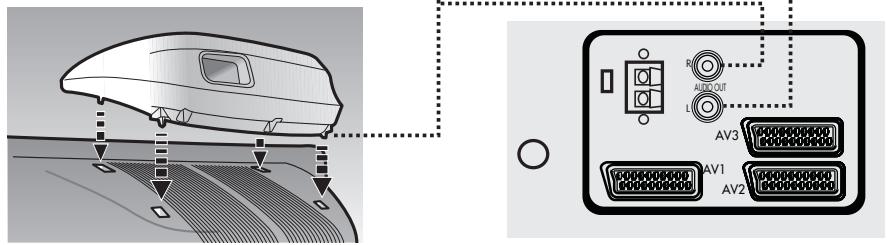
Select Sound menu and press button to access subwoofer. Press the button to switch the Subwoofer on or off.
Please Note
If you move the loudspeaker switch, on the rear of the TV, to the external position, the internal speakers in the TV will be switched off but the Subwoofer will remain on if switched on.
Equalizer
The equalizer offers you four preset sound settings (Music, Sports, Cinema and Speech) and one which you can create yourself (User). Select EQUALIZER by pressing , and use or buttons to change the equalizer mode.
For changing user settings;
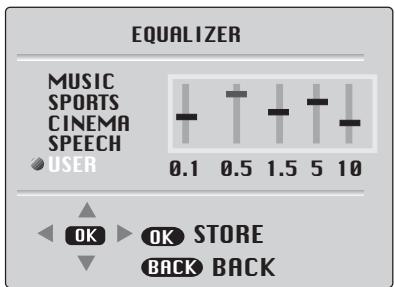
Select EQUALIZER by pressing , and press to confirm.
- The EQUALIZER menu appears.
Select the User audio setting using , and press to confirm.
- The 0.1 frequency band is activated.
Set the value using , and select the next frequency band by pressing or . Press 0k to save the setting.
Press EXIT to finish the settings.
Picture settings

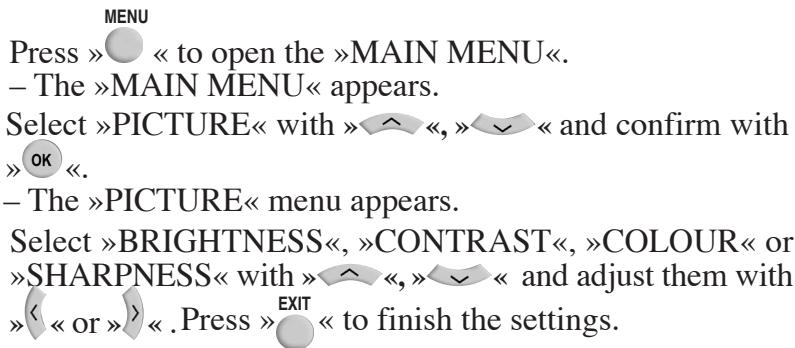
Note:
After a short while the PICTURE menu reappears. The settings are saved as the USER picture default setting.
Setting the picture features
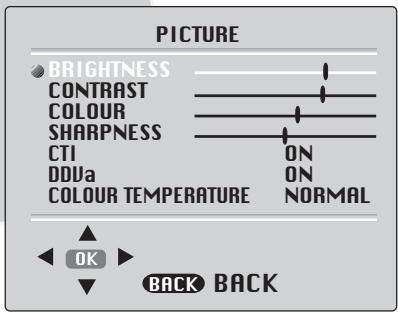
You can set the noise suppression of the picture. You can set the noise suppression to one of three settings: NORMAL , WARM and COOL .
MENUPress to open the MAIN MENU. The MAIN MENU appears.
Select PICTURE with , and confirm with .
- The PICTURE menu appears.
Select COLOUR TEMPERATURE with and set the desired value with or . Press to finish the settings.
CTI (Colour Transient Improvement):
You can improve the colour transitions in the picture by selecting ON or OFF.
DDVa (Model dependant) (Dynamic Digital Video Adaption):
You can increase the picture sharpness byselecting DDVa as ON.
IMPORTANT NOTE: Your TV has Digital Comb Filter, DLTI (Digital Luminance Transient Improvement) features to improve picture quality. These features are set ON and they can not be changed by the end user.
TILT (Model dependant):
Because of the structure of the picture tubes, your picture can be lost on the corners of the screen depending on the position of your TV, north-south-east-west.
To clear this effect, you can adjust the TILT setting and prevent the picture loss (Model dependant).
SPECIAL FEATURES

MENU
Press to open the MAIN MENU . - The MAIN MENU appears.
Select FEATURES with and confirm with OK .
- The FEATURES menu appears.
You can change the language of the OSD menu.

Select LANGUAGE with , and confirm with OK .
- The LANGUAGE menu appears.
Select the language with , < < > and press 0K to confirm. EXIT Press to finish the setting.
Entering the switch-on and off times

A switch-on and off timer can be set in the Date&Time settings menu . After this time has elapsed, the television switches to standby mode or switches on from standby mode. You can enter the channel with which the television should switch on in Program .
Select DATE & TIME SETTINGS with , and confirm with 0K .
Select DATE , CLOCK , ON TIME , OFF TIME , ALARM TIME or PROGRAM NO with , .
Enter the switch-on or off time and the channel with 1... 0 Press to finish the setting.
Date: Use the numeric buttons to set the real date.
Clock: Use the numeric buttons to set the real time.
On Time: Use the numeric buttons to set the time that you want your TV to be turned on (TV should be on stand-by mode).
Off Time: Use the numeric buttons to set the time that you want your TV to be turned off (Stand-by mode).
Alarm Time (Model dependant): Use the numeric buttons to set the alarm time that you want your TV to alarm.
Program No: Use the numeric buttons to set the programme number that will be shown when you set the On Time.
This allows you to select the picture size on corresponding to the scren type of your TV: Available formats for widescreen TV sets are 16:9, 4:3, Zoom, Letterbox, Subtitle and Panorama. Available formats of 4:3 TV sets are 4:3 and 16:9.
The formats of the broadcasts (4:3 or 16:9) you watch by means of aerial input are chosen automatically. (4:3, 16:9 and Letterbox for 16:9 TV) This feature is active if the channel you are watching sends WSS (Wide Screen Signalling) information.
Note: The feature mentioned above is relevant for TV sets having teletext.
Widescreen TV sets:
16:9, this is the screen format of widescreen TV sets ( 28" SF/PF, 32" SF/PF). The TV will automatically switch to this format if it detects 16:9 format from the SCART inputs.
24

16:9
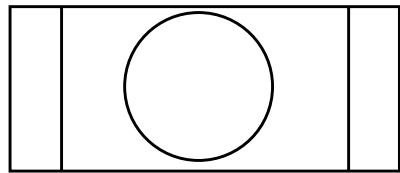
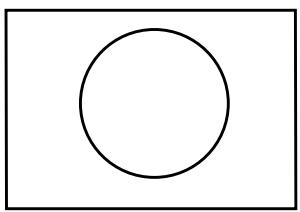
4:3
4:3, conventional TV picture format.

Zoom
Zoom, an enlarged 4:3 format retaining the same aspect ratio.

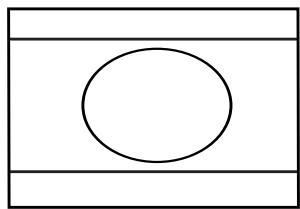
LetterBox
L Box (Letter box), Useful for watching video, some film formats and Pal-Plus format.
4:3 Sets:
4:3, is the screen format of 28", 29" and 33" TV sets. But you can change the picture format to 16:9 to able to watch the inputs in 16:9 format, i.e. some broadcasts and DVD's.

Press the REV button to page through the different picture formats and select the one you want. The selected format will appear on the lower center of the screen for a short while.
Once you have switched the TV off the picture format will revert to the stored setting.
TELETEXT MODE
Teletext is an information system that displays text on your TV screen. Using the teletext control buttons you can view pages of information that are listed in the teletext index.
Please Note
No on screen display is available in text mode. The contrast, brightness and colour cannot be changed but the volume control is still available.
To enter Text mode
Please Note
Make sure the TV channel you are watching transmits teletext.
Press the button. The text page will appear, normally the index page.
To exit Text mode
Press the button. The TV will return to the channel you were watching.
To select a page of text
Find the number of the page in the index and enter it using the 1... 0 buttons. The number of the page will appear in the top left hand corner of the screen.
The page counter will search for your page. When it finds it, the page will be displayed.
To move to the next page of text press the button.
To move to the previous page press the button.

To return to the index page press the P100 button.
TV/text mix
To view a page of text whilst watching a TV programme press the LANG button. The text will be superimposed over the TV programme.
Press the button again to return to the text page.
Page search whilst watching TV
In Text mode press the Update button. The TV will return to TV mode with the text page number in the top left hand corner of the screen.
Enter the page number you want using the 1... 0 buttons.
The top line of the text page will appear whilst the text searches for your page. When the page is found the number will remain in the top left hand corner of the screen.

Press the UPDATE button to view your selected page of text.
Double height text
If you have difficulty reading the text on the TV you can double the height of the text.

Press the button. The top half of the page will be displayed in double height text.

Press the button again.
The bottom half of the page will be displayed in double height text.

Press the DOUB button again to return to the full page.
TELETEXT MODE
Page hold
If the page of text you have selected contains sub pages, these sub pages will automatically be displayed in order with a delay to allow you to read the page.
To stop the move to the next sub page press the button. STOP will appear in the top left hand corner.
To continue moving through the sub pages press the button again.
To select a sub page
If the page of text you are viewing contains sub pages, the number of the sub page you are on and the total number of sub pages is displayed on the right of the screen i.e. 1/7.
To select a sub page press the SUB button. The page numer will and subpage number will display at the bottom of the screen.
Enter the number of the sub page, using the 1... 0 buttons in the format 0001 for sub page 1.
The teletext will search for the sub page. This may take some time. To return to the TV whilst the teletext is searching press the UPDATE button.
When the page number is found it will appear in the top left hand corner of the screen.
Press the button again to view the text page.
Press the REV button to reveal concealed information (quiz answers etc.).
Press the REV button again to conceal the information again.
Fastext
At the bottom of the teletext screen is a row of subject headings in red, green yellow and blue.
The remote control has a row of coloured buttons corresponding to the row of coloured subjects on the screen.
Pressing one of the coloured buttons will take you directly to the page corresponding to the subject heading.
Toptext (Model Dependant)
At the bottom of the teletext screen is a row of subject headings in yellow and blue. Pressing yellow or blue buttons on the remote control, selects the related Subject. Next page can be selected by pressing the red button and previous page can be selected by pressing the green button.
Note: Fastext and Toptext features are not available in every program.
Connecting external equipment
Headphones (Model Dependant)
The headphones must have an impedance of between 8 and 32 ohms and have a 3.5mm stereo jack plug.
Plug the headphone jack into the headphone socket of the TV.
To activate headphone sound, press the mute " ” button on the remote control (a mute symbol will appear on the screen) and adjust headphone volume by using the VOL+ on VOL- buttons on the remote control or front panel of the television.
Connecting a video recorder
① Via SCART
Make sure the TV and video recorder are both switched off.
Plug one end of the SCART lead (not supplied) into the back of the video recorder and the other end into one of the SCART sockets on the back of the TV. Switch on the video recorder and the TV.
Press the AV button on the remote control to select AV1, AV2 or AV3 (Model dependant) to correspond with SCART socket you are using on the back of the TV.
Please note:
You can connect a RGB external equipment via Scart 1. It is necessary to you use full Scart cable for this purpose.
Select the video outputs of external device by using its menu to RGB if it's available.
(2) Via PHONO lead (Not supplied)
Make sure the TV and video recorder are both switched off.
Plug one end of the PHONO lead into the video and audio out sockets on the back of the video recorder and plug the other end into the video and audio in sockets of the TV. If the sound is in mono use the Audio Input L. In the SOUND menu select MONO.
Press the AV button repetitively and select the AV3 mode for two scart models or select AV4 mode for three scart models.

Via aerial socket
Make sure the TV and video recorder are both switched off.
Unplug the aerial lead from the TV and plug it into the aerial socket on the video recorder (if fitted). Plug a coaxial plug into the RF out socket on the rear of the video recorder and plug the other end into the aerial socket of the TV. Switch on the video recorder and the TV. If your video recorder has a test signal, switch it on. (Refer to the video recorder user guide). See 'Tuning the TV' and carry out the tuning procedure for the video recorder test signal. Select a programme number 0 or between 55 and 99.

S-Video Player
If you have an S-Video player you can connect it to SCART socket 2 via an adaptor from scart to S-Video/PHONO audio (not supplied). Press the button three times to select AV2S (available for two scart models).

Via PHONO lead and S-Video socket
You can also connect it through the S-Video socket of the TV (Model dependant). Plug the S-Video plug into the S-Video socket and the audio leads into the audio sockets. Press the button repetitively to select AV3S for two scart models or AV4S for three scart models.
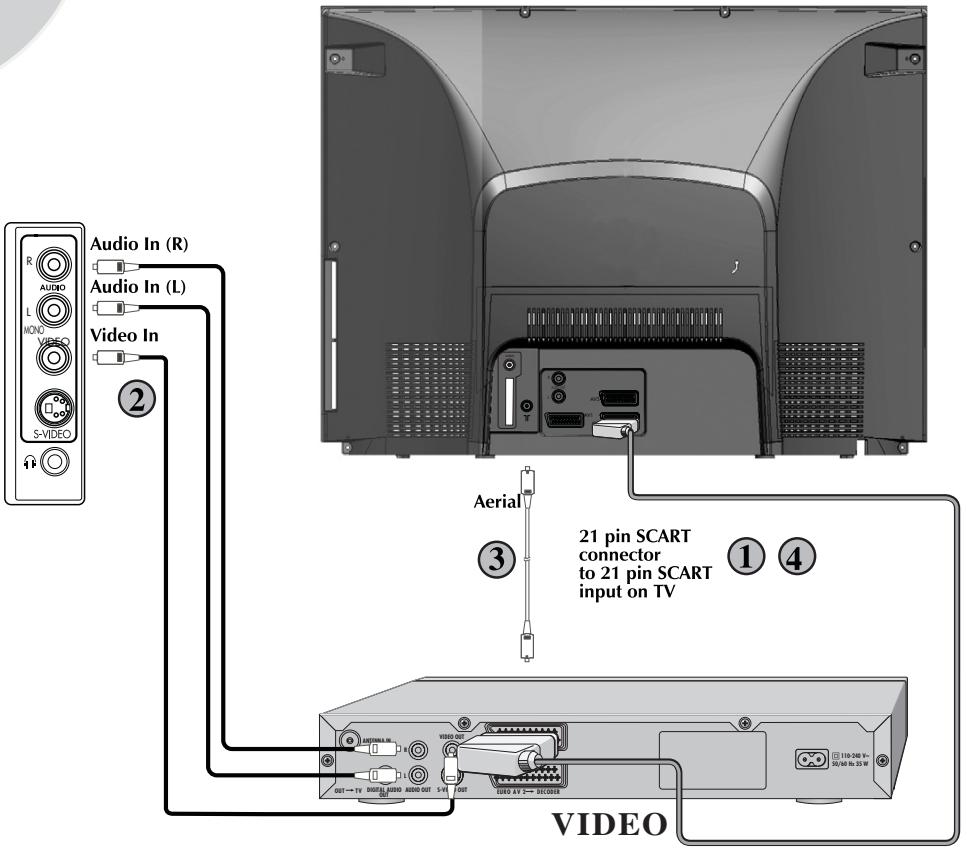
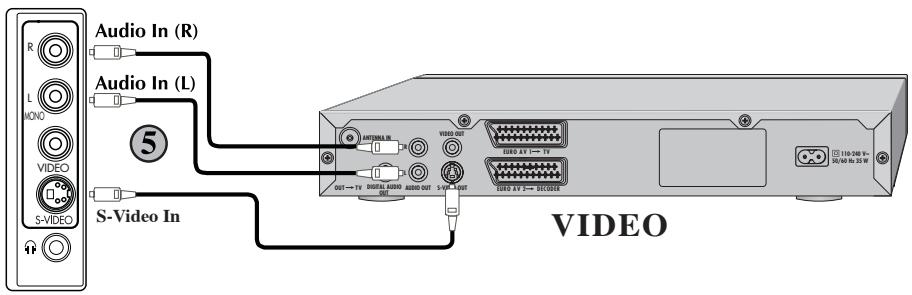
Connecting a DVD player
(1) Via SCART
Make sure the TV and DVD player are both switched off. Plug one end of the SCART lead (not supplied) into the back of the DVD player and the other end into one of the SCART sockets on the back of the TV. Switch on the DVD and the TV. Press the AV button on the remote control to select AV1, AV2 or AV3 (Model dependant) to correspond with SCART socket you are using on the back of the TV.
(2) Via PHONO lead (Model Dependant)
Make sure the TV and DVD player are both switched off. Plug one end of the PHONO lead into the video and audio out sockets on the back of the DVD player and plug the other end into the video and audio in sockets of the TV. Press the button repetitively and select the AV3 mode for two scart models or select AV4 mode for three scart models.
(3) Via PHONO lead and S-Video socket
You can also connect it through the S-Video socket of the TV (optional). Plug the S-Video plug into the S-Video socket and the audio leads into the audio sockets. Press the button repetitively to select AV3S for two scart models or AV4S for three scart models.
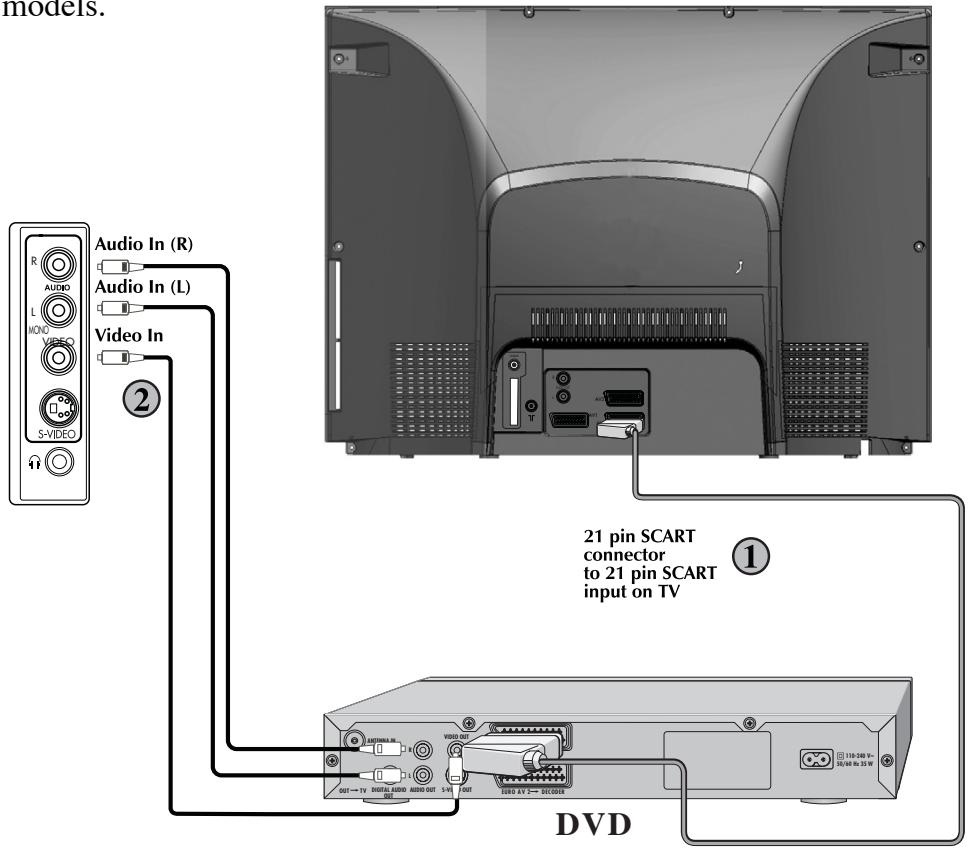
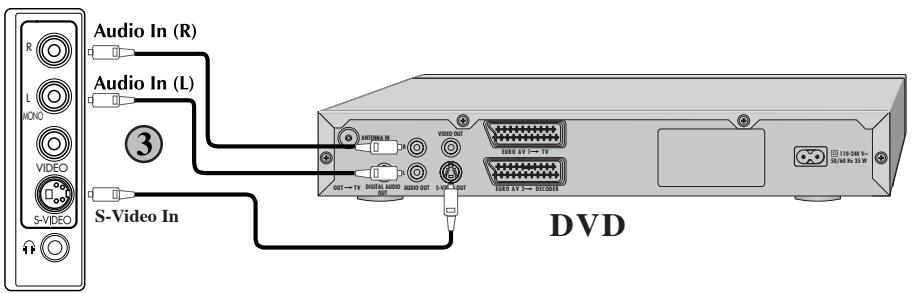
Connecting a decoder
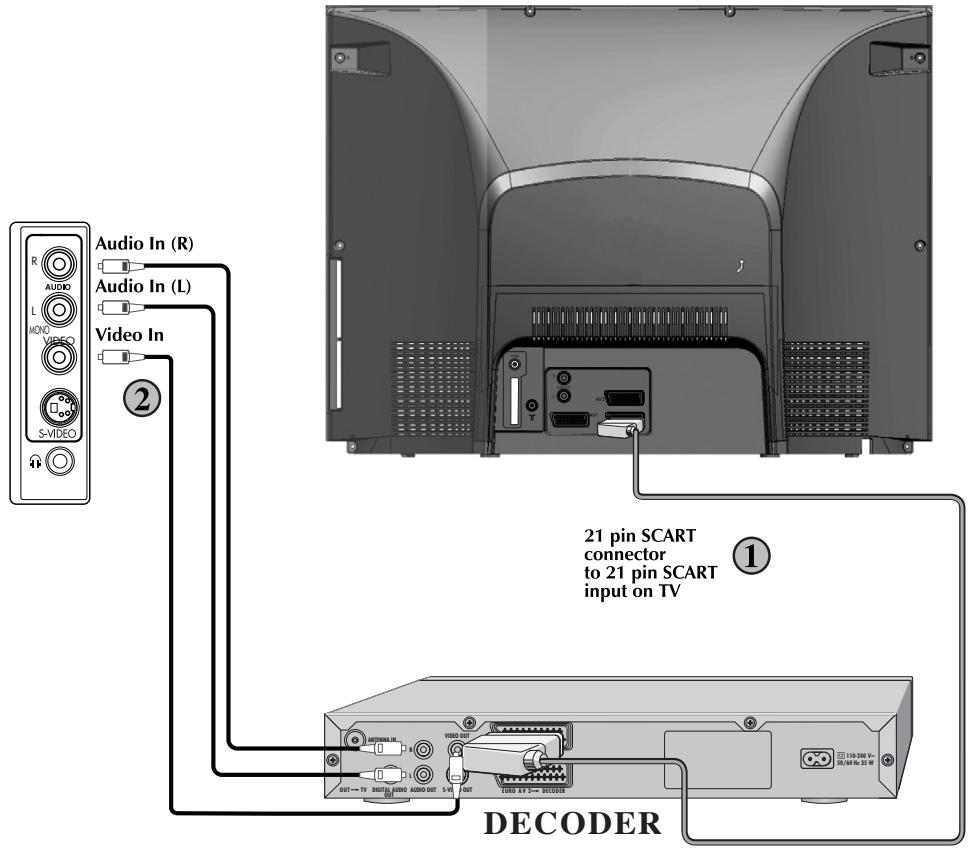
① Via SCART
Make sure the TV and decoder are both switched off. Plug one end of the SCART lead (not supplied) into the back of the decoder and the other end into the SCART1 on the back of the TV. Switch on the decoder and the TV. Press the AV button on the remote control to select AV1.
② Via PHONO lead (Model Dependant)
Make sure the TV and decoder are both switched off. Plug one end of the PHONO lead into the video and audio out sockets on the back of the decoder and plug the other end into the video and audio in sockets on the TV.
AV
Press the button repetitively and select the AV3 mode for two scart models or select AV4 mode for three scart models.
Please Note
You can record from one external piece of equipment to another via the TV by connecting the playback to SCART 1 and the recorder to SCART 2 or SCART 3 and selecting AV1. You cannot watch the TV.
You can connect NTSC supported equipment to the TV via the SCART sockets and adjusting the colour via the PICTURE menu.
Select TINT by using button and use the adjust the colour to 或 buttons.
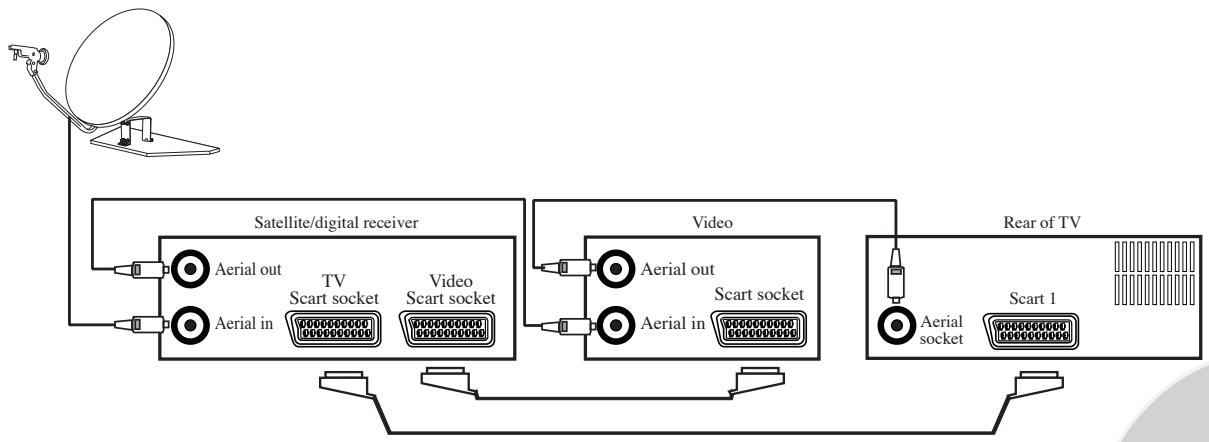
Connecting TV with video and satellite/digital receiver
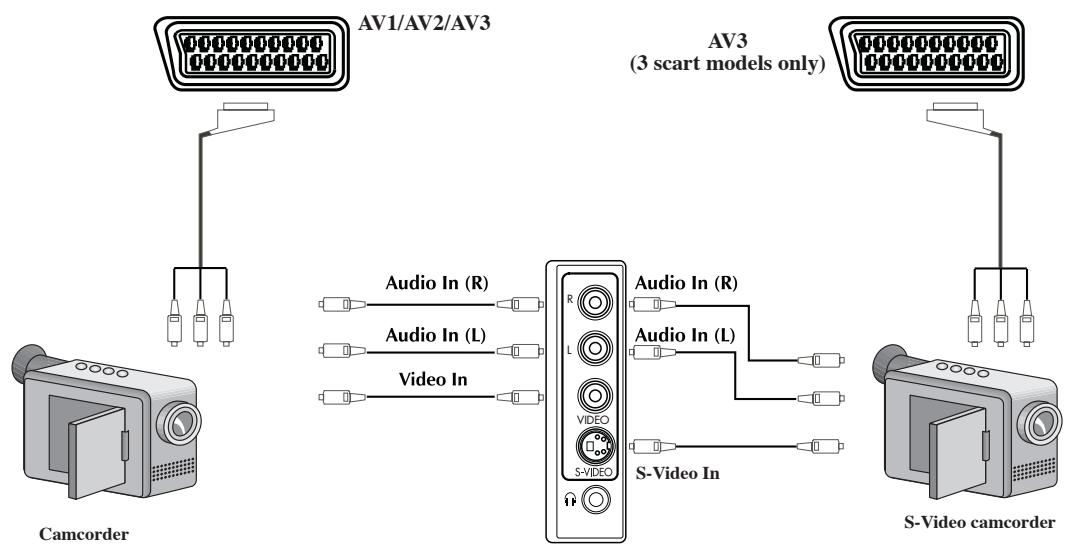
Connecting TV with camcorder
Connecting TV games and computer

Troubleshooting
| Symptom | Possible cause | Solution |
| Screen lit, but no station | Aerial cable | Is the aerial cable connected? |
| No television station programmed | Start the station search |
| Poor picture contrast | Picture settings incorrectly set | Adjust the brightness, contrast or colour setting |
| Problem at station | Test with another channel |
| Interference | Interference from other devices | Change the position of the device |
| Ghosts, reflection | Channel setting | Automatic or manual channel setting/fine tuning |
| Aerial | Have aerial cable or system checked |
| No colour | Colour intensity at minimum | Turn up the colour |
| TV standard setting (if setting option is available) | Select the correct colour standard |
| Problem at station | Test with another channel |
| Inappropriate colour, colour spots | Strong magnetic field due, for example, to loudspeakers | Move the loudspeakers away from the television. If colour spots remain, switch off the television set at the mains and switch on again after 10 minutes |
| Picture but no sound | Volume set to minimum | Turn up or switch on the volume |
| Problem at station | Test with another channel |
| Teletext missing or faulty | Television station (has no teletext) or aerial system | Test another channel for fine tuning and ghosts |
| Station signal too weak | Check the aerial system |
| Remote control does not work | No optical connection | Point the remote control at the television set |
| Remote control batteries | Check the batteries, change if necessary |
| Operating condition undefined | Switch off the television with the main power button for approximately 2 minutes |
| Some channels are not present when using PR+ or PR- buttons. | Parental lock has been activated | Switch off the parental lock |
| No Text on Digital Channels | Station is not transmitting text information | Check another channel |
| Incorrect setting in installation menu | Enter the main menu followed by digital setup option and select installation. Set service prefer to “data service” |
| No Subtitles | Station is not transmitting subtitle information | Check another channel |
| Incorrect setting in installation menu | Enter the main menu followed by digital setup option and select installation. Set service prefer to “subtitles” |
| Subtitles features is not activated | Press subtitle button (SUBT) on remote control to turn on subtitles |
| Spinning egg timer logo seen on screen when switching television on in digital mode | Normal operation. DURING this short period the digital board is being initialised | This is not a fault |
Technical specifications table
| Picture tube size/type | 28”16:9 | 29”4:3 |
| Screen size | 70 cm | 72 cm |
| Visible screen size | 66 cm | 68 cm |
| Sound Output (%10 THD) | 2x10 W | 2x10 W |
| Power consumption | 100 W | 105 W |
| Stand by Power consumption | 4 W | 4 W |
| Subwoofer | X | X |
| Dolby Virtual | X | X |
X : Model Dependant
16:9: Widescreen TV
4:3 : Conventional TV
Please note:
Using a subwoofer (Model dependant) causes 20W extra power consumption and supplies maximum 20W extra sound output.
General technical specifications
Power Supply
AC: 230Va.c 50Hz
Number of preset programmes 100 analog 899 digital
RF Aerial input 75 ohm (unbalanced)
Speaker impedance 8 ohm
Audio output Stereo/NICAM (Model dependant)
Batteries 2x AAA
Receiving channels VHF (Band I Channels 2-4)
VHF (Band III Channels 5-12)
UHF (Channels 21-69)
Receiving broadcast system.PAL BG
PAL SECAM BG
PAL SECAM BG DK/DK'
PAL SECAM BG LL
PALI
B E K O Plc
Guarantee - Television
Your new television is guaranteed against the cost of breakdown repairs for twelve months from the date of the original purchase. (* see note below for small screen sets)
What is covered?
- All repairs necessary as a result of faulty materials, defective components or manufacturing defect.
- The cost of all functional replacement parts, excluding remote control batteries
- The labour costs of a Beko approved repairer to carry out the repair.
- (*) For TV's with screen sizes of 21 inches or less (measured diagonally corner to corner) you may be offered a replacement instead of repair under guarantee. Your dealer will advise you.
What is not covered?
- Transit or delivery damage
- Accidental damage
- Misuse, or abuse.
- Cabinet or appearance parts, including knobs and flaps
- Remote control batteries.
- Repairs or replacements required as a result of unauthorised repairs or inexpert installation that fails to meet the requirements contained in the user instruction book.
- Repairs or replacements to product installed or used on commercial or non-household premises.
Important notes.
- The product is guaranteed for domestic household use only.
- The guarantee will be void if the product is installed or used in commercial or non-household premises.
- The product must be correctly installed and operated in accordance with the instructions contained within the Operating Instructions Booklet provided with the product
- The guarantee is given only within the boundaries of the United Kingdom and the Republic of Ireland.
- The guarantee is not transferable if the product is resold.
- Beko Plc disclaims any liability for incidental or consequential damages.
- The guarantee does not in anyway diminish your statutory or legal rights.
Beko House, Caxton Way, Watford, Herts, WD18 8UF, Tel: 0870 241 0128
B E K O Plc
HOW TO OBTAIN SERVICE
Congratulations on your choice of a Beko colour television. Your new television has been designed and manufactured to the highest quality standards to give you many years of use. To get the best out of it, please take a few moments to read the instruction book.
Your television is supplied with a full 12 months guarantee, covering parts and labour. Should you require service under guarantee, simply call the number below (**see note for small screen sets)
0870 241 0128
Our service receptionist will ask you for your product model number, your retailer's name, and the date of purchase when you call. It will assist you if you complete the box at the bottom of this page when you take delivery of your television so that the information is readily available should you need it. If it is necessary for an engineer to visit your home he will normally be there within 48hrs of receipt of your call (excluding Bank Holidays) or at your earliest convenience.
Before telephoning for service please check the trouble shooting guide in the instruction book as often minor problems are easily identified and resolved by following the instructions contained therein. Service visits where there is no fault with the product could incur a charge even though the product is under guarantee.
Service is also available on the above number after the guarantee period has expired. The cost of any repairs outside of the guarantee period is payable to the engineer at the time of visit.
Please complete the box below for ease of reference later.
| Model Number | Serial Number |
| Date of Purchase | Place of Purchase |
| Please keep your purchase receipt. The engineer will need to see it should you require service under the 12-month Guarantee. |
*** Special Note:
In home repair service is not available on models with a screen size of 21" or under. You should contact your retailer for advice and assistance on these models.