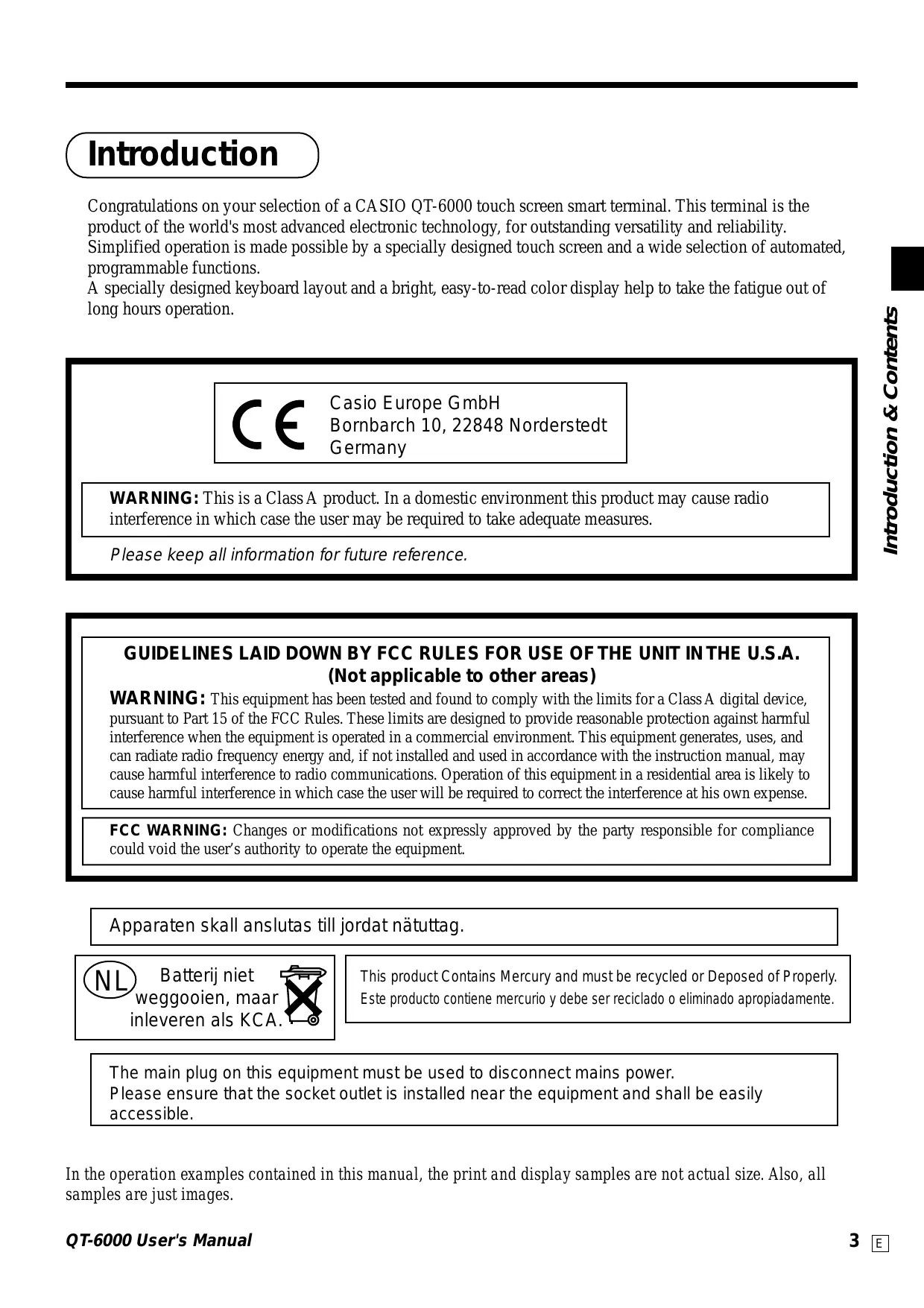
USER MANUAL QT-6000 CASIO
Touch Screen Smart Terminal
QT-6000
User's Manual
Introduction
Table of Contents
Introducing QT-6000
Display/Keyboard
Basic Operations & Setups
Registrations
Programs
Advanced Operations
Useful Features
Reports
Troubleshooting
Error Code Table
Index
Introduction
Congratulations on your selection of a CASIO QT-6000 touch screen smart terminal. This terminal is the product of the world's most advanced electronic technology, for outstanding versatility and reliability.
Simplified operation is made possible by a specially designed touch screen and a wide selection of automated, programmable functions.
A specially designed keyboard layout and a bright, easy-to-read color display help to take the fatigue out of long hours operation.

Casio Europe GmbH
Bornbarch 10, 22848 Norderstedt
Germany
WARNING: This is a Class A product. In a domestic environment this product may cause radio interference in which case the user may be required to take adequate measures.
Please keep all information for future reference.
GUIDELINES LAID DOWN BY FCC RULES FOR USE OF THE UNIT IN THE U.S.A. (Not applicable to other areas)
WARNING: This equipment has been tested and found to comply with the limits for a Class A digital device, pursuant to Part 15 of the FCC Rules. These limits are designed to provide reasonable protection against harmful interference when the equipment is operated in a commercial environment. This equipment generates, uses, and can radiate radio frequency energy and, if not installed and used in accordance with the instruction manual, may cause harmful interference to radio communications. Operation of this equipment in a residential area is likely to cause harmful interference in which case the user will be required to correct the interference at his own expense.
FCC WARNING: Changes or modifications not expressly approved by the party responsible for compliance could void the user's authority to operate the equipment.
The main plug on this equipment must be used to disconnect mains power. Please ensure that the socket outlet is installed near the equipment and shall be easily accessible.
In the operation examples contained in this manual, the print and display samples are not actual size. Also, all samples are just images.
Safety Precautions
- To use this product safely and correctly, read this manual thoroughly and operate as instructed.
After reading this guide, keep it close at hand for easy reference.
Please keep all informations for future reference.
- Always observe the warnings and cautions indicated on the product.
About the icons
In this guide various icons are used to highlight safe operation of this product and to prevent injury to the operator and other personnel and also to prevent damage to property and this product. The icons and definitions are given below.

Indicates that there is a risk of severe injury or death if used incorrectly.

Indicates that injury or damage may result if used incorrectly.
Icon examples
To bring attention to risks and possible damage, the following types of icons are used.

The symbol indicates that it includes some symbol for attracting attention (including warning). In this triangle the actual type of precautions to be taken (electric shock, in this case) is indicated.

The symbol indicates a prohibited action. In this symbol the actual type of prohibited actions (disassembly, in this case) will be indicated.
The symbol indicates a restriction. In this symbol the type of actual restriction (removal of the power plug from an outlet, in this case) is indicated.

Warning!
Handling the terminal
Should the terminal malfunction, start to emit smoke or a strange odor, or otherwise behave abnormally, immediately shut down the power and unplug the AC plug from the power outlet. Continued use creates the danger of fire and electric shock.
- Contact CASIO service representative.

Do not place containers of liquids near the terminal and do not allow any foreign matter to get into it. Should water or other foreign matter get into the terminal, immediately shut down the power and unplug the AC plug from the power outlet. Continued use creates the danger of shorting, fire and electric shock.
- Contact CASIO service representative.

Should you drop the terminal and damage it, immediately shut down the power and unplug the AC plug from the power outlet. Continued use creates the danger of shorting, fire and electric shock.
- Attempting to repair the terminal yourself is extremely dangerous. Contact CASIO service representative.
Warning!

Never try to take the terminal apart or modify it in any way. High-voltage components inside the terminal create the danger of fire and electric shock.
- Contact CASIO service representative for all repair and maintenance.
AC adaptor, Power plug and AC outlet
| ! | Use only a proper AC electric outlet (100V~240V). Use of an outlet with a different voltage from the rating creates the danger of malfunction, fire, and electric shock. Overloading an electric outlet creates the danger of overheating and fire.
Please use the adaptor (ADP820A) specified for this terminal. Use another adaptor may cause fire, electrical shock, or malfunction. |
| ! | Make sure the power plug is inserted as far as it will go. Loose plugs create the danger of electric shock, overheating, and fire.
• Do not use the terminal if the plug is damaged. Never connect to a power outlet that is loose. |
| ! | Use a dry cloth to periodically wipe off any dust built up on the prongs of the plug. Humidity can cause poor insulation and create the danger of electric shock and fire if dust stays on the prongs. |
| × | Do not allow the power cord or plug to become damaged, and never try to modify them in any way. Continued use of a damaged power cord can cause deterioration of the insulation, exposure of internal wiring, and shorting, which creates the danger of electric shock and fire.
• Contact CASIO service representative whenever the power cord or plug requires repair or maintenance. |
Caution!
| Do not place the terminal on an unstable or uneven surface. Doing so can cause the terminal — especially when the drawer is open — to fall, creating the danger of malfunction, fire, and electric shock. |
| Do not place the terminal in the following areas.
• Areas where the terminal will be subject to large amounts of humidity or dust, or directly exposed to hot or cold air.
• Areas exposed to direct sunlight, in a close motor vehicle, or any other area subject to very high temperatures.
The above conditions can cause malfunction, which creates the danger of fire. |
| Do not overlay bend the power cord, do not allow it to be caught between desks or other furniture, and never place heavy objects on top of the power cord. Doing so can cause shorting or breaking of the power cord, creating the danger of fire and electric shock. |
| Be sure to grasp the plug when unplugging the power cord from the wall outlet. Pulling on the cord can damage it, break the wiring, or cause short, creating the danger of fire and electric shock. |
| Never touch the plug while your hands are wet. Doing so creates the danger of electric shock. Pulling on the cord can damage it, break the wiring, or cause short, creating the danger of fire and electric shock.
Never touch the printer head and the platen. |
Introduction & Contents 6
Introducing QT-6000 10
General guide 10
Touch screen panel 13
Main display part 14
Keyboard part 16
Keyboard part with pop-up window 18
List pop-up window 18
Check number pop-up window 18
Allocatable functions 19
Keys in check No. pop-up window 21
Basic Operations and Setups 22
How to use the terminal 22
Clerk sign on/off and mode change 23
Assigning a clerk 23
Clerk key 23
Clerk number key 23
i-Button key 23
Mode change 24
Mode pop-up window 24
Displaying the time and date 25
To display and clear the date/time 25
Adjusting the time and date 25
To adjust the time 25
To adjust the date 25
Preparing and using flat-PLU keys 26
Registering flat-PLU keys 26
Programming to flat-PLU 27
Flat-PLU unit price programming procedure 27
Flat-PLU department link/tax status/listing capacity programming procedure 28
Registering flat-PLU keys by programming data 29
Preset price 29
Preset tax status 29
Locking out high amount limitation 29
Preparing and using discounts/reductions 30
Programming discount rate and reduction amount 30
Registering discounts 31
Discount for items and subtotals 31
Registering reductions 32
Reduction for items 32
Reduction for subtotal 32
Registering credit and check payments 33
Check 33
Credit 33
Mixed tender (cash, credit and check) 33
Registering both the Euro and local currency 34
Registering returned goods in the REG mode 36
Registering returned goods in the REF mode 37
Normal refund transaction 37
Reduction of amounts paid on refund 37
Registering money received on account 38
Registering money paid out 38
Making corrections in a registration 39
To correct an item you input but not yet registered 39
To correct an item you input and registered 40
To correct the item you registered previously in this receipt 41
To cancel all items in a transaction 41
No sale registration 41
Printing the daily sales reset report 42
Procedure 42
Printout (by optional remote printer) 43
Advanced Operations 44
Post-finalization receipt 44
Inputting the number of customers 45
Clerk interrupt function 46
Printing slip 47
Printing slips 47
To perform auto batch printing 1 47
To perform auto batch printing 2 48
About the maximum number of slip lines 48
Check tracking systems 48
Check tracking system 48
Opening a check. 49
Adding to a check 49
Issuing a guest receipt 50
Closing a check memory 50
New/old check key operation 51
Add check 52
Separate check 53
Clerk transfer 54
Table transfer 54
Condiment/preparation PLUs 55
Text recall 55
Deposit registrations 56
Deposit from customer 56
Deposit from customer during sales transaction 56
List-# registrations 56
Bill copy 57
Tray total 58
Multiple item totalling function 58
Set menu 59
Tips 59
Stock check. 60
Actual stock quantity inquiry 60
Single item cash sales 61
Addition 62
Addition (plus) 62
Premium (% +) 62
Coupon transactions 63
Coupon registration using (coupon key) 63
Coupon registration using (coupon 2 key) 63
Registering the second unit price 64
Preset tender amount 66
Arrangement key registrations 67
Currency exchange function 68
Registering foreign currency 68
Full amount tender in a foreign currency 68
Partial tender in a foreign currency 69
Temporarily releasing compulsion 70
VAT breakdown printing 71
Registering loan amounts 72
Registering pick up amounts 72
Changing media in drawer 72
73
Item registration 73
Unit price inquiry 73
Programming to clerk 74
Programming procedure 74
Programming descriptors and messages 75
Programming item descriptor (flat-PLU) procedure 75
Programming function key character procedure 76
Programming receipt/slip message procedure 77
78
Entering characters 78
Editing characters 80
Correcting a character just entered 80
Correcting and adding/deleting an item descriptor already set 80
Printing read/reset reports 81
The tree of X/Z menu window 81
To print the individual key (department, subdepartment, PLU/flat-PLU, function) read report ....82
Procedure 82
Report (by optional remote printer) 82
To print the financial read report 83
Procedure 83
Report (by optional remote printer) 83
To print the individual clerk read/reset report 84
Procedure 84
Report (by optional remote printer) 84
To print the daily sales read/reset report 85
To print the periodic 1/2 sales read-reset reports. 85
Procedure 85
Report (by optional remote printer) 85
To print the PLU read/reset report 86
Procedure 86
Report (by optional remote printer) 86
To print the hourly sales read/reset report 87
Procedure 87
Report (by optional remote printer) 87
To print the monthly sales read/reset report 88
Procedure 88
Report (by optional remote printer) 88
Reading the terminal's program 89
The tree of P6 (program read) menu window 89
Procedure 90
Report example 90
Unit price and quantity 90
Item descriptor 91
Character and Message 92
Clerk 92
Key feature 92
Troubleshooting 94
When an error occurs 94
When the terminal does not operate at all 97
In case of power failure 98
Options 98
Specifications 99
Index 100
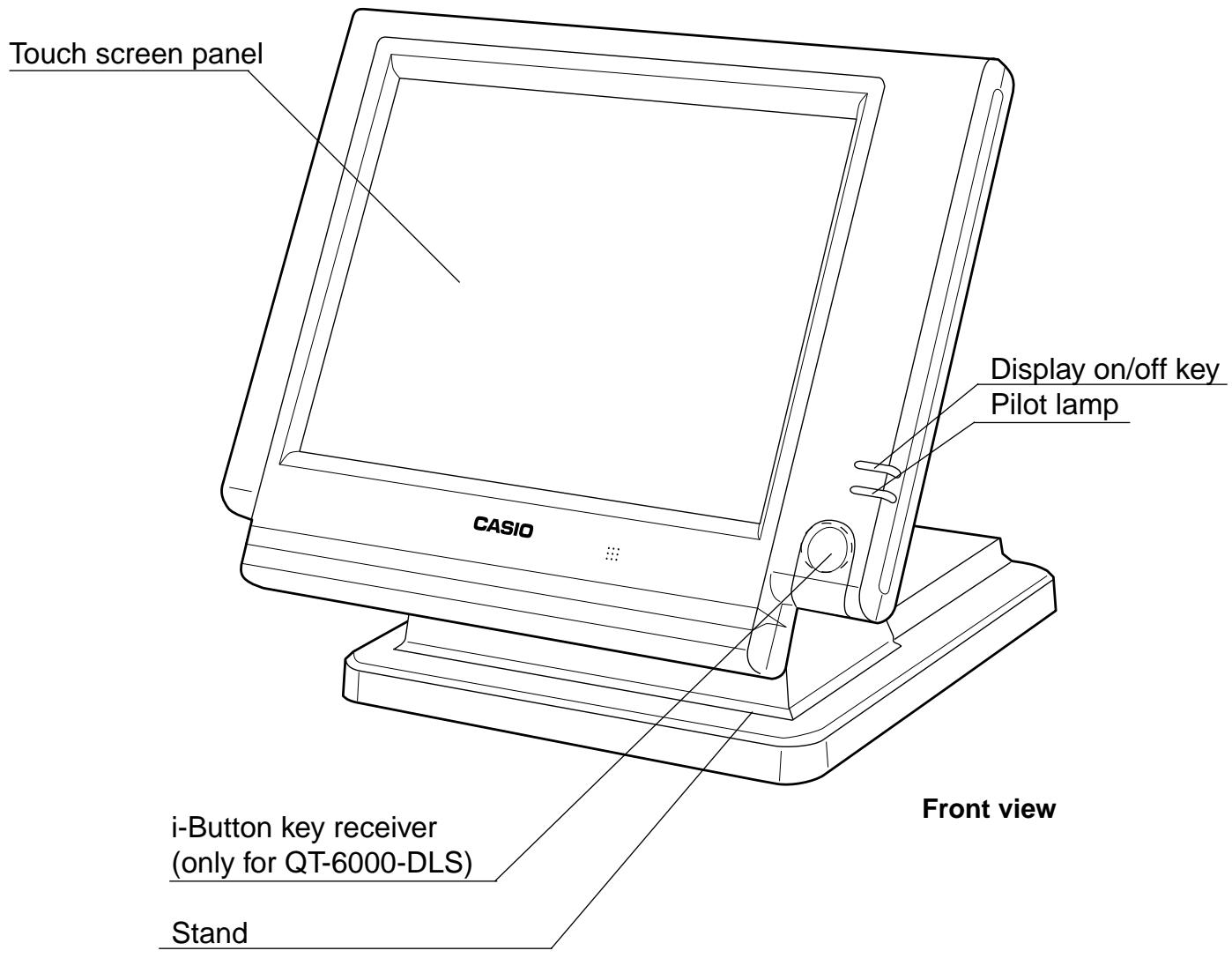
General guide
This part of the manual introduces you to the terminal and provides a general explanation of its various parts.

Accessories
Dust cover


Drawer fixing screws
AC adaptor
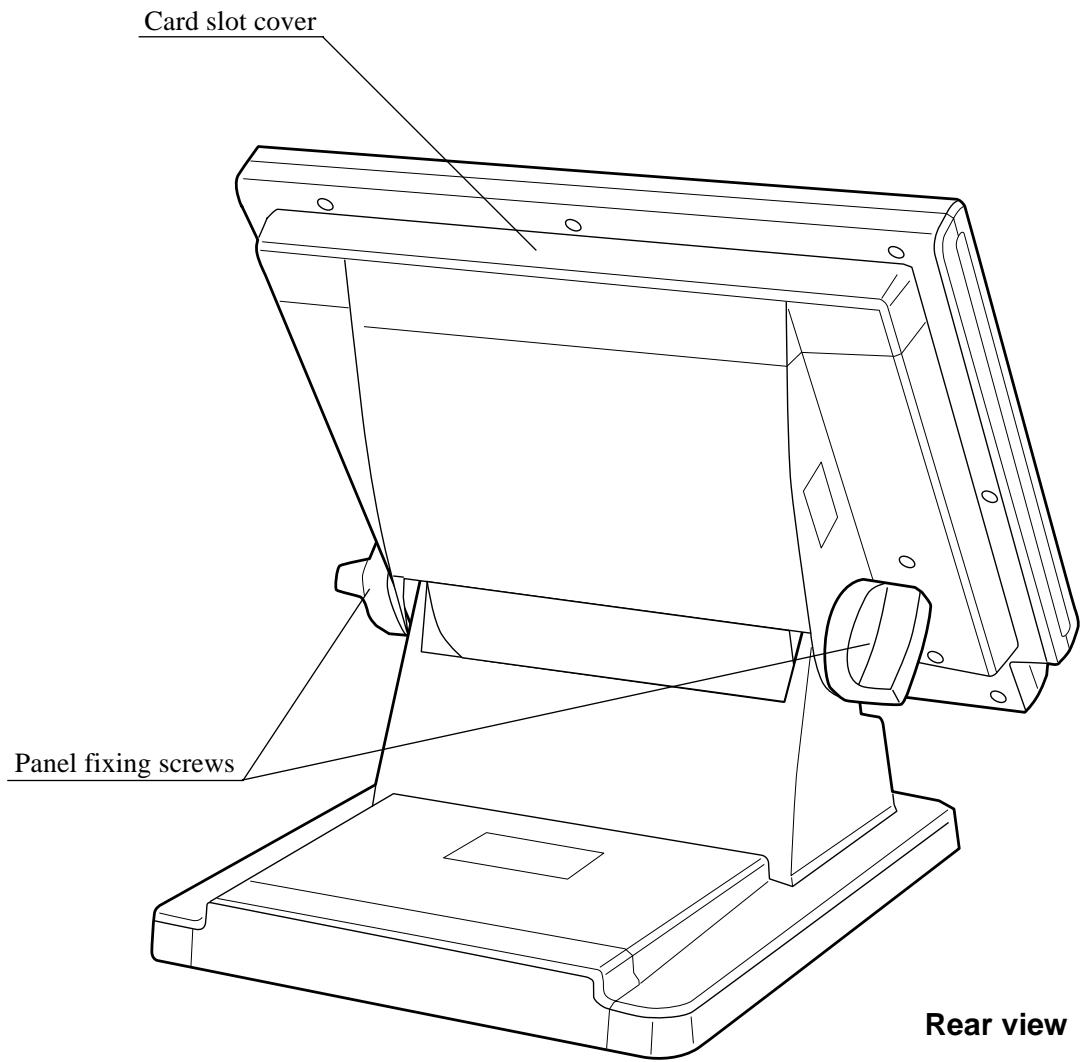
Rear view
Tilt the touch screen panel
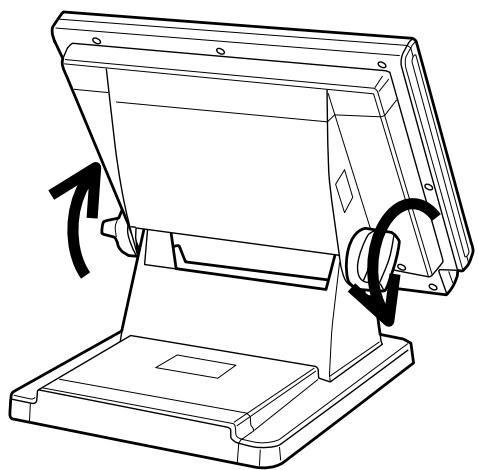
1. Loosen the panel fixing screws. (Turn the screw more than one round.)
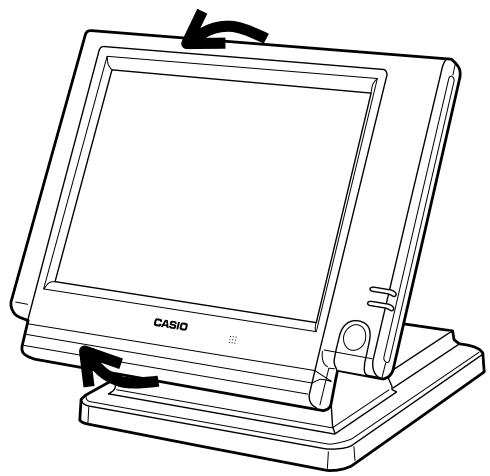
2. Tilt the touch screen panel.
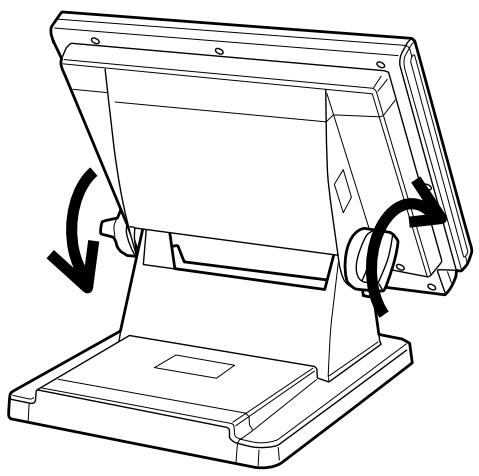
3. Tighten the panel fixing screws.
Important!
Do not tilt without loosing the screws.
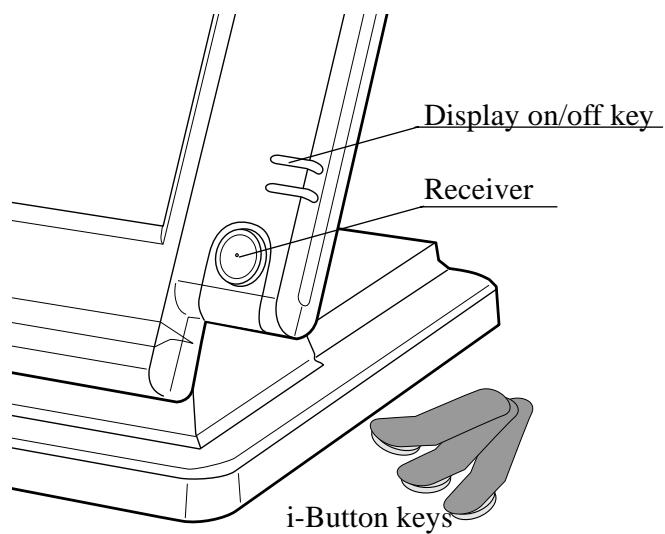
Display on/off key
This key is used for turning on/off the terminal display.
You can assign the clerk or cashier by attaching an i-Button key to the receiver.
Drawer (option)
The drawer opens automatically whenever you finalize a registration and you issue a read or reset report.
Drawer lock (for medium size drawer)
Use the drawer key to lock and unlock the drawer.
Drawer open key (for large size drawer)
Use the drawer open key to open the drawer.
When the cash drawer does not open! (for medium size drawer only)
In case of power failure or the machine is in malfunction, the cash drawer does not open automatically. Even in these cases, you can open the cash drawer by pulling drawer release lever (see below).
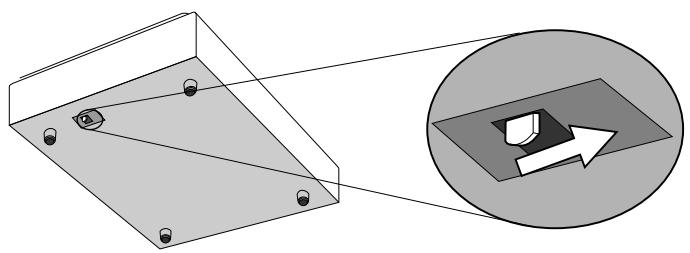
Important!
The drawer will not open, if it is locked with a drawer lock key.
Touch screen panel
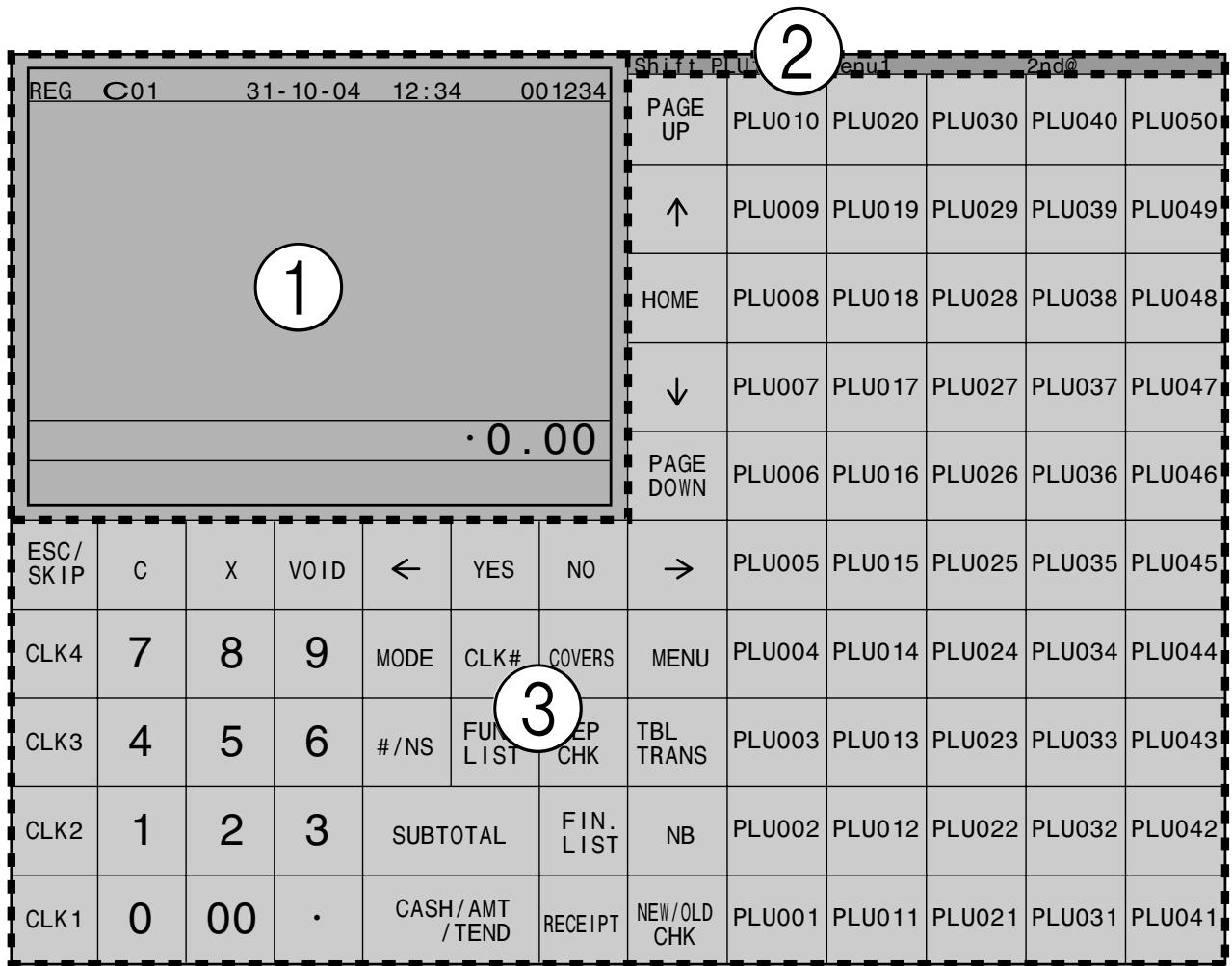
You can use this panel both for display and for keyboard.
- This panel consists of 2 parts; display part and keyboard part.
① Main display part: Used for displaying numeric entries, registration, subtotal amount, etc.
② Menu level display part: Used for displaying the current shift PLU, menu sheet and 2nd unit price level.
③ Keyboard part: Mainly used for keyboard (sometimes it is used for pop-up window)
Note:
Use only your fingers to perform screen operations. Never use pencil, a mechanical pencil, or any other pointed object. Such objects can damage the screen.
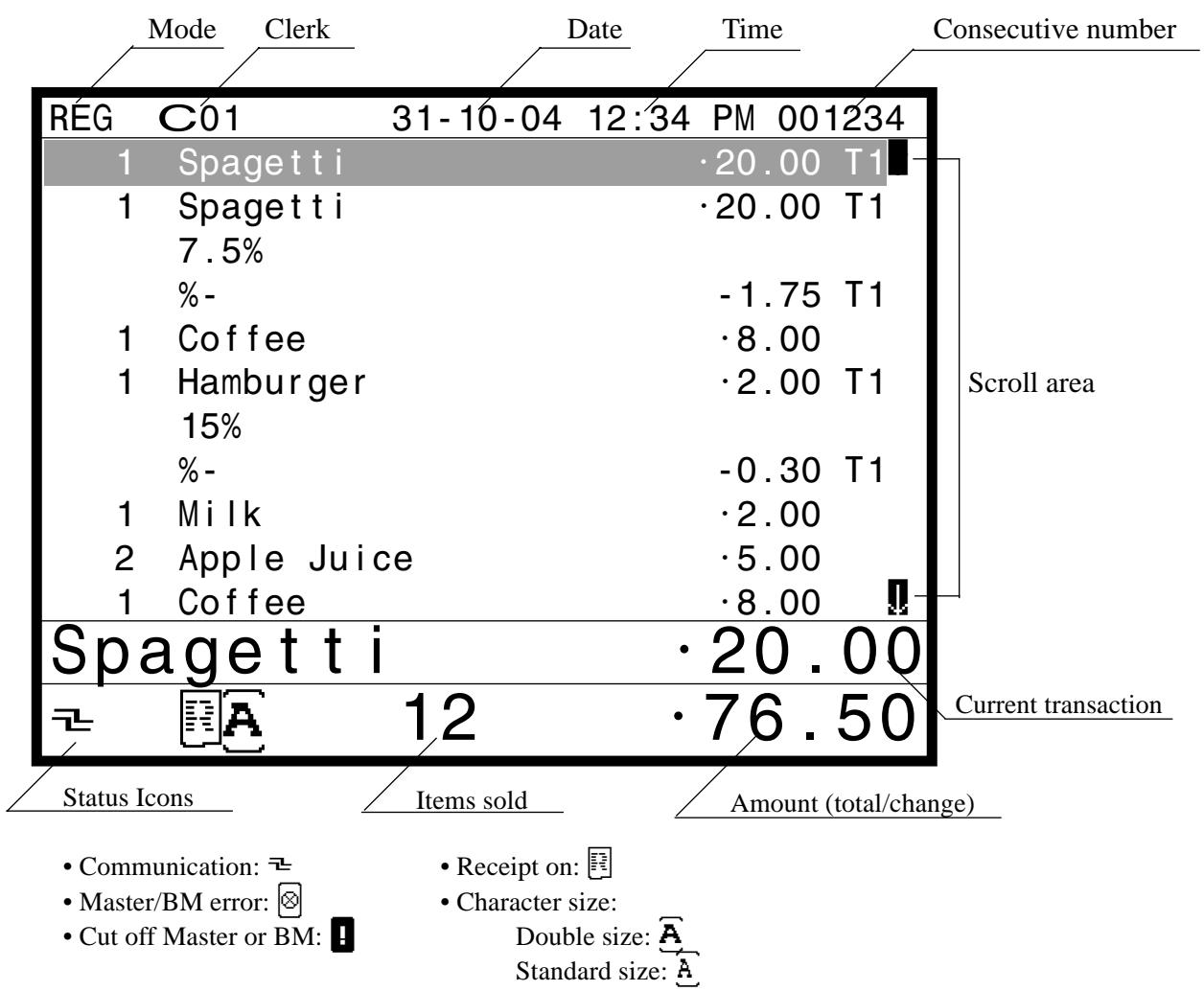
Main display part

Menu level display part
Main display part example
Normal registration
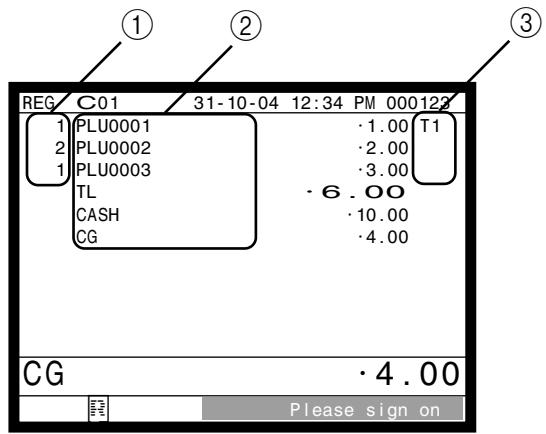
Check tracking registration
① Registered item quantity
This part of the display shows item count of each item.
② Item/ key descriptor
When you register a department/PLU/scanning PLU or transaction key, the item descriptor or key descriptor appears here.
③ Tax status
When you register a taxable item, the corresponding tax status appears here by programming.
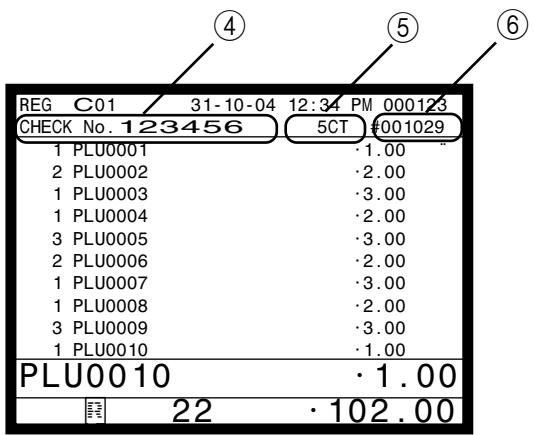
④ Check number
When you enter a check number, it appears here.
⑤ Number of customer
When you enter number of customers, it appears here.
⑥ Table number
When you enter a table number, it appears here.
Keyboard part
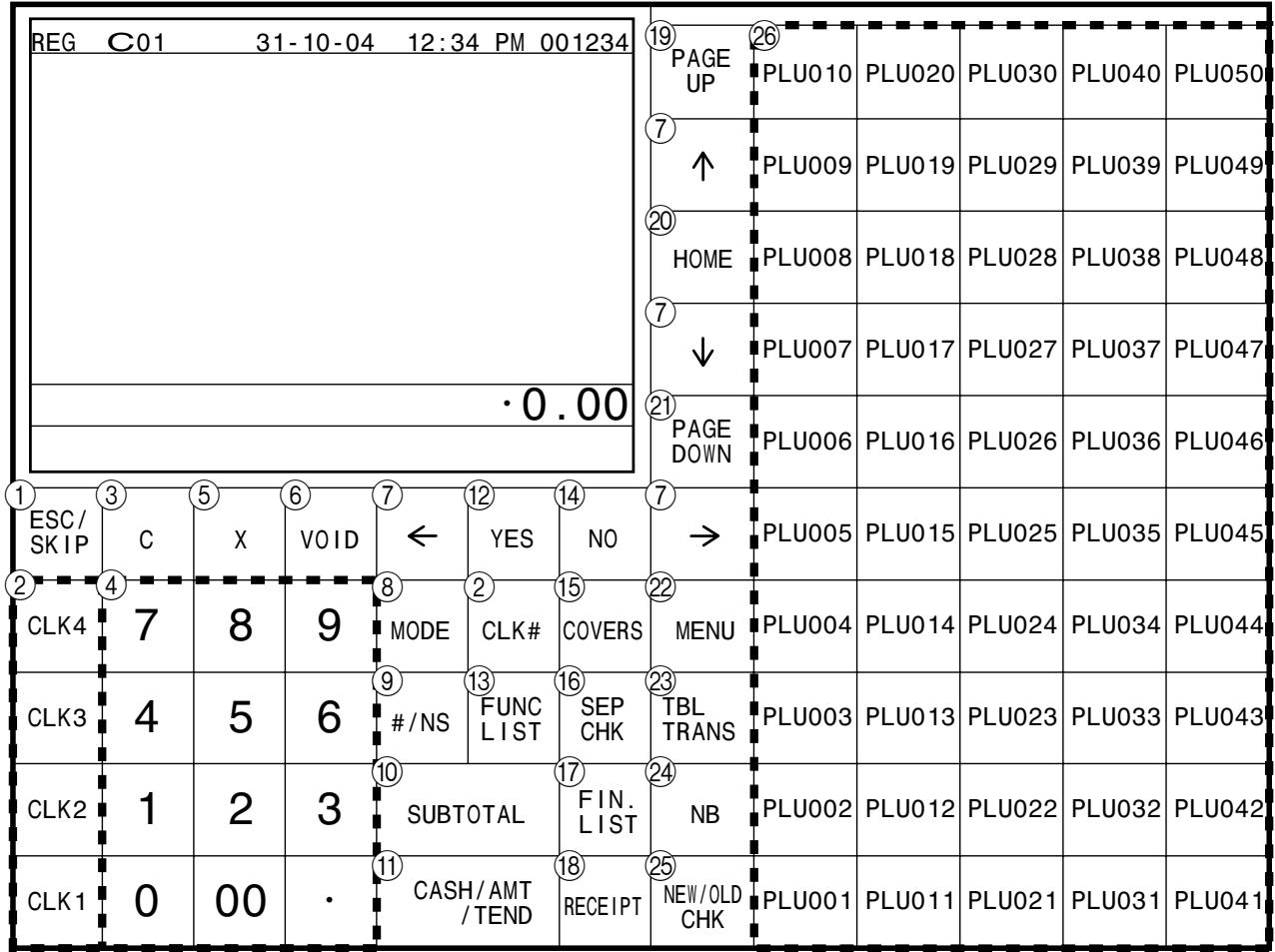
- Register Mode
① ESC/SKIP key [ESC/SKIP]
Use this key to terminate a program sequence, X/Z sequence, and return the primary status. This key is also used to terminate a report being issued in PGM, X, and Z mode.
② Clerk key CLK1, CLK2 CLK4
Use this key to sign clerk on and off the terminal.
Clerk number key CLK#
Use this key to sign clerk on and off the terminal by clerk number.
③ Clear key C
Use this key to clear an entry that has not yet been registered.
④ Ten key pad 0, 1 ~ 9, 00,
Use the keys to input numbers.
⑤ Multiplication/Date/Time key
Use this key to input a quantity for a multiplication operation. Between transactions, this key displays the current time and date.
⑥ Error correct/Void key
Use this key to correct the last registered item, discount, premium, amount tendered etc. This key also invalidates proceeding data registered for PLUs or set menus etc.
⑦ Left, right, up, down arrow key

Use these keys to move the cursor.
⑧ Mode key [MODE]
Use this key to change mode. This key shows the allowable mode keys in the pop-up window.
⑨ Non-add/No sale key
Non-add key: To print reference number (to identify a personal check, credit card, etc.) during a transaction, use this key after some numerical entries.
No sale key: Use this key to open the drawer without registering anything.
Subtotalkey
Use this key to display and print the current subtotal (includes add-on tax) amount.
① Cash/Amount tendered key CA/AMT TEND Use this key to register a cash tender.
② Yes key YES Use this key to consent the selection and proceeding steps.
③ Function list key FUNC List Use this key to show the programmed function key list. Use this key to register the function key which is not located on the keyboard but assigned in the memory.
14 No key NO Use this key to cancel the selection and proceeding steps.
15 Number of customer key COVERS Use this key to register the number of customers.
16 Separate check key SEP CHK Use this key in a check tracking system to separate selected items from one check to another check. If this key is registered, a pop-up window for separating a check is opened.
⑦ Finalization list key FIN. List Use this key to show the programmed finalization key list. Use this key to register the finalization key which is not located on the keyboard but assigned in the memory.
18 Post receipt key RECEIPT Use this key to produce a post-finalization receipt.
19 Page up key PAGE UP Use this key to turn the window forwards.
20 Home position key HOME Use this key to return the cursor to the home position.
Page down key PAGE DOWN Use this key to turn the window backwards.
^22 Menu shift key Use this key to shift Flat-PLU key to n-th (1 ~ 15) menu.
23 Table transfer key TABLE TRANS Use this key to transfer the contents of a check to another check.
24 New balance key NB Use this key to add the current registered total amount to the previous balance to obtain a new balance. When this key is pressed, the total amount of the transaction is calculated. Normally, a receipt is issued.
25 New/Old check key NEW OLD Use this key in a check tracking system to input check numbers in order to open new checks and to reopen existing checks. When the clerk inputs a check number, the register checks to see if that number already exists in the check tracking memory. If there is no matching number in the memory, a new check is opened under the input number. If the check number matches a number already stored in the memory, that check is reopened for further registration or finalization.
26 Flat-PLU key 001, 002 PLU 050 Use these keys to register items to flat-PLUs.
Keyboard part with pop-up window
List pop-up window
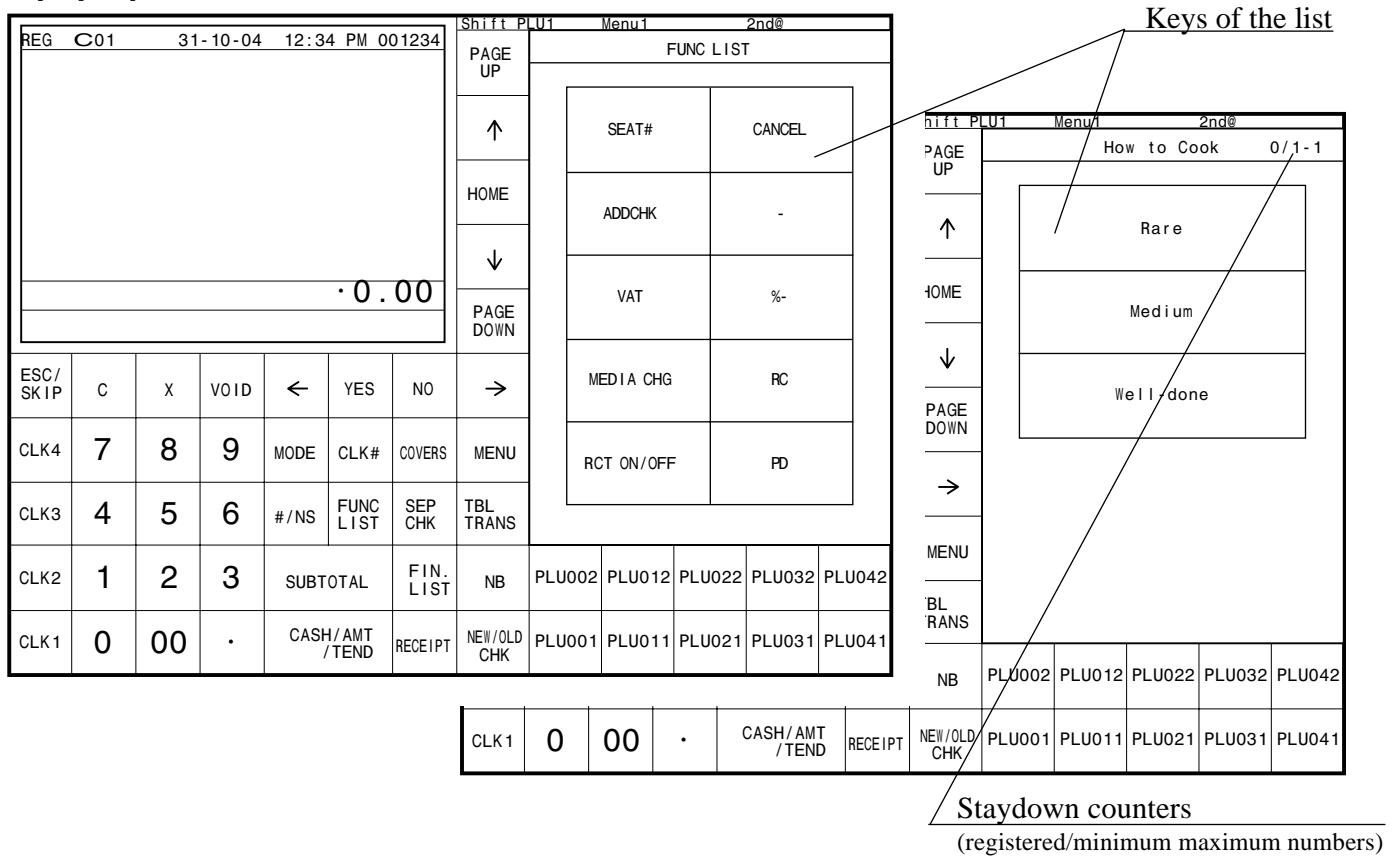
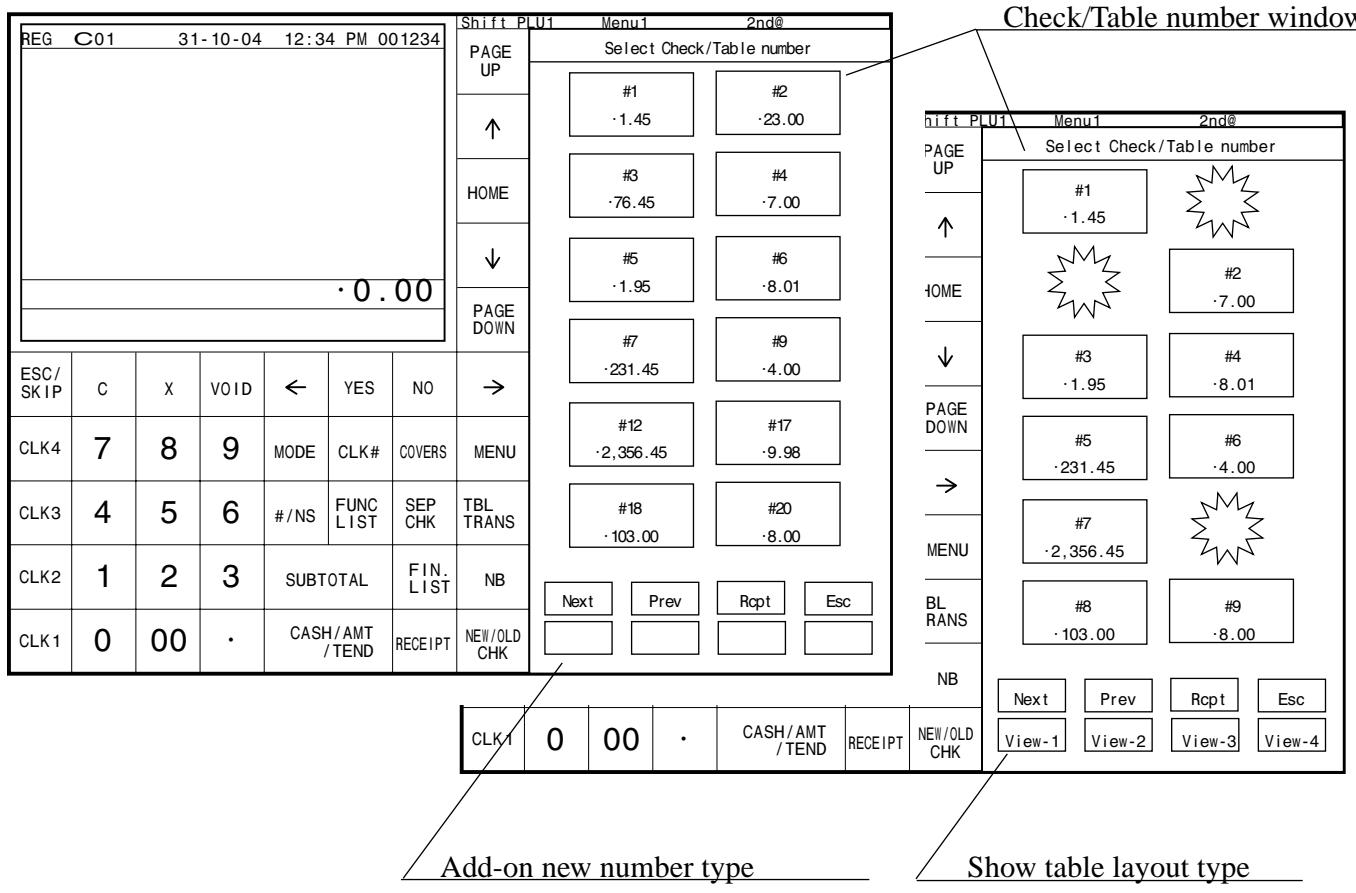
Check number pop-up window
Allocatable functions
You can tailor a keyboard to suit your particular type of business.
Consult your CASIO dealer for detail information.
Add check
Use this key in a check tracking system to combine the details of more than one check into a single check.
Arrangement
Use this key to activate an arrangement program programmed in the arrangement file. Any operation that can be performed from the keyboard, as well as mode, can be programmed in an arrangement program, and can be performed merely by pressing this key. In addition, one numeric entry can be included in an arrangement program. In this case, input the number and press this key. The mode control function of this key can be programmed for all modes except for the OFF mode.
Bill copy
Use this key to issue bill copy.
Break-in/out
Use this key to register the starting/finishing time when employees have a recess.
Charge
Use this key to register a charge sale.
Check
Use this key to register a check tender.
Check endorsement
Use this key to print a preset check endorsement message using the slip printer.
Check print
Use this key to print the check on the slip printer.
Clerk number
Use this key to assign a clerk's secret number.
Clerk transfer
Use this key to transfer opened checks to another clerk.
Clock-in/out
Use this key to register the time when the employees start/finish their job.
Coupon
Use this key for registering coupons.
Coupon number
Use this key for registering mix and match discount by entering coupon number.
Coupon 2
Use this key to declare the next item registration as coupon.
Credit
Use this key to register a credit sale.
Cube
This key provides the same functions as the Square key. In addition, this key also has a cube multiplication function.
Currency exchange
Use this key to convert foreign currency to local currency or vice versa using the exchange rate preset for the key and displays the result.
Use this key for conversions of a home currency subtotal or merchandise subtotal to equivalent of another country's currency.
Use this key for conversions of another country's currency to the equivalent of the home currency.
Customer ID number
Use this key to enter customer ID number.
Declaration
Use this key to declare in drawer amount for money declaration.
Department
Use this key to register department.
Department number
Use this key to enter department number.
Deposit
Use this key to register deposits.
Discount
Use this key to register discounts.
Display mode
Use this key to choose item consolidation display format or non-item consolidation display format.
Dutch account
Use this key to share the total payment by customers.
Eat-in
Use this key to specify if the customer eats in the restaurant. Before closing a transaction press this key.
EBT (electronic benefit transfer)
Use this key to register an EBT amount with a tender amount input.
Electronic journal display
Use this key to display the stored journal.
Euro/Paid out
Euro key: Use this key to convert the main currency to the sub currency (the euro/the local money), when registering the subtotal amount. This key is also used for specifying sub currency while entering an amount of payment.
Paid out key: Use this key following a numeric entry to register money paid out from the drawer.
1st unit price
Use this key to register a specific item at the first unit price.
Food stamp shift
Use this key to change food stamp status.
Food stamp subtotal
Use this key to obtain the food stamp applicable amount.
Food stamp tender
Use this key to register a food stamp payment amount with a tender amount input.
House Bon
Use this key to register items for in-store use.
Item search
Use this key to search an item by its name.
List
Use this key to display menu lists.
List number
Use this key to enter list number.
Loan
Use this key to input the amount of money provided making change.
Location change
Use this key to select the window which shows the table layout of each floor/part of the restaurant.
Ketten Bon
Use this key to enter quantities for multiplication. Multiplication by this key issues singular order prints.
Use this key to change media in drawer amounts.
Merchandise subtotal
Use this key to obtain subtotal excluding the add-on tax amount and the previous balance.
Minus
Use this key register subtraction.
New check
Use this key in a check tracking system to input a new check number in order to open a new check under that number.
No sale
Use this key to open the drawer between transaction.
Non-add
Use this key to print reference numbers (personal check number, card number, etc.)
Normal receipt
Use this key to change the order status from Bon to normal.
OBR (Optical barcode reader)
Use this key to input optical barcodes manually.
Old check
Use this key in a check tracking system to input the number of an existing check (previously created by the New check key) whose details are stored in the check tracking memory. Existing checks are reopened to perform further registration or to finalize them.
Open
Use this key to temporary release a limitation on the number of digits that can be input for a unit price.
Open 2
Use this key to suspend the compulsory specifications.
Open check
Use this key to issue an open check report of an assigned clerk.
Operator number
Use this key to enter a clerk number during clerk transfer.
Operator X/Z
Use this key to issue a clerk's individual X/Z report.
Order character change
Use this key to change the order character. The order characters not only of the item but in the order character table can be printed.
Payment
Use this key to declare the following transactions as payment.
PLU number
Use this key to enter PLU number.
Plus
Use this key for registering surcharge.
Pick up
Use this key to pick up media in drawer.
Premium
Use this key to apply a preset % or manual input % to obtain the premium amount for the last registered item or subtotal.
Price
Use this key to register an open PLU.
Price inquiry
Use this key to confirm the price and descriptors of PLU without registering.
Price shift
Use this key to shift a PLU item/flat-PLU key to the 1st ~ 2nd unit price, a scanning PLU to the 1st ~ 3rd unit price.
Post entry
Use this key to indicate the reserved item of set menu and register it as a fixed item later on.
Post receipt
Use this key to produce a post-finalization receipt.
Quantity/for
This key provides the same functions as the multiplication key. In addition, this key also has a split price function.
Recall
Use this key for recalling the transferred check number by the store key. When this key is pressed, the check number will appear in order of the oldest record.
Receipt on/off
Use this key to change the setting "Receipt issue"/"No receipt issue" in REG/REF/REG- modes.
This key should be pressed twice.
Received on account
Use this key following a numeric entry to register money received for non-sale transaction.
Refund
Use this key to input refund amounts and void certain entries.
Round repeat
Use this key to register the same items which were ordered just before.
Seat number
Use this key to enter and print seat number.
2nd unit price
Use this key to register a specific item at the second unit price.
Separate check
Use this key in a check tracking system to separate selected items from one check to another check.
Selective item subtotal
Use this key to obtain the selective item 1/2 of subtotal amount.
Shift PLU
Use this key to shift flat-PLU key to the n-th (1 8) level.
Slip feed/release
Use this key to feed slips inserted into the slip printer. This is done by specifying the number of feed lines. This key is also used to release the slip paper holder if numbers are not entered.
Slip back feed/release
Use this key to back feed slips inserted into the slip printer. This is done by specifying the number of feed lines. This key is also used to release the slip paper holder if numbers are not entered.
Slip print
Use this key to execute a slip batch printing on the slip printer. Pressing this key prints the sales details. Actual printing is performed following receipt issuance.
Square
This key provides the same functions as the Multiplication key. In addition, this key also has a square multiplication function.
Stock inquiry
Use this key to check the current stock quantity for a PLU without registering.
Store
Use this key for storing the check number of the registered items. When this key is pressed, registered item data will be stored, and then these data will transfer to the youngest check number.
Subdepartment
Use this key to register items for the subdepartment.
Subdepartment number
Use this key to enter subdepartment number.
Substitution
Use this key to replace group PLU with a PLU which is not preset in the pulldown menu.
Table number
Use this key to input table numbers.
Table sharing
Use this key to assign one table to two or more customer groups.
Takeout
Use this key to specify if the customer takes out items, before total a transaction. Press this key for the tax exemption.
Tax exempt
Use this key to change taxable amounts to nontaxable amounts.
Tax shift
Use this key to activate the tax table which is specified by the same tax status programmed for this key.
Taxable amount subtotal
Use this key to obtain taxable amount subtotal.
Text print
Use this key to enter characters to print.
Text recall
Use this key to print preset characters.
Tip
Use this key to register tips.
Tray total
Use this key to display the total amount for all registrations from the last registration until this key is pressed or registrations between presses of this key.
Validation
Use this key to validate item or transaction amounts on the slip.
VAT
Use this key to print VAT breakdowns.
Keys in check No. pop-up window
Special function keys to control check No. pop-up window are located at the bottom of the screen.
Next (Page up)
Use this key to turn the pop-up window forwards.
Previous (Page down)
Use this key to turn the pop-up window backwards.
Escape
Use this key to terminate the operation of the pop-up window and close it.
View-1 View-4 (Location change)
Use this key to select the pop-up window which shows the table layout of each floor/part of the restaurant.
How to use the terminal
The following describes the general procedure you should use in order to get the most out of the terminal.
BEFORE business hours…

- Check to make sure that the terminal is plugged in securely.
- Check to make sure there is enough paper left on the roll of the remote printer.
- Read the financial totals to confirm that they are all zero.
- Check the date and time.
DURING business hours…
- Register transactions.
Periodically read totals.
AFTER business hours…

- Reset the daily totals. Page 42
- Read the electronic journal. Page 81
- Empty the cash drawer and leave it open. Page 12
Take the cash to the office.
Clerk sign on/off and mode change
Assigning a clerk
ALL
Mode
In Germany, you can assign clerks by attaching an i-Button key to the receiver or by clerk number.
In other areas, you can assign clerks by using clerk key or by clerk secret number.
The method you of assigning clerk depends on the programming of the terminal.
Clerk key
You can assign the clerk or cashier using the four (CLK1 thru CLK4) keys on the keyboard or clerk icon in the clerk pop-up window.
Clerk number key
The CLK# key is used for the clerk secret number key.
You can assign the clerk or cashier by attaching an i-Button key to the receiver.
Clerk sign on
| Clerk key | OPERATION
Clerk number key | i-Button key |
| Signing clerk 1 on: | CLK1 | * 1 CLK# | attach i-Button key 1 |
| Signing clerk 2 on: | CLK2 | * 2 CLK# | attach i-Button key 2 |
| | : | : |
| Signing clerk 6 on: | -- | * 6 CLK# | attach i-Button key 6 |
| | Clerk secret number
(1 ~ 6 is set as default.) | |
- If you do not want the clerk secret number to be shown on the display, press CLK# before entering the number.
Clerk sign off
| Clerk key | OPERATION
Clerk number key | i-Button key |
| Signing clerk off: | 0 CLK1(∼CLK4) | 0 CLK# | remove i-Button key |
- The current clerk is also signed off whenever you turn off the terminal or finalize a transaction.
Important!
- A clerk cannot sign on unless other clerk is signed off.
- The signed on clerk is identified on the receipt/journal.
Mode change
Even the mode switch is not allocated on the terminal, you can change the mode of the terminal by pressing the MODE key.
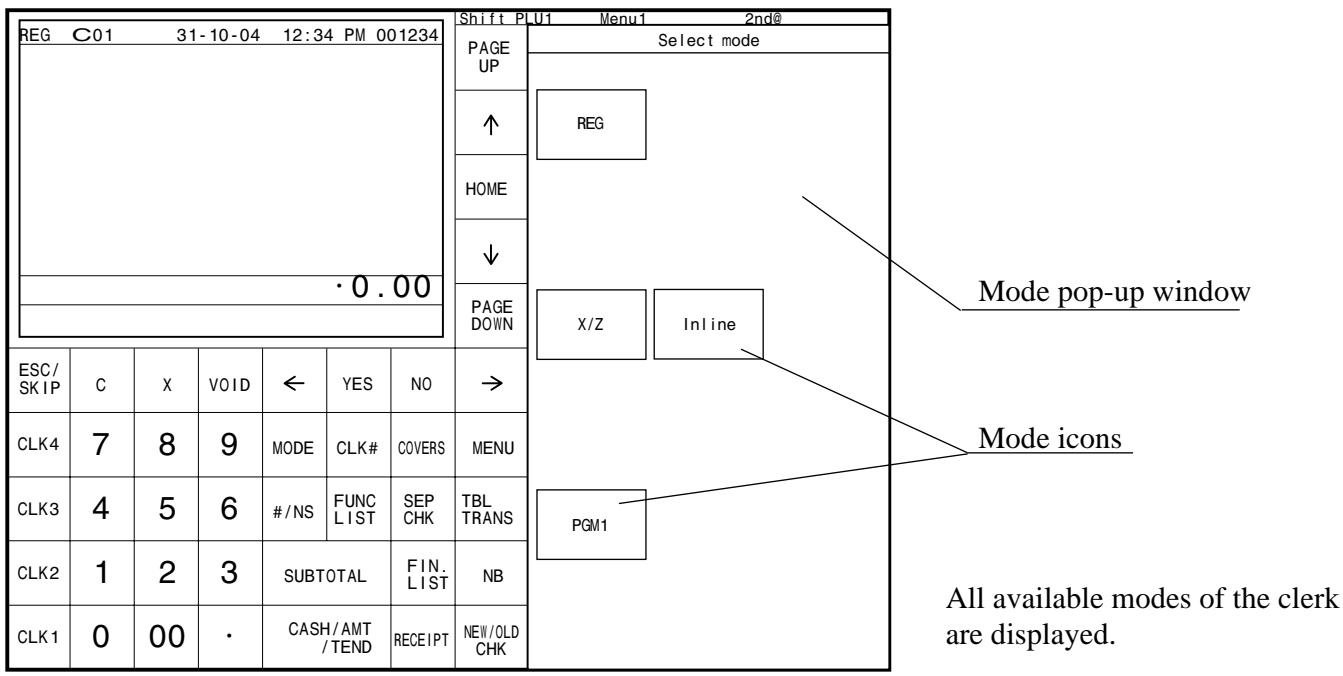
Mode pop-up window
When you press the MODE key, the mode pop-up window is appeared. In the mode pop-up window, only the allowable mode icons of the signed on clerk is appeared. You can change the mode of the terminal by pressing the mode icons in the mode pop-up window.
- When a manager signs on.
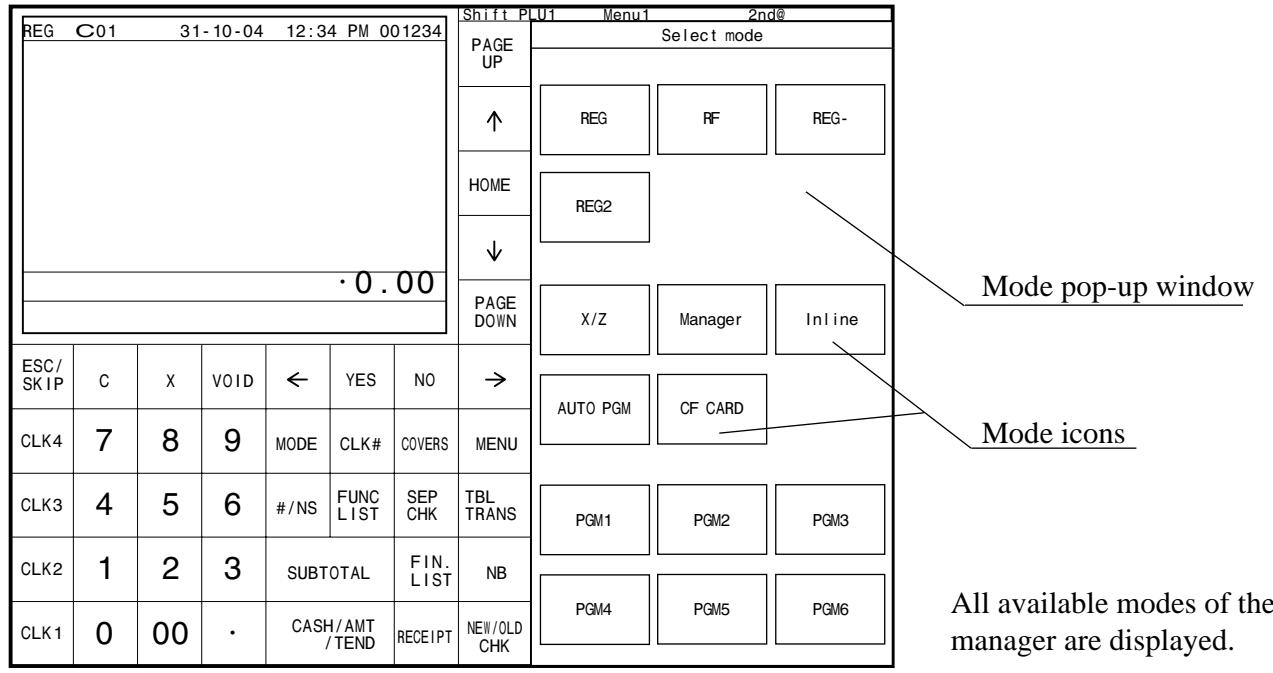
- When a clerk signs on
Displaying the time and date
REG
Mode
You can show the time or date on the display of the terminal whenever there is no registration being made.
To display and clear the date/time
OPERATION

Date/time appears on the display.
DISPLAY
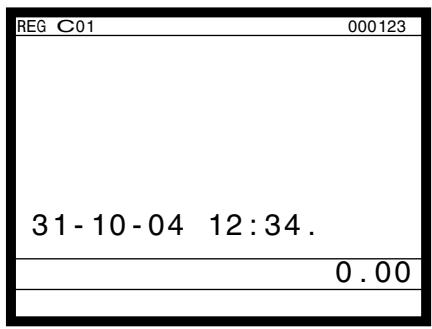

Clearedatetimetdisplay.
Adjusting the time and date
PGM1
Mode
To adjust the time
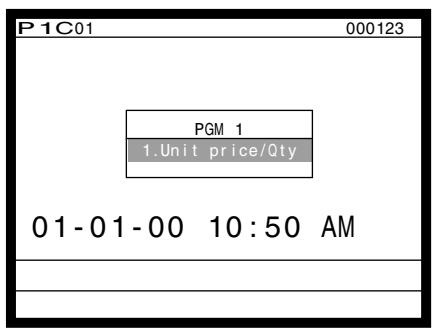
You can adjust the time or date in the PGM 1 mode.
OPERATION

Press MODE key and press PGM1 icon.

Enter the current time in 4 digits (hour, minutes order) and press the × key.
Clear the date/time display.
DISPLAY
To adjust the date
OPERATION
Press <MODE> key and press <PGM1> icon.

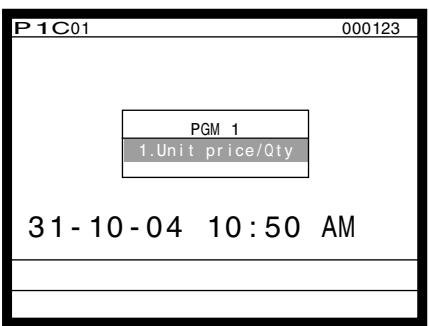
Enter the current date in 6 digits (year, month, day order) and press the × key.

Clear the date/time display.
DISPLAY
Preparing and using flat-PLU keys
Registering flat-PLU keys
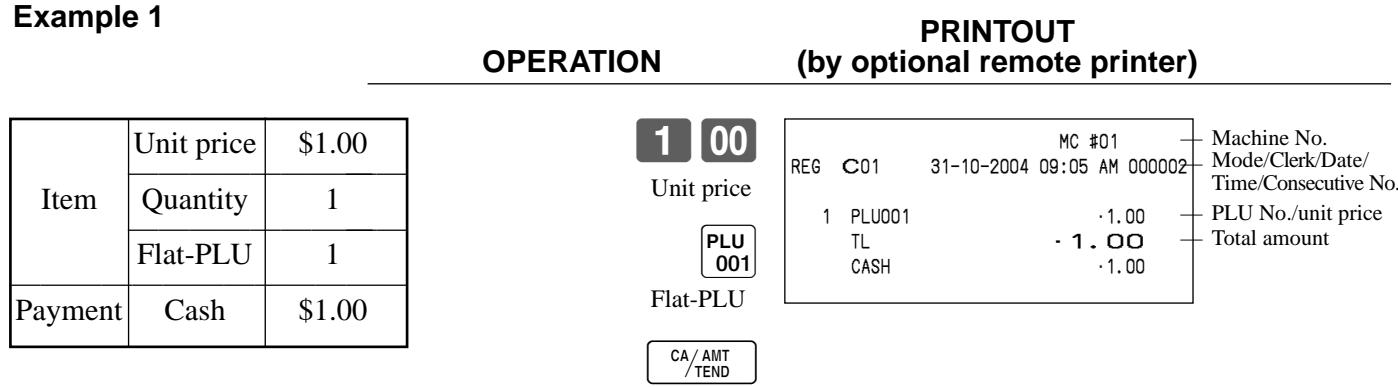
The following examples show how you can use the flat-PLU keys in various types of registrations.
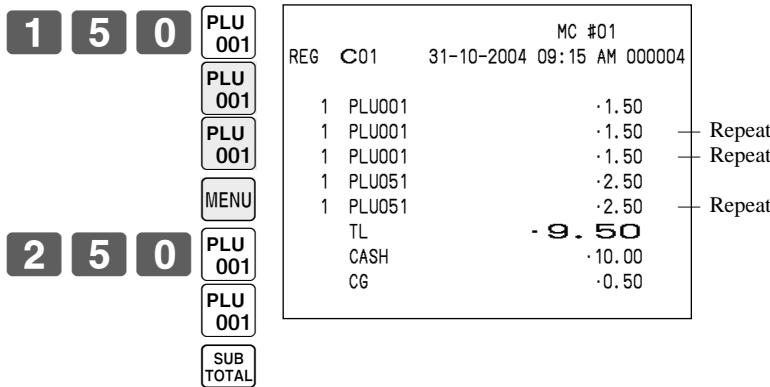
Single item sale
Example 1
Example 2 (Subtotal registration and change computation)
OPERATION
PRINTOUT
(by optional remote printer)
| Item | Unit price | 12.34 |
| Quantity | 1 |
| Flat-PLU | 1 |
| Payment | Cash | 20.00 |


Amount tendered
| Item 1 | Unit price | 1.50 |
| Quantity | 3 |
| Flat-PLU | 1 |
| Item 2 | Unit price | 2.50 |
| Quantity | 2 |
| Flat-PLU | 51 |
| Payment | Cash | $10.00 |
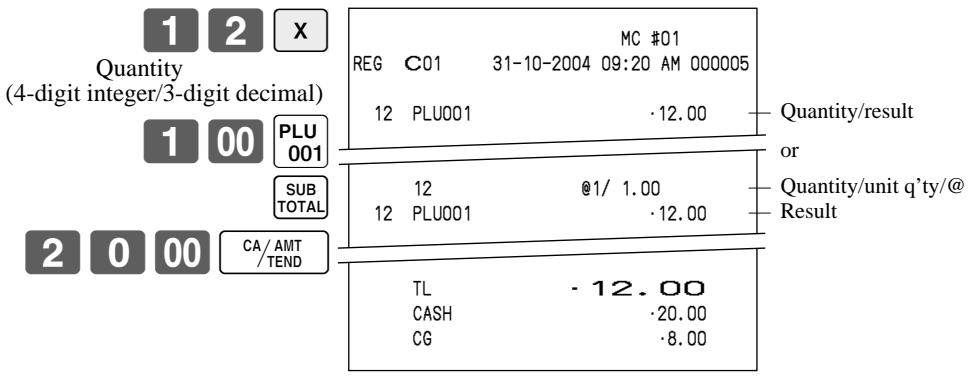
OPERATION


Multiplication
OPERATION
PRINTOUT
(by optional remote printer)
| Item | Unit price | 1.00 |
| Quantity | 12 |
| Flat-PLU | 1 |
| Payment | Cash | 20.00 |
Programming to flat-PLU
Flat-PLU unit price programming procedure
Step 1. Press MODE and icon to turn "PGM-1" and press YES.
Step 2. Select "1.PLU" and press YES.
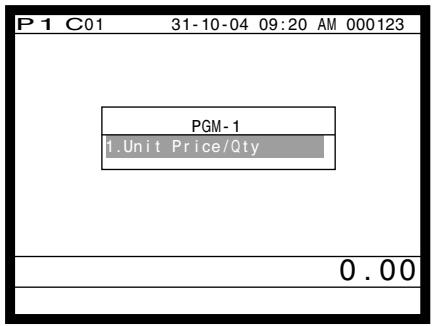
Step 1. screen
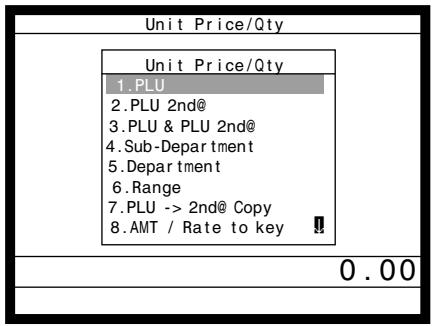
Step 2. screen
Step 3. Select the PLU record you want to program by pressing the flat-PLU key directly, by entering PLU record No. and YES, or by entering random PLU code and PLU.
Step 4. Enter appropriate unit price and YES
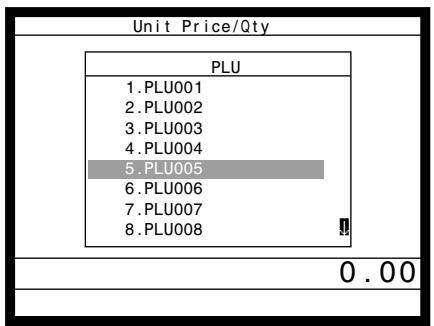
Step 3. screen
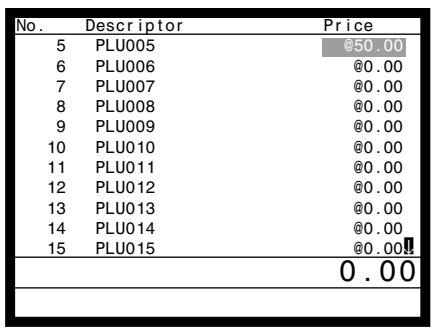
Step 4. screen
Step 5. Repeat the step 4., if you program the next record.
Press and repeat the step 3. and 4., if you program to the other record.
Step 6. Press repeatedly to return to the "Step 1. screen".
Flat-PLU department link/tax status/listing capacity programming procedure
Step 1. Press MODE and <PGM3> icon to turn "PGM-3".
Step 2. Select "3.Key Feature" and press YES, then select "1.PLU" and press YES.
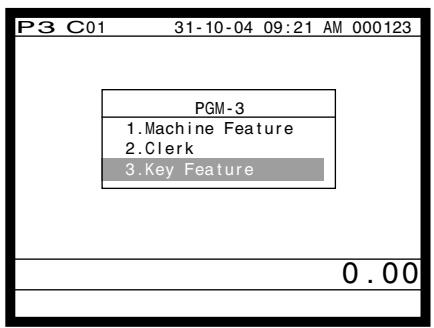
Step 1. screen
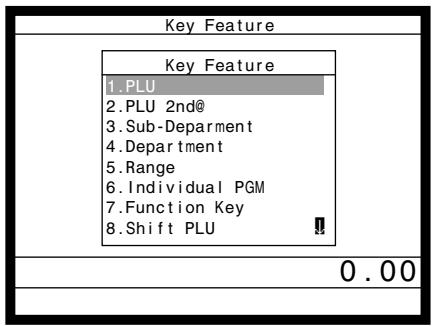
Step 2. screen
Step 3. Select the PLU record you want to program by pressing the flat-PLU key directly, by entering PLU record No. and YES, or by entering record No./random PLU code and PLU.
Step 4. Link department programming:
Select "Dept Link" line, press , select the appropriate link department and .
Tax status programming:
Select "Taxable status" line, and press YES select the appropriate tax status.
Listing capacity programming:
Select "High Amount Limit" line (press three times), and enter the amount and press YES.
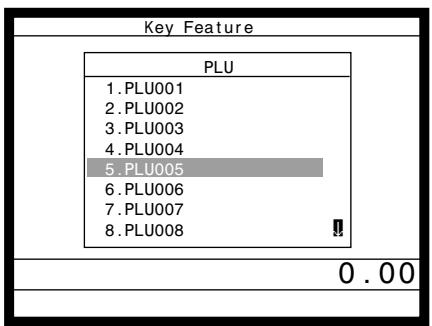
Step 3. screen
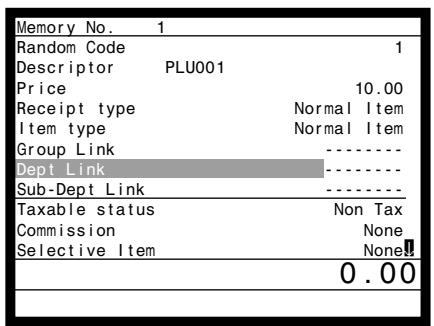
Step 4-1. screen
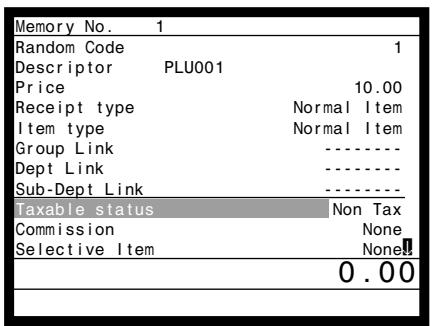
Step 4-2. screen
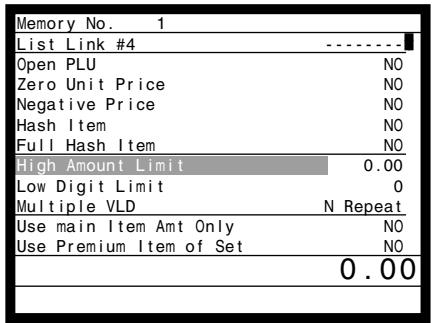
Step 4-3. screen
Step 5. Press ESC/SKIP and repeat the step 3. and 4., if you program to the other record.
Step 6. Press repeatedly to return to the "Step 1. screen".
Registering flat-PLU keys by programming data
REG
Mode
Preset price
OPERATION
PRINTOUT
(by optional remote printer)
| Item | Unit price | (1.00) preset |
| Quantity | 1 |
| Flat-PLU | 2 |
| Payment | Cash | 1.00 |
P
002
CA
/AMT TEND
02
1
1
EG
C01
31-
0-20
MC
01
。
PL
U002
.
1.00
TL
.
-
1.1
00
CASH
1.00
Preset tax status
OPERATION
PRINTOUT
(by optional remote printer)
| Item 1 | Unit price (2.00) | (preset) |
| Quantity | 5 |
| Flat-PLU | 3 |
| Taxable | (1) |
| Item 2 | Unit price (2.00) | (preset) |
| Quantity | 1 |
| Flat-PLU | 4 |
| Taxable | (2) |
| Payment | Cash | $20.00 |
2
C
0
0
A/T
AMT END
]
1
TL
2
.
12
2
.6
60
0
- Before this registration, tax table programming is necessary.
Locking out high amount limitation
OPERATION
PRINTOUT
(by optional remote printer)
ERROR ALARM
(Exceeding high amount)
| Item | Unit price | 1.05 |
| Quantity | 1 |
| Flat-PLU | 3 |
| Max.amount | (10.00) preset |
| Payment | Cash | $2.00 |
1
0
5
0
PI0
3
D.
MC
RE
G
C
31-
0-2
200
40
9:4
0
M
00
009
1
1
]
1
G
0.
95
1
2
00
CA
/AT
MTND
Preparing and using discounts/reductions
This section describes how to prepare and register discounts/reductions.
Programming discount rate and reduction amount
Step 1. Press MODE and icon to turn "PGM-1" and press YES.
Step 2. Press twice and select "10.Pulldown Group" and press .
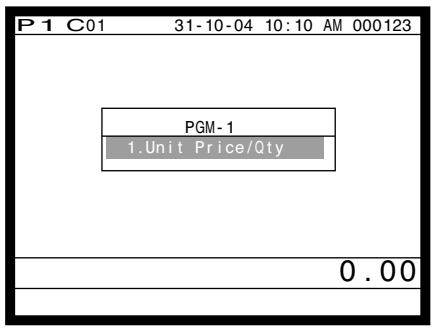
Step 1. screen
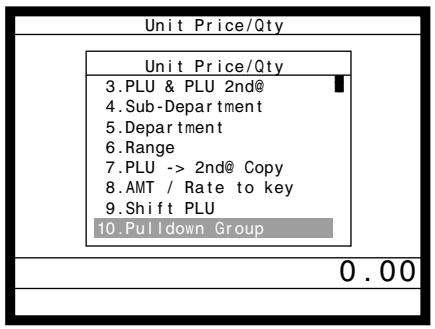
Step 2. screen
Step 3. Press PAGEFive times and press YES
Step 4. Discount rate: Select the % - record, enter discount rate (ex. 12.34% 123400 ) and press . Reduction amount: Select the - record, enter reduction amount and press .
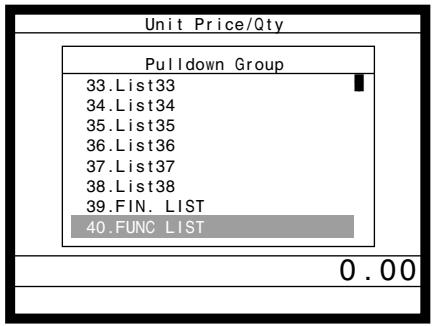
Step 3. screen
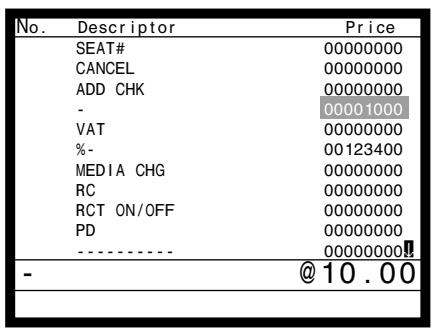
Step 4. screen
Step 5. Press repeatedly to return to the "Step 1. screen".
NOTE:
In case of programming a rate or an amount to the actual key (not in a list window), select "8.AMT/Rate to key" in the Step 2, enter the appropriate rate or amount and press the key.
Registering discounts
REG
Mode
The following example shows how you can use the % - key in various types of registration.
Discount for items and subtotals
OPERATION
PRINTOUT
(by optional remote printer)
| Item 1 | Unit price | 5.00 |
| Flat-PLU | 1 |
| Taxable | (1)_preset |
| Item 2 | Unit price | (10.00)_{\text{preset}} |
| Flat-PLU | 2 |
| Taxable | (2)_{\text{preset}} |
| Discount | Rate | (5%)_{\text{preset}} |
| Subtotal discount | Rate | 3.5% |
| Taxable | Nontaxable |
| Payment | Cash | $15.00 |
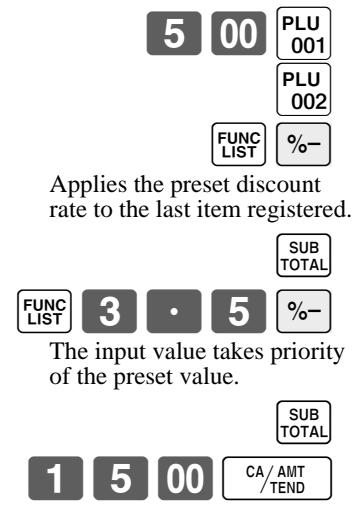
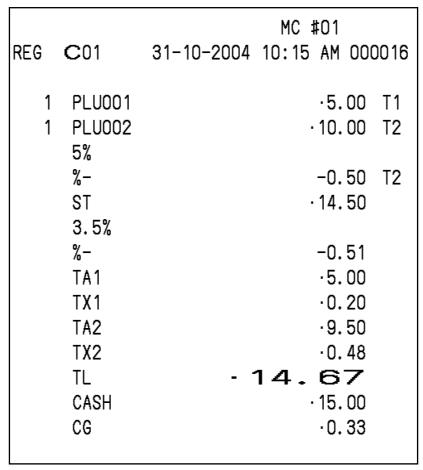
- You can manually input rates up to 4 digits long (0.01% to 99.99%).
Taxable status of the % - key
- Whenever you perform a discount operation on the last item registered, the tax calculation for discount amount is performed in accordance with the tax status programmed for that item.
- Whenever you perform a discount operation on a subtotal amount, the tax calculation for the subtotal amount is performed in accordance with the tax status programmed for the % - key.
Registering reductions
REG
Mode
The following examples show how you can use the - key in various types of registration.
Reduction for items
PRINTOUT
(by optional remote printer)
OPERATION
| Item 1 | Unit price | 5.00 |
| Flat-PLU | 1 |
| Taxable | (1)_preset |
| Reduction | Amount | 0.25 |
| Item 2 | Unit price | (6.00)_preset |
| Flat-PLU | 2 |
| Taxable | (1)_preset |
| Reduction | Amount | (0.50)_{\text{preset}} |
| Payment | Cash | $11.00 |
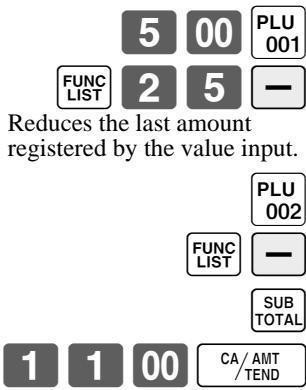
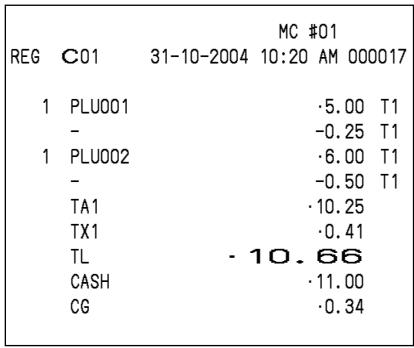
- You can manually input reduction values up to 7 digits long.
- If you want to subtract the reduction amount from the department or PLU totalizer, program "Net totaling."
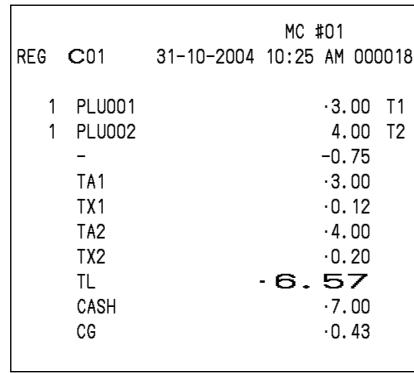
Reduction for subtotal
PRINTOUT
(by optional remote printer)
OPERATION
| Item 1 | Unit price | 3.00 |
| Flat-PLU | 1 |
| Taxable | (1)_preset |
| Item 2 | Unit price | 4.00 |
| Flat-PLU | 2 |
| Taxable | (2)_{\text{preset}} |
| Subtotal Reduction | Amount | 0.75 |
| Taxable | (No)_preset |
| Payment | Cash | 7.00 |
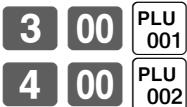

Reduces the subtotal by the value input here.

Registering credit and check payments
The following examples show how to register credits and payments by check.
REG
Mode
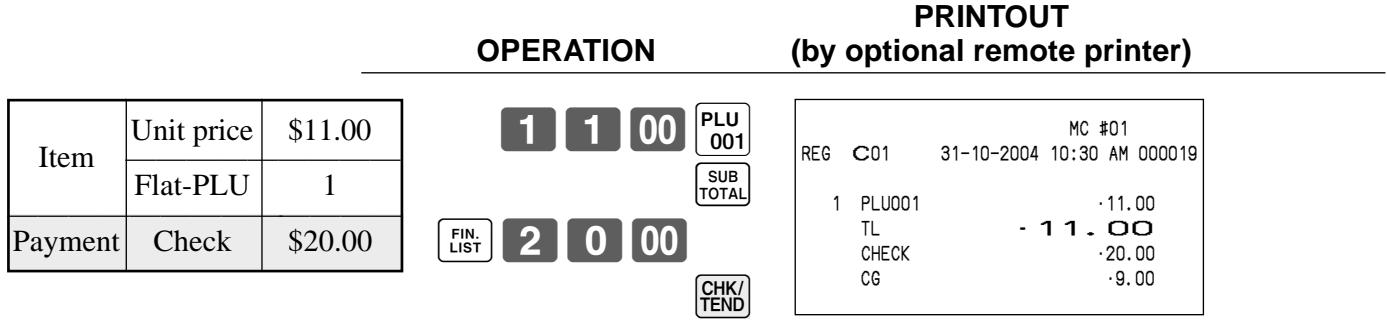
Check
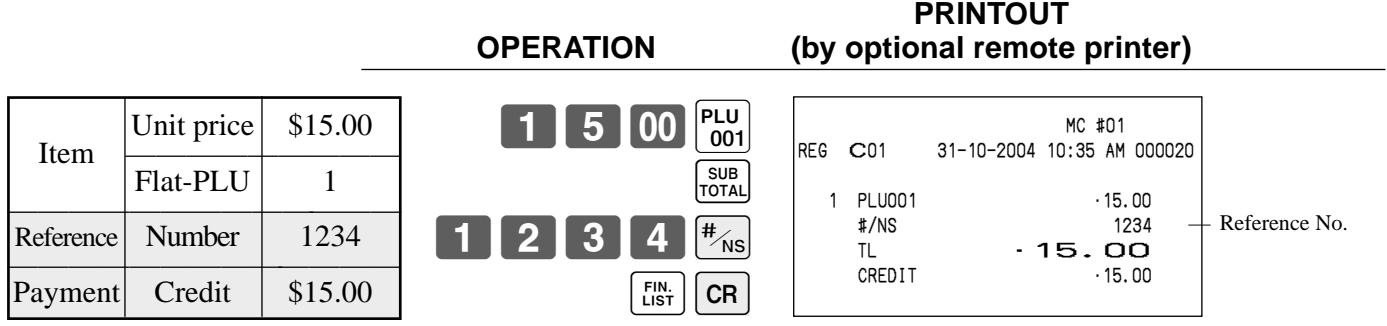
Credit
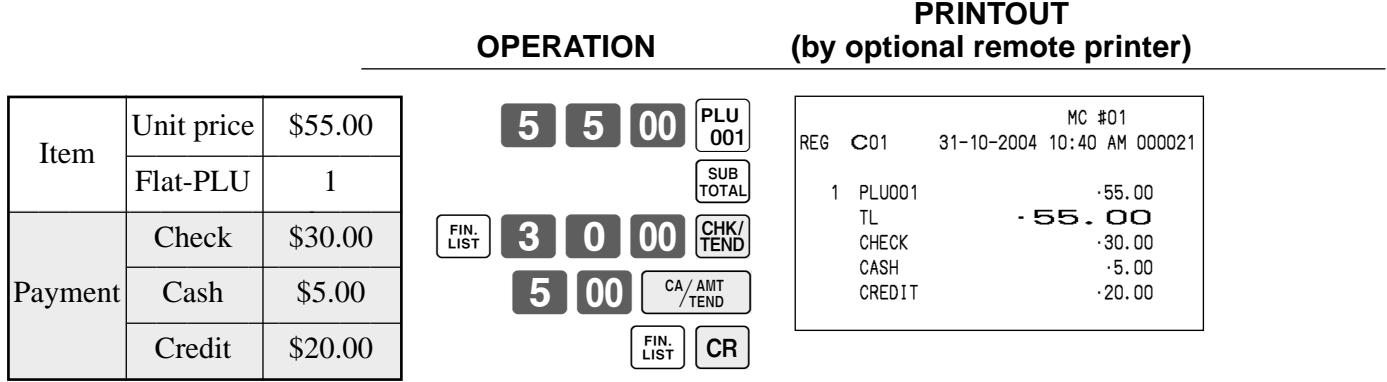
Mixed tender (cash, credit and check)
Registering both the Euro and local currency
REG
Mode
The following example shows the basic operation using the currency exchange function between the Euro and the local currency.
Case A
| Main currency | Local |
| Payment | Euro |
| Change | Local |
| Rate | 1 Euro = 0.5 FFr |
OPERATION
DISPLAY
6 0 0 PLU 001
FUNC LIST PD
1 5 00 CA/AMT /TEND Press the CA/AMT key to finalize the transaction. The change amount is shown in the programmed currency.
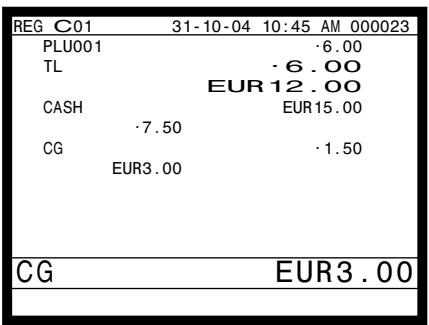
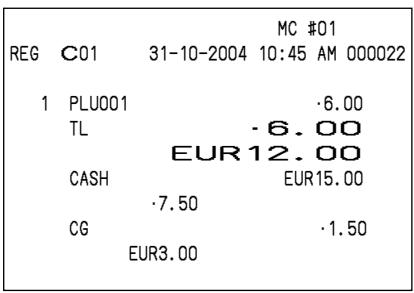
PRINTOUT (by optional remote printer)
Case B
| Main currency | Euro |
| Payment | Local |
| Change | Euro |
| Rate | 1 Euro = 0.5 FFr |
OPERATION
DISPLAY
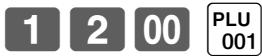
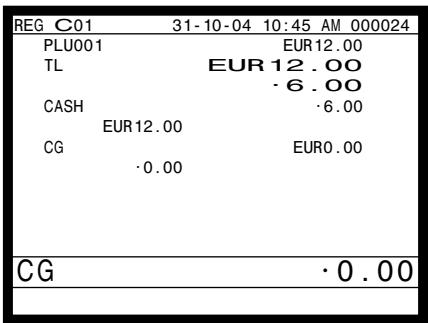
Press the PD key, which converts the subtotal amount into the sub currency by applying the preset exchange rate. And the subtotal in the sub currency is shown on the display.
6 00 CA/AMT /TEND Press the CA/AMT key to finalize the transaction. The change amount is shown in the programmed currency.
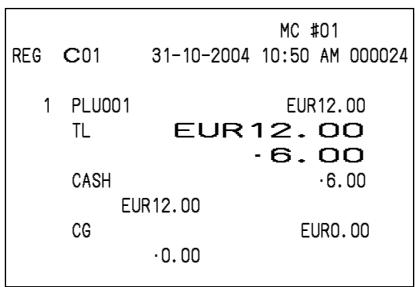
PRINTOUT (by optional remote printer)
Registering returned goods in the REG mode
The following example shows how to use the RF key in the REG mode to register goods returned by customers.
OPERATION
PRINTOUT
(by optional remote printer)
| Item 1 | Unit price | 2.35 |
| Flat-PLU | 1 |
| Item 2 | Unit price | 2.00 |
| Flat-PLU | 2 |
| Item 3 | Unit price (1.20) preset | 3 |
| Flat-PLU |
| Returned Item 1 | Unit price | 2.35 |
| Flat-PLU | 1 |
| Returned Item 3 | Unit price (1.20) preset | 3 |
| Flat-PLU |
| Payment | Cash | 2.00 |

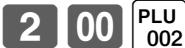
PLU 000
003
RF

Press RF before the item you want to return.
RF
PLU
003
SUB
TOTAL
CA/AMT/TEND
| MC #01 |
| REG | C01 | 31-10-2004 11:00 AM 000025 |
| 1 | PLU001 | ·2.35 |
| 1 | PLU002 | ·2.00 |
| 1 | PLU003 | ·1.20 |
| RF | ……… |
| 1 | PLU001 | -2.35 |
| RF | ……… |
| 1 | PLU003 | -1.20 |
| TL | ·2.00 |
| CASH | ·2.00 |
NOTE
- First of all, it is necessary to allocate RF key on the keyboard or in the function key list.
Registering returned goods in the REF mode
REF
Mode
The following examples show how to use the REF mode to register goods returned by customers.
First of all, press the MODE key and press [ icon to turn the REF mode.]
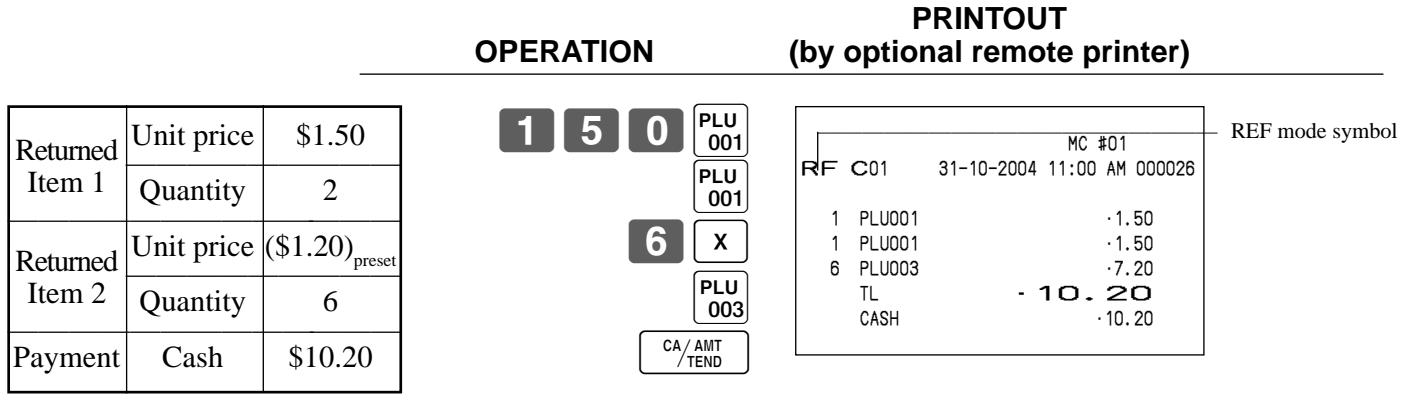
Normal refund transaction
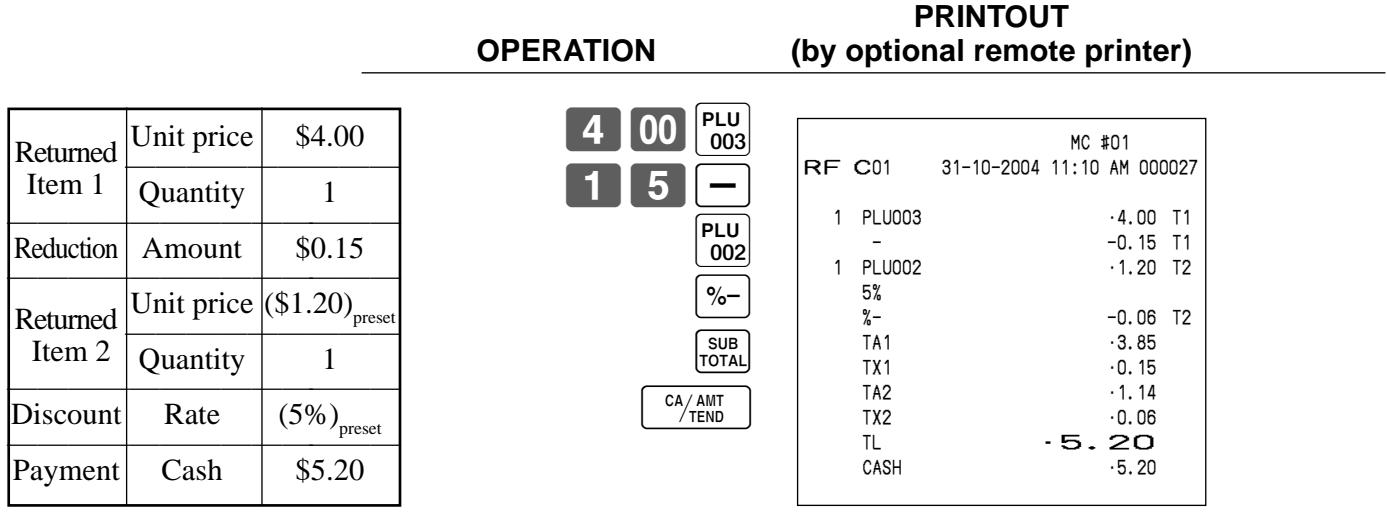
Reduction of amounts paid on refund
Important!
- To avoid miss registrations in the REF mode, return the mode to the former position immediately.
Registering money received on account
REG
Mode
The following example shows how to register money received on account. This registration must be performed out of a sale.
OPERATION
PRINTOUT
(by optional remote printer)
Received amount
\$700.00


RC
Amount can be up to 8 digits.

G C01
RC
MC #01
31-10-2004
11:15 AM 000028
-700.00
Registering money paid out
REG
Mode
The following example shows how to register money paid out from the terminal. This registration must be performed out of a sale.
OPERATION
PRINTOUT
(by optional remote printer)
Paid out amount
$1.50


Amount can be up to 8 digits.
REG C01
PD
MC #01
31-10-2004 11:20 AM 000029
1.50
Making corrections in a registration
REG
Mode
There are four techniques you can use to make corrections in a registration.
- To correct an item that you input but not yet registered.
- To correct the last item you input and registered.
- To correct the item you registered previously in the transaction.
- To cancel all items in a transaction.
OPERATION
PRINTOUT
(by optional remote printer)
2 00
C
Correction of unit price

1 00
PLU 001
1 2
X
Correction of quantity
1 PLU001
1.00
11 PLU002
22.00
TL
00
CASH
15.00
CREDIT
8.00
1 1 X
200
PLU 002
Correction of partial tender amount
SUB TOTAL
1000
1 5 00 CA/AMT/TEND
C
AMT
END
CR
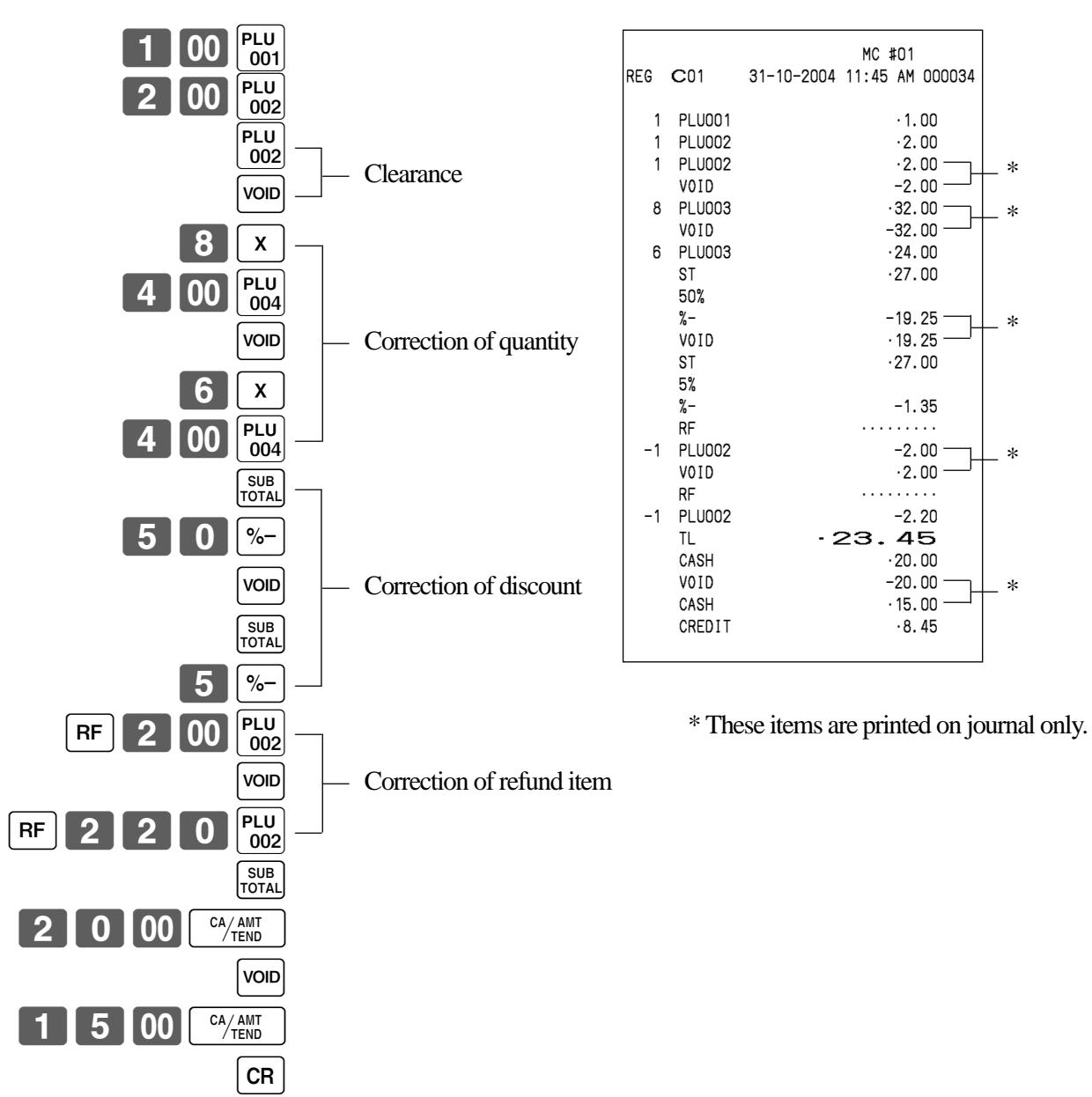
OPERATION
PRINTOUT
(by optional remote printer)
To correct the item you registered previously in this receipt
OPERATION
PRINTOUT
(by optional remote printer)
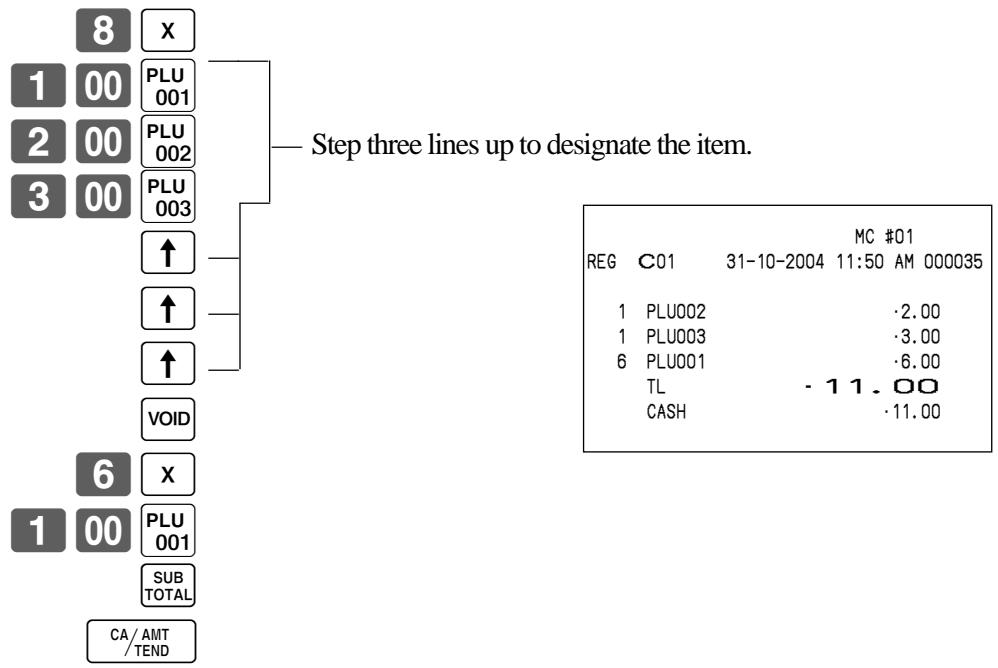
To cancel all items in a transaction
OPERATION
PRINTOUT
(by optional remote printer)
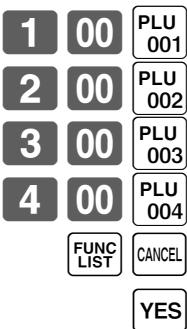
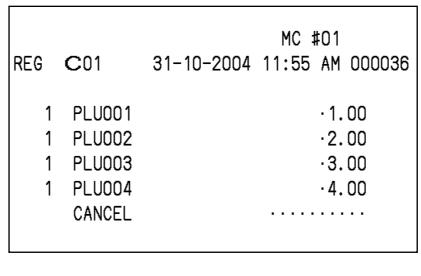
Pressing YES key is necessary to cancel the transaction.
No sale registration
REG
Mode
You can use the following procedure to open the drawer without registering a sale. This operation must be performed out of a sale.
OPERATION
PRINTOUT
(by optional remote printer)

No receipt is issued.
Printing the daily sales reset report
This report shows daily sales totals.
Procedure
Step 1. Press MODE and <X/Z> icon to turn "X/Z Report".
Step 2. Select "4.Daily Z" and press YES
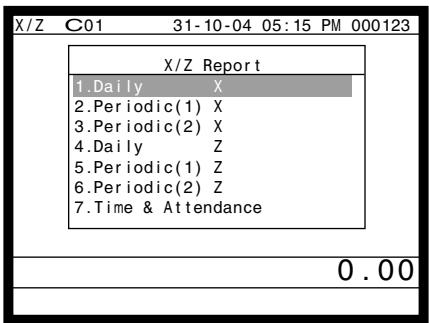
Step 1. screen
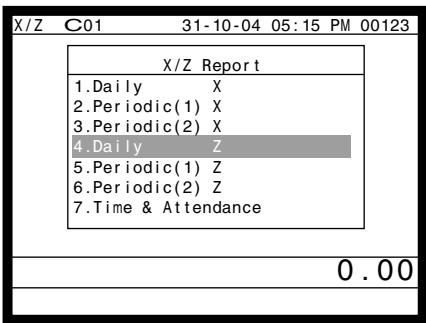
Step 2. screen
Step 3. Select "1.Batch" and press YES
Step 4. Select "1.Batch(1)" and press YES
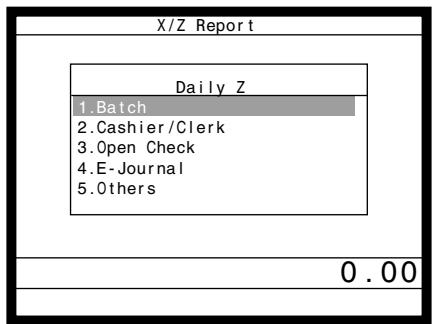
Step 3. screen
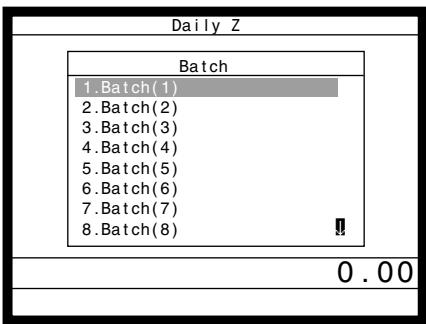
Step 4. screen
Step 5. Press ESC/SKIP repeatedly to return to the "Step 1. screen".
Printout (by optional remote printer)
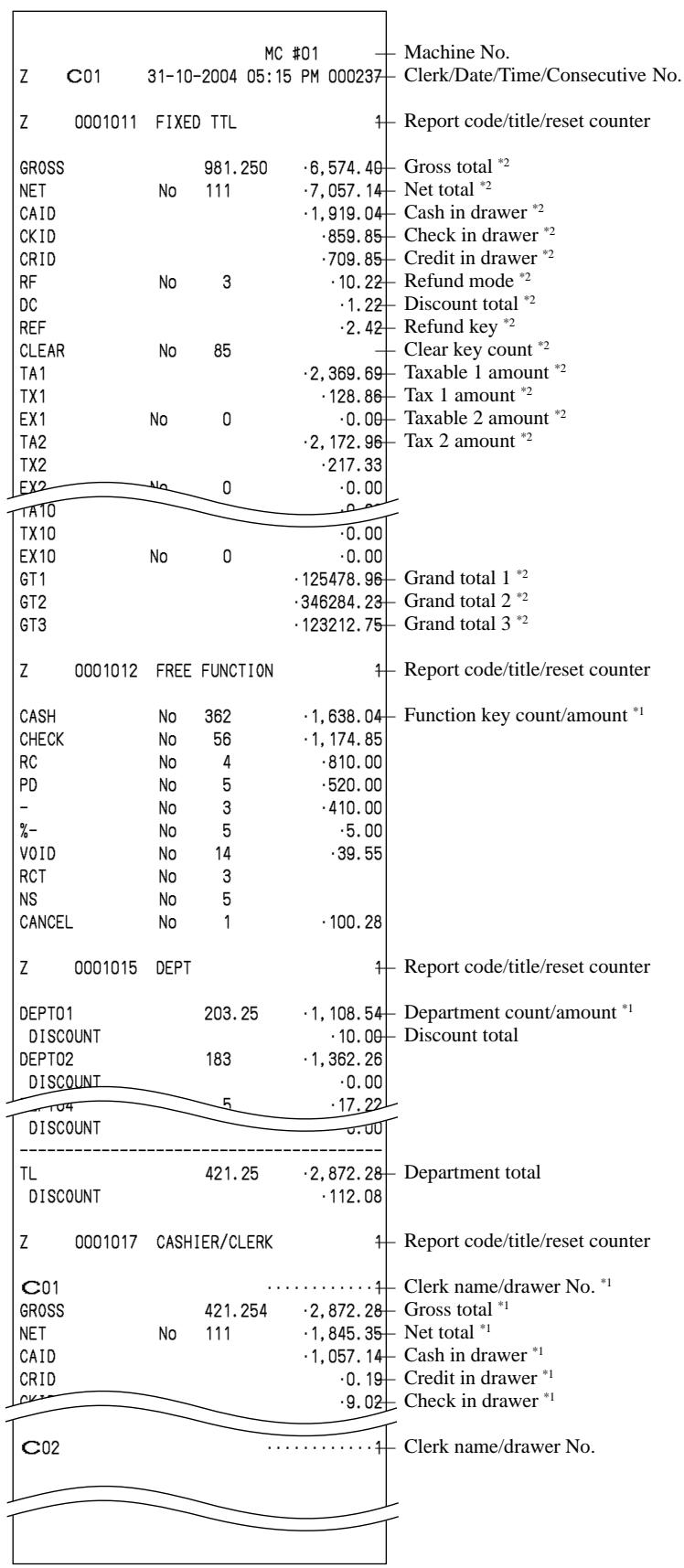
1 Zero totalled departments/functions/clerks are not printed by programming.
2 These items can be skipped by programming.
This chapter describes more sophisticated operations that you can use to suit the needs of your retail environment.
Post-finalization receipt
The post-finalization receipt lets you issue a receipt after finalization of the transaction.
Note that all of the following conditions must be satisfied.
- The receipt issuance status must be OFF.
- The transaction must be finalized in the REG, REF or REG- mode using <CASH> , <CHARGE> , <CREDIT> or <CHECK> .
Receipt example
OPERATION
| Item 1 | Flat 1 | 10.00 |
| Quantity | 1 |
| Item 2 | Flat 2 | 20.00 |
| Quantity | 1 |
| Payment | Cash | $30.00 |
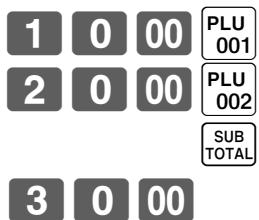
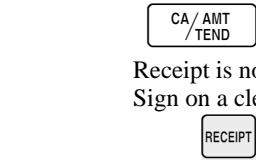
Post-finalization receipt is issued.
PRINTOUT (by optional remote printer)
| MC #01 |
| REG | C01 | 31-10-2004 01:00 PM 001050 |
| 1 | PLU001 | ·10.00 |
| 1 | PLU002 | ·20.00 |
| TL | | ·30.00 |
| CASH | | ·30.00 |
| CG | | ·0.00 |
Important!
- After initialization, the terminal can issue only one post-finalization receipt per transaction.
NOTE
- This key is used for "GUEST RECEIPT" key in check tracking operation.
Example 1
OPERATION
PRINTOUT
(by optional remote printer)
| Customer | Number | 2 |
| Item 1 | Flat 1 | 15.00 |
| Quantity | 1 |
| Item 2 | Flat 2 | 5.00 |
| Quantity | 1 |
| Payment | Cash | $20.00 |
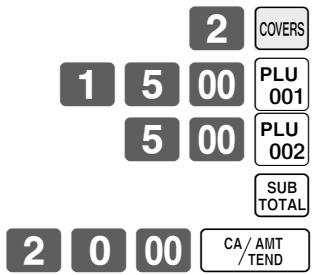
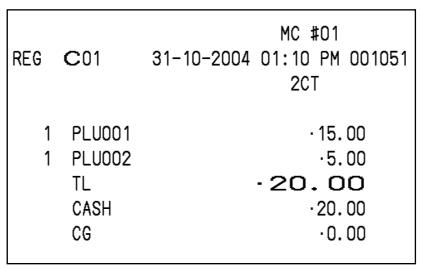
Example 2
You can only use the following operation to re-input the number of customers when (customer number key) is preset to allow re-input. When programming prohibits re-input of the number of customers, this
operation causes an error.
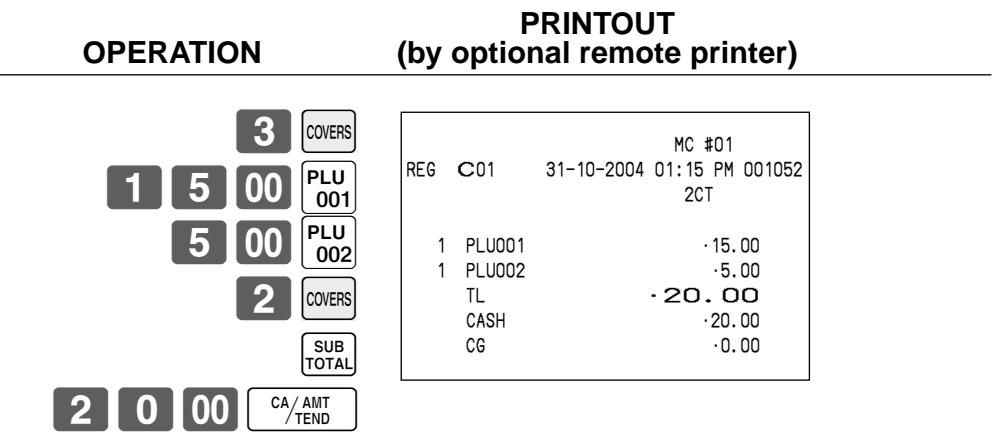
You can re-input the number of customers either immediately after the initial input or during later registration.
Example 3
You can use the following operation to add customers to an original number of customers input (when addition to the number of the customer is allowed). PRINTOUT
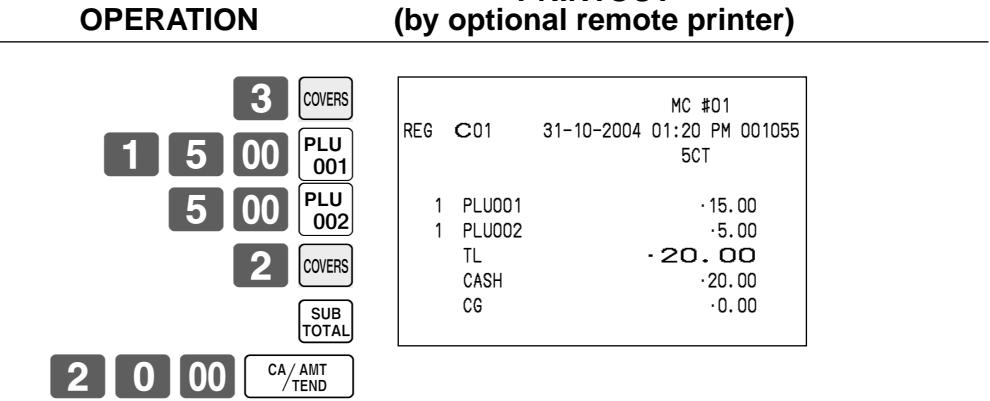
NOTE
- After initialization, the terminal does not print the number of customer on receipts.
Clerk interrupt function
There are two types of clerk interrupt function, illustrated by Procedure 1 and Procedure 2 below.
- In Procedure 1, each clerk possesses a unique clerk interrupt buffer, and so the clerk interrupt function gives each individual clerk the ability to perform an independent registration operation. In this case, each clerk is individually linked to a unique clerk interrupt buffer.
- In Procedure 2, multiple clerks use the same clerk interrupt buffer, and so a single clerk interrupt operation (clerk change during registration) can perform any registration that is in progress. In this case, multiple clerks are linked to a single clerk interrupt buffer.
In this procedure, "Allow clerk to open check No. belonging to another clerk" program is necessary. Note the following important points concerning the clerk interrupt function.
- The terminal must be programmed to allow use of the clerk interrupt function.
- In the REG, REF, and REG- modes, clerks can be change while a transaction is in progress, making it possible for multiple clerks to simultaneously perform registrations using a single terminal.
For example, if clerk 1 is interrupted while registering a transaction, clerk 2 can use the same machine to register a different transaction. Then clerk 1 can continue the original registration from the point where it was interrupted.
Procedure 1
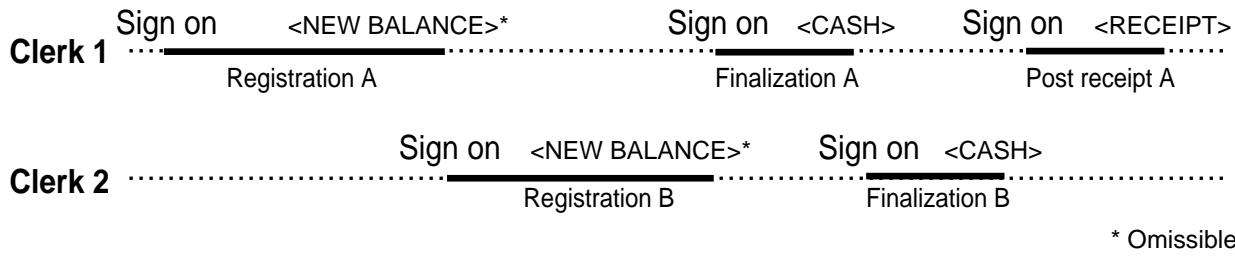
Procedure 2


* Ommissible
NOTES
- A cancel operation can be performed during registration by either of the clerks. When clerk 1 signs back on (after being interrupt by clerk 2), the cancel operation cancels only the items registered after signing back on (only this receipt) or from the top of the transaction. This is selectable by the key program.
- A < NB> key must be programmed in order to use clerk interrupt.
Printing slip
To perform batch printing on the slip printer, you must first connect the slip printer (SP-1300: option) and use the memory allocation operation (see program 5 mode in the programming manual) to reserve registration buffer memory. The capacity of the registration buffer memory is determined by the number of records of registration buffer memory reserved by the memory allocation operation.
There are two ways to print slips:
- Print all items that are registered until the last slip printing.
- Print only additional items that are registered until the last receipt issuance (ex. charge posting system). If you select "option 2", program "Auto Line Find" also.
Printing slips
The terminal can be connected to the optional SP-1300 slip printer, which features an automatic feed function and automatic back feed function.
Automatic feed function
This function makes it possible to program the number of line feeds that should be inserted from the normal print start position before starting slip printing. Even if line feeds are programmed for this function, they are not inserted for validation printing, check endorsement printing, and check printing performed using the slip printer.
Automatic back feed function
This function performs automatic back feed following slip printing, validation printing, and endorsement printing on the slip printer. The slip paper is released once the back feed operation is complete.
- Manual feed function
(slip feed/release key: assigned to the terminal's keyboard using the program 4 mode) can be used for manual feed of the slip paper. You perform manual feed by inputting a value for the number of lines (up to two digits in the range of 1 to 99) and then press .
- Manual back feed function
(slip back feed/release key: assigned to the terminal's keyboard using the program 4 mode) can be used for manual back feed of the slip paper. Manual back feed can be performed by inputting a value for the number of lines (up to two digits in the range of 1 to 99) and then press .
You can print slips using automatic or manual batch printing. The slip print operation can be performed in REG, REF, and REG- modes only.
Finalizing a registration without inserting a slip paper into the slip printer when the terminal is programmed as "Slip Automatic Batch Print Compulsory" produces an error.
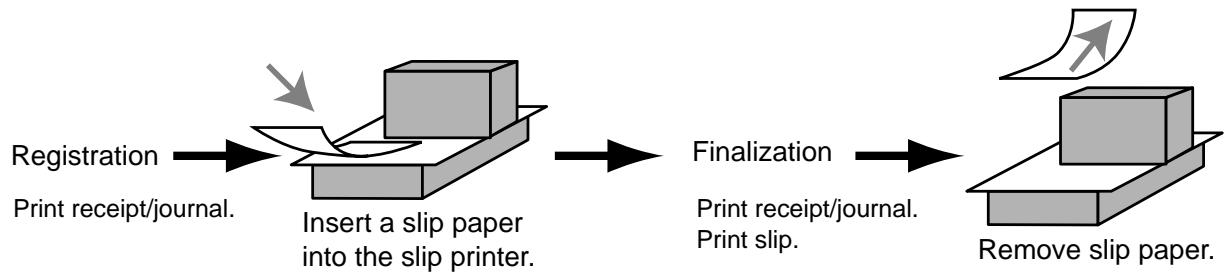
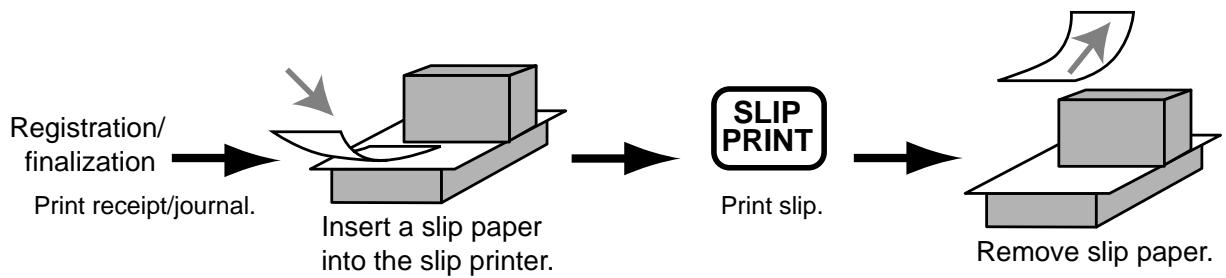
About the maximum number of slip lines
You can program the maximum number of lines that can be printed on a slip. Once you do, any attempt to exceed the preset maximum results in an error. When such an error occurs, change slip paper and press to restart printing.
Check tracking systems
Check tracking system
With the check tracking system, the amount, check number, number of slip print lines, machine number, date/time and registration detail data are stored in two files (check tracking index file and check tracking detail file).
- Check tracking detail file and index file are cleared by the following timing:
- Check number method: The same check number is not used during daily operation.
The check is cleared after printing finalized data on slip or guest check receipt, or the check is also cleared when the new or old check operation is made on the terminal finalized the transaction.
- Table number method: The same check number is used during daily operation.
The check is cleared after printing finalized data on slip or guest check receipt, or check is also cleared when the same finalized check number is assigned in new check operation.
You can select one of these options by programming.
- Auto new balance function
The terminal can be programmed so that whenever a clerk (by i-Button key) signs off while a check is open, a operation is automatically performed to temporarily finalize the open check.
- You can specify a range of checks that can be opened by each clerk. Once you do, any attempt by a clerk to open a check using a number that is not within his specified range results in an error.
Either of the following two operations can be used to correct input of a wrong check number.
,
Re-input the correct check number, or cancel the original check number, issue a receipt, and then re-input the correct check number.
,
Temporary finalize the original check number, issue a receipt, and then re-input the correct check number.
Printing examples are described under "Print Additional item only" programming.
Opening a check
Example
OPERATION
PRINTOUT
(by optional remote printer)
| Check# | 1234 |
| Table# | 33 |
| Item 1 | Flat 1 | 10.00 |
| Quantity | 2 |
| Item 2 | Flat 2 | 20.00 |
| Quantity | 2 |
| Item 3 | Flat 3 | $30.00 |
| Quantity | 1 |
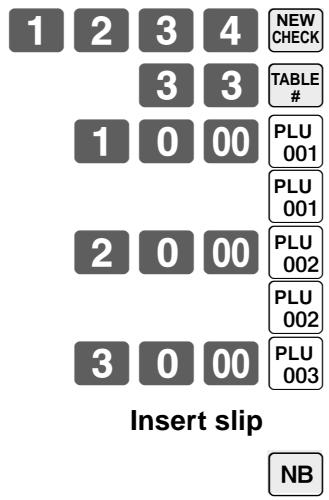
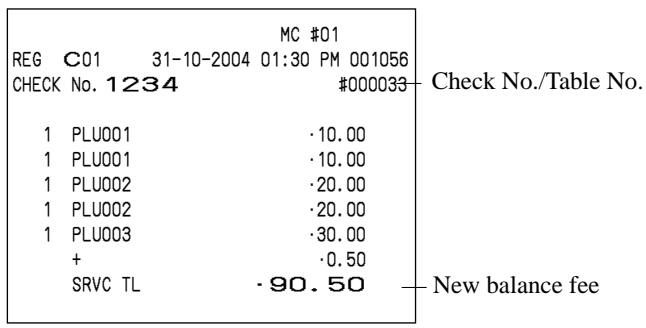
Remove slip
Press to temporarily finalize the transaction. If you want to finalize a check immediately, use , , or .
Adding to a check
Example
OPERATION
PRINTOUT
(by optional remote printer)
| Check# | 1234 |
| Table# | 33 |
| Item 1 | Flat 1 | 30.00 |
| Quantity | 1 |
| Item 2 | Flat 2 | 10.00 |
| Quantity | 1 |
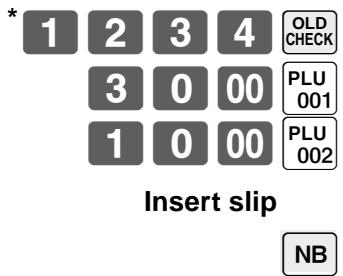
Remove slip
- Instead of designating the old check number directly, you can register the appropriate old check number (icon) in the check number pop-up window. (Refer to the page 18 of this manual.)
- The table number is stored in the check tracking index memory so its input is not required in this operation even if table number input is preset as compulsory. Table number input after inputting the check number may be performed, however, without generating an error.
- Once a check is opened under a number in REG mode, the same mode must be used to make additions to the check.
Issuing a guest receipt
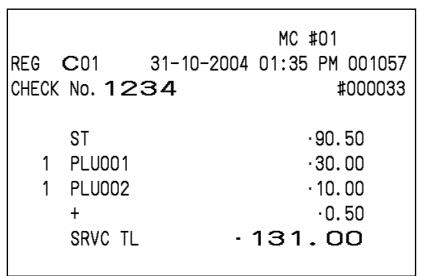
The following operation can be used to print out the balance of a temporarily finalized check.
Example
OPERATION
PRINTOUT
(by optional remote printer)

Input the number of check you want.
1
MC #01
REG C01 31-10-2004 01:30 PM 001056
CHECK No 1234 #000033
| 1 | PLU001 | ·10.00 |
| 1 | PLU001 | ·10.00 |
| 1 | PLU002 | ·20.00 |
| 1 | PLU002 | ·20.00 |
| 1 | PLU003 | ·30.00 |
| + | ·0.50 |
| 1 | PLU001 | ·30.00 |
| 1 | PLU002 | ·10.00 |
| + | ·0.50 |
| SRVC TL | ·131.00 |
| ***** | GUEST BOTTOMMESSAGE 1 | ***** |
| ***** | GUEST BOTTOMMESSAGE 2 | ***** |
| ***** | GUEST BOTTOMMESSAGE 3 | ***** |
| : | |
Closing a check memory
Example
OPERATION
PRINTOUT
(by optional remote printer)

Insert slip
MC #01
REG C01 31-10-2004 01:40 PM 001058
CHECK No. 1234 #000033
ST 131.00
TL 131.00
CASH 150.00
CG 19.00
PRINTOUT (by optional slip printer)
| MC #01 |
| REG C01 | 31-10-2004 01:40 PM | 001058 |
| CHECK No.1234 | #000033 |
| 1 PLU001 | | -10.00 |
| 1 PLU001 | | -10.00 |
| 1 PLU002 | | -20.00 |
| 1 PLU002 | | -20.00 |
| 1 PLU003 | | -30.00 |
| + | | -0.50 |
| #11 SRVC TL | -90.50 |
| 1 PLU001 | | -30.00 |
| 1 PLU002 | | -10.00 |
| + | | -0.50 |
| #15 SRVC TL | -131.00 |
| TL | -131.00 |
| CASH | -150.00 |
| CG | -19.00 |
New/old check key operation
When the is pressed, check number pop-up window is opened. If the check number you want to use exists in the window, just press the icon and continue the registration.
Example: The check number exists in the window
Just press the icon instead of entering the check number, and continue the registration.
| Press the check 3456 icon. | MC #01
REG C01 31-10-2004 01:50 PM 001060
CHECK No. 3456 |
| 1 | 0 | 00 | PLU
001 | ST | ·10.00 |
| 2 | 0 | 00 | PLU
002 | 1 PLU001 | ·10.00 |
| | | | 1 PLU002 | ·20.00 |
| | | NB | + | ·0.50 |
| | | | SRVC TL | ·40.50 |
Example: The check number does not exist in the window
If there is no appropriate check number in the window, enter the appropriate check number and press the key. In this operation, the key is treated as key.
| OPERATION | PRINTOUT
(by optional remote printer) |
| 3 3 3 3 NEW
/OLD
Input a check number and press
<NEW/OLD>. | MC #01
REG C01 31-10-2004 01:56 PM 001061
CHECK No.3333 |
| 1 0 00 PLU
001
2 0 00 PLU
002 | 1 PLU001 ·10.00
1 PLU002 ·20.00
+ ·0.50
SRVC TL -30.50 |
| NB | |
Add check
This operation lets you combine the amounts of more than one check into a single check.
Example
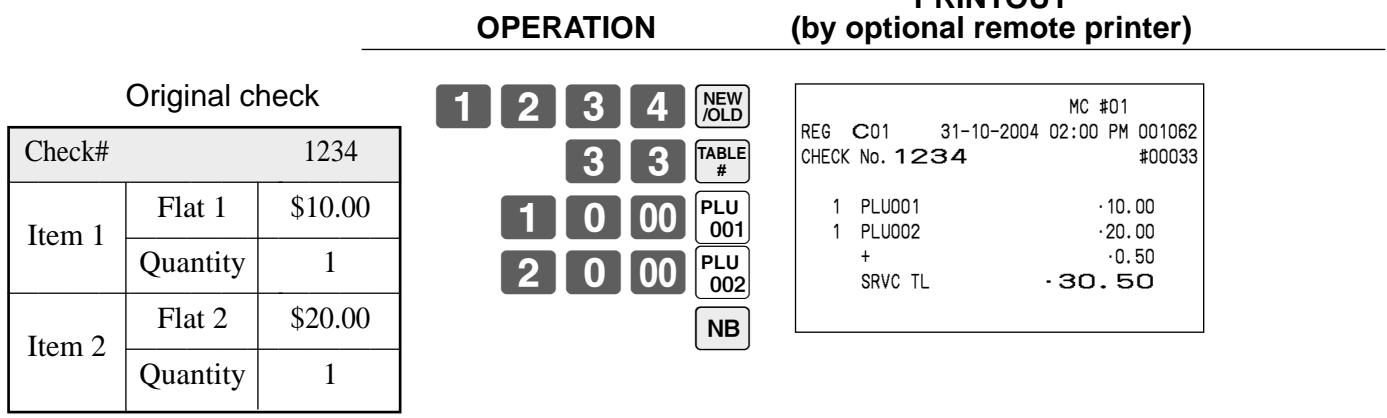
Registration for check number 1234
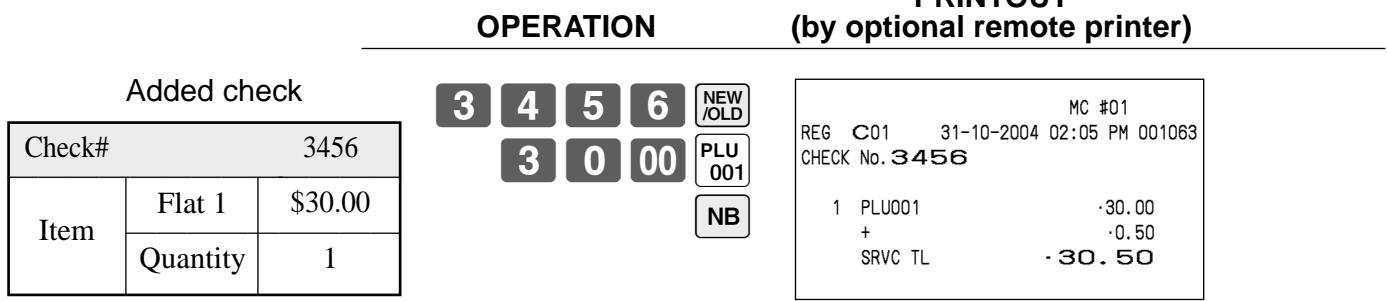
Registration for check number 3456
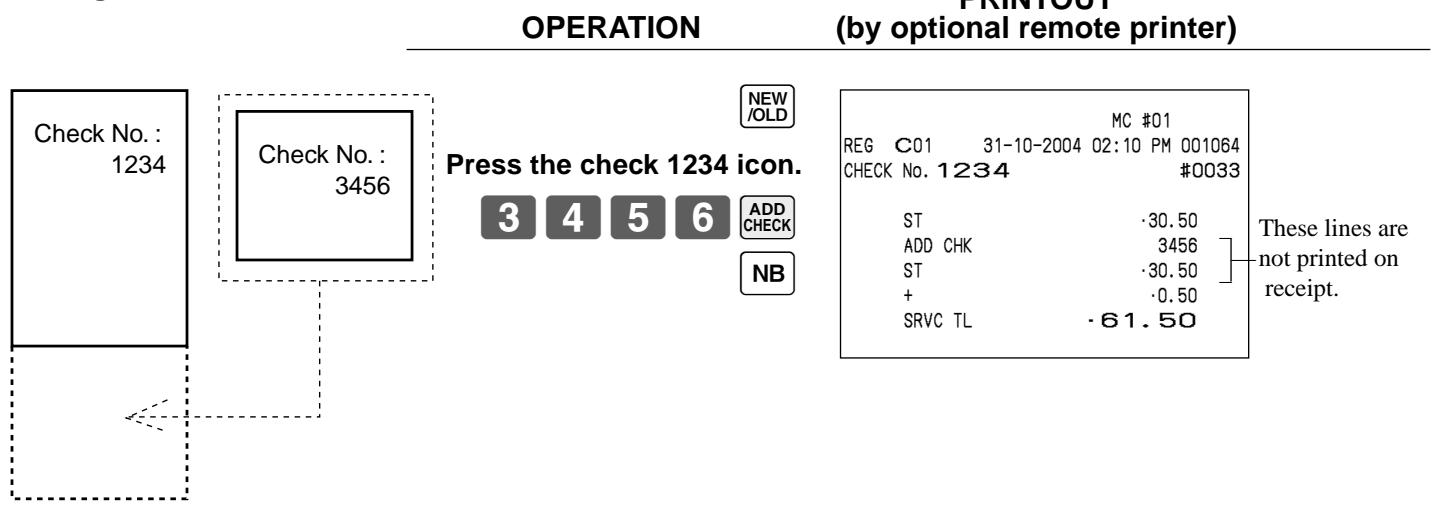
Registration for check number 1234
Separate check
This operation makes it possible to split a single check into separate checks.
Example
| Check# 1234 | |
| Item 1 | Flat 1 | 10.00 | |
| Quantity | 1 | |
| Item 2 | Flat 2 | 20.00 | |
| Quantity | 1 | |
| Item 3 | Flat 3 | 30.00 | |
| Quantity | 2 | |
| Item 4 | Flat 4 | 40.00 | |
| Quantity | 1 | |
| Check# 3456 | |
| Item 1 | Flat 1 | 10.00 | |
| Quantity | 1 | |
| Item 2 | Flat 2 | 30.00 | |
| Quantity | 1 | |
| Payment | Cash | $40.00 |
OPERATION


SEPARATE
CHECK
Check pop-up window is opened.
Press the check 1234 icon.
Separate check window is opened.
Touch the item1 and item 3 of the original check.
Item 1 and 3 are moved from the original check to separated check.
Press OK>


CA/AMT/TEND
DISPLAY
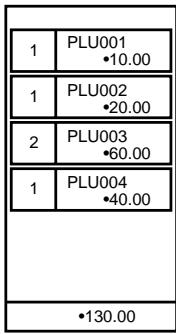

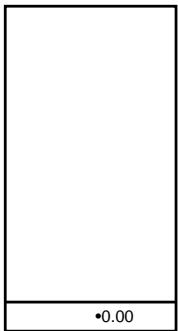
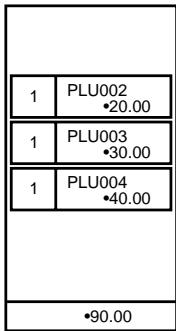

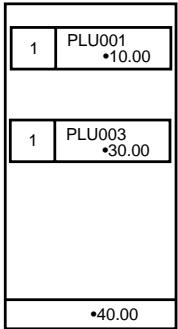
PRINTOUT
(by optional remote printer)
| MC #01 |
| REG C01 31-10-2004 02:15 PM 001065 |
| CHECK No. 3456 |
| 1 | PLU001 ·10.00 |
| 1 | PLU003 ·30.00 |
| ST | ·40.00 |
| CASH | ·40.00 |
| CG | ·0.00 |
Clerk transfer
This operation lets you change the clerk who is in charge of a specific open check number.
Example
To change the clerk for check number 1234 from clerk 1 to clerk 4.
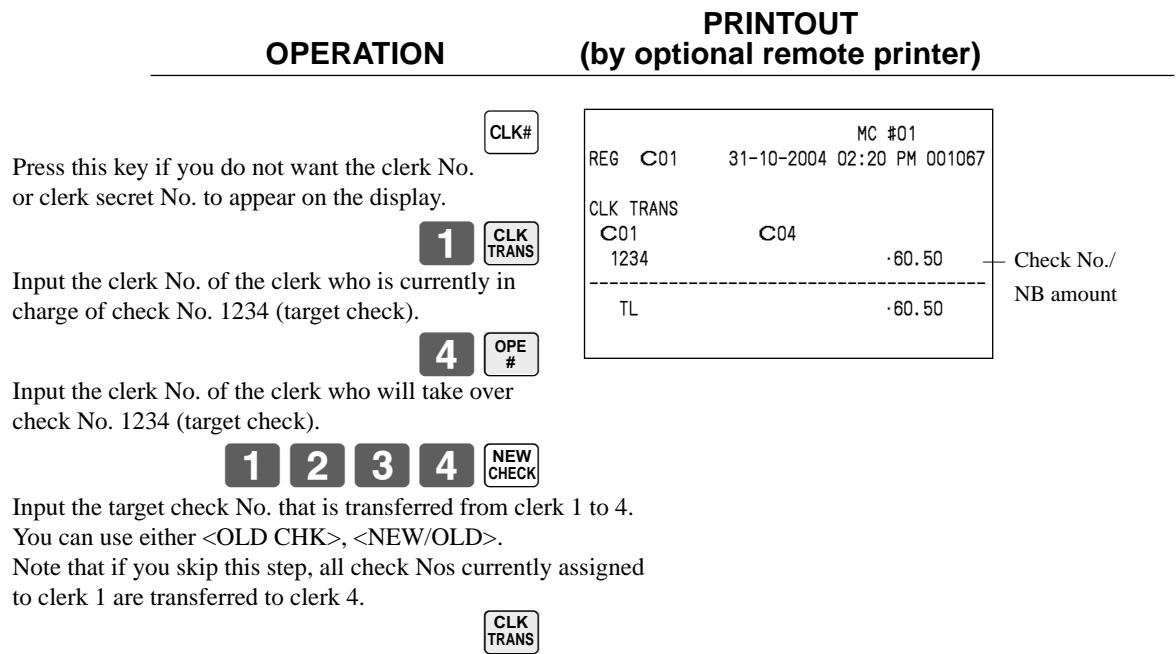
Table transfer
With this operation, you can change the number of a check.
Example 1
To change the check number 1234 to 1111 (which is newly opened).
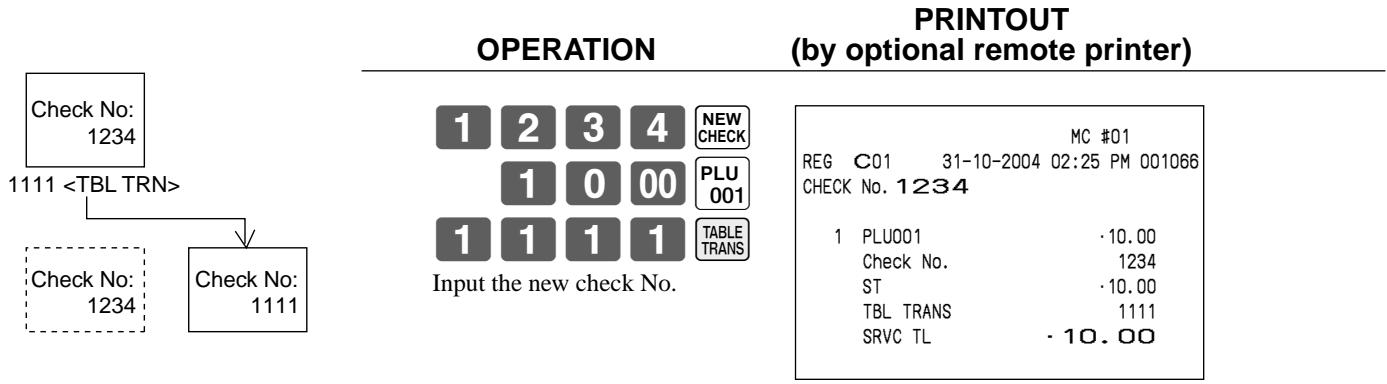
Example 2
To change the check number 3456 to 2222 (which has already been opened).
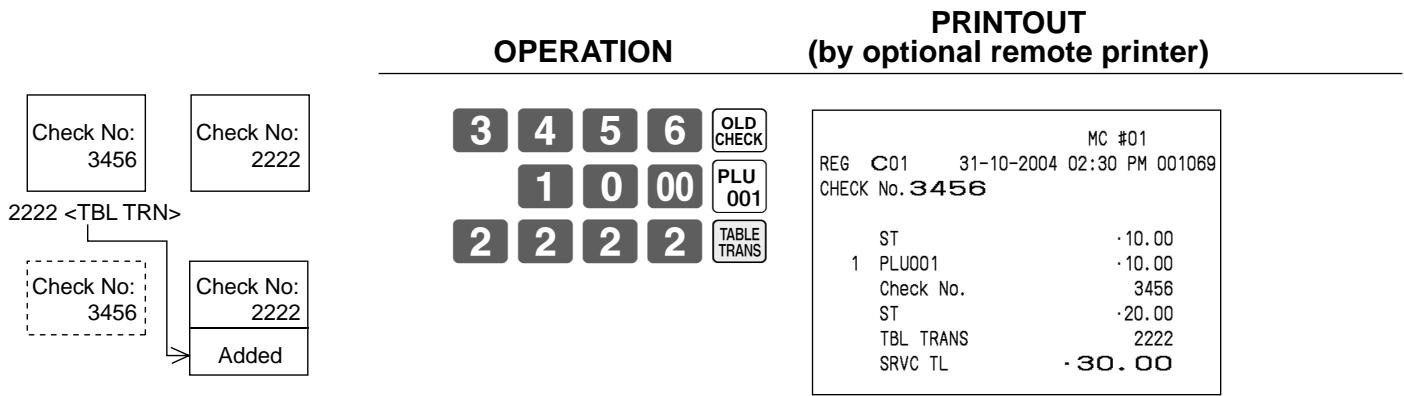
Condiment/preparation PLUs
You can force entering condiment or preparation PLU after the main PLU registration by programming.
Example (condiment PLU)
OPERATION
PRINTOUT
(by optional remote printer)
| Main item | Flat 1 | 10.00 |
| Condiment | Flat 3 | 0.10 |
| PLU 12 | 0.20 |
| PLU 13 | 0.30 |
| Payment | Cash | $10.60 |
PLU 001
Registering main PLU.
In case of condiment compulsory, no condiment registration occurs an error condition.
| MC #01 |
| REG | C01 | 31-10-2004 02:50 PM 001080 |
| 1 | PLU001 | ·10.00 |
| 1 | PLU003 | ·0.10 |
| 1 | PLU012 | ·0.20 |
| 1 | PLU013 | ·0.30 |
| TL | ·10.60 |
| CASH | ·10.60 |
12 PLU
1 3 PLU
CA/AMT/TEND
Example (preparation PLU)
OPERATION
PRINTOUT
(by optional remote printer)
| Main item | Flat 2 | 20.00 |
| Preparation | Flat 4 | 0.00 |
| PLU 22 | 0.00 |
| PLU 23 | 0.00 |
| Payment | Cash | $20.00 |
PLU 002
Registering main PLU.
| MC #01 |
| REG | C01 | 31-10-2004 02:55 PM 001081 |
| 1 | PLU002 | ·20.00 |
| 1 | PLU004 | |
| 1 | PLU022 | |
| 1 | PLU023 | |
| TL | ·20.00 |
| CASH | ·20.00 |
PLU 004
2 2 PLU
2 3 PLU
CA/AMT/TEND
Text recall
This procedure is used to recall text by inputting the address where the text is stored. The recalled text is printed on the receipt and journal. You can also choose recall texts by text recall sub window, which is shown by pressing directly.
Example
OPERATION
PRINTOUT
(by optional remote printer)
| Item 1 | Flat 1 | 46.00 |
| Quantity | 1 |
| Item 2 | Flat 2 | 10.00 |
| Quantity | 1 |
| Payment | Cash | $56.00 |
| Text 1 | MEDIUM SIZE |
| Text 2 | SMALL SIZE |
4 6 00 PLU 001
1 TEXTRECALL
1 0 00 PLU 002
2 TEXT RECALL
| MC #01 |
| REG C01 | 31-10-2004 03:00 PM 001082 |
| 1 PLU001 | ·46.00 |
| MEDIUM SIZE | |
| 1 PLU002 | ·10.00 |
| SMALL SIZE | |
| TL | ·56.00 |
| CASH | ·56.00 |
SUB TOTAL
CA/AMT/TEND
Deposit registrations
Use the following procedures to register deposits.
Deposit from customer
| OPERATION | PRINTOUT
(by optional remote printer) |
| Deposit | Cash | $50.00 | 5 0 00 DEPOSIT - | MC #01
REG C01 31-10-2004 03:05 PM 001083
DEPO-
TL -50.00
CASH -50.00 |
Deposit from customer during sales transaction
| Items | Flat 1 | 10.00 |
| Flat 2 | 20.00 |
| Deposit | | 20.00 |
| Payment | Cash | 10.00 |
- You can select "DEPO+" or "DEPO-" by programming.
List-# registrations
By using , you can register the item by selecting items in the "LIST" pop-up window.
Example
| OPERATION | DISPLAY |
| List-10 | See page 18 of this manual. |
| 1. PLU0010 | 1.00 | |
| 2. PLU0012 | 2.00 | |
| 3. PLU0015 | 5.00 | |
| 4. PLU0100 | 1.25 | |
| 5. PLU0111 | $12.98 | |
| CA/AMT/TEND | PRINTOUT
(by optional remote printer) |
| Item | PLU0015 | 5.00 | |
| Quantity | 1 | |
| Payment | Cash | 5.00 | |
Bill copy
Example
To issue a copy of a bill dated September 30, 2004 in the amount of $35.00 cash.
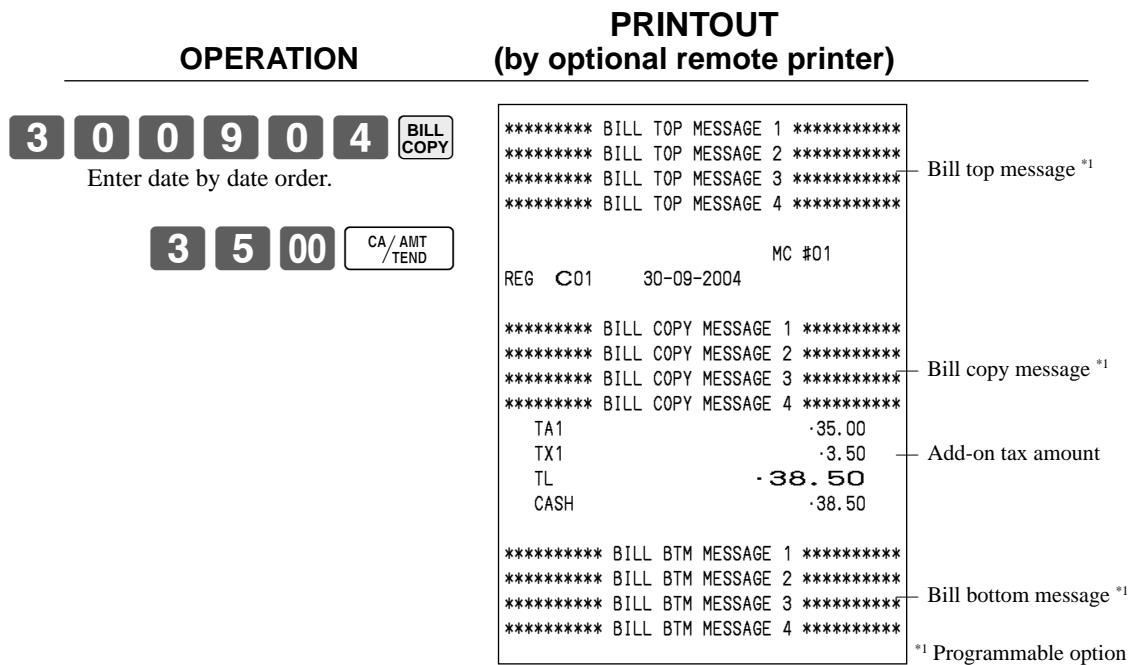
Note that you can finalize this operation using the cash amount tendered key.
Tray total
Multiple item totalling function
This function accumulates all items registered from the first item registered up to point that is pressed two times, or all items between two presses of . Pressing two times displays the total amount with the tax included and prints it on the receipt and journal (printing on receipt and journal is programmable.)
Example
| CustomerA | Flat 1 | 1.00 |
| Flat 3 | 2.00 |
| CustomerB | Flat 3 | 3.00 |
| Flat 4 | 4.00 |
| Payment | Cash | $10.00 |
When you register a set menu, the unit price of the parent PLU is used. The price of each set menu item is also added to each respective PLU totalizer and counter.
Example
| Operation | (by optional remote printer) |
| Set menu | Flat 4 | $5.00 | PLU
004
CA/ AMT
/TEND | MC #01
REG C01 31-10-2004 03:25 PM 001087
1 PLU004 ·5.00
PLU031
PLU032
PLU033
PLU034
TL ·5.00
CASH ·5.00 |
| Item 1 | PLU 31 | 2.00 |
| Item 2 | PLU 32 | 2.00 |
| Item 3 | PLU 33 | 1.00 |
| Item 4 | PLU 34 | 1.00 |
| Payment | Cash | $5.00 | | | |
Tips
Example
| Operation | (by optional remote printer) |
| Item 1 | Flat 1 | 3.00 | 3 00PLU0015 00PLU002SUBTOTAL8 0TIP1 00CA/AMT/TEND | MC #01REG C01 31-10-2004 03:30 PM 0010881 PLU001 -3.001 PLU002 -5.00TIP -0.80TL -8.80CASH -10.00CG -1.20 |
| Quantity | 1 |
| Item 2 | Flat 2 | 5.00 |
| Quantity | 1 |
| Tip | Amount | 0.80 |
| Payment | Cash | 10.00 |
Stock check
Each PLU has an actual stock totalizer that you can program with a minimum stock quantity. The terminal checks actual stock quantities against the programmed minimum stock quantities. Stock operations are performed only for PLUs programmed with minimum stock quantities.
Stock warnings
When the minimum stock value of an item is set, the terminal subtracts its stock quantity from the registered quantity (or registered quantity × unit stock).
The following warning indicates stock problem to the operator.
- Negative stock:
This indicates that the actual stock quantity is negative. The terminal to treat this condition as an error.
Under minimum stock:
This indicates that the actual stock quantity is less than the minimum stock quantity. The terminal sounds buzzer when the actual stock quantity is less than the minimum stock quantity.
Notes
- None of the warning indicators appear unless the terminal is specifically programmed for the stock check operation.
- Stock operations can be performed for registrations in the REF mode or those performed with
(the refund key).
- An error correct, void, or cancel operation restores the original value of items back in stock value. (You can change the stock calculation formula of REF mode, or by programming.)
Actual stock quantity inquiry
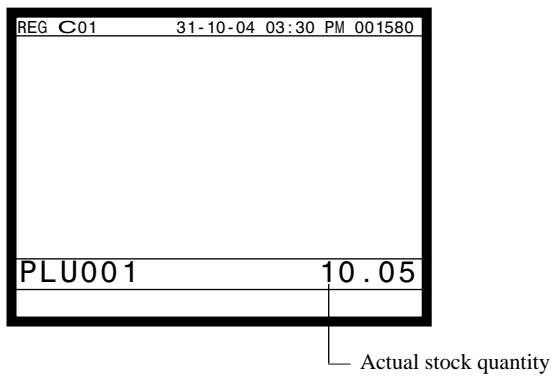
With this operation, you can recall the actual stock quantity for PLUs and show it on the display of the terminal.
Example
To inquire the actual stock quantity of flat-PLU 001.
OPERATION
DISPLAY
Single item cash sales
A department key, subdepartment or PLU programmed with single item sale status finalizes the transaction as soon as it is registered.
The single item sales function cannot work properly if the keyboard does not include <CASH> (the cash key).
The single item sales function can only be used for cash sales.
Example 1
| Operation (by optional remote printer) |
| Item | Flat 1 | 1.00 |
| Quantity | 1 |
| Status | S.I.S |
| Payment | Cash | 1.00 |
Example 2
| Operation | PRINTOUT
(by optional remote printer) |
| Item | Flat 1 | ($1.00) | 3 x
PLU
001 | MC #01
REG C01 31-10-2004 03:40 PM 001090
3 PLU001 ·3.00
TL ·3.00
CASH ·3.00 |
| Quantity | 3 |
| Status | S.I.S | The transaction is immedi-
ately finalized. |
| Payment | Cash | $3.00 | | |
Example 3
| OPERATION (by optional remote printer) |
| Item 1 | Flat 4 | 2.00 |
| Quantity | 1 |
| Status | Normal |
| Item 2 | Flat 1 | 1.00 |
| Quantity | 1 |
Addition
Addition (plus)
Example
| Example | OPERATION | PRINTOUT
(by optional remote printer) |
| Item 1 | Flat 1 | $1.00 | 1 00 PLU
001 | MC #01
REG C01 31-10-2004 03:50 PM 001100
1 PLU001 ·1.00
+ ·0.10
3 PLU001 ·6.00
+ ·0.60
TL ·7.70
CASH ·7.70 |
| Quantity | 1 | 1 0 + |
| Addition | 0.10 | 3 X |
| Item 2 | Flat 1 | 2.00 | 2 00 PLU
001 | PLU
001 |
| Quantity | 3 | 3 X |
| Addition | 3 × (0.20) | + |
| Payment | Cash | 7.70 | CA/AMT
/TEND |
| remium (%+)Example | PRINTOUT
(by optional remote printer) |
| Item 1 | Flat 1 | $1.00 | 1 00 PLU
001 | MC #01
REG C01 31-10-2004 03:50 PM 001101
1 PLU001 ·1.00
10%
%+
3 PLU001 ·6.00
ST ·7.10
15%
%+
TL ·8.17
CASH ·8.17 |
| Quantity | 1 | 1 0 %+ |
| Premium | 10% | 3 X |
| Item 2 | Flat 1 | $2.00 | 2 00 PLU
001 | PLU
001 |
| Quantity | 3 | SUB TOTAL |
| Subtotal | Premium | (15%) | %+ | PLU
001 |
| Payment | Cash | $8.17 | CA/AMT
/TEND |
Coupon transactions
Note that error occurs when the result of the coupon (not coupon 2) registration is negative, if the terminal is programmed to prohibit credit balances.
Coupon registration using (coupon key)
Example
OPERATION
PRINTOUT (by optional remote printer)
| Item 1 | Flat 1 | 3.00 |
| Quantity | 2 |
| Coupon | 0.50 × 2 |
| Item 2 | Flat 3 | 4.00 |
| Quantity | 1 |
| Coupon | (1.00) |
| Payment | Cash | $8.00 |
| 2 | X | |
| 3 | 00 | PLU
001 |
| 2 | X | |
| 5 | 0 | CPN |
| 4 | 00 | PLU
003 |
| CPN | |
| CA/AMT
/TEND | |
| MC #01 |
| REG | C01 | 31-10-2004 04:00 PM 001110 |
| 2 | PLU001 | -6.00 |
| COUPON | -1.00 |
| 1 | PLU003 | -4.00 |
| COUPON | -1.00 |
| TL | -8.00 |
| CASH | -8.00 |
Coupon registration using (coupon 2 key)
Example
OPERATION
PRINTOUT (by optional remote printer)
| Item 1 | Flat 1 | 15.00 |
| Quantity | 1 |
| Coupon 2 Flat 1 | 1.50 |
| Item 2 | Flat 2 | 5.00 |
| Quantity | 1 |
| Coupon 2 Flat 2 | (0.50) |
| Payment | Cash | $18.00 |
| 1 | 5 | 00 | PLU
001 |
| CPN2 | 1 | 5 | 0 |
| | 5 | 00 |
| CPN2 | 5 | 0 |
| | | PLU
002 |
| | | PLU
002 |
| | | CA/AMT
/TEND |
| MC #01 |
| REG | C01 | 31-10-2004 04:05 PM 001111 |
| 1 | PLU001 | ·15.00 |
| CPN2 | ……… |
| 1 | PLU001 | -1.50 |
| 1 | PLU002 | ·5.00 |
| CPN2 | ……… |
| 1 | PLU002 | -0.50 |
| TL | ·18.00 |
| CASH | ·18.00 |
Registering the second unit price
Second unit prices along with quantity modifiers can be programmed to PLUs. Pressing <1st@ (1st unit price key)/ <2nd@ (2nd unit price key) calls up the first/second unit price, quantity modifier, and descriptor. Totalizers and inventory are adjusted by multiplying the number of items being registered by the quantity modifier programmed to the PLU being registered.
- <1st @> or <2nd @> must be pressed before each registration of a PLU.
- Second unit price registration is not available with open PLUs when unit price is not preset.
- Second unit prices and quantity modifiers are assigned to PLUs using programming procedures described in the programming manual.
Example 1
OPERATION
PRINTOUT (by optional remote printer)
| Item 1 | Flat 12nd@ | (10.00) |
| Quantity | 1 |
| 2nd Q'ty | 1 |
| Item 2 | PLU 102nd@ | (5.00) |
| Quantity | 1 |
| 2nd Q'ty | 1 |
| Payment | Cash | $15.00 |
The operation declares that the next input is a second unit price.


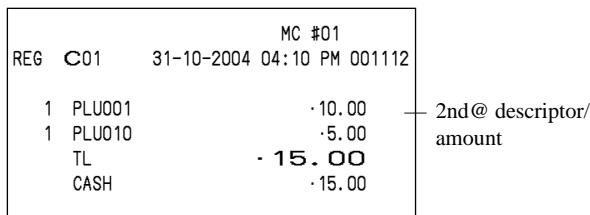
Example 2
OPERATION
PRINTOUT
(by optional remote printer)
| Flat 22nd® | ($10.00) |
| Quantity | 5 |
| 2nd Q’ty | 3 |
| Payment | Cash |

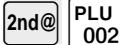

RI
5PLU002
MC #01
04:15PM 001113
TL
50.00
CASH
-50.00
CG
.50.00
0.00



1
1
Example 3
The procedure shown on the previous page applies when the terminal is programmed not to maintain the 1st/2nd price shift. When the terminal is programmed to maintain the 1st/2nd price shift, the procedure below applies. PRINTOUT
OPERATION
PRINTOUT
(by optional remote printer)
| Item 1 | Flat 1 2nd@ | (10.00) |
| Quantity | 1 |
| 2nd Q'ty | 1 |
| Item 2 | Flat 2 2nd@ | (5.00) |
| Quantity | 1 |
| 2nd Q'ty | 1 |
| Item 3 | Flat 1 | (1.00) |
| Quantity | 1 |
| 2nd Q'ty | 1 |
| Payment | Cash | 16.00 |
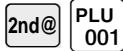
This operation shifts to registration of second unit price.
| MC #01 |
| REG | C01 | 31-10-2004 04:20 PM 001114 |
| 1 | PLU001 | ·10.00 |
| 1 | PLU002 | ·5.00 |
| 1 | PLU001 | ·1.00 |
| TL | ·16.00 |
| CASH | ·16.00 |
| CG | ·0.00 |
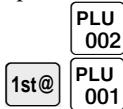
This operation shifts to registration of normal (first) unit price.

Preset tender amount
An amount up to six digits long can be programmed to CASH (cash/amount tendered key). Then, when CASH is pressed without inputting a value, the programmed value is automatically registered and the transaction is finalized. When an amount is programmed to CASH , attempting to manually input an amount results in an error.
Example 1
OPERATION
PRINTOUT
(by optional remote printer)
| Item | Flat 1 | 8.00 |
| Quantity | 1 |
| Payment | Cash | (10.00) |
The preset amount is tendered.
| MC #01 |
| REG | C01 | 31-10-2004 04:30 PM 001120 |
| 1 | PLU001 | ·8.00 |
| TL | ·8.00 |
| CASH | ·10.00 |
| CG | ·2.00 |
Example 2
OPERATION
PRINTOUT
(by optional remote printer)
| Item | Flat 1 | 15.00 |
| Quantity | 1 |
| Payment | Check | 5.00 |
| Cash | ($10.00) |

1 0 00 CA/AMT /TEND An error occurs by manual input


| MC #01 |
| REG | C01 | 31-10-2004 04:35 PM 001121 |
| 1 | PLU001 | ·15.00 |
| TL | ·15.00 |
| CHECK | ·5.00 |
| CASH | ·10.00 |
| CG | ·0.00 |
Arrangement key registrations
Key (job/command) operations can be assigned to an (arrangement key). Then, simply pressing performs all of the key functions assigned to it.
Example
OPERATION
PRINTOUT
(by optional remote printer)
| Arrangement 1 |
| Item 1 | PLU 10 | (8.00) |
| Quantity | 1 |
| Item 2 | PLU 20 | (5.00) |
| Quantity | 1 |
| Payment | Cash | $13.00 |
ARR
| MC #01 |
| REG | C01 | 31-10-2004 04:45 PM 001130 |
| 1 | PLU010 | ·8.00 |
| 1 | PLU020 | ·5.00 |
| TL | ·13.00 |
| CASH | ·13.00 |
Currency exchange function
When CE (currency exchange key) and ST are pressed, a current subtotal including tax is converted into foreign currency and the result is displayed.
Before using the currency exchange function, it is necessary to program the conversion rate and foreign currency amount symbol.
Registering foreign currency
Full amount tender in a foreign currency
- Pre-programmed exchange rate: ¥ 100 = $0.9524
Important!
Tenders in a foreign currency can be registered using the CA/AMT and CHK/TEND only.
Other finalize keys cannot be used.
OPERATION
DISPLAY
1 0 00 PLU 001
Enter the unit price and press the applicable flat-PLU key.
2 0 00 PLU 002
Enter the next unit price and press the applicable flat-PLU key.
CE SUB TOTAL
Press CE and SUB without entering a numeric value. This operation converts the subtotal (including tax) dollar value into yen by applying a pre-programmed exchange rate. The result is shown on the display and printed on the receipt/journal by programming.
CE 5 0 00 (¥5,000)
Press CE and enter the amount tendered in yen. This operation converts the entered yen amount into dollars by applying a preprogrammed exchange rate. The result is shown on the display.
CA/AMT/TEND
Press to finalize the transaction. Note that you do not need to reenter the dollar amount.
The terminal automatically calculates the change amount due in dollars and shows it on the display, receipts and journal.
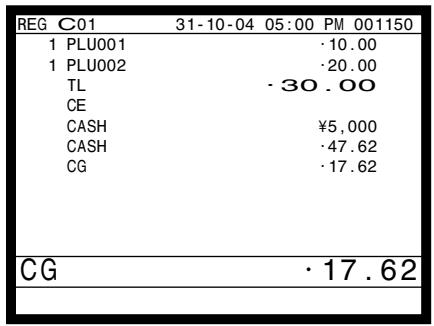
PRINTOUT
(by optional remote printer)
| MC #01 |
| REG | C01 | 31-10-2004 05:00 PM 001150 |
| 1 | PLU001 | ·10.00 |
| 2 | PLU002 | ·20.00 |
| TL | ·30.00 |
| CE | |
| CASH | ¥5,000 |
| CASH | ·47.62 |
| CG | ·17.62 |
Partial tender in a foreign currency
- Pre-programmed exchange rate: ¥ 100 = $0.9524
Important!
Tender in a foreign currency can be registered using CA/AMT /TEND and CHK/ TEND only. Other finalization keys cannot be used, but the remaining tender in local currency can be finalized using any finalize key.
OPERATION
1 0 00 PLU 001
2 0 00 PLU 002
CE SUB TOTAL
Enter the unit price and press the applicable flat-PLU key.
Enter the next unit price and press the applicable flat-PLU key.
Press CE and SUB without entering a numeric value. This operation converts the subtotal (including tax) dollar value into yen by applying a pre-programmed exchange rate. The result is shown on the display and printed on the receipt/journal by programming.
CE 2 0 00 (¥2,000)
CA/AMT TEND
Press CE and enter the partial amount tendered in yen. This operation converts the entered yen amount into dollars by applying a pre-programmed exchange rate. The result is shown on the display.
Press / AMT/TEND to specify cash tender for the yen partial tender. Note that you do not need to reenter the dollar amount. The terminal automatically deducts the dollar equivalent of the yen amount tendered from the total amount due and shows the rest amount on the display.
CHK/TEND
Press to finalize the transaction.
DISPLAY
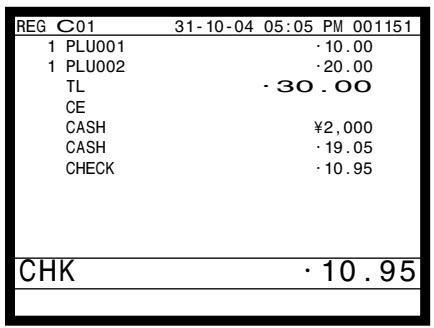
PRINTOUT (by optional remote printer)
| MC #01 |
| REG | C01 | 31-10-2004 05:05 PM 001151 |
| 1 | PLU001 | ·10.00 |
| 1 | PLU002 | ·20.00 |
| TL | ·30.00 |
| CE | |
| CASH | ¥2,000 |
| CASH | ·19.05 |
| CHECK | ·10.95 |
Temporarily releasing compulsion
(open key) can release HDL (High Digit Limitation)/LDL (Low Digit Limitation) and can be programmed to release HAL (High Amount Limit).
(open 2 key) can be programmed to release specific compulsion.
Example 1
OPERATION
PRINTOUT
(by optional remote printer)
| Item | Flat 1 | 10.00 |
| HAL | 1.00 |
| Payment | Cash | $10.00 |
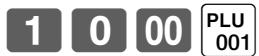
ERROR occur


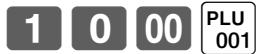
- In this case, should be programmed to "release high amount limit".
Example 2
OPERATION
PRINTOUT
(by optional remote printer)
| Input check No. compulsory |
| Item | Flat 1 | 10.00 |
| Quantity | 1 |
| Payment | Check | 10.00 |

ERROR occur
Input check No. compulsory
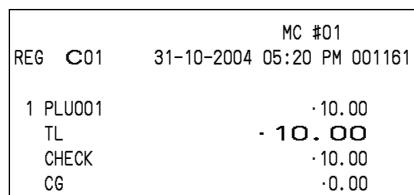

Compulsory is temporarily released.
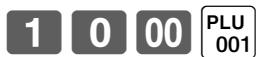

VAT breakdown printing
You can force printing of the VAT breakdown at the finalize stage, regardless of whether the terminal is programmed to print or skip printing of the VAT breakdown.
Every time you want to have VAT breakdown, press <VAT> .
Example
OPERATION
PRINTOUT
(by optional remote printer)
| Item 1 | Flat 1 | 1.00 |
| Taxable | 1 |
| Item 2 | Flat 2 | 2.00 |
| Taxable | 2 |
| Payment | Cash | $3.00 |
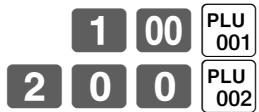
CA/AMT/TEND
| | MC #01 |
| REG | C01 | 31-10-2004 | 05:20 PM 001161 |
| 1 | PLU001 | | -1.00 T1 |
| 1 | PLU002 | | -2.00 T2 |
| TA1 | | | -0.90 |
| TX1 | | | -0.10 |
| TA2 | | | -1.90 |
| TX2 | | | -0.10 |
| TL | | | -3.00 |
| CASH | | | -3.00 |
Registering loan amounts
Use this procedure to register loan or bank received from the office.
OPERATION
PRINTOUT
(by optional remote printer)
| Item | Note | 1.00 |
| Quantity | 10 |
| Note | 5.00 |
| Quantity | 5 |
| Media | Cash | $35.00 |
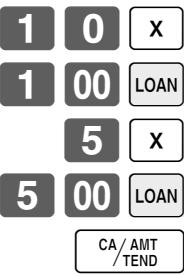
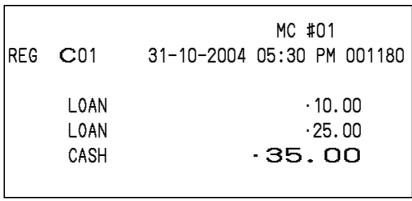
Registering pick up amounts
Use this procedure to register pick up money from cash drawer.
OPERATION
PRINTOUT
(by optional remote printer)
| Item | Coin | 0.50 |
| Quantity | 10 |
| Coin | 0.10 |
| Quantity | 5 |
| Media | Cash | $5.50 |
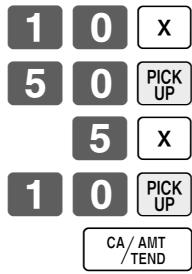
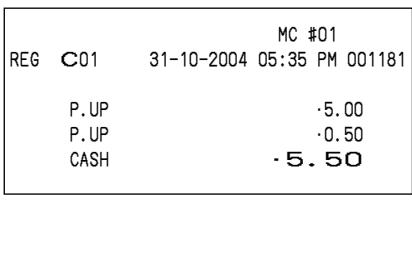
Use this procedure to change media in drawer.
OPERATION
PRINTOUT (by optional remote printer)
| Media | Check | -10.00 |
| Cash | 8.00 |
| Charge | 2.00 |

Enter the amount to be changed.
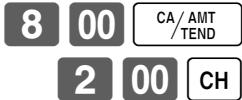
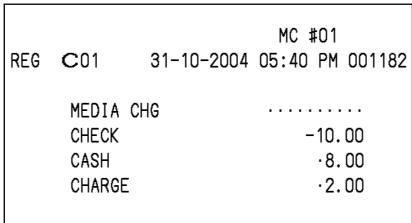
Scanning PLU
Product barcodes are read by scanning with hand-held scanner, and are filed in the scanning PLU link file. The unit price, item descriptor, programming status, link department, totalizer and counter, the terminal are filed in the PLU link file.
When a barcode is entered by scanning, or from the keyboard by using OBR (OBR key), the terminal searches its scanning PLU link file and finds the preset unit price to accumulate to the PLU file.
Scanning PLUs include UPC-A/EAN-13/EAN-8, source marking, in-store marking code.
Item registration
OPERATION
PRINTOUT
(by optional remote printer)
| Item 1
.scan) | Scan-PLU | ($2.35) |
| PLU code | 49012347 |
| Item 2
(code) | Scan-PLU | (2.00) |
| PLU code | 123456 |
| Payment | Cash | 5.00 |
"Scanning"
1 2 3
456 OBR
Scanning-PLU code and OBR key
5 00 CA/AMT/TEND
| MC #01 |
| REG | C01 | 31-10-2004 05:45 PM 001182 |
| 1 | PLU100 | ·2.35 |
| 1 | PLU101 | ·2.00 |
| TL | ·4.35 |
| CASH | ·5.00 |
| CG | ·0.65 |
Unit price inquiry
Use this operation to recall the unit prices of departments, subdepartments, PLUs, second unit price of PLUs, or scanning PLUs.
The unit prices appear on the display of the terminal when recalled.
Example
To check the unit price of flat-PLU 001.
OPERATION
DISPLAY
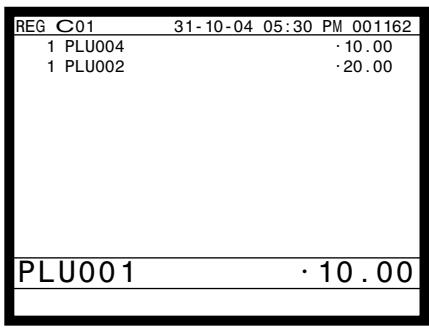
Programming to clerk
You can program up to 4-digit clerk number (secret number), trainee status of clerk (i.e. training cashier) and clerk name (up to 16 characters) etc. for each clerk.
Programming procedure
Step 1. Press MODE and icon to turn "PGM-3", select "2.Clerk" YES, select "1.Clerk Feature" YES.
Step 2. Select the appropriate clerk and press YES
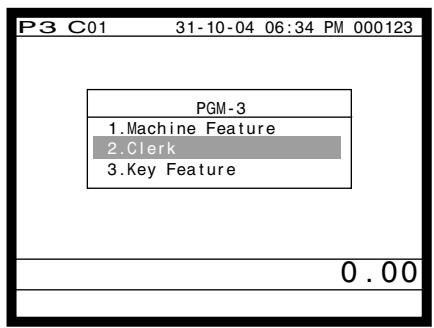
Step 1. screen
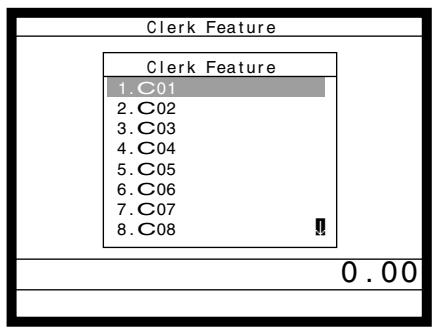
Step 2. screen
Step 3. Clerk descriptor programming:
Select "Descriptor" line, press YES, enter clerk name within 16 characters and ENTER.
Secret number programming:
Select "Secret number" line, and press YES, enter clerk secret number within 4 digits and YES.
Training status programming:
Select "Treat as Trainee" line, and select YES or NO.
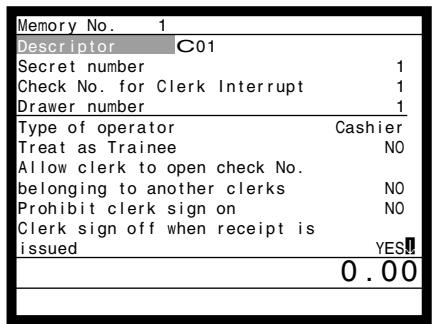
Step 3-1. screen
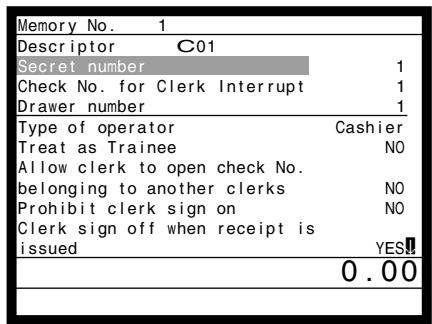
Step 3-2. screen
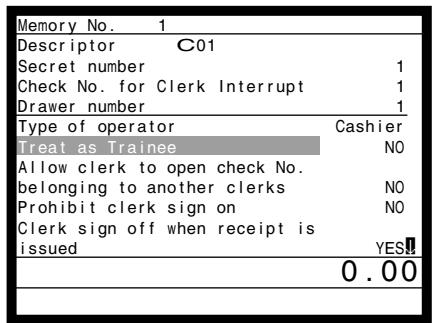
Step 3-3. screen
Step 4. Repeat the step 3., if you program the next record.
Press / and repeat the step 2 and 3., if you program to the other record.
Step 5. Press repeatedly to return to the "Step 1. screen".
Programming descriptors and messages
Programming item descriptor (flat-PLU) procedure
Step 1. Press MODE and icon to turn "PGM-2", select "1.Item Descriptor" and press YES.
Step 2. Select "1.PLU" and press YES.
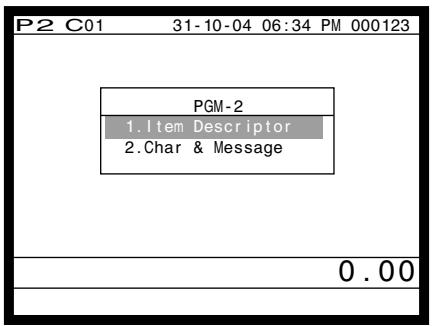
Step 1. screen
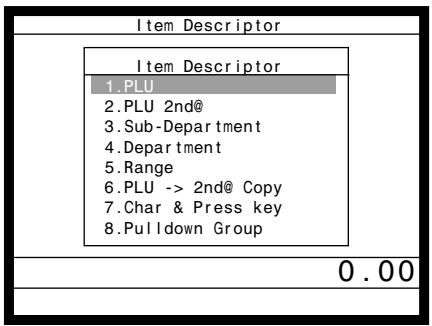
Step 2. screen
Step 3. Select the PLU record you want to program by pressing the flat-PLU key directly, by entering PLU record No. and YES, or by entering random PLU code and PLU.
Step 4. Enter characters and ENTER.
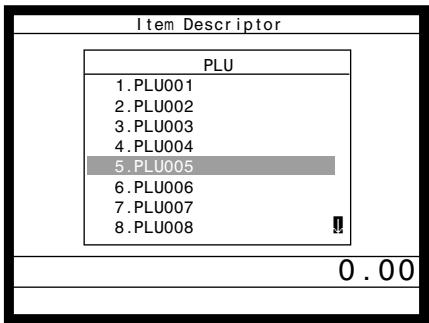
Step 3. screen
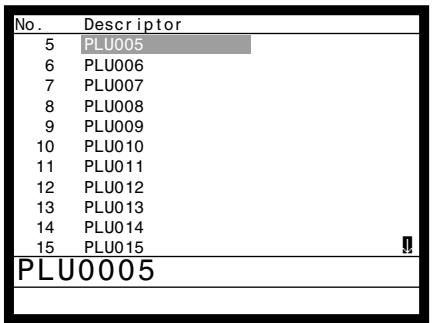
Step 4. screen
Step 5. Repeat the step 4., if you program the next record.
Press [/ ] and repeat the step 3. and 4., if you program to the other record.
Step 6. Press repeatedly to return to the "Step 1. screen".
Programming function key character procedure
Step 1. Press MODE and icon to turn "PGM-2", select "1.Item Descriptor" and press YES. Step 2. Select "7.Char & Press key" and press YES.
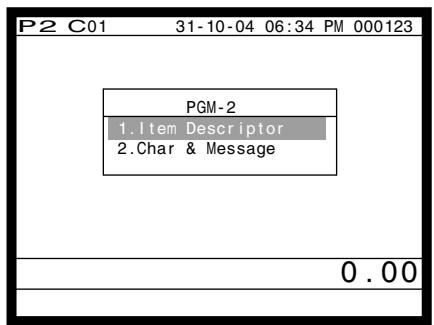
Step 1. screen
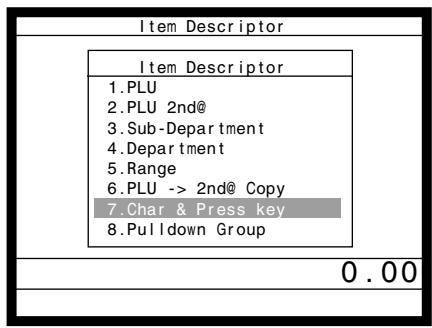
Step 2. screen
Step 3. Enter key characters, press ENTER, and press the corresponding key.
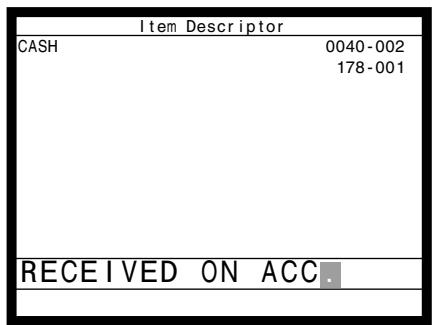
Step 3. screen
Step 4. Repeat the step 3., if you have other keys to program.
Step 5. Press repeatedly to return to the "Step 1. screen".
The initial characters of function keys
| Function | Code | Initial character |
| Cash amount tendered | 001 | CASH |
| Charge | 002 | CHARGE |
| Check tender | 003 | CHECK |
| Credit | 004 | CREDIT |
| New balance | 006 | NB |
| Table transfer | 014 | TBL TRANS |
| Received on account | 020 | RC |
| Paid out | 021 | PD |
| Minus | 027 | - |
| Discount | 028 | %- |
| Refund | 033 | RF |
| Error correct/Void | 034 | VOID |
| Receipt | 038 | RCT |
| Function | Code | Initial character |
| Non-add/No sale | 041 | #/NS |
| Customer number | 043 | CT |
| PLU | 048 | PLU# |
| Price | 049 | PRC |
| Menu shift | 064 | MENU |
| Open | 067 | OPEN |
| Subtotal | 075 | SUBTOTAL |
| Multiplication | 082 | X |
| New/Old check | 093 | NEW/OLD |
| Media change | 118 | MEDIA CHG |
| List number | 137 | LIST# |
| Cancel | 236 | CANCEL |
Programming receipt/slip message procedure
Step 1. Press MODE and icon to turn "PGM-2", select "2.Char & Message" and press YES.
Step 2. Select "1.Receipt/SLIPMsg" and press YES
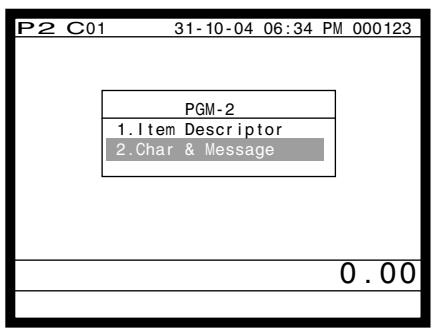
Step 1. screen
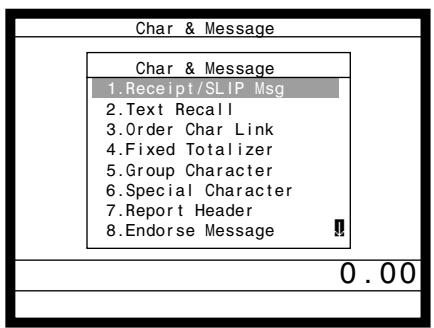
Step 2. screen
Step 3. Select the appropriate record, press YES and enter characters and press ENTER.
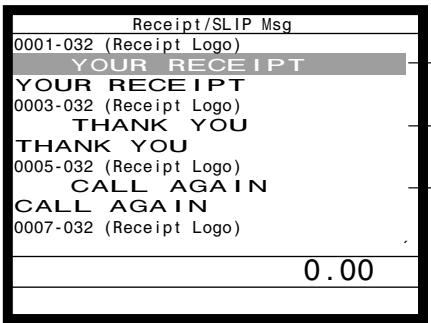
Step 3. screen
Select these upper (odd number) record
Select these upper (odd number) record
Select these upper (odd number) record
Even records are not used.
| Rec No. | Message |
| 1 ~ 8 | Receipt logo message |
| 9 ~ 16 | Receipt commercial message |
| 17 ~ 24 | Receipt bottom message |
| 25 ~ 32 | Bill top message |
| 33 ~ 40 | Bill copy message |
| 41 ~ 48 | Bill bottom message |
| 49 ~ 56 | Slip logo message |
| 57 ~ 64 | Slip intermediate message |
| 65 ~ 72 | Slip bottom message |
| 73 ~ 74 | Post receipt (not used) |
| 75 ~ 94 | Guest bottom message |
| 95 ~ 96 | E-journal copy receipt message |
Step 4. Repeat the step 3., if you have other records to program.
Step 5. Press ESC/SKIP repeatedly to return to the "Step 1. screen".
Entering characters
In this section, the method to enter descriptors or messages (characters) to the terminal during programming is described. Characters are specified by character keyboard.
Entering characters
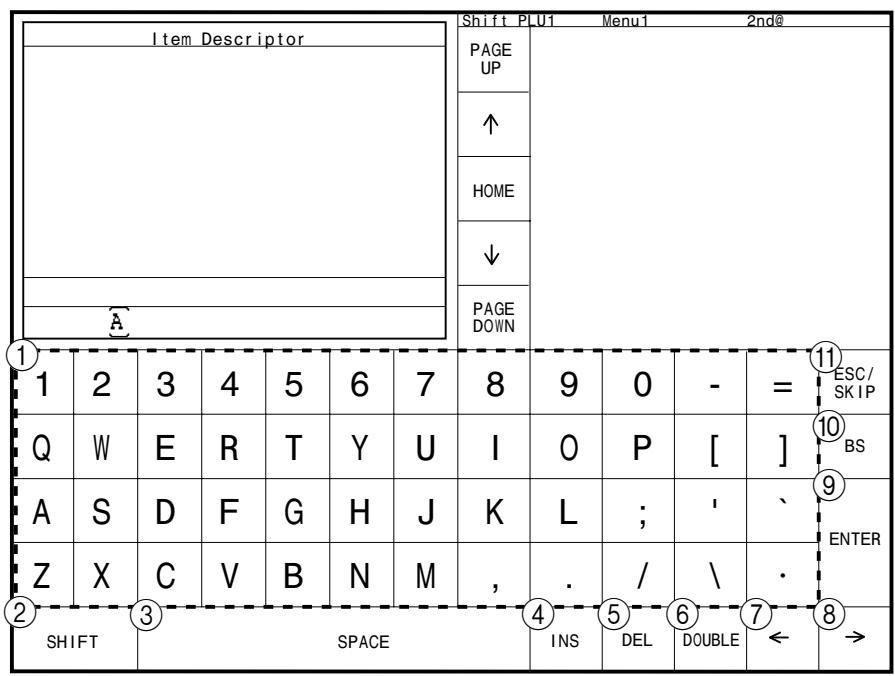
SHIFT1-case
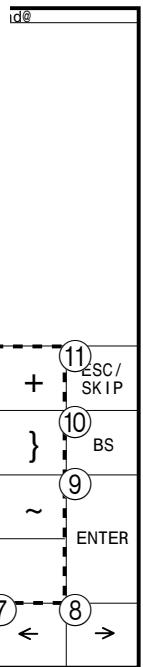
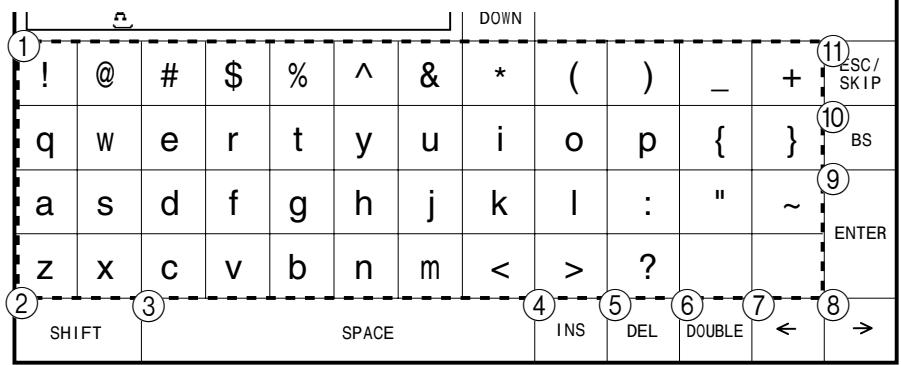
SHIFT2-case
① Alphabet keys
Press these keys to input characters.
② Shift key
Press this key to shift the following characters from SHIFT1-case, SHIFT2-case, SHIFT3-case, SHIFT4-case and returns to the SHIFT1-case letter in sequence.
③ Space key
Press this key to set a space.
④ Insert key
Press this key to put one space between the original characters.
⑤ Delete key
Press this key to clear the designated character.
Double size letter key
Press this key to specify that the next character you input to a double size character.
⑦ Left cursor key
Press this key to shift the character setting position to the left one by one. This key is used to correct already entered characters.
Right cursor key
Press this key to shift the character setting position to the right one by one. This key is used to correct already entered characters.
Example:
Input “
A
p
p
e
U
U
i
e
,
enter
DBL
A
SHIFT
DBL
p
p
1
e
SPACE
SHIFT
SHIFT
SHIFT
1
U
i
C
e
ENTER
SHIFT3-case
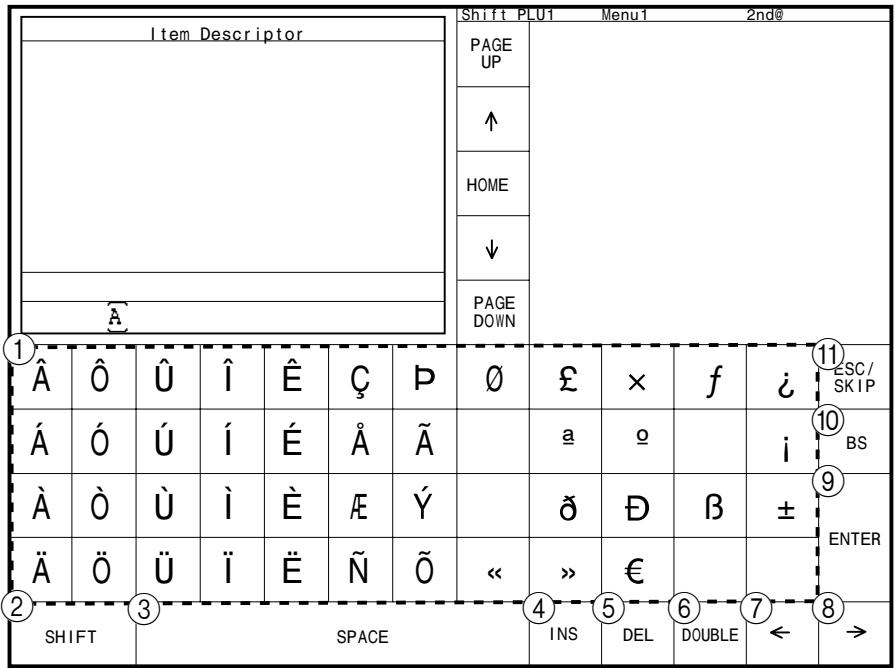
SHIFT4-case
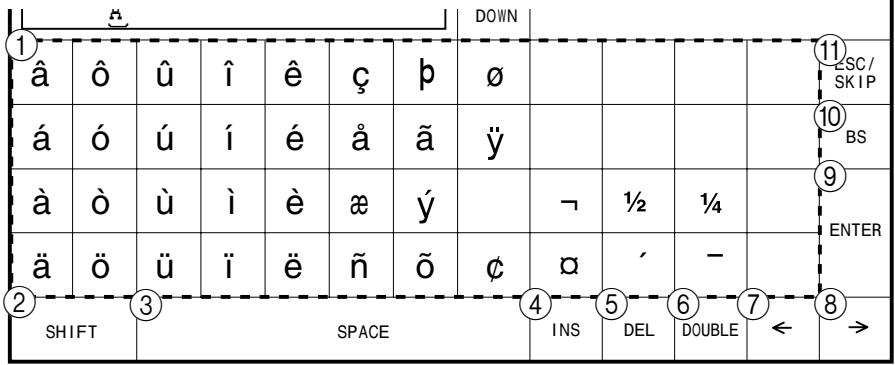
⑨ Enter key
Press this key when the alphabetic entry for a descriptor, name or message has been completed. This key is also used for editing the programmed characters.
Backspace key
Press this key to move the character placed behind.
⑪ ESC/SKIP key
Press this key to terminate the character programming.
Editing characters
Correcting a character just entered
| OPERATION | DISPLAY |
| “L” “E” “N” “O” “N” | ←Enter LENON, instead of LEMON. | LENON |
| ←←← | ←Press left arrow key three times. | LENON |
| “M” | ←Enter “M”. | LEMON |
Correcting and adding/deleting an item descriptor already set
| OPERATION | DISPLAY |
| Designate the item. | | ▲ P L E |
| → → | Press right arrow key two times. | ▲ P L E |
| INS | Press <INS> (insert) key. | ▲ P L E |
| “p” | Enter “p”. | ▲ P L E |
| OPERATION | DISPLAY |
| Designate the item. | | MOULSE |
| → → → | Press right arrow key three times. | MOULSE |
| DEL | Press <DEL> (delete) key. | MOUSE |
| OPERATION | DISPLAY |
| Designate the item. | | MOULE |
| → → → | Press right arrow key three times. | MOULE |
| BS | Press <BS> (backspace) key. | MOLE |
Printing read/reset reports
- Read (X) report
You can display or print read reports at any time during the business day without affecting the data stored in the terminal.
- Reset (Z) report
After issuing a reset report, the totals stored in the terminal are reset. So, you should not print reset reports during the business day.
Important!
The reset operation issues a report and also clears all sales data from the terminal's memory.
- Be sure to perform the reset operations at the end of each business day. Otherwise, you will not be able to distinguish between the sales data for different dates.
You can issue these kinds of report by tracing this tree.
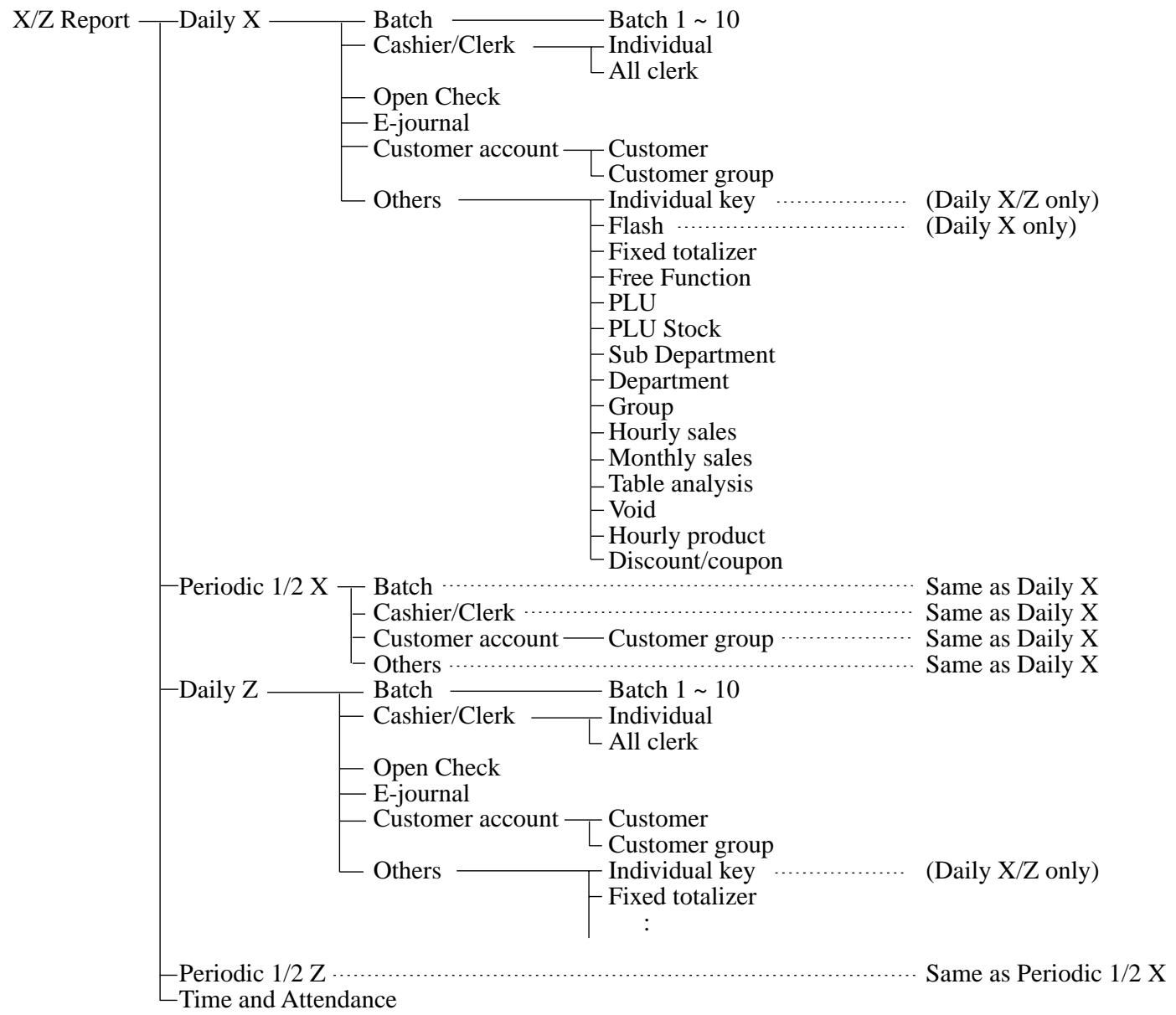
To print the individual key (department, subdepartment, PLU/flat-PLU, function) read report
This report shows sales for specific keys.
Procedure
Step 1. Press MODE and <X/Z> icon to turn "X/Z Report".
Step 2. Select "1.Daily X" and press YES
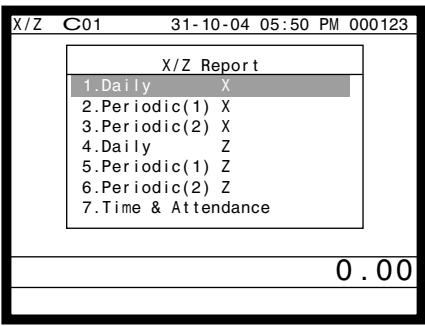
Step 1. screen
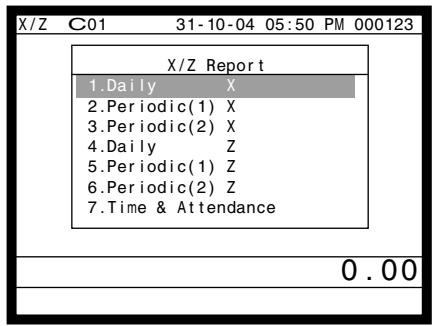
Step 2. screen
Step 3. Select "6.Others" and press YES
Step 4. Select "1.Individual Key" and press YES
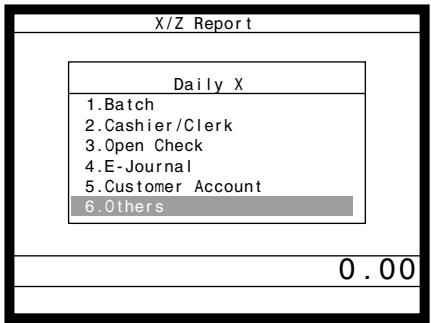
Step 3. screen
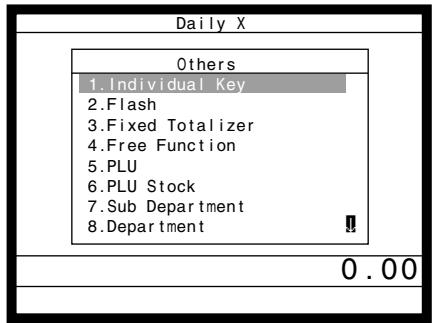
Step 4. screen
Step 5. Select keys you want to read. (The display shows totalizer/counter of the key.)
Step 6. After you finish to select keys, press ESC/SKIP to terminate this procedure - a report is issued.
Report (by optional remote printer)
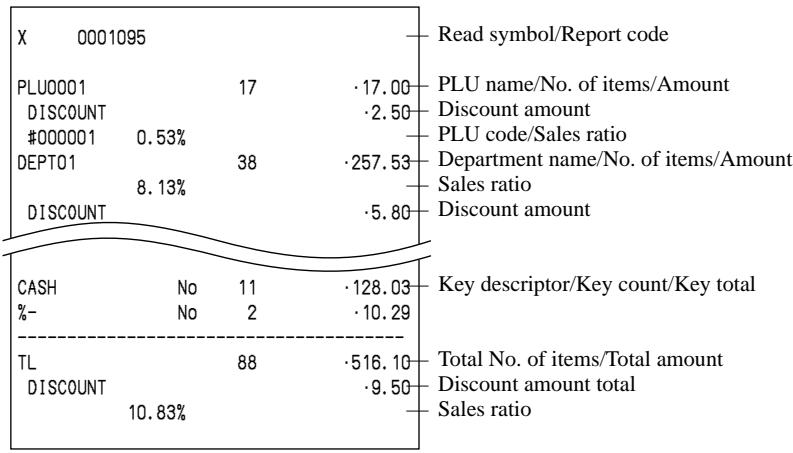
To print the financial read report
This report shows net sales, cash, charge, check and credit in drawer.
Procedure
Step 1. Press MODE and <X/Z> icon to turn "X/Z Report".
Step 2. Select "1.Daily X" and press YES
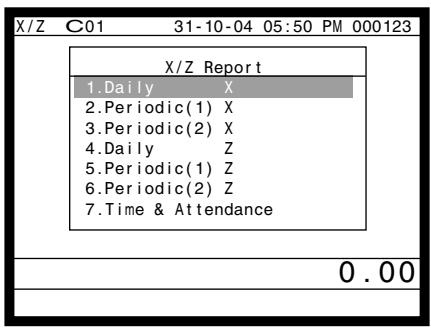
Step 1. screen
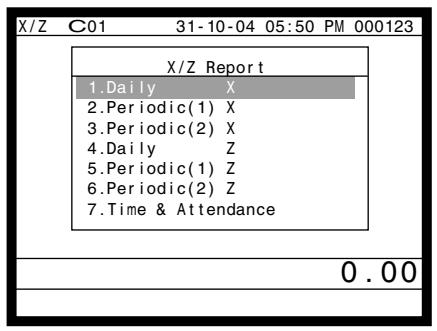
Step 2. screen
Step 3. Select "6.Others" and press YES
Step 4. Select "2 FLASH" and press YES. The declared drawer amount by <#> or <#/NS> should be entered before this step.
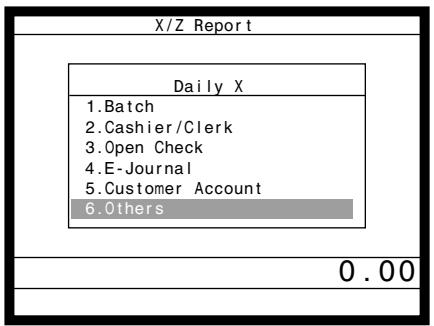
Step 3. screen
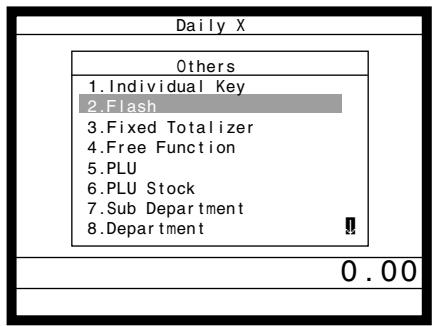
Step 4. screen
Step 5. Press ESC/SKIP repeatedly to return to the "Step 1. screen".
Report (by optional remote printer)
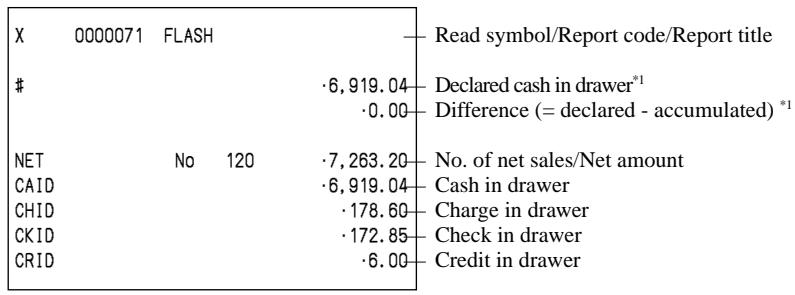
*1 Money declaration:
Count how much cash is in the drawer and input this amount (up to 10 digits).
The terminal will automatically compare the input with the cash in drawer in the memory and print the difference between these two amounts.
Note that if money declaration is required by programming, you cannot skip this procedure.
To print the individual clerk read/reset report
This report shows individual clerk totals.
Procedure
Step 1. Press MODE and <X/Z> icon to turn "X/Z Report", select "1.Daily X" or "4.Daily Z" and press YES.
Step 2. Select "2.Cashier/Clerk" and press YES
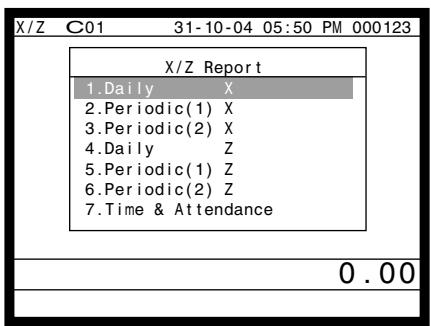
Step 1. screen
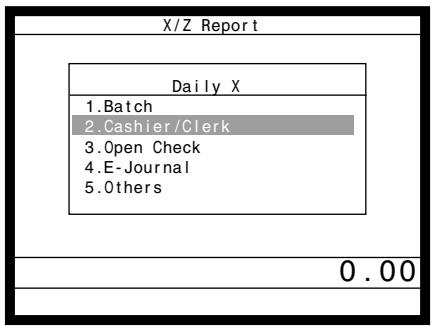
Step 2. screen
Step 3. Select "1.Individual" and press YES.
Step 4. Enter clerk No., press twice. The declared drawer amount by <#> or <#/NS> should be entered before this step.
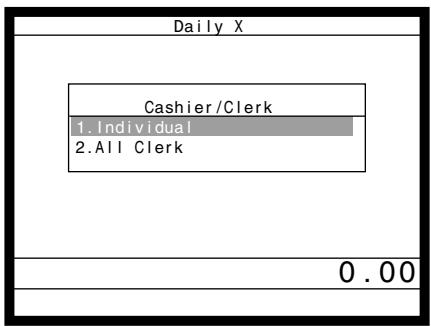
Step 3. screen
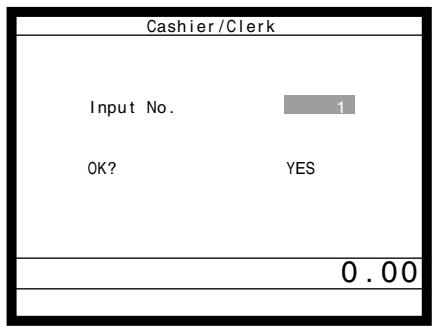
Step 4. screen
Step 5. Repeat the step 4., if you have other clerks to read.
Step 6. After you finish to select keys, press ESC/ SKIP to terminate this procedure.
Report (by optional remote printer)
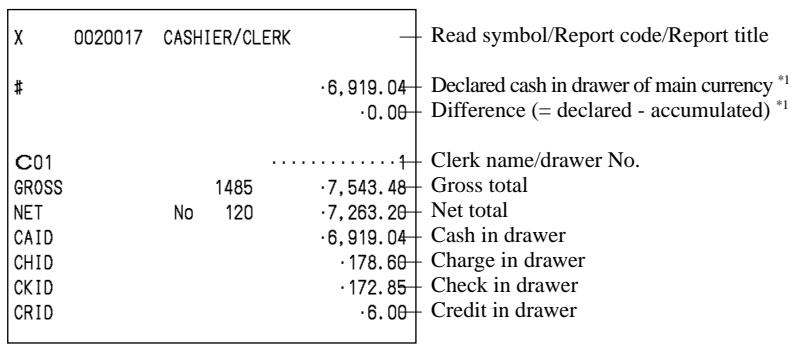
*1 Money declaration:
Count how much cash is in the drawer and input this amount (up to 10 digits).
The terminal will automatically compare the input with the cash in drawer in the memory and print the difference between these two amounts.
Note that if money declaration is required by programming, you cannot skip this procedure.
To print the daily sales read/reset report
Please refer to "Printing the daily sales reset report" section on page 42 of this manual.
To print the periodic 1/2 sales read-reset reports
These reports show breakdowns of sales by any two kinds of period you want.
Procedure
Step 1. Press MODE and <X/Z> icon to turn "X/Z Report".
Step 2. Select "2.Periodic(1) X", "3.Periodic(2) X", "5.Periodic(1) Z" or "6.Periodic(2) Z" and press YES.
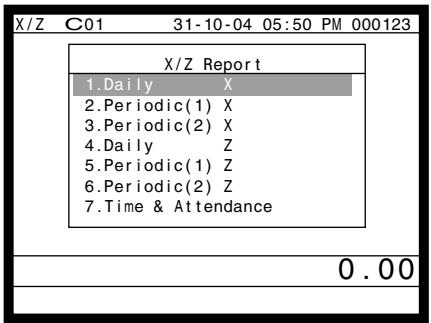
Step 1. screen
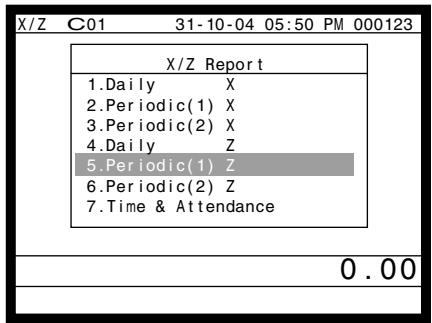
Step 2. screen
Step 3. Select "1.Batch" and press YES Step 4. Select "1.Batch(1)" and press Y
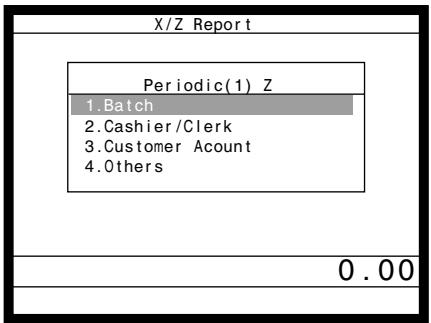
Step 3. screen
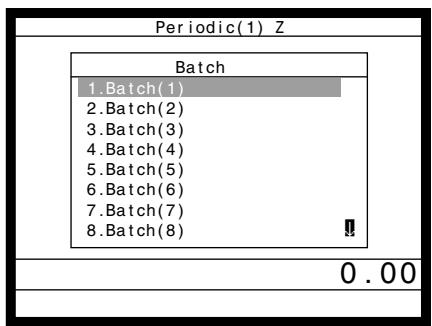
Step 4. screen
Step 5. Press repeatedly to return to the "Step 1. screen".
Report (by optional remote printer)
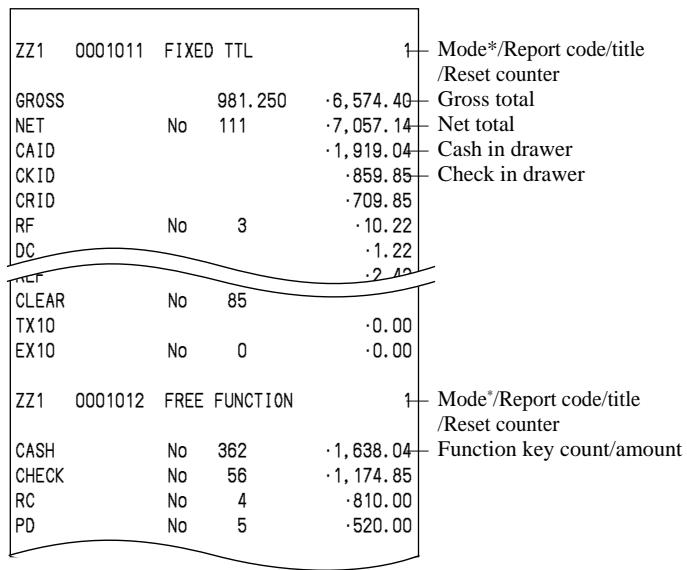
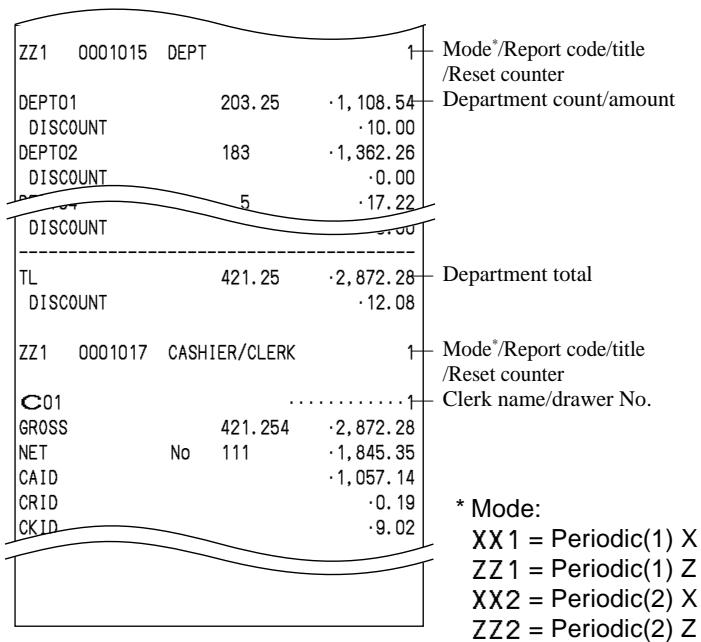
To print the PLU read/reset report
This report shows sales for PLUs.
Procedure
Step 1. Press MODE and <X/Z> icon to turn "X/Z Report".
Step 2. Select "1.Daily X", "2.Periodic(1) X", "3.Periodic(2) X", "4.Daily Z", "5.Periodic(1) Z", "6.Periodic(2) Z" and press YES.
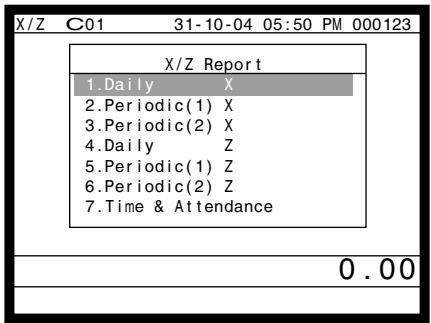
Step 1. screen
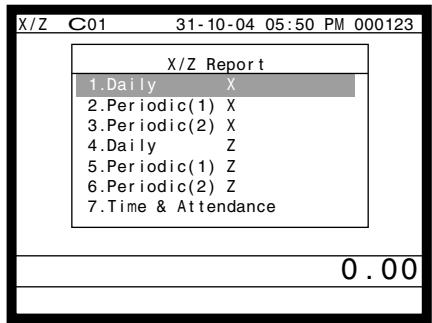
Step 2. screen
Step 3. Select "6.Others" and press YES
Step 4. Select "5.PLU" and press , then select "1.All" and press .
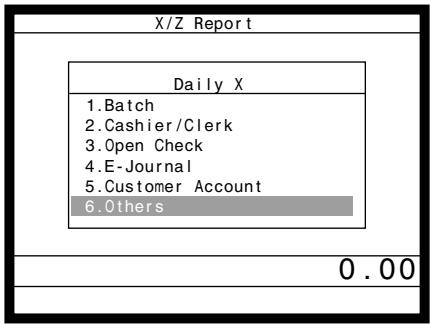
Step 3. screen
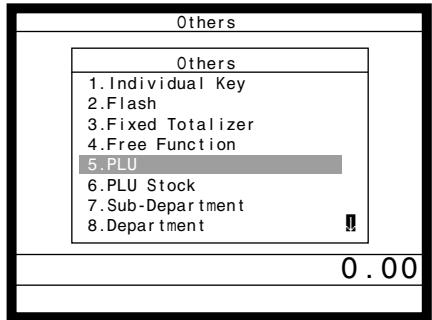
Step 4. screen
Step 5. Press ESC/SKIP repeatedly to return to the "Step 1. screen".
Report (by optional remote printer)
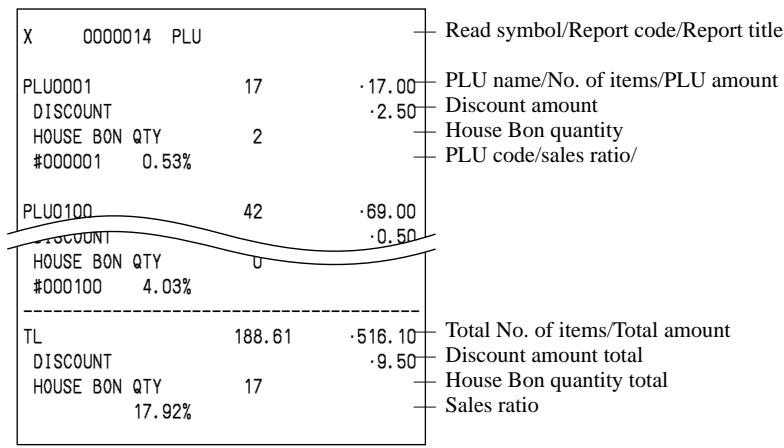
To print the hourly sales read/reset report
This report shows hourly breakdowns of sales.
Procedure
Step 1. Press MODE and <X/Z> icon to turn "X/Z Report".
Step 2. Select "1.Daily X", "2.Periodic(1) X", "3.Periodic(2) X", "4.Daily Z", "5.Periodic(1) Z", "6.Periodic(2) Z" and press YES.
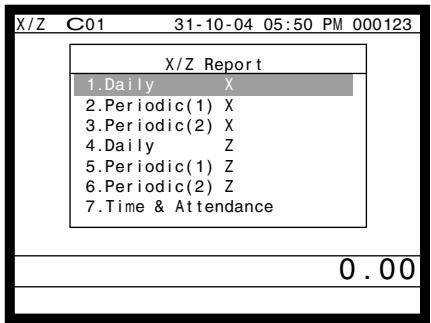
Step 1. screen
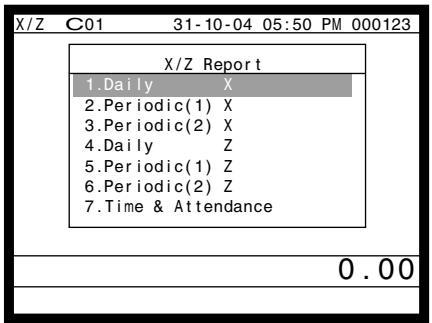
Step 2. screen
Step 3. Select "5.Others" and press YES
Step 4. Select "10.Hourly Sales" and press YES.
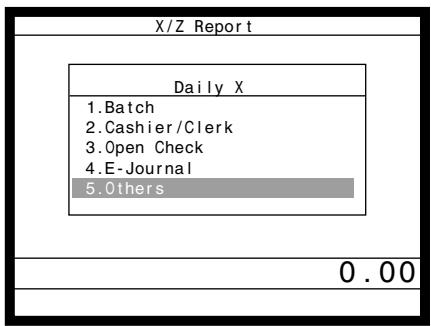
Step 3. screen
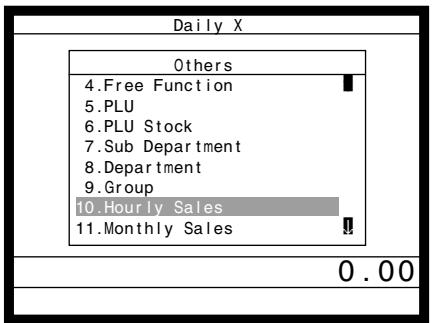
Step 4. screen
Step 5. Press ESC/SKIP repeatedly to return to the "Step 1. screen".
Report (by optional remote printer)
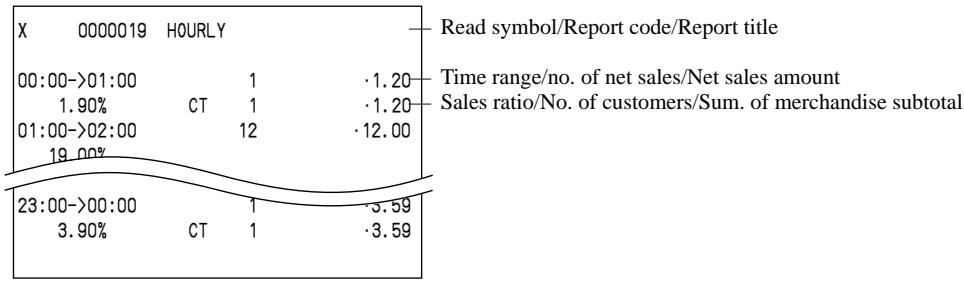
To print the monthly sales read/reset report
This report shows monthly breakdowns of sales.
Procedure
Step 1. Press MODE and <X/Z> icon to turn "X/Z Report".
Step 2. Select "1.Daily X", "2.Periodic(1) X", "3.Periodic(2) X", "4.Daily Z", "5.Periodic(1) Z", "6.Periodic(2) Z" and press YES.
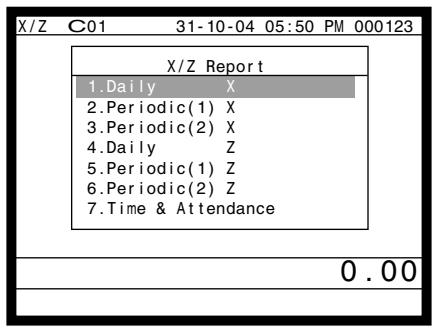
Step 1. screen
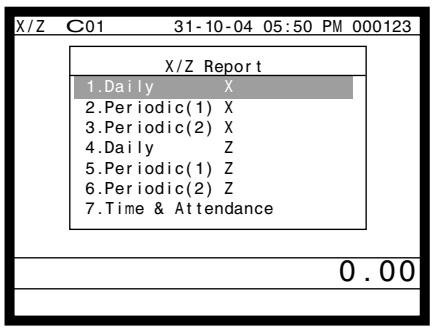
Step 2. screen
Step 3. Select "5.Others" and press YES
Step 4. Select "11.Monthly Sales" and press YES.
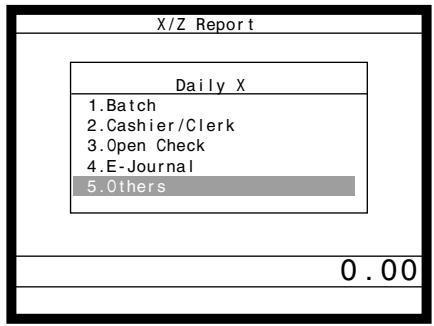
Step 3. screen
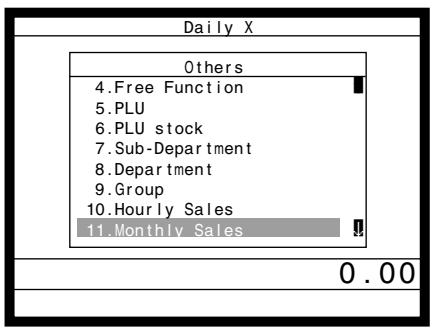
Step 4. screen
Step 5. Press ESC/SKIP repeatedly to return to the "Step 1. screen".
Report (by optional remote printer)
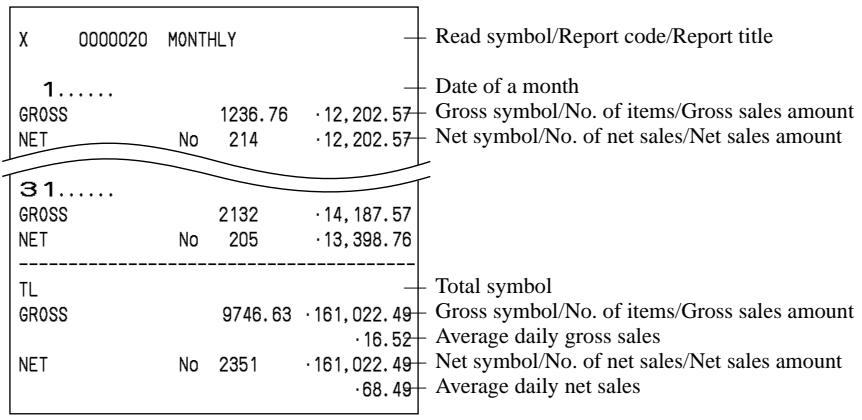
Reading the terminal's program
You can issue these kinds of report by tracing this tree.
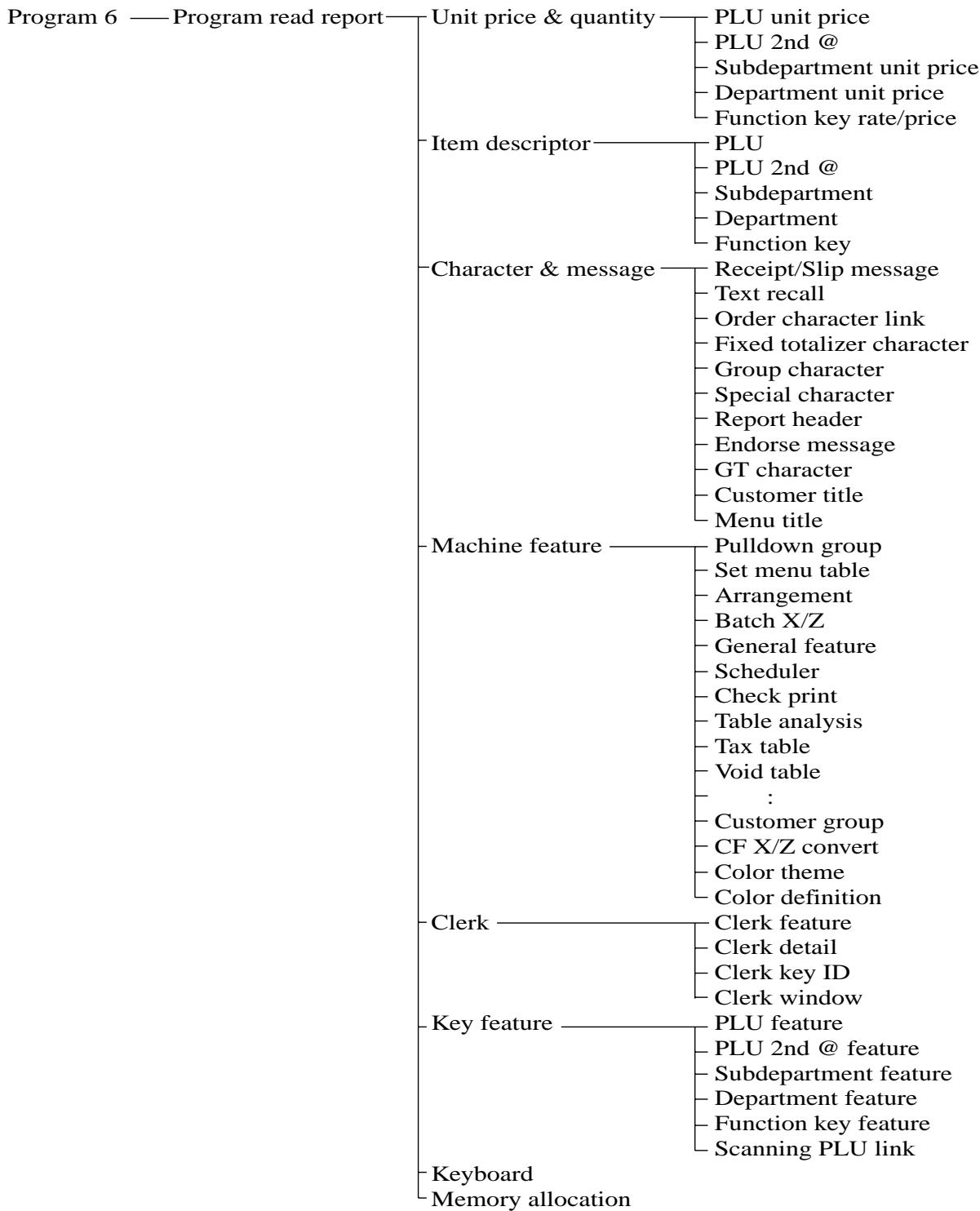
Procedure
Step 1. Press MODE and icon to turn Program 6 mode and press YES.
Step 2. Select an appropriate job and press YES
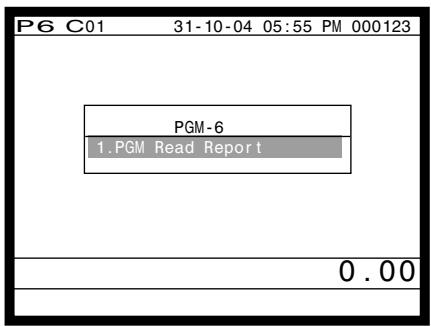
Step 1. screen
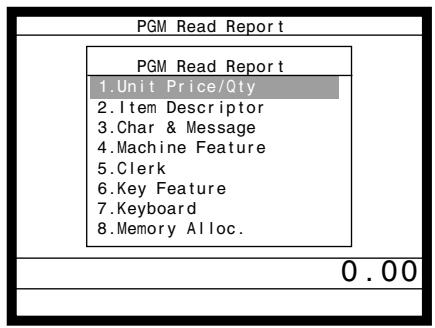
Step 2. screen
Step 3. Select an appropriate job and press YES. If the job requires range destination, Step 4 screen will appear. Step 4. Enter the start/end range and press YES.
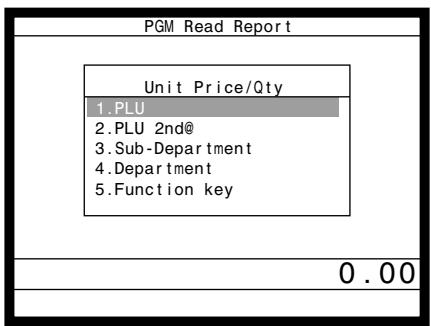
Step 3. screen
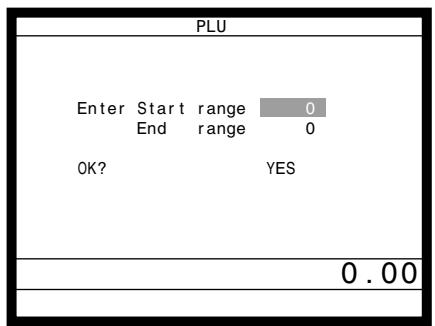
Step 4. screen
Step 5. Press [ESC/SKIP] repeatedly to return to the "Step 1. screen".
Report example (It is necessary to connect optional remote printer to print out these reports.)
Unit price and quantity
PLU unit price
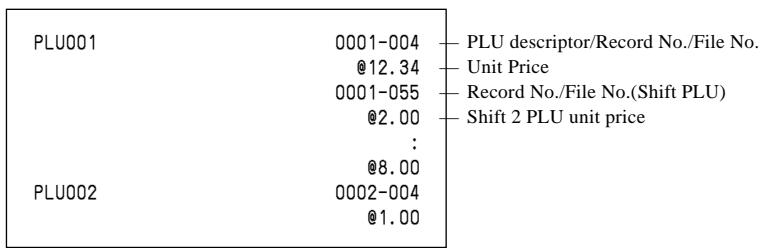
PLU 2nd @
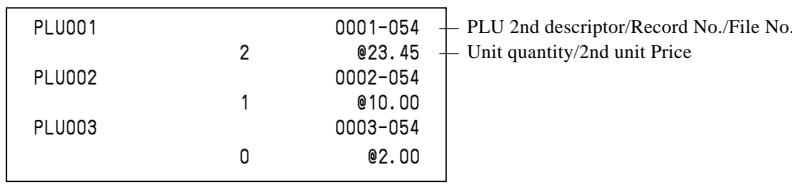
Subdepartment unit price
| SUBDEPT01 | 0001-003 @1.00 Subdepartment descriptor/Record No./File No. |
| SUBDEPT02 | 0002-003 @2.00 Unit Price |
| SUBDEPT03 | 0003-003 @3.34 |
Department unit price
| DEPT01 | 0001-005 @12.34 |
| DEPT02 | 0002-005 @2.34 |
| DEPT03 | 0003-005 @1.34 |
Function key rate/price
| %- | 0013-002 | Function key descriptor/Record No./File No. |
| 0% | Unit Price, percent rate or conversion rate |
| - | 0018-002 | |
| @0.00 | |
| CASH | 0035-002 | |
| @0.00 | |
Item descriptor
PLU
| PLU001 | 0001-004 | PLU descriptor/Record No./File No. |
| PLU002 | 0002-004 |
PLU 2nd unit price
| PLU001 | 0001-054 | — PLU 2nd descriptor/Record No./File No. |
| PLU002 | 0002-054 |
Subdepartment
| SUBDEPT01 | 0001-003 | Subdepartment descriptor/Record No./File No. |
| SUBDEPT02 | 0002-003 |
| SUBDEPT03 | 0003-003 |
Department descriptor
| DEPT01 | 0001-005 |
| DEPT02 | 0002-005 |
| DEPT03 | 0003-005 |
Function key descriptor
| RCT | 0001-002 |
| NEW/OLD | 0002-002 |
| RC | 0003-002 |
| DISP ON/OFF | 0004-002 |
| CLK#1 | 0005-002 |
Character and Message
Receipt/Slip message
| 0001-032
YOUR RECEIPT
0002-032
THANK YOU
0003-032 | Record No./File No.
Receipt message |
Clerk
Clerk feature
| C01 | 001-007 | — Clerk name/Record No./File No. |
| 0001 | — Clerk secret code |
| 00 | — Printer No. |
| 000111 | |
| 01-067 | 0000040000 | |
| 02-067 | 0000000000 | |
| 03-067 | 0000000000 | |
| 04-067 | 0000000000 | |
| 05-067 | 0000000000 | |
| 06-067 | 0000000000 | |
| 07-067 | 0000000000 | |
| 08-067 | 0000000000 | |
| 09-067 | 0000000000 | |
| 10-067 | 0000000000 | |
| 11-067 | 0000000000 | |
| 068 | 00000000 | |
| 069 | 0000000000 | |
| C02 | 002-007 | |
| 0002 | |
Key feature
PLU feature
| PLU001 | 0001-004 | PLU descriptor/Record No./File No. |
| 000000000000 | Elementary program |
| 11-066 | 000000 | |
| 12-066 | 000000 | |
| 13-066 | 0000 | |
| 14-066 | 0 | |
| 0 | Other program data |
| 15-066 | @0.00 | |
| 16-066 | 00 | |
| 17-066 | 00 | |
| 20-066 | 0000 | |
| 21-066 | 000000000000 | |
| 22-066 | 000000 | |
| PLU002 | | |
PLU 2nd unit price feature
| PLU001 | | 0001-054 | — PLU 2nd @ descriptor/Record No./File No. |
| | 000000000000 | — Elementary program |
| 11-066 | 000000 | — Other program data |
| 12-066 | 000000 | — Other program data |
| 14-066 | 0 | — Other program data |
| PLU002 | | 0002-054 | |
| | 000000000000 | |
| 11-066 | 000000 | |
| 12-066 | 000000 | |
| 14-066 | 0 | |
| PLU003 | | 0003-054 | |
Subdepartment feature

Department feature
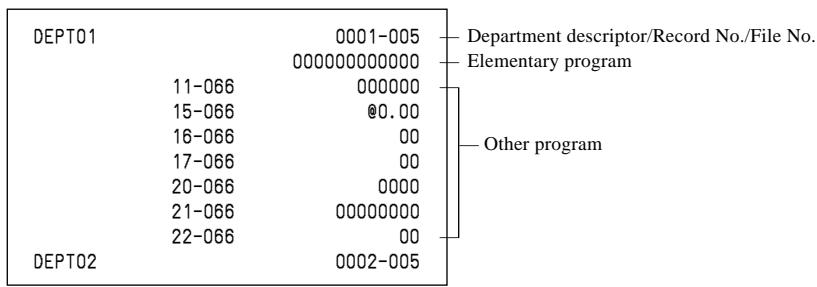
Function key feature
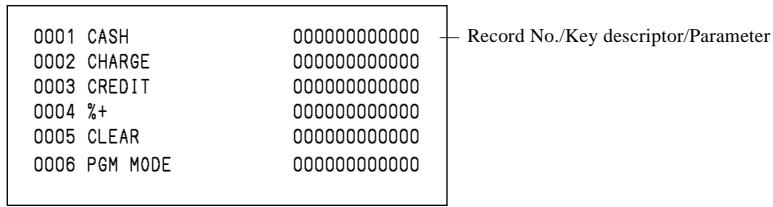
This section describes what to do when you have problems with operation.
When an error occurs
Errors are indicated by an error codes. When this happens, you can usually find out what the problem is as illustrated below.
Press C and check the appropriate section of this manual for the operation you want to perform.
| Prompt message | Meaning | Action |
| Operator mistake. | Operation error | Perform proper operation. |
| E001 Wrong mode. | Check tracking (Open mode error) | Return the mode to its original setting. |
| E003 Wrong operator. | Error clerk/Error clerk in check tracking | Input correct check number or assign the proper clerk. |
| E005 Insufficient memory. | Memory allocation over | Reallocate memory. |
| E011 Close the drawer. | Drawer compulsory | Close cash drawer. |
| E012 Journal paper end. | Journal paper end | Replace journal paper. |
| E014 Receipt paper end. | Receipt paper end | Replace receipt paper. |
| E015 Check R/J printer. | Internal R/J printer error | Check the internal R/J printer. |
| E016 Change back to REG mode. | Prohibit plural operation in REF/REG- mode | Switch to another mode and then back to the REF/REG- mode again. |
| E017 Enter Check/TBL number. | Check number compulsory | Input a check number. |
| E018 Enter Table number. | Table number compulsory | Input a table number. |
| E019 Enter Number of covers. | Cover compulsory | Enter the number of customers. |
| E020 Enter Seat number. | Seat number compulsory | Input a seat number. |
| E023 Stock running short. | Alarm when any item drops below its programmed minimum stock quantity during registration. | Perform stock maintenance. |
| E024 No stock is available. | Error when actual stock value for a registration items is a negative value. | Perform stock maintenance. |
| E028 Not found PLU or C/D is mismatch. | Scanning PLU is not found or OBR code is mismatched. | Re-enter the PLU code. |
| E029 No registration is possible while you are in the tender operation. | Attempted registration whilst partial tender operation is being done. | Finalize the transaction. |
| E031 Press ST key before Finalization. | ST compulsory | Press ST key. |
| E033 Enter tendered amount. | Amount tender compulsory | Enter tendered amount. |
| E035 Change amount exceeds the limit. | Change amount exceeds the limit. | Enter amount tendered again. |
| E036 Remove money from the drawer. | Contents of the drawer exceed the programmed limit — Sentinel function. | Perform pickup operation. |
| E037 Digit or Amount Limitation Over. | H.D.L., H.A.L., L.D.L. error | Enter correct unit price/amount. |
| E038 Perform Money Declaration | Money declaration compulsory | Perform money declaration. |
| E040 Issue Guest Receipt. | Guest receipt compulsory | Issue a guest receipt. |
| E041 Print Validation. | Validation compulsory | Perform validation operation. |
| E044 Print Cheque. | Check print compulsory | Perform check print operation. |
| E045 Print Check-Endorsement. | Check endorsement compulsory | Perform check endorsement operation. |
| E046 REG Buffer Full. Please Finalize or NB. | Registration buffer full | Finalize the transaction. Allocate sufficient buffer. |
| E047 Print bill. | Slip compulsory | Perform slip printing operation. |
| E048 Insert Slip Paper and retry. | Alarm when no paper is inserted in the Slip. | Insert new slip paper. |
| E049 CHECK memory full. | Check tracking index full/near end | Finalize and close the check number currently used. |
| E050 Detail memory full. | Check tracking memory full/near end | Finalize and close the check number currently used. |
| E051 CHK/TBL No. is occupied. | Attempt is made to use the<NEW CHECK>key to open a new check using a number that is already used for an existing check tracking memory. | Finalize and close the check that is currently under the number that you want to use or use a different check number. |
| E052 CHK/TBL No. is Busy. | Attempt to use the same check number whilst the specified number is being used in the other terminal. | Use another check number or close the check at that terminal. |
| E053 CHK/TBL No. is not opened. | Check number not found | Use the correct check number (if you want to reopen a check that already exists in the check tracking memory) or use<NEW CHECK>to open a new check. |
| E054 Out of CHK/TBL No. Range. | Check number range over | Enter correct number. |
| E056 Store range full. | All check number are occupied in range. | Recall the stored data. |
| E057 No item exists in detail. | Round repeat cannot be found in detail. | |
| E058 Enter post entry item. | Post entry item exists in detail. | Enter Post entry item. |
| E059 Press Eat-in or Take-out key. | Press eat-in or take-out key. | Press Eat-in or Takeout key. |
| ********** E060 Printer offline. | Printer offline. “*****” means ECR logical ID and printer number. | |
| ********** E061 Printer error. | Printer downed. “****” means ECR logical ID and printer number. | The contents are printed on the backup printer. |
| **********E061 Printer error.YES:Retry to print.NO :Backup to R/J printer.ESC:Discard data. | Printer downed. “*****” means ECR logical ID and printer number. | Follow the prompt message. |
| **********E062 Printer paper end. | Paper near-end/end “****” means ECR logical ID and printer number. | The contents are printed on the backup printer. |
| **********E062 Printer paper end.YES:Retry to print.NO :Backup to R/J printer.ESC:Discard data. | Paper near-end/end “****” means ECR logical ID and printer number. | Follow the prompt message. |
| E064 Printer buffer full.YES:Retry to print.NO :Backup to R/J printer.ESC:Discard data. | Print buffer full at sender side | Follow the prompt message. |
| **********E070 Terminal out of action.Cannot print. | Down at target ECR which has printer “*****” means ECR logical ID and printer number. | |
| **********E071 Target terminal printerBF full.YES:Retry to print.NO :Backup to R/J printer.ESC:Discard data. | Printer buffer full at target ECR which has printer “*****” means ECR logical ID and printer number. | Follow the prompt message. |
| **********E072 Target printer terminal is busy. | Busy at target ECR which has printer “*****” means ECR logical ID and printer number. | |
| **********E073 Your receipt/order may not be issued.YES:Retry to print.NO :Backup to R/J printer.ESC:Discard data. | Time out at ECR which has printer “*****” means ECR logical ID and printer number. | Follow the prompt message. |
| E075 Negative Balance, cannot be finalized. | Attempted finalization when balance is less than zero. | Register item(s) until the balance becomes positive amount. |
| E080 Electronic Journal Full Please clear E-Journal. | Electronic journal full | Reset the electronic journal memory. |
| E082 **** Illegal Data **** | Illegal Electronic journal data | |
| E083 Cannot create E-Journal. Check Flash memory. | Electronic journal file cannot be created. | Check flash memory. |
| **********E105 Check/TBL tracking Master down. Please call Manager!! YES:Retry for connection.NO :Remove it from system. | CHK master down “*****” means ECR logical ID. | Follow the prompt message. |
| **********E106 Check/TBL tracking Backup master down. Please call Manager!! YES:Retry for connection.NO :Remove it from system. | CHK BM down “*****” means ECR logical ID. | Follow the prompt message. |
| **********E107 Both Master&Backup master down. CHK/TBL tracking or Clerk interrupt is not available. | CHK M/BM down “*****” means ECR logical ID. | |
| **********E108 CHK/TBL Master is removed from system. | Master down then take it off from system “*****” means ECR logical ID. | |
| **********E109 CHK/TBL Backup master is removed from system. | Backup master down then take it off from system “*****” means ECR logical ID. | |
| E110 CHK data mismatch between Master and Backup master. | Data mismatch has occurred. | |
| E130 Middle of Pick up or Loan Press Cancel Key. | During picking up | Follow the prompt message. |
| E131 Middle of <Bill Copy>Press Cancel Key. | During bill copy | Follow the prompt message. |
| E133 Middle of <Media Change>Press Cancel Key. | During media change | Follow the prompt message. |
| E134 Middle of Clerk Transfer Press ESC Key. | During clerk transfer | Follow the prompt message. |
| E136 Middle of Separate Check Press ESC key. | During separate check | Follow the prompt message. |
| E139 Not allowed to be negative by Minus/Coupon key. | Credit balance error | Enter proper minus/coupon amount. |
| E140 Wrong menu. | This sheet holder is prohibited by program. | Set correct sheet holder. |
| E141 Press <TRAY TTL> twice before finalization. | <TRAY TOTAL> key is not pressed twice before finalization. | Follow the prompt message. |
| E145 Arrangement syntax error. | Arrangement syntax error | Program the arrangement again. |
| E150 Incorrect value entry. | Incorrect entry for PGM | Enter proper value again. |
| E151 Incorrect Key Pressed. | Linking is incorrect. | Enter proper key again. |
| E152 PGM File or Memory number does not Exist. | No such file, no such record | Enter file/record number again. |
| E164 Employee No. is not Found in the Employee File. | Employee No. is not set in the Employee File. | Enter employee number again. |
| E165 Employee No. is not Clocking-in. | Employee has not done CLOCK-IN operation yet. | Perform CLOCK-IN operation. |
| E166 Employee No. is Occupied. | Employee who has done CLOCK-IN operation attempts to operate CLOCK-IN again. | Enter the proper employee number again. |
| E167 Incorrect Job code. | Employee attempts to operate CLOCK-IN with incorrect JOB code. | Enter proper job code. |
| E168 Your Operation is out of Schedule. Please Call Manager. | Employees operate CLOCK-IN/OUT in not allowance time. | Follow the prompt message. |
| E169 Work Hours Exceeded. Please Call Manager. | Overtime work. | Follow the prompt message. |
| E170 No Shift Remains in the Schedule. You cannot Clock-in. | There is no available shift left. | |
| E171 Please Break-out and Retry. | Employee attempts to operate CLOCK-OUT whilst he/she is in a break time. | Follow the prompt message. |
| E172 Break Hours Exceeded. Please Call Manager. | Break hours are exceeded. | Follow the prompt message. |
| E173 This employee is at work now. | Employee is at work without break. | |
| E174 This employee is taking a break now. | Employee who has not done BREAK-OUT operation attempts to operate BREAK-IN. | |
| E175 Please Clock-in/Break-out before you sign on. or Please Call Manager. | Sign on after you clock-in or break out. | Follow the prompt message. |
| E176 You cannot Clock-in. Please reset Employee Report. | Employee Report has not been reset. | Follow the prompt message. |
| E177 Time&Attendance Data Communication Error. Please Call Manager. | Time & Attendance Data communication error. | Follow the prompt message. |
| E180 IDC FILE (1) memory full. Please clear IDC data. | IDC FILE (1) memory is full of items. | Follow the prompt message. |
| E181 IDC FILE (2) memory full. Please clear IDC data. | IDC FILE (2) memory is full of items. | Follow the prompt message. |
| E182 IDC FILE (3) memory full. Please clear IDC data. | IDC FILE (3) memory is full of items. | Follow the prompt message. |
| E200 Insert CF Card. | CF card is not inserted to the slot. | Insert CF card. |
| E201 Format error. | CF card data or formats illegal. | Check the CF card. |
| E203 Insufficient memory. | Insufficient memory is remained in CF card. | Format or use a new CF card. |
| E205 The file already exists. Do you replace? YES:Replace the file. NO :Input new name. | File name duplication error | Follow the prompt message. |
| E240 Customer No. is occupied. | Attempt is made to set a customer that already exists in the customer file. | Enter proper customer No. |
| E241 Customer memory full. | Customer file becomes full. | Delete unnecessary customer No. |
| E242 Customer not found. | This customer does not exist. | Enter proper customer No. |
| E243 Illegal site ID. | The site No. of the file does not coincide with the No. of the card. | Swipe the proper magnetic card. |
| E244 Credit limit over. | Attempt to transfer when the balance is over than the credit limit | Release credit limit by OPEN2 Make minus, void, or refund operation to decrease the balance under the credit limit. Perform finalization or cancellation. |
| E251 Magnetic card error. | This card cannot be read. This card format is illegal. | Swipe the magnetic card again. Swipe the proper magnetic card. |
| E252 Enter customer name. | | Follow the prompt message. |
| E253 Enter address. | | Follow the prompt message. |
| E254 Enter phone number. | | Follow the prompt message. |
When the terminal does not operate at all
Perform the following check whenever the terminal enters an error condition as soon as you switch it on. The results of this check are required by service personnel, so be sure to perform this check before you contact a CASIO representative for servicing.
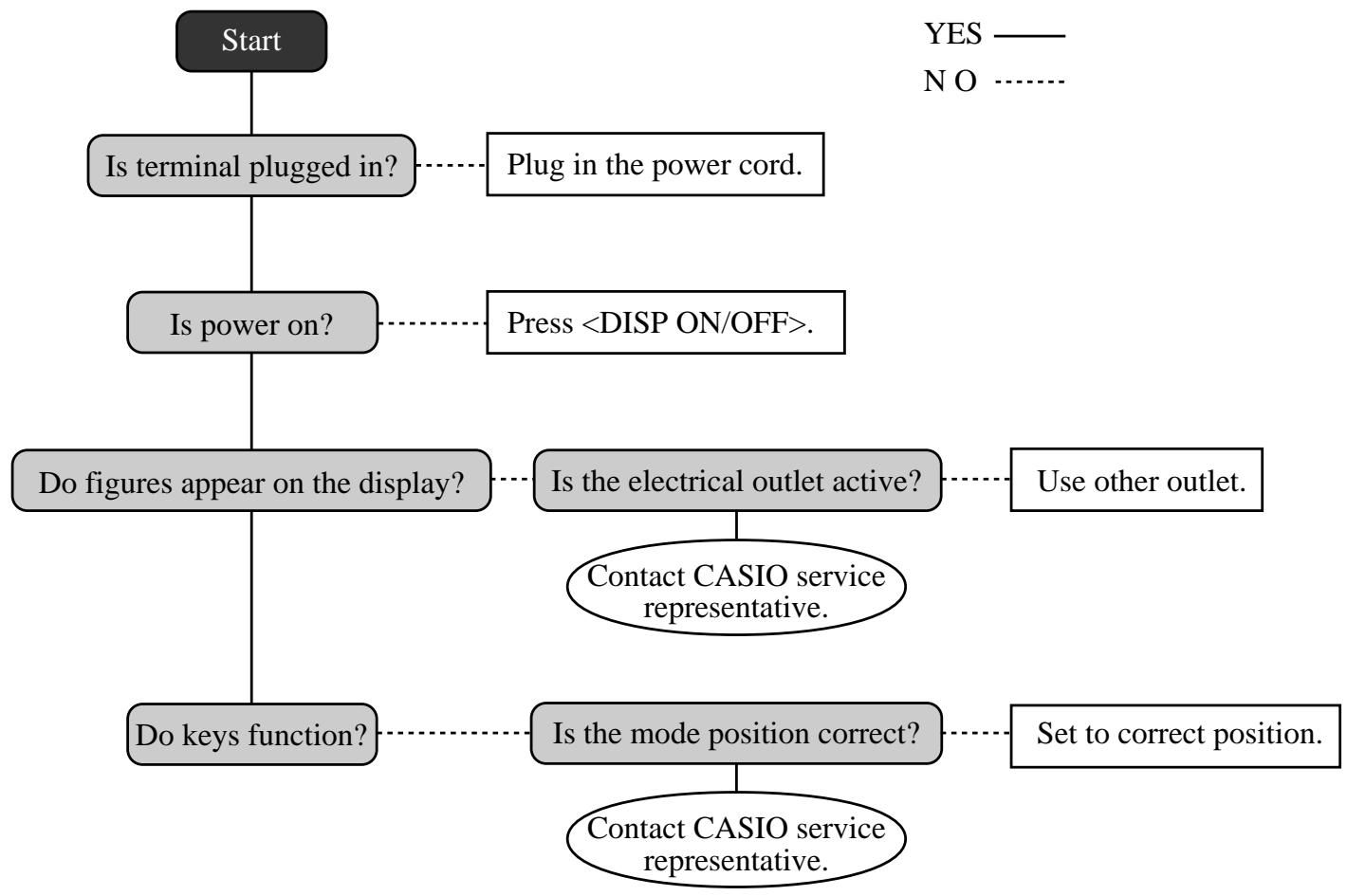
In case of power failure
If the power supply to the terminal is cut by a power failure or any other reason, simply wait for power to be restored. The details of any on-going transaction as well as all sales data in memory are protected by the memory backup batteries.
Power failure during a registration
The subtotal for items registered up to the power failure is retained in memory. You will be able to continue with the registration when power is restored.
- Power failure during printing a read/reset report
Power failure during printing of a receipt and the journal
Printing on remote printer will resume after power is restored. A line that was being printed when the power failure occurred is printed in full.
The memory protection battery is constantly charging and discharging as you switch the terminal on and off during normal operations. This causes the capacity of the battery to decrease after approximately five years of use.
Important!
- Remember a weak battery has the potential of losing valuable transaction data.
- A label on the back of the terminal shows the normal service period of the battery installed in the terminal.
- Have the battery replaced by your dealer within the period noted on this label.
Options
Remote customer display: QT-6060D
Hand held scanner: HHS-15
Slip printer: SP-1300
Cable: PRT-CB-8C
Power supply: AD31U or AD31E
Remote printer: UP-360, UP-250
Cable: PRT-CB-8A or PRT-CB-8B
Power supply: PS-180 and AC-170 for UP-250
Cash drawer:
MCR: QT-6046MCR
Interlink cable: PRL-CB-2
Consult with your CASIO dealer for details.
Entry: 10-key system
Function: Full key system
Display
Color LCD: 12.1 inch 800 × 600 dots with touch screen
Listing capacity
Amount: 9999999
Quantity: 9999.999
Tendered amount: 9999999999
Percent: 99.99
Tax rate: 9999.9999
Numbers: 999999999999
Chronological data
Date print: Automatic date printout on receipt or journal, automatic calendar
Time print: Automatic time printout on receipt or journal, 24-hour system/12-hour system
Alarm
Key catch tone, error alarm, sentinel alarm
Memory protection battery
24-hour full charge protects memories for approximately 30 days.
Battery should be replaced every five years.
Power supply/power consumption
See the rating plate.
Operation temperature
0^ 40^ (32^ 104^)
Humidity
20 85%
Dimensions and weight
311mm (H) max. × 343mm (W) × 327mm (D) max. / 5.3kg ...without drawer
(12_1/4''(H) . × 13_1/2''(W) × 12_7/8''(D) . / 11 lbs. 10 oz)
| Totalizers | Contents |
| Category | No. of
totalizers | Amount
(10 digits) | No. of items
(6 integer/3 decimal) | Count
(4 digits) | No. of customers
(6 digits) | Periodic totalizers |
| Department | Up to 99 | ✓ | ✓ | | | ✓ |
| PLU | Up to 9999 | ✓ | ✓ | | | ✓ |
| Clerk | Up to 99 | ✓ | ✓ | ✓ | ✓ | ✓ |
| Hourly sales | 24 ~ 96 | ✓ | | ✓ | ✓ | ✓ |
| Monthly sales | 32 | ✓ | ✓ | ✓ | ✓ | ✓ |
| Transaction | Variable with program | ✓ |
| Non resettable grand total | 3 | ✓ (16 digits) | | | | |
| Reset counter | | | | ✓ | | |
| Consecutive No. | 1 | | | ✓ (6 digits) | | |
- Specifications and design are subject to change without notice.
A
AC adaptor 10
accessories 10
add check 19, 52
add-on new number type 18
adding to check 49
alphabet key 78
arrangement 19, 67
arrow key 16
assigning a clerk 23
auto new balance function 48
B
backspace key 79
batch printing 47
billcopy19,57
break-in/out key 19
C
cancel 41
cash in drawer 43
cash/amount tendered key 17
change 26
character editing 80
character entering 78
charge 19
check 19, 33
check endorsement 19
check in drawer 43
check number 15
check number method 48
check number pop-up window 18
check print 19
check tracking 15, 48
check/table number window 18
clear key 16
clerk 92
clerk interrupt 46
clerk key 16
clerk number 19
clerk number key 23
clerk programming 74
clerk sign off 23
clerk sign on 23
clerk transfer 19, 54
clock-in/out 19
closing check memory 50
condiment PLU 55
correct not registered item 39
correct previously registered item 41
correct registered item 40
correction 39
coupon 19, 63
coupon 2 19, 63
credit 19, 33
credit in drawer 43
cube 19
currency exchange 19, 68
cursor key 78
customer ID number 19
D
daily sales report 42, 85
date/time key 16
declaration 19
department 19
department descriptor 91
department number 19
deposit 19, 56
descriptor programming 75
discount 30, 31
discount total 43
displaymode19
display on/off key 10, 12
displaying the time and date 25
drawer 12
drawer lock 12
drawer open key 12
dust cover 10
Dutch account 19
E
eat-in 19
electronic journal display 19
error code 94
error correct key 16
ESC/SKIP key 16
escape 21
Euro 34
F
finalization list key 17
financial read report 83
first unit price 19
flat-PLU 26, 75
flat-PLU key 17
function key descriptor 76, 91
function list key 17
G
grand total 43
gross total 43
guest receipt 44, 50
H
hand held scanner 98
high amount limitation 29
home position key 17
hourly sales report 87
house Bon 19
1
i-Button key 12, 23
i-Button key receiver 10
individual clerk report 84
insert key 78
interlink cable 98
item descriptor 15
item quantity 15
item search 19
K
Ketten Bon 20
key descriptor 15
keyboard 16
L
list 20
list number 20, 56
list pop-up window 18
loan 20, 72
local currency 34
location change 20
M
magnetic card reader 98
media change 20, 72
menu level display 14
menu shift 17, 26
merchandise subtotal key 20
message programming 75
mixed tender 33
mode key 16
money declaration 84
monthly sales report 88
multiplication 27
multiplication key 16
N
net total 43
new balance 49
new balance key 17
new check 20, 48
new/old check 48
new/old check key 17
next 21
nokey17
no sale 16, 20, 41
non-add 20
non-add / no sale key 16
normal receipt 20
number of customer 15, 45
number of customer key 17
0
OBR (optical barcode reader) key 20
old check 48
old check key 20
open 20
open 2 20, 70
open check 20, 49
operator number 20, 54
operator X/Z 20
option 98
order character change 20
P
page up key 17
paid out 38
payment 20
pick up 20, 72
PLU 2nd descriptor 90
PLU descriptor 90
PLU number 20
PLU report 86
plus 20, 62
post entry 20
post receipt 17, 44
power failure 98
premium 20, 62
preparation PLU 55
preset amount tender 66
preset price 29
preset tax status 29
previous 21
price inquiry key 20
price key 20
printing slip 47
program reading 89
Q
quantity/for 20
R
read report 81
recall key 20
receipt/slip message programming 77
received on account 20, 38
reduction 30, 32
REF MODE 37
reference No. print 33
refund 20, 36
release HAL 70
release specific compulsion 70
remote customer display 98
remote printer 98
repeat 26
report title 43
reset counter 43
reset report 42, 81
round repeat 20
s
scanning PLU 73
seat number 20
second unit price 20, 64
selective item subtotal key 20
separate check 20, 53
separate check key 17
set menu 59
shift key 78
shift PLU 21
show table layout type 18
single item 61
single item sale 26
slip 47
slip back feed/release key 21, 47
slip feed/release 21, 47
slip print 21
slip printer 98
space key 78
square key 21
stock (negative) 60
stock (under minimum level) 60
stock check 60
stock inquiry 21, 60
store 21
subdepartment 21
subdepartment descriptor 91
subdepartment number key 21
substitution 21
subtotal key 16
T
table number 15, 21, 49
table number method 48
table sharing 21
table transfer 54
table transfer key 17
takeout 21
tax amount 43
tax exempt 21
tax shift 21
tax status 15
taxable amount 43
taxable amount subtotal key 21
ten key pad 16
text print 21
text recall 21, 55
tilt the touch screen panel 11
tip 21
tips 59
touch screen panel 13
tray total 21, 58
U
unit price inquiry 73
V
validation 21
VAT 21
VAT breakdown 71
view 21
void key 16
X
X/Z menu window 81
Y
yeskey17
CASIO®
CASIO COMPUTER CO., LTD.
6-2, Hon-machi 1-chome
Shibuya-ku, Tokyo 151-8543, Japan
QT-6000*E
MO0407-A Printed in Malaysia
Printed on recycled paper