
TM-m30 - Printer EPSON - Free user manual and instructions
Find the device manual for free TM-m30 EPSON in PDF.


| Product Type | Thermal Receipt Printer |
| Printing Method | Direct Thermal |
| Print Speed | Up to 500 mm/s |
| Resolution | 180 x 180 dpi |
| Interface | USB (Type B), Ethernet (10/100), Serial (RS-232), optional Wi-Fi |
| Paper Width | 58 mm or 80 mm (depending on model) |
| Paper Roll Diameter | Up to 83 mm |
| Dimensions (W x D x H) | 127 x 127 x 127 mm |
| Weight | 0.6 kg |
| Power Supply | AC adapter (24 V DC, 1.8 A) |
| Power Consumption | Approx. 30 W (printing), 0.9 W (standby) |
| Operating Temperature | 5 to 45 °C |
| Storage Temperature | -10 to 50 °C |
| Humidity | 10 to 90% (non-condensing) |
| Autocutter | Partial cut (full cut optional) |
| Print Head Life | 150 km |
| Maintenance | Clean print head and platen roller with isopropyl alcohol |
| Safety | Use only specified power adapter; avoid water and excessive heat |
| Spare Parts | Print head, cutter, power supply, main board |
| Reparability | Modular design; replaceable parts |
Frequently Asked Questions - TM-m30 EPSON
User questions about TM-m30 EPSON
0 question about this device. Answer the ones you know or ask your own.
Ask a new question about this device
Download the instructions for your Printer in PDF format for free! Find your manual TM-m30 - EPSON and take your electronic device back in hand. On this page are published all the documents necessary for the use of your device. TM-m30 by EPSON.
USER MANUAL TM-m30 EPSON
Wireless LAN Cable Set
OT-WL02

User's Manual....3
| Power-supply Voltage | DC 5 V |
| Current Consumption | Maximum 0.4 A |
| Frequency Range | 2.4 GHz band (1 to 13 Ch)Channels 1 to 11 are only available for North America |
| Potential Interference Range | 40 m |
| Appearance | Wireless LAN unit: Approx. 24 × 51 × 10 mm ( W × D × W )USB extension cable: 1 m (length) |
All rights reserved. No part of this publication may be reproduced, stored in a retrieval system, or transmitted in any form or by any means, electronic, mechanical, photocopying, recording, or otherwise, without the prior written permission of Seiko Epson Corporation.
The contents of this manual are subject to change without notice.
While every precaution has been taken in the preparation of this manual, Seiko Epson Corporation assumes no responsibility for errors or omissions. Neither is any liability assumed for damages resulting from the use of the information contained herein.
Neither Seiko Epson Corporation nor its affiliates shall be liable to the purchaser of this product or third parties for damages, losses, costs, or expenses incurred by purchaser or third parties as a result of: accident, misuse, or abuse of this product or unauthorized modifications, repairs, or alterations to this product, or (excluding the U.S.) failure to strictly comply with Seiko Epson Corporation's operating and maintenance instructions. Seiko Epson Corporation shall not be liable for any damages or problems arising from the use of any options or any consumable products other than those designated as Original Epson Products or Epson Approved Products by Seiko Epson Corporation.
Introduction
This product is Wireless LAN Cable Set for Epson TM Printers.
Make sure this product can be used with your printer by checking the printer's manuals and so on.
This manual provides information about installation and basic operations to enable safe and correct use of this product.
Read this manual carefully, and store it in an accessible location to allow you to solve any unknown points quickly.
Usage Precautions
Notes on Security when Using Wireless LAN
(Important information on customer rights (maintaining privacy))
The advantage of using a wireless LAN over a LAN cable is that, because information is exchanged using radio signals, you can easily connect to the network if you are within range of the radio signals. A disadvantage of this is that within a certain range, the electromagnetic signals can pass through barriers such as walls, so that if security countermeasures are not implemented in some way, problems such as the following may occur.
●Communicated data can be intercepted
A third party may be able to receive wireless transmissions without authorization, and they could obtain personal information from these transmissions such as IDs, passwords, or credit card numbers, or they could intercept the contents of personal e-mail messages.
●Unauthorized access to the network
A third party could access an individual or intra-company network without permission and carry out any of the following activities.
- Retrieve personal data or other secret information (information leakage)
- Pose as another user and send inappropriate data (impersonation)
- Overwrite the contents of intercepted data and resend it (falsification)
- Introduce a computer virus which could cause data loss or system crashes (damage)
Initially, the possibility that such problems could occur through settings concerning the security of the wireless LAN product and by using the product are decreased, because the wireless LAN card and the access point have security measures to deal with these problems. We recommend that you use this product after making security settings using your own judgment and assuming full responsibility, and with your full understanding of problems that may occur if you do not make any security settings.
Notes on Setting SSID (Service Set Identifier)
For protection of security, note the following precautions when setting the SSID.
- Change the SSID from the default setting.
- Do not set texts by which the owner can be identified as the SSID.
Notes on Setting Cryptographic Key
For security protection, note the following precautions when setting the cryptographic key.
- Avoid using dictionary words as much as possible.
- Combine meaningless alphanumeric characters and symbols.
- Use texts consisting of at least 13 characters or more, or 20 characters or more if possible.
Connectable Products
This product can be connected to the following products in accordance with IEEE 802.11b, 802.11g, and 802.11n.
●Computers with a built-in wireless LAN function - Access points
However, available communication modes may be restricted by the specifications of the connected device.
Connecting the Wireless LAN Unit
To connect the wireless LAN unit to the printer, you can connect it directly or use the USB extension cable.
If connecting the wireless LAN unit directly causes interference with other cables or bad communication situation, use the included USB extension cable.
Connecting the Unit Directly with the Printer
Insert the wireless LAN unit into a USB connector of the printer.
The position of the USB connector varies by printer. For details, see the user's manual for each printer.

Using the USB Extension Cable
- Attach the included rubber cover to the connector of the USB extension cable into which the wireless LAN unit will be inserted, to prevent the unit from coming off.
- Insert the wireless LAN unit into the connector of the cable.
CAUTION:
Adjust the position of the rubber cover so that a description of the label on the back side of the wireless LAN unit is not covered.
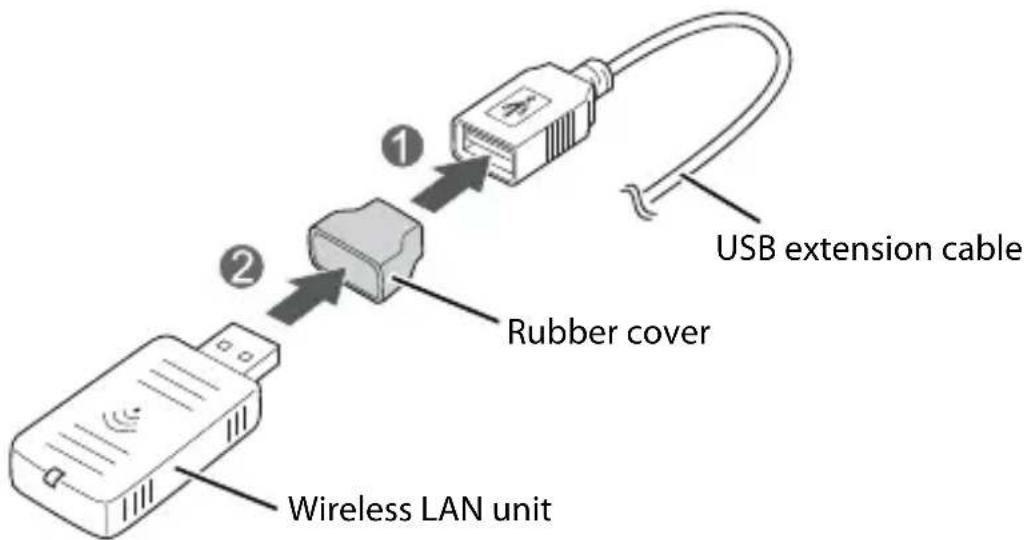
- Connect the USB extension cable to the USB connector of the printer.

If you want to fix the wireless LAN unit, cut the included affixing tape to fit and put on the unit, and fix the unit in a place of good communication environment.

Connecting to the Network
For how to connect the TM printer to the network with this product, see the OT-WL02 Technical Reference Guide.
The OT-WL02 Technical Reference Guide can be downloaded from the following URL:
http://www.epson-biz.com/?prd=ot-wl02&inf=trg
Reading the Wireless LAN Indicator
The position of the wireless LAN indicator is shown in the illustration below.
Wireless LAN indicator


: Flashing

: Off

| Status Wireless LAN Indicator | |
| The wireless LAN unit is not connected to the printer. Or the printer power is OFF. |  |
| This wireless LAN unit is connected to the printer and is in operation. |  Blue Blue |
| This wireless LAN unit is connected to the printer and is in operation.This unit is communicating on a network. |  Blue(Flashing rapidly) Blue(Flashing rapidly) |
| An error has occurred. Turn off the printer,reinstall the wireless LAN unit, and then turn on the printer. |  Blue(Flashing slowly) Blue(Flashing slowly) |
EPSON is a registered trademark of Seiko Epson Corporation.
Exceed Your Vision is a registered trademark or trademark of Seiko Epson Corporation.
All other trademarks are the property of their respective owners and used for identification purposes only. Product information is subject to change without notice.
© Seiko Epson Corporation 2015-2016. All rights reserved.
Introduction
http://www.epson-biz.com/?prd=ot-wl02&inf=trg
http://www.epson-biz.com/?prd=ot-wl02&inf=trg
http://www.epson-biz.com/?prd=ot-wl02&inf=trg

http://www.epson-biz.com/?prd=ot-wl02&inf=trg

: Flashing

: On

: Off
http://www.epson-biz.com/?prd=ot-wl02&inf=trg

Understanding the wireless LAN indicator

: Blinking : On : Off

Blinking

: On

: Off
- WIRELESS LAN CABLE SET
- OT-WL
- INTRODUCTION
- USAGE PRECAUTIONS
- NOTES ON SECURITY WHEN USING WIRELESS LAN
- NOTES ON SETTING SSID (SERVICE SET IDENTIFIER)
- NOTES ON SETTING CRYPTOGRAPHIC KEY
- CONNECTABLE PRODUCTS
- CONNECTING THE WIRELESS LAN UNIT
- CONNECTING THE UNIT DIRECTLY WITH THE PRINTER
- USING THE USB EXTENSION CABLE
- CAUTION
- CONNECTING TO THE NETWORK
- READING THE WIRELESS LAN INDICATOR
- UNDERSTANDING THE WIRELESS LAN INDICATOR
Brand : EPSON
Model : TM-m30
Category : Printer