
CTK-451 - Numeric keypad CASIO - Free user manual and instructions
Find the device manual for free CTK-451 CASIO in PDF.


| Product type | Digital keyboard |
| Brand | CASIO |
| Model | CTK-451 |
| Dimensions | 92.9 x 32.9 x 10.8 cm |
| Weight | Approximately 4.0 kg (without batteries) |
| Power supply | 6 AA batteries or AD-5 AC adapter (9V DC) |
| Battery life | Approximately 2 hours with manganese batteries |
| Polyphony | 12 notes max (6 for some tones) |
| Number of tones | 100 |
| Number of rhythms | 100 |
| Song bank | 100 preset songs |
| Display | LCD screen with graphic keyboard, staff, chord names |
| Automatic accompaniment | CASIO CHORD and FINGERED |
| Connectors | MIDI IN/OUT, headphone/output jack (stereo), sustain jack, DC 9V |
| Sustain pedal | Connector for optional pedal (SP-2 or SP-10) |
| Speakers | 2 x 2.0 W |
| Power consumption | 7.7 W (with adapter) |
| Auto power off | After 6 minutes of inactivity (on batteries, can be disabled) |
| Care and cleaning | Soft cloth slightly dampened with neutral detergent |
| Safety | Do not disassemble, use only the specified adapter, avoid moisture |
| Spare parts and repairability | Contact a CASIO authorized service center |
| General information | 61 standard-size keys, 5 octaves |
Frequently Asked Questions - CTK-451 CASIO
User questions about CTK-451 CASIO
0 question about this device. Answer the ones you know or ask your own.
Ask a new question about this device
Download the instructions for your Numeric keypad in PDF format for free! Find your manual CTK-451 - CASIO and take your electronic device back in hand. On this page are published all the documents necessary for the use of your device. CTK-451 by CASIO.
USER MANUAL CTK-451 CASIO
To the happy family of satisfied CASIO electronic musical instrument owners! To get the most out of the many features and functions of the keyboard, be sure to carefully read this manual and keep it on hand for future reference.
Important!
When using batteries, be sure to replace them or shift to one of the alternate power sources whenever you notice any of the following symptoms.
- Dim power supply indicator
- Instrument does not turn on
- Display that is flickering, dim, or difficult to read
- Abnormally low speaker/headphone volume
Distortion of sound output - Occasional interruption of sound when playing at high volumes
- Sudden power failure when playing at high volumes
- Flickering or dimming of the display when playing at high volume
- Continued sound output even after you release a key
- A totally different tone may sound
- Abnormal rhythm pattern and Song Bank play
- Loss of power, sound distortion, or low volume when playing from a connected computer or MIDI device
GUIDELINES LAID DOWN BY FCC RULES FOR USE OF THE UNIT IN THE U.S.A. (not applicable to other areas).
NOTICE
This equipment has been tested and found to comply with the limits for a Class B digital device, pursuant to Part 15 of the FCC Rules. These limits are designed to provide reasonable protection against harmful interference in a residential installation. This equipment generates, uses and can radiate radio frequency energy and, if not installed and used in accordance with the instructions, may cause harmful interference to radio communications. However, there is no guarantee that interference will not occur in a particular installation. If this equipment does cause harmful interference to radio or television reception, which can be determined by turning the equipment off and on, the user is encouraged to try to correct the interference by one or more of the following measures:
- Reorient or relocate the receiving antenna.
- Increase the separation between the equipment and receiver.
- Connect the equipment into an outlet on a circuit different from that to which the receiver is connected.
- Consult the dealer or an experienced radio/TV technician for help.
FCC WARNING
Changes or modifications not expressly approved by the party responsible for compliance could void the user's authority to operate the equipment.

CASIO ELECTRONICS CO., LTD.
Unit 6, 1000
North Circular Road
London NW2 7JD, U.K.
This mark is valid in the EU countries only.
Please keep all information for future reference.
Introduction
Congratulations upon your selection of this CASIO musical instrument. This keyboard provides you with the following features and functions.
100 tones
- Choose from among orchestral sounds, synthesized sounds, and more.
100 rhythms
- 100 versatile rhythms help to add plenty of life to all your keyboard performances.
Auto Accompaniment
- Simply play a chord and the corresponding rhythm, bass and chord parts play automatically.
100-tune Song Bank
- A wide selection of favorites including "ODE TO JOY" and "JINGLE BELLs" is yours for your listening enjoyment or play along fun. A simple operation cuts out the melody part or accompaniment part of the tune, allowing you to play along on the keyboard.
Musical Information System
- A big LCD screen graphically shows you fingerings, keyboard keys to be pressed, and notes, making keyboard play more informative and enjoyable than ever before.
MIDI compatibility
- Connecting to another MIDI device lets you sound notes on both this keyboard and the connected device by playing on this keyboard. You can even playback commercially available pre-recorded MIDI data.
Symbols
Various symbols are used in this user's guide and on the product itself to ensure that the product is used safely and correctly, and to prevent injury to the user and other persons as well as damage to property. Those symbols along with their meanings are shown below.

WARNING
This indication stipulates matters that have the risk of causing death or serious injury if the product is operated incorrectly while ignoring this indication.

CAUTION
This indication stipulates matters that have the risk of causing injury as well as matters for which there is the likelihood of occurrence of physical damage only if the product is operated incorrectly while ignoring this indication.
Symbol Examples

This triangle symbol ( ) means that the user should be careful. (The example at left indicates electrical shock caution.)

This circle with a line through it ( ) means that the indicated action must not be performed. Indications within or nearby this symbol are specifically prohibited. (The example at left indicates that disassembly is prohibited.)

The black dot ( ) means that the indicated action must be performed. Indications within this symbol are actions that are specifically instructed to be performed. (The example at left indicates that the power plug must be unplugged from the electrical socket.)

WARNING
Please use caution regarding the handling of the AC adaptor.
- Do not use a voltage other than the indicated power supply voltage. Use of a voltage other than that indicated may cause fire or electrical shock.
- If the power cord should become damaged (exposed wires, disconnection, etc.), purchase a new AC adaptor. Use of a damaged power cord may cause fire or electrical shock.
- Do not cut or damage the power cord. Also do not place heavy objects on top of it or subject it to excessive heat. Damage to the power cord may cause fire or electrical shock.
- Do not attempt to shape the power cord or subject it to excessive bending, twisting or pulling. This may cause fire or electrical shock.
- Please use the adaptor specified for this instrument. Use of another adaptor may cause fire, electrical shock, or malfunction.
Do not locate the instrument or its stand on an uneven or unstable surface.
- Locating the instrument or its stand on an uneven or unstable surface can cause it to fall, creating the danger of personal injury.
Do not place containers containing water or other liquids on the instrument.
- Do not place the following objects on the instrument. Placing such objects on the instrument may cause fire or electrical shock if they spill and get inside the instrument.
- Containers filled with water or other liquids (including vases, potted plants, cups, cosmetics and medicines)
- Small metal objects (including hairpins, sewing needles and coins)
- Flammable objects In the event a foreign object should happen to get inside the instrument, please take the following actions:
- Turn power off.
- Unplug the AC adaptor from the wall outlet.
- If there are any batteries loaded in the keyboard, remove them.
- Do not touch the batteries directly with your hands when removing them. They may be hot or battery fluid may be leaking from them.
- Consult with the dealer where you purchased the keyboard or with an authorized CASIO service provider.


Do not disassemble or modify the instrument.
- Never attempt of take apart or modify the instrument, its accessories, or separately sold options. Doing so may cause fire, electrical shock or malfunction. Consult your dealer concerning all inspection, adjustment or repair of internal components.

Do not use if there is an abnormality or malfunction.
- Do not use the instrument if there appear to be abnormalities such as the presence of smoke or abnormal odor. Also do not use the instrument if there appear to be malfunctions such as the power not coming on or sound not being produced. Use under such conditions may cause fire or electrical shock. In such cases, take the following actions immediately. Never attempt to repair the instrument yourself.
- Turn power off.
- Unplug the AC adaptor from the wall outlet.
- If there are any batteries loaded in the keyboard, remove them.
- Do not touch the batteries directly with your hands when removing them. They may be hot or battery fluid may be leaking from them.
- Consult with the dealer where you purchased the keyboard or with an authorized CASIO service provider.

When the instrument has been dropped:
- In the case the instrument has been dropped or damaged, take the following actions. Continued use may cause fire or electrical shock.
- Turn power off.
- Unplug the AC adaptor from the wall outlet.
- If there are any batteries loaded in the keyboard, remove them.
- Do not touch the batteries directly with your hands when removing them. They may be hot or battery fluid may be leaking from them.
- Consult with the dealer where you purchased the keyboard or with an authorized CASIO service provider.


Be careful of the bags around children.
- Never allow anyone to place the plastic bags of the instrument, its accessories, and its separately sold options over their heads. Doing so may cause suffocation. Particular caution is required in homes with small children.

CAUTION
AC Adaptor
- Do not locate the power cord in close proximity to heaters or other heating appliances. This may cause the cord to melt leading to possible fire or electrical shock.
- When unplugging the AC adaptor from an electrical outlet, always make sure to pull on the adaptor itself and not the cord. Pulling excessively on the cord may cause it to be damaged or break leading to possible fire or electrical shock.
- Do not touch the AC adaptor with wet hands when it is plugged in. This may cause electrical shock.
- When not using the instrument for an extended period such as when traveling, always make sure to unplug the AC adaptor from the electrical outlet for safety reasons.
After use turn off the power switch of the instrument and unplug the AC adaptor from the electrical outlet. - At least once a year, unplug the AC adaptor from the power outlet and clean the area around the prongs of the plug. Dust build up around the prongs can create the danger of fire.
Batteries
- Improper battery use may cause batteries to rupture and leak. This may cause injury, malfunction of the instrument or discoloration of furniture and other articles that come into contact with battery fluid. Take care to observe the following.
Install batteries so their polarity (+ / - ) matches that indicated on the instrument.
- For safety and to prevent possible leakage of battery fluid, always make sure to remove batteries from the instrument when you do not plan to use it for a long time.
Always make sure that the batteries making up a set are all of the same type.
- Never combine new batteries with old ones.
- Never dispose of batteries by incinerating them. Never short or disassemble batteries, and do not expose them to excessive heat.
- Replace dead batteries as soon as possible.
- Never attempt to recharge batteries.
Transport
- When transporting the instrument, always make sure to unplug the AC adaptor from the electrical outlet and confirm that all other external connections have been disconnected. Only then should the instrument be transported. If the above is not done, the cord may be damaged leading to possible fire or electrical shock.


Care
- Whenever caring, make sure to first unplug the AC adaptor from the electrical outlet. Also remove the instrument's batteries if battery power is being used.

Location
- Never locate the instrument in areas subject to high humidity or heavy accumulation of dust. Doing so may cause fire or electrical shock.
- Never locate the instrument in areas subject to grease splatters or steam, such as in a kitchen or near a humidifier. Doing so may cause fire or electrical shock.

Do not place keyboard on lacquered furniture.
- The instrument's silicone rubber feet may eventually blacken or scar lacquered surfaces. Use felt cloth pads to insulate the feet or preferably use a CASIO musical instrument stand designed for your keyboard.
Do not place heavy objects on the instrument.
- Do not place heavy objects on the instrument. This may cause the instrument to tip over or break resulting in injury.
Volume
- Very high volume levels can damage hearing. Avoid using the instrument at very high volume settings for long periods. Consult with a physician immediately if you experience impaired hearing or ringing in the ears.
Liquid Crystal Display (LCD) Precautions
- Avoid subjecting the keyboard's LCD to strong impact, which can crack or break the LCD's glass creating the danger of personal injury.
- Should the LCD glass ever crack or break, do not allow the liquid inside the LCD to come into contact with your skin, which can cause inflammation and reddening.
*Should the LCD liquid get into your mouth, immediately wash out your mouth with water and then consult a physician.
*Should the LCD liquid get in your eyes or on your skin, immediately flush with water for at least 15 minutes and then consult a physician.
Do not get onto the instrument or stand.*
- Do not crawl on top of the instrument or its optional stand. Particular caution is required in homes having small children. This may cause the instrument or stand to tip over and break resulting in injury.
Optional Stand*
- Carefully assemble the stand following the assembly instructions that come with it. Securely tighten all bolts, nuts, and fasteners, and make sure that you mount the instrument correctly onto the stand. Incorrectly or insufficiently tightening screws, or incorrectly mounting the instrument onto the stand can cause the stand to tip over or the instrument to fall off the stand, possibly leading to injury.
- The stand is available as an option.

Care of your keyboard
Avoid heat, humidity or direct sunlight.
Do not overexpose the instrument to direct sunlight, or place it near an air conditioner, or in any extremely hot place.
Do not use near a TV or radio.
This instrument can cause video or audio interference with TV and radio reception. If this happens, move the instrument away from the TV or radio.
Do not use lacquer, thinner or similar chemicals for cleaning.
Clean the keyboard with a soft cloth dampened in a weak solution of water and a neutral detergent. Soak the cloth in the solution and squeeze until it is almost dry.
Avoid use in areas subjected to temperature extremes.
Extreme heat can cause figures on the LCD screen to become dim and difficult to read. This condition should correct itself when the keyboard is brought back to normal temperature.
NOTE
You may notice lines in the finish of the case of this keyboard. These lines are a result of the molding process used to shape the plastic of the case. They are not cracks or breaks in the plastic, and are no cause for concern.

Contents
Welcome. E-1
Introduction E-2
Safety Precautions E-3
Care of your keyboard .........E-6
Contents
General Guide. E-8
Rear Panel E-9
Using the Display. E-10
Song Bank
Quick Reference. E-11
To play back a Song Bank tune .E-11
Connections. E-13
Power Supply. E-14
Using batteries. E-14
Using the AC Adaptor .E-14
Auto Power Off E-15
Basic Operations. E-16
To play the keyboard E-16
Selecting a Tone . E-16
Auto Accompaniment .........E-18
Selecting a Rhythm. E-18
Playing a Rhythm. E-18
Adjusting the Tempo . E-19
Using Auto Accompaniment. E-19
Using a Fill-in Pattern E-21
Synchro Starting Accompaniment with Rhythm Play .E-21
Adjusting the Accompaniment Volume ..E-21
Using the Song Bank ....E-22
To play back a Song Bank tune .E-22
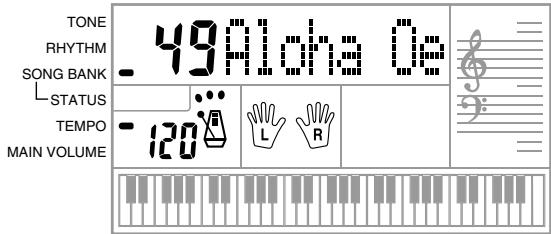
Song Bank Mode Display E-23
Adjusting the Tempo of a Song Bank Tune .E-23
To Change the Tone of a Song Bank
Tune's Melody. E-24
Playing Along with a Song Bank Tune...E-24
Applause Sound E-25
To consecutively play back all Song Bank tunes .E-25
Using the Chord Book ....E-26
To Look Up a Chord Using the Chord Book. E-26
Keyboard Settings......E-29
Transposing the Keyboard. E-29
Tuning the Keyboard. E-29
MIDI E-30
What is MIDI? E-30
General MIDI E-30
Changing MIDI Settings. E-31
Troubleshooting E-32
Specifications E-34
Appendix A-1
Note Table. A-1
Fingered Chord Chart. A-3
Percussion Assignment List. A-4
MIDI Implementation Chart
- Key, button, and other names are indicated in the text of this manual using bold type.
12
[+]/[-] buttons
- Negative values can be changed only by using [+] and [-] to increment and decrement the displayed value.
![CASIO CTK-451 - [+]/[-] buttons - 1](/content/2025/01/129442/images/9dcca70cce9d4fd31bbb8d566151ae3b9e64956761ad010b1d93148c3fe8bf21.jpg)
Number buttons/ Chord specification buttons
- For input of numbers to change displayed settings.
- For input of chord specification data when using the Chord Book.
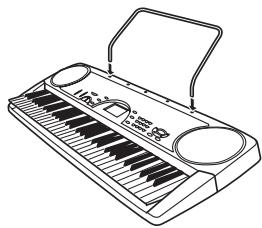
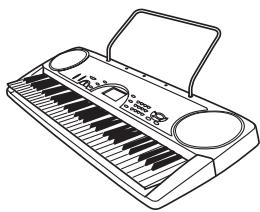
*Attachment of the Score Stand
Insert both ends of the music stand provided with the CTK-451/CTK-471 into the two holes on the top surface.
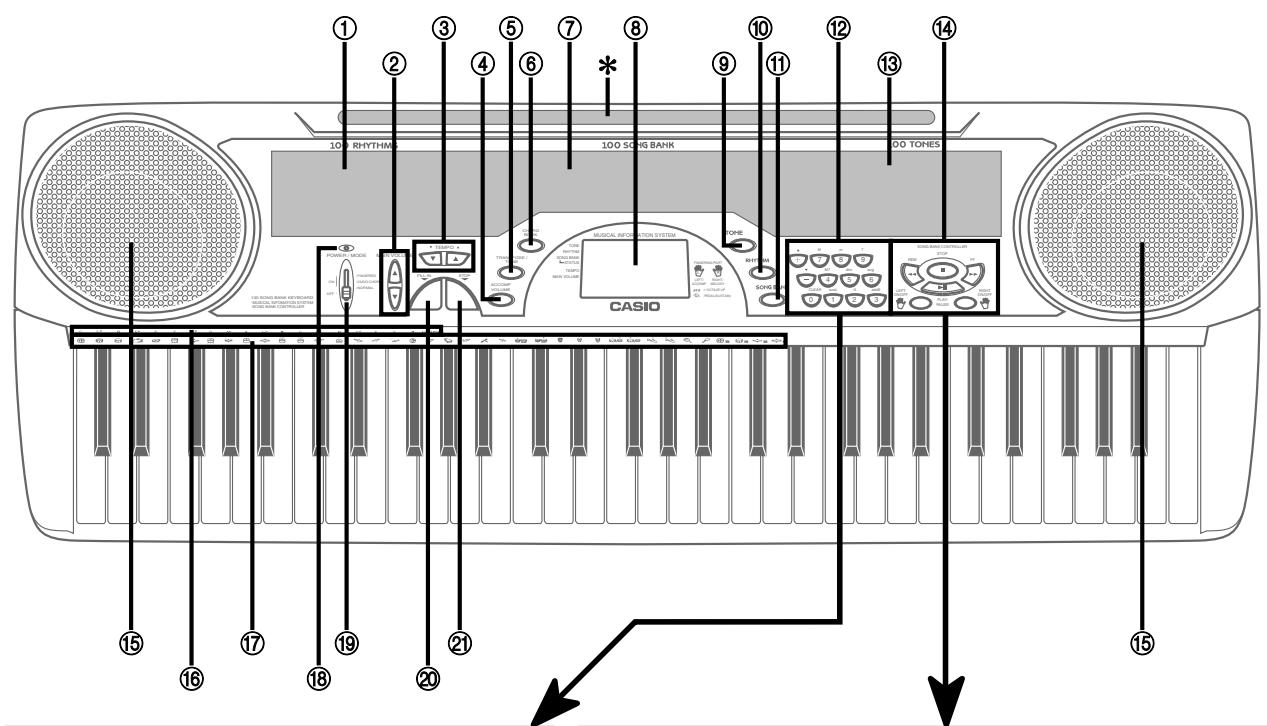
① Rhythm list
(2) MAIN VOLUME buttons
③ TEMPO buttons
④ ACCOMP VOLUME button
⑤ TRANSPOSE/TUNE/MIDI button
⑥ CHORD BOOK button
⑦ Song bank list
⑧ Display
⑨ TONE button
10 RHYTHM button
⑪ SONG BANK button
12 Number buttons (Chord specification buttons)
⑬ Tone list
14 SONG BANK CONTROLLER (PLAY/PAUSE, STOP, REW, FF, LEFT ON/OFF, RIGHT ON/OFF)
15 Speaker
16 Chord name
17 Percussion instrument list
18 Power indicator
19 POWER/MODE switch
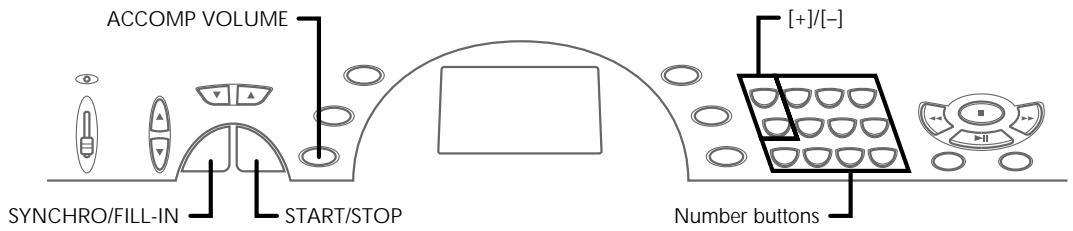
SYNCHRO/FILL-IN button
21 START/STOP button
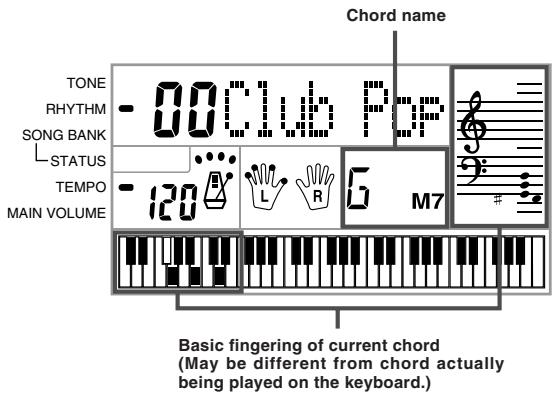
Using the Display
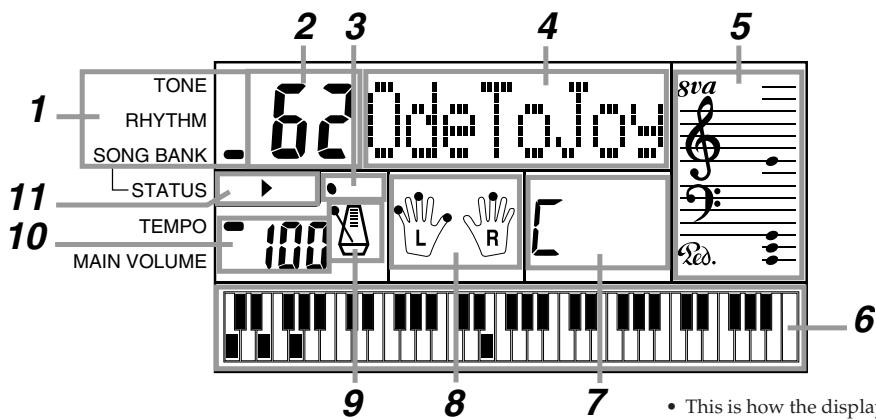
- This is how the display appears while the Song Bank is in use.
1 An indicator appears next to the type of setting you are currently performing (TONE, RHYTHM, SONG BANK).
2 Tone number, rhythm number, song number, keyboard settings value
3 Rhythm, auto-accompaniment, Song Bank tune beats
4 Tone name, rhythm name, song name, mode name, keyboard settings name
5 Musical staff representation of notes and chords you play on the keyboard. A pedal indicator (_ ) appears when the keyboard's pedal is depressed. An octave indicator (8va) appears when you play notes in the range from C to C7 to indicate that their actual notation is one octave higher than that shown on display.
6 Uses a graphic keyboard to show notes and chords played on the keyboard or played during Song Bank tune playback
7 Auto-accompanyment, Song Bank, chord book chord names
8 Dots indicate fingerings during Song Bank playback. "L" and "R" indicate left-hand and right-hand parts.
9 Rhythm, auto-accompanyment, Song Bank tune tempo
10 Rhythm, auto-accompanyment, Song Bank tune tempo; volume setting
11 Song Bank controller indicators
NOTE
Display examples shown in this User's Guide are intended for illustrative purposes only. The actual text and values that appear on the display may differ from the examples shown in this User's Guide.
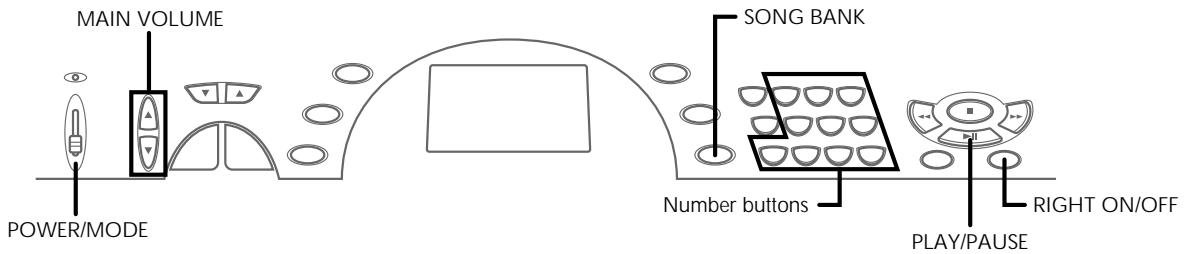
A selection of 100 Song Bank tunes come built-in for your listening pleasure or play along fun. A simple operation cuts out the melody part or accompaniment part of the tune, allowing you to play along on the keyboard. See "Using the Song Bank" on page E-22 for details on playing along with Song Bank tunes.
To play back a Song Bank tune
- Set the POWER/MODE switch to NORMAL.
- Use the MAIN VOLUME buttons to lower the keyboard volume to a relatively low level.
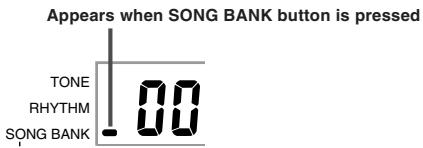
- Press the SONG BANK button to enter the Song Bank Mode.
- Use the Song Bank list to find the tune you want to play back, and then use the number buttons to input the tune's two-digit number.
Example: To select "62 ODE TO JOY", input 6 and then 2.
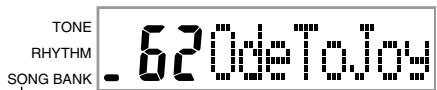
-
Press the PLAY/PAUSE button to start play of the tune.
-
The tune plays in an endless loop, re-starting after it reaches the end.
- The display shows the keyboard keys (on the graphic keyboard), fingerings (with the fingering indicators), musical notes (on the staff), and chord names.
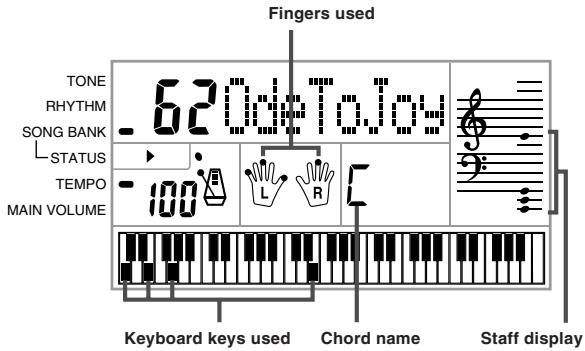
-
Press the RIGHT ON/OFF button to turn off the right-hand melody part and try playing along on the keyboard.
-
The display's graphic keyboard and fingering indicators show you the melody notes to play.
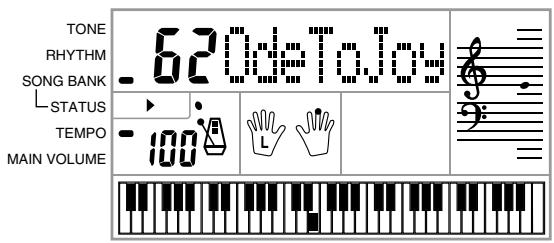

- Press the RIGHT ON/OFF button again to turn the melody part back on.
- You can also turn the accompaniment part on and off by pressing the LEFT ON/OFF button.
- Press the STOP button to stop playback of the Song Bank tune.
- Press the TONE button to exit the Song Bank Mode and return to the tone and rhythm selection screen.
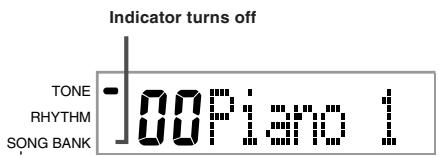
NOTE
You can also perform the following operations during play of a Song Bank tune.
- Pause: Press the PLAY/PAUSE button.
- Fast Forward: Press the FF (fast forward) button.
- Rewind: Press the REW (rewind) button.
E-12
622A-E-014A
Phones/Output Terminal
Before connecting phones or other external equipment, be sure to first turn down the volume settings of the keyboard and the connected equipment. You can then adjust volume to the desired level after connections are complete.
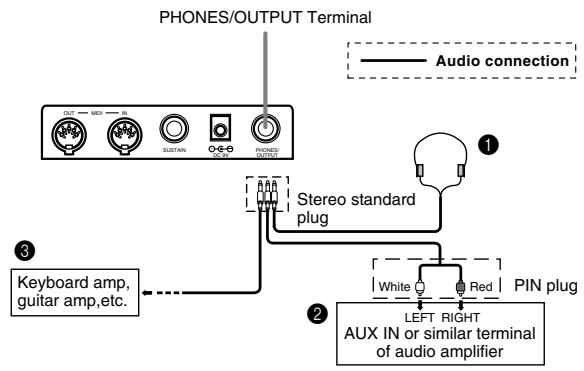
[Rear Panel]
Connecting Phones (Figure 1)
Connecting phones cuts off output from the keyboard's built-in speakers, so you can play even late at night without disturbing anyone.
Audio Equipment (Figure 2)
Connect the keyboard to a audio equipment using a commercially available connecting cord with a standard plug on one end and two PIN plugs on the other end. Note that the standard plug you connect to the keyboard must be a stereo plug, otherwise you will be able to output only one of stereo channels. In this configuration, you normally set the input selector of the audio equipment to the terminal (usually marked AUX IN or something similar) where the cord from the keyboard is connected. See the user documentation that comes with your audio equipment for full details.
Musical Instrument Amplifier (Figure 8)
Use a commercially available connecting cord to connect the keyboard to a musical instrument amplifier.
NOTE
Be sure to use a connecting cord that has a stereo standard plug on the end you connect to the keyboard, and a connector that provides dual channel (left and right) input to the amplifier to which you are connecting. The wrong type of connector at either end can cause one of the stereo channels to be lost.
When connected to a musical instrument amplifier, set the volume of the keyboard to a relatively low level and make output volume adjustments using the amplifier's controls.
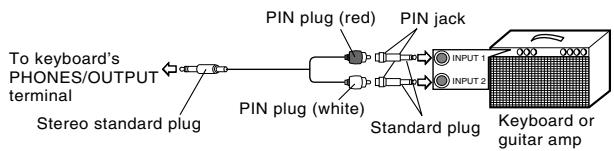
[Connection Example]
NOTE
You can also connect the keyboard's MIDI terminal to a computer or sequencer. See "MIDI" on page E-30 for details.
Sustain jack Terminal
You can connect an optional sustain pedal (SP-2 or SP-10) to the SUS-TAIN JACK terminal to enable the capabilities described below.
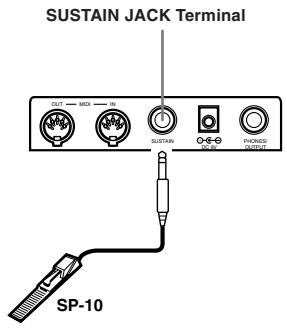
Sustain Pedal
- With piano tones, depressing the pedal causes notes to linger, much like a piano's damper pedal.
- With organ tones, depressing the pedal causes notes to continue to sound until the pedal is released.
Accessories and Options
Use only the accessories and options specified for this keyboard. Use of non-authorized items creates the danger of fire, electrical shock, and personal injury.
This keyboard can be powered by current from a standard household wall outlet (using the specified AC adaptor) or by batteries. Always make sure you turn the keyboard off whenever you are not using it.
Using batteries
Always make sure you turn off the keyboard before loading or replacing batteries.
To load batteries
-
Remove the battery compartment cover.
-
Load 6 AA-size batteries into the battery compartment.
-
Make sure that the positive (+) and negative (-) ends are facing correctly.
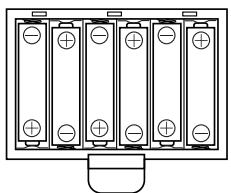
- Insert the tabs on the battery compartment cover into the holes provided and close the cover.
The keyboard may not function correctly if you load or replace batteries with power turned on. If this happens, turning the keyboard off and then back on again should return functions back to normal.
Important Battery Information
The following shows the approximate battery life.
Manganese batteries 2 hours
The above value is standard battery life at normal temperature, with the keyboard volume at medium settings. Temperature extremes or playing at very loud volume settings can shorten battery life.
Any of the following symptoms indicate low battery power. Replace batteries as soon as possible whenever any of the following occurs.
- Dim power supply indicator
- Instrument does not turn on
- Display that is flickering, dim, or difficult to read
- Abnormally low speaker/headphone volume
Distortion of sound output - Occasional interruption of sound when playing at high volumes
- Sudden power failure when playing at high volumes
- Flickering or dimming of the display when playing at high volume
- Continued sound output even after you release a key
- A totally different tone may sound
- Abnormal rhythm pattern and Song Bank play
- Loss of power, sound distortion, or low volume when playing from a connected computer or MIDI device
IMPORTANT!
Improper handling of batteries can cause them to burst and leak, which creates the danger of personal injury or damage due to contact with battery acid. Be sure to note the following important precautions.
- Always make sure that the positive (+) and negative (-) poles are facing correctly as indicated near the battery compartment.
- To avoid damage caused by leaking batteries, be sure to remove batteries from the keyboard whenever you leave it unattended for long periods (such as when leaving on a trip).
- Never mix batteries of different types.
- Never mix old batteries with new ones.
- Never discard batteries by incinerating them, do not allow their poles to be shorted (connected to each other), never take batteries apart, and do not expose batteries to direct heat.
- Replace batteries as soon as possible after any sign they are getting weak.
- Never attempt to recharge batteries.
Using the AC Adaptor
Make sure that you use only the AC adaptor specified for this keyboard.
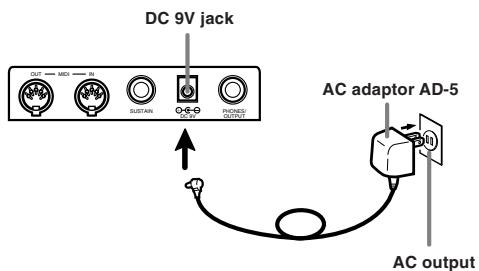
Specified AC Adaptor: AD-5
Also note the following important warnings and precautions when using the AC adaptor.
WARNING!
- Take care to avoid any damage to or breakage of the power cord. Never place any heavy objects on the power cord or expose it to direct heat. Doing so creates the danger of power cord damage, fire, and electrical shock.
- Use only the specified AC adaptor. Use of another type of adaptor creates the danger of fire and electrical shock.
CAUTION!
- For safety sake, be sure to unplug the AC adaptor from the wall outlet whenever leaving the keyboard unattended for a long time (such as when leaving on a trip).
- Always turn off the keyboard and unplug the AC adaptor from the wall outlet when you are not using the keyboard.
IMPORTANT!
- Make sure that the keyboard is turned off before connecting or disconnecting the AC adaptor.
- Using the AC adaptor for a long time can cause it to become warm to the touch. This is normal and does not indicate malfunction.
Auto Power Off
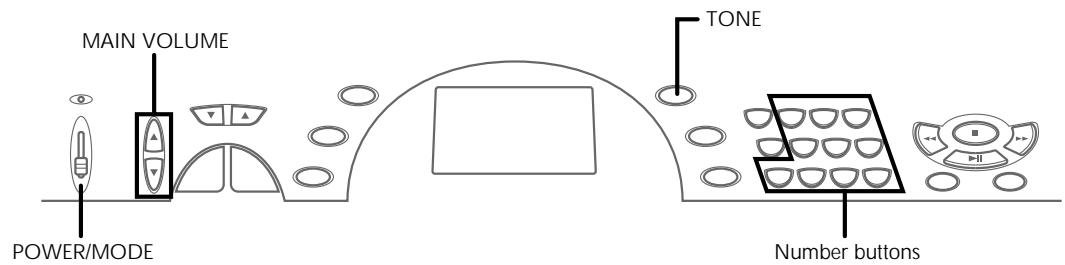
When you are using battery power, keyboard power turns off automatically whenever you leave it on without performing any operation for about 6 minutes. When this happens, use the POWER/MODE switch to turn power back on.
NOTE
Auto Power Off is disabled (it does not function) when you are using the AC adaptor to power the keyboard.
To disable Auto Power Off
Hold down the TONE button while turning on the keyboard to disable Auto Power Off.
- When Auto Power Off is disabled, the keyboard does not turn off automatically no matter how long it is left with no operation being performed.
- All keyboard settings are returned to their initial defaults whenever keyboard power is turned back on after being turned off by operation of the POWER/MODE switch or Auto Power Off.
This section provides information on performing basic keyboard operations.
To play the keyboard
-
Set the POWER/MODE switch to NORMAL.
-
Use the MAIN VOLUME buttons to lower the keyboard volume.
-
It's always a good idea to set the keyboard volume at a relatively low level before playing.
-
Pressing [] or [] causes the current volume setting to appear on the display. Press [] or [] again to change the setting.
-
Play something on the keyboard.
Selecting a Tone
This keyboard comes with 100 built-in tones. Use the following procedure to select the tone you want to use.
To select a tone
- Find the tone you want to use in the keyboard's tone list and note its tone number.
- Press the TONE button.
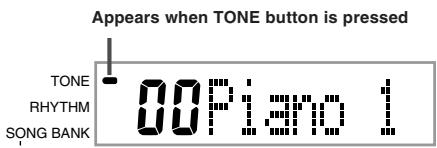
- Use the number buttons to input the two digit tone number for the tone you want to select. Example: To select "26 WOOD BASS", input 2 and then 6.
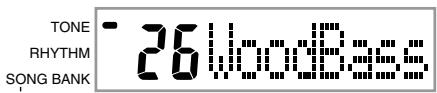
- Now notes played on the keyboard will be played using an acoustical wood bass sound.
NOTES
- Always input both digits for the tone number, including a leading zero (if any). If you input one digit and stop, the display will automatically clear your input after a few seconds.
- You can also increment the displayed tone number by pressing [+] and decrement it by pressing [-] .
Sound effect tones such as 77 VEHICLE sound best when you keep a keyboard key depressed.
Combination tones
The following describes the two types of combination tones that are available.
Layered Tones (Tone Numbers: 80 through 89)
Example: 80 STR PIANO
This tone layers a strings tone with a piano tone so they both sound when a keyboard key is pressed.
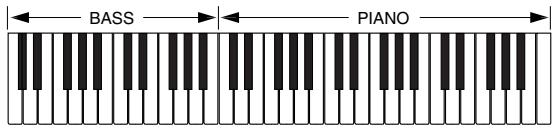
Split Tones (Tone Numbers: 90 through 96)
Example: 90 BASS/PIANO
This tone splits the keyboard so one range is assigned a bass tone and another range is assigned a piano tone.
Percussion sounds
Example: 99 PERCUSSION
This tone assigns various percussion sounds to the keyboard. See the Percussion Assignment List on page A-4 for full details.
Sound Effect Tones
With sound effect tones 77 through 79, the type of sound produced depends on the octave where the key you press is located. When 78 PHONE is selected available sound types are PUSH TONE 1, PUSH TONE 2, RING 1, RING 2, and BUSY SIGNAL.
Polyphony
The term polyphony refers to the maximum number of notes you can play at the same time. The keyboard has 12-note polyphony, which includes the notes you play as well as the rhythms and auto-accompanyment patterns that are played by the keyboard. This means that when a rhythm or auto-accompanyment pattern is being played by the keyboard, the number of notes (polyphony) available for keyboard play is reduced. Also note that some of the tones offer only 6- note polyphony.
- When rhythm or auto accompaniment is playing, the number of sounds simultaneously played is reduced.
Digital Sampling
A number of the tones that are available with this keyboard have been recorded and processed using a technique called digital sampling. To ensure a high level of tonal quality, samples are taken in the low, mid, and high ranges and then combined to provide you with sounds that are amazingly close to the originals. You may notice very slight differences in volume or sound quality for some tones when you play them at different positions on the keyboard. This is an unavoidable result of multiple sampling, and it is not a sign of malfunction.
622A-E-019A
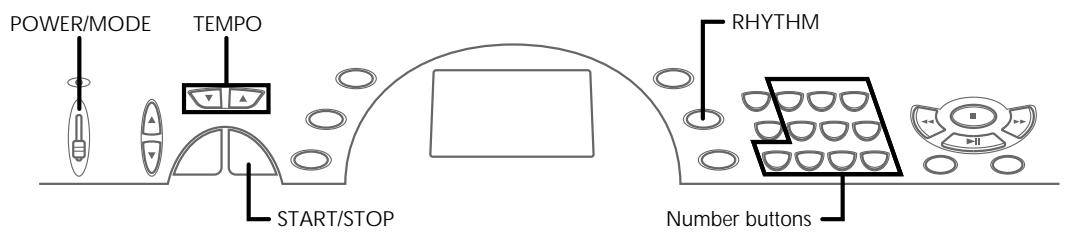
This keyboard automatically plays bass and chord parts in accordance with the chords you finger. The bass and chord parts are played using sounds and tones that are automatically selected to select the rhythm you are using. All of this means that you get full, realistic accompaniments for the melody notes you play with your right hand, creating the mood of an one-person ensemble.
Selecting a Rhythm
This keyboard provides you with 100 exciting rhythms that you can select using the following procedure.
To select a rhythm
- Find the rhythm you want to use in the keyboard's rhythm list and note its rhythm number.
- Press the RHYTHM button.
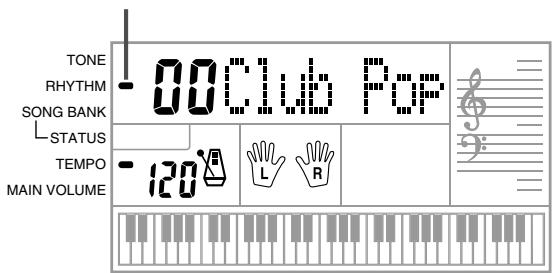
Appears when RHYTHM button is pressed
- Use the number buttons to input the two digit rhythm number for the rhythm you want to select. Example: To select "64 WALTZ", input 6 and then 4.
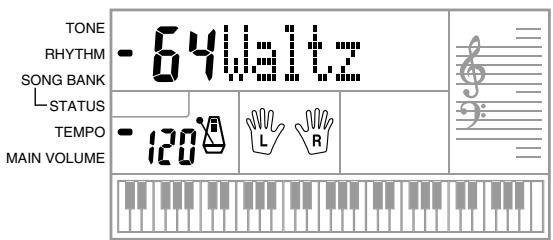
NOTES
- "00 CLUB POP" is the initial default rhythm setting whenever you turn on keyboard power.
- You can also increment the displayed rhythm number by pressing [+] and decrement it by pressing [-] .
Playing a Rhythm
Use the following procedure to start and stop rhythm play.
To play a rhythm
- Set the POWER/MODE switch to NORMAL.
- Press the START/STOP button to start play of the currently selected rhythm.
- To stop rhythm play, press the START/STOP button again.
NOTE
All of the keyboard keys are melody keys while the POWER/MODE switch is set to NORMAL.
Adjusting the Tempo
You can adjust the tempo of rhythm play within a range of 20 to 255 beats per minute. The tempo setting is applied to Auto Accompaniment chord play, and song bank operations.
To adjust the tempo
Use the TEMPO buttons ( ,) to adjust the tempo.
: Increments displayed value (increases tempo)
: Decrements displayed value (decreases tempo)
Example: Hold down the button until the tempo value 110 is on the display.
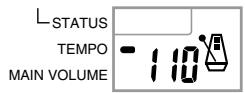
NOTE
Pressing both TEMPO buttons ( and ) at the same time resets the tempo to the default value of the currently selected rhythm.
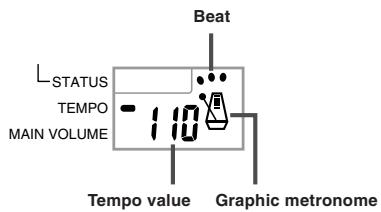
About the Graphic Metronome
The graphic metronome appears on the display along with the tempo value and beat of a rhythm or built-in tune. The graphic metronome helps you keep in time as you play along with a rhythm or built-in tune.
Using Auto Accompaniment
The following procedure describes how to use the keyboard's Auto Accompaniment feature. Before starting, you should first select the rhythm you want to use and set the tempo of the rhythm to the value you want.
To use Auto Accompaniment
- Set the POWER/MODE switch to CASIO CHORD or FINGERED.
- Press the START/STOP button to start play of the currently selected rhythm.
-
Play a chord.
-
The actual procedure you should use to play a chord depends on the current POWER/MODE switch position. Refer to the following pages for details on chord play.
$$ \text {C A S I O C H O R D} \tag {Page E-20} $$
$$ F I N G E R E D \dots \dots \dots \dots \dots \dots \dots \dots \dots \dots \dots \dots \dots \dots \dots \dots \dots \dots \tag {PageE-20} $$
- To stop Auto Accompaniment play, press the START/ STOP button again.
CASIO CHORD
This method of chord play makes it possible for anyone to easily play chords, regardless of previous musical knowledge and experience. The following describes the CASIO CHORD "Accompaniment keyboard" and "Melody keyboard", and tells you how to play CASIO CHORDs.
CASIO CHORD Accompaniment Keyboard and Melody Keyboard
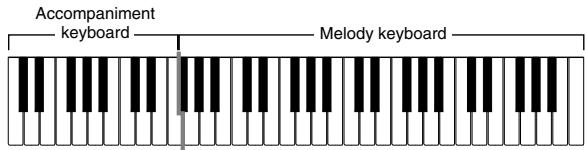
NOTE
The accompaniment keyboard can be used for playing chords only. No sound will be produced if you try playing single melody notes on the accompaniment keyboard.
Chord Types
CASIO CHORD accompaniment lets you play four types of chords with minimal fingering.
| Chord Types | Example |
| Major chords Major chord names are marked above the keys of the accompaniment key-board. Note that the chord produced when you press an accompaniment keyboard does not change octave, regardless of which key you use to play it. | C Major (C) ICDEFIGABCDEF |
| Minor chords (m) To play a minor chord, keep the major chord key depressed and press any other accompaniment keyboard key located to the right of the major chord key. | C minor (Cm) ICDEFIGABCDEF |
| Seventh chords (7) To play a seventh chord, keep the major chord key depressed and press any other two accompaniment keyboard keys located to the right of the major chord key. | C seventh (C7) ICDEFIGABCDEF |
| Minor seventh chords (m7) To play a minor seventh chord, keep the major chord key depressed and press any other three accompaniment keyboard keys located to the right of the major chord key. | C minor seventh (Cm7) ICDEFIGABCDEF |
NOTE
It makes no difference whether you press black or white keys to the right of a major chord key when playing minor and seventh chords.
FINGERED
FINGERED provides you with a total of 15 different chord types. The following describes the FINGERED "Accompaniment keyboard" and "Melody keyboard", and tells you how to play a C-root chord using FINGERED.
FINGERED Accompaniment Keyboard and Melody Keyboard
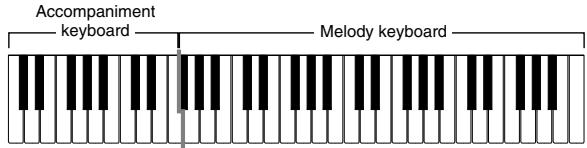
NOTE
The accompaniment keyboard can be used for playing chords only. No sound will be produced if you try playing single melody notes on the accompaniment keyboard.
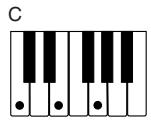
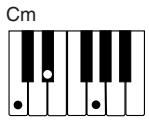
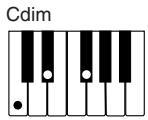
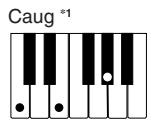
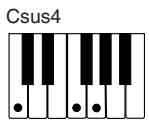
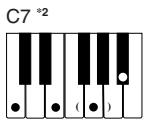
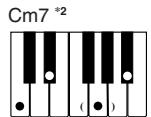
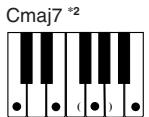
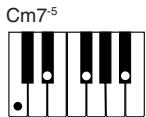
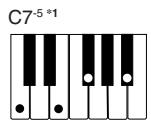
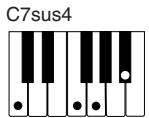
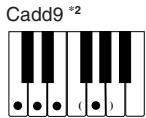
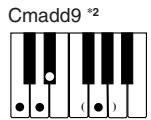
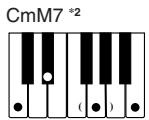
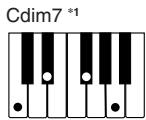
See the "Fingered Chord Chart" on page A-3 for details on playing chords with other roots.
1: Inverted fingerings cannot be used. The lowest note is the root.
2: The same chord can be played without pressing the 5th G.
NOTES
- Except for the chords specified in note ^11 above, inverted fingerings (i.e. playing E-G-C or G-C-E instead of C-E-G) will produce the same chords as the standard fingering.
- Except for the exception specified in note ^+2 above, all of the keys that make up a chord must be pressed. Failure to press even a single key will not play the desired FINGERED chord.
Using a Fill-in Pattern
Fill-in patterns let you momentarily change the rhythm pattern to add some interesting variation to your performances.
The following procedure describes how to use the Fill-in feature.
To insert a fill-in
- Press the START/STOP button to start rhythm play.
- Press the SYNCHRO/FILL-IN button to insert a fill-in pattern for the rhythm you are using.
Synchro Starting Accompaniment with Rhythm Play
You can set up the keyboard to start rhythm play at the same time you play the accompaniment on the keyboard.
The following procedure describes how to use synchro start. Before starting, you should first select the rhythm you want to use, set the tempo, and use the POWER/MODE switch to select the chord play method you want to use (CASIO CHORD, FINGERED).
To use synchro start
- Press the SYNCHRO/FILL-IN button to put the keyboard into synchro start standby.
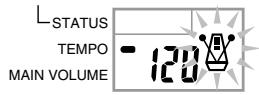
- Play a chord on the accompaniment keyboard and the rhythm pattern starts to play automatically.
NOTES
- If the POWER/MODE switch is set to NORMAL, only the rhythm plays (without a chord) when you play on the accompaniment keyboard.
- To cancel synchro start standby, press the SYNCHRO/FILL-IN button one more time.
Adjusting the Accompaniment Volume
You can adjust the volume of the accompaniment parts as a value in the range of 0 (minimum) to 9.
- Press the ACCOMP VOLUME button.
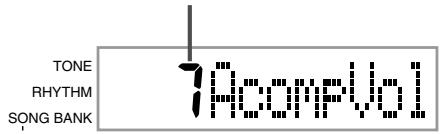
Current accompaniment volume setting
- Use the number buttons or the [+] / [-] buttons to change the current volume setting value.
Example: 5
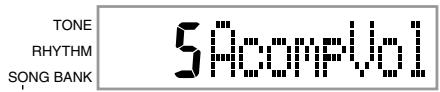
NOTES
- The current accompaniment volume value that appears in Step 1 automatically clears from the display if you do not input anything within about five seconds.
- Pressing [+] and [-] buttons at the same time automatically sets an accompaniment volume of 7.
- You can make independent accompaniment volume settings for auto-accompanyment and Song Bank tune accompaniment parts.
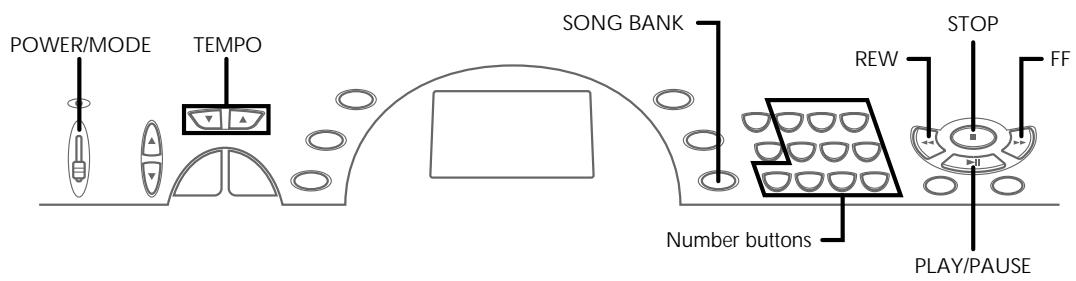
A selection of 100 Song Bank tunes come built-in for your listening enjoyment of play along fun. You can turn off the left-hand or right-hand part to practice with the remaining part, and the display even shows you what keys to press and which fingers you should use.
To play back a Song Bank tune
- Set the POWER/MODE switch to NORMAL, FIN-GERED, or CASIO CHORD.
- Adjust the main volume and accomp volume.
- Press the SONG BANK button to enter the Song Bank Mode.
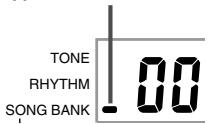
Appears when SONG BANK button is pressed
- Use the Song Bank list to find the tune you want to play back, and then use the number buttons to input the tune's two-digit number.
Example: To select "49 ALOHA OE", input 4 and then 9.
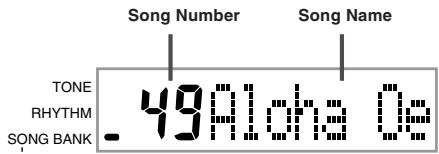
NOTES
- "00 A WHOLE NEW WORLD (ALADDIN'S THEORY)" is the initial default Song Bank tune setting whenever you turn on keyboard power.
- You can also increment the displayed tune number by pressing [+] and decrement is by pressing [-] .
-
Before advancing to the next step, which actually starts playback, you can adjust the tempo (page E-19), select a tone (page E-16) for the melody part, or turn off the left-hand or right-hand part (page E-24).
-
Press the PLAY/PAUSE button to start play of the tune.
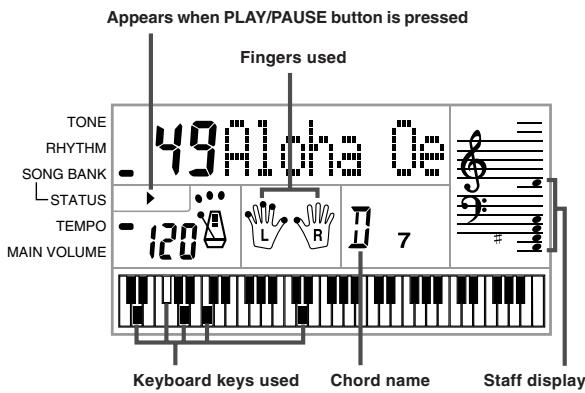
- Press the STOP button to stop playback of the Song Bank tune.
To pause Song Bank tune play
- While a Song Bank tune is playing, press the PLAY/ PAUSE button to pause it.
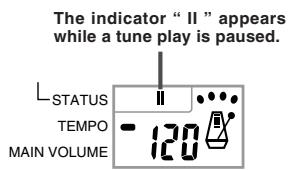
- To resume play, press PLAY/PAUSE again.
To fast reverse during playback
-
While playback is in progress, hold down the REW button.
-
There is no playback while the fast reverse operation is being performed.
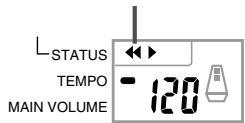
The indicator 一 ^ 一 appears while a fast reverse operation is in progress.
-
Beeps sound during fast reverse to give you an idea of where you are located in the tune.
1 beep: indicates a change to anther measure.
2 beeps: indicates the beginning of the tune. -
To resume normal playback, release the REW button.
To fast forward during playback
- While playback is in progress, hold down the FF button.
- There is no playback while the fast forward operation is being performed.
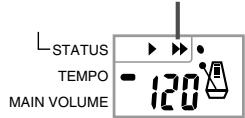
The indicator appears while a fast forward operation is in progress.
- Beeps sound during fast forward to give you an idea of where you are located in the tune.
1 beep: indicates a change to anther measure.
3 beeps: indicates the ending of the tune.
- To resume normal playback, release the FF button.
NOTES
Each time you select a new Song Bank tune, the tone, tempo, and rhythm that is programmed for the tune are automatically selected. You can change a tune's tone and tempo during playback, but you cannot change the rhythm.
- You can also adjust the accompaniment volume (page E-21) for tunes 00 through 79.
Song Bank Mode Display
In the Song Bank Mode, the display shows a variety of information about the tune being played.
-Playback Display
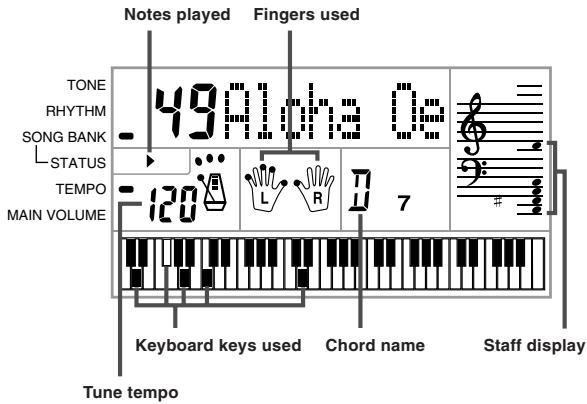
NOTE
Chord names are not displayed for Songs 80 through 99.
Adjusting the Tempo of a Song Bank Tune
To change the tempo of a Song Bank tune
The tempo can be set within a range of 20 to 255 beats per minute. The tempo setting can be adjusted while the tune is stopped, playing back, or paused.
Use the TEMPO buttons [ / ] to adjust the tempo.
: each press increases the value
: each press decreases the value
NOTES
- Pressing both the [] and [] TEMPO buttons at the same time returns the tempo setting to the preset value for the currently selected tune.
- Song Bank tunes 80 through 99 are arranged so their tempos change part way through the tunes. If you use the above procedure to change the tempo setting while one of these tunes is playing, however, the tempo you set is used for the entire tune without any change part way through.
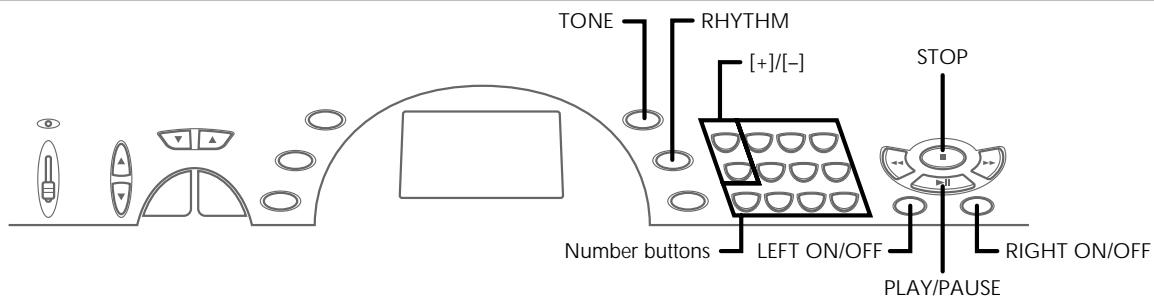
To Change the Tone of a Song Bank Tune's Melody
You can select any one of the keyboard's 100 tones to be used to play the melody part of a Song Bank tune. The tone setting can be changed while the tune is stopped or playing back.
- While a song is playing back, press the TONE button.
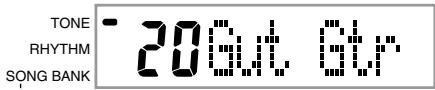
- Find the tone you want in the Tone List, and then use the number buttons or the [+] and [-] buttons to specify the tone number.
Example: To select "30 VIOLIN", input 3 and then 0.

NOTES
- Pressing both the [+] and [-] buttons at the same time selects "00 PI-ANO 1".
- With two-hand tunes (80 to 99), you can select tones for both the left hand part and right hand part.
- To return a Song Bank tune to its original settings, simply select that tune again.
Playing Along with a Song Bank Tune
Each Song Bank tune has a left-hand (accompaniment) part and a right-hand (melody) part. You can turn off the left-hand part or right-hand part of a Song Bank tune and play along with the remaining part on the keyboard.
| Tune Numbers | 00 to 79 | 80 to 99 |
| Accompaniment Type | Auto- accompaniment | Piano Solo |
| Left-hand Part | Auto-accompani- ment (percussion, bass, chords) | Left-hand notes |
| Right-hand Part | Melody | Right-hand notes |
To play along with a Song Bank tune
- Perform steps 1 through 4 under "To play back a Song Bank tune" on page E-22 to select the song you want to play along with.
-
Press the RIGHT ON/OFF or LEFT ON/OFF button for the part you want to turn off.
-
Press the RIGHT ON/OFF button to turn off the right hand (melody) part, or the LEFT ON/OFF button to turn off the left hand (accompaniment) part.
- The on/off status of each part is indicated by letters (L and R) that appear inside the hand graphics on the display. A part is turned on when its letter is displayed, and turned off when its letter is not displayed.
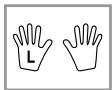
-
Press the PLAY/PAUSE button to start play of the Song Bank Tune.
-
Only the part (melody or accompaniment) that is turned on is played, so you can play the other part on the keyboard.
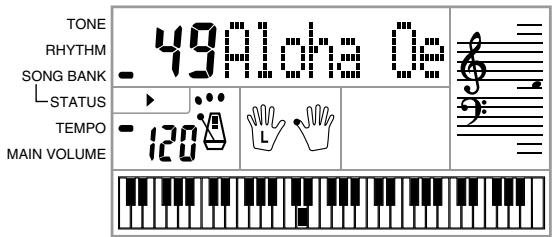
- The keys you should press are indicated on the display's graphic keyboard.
-
You can press the RIGHT ON/OFF and LEFT ON/OFF buttons to turn parts on and off while playback is in progress.
-
To end playback, press the STOP button.
Auto-accompany Tunes (Tune Numbers 00 to 79)
During playback of these tunes in the Song Bank Mode, the chord specification method for the left hand is always FINGERED for these tunes, regardless of the POWER/MODE switch setting.
Two-hand Tunes (Tune Numbers 80 to 99)
During playback of these tunes in the Song Bank Mode, the entire keyboard functions as a melody, regardless of the POWER/MODE switch setting.
NOTES
- With two-hand tunes (80 to 99), you cannot turn off both the left-hand and right-hand parts at the same time. Turning off a part causes the other part to turn on automatically.
- The selected Song Bank tune continues to repeat until you stop playback by pressing the STOP button.
- The accompaniment volume setting (page E-21) affects auto-accompany-tinent tunes (00 to 79) only.
- Chord names are not displayed during playback of two-hand tunes (80 to 99).
- Turning off both the left-hand and right-hand parts of the auto-accompany-tment tunes (00 to 79) results in obligato accompaniment being played.
Applause Sound
Whenever you turn off the left hand or right hand part of a Song Bank tune and play it back, an applause sound is produced when the tune reaches the end.
To turn off the applause sound
Press the STOP button and the LEFT ON/OFF or RIGHT ON/OFF button at the same time.
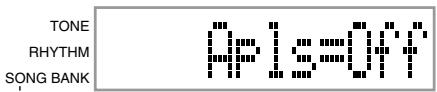
- Pressing the STOP button and the LEFT ON/OFF or RIGHT ON/OFF button at the same time again turns the applause sound back on.
To consecutively play back all Song Bank tunes
- Use the TONE or RHYTHM button to change to any mode other than the Song Bank Mode.
- Make sure a dot is not on the display next to the SONG BANK indicator.
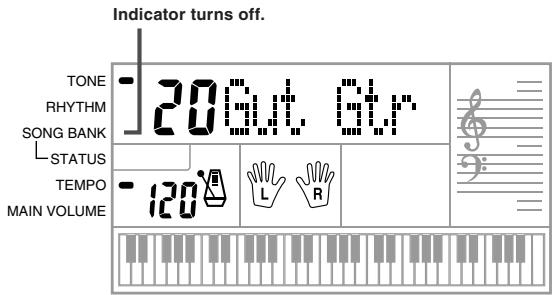
- Press the PLAY/PAUSE button to start playback of the Song Bank tunes starting from tune 00.
-
To stop Song Bank tune playback, press the STOP button.
-
Pausing playback automatically cancels consecutive playback of all Song Bank tunes. Re-starting playback causes repeat playback of the current tune only.
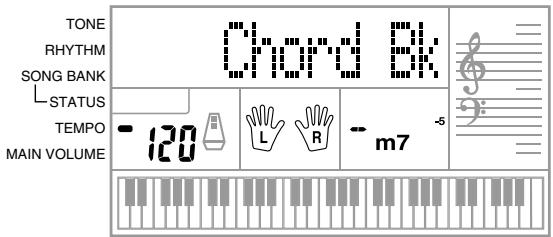
The Chord Book feature of this keyboard makes it possible for you to look up information about chords quickly and easily. Simply input the name of the chord and the keyboard keys you should press, the fingers you should use, and the notes that make up the chord appear on the display along with the chord name.
What is a chord?
A chord is made up of a root note, upon which is stacked a number of other notes. A variety of different chords can be created by changing the notes stacked onto a root.
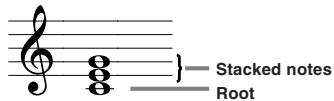
Chord Names
Chords are named using upper-case letters from A through G, which indicate the root note of the chord. If the root note is a sharp or flat, the chord itself is sharp or flat. A chord name may also be followed by a degree number or other symbols that indicate certain characteristics about the chord.
| C Root | Sharp F# Root | Flat B# Root | Minor Am Root | Sharp Diminished C# root |
| Seventh G7-Degree Root | Major seventh FM7 Root | Degree | Sus fourth Esus4 Root | |
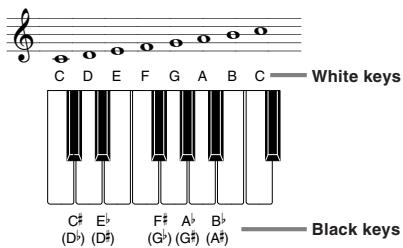
Sharps and flats can be referred to using either of the names shown here. The names in the upper row of this illustration are used by this keyboard, because they are the names that are most commonly used in musical notation.
Inverted Forms
There are a number of different ways to play the same chord. A form that is different from the basic form but still produces the same chord is called an "inverted form."
All of the following are C chords.

To Look Up a Chord Using the Chord Book
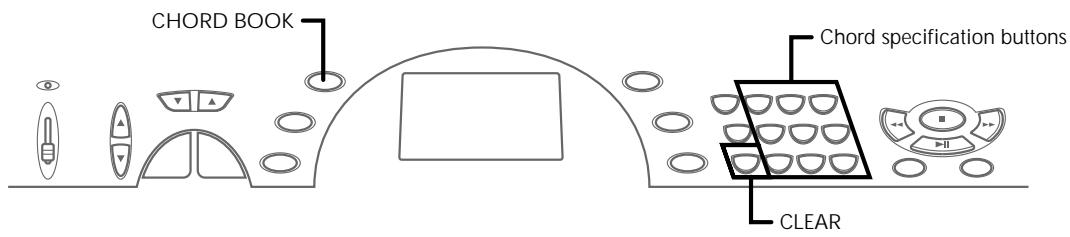
- Press the CHORD BOOK button to enter the Chord Book mode.
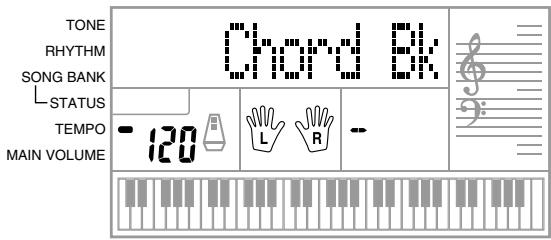
2. Press the CLEAR button.
-
This step is necessary to clear any previously input chord name.
-
If the chord name you plan to input is a non-major chord, use the chord specification buttons to specify the chord type.
-
Chord types are indicated by the small letters above the chord specifications buttons.
- Non-major chords include minor, seventh, sustained, etc. chords.
- See page E-28 for details on the chord specification buttons.
- Skip step 3 if you want to input a major chord name.
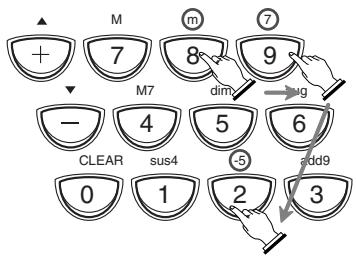
-
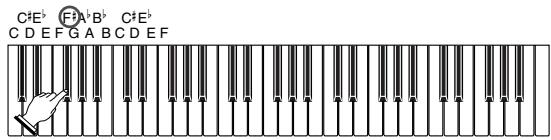
Press the accompaniment keyboard key that corresponds to the root note of the chord.
-
A dash appears in place of the chord name if the chord cannot be recognized by the keyboard.
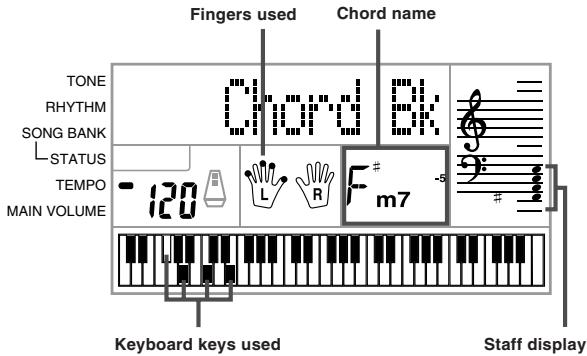
To specify F^ , for example, press the F key. - The key you press is indicated on the graphic keyboard and the corresponding chord sounds.
622A-E-029A
- Check to make sure that the chord name on the display is the one you want. If it isn't, repeat the above from step 2.
- If the chord is correct, you can see its fingering on the graphic keyboard. Try playing the chord on the keyboard.
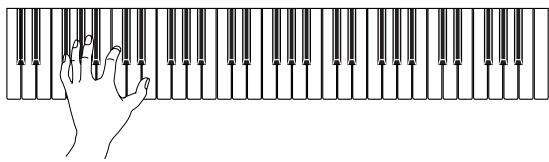
- The fingering that appears on the display is one standard fingering. You can also use other fingerings to match the size of your hands or to make it easier to progress from or to neighboring chords.
- You can also use the [+] and [-] buttons to change the displayed chord name.
- The tone used to sound chords you play on the accompaniment keyboard while using the Chord Book is the same tone used by the accompaniment part of the rhythm that was selected before you entered the Chord Book mode. Depending on the rhythm that was selected, some of the notes that make up a chord may be omitted when you play the chord on the accompaniment keyboard in the Chord Book Mode. This is due to the internal chord conversion function, arrangements, and polyphony limitations. Because of this, you should always play the chords indicated on the display on the melody keyboard (the range that does not have chord names printed above the keys).
Chord Name Modifier Keys
| Chord Type | Symbol and Name | Reference | Modifier Key |
| major | C (C major) | ||
| minor | Cm (C minor) | M 7 7 7 7 7 7 7 7 7 7 7 7 7 7 7 7 7 7 7 7 7 7 7 7 7 7 7 7 7 7 7 7 7 7 7 7 7 7 7 7 7 7 7 7 7 7 7 7 7 7 8 9 0 1 2 3 | |
| aug | Caug (C augmened) | C+5 | M 7 7 8 9 0 1 2 3 |
| sus 4 | Csus4 (C sustained fourth) | M 7 7 8 9 0 1 2 3 | |
| dim | Cdim (C diminished) | C° | M 7 7 8 9 0 1 2 3 |
| 7th | C7 (C seventh) | M 7 7 8 9 0 1 2 3 | |
| M7 | CM7 (C major seventh) | Cmaj7 CΔ7 | M 7 7 8 9 0 1 2 3 |
| minor 7 | Cm7 (C minor seventh) | M 7 7 8 9 0 1 2 3 | |
| minor M7 | CmM7 (C minor Major seventh) | M 7 7 8 9 0 1 2 3 | |
| minor7-5 | Cm7-5 (C minor seventh flat five) | C° | M 7 7 8 9 0 1 2 3 |
| Chord Type | Symbol and Name | Reference | Modifier Key |
| 7sus 4 | C7sus4 (C seventh sus fourth) | M m 7 1 7 8 9 - 4 5 6 CLEAR sus4 5 6 8 0 1 2 3 | |
| add 9 | Cadd9 (C add ninth) | M m 7 + 7 8 9 - 4 5 6 CLEAR sus4 5 6 8 0 1 2 3 | |
| m add 9 | Cm add9 (C minor add ninth) | M m 7 + 7 8 9 - 4 5 6 CLEAR sus4 5 6 8 0 1 2 3 | |
| 7th-5 | C7-5 (C seventh flat five) | C75 | M m 7 + 7 8 9 - 4 5 6 CLEAR sus4 5 6 8 0 1 2 3 |
| dim7 | Cdim7 (C diminished seventh) | M m 7 + 7 8 9 - 4 5 6 CLEAR sus4 5 6 8 0 1 2 3 |
NOTES
- Since the chord fingerings that appear on the display are selected to allow chord play within the accompaniment keyboard, inverted chord forms (page E-26) are often suggested. Inverted chord forms are useful to help you learn how to play chord variations that make it possible to move from one chord to another with minimal hand movement. These forms come in handy when using FINGERED Auto Accompaniment play.
- While a chord name is on the display, you can press keys on the accompaniment keyboard to find out the fingerings of the same chord with a different root.
- You can also scroll through chord names using the [+] and [-] buttons.
- Chord fingerings that appear on the display are formed using only the keys within the range of the accompaniment keyboard (leftmost 18 keys).
- Chords that cannot be formed using the keys within this range are not displayed.

Transposing the Keyboard
Transpose lets you raise and lower the overall key of the keyboard in semitone units. If you want to play an accompaniment for a vocalist who sings in a key that's different from the keyboard, for example, simply use transpose to change the key of the keyboard.
To transpose the keyboard
- Press the TRANSPOSE/TUNE/MIDI button until the transpose screen appears on the display.
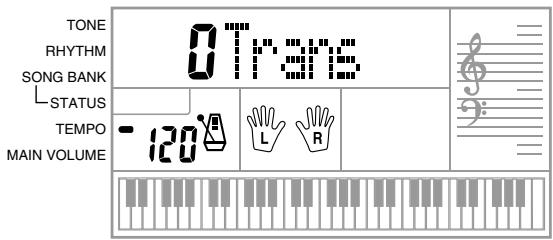
- Use [+] and [-] to change the transpose setting of the keyboard.
Example: To transpose the keyboard five semitones upwards.

NOTES
- The keyboard can be transposed within a range of -6 to +5 .
- The default transpose setting is "0" when keyboard power is turned on.
- If you leave the transpose screen on the display for about five seconds without doing anything, the screen is automatically cleared.
- The transpose setting also affects Auto Accompaniment.
- Playing back a Song Bank tune automatically returns the transpose setting to its standard default of "0".
Tuning the Keyboard
The tuning feature lets you fine tune the keyboard to match the tuning of another musical instrument.
To tune the keyboard
- Press the TRANSPOSE/TUNE/MIDI button twice to display the tuning screen.
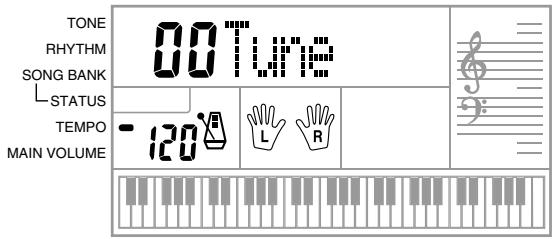
- Use [+] and [-] to change the tuning setting of the keyboard.
Example: To lower the tuning by 20.
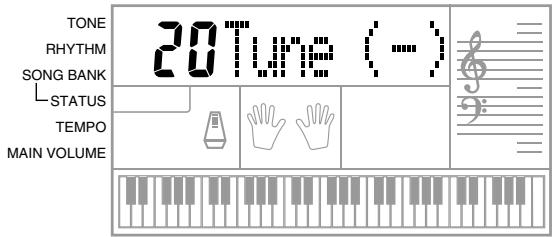
NOTES
- The keyboard can be tuned within a range of -50 cents to +50 cents. *100 cents is equivalent to one semitone.
- The default tuning setting is "00" when keyboard power is turned on.
- If you leave the tuning screen on the display for about five seconds without doing anything, the screen is automatically cleared.
- The tuning setting also affects Auto Accompaniment.
- Playing back a Song Bank tune automatically returns the tuning setting to its standard default of "00".
What is MIDI?
The letters MIDI stand for Musical Instrument Digital Interface, which is the name of a worldwide standard for digital signals and connectors that makes it possible to exchange musical data between musical instruments and computers (machines) produced by different manufacturers. MIDI compatible equipment can exchange keyboard key press, key release, tone change, and other data as messages.
Though you do not need any special knowledge about MIDI to use this keyboard as a stand-alone unit, MIDI operations require a bit of specialized knowledge. This section provides you with an overview of MIDI that will help to get you going.
MIDI Connections
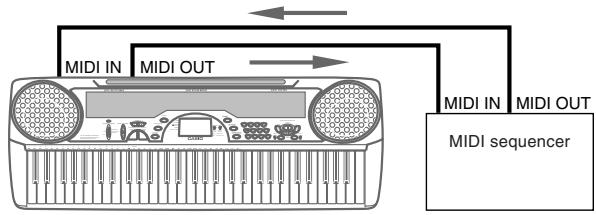
MIDI messages are send out through the MIDI OUT terminal of one machine to the MIDI IN terminal of another machine over a MIDI cable. To send a message from this keyboard to another machine, for example, you must use a MIDI cable to connect the MIDI OUT terminal of this keyboard to the MIDI IN terminal of the other machine. To send MIDI messages back to this keyboard, you need to use a MIDI cable to connect the other machine's MIDI OUT terminal to the MIDI IN terminal of this keyboard.
To use a computer or other MIDI device to record and playback the MIDI data produced by this keyboard, you must connect the MIDI IN and MIDI OUT terminals of both machines in order send and receive data.
MIDI Channels
MIDI allows you to send the data for multiple parts at the same time, with each part being sent over a separate MIDI channel. There are 16 MIDI channels, numbered 1 through 16, and MIDI channel data is always included whenever you exchange data (key press etc.) Both the sending machine and the receiving machine must be set to the same channel for the receiving unit to correctly receive and play data. If the receiving machine is set to Channel 2, for example, it receives only MIDI Channel 2 data, and all other channels are ignored. With this keyboard, messages received over MIDI Channels 1, 2, 3, 4, and 10 can be used for multi-timbre play of up to five different instrument parts. The tone and volume settings for these five channels must be controlled by messages sent from an external device. When sending operation of this keyboard to an external device, Channel 1 should be selected as the MIDI send channel.
General MIDI
General MIDI standardizes MIDI data for all sound source types, regardless of manufacturer. General MIDI specifies such factors as tone numbering, drum sounds, and available MIDI channels for all sound sources. This standard makes it possible for all MIDI equipment to reproduce the same nuances when playing General MIDI data, regardless of the manufacturer of the sound source.
Though the sound source of this keyboard is not General MIDI compatible, you can still connect the keyboard to a computer or other MIDI equipment to playback General MIDI data that is widely available in stores, over computer networks, and from other sources.
NOTES
- General MIDI data made up of a large number of parts may not play correctly on this keyboard.
- You will have most success playing back General MIDI data that has few parts and is made up of data on channels 1, 2, 3, 4, and 10.
Messages
There is a wide variety of messages defined under the MIDI standard, and this section details the particular messages that can be sent and received by this keyboard.
NOTE ON/OFF
This message sends data when a key is pressed (NOTE ON) or released (NOTE OFF).
A NOTE ON/OFF message include a note number (to indicate note whose key is being pressed or released) and velocity (keyboard pressure as a value from 1 to 127). NOTE ON velocity is always used to determine the relative volume of the note. This keyboard does not receive NOTE OFF velocity data.
Whenever you press or release a key on this keyboard, the corresponding NOTE ON or NOTE OFF message is sent by constant velocity from the MIDI OUT terminal.
NOTE
The pitch of a note depends on the tone that is being used, as shown in the Note Table on page A-1. Whenever this keyboard receives a note number that is outside its range for that tone, the same tone in the nearest available octave is substituted.
PROGRAM CHANGE
This is the tone selection message. PROGRAM CHANGE can contain tone data within the range of 0 to 127.
A PROGRAM CHANGE message (0 to 99) is sent out through this keyboard's MIDI OUT terminal whenever you manually change its tone number. Receipt of a PROGRAM CHANGE message from an external machine changes the tone setting of this keyboard (page E-31).
This keyboard can send tone data within the range of 00 to 99 and receive tone data within the range of 0 to 127.
PITCH BEND
This message carries pitch bend information for smoothly sliding the pitch upwards or downwards during keyboard play. This keyboard does not send pitch bend data, but is can receive such data.

CONTROL CHANGE
This message adds effects such as vibrato and volume changes applied during keyboard play. CONTROL CHANGE data includes a control number (to identify the effect type) and a control value (to specify the on/off status and depth of the effect).
The following is a list of data that can be received using CONTROL CHANGE.
| Effect | Control Number |
| VOLUME | 7 |
| PAN | 10 |
| HOLD1* | 64 |
| MODULATION | 1 |
- Pressing the foot pedal causes the sustain effect (HOLD1) to be sent (control number 64).
Changing MIDI Settings
This keyboard lets you change the settings of two MIDI parameters: TONE MAP and KEYBOARD CHANNEL.
To change MIDI parameters
- Press the TRANSPOSE/TUNE/MIDI button either three or four times to select the parameter you want.
Press the TRANSPOSE/TUNE/MIDI button three times: KEYBOARD CHANNEL
Press the TRANSPOSE/TUNE/MIDI button four times: TONE MAP
Example: To select the TONE MAP parameter.
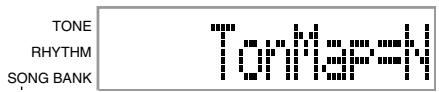
- Use [+] and [-] to change the setting of the parameter.
Example: To change the TONE MAP parameter value to "G" (GM).
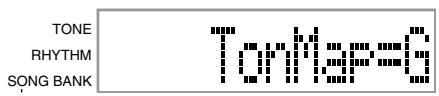
- If you accidentally go past parameter you want, keep pressing the TRANSPOSE/TUNE/MIDI button until parameter you want reappears on the display.
- If you leave the parameter selection screen on the display for about five seconds without doing anything, the parameter selection screen is automatically cleared.
Parameters and Their Displays
KEYBOARD CHANNEL (Basic Channel) (Default: 01)
This parameter specifies the keyboard MIDI message send channel.

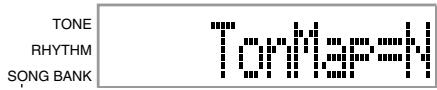
TONE MAP G/N (Default: N)
N: This settings specifies the normal tone map, which allows receipt of a program change value in the range of 0 to 99. Only tones that correspond to the 100 built-in tones of this keyboard can be played, and tone numbers outside this range are ignored.
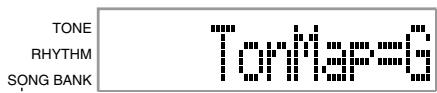
G: This setting specifies the General MIDI tone map, which allows receipt of a program change value in the range of 0 to 127. Each of the 128 General MIDI tones is automatically assigned to one of the keyboard's 100 built-in tones as shown on page A-1. Select this setting when you want to listen to General MIDI data from a computer or other external equipment.
NOTES
- Playing a Song Bank tune causes all MIDI parameters to revert to their default settings. Also, MIDI messages cannot be received while the keyboard is in the Song Bank Mode.
- Song Bank data cannot be sent as MIDI data.
| Problem | Possible Cause | Action | See page |
| No keyboard Sound | 1. Power supply problem. 2. Power is not turned on. 3. Volume setting is too low. 4. The POWER/MODE switch is in the CASIO CHORD or FINGERED position. | 1. Correctly attach the AC adaptor, make sure that batteries poles (+/−) are facing correctly, and check to make sure that batteries are not dead. 2. Set the POWER/MODE switch to the NORMAL position. 3. Use the MAIN VOLUME button to increase volume. 4. Normal play is not possible on the accompaniment keyboard while the POWER/MODE switch is set to CASIO CHORD or FINGERED. Change the POWER/MODE switch setting to NORMAL. | Page E-14 Page E-16 Page E-16 Page E-16 |
| Any of the following symptoms while using battery power. • Dim power supply indicator • Instrument does not turn on • Display that is flickering, dim, or difficult to read • Abnormally low speaker/headphone volume • Distortion of sound output • Occasional interruption of sound when playing at high volumes • Sudden power failure when playing at high volumes • Flickering or dimming of the display when playing at high volume • Continued sound output even after you release a key • A totally different tone may sound • Abnormal rhythm pattern and Song Bank play • Loss of power, sound distortion, or low volume when playing from a connected computer or MIDI device | Low battery power | Replace the batteries with a set of new ones or use the AC adaptor. | Page E-14 |
| Auto Accompaniment does not sound. | Auto accompaniment volume is set to 0. | Use the ACCOMP VOLUME button to increase the volume. | Page E-21 |
| The key or tuning does not match when playing along with another instrument. | The tuning or transpose parameter is set to a value other than 0 or 00. | Change the transpose or tuning parameter value to 0 or 00. | Page E-29 |
| Missing Song Bank tune. | 1. Left-hand or right-hand part is turned off. 2. Accompaniment volume is set to 0. | 1. Check the display to see if the indicator for one of the parts is not displayed. If so, press the part's button (LEFT ON/OFF, RIGHT ON/OFF) to turn it on. 2. Adjust accompaniment volume. | Page E-24 Page E-21 |
| No sound is produced when playing MIDI data from a computer. | MIDI cables are not connected properly. | Connect MIDI cables properly. | Page E-30 |
| The bass notes of General MIDI data being played back by a computer are one octave too low. | TONE MAP is turned “N”. | Change TONE MAP parameter to “G”. | Page E-31 |
| Playing on the keyboard produces an unnatural sound when connected to a computer. | The computer's MIDI THRU function is turned on. | Turn off the MIDI THRU function on the computer or turn off LOCAL CONTROL on the keyboard. | See the documentation that comes with your computer or sequencer. |
622A-E-035A
| Model: | CTK-451/CTK-471 |
| Keyboard: | 61 standard-size keys, 5 octaves |
| Tones: | 100 |
| Polyphony: | 12 notes maximum (6 for certain tones) |
| Auto Accompaniment | |
| Rhythm Patterns: | 100 |
| Tempo: | Variable (236 steps, ↓ = 20 to 255) |
| Chords: | 2 fingering methods (CASIO CHORD, FINGERED) |
| Rhythm Controller: | START/STOP, SYNCHRO/FILL-IN |
| Accomp Volume: | 0 to 9 (10 steps) |
| Song Bank | |
| Tunes: | 100 |
| Controllers: | PLAY/PAUSE, STOP, REW, FF, LEFT ON/OFF (ACCOMP), RIGHT ON/OFF (MELODY) |
| Display | |
| Name display: | TONE, RHYTHM, SONG BANK name/number, keyboard settings name/value |
| Tempo: | Tempo value, metronome, synchro standby, beat indicator |
| Chord: | Chord name, Chord form |
| Fingering: | Fingering indicators, parts, pedal symbol, octave symbol |
| Song Bank Status: | PLAY, PAUSE, REW, FF |
| Staff: | 5 octaves with sharp and flat indications |
| Keyboard: | 5 octaves |
| MIDI: | 5 multi-timbre receive |
| Other Functions | |
| Transpose: | 12 steps (-6 semitones to +5 semitones) |
| Tuning: | Variable (A4 = approximately 440Hz ±50 cents) |
| Volume: | 0 to 9 (10 steps) |
| Terminals | |
| MIDI Terminals: | IN, OUT |
| Sustain Terminal: | Standard jack |
| Phones/Output Terminal: | Stereo standard jack (Output is monaural.) |
| Output Impedance: 78Ω | |
| Output Voltage: 4V (RMS) MAX | |
| Power Supply Terminal: | 9V DC |
| Power Supply: | |
| Batteries: | Dual power supply system |
| Battery Life: | 6 AA-size batteries |
| AC Adaptor: | Approximately 2 hours on manganese batteries |
| Auto Power Off: | AD-5 |
| Turns power off approximately 6 minutes after last key operation. Enabled under battery power only, can be disabled manually. | |
| Speaker Output: | 2.0W + 2.0W |
| Power Consumption: | 9V … 7.7W |
| Dimensions: | 92.9 x 32.9 x 10.8 cm (365/8 x 1215/16 x 41/4 inch) |
| Weight: | Approximately 4.0kg (8.8lbs) (without batteries) |
Note Table
Tabla de notas
| (1) | (2) | (3) | (4) |
| 00 | 12 | A | 000 |
| 01 | 12 | A | 001 |
| 02 | 6 | A | 003 |
| 03 | 6 | A | 002 |
| 04 | 12 | A | 004 |
| 05 | 12 | A | 005 |
| 06 | 6 | A | 008 |
| 07 | 6 | A | 009 |
| 08 | 12 | A | 006 |
| 09 | 12 | A | 007 |
| (1) | (2) | (3) | (4) |
| 10 | 12 | A | 016 |
| 11 | 12 | A | 017 |
| 12 | 12 | A | 018 |
| 13 | 6 | A | 015 |
| 14 | 12 | A | 014,019 |
| 15 | 6 | A | 104 |
| 16 | 12 | A | 020 |
| 17 | 6 | A | 021 |
| 18 | 12 | A | 023 |
| 19 | 12 | A | 022 |
| (1) | (2) | (3) | (4) |
| 20 | 12 | A | 024 |
| 21 | 12 | A | 025 |
| 22 | 12 | A | 026 |
| 23 | 12 | A | 027 |
| 24 | 12 | A | 028 |
| 25 | 12 | A | 029, 030, 031, 084 |
| 26 | 12 | B | 032 |
| 27 | 12 | B | 033, 034, 035 |
| 28 | 12 | B | 036, 037 |
| 29 | 12 | A | 105 |
| (1) | (2) | (3) | (4) |
| 30 | 12 | A | 040, 041 |
| 31 | 12 | B | 042, 043 |
| 32 | 12 | A | 045, 046, 047 |
| 33 | 12 | A | 048, 055 |
| 34 | 12 | A | 049 |
| 35 | 6 | A | 044 |
| 36 | 12 | A | 050 |
| 37 | 6 | A | 051 |
| 38 | 12 | A | 091, 052 |
| 39 | 12 | A | 053 |
| (1) | (2) | (3) | (4) |
| 40 | 12 | A | 056 |
| 41 | 12 | B | 058 |
| 42 | 6 | A | 057 |
| 43 | 12 | B | 060 |
| 44 | 6 | B | 059 |
| 45 | 12 | B | 061 |
| 46 | 6 | B | 069 |
| 47 | 12 | B | 062 |
| 48 | 6 | B | 063, 083 |
| 49 | 6 | B | 070 |
| (1) | (2) | (3) | (4) |
| 50 | 12 | A | 064 |
| 51 | 12 | A | 065 |
| 52 | 12 | A | 066, 067 |
| 53 | 12 | A | 068 |
| 54 | 12 | A | 071 |
| 55 | 12 | C | 072 |
| 56 | 12 | A | 073 |
| 57 | 12 | A | 074, 079 |
| 58 | 12 | A | 075, 076, 077 |
| 59 | 12 | A | 078 |
| (1) | (2) | (3) | (4) |
| 60 | 12 | A | 087 |
| 61 | 6 | A | 081,086 |
| 62 | 12 | A | 080 |
| 63 | 6 | A | 082 |
| 64 | 6 | A | 089 |
| 65 | 6 | A | 090 |
| 66 | 6 | A | 095 |
| 67 | 6 | A | 092,093,098 |
| 68 | 6 | A | 054,085,094 |
| 69 | 12 | B | 038 |
| (1) | (2) | (3) | (4) |
| 70 | 6 | A | 096 |
| 71 | 6 | A | 103 |
| 72 | 6 | A | 097 |
| 73 | 6 | A | 101 |
| 74 | 12 | B | 039 |
| 75 | 12 | D | 126, 127 |
| 76 | 6 | A | 102 |
| 77 | 6 | D | 125 |
| 78 | 12 | D | 124 |
| 79 | 6 | D | 123 |
| (1) | (2) | (3) | (4) |
| 80 | 6 | A | 106 |
| 81 | 6 | A | 088, 107 |
| 82 | 6 | A | 108 |
| 83 | 6 | A | 109 |
| 84 | 6 | A | 099, 110 |
| 85 | 6 | A | 111 |
| 86 | 6 | B | 112 |
| 87 | 6 | A | 113 |
| 88 | 6 | A | 114 |
| 89 | 6 | A | 115 |
| (1) | (2) | (3) | (4) |
| 90 | 12 | E | 100, 116 |
| 91 | 6 | E | 117 |
| 92 | 12 | E | 118 |
| 93 | 12 | E | 119 |
| 94 | 12 | E | 120 |
| 95 | 12 | E | 121 |
| 96 | 12 | E | 122 |
| 97 | 12 | A | 010, 011, 014 |
| 98 | 12 | A | 012, 013 |
| 99 | 12 | D |
(1): Tone number
(2): Maximum polyphony
(3): Range type
(4): Corresponding General MIDI Number
(1): Nível de sonido
(2): Polifonia maxima
(3): Tipo de gama
(4): Correspondiente al numero de la MIDI general
Fingered Chord Chart
Cuadros de acordes Fingered
This table shows the left-hand fingerings (including inverted forms) for a number of often-used chords. These fingering indications also appear on the keyboard's display.
Chords marked with asterisk (*) cannot be played in the Fingered Mode on this keyboard.
| ChordRoot Type | M | m | 7 | m7 | dim7 | M7 | m7-5 | dim |
| C | [5,3,1] | [5,3,1] | [5,3,2,1] | [5,3,2,1] | [5,3,2,1] | [5,3,2,1] | [5,3,2,1] | [5,3,2] |
| C# (D#) | [5,3,1] | [5,3,1] | [5,3,2,1] | [5,3,2,1] | [5,3,2,1] | [5,3,2,1] | [5,3,2,1] | [5,3,2] |
| D | [5,3,1] | [5,3,1] | [5,3,2,1] | [5,3,2,1] | [5,3,2,1] | [5,3,2,1] | [5,3,2,1] | [5,3,2] |
| E# (D#) | [5,3,1] | [5,3,1] | [5,3,2,1] | [5,3,2,1] | [5,3,2,1] | [5,3,2,1] | [5,3,2,1] | [5,3,2] |
| E | [5,3,1] | [5,3,1] | [5,3,2,1] | [5,3,2,1] | [5,3,2,1] | [5,3,2,1] | [5,3,2,1] | [5,3,2] |
| F | [5,3,1] | [5,3,1] | [5,3,2,1] | [5,3,2,1] | [5,3,2,1] | [5,3,2,1] | [5,3,2,1] | [5,3,2] |
| F# (G#) | [5,3,1] | [5,3,1] | [5,3,2,1] | [5,3,2,1] | [5,3,2,1] | [5,3,2,1] | [5,3,2,1] | [5,3,2] |
| G | [5,3,1] | [5,3,1] | [5,3,2,1] | [5,3,2,1] | [5,3,2,1] | [5,4,2,1] | [5,3,2,1] | [5,3,2] |
| A# (G#) | [5,3,1] | [5,3,1] | [5,4,2,1] | [5,4,2,1] | [5,3,2,1] | [5,4,2,1] | [5,4,2,1] | [5,3,2] |
| A | [5,3,1] | [5,3,1] | [5,4,2,1] | [5,4,2,1] | * | [5,4,2,1] | [5,4,2,1] | [5,3,2] |
| B# (A#) | [5,3,1] | [5,3,1] | [5,4,2,1] | [5,4,2,1] | * | [5,4,2,1] | [5,4,2,1] | [5,3,2] |
| B | [5,2,1] | [5,2,1] | [5,3,2,1] | [5,3,2,1] | * | [5,3,2,1] | [5,4,2,1] | [5,3,2] |
622A-E-073A
| Chord Root Type | aug | sus4 | 7 sus4 | m add9 | m M7 | 7-5 | add9 |
| C | [5, 3, 1] | [5, 2, 1] | [5, 3, 2, 1] | [4, 3, 2, 1] | [5, 3, 2, 1] | [5, 3, 2, 1] | [4, 3, 2, 1] |
| C# (D b) | [5, 3, 1] | [5, 2, 1] | [5, 3, 2, 1] | [4, 3, 2, 1] | [5, 3, 2, 1] | [5, 3, 2, 1] | [4, 3, 2, 1] |
| D | [5, 3, 1] | [5, 2, 1] | [5, 3, 2, 1] | [4, 3, 2, 1] | [5, 3, 2, 1] | [5, 3, 2, 1] | [4, 3, 2, 1] |
| Eb (D #) | [5, 3, 1] | [5, 2, 1] | [5, 3, 2, 1] | [4, 3, 2, 1] | [5, 3, 2, 1] | [5, 3, 2, 1] | [4, 3, 2, 1] |
| E | [5, 3, 1] | [5, 2, 1] | [5, 3, 2, 1] | [4, 3, 2, 1] | [5, 3, 2, 1] | [5, 3, 2, 1] | [4, 3, 2, 1] |
| F | [5, 3, 1] | [5, 2, 1] | [5, 3, 2, 1] | [4, 3, 2, 1] | [5, 3, 2, 1] | [5, 3, 2, 1] | [4, 3, 2, 1] |
| F# (G b) | [5, 3, 1] | [5, 2, 1] | [5, 3, 2, 1] | [4, 3, 2, 1] | [5, 3, 2, 1] | [5, 3, 2, 1] | [4, 3, 2, 1] |
| G | [5, 3, 1] | [5, 2, 1] | [5, 3, 2, 1] | [4, 3, 2, 1] | [5, 4, 2, 1] | [5, 3, 2, 1] | [4, 3, 2, 1] |
| Ab (G #) | [5, 3, 1] | [5, 2, 1] | [5, 4, 2, 1] | [4, 3, 2, 1] | [5, 4, 2, 1] | [5, 4, 2, 1] | [4, 3, 2, 1] |
| A | [5, 3, 1] | [5, 2, 1] | [5, 4, 2, 1] | [4, 3, 2, 1] | [5, 4, 2, 1] | [5, 4, 2, 1] | [4, 3, 2, 1] |
| Bb (A #) | * | [5, 2, 1] | [5, 4, 2, 1] | [4, 3, 2, 1] | [5, 4, 2, 1] | [5, 4, 2, 1] | [4, 3, 2, 1] |
| B | * | [5, 2, 1] | [5, 3, 2, 1] | [5, 3, 2, 1] | [5, 3, 2, 1] | [4, 3, 2, 1] | [5, 3, 2, 1] |
| Function ... | Transmitted | Recognized | Remarks | |
| Basic Channel | Default Changed | 1 1-16 | 1-4, 10 1-4, 10 | |
| Mode | Default Messages Altered | Mode 3 X *** **** | Mode 3 X *** **** | *3 = no relation |
| Note Number: | True voice | 36-96 **** **** | 0-127 36-96 *1 | |
| Velocity | Note ON Note OFF | O 9nH v = 75,100 *2 X 9nH v = 0 | O 9nH v = 1-127 X 9nH v = 0,8nH v = *3 | |
| After Touch | Key's Ch's | X X | X X | |
| Pitch Bender | X | O | ||
| Control Change | 1 6,38 7 10 11 64 | X X X X O | O X O O X O | Modulation Data entry Volume Pan Expression Hold1 |
622A-E-078B
| 64100,101120121 | ○X××× | ○X××× | Hold1RPN LSB, MSBAll sound offReset all controller |
| Program Change: True # | ○ 0-99********** | ○ 0-127 *4********** | |
| System Exclusive | × | × | |
| System : Song Pos Common : Song Sel : Tune | ××× | ××× | |
| System : Clock Real Time : Commands | ×× | ×× | |
| Aux : Local ON/OFF : All notes OFF Messages : Active Sense : Reset | ××× | ××× | |
| ××× | ××× | ||
| ×× | ×× | ||
| Remarks | *2: V(Velocity)=100 when note on data when the main volume value of this unit is 9 to 2, and V=75 when the main volume value is 1 or 0.*4: Depends on GM tone map setting (page E-31, S-31). | ||
| Mode 1 : OMNI ON, POLY Mode 2 : OMNI ON, MONO O : Yes Mode 3 : OMNI OFF, POLY Mode 4 : OMNI OFF, MONO X : No | |||
622A-E-079A

This recycle mark indicates that the packaging conforms to the environmental protection legislation in Germany.
- Important!
- NOTICE
- FCC WARNING
- Introduction
- tones
- rhythms
- Auto Accompaniment
- 100-tune Song Bank
- Musical Information System
- MIDI compatibility
- Symbols
- WARNING
- CAUTION
- Symbol Examples
- Do not disassemble or modify the instrument.
- Do not use if there is an abnormality or malfunction.
- When the instrument has been dropped:
- Be careful of the bags around children.
- AC Adaptor
- Batteries
- Transport
- Care
- Location
- Do not place keyboard on lacquered furniture.
- Do not place heavy objects on the instrument.
- Volume
- Liquid Crystal Display (LCD) Precautions
- Do not get onto the instrument or stand.*
- Optional Stand*
- Care of your keyboard
- Avoid heat, humidity or direct sunlight.
- Do not use near a TV or radio.
- Do not use lacquer, thinner or similar chemicals for cleaning.
- Avoid use in areas subjected to temperature extremes.
- NOTE
- Contents
- Song Bank
- Power Supply. E-14
- Basic Operations. E-16
- Auto Accompaniment .........E-18
- Using the Song Bank ....E-22
- Using the Chord Book ....E-26
- Keyboard Settings......E-29
- MIDI E-30
- Troubleshooting E-32
- Specifications E-34
- Appendix A-1
- MIDI Implementation Chart
- [+]/[-] buttons
- Number buttons/ Chord specification buttons
- *Attachment of the Score Stand
- Using the Display
- To play back a Song Bank tune
- Phones/Output Terminal
- Connecting Phones (Figure 1)
- Audio Equipment (Figure 2)
- Musical Instrument Amplifier (Figure 8)
- Sustain jack Terminal
- Sustain Pedal
- Accessories and Options
- Using batteries
- To load batteries
- Important Battery Information
- Using the AC Adaptor
- WARNING!
- CAUTION!
- Auto Power Off
- To disable Auto Power Off
- To play the keyboard
- Selecting a Tone
- To select a tone
- NOTES
- Combination tones
- Layered Tones (Tone Numbers: 80 through 89)
- Split Tones (Tone Numbers: 90 through 96)
- Percussion sounds
- Sound Effect Tones
- Polyphony
- Digital Sampling
- Selecting a Rhythm
- To select a rhythm
- Playing a Rhythm
- To play a rhythm
- Adjusting the Tempo
- To adjust the tempo
- About the Graphic Metronome
- Using Auto Accompaniment
- To use Auto Accompaniment
- CASIO CHORD
- CASIO CHORD Accompaniment Keyboard and Melody Keyboard
- Chord Types
- FINGERED
- FINGERED Accompaniment Keyboard and Melody Keyboard
- Using a Fill-in Pattern
- To insert a fill-in
- Synchro Starting Accompaniment with Rhythm Play
- To use synchro start
- Adjusting the Accompaniment Volume
- To pause Song Bank tune play
- To fast reverse during playback
- To fast forward during playback
- Song Bank Mode Display
- Adjusting the Tempo of a Song Bank Tune
- To change the tempo of a Song Bank tune
- To Change the Tone of a Song Bank Tune's Melody
- Playing Along with a Song Bank Tune
- To play along with a Song Bank tune
- Auto-accompany Tunes (Tune Numbers 00 to 79)
- Two-hand Tunes (Tune Numbers 80 to 99)
- Applause Sound
- To turn off the applause sound
- To consecutively play back all Song Bank tunes
- What is a chord?
- Chord Names
- Inverted Forms
- To Look Up a Chord Using the Chord Book
- Press the CLEAR button.
- Transposing the Keyboard
- To transpose the keyboard
- Tuning the Keyboard
- To tune the keyboard
- What is MIDI?
- MIDI Connections
- MIDI Channels
- General MIDI
- Messages
- NOTE ON/OFF
- PROGRAM CHANGE
- PITCH BEND
- CONTROL CHANGE
- Changing MIDI Settings
- To change MIDI parameters
- Parameters and Their Displays
- Note Table
- Tabla de notas
- Fingered Chord Chart
- Cuadros de acordes Fingered
Brand : CASIO
Model : CTK-451
Category : Numeric keypad