
BTB3370 - Hi-Fi System PHILIPS - Free user manual and instructions
Find the device manual for free BTB3370 PHILIPS in PDF.


| Product Type | Hi-Fi System |
| Model | BTB3370 |
| Brand | Philips |
| Dimensions (W x H x D) | 200 x 250 x 120 mm |
| Weight | 2.5 kg |
| Power Supply | AC 220-240V, 50Hz |
| Power Consumption | 30 W |
| Speaker Output Power | 2 x 10 W RMS |
| Supported Discs | CD, CD-R, CD-RW |
| Radio Bands | FM, AM |
| Preset Stations | 20 (FM) / 10 (AM) |
| Bluetooth Version | 4.2 |
| USB Playback | Yes, MP3/WMA |
| Audio Input | 3.5 mm auxiliary |
| Headphone Jack | 3.5 mm |
| Display | LCD with backlight |
| Clock/Timer | Yes, sleep and alarm |
| Remote Control | Included |
| Cleaning Instructions | Wipe with soft dry cloth |
| Safety Precautions | Do not expose to water or moisture |
| Repairability | Contact authorized service center |
Frequently Asked Questions - BTB3370 PHILIPS
User questions about BTB3370 PHILIPS
0 question about this device. Answer the ones you know or ask your own.
Ask a new question about this device
Download the instructions for your Hi-Fi System in PDF format for free! Find your manual BTB3370 - PHILIPS and take your electronic device back in hand. On this page are published all the documents necessary for the use of your device. BTB3370 by PHILIPS.
USER MANUAL BTB3370 PHILIPS
Always there to help you
Register your product and get support at www.philips.com/support

BTB3370

User manual
PHILIPS
Contents
1 Important 2
Safety 2
2 Your micro system 4
Introduction 4
What's in the box 4
Overview of the main unit 5
Overview of the remote control 6
3 Get started 8
Connect speakers 8
Connect FM antenna 8
Connect power 8
Prepare the remote control 9
Set clock 9
Turn on 9
4 Play 10
Play from disc 10
Play from USB 10
Control play 11
Skip to a track 11
Program tracks 11
Play from Bluetooth-enabled devices 11
5 Listen to the radio 13
Listen to DAB+ radio 13
Listen to FM radio 14
6 Other features 16
Set the alarm timer 16
Set the sleep timer 16
Listen to an external device 16
Listen through a headphone 17
7 Product information 18
Specifications 18
USB playability information 19
Supported MP3 disc formats 19
RDS program types 20
8 Troubleshooting 21
9 Notice 23
1 Important
Safety
• Make sure that there is enough free space around the product for ventilation.
- Only use attachments or accessories specified by the manufacturer.
- Battery usage CAUTION – To prevent battery leakage which may result in bodily injury, property damage, or damage to the product:
• Install the batteries correctly, + and - as marked on the product.
- Do not mix batteries (old and new or carbon and alkaline, etc.).
- Remove the batteries when the product is not used for a long time.
- The batteries shall not be exposed to excessive heat such as sunshine, fire or the like.
- Use only power supplies listed in the user manual.
• The product shall not be exposed to dripping or splashing. - Do not place any sources of danger on the product (e.g. liquid filled objects, lighted candles).
- Where the mains plug or an appliance coupler is used as the disconnect device, the disconnect device shall remain readily operable.

Warning
- Never remove the casing of this device.
- Never lubricate any part of this device.
- Never place this device on other electrical equipment.
- Keep this device away from direct sunlight, naked flames or heat.
- Never look into the laser beam inside this device.
- Ensure that you always have easy access to the power cord, plug, or adaptor to disconnect this device from the power.
Hearing safety

Listen at a moderate volume.
- Using headphones at a high volume can impair your hearing. This product can produce sounds in decibel ranges that may cause hearing loss for a normal person, even for exposure less than a minute. The higher decibel ranges are offered for those that may have already experienced some hearing loss.
- Sound can be deceiving. Over time your hearing 'comfort level' adapts to higher volumes of sound. So after prolonged listening, what sounds 'normal' can actually be loud and harmful to your hearing. To guard against this, set your volume to a safe level before your hearing adapts and leave it there.
To establish a safe volume level:
- Set your volume control at a low setting.
- Slowly increase the sound until you can hear it comfortably and clearly, without distortion.
Listen for reasonable periods of time:
- Prolonged exposure to sound, even at normally 'safe' levels, can also cause hearing loss.
- Be sure to use your equipment reasonably and take appropriate breaks.
Be sure to observe the following guidelines when using your headphones.
- Listen at reasonable volumes for reasonable periods of time.
- Be careful not to adjust the volume as your hearing adapts.
- Do not turn up the volume so high that you can't hear what's around you.
- You should use caution or temporarily discontinue use in potentially hazardous situations.
2 Your micro system
Congratulations on your purchase, and welcome to Philips! To fully benefit from the support that Philips offers, register your product at www.philips.com/welcome.
Introduction
With this unit, you can:
- enjoy audio from discs, Bluetooth-enabled devices, USB storage devices, or other external devices;
- listen to Digital Audio Broadcasting (DAB) or FM radio stations.
You can enjoy one of the following sound effects:
• Balance, Clear, Powerful, Warm, and Bright
The unit supports these media formats:


What's in the box
Check and identify the contents of your package:
- Main unit
- 2 x speakers with cables
- 1 x FM wire antenna
- Remote control (with one AAA battery)
- Printed materials
Overview of the main unit


①
- Turn the unit on or off.
- Switch to standby mode or Eco standby mode.
② Display panel
③ Control buttons
▶ II
- Start, pause, or resume play.
- Stop play or erase a program.
/
- Skip to the previous/next track.
• Search within a track/disc/USB. - Tune to a radio station.
- Adjust time.
④ Volume knob
- Adjust volume.
⑤
- Open/close the disc compartment.
⑥ Disc compartment
⑦
- Headphone socket.
⑧ AUDIO IN
• Audio input socket (3.5mm) for an external audio device.
⑨
- USB socket.
⑩ SOURCE/PAIRING
- Press to select a source: DISC, BLUETOOTH, USB, DAB, TUNER, AUDIO IN.
- In Bluetooth mode with two devices connected, press and hold for 3 seconds to disconnect the first connected device and enter pairing mode.
- In Bluetooth mode with one device connected, press and hold for 3 seconds to enter pairing mode.
⑪ FM AERIAL
- FM antenna socket.
⑫ Mini USB port (for service purpose only)
⑬ SPEAKER OUT
- Speaker sockets.
⑭ Voltage selector (for service purpose only)
⑮ AC MAINS \~
- Power socket.
Overview of the remote control

①
- Turn the unit on or off.
- Switch to standby mode or Eco power standby mode.
② /PAIRING
- Press to select the BT (Bluetooth) source.
- In Bluetooth mode with two devices connected, press and hold for 3 seconds to disconnect the first connected device and enter pairing mode.
- In Bluetooth mode with one device connected, press and hold for 3 seconds to enter pairing mode.
③ USB/AUDIO IN
- Press repeatedly to select the USB or AUDIO IN source.
④
- Skip to the previous/next track.
• Search within a track/disc/USB. - Tune to a radio station.
- Adjust time.
⑤ DIM
- Adjust display brightness.
⑥ □/MENU
- Stop play or erase a program.
- Access the DAB+ or FM menu.
⑦ SOUND
- Select a preset sound effect.
⑧ +/-
- Adjust volume.
⑨
- Mute or restore volume.
⑩ PROG/SCAN
- Program tracks.
• Program radio stations. - Scan FM or DAB+ radio stations.
⑪ CLOCK
- Set the clock.
• View clock information.
⑫ SLEEP/TIMER
- Set sleep timer.
- Set alarm timer.
⑬ INFO
- Display the current status or disc information.
- For selected FM radio stations, display RDS information (if available).
⑭ ALBUM/PRESET▲/▼
- Select a preset radio station.
- Skip to the previous/next album.
⑮ MODE
- Select repeat or shuffle play mode.
16 ▶OK
- Start, pause, or resume play.
- Confirm a selection.
- Switch between FM stereo and mono broadcast.
⑰ DAB/FM
- Press repeatedly to select the DAB or FM source.
⑱ CD
- Select the DISC source.
3 Get started

Caution
- Use of controls or adjustments or performance of procedures other than herein may result in hazardous laser exposure or other unsafe operation.
Always follow the instructions in this chapter in sequence.
If you contact Philips, you will be asked for the model and serial number of this apparatus. The model number and serial number are on the back of the apparatus. Write the numbers here:
Model No. ____
Serial No.
Connect speakers

Note
- For optimal sound, use the supplied speakers only. - Connect only speakers with impedance that is the same or higher than the supplied speakers. Refer to the Specifications section of this manual.

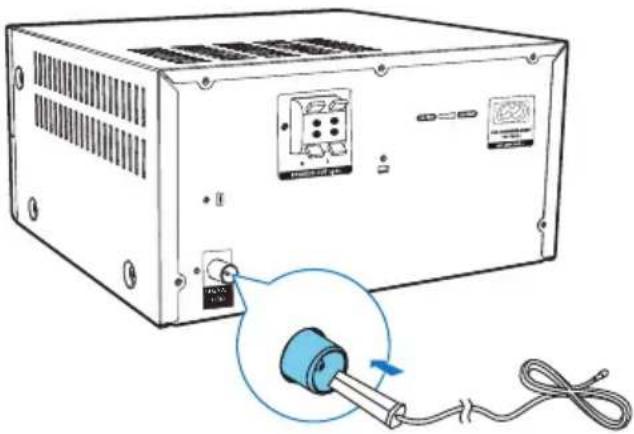
Connect FM antenna
• Before listening to radio, connect the supplied FM antenna to this device.
Connect power

Caution
- Risk of product damage! Make sure that the power supply voltage corresponds to the voltage printed on the back or the underside of the unit. - Risk of electric shock! When you unplug the AC power cord, always pull the plug from the socket. Never pull the cord. - Before you connect the AC power cord, make sure that you have completed all the other connections.

Prepare the remote control

Caution
- Risk of product damage! When the remote control is not to be used for long periods, remove the battery.
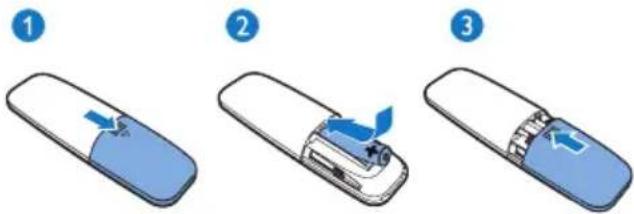
To insert the remote control battery:
1 Open the battery compartment.
2 Insert the supplied AAA battery with correct polarity (+/-) as indicated.
3 Close the battery compartment.
Set clock
1 In power-on mode, press and hold CLOCK on the remote control for 3 seconds.
→ The [24H] or [12H] hour format is displayed.
2 Press ◀◀ to ▶elect the [24H] or [12H] hour format.
3 press CLOCK to confirm.
→ The hour digits are displayed and begin to blink.
4 Repeat steps 2-3 to set the hour and minute.

Note
- If no button is pressed within 90 seconds, the unit exits clock setting mode automatically.

Tip
- You can press CLOCK to view clock information in power-on mode.
Turn on
- Press . ⏻ → The unit switches to the last selected source.
Switch to standby mode
- Press again to switch the unit to standby mode. → The clock (if set) is displayed on the panel.
Switch to ECO standby mode:
- Press and hold for more than 3 seconds. → The display panel is dimmed.

Note
- The unit switches to Eco Power Standby mode after 15 minutes in standby mode.
To switch between standby mode and ECO standby mode:
- Press and hold for more than 3 seconds.
4 Play
Play from disc
1 Press CD to select the DISC source.
2 Press ▲ on the front panel to open the disc compartment.
3 Insert a disc with the printed side facing upward.
4 Press ▲again to close the disc compartment.
→ Play starts automatically. If not, press
▶II.


Play from USB

Note
• Make sure that the USB device contains playable audio content (see 'Product information' on page 18).
1 Press USB/AUDIO IN repeatedly to select the USB source.
2 Insert a USB device into the socket.
→ Play starts automatically. If not, press ▶II.

Charge your device
You can charge your mobile device through the USB socket on the unit with a USB cable (not supplied).

Note
• The maximum current for USB charging is 500 mA.
- The USB socket on the unit is not guaranteed to charge any mobile device.

Control play
ALBUM/ Select an album/folder.
PRESET

/ Select an audio file.

Pause or resume play.
/MENU Stop play.
MODE Select an available play mode.
- [REPEAT ONE] (repeat one): repeat the current track
- [REPEAT ALL] (repeat all): repeat all tracks
- [SHUFFLE] (shuffle): play tracks randomly
• [OFF] (off): play tracks in sequence
+/- Increase or decrease volume.

Mute or restore sound.
SOUND Press SOUND to select Balance, Clear, Powerful, Warm, or Bright.
DIM Adjust display brightness.
Skip to a track
For CD:
Press ◀◀ to select another track.
For MP3 disc and USB:
1 Press ALBUM/PRESET ▲ to select an album or a folder.
2 Press ◀◀ to▶ select a track or file.
Program tracks
You can program a maximum of 20 tracks.
1 Stop play, and then press PROG/SCAN to activate programming mode.
2 For MP3 tracks, press ALBUM/PRESET ▲▼ to select an album.
3 Press ◀◀ to▶elect a track, and then press PROG/SCAN to confirm.
4 Repeat steps 2-3 to program more tracks.
5 Press ▶II to play the programmed tracks.
→ During play, [PROG] (program) is displayed.
• To erase the program, stop play, and then press ■MENU.
Play from Bluetooth-enabled devices

Note
- Before pairing a device with the unit, read the user manual of the device for Bluetooth compatibility.
- Compatibility with all Bluetooth devices is not guaranteed.
- Any obstacle between the unit and the device can reduce the operational range.
- The effective operation range between this unit and your Bluetooth enabled device is approximately 10 meters (30 feet).
- The unit can memorize up to 2 previously connected Bluetooth devices.
To stream music to the unit wirelessly, you need to pair your Bluetooth enabled device with the unit.
![graph TD A["Device"] -->|Signal| B["BTB3370"] A -->|Signal| C["PIN 0000"] A -->|Signal| D["Alarm Unit"] B -->|Signal| E["Mobile Device"] C -->|Signal| F["Mobile Device"] D -->|Signal| G["Mobile Device"] style A fill:#f9f,stroke:#333 style B fill:#ccf,stroke:#333 style C fill:#cfc,stroke:#333 style D…](/content/2026/06/1293208/images/7d75d46fa4891fe14b9077ab3b1c9cf1750c51305a3823a40062c1617c49637c.jpg)
1 Press Ⓧ /PAIRING to select the Bluetooth source.
→ [BLUETOOTH] (Bluetooth) is displayed.
→ The Bluetooth indicator flashes blue.
2 On your device that supports Advanced Audio Distribution Profile (A2DP), enable Bluetooth and search for Bluetooth devices that can be paired (refer to the user manual of the device).
3 Select 'Philips BTB3370' on your Bluetooth enabled device, and if necessary input '0000' as the pairing password.
→ After successful pairing and connection, the Bluetooth indicator turns solid blue, and the unit beeps.
→ 'CONNECTED' is displayed.
4 Play music on the connected device.
→ Music streams from your Bluetooth enabled device to this unit.
- If you fail to search for 'Philips BTB3370' or cannot pair with this unit, press and hold Ⓞ/PAIRING for 3 seconds until the Bluetooth indicator flashes quickly to enter pairing mode.
To disconnect the current Bluetooth-enabled device:
• Deactivate Bluetooth on your device; or
- Move the device beyond the communication range.
Pair and connect a second device
You can pair and connect up to two Bluetooth-enabled devices to this unit at the same time.
To connect and play from a second Bluetooth-enabled device
1 Press and hold Ⓧ /PAIRING for 3 seconds until the Bluetooth indicator flashes quickly to enter pairing mode.
2 Pair and connect a second device to this unit.
3 Play music from either connected device.
• To play from the other connected device, first stop music streaming from the current device.
- To disconnect the first connected device, press and hold Ⓐ/PAIRING for 3 seconds until the Bluetooth indicator flashes quickly to enter pairing mode.
5 Listen to the radio

Tip
- Position the antenna as far as possible from TV or other radiation sources.
• Make sure that you have connected the supplied FM antenna. - For optimal reception, fully extend and adjust the position of the antenna.
Listen to DAB+ radio
Digital Audio Broadcasting (DAB+) is a way of broadcasting radio digitally through a network of transmitters. It provides you with more choice, better sound quality, and more information.
Tune to DAB+ radio stations

Note
• Make sure that the antenna is fully extended.
1 Press DAB/FM repeatedly to select the DAB source.
→ [SCAN] (scan) is displayed briefly. Then, [FULL SCAN] (full scan) is displayed.
2 Press OK to start full scan.
→ The unit stores all DAB+ radio stations automatically and broadcasts the first available station.
The station list is memorized in the unit. Next time when you turn on the unit, the station scan does not take place.

Note
- If no DAB+ radio station is found, [NO DAB] (no DAB) is displayed, and then [FULL SCAN] (full scan) is displayed again.
To tune to a station from the available station list:
- In DAB+ mode, press I repeatedly to navigate through the available DAB+ stations.
Store DAB+ radio stations automatically

Note
- New stations and services will be added in DAB+ broadcast from time to time. To make new DAB+ stations and services available, perform full scan regularly.
1 In DAB+ mode, press and hold PROG/SCAN for more than 3 seconds. → The unit scans and stores all the available DAB+ radio stations, and broadcasts the first available station.
2 Press ◀◀▶to▶elect an automatically stored station.
Store DAB+ radio stations manually

Note
- You can store a maximum of 20 preset DAB+ radio stations.
1 Tune to a DAB+ radio station.
2 Press PROG/SCAN to activate storing mode.
3 Press ALBUM/PRESET ▲ to select a preset number.
4 Press PROG/SCAN to confirm.
→ The name of the preset station is displayed.
5 Repeat the above steps to store more DAB+ stations.
6 Press ALBUM/PRESET ▲ to select a manually stored station, and then press OK to confirm.

Note
• To remove a pre-stored DAB+ radio station, store another station in its place.
Show DAB+ information
- While listening to DAB+ radio, press INFO repeatedly to scroll through the following information (if available):
- Station Name
- RDS TEXT message
• Dynamic Label Segment - Program Type
- Ensemble Name
- Frequency
- Signal error rate
- Bit rate
• Audio status (DAB, DAB+) - Time
- Date
Use DAB+ menu
1 In DAB+ mode, press ■MENU to access the DAB+ menu.
2 Press ◀◀▶▶droll through the menu options:
- [FULL SCAN] (full scan): scan and store all the available DAB+ radio stations.
- [MANUAL] (manual): tune to a DAB+ station manually.
• [PRUNE] (prune): remove all the invalid stations from the station list. - [SYSTEM] (system): adjust system settings.
3 To select an option, press OK.
4 If a sub-option is available, repeat steps 2-3.
[SYSTEM] (system)
- [RESET] (reset): reset all settings to factory default.
- [UPGRADE] (upgrade): upgrade software if available.
- [SWVER] (software version): show the software version of this unit.
![PHILIPS BTB3370 - [SYSTEM] (system) - 1](/content/2026/06/1293208/images/28d43cf3030eb0c49e722dd5ff9935ff675047411146b0db1bdd2d2f13d92e6c.jpg)
Note
- If no button is pressed within 30 seconds, the menu exits.
Listen to FM radio
Tune to a radio station
1 Press DAB/FM repeatedly to select the tuner source.
2 Press and hold ◀◀ for 3 seconds.
→ The radio tunes to a station with strong reception automatically.
3 Repeat step 2 to tune to more stations.
To tune to a weak station:
- Press / repeatedly until you find the optimal reception.
Store FM radio stations automatically

Note
- You can program a maximum of 20 preset radio stations (FM).
1 In tuner mode, press ■MENU to access the FM tuner menu.
→ [SCAN] is displayed.
2 Press OK, and then press ◀◀ to▶roll through the menu options:
• [STRONG] (strong stations): scan stations with strong signals only.
- [ALL] (all stations): scan all available FM radio stations.
3 Press OK to select an option, and then press ■MENU to exit the menu.
4 In FM tuner mode, press PROG/SCAN.
→ The stations scanned are based on the selection at step 2.
→ The unit broadcasts the first scanned FM radio station.
Store FM radio stations manually
1 Tune to an FM radio station.
2 Press PROG/SCAN to activate storing mode.
→ [PROG] (program) blinks.
3 Press ALBUM/PRESET ▲ repeatedly to select a radio frequency.
4 Press PROG/SCAN again to confirm. → The frequency of the preset station is displayed.
5 Repeat the above steps to store more FM stations.

Note
- To remove a pre-stored station, store another station in its place.
Select a preset radio station
- In FM mode, press ALBUM/PRESET /▲ ▼ to select a stored radio frequency, and then press OK to confirm.
Show RDS information
Radio Data System (RDS) is a service that allows FM stations to show additional information.
1 Tune to an RDS station.
2 Press INFO repeatedly to scroll through the following information (if available).
- Radio text message
- Program type
- Frequency
Select stereo/mono broadcast

Note
- Stereo broadcast is the default setting for tuner mode.
- For stations with weak signals: to improve the reception switch to monaural sound.
- In FM tuner mode, press OK to switch between mono and stereo broadcast.
6 Other features
Set the alarm timer
This unit can be used as an alarm clock. You can select DISC, FM, DAB, or USB as the alarm source.

Note
• Make sure that you have set the clock correctly.
1 In standby mode, press and hold SLEEP/TIMER for 3 seconds.
→ The hour digits are displayed and begin to blink.
2 Press ↔ repeatedly to set the hour.
3 Press SLEEP/TIMER (or OK) to confirm. → The minute digits begin to blink.
4 Repeat steps 2-3 to set the minute, select an alarm source (DISC, FM, DAB, or USB), and adjust the volume of the alarm.

Note
- If no button is pressed within 90 seconds, the unit exits timer setting mode automatically.
To activate or deactivate the alarm timer:
- Press SLEEP/TIMER repeatedly to view the alarm information and activate or deactivate the alarm.
→ If the timer is activated, is displayed.
→ If the timer is deactivated, [TIMER OFF] (timer off) is displayed and disappears.

Tip
- If DISC/USB source is selected, but no disc is placed or no USB connected, the unit switches to the tuner source automatically.
Set the sleep timer
- To set the sleep timer, when the unit is switched on, press SLEEP/TIMER repeatedly to select a set period of time (in minutes).
When the sleep timer is activated, is displayed. Otherwise, z disappears.
Listen to an external device
You can enjoy music from an external device connected to the unit through an audio cable.
1 Press USB/AUDIO IN repeatedly to select the AUDIO IN source.
2 Connect an audio cable (not supplied) between:
• the AUDIO IN socket (3.5 mm) on the unit;
• and the headphone socket on an external device.
3 Play music from the connected external device (see the user manual of the device).

Listen through a headphone
- Plug a headphone (not supplied) into the socket on the unit.
7 Product information

Note
- Product information is subject to change without prior notice.
Specifications
Amplifier
| Total Output Power Maximum 150W | |
| Frequency Response 40 -20KHz, ±3dB | |
| Total Harmonic Distortion <1% | |
| Signal to Noise Ratio (A-weighted) | ≥75dBA |
| AUDIO IN 1V+/-100mV | RMS 22kohm |
Disc
| Laser Type Semiconductor | |
| Disc Diameter 12 cm/8 cm | |
| Support Disc CD-DA, CD-R, CD-RW, MP3-CD | |
| Audio DAC 24 Bits/44.1 kHz | |
| Total Harmonic Distortion | <3% (1 kHz) |
| Frequency Response 20Hz - 20kHz(44.1kHz) | |
| S/N Ratio | ≥80dBA |
Bluetooth
| Bluetooth version | V4.0 |
| Bluetooth frequency band | 2.4GHz ~ 2.48GHz ISM Band |
| Range | 10 m (free space) |
USB
| USB Direct Version | 2.0 full speed |
| USB Charging | 5V, 500mA |
Tuner (FM)
| Tuning Range | 87.5-108 MHz |
| Tuning grid | 50 KHz |
| Sensitivity | |
| - Mono, 26 dB S/N Ratio | ≤22 dBf |
| - Stereo, 46 dB S/N Ratio | ≥48 dBf |
| Search Selectivity | ≤32dBf |
| Total Harmonic Distortion | <3% |
| Signal to Noise Ratio | ≥45dB |
DAB
| DAB Range | 170MHz - 240MHz |
| Sensitivity | ≥ - 90dB |
Speakers
| Speaker Impedance | 4 ohm |
| Speaker Driver | 2 × 100mm woofer, 1 × 20mm tweeter |
| Sensitivity | 83± 3 dB/m/W |
General information
| AC power 110V-127/220-240V,50/60 HZ | |
| Operation Power Con-sumption | ≤45W |
| Eco Standby PowerConsumption | ≤0.5W |
| Dimensions | |
| - Main Unit (W x H×D) | 249 × 128 × 285 mm |
| - Speaker Box (W x H×D) | 140 × 306 × 215 mm |
| Weight | |
| - Main Unit | 2.8 kg |
| - Speaker Box | 2 × 3.1 kg |
USB playability information
Compatible USB devices:
• USB flash memory (USB2.0 or USB1.1)
• USB flash players (USB2.0 or USB1.1)
• memory cards (requires an additional card reader to work with this unit)
Supported USB formats:
• USB or memory file format: FAT12, FAT16, FAT32 (sector size: 512 bytes)
• MP3 bit rate (data rate): 32-320 Kbps and variable bit rate
- Directory nesting up to a maximum of 8 levels
• Number of albums/ folders: maximum 99
• Number of tracks/titles: maximum 999
• ID3 tag v2.0 or later
- File name in Unicode UTF8 (maximum length: 32 bytes)
- FLAC files
Unsupported USB formats:
- Empty albums: an empty album is an album that does not contain MP3/WMA files, and will not be shown in the display.
- Unsupported file formats are skipped. For example, word documents (.doc) or MP3 files with extension .dlf are ignored and not played.
• WMA, AAC, WAV, PCM audio files - DRM protected WMA files (.wav, .m4a, .m4p, .mp4, .aac)
• WMA files in Lossless format - FLAC via USB
Supported MP3 disc formats
- ISO9660, Joliet
• Maximum title number: 128 (depending on file name length)
• Maximum album number: 99
• Supported sampling frequencies: 32 kHz, 44.1 kHz, 48 kHz
• Supported Bit-rates: 32\~256 (kbps), variable bit rates
| RDS program types | |
| NOTYPENo RDS programme type | |
| NEWS News services | |
| AFFAIRS Politics and current affairs | |
| INFO Special information programs | |
| SPORT Sports | |
| EDUCATE Education and advanced training | |
| DRAMA Radio plays and literature | |
| CULTURE Culture, religion and society | |
| SCIENCE Science | |
| VARIED Entertainment programs | |
| POP M Pop music | |
| ROCK M Rock music | |
| MOR M Light music | |
| LIGHT M Light classical music | |
| CLASSICS Classical music | |
| OTHER M | Special music programs |
| WEATHER | Weather |
| FINANCE | Finance |
| CHILDREN | Children's programs |
| SOCIAL | Social Affairs |
| RELIGION Religion | |
| PHONE IN | Phone In |
| TRAVEL | Travel |
| LEISURE Leisure | |
| JAZZ | Jazz Music |
| COUNTRY | Country Music |
| NATION M | National Music |
| OLDIES | Oldies Music |
| FOLK M | Folk Music |
| DOCUMENT | Documentary |
| TES | Alarm Test |
| ALARM | Alarm |
8 Troubleshooting

Warning
- Never remove the casing of this device.
To keep the warranty valid, never try to repair the system yourself.
If you encounter problems when using this device, check the following points before requesting service. If the problem remains unsolved, go to the Philips Web page (www.philips.com/support). When you contact Philips, make sure that the device is nearby and the model number and serial number are available.
No power
- Make sure that the AC power cord of the device is connected properly.
- Make sure that there is power at the AC outlet.
- As a power-saving feature, the system switches off automatically 15 minutes after track play reaches the end and no control is operated.
No sound or poor sound
- Adjust the volume.
- Check that the speakers are connected correctly.
- Check if the stripped speaker wires are clamped.
No response from the unit
- Disconnect and reconnect the AC power plug, then turn on the unit again.
Remote control does not work
- Before you press any function button, first select the correct source with the remote control instead of the main unit.
- Reduce the distance between the remote control and the unit.
- Insert the battery with its polarities (+/- signs) aligned as indicated.
- Replace the battery.
- Aim the remote control directly at the sensor on the front of the unit.
No disc detected
- Insert a disc.
- Make sure that the disc is inserted with printed side facing upward.
- Wait until the moisture condensation at the lens has cleared.
- Replace or clean the disc.
- Use a finalized CD or correct format disc.
Cannot display some files in USB device
- The number of folders or files in the USB device has exceeded a certain limit. This phenomenon is not a malfunction.
- The formats of these files are not supported.
USB device not supported
- The USB device is incompatible with the unit. Try another one.
Poor radio reception
- Increase the distance between the unit and your TV or other radiation sources.
- Connect and fully extend the supplied antenna.
Music playback is unavailable on this unit even after successful Bluetooth connection.
- The device cannot be used to play music through this unit wirelessly.
The audio quality is poor after connection with a Bluetooth-enabled device.
- The Bluetooth reception is poor. Move the device closer to this unit or remove any obstacle between them.
Bluetooth cannot be connected with this unit.
- The device does not support the profiles required for this unit.
- The Bluetooth function of the device is not enabled. Refer to the user manual of the device to find out how to enable the function.
• This unit is not in pairing mode. - This unit is already connected with another Bluetooth-enabled device. Disconnect that device and then try again.
The paired mobile device connects and disconnects constantly.
- The Bluetooth reception is poor. Move the device closer to this unit or remove any obstacle between them.
- Some mobile phones may connect and disconnect constantly when you make or end calls. This does not indicate any malfunction of this unit.
- For some devices, the Bluetooth connection may be deactivated automatically as a power-saving feature. This does not indicate any malfunction of this unit.
Timer does not work
- Set the clock correctly.
- Switch on the timer.
Clock/timer setting erased
- Power has been interrupted or the power cord has been disconnected. Reset the clock/timer.
9 Notice
CE0890
Hereby, Gibson Innovations declares that this product is in compliance with the essential requirements and other relevant provisions of Directive 1999/5/EC. You can find the Declaration of Conformity on www.p4c.philips.com.
Any changes or modifications made to this device that are not expressly approved by Gibson Innovations may void the user's authority to operate the equipment.

Your product is designed and manufactured with high quality materials and components, which can be recycled and reused.

When this crossed-out wheeled bin symbol is attached to a product it means that the product is covered by the European Directive 2002/96/EC.
Please inform yourself about the local separate collection system for electrical and electronic products.
Please act according to your local rules and do not dispose of your old products with your normal household waste. Correct disposal of your old product helps to prevent potential negative consequences for the environment and human health.

Your product contains batteries covered by the European Directive 2006/66/EC, which cannot be disposed with normal household waste. Please inform yourself about the local rules on separate collection of batteries because correct disposal helps to prevent negative consequences for the environmental and human health.
Environmental information
All unnecessary packaging has been omitted. We have tried to make the packaging easy to separate into three materials: cardboard (box), polystyrene foam (buffer) and polyethylene (bags, protective foam sheet.)
Your system consists of materials which can be recycled and reused if disassembled by a specialized company. Please observe the local regulations regarding the disposal of packaging materials, exhausted batteries and old equipment.
Bluetooth®
The Bluetooth ® word mark and logos are registered trademarks owned by Bluetooth SIG, Inc. and any use of such marks by Gibson is under license. Other trademarks and trade names are those of their respective owners.
This apparatus includes this label:

Note
• The type plate is located on the back of the device.

2016 © Gibson Innovations Limited. All rights reserved. This product has been manufactured by, and is sold under the responsibility of Gibson Innovations Ltd., and Gibson Innovations Ltd. is the warrantor in relation to this product. Philips and the Philips Shield Emblem are registered trademarks of Koninklijke Philips N.V. and are used under license
BTB3370_12_UM_V3.0

- ALWAYS THERE TO HELP YOU
- USER MANUAL
- PHILIPS
- CONTENTS
- IMPORTANT
- YOUR MICRO SYSTEM
- GET STARTED
- PLAY
- LISTEN TO THE RADIO
- OTHER FEATURES
- PRODUCT INFORMATION
- TROUBLESHOOTING
- NOTICE
- SAFETY
- WARNING
- HEARING SAFETY
- LISTEN AT A MODERATE VOLUME
- TO ESTABLISH A SAFE VOLUME LEVEL
- LISTEN FOR REASONABLE PERIODS OF TIME
- BE SURE TO OBSERVE THE FOLLOWING GUIDELINES WHEN USING YOUR HEADPHONES
- INTRODUCTION
- WITH THIS UNIT, YOU CAN
- WHAT'S IN THE BOX
- OVERVIEW OF THE MAIN UNIT
- OVERVIEW OF THE REMOTE CONTROL
- ⑫ SLEEP/TIMER
- ⑬ INFO
- ⑭ ALBUM/PRESET▲/▼
- ⑮ MODE
- OK
- ⑰ DAB/FM
- ⑱ CD
- CAUTION
- CONNECT SPEAKERS
- NOTE
- CONNECT FM ANTENNA
- CONNECT POWER
- PREPARE THE REMOTE CONTROL
- TO INSERT THE REMOTE CONTROL BATTERY
- SET CLOCK
- TIP
- TURN ON
- SWITCH TO STANDBY MODE
- SWITCH TO ECO STANDBY MODE
- TO SWITCH BETWEEN STANDBY MODE AND ECO STANDBY MODE
- PLAY FROM DISC
- PLAY FROM USB
- CHARGE YOUR DEVICE
- CONTROL PLAY
- SKIP TO A TRACK
- PROGRAM TRACKS
- PLAY FROM BLUETOOTH-ENABLED DEVICES
- PAIR AND CONNECT A SECOND DEVICE
- LISTEN TO DAB+ RADIO
- TUNE TO DAB+ RADIO STATIONS
- TO TUNE TO A STATION FROM THE AVAILABLE STATION LIST
- STORE DAB+ RADIO STATIONS AUTOMATICALLY
- STORE DAB+ RADIO STATIONS MANUALLY
- SHOW DAB+ INFORMATION
- USE DAB+ MENU
- [SYSTEM] (SYSTEM)
- LISTEN TO FM RADIO
- TUNE TO A RADIO STATION
- TO TUNE TO A WEAK STATION
- STORE FM RADIO STATIONS AUTOMATICALLY
- STORE FM RADIO STATIONS MANUALLY
- SELECT A PRESET RADIO STATION
- SHOW RDS INFORMATION
- SELECT STEREO/MONO BROADCAST
- SET THE ALARM TIMER
- TO ACTIVATE OR DEACTIVATE THE ALARM TIMER
- SET THE SLEEP TIMER
- LISTEN TO AN EXTERNAL DEVICE
- LISTEN THROUGH A HEADPHONE
- SPECIFICATIONS
- USB PLAYABILITY INFORMATION
- COMPATIBLE USB DEVICES
- SUPPORTED USB FORMATS
- UNSUPPORTED USB FORMATS
- SUPPORTED MP3 DISC FORMATS
- NO POWER
- NO SOUND OR POOR SOUND
- NO RESPONSE FROM THE UNIT
- REMOTE CONTROL DOES NOT WORK
- NO DISC DETECTED
- CANNOT DISPLAY SOME FILES IN USB DEVICE
- USB DEVICE NOT SUPPORTED
- POOR RADIO RECEPTION
- MUSIC PLAYBACK IS UNAVAILABLE ON THIS UNIT EVEN AFTER SUCCESSFUL BLUETOOTH CONNECTION
- THE AUDIO QUALITY IS POOR AFTER CONNECTION WITH A BLUETOOTH-ENABLED DEVICE
- BLUETOOTH CANNOT BE CONNECTED WITH THIS UNIT
- THE PAIRED MOBILE DEVICE CONNECTS AND DISCONNECTS CONSTANTLY
- TIMER DOES NOT WORK
- CLOCK/TIMER SETTING ERASED
- CE
- ENVIRONMENTAL INFORMATION
- BLUETOOTH®
Brand : PHILIPS
Model : BTB3370
Category : Hi-Fi System