
TKR850 WP SFinish&Eco XL - Tumble dryer MIELE - Free user manual and instructions
Find the device manual for free TKR850 WP SFinish&Eco XL MIELE in PDF.


| Product type | Heat pump dryer |
| Brand | Miele |
| Model | TKR850 WP SFinish&Eco XL |
| Drying capacity | 8 kg |
| Energy efficiency class | A+++ |
| Annual energy consumption | 176 kWh |
| Noise level | 65 dB(A) |
| Dimensions (H × W × D) | 85 × 60 × 60 cm |
| Net weight | 55 kg |
| Power supply | 230 V, 50 Hz, 10 A |
| Drying programs | Cotton, Synthetics, Wool, Delicates, Shirts, QuickDry, SmartDry, etc. |
| Main functions | PerfectDry, FragranceDos, Steam finish, EcoFeedback, Start/Stop, Delayed start |
| Drying system | Heat pump with self-cleaning condenser |
| Maintenance and cleaning | Removable lint filter, self-cleaning condenser, water tank drainage |
| Safety | Child lock, overheat protection, stop when door open |
| Spare parts and repairability | Repairability index 7.5/10, parts available for 15 years |
| General information | Country of manufacture: Germany, Warranty 2 years (extendable) |
Frequently Asked Questions - TKR850 WP SFinish&Eco XL MIELE
User questions about TKR850 WP SFinish&Eco XL MIELE
0 question about this device. Answer the ones you know or ask your own.
Ask a new question about this device
Download the instructions for your Tumble dryer in PDF format for free! Find your manual TKR850 WP SFinish&Eco XL - MIELE and take your electronic device back in hand. On this page are published all the documents necessary for the use of your device. TKR850 WP SFinish&Eco XL by MIELE.
USER MANUAL TKR850 WP SFinish&Eco XL MIELE
Integration into a WiFi network.... 31
T1 and W1 with 1 line display 32
Miele@home 32
Remote control.... 33
SmartGrid 33
SmartStart 34
Setting the timeframe.... 34
T1 and W1 with 4 line display 35
Miele@home 35
Remote control.... 36
SmartGrid 36
SmartStart 37
Setting the timeframe.... 37
TMV 84x and WMV 96x.... 38
Miele@home 38
Module settings.... 38
System settings.... 38
Remote control.... 39
MobileControl.... 39
Controlling your washing machine or tumble dryer remotely.... 39
SmartGrid 40
SmartStart 40
Setting the timeframe.... 40
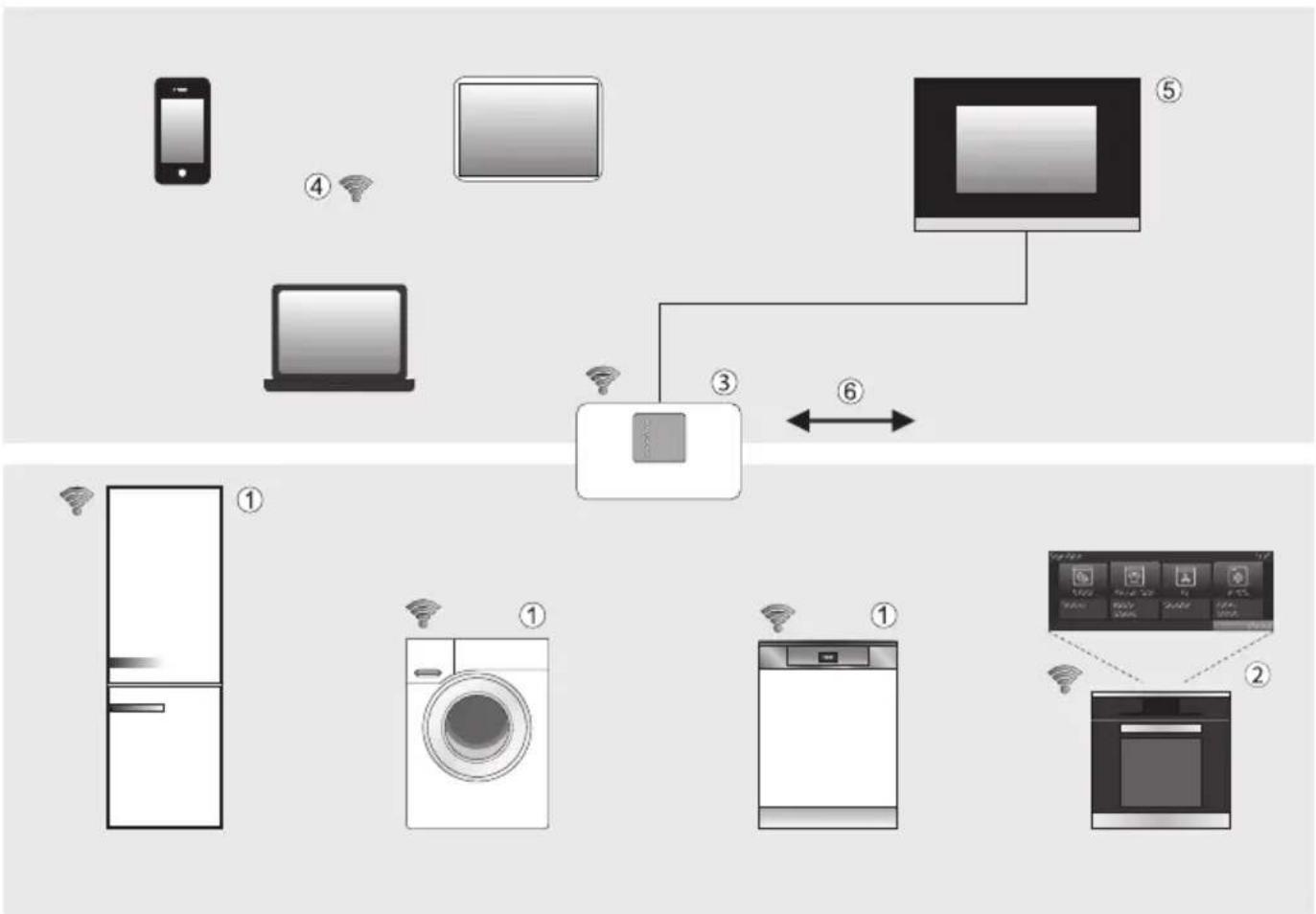
① Miele@home communication enabled appliance
② Miele@home communication enabled Master appliance with SuperVision functionality
③ Wi-Fi Router
④ Mobile device (Smartphone, Tablet PC, Notebook)
⑤ Connection to a Home automation system
⑥ Internet connection
Your household appliance ①/ ② is network enabled.
Your household appliance needs a Wi-Fi module or a Wi-Fi stick (integrated in the appliance, supplied separately or available to order depending on appliance) in order to be connected to your network.
Your household appliance can be connected to the Miele@home system with the assistance of a Wi-Fi router ③ and the Miele@mobile App.
The Miele@home system enables network enabled household appliances to send information to a mobile device ④ or to a master appliance ②, such as an oven with SuperVision functionality, about their operational status, as well as information about the progress of the programme.
Displaying information and controlling appliances
- Mobile devices ④ with Miele@mobile App
A Smartphone, Tablet PC or Notebook can be used to display status information about signed on appliances and carry out certain functions. Further ways of using the Miele@mobile App will vary depending on the household appliance.
- SuperVision master appliance ② The status of other signed on appliances can be shown in the display of some network enabled appliances.
Wi-Fi
Tip: Make sure that you have sufficient signal strength for your Wi-Fi network where the appliance is installed.
In order to connect an appliance with an integrated Wi-Fi module to your Wi-Fi network you must first activate the network function (see "Settings).
In order to connect an appliance with an external Wi-Fi module or a Wi-Fi stick to your Wi-Fi network you must first install the Wi-Fi module or the Wi-Fi stick (see fitting and installation instructions for your Wi-Fi module or Wi-Fi stick).
Further information
These accessories are supplied with their own installation and operating instructions.
Further information regarding Miele@home is available on the internet and in the instruction manuals of the various Miele@home components. Please note that the Miele@home and SuperVision system is currently only available in selected countries.
Miele@mobile App
The Miele@mobile App is available to download free of charge from the Apple App Store ^® or from the Google Play Store ^™ .

Make sure there is sufficient signal strength for your Wi-Fi network where the washing machine or tumble dryer is installed.

The XKM 3100 W module must ed.
There are a number of ways of connecting your washing machine or tumble dryer to your WiFi network.
1. Connect via the Miele@mobile App
The Miele@mobile App can be used to connect to your network.
■ Install the Miele@mobile App on your mobile device.
■ Follow the instructions in the App as well as the fitting and installation instructions supplied with the XKM 3100 W module.
To log in using the App you will need:
- Your WiFi network password
- The password for your washing machine or tumble dryer.
The password for your washing machine or tumble dryer consists of the last nine digits on the serial number. This can be found on the appliance's data plate.
Tumble dryers
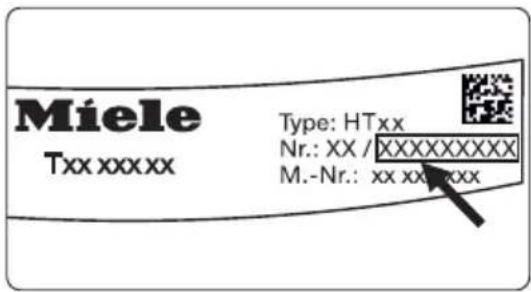
Washing machines

- You must have a WPS (WiFi protected setup) compatible router.
- The WiFi module must be inserted in the module shaft.
- The washing machine or tumble dryer must be switched on.
■ Follow the fitting and installation instructions supplied with the XKM 3100 W module.
If the connection fails, you have probably not connected WPS to your router quickly enough. Repeat the steps above.
Tip: If your WiFi router does not support WPS, please connect via the Miele@mobile App.
When the WiFi module is fitted the Settings menu in your washing machine or tumble dryer will also offer the following additional features.
Miele@home
The Miele@home setting is only visible when the WiFi module is fitted.
WPS pushbutton
This is used to sign your washing machine or tumble dryer on to your network via WPS (Wireless Protected Setup). You can activate the WPS signal using these settings or with the WPS Push Button on your WiFi module.
Module settings
We recommend connecting the washing machine or tumble dryer to your WiFi network via the Miele@mobile App or WPS. If you would rather set up the connection to your router yourself, or you have a special network configuration, you can enter the relevant settings yourself as long as you have the necessary technical knowledge.
Module-Info
Displays information via the WiFi module.
Start module activity
If you wish to reset all entered settings and values for Miele@home, you can re-store the factory default settings on your WiFi module. Any settings, which do not affect Miele@home will remain unchanged.
Select Restart with default and confirm with OK.
System settings
You can sign the washing machine or tumble into an existing Miele@home network and sign it off under this option. Precise instructions for doing so are given in the Miele@home instruction manual.
Remote control
The Remote control setting is only visible when the WiFi module is fitted and signed on.
Once the Miele@mobile App has been installed on your mobile device, you can check the status of your washing machine or tumble dryer from anywhere and start it remotely.
The Remote control setting has to be switched on if you want to start your washing machine or tumble dryer with your mobile device.
If Remote control is not switched on the App can cause the programme to be cancelled.
Use the "Delay start" button to set a time frame in which you want the washing machine or tumble dryer to start and start the delay period (see "Delay start" in the Operating instruction manual for your washing machine or tumble dryer).
The washing machine or tumble dryer will then start during this period once it has received a signal from you. If it has not received a signal from you by the latest start time set, the washing machine or tumble dryer will start automatically.
Remote control is switched off by default.
SmartGrid
The SmartGrid setting is only visible when the WiFi module is fitted and signed on.
This function can be used for starting your washing machine or tumble dryer automatically at a time when your energy costs are most economical.
Activating SmartGrid gives the Delay start button a new function. Set SmartStart with the "Delay start" button. The washing machine or tumble dryer will then start within the timeframe that you have specified when it receives a signal from your energy supplier. If it has not received a signal from your energy supplier by the latest start time set, the washing machine or tumble dryer will start automatically.
The SmartGrid function is switched off by default.
SmartStart
If you have activated the SmartGrid function in Settings, instead of Start in, SmartStart will appear in the display when you press the Delay start button.
Setting the timeframe
You can define a period (from 15 minutes to 24 hours), in which the wash programme must be started.
The procedure for setting this is the same as for setting the time for Delay start.
■ Use the ∨ and ∧ sensors to enter the hour and confirm your entry with the OK sensor.
The hours will be saved and the minute number block will be highlighted.
■ Use the ∨ and ∧ sensors to enter the minutes and confirm your entry with the OK sensor.
■ Press the Start/Stop button to start the wash programme with SmartStart.
The following will appear in the display:
Tumble dryers
SmartStart

Washing machines
SmartStart

The selected programme will start automatically, as soon as the energy provider has sent the signal, or the latest calculated start time has been reached.
The procedure for changing or deleting the SmartStart function is the same as described for the Delay start function.
When the WiFi module is fitted the Settings menu in your washing machine or tumble dryer will also offer the following additional features.
Miele@home
The Miele@home setting is only visible when the WiFi module is fitted.
Module settings
We recommend connecting the washing machine or tumble dryer to your WiFi network via the Miele@mobile App or WPS. If you would rather set up the connection to your router yourself, or you have a special network configuration, you can enter the relevant settings yourself as long as you have the necessary technical knowledge.
Module-Info
Displays information via the WiFi module.
Start module activity
If you wish to reset all entered settings and values for Miele@home, you can re-store the factory default settings on your WiFi module. Any settings, which do not affect Miele@home will remain unchanged.
Select Restart with default settings and confirm with OK.
System settings
You can sign the washing machine or tumble into an existing Miele@home network and sign it off under this option. Precise instructions for doing so are given in the Miele@home instruction manual.
Remote control
The Remote control setting is only visible when the WiFi module is fitted and signed on.
Once the Miele@mobile App has been installed on your mobile device, you can check the status of your washing machine or tumble dryer from anywhere and start it remotely.
The Remote control setting has to be switched on if you want to start your washing machine or tumble dryer with your mobile device.
If Remote control is not switched on the App can cause the programme to be cancelled.
Use the "Delay start" button to set a time frame in which you want the washing machine or tumble dryer to start and start the delay period (see "Delay start" in the Operating instruction manual for your washing machine or tumble dryer).
The washing machine or tumble dryer will then start during this period once it has received a signal from you. If it has not received a signal from you by the latest start time set, the washing machine or tumble dryer will start automatically.
Remote control is switched off by default.
SmartGrid
The SmartGrid setting is only visible when the WiFi module is fitted and signed on.
This function can be used for starting your washing machine or tumble dryer automatically at a time when your energy costs are most economical.
Activating SmartGrid gives the Delay start button a new function. Set SmartStart with the "Delay start" button. The washing machine or tumble dryer will then start within the timeframe that you have specified when it receives a signal from your energy supplier. If it has not received a signal from your energy supplier by the latest start time set, the washing machine or tumble dryer will start automatically.
The SmartGrid function is switched off by default.
SmartStart
If you have activated the SmartGrid function in Settings, instead of Finish at, SmartFinish will appear in the display when you press the Delay start button.
Setting the timeframe
You can define a period (from 15 minutes to 24 hours), in which the wash programme must be started.
The procedure for setting this is the same as for setting the time for Delay start.
■ Use the ∨ and ∧ sensors to enter the hour and confirm your entry with the OK sensor.
The hours will be saved and the minute number block will be highlighted.
■ Use the ∨ and ∧ sensors to enter the minutes and confirm your entry with the OK sensor.
■ Press the Start/Stop button to start the wash programme with SmartStart.
The following will appear in the display:
Tumble dryers

Washing machines

The selected programme will start automatically, as soon as the energy provider has sent the signal, or the latest calculated start time has been reached.
The procedure for changing or deleting the SmartStart function is the same as described for the Delay start function.
When the WiFi module is fitted the Settings menu in your washing machine or tumble dryer will also offer the following additional features.
Miele@home
The Miele@home setting is only visible when the WiFi module is fitted.
Module settings
We recommend connecting the washing machine or tumble dryer to your WiFi network via the Miele@mobile App or WPS. If you would rather set up the connection to your router yourself, or you have a special network configuration, you can enter the relevant settings yourself as long as you have the necessary technical knowledge.
Status
Displays information via the WiFi module.
Start module activity
If you wish to reset all entered settings and values for Miele@home, you can re-store the factory default settings on your WiFi module. Any settings, which do not affect Miele@home will remain unchanged.
Select Restart with default settings.
System settings
You can sign the washing machine or tumble into an existing Miele@home network and sign it off under this option. Precise instructions for doing so are given in the Miele@home instruction manual.
Remote control
The Remote control setting is only visible when the WiFi module is fitted and signed on.
Once the Miele@mobile App has been installed on your mobile device, you can check the status of your washing machine or tumble dryer from anywhere and start it remotely.
The Remote control setting has to be switched on if you want to start your washing machine or tumble dryer with your mobile device.
If Remote control is not switched on the App can cause the programme to be cancelled.
Use the "Delay start" button to set a time frame in which you want the washing machine or tumble dryer to start and start the delay period (see "Delay start" in the Operating instruction manual for your washing machine or tumble dryer).
The washing machine or tumble dryer will then start during this period once it has received a signal from you.
If it has not received a signal from you by the latest start time set, the washing machine or tumble dryer will start automatically.
Remote control is switched off by default.
MobileControl
After switching on Remote control, a further option will appear in the main menu on your washing machine or tumble dryer.
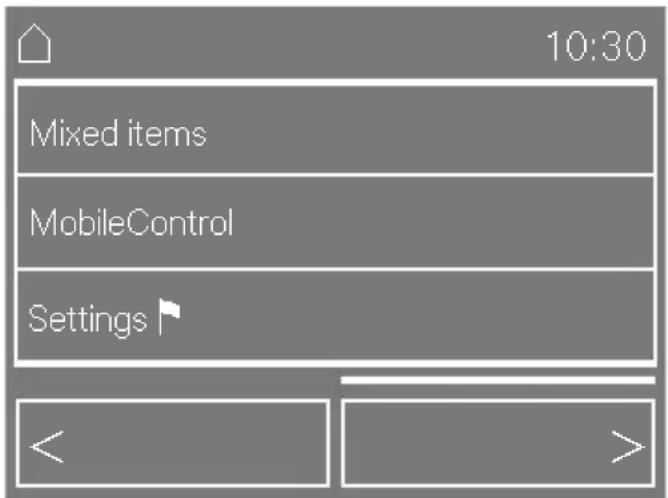
The MobileControl function can be used to control your washing machine or tumble dryer remotely via the Miele@mobile App.
Controlling your washing machine or tumble dryer remotely
■ Touch the MobileControl sensor in the main menu.
- Load the washing machine or the tumble dryer.
■ Press the flashing Start/Stop button.
The washing machine or tumble dryer can now be operated remotely.
SmartGrid
The SmartGrid setting is only visible when the WiFi module is fitted and signed on.
This function can be used for starting your washing machine or tumble dryer automatically at a time when your energy costs are most economical.
Activating SmartGrid gives the Delay start button a new function. Set SmartStart with the "Delay start" button. The washing machine or tumble dryer will then start within the timeframe that you have specified when it receives a signal from your energy supplier. If it has not received a signal from your energy supplier by the latest start time set, the washing machine or tumble dryer will start automatically.
The SmartGrid function is switched off by default.
SmartStart
If you have activated the SmartGrid function in Settings, instead of Finish at, SmartFinish will appear in the display when you press the Delay start button.
You can select a time for the programme to start at, instead of finish at via the "Delay start" setting. In this case SmartStart will light up in the display.
Setting the timeframe
You can define a period (from 15 minutes to 24 hours) by which the programme must be started.
The procedure for setting this is the same as for setting the time for Delay start.
■ Use the + and - sensors to enter the hour and confirm your entry with the OK sensor.
The minutes are now highlighted in white and can be set.
■ Confirm with the OK sensor.
■ Touch the Start/Stop button to start the programme with SmartStart.
The selected programme will start automatically, as soon as the energy provider has sent the signal, or the latest calculated start time has been reached.
The procedure for changing or deleting the SmartStart function is the same as described for the Delay start function.
Miele@home 42
Conexión a su red WiFi 44
Bouton application push WPS
① Miele@home-kompatibelt husholdningsapparat
② Miele@home-kompatibelt husholdningsapparat med SuperVision-funksjon
③ WiFi-router
④ Bærbare enheter (smarttelefoner, nettbrett, PC, Notebook)
⑤ Tilkobling til hjemmeautomasjons-systemer
⑥ Tilkobling til internett
2. Tilkobling via WPS
Forutsetning:
flowchart
graph TD
    A["Smart refrigerator"] -->|①| B["Refrigerator"]
    C["Smart TV"] -->|②| D["Oval"]
    E["Smart oven"] -->|③| F["Computer"]
    G["Smart refrigerator with microwave"] -->|④| H["Smart refrigerator"]
    I["Smart refrigerator with Wi-Fi"] -->|⑤| J["Smart monitor"]
    K["Smart refrigerator with washing machine"] -->|⑥| L["Smart refrigerator with Wi-Fi"]
    M["Smart refrigerator with oven"] -->|⑦| N["Smart refrigerator with Wi-Fi"]
- Displaying information and controlling appliances
- Wi-Fi
- Further information
- Miele@mobile App
- Connect via the Miele@mobile App
- Miele@home
- WPS pushbutton
- Module settings
- Module-Info
- Start module activity
- System settings
- Remote control
- SmartGrid
- SmartStart
- Setting the timeframe
- Tumble dryers
- Washing machines
- Status
- MobileControl
- Controlling your washing machine or tumble dryer remotely
- Bouton application push WPS
- Tilkobling via WPS
- Forutsetning:
Brand : MIELE
Model : TKR850 WP SFinish&Eco XL
Category : Tumble dryer