
Xenon 101b - Tablet ARCHOS - Free user manual and instructions
Find the device manual for free Xenon 101b ARCHOS in PDF.


| Product type | Touchscreen tablet |
| Brand | ARCHOS |
| Model | Xenon 101b |
| Dimensions (approx.) | 240 x 170 x 10 mm |
| Weight (approx.) | 550 g |
| Screen type | IPS LCD 10.1 inches |
| Screen resolution | 1280 x 800 pixels |
| Processor | Quad-core 1.3 GHz |
| RAM | 1 GB |
| Internal storage | 16 GB |
| Expandable storage | Yes, via microSD (up to 32 GB) |
| Operating system | Android 6.0 Marshmallow |
| Battery | Lithium-ion 6000 mAh |
| Battery life (approx.) | Up to 6 hours of Wi-Fi browsing |
| Connectivity | Wi-Fi 802.11 b/g/n, Bluetooth 4.0 |
| Rear camera | 2 megapixels |
| Front camera | 0.3 megapixel |
| Ports | Micro USB, 3.5 mm headphone jack |
| Sensors | Accelerometer, compass |
| Care and cleaning | Clean with a soft, dry cloth. Do not use liquid or abrasive products. |
| Safety | Do not expose to water or excessive heat. Use only the provided charger. |
| Spare parts and repairability | Contact ARCHOS customer service for any repairs. Parts not available for self-service. |
| General information | Android multimedia tablet designed for web browsing, videos, games, and applications. |
Frequently Asked Questions - Xenon 101b ARCHOS
User questions about Xenon 101b ARCHOS
0 question about this device. Answer the ones you know or ask your own.
Ask a new question about this device
Download the instructions for your Tablet in PDF format for free! Find your manual Xenon 101b - ARCHOS and take your electronic device back in hand. On this page are published all the documents necessary for the use of your device. Xenon 101b by ARCHOS.
USER MANUAL Xenon 101b ARCHOS
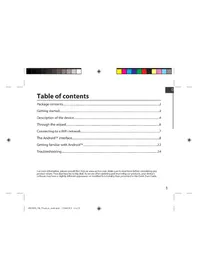
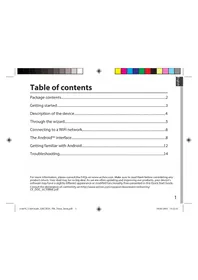
Package contents....2
Getting started....3
Description of the device....4
Inserting SIM & Micro-SD cards....5
3G & WiFi connection....6
The Android™ interface....8
ARCHOS Fusion Storage....12
Getting familiar with Android™....14
Troubleshooting....16
For more information, please consult the FAQs on www.archos.com. Make sure to read them before considering any product return. Your deal may be no big deal. As we are often updating and improving our products, your device's software may have a slightly different appearance or modified functionality than presented in this Quick Start Guide. Consult the declaration of conformity on http://www.archos.com/products/declaration_conformity.html



Package Contents
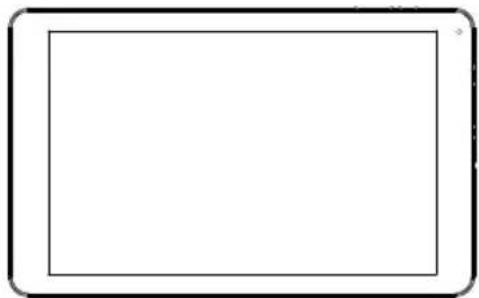
ARCHOS 101b Xenon
QSG booklet
Warranty, legal & safety booklet
USB cable
Charger
2




Getting Started
Charging
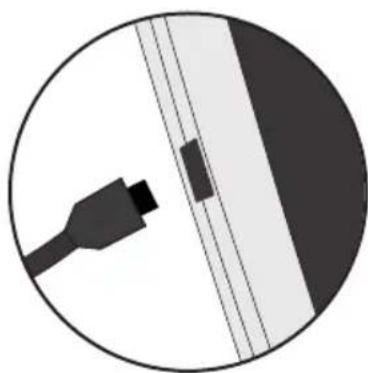
- Charge your device by plugging your power cable into the micro-USB port. The ARCHOS device will start charging.
- Press the Power button to turn on the device. - You can use your ARCHOS whilst it charges. - Let your device charge completely the first time you use it. - Use only the supplied charger.
When your device is completely discharged, you need to charge it for at least 10 minutes before the charging battery icon can be displayed.
TIP:
To receive more complete service, please register your product. From a computer, go to www.archos.com/register.




Description of the device
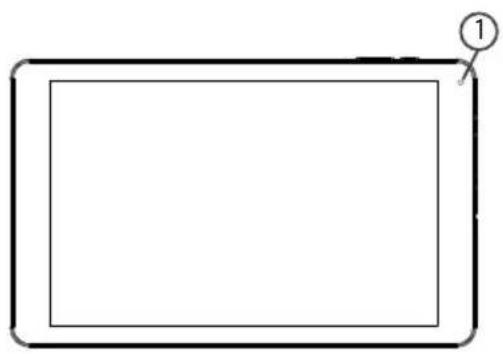
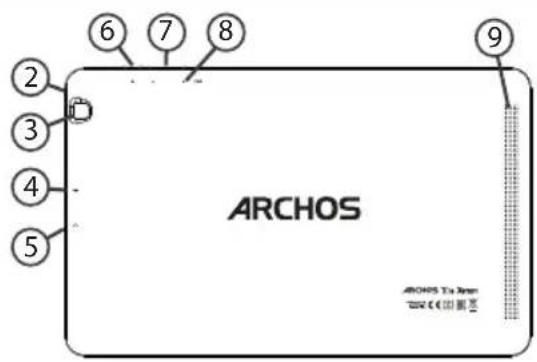


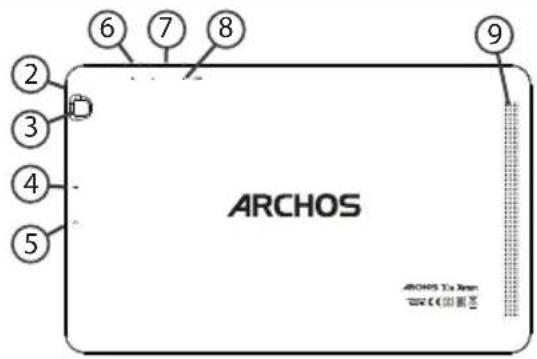
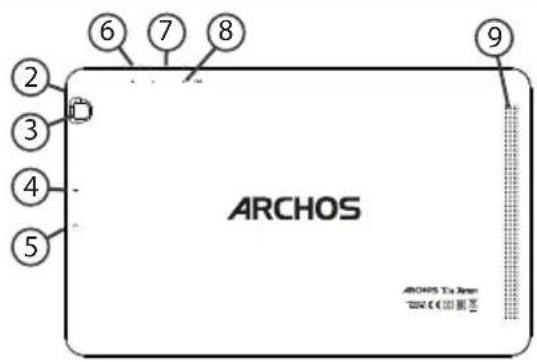
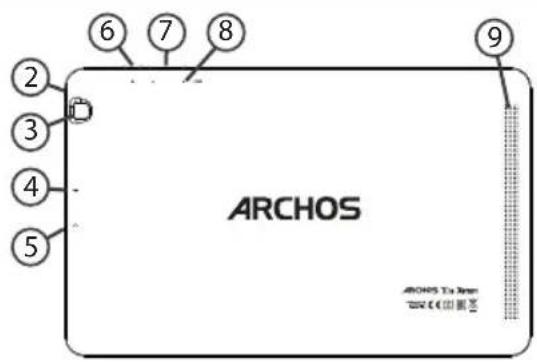
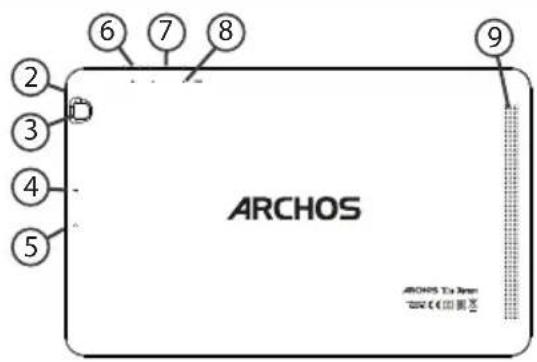
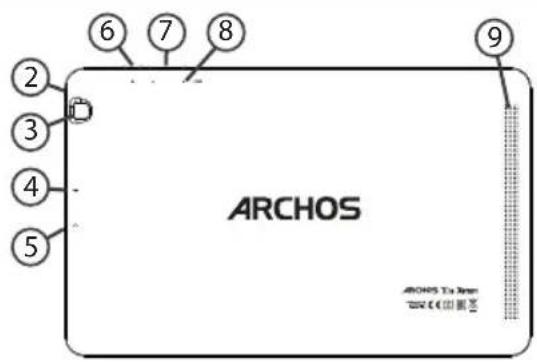
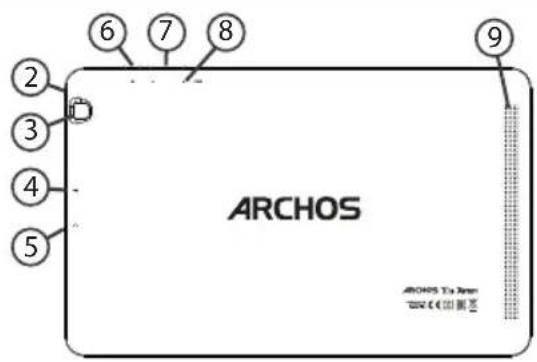
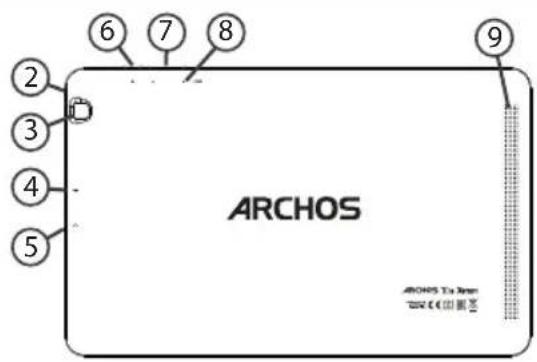
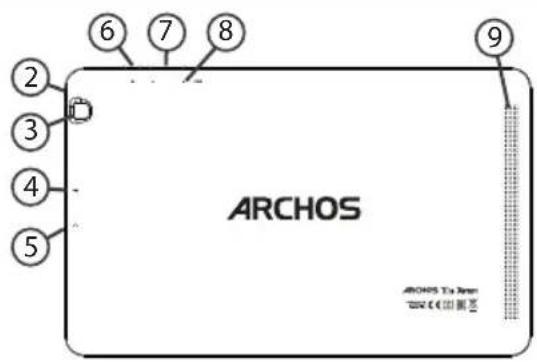
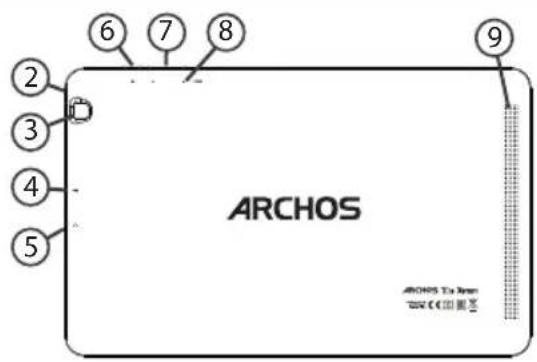
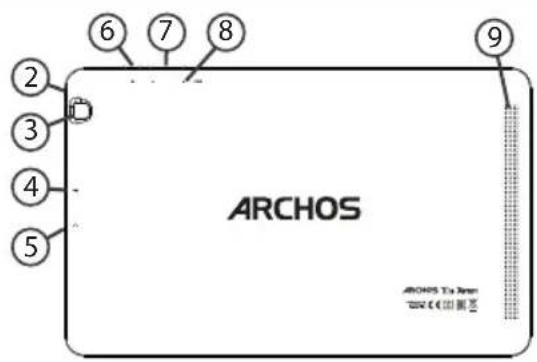
① Webcam ② Notch ③ Camera ④ Micro-USB port
⑤ Headphone jack ⑥ ON/OFF button ⑦ Volume buttons ⑧ Reset button
⑨ Loudspeaker




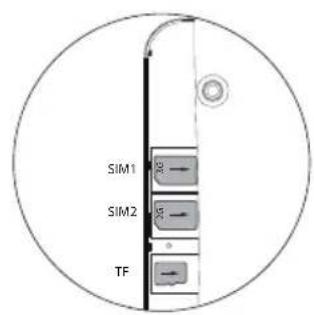
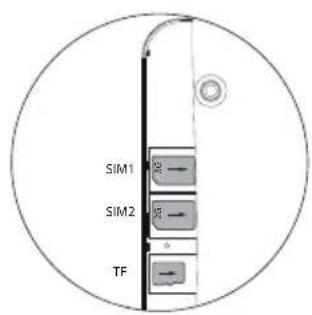
Inserting SIM & Micro-SD cards
WARNING: Make sure to turn off your device before inserting the SIM & memory cards.
Opening
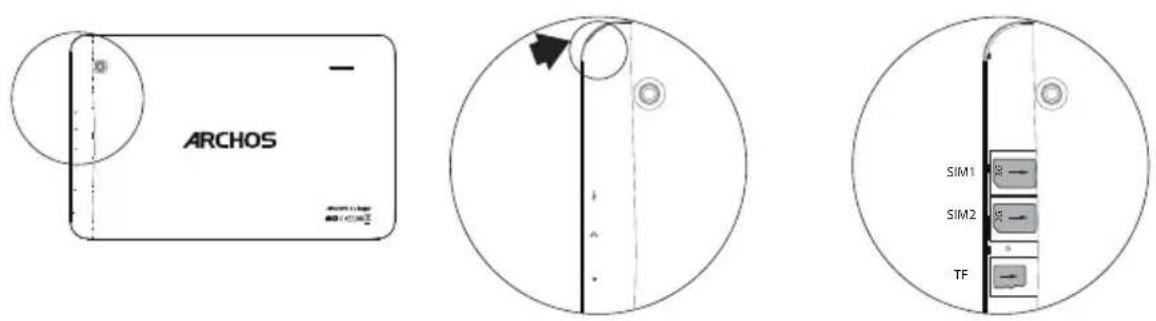
Use the notch to remove the back cover.
Do not bend or twist the back cover excessively. Doing so may damage the cover.
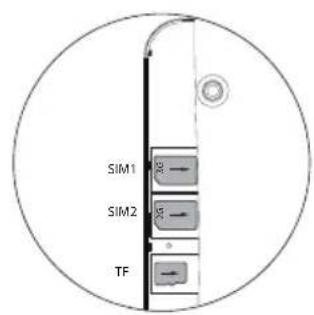
Inserting a SIM card
For your SIM card, slide it facing downwards in the slot.
Inserting a Memory card
Slide it facing downwards in the slot.
Closing
Replace the back cover clicking it back into position.



3G & WiFi connection
Mobile data connection
If your mobile phone subscription includes a mobile data option, you should be connected to the Internet without any further setup. The ARCHOS will only have signal if you are in an area covered by your provider's 4G or 3G network.
Activating/Deactivating the mobile data
| 1. Touch and pull down the status bar to display it. | |
| 2. Touch again the bar to reveal the quick settings. | |
| 3. Select the Settings icon. | |
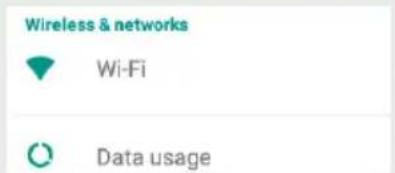
| 4. In Wireless & networks, select Data usage, then the SIM card tab. | |
| 5. Slide the Mobile data switch to turn on/off. |



WiFi connection
WARNING: Make sure that you are in a WiFi zone. You can access the WiFi settings quickly from the status bar.
| 1. Touch and pull down the status bar to display it. | 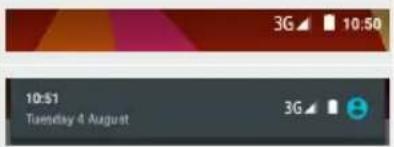 |
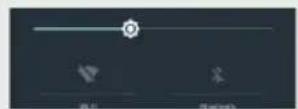
| 2. Touch again the bar to reveal the quick settings. | |
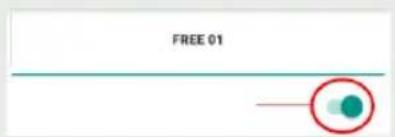
| 3. Select the WiFi icon □to activate the WiFi connection [IMAGE] | 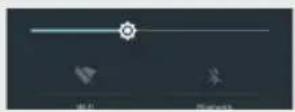 |
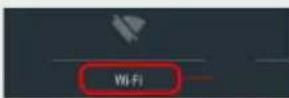
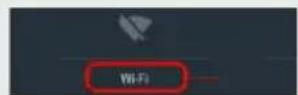
| 4. Select “WiFi” below the WiFi icon. | 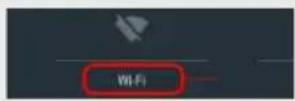 |
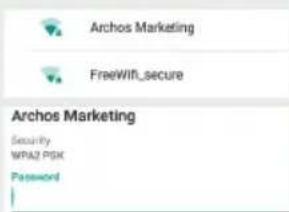
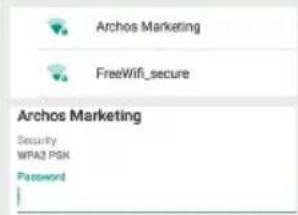
| 5. Touch the name of network you want to connect to.Private networks are shown with a lock icon and will require you to enter your password. | 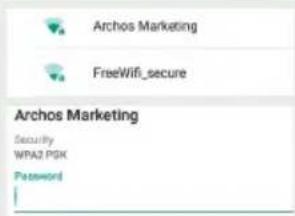 |




The Android™ Interface
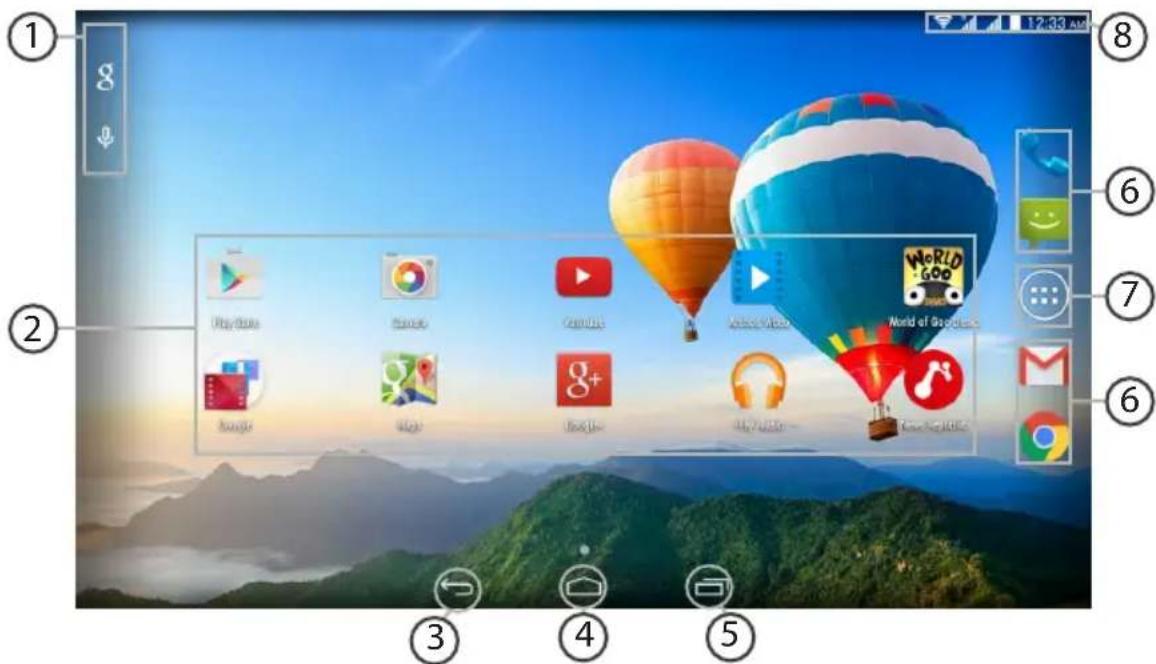
8




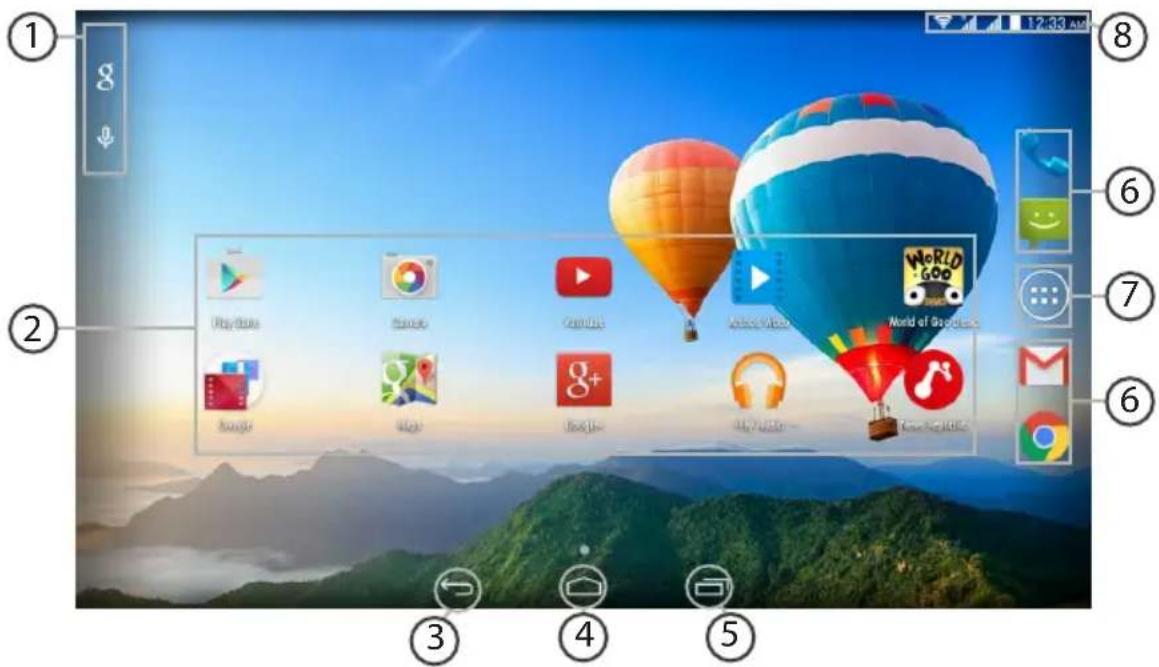
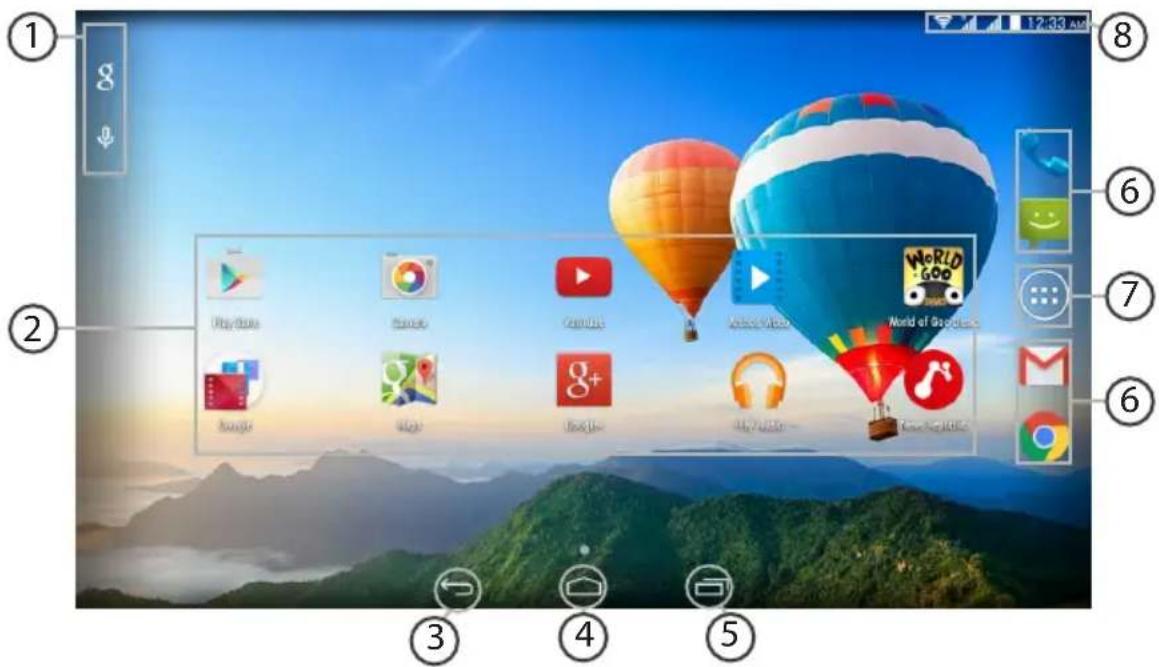
① Google™ Search
Touch "Google" for text search or touch the microphone icon for voice search. ② Android™ apps shortcuts Touch to start an application. ③ Back button ④ Home button ⑤ Recent apps buttons ⑥ Permanent Android™ apps shortcuts Touch to start an application ⑦ All Apps button Touch this icon to show all the applications and widgets installed on your ARCHOS. All your downloaded applications are here. ⑧ The status bar Displays notifications and quick settings




The Android™ Interface
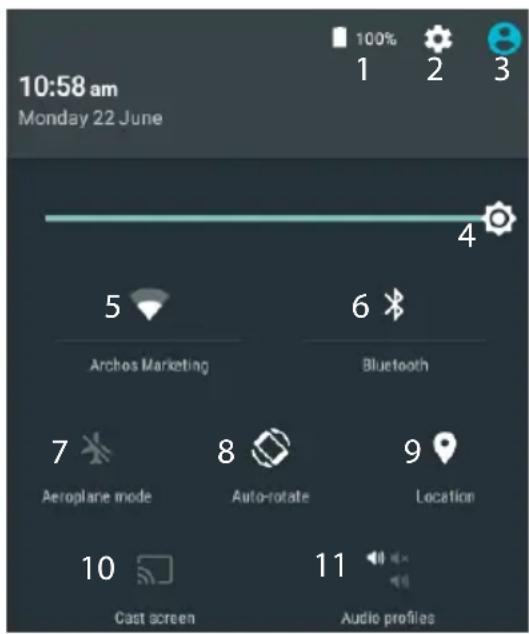
*New multi-user support for tablets lets different users have their own separate, customizable spaces on a single device. Add users in Settings > Device.
The Quick settings
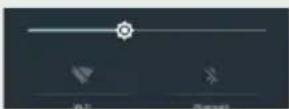
1 Percentage of battery remaining 2 To access all your settings. 3 Current user 4 To adjust the screen brightness. 5 To turn on/off your WiFi connection. 6 To turn on/off your Bluetooth connection. 7 To activate/deactivate all wireless connections, especially when flying. 8 To activate/deactivate automatic screen orientation as you turn your ARCHOS. 9 Location services
10 To mirror your Android device to the TV so you can enjoy your great content exactly as you see it on your mobile device.
11 To select a notification type




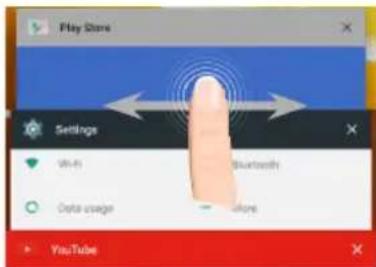
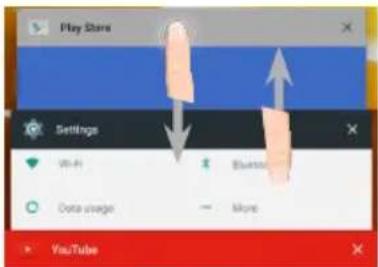
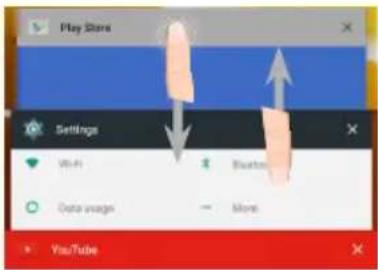
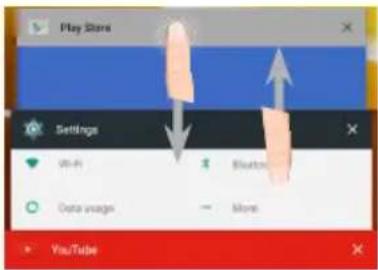
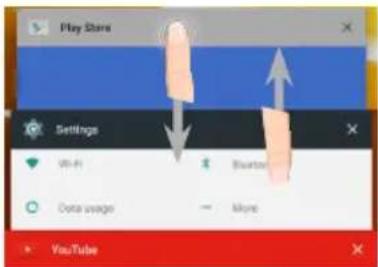
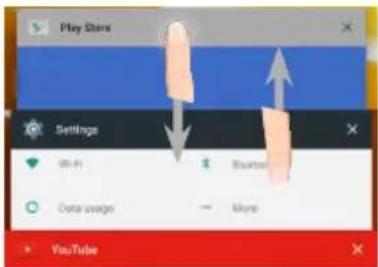
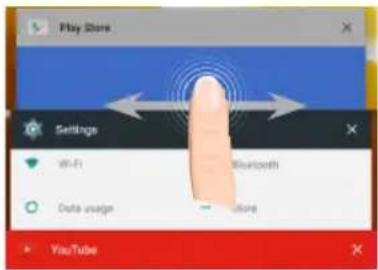
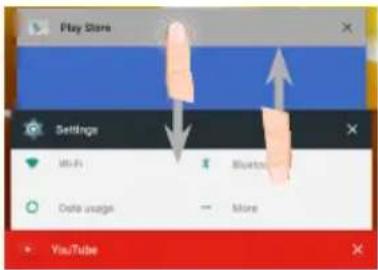
The Recent Apps
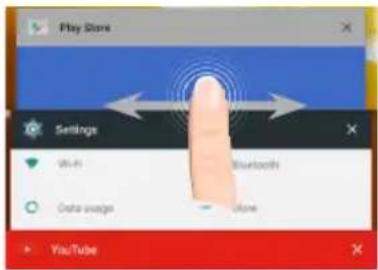
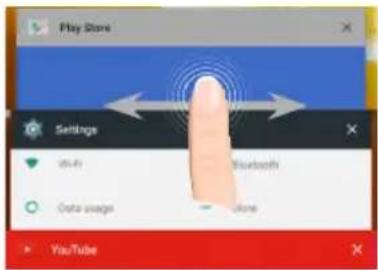
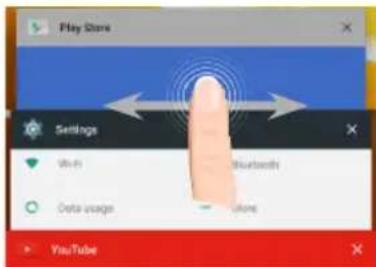
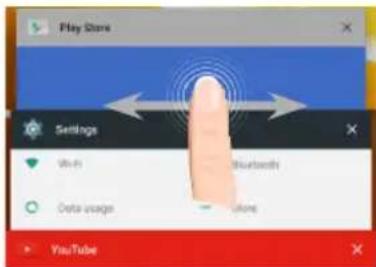
Opens a list of thumbnail images of apps you've worked with recently:
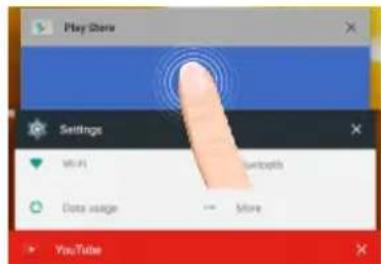
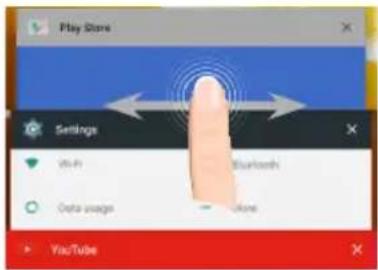
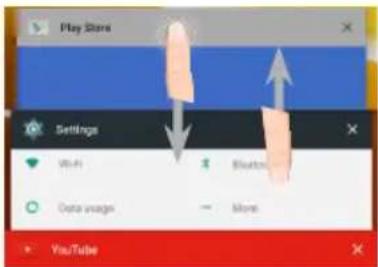
Touch: to open an app.
Swipe left or right: to close an app.
Scroll up or down: to view other recent apps.



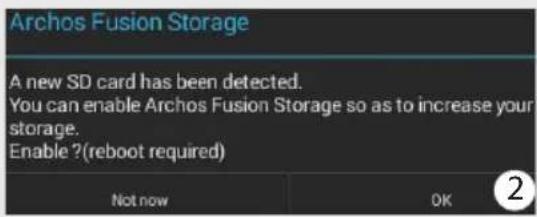
ARCHOS Fusion Storage
Setting up fusion storage
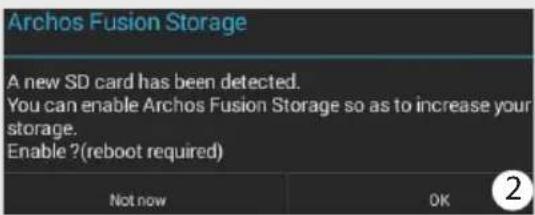
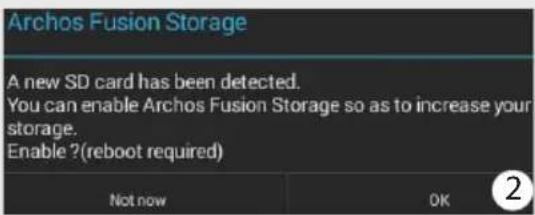
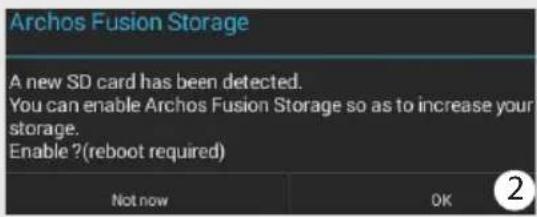
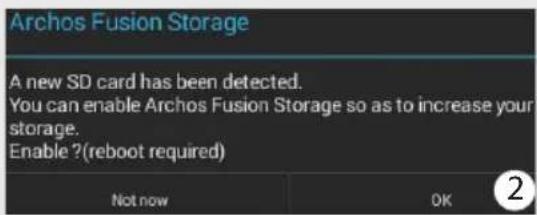
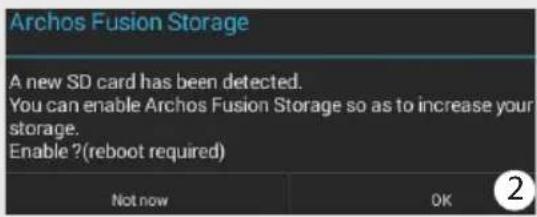
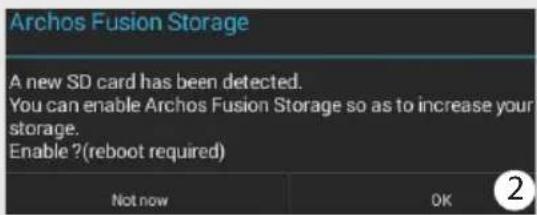
- Insert a micro-SD card in the device's micro-SD card slot. Make sure to insert the card in the right direction.
Your device will detect the micro-SD card automatically and offers you to merge the internal storage with the micro-SD card.
- Select "OK".
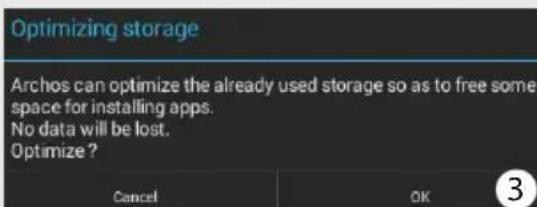
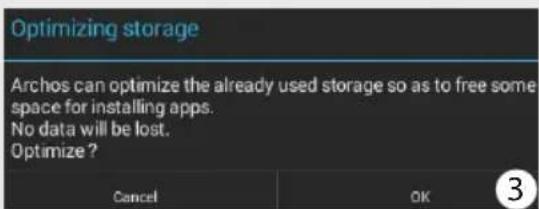
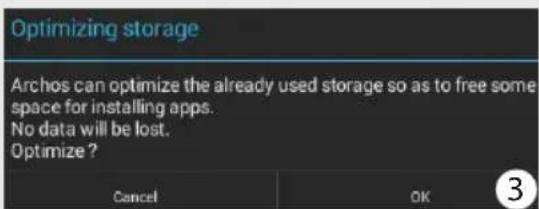
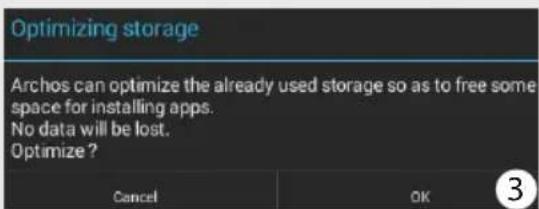
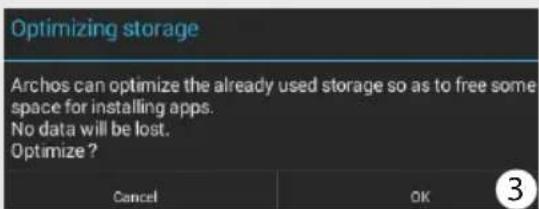
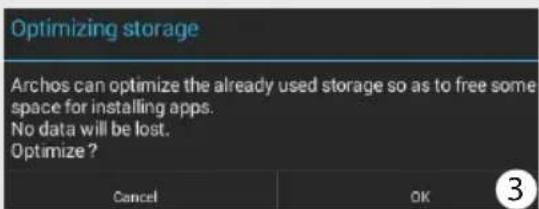
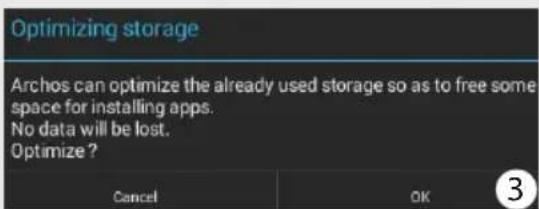
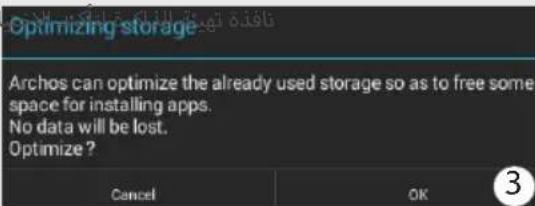
- Select "OK" in the Optimizing storage window to confirm your choice.
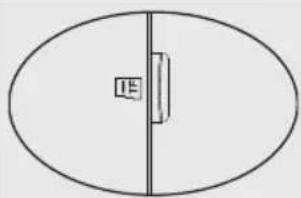
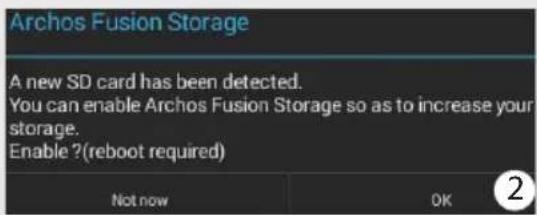
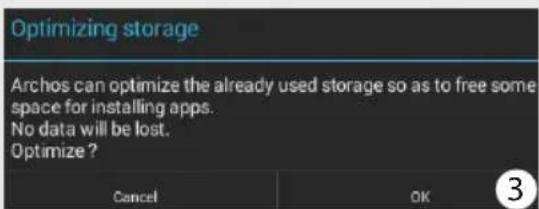




The device will reboot.
- When the device restarts, you are informed that the ARCHOS Fusion storage is active. -In the status bar, a notification is displayed.
- Select the Settings app, then ARCHOS Fusion Storage. The merged storage is displayed.
Disabling fusion storage
- Select the Settings app.
- In the Settings app, select ARCHOS Fusion Storage.
- When the ARCHOS Fusion Storage is active, select "Disable ARCHOS Fusion Storage" and confirm.
Your device will reboot in order to apply the changes.
OPTIONS
Disable Archos Fusion Storage
Get back to the initial configuration
Tip:
We recommend you to turn off the device before inserting the micro-SD card.



Getting familiar with Android™
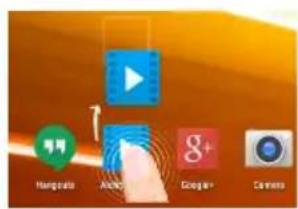
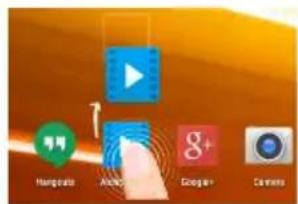
Moving a home screen item:
Touch and hold your finger onto it until the positioning gridlines appear, then slide it to the desired location, and release your finger.
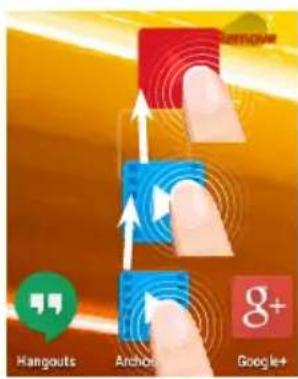
Removing a home screen item:
Touch and hold it, slide your finger towards the top of the screen and drop it over the Remove icon.
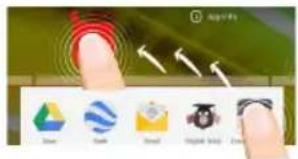
Uninstalling an item:
From the All apps screens, touch and hold it, slide your finger towards the top of the screen and drop it over the Uninstall bin.




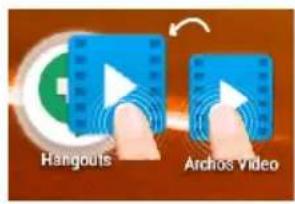
Creating application folders:
Drop one app icon over another on a home screen and the two icons will be combined.
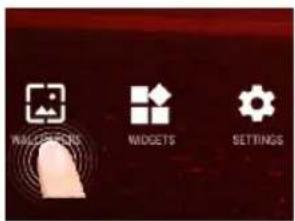
Changing your wallpaper:
Hold your finger on a home screen at an empty location, then choose from the list: Wallpaper.
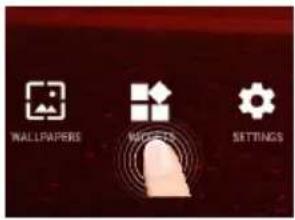
Widgets:
Hold your finger on a home screen at an empty location, then choose from the list: Widgets.



Troubleshooting
If your device is frozen:
Press the ON/OFF button for 10 seconds or use the reset button. To use the reset button, press the "pinhole reset" button by using a sharp object such as a toothpick.
If your device doesn't turn on:
- Charge your device.
- Press the ON/OFF button for 10 seconds or use the reset button. To use the reset button, press the "pinhole reset" button by using a sharp object such as a toothpick.
My tablet cannot connect to a network or "No service" is displayed
Try connecting in another location. Verify the network coverage with your operator.
Unable to make outgoing calls
Make sure your phone is connected to a network, and the network is not overloaded or unavailable.
Unable to receive incoming calls
Make sure your phone is switched on and connected to a network (check for overloaded or unavailable network).
SIM card PIN locked
Contact your network operator to obtain the PUK code (Personal Unblocking Key).
If your WiFi reception is too low:
Make sure you are not far from the WiFi hotspot. Update the firmware of the device: http://www.archos.com/support. Reset and redefine your connection parameters. Contact your WiFi connection provider.












Get back to the initial configuration
Tip:
ARCHOS 101b Xenon
User manual


① Webcam ② Notch ③ Camera ④ Micro USB port
40




① Google™ Search
Archos Fusion Storage
A new SD card has been detected.
You can enable Archos Fusion Storage so as to increase your storage.
Enable? (reboot required)
Not now
2
Optimizing storage
Archos can optimize the already used storage so as to free some space for installing apps.
No data will be lost.
Optimize?
Cancel
OK
3



ARCHOS 101b Xenon
User Guide


① Webcam ② Notch ③ Camera ④ Micro-USB port



① Google™ Search




Changing the background:
ARCHOS 101b Xenon
User guide


① Webcam ② Notch ③ Camera ④ Micro-USB port
⑤ Headphone jack ⑥ ON/OFF buttons ⑦ Volume button ⑧ Reset button
⑨ Speakers




Inserting SIM & Micro-SD cards
72




① Google™ Search
Archos Fusion Storage
A new SD card has been detected. You can enable Archos Fusion Storage so as to increase your storage. Enable ?(reboot required)
Not now
2
Optimizing storage
Archos can optimize the already used storage so as to free some space for installing apps. No data will be lost. Optimize?
Cancel
OK
3



Get back to the initial configuration
Tip:
ARCHOS 101b Xenon


① Webcam ② Inkeping ③ Camera ④ Micro USB port



The Android™ Interface



① Google™ Search




Get back to the initial configuration
Tip:
ARCHOS 101b Xenon
User guide





Wi-Fi connection
104




① Google™ Search




ARCHOS 101b Xenon
Quick start guide





120




① Google™ Search
(4) Development period




Changing the wallpaper:
Widgets:
ARCHOS 101b Xenon








Android™ interface



*New multi-user support for tablets lets different users have their own separate, customizable spaces on a single device. Add users in Settings > Device.
Quick setup




Return to the initial configuration
Tip:
Removing an item:
Changing the wallpaper:
ARCHOS 101b Xenon

① Front camera
152




① Google™ search



Get back to the initial configuration
Tip:
Removing the battery:
ARCHOS 101b Xenon
User manual
Warranty card
⑨ External speaker
Earphone jack
5
Front camera
1



Data connection





Race




Entertainment your way
National restrictions
This device is intended for home and office use in all EU countries (and other countries following the EU directive 1999/5/EC) without any limitation except for the countries mentioned below:
Country Restriction Reason/remark
Bulgaria None General authorization required for outdoor use and public service
France Outdoor use limited
to 10 mW e.i.r.p.
within the band
2454-2483.5 MHz
Military Radiolocation use. Refarming of the 2.4 GHz
band has been ongoing in recent years to allow
current relaxed regulation. Full implementation
planned 2012
Italy None If used outside of own premises, general
authorization is required.
Luxembourg None General authorization required for network and
service supply (not for spectrum)
Norway Implemented This subsection does not apply for the geographical
area within a radius of 20 km from the centre of
Ny-Alesund
Russian Federation None Only for indoor applications
Note: Frequency 2454-2483.5 MHz are restricted to indoor use in France.
Consult the declaration of conformity on http://www.archos.com/products/declaration_conformity.html




Open Source Software Offer
The software bundled with this product includes software files subject to certain open source license requirements. Such open source software files are subject solely to the terms of the relevant open source software license. Such open source software is provided on an "AS IS" basis to the maximum extent permitted by applicable law.
For the open source files contained herein, please access "Open source license" section located at: Settings\About tablet\Legal information on the device for the relevant copyright and licensing terms. You may obtain a copy of Apache License, Version 2.0 at http://www.apache.org/licenses/LICENSE-2.0. You may also obtain a copy of GNU General Public License, Version 2 at the Free Software Foundation, INC, 51 Franklin Street, Fifth Floor, Boston, MA 02110-1301, USA.
Until the date that is three years after our last shipment of this product, you may obtain a copy of the source code corresponding to the binaries for any GPL-Licensed file by contacting ARCHOS customer service at http://www.archos.com and ARCHOS will send you a link to such source code or will provide instructions to get the source on a physical medium.
This offer is valid to anyone in receipt of this information.
Archos company declares that this device is in compliance with the essential requirements and other relevant provisions of Directive 1999/5/EC
SAR
Body SAR: 1.443 W/kg
C€1313
180
114297_ARCHOS_101b_Xenon_QSG_book.indd 180 16/10/2015 12:09:4


- PACKAGE CONTENTS
- GETTING STARTED
- CHARGING
- TIP
- DESCRIPTION OF THE DEVICE
- INSERTING SIM & MICRO-SD CARDS
- OPENING
- INSERTING A SIM CARD
- INSERTING A MEMORY CARD
- CLOSING
- G & WIFI CONNECTION
- MOBILE DATA CONNECTION
- ACTIVATING/DEACTIVATING THE MOBILE DATA
- WIFI CONNECTION
- THE ANDROID™ INTERFACE
- THE QUICK SETTINGS
- THE RECENT APPS
- ARCHOS FUSION STORAGE
- SETTING UP FUSION STORAGE
- DISABLING FUSION STORAGE
- OPTIONS
- DISABLE ARCHOS FUSION STORAGE
- GETTING FAMILIAR WITH ANDROID™
- MOVING A HOME SCREEN ITEM
- REMOVING A HOME SCREEN ITEM
- UNINSTALLING AN ITEM
- CREATING APPLICATION FOLDERS
- CHANGING YOUR WALLPAPER
- WIDGETS
- TROUBLESHOOTING
- IF YOUR DEVICE IS FROZEN
- IF YOUR DEVICE DOESN'T TURN ON
- MY TABLET CANNOT CONNECT TO A NETWORK OR "NO SERVICE" IS DISPLAYED
- UNABLE TO MAKE OUTGOING CALLS
- UNABLE TO RECEIVE INCOMING CALLS
- SIM CARD PIN LOCKED
- IF YOUR WIFI RECEPTION IS TOO LOW
- GET BACK TO THE INITIAL CONFIGURATION
- OPTIMIZING STORAGE
- CHANGING THE BACKGROUND
- WI-FI CONNECTION
- CHANGING THE WALLPAPER
- ANDROID™ INTERFACE
- QUICK SETUP
- RETURN TO THE INITIAL CONFIGURATION
- REMOVING AN ITEM
- REMOVING THE BATTERY
- NATIONAL RESTRICTIONS
- OPEN SOURCE SOFTWARE OFFER
- SAR
- C€
Brand : ARCHOS
Model : Xenon 101b
Category : Tablet