
NACON - Mouse BIGBEN INTERACTIVE - Free user manual and instructions
Find the device manual for free NACON BIGBEN INTERACTIVE in PDF.


| Product Type | Wired/Wireless Gaming Mouse |
| Brand | Bigben Interactive |
| Model | NACON |
| Connection Type | USB-A (Wired) / 2.4GHz Wireless |
| Sensor Type | Optical |
| DPI Range | 100 - 16,000 DPI (Adjustable) |
| Number of Buttons | 6 programmable buttons |
| Scroll Wheel | Yes, with tilt and click |
| RGB Lighting | Customizable RGB zones |
| Polling Rate | 1000 Hz (1ms) |
| Battery Type | Rechargeable Li-ion 500mAh |
| Battery Life | Up to 30 hours (without lighting) |
| Dimensions (L x W x H) | 125 x 68 x 40 mm |
| Weight | 105 g (without cable) |
| Cable Length | 1.8 m braided USB cable |
| Compatible OS | Windows 10/11, macOS, Linux |
| Software | NACON Companion Software (downloadable) |
| Main Functions | Gaming, productivity, programmable macros, DPI profiles |
| Cleaning | Wipe with soft dry cloth; avoid liquids |
| Safety | CE, FCC certified; low voltage operation |
| Spare Parts | Replacement skates, USB receiver, cable available |
| Repairability | Moderate; screw assembly, replaceable switches |
| Warranty | 2 years limited manufacturer warranty |
Frequently Asked Questions - NACON BIGBEN INTERACTIVE
User questions about NACON BIGBEN INTERACTIVE
0 question about this device. Answer the ones you know or ask your own.
Ask a new question about this device
Download the instructions for your Mouse in PDF format for free! Find your manual NACON - BIGBEN INTERACTIVE and take your electronic device back in hand. On this page are published all the documents necessary for the use of your device. NACON by BIGBEN INTERACTIVE.
USER MANUAL NACON BIGBEN INTERACTIVE
OPTICAL GAMING MOUSE
Instruction Booklet
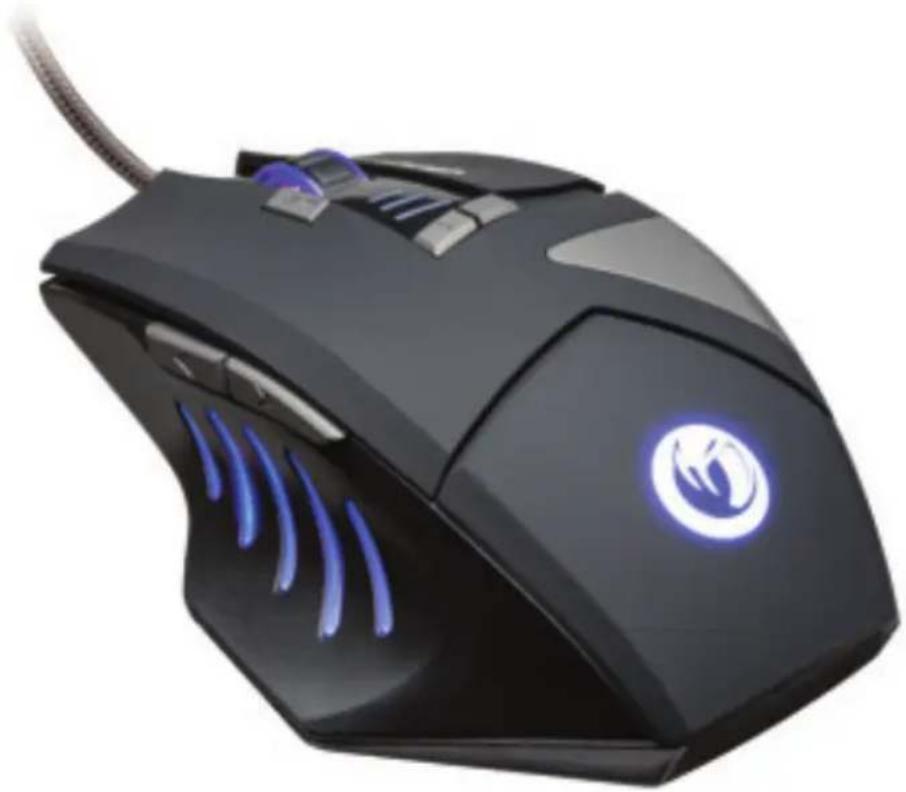
NACON GM-300 optical gaming mouse for PC
Thank you for purchasing this NACON product. In case of a malfunction please refer to the support information at the end of this manual. We highly appreciate any feedback which helps us to improve our products. Please keep this instruction manual for future reference.
Warranty
This product bearing the NACON trademark, is guaranteed by the manufacturer for a period of 1 year from the date of purchase, and will, during this period be replaced with the same or a similar model, at our option, free of charge, if there is a defect due to faulty material, or workmanship. This guarantee does not cover defects arising from accidental damage, misuse or wear and tear, and is available only to the original purchaser of the product. This does not affect your statutory rights.
Product specifications
- USB Plug'n'Play compatible with Windows XP/Vista/7/8
• Optical sensor with a resolution up to 2500DPI - 8 buttons
- Multi-colour light effects
- Software suite for adjusting the features
Package contents
• NACON GM-300 optical gaming mouse
- Quick start guide
Control elements
- Left mouse button
- Mouse wheel (press for middle button)
- Right mouse button
- Triple click button
- DPI +
- DPI -
- Browser forward
- Browser back

First-time connection with the PC
The NACON GM-300 optical gaming mouse is a so-called Plug'n'Play device. This means that the necessary driver software should be installed automatically if you connect it to your computer for the first time. Here are the steps in detail :
- Turn on your computer, wait for it to boot and log in to your Windows desktop.
- Look for an unused USB slot on your PC and plug in the USB cable of your NACON GM-300 optical gaming mouse.
- Windows will detect the new device and after a few seconds it will start the installation process for the appropriate drivers. This is shown by a small icon in the taskbar.

- The installation might take a while depending on the speed of your system. Once the installation is complete, you will see the icon change. You can now use your mouse.
Changing the resolution
The NACON GM-300 uses an optical sensor to track your movements and transmit this information to your PC. This sensor can operate at various resolutions ranging up to 2500dpi. The higher the resolution, the more precisely your movements will be tracked, but the harder you might feel it is to point the cursor at a specific point with your mouse. By pressing the DPI +/- buttons located below the mouse wheel you can from up to 4 different resolutions. For more details refer to the next section.
Software suite
Your NACON GM-300 offers a lot of functions which can be unlocked by downloading the driver software from our website www.nacongaming.com. To install the software double-click on the file `Nacon GM-300.exe' and follow the on-screen instructions after the download has completed. After the installation is finished the software creates shortcut icons, on the desktop and in the Windows Start menu, which you can use to start the software.
Hint: For driver updates please regularly visit our homepage www.nacongaming.com. You can do so by simply clicking on the link at the bottom of the software window.
If the driver is running, you see the NACON snakehead logo in the taskbar. You can bring up the software by simply clicking on that logo.

On each screen you find three buttons on the lower right side:
•[OK] Lets you save the settings and minimizes the driver again
•[Apply] Saves the settings and transmits it to your mouse without closing the window
- [Cancel] Minimizes the driver without saving the changes
Note: Please note that after clicking APPLY it takes a while for the software to transmit the new settings to the GM-300. APPLY stays highlighted until the transmissions has finished.
By clicking on the mouse and the cog wheel icons in the upper left corner of the window, you can switch between the basic and the advanced settings pages.
Basic Settings
Key Settings
This menu is used to assign new functions to the buttons of the mouse.
Hint: It is impossible to assign new functions to the left and right mouse button.
There are also some advanced functions available:

- Macro Key
Here you can choose from a set of previously recorded macros and assign it to a mouse button. For more information please refer to the section "Advanced Settings" in this manual.
- Single Key
Press a key on the keyboard to assign its function to this mouse button
- Combo Key
Lets you assign a key combo (e.g. SHIFT+G) to this mouse button.
- RGB On/Off
Lets you switch the illuminated elements of your mouse.
- Fire Key
This works like Single Key, but adds the option of automatically repeating the specified key for a certain number of times at a specified speed.
• SHIFT
For enhanced functionality you can assign secondary functions to your mouse buttons. To access these one of your buttons needs to be set as "Shift" button in "Mode A". Secondary functions can be assigned by selecting "Mode B" at the bottom of table. After everything has been applied, secondary functions can be executed by holding your "Shift" button and then pressing the desired second button.
- WINDOWS
Lets you choose from a number of OS-related functions, like opening your standard browser for example.
• MULTIMEDIA
Offers functions for controlling your standard media player (e.g. Play, Pause, Stop). Clicking on "Default" resets all buttons to their initial values.
Report Rate Setting
The report rate defines how often the integrated processor of your GM-300 "asks" the sensor for a new scan to determine the position of the device. A higher value means improved performance, but can also lead to problems due to over-sensitive data being read.
DPI Setting
Your Nacon GM-300 offers up to 4 different levels of resolution to choose from at the same time. You can determine a value for each stage. Values range from 250dpi (lowest) up to 2500dpi and can be set in steps of 250dpi. You can also active/deactivate a stage if you wish to choose less.
Light Effect
Your Optical Gaming Mouse comes with built-in multi-color LEDs, illuminating the logo and the design elements. The lights can be programmed by using these menu options. There are three modes available, which can be further tweaked with the "Parameter" field. You can also add and remove colors to create all kinds of light effects.
Advanced Settings
Mouse Speed
The mouse speed setting lets you set the speed with which the cursor moves if you move the mouse over a specific distance. As with the dpi setting, the higher the value the faster your cursor (or crosshair) moves, but the harder it becomes to control it precisely. To improve precision on higher settings you can activate the "Enhance Pointer Precision" option.
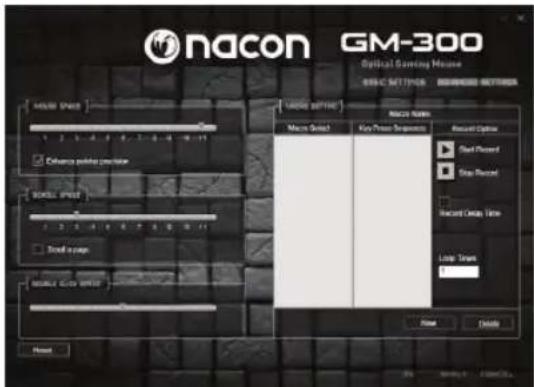
Scrolling Speed
This setting refers to the number of lines a page (e.g. in a browser) moves up- or downward if you turn the mouse wheel one click. You can even let the wheel scroll entire pages by checking the corresponding box.
Double-Click Speed
The double click speed lets you set the speed at which clicking the left mouse button twice gets recognized as a double click by the system.
Hint: Clicking the "Default" button resets all values.
Macro Setting
Macros are a recorded set of combined key and button inputs which can be executed by just pressing one button of your mouse.
To record a new macro, you first need to give it a name which you enter in the according window in the column "Record option". Then press "New". The macro will now appear in the list of macros on the left and is highlighted. Select "Start recording" and confirm the appearing message box. At this point every input from keyboard or mouse will be recorded until you click on "Stop recording".
Note the column "Key Press Sequence" which holds all the recorded inputs as well as the time between pressing and releasing a key. These times can be edited by double-clicking on the value which you want to change. You can also insert a specific mouse event by choosing it from the according menu on the right side.
If you need your macro to be executed more than once, then you can specify the number of repetitions in the "Loop Times" field.
After everything has been recorded and set up, you need to press "Confirm" to save the macro. Now it is available in the list of macros in the "Key Settings" menu on the "Basic Settings" page.
Troubleshooting
- My mouse does not install correctly after I've plugged it into the USB slot.
o Unplug your mouse from your PC wait a while and after that plug it into a different USB slot.
• The tracking of my NACON GM-300 does not work properly
o The performance of the optical sensors may decrease depending on which surface you use your NACON GM-300 on, as some materials reflect the light of the sensor better than others. The best performance should be achieved on mouse mats.
o After some time of usage, dirt and dust may get trapped in the sensor window and can negatively impact the performance. Freeing the window from dirt should solve that.

Recycling
This product should not be disposed of in normal household rubbish. Please take it to a nominated collection point.
Recycling is important and will help to protect our environment from reduced landfill waste.
Important Safeguards & Precautions
- This Unit is for indoor use only. Never expose to direct sunlight or wet weather conditions.
- Do not expose the unit, to splashing, dripping, rain or moisture. Do not immerse in liquid.
- Do not expose to dust, high humidity, high temperatures or mechanical shock.
- Do not use if the equipment is damaged.
- Do not disassemble; there are no serviceable parts inside.
- For external cleaning, use a soft, clean, damp cloth only. Use of detergents may damage the finish and leak inside.
Ergonomics
Holding your hand in the same position for a longer period of time can lead to aching and pain. If this occurs repeatedly please consult your doctor.
- As a precaution we recommend that you take a 15 minute break every hour.
Technical Specification
• Optical USB mouse
- Weight: 186 g
• Height x Width x Depth: 37 x 87 x 117mm
- Cable length: 1.8m
Technical Helpline Information
The Technical Helpline is a live one-to-one service
Mail : support.en@nacongaming.com
Website : www.nacongaming.com
Legal lines
Windows® XP/VISTA®/7/8 are registered trademarks of Microsoft Corporation.
Email : support.be@nacongaming.com
DPI Setting [ DPI-instelling ]
28, Avenue Ernest Solvay
1480 Tubize
www.bigben.eu
Email : support.nl@nacongaming.com
www.bigben.eu
Email : support.be@nacongaming.com
Email : support.it@nacongaming.com
Sito Web : www.nacongaming.com
Note legali
www.nacongaming.com


- OPTICAL GAMING MOUSE
- INSTRUCTION BOOKLET
- NACON GM-300 OPTICAL GAMING MOUSE FOR PC
- WARRANTY
- PRODUCT SPECIFICATIONS
- PACKAGE CONTENTS
- CONTROL ELEMENTS
- FIRST-TIME CONNECTION WITH THE PC
- CHANGING THE RESOLUTION
- SOFTWARE SUITE
- BASIC SETTINGS
- KEY SETTINGS
- MACRO KEY
- SINGLE KEY
- COMBO KEY
- RGB ON/OFF
- FIRE KEY
- SHIFT
- WINDOWS
- MULTIMEDIA
- REPORT RATE SETTING
- DPI SETTING
- LIGHT EFFECT
- ADVANCED SETTINGS
- MOUSE SPEED
- SCROLLING SPEED
- DOUBLE-CLICK SPEED
- MACRO SETTING
- TROUBLESHOOTING
- RECYCLING
- IMPORTANT SAFEGUARDS & PRECAUTIONS
- ERGONOMICS
- TECHNICAL SPECIFICATION
- TECHNICAL HELPLINE INFORMATION
- LEGAL LINES
- DPI SETTING [ DPI-INSTELLING ]
- WWW.BIGBEN.EU
- NOTE LEGALI
Brand : BIGBEN INTERACTIVE
Model : NACON
Category : Mouse