ASUS EeeTop ET2012 - Desktop computer

EeeTop ET2012 - Desktop computer ASUS - Free user manual and instructions

Find the device manual for free EeeTop ET2012 ASUS in PDF.

📄 140 pages English EN Download 💬 AI Question 10 questions ⚙️ Specs
Notice ASUS EeeTop ET2012 - page 1
Pick your language and provide your email: we'll send you a specifically translated version.
Product Type All-in-One Desktop Computer
Brand ASUS
Model EeeTop ET2012
Screen Size 20 inches (diagonal)
Screen Type LED-backlit LCD with touchscreen
Resolution 1600 x 900 pixels
Processor Intel Atom D525 (dual-core, 1.8 GHz)
RAM 2 GB DDR3 (expandable to 4 GB)
Storage 320 GB SATA hard drive
Graphics Integrated Intel GMA 3150
Operating System Windows 7 Home Premium (32-bit)
Connectivity Wi-Fi 802.11 b/g/n, Bluetooth 2.1, Ethernet 10/100/1000
Ports 4x USB 2.0, VGA out, HDMI, audio jacks, card reader
Dimensions (W x H x D) 20.0" x 16.5" x 2.2" (508 x 419 x 56 mm)
Weight 12.1 lbs (5.5 kg)
Power Supply 65W AC adapter
Power Consumption 35W (typical), max 65W
Audio Built-in stereo speakers and microphone
Webcam 1.3 MP webcam
Included Accessories Wireless keyboard and mouse, power cord, user manual
Certifications ENERGY STAR, RoHS

Frequently Asked Questions - EeeTop ET2012 ASUS

How do I connect external devices to the ASUS EeeTop ET2012?
The ASUS EeeTop ET2012 has multiple ports on the back and side. It includes four USB 2.0 ports, a VGA output, HDMI output, Ethernet port, and audio jacks. Simply plug your device into the appropriate port.
What is the maximum RAM capacity of the EeeTop ET2012?
The EeeTop ET2012 supports up to 4 GB of DDR3 RAM. The standard configuration comes with 2 GB, but you can upgrade by accessing the RAM slot on the underside of the computer.
Can I use the touchscreen without a mouse?
Yes, the 20-inch touchscreen supports multi-touch gestures. You can navigate, select, and control the computer using your fingers, but a mouse and keyboard are also provided for convenience.
How do I clean the screen and body of the EeeTop ET2012?
Use a soft, lint-free cloth slightly dampened with water or a mild screen cleaner. Do not use abrasive cleaners or spray directly onto the screen. Turn off the computer before cleaning.
What operating system does the EeeTop ET2012 run?
The EeeTop ET2012 originally came with Windows 7 Home Premium (32-bit). It may also support Windows 8 or later, but drivers are not officially provided.
How can I improve the performance of my EeeTop ET2012?
Upgrade the RAM to 4 GB, replace the hard drive with an SSD, and keep the system clean. Disable unnecessary startup programs and regularly run disk cleanup.
Is the EeeTop ET2012 capable of playing HD video?
The EeeTop ET2012 can play 720p video smoothly, but 1080p may stutter due to the integrated Intel GMA 3150 graphics. It is best suited for web browsing and office tasks.
Where can I find replacement parts or accessories for the EeeTop ET2012?
Replacement parts such as keyboards, mice, power adapters, and internal components can be found on online marketplaces like eBay or Amazon. ASUS no longer produces spare parts for this model.
How do I perform a factory reset on the EeeTop ET2012?
Boot the computer and press F9 repeatedly during startup to access the recovery partition. Then follow the on-screen instructions to restore the system to factory settings. Back up your data first.
What are the power requirements for the EeeTop ET2012?
The EeeTop ET2012 uses a 65W AC adapter (19V, 3.42A). It operates on standard household AC power (100-240V, 50-60Hz). Ensure the power cord is properly connected and not damaged.

User questions about EeeTop ET2012 ASUS

0 question about this device. Answer the ones you know or ask your own.

Ask a new question about this device

The email remains private: it is only used to notify you if someone responds to your question.

No questions yet. Be the first to ask one.

Download the instructions for your Desktop computer in PDF format for free! Find your manual EeeTop ET2012 - ASUS and take your electronic device back in hand. On this page are published all the documents necessary for the use of your device. EeeTop ET2012 by ASUS.

USER MANUAL EeeTop ET2012 ASUS

Before launching your TV Tuner application, check if your digital TV-in or analog TV-in cable is connected.

Launching your TV Tuner Application

To launch ArcSoft TV 5.0 in Windows® 8, do one of the following:

- From the Windows® desktop, click the Arcsoft TV 5.0 icon.

NOTE: The Arcsoft TV desktop shortcut icon is not available for AIO ET2300

ASUS EeeTop ET2012 - Launching your TV Tuner Application - 1

- Click ☐ to launch the search screen for applications. Type "Arcsoft" in the search field and click the Arcsoft TV icon from the search results.

Start TV 10 Mastercard Email Search Apps Add Energy Intelligence Start Menu Manage Email Edit Help Help Home Send to Web Send to Web Send to Web Send to Web Send to Web Send to Web Send to Web Send to Web Send to Web Send to Web Send to Web Send to Web Send to Web Send to Web Send to Web Send to Web Send to Web Send to Web Send to Web Send to Web Send to Web Send to Web Send to Web Send to Web Send to Web Send toWeb

Setting up your TV Tuner Application

To set up ArcSoft TV 5.0:

  1. On the main menu, click Live TV.

Save As Refresh As OK Save As Settings

  1. The Setup Wizard will launch to guide you through setting up your TV Tuner application. Select your country or region and click Next to continue.

Select Your Region United Arab Emirates United Kingdom United States Uruguay Uzbekistan United States

  1. The Setup Wizard will attempt to detect the installed TV Tuner device. Select the appropriate TV tuner card which came with your All-in-One PC.
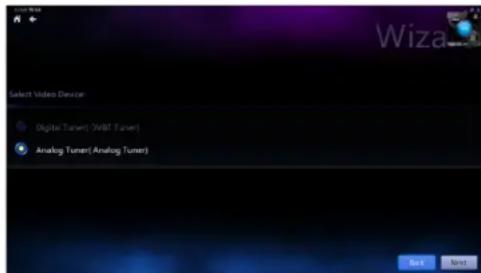
Select Video Device Digital Tunet (NBIT Tunet) Analog Tunet(Analog Tunet)

English

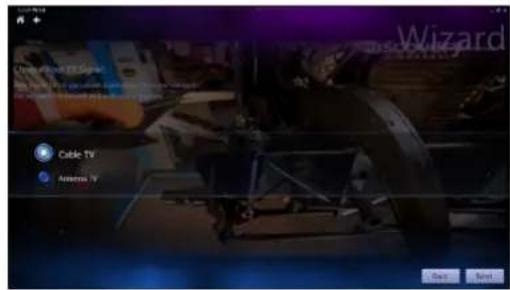
  1. Select the type of television service you use.

  2. Select Cable TV for cable television.

  3. Select Antenna TV for television received via an antenna.

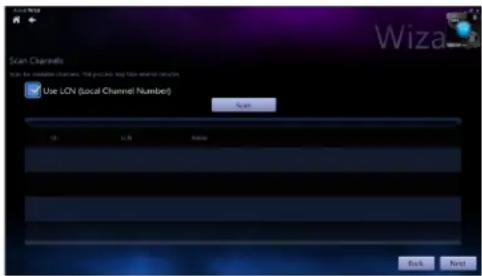
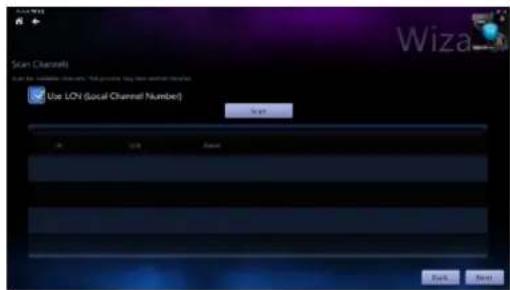
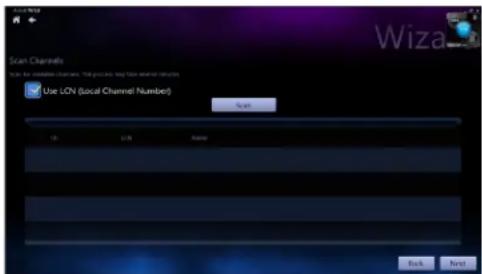
  4. Click Scan to begin scanning for available channels.

Cable TV Antenna TV Back New

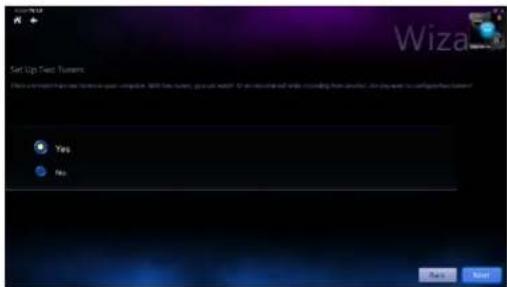
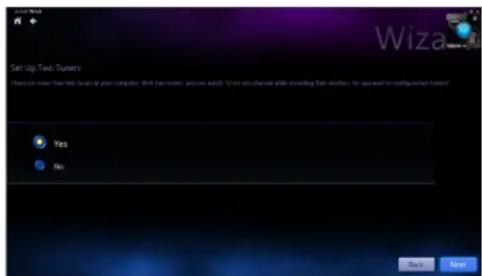
  1. If your All-in-One PC came with both an analog and digital TV tuner, the Setup Wizard will prompt you to set up your second TV tuner.

  2. Select Yes to set up the second TV Tuner.

  3. Select No to complete the Setup Wizard.

Scan Channels Note for update channels. This process may form external returns. Use LCN (Local Channel Number) Scan OK Cancel Help Wiza

Start Up Two Turners Yes or No: This is a key to set up your computer. With two turns, you will switch if you are also shared while according to instructions, for you want to configure next turner? Yes No Back Next

  1. Click Finish to complete the Setup Wizard.

Scheduling recordings of TV broadcasts

To schedule recordings of TV broadcasts:

  1. On the main menu, click Schedule.

Line TV Download TV SPG Information Settings

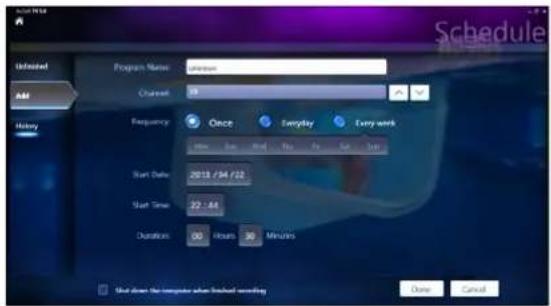
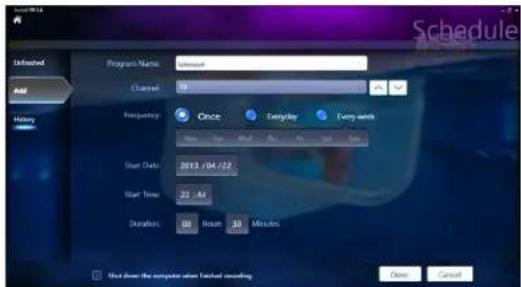
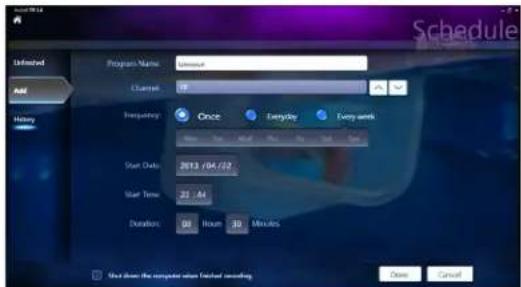
  1. On the left panel, click Add.
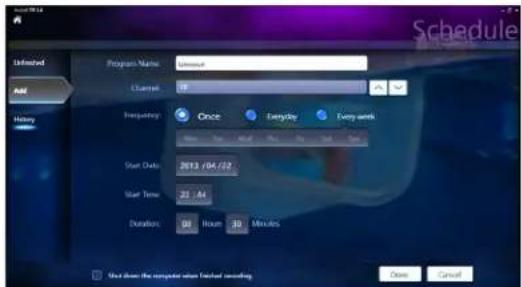
  2. Configure the following options:

  3. Program Name

  4. Channel
    Frequency
  5. Start Date/Time - Specify the date/time of recording.
    • Duration - Specify length of recording.
  6. Shut down the computer when finished recording

Schedule Unshared Add Heavy Program Name: Unshared Channel: 18 Frequency: Once Everyday Every week Start Date: 2013/04/22 Start Time: 25:44 Duration: 00 Hour 30 Minutes Show the computer when fetched recording Close Cancel

  1. Click Done to save settings and schedule recording.

NOTE: The All-in-One PC needs to be powered on to automatically record TV broadcasts.

  1. To schedule additional recordings, repeat steps 1\~4.

NOTE: The number of recordings you can schedule is limited by the available storage on your All-in-One PC.

Using the Entertainment Program Guide (EPG)

The EPG displays the time and TV programs playing on a specified channel and date.

NOTE: EPG is only available for All-in-One PCs with a digital TV tuner.

12 Channel 4/10/2013 New Playing 22:50 TAI TV

Using the Live TV Onscreen Controls
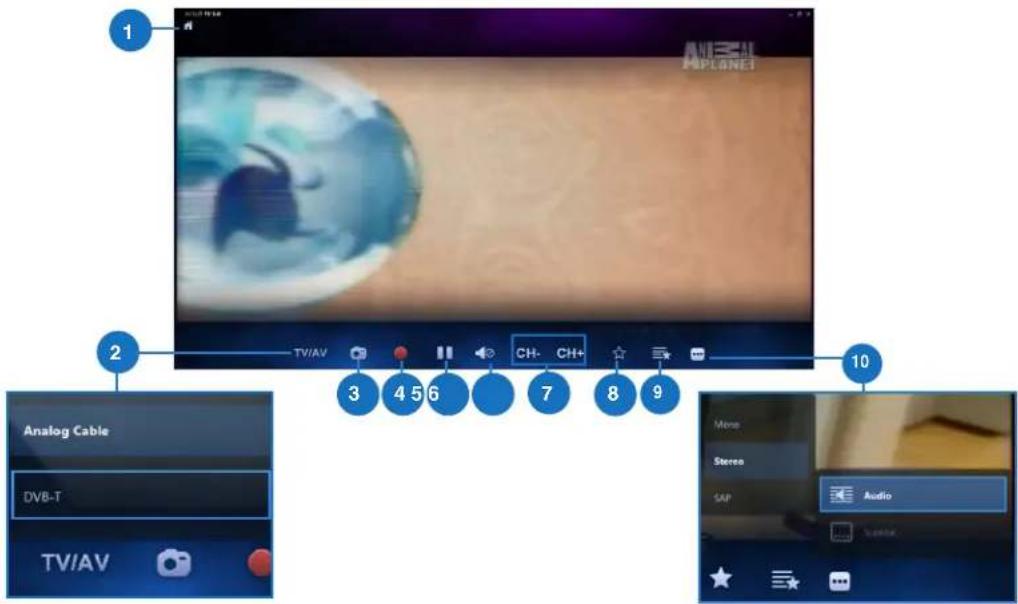
1 ANESCAL APLANET 2 TV/AV 3 4 5 6 7 CH- CH+ 8 9 10 Analog Cable DVB-T TV/AV Mono Stereo SAP Audio

1 Home button

Click this icon to go to the Arcsoft TV 5.0 main menu.

2 TV/AV

Click this button to toggle between analog TV and digital TV.*

*This item is only available for All-in-One PCs with both an analog and digital TV tuner.

3 Take a screenshot

Click this button to take a screen capture of the video or media playing.

4 Record

Click this button to begin recording the television broadcast.

5 Pause

Click this button to pause recording or playback.

6 Volume Controls

Click this button to display onscreen volume controls to increase/decrease volume.

7 CH-/CH+

Click this button to increase or decrease the channel by one.

8 Add to Favorites

Click this button to add this channel to the Favorites list.

9 Favorites List

Click this button to display list of saved Favorites.

10 Subtitles and Audio Tracks

Click this button to display list of available subtitles and audio channels/tracks.

Using the Remote Control
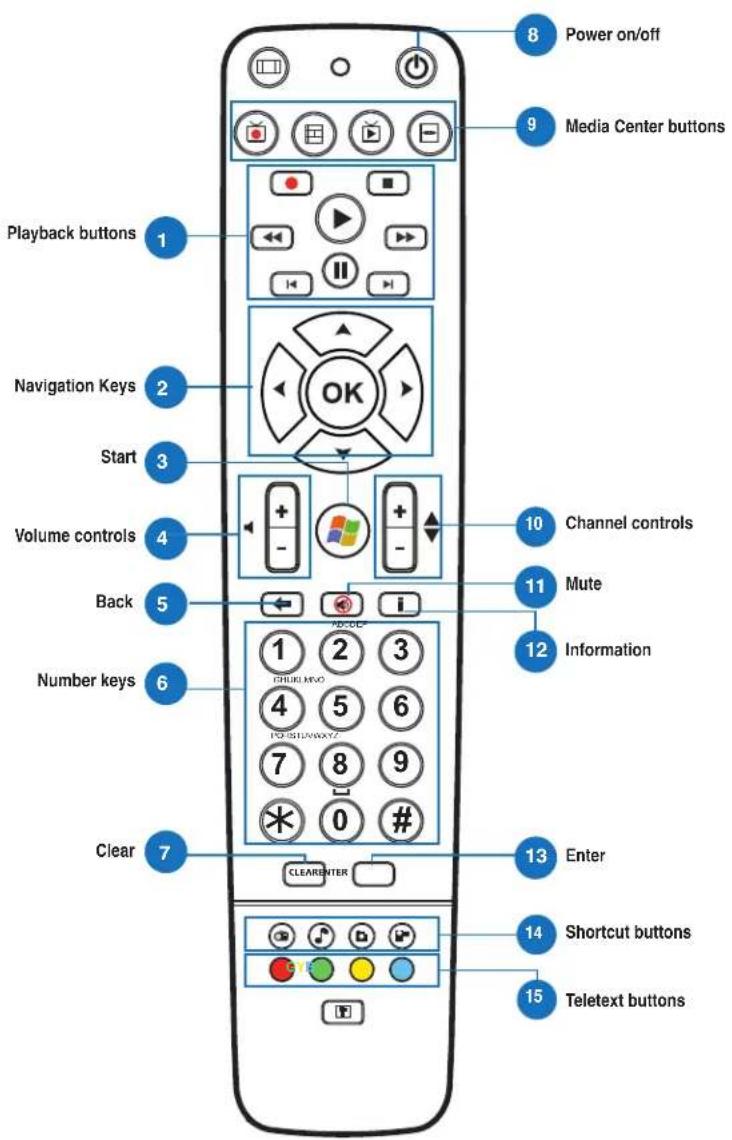
8 Power on/off 9 Media Center buttons 10 Channel controls 11 Mute 12 Information 13 Enter 14 Shortcut buttons 15 Teletext buttons 1 Playback buttons Navigation Keys Start Volume controls Back Number keys Clear 7 CLEAR ENTER

1 Playback Buttons

ASUS EeeTop ET2012 - Playback Buttons - 1

Play

Starts playing media. If playback is paused, pressing this button begins playback from the current position.

ASUS EeeTop ET2012 - Play - 1

Pause

Pauses media playback at the current position.

ASUS EeeTop ET2012 - Pause - 1

Stop

Stops playing media at the current position.

ASUS EeeTop ET2012 - Stop - 1

Record

Record the TV show to disk. If pressed while Live TV is on, records the current show. If pressed from the EPG screen, records a TV show or TV series to disk.

ASUS EeeTop ET2012 - Record - 1

Fast Forward

Speeds up the playback of the media file to the first forward value (3X).

ASUS EeeTop ET2012 - Fast Forward - 1

Rewind

Reverses direction of playback and speeds up the time base to the first rewind value (3X).

ASUS EeeTop ET2012 - Rewind - 1

Skip Forward

Skips forward one increment when this button is pressed.

ASUS EeeTop ET2012 - Skip Forward - 1

Skip Back

Skips backward one increment when this button is pressed.

2 Navigation Keys

ASUS EeeTop ET2012 - Navigation Keys - 1

Press the up/down keys to move through the menu bar in a submenu. Press the up/down keys to decrease/increase a numerical value.

Press the left/right keys to move through the main menus in the Home screen.

Press the left/right keys to move through the items in a submenu.

Press OK to confirm the selection.

ASUS EeeTop ET2012 - Navigation Keys - 2

Start\*

Takes the user to the Windows Media Center Start menu.

*This button is only available for All-in-One PCs installed with Windows Media Center.

4Volume controlsPress the (+) button to increase the volume by one unit. Press the (-) button to decrease the volume by one unit.
5BackMoves back one position in the user interface,
6Number keys
7ClearClear any entered user input.
8Power on/offPress this button to put the All-in-One PC to sleep mode. Press a second time to wake up the system from sleep mode.
9Media Center Buttons*Record TVDisplays the Recorded TV page in Windows Media Center.GuideDisplays the media guide in Windows Media Center.Live TVShows live TV on the currently selected channel.DVD menuDisplays the DVD menu.*These buttons are only available for All-in-One PCs installed with Windows Media Center.
10Channel controlsIncreases/decreases the current channel by one.
11MuteMutes the computer audio.
12InformationPress to display information about the movie, video, or music.
13EnterPress this button to select an option or input text.

ASUS EeeTop ET2012 - Start\* - 1

Media Center Shortcut buttons

ASUS EeeTop ET2012 - Media Center Shortcut buttons - 1

Displays the main Radio page in Windows Media Center.

ASUS EeeTop ET2012 - Media Center Shortcut buttons - 2

Displays the Music Library in Windows Media Center.

ASUS EeeTop ET2012 - Media Center Shortcut buttons - 3

Displays the Picture Library in Windows Media Center.

ASUS EeeTop ET2012 - Media Center Shortcut buttons - 4

Displays the Video Library in Windows Media Center.

*These buttons are only available for All-in-One PCs installed with Windows Media Center.

ASUS EeeTop ET2012 - Media Center Shortcut buttons - 5

ASUS EeeTop ET2012 - Media Center Shortcut buttons - 6

Teletext buttons\*

Press these buttons to access Teletext features when available.

*These buttons are only available for All-in-One PCs installed with Windows Media Center.

NOTE:

• To avail of Windows Media Center features, you can purchase a Windows 8 Media Center Pack separately.
- You can download a version of this manual in a different language at the ASUS support site at http://support.asus.com

All-in-One PC

English

All-in-One PC TV

Stručná příručka

Scan Channels Use local compatible channels. This process may not contain any other categories. Use LCN (Local Channel Number) Scan OK UN Name Back Next

Start Up Two Turners Yes or No: This tool is used in your computer. With two turns, you can switch? "If you are shared while extending home configuration, for you want to config each turner?"

Schedule Unfinished Add Heavy Program Name: Unfinished Channel: 10 Frequency: Once Everyday Every week Start Date: 2013/04/22 Start Time: 25 - A4 Duration: 00 Hour 30 Minutes Stop from the computer when installed recording Close Cancel

Scan Channels Use the local channels. This process may not contain any data. Use LCN (Local Channel Number) Scan OK UN Name Back Next

Start Up Two Turners Yes or No: This tool is used in your computer. With two turns, you can switch? "If you are channeled while extending home configuration, for you want to config next turner?"

Line TV Download TV PNG Addable Settings

Schedule Infinevel Add Heavy Program Name: Unreal Charge: 18 Frequency: Once Everyday Every week Start Date: 2013/04/22 Start Time: 25:44 Duration: 08 Hour 30 Minutes Show the computer when fetched recording Close Cancel

  1. Klik på Done (Udført) for at gemme indstillingerne og den planlagte optagelse.

All-in-One PC
Cable TV Automatic TV

Scan Channels Use LON (Social Channel Number) Wiza Back Next

Schedule Unloaded AM Program Name: unique Channel: 19 Frequency Once Everyday Every week Start Date: 2013/04/22 Start Time: 22:44 Duration: 00 Hours 30 Minutes Start down the computer when linked scrolling Date Cancel

All-in-One PC

Schedule Unshared All History Number Program Name: Unshared Channel: 18 Frequency: Once Everyday Every week Start Date: 2013/04/22 Start Time: 22:44 Duration: 08 Hour 30 Minutes Get down the computer after detached recording Close Cancel

All-in-One PC

ASUS EeeTop ET2012 - All-in-One PC - 1

Cable TV Automatic TV Back Next

Scan Channels Use LON (Social Channel Number) Stop OK 24% Save Back Next

Wiza Start Up Text Turners Yes No

All-in-One PC

All-in-One PC

Scan Channels Note for update channels. This process may form external returns. Use LCN (Local Channel Number) Scan -10 10A Name Back Next

Start Up Two Turners Yes or No: This is a key to switch in your computer. With two turns, you can switch it to any one channel while according to instructions for you want to configure them? Yes No Back Next

Schedule Unfinished Add Heavy Program Name: Unreal Channel: 10 Frequency: Once Everyday Every week Start Date: 2013/04/22 Start Time: 25:44 Duration: 00 Hour 10 Minutes Stop from the computer when finished recording Close Cancel

Scan Channels Use the local channels. This process may not contain any data. Use LCN (Local Channel Number) Scan OK UN Name Back Next

Start Up Two Turners Yes or No: This tool is used in your computer. With two turns, you can switch? "If you are channeled while extending home configuration, for you want to config next turner?"

Line TV Download TV PNG Mobile Settings

Schedule Infinevel Add Heavy Program Name: Unreal Charge: 18 Frequency: Once Everyday Every week Start Date: 2013/04/22 Start Time: 25:44 Duration: 08 Hour 30 Minutes Show the computer when fetched recording Close Cancel

Bruke programguiden (EPG = Electronic Program Guide)

Viser hovedsiden for radio i Windows Media Center.

ASUS EeeTop ET2012 - Bruke programguiden (EPG = Electronic Program Guide) - 1

Viser musikkbiblioteket i Windows Media Center.

ASUS EeeTop ET2012 - Bruke programguiden (EPG = Electronic Program Guide) - 2

Viser bildebiblioteket i Windows Media Center.

ASUS EeeTop ET2012 - Bruke programguiden (EPG = Electronic Program Guide) - 3

Viser videobiblioteket i Windows Media Center.

* Disse knappene er bare tilgjengelig på Alt-i-én-PC-er när Windows Media Center er installert.

15 GYB YOb Tekst-TV-knapper ^TM Trykk på disse knapp

Scan Channels View the local channels. This process may not contain any data. Use LCN (Local Channel Number) Scan On USB Name Back Next

Start Up Two Turners Yes or No: This will be in your computer. With new turns, you can switch? "If you are shared while ensuring that you verify, for you want to config each turner?"

Line TV Download TV PNG Addable Settings

Schedule Infinevel Add Heavy Program Name: Unreal Change: 18 Frequency: Once Everyday Every week Start Date: 2013/04/22 Start Time: 25:44 Duration: 08 Hour 30 Minutes Show the computer when fetched recording Close Cancel

Scan Channels Use LCN (Local Channel Number) Scan OK UN Name Back Help

Start Up Two Turners Yes or No: This is not a new computer. With few turns, you can switch? Do you have a short while according to instructions, for you want to configure what functions? Yes No Back Next

Line TV Download TV PNG Mobile Settings

Schedule Infinevel Add Heavy Program Name: Unreal Change: 18 Frequency: Once Everyday Every week Start Date: 2013/04/22 Start Time: 25:44 Duration: 08 Hour 30 Minutes Show the computer when fetched recording Close Cancel

All-in-One PC

Cable TV Antenna TV Back Next

All-in-One PC

Schedule MAYERS Unfunded Program Name: Unfunded Channel: 10 Frequency: Once Everyday Every word Start Date: 2013/04/02 Start Time: 22:44 Duration: 00 Hour 30 Minutes Show from the computer when funded recording Done Cancel

Installera ditt TV-mottagarprogram

Installera ArcSoft TV 5.0:

Scan Channels Note for update channels. This process may form external returns. Use LCN (Local Channel Number) Scan -10 10A Name Back Next

Start Up Two Turners Yes or No: This is a key to switch in your computer. With two turns, you can switch it to any one channel while according to instructions for you want to configure them? Yes No Back Next

Schedule Unfunded Add History Program Name: Unfunded Channel: 50 Frequency: Once Everyday Every week Start Date: 2013/04/22 Start Time: 25:44 Duration: 00 Hour 30 Minutes Next from the computer now found recording Done Cancel

Manual assistant
Powered by Anthropic
Waiting for your message
Product information

Brand : ASUS

Model : EeeTop ET2012

Category : Desktop computer