
15901 - Router TRUST - Free user manual and instructions
Find the device manual for free 15901 TRUST in PDF.


| Product type | Wireless router |
| Brand | Trust |
| Model | 15901 |
| Dimensions (L x W x H) | 200 x 150 x 50 mm |
| Weight | 350 g |
| Power supply | 9V / 1A power adapter |
| Wi-Fi standard | 802.11 b/g/n, 2.4 GHz |
| Maximum wireless speed | 300 Mbps |
| Ethernet ports | 4 LAN ports 10/100 Mbps + 1 WAN port 10/100 Mbps |
| Antennas | 2 external omnidirectional antennas |
| Wireless security | WEP, WPA, WPA2-PSK |
| Main features | Connection sharing, built-in firewall, DHCP, NAT, parental control |
| Configuration | Web interface via browser |
| Maintenance and cleaning | Wipe with a dry, soft cloth. Do not use liquid products. |
| Safety | Do not expose to humidity or extreme temperatures. Unplug during storms. |
| Spare parts and repairability | Power adapter and antennas available online. User repair not recommended. |
| General information | Home or office use. Compliant with CE and RoHS standards. |
Frequently Asked Questions - 15901 TRUST
User questions about 15901 TRUST
0 question about this device. Answer the ones you know or ask your own.
Ask a new question about this device
Download the instructions for your Router in PDF format for free! Find your manual 15901 - TRUST and take your electronic device back in hand. On this page are published all the documents necessary for the use of your device. 15901 by TRUST.
USER MANUAL 15901 TRUST
natural_image
Black wireless router device with antenna and control buttons (no visible text or symbols on body)Deutsch
English
Français
Italiano
Wireless 54 Mbps ADSL2+ Modem/Router
15898/15901








SAVE
Produktinformationen
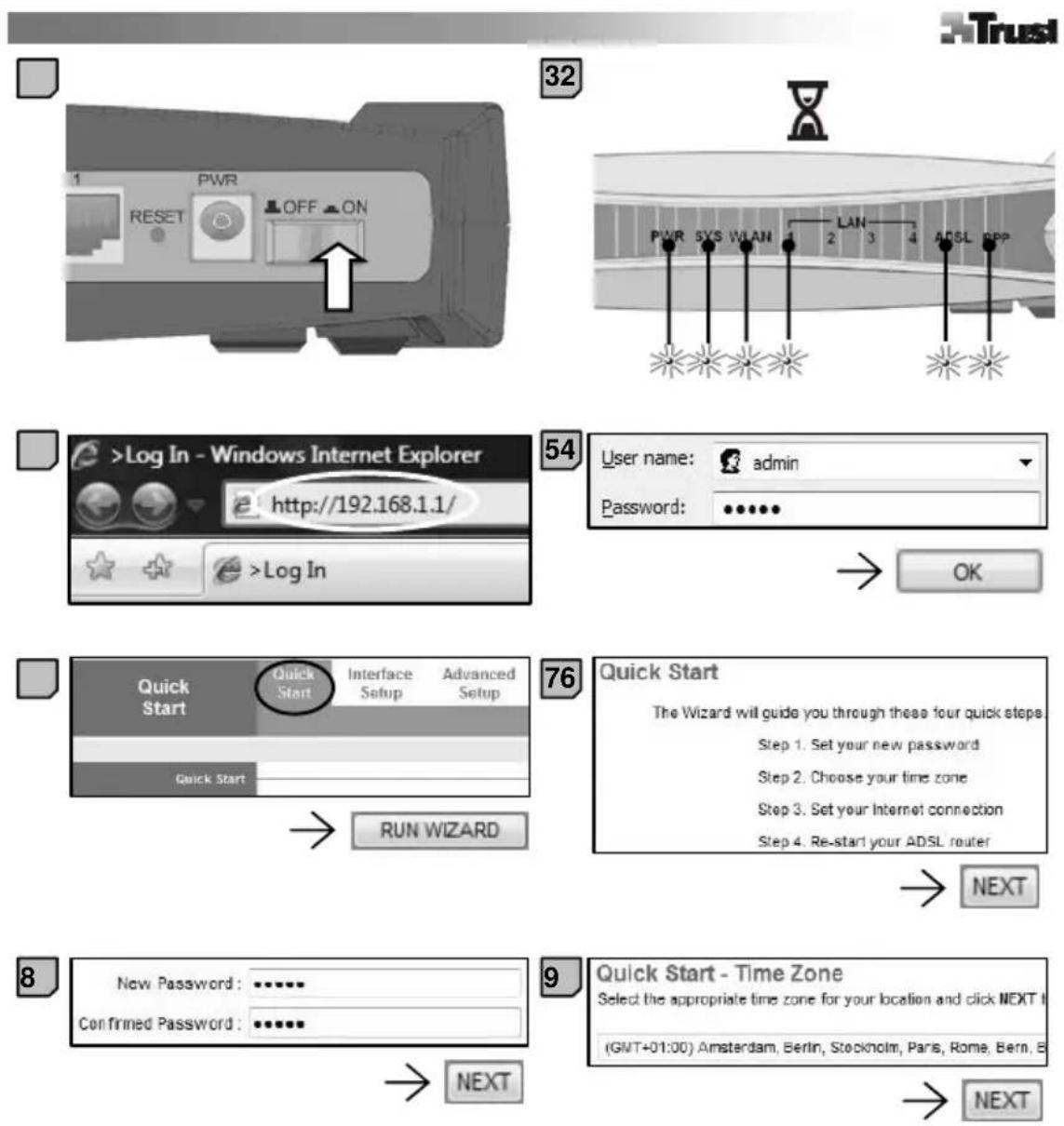
| i | A: ADSL line connectionB: LAN (PC) connectionsC: Reset buttonD: Power adapter connectionE: On / OffF: Power on indicatorG: System ready indicator | H: Wireless LAN activity indicatorI: LAN activity indicatorsJ: ADSL status indicatorK: PPP status indicatorL: ADSL cableM: Network cable (cable to PC)N: Power adapter |
Installation
| 1 | (1) Connect phone line, phone and ADSL modem to ADSL splitter (S). (2) Connect PC to ADSL modem. (3) Connect power adapter. |
| 2 | Switch ADSL modem on. |
| 3 | Wait until all indicators light up (LAN indicators will light up only if the LAN port is in use). |
Configuration
| 4 | Type '192.168.1.1' in address bar of your internet browser. Press [Enter]. |
| Note: If the page can not be found, reconnect network cable, restart PC and reset modem. If this does not help, check internet settings (CD additional documentation, page 11 - 12). | |
| 5 | Type username 'admin' and password 'admin', click 'OK'. |
| 6 | Run the quick start wizard. |
| 7 | Click 'Next'. |
| 8 | Type a new password to replace the default password ('admin'). |
| Note: For security reasons, a new password is highly recommended! | |
| 9 | Select your time zone. |
| 10 | Select encapsulation type given to you by your internet provider (ISP). |
| Note: Refer to 'Table 1' (under 'General' comments) for settings used by the most popular ISP in Italy! | |
| 11 | Type username, password and other parameters given to you by your internet provider. |
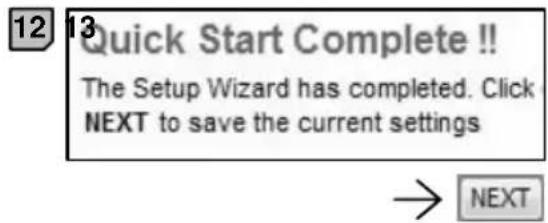
| 12 | Click 'Next' to save all settings. |
| 13 | Click 'Close'. |
Wireless configuration
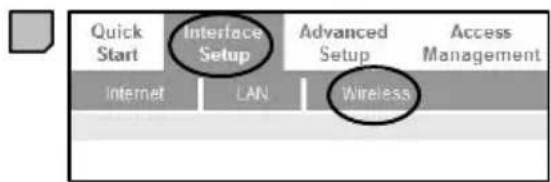
14 Click 'Interface Setup' / 'Wireless'.
15 If wanted, change wireless network name. Select 'WPA-PSK' and type a password. Click 'Save'. The modem is ready for use.
Note: The network cable is no longer necessary for configuration. Remove it in case your computer will use a wireless connection.
Wireless connection with computer
16 A wireless network adapter must be available on your computer! If not, install it before proceeding! Then:
Vista: Click on network icon and select: Connect to a network.
XP: Right click on network icon and select: View Available Wireless Networks.
17 Select the network and click 'Connect'.
18 Fill in the password from step [15] and click 'Connect'. → Internet should now work.
Note: If Windows asks for a network location, choose: 'Home'.
Opening ports / Port forwarding (advanced users only)
Check your computer's IP address: (1) Press [Windows] + [r] keys. (2) Type 'cmd', click 'OK'. (3) Type 'ipconfig', press [Enter]. (4) Find IPv4 address.
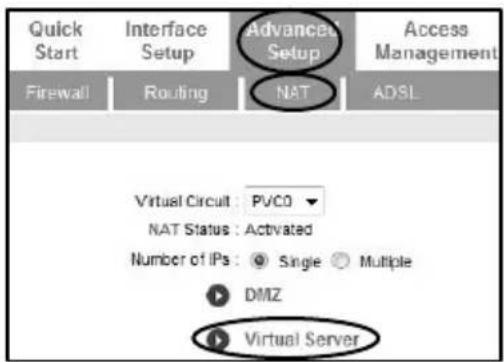
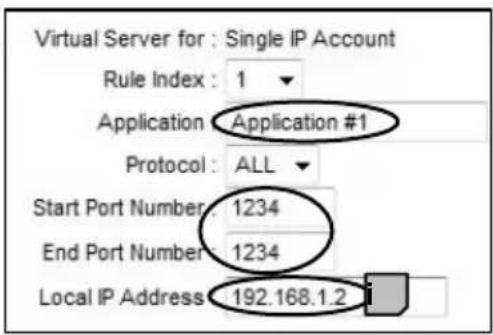
ii Login the modem (via http://192.168.1.1). Click 'Advanced Setup'/'NAT'/'Virtual Server'.
(iii) (1) Type application name (e.g. BitTorrent program name). (2) Type start and end port number from port range to be opened. (3) Type destination IP address (from step [i]). (4) Click 'Save'.
Notes
i General
- First modem configuration must be done via a network cable.
- A splitter (from step [1]) is not included. For details on how to install the ADSL line, contact your Internet Provider.
- If you have an internet subscription that is being paid for by time unit, switch the modem off after you finish using internet.
- This modem only works on analogue (POTS, PSTN, Annex A) ADSL, ADSL2, ADSL2+ or DSL/TDSL line.
- The upload and download speed is very depending on the quality of your home ADSL (telephone) wiring installation.
- To configure the advanced router options from the modem/router see the additional documentation on CD-ROM (available only in English).
- The built-in firewall is enabled by default. If you want to disable it, see the additional documentation on CD-ROM (page 30).
- Before using this product make sure your ADSL line and account are activated!
- This modem is not compatible with SDSL standard.
- To play games over the LAN it must be supported by the game. Refer to the instructions from the game how to configure it.
- To set the modem to default settings use a paperclip or other pointy object and press the reset button (C) for 6 seconds. All settings, including username and password, will be lost.
Table 1: Settings from most popular Internet Service Providers in Italy
| ISP Encapsulation | VPI VCI | Username / Password | |||
| Libero.it | PPPoA | VC-Mux | 8 35 | ||
| Tiscali.it | PPPoA | VC-Mux | 8 35 | ||
| Alice.it | PPPoA | VC-Mux | 8 | ||
| Mclink.it | PPPoA | VC-Mux | 8 75 | ||
| Tele2.it | PPPoA | VC-Mux | 8 | 35 | Yes |
| Fastweb.it | 1483 | Bridged IP LLC/DHCP | 8 | 36 | No |
35
Wireless
- There are an increasing number of wireless products (video, audio, computer, etc.) which work in the same frequency range as this device. It may, therefore, be possible that the functionality of this product is limited by or is limiting for other wireless products. This can only be avoided by paying attention to the distance between products and, where possible, by changing channels.
- Be careful when using wireless devices if you have a pacemaker or are dependent on other life-saving, sensitive electronic equipment, because this device transmits radio signals.
Yes
Yes
Yes
Yes
English
CE DECLARATION OF CONFORMITY
We, the manufacturer / importer,
Trust International
Declare that the product
Kind of product Wireless Modem-Router
Type designation MD-5600 Wireless 54 Mbps ADSL2+ Modem-Router
MD-5800 Wireless 54 Mbps ADSL2+ Modem-Router
Item No. 15898, 15901
Is in compliance with the essential requirements and other relevant provisions of the following directives:
EMC Directive (2004/108/EC)
Low-Voltage Directive (2006/95/EC)
R&TTE Directive (1999/5/EC)
The products is compatible with the following norms / standards:
EN 55022 Class B (2006)
EN 55024 (1998 + A1:2001 + A2:2003)
EN 60950-1 (2006)
EN 300228
EN 301489-1/17 (2005/2002)
(2004)
Intended use: indoor
Restrictions for usage: none
Manufacturer/Authorised representative

This class 1 wireless device meets the essential requirements and other relevant conditions of R&TTE Directive 1999/5/EC. Be careful when using wireless devices if you have a pacemaker or are dependent on other life-saving, sensitive electronic equipment, because this device transmits radio signals.

natural_image
Black USB device with a small rectangular component, displayed against a plain background (no text or symbols on the device itself)MD-5800 Wireless 54 Mbps USB Network Adapter
1

2

natural_image
Illustration of a hand holding a CD inside a device (no text or symbols visible)3

4

Read manual
■ Registration + online support
5
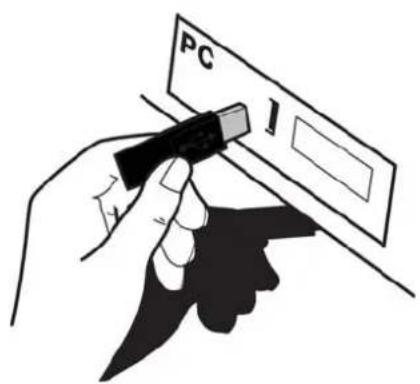
6

natural_image
Diagram showing a router connected to a computer via wireless communication (no text or symbols present)
natural_image
Illustration of an open book with a magnifying glass and a numbered label (16) beside it, no readable text or symbols on the main illustration.CE
DECLARATION OF CONFORMITY
We, the manufacturer / importer,
Trust
International
B.V.
Declares that the product
Kind of product : Modem-Router and USB WIFI adapter
Type designation: MD-5600 Wireless 54 Mbps ADSL2+ Modem-Router
MD-5800 Wireless 54 Mbps ADSL2+ Modem-Router
Item no.
is compliant with the essential requirements and other relevant provisions of the following directives:
Electromagnetic Compatibility Directive (2004/108/EC)
Low-Voltage
Directive
(2006/95/EC)
The products is compatible with the following norms / standards:
EN 55022 Class B (2006)
EN 55024 (1998 + A1: 2001 + A2: 2003)
EN
60950
EN
300228
EN
301489-1/17
(2006)
(2004)
(2005/2002)
Manufacturer/Authorised representative

Brand : TRUST
Model : 15901
Category : Router