
Inventory Control v5 Std Stock Control Software - Software Wasp - Free user manual and instructions
Find the device manual for free Inventory Control v5 Std Stock Control Software Wasp in PDF.


| Product Type | Inventory Control Software (Standard Edition) |
| Version | v5 |
| Manufacturer | Wasp Barcode Technologies |
| Key Functions | Inventory tracking, barcode scanning, audit management, purchase order and pick order management (Pro/Enterprise), mobile device batch processing |
| Supported Platforms | Windows PC; compatible with Wasp mobile devices (WDT2200, WDT3200) |
| Barcode Symbology | Code 128 (default), supports various symbologies |
| Data Import/Export | CSV and TXT files; import for sites, locations, suppliers, manufacturers, customers, items, inventory |
| Tracking Capabilities | Serial number, lot number, date code, pallet code (up to 4 required fields + 3 optional) |
| Stock Levels | Minimum and maximum stock level settings; automatic low-stock notification |
| Cost Tracking | Average cost calculation, cost per item, cost per order unit |
| Mobile Device Support | Batch processing; create mobile databases with filters; sync data to/from PC |
| Auditing | Complete audit mode; compare counts; reconcile discrepancies |
| Order Management | Purchase orders and pick orders (Professional and Enterprise versions); automatic emailing; backorder creation |
| Label Printing | Integrated with Wasp Labeler; pre-built and custom barcode labels for items, locations, sites |
| User Security | Multiple user profiles; customizable privileges; password protection |
| Reporting | Inventory reports, transaction list, audit reports, supplier reports, etc. |
| Supported Languages | English (manual available in user interface; other language options via translation request) |
| Setup Complexity | Moderate; requires configuration of sites, locations, items, users; import functionality for mass data entry |
Frequently Asked Questions - Inventory Control v5 Std Stock Control Software Wasp
User questions about Inventory Control v5 Std Stock Control Software Wasp
0 question about this device. Answer the ones you know or ask your own.
Ask a new question about this device
Download the instructions for your Software in PDF format for free! Find your manual Inventory Control v5 Std Stock Control Software - Wasp and take your electronic device back in hand. On this page are published all the documents necessary for the use of your device. Inventory Control v5 Std Stock Control Software by Wasp.
USER MANUAL Inventory Control v5 Std Stock Control Software Wasp

natural_image
Two business professionals standing in front of a modern building with red and white lettering (no visible text or symbols)InventoryControl
User Guide
Copyright©2007
WaspBarcodeTechnologies
140010 ^th St.
Plano,TX75074
AllRightsReserved
FirstPrintingOctober2007
WrittenbySharideBlonk
STATEMENTSINTHISDOCUMENTREGARDINGTHIRDPARTYPRODUCTSOR SERVICESAREBASEDONINFORMATIONMADEAVAILABLEBYTHIRDPARTIES. WASPBARCODETECHNOLOGIESANDITSAFFILIATESARENOTTHESOURCE OF SUCHINFORMATION.THEINFORMATIONINTHISDOCUMENTISSUBJECTTO CHANGewithOUTNOTICE.
WaspBarcode Technologies, the Wasplogo, InventoryControland Labelerareregistered trademarks and/or trademark of WaspBarcode Technologies in the United States and other countries. Other parties' trademarks are the property of their respective owners.
Terms, conditions, features, hours and contact information in this document are subject to changewithout notice. Waspis committed to providing great products and exceptional customers service. Occasionally wemay decidetoup date our selection and change our service offering soplease check www.waspbarcode.com ____ forthelatest information.
InventoryControlInstallKey
(Printedonshippedmaterial)
InventoryControlRegistrationKey
(Obtainedfromwww.waspbarcode.com\register)
TableofContents
Chapter 1: Where Do I Start?....1
UsingthisDocument....1
FollowOurExamples....2
SetupCycle-Whatdoldofirst?......4
WhatisanInventoryItem?......5
WhatisaNon-InventoryItem?......5
WhatisaBarcode?......5
DesigningandLabelingSitesandLocations....7
WhatisaSite?......9
WhatisaLocation?......9
Barcodes Best Practice .... 10
HowShould|LabelMyItems?......11
IdentifyingAdditionalTrackingNeeds....12
HowdolusemyHandheldDevice?......13
Chapter2:GettingStarted....16
Step1:SetupUsersandAssignSecurityPrivileges....16
Step2: EnterYourCompanyInformationandallShipping/Receiving Addresses....19
Step3:EnterorImportYourSitesandLocations....20
Step4:CreateLocationLabelsforScanning....24
Step5:EnterorImportYourSuppliers....25
Step6:EnterorImportYourItems....27
Step7:CreateItemBarcodeLabelsforScanning....29
Step8:AddInventorytoYourItems....30
Chapter3:ImportingDataintoInventoryControl....34
GettingInformationFromaDifferentApplication....34
ImportOrder....35
HowtoImportintoInventoryControl....36
Importing Tracked By Information....38
ImportingInventory....38
HandlingImportErrors....39
CommonImportQuestions....40
Chapter4: WorkingwithMobileDevices....44
GettingStartedUsingaMobileDevice....44
Step1:SendtheInventoryControlProgramtotheDevice....45
Step 2: Create a Mobile Version of the Database....46
Creating Databases using Filters.... 46
Step3:SendtheInventoryControlDatabasetotheDevice....47
SendingUpdatestoaMobileDevice....47
RetrievingInformationfromaMobileDevice....48
CommonMobileDevicesQuestions....50
Chapter5:AuditingYourInventory....52
WhatisanAudit?......52
WhyAudit?......52
AuditingBestPractices....52
HowtoAuditinInventoryControl....55
CommonAuditQuestions....58
Chapter6:UsingCostTrackingandAverageCost....63
HowisAverageCostandItemValueCalculated?......63
HowdoldeterminemyStockingUnit....63
WhatistheCostformyItem?......64
HowisCostHandledwhenIAddItems?......64
CostforOrderUnitsperSupplier....65
AverageCost....66
ZeroCostInventory....66
ReceivingagainstaPurchaseOrder....67
AddingandReceivingontheMobileDevices....67
Importing Inventory......68
Chapter7:WorkingwithPurchaseOrders....69
Overview....69
PurchaseOrderWorkflow....70
CreateAutomaticallyGeneratedPurchaseOrderNumbers....70
AutomaticEmailingofthePurchaseOrder....71
AutomaticNotificationofUnder-StockedItems....72
DefiningCustomShippingandPaymentMethods....74
ViewingCreatedPurchaseOrders....74
CreatingBackorders....76
CommonPurchaseOrderQuestions....77
Chapter8:WorkingwithPickOrders....81
Overview....81
PickOrderWorkflow....81
CreatingAutomaticallyGeneratedPickOrderNumbers....82
AutomaticEmailingofthePickOrderand/orthePackingSlip......83
CreatingaPickOrder 84
DefiningCustomShippingandPaymentMethods....85
ViewingCreatedPickOrders....85
Picking Inventory from a Pick Order 86
CommonPickOrderQuestions......87
Glossary 89
Index......95
Chapter1:WhereDolStart?
UsingthisDocument
Thismanualcontainsinformationthatwillaidyouinsettingupandusingthe InventoryControlsoftware.Whenyouarereviewingthematerialinthismanual, keep in mind that Chapter 1: Where Do I Start? takes you through the concepts andideasbehindInventoryControl.Youshouldreadthischapterfirst,beforeyou beginsettingupthesoftware,tofamiliarizeyourselfwiththetermsand functionalityusedthroughoutInventoryControl.Afteryouhavestudiedthe material in Chapter 1, then you can begin setting up your system using Chapter 2:GettingStartedasaguide.Thischapterprovideshands-on,specific informationthatstepsyouthroughthesetupprocess.Therestofthechapters containin-depthinformationthatwillwalkyouthrougheachprocess(Auditing, UsingMobileDevices,etc.).
In this manual wewillus term sthatare common in the inventory management industry but oftentake on different meanings when used in the context of a software program. Wewill definetheseterms when they are first used and in the glossary at the end of the document. Keep in mind that some businesses use the set term stome ans something different than the common definition. If we use a term that is not clear to you, please find these section in this manual that defines it to avoid any confusion.
The purchase and setup of new business software can be an overwhelming task attimes. Wheredol start? What do old first? What do esthister m mean? How should label my locations? What printer can l use?—These are all common question that can make the process seem much more difficult and time-consuming than it need stobe. This guidewill help answer these and many more questions and give you some commondesignide aesto consider when setting up your inventory storage areas. If you already have your area assetup (whether they bewarehouses, closets, vehicles, etc.), keep open mind about possiblere configurations based on the design principles presented in this manual asthesedesign scan help you take advantage of Inventory Control's many time-saving features. Inventory Control, if setup properly and used consistently, cansave your company time and money by predicting inventory trends, avoiding costly out of stocks situations and identifying shrinkage.
Theuseofabarcodescannerisoneofthebestchangesyoucanmaketo improvetheaccuracyofyourinventory.Usingabarcodescannervirtually eliminateshumandataentryerrorswhenadding,removingandcounting inventory.AllofthemobiledevicessoldbyWaspforusewithInventoryControl havebarcodescannersthatyoucanusetomaximizetheefficiencyandreliability ofinputdata.
FollowOurExamples
Throughoutthisdocumentwewillsuggestsolutionsandexamplesforthree hypotheticalcompanies. These companies represent generic business models that encompass scenarios for how most businesses commonly use this product. Find the example company that most closely resembles your business and study the scenario included for it each section of this document. To help you easily find your example, each company has adistinct icon attached to it so you can look for the icon for your type of business each chapter. Remember that even though one of the example companies may not exactly match your business model, these examples are broaden enough that at least ones should encompass all or part of your business needs.
EachofthethreecompaniesusedadifferentversionofInventoryControl.The threeversionsare:
- Standard – Contains a wide range of options to help you track your inventoryincludingautomaticnotificationoflow-stockeditems,checkin/out capabilities,add/removefeature,trackingandauditandfullaccesstomobile devices.
- Professional – All of the features of the Standard version plus it allows for multiplePC'sonthenetworktorunInventoryControl.PickOrder,Purchase OrderandReceivingcapabilitiesalongwithmultiplesuppliersperitem.
- Enterprise – The top-of-the-line package, Enterprise incorporates all the benefitsoftheProfessionaleditionandisinstalledonyourcompany'sSQL server.
EventhoughoureexampledistributioncompanyisusingtheEnterpriseversionof InventoryControl, thisdoesnotnecessarilymeanthatalldistributioncompanies shouldusethisversion. TheversionofInventoryControlusedshouldbebased onyourbusinessneeds, ratherthanyourbusinessstype.

Distributing- Enterprise Version of Inventory Control
BasicNeeds :
•MultipleSitesandLocations
- MultiplecomputersrunningInventoryControl
- MultipleMobileDevicesineachLocation
- PreferredSuppliersforItems
- ItemTrackingbySerialNumberandPalletCode
- Pick,Receive,Move,Adjust,Add,RemoveandAuditatthePCandonthe mobiledevices
SebastianDistributinghasbeeninbusinessformanyyearsandhaspreviously usedadifferentinventorysoftware.Theyhaveagreatdealofinventoryin multiplewarehousestheyneedtomanagewithInventoryControl.Each warehousewillbeasitewithmultiplelocations.Thesupervisorofeach warehousewilluseacomputersetupwithInventoryControl,butthegeneral managerwillbetheonewhohasfulladministrativeprivileges.Inaddition,they havepreferredsupplierstheywouldliketoassociatewitheachitemintheir systemandwillbecreatingpickandpurchaseordersasneeded.To accommodatealloftheseneeds,theyhavepurchasedtheEnterpriseversionof InventoryControl.
Workersinthewarehouseswillbeissuedhandheldmobiledevicestoscan barcode labelswhenreceivinggoodsfromsuppliersandpickinggoodsfor shipment.
Fleet-ProfessionalVersionofInventoryControl
BasicNeeds :
•OneSite, MultipleLocations
•OnePCrunningInventoryControl
- OnemobiledeviceateachLocation
- InventoriedandNon-InventoriedItems
- TracksomeinventorybySerialNumber
- Pick,Receive,Move,Adjust,Add,RemoveandAuditatthePCandonthe mobiledevices
Rusty's CableService has been using a different inventory software. They consider the garage where their vehicles are kept to be their site and the vehicles themselves, there is also a storage facility, which will be another location, within the garage where training is kept. Most of the inventory is within the vehicles. They are looking for away to easily setup this site/location relationship and to keep track of inventory as it comes into the storage facility, is transferred to the vehicles and, occasionally, issold to a customer.
Theirinventoryconsistsofitemsthatwilleventuallybesoldtocustomerssuchas cableboxes,remotes,andvarioustypesofcableaswellasitemsthatwillremain ininventory,suchastoolsandotherinstallationequipment.Inaddition,they havenon-inventoryitemssuchaspamphletsandcableguides.Theywantthe abilitytotrackcableboxesandremotesbyserialnumber.Theyalsowanto equipeachdriverwithamobiledevicethatcanbeusedtoadd,remove,move andadjustitemsasneeded.
Mid-sizedReseller-StandardVersionofInventoryControl
BasicNeeds :
•OneSite, MultipleLocations
•OnePCrunningInventoryControl
- NomobiledevicesbutabarcodescannerisusedatthePC
- Add, Remove, Adjust, Move and Audit
The example used here is an antiquereseller, but this information applies to many different types of businesses, such as second-hand shops, hobby shops, beautysalons, etc., and even small medical/veterinarian businesses who want to track pharmaceuticals and others supplies.
Brady's Bargainsisamid-sizedantiqueresellerwithonesiteandtwolocations: thestorageareaandthesalesfloor. Theycurrentlydonothaveaninventory programandhavebeenkeepingupwithinventorymanuallyusingExcel spreadsheets. Theywillnotbecreatingpurchaseordersorpickordersanddo notneedtheabilitytoassignmultiplesupplierstoanitem, therefore, theyhave chosentheStandardversionofInventoryControl. Inaddition, Brady's Bargains willnotbeusingmobiledevices; theywillbeinputtinginformationdirectlyintothe PC. ThisshopwillbeusingInventoryControlinconjunctionwithQuickBooksfor theiraccountingneedsandwithanunrelatedPOSsystem. Itisimportanttonote thatthoughInventoryControldoeshavescanningcapabilitiesandtracks inventory, itisnotaPOSsystemanddoesnotperforminventorybilling.
SetupCycle-Whatdoldofirst?
Afteryoufinishinstallingyoursoftware(usingtheInventoryControlQuickStart Guide),youwillneedtosetupyoursystembyenteringinformationintothe software.Wesuggestyoufollowthesteps,orcycle,outlinedbelowtosetupyour software most efficiently. (Reminder – Do not start setting up your software yet;readthisentirechapterfirst.Chapter2containsstep-by-step instructions for completing the setup cycle.) We call this a cycle because in multi-warehouseinstallationsyouwillneedtorepeatsteps3-7foreachsite.The setupprocessmaytakehoursorevendaysdependingonthesizeofyour organization.Whilethismayseemoverwhelming,keepinmindthatthereturn onthistimeinvestmentwillpayoffquickly.Thesestepswillresultinacomplete andaccuratecountofinventorythatwillallowyoutostartusingInventoryControl tomanageyourday-to-daybusiness.
Keepinmindthatyoucancontinuetouseyouoldinventorytrackingsoftware whileyouaresettingupInventoryControl. ThetransitiontoInventoryControl shouldtakeplacewhenyouarereadytocountyourinventoryandenterthe countsintothesoftware.
Beforestartingthisprocess,setasideadayortwowhenyoucanstopusingthe oldsystemandtransitionovertoInventoryControl.Theaudit,orinventory counting,stepmustbedonewhenyouarenotreceivingorshippinggoods.Plan toperformtheauditonaweekendorafterhours,forexample.Inthismanualwe willdetaileachofthestepsbelowandhelpguideyouthroughtheprocess.
- Design your barcode labelingsystem and designate barcode label ranges.
- Importorinputsites, locations, suppliers, manufacturers and customers into Inventory Control.
3.Printbarcodesandlabelsitesandlocations. - Importorinputitemsmakingsuretodesignateadditionaltrackingneeds likeserialnumberorlot.
- Use your handheld or a report to do a complete audit of inventory.
- Using the audit results, print barcode labels for items and labels every item.
- Determinethebestmethodofhandhelduseforyourcompanyand implementit.
If the initial setup process seems daunting, there are organizations that specialize in evaluating your needs and setting up your warehouse for you using Inventory Control. If you need to find an organization in your area to help with this process, please call Waspandwewill help you find an integrator.
WhatisanInventoryItem?
Aninventoryitemisanythingyouwanttotrackthelocationandquantityof. The term item is used in InventoryControl to cover anything that is put in stock.
WhatisaNon-InventoryItem?
Anon-inventoryitemisanythingyouorderorreceive,butdonotwanttotrack thelocationandquantityof.Anexampleofanon-inventoryitemmightbe marketingmaterialslikeaproductflyerthatistakentotradeshowsorputin productboxes.Onceyouareoutyoumayneverbuymoreofthatitemandyou don'tcarehowmanyareleft.Youmayneedtoincludenon-inventoryitemsona purchaseorderandverifyreceiptthaveapaymentpapertrailbutyoudonot needtokeeptrackoftheitemafteritisreceived.InventoryControlallowsyouto addnon-inventoryitemsontopurchaseordersintheProandEnterprise versions.
WhatisaBarcode?
Abarcodeisagraphicalrepresentationofasetofnumericoralphanumeric charactersthatcanbereadbyabarcodescanner. Forexample:
123becomes
Figure 1

Figure2
Whse1becomes:
Assigningapermanentbarcodetoeachsite,location,itemsupplierand customercreatesanenvironmentwhereamobiledevicecanbeusedtoeasily keeptrackofinventorymovementsandalleviatestheproblemofdata-entry errors.
Barcodesgetwiderwiththeamountofnumbersandcharactersyouwantrepresentedbythem.Abarcodeswidthisdeterminedbytheamountofnumbersorcharactersrepresentedbythebarcode.Somebarcodescannershavealimitedwidththattheycanread.Ifyouhaveverylongitemnumbersorlocationnumbersyoumayneedtoreconsiderthenumberingschemeorthescanneryouareusing.Alsobeawarethatmanyofthelessexpensivebarcodereadersdonotreadbarcodesthatarebent,atanangle,toosmallordamaged.Considerthepossibledispositionofyourbarcodesbeforechoosingascanner.
Therearemanydifferentbarcodeformatsorsymbologies. Thedifferent symbologiescanbethoughtofasdifferentfonts. Thesamecharactersare representedbydifferentsymbologiesindifferentways,asshownbelow:

Figure3

Figure4
Thesedifferent format sexist to provideway to compress more data into a smallerspace, to represent different set of characters to enable scanning at different angles or distances. In Inventory Control we usethes ymbology called Code 128 for all the pre-built labels. All the scanners and mobile devices Wasp supplies can read code 128. Wesuggest you use Code 128 because its supports all numbers, upper and lowercase characters and most special characters and it reduce the most common barcodes.
Barcodesshouldbeprintedusingabarcodeprinteror,ifyouhavesoftware capableofcreatingabarcode,onahighqualitylaserorinkjetprinter.Youwant thebarcodelabeltobehighqualitybecauselowqualitybarcodesareharderto scanandusuallydonotlastlong.InventoryControlisbundledwithWasp Labeler,whichcanprinttoaregularprinterorabarcodeprinter.Rememberto
keepplentyofextralabelstockandprinterribbonstomakesureyouneverrun out. Todeterminehowtobestprovidegoodqualitylabelsfordailyuseconsider thekindofprinteryouareusing.
Organizationsthathaveseveralhundrednewinventoryitemsa week,willneedtohaveadedicatedbarcodelabelprinterateach site. Theyshoulduseagoodqualitylabelmediaandusethefeature builtintoInventoryControlthatautomaticallyprintsinventorytagsas soonastheitemisreceivedonthePC. Theprinterneedstoberated forseveralhundredlabelsadayandneedstoprintfastenoughtoavoidcostly slowdownsthatcanbecausedwhenwaitingtoputawayitemsaftertheyare receivedbecausethelabelsarenotprinted.Lookformodelsthatcanprint4-6 inchespersecondandcanhandlemediaupto4"wide.Wasp'sWPL606lineof printersworkwellinwarehouseconditions.

Many organizations will not need a high-end printer but will still save money and will get better quality long lasting labels if they use a desktop barcode label printer. These printers allow you to print one or hundred labels without waste and they are quicker and cheaper than using a standard printer. Wasp's WPL305 line of printers work greatforsmallervolumesofprinting.
Alaserprinterusingstandardsheetsoflabelsmayworkgreatwhere productturnoverisslow,conditionsarewellcontrolledornewitems arenotaddedoften.InthiscaseusetheincludedLabelersoftware toindicatewhatlabelstockisbeingused.Labelershipswithmany standardlabeltemplatespre-configured. Pre-printafewpagesmorethanwhat youhaveinstocktop preparefornewitems.
If you need to print fewer than 100 labels alaser printer can be cost effective. If you print more than this, consider a label printer.
DesigningandLabelingSitesandLocations
Everylocationwhereinventorycanbestoredinyourwarehouseshouldhavea printedbarcodesecurelyattachednearthelocation.Eachlocationneedsa barcodebecauseadding,removingormovinginventoryusingthe InventoryControlsoftwarerequiresallocation.Allprocessesthatrequirea locationarebothspedupandmademoreaccurateifyouuseabarcodeto identifyeachlocation.Alsousingaconsistentnumberingschememakesfinding itemsinthewarehousemucheasier.Theselabelscanbestucktotheframeof theshelves,attachedtothebin,putonacardandhungfromtheracksoreven stucktothefloor.

Figure5
Thefirststepfordesigningyourlabelsistodecidewhatoprintthebarcodeon.Avarietyofbarcodelabelstockexiststhatcanwithstandanyenvironment.Therearetwokindsofbarcodelabelprinters.Thermaltransferprintersthatworklikeaninkjetorlaserprinterbytransferringinkfromaribbontothelabelpaper(stock).DirectThermalprintersdonothavearibbonbutuseheattoprintontoaspeciallabelstock.Thethermaltransferprintersaremoreexpensivetooperatebutcanprintonawiderarrayoflabelstockandthelabelslastlongerinvariouskindsofenvironments.Directthermallabelsarecheaperbutmayfadeifexposedtofriction,heatordirectsunlight.Mostbarcodeprinterswillprintboththermaltransferanddirectthermal.Youwantaprinterthatwilldobothbecausewhatyouareusingthelabelforwilldetermineifyoushouldusethermaltransferorthedirectthermallabels.Youmayneedbothkindsoflabelsavailableforprinting.
Forallkindsoforganizations,youmaywanttoconsiderusingthecheaperdirect thermallabelsforidentifyingindividualitemsbecauseyouwillputthemonthe packagingofitemsthatwillbediscardedbytheconsumeroronitemtagsused toidentifytheitematremovaltime.Usethecheaperlabelstockwhenitwillbe usedanddiscarded.Itisoftencheapertoreprintafewlabelsonthecheaper stockifonelabelisdamagedthantousethemoreexpensivestock.Youshould labelyourwarehouselocationswithlabelsthatwilllastandcantakesomeabuse becauseyoudon'twanttohavetocontinuallyreprintandreplacetheselabels.

If your labels contain information you want to be permanent, such as serial numbers, you should use thermal transfer label on a high quality label stock or, perhaps, polypropoline and a resin ribbon. The importance of the label will determine what stockitis printed on. A serial number that you use for returns or contract maintenance readable for a long time.
If your labels will be exposed to heat because of the device they are attached to through exposure to the sunyous should use thermal transfer labels. Form most locations in a fleet vehicle you should use thermal transfer.
Ifthemajorityofyourlabelsaredisposableanycheapstockwillwork fine.Oftenthemajorissueishowtoapplythelabeltotheitemso thathescannercanreadthebarcode.Makesurethebarcodeis attachedtoaflatsurfaceinaplacewhereitwillnotgetscratchedor damaged.
Beforeyoulabelyourlocationsyouneedtocomeupwithanumberingschemeforeachlocationanditem.InInventoryControltherearetwofieldsthatdescribewheretheitemis:SiteandLocation.
WhatisaSite?
Thetermsiteisusedtodescribeanygroupingoflocationswhereyouplanto storeandtrackinventory.Usuallyasiteisawarehousebuildingbutitcanbean office,atruckorafield.
Sitedesignmaybesimpleifyourentireinventoryisstoredinyourtwo warehouses.Ifthisisthecaseyoucanjustusethenameofthewarehouseas thesitedescription.UseasimplesitenumberlikeW100incaseyoueverneed totypethesitenumberintoahandheld.Forthesitenumberyoucanuseany easilyidentifiableinformationaboutthesitelikeitsaddressoritsdesignationlike 140010th,orW1400.Somecompanieshaveseveraldifferentkindsofplaces thatstoreitemswithinonefacility.
Sincethisproductonlyhastwolevelsoflocationtracking,youneedtodesign yoursitestodescribeallthelevelsabovetheactualphysicallocationofthe inventory.
If you havetrucksthataretiedtoawarehouseyoucanmaketheirsite descriptionacompositeofthewarehouseandtrucknumber,W1400T12.If you havedifferentbuildingscontainingvariousroomsinwhichitemswillbestored, makeacompositenameofthebuildingandroomnumber,B201R10.Youshould alwaysmakethesitenumbersomethingthatcanbebarcodedsothatitcanbe printedandscanned.SeetheBarcodesBestPracticebelow.
WhatisaLocation?
Forthepurposeofkeepingtrackofyourinventoryitems,yourlocationsshould representtheplacementwithinthesite.Ifyoursiteisawarehouse,thelocations areshelvesorracks.Ifyoursiteisabuildingthelocationsmaybeoffices.Ifyou haveafleetoftrucksthelocationsmaybecontainersinthetruck.Whendeciding howtolabeleachlocation,chooseanumberingschemethatcanbeinterpreted whenreadingjustthelabel.Forexampleifyouhave7rowsof5shelveseach andeachshelfhas4levelsyourbarcodelabelschemeshouldlooklikeA010200 orrowA,shelf01level02,bin00.Ifyouhaveinventoryontrucksincontainers, thetruckcanbeasiteandeachbininthetruckisallocation.Eachbinshouldget anumericlocationdesignationlike100,200or300.Ifyoudonothavelocations withinthetruck,eachtruckcanbealocation.T1,T2,T3.Putalabelonthe insideofthetruckdoorsothepersonmovinginventoryintothetruckcanjust scanandmove.Thelabelbarcodeshouldhavethebarcodeandthehuman readabletextdescriptionofthelocationaswell.

Figure6Figure7

BarcodesBestPractice
InInventoryControl,whenyouareaskedforanumbertoidentifysites, customers,items,locationsetc.,wesuggestyoualwaysuseashortsequential setofnumbersornumbersandcharacters.Putthefulltextdescriptionofthesite orlocationinthedescriptionfield,notthenumberfield.Thesenumberscanthen beprintedasabarcodeandusedtoscanlocationsintomobiledevices.We suggestyouestimatethelargestnumberofsitesorlocationsyouwillhaveand pickarangeofnumbersthatarereservedforeach.Forinstance,ifyouhaveup to60sites,youshouldreserve100to199foryoursites.Eachnewsiteyouenter willgetanumberfromthisrange.Ifyouwanttomorecloselytiethenumberto thesite,addaoneortwoletterdesignationtotheendofthesitenumber.
Forexample, use100UStodesignatethemainUSwarehouseand101UKfor thewarehouseintheUnitedKingdom. If you expect to have a few hundred suppliers, reserve 1000 to 2000 for suppliers. Manufacturers can have 500 to 599. Item should start at 2000. This rangereservationservestwopurposes. First allow those who know that are easily distinguishadesignation for the warehouse from the designation for an item if all they see is abarcode on a paper or a box.
In this example, when a straybox is presented to the warehouse manager and
heseesbarcodeswith101USC050100 knowsthisboxwasstockedintheUSwarehouseonrowCshelf05bin01.00.

The box may also have abarcodewith 20104 which he knows is number and can be used to put the item back into inventory. Without these barcodes, the box might have to be opened to identify the item and then some onewould havetotrack where it came from and where to put it away. Second, reserving arange of numbers make the process of deciding what numbertouse for new designations much easier. If you add a manufacturer and you already used 512 then next is 513.
Anotherthingtoconsiderwhencreatingyournumericrepresentationfor locationsanditemsisthatsomedevicesonlysupportareducedsetof characters.Somemobiledevices,suchastheWDT2200,donothavea keyboardthatcansupportlowercaselettersorthewholerangeofspecial characters.Withthesedeves,ifyouritemnumberis10000(1)youwillnotbe abletotypetheitemnumberorscaninthenumberfromabarcodebecausethe parenthesescharacterisnotsupported.AllourinternalbarcodelabelsuseCode
128whichsupportsbothupperandlowercasecharacters,allnumbersand manyofthespecialcharacters.
HowShouldIKabelMyltems?
Justaseverylocationsshouldhaveabarcode,eachindividualpieceofinventory needsabarcode.Wesuggestthatyouprintyouritemnumbersonlabelsandput themoneachindividualitembeforetheyareputawayintheirfinallocationona shelf.Yougetthesametimesavingandaccuracybenefitsfromlabeling inventoryitemsasyougetfromlabelingthelocations,butonagreaterscale. Sometimesitisnotfeasibletohavealabeloneachpieceofinventorybecause theitemistoosmall.Inthiscase,puttheitembarcodeonthecontainertheitem isstoredinontheshelf.Thelabelshouldhavetheitemnameaswellasa numberrepresentingtheitemencodedasabarcodeasintheexampleshown below:

Figure8
Itisimportantnottouseatextdescriptionorabbreviationastheitemnumber becauseanumberingschemeismoreflexibleandeasiertoencodetoasmall barcode.Mostlabelingsoftwarecanbesetuptouseanumberforthebarcode andtoprintthedescriptionoritemnameunderthebarcode.InventoryControl allowsyoutoprintyouritembarcodesastheinventorycomesinorpre-print barcodestoapply.Thespecificnumberingschemeyouusetoidentifytheitems canstartat1000andcountup,ifthatiswhatyouwant.Somecompaniesassign allorpartoftheSKUnumbertheyareissuedastheitemnumber.Becauseitem modelsmaychangeovertimeorsub-modelsmaybeavailable,youmay needtouseanumberingschemethatcanadaptwithoutlosingtheitem's identity.Manycompaniesallowgapsinthenumberingschemetoallowforth this growthandforchanges.Forinstanceoneitemnumberis19500andanotheris 19600.Whenanoptionalfeatureisaddedtothe19500itisassigned19510 sincebotharekeptininventory.The19600itemidisdiscontinuedandanother modeltakesitsplaceandissassigned19601.Thisway,the195xxlineof productsismaintainedandareeasilyidentifiedwitheachother.Ifyoupicka numberingschemeandsticktoityouwillfindthatyoustarttorecognizethe numbersaseasilyasthenames.
RecommendedBarcodeRanges
| BarcodeLabelRange | |
| Sites100-199 | |
| Manufacturers500-599 | |
| Suppliers1000-2000 | |
| Items20000andup |
IdentifyingAdditionalTrackingNeeds
Sometimesitisimportanttobeabletoassociateanexactitemorrangeofitems withanexactcustomer,serialnumber,datecodeorshipmentdate.Thiscanbe importantforsupportandmaintenancepurposesorforrecalls.Often,largercost itemsthathaveawarrantyorsupportcontractaretrackedbyserialnumberso thatiftheitemissentbackformaintenanceyoucanbesureyouarenotfixinga productthatisoutofwarranty.Someitemsneedtobetrackedbylotordate codebecausethebatchtheyareinisimportantorttheyareperishable.
InventoryControlallowsyoutospecifyuptofourrequiredtrackingfieldsand threeoptionaltrackingfields.Thethreeoptionsfieldsarealwaysavailablewhen AddingandRemovingitemsandcanbefilledoutasneeded.Youcanalso select on the Create New or Edit Item screens to make these options fields required.Onceyouselecttouseoneoftheoptionalfieldsbycheckingthebox on the Create New or Edit Item screen, the field become required for that item. Whenyoucreateeachitemyoucanspecifyiftheitemistrackedby Serial Number, Lot, Data Code or Pallet. What this means is that when you process an add,remove,move,audit,pickorreceiveforthisitemyouwillbeforcedto specifyavalueforthetrackingfieldsyouspecified.
Serialnumberisthemostcommonandisdifferentfromtherestofthetracking fields.Serialnumbersmustbeuniqueforeachpieceofinventory.Whenanitem istrackedbyserialnumber,auniqueserialnumbermustbeenteredforeach individualpieceofthatitemyouenterintoinventory.Whentheitemisremoved ormovedthesystemwillalsorequiretheserialnumber.Thisallowsthelocation andmovementoftheitemtobetrackedexactly.Theothertrackingfieldsarenot requiredtobeunique.Ifyouaretrackingbylotyoucouldadd100itemswithlot number206.
DateCodeisusediftheitemhasanexpirationdateorproductiondatethatis importantforrecallsortracking.DonotusetheDateCodefieldtotrackwhenan itemisaddedtoInventoryControl.EachAddtransactioninInventoryControlis time-stampedtoallowyoutotrackwhenanitemwasadded.Totrackwhenan itemisadded,viewtheTransactionList(MainWindow>Lists>Transactions)or runthe
Therearealso3optionaltrackingfieldsRef#, SupplierandCustomer.As mentioned above, these fields are special fields for the Add and Remove functionsthatcanbefilledoutbutarenotrequiredunlessyoumakethem requiredwhentheitemiscreated.
Therequiredandoptionaltrackbyfieldscanberenamedtoreflectthenames youuse.
Afterinventoryisaddedtoanitem, theselectionsyoumadetothefourtracking fieldscannotbechangedwithoutfirstremovingallinventoryfromthatitem. Make sure you specify what you want to track before adding inventory. Also,
makesurethatyouprintalabelforeachtrackbyfieldyouhaveselectedtouse andattachthemtoeachitem.Ifthelabelsarenotphysicallyattachedtoeach item,itwillbeverydifficultforyoutokeeptrackofwhichitemsshouldbetracked byaspecificfield.
HowdolusemyHandheldDevice?
ThemobiledevicesthataresupportedbyInventoryControldonottransmitevery add,remove,move,etc.tothemaincomputereverytimeanactionortransaction iscompleted(realtime).Theyonlyuploadanddownloaddatawhenthedeviceis connectedtothePC.Thismodeofmobiledataprocessingiscalledbatch processing.Itisimportanttounderstandhowbatchprocessingaffectsyour inventorycountsthroughoutthedayanditisimportanttoimplementsome standardprocedurestomakesureyourdatastayscurrent.
Suggestedbatchprocessingcycle:
- Createthemobiledatabase
- Check the time on the device to make sure it is correct
- Send that databasetoall devices
- Usethedevicestomanageyourinventory
5.SyncalldevicestothePCandprocessalltransactions
6.Repeat
In the process of sending the data to them mobile device we ask you to mobile database. Wedo this fortworeasons. One is so you can filter the data if needed. We'll discuss filtering later in this section and in Chapter 4—Mobile Devices. The other reason is so all the batch devices have the same set of data at a certain point time. Think of creating a mobile database as fastening a snapshot or backup of the database and placing that exact set of data one each device.
Thedateandtimeoneachdevicemustbecorrectandalldevicesshouldbeset tothesametimewithinagivensite. Thedateandtimeareusedtodetermine whichtransactiononthesameitemorlocationcamefirst. Thisorderisimportant toproperlytrackthemovementofitemsthroughouttime.
InventoryControlgivesyoutheabilitytofilterthedatayousendtothemobile device. If your company has a hugenumberof items or sites you may need to use the filter to reduce the amount of data that is put one each handheld. The filters give you the flexibility to select the data you want sent to the device. You can also set the filter to limit what items a user can aud it to make sure you do not get two people counting these same item.
To illustrate the importance of proper batch processing procedure lets describe a commonscenario. In my warehouse I have 3 mobile devices. After I get Inventory Control setup and complete my audit I know I have an accurate view of my inventory. I then create a database in them morning and put it one each of the
devices.Throughoutthedayseveralpeoplelogintoeachdeviceanddoseveral differentkindsoftransactions.Bytheendofthedayeachdeviceisgoingtohave adifferentcountofinventoryatcertainlocations.ThePCisunawareofthese changes.
Forexample:
Whenthedaystarted:
Location10Ahad20ofitem10250 Location10Bhadnothinginit Location10Chad50ofitem10100
Throughouttheday:
Device1 added100ofitem10100tolocation10C. Device2 moved10 ofitem10250fromlocation10AtoLocation10B Device3 removed10 ofitem10100from10C
Because the data on the handheld, only as good as the last time it was synced, you should establish a nightly sync of the data from the handheld to the computer. After all handheld shaves synced, their data to the PC canewhandheld databases should be created that is up to date and should be sent to each devices so the people using ithave an accurate view of what is available.
Usingoureexampleabove,ifDevice2issyncedandanewdatabaseiscreated andthensenttothedevicebeforetheotherdevicesaresyncedDevice2will thinkthefollowingistrue:
Location10Ahas10ofitem10250 Location10Bhas10ofitem10250 Location10Chas50ofitem10100Incorrect-ithas140
If all three devices were synced before thenewdatabase is created then all three devices would get the correct data.
Thereisalsotheissueofallowingnegativeinventoryonthehandhelds.Because thehandheldsdonothaveanaccuratepictureoftheinventoryaftertheyhave beeninuseforawhile,itispossibleforahandheldddevicetothinkthereisno quantityinalocationwhentherereallyis.ThiscanhappenifLocation10Bhas noinventoryinitwhenthedaystartsandDevice1adds100ofitem10250toit.WhenDevice2goestopick20ofitem10250fromLocation10Bthehandheld shows0quantitybutthepersonseesthequantityontheshelf.InventoryControl givesyoutheoptionofallowingtheuserofthehandheldtogoaheadandpick thatquantityandthePCwillresolvethequantityissuewhenthehandheldsare allsynced.Ifyouturnofftheoptiontoallownegativequantitiestheuserwillbe forcedtosynchisdeviceandwaitforanupdateddatabasebeforeprocessing.
Sometimes this is the preferred way for companies if their items are all tracked by serial number or some other tracking field that must be correct.
Chapter2:GettingStarted
AfteryouhaveinstalledInventoryControl,youneedtoenteryourinventory information.Therearevariouswaysyoucanenterinformationin InventoryControl;however,tohelpyousetupyoursystemquicklyandminimize mistakes,wehavecompiledalistofstepsyoushouldfollow.Bycompleting thesestepsinorder,youcanbeassuredthatallofyourinformationisentered correctlyandefficiently.
First, let's stake abrieflook at the steps required for setting up your system. After that, we'll talk about each step in depth and give you some industry specific example to get you up and running in not time.
Followthestepsbelowtobeginpopulatingyourdatabase.
- SetupUsersandAssignSecurityPrivileges
2.EnterYourCompanyInformation andallShipping/Receiving Addresses - EnterorImportYourSitesandLocations
- CreateLocationLabelsforBarcodeScanning
5.EnterorImportYourSuppliers
6.EnterorImportYourItems - CreatingItemLabelsforBarcodeScanning
- Adding Inventory to Your Items
- Printing the Inventory Location Report
10.AuditYourInventory
Step1: SetupUsersandAssignSecurityPrivileges
When you first logon to InventoryControl, you will use Admin as the user name andleavethepasswordblank. Thisdefaultuserprofilegivesyouaccessto
everythinginthesystem. The first stepyoushouldtakeuponloggingin istocreateadditionalusersonthe Securityscreen. You should setupat leastone additionaladminuserwho has rightstoallareasofthesystem andchangethepasswordforthe defaultadminuserprofile. Sincethe defaultadmin'spasswordisinitially blank, it is important to changethe defaultadmin'spasswordtoprevent other users from logging in under this profile.

TIP: Makesureyou changethedefault"admin"user profile'spassword.This passwordisinitiallyblankand shouldbechangedtoprevent othersfromloggingintothe systemunderthis profile.
You should eventually setup profiles on the Security screen for all users who will needaccesstothesystem.Itisagoodideatogiveeachuserhisorherown
usernameandpassword,ratherthansharingasingleuserprofile,asthisallows youtokeeptrackofwhodoeswhatinthesystem.InventoryControlkeepsa detailedtransactionhistoryofeveryactionperformedinthesystem.Eachtime anitemisadded,removed,moved,etc.,thetransactionisloggedby InventoryControlandislistedwiththeusername,date/timeofthetransaction and the type of transaction on the Transaction List (Main Screen >Lists >TransactionList).GivingeachuserauniqueusernameallowsyoutoviewtheTransactionListandeasilydeterminewhoperformedeachfunction.
Inadditiontosettingupusernamesandpasswords,youcanalsolimitusersto specificfunctionsorfeaturesinthesystem.Doingthisenhancesthesecurityof yoursystembylimitingusers'movementstonlythosefunctionsrequiredfor theirjobs.Forexamplesofwhenandwhyyoumightassigncertainprivileges, pleaseseetheExampleSecurityProfilessectionbelow.
Youcancreatehowevermanyusersyouneed, andeachusercanbegivena uniquesetofprivileges.
HowtoAddUsersandSetupSecurityProfiles:
Open the Security Privileges screen (Main Window > Administration > Security) and click File > Add User). On the Add New User screen you can enter the user's name and login information, including a password. When you are finished adding this information, click OK. You will be returned to the Security Privilegesscreen where you can select specific areas and function to which this user will have access.
Keepinmindthatallprivilegesfortheuseryoujustcreatedareinitiallydisabled. Thismeanstheuserwillnothaveaccesstoanythinginthesystemuntilyou assignspecificrightstotheuser.
If the employee has a username for different system, you can reuse it. When you create the user, assign the same username they have been using, then assign default password. The user can then change the password when he/she first logs in.
BusinessExamples
BusinessType:All—This examplecanapplytoall businesstypes.
Sebastian Distributinghastwo warehousesintowhichthey receivegoodsfromsuppliers. Theythenshipthosegoodsto variouscustomersaroundthe country. Themanager, Pat,

Figure9
willbetheprimaryuseroftheInventoryControlsoftwareandwillkeeptrackof inventorymovementsbyrunningreports.Patwillalsoserveasthesystem administratorandwilltakecareofmaintaininguserprofiles,creatingbackups andotheradministrativetasks.Patshouldsethimselfupwithadministrative privilegesuponaccessingthesystemforthefirsttime.Thiswillsetupone administratorbesidesthedefaultadministratorprofile.ChangestoPat'suser profiledonotgointoeffectuntilhelogsbackinagain.Aftersettinghimselfupin thesystem,PatshouldlogoutofInventoryControl,thenbackinusinghisnew usernameandpassword.SeeFigure9,foranexampleofPat'sSecurity screen.

Figure10
Patoverseesasupervisor, JillandJoe, ateach of the warehouses. Each supervisor will need to occasionally log onto the PC to perform basic function such as manually adding, removing or adjusting inventory, performing audits, checking inventory in and out to customers, manually creating items, suppliers, customers, etc. and also creating pick orders and purchase orders as needed. The supervisors need access to the system, but do not need full administrative privileges, athey won't be creating users, backups, etc. See Figure 10, for an example of Joe's Security screen.
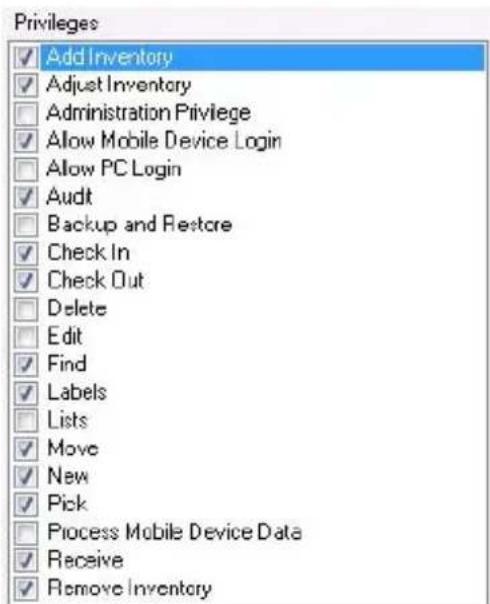
Figure11
Withinthewarehouses,thereareseveral workerswhowillbeusingmobiledevicesto addandremoveinventoryandtoperform audits.Theseworkerswilluse InventoryControlexclusivelyonthemobile deviceandwillnotneedtologontothePC. SeeFigure11,foranexampleofthe warehouseworkers'Securityscreen.
Keepinmindthatyoushouldsetupeach workerwithhisorherownusernameand passwordandthenassignprivilegestoeach useraccordingly.YoucanusetheCopy feature(createoneuser,thenselectEdit> CopyUserSettings)toquicklyaddprofilesfor userswiththesamesettings.Thisallowsyou toretaintheprivilegesyouhaveselected,but to enter a new User Name and Password.
| AlsoavailableinthelInventoryControlHelp... | |
| ForMoreInformationOn...Typethisinthelndextab... | |
| UsingtheSecurityPrivilegesScreen | AddingUsers/EditingSecurityPrivileges |
| CopyingUserSettings | AddingUsers/EditingSecurityPrivileges |
Step2: Enter Your Company Information and All Shipping/Receiving Addresses
Nextyoushouldenteryourcompany'sinformationonthe CompanyInformation screen. Onthisscreenyouwillenteryourcompany'snameandanyaddresses neededforreceiving,shipping,corporatecorrespondence,etc. Thecompany nameyouenteronthisscreenwillappearonallreportsandinthetitlebarof InventoryControl.Inaddition,ifyouhavetheProofEnterpriseversionof InventoryControl,thecompanynameandaddressesyouenterwillappearon PickOrdersandPurchaseOrdersyoucreate.
Whenyousetupyourcompanyinformationyoushouldtakethetimetoenterall addressstowhichyoumightreceiveinventory,shipinventory,storeinventoryas wellasyourcorporateaddressandotherbusinessaddresses.Havingthese addressenteredwillsaveyourandyouremployeesalotoftimewhencreating purchaseorderandpickordersandwhenmoving,picking,receiving,addingand removinginventory.
HowtoEnterCompanyInformation
Open the Company Information screen (Main Window > Administration > CompanyInfo) and type in your company name and address information. This screen allows you to enter multiple addresses. For instance, if you have a corporate address, are receiving address, abilling address, multiple warehouse addresses, etc., they can all be entered on this screen. You should enter an address for each sit that might have inventory shipped to it from purchase orders.
BusinessExamples

BusinessType:Distributing
SebastianDistributingconsistsofacorporateofficeandtwo warehouses. Themanager, Pat, entersthecompanynameonthe CompanyInformationscreen, thenentersthecorporateaddress information. Patwantstheabilitytohaveshipmentsfrompurchaseorderssent toeitherofthetwowarehouses, soshealsoentersaddressesforbothofthose
sites.Nowwhenpurchaseordersarecreated,shecanselecttohavetheorder shippedtoanyofthethreeaddresses.

BusinessType:FleetandReseller
BothentertheirbusinessaddresssoncewiththeAttn fieldsettoAccountingforbillingcorrespondenceand
againAttn:Dockforshippingandreceiving.
| AlsoavailableinthelInventoryControlHelp... | |
| ForMoreInformationOn...Type | thisinthelndextab... |
| UsingtheCompanyInformationScreen | Adding/EditingYourCompanyInformation |
| EnteringMultipleAddresses | Adding/EditingYourCompanyInformation |
Step3:EnterorImportYourSitesandLocations
Nowyouarereadytobeginenteringsitesandlocationsintothedatabase. Rememberthatlocationsaretheareasintowhichyouwillassigninventory,while sitescontainthevariouslocations.Inotherwords,asiteisacollectionof locations.Wesuggestcreatingonesiteforeachbuildingorstructurethat containsinventory.InventoryControlrequiresthatyoudefineatleastoneSite containingatleastoneLocation.Youcanalsohavemultiplesitesthatcontain multiplelocations.Infact,thereisnolimittothenumberoflocationsyoucan assigntoasite.
Alocationistypicallyshorthandforaphysicalplacesuchasashelfinyour warehouse.CommonlyusedconventionsincludeLocationcodeslikethis:
010205(forRow#,Shelf#,Bin#)
Whenyouaredeterminingyour locations,thinkaboutyourparticular needs.Yoursitedoesn'tnecessarily havetobeabuildingandyourlocation doesn'thavetobeashelf.Yoursites canbevehicles,warehouses,garages, storagerooms,orevenbarns,sheds, etc. Locationscanbevehicles,bins, shelves,closets,drawers...anythingin whichyourroutinelykeepyourinventory.

TIP:Itisimportanttonote thatyoucanhavethesame Locationcodedefinedatmore thanoneSite-forinstance, Warehouse1andWarehouse2 mayeachhaveLocationcodesof Shelf1-soalwayspayattention towwhichSiteyouareworkingwith whenperformingInventory transactions.
InventoryControlgivesyoutheflexibility todesignyoursystemhowitworksbestforyourbusiness.Justrememberto
keep your namings simples that you and you employ eescan readily identify the site or location they need.
How to Add Sites and Locations
YouhavetwooptionsforaddingSitesandLocationstoInventoryControl:
- Manually Add Sites and Locations before you add Items – This option allows you to directly access the Create New Site and Create NewLocationscreens. This is the best method for entering locations into your system (rather than importing), even if you have many different locations. Inventory Control contains many fields and functions relating to location that are integral to them most efficient use of the system. Most of these field cannot be imported, or are not contained in other inventory softwaresystem, sowould not be included in your import file. Were recommend that you manually enter your locations so you can take advantage of all Inventory Control hasto offer. If you do import, westill recommend that you go back through each location and manually enter any information asked for on the Locations screen that was not imported.
To enter sites and locations the Main Window, click New > Location or New > Site.

Figure12
- Import Your Sites and Locations – For details on importing data, please see Chapter 3 – Importing into the Database. Most companies only have one ortwosites, but several allocations.
BusinessExamples
BusinessType:Distributing-MultipleSites/MultipleLocations
Sebastian's Distributinghastwowarehouses. Each warehouse contains various bins, shelves, et that will physically contain the inventory.Sincethisbusinesshasmultiplewarehouses,eachwarehouseis setupasaSite,thenmultiplelocationscanbecreatedwithineachsiteto representthespecificareaswhereinventorywillbestored.
Theywanttosetuptheirsitenamesbasedonthecitywherethewarehouseis locatedandtheirlocationnamesbasedonwheretheinventoryiskeptwithinthe site.However,theyalsowanttheabilitytoscantheirsites/locationsusingthe handheldbarcodescanners,sotheyknowthesite/locationscodesshouldbea shortcombinationofnumbersandcharacters.Sincetheirwarehousesare located in Guthrie and Plano, they want the Site Description to be Guthrie Warehouse and Plano Warehouse. The Site Code they set up as numbers; 100GfortheGuthrieWarehouseand101PforthePlanoWarehouse.They followasimilarpatternwiththeirlocations.TheLocationDescriptiondetails whereandwhatthelocationis(GuthrieWarehouse,RowA,Shelf01,Bin00) and the Location Code is a scannable abbreviation of this (GA0100).
Although this business has only two sites, it has many locations; therefore, they create at file of the sites and locations by exporting this information from the old inventory system and importing it into Inventory Control. Fordetailson importing, refer to Chapter 3—Importing into the Database. After importing, each Location is manually reviewed in Inventory Control to make sure all information is included.

BusinessType:Fleet-MultipleSite/MultipleLocationswith From/ToSitesSetontheMobileDevices
Rusty's Cable Company has narrowed down his options for setting up his sites and location stot wop possibilities. Hecandefinethe basegarageasthesitewitheachvehiclebeingalocation, alongwithstorage areasetupasalocationaswell. In this instancethesite could be named Docking 1 and the vehicles setup with names consisting of the abbreviation VEH followed by the last four digit so the VIN number for that vehicle. Alternatively, each vehicle could be set up as a sit with onelocation. Forexample, the site might be VEH 1234 with onelocation named these same, etc. The flexibility of the site/location design allows companies, such as Rusty's fleet business, to conform the software to fit their exact needs.
Rustyhasdecidedtosetuphisstorageareaasasitewithlocationsofshelves andhisvehiclesassiteswithonelocationbecauseheknowsthathecanusethe
SiteConfigurationscreentomakeeachmobiledevicespecifictoavehicle. The SiteConfigurationscreenonthemobiledevicesallowshimtodesignateonesite as the From (Remove, Move, Pick,) site and one as the To (Add, Move, Receive) site. He can make the From and To sites the same sites, if needed.
Sincetheusualtransferofinventoryforhisbusinessflowsdirectlytothevehicles via add/receive, then to the customer via remove, he can set up the From and To sitesasthespecificvehicle.Whenhisemployeesthenusethedevice,anylists andsearchesarelimitedtothelocationscontainedinthatspecificvehiclewhen addingorremovinginventory.Ifemployeesneedtomoveinventoryfromthe storage areatoatruck,theycanquicklychangethesettingsonth Configuration screen and make the From site the storage area. Using the Site Configurationscreensavestheemployeethetimeitwouldtaketofilterthrough inventoryinallsites.FordetailedinformationonusingtheSiteConfiguration screenforthemobiledevices,pleaserefertotheonlinehelp.
Inaddition, since Rustywantshisemployeestobeabletos cansites and locations, he makes sure his Site/Location Codes are short sets of numbers and characters and his Site/Location Descriptions are longer, more detailed descriptors of the code. For example, a Site Code is VEH1234 and the Site DescriptionisVIN123400789–WhiteFordEconoline.
For details on importing, please refer to Chapter 3 – Importing into the Database. Fordetailsonsettingupmobiledevices, pleasereferto Chapter6–Mobile Device.
BusinessType:Reseller-OneSite/MultipleLocations

Brady's Bargainshasmultiplelocationsatonesite. Thestoreitself issetupasthesitewithlocationsconsistingofareasonthesales floorandareaswithinastoragearea. Themanagermanuallyinputs the site and locations using the Create New Site and Create New Location screen. Though they will not be using mobile devices, they do have abarcode scanner at the PC that will be used to scan label on items. Knowing this, they make sure they setup their Site and Location codestobescanner friendly. They have setup their Site Code as 100 and the Site Description as Main Store. Their Location Codes follow the pattern of SFA2R12 with Location Descriptions of SalesFloor, Aisle2, Rack12.
| AlsoavailableinthelInventoryControlHelp... | |
| ForMoreInformationOn...Type thisinthelIndexTab... | |
| UsingtheSiteConfiguration screensonthemobile devices | WindowsMobileDevice–Site ConfigurationWDT2200–SiteConfiguration |
| UsingtheCreateNewSite Screen | CreatingaNewSite |
| UsingtheCreateNew LocationScreen | CreatingaNewLocation |
Step4:CreateLocationLabelsforScanning
If you have setup more than one location and you will be using a mobile device with an integrated barcode scanner, it is good to create Location labels for each location you have entered in the system. This allows you quickly to add how Barcelona when auditing or adjusting inventory at that location, or when adding, removing, picking or receiving inventory to or from that location. For ideas on configuring your labels, refer to Chapter 1 – Where Do I Start.
Afterprintingyourlabels,attachthemtoeachlocation.Forexample,ifyour locationsareshelves,attachalabeltoeachshelftoidentifyit.
HowtoCreateLocationLabels
YoucanusetheWaspLabelersoftwarethatcamewithyourInventoryControl softwaretoprintbarcodeLocationlabelsforeachlocation.Youcanaccess Wasp Labeler from the InventoryControl Main Window by clicking the Labels button,thenselectingalabeltype.Afteryoucreateandprintthelabels,you shouldattachthemtoeachwarehousebin,vehicle,etc.
Therearesomepre-builtlabelsyoucancreatedirectlyfromInventoryControl (MainWindow>Labels).

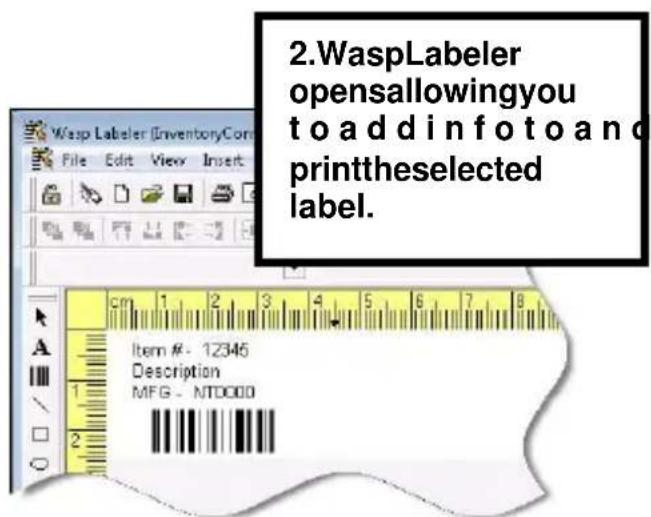
Figure13
To create a custom label, highlight the Create New Label option on the Labels List.
Whensavingnewlabelsyou'vecreatedwithWaspLabeler,theywillbelisted with the default names shown on the Labels List. The files will automatically savetothe.LABfilesinthefoldercalledLabelsinthefolderwhereyouinstalled theInventoryControlsoftware.Ifyouareunsurewherethisis,justusethe
Windows Find (or Search) command to locate the folder containing the file InventoryControl.exe,thensaveyour.LABfilesintheLabelsfolderbeneathit. Youcanchangethefilenameand/orsavetoadifferentlocation,ifneeded.
FordetailedinstructionsonusingWaspLabelertocreatelabels, pleasereferto theWaspLabeleronlinehelp. YoucanaccesstheonlinehelpbyopeningWasp Labeler and pressing the F1 key or by selecting Help > Contents.
BusinessExamples

Figure14Figure15

Step5:EnterorImportYourSuppliers
Suppliersarethosebusinessesorindividualsfromwhichyouwillbeobtaining yourinventory.YourbusinessmightrequirethateachIteminyourinventory haveanassociatedsupplier.Youcanhaveonesupplierormanyprovidingyou withinventory.
HowtoAddSuppliersto InventoryControl
AswithSitesandLocations,thereare twowaystoaddsupplierstoyour database:
- ImportYourSuppliers—
Thisoptionisthequickest methodifyouhavemany supplierstoadd.Fordetails onimportingdata,please seeChapter3inthis manual,orrefertoyour onlinehelp.

TIP:Ifyouhavechosen toimportyoursuppliersor manuallyenterallsuppliersprior toaddingitems,youshouldprint andreviewthe SupplierReportto makesurealltheinformationwas enteredcorrectly.Torunthe SupplierReport, from the InventoryControlMainWindow, selectthe Reportsicon.Onthe SelectReportscreen,double-clickSupplierReport.
- Manually Add Suppliers before you add Items – This option allows you to directly access the Create New Supplier screen (Main Window > New>Supplier) andenteryoursuppliers. Again, if you will be adding
manySuppliers,youwillwanttoconsiderimportingthem.If,however,youareonlyaddingafew,orifyouneedtoaddadditionalSuppliersafterimporting,thisisthequickestmethod.

Figure16
BusinessExamples


BusinessType:DistributingandFleet-Multiple SuppliersforEachItem
SebastianDistributinghasestablishedrelationshipswith manydifferentsupplierstoobtaintheirgoods.Whichsuppliertheyusefora particularitemvariesdependingonhowmuchtheyareorderingandwhatSite (warehouse)theyareorderingfor.Duethothis,theywanttobeabletoassociate morethanonesupplierwitheachitemandbeabletomarkapreferredsupplier forsomeitems.Todothis,theysimplyimporttheentirelistofsupplierssothey arealladdedtothedatabaseatonce(fordetails,refertoChapter3-Importing intotheDatabase).Later,aftertheyaddtheitems,theycanassignasmany suppliersasneededtoeachitemanddesignateoneasthepreferredsupplier. Sinceallofthesuppliersarealreadyinthedatabase,theycanquicklyselect whichsupplierstoassociateratherthanhavingtoentereachsuppliermanually. Theycanevendesignatespecificshippingunitsofmeasureforeachsupplierto usefororderingtheitem.We'lltalkmoreaboutaddingitemsinStep6.
As with Sites and Locations, they make sure the Supplier Code is number and the SupplierDescriptionisthedetaileddescription.

BusinessType:Reseller-OneSupplierforSomeItems
Brady's Bargainshasalistofsuppliersfromwhichtheyregularly receive certain itemsthattheyhavebeenmaintainingbyhand.They will manually input these suppliers on the Create New Supplier screen before theyaddtheitems.Theycanlatermanuallyassociatethesupplierstoanitem using the Edit Item screen/Manage Suppliers tab. Since they are using the StandardversionofInventoryControl,theyarelimitedtoenteringonesupplier andoneshippingunitofmeasureforeachitem.
| AlsoavailableinthelnventoryControlHelp... | |
| ForMoreInformationOnThis Subject | TypethisinthelndexTab... |
| UsingtheCreateNewSupplier Screen | CreatingNewSuppliers |
| UsingtheManageSupplierTab ontheCreateNew/EditItem screen | CreatingNewItems |
Step6:EnterorImportYourItems
Items represent the actual material of good that you will have in your inventory. An item Inventory Control contains general information, such as manufacturer, suppliers, adescription of the item and unit of measure information. The item is not part of your inventory until you add quantity to it and specify allocation for it (Step 9). Forexample, you might create an Item entry for Mouse-Wireless, then you can add inventory, or quantity, to that it tematas specific location.
HowToAddItems
- Manually Add Items to the Database – You can use the Create New Item screen (Main Window > New > Item) to add individual items. We recommend you manually enter your items so you can take advantage of all the features available in InventoryControl. Many of the fields available to captured data in InventoryControl are not part of other inventory systems, so they will not be populated by importing. Manually entering items ensures you enter information in all important fields, allowing you to make full use of InventoryControl's feature-rich design.

Figure17
- Import Items into the Database - If you already have item information contained in another database, you may want to use Inventory Control's import function rather than manually entering in this information. Form more information on importing, refer to Chapter 3 in this manual, or referto the online helpt option titled Importing into the Database. If you choose to import your items, were recommend you manually go through each on the Item screen and makes sure all information is entered.
BusinessExamples

Business Type: Distributing – Items with Preferred Suppliers
Sebastian Distributing has many items in their existing databases to they will be importing their item information (see Chapter 3 for details). They alsowanttostreamlinethepurchaseorderprocessfortheir employees. Many items are typically ordered from the namesupplier, so they manually enter the preferred supplier information on the Manage Supplier stab on the Edit Item screen for each item after they are imported. They also set up the preferred shipping unit of measure for each supplier on that stab. By doing this, the preferred supplier information and associated preferred unit of measure will appear on new purchase orders as soon as the item is added to the order.
Another time-saving step they take a task to make sure all Item Codes are scannable and entering the longer, descriptive name in the Item Description field. If you
needideasonhowtolabelyouritems,referto Chapter1-WhereDoIStart Basics.
Theywillalsobetrackingsomeitemssohemakessureheimportsthis information correctly. Refer to Chapter 3 – Importing into the Database for detailsonimportingtrackinginformation.
BusinessType:Fleet-ItemswithPrimaryLocations
ItemsaretypicallyassignedtothesamelocationsinRusty'sCable Company. Theyhavesetuptheirsitesasvehiclesandeachvehicle containsbasicallythesamelocations. Therearebinsforcertain typesofcables,abinforremotes,arackforcableboxes,etc.Theconfiguration foreachvehicleisthesame.Foreachitem,theywanttodesignateaprimary locationwithineachsite(vehicle).Bydoingthis,whenauserreceivesoraddsan itemusingthemobiledeviceoronthePC,forexample,theprimarylocationwill automaticallyappearonthescreen,savingtheemployeefromhavingtosearch forit.(Thelocationcanbechangedtosomethingotherthantheprimary,if needed.)Thisistrueforpickingorremovinginventoryaswell-theitemwillbe removedfromtheprimarylocation.
DesignatingprimarylocationswillworkforRustyinconjunctionwithhisSite ConfigurationsdiscussedinStep3.Sincehecanetaprimarylocationforeach item in each site, and he will have each mobile device's From/To sites set to the specificvehicle,theitem'sprimarylocationforthatvehiclewillautomatically appear.
Tosetupprimarylocations, Rustycansimplyimporthisitemsmakingsurethe importfilecontainsacolumndesignatingtheitemashavingapreferredlocation. Whentheyimporttheirinventory, theycanthenassignthatlocationtotheitem. For details on this process, refer to Chapter 3 – Importing into the Database.
BusinessType:Reseller-ItemsImported
Brady's Bargains importstheiritemlistfromtheirexistingExcel spreadsheet. Theywillalsobetrackingsomeitemssotheymake
suretoimportthisinformationcorrectly. Referto Chapter3—Importingintothe Databasefordetailsonimportingtrackinginformation.
Step7: CreateItemBarcodeLabelsforScanning
Nowthatyouhaveenteredyouritemsintothesystem,youcanprintbarcode labelsforthemusingtheintegratedWaspLabelerapplication.WaspLabeler installedatthesametimeyouinstalledInventoryControl.Forinstructionsonhow toprintlabelsusingWaspLabeler,pleaserefertotheLabeleronlinehelp.
Therearesomepre-builtlabelsyoucancreatedirectlyfromInventoryControl. To access these pre-built labels, click the Labels icon on the Main Window. The
LabelsListwillappear.Simplyhighlightthelabelyouwanttocreate,thenclick the OK button. Wasp Labeler will automatically open allowing you to print the selectedlabels.Tocreateacustomlabel, highlighttheCreateNewLabeloption ontheLabelsList.
Therearesomepre-builtlabelsyoucancreatedirectlyfromInventoryControl (MainWindow>Labels).
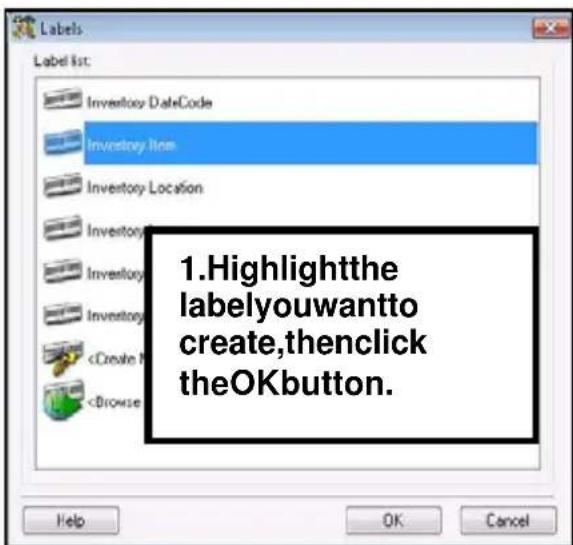
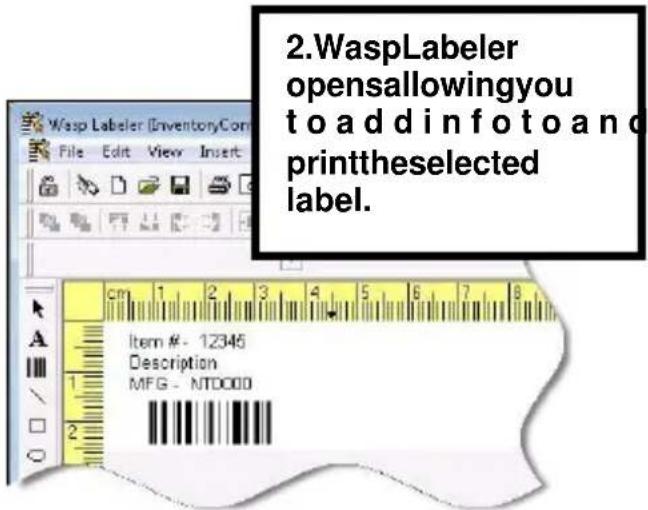
Figure18
Whensavingnewlabelsyou'vecreatedwithWaspLabeler,theywillbelisted with the default names shown on the Labels List. The files will automatically savetothe.LABfilesinthefoldercalledLabelsinthefolderwhereyouinstalled the software. If you are unsure where this is, just use the Windows Find (or Search)commandtolocatethefoldercontainingthefileInventoryControl.exe, thensaveyour.LABfilesintheLabelsfolderbeneathit.Youcanchangethefile nameand/orsavetoadifferentlocation,ifneeded.
Step8:AddInventorytoYourItems
Afteryouhaveaddeditemstoyourdatabase,youarereadytoaddinventory,or quantitytothoseitemsatspecificlocations.Addinginventoryisoftenreferred to asreceivinginventory.YoucanthinkofthisstepasstockingtheInventoryControl programwiththeinventorythatisinyourwarehouse.Rememberthatinventory isnotthesamethingasitems,eventhoughinventoryismadeofitems.Adding inventorytoanitemmeansyouareaddingquantitytothatitem.
Whenyouareaddinginventory,youwillenterinformationspecifictoyour inventorysuchasLocation,QuantityandCostaswelllasspecifictrackedby informationsuchasserialnumbers,datecodesandpalletcodes.Eachtimeyou addinventoryforanItem,thetransactionisstoredseparatelyinInventoryControl allowingformultipleLocationsandcostaveraging .
How to Add Inventory to Your Database
- Add Inventory via the PC or a Mobile Device –You can manually add inventory to items using the Add inventory screen (Main Window>Inventory>Add). This is the recommended method for addinginventorytoyoursystem.Manuallyenteringinventoryhelps ensureyourcostdataandcountsarecorrect.Beforeyouadd inventory,youshouldaudit,orcountyourinventorytomakesureyour countsarecorrect.
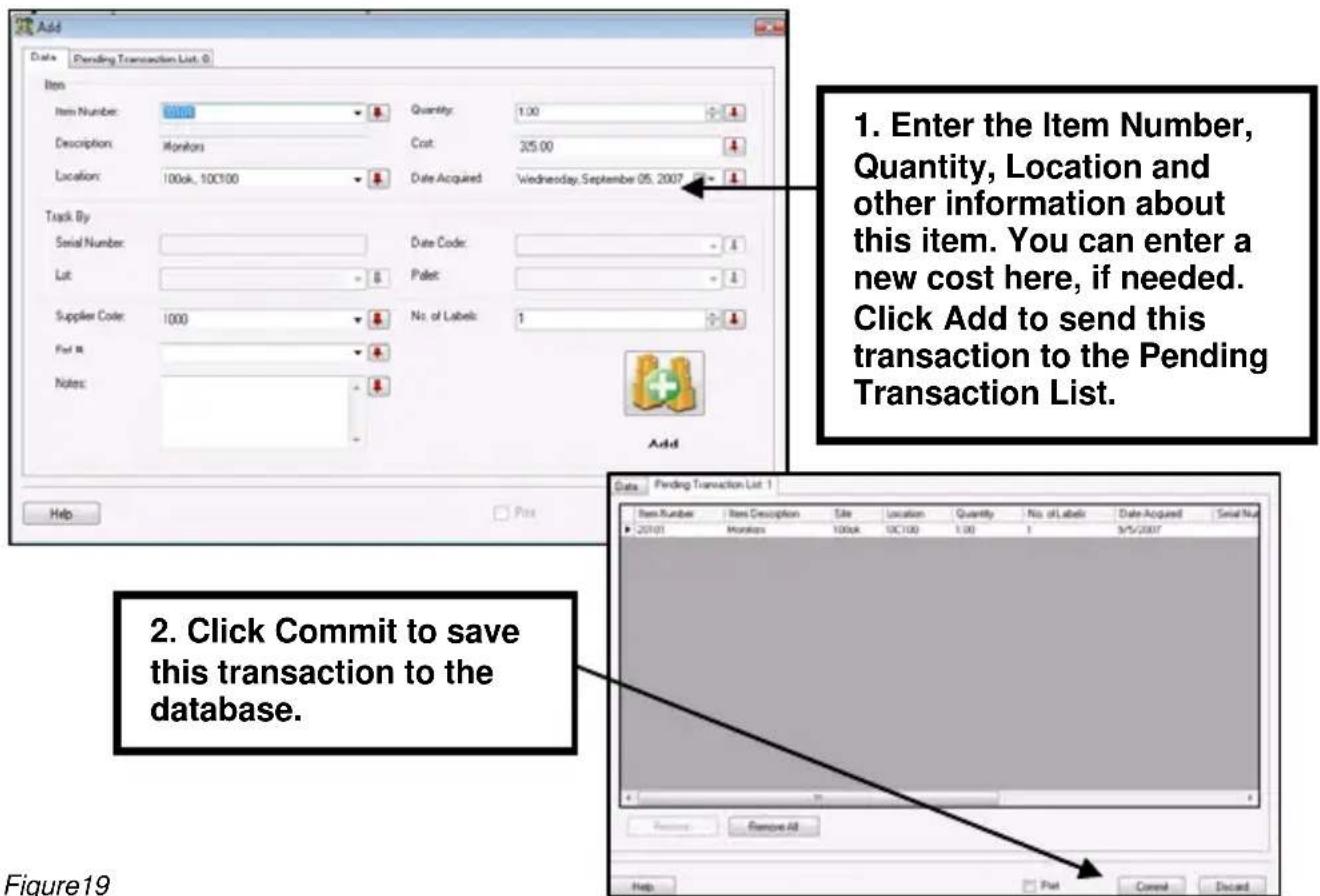
Figure19
ForinformationonusingtheAddscreenontheMobileDevice,please refertotheonlinehelp.ForinformationonsettingupandusingMobile Devices, please refer to Chapter 4 in this manual or refer to the online help.
- Import Your Inventory –For details on importing data, please see Chapter3inthismanual.Chapter3alsocontainsinformationonhow toimportyourtrackedbyinformation. Wed o not recommend importingyourinventory.InventoryControldoesnotimportcost information.Thismeansthefirstaveragecostandvaluationdataisat zero.
Inaddition, importing assumesthe counts in your previous system are
correct. If you do import, you should perform an audit of your inventory immediately after importing (before any transactions are performed on the data). See Chapter 5 form more information on auditing your inventory.
If you choose to import your inventory, you MUST run a backup of your systemBEFOREyouimporttheinventorydata.Namethebackupfile somethingthatindicatesitwasrunimmediatelypriortoimporting inventorysoyoucaneasilyidentifyitifneededlater.Ifyoufinderrorsin yourimportfileafteryouimportinventory,youwillneedtorestorethis backuptoreturnthesystemittothepre-importstate(yourother informationwillbethere).Thenyoucanfixtheimportfileasneeded andre-import.****DONOTre-importafteryouhavealready importedinventorywithoutfirstrestoringthebackup.****Re-importingoverexistinginventorydatawillsimplyaddmoreinventoryto youritems,ratherthanfixingproblemdata.Forexample,ifinventoryfor anitemwasimportedwithaquantityof20,butthequantityshouldhave been22,fixingthefileandre-importingwithoutrestoringthebackupwill changethequantityofthatitemto42,ratherthan22(thenewquantity willbeaddedtowhatwasalreadyimported).Plus,allotheritems includedinthefilewillhaveadditionalinventoryaddedtothemaswell.
BusinessExamples
BusinessType:Distributing-AddingInventory
SebastianDistributinghasbeeninbusinessformany years, and has used a different inventory system before upgrading to Inventory Control. To add her inventory, Pat considersimportingtheinventory,sinceshehasmanyitemstoenter.She knowsthatbymanuallyenteringherinventoryshewillbeassuredthatall informationneededbyInventoryControltomostaccuratelyandefficientlytrack herinventoryandproducethebestreportswillbeentered.Withthisinmind,she decidestotakethetimetomanuallyenterheritems.Tohelpspeedtheprocess, sheexportsthedatafromheroldsystemandprintsitoutsoshecanuseitasa guide.Whileshedecidestocreatenewitemnumbersfollowingthepattern describedinthismanual,shealsoenterstheolditemnumberfromtheprevious systemintheAltItemNumberfieldtouseasacross-referenceduringthe transitionperiod.
BusinessType: Reseller-Adding Inventory with No Prior Inventory Software
Brady's ResellerpreviouslykepttrackoftheirinventoryviaExcel. Because they had a complete spreadsheet containing all of their items and inventory counts forth those items, they can import this information. Ford details, pleasereferto Chapter3—Importing into the Database.
| AlsoavailableinthelInventoryControlHelp... | |
| ForMoreInformationOn...TypethisinthelIndexTab... | |
| UsingtheAddInventoryScreenManuallyAddingInventory | |
| AddingInventoryonaMobile Device | WindowsMobileDevice-AddingInventoryWDT2200-AddingInventory |
| HowtobackupthedatabaseBackinguptheDatabase | |
| HowtorestorethedatabaseRestoringtheDatabase | |
Chapter3: ImportingDataintoInventoryControl
InventoryControlallowsyoutobringdataintotheprogramfromexternalsources in.csvor.txtformat. Thisallowsyoutoquicklyaddinformationtoyourdatabase
ratherthanhavingtomanuallyaddit when you are initially setting software.
If you have been using a different inventory software prioritizing purchasing Inventory Control, we strongly recommend that you export your data from your old software and import it into Inventory Control. Not only will this save you a great deal of time, it will also help ensure the integrity of your database eliminating the possibility of ty pos or information entered incorrectly.
GettingInformationFromaDifferent Application
UsetheExportfunctiononyourold inventorysoftwaregetthedataoutof thatdatabase.Asmentionedabove, yourdatamustbeina.txtora.csvfile. Thesearesimplytextfiles.Comma-separated,or.csv Values,isatypeof dataformatinwhicheachpieceofdata isseparatedbyacomma.Thisisa popularformatfortransferringdatafrom oneapplicationontoanother,because mostdatabasesystemsareableto importandexportcomma-delimited data.
Forexample,datapulledfroma databaseandrepresentedincommadelimitedformatlookssomethinglike thefollowing.Eachcolumnvalueis separatedbyacommafromthenext column'svalueandeachrowstartsa newline:
Importing Tips
- DonotuseImporttomodify existingrecords.
- Importeddatawillbecutoffif fieldlengthsexceedthose withinthedatabase.
- Youmuststripoutall currenciesymbols,including (butnotlimitedto)these examples:\,¥,£,\,or□,if youareabouttoimportthem intoanumericfield,suchas Cost, List Price, etc. They arepermissibleintextfields.
- Commas, sometimes used as "thousands" separators, should be removed from numeric fields.
- Commasareallowedintext fieldsonlywhentheyare withinapairofdouble quotes,whichwillcause themtobetreatedasnormal text,notasfielddelimiters.
- If you intend to import data to all available tables, make sure you import in the order specified in this chapter.
"Adams", "Jane", "46", "female", "NewYork"
"Doe", "John", "32", "male", "California"
Notallsoftwareprogramswillexportinto.csvor.txtformat.Ifyourcurrent softwaredoesnotexportintothecorrectfiletype,youwillneedtoconvertyour filesbeforeyoucanimportthemintoInventoryControl.Youcaneasilyformat yourfilesbyopeningtheexportedfileinyourfavoritespreadsheetapplication thatexportsto.csv(suchasMicrosoftExcel ^© )andchangethedatatofitthe InventoryControlformat.Tohelpyoucorrectlyformatyourfilesforimport,we haveincludedimporttemplatesontheinstallationCD.Thesefilescanbefound ontheImportSamplesfolderontheinstallationCD.Thisfilecontainsthecorrect headerinformationandonerowofsampledata.Whenformattingyourfiles, keepImindthatthecolumnsdonothavetobeinthesameorderasthoseinthe samplefiles,butthecolumnheadersdoneedtomatchexactlytobe automaticallymapped.Ifyoudonothaveheadersoriftheydonotmatch,you willbegiventheopportunitytospecifywhichcolumnshouldgowwithwhichdata field. This process is explained in the Mapping Your Data section of this chapter.
ImportOrder
Data must be imported into the database in the following order:
- Sites
- Locations
- Suppliers(Optional)
- Manufacturers(Optional)
5.Customers(Optional)
6.Items - Inventory(Optional)
Theorderinwhichyouimportyour dataisimportantbecausesomedata containsotherdata.Forinstance, InventoryControlrequiresaSitewhen enteringanewLocation.Ifyoutryto importyourLocations,withoutfirst addingSites,InventoryControlwillnot
knowhowtohandlethedata, because there are no Sites in the system to assign each Location.
Youwillneedtohaveaseparate.txtor.csvfileforeachofthedatatypeslisted above.

TIP
Eventhoughsomedatainthe importorderlistisoptional,you stillneedtoimportinthis specifiedorder.Youcan choosenottoimportthe optionaldataatallif,for example,youwon'tbeusing Manufacturers.Ifyouwillbe importingManufacturers,you mustfirstimportSuppliers.
HowtoImportintoInventoryControl
InventoryControlcontainsaneasy-to-useImportWizard. This wizard will take you step by step through the import process. You cannot use the import function to edit data already in the database. Since importing adds information to the existing database, makes sure you donot import the same file twice. In addition, makes sure the data in your file does not already exist in the database.
From the Main Window, click Administration > Import. The wizard will take you throughaserisofstepsallowingyoutoselectthefiletoimportandthetableto whichyouwanttoaddthedata.(Atableissimplytherepositoryforthe informationinthedatabase).So,forexample,ifyouareimportinglocations, selectLocationfromthe Tabledropdownlist.
Next you will specify the field Delimiter used in the file from which you are importingdata.Delimitersareusedtoseparatethadataitemsinadatabase(the columnsinthedatabasetable)whentransportingthedatabasetoanother application.Forexample,acomma-separatedvaluesfile(.csvfile)isonein whicheachvalueinthecellsofatablerowisdelimited,orseparated,fromthe nextvaluebyacomma.Thebeginningofarowisindicatedbyanewline character. For .csv files, you should always select Comma as your delimiter.AnyofthecharactersshownintheDelimiterdropdownboxcanbeselectedfor .txtfiles.
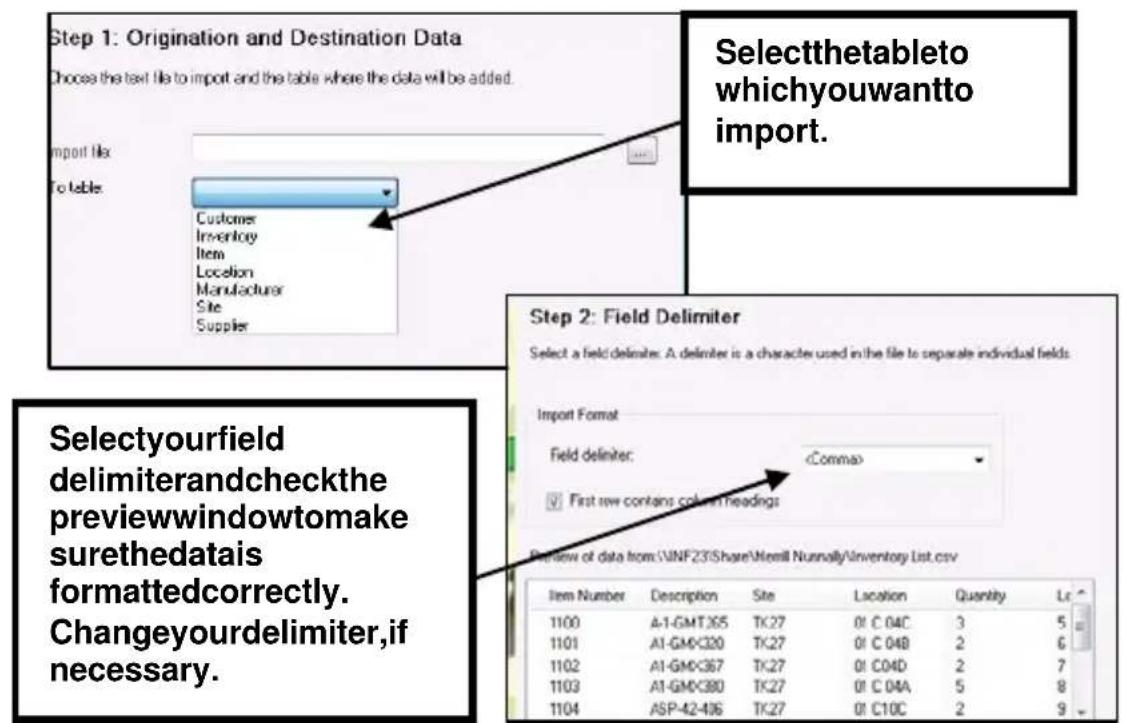
Figure20
Mapping YourData
TotellInventoryControlwhichfieldinthesoftwarecorrespondswitheachpiece of data in your import file, you can Map the data. This process allows you to select an InventoryControlfieldandmatchittodatainyourfile.Theimport wizardcanautomaticallymapthecolumnsinyourimportfilestothecorrect columninthedatabaseifthecolumnheadermatchesonethatthewizardis lookingforandthedatatypeiscorrect.Inorderforautomaticmappingtowork, youshouldedityour.csvor.txtfiletocontainthesamecolumnheadersasthose usedinInventoryControl.Youcanlookattheimporttemplatesfoundinthe ImportExamplesfolderonyourinstallationcd.These.csvfilescontainthe correctheadernameandonerowofsampledata.Matchyourdatatothe sampledatatohelpyouselecttherightheadernameforyourdata.
Whetheryouaremappingyourcolumnsduringtheimportprocessviatheimport wizardormatchingthedataonyourimportfilestotheimporttemplates,youwill findthatselectingthecorrectheadernameisusuallyverysimple.Theheaders usedforthedatainInventoryControlaremostlyself-explanatory.Forinstance,if yourimportfilecontainsserialnumbers,youshouldselectSerialNumberforthat data on the Mapping screen, or make sure the header for that data in the import fileisSerialNumber.Ifyouhavetroubleunderstandingwhichheadertoselect ontheMappingscreen,refertothesampledataontheimporttemplatetogetan ideaofthetypeofdatacontainedundereachheader.

Figure21
Importing Tracked By Information
InventoryControlallowsyoutotrackyourinventorybySerialNumber, Lot, Pallet orDateCode. ThesefieldsareTrue/Falsefieldsandcanbeimportedwithyour Itemdata. If you are manually entering your data, there are checkboxes you can select to activate the track by fields. To import this data, you can add a column or column to your Item import file with the header Serial Number, Lot, Palletor DateCode and enter 1 for true (meaning you will be tracking by this field). Enter 0 for false.

flowchart
graph TD
    A["Serial Number"] --> B["Lot"]
    B --> C["Date Code"]
    C --> D["Pallet"]
    D --> E["Ref #"]
    style A fill:#f9f,stroke:#333
    style E fill:#bbf,stroke:#333
Figure22
Youcanimporttheactualvaluesforthesefields(theserialnumber,lotnumber, etc.)whenyouimportInventoryyoucanmanuallyediteachitemyou imported.
ImportingInventory
Importing your inventory is optional. It is equivalent to manually adding inventory at the PC. Quantity and Location data, imported along with an Item Number, increases Item quantities in the database. If you do choose to import this information, there are a few special considerations.
- From and To Sites: InventoryControl allows you to select default From Sites(whereinventoryisoriginallylocated)andToSites(whereinventory canbeemoved).ThesearesetontheSelectSitescreen.Thevalue specified in the Select Site screen/From Site field can impact the Locations intowhichimportedInventoryinformationwillberecorded.Whensomething otherthan
- Item Number, Quantity, Site and Location are all required fields for importing into the Inventory table. If Inventory Control finds apreviously unknown value for the Item Number, Site, Location, or Supplier, a new
Item Number, Site, Location or Supplier Code will not be created using the new value. Instead, the Inventory record being imported will be rejected. This is why you must import your data in the orders specified earlier in this chapter. Negative values for Quantity can also cause an Inventory record to be rejected. Rejected data will appear on an error report. You can manually enter therejelected data, or correct your csv or txt file and try to import again. See the section titled Handling Import Errors found later in this chapter form more information.
- If the items you previously imported had one or more Tracked By fields enabled(settoT),theinventoryrecordyouarenowimportingmustcontain thevalueforthatfield.
Let'suseitemstrackedbyserialnumberasanexample.Eachpieceof inventoryforthisitemwouldneedtohaveauniqueserialnumber.So,ifyou imported item #1001 with a column labeled "Serial Number" containing a valueofT(true),thentheinventoryrecordforitem#1001 mustcontainthe actualserialnumberornumbers.Ifyouwanttoaddaquantityof3atone locationforitem#1001,yourinventoryimportfileshouldhave3rowsfor #1001,listingthesamelocation,buteachhavingauniqueserialnumber.
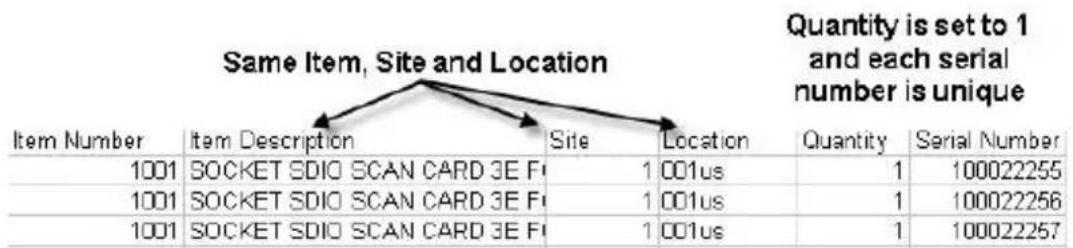
Figure23
If this data is not found for item in the inventory record, there record will appear on your error report.
Other Tracked By values differ slightly in that they do not have to be unique foreachpieceofinventory.Youcanhavemultiplepiecesofinventoryforan itemwiththesamedatecodeorlotcode,forexample.Inthiscaseyour InventoryfilewouldneedtohaveindividuallistingsforeachLocationinto whichyouwanttoaddinventoryfortheitem.
HandlingImportErrors
If the information you import contains any errors, am message will appear when you click the Finish button telling you to check the error report. The report will automatically appear.
Itisnotuncommontogeterrorswhenduplicatesoccurinyoursource
data.Duplicateerrorscan usuallybeignoredandthe Importcanbeconsideredto havecompletedsuccessfully. Forothererrortypes,locate theerrorreferencedinthe Errorreportandcorrectitinthe file.Thenyoucanmakeanew importfile(.txtor.csv) containingonlytheserecords andimportagain.Ifthereare justafewerrors,itwill probablysaveyoutimeto entertherecordsmanually, ratherthancreatinganewfile andimportingagain.
| Import-Export Error Report | |
| Process Type:Error Number:Error Description:Original Data: | Import:Invalid item number: Item number does not exist!1100,A-1-GMT265,TK27,01 C 04C,3,5,34523 |
| Process Type:Error Number:Error Description:Original Data: | Import:Invalid item number: Item number does not exist!1101,A1-GMX320,TK27,01 C 04B,2,6,56745 |
| Process Type:Error Number:Error Description:Original Data: | Import:Invalid item number: Item number does not exist!1102,A1-GMX367,TK27,01 C04D,2,7,12378 |
| Process Type:Error Number:Error Description:Original Data: | Import:Invalid item number: Item number does not exist!1103,A1-GMX380,TK27,01 C 04A,5,8,65489 |
Figure24
CommonImportQuestions
InventoryControlallowsmetosetupsuppliersforeachitem.Canlimport mypreferredsuppliersformyitems?
Although this ability may be added in the future, importing supplier information tied to individual items is not allowed at this time. Totake advantage of the time-saving ability of entering in preferred supplier information for your items, you can import your suppliers and items, then go to the Edit Item screen (Main Window > Edit > Item), click on the Manage Suppliers tab and enter the supplier information as needed.
Canlimportpreferredorprimarylocationsformyinventory?
Yes.InyourInventoryfile,makesurethereisacolumnlabeledPrimaryLocation with a value of T (true) and a column labeled Location containing the location code.Rememberthatthelocationmustalreadybeinthedatabase,meaning youmusthavealreadyimportedormanuallyaddedyourlocations.Unknown locationswillgenerateanerrorandtherecordwillberejected.Ifyourfilehas morethanonelocationmarkedastheprimarylocationforaninventoryitem,the firstlistingwillbedesignatedastheprimaryandsubsequentlistingswillbe ignored.
importedcustomdata.Whydon'tlseeitinInventoryControl?
InventoryControlallowsyoutoimportormanuallyentercustomtext, numbers anddatesonmosttypesofdata. Youcanimportcustominformationsimplyby mapping the columns containing the data to the fields labeled Custom Date, CustomNumber, etc. Afterimporting, "turnon" thecustomdatabyenablingthe
feature on the Options screen. To do this, from the Main Window click Tools > Options. On the Options screen, click on Edit Field Names, then select the Yes checkbox. When you return to the Edit screen (Edit Item, for example), you will need to click on the custom field header to open the Custom Field Edit screen. In this screen, select the Visible checkbox. Now the data in the field will be shown on the Itemscreen.
Whyismyimporteddatanotpopulatingthecorrectfieldsin InventoryControl?
Thecolumnsinthedatabasewernotmappedcorrectlytoyourdata.Ifthe mappingisoff,thedatawillappearinthewrongfields.Pleaserefertothe MappingYourDatasetioninthischapterformoreinformation.
WhenIlookedatthelImportSamplefilesInnoticedthattherearecolumns forMinStockandMaxStockonboththeltemandInventoryfiles.Are thesethesamething?
No. The Minimum and Maximum Stock level columns found on the Item file will set your minimum and maximum stock levels for that item throughout all locations. The Minimum and Maximum Stock levels on the Inventory file will set the stock levels for that item at that location. Forexample, let's say you import item number 1004 with Min Stock and Max Stock set to 50 and 100 respectively. This set the minimum stock level at 50 and the maximum stock level at 100 for this item overall, or the total of this item throughout all locations. Now if you import your inventory and set the Min Stock level at 10 and the Max Stock level at 70 at location 001 us, then the stock levels are set at 10 and 70 at that location only. You may have other locations that will have different stock levels for this inventory item.
YoucanalsoimporttheReorderQty(reorderquantity)forInventory.Remember that you can turn on the Automatic Notification of Low Order Items feature (Tools > Options) that enables InventoryControl to notify you when Minimum Stock Levelisreachedforanitemataspecificlocation.Areportwillappearwhenyou logontoInventoryControldisplayingallitemsthathavereachedtheirminimum levelsbylocation.Youcanusethisinformationtohelpyouknowwhenyouneed tocreatepurchaseorderstokeepyourlocationsadequatelystocked.
BusinessExamples

BusinessType-Distribution-Importingalldataduringinitial setup
SebastianDistributinghasbeenusingadifferentinventorysoftware forseveralyears.Duetothelargeamountofdatatheyneedto
enterintoInventoryControl,theyhavedecidedtoexportfromtheprevious softwareandimportintoInventoryControl.Firstsheexportsthedatafromher oldsysteminto.csvfiles.Sheunderstandsthatsomeoftheheaders,ordata
labels, used in the previous software on a match those used in Inventory Control. She knows that she has two options to match up (map) the data:
- shecaneditherimportfilesusingtheimporttemplates(foundonthe installationcd)asaguide,or,
- shecanuseherfilesasisandmanuallymapthecolumnsusing InventoryControl'sImportWizard.
Whenimportinglargeamountsofdata,itcanbemoretime-consumingtotryto manuallymapthroughthewizard,soPatdecidestoeditherimportfiles. BeginningwithSites,sheopenstheexportedfileandcomparesittotheimport template.ShemakessurealloftheheadersintheInventoryControltemplate matchthoseinherfile.Heritemfilealsocontainssomecustomdatessoshe makessurethatthesecolumnheadersarechangedtoreadCustomDate1,etc.Oncealloftheheadersmatch,sheimportsthatdataintoInventoryControland repeatsthestepsforeachfilesheisimporting.
BusinessType-Fleet
Thisbusinesspreviouslytrackedtheirinventoryusingadifferent softwareprogram.Tomakesuretheyutilizethefullpotentialof InventoryControl, they choosetomanually enter all information into the system. Though this will require alonger setup time, these business want to make sure they take full advantage of all Inventory Control hasta offer and don't want to miss using a feature because the needed information was not imported into the software.

BusinessType—Mid-sizedReseller—ImportingSome Information, ManuallyEnteringSomeInformation
Brady's Resellerisasmallantiquestorethathaspreviouslytracked inventorymanuallyinExcel. Whentheypurchasedanewitemforthestore, they createdanewentryinacellintheirspreadsheetand, iftheyboughtmorethan oneofthatitem, theyassignedaserialnumbertoeachitem. Becauseofthe natureofthebusiness, theyhavealotofsingleitemsthattheyreceiveinventory foronoccasion. Sincethereisonlyonesite, onelocationandnosuppliers, they wanttoimportonlytheitemsandmanuallyentertherestoftheinformation.
Todothis, BradymanuallyenterstheSiteandLocation.Hedoesnothaveany Supplier,ManufacturerorCustomerdatatoenter.Sincetheseareoptional,he canimporthisitemsnow.Assomeitemswillbetrackedbyserialnumber,he addsacolumntohisExcelfilewiththeheaderSerialNumberandentersT(true) forthoseitemsthatwillbetrackedbyserialnumberandF(false) forthosethat willnot.TheExcelspreadsheetalsocontainstheactualserialnumbersforthose items,whicharenotimportedwiththeitemdata.Theactualserialnumbersare importednextwiththeinventorydata.Bradyleavesthesenumbersinthefileas
heknowsInventoryControlwillsimplyignorethedatathatisnotmappedtoa header.Nowhecheckstheothercolumnheaders,suchasItemNumber,Item Description,etc.againsttheimporttemplatefilefoundontheinstallationcdto makesuretheheadernamesmatchthoseinInventoryControl.Afterheeditshis headerstomakethemmatch,hesavesthefileas.csvandheisreadytoimport.
Afterheimportshisitems,anoticeappearsinInventoryControlforhimtocheck his error report. He clicks OK on the notice and the error report appears. He reviewsthereportandseesthatonlyduplicateitemsarelisted.Thisisfineas theduplicatesareignoredbyInventoryControl.Next,hecheckstheltemListin InventoryControltomakesurehisitemsimportedcorrectly.Nowheisreadyto addhisinventory.Hedoesthismanually.
| AlsoAvailableinthelInventoryControlHelp... | |
| ForMoreInformationOn...Type thisinthelndextab... | |
| StepstoimportdataImportingIntothe Database | |
| SpecificInformationonfield names,datatypesandsizes | ImportSpecifics |
| Howdatafieldsrelatetoone another | RelatedDatafields |
| HeaderandDataType informationforautomaticfield mapping | ImportSpecifics |
Chapter4: WorkingwithMobileDevices
If your business consist of various warehouses, storagerooms, vehicles, or any site/location where a great deal of inventory is kept and transactions are performed, a handheld mobile device is an indispensable aid.
GettingStartedUsingaMobileDevice
InventoryControlworkswithtwotypesofmobiledevices:theWDT2200and WindowsMobileDevicessuchastheWDT3200.Whenselectingadevice,itis importanttounderstandthedifferences,andlimitations,ofthetwotypesof devices.WiththeWDT3200,youhavethebenefitsforthefamiliarWindows environment.Thisdeviceallowsyouto"pointandclick"usingastylus,which canenhanceusabilityandspeed.TheWDT2200isacommandenvironment whereyouusethekeypadonthedevicetomakeselections.TheWDT3200 boastsaruggeddesignthatwillholdupwellinawarehouseenvironment,andit containsmorememorythantheWDT2200soisthebestselectionforbusiness withagreatdealofinventory.TheWDT2200isthedeviceofchoiceforsmallto medium-sizedbusinesses.
Duringtheinitialinstallprocess,youcompletedseveralscreensdealingwiththe typeofmobiledeviceyouinstalled. ThisellsInventoryControlwhichtypeof deviceyouwillbeusing,andgetsthesoftwareareadyforconnectingtothe device.Ifyouskippedthesescreensorareaddingamobiledevicetoyour packageafterinstallation,youwillneedtoruntheInventoryControlinstallation CDagaintoinstalltheproperfiles.Whenthefirstscreenoftheinstallation wizardappears,clicktheModifyoption,thencompletethescreensasneeded. Makesureyouselectwhichmobiledeviceyouareadding,whenprompted.For detailsontheinstallationprocess,pleaserefertotheQuickStartGuidethat camewithyoursoftware.
Inaddition, when you were setting up the software after installation you created user profiles and assigned security to each user. You should have assigned security privilege to them mobile device to each user who will be using a device. If you need additional information about assigning security privileges, please refer to Chapter 2: Getting Started in this manual.
AfteryoufinishsettingupInventoryControlonthePC,includingaddingalldata (sites, locations, items, inventory) to the database, you can complete the mobile devicesetup.Thisprocessis4steps:
- Send the Inventory Control program to the device,
- CreateamobileversionoftheInventoryControldatabase
- Send the Inventory Control databasetothedevice.
- Retrievetransactionsfromthemobiledevice.
All of these steps are automated through the Mobile Devices Wizard in InventoryControl.Itisalsoagoodideatocreateabackupofyourdatabaseon thePCbeforesendingittothemobiledevice.
Step1: SendtheInventoryControlProgramtotheDevice
First, makesureyourdeviceisconnectedtothecomputer. If you need assistance connecting the device, pleaserefertotheuser's manual for that

TIP: Makesureyou
connectthemobiledevicetoyour computerbeforeyoustartusing theMobileDevicesWizard. InventoryControlshould automaticallydetectyourdevice onceitisconnectedtothe computer.Ifthedeviceisnot detected,refertotheMobile DevicesTroubleshootingsection intheOnlineHelp.
device. After you have connected the device, use the Mobile Device Wizard to send the program (Main Window > Mobility > WDT2200 or Windows Mobile/CE > Setup Device). Note: The WDT3200 is the same as the Windows Mobile/CE. When you are setting up your device for the first time, you will select Platform, Program and Clean Database, then click Install. The software will send them mobile version of Inventory Control, along with an empty database, to the device.
Asthesoftwareisinstallingonthe mobiledevice,amessagewillappear onthePCthatyoumayneedtoperform
additionalstepsonthemobiledevicetocompletetheinstallation.Ifyouare using Windows CE5, you can click OK on this message and disregard it. If you areusinganyotherversion,youwillneedtofollowthestepsonthemobile devicescreentocompletetheinstallation.

Figure25
Step2:CreateaMobileVersionoftheDatabase
NextyouwillcreateamobileversionofyourInventoryControldatabase.Thisis asnapshotofthedatabaseasitappearsonthePCatthetimeyoucreateit.

Figure26
CreatingDatabasesusingFilters
Keepinmindthatyoucanfiltertheinformationyouincludeinyourmobile databases.SendingyourentireInventoryControldatabasetoadevicemay

resultinslowperformanceify you have alotofinformation in your database. Filtering allows yout otail or the information that appears on the device to just those locations, items, suppliers, etc. that pertaintothat device.

TIP:Filteringthedatabasebeforesendingittothemobiledevices helpsthedeviceworkfasterandkeepstheuserfromhavingtosearch throughinformationnotrelatedtotheirjob.Keepinmind,however,thatify oulimitth data on a device to onesite,orones withinthatsite,forexample,thatyourusermayencounterproblemsifshe needstomoveanitemtoallocationthatisnotonherdevice.Sendingall datapreventsthisproblem.Ifyoudon'thavealotofdata,orifyoudonot noticeadecreaseinperformancetime,youshouldplanonsendingall datatoeachdevice.
certainl
Step3: SendtheInventoryControlDatabasetotheDevice
Nowthatyouhavecreatedthedatabase,youcansendittothemobiledevices. Todothis,plugthemobiledeviceintothePC.OnthePCtoMobileDevicetab of the Mobile Device Wizard, click Next. The screen will display a confirmation messagewhentedatabaseissent.Theusercanthenperformtransactionson themobiledeviceusingtheinformationinthedatabase.Oncetheuseris finishedmakingtransactions(adding,removing,receivinginventory,etc.)the mobiledatabasecanbesentbacktothePC,wherethenewdataismergedinto theregulardatabase.
Setup Mobile Device Create Mobile Database PC to Mobile Device Mobile Device to PC
Send Data to WindowsCE
This step will send mobile database to the portable device. Once it is completed, you should be able to start using the mobile device to collect data and perform transactions.
Please make sure that the mobile device is connected and powered on. Click the 'Next' button to start sending data.
Whenyouarereadytosendthedatabaseto thedevice,clickNextonthistabtobeginthe transfer.
Figure28
SendingUpdatestoaMobileDevice
Thedatabaseyoucreateandsendtoyourmobiledevice(s)isasnapshotofthe InventoryControldatabaseatthetimeyoucreatethemobiledatabase.Since changesaremadetothedatathroughtransactionsperformedatthePCor throughdatasentbackfrommobiledevices,youwillneedtosendanupdated databasetoyourmobiledevicesperiodically.Howoftenyoudothisdependson
howmanytransactionsaremadeonthedatabase.Usuallyitisagoodideato
sendanewdatabasetothemobiledevicesat thestartofeachworkday.
Creatingandsendinganupdateddatabaseto themobiledevicesisimportant, andalsovery easytodo.SimplyrepeatStep2-Createa MobileVersionoftheDatabaseand Step3-SendtheInventoryControlDatabasetothe Device, describedonthepreviouspage. You canrepeatthesestepsasoftenasnecessaryto keepthedatabaseonthemobiledeviceupdated.

TIP: Getin
thehabitofsendinga newdatabasetoeach mobiledeviceeach daytomakesureyour employeesare
working with the latest information.
Alwaysmakesureyoudownloadthe transactionsfromthePCbeforesendinganotherdatabase.Ifyoudoattemptto sendanewdatabasewithoutfirstdownloadingtheexistingone,awarning messagewillappearonthePCstatingthatunprocessedtransactionexistonthe mobiledevice.
RetrievingInformationfromaMobileDevice
Nowyouareupandrunningwithyourmobiledevicesandyouremployeesare busilycreatinginventorytransactionsontheirmobiledatabases.Attheendof eachdayorsession,you'llneedtosendthosetransactionsbacktothe InventoryControldatabaseonthePC.Aswiththeothermobiledevicesfeatures, InventoryControlautomatesthisprocessforyou.
Totransferthedata,connectthemobiledevicetothePCandaccesstheMobile Device to PC tab on the Mobile Devices Wizard (Main Window > Mobility > WDT2200 or Windows Mobile/CE > Get Data From) and click the Next button. ThedatacontainedonthemobiledevicewillbetransferredtothePCanda confirmationmessagewillappearonthe Wizardscreen.

Figure29
Click Finish on the Wizard screen and the Pending Uploads screen appears. Thisscreenlistsalltransactionsthatweretransferredfromthedeviceandnotes thosehatareduplicatetransactionsortransactionswitherrorsthatneedtobe resolved.Atthispointthatdatahasnotbeenenteredintothedatabase.Thisis yourchancetoedittheincomingdataortocorrecterrors.Forinstance,ifyou know that a Move transaction was performed, but the wrong To location was selectedonthemobiledevice,youcancorrectthatmistakeherebeforethat transactionbecomespartofyourInventoryControldatabase.Beawarethatthis is your ONLY chance to correct errors or change information on this data. If you wanttochangethecostonanitemthathasbeenadded,forexample,youmust doitnow.


Figure30
CommonMobileDevicesQuestions
BywhatcriteriacanthelInventoryControldatabasebefilteredtoproducethedatabasethat'sdownloadedtoamobiledevice?
SourceandDestinationSites(To/FromSites), arangeofLocationvaluesanda range of Item Number values can be specified in the Create Database screen's Filter section. (Main Window > Mobility > WDT2200 or Windows Mobile/CE > CreateDatabase).
BusinessExamples

BusinessType:Distributing-MultipleMobileDevices
Sebastian Distributing has several workers in both warehouse that use mobile devices. Because of the warehouse environment, and thefactthatthisbusinesshasalargeamountofinventory,theyhavechosento usetheWDT3200.
Atypicalworkdayforamobiledeviceuserisasfollows:
Thesupervisor creates and sends an updated database to each mobile device. The employee receives the device assigned to her area. She performs transactions (Adds, Removes, Receives, Moves, Picks) as needed throughout the day. At the end of the day, the return the device to the supervisor who transfer the transaction information back to the PC database. The supervisor then processes the transactions using the Mobile Device Wizard.

BusinessType:Fleet-MultipleMobileDevices
This medium-sized business uses the WDT2200.
Thefleetbusinesshaseachvehiclesetupasasite.Eachtruckhas it'sownmobiledevicethatthedriverusestopermtransactions.Eachdevice is set on the Site Configuration screen to the specific vehicle (site) to which it is assigned.
Atypicalworkdayforamobiledeviceuserisasfollows:
Thesupervisorcreatesandsendsanupdateddatabasetoeachmobiledevice. Theemployeereceivesthedeviceassignedtohisorhertruck. Thetrucksare restockedeachmorningbasedonthecallscheduleforthatday. Todothis, the user performs Move transactions on the mobile device moving the inventory from thestorageareatothetruck(andphysicallymovestheinventory). Theuserthen beginsmakingthecallsforthedayandremovesinventoryasneeded. For example, whenacableboxandremoteareremovedfromthetruckandleftwith
a customer, the user will use the mobile device to access the Remove screen, scanthebarcodetobringupthatpieceofinventoryandmarkitasremovedin thesystem.Attheendoftheday,theuserreturnsthemobiledevicetothe supervisorwhosendsthedatabacktothePCandprocessesthetransactions.

BusinessType:Reseller
Thisbusinessisnotusingmobiledevices.
| AlsoAvailableinInventoryControlHelp... | |
| ForMoreInformationOn...Type thisinthelndextab... | |
| Stepstosetupmobiledevices | WindowsMobileDevice-Setup MobileDeviceWDT2200-Settingupthe Device |
| Stepstocreateamobile database | WindowsMobileDevice-Setup MobileDeviceWDT2200-Settingupthe DeviceWDT2200-CreatingthePDT Database |
| Stepstosendmobiledatabase tothedevice | WindowsMobileDevice-Setup MobileDeviceWDT2200-Settingupthe DeviceWDT2200-SendingDatato PDT |
| Stepstoretrievedatafromthe mobiledevice | WindowsMobileDevice-RetrievingDatafromtheDeviceWDT2200-ReceivingData fromPDT |
Chapter5: Auditing Your Inventory
WhatisanAudit?
Sometimes referred to as “taking inventory”, Auditing is the process used to physically count the inventory you have in your warehouse, store, vehicle, etc. and comparing those count stow hat you haverecorded in Inventory Control. Auditing means you will have people in your sites and locations manually counting or scanning each piece of inventory. One of them any benefit sof using a mobile device with barcodescanning capabilitiesisthat you canspeedup the sometimes arduous counting process and help reduce errors. Rather than having towrited down counts, you or you employeescan quickly scan the label, enter the quantity and move on.
Afteryouhaveyourcounts,youcansendthedatabacktothePCwhere InventoryControlcomparesthenumberstotheinventorycountsinthedatabase. Youarenotifiedofdiscrepanciesandprovidedwithoptionstoresolveanyerrors.
WhyAudit?
Asmanybusinessownersknow,keepingaccuratecountsofinventoryisa criticalpartofmaintainingawell-runbusiness.Forinstance,ifaninventoryitem islistedinthesystemashavingmetitsreorderpoint,butthequantityinthe systemisbasedonaninaccuratecount,yourbusinesscouldendupwasting moneyonreorderinginventorythatwasnotindangerofbeingdepleted.Onthe otherhand,ifyoursystemlistsplentyofinventoryforanitemthatisactuallyator belowtheminimumstocklevel,youcouldbefacedwithtoollittleinventoryon handtofulfillorders,creatingacostlyback-ordersituation.Manybusiness ownersalsoknowthatgettingaccuratecountscanbeatime-consumingtask.
With these issues in mind, Inventory Control was designed with a built-in audit modethat allows you to conveniently conduct audits at the PC and one or more mobile devices while preventing access to such features as Remove and Add so that you can be confident you are getting accurate count comparisons.
AuditingBestPractices
Gettingagoodauditofyourinventoryismorethanjustsendingyouemployees outarmedwithamobiledeviceoraninventoryreport.Accuratecountsdelivered timelyandinanorganizedwaydependsontheamountofplanningandtraining donebeforetheauditeverstarts.Thoughplanningandtrainingmaysoundtime-consuminganddoesrequireaccommitmentoftimeandeffortfromyouandyour employees,itmorethanmakesupfortheeffortbyensuringaquickandaccurate countthatminimizesthedisruptiontoyourorganization.
- Plan Your Audit - Plan your audit date and time well in advance.
Thisisespeciallyimportantifyouhavemultiplesites,warehouses thatcontaininventory,forexample,thatwillbeinvolvedintheaudit. Sinceallsitesworkfromthesamedatabase,everyPCrunning InventoryControlwillneedtobeinAuditModewhenthecountsare beingdone.Thisensuresthatwhileinventoryisbeingcountedin onelocation,transactionsaren'tbeingperformedinanother locationthatwillchangethecountinthedatabase.Settingyour dateandtimeinadvanceallowseachsitetoadequatelypreparefor theaudit.
Planyourauditonaweekend,afterhoursorplantostopshipping andreceivingwhiletheauditisbeingconducted.Beawarethat youcannotstopandrestarttheaudit.OncethesystemisinAudit mode,itmustremaininAuditmodeuntilallthecountingisdone andthecountsarereconciled.Ifyourauditwilltakeseveraldays to complete,makesureyouplantheauditatatimewhent impacttoyourbusinesswillbeataminimum.
- Prepare for Auditing – Devise a method for counting rather than sendingyouemployeestoalocationtorandomlycount.Organize theauditbydividingtheworkusingitemnumber,geographicareas orlocationlists.Youcandivideupareastobecountedhoweverit bestsuitsyourneeds.Often,locationlistsareused.Each employeeisthengivenalocationorlocationsinwhichtocount.By givingeachemployeeasetareainwhichtocount,orasubsetof itemstocount,youpreventthesameitemfrombeingcounted twice.Ifyouwillnotbeusinghandhelddevicesforcounting,print listsofthelocationsand/oritemstheemployeeshouldcount.For example,youcouldprinttheItemsbyLocationreport.
Another part of your preparations should be to select a visual identifier to mark locations as counted when an employee finishes counting that area. You should purchase or produce enough of the set of mark allocations and they should be able to be written on so the employee can initial them.
- TrainYourEmployees—Trainthepeopleinvolvedaheadoftime onthemethodsyouwantusedandonhowtousethemobile devicesforcounting.Awell-trainedstaffperformingtheaudit meanscountswillbemoreaccurateandthattheentireprocesswill bequicker,resultinginlessdowntimeforyourbusiness.
Youshouldhaveapracticesessionwiththeemployeesusingthe handheldssoyouaresuretheyunderstandthedevice.Youcan evenhavepracticecountingsessionstomakesureeveryone understandswhatareatheyareassignedtoandwhatthecounting
procedureresshouldbe.
- BackupYourDatabase—Createapre-auditbackupofyour databaseonthedayofyouraudit,justbeforeputtingthesystem intoAuditMode.Thisisanimportantstepasitpreservesallof yourdatauptothispoint.Ifsomethinggoeswrongduringthe audit,youcanrestorethisbackupandreturnyourdatabasetoits pre-auditstatus.Werecommendyounamethisbackupsomething thatclearlyidentifiesitasyourpre-auditbackup.Youcanusethe formatbelowasaguide:
Pre-Audit-yyyy-mm-dd.bkp
- CreateMobileDatabases—Afteryouhavebackedupyour database,makesureallotherPCsrunningInventoryControlhave exitedoutofthesoftware. Thisensuresthatafteryouputthe databaseintoAuditMode,thereisnotanotherPCperforming transactions.Next,putthePCinAuditModeandcreateyour mobiledatabase.Youcanthensendthismobileauditdatabaseto yourmobiledevices.Thisssendsasnapshotofthepre-audit databasetothemobiledevicesanddisablesanytransaction featuressuchasadd,remove,pickandreceive.
If you are using more than one mobile device, you can filter the data that you send to that device. This enables you only include in the database the location and or item information that will be counted on that device.
- CountYourInventory—Nowyoucanbegincountingthe inventory. Theseshouldbe“blindcounts”, meaningtheperson whoisdoingthecountingshouldnotknowwhatthequantitylisted inthedatabaseis.Knowingwhatthecountsshouldbecanleadto honestmistakes-ifyouknow20shouldbethere,youmaylookat astackof18andsee20.Itcanalsopreventemployeesfrom counting18andentering20becausetheywanttospeedupthe audit,althoughadequatetrainingalsohelpsalleviatethisproblem.
Makesureeachemployeehasthe"counted"tagsfortheirlocation. Aftereachlocationiscounted,thetagshouldbemarkedwiththe initialsofwhodidthecountingandplacedinavisibleareaatthe location.
- Sync Back to the PC – After the counts are complete, sync the devicesbacktothePC. This send the counted datato the PC where you can process the transactions (send them to the database). Makes sure that all devices are accounted for before moving on.
- Review Reports – The Discrepancies report and Not Counted Itemsreportshouldbereviewednow.TheDiscrepanciesreportlistsanyitems,bylocation,forwhichthecountdidnotmatchthequantityinthedatabase.TheNotCountedItemsReportlistsanyitemsforwhichcountswerenotreceived.
- Spot-Check and Recount – You should spot-check some correctly counted items and recountal discrepancies. The person who recount should not be the same person who did the original counting and should not know how many of the item there should be.
Themobiledevicescanbeusedforrecounting.Whenyousync themtothePCagain,thenewcountinformationwilloverridethe previouscountinformation.
- Complete the Audit – When all spot checking and recounting is done, you can us the Complete Audits screentore concile any discrepancies.
- Print Reports – You can now print reports for your audit records.
- EndAuditMode—YoushouldendtheAuditModetoreturnthe softwaretoitsregularstate.Allfunctionswillbeenabledagain. Youshouldalsocreatemobiledatabasesandsendthemtothe mobiledevices.
Performingthesestepsmayseem time-consuming, but with proper planning, training and execution, the time you have well before you have devised your audit plan and you employeeshave performed at few times, the process will bespeduven more.
HowtoAuditinInventoryControl
AuditModeallowsyoutocheckthe countsofallyourinventorywhile disablingtheAdd,Remove,Move,Adjust,Pick,Receive,Check-Inand Check-Outfeaturestomakesure inventorycountsinthesystemdonot changewhileyouareperformingthe audit.Ifyouareusingmobile devices,youcanusethem

TIP:Togreatlyspeed
Up your audits, teach your employeeesto "pin" the item and/or location fieldsonthe mobile device. Pinning allows youtolockafieldonthemobile deviceorpc, thenscanin additional information. For example, if you are counting an item tracked by serial number, enter the item number once, pin the Quantity at 1, thenscan the item number label one each box tocounteachone. If you are using the WDT2200, this process is known as "looping" and done by pressing the F 3 kve
simultaneouslywiththePCtoperformanauditbydownloadingthedatabasein audit mode to each device. Audit Mode features a simple Audit screen that allowsyoutoenteryourcountsforinventoryineachlocationandcompares thesetothecountsalreadyinthesystem.Youcanthenviewthe CompleteAudit screentoreviewanydiscrepanciesbetweenyourcountsandwhatwasinthe system.Attheclickofabuttonyoucanreconcilethecountsoryoucanselect certaintransactionstoacceptorreject.InventoryControlalsocomesequipped with several Audit Reports that allow you to review a variety of information at-a-glance.
Inadditiontoauditingyourinventoryonasetschedule(onceayear,for example),youshouldalsoperformanauditimmediatelyaftersettingupyour system.Thisensuresthatthecountsyouimportedormanuallyenteredare accuratereflectionsofwhatyouhave.
TheauditprocessinInventoryControlisbrokeninto7steps:
- Createapre-auditbackupofyourdatabase. This step is very important and should not be skipped. If something goes wrong during the audit, having the pre-audit backup ensures that you will not lose any data.
- Start the Audit Mode on the PC. This basically creates a snapshot of your inventoryatthispointintime.Alltransactionfeaturesaredisabled soinventorycountscan'tchange.Ifyouareusingmobiledevices, createadatabaseofthesystemwhileinauditmodeanddownloaditto themobiledevicestobeusedduringtheaudit.
- Use the Audit screen or the mobile devices to enter counts (and sync themobiledevicedatabacktothePC).

Figure31
Formoreinformationonusingthemobiledevicestoaudit, pleaserefer totheonlinehelp.
4. Review the Not Counted Items Report.

Figure32
This report lists all items for which no count was entered on the mobile devices or on the PC. Reviewing this report helps you make sure no items are missed during the audit.
- Reconcile your counts entered in the Audit screen against the counts that were in the system using the Complete Auditscreen. You can access the Complete Audit screen by clicking the Reconcile/End icon on the Inventorymenu.

Figure33
6.ReviewtheremainderoftheAuditReports.

flowchart
graph TD
    A["Audit Reports"] --> B["Accepted Audit Discrepancies Report"]
    A --> C["Accepted Audit Result Report"]
    A --> D["Audit History By Audit Data Report"]
    A --> E["Audit History By Item Number Report"]
    A --> F["Not Counted Items Report"]
    A --> G["Unreconciled Audit Discrepancies Report"]
    A --> H["Unreconciled Audit Result Report"]
Figure34
7.EndtheAuditMode.
CommonAuditQuestions
CanluseInventoryControltoperformcyclecounts?
InventoryControl can be used for cycle counting, but the process is different from performingafullphysicalinventory.
Cyclecountingiswhenasmallportionofyourinventoryiscountedononeday,a
differentportioniscountedonanotherday,etc. Youcancountyoursubsetofitemsdaily,weekly, monthlyoronwhateverscheduleyoulike.This methodprovidesyouwithconstantdataonyour inventorycountsand,withcarefulscheduling, allowsallinventorytobecountedseveraltimesa year.Asanaddedbenefit,itdoesnotrequire thebusinessshutdownthatafull,yearlyauditof allyourinventoryrequires;therefore,youmay findthismethodlessdisruptivetoyouroverall businessneeds.Withcyclecountingyoucan alsohavehigher-pricedorfaster-moving merchandisecountedmoreoftensoyoucan makesuretheseitemsarealwaysaccurately stocked. Cyclecountingworkswellforlargerbusinessesforwhichatotalshut-downtocountallinventoryisnotpractical.

TIP: It's a
goodideatogetinthe habitofperforming cyclecountsonyour faster-moving merchandise.This helpsensurethese itemsarealways adequatelystocked.
Cyclecountsarelike"mini-audits"anditisagoodideatoperformthemseveral timestroughouttheyear,especiallyonfast-movingmerchandise.When performingcyclecountsinInventoryControl,counttheitemoritemsyouwantto include in the counts, then use the Adjust function (Main Window > Inventory > Adjust)toadjustthequantityupordown.Thisdoesnotrequireputtingthe
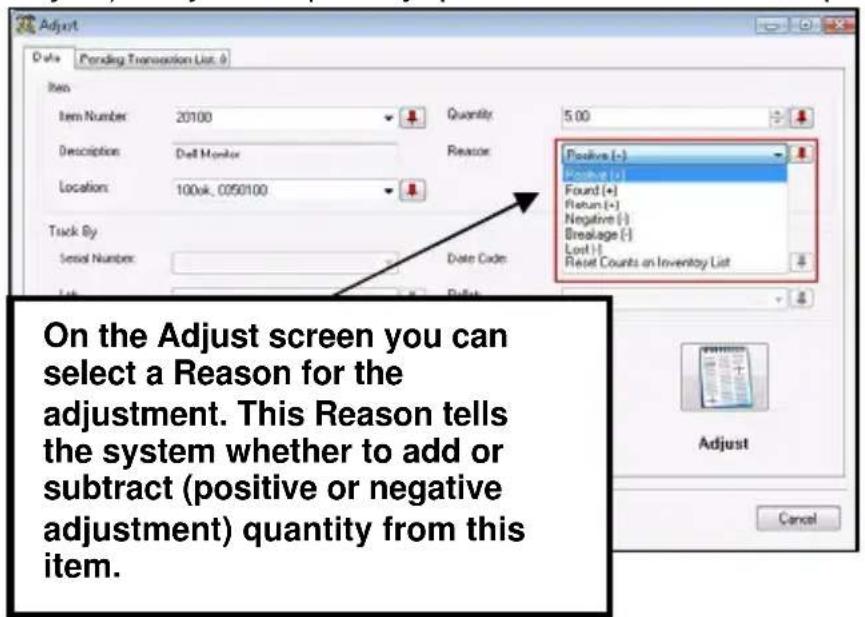
systemintoAuditMode, thereforeitispossible thattransactions(add, removing,etc.)canbe performedontheitem youarecounting.To makesureyourcountis correct,youmustbe awareofanymovement ofthatitemwhetheritis fromemployeesmoving ittoadifferentlocation orfrombeingsoldor received.
Figure35
Be aware that while Audits go into the system as average cost, Adjusts go into thesystemat0cost. FormoreinformationonCostTracking, pleasereferto Chapter6:UsingCostTrackingandAverageCost.
What is Pinning or Looping and how is it beneficial to me?
Pinning, alsocalledscancounting, allowsyoutolockafieldonthemobiledevice orpc, thenscaninadditionalinformation. PinningisthetermusedonthePC andonmobiledevicesusingWindowsCE, suchastheWDT3200. Forexample, ifyouarecountingitemnumber20500anditistrackedbyserialnumberandyou itisallinthesamesiteandlocation, selecttheitemnumberonceonthePCor mobile device's Audit screen, then pin the Item Number field, select the Site and Location and pin those as well. The data in the Item Number field will stay 20500untilyouunpinit.Nowyoucanscanjusttheserialnumberoneachitem tocountthequantityinsteadofhavingtore-entertheitemnumbereachtime. If youarescanningdatathatisnottrackedbyserialnumber,butisallinthesame siteandlocation,youcanpintheSiteandLocationfields,thenkeepscanning theItemNumberbarcodestoincreasethequantity.
LoopingisusedontheWDT2200andisslightlydifferentfrompinning,although theendresultisthesame-repeatedscanningofitemswithouthavingto manuallyre-selectanydata.Loopingdoesnot"lock"thedatainafield,but ratherallowsrepeatedscanningofdataintothatfield.
UsingPinningorLoopingcangreatlyspeeduptheauditprocess.
Howoftenshouldlauditmyinventory?
Thisdependsonyourbusinessneeds,butataminimumyoushouldperforma full,physicalauditaleastonceayear.Itisalsoagoodideatoperformcycle counts,or"mini-audits"severaltimestroughouttheyearonfast-movingitems soyoucanmakesureyourcountsonthesearealwayscorrect.
BusinessExamples

BusinessType—Distributing—AuditingwithMobileDevices
Sebastian Distributing hastwositesthatneedtobeaudited. To perform their audit, they follow the steps below:
- Themanagernotifieseachwarehouseoftheauditdateandtimesotraining canbedone.
- Thesupervisorateachsitedividestheinventorybylocationandassignsitto specificemployeesforcounting.Eachemployeewillauditadifferententrange oflocations.Forexample,Billwillcountrows1through5,Jackwillcount rows6-10,etc.
- Trainingisperformedateachsitetomakesureeveryoneunderstandshow tousethemobiledevicesforcounting.Thesupervisorhastheemployees stayafterhoursonedayandpickstwolocationsinthewarehousetousefor training. The InventoryControl software is put into Audit Mode and an audit databaseiscreatedandsenttoonemobiledevice.Eachemployeethen takesaturnusingthemobiledevicetocounttheinventoryinthetwo locations.Thecountsaredownloadedfromthedevicestothepc,rejected on the Process Mobile Data screen and the software is then taken out of AuditMode.Newdatabases(notinAuditMode)aresenttothemobile devicessotheemployeescanworkasusualuntilthedayoftheaudit.
- On the day of the audit, InventoryControl is put into Audit Mode at each site and mobile databases are created. When creating them mobile databases, the supervisor filter each ones that only the location that will be counted on that mobile device will appear, 1-5 or 6-10, forex example, sends the databasetothedevice, then create the database forth next device.
- ThecountsareperformedandthedataissyncedbacktothePC.
- The Discrepancies report and Items Not Counted report are run and recountsandspot-checkingcandone.
- Afterrecountingthediscrepancies,theyarereadytoreconcileateachsite andcompletetheiraudit.(Seeanexampleofthisscreenonpage62.)
BusinessType-Fleet
Rusty's CableService has 20 vehicles setup passites in
InventoryControlandonestorageroomsetupasasite.Eachdriver
isassignedahandhelddevicethatheorsheusesthroughouttheworkdayto performvariousfunctions.Toaudittheirinventory,theyfollowtheplanbelow:
- Adateandtimeoftheauditissetandannouncedtotheemployees.
- The counting is divided up by site (vehicle) with each employee assigned to countoneormorevehiclesandoneemployeeassignedtocountthestorage room(alsosetupasasite).
- All employees stay after hours one day to train. One vehicle is used as the trainingsiteandeachemployeetakesturnscountingsomeinventoryinthe vehicle.ThecountsarethendownloadedtothePC,rejectedonProcess MobileDatascreenandthesoftwareissthentakenoutofAuditMod
- On the day of the audit, InventoryControl is put into Audit Mode and the mobiledatabasesarecreatedandsenttothemobiledevices.The Site Configurationscreenisusedtolimitthedevicetojustthatvehicleortothe storagearea.
- TherestofthestepsarethesameasforDistributing, describedabove.
BusinessType—Reseller
SinceBrady's Bargainsisnotusingmobiledevices, they follow the method below for their audit.
- Adateandtimefortheauditisset.
- Thecountingisdividedupbylocationandassignedtotheemployees. Trainingisperformedforthethreeemployeeswhowillbecounting.
- Onthedayoftheaudit,theyprintouttheItembyLocationreport. The reportisdividedupintolocationsandeachemployeeisassignedaspecific location(s)inwhichtocount.
- The employees manually count each item in their assigned location, making notes on new counts and items in incorrect locations, etc.
- Thereportswiththequantityandnotesarecollectedfromtheemployees and the data is manually entered on the Audit screen for each item. Since thisbusinessisnotusinghandhelddevices,itisveryimportantthatthey manually enter the counts for each item on the Audit screen, even if the
numbercountedmatchesthenumberinthesystem. This createsapaper trailfortheaudit.
- The Discrepancies and Items Not Counted reports are run and spot-checkingandrecountsareperformed.
- Afterrecountingtheyarereadytoreconcileandcompletetheaudit.
| AlsoAvailableinInventoryControlHelp... | |
| ForMoreInformationOn...Type thisinthelndextab... | |
| StepstoactivateAuditModeAuditing YourInventory | |
| StepstousetheAuditScreenAuditing YourInventory | |
| StepstoreconcileyourcountsAuditing YourInventory | |
| UsingtheAuditReportsAuditingYourInventory | |
| Pinningorloopingonthemobile devices | WindowsMobileDevice-PinningFieldsWDT2200-AuditingInv |
| UsingtheAdjustScreenAdjustingInventoryAmounts | |
| CreatingMobileDatabaseswith filters | WindowsMobileDevice-Setup MobileDeviceWDT2200-CreatingthePDT Database |
| RetrievingDatafrommobile devices | WindowsMobileDevice-RetrievingDatafromtheDeviceWDT2200-ReceivingData fromPDT |
entory
Chapter6: UsingCostTrackingandAverageCost
HowisAverageCostandItemValueCalculated?
CosthandlinginInventoryControlisdesignedtoshowyoutheaveragecostand currentvalueofyourinventory. Youcanusethiscostinformationforother purposesaswell,suchasdeterminingpre-taxandpurchaseordertotalsand receivingtotals.
HowdoldeterminemyStockingUnit
Thequantityofanitemonallscreensand reportsiscountedusingthe StockingUnit youspecifyoreaches(ea.)ifyoudonot specifyaunit. Thestockingunitcanbe entered for each item on the New or Edit Item screen's Additional tab (shown below).
Whenyouenterthestockingunit,youneed topickthesmallestunitofmeasurethatyou willeverusetoremoveawholeitem.Agood

TIP: Asthereislimited hereportsandscreens, styoualwaysputinan onfortheStockingUnit.
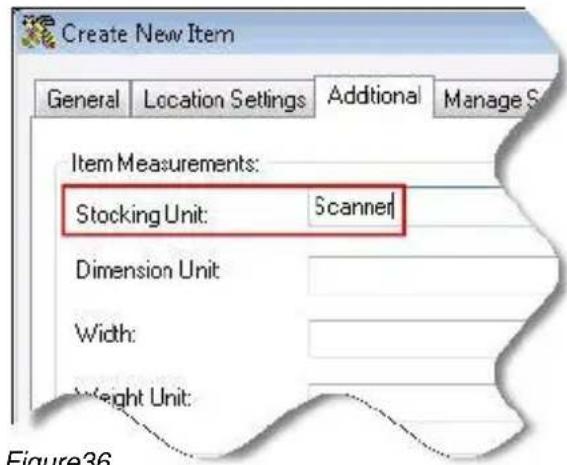
Figure36
testtousewhendecidingwhatthe stockingunitshouldbeistoask yourselfhowyoucountandrefertoone unit. Thinkaboutwhatyouranswer wouldbeifyouwereaskedtocount howmanyofthisitemyouhave. If the answeris100feetofrope,forexample, "feet"or"ft."istheStockingUnit. If the answeris20scanners,then"ea."isthe StockingUnitbecause"each"is
commonwhentheunititselfisnotastandardunitofmeasure.Iftheansweris100BoxesofNails,then"box"or"bx."istheStockingUnit.
Wewilladdresswhatyoudoifyouremoveinpartialquantitiesorpurchasethe iteminlargerquantitiesthanthestockingunitlaterinthischapter.
WhatistheCostformyltem?
When you input cost for an item into the New or Edit Item screen the cost is your

Figure37
costforpurchasingoneofthestocking units.IfoneBarcodeLaserScannercosts \$300youwouldenter300intothecost box.
If you remove fractional quantities of an item, the cost should still be for one whole stocking unit. Lets userope for an example. Normally therope is sold in increment so a foot so the Stocking Unit is ft. Each foot costs \$0.12 making the cost twelve cents. Continuing therope example, assumethat exact multiples of feetarer are lysold. Should the stocking unit be changed to inchess inc that is the lowest unit measured? In this case it is up toy outodetermin which Stocking Unit you use. Since Inventory Control does not do themath fory you when determining the
quantityyouareaddingandthecostataddtimeyoushouldchooseonethat makesiteasiestforyoutoaddandremove.WhicheverStockingUnityou choose,thecostshouldbeenteredforonewholeStockingUnit.
HowisCostHandledwhenIAddItems?
Whenitemsareadded,theyareassignedacostforeach1unit.Ifyouadd20 scanners in the Add window, the cost will automatically default to the Item Cost (the cost entered on the New or Edit Item screen). In our example the cost would be\$300.

Figure38
If your cost for this add is different from the cost on the item record, you can change this cost on the Add screent to represent the actual cost.
Forexample, if you purchased these 20 scanners for adiscount, changethe Cost on the Add window before you add the items. In this example the user received a \50 discount on the whole order for ordering 20 scanners so the Cost entered on the Add screens should be \297.50.
20Scanners*\300=\6000-\50=\5950/20Scanners=\$297.50perscanner
YouarestillputtingtheindividualscannerpriceintotheCostfieldandyoumust dothemathtomakesureitiscorrect.

TIPS: If you don't enter a cost when you add items or if you put a cost, there is now a way to edit that transaction and change the cost has been completed.
Changing the cost on the Add screen does not change it on the Edit Items screen. ThenexttimeyouaddBarcodeLaserScanners,forexample,the costwillstilldefaultto\$300.Ifyouwanttochangethedefaultcostyoucan change the cost on the Edit Item screen by going to Lists on the Main Window, picking Item. On the Item List, select the item you want to change and then click the Edit button. This only changes the cost that is shown automatically thenexttimeyouaddanitem.
The List Price and Sale Price fields on the Create New Item screen are for informational purposes only. These fields are not used on any reports.
CostforOrderUnitsperSupplier
IntheProfessionaland Enterpriseversionof InventoryControlyouare abletospecifymultiple Order Unitsper Supplierofanitem. WhenyouenteranOrder Unitthatisdifferentfromthe StockingUnit,youaretelling thesystemthatyouare orderinginoneunitbutwhen theitemsarereceivedthey willbebrokendownintothe differentunits.

Figure39
IflordermyBarcodeLaserScannersinboxesof20butmystockingunitiseach, Ineedtospecifythecostofaboxof20whenIcreatetheOrderUnitSettings the Create New or Edit Item screen, Suppliers tab, as shown in the graphic.
Whentheitemisreceived,InventoryControlwilldothemathandputinthecost peritemreceived.\3500/20=\175perBarcodeLaserScanner
AverageCost
AverageCostiscalculatedbasedonthecostsofeachoftheitemsthatarestillin inventory.
InventoryControlusesFirstInFirstOut(FIFO)todeterminewhichitemsto removefrominventory.Ifyouaddedorreceived50BarcodeLaserScannerson the1 ^st , 8 ^th ,and15 ^th ,youwouldendupwith150scanners.Ifonthe17 ^th you remove60scanners,allofthescannersthatcameinonthe1 ^st and 10 sc a n n e r s fromthe8 ^th wouldberemovedbecausethescannersonthe1 ^st wherefirstinand thereforefirstout.Nexttoberemovedwouldbescannersfromthe8 ^th .
This also is how the average cost is calculated. If the cannerson the 1 ^st cost \300 each and the cannerson the 8^{th}and 15^{th}cost \320 and \315 each, the average cost on the 16^{th}would be \311.67.
50Scanners*300=15,000(fromthe1 st)
50Scanners*320=16,000(fromthe8 th)
50Scanners*315=15,750(fromthe15 th)
----
46,500/150=311.67averagecost
Onthe17 ^th youremoved60scannerssotheaveragecostwillbecome: 40Scanners320=12,800(fromthe8 ^th ) 50Scanners315=15,750(fromthe15 ^th ) 28,550/90=317.23averagecost
Inventoryvaluationiscalculatedbymultiplyingthequantitybytheaverageprice. Theinventoryvalueonthe16 ^th is\46,500or150*311.67.After60areremoved theinventoryvalueis\28,550or317.23*90.
ZeroCostInventory
If inventoryisaddedorreceivedat\0,thatquantityisignoredforaverageprice andvaluationpurposes. Theonlywaystockgetsaddedat\0isifyouimport inventoryorspecifya\$0costataddorreceivetime.
50Scanners*300=15,000(fromthe1 st)
50Scanners*320=16,000(fromthe8 th)
1Scannerwasfoundandaddedtoinventoryat$0
50Scanners*315=15,750(fromthe15 th)
46,750/150=311.67averagecost
Theaveragecostisnot\309.60if46,750wasdividedby151.Sincethereisnowaytoeditthecostofanaddorreceiveafteritisprocessed,wemustignore\0 costadds.Ifanitemisaccidentallyaddedat\$0cost,theaverageandvaluation wouldbeincorrectuntilthatitemisremovedthroughFIFO.
If youdowant\0costitemstobeincludedintheaverageyoucouldaddthemat \0.01 and although this would not produce an exact average or valuation, it would have the same effect as averaging in cost item so overtime.
inventory that is added to inventory using the Adjust screen is added at the average cost for that item at the time of the adjustment. This way the average is not affected since in most cases the cost of that item will not be known.
Inventoryvaluation include the zero cost items when it calculates. The evaluation is then number of unit stimesthe average price.
\311.67*151Scanners=\47,062.17
ReceivingagainstaPurchaseOrder
If you have the Proor Enterprise version, you can create a purchase order (PO) and receive again that PO. When you do this the Stocking Units cost is calculated from the cost that is on the PO. Please referto inform more information on using purchase orders.
AddingandReceivingontheMobileDevices
All stock added from a mobile device is added at the item cost (from the Edit Item screen)atthetimeofthetransaction.
If you need the cost to be correct for each add transaction, you can edit each add transaction on the PC before it is processed and change the price. You can edit these amounts from the Pending Uploads wizard (Main Window > Mobility > WDT2200 or Windows Mobile/CE > Process Mobile). This wizard also automatically appear each time you transfer data from themobile device to the PC.

Figure40
Keepinmindthatthereisnowaytochangethepriceafterthehandheld transactionsareprocessedonthePC.
If you have the Enterprise or Proversion, and their inventory is received against a PO on the handheld, the item cost will be calculated from the cost on the PO. If the final cost is different from what was put in the PO you can edit the handheld transactions in the same way as described above.
ImportingInventory
Inventorydoesnotimportwithacost.Ifyouintendtousecostyoushould manually add your inventory using the Add screen and specify the cost. Usually youcancalculatetheaveragecostofyouexistinginventoryandwesuggestyou usetheaveragecostnumbertostartwith.
Chapter7: WorkingwithPurchaseOrders

Overview
PurchaseorderscanbecreatedinInventoryControlwhenyouneedtoorder additionalinventoryfromsuppliers. Theseorderscanbeemailedtothesupplier and/orprinteduponcreationandcanbeeasilyreferencedandsearchedinthe system. Whenyoureceiveshipmentoftheitemsonthepurchaseorder, the items can be marked as received either on the PC's Receive screen or on the mobiledevices.
InventoryControlallowsyoutocreatepurchaseordersfor:
- Inventory Items - These items are already in your inventory database. Use thistore-orderexistingitems.
- Non-Inventory Items - These items are not listed as inventory in your database. Use theistoorderitemsforwhichyoudonotwanttotrack inventory, suchasmarketingfliersorbusinesscards.
- Manually Entered Items - Use this option to add one-time items, such as shippingandhandling,toanorder.Beawarethatmanualitemscannotbe receivedonthemobiledevices.
Withalittleadvanceplanning,muchofthepurchaseordercreationprocessis automatedforyou.Ifyoutakethetimetosetuppreferredsuppliersforyour items(ProandEnterpriseversionsonly),thenyoucansimplyentertheitem numberofthepurchaseorderandthesupplierinformationwillautomatically appearonthepurchaseorder.Ifyouenterasupplierorsuppliersforanitem andenterthatsupplier'sshippingunitofmeasures,thisinformationwillalso automaticallyappearonthepurchaseorder.Youcanevencreateatemplatefor yourpurchaseordernumbersandthosewillbeautomaticallygeneratedforeach purchaseorderyoucreate.Inaddition,youcanevensetupInventoryControlto notifyyouofitemsthathavereachedtheirreorderpointinareportbrokendown bylocation.
YoucanalsosetupInventoryControltoautomaticallyemailyourpurchaseorder directlytothesupplier(andtoanyotheremailaddressesyouenter).
Alittletimeupfrontduringthesetupprocesscansaveyouandyouremployees agreatdealoftimelateron.
Tomakeiteveneasier, if you are using abarcodescanner, most of the fieldson the Create New Purchase Order screen, including Supplier, Purchase Order Number and Item Number are scannable.
PurchaseOrderWorkflow
Thegraphicbelowillustratestheworkflowofapurchaseorderfromcreationto close.

flowchart
graph TD
    A["Receive PO and mark as closed"] --> B["Stock is low"]
    B --> C["Create New PO"]
    C --> D["P0 List"]
    D --> A
CreateAutomaticallyGeneratedPurchaseOrderNumbers
Eachpurchaseorderyoucreatewillbeassignedauniqueidentifier. Youcan eitherenterthisnumbermanuallyeachtimeyoucreateanewpurchaseorder,or youcancreateatemplatethatthesoftwarewillusetoautomaticallygenerate a number for you. On the Define PO Number Format screen (Main Window>Receive/Pick>NumberFormats>PONumber),InventoryControl allowsyoutoentercustomtext,datesand/orcounters,inanycombination,to createauniqueidentifierthatismeaningfultoyourbusiness.
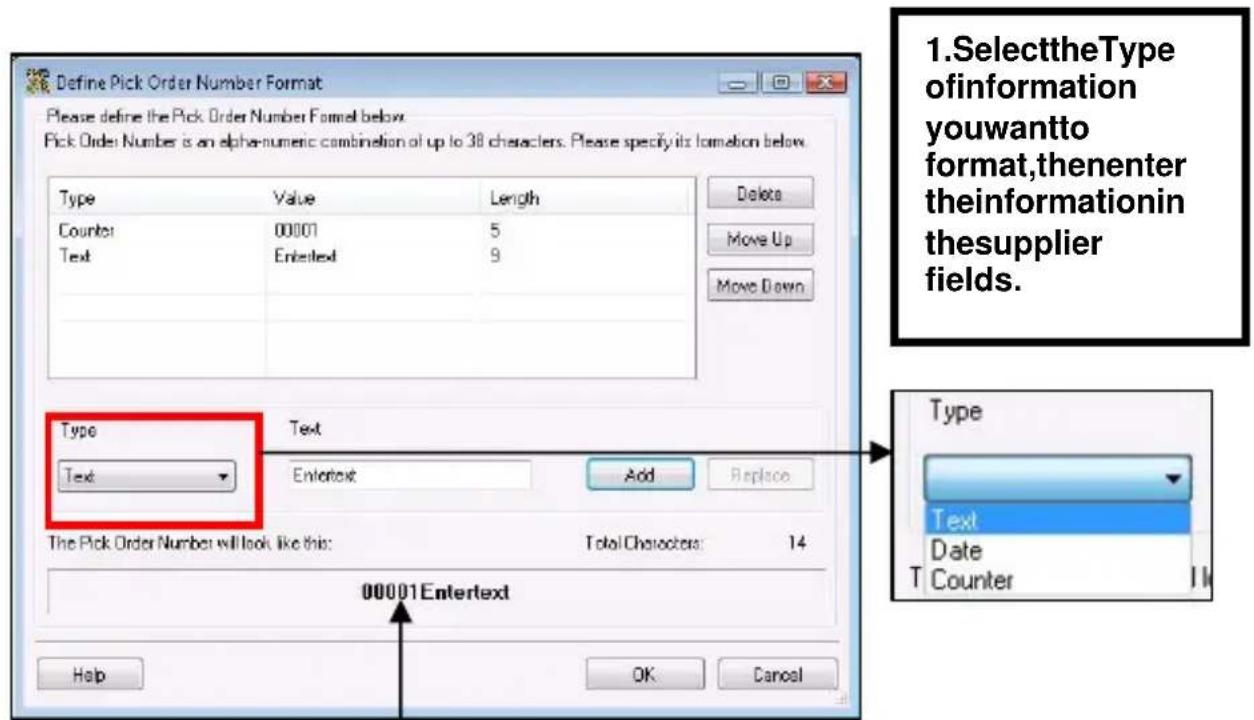
Figure42
2.ClickAddtoaddyouentrytothe number.Apreviewofyournumber appearhere.
Wesuggestyousetupyournumberstocontainadatefield,followedbya serialized(countfield),attheveryleast.
AutomaticEmailingofthePurchaseOrder
At the bottom of the Create New Purchase Order screen is a check box labeled E m a i l o n S a v e .Ifthisboxischecked,acopyofthisorderisautomaticallysent to the email address listed in the Supplier screen for the supplier listed on this purchase order when you click the Save button. If you have selected to view the Email Destination List (chosen on the Options screen), the list will appear allowingyoutoselectemailaddressesorchangeemailaddressesasneeded.If you have selected not to view the list, the order will automatically be sent to the email address listed in the Supplier screen from the email address listed in the CompanyInformationscreen.Pleasenotethatiftheemailaddressesarenot entered on the Supplier or Company Information screens, you will receive an errormessagewhenyoutrytosendemails.

Figure43
OntheOptionsscreenyoucan alsoenteradditionalCC addressestowwhichtheemail willbesent.Youcanchoose toignoretheCCaddressby deselectingthecheckboxnext totheCCAddressesfieldon theEmailDestinationList. We suggestyoualwayssend yourselforsomeoneelse internaltoyourcompanya copyofanyordersyouemailtoacus
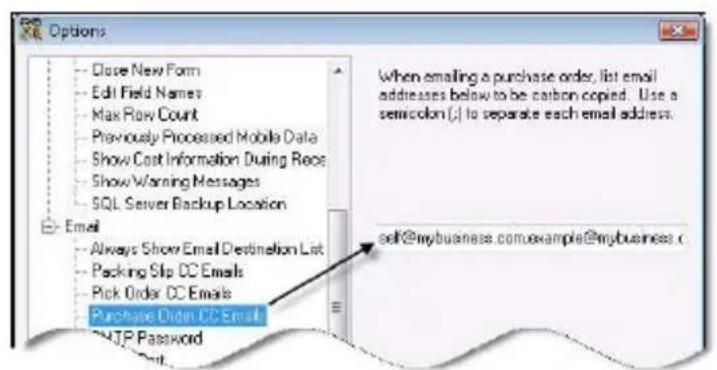
Figure44

Figure45
Inorderfortheemailfeaturetoworkcorrectly, you must set your SMTP Server, User Name and Password(ifauthenticationisrequiredforoutgoing mail) and the SMTP Port on the Options screen. If thesearenotset, anerrormessagewillappear.
AutomaticNotificationofUnder-StockedItems
To help you keep track of item that are in danger of becoming under stocked, Inventory Control has an automatic notification system built in. Tou this feature, makes sure you turn on the Automatic Notification option via the Options screen, then enter a quantity in the Minimum Stock Level field on the Create New or Edit Item screen, Location tab.
Select the Automatic Notification of Low Order Items on the Options screen, then enter a Min Stock Level on the Create New Item or Edit Item screen, Location tab.

Figure46
By enabling the Automatic Notification of Low Order Item on the Options screen, InventoryControl will display the Item Stock Level List when you first log into the system. This screen contains items that have a Quantity value equal to or less than the MinimumStockLevelValue,brokendownbylocation.

Figure47
CreatingaPurchaseOrder
Whenyouneedtoreplenishinventoryforanitemoritems,createapurchase
orderontheCreateNewPurchaseOrder screen(MainWindow>New>Purchase Order).

TIP: Afteryouselect
aSupplierforthispurchase order,youcanclicktheltemsat Re-OrderPointbuttonatthe bottomofthescreen.The systemwillthencheckforany itemsforthissupplierthatare atorbelowtheirreorderpoints andyoucanselecttopopulate thepurchaseorderwiththose items.
Anewlycreatedpurchaseorderhasa status of New. The status remains New untilitemquantitiesareenteredonthe Receivescreen.Iftheorderbecomes overduebeforeyoureceiveit,thestatus changestoNew-Overdue.
To create a purchase order, you simply need to identify the supplier, the shipping address and payment information and the actual inventory (ornon-inventory) items you want to order. You can also select a due date, if needed.
DefiningCustomShippingandPaymentMethods
When you are creating your purchase orders, you will notice that the Shipping and Payment Method fields contain standard methods from which you can choose. If you want to create your own custom shipping or payment method to add to these lists, you can do so on the Pay Method List screen (Main Window >Receive/Pick >Manage Payment Methods) or the Ship Method List screen (MainWindow >Receive/Pick >Manage Shipping Methods).

Figure48
Youcandeletemethodsyoucreate,butthestandardmethodscannotbe deleted.
ViewingCreatedPurchaseOrders
The purchase order now appears on your Purchase Order List (Main Window>Lists>Purchase Orders). From the Purchase Order List you can Edit or Delete (as long as the order has not been partially received) the order as needed.

Figure49
ReceivingInventoryfromaPurchaseOrder
When you begintoreceive inventory from the purchase order, you will enter the quantity received for each item on the Receive screen. Inventory for an item can be marked as received on the PC's Receive screen or on the mobile devices.

TheReceive screenallowsyou toenterquantities receivedby location,andcan optionallyshowyou costinginformation aswell.Receiving inventoryonthe Receivescreen addsinventoryto thatitem.
Thisscreen providesagood exampleofoneof
Figure50
thetime-savingfeaturesinInventoryControl.Ifyouarereceivingan itemonwhichyouhavedesignatedaprimarylocation,theReceive screenautomaticallydisplaythatlocationwhenyoumarkthatitemasreceived. Youcanchangethelocation,ifneeded,butifyouusuallyreceivetheiteminto thislocation,theabilitytodesignateitasprimarywillsaveyoufromhavingto searchforandselectiteachtimeyoureceivethisitem.Formoreinformation about Primary Locations, please refer to Chapter 2: Getting Started in this manual.
Purchaseordersthathavesomeitemsmarkedasreceived, butothersthathave not yet been received have a status of In Process. If the order becomes overdue, it will have a status of In Process-Overdue.

TIP:Whenyouarereceivinginventoryfromapurchaseorder, click the Quick/Scan Entry button to speed up entry of your information. The Quick/Scan Entry screen streamlines the receive process by allowing you to pin the Item, Location and/or Quantity fields, then simply scan in or entertherestofyourinformation. This is very handy if you are receiving a number of different items into onelocation, forexample. You can pin the Location field, then scan the item number to quickly add the information to the Receive screen. After you enter each item, click the Receive button at the bottom of the screen and the information will be transferred to the Receivescreen and the field will clear, allowing you to receive another item. Form more information on pinning, pleasereferto the glossary.
CreatingBackorders
If you receive a partial shipment, or are notified by the supplier that your order is on back order, you can create a back order from the original purchase order. To do this, on the Purchase Order List, highlight the purchase order and select the Receive icon. The Receive screen opens with the purchase order information populated.

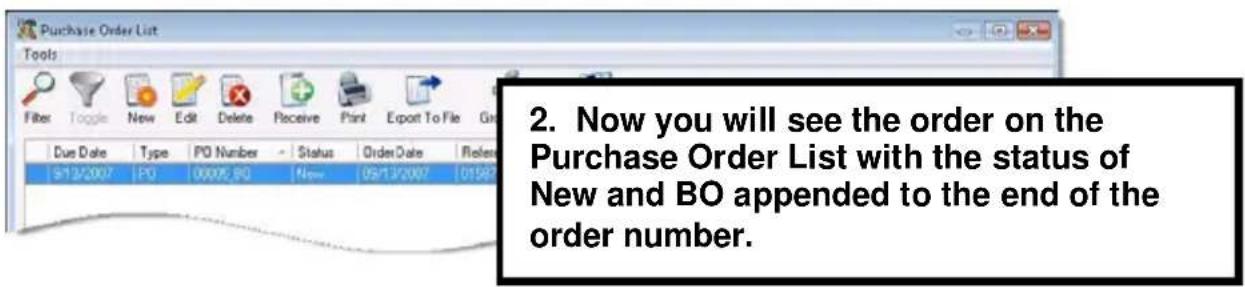
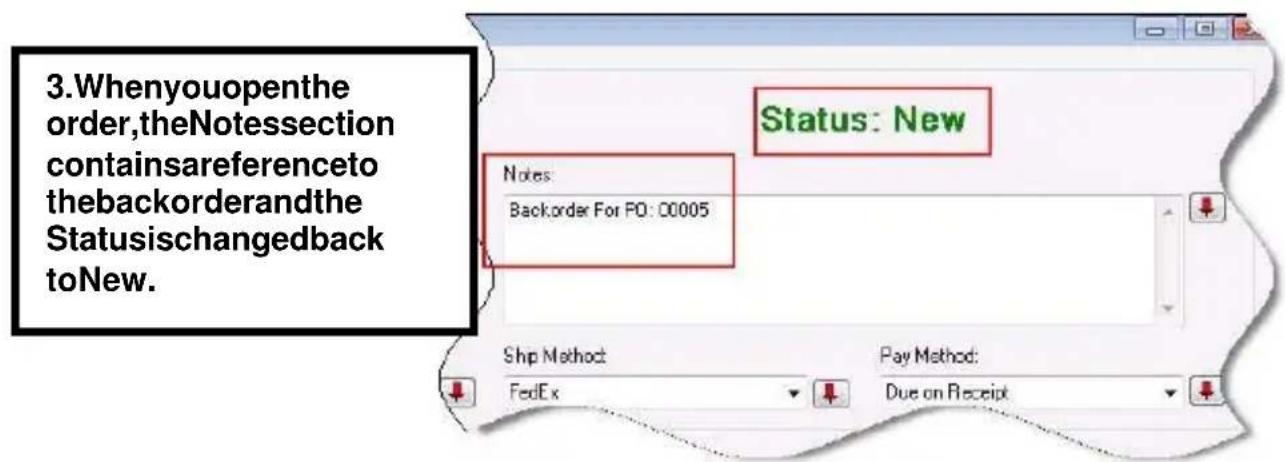
Figure51
Notethatwhilethepartialreceivedamountscanbemarkedasreceivedonthe mobiledevices,theactualbackorderswillneedtobecreatedonthePC.
CommonPurchaseOrderQuestions
WhatisthedifferencebetweentheShippingUnitofMeasureandthe StockingUnitofMeasure?
The Stocking Unit, entered on the Create New Item or Edit Item screen, Additionaltab, istheportionbywhichthequantitywillbestoredinyour inventory. Thisunitrepresents"Eaches", meaningitrepresentsshowyouwant eachitemofthistypetobemeasured. (Examples:bag, barrel, basket, block, bottle, box, carton, container, drum, gallon, jar, pack, package, pallet, section, tub, vial, etc.)
The Shipping Unit, entered on the Create New Item or Edit Item screen, Manage Supplierstab(ProandEnterpriseversionsonly)istheunitusedbythesupplier whenshippingthisitem.Thismaybebox,pallet,etc.Thisisdifferentfromthe "Eaches" Stocking Unit. For example, you may have entered "jar" for the stockingunit,butthesuppliermayshiptheiteminboxescontaining10jars.In thisexample,whencreatingpurchaseorders,youwouldspecifythe OrderUnit asboxratherthanjar(oryoucouldendupwith100boxesofjarsratherthan100 jars).
I have the Standard version of Inventory Control, can I set up preferred suppliers form my items?
Standardversionusersarelimitedtoonesupplierperitem,sothisis automaticallyyourpreferredsupplier.ProandEnterpriseversionuserscan entermultiplesuppliersforeachitemandselectoneastheirpreferredsupplier.
WhatisthedifferencebetweentheReorderQuantityfieldfoundontheCreateNewItemorEditItemscreen,GeneralTabandtheReorderQuantityfieldfoundontheCreateNewItemorEditItemscreen,LocationTab?
The Reorder Quantity field on the General tab is the reorder quantity for the item throughout all sites and locations. The Reorder Quantity field on the Location tab is thereorderquantityfortheitemataspecificlocation(youcanenterthis quantityforeachlocationthatcontainthisitem).
When you are creating purchase orders, you can click the Items at Re-Order Quantity button to see a list of item sthathavereached their minimum stock levels (by location) forth these selected supplier. You can then select which item sto add to the purchase order and they will be inserted into the current order. The quantity in the Reorder Quantity field on the Location tab will be used for the quantity requested on the purchase order.
BusinessExamples

BusinessType-Distributing
Sebastian Distributing has alotof inventory maintained at two warehouses intwodifferent states. They have setup preferred suppliersformostoftheiritems,butoccasionally,oneofthewarehouseswilluse adifferent,localsupplier.
Eachdayuponloggingin,thesupervisorineachwarehousereviewstheItem StockLevelListthatautomaticallyappears.Sheaccessesandprintsthe ReorderReportandgivesittothesupplyclerk.Usingthereport,thesupply clerk begins creating purchase orders for those items that are low at his site (warehouse).
When creating the purchase orders, the clerk can take advantage of them any time-saving features in Inventory Control. His purchase order number automatically generates based on the parameters set on the Define PONumber Formatscreen. Heknows that a preferred supplier has been entered for each item, so hesimplys cansthe barcode for the item hewant sto order and the supplier information appear on the screen. Since hesometimes would rather order a particular item from different suppliers than the designated preferred supplier, he knows she can change the supplier on the purchase order, if needed.
When he clicks Save on the purchase order, a copy is automatically emailed to the supplier as well as to the supervisor. In addition, a copy is printed out and put in a special "Receivers" file in the Warehouse. This receiver will be matched to the order when it arrives.
After the purchase order is created, it can be accessed and viewed through the Purchase Order List.
Eachday, whenanewmobiledatabaseistransmittedtothemobiledevices, the currentoutstandingpurchaseordersarealsosent. Whentheitemsarriveatthe site, the warehouseemployeesmatchtheorderstotheprintedreceivers, then beginunpackingandscanningtheitemsasreceived. Thequantitydoesnot appear on the mobile devices' Receive screen, and the manager prefers that the employeenotknowhowmanyshouldbeintheorder. Thisisa "blindreceive" thatcanincreaseaccuracy. If more quantity is received than was ordered, the software will catch this when the device is synced back to the PC. If this happens, the supervisor will inspect the order to count and take step to adjust the count in the PC (and return an over-shipment, if necessary).
On the mobile devices, the items are marked as received (on the Receive screen) into a temporary location labeled Dock. The items will stay on the receivingdockuntilthemobiledevicesaresyncedtothePCandtheReceived countsareprocessed.Atthispoint,itemlabelsareprintedforeachreceived item.Theemployeestakethelabelsfortheitemstheyreceived,affixthelabels totheitemsandphysicallymovethemtotheirproperlocations,atwhichtimea Movetransactioniscreatedonthemobiledevicetoindicatetheitemswere movedfromtheDocktotheirprimarylocation.
BusinessType-Fleet
Ourfleetbusinessexample, Rusty's CableService creates purchase orders following the samemethodas distributing – the Item Stock
LevelListisreviewedandpurchaseordersarecreatedbasedonthisreport.
The only difference in the way the set businesses deal with pur and receiving items are marked as received into the StorageAreawhere they are physically placed. Whenthe devices are synced and labels are printed, the labels are affixed to the items in the storage area. Asthose items are needed to replenish the stock in the trucks, they are removed (a Movetransaction is created on themobile device) to the individual truck.
BusinessType—Reseller
ThisbusinessusestheStandardversionofInventoryControlwhich does not have PurchaseOrdercapability.
| AlsoAvailableinInventoryControlHelp... | |
| ForMoreInformationOn...Type thisinthelndextab... | |
| PurchaseOrder/Receive Overview | PurchaseOrder/Receiving Overview |
| Stepstocreateapurchase Order | CreatingaPurchaseOrder |
| Stepstosetupapurchaseorder numbertemplate | CustomizingNumbers |
| Stepstoreceiveinventoryfrom apurchaseorderonthePC. | ReceivingInventory |
| Turning on the Automat NotificationofLowOrderItems feature | OptionsScreenItemStockLevelListScreen |
| ViewingtheltemStockLevel Listscreen | ItemStockLevelListScreen |
| CreatingCustomShipping Methods | ManagingShippingMethods |
| CreatingCustomPayment Methods | ManagingPaymentMethods |
| StepstoReceiveitemsonthe MobileDevices | WindowsMobileDevice-ReceivingInventoryWDT2200-ReceivingInventory |
| Settinguppreferredsuppliers foritems. | CreatingNewItems |
Chapter8: WorkingwithPickOrders

Overview
PickOrdersareordersthatyoucreatewheninventoryisrequestedbya customerandneedstobetaken(picked)fromyourwarehouse,store,storage facility,etc.andshippedtothecustomer.InventoryControlallowsyoutocreatea pickorderthatcanthenbeautomaticallyymailedtothewarehouseand/or printedforreference.
PickOrderWorkflow
Theflowofpickordersisasfollows:
- You receive an invoice or sa less lip former merchandise from a customer.
- ApickorderiscreatedinInventoryControlandtheorderisprintedandgiven totheemployee(s)whowillpulltheitemsfortheorderandpackagethemfor shipment.
- EditscanbemadetothepickorderfromthePickOrderList.
- Astheitemsarepulledfromtheirlocations,employeescanmarkthemas "picked"onthemobiledevices. Thisremovestheitemsfrominventory.
- After all itemsonapickorderaremarked as "picked", you can mark the order as Completed. You can also have InventoryControl automatically email the packingsliptothecustomer. At this point, it is up to y out o make sure the order is packaged and shipped to the customer in at imely manner.
Thegraphicbelowillustratestheworkflowofapickorderfromcreationtoclose.

flowchart
graph TD
    A["Pick Order and mark as closed"] --> B["Receive Invoice"]
    B --> C["Create Pick Order"]
    C --> D["Pick Order List"]
    D --> A
Figure52
CreatingAutomaticallyGeneratedPickOrderNumbers
Eachpickorderyoucreatewillbeassignedauniqueidentifier.Youcaneither enterthisnumbermanuallyeachtimeyoucreateanewpickorder,oryoucan createatemplatethatthesoftwarewillusetoautomaticallygenerateanumber for you. On the Define Order Number Format screen (Main
Window>Receive/Pick>NumberFormats>OrderNumber),InventoryControl allowsyoutoentercustomtext,datesand/orcounters,inanycombination,to createauniqueidentifierthatismeaningfultoyourbusiness.Wesuggestyou setupyournumberstocontainadatefield,followedbyaserialized(countfield),attheveryleast.

Figure53

AutomaticEmailingofthePickOrderand/orthePackingSlip
At the bottom of the Create New Pick Order screen is a check box labeled Email on Save. If this box is checked, a copy of this order is automatically sent to the email address listed in the Customer screen for the customer listed on this pick order when you click the Save button. Be aware that this emails the Order, not the actual Packing Slip. If you use this feature, make sure your customer is aware that this initialemail represents what was ordered, not what has been packed and shipped (nothing will have been picked, at this point).
At the bottom of the Pick screen, you can select the Email Packing Slip checkbox to emailthepackingsliptothecustomer. If you have selected to view the Email Destination List (chosen on the Options screen), the list will appear allowing you to select email addresses or change email addresses as needed. If you have selected not to view the list, the order will automatically be sent to the email address listed in the Customer screen from the email address listed in the Company Informationscreen. Please note that if the email addresses are not entered on the Customer or Company Information screens, you will receive an errormessagewhenyoutrytosendemails.
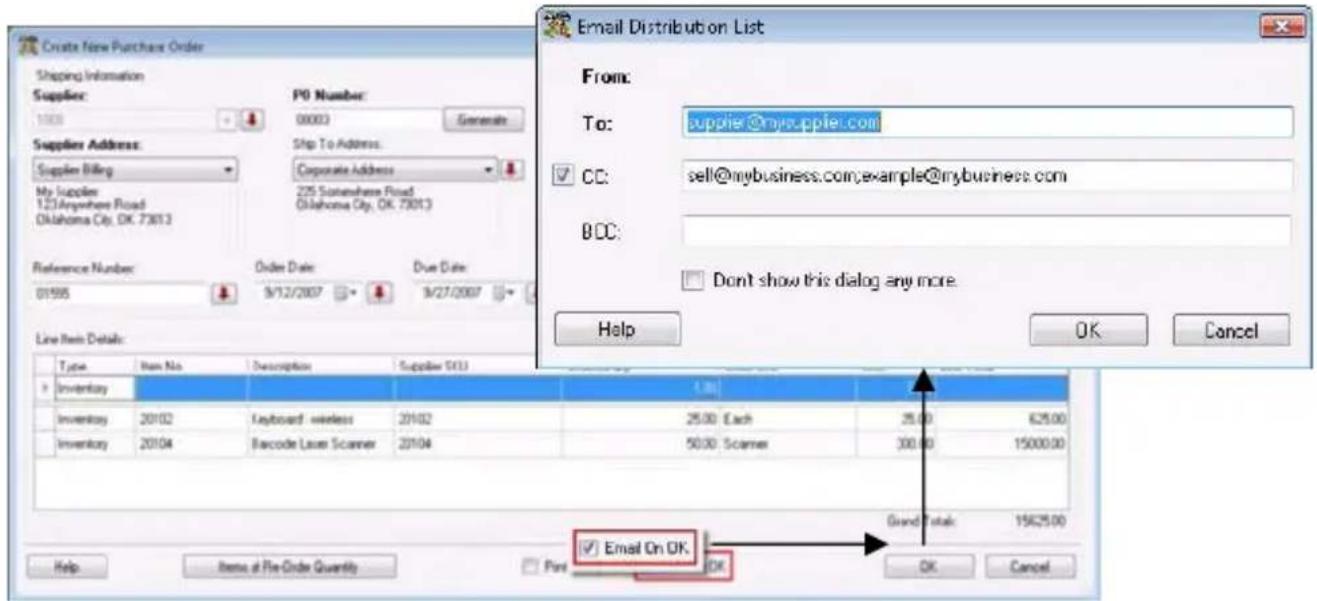
Figure54
OntheOptionsscreenyoucan alsoenteradditionalCC addressestowhichtheemailwill besent.Youcanchooseto ignoretheCCaddressby deselectingthecheckboxnextto theCCAddressesfieldonthe EmailDestinationList.

Figure55

Figure56
Inorderfortheemailfeaturetoworkcorrectly, you must set your SMTP Server, User Name and Password(ifauthenticationisrequiredfor outgoing mail) and the SMTP Port on the Options screen. If these are not set, an error message will appear.
CreatingaPickOrder
Yourbusinessreceivesarequestforinventory(throughaninvoice,asalesslip, etc.).ApickorderfortherequestedmerchandiseisenteredontheCreateNew PickOrderscreen.Youcanenteranyitemheldinyourinventoryinanyquantity onthisscreen.Actualon-handamountsarenotcheckedatthispointsoyouare notlimitedtocreatingpickordersforthequantityofitemsinyourinventory. Youcanchoosetoemailtheorderand/orprinttheorderatthispoint.Thesetwo actions occur when you click the Save button. Emailing from the Create New PickOrderscreenisdiscussedlaterinthischapter.
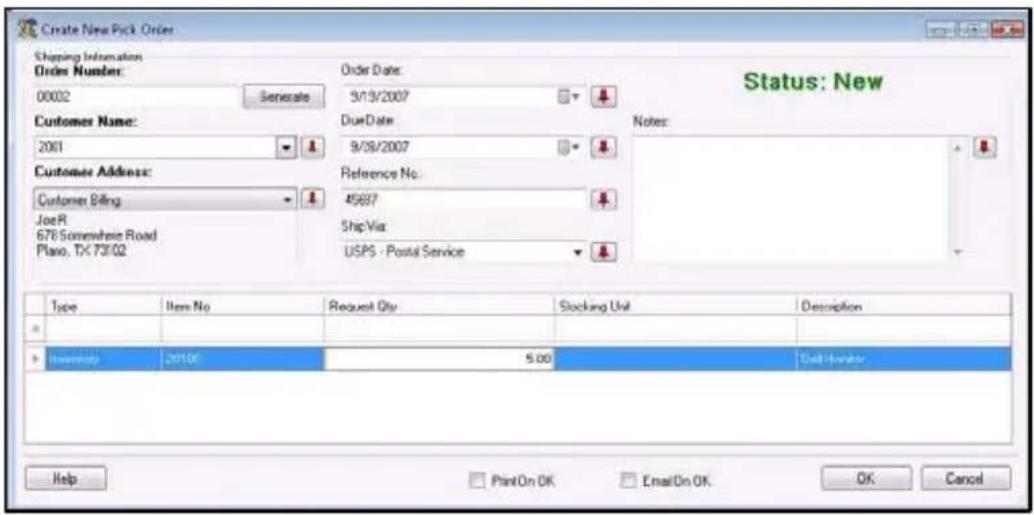
Figure56
A newly created Pick Order has a status of New. The status remains New until pick quantities are entered on the Picking Order screen. If the order becomes overdue before it begins to be picked, the status changes to New - Overdue.
DefiningCustomShippingandPaymentMethods
When you are creating your pick orders, you will notice that the Shipping and PaymentMethodfieldscontainstandardmethodsfromwhichyoucanchoose.If youwanttocreateyouowncustomshippingorpaymentmethodtoaddtothese lists, you can do so on the Pay Method List screen (Main Window>Receive/Pick>Manage Payment Methods) or the Ship Method List screen (Main Window>Receive/Pick>Manage Shipping Methods).

Figure58
Youcandeletemethodsyoucreate,butthestandardmethodscannotbe deleted.
ViewingCreatedPickOrders
The Pick Order now appears on your Pick Order List (Lists > Pick Orders). From the Pick Order List you can Edit or Delete (as long as the order is not in process)theorderasneeded.
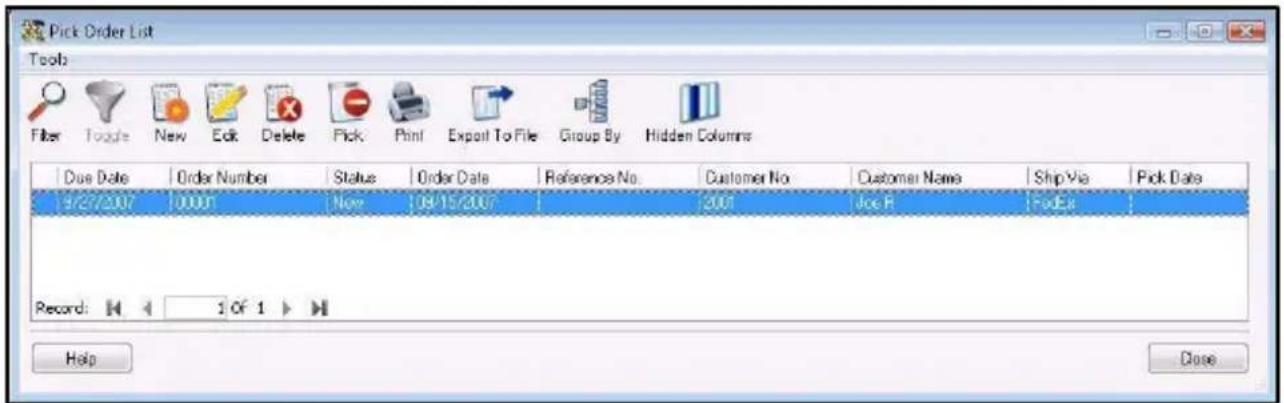
Figure59
PickingInventoryfromaPickOrder
Whentheorderisactuallybeingpicked,meaningtheinventoryisbeingreadied forshippingtothecustomer,thepickedquantitiesforeachichitemontheorderare entered in the Picking Order screen (Receive/Ship menu > Pick). This can be doneonthePCoronthemobiledevices.IfyouarepickingonthePC,the quantitiesarecheckedandyoucannotpickmorethanyouactuallyhavein inventory.Ifyouarepickingusingamobiledevice,thequantitiesarenot checked,soyoucan,intheory,enteraquantityonthePickscreenthatisgreater thanthequantityyouactuallyhaveonhand.Whenthetransactionisprocessed onthePC(afterthedataistransferredfromthemobiledevice)thequantitiesare checkedandtheerrorwillbefound.Atthistime,youcancorrecttheerrorand proceed.
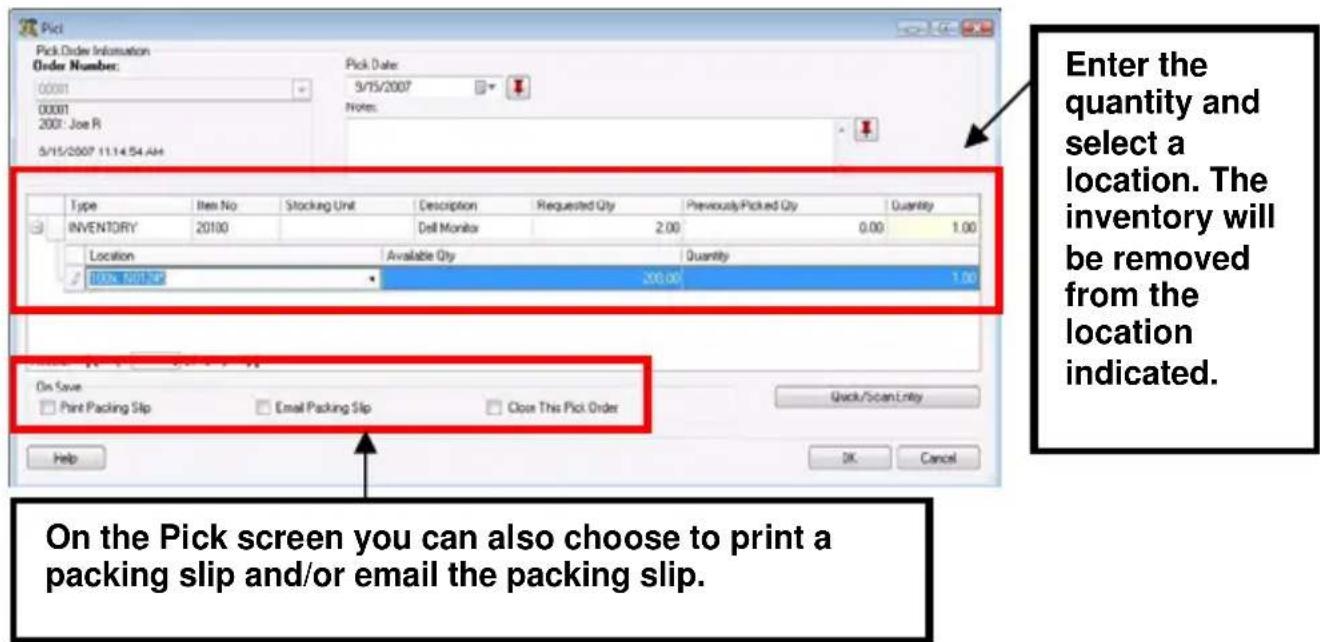
Figure60

TIP: When you are picking inventory, click the Quick/Scan Entry buttonospeedupentryofyourinformation.TheQuick/ScanEntry screen streamlines the pick process by allowing you to pin the Item, Location and/or Quantity fields, then simply scan in or enter the rest of yourinformation.Thisisveryhandyifyouarepickinganumberof differentitemsfromonelocation,forexample.YoucanpintheLocation field,thenscantheitemnumberstoquicklyaddtheinformationtothePick screen. After you enter each item, click the Pick button at the bottom of the screen and the information will be transferred to the Pick screen and thefieldswillclear,allowingyoutopickanotheritem.Formore informationonpinning,pleaserefertotheglossary.
CommonPickOrderQuestions
Canlcreateabackorderforitemslistedonapickorderthatareoutof stock?
Backorders cannot be created in Inventory Control for pick orders. You can leave those pick orders for which additional inventory is needed open and make an note in the Notes section. Then create a purchase order (if needed) for the additional inventory. When you receive the inventory, you can complete the pick order.
Youcanprintapackingslipandshippartialorders.
BusinessExamples

BusinessType-Distributing
Sebastian Distributing receives orders from customers via faxes, telephone and internet, or from invoices created onsite. Whentheses ordersarereceived, asalesclerkateachsiteentersthemintoInventoryControl asPickOrdersonthePC. Theordersareemailedtotheappropriatewarehouse wheretheyareprinted. Theprintedordersaredistributedtothewarehouse employees who use the Pick screen on their mobile devices to mark the items as pickedastheyareremovingthemfromtheirlocationsforpacking.Attheendof theday, themobiledeviceinformationistransferredbacktothePCdatabase. Thesupervisorwhodoesthetransfertakesnoteofallpickordersmarkedas received and manually enters each Pick screen for those orders so he can mark those that are fully picked as Completed and selects to email the packing slip to thecustomer.

BusinessType-Fleet
PickOrdersforthiscablecompanyconsistofordersforcableboxes andremotesthatneedtobeleftwithcustomers. Thepickordersare createdwhenacustomerrequestsanewconnectionorwantsanupgradedunit. Theordersareprintedandgiventothedriverswhousetheirmobiledevicesto mark the items as Picked when they remove the items from the truck at the customer'shouse.Attheendoftheday,themobiledevidedataistransferred backtothePCdatabase.Atthistime,theemployeedoingthedatatransfer takesnoteoftheordersthathavebeenpickedandmanuallyentersthePick screenforeachorderonthePCtomarktheordersasclosed.Thiscompany doesnotselecttoemailthepackingsliptothecustomer.

BusinessType—Mid-SizedReseller
ThisbusinesshastheStandardeditionofInventoryControlsodoesnot havePickOrdercapabilities.
| AlsoAvailableinInventoryControlHelp... | |
| ForMoreInformationOn...Type thisinthelndextab... | |
| PickOrder/PickOverviewPickOrder Overview | |
| StepstocreateaPickOrderCreatingaPickOrder | |
| StepstosetupaPickOrder numbertemplate | CustomizingNumbers |
| StepstoPickinventoryfora PickOrderonthePC | PickingOrders |
| CreatingCustomShipping Methods | ManagingShippingMethods |
| CreatingCustomPayment Methods | ManagingPaymentMethods |
| StepstoPickitemsonthe MobileDevices | WindowsMobileDevice-PickingItemsforOrdersWDT2200-PickingInventory forOrders |
| AddingnewCustomersAddingNew Customers | |
Glossary
Add—The Inventory Control function that allows you to manually add quantity to items already entered into your database. Inventory is the amount or quantity of a particular item.
Adjust- Thistermreferstoadjustingthequantityofinventoryataspecified location.Adjustislikea"mini"AuditandwillupdatethequantityusingFIFO (FirstInFirstOut)tomakethetotalequaltothequantityyouenterhere.The Adjustfunctionisusefuliftoomuchortoolittlequantityisaccidentallyenteredfor anitem(onamobiledevice,forexample),inventoryislost,found,broken,etc. andyouneedtoquicklycorrectthequantityforthatitem.Adjustingisdifferent fromAuditinthattheAuditfunctionmakesotherfunctionsofthesoftware, suchasaddinginventory,unavailabletoensureinventoryisnotaddedor removedwhileyouaredoingthecounts.Allfeaturesarestillavailablewhen adjustinginventory.
Archive-TheArchiveTransactionfeatureallowsyoutoarchiveinactive transactionspriortoaspecifieddate.Archivingoldinformationkeepsyour databaserunningquicklyandefficiently.
Audit-Auditingyourinventorymeansyouarecountingtheinventoryyou actuallyhaveonhandandcomparingthatnumberwithwhatislistedinthe InventoryControlsoftware. Thisallowsyoutoensureyouhaveactualcountsin thesystem.AuditModeallowsyoutocheckthecountsofallyourinventory whileidisablingtheAdd,Remove,Move,Adjust,Check-InandCheck-Out featurestomakesureinventorycountsinthesystemdonotchangewhileyou areperformingtheaudit.Ifyouareusingmobiledevices,youcanusethem simultaneouslywiththePCtoperformanauditbydownloadingthedatabasein auditmodetoeachdevice.AuditModefeaturesasimpleAuditscreenthat allowsyoutoenteryourcountsforinventoryineachlocationandcompares thesetothecountsalreadyinthesystem.YoucanthenviewtheComplete Auditscreentoreviewanydiscrepanciesbetweenyourcountsandwhatwasin thesystem.Attheclickofabuttonyoucanreconcilethecountsoryoucan selectcertaintransactionstoacceptorreject.InventoryControlalsocomes equippedwithseveralAuditReportsthatallowyoutoreviewavarietyof informationat-a-glance.
Backorder-Anorderheldforfuturecompletionoranewordercreatedfor inventorythatistemporarilyout-of-stock.
Barcode—Agraphicalrepresentationofasetofnumericoralphanumeric charactersthatcanbereadbyabarcodescanner.
BarcodeScanner—Adevice, fixedormobile(handheld) that can be used to "read" barcodes.
BatchProcessing—Amethodofprocessingmobiledevicedatainwhich uploadsanddownloadsofdataareperformedonlywhenthedeviceisconnected and"synced"tothePC. Transactionsperformedonthedevicesarestoreduntil thetransfertakesplace.BatchProcessingisthemethodemployedby InventoryControlforprocessingofmobiledevidedata.
Check-In-Check-ininventorymeansyouarereturninginventorythathasbeen "checked-out", orassigned, tocustomerback into youron-hand inventory.
Check-Out - InventoryControl gives you that ability to check-out, or assign, inventorytoacustomerforaspecified(oropen-ended)amountoftime.This removestheinventoryfromyouron-handamountsuntilitischeckedbackin.
DateCode—Thisisafieldusedtotrackinventory. Datecodeisusediftheitem hasanexpirationorproductiondatethatisimportantforrecallsortracking.
FIFO-Anabbreviationforfirst-in,first-out,FIFOisamethodemployedin accountingfortheidentificationandvaluationoftheinventoryofabusiness.This istheinventorymethodthesystemuseswhenadjustingorremovinginventory.
FIFOassumesthatthefirstgoodspurchasedarethefirstsold.Asa consequence,theitemsthatremainintheinventoryattheendoftheyearare assumedtobethosepurchasedlast.
Filter—Limitsorparametersyoucansetupwhencreatingamobiledatabaseso thatonlyselectedinformationisincludedinthatdatabase.
HandheldDevice—SeeMobileDevice
InventoriedItem—Anitemthatyouhaveinstockthatyouwantinventoried,or tracked. ThesearetheitemsyousetupinInventoryControlonwhichyoucan performtransactionssuchasAdd,Remove,Receive,etc.andforwhichyoucan runreports.
Inventory-Inventoryistheamountorquantityyouhaveofaparticularitem.
Item-Itemsarecreatedbyyouandrepresenttheactualmaterialorgoodthat youwillhaveinyourinventory.Forexample,youmightcreateanItementryfor Mouse-Wireless.Thenyoucanaddinventory,orquantity,tothatitem.Ifyou areusingtheEnterpriseorProfessionalversionofInventoryControl,youcanalso createitemsthatarenon-inventory.Thisisusefulifyouneedtocreateanitem formarketingpamphlets,counterdisplaysoranythingyouneedtohave,but don'tnecessarilywanttoincludeinyourinventoryamounts.
Location-LocationsarecontainedwithaSiteandrepresenttheplacewhere inventoryiskept.Alocationistypicallyshorthandforaphysicalplacesuchasa shelfinyourwarehouse.CommonlyusedconventionsincludeLocationcodes likethis:
010205(forRow#, Shelf#, Bin#)
Another example would bet to create Sitelabeled Warehouse 1 containing a Locations labeled Bin 1 and Bin 2.
Looping—ThisfunctionallowsrepeatedscanningintoafieldontheWDT2200. Similarto“pinning”ontheWDT3200,loopingkeepsthecursorstationaryata selectedfieldsotheusercancontinuouslyscaninformationintothatfield.
Lot—Another tracking field in Inventory Control, Lot allows youtotrack items by lot number.
Map-TheprocessintheInventoryControlimportfunctioninwhichyouindicate whichfieldinthesoftwarecorrespondswitheachpieceofdatainyourimportfile.
MaximumStockLevel—Themaximumamountofquantityofanitemyouwant tohaveinstock(inventory)atanygiventime.Thisamountisenteredonthe Create New or Edit Item screen.
MinimumStockLevel—Thelowestminimumquantityofanitemyouwantto haveinstock(inventory)atanygiventime.Thisamountisenteredonthe Create New or Edit Item screen.
MobileDevice—Asmall, handheld device that allows youtoscan barcodes and perform Inventory Control transactions. The WDT2200 and WDT3200 are examples of mobile devices.
Move-TheMovefunctionallowsyoutomoveinventoryfromonelocationto another.
Non-InventoriedItem-Anon-inventoryitemisanythingyouorderorreceive, butdonotwanttotrackthelocationandquantityof.Anexampleofanon-inventoryitemmightbemarketingmaterialslikeaproductflyerthatistakento tradeshowsorputinproductboxes.Onceyouareoutyoumayneverbuymore ofthatitemandyoudon'tcarehowmanyareleft.Youmayneedtoincludenon-inventoryitemsonapurchaseorderandverifyreceiptttohaveapaymentpaper trailbutyoudonotneedtokeeptrackoftheitemafteritisreceived. InventoryControlallowsyoutoaddnon-inventoryitemsontopurchaseordersin theProandEnterpriseversions.
Order—Arequesttoasupplierforaspecifiedquantityofanitem. This is known as apurchaseorderinInventoryControl.
OrderUnit-Thisisthesupplier'sunitofmeasureusedwhenshippinganitem. Thismaybebox,pallet,etc.Thisisdifferentfromthe"Eaches"stockingunit. Forexample,"jar"maybethestingunit,butthesuppliermayshiptheitem
inboxescontaining10jars.Whencreatingpurchaseorders,youwouldwantto specifytheOrderUnitasboxratherthenjar(oryoucouldendupwith100boxes ofjarsratherthan100jars).
Packing Slip – An itemized printout of everything included in a shipment. These can be printed from the Pickscreen.
Pallet—Another tracking field in Inventory Control, pallet allows youtotrack items by then number or code assigned to the palleton which they were received.
Pick-AfunctioninInventoryControlthatallowsyoutotakeitemsfrom inventory.PickissimilartotheRemovefunction,butisusedwhentheitems beingtakenfrominventoryareincludedinaPickOrder.ThePickfunctioncan beusedonthePCandonthemobiledevices.Thisfunctionisonlyavailablein theProfessionalandEnterpriseversions.
PickOrder-PickOrdersareordersthatyoucreateonthePCwheninventoryis requestedbyacustomerandneedstobetaken(picked)fromyourwarehouse, store, storagefacility, etc. and shipped to the customer. This feature is only available in the Professional and Enterprise versions.
PurchaseOrder-PurchaseorderscanbecreatedinInventoryControlwhenyou needtoorderadditionalinventoryfromsuppliers. Theseorderscanbeemailed tothesupplierand/orprinteduponcreationandcanbeeasilyreferencedand searchedinthesystem. ThisfeatureisonlyavailableintheProfessionaland Enterpriseversions.
Pinning-Pinning, alsocalledscancounting, allowsyoutolockafieldonthe mobiledeviceorpc, thenscaninadditionalinformation. Pinningistheterm usedonthePCandonmobiledevicesusingWindowsCE, suchasthe WDT3200. Forexample, ifyouarecountingitemnumber20500anditistracked byserialnumberandyouitisallinthesamesiteandlocation, selecttheitem number once on the PC or mobile device's Audit screen, then pin the Item Number field, select the Site and Location and pin those as well. The data in the ItemNumberfieldwillstay20500untilyouunpinit.Nowyoucanscanjustthe serialnumberoneachitemtocountthequantityinsteadofhavingtore-enterthe itemnumbereachtime. Ifyouarescanningdatathatisnottrackedbyserial number, butisallinthesamesiteandlocation, youcanpintheSiteandLocation fields, then keep scanning the Item Number barcodes to increase the quantity.
Quantity—Theamount,ornumber,ofanitemthatyouhaveinstock.Quantity inInventoryControlisreferredtoasInventory.
RealTime—Atermusedtodescribethetransferoftransactions(add,remove,move,etc.)fromamobiledevicetothemaincomputerinstantaneously.This meansassoonasthetransactioniscompleted,itistransferredbacktothePC database.InventoryControldoesnotinteractwiththemobiledevicesinthis manner.
Receive-AfunctioninInventoryControlthatallowsyoutoincreasethequantity ofanitem. ReceiveissimilartotheAddfunction, butisusedwhentheitems beingaddedtoinventoryarepartofaPurchaseOrder. Thisfunctionisonly availableintheProfessionalandEnterpriseversions.
Remove-AfunctioninInventoryControlthat allowsyou toremovequantityfrom anyiteminthedatabase.Thiscanbeconsideredthesameasshipping inventory.Youcandesignatewhichcustomerthisinventorywasshippedtoon thisscreen.
ReorderQuantity—Theamountofanitemyouwanttoreorder. Thisquantityis entered on the Create New or Edit Item screen.
SerialNumber-Anumberthatisoneofaseriesandisusedforidentification, asofamachine,computerormotorvehicle.
Site-TheSiteisabroadlocationcontainingoneormoreLocations.Inventory isassignedtothelocationswithinthesite.Forexample,youmightcreateaSite labeledWarehouse1containingaLocationslabeledBin1andBin2.
StockingUnit-Thisistheportionbywhichanitem'squantitywillbetracked. Thisunitrepresents"Eaches",meaninghowyouwanteachitemofthistypeto bemeasured.(Examples:bag,barrel,basket,block,bottle,box,carton,container,drum,gallon,jar,pack,package,pallet,section,tub,vial,etc.)
Symbology—Abarcodeformatorfont.Differentbarandspacepatternsare usedtorepresentdifferentcharacters.Setsofthesepatternsaregrouped togethertoforma"symbology".Therearemanytypesofbarcodesymbologies eachhavingtheirownspecialcharacteristicsandfeatures.
Sync—TheactofsendingdatafromthePCtothemobiledevice,orvice-versa,sothattheinformationonbothdevicesmatches.
TrackBy-InventoryControlallowsyoutotrackyourinventorybyseveralfields, ifdesired.TrackByoptionsare:SerialNumbers,Lot,DateCodeand/orPallet. Trackingallowsyoutofollowthemovementsofinventoryfromreceiving, adjusting,moving,checkingout,etc.
It is important that you determine how you want to track each item. Typically, small Item that are all the sam may not need to have any Tracked Bys selected. Item such as printers may need to be tracked by Serial Number, so returns and maintenance can be properly tracked. Medical supplies or food may need to be tracked by Date Code and/or Lot.
Transaction – Each time a function (add, remove, move, etc.) is performed in InventoryControl, itisatransaction. These transactions are time-stamped and can be viewed on the TransactionList.
TransactionCode(TransCode)-TransactionCodescanbeanycodeyour businessassignstocertaintypesofAdjustmenttransactions.Assigningthese codescanhelpyouwithreportingaseachtypeofadjustment(breakage,return, etc.)canbegivenit'sowncode.InventoryControldoesnotcontainanypreset codestogiveyoutheopportunitytoassignacodethatbestsuitsyourneeds, andtoallowtheentryofcodesyoualreadyuseinyourbusinessforthesetypes oftransactions.TransactioncodesareenteredontheAdjustscreen.
Index
A
Audit-HowTo,55
Auditing,52
WhyAudit,52
AuditingBestPractices,52
AverageCost,63,66
B
Backorders,76
BarcodeSymbologies,6
Barcodes-BestPractices,10
BatchProcessingCycle,13
C
CompanyInformation-Entering,19
Cost-Adding and Receiving on the Mobile Devices, 67
Average,66
OnImportedInventory,68
OnReceivedInventory,67
WhenAddingItems,64
CostforItem-Determining,64
CostTracking,63
D
DateCode-TrackByGeneralInformation, 12
E
Errors-Import,39
F
FilteringMobileDatabases,46
G
GettingStarted,16
H
HandheldDevice-GeneralInformation,13
|
Importing,34
ExtractingDatafromAnother
Application,34
HandlingErrors,39
HowTo,36
ImportOrder,35
MappingYourData,37
ImportingInventory,38
ImportingInventoryRequiredFields,38
Inventory-AutoNotificationofunder stocked,72
CostonImported,68
Importing,38
InitialAdd,30
ZeroCostInventory,66
InventoryItems,69
ItemLabels,29
Items-Entering,27
Labeling,11
L
Location-Definitionof,9
LocationLabels,24
Looping,59
M
ManuallyEnteredItems,69
Mapping,37
MaximumStockLevelField,41
MinimumStockLevel-AutoNotification, 72
MinimumStockLevelField,41
MobileDatabase-Creating,46
Filtering,46
MobileDevice
RetrievingInformationFrom,48
SendingUpdateTo,47
MobileDevices-AllowingNegative
InventoryOn,14
BatchProcessingCyle,13
GettingStartedUsing,44
HowCostisHandled,67
SendDatabaseto,47
SendingDataTo,45
SetupProcess,44
N
NegativeInventory-Allowingonthe
Mobile Devices, 14
Non-InventoryItems,69
0
OptionalTrackByFields,12
OrderUnits,65
P
PaymentMethods,85
Creating,74
PickOrderList,85
PickOrders,81
AutoEmailing,83
AutoGeneratedNumbers,82
Creating,84
Picking,86
Viewing,85
Workflow,81
PickingInventory,86
Pinning,59
Printers-HowtoSelect,8
PurchaseOrder-Creating,73
Workflow,70
PurchaseOrderList,74
PurchaseOrders,69
AutoEmailing,71
AutoNotificationoflowstock,72
CreatingAutoGeneratedNumbers,70
CreatingBackorders,76
Receiving,75
Viewing,74
R
Receiving,75
Receiving Inventory-HowCostis
Handled,67
ReorderQuantity,41
Reports-Import/ExportErrorReport,39
RequiredFields-WhenImporting
Inventory,38
s
Security-Users,16
SerialNumber-TrackByGeneral
Information,12
ShippingMethods-Creating,74,85
Site-Definitionof,9
Labeling,7
SitesandLocations-Entering,20
StockingUnit,63
Suppliers-Entering,25
Symbologies,6
T
TrackByFields-OnImportedInventory, 39
OptionalFields,12
TrackingFields-When/HowtoUse,12
TrackingNeeds-Identifying,12
U
Users-AssigningSecurityTo,16
SettingUp,16
Z
ZeroCostInventory,66





- InventoryControl
- TableofContents
- Chapter1:WhereDolStart?
- UsingthisDocument
- FollowOurExamples
- Distributing- Enterprise Version of Inventory Control
- BasicNeeds :
- Fleet-ProfessionalVersionofInventoryControl
- Mid-sizedReseller-StandardVersionofInventoryControl
- SetupCycle-Whatdoldofirst?
- WhatisanInventoryItem?
- WhatisaNon-InventoryItem?
- WhatisaBarcode?
- DesigningandLabelingSitesandLocations
- WhatisaSite?
- WhatisaLocation?
- BarcodesBestPractice
- HowShouldIKabelMyltems?
- IdentifyingAdditionalTrackingNeeds
- HowdolusemyHandheldDevice?
- Chapter2:GettingStarted
- Step1: SetupUsersandAssignSecurityPrivileges
- HowtoAddUsersandSetupSecurityProfiles:
- BusinessExamples
- BusinessType:All—This examplecanapplytoall businesstypes.
- Step2: Enter Your Company Information and All Shipping/Receiving Addresses
- HowtoEnterCompanyInformation
- BusinessType:Distributing
- BusinessType:FleetandReseller
- Step3:EnterorImportYourSitesandLocations
- How to Add Sites and Locations
- BusinessType:Distributing-MultipleSites/MultipleLocations
- BusinessType:Fleet-MultipleSite/MultipleLocationswith From/ToSitesSetontheMobileDevices
- BusinessType:Reseller-OneSite/MultipleLocations
- Step4:CreateLocationLabelsforScanning
- HowtoCreateLocationLabels
- Step5:EnterorImportYourSuppliers
- HowtoAddSuppliersto InventoryControl
- - ImportYourSuppliers—
- BusinessType:DistributingandFleet-Multiple SuppliersforEachItem
- BusinessType:Reseller-OneSupplierforSomeItems
- Step6:EnterorImportYourItems
- HowToAddItems
- Business Type: Distributing – Items with Preferred Suppliers
- BusinessType:Fleet-ItemswithPrimaryLocations
- BusinessType:Reseller-ItemsImported
- Step7: CreateItemBarcodeLabelsforScanning
- Step8:AddInventorytoYourItems
- How to Add Inventory to Your Database
- BusinessType:Distributing-AddingInventory
- BusinessType: Reseller-Adding Inventory with No Prior Inventory Software
- Chapter3: ImportingDataintoInventoryControl
- GettingInformationFromaDifferent Application
- Importing Tips
- ImportOrder
- TIP
- HowtoImportintoInventoryControl
- Mapping YourData
- Importing Tracked By Information
- ImportingInventory
- HandlingImportErrors
- CommonImportQuestions
- InventoryControlallowsmetosetupsuppliersforeachitem.Canlimport mypreferredsuppliersformyitems?
- Canlimportpreferredorprimarylocationsformyinventory?
- importedcustomdata.Whydon'tlseeitinInventoryControl?
- Whyismyimporteddatanotpopulatingthecorrectfieldsin InventoryControl?
- WhenIlookedatthelImportSamplefilesInnoticedthattherearecolumns forMinStockandMaxStockonboththeltemandInventoryfiles.Are thesethesamething?
- BusinessType-Distribution-Importingalldataduringinitial setup
- BusinessType-Fleet
- BusinessType—Mid-sizedReseller—ImportingSome Information, ManuallyEnteringSomeInformation
- Chapter4: WorkingwithMobileDevices
- GettingStartedUsingaMobileDevice
- Step1: SendtheInventoryControlProgramtotheDevice
- Step2:CreateaMobileVersionoftheDatabase
- CreatingDatabasesusingFilters
- Step3: SendtheInventoryControlDatabasetotheDevice
- SendingUpdatestoaMobileDevice
- RetrievingInformationfromaMobileDevice
- CommonMobileDevicesQuestions
- BywhatcriteriacanthelInventoryControldatabasebefilteredtoproducethedatabasethat'sdownloadedtoamobiledevice?
- BusinessType:Distributing-MultipleMobileDevices
- BusinessType:Fleet-MultipleMobileDevices
- BusinessType:Reseller
- Chapter5: Auditing Your Inventory
- WhatisanAudit?
- WhyAudit?
- AuditingBestPractices
- HowtoAuditinInventoryControl
- Review the Not Counted Items Report.
- CommonAuditQuestions
- CanluseInventoryControltoperformcyclecounts?
- What is Pinning or Looping and how is it beneficial to me?
- Howoftenshouldlauditmyinventory?
- BusinessType—Distributing—AuditingwithMobileDevices
- BusinessType—Reseller
- Chapter6: UsingCostTrackingandAverageCost
- HowdoldeterminemyStockingUnit
- WhatistheCostformyltem?
- HowisCostHandledwhenIAddItems?
- CostforOrderUnitsperSupplier
- AverageCost
- ZeroCostInventory
- ReceivingagainstaPurchaseOrder
- AddingandReceivingontheMobileDevices
- Chapter7: WorkingwithPurchaseOrders
- Overview
- PurchaseOrderWorkflow
- CreateAutomaticallyGeneratedPurchaseOrderNumbers
- AutomaticEmailingofthePurchaseOrder
- AutomaticNotificationofUnder-StockedItems
- CreatingaPurchaseOrder
- DefiningCustomShippingandPaymentMethods
- ViewingCreatedPurchaseOrders
- ReceivingInventoryfromaPurchaseOrder
- CreatingBackorders
- CommonPurchaseOrderQuestions
- WhatisthedifferencebetweentheShippingUnitofMeasureandthe StockingUnitofMeasure?
- I have the Standard version of Inventory Control, can I set up preferred suppliers form my items?
- WhatisthedifferencebetweentheReorderQuantityfieldfoundontheCreateNewItemorEditItemscreen,GeneralTabandtheReorderQuantityfieldfoundontheCreateNewItemorEditItemscreen,LocationTab?
- BusinessType-Distributing
- Chapter8: WorkingwithPickOrders
- PickOrderWorkflow
- CreatingAutomaticallyGeneratedPickOrderNumbers
- AutomaticEmailingofthePickOrderand/orthePackingSlip
- CreatingaPickOrder
- ViewingCreatedPickOrders
- PickingInventoryfromaPickOrder
- CommonPickOrderQuestions
- Canlcreateabackorderforitemslistedonapickorderthatareoutof stock?
- BusinessType—Mid-SizedReseller
- Glossary
- Index
- A
- B
- C
- D
- E
- F
- G
- H
- |
- L
- M
- N
- 0
- P
- R
- s
- T
- U
- Z
Brand : Wasp
Model : Inventory Control v5 Std Stock Control Software
Category : Software