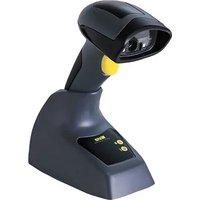
WWS650 - Scanner Wasp - Free user manual and instructions
Find the device manual for free WWS650 Wasp in PDF.


Pick your language and provide your email: we'll send you a specifically translated version.
| Product Type | 2D Wireless Barcode Scanner |
| Brand | Wasp |
| Model | WWS650 |
| Scan Technology | Imager (2D CMOS) |
| Supported Symbologies | 1D (UPC, EAN, Code 128, etc.) and 2D (QR, Data Matrix, PDF417) |
| Wireless Connectivity | Bluetooth Class 1 (up to 100m range) |
| Battery Type | Lithium-ion rechargeable, 2200 mAh |
| Battery Life | Up to 10 hours continuous scanning |
| Charging Time | Approximately 4 hours |
| Dimensions (H x W x D) | 6.5 x 2.8 x 4.3 inches (165 x 71 x 109 mm) |
| Weight | 8.8 oz (250 g) including battery |
| Drop Spec | 5 ft (1.5 m) to concrete |
| IP Rating | IP42 (dust and water resistant) |
| Interface Options | USB, RS-232, Keyboard Wedge (via base station) |
| Scan Speed | Up to 200 scans per second |
| Operating Temperature | 32°F to 122°F (0°C to 50°C) |
| Storage Temperature | -40°F to 158°F (-40°C to 70°C) |
| LED Indicators | Good scan, battery status, Bluetooth connection |
| Cleaning | Gently wipe scan window with a soft, dry cloth; avoid solvents |
| Laser Safety | Class 1 LED product (safe for eyes) |
| Spare Parts Available | Replacement battery, charging cradle, USB cable |
Frequently Asked Questions - WWS650 Wasp
How do I pair the WWS650 scanner with my computer?
Place the scanner in pairing mode by pressing and holding the Bluetooth button until the LED blinks blue. On your computer, scan for Bluetooth devices and select "Wasp WWS650". Follow any on-screen prompts. The default PIN is 0000 if required.
How do I charge the scanner?
Insert the scanner into the included charging cradle or connect the USB cable directly to the scanner's micro-USB port. The LED will turn red during charging and green when fully charged. Charge time is approximately 4 hours.
What barcodes can the WWS650 scan?
It can scan all common 1D barcodes (UPC, EAN, Code 39, Code 128, Interleaved 2 of 5, etc.) and 2D barcodes (QR Code, Data Matrix, PDF417, Aztec, etc.).
How do I reset the scanner to factory settings?
Scan the "Factory Default" barcode from the user manual. If you don't have it, press and hold the trigger and the Bluetooth button simultaneously for 10 seconds until the LED flashes rapidly. This will reset all settings.
The scanner is not reading barcodes. What should I do?
First, ensure the scanner is charged and powered on. Check if the scan window is clean. Try scanning a test barcode. If it still fails, perform a factory reset. If the issue persists, re-pair the scanner with your device.
What is the scanning range of the WWS650?
The scanner can read standard 1D barcodes up to 20 inches (50 cm) away and 2D barcodes up to 12 inches (30 cm). For high-density codes, bring the scanner closer. The Bluetooth range is up to 100 meters (330 feet) in open air.
Can I use the scanner with a mobile phone or tablet?
Yes, the WWS650 supports Bluetooth HID or SPP profiles. Pair it with your Android or iOS device as a Bluetooth keyboard. You may need to download a barcode scanning app to accept data input.
How do I change the scan trigger mode?
By default, the scanner operates in manual trigger mode (press to scan). To enable continuous scanning, scan the "Continuous Scan" configuration barcode from the manual. To revert, scan the "Manual Trigger" barcode.
Does the scanner support keyboard wedge emulation?
Yes, when connected via the USB cable to the base station, it can emulate a keyboard. The scanned data is entered as keystrokes into the active window. No special driver is needed.
How do I clean the scanner?
Turn off the scanner and disconnect from power. Gently wipe the scan window with a soft, lint-free cloth slightly dampened with water or a mild cleaner. Do not spray liquid directly. Avoid abrasive materials.
User questions about WWS650 Wasp
0 question about this device. Answer the ones you know or ask your own.
Ask a new question about this device
No questions yet. Be the first to ask one.
Download the instructions for your Scanner in PDF format for free! Find your manual WWS650 - Wasp and take your electronic device back in hand. On this page are published all the documents necessary for the use of your device. WWS650 by Wasp.
USER MANUAL WWS650 Wasp


Manual assistant
Powered by Anthropic
Waiting for your message
Product information
Brand : Wasp
Model : WWS650
Category : Scanner