
MobileAsset Enterprise Web Module - Software Wasp - Free user manual and instructions
Find the device manual for free MobileAsset Enterprise Web Module Wasp in PDF.


| Product Type | Asset Management Software (Enterprise Web Module) |
| Brand | Wasp |
| Model | MobileAsset Enterprise Web Module |
| Category | Software |
| Version | Enterprise (also Professional edition available) |
| Compatible Operating Systems | Microsoft Windows XP SP3, Vista, Windows 7, Server 2003, Server 2008 (32/64 bit) |
| Server System Requirements (Recommended) | 1.0+ GHz CPU, 1 GB RAM, 200 MB disk space with 700 MB free after install |
| Client System Requirements (Recommended) | 1.0+ GHz CPU, 1 GB RAM, 200 MB disk space with 700 MB free after install, 1024x768 display |
| Database Support | Microsoft SQL Server 2005/2008 (Enterprise uses existing SQL Server) |
| Mobile Device Compatibility | Windows Mobile/CE devices (Palm devices not supported) |
| Key Functions | Asset tracking, barcode printing, auditing, check-in/out, reporting, multi-company management (Enterprise), data import/export |
| License Type | Enterprise: unlimited client connections; Professional: up to 5 client licenses |
| Installation Method | CD-ROM or manual setup via setup.exe |
| User Support | Online help system, Quick Start Guide |
| Bar Code Printing | Integrated WaspLabeler for creating and printing asset tags |
| Multi-Company Capability | Yes (Enterprise edition via Database Manager) |
Frequently Asked Questions - MobileAsset Enterprise Web Module Wasp
User questions about MobileAsset Enterprise Web Module Wasp
0 question about this device. Answer the ones you know or ask your own.
Ask a new question about this device
Download the instructions for your Software in PDF format for free! Find your manual MobileAsset Enterprise Web Module - Wasp and take your electronic device back in hand. On this page are published all the documents necessary for the use of your device. MobileAsset Enterprise Web Module by Wasp.
USER MANUAL MobileAsset Enterprise Web Module Wasp

natural_image
Business meeting scene with a smiling woman in glasses, a man in a white shirt, and a blurred office background (no visible text or symbols)MobileAsset
Quick Start Guide
© Copyright Wasp Barcode Technologies 2010
No part of this publication may be reproduced or transmitted in any form or by any means without the written permission of Wasp Barcode Technologies. The information contained in this document is subject to change without notice.
Wasp and the Wasp logo are registered trademarks of Wasp Barcode Technologies. All other trademarks or registered trademarks are the property of their respective owners.
CONGRATULATIONS
Congratulations on your purchase of MobileAsset! This guide will take you through the installation process and help you set up your software. Most of the information available here is also available in the Getting Started section of the online help.
STEP 1 INSTALL THE SOFTWARE
STEP 2 MIGRATING AN EXISTING DATABASE
STEP 3 SETUP YOUR DATABASE
STEP 4 PRINT ASSET TAGS
STEP 5 AUDIT YOUR ASSETS
STEP 6 BEGIN USING THE APPLICATION
STEP 1
INSTALL THE SOFTWARE
Note: If you are migrating an existing database, please refer to the section titled Migrating an Existing Database on page 11 prior to beginning the installation.
1 Insert the installation disk into your computer. The CD should automatically run the MobileAsset installer. If the installer does not run, you can manually start it by navigating to the CD on your computer and selecting setup.exe.
The following warning screen appears:

Please note that Palm devices are no longer supported by MobileAsset. Do not install this software on your machine if you are still using a Palm device or if you have unprocessed transaction data on a Palm device. If you are transitioning away from Palm devices, prior to upgrading your software make sure each of the following tasks are performed:
a. sync all Palm devices with MobileAsset,
b. process all transactions from the devices,
c. set the Palm devices aside where they cannot be accidentally used.
Click the Yes button to continue or No to cancel the installation.
2 The following screen appears notifying you that you need to install ActiveSync if you will be installing a Windows/CE mobile device:
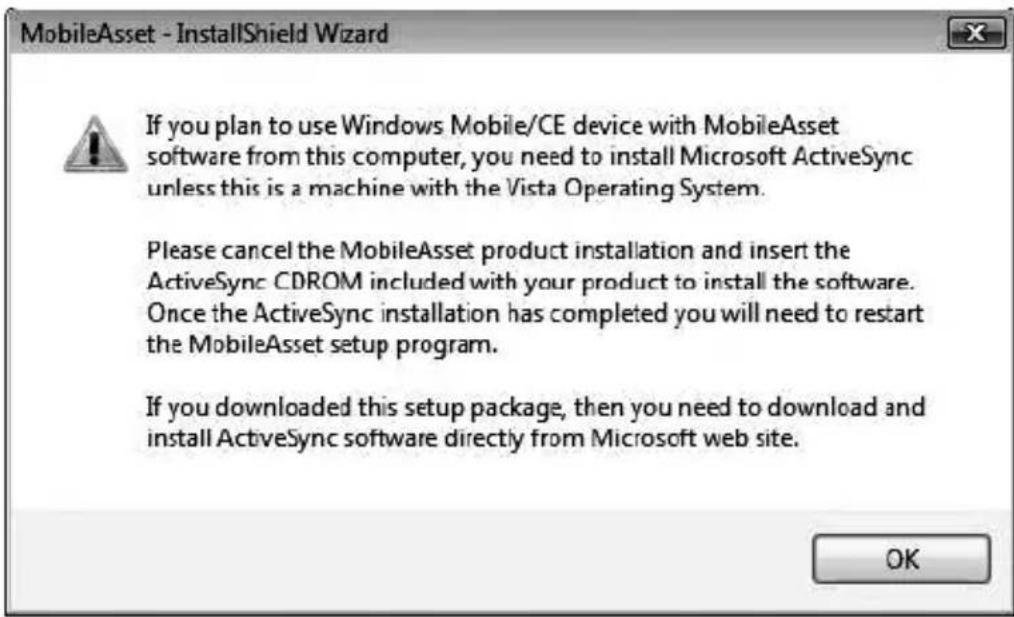
If you are using a computer running Windows Vista or Windows 7, you will not need to install ActiveSync.
If you are installing a Windows Mobile/CE Device:
a. Leave this MobileAsset install screen as it is and insert the ActiveSync CDROM (included in your MobileAsset package). Follow the prompts on the ActiveSync installation screens. You should install the files to the default directory.
Note: At the end of the Windows Mobile/CE Device installation you may be prompted to reboot your computer. Select NOT to reboot at this time (you will be given the opportunity to reboot after the entire MobileAsset installation is complete.
b. After the ActiveSync installation is complete, replace the ActiveSync CD with the MobileAsset CD, return to the MobileAsset installer and click the OK button on the ActiveSync warning screen.
③ Next, the installation wizard Welcome screen appears:
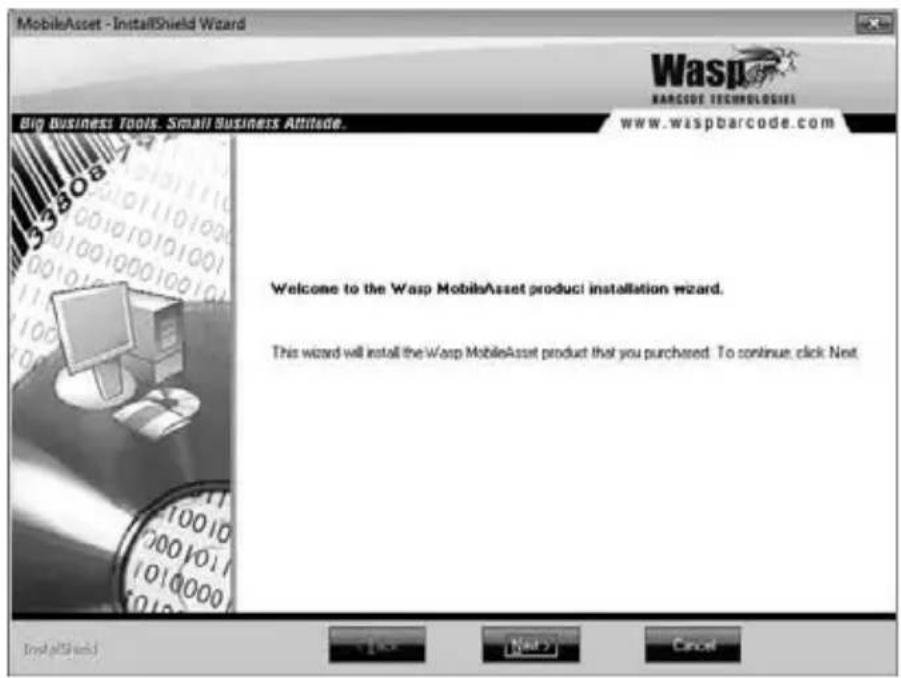
Click Next on this screen to begin installing MobileAsset.
4 Next the License Agreement screen appears.

C I do not accept the terms of the licence agreement
Review the license agreement, then select I accept the terms of the license agreement. You will not be able to continue installing the application until you select this option.
⑤ The User Registration screen appears.
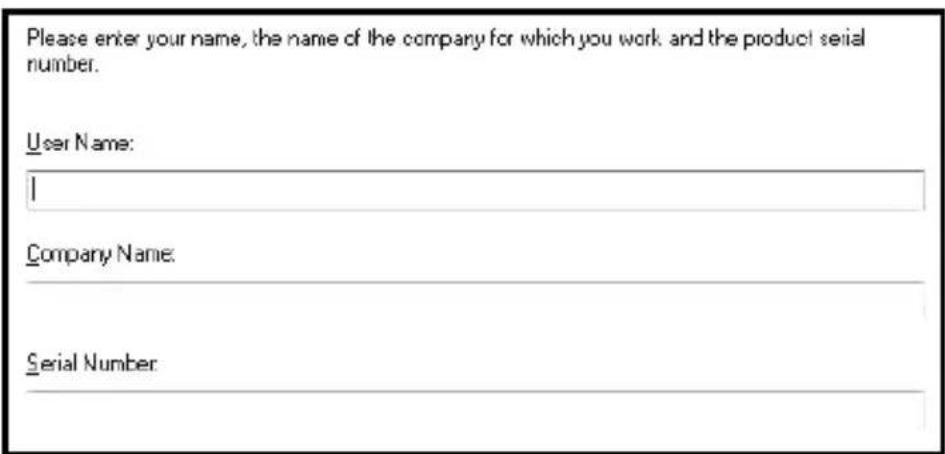
Enter your User Name (this can be any name of your choice), your Company Name and the Serial Number. The serial number can be found on or in the DVD case containing your MobileAsset software (19 digit number).
⑥ Next, a screen displays listing the Destination Folder for installation of MobileAsset: (C:\Program Files\Wasp Technologies\MobileAsset).
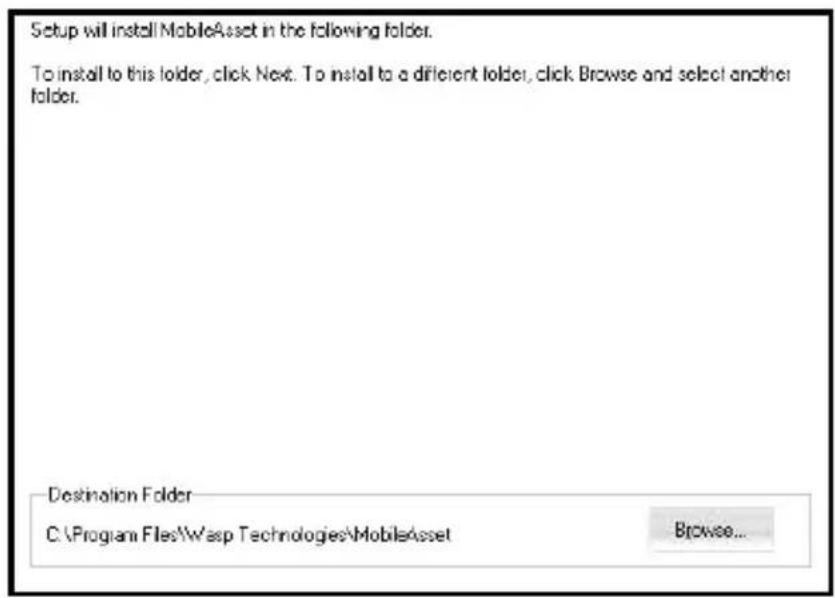
You can select a new destination by clicking the Browse button and navigating to a new folder, or accept the default location (recommended) by clicking the Next button.
7 If you are installing the Professional version, the Select Installation Type screen appears:
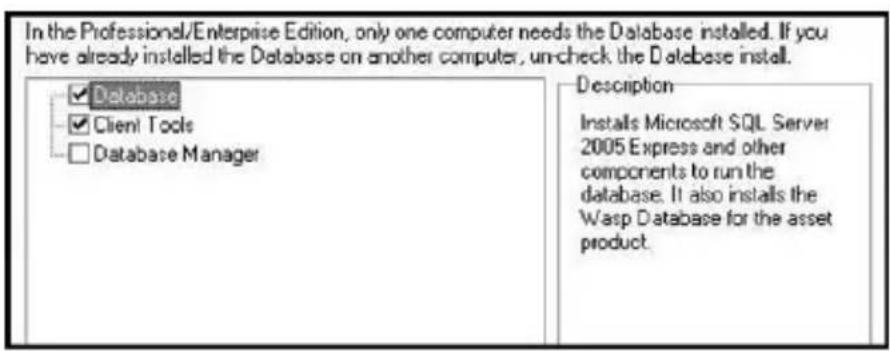
If you have already installed the database on another computer, deselect the Database checkbox on this screen (you only need to install the Client Tools to enable the software to talk to the database).
The Database Manager checkbox should be selected if:
- you are installing the Enterprise version and you will be maintaining assets for multiple companies from this machine, or
- you are installing the Professional or Enterprise version and you will be backing up, restoring or maintaining the database from this machine.
For information regarding the Database Manager feature please refer to the section Using MobileAsset to Manage Assets for Multiple Companies on page 32.
If you are installing the Enterprise version, the Select Installation Type screen will also display the choice to install Microsoft SQL Server 2005 when the Wasp Database is installed:
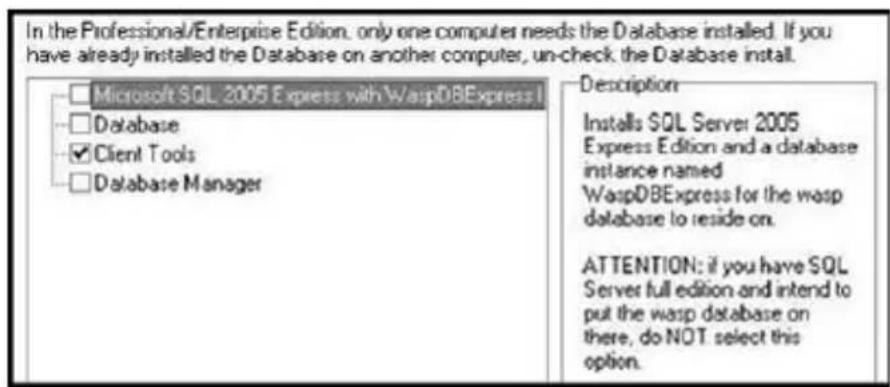
Note: Do not select this option if you have the full edition of SQL Server installed and intend to install the Wasp Database in that location.
⑧ Next a screen appears asking which type of mobile device you are installing.
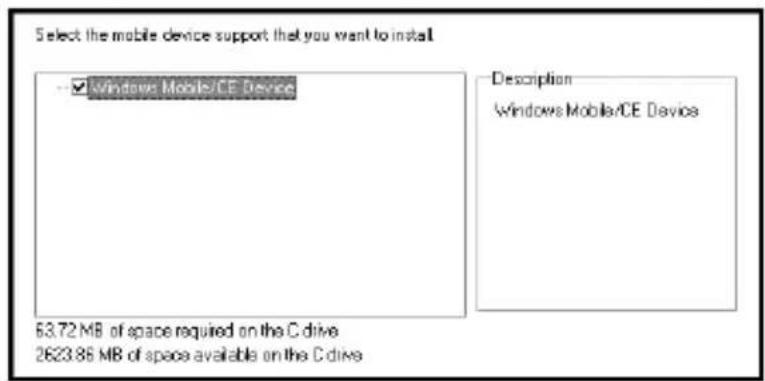
If you are going to use the software with a Windows Mobile/CE Device, select the checkbox. If you will not be using a mobile device, leave the checkbox blank. Click the Next button to continue.
9 After your mobile devices are successfully installed, the MobileAsset installation will continue. If you want to make changes to your destination folder at this point, click the Back button. If you are ready to install MobileAsset, click the Install button.
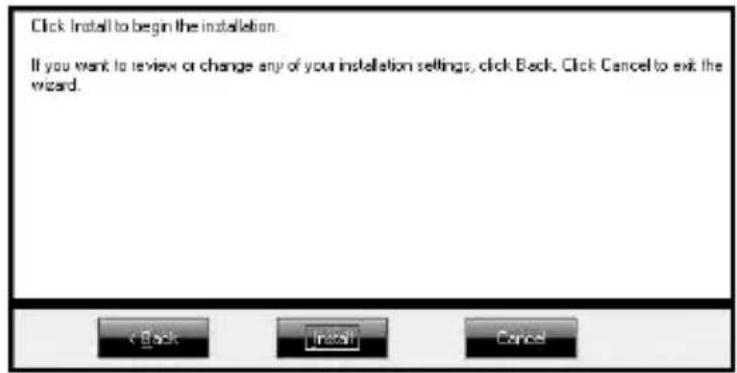
A series of progress screens will appear. The installation process may take a few minutes.
10 Database Installation
a. During the install, the screen shown to the right will appear: This wizard takes you through the process of installing your new database. Click Next on this screen to continue installing.

b. Next, a progress message appears notifying you that the software is testing the connection.
You do not need to do anything at this point.
c. If the Database Installer does not detect an existing database, the following screen appears:
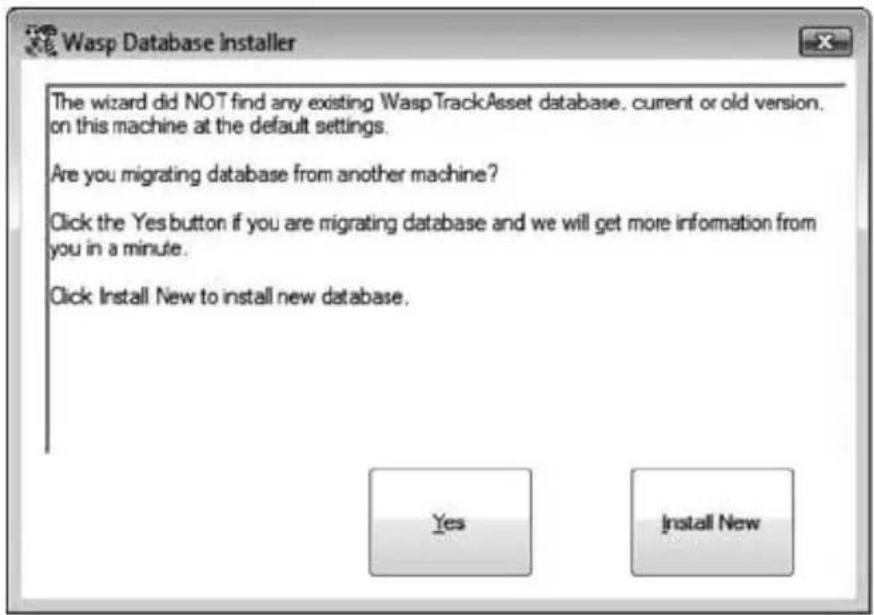
d. If you are installing a new database, click the Install New button. If you are migrating a database, click the Yes button. Please see the section "Migrating an Existing Database" on page 11.
e. If you are installing the Professional or Enterprise version, a screen appears asking you to create an access code for the Database Manager. This access code serves as your password to open the Database Manager after install. It is very important that you make a note of this password.
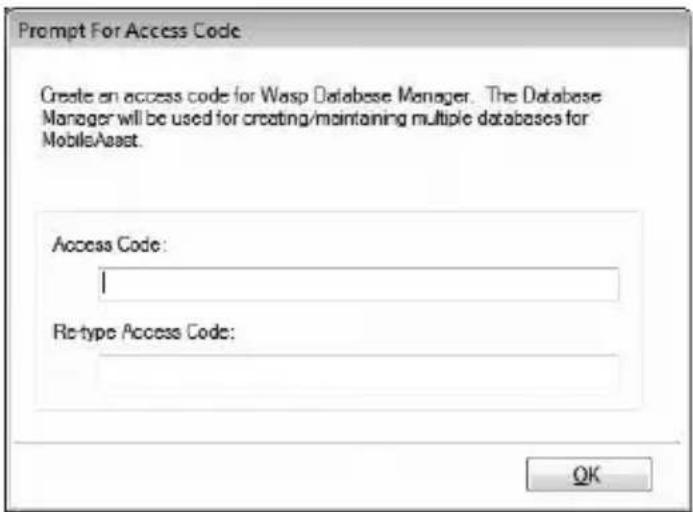
Enter the Access Code of your choice, then click the OK button.
f. If you are upgrading from version 5, the Database Installer will detect your existing database, upgrade it (leaving your existing data intact) and create a backup both before and after the upgrade.
If you are installing or migrating a database, after the database is installed, a message appears asking if you want to backup the database now:

Click Backup Database Now to accept the default backup location, or click Backup to Different Location to select a custom directory or name for your backup file. If you want to create the backup later, click Skip Backup.
g. Click Finish on the Database Installer screen to continue.
h. The Database Installer will run again to install the Sample Company Database. You will be prompted to backup the database (screen shot above). The Sample Company database installation will begin with the screen shown in step a, above, then skips the Install New or Migrate screen shown in step c.
i. Click Finish on the Database Installer screen to continue.
11 On Professional and Enterprise installations, the Computer Name screen is displayed once the Database Server install is complete.
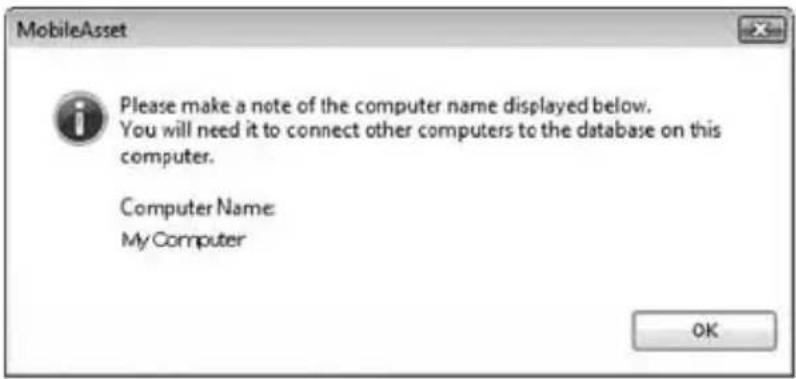
Important: Record your computer name before clicking the OK button. You will need to enter the computer name when you install your Client Tools.
12 Next you will see a series of install screens for third party applications, such as Crystal Reports. You do not need to do anything on these screens.
13 After MobileAsset installs, the WaspLabeler installation screen will appear. WaspLabeler installs to allow you to view and edit labels that are included in your MobileAsset system and to create new labels.
Note: If you are upgrading the WaspLabeler program, select Repair, then Next.
14 You can select a new destination by clicking the Browse button and navigating to a new folder, or accept the default location by clicking the Next button.
15 A series of progress screens will appear as Labeler is installing.
16 After the entire installation process is complete, a screen will appear asking if you want to reboot your computer.
Select Yes, I want to restart my computer now, remove any installation disks from their drives, then click Finish. Your system will reboot.
MobileAsset and Wasp Labeler icons will appear on your desktop.
STEP 2
MIGRATING AN EXISTING DATABASE
Note: You should complete steps 1 through 4 below prior to beginning the MobileAsset installation from the CD.
Migrating is the process of moving the database server machine. If you had MobileAsset's database installed on machine A but now want the database to be on machine B, the installer will facilitate the movement of that database to the new machine. Migrating should not be used if you are upgrading one machine. Only use migrating if you are moving the location where database is installed.
The steps below outline migration of a MobileAsset v5.x or v6.x database to a new machine. If you are migrating a v4.x database you will need to call technical support.
Create and store a current backup of MobileAsset before beginning these steps.
To migrate an existing database, you will need to detach the database from its existing location. To do this, open SQL Server Manager and navigate to the database. Right click on the database and select All Tasks > Detach Database.
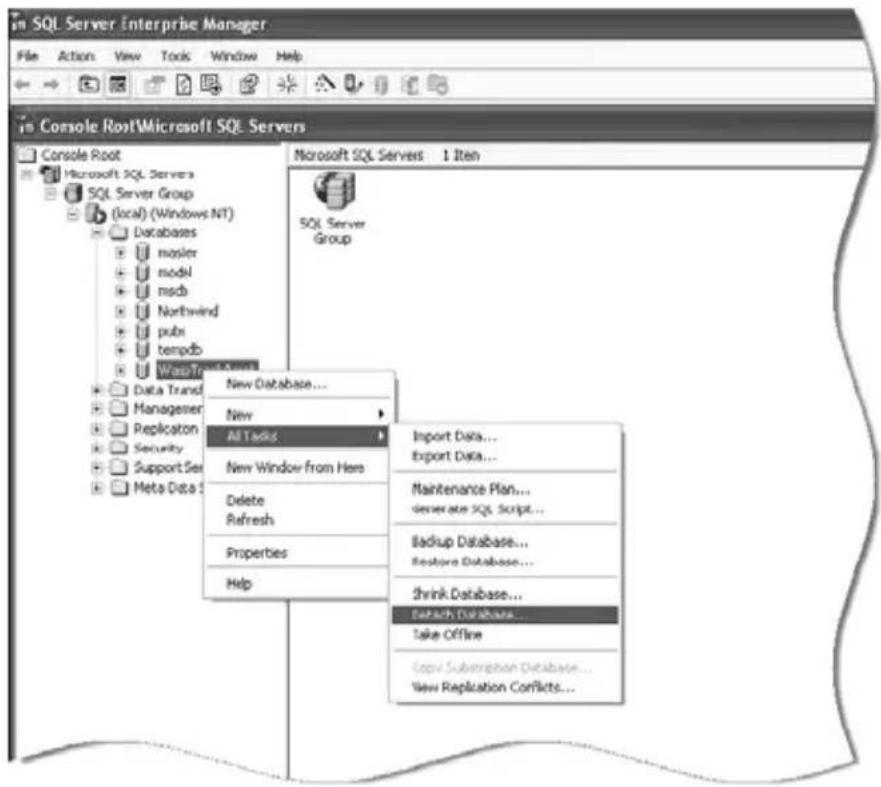
② The Detach Database screen appears:
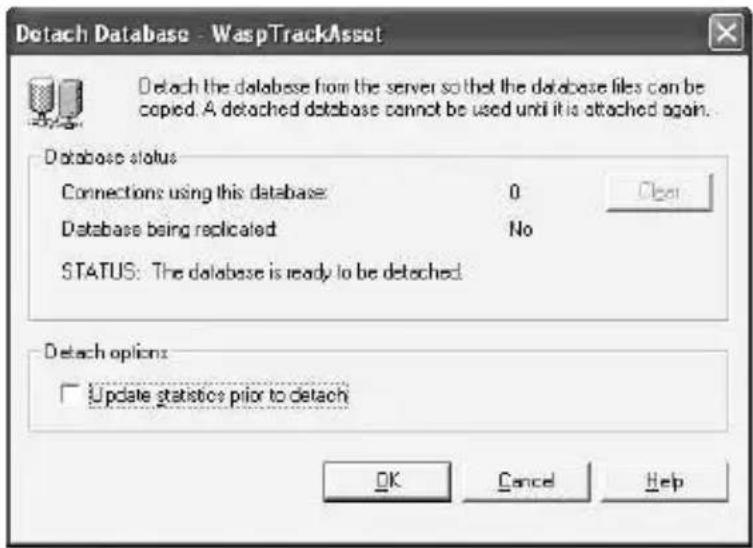
Click the OK button.
③ When the database has successfully detached, the following message appears:

Click the OK button. WaspTrackAsset will disappear from the database list.
4 Next, move the associated .mdf and .ldf files from SQL Server to a location on your local machine (or on the machine where you will be migrating the database).
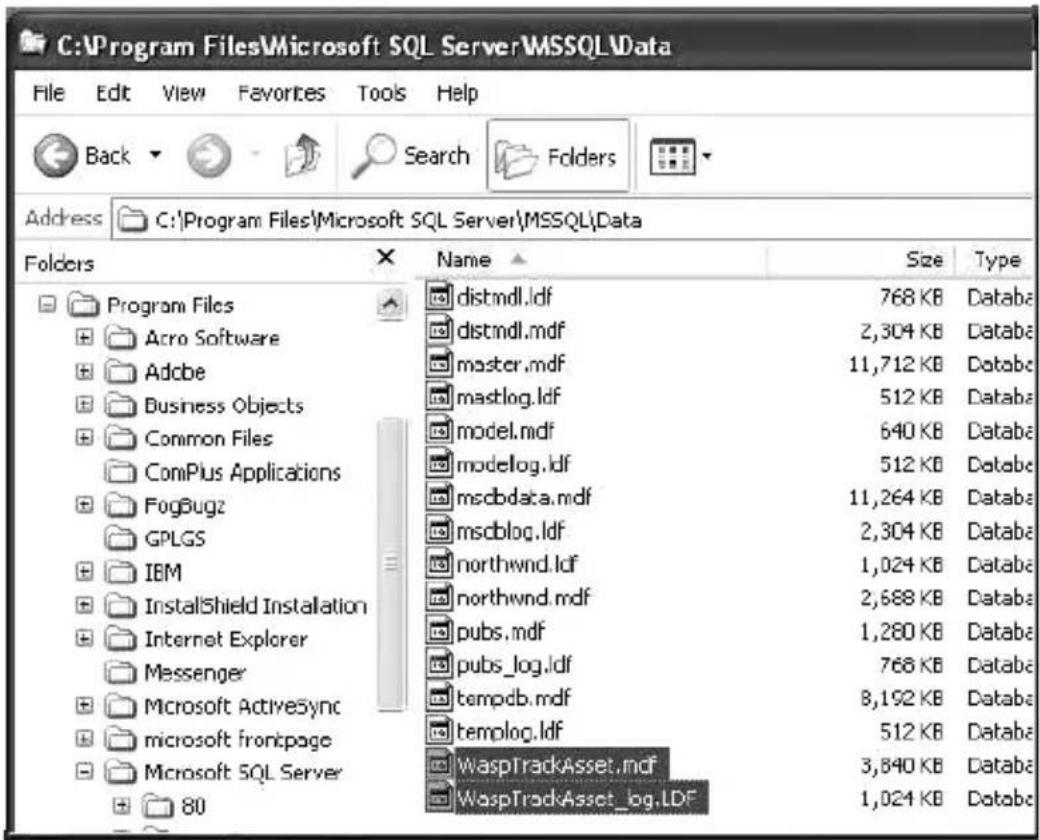
5 During the database installation portion of the MobileAsset installation, you will see the following screen:
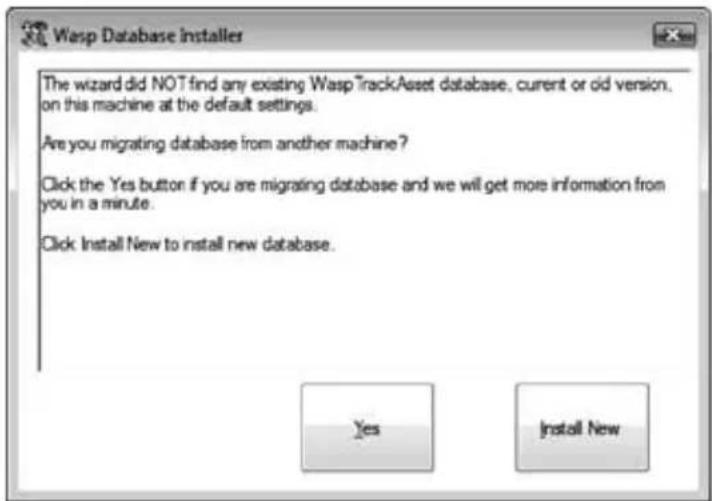
Click Yesto complete migrating your database.
6 A screen will appear asking for the location of the mdf and ldf files:
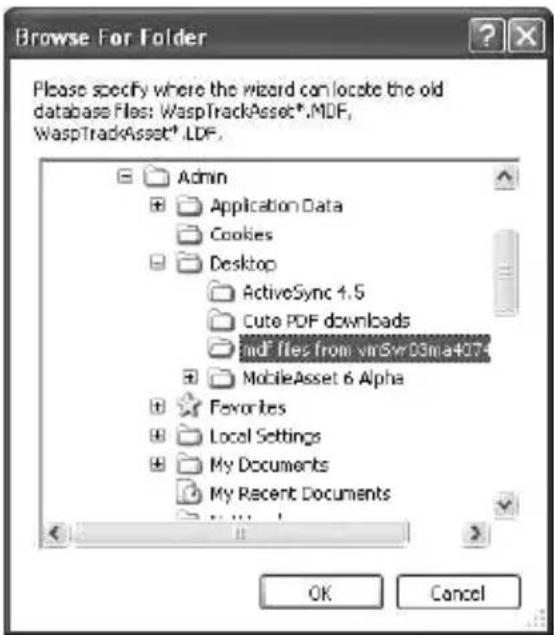
Navigate to the location where you moved the files, then click the OK button.
⑦ Next a screen appears asking you to backup your database.
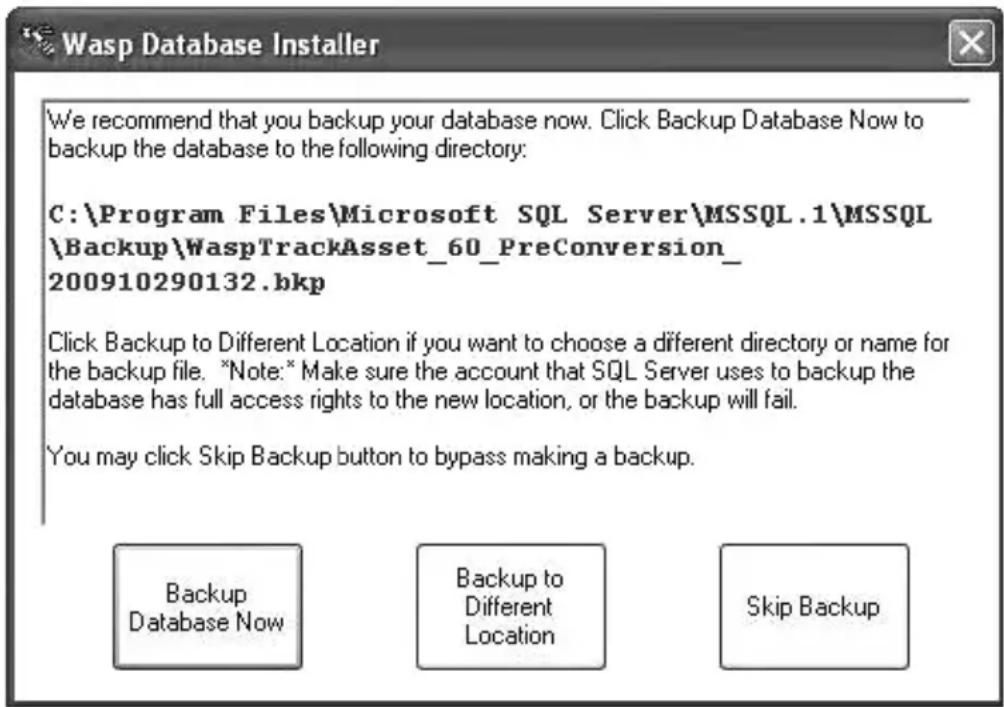
Click Backup Database Now to accept the default backup location, or click Backup to Different Location to select a custom directory or name for your backup file. If you want to create the backup later, click Skip Backup.
8 Click the Finish button to close the Wasp Database Installer.
STEP 3
SETUP YOUR DATABASE
Now that your software is installed, you will want to take a few minutes to properly enter information into your database.
For detailed information on any of the procedures listed in this document, please refer to MobileAsset's online help system. You can access the online help by click Help > Contents from the toolbar or by selecting the Help button on any screen.
Below is a brief outline of the steps required to setup your database. These steps should be done in order. The steps below discuss manually entering information into your database; however, much of this data can be imported. Importing data is discussed in this document in the section titled Methods of Data Entry (Importing vs. Manual Entry). Even if you are planning on importing your information, we recommend that you review the steps below to help you understand how the different types of data interrelate.
1 First, open the MobileAsset application by double-clicking on the icon on your desktop (you can also access MobileAsset from the Start menu by selecting Programs>Wasp Technologies>MobileAsset).
The Login screen will appear. The first time you access the system, Admin will appear in the User Name field. You do not need to enter a password. Click the OK button to launch the software.
2 Create at least one additional user with Administration privileges. By default, MobileAsset contains one Admin user profile. You will want to create at least one more so that if one becomes disabled you can still access the system.
③ Enter your company information. From the Main menu, select the Administration icon, then click Company Information. All fields on the Company Information screen are optional.
4 Enter all sites for your company. From the Main menu, select the New icon, then click Site.
A site is a major classification for areas that contain assets within your company. For instance, if you have two warehouses, you might set up MobileAsset to have two sites: Warehouse 1 and Warehouse 2.
You must enter at least one site before can add assets to your system.
5 Now you can enter the locations contained in each of your sites. From the Main menu, select the New icon, then click Location. Assets that you enter into your system must each be assigned to a Site and a Location within that site. Using the example above, within Warehouse 1, you might have three locations: Main Storage Area, Manager's Office and Administrative Office.
6 The next step is optional. You can, if you wish, create departments for your company. This may help you with assigning the assets. For instance, within your locations, you may want to designate two departments. Continuing the example above, within Administrative Office, you could have two departments: Accounting and Human Resources. This is a further classification to help you track your assets.
To setup departments, from the Main menu, select the New icon, then click Departments.
Now you can enter all manufacturers for your assets. This step is also optional. From the Main menu, select the New icon, then click Manufacturers. Manufacturers can later be assigned to Asset Types (see step 9).
8 If you will be calculating depreciation on your assets, setup your Depreciation Classes next. These are created to determine a specific Depreciation Method (straight-line, double declining, etc.) for an Asset Type (see step 9). The Asset Types are then assigned to specific assets and the depreciation class tied to the asset type is used to calculate depreciation.
To create Depreciation Classes, from the Main menu, click the New icon, then select Depreciation Classes.
9 Now you need to create your Asset Types. Asset Types are required because each asset in your inventory is assigned to an Asset Type. The Asset Type is a category or classification for assets. For instance, you may have an Asset Type of IBM Laptop X6000 that defines the manufacturer,
size specs, etc. of this particular type of computer. Then specific computers of the same type are assigned as assets to the IBM Laptop X6000 asset type.
To create Asset Types, from the Main menu, select the New icon, then click Asset Types.
10 This step is optional. You can create different categories to which you can assign assets. This is another way to further define your assets. You can add categories directly from the New Asset Type screen, if you wish.
Now you are ready to begin entering individual assets. From the Main menu, click the New icon, then click Assets.
Methods of Data Entry (Importing vs. Manual Entry):
There are two ways you can add information to your database: through manual entry or by importing the data from an existing database. Importing data can be much quicker if you wish to transfer a large amount of information from an existing database to MobileAsset. Importing this information also ensures you do not have typographical errors.
You must import the data in a set order. Detailed instructions for importing data can be found in the online help. The outline below details the order in which data must be imported into the system. For a more detailed explanation and outline, please refer to the Import Strategies topic in the online help. MobileAsset will only accept the data in this specific order because each piece of information builds on the next to create a complete profile for your assets. For instance, each asset must be assigned to a specific Location, therefore, you must import your Locations first so that MobileAsset will have this information prior to importing your Assets. Again, we strongly recommend that you review the information regarding importing data in the online help before you being the import process.
Import Order:
A. Vendors (optional)
B. Manufacturers (optional)
C. Depreciation Classes
(optional – import if you will be calculating depreciation.)
D. Asset Types (required)
E. Departments (optional – if you will be importing employees and wish to assign them to specific departments, you must import the departments prior to importing the employees. If you wish to assign Assets to specific departments, but not employees, you can import departments anytime before importing assets.)
F. Site (required)
G. Locations (required)
H. Assets (required)
I. Employees (optional – import if you will be checking out/in assets to employees)
J. Customers (optional - import if you will be checking out/in assets to customers)
If you plan on importing information, you should also keep in mind that some types of supplemental information cannot be imported. For instance, if you wish to assign Asset Types to specific Categories, you will need to manually create these from the New Asset Type screen.
Imported data must be in .csv format. For further information including examples of properly formatted .csv files, please refer to the Import Strategies topic in the online help.
STEP 4
PRINT ASSET TAGS
Asset Tags should be printed and attached to each asset in your database. When you created your Assets, remember that you entered a number or code for each asset in the Asset Tag field of the New Asset screen (if you manually entered your assets) or in the Asset Tag column (if you imported the data). Now an actual tag should be printed that contains the Asset Tag number or code and (usually) a barcode for quick identification and tracking. These tags should be affixed to each asset.
MobileAsset came bundled with the WaspLabeler application making the creation of these Asset Tags simple. WaspLabeler was installed when you installed MobileAsset. To print tags, first select the assets from the Asset List for which you want to print tags, then click the Print Tags icon on the Asset List toolbar. You can select multiple assets using the SHIFT or ALT keys.
STEP 5
AUDIT YOUR ASSETS
Note: Test your mobile device to make sure data travels back and forth correctly before starting to do actual work on the device.
Now that your database is setup and you have attached Asset Tags to all assets, you should audit all assets. This ensures you have not missed an asset, miss-labeled an asset or assigned an asset to the wrong location. The quickest way to do this is to use your mobile device. You will need to setup your mobile device prior to performing this step. Please refer to the Working With Mobile Devices section of your online help system for assistance setting up, using and syncing your mobile devices.
Synchronize the data you have collected on your mobile device back to the PC.
If you have chosen not to install a mobile device, you will need to do this audit manually by physically checking each asset tag attached to an asset and comparing against the database.
STEP 6
BEGIN MANAGING YOUR ASSETS
You have now successfully setup MobileAsset. You can now use the powerful MobileAsset functionality, including detailed reports, check-in/out features and list views to quickly keep track of and manage your assets.
FOR PROFESSIONAL EDITION INSTALLATION
MobileAsset Pro Edition takes advantage of your existing TCP/IP network to allow up to five MobileAsset Client workstations to access a single database located at the MobileAsset Server. The Client software may optionally be installed on the same machine where the MobileAsset Server database is installed.
INSTALLATION
MobileAsset Pro ships with one Server license and five Client Licenses. MobileAsset Pro Edition may be installed in your choice of these two configurations.
Refer to the diagrams below and the hardware requirements below to decide how you will deploy the Licenses in your environment.
| Recommended Server ConfigurationMi | |
| 1.0+ GHz CPU800 MHz CPU | |
| 1 GB of RAM512 MB of RAM | |
| 200 MB of disk space with 700 MB of free space available after install | 200 MB of disk space with >1.0 GB of free space available after install |
| DVD drive (for installation only) | |
| Microsoft® Windows XPSP3, Vista, Windows 7, Server 2003 or Server 2008, 32 or 64 bit compatible | |
| Recommended Client ConfigurationM | |
| 1.0+ GHz CPU800 MHz CPU | |
| 1 GB of RAM512 MB of RAM | |
| 200 MB of disk space with 700 MB of free space available after install | 200 MB of disk space with >1.0 GB of free space available after install |
| DVD drive (for installation only) | |
| 1024 x 768 pixel display with 16 bit high color or better | |
| Microsoft® Windows XPSP3, Vista, Windows 7, Server 2003 or Server 2008, 32 or 64 bit compatible | |
NOTE:
- MobileAsset Server installation on Microsoft Windows® 2000, 98SE, NT or ME machines are not supported.
- MobileAsset Clients will not work without connecting to a running MobileAsset Server.
- The database server will run automatically every time the computer is rebooted.
1 Server and 5 Clients
When selecting the MobileAsset database server configuration shown below, uncheck the Client Tools option on the Select Installation Type screen, and only the Database Server will be installed on this machine.

flowchart
graph TD
    Server["Server"] --> Client1["Client"]
    Server --> Client2["Client"]
    Server --> Client3["Client"]
    Server --> Client4["Client"]
    Server --> Client5["Client"]
Select Installation Type screen:

* For the client only machine refer to the Client Only section below.
② Server with Client and 4 Clients
When selecting the MobileAsset Database server configuration shown below, leave the check in the Client Tools option and the Database option. The Database Server and one Client will be installed on this machine.

flowchart
graph TD
    A["Client installed with Server"] --> B["Client"]
    A --> C["Client"]
    A --> D["Client"]
    A --> E["Client"]
    B --> F["Mobile Phone 1"]
    B --> G["Mobile Phone 2"]
    C --> H["Mobile Phone 3"]
    C --> I["Mobile Phone 4"]
    D --> J["Mobile Phone 5"]
    D --> K["Mobile Phone 6"]
    E --> L["Mobile Phone 7"]
In the Professional/Enterprise Edition, only one computer needs the Database installed. If you have already installed the Database on another computer, un-check the Database install.
Database
Client Tools
Database Manager
Description
Installs Microsoft SQL Server 2005 Express and other components to run the database. It also installs the Wasp Database for the asset product.
Remember that there are only five Client licenses, so you might want to deselect the Client Tools component if you would rather deploy all of your Client licenses on machines other than this Database Server machine. If you deselect Database here, you will not be installing the server.

Client Only
The Client Tools component of MobileAsset Pro Edition can be installed once a MobileAsset Server has been installed and is running.
Deselect the Database (Server) component when the Select Installation Type screen is presented and click the Next button, to install only the Client Tools component at machines other than the Database Server machine.
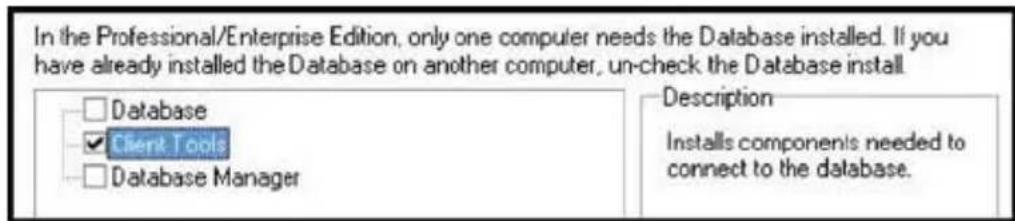
Note: For information regarding the Database Manager option, please refer to the section Using MobileAsset to Manage Assets for Multiple Companies on page 32.
The Computer Name screen is displayed once the Database Server install is complete.
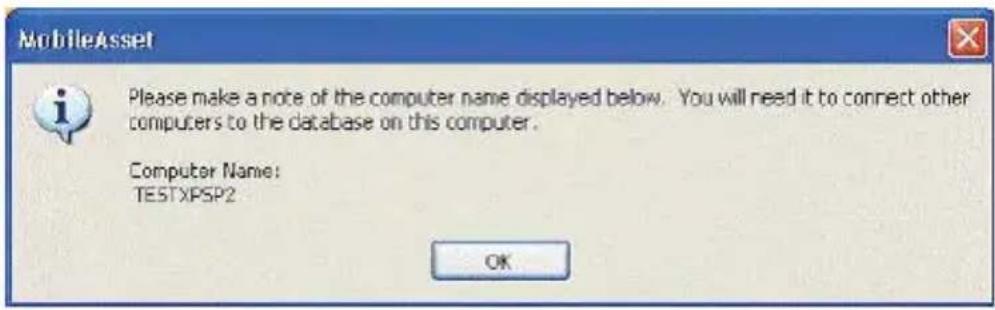
Important:
Record your Computer Name before clicking the OK button. This name must be known when you perform your Client Tools installation.
USING THE MOBILEASSET CLIENTS
The Client licenses are “Fixed”. After you install a Client license and run that client, it will connect to the server and register itself with the server. Information about that computer will be stored on the server. Any authorized user can connect from that computer using that one license. If five clients have been installed and registered with the server and a sixth client is installed, when that sixth client runs it will fail to connect because all licenses have been used. Even if none of the other clients are running the application, the sixth machine will be denied a license.
Functions you perform at any MobileAsset PC Client machine will impact other users at one of three possible levels, as illustrated in the following table:
| Function Performed on a Client | Affects All Users, Everywhere | Affects Any User Who Logs On to this Client | Affects Only a Specific User |
| XChange | Company Information | ||
| XRestore | the database | ||
| Add or change Security Privileges | X | ||
| XImport | Data | ||
| XEdit Field Names | |||
| XSet Default Working Site | |||
| XChange | any Option | ||
| All Asset Management functions | X | ||
| XChange | Labeler Labels | ||
| XChange | Report Filters | ||
| Mobile Device Database Filter Criteria | X |
See the MobileAsset Online Help for more information about Synchronization, Processing Mobile Device Data and the Create PDA (or Windows Mobile/CE) Database functions.
CONNECTING A MOBILE DEVICE
One or more compatible mobile devices may be connected anywhere the MobileAsset Client tools are installed (up to the maximum number of Mobile Licenses purchased). Use the Quick Start Guide with the device to set up the hardware. See the MobileAsset Help topics for information about performing mobile transactions.
FOR ENTERPRISE EDITION INSTALLATION
MobileAsset Enterprise Edition takes advantage of your existing TCP/IP network and your current installation of MS SQL Server to allow an unlimited number of Client workstations to access the MobileAsset Database. The Client software may optionally be installed on the same machine where the database is installed.
INSTALLATION
MobileAsset Enterprise ships with one Server license and the ability to connect an unlimited number of Clients connections:

flowchart
graph TD
    A["Database Server"] --> B["Unlimited Client Connections"]
    B --> C["Client"]
    B --> D["Client"]
    B --> E["Client"]
    B --> F["Client"]
    B --> G["Client"]
Refer to the diagram above and the hardware requirements below to decide how you will deploy MobileAsset Enterprise in your environment.
| Recommended Server ConfigurationMi | |
| 1.0+ GHz CPU800 MHz CPU | |
| 1 GB of RAM512 MB of RA | |
| 200 MB of disk space with 700 MB of free space available after install | 200 Mb of disk space with >1.0 GB of free space available after install |
| DVD-ROM drive (for installation only) | |
| Microsoft® Windows XPSP3, Vista, Windows 7, Server 2003 or Server 2008, 32 or 64 bit compatible | |
| Recommended Client ConfigurationMi | |
| 1.0+ GHz CPU800 MHz CPU | |
| 1 GB of RAM512 MB of RAM | |
| 200 MB of disk space with 700 MB of free space available after install | 200 MB of disk space with >1.0 GB of free space available after install |
| DVD drive (for installation only) | |
| 1024 x 768 pixel display with 16 bit high color or better | |
| Microsoft® Windows XPSP3, Vista, Windows 7, Server 2003 or Server 2008, 32 or 64 bit compatible | |
NOTE:
- MobileAsset Server installation on Microsoft ^® Windows ^® 2000, 98SE, NT, ME or 2000 machines is not supported.
- MobileAsset Clients will not work without connecting to a running MobileAsset Server.
- The database server will run automatically every time the computer is rebooted.
Server Installation Procedures:
NOTE: Please ensure that the Database Administrator performs the following procedures.
1 Place the CD into the CD ROM drive on the server that already has Microsoft SQL Server 2005/2008 Full Version installed. Run the installer as usual. When prompted to select an Installation Type, select Database only.
2

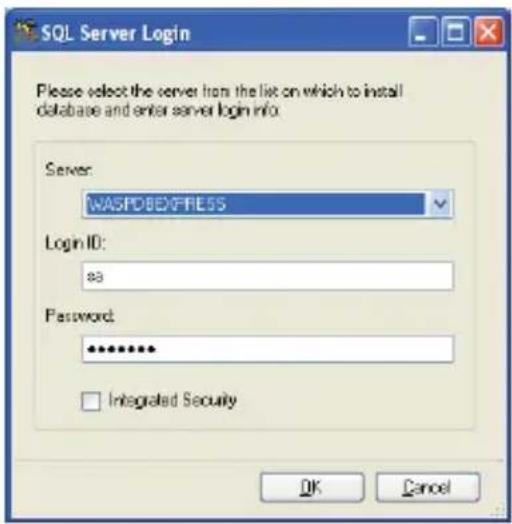
If you have more than one database instances installed, they will be listed under the server.
NOTE: The Integrated Security check box is used to specify that the SQL Server Wire Protocol driver request a secure (or trusted) connection to SQL Server. SQL Server uses integrated login security to establish connections using this data source, regardless of the current login security mode at the server. Any login ID or password supplied is ignored. The SQL Server system administrator must have associated your Windows network ID with a SQL Server login ID.
When the Integrated Security check box is not checked you must specify that SQL Server use standard login security to establish connections using this data source. You must specify a Login ID and Password for all connection requests.
Make sure that you select the correct database instance in the server list to install MobileAsset database.
3 Click OK.
4 The same Wasp Database Installer windows will appear that display in step 10 of the Install the Software section of this document (page 7).
Note: For information regarding the Database Manager feature please refer to the section Using MobileAsset to Manage Assets for Multiple Companies on page 33.
If the Database has been previously installed, the installer will upgrade the database to the latest layout.
Now the server database installation is complete. If you have Microsoft SQL Enterprise Manager, you will see that WaspTrackAsset (for MobileAsset) has been installed under the Server and the Instance (if applicable) that you specified.
UPGRADING FROM MOBILEASSET ENTERPRISE VERSION 5 TO VERSION 6
① The MobileAsset Installer should be run on each client machine to upgrade the software.
② On the Database Server Machine that houses your database, you should run the installer as usual. On the Select Installation Type screen, select Database only.
If the machine that houses your database also contains a client program, you will need to perform Step 1 and Step 2 on that machine.
Note on Running Scripts Manually: If you run the scripts manually to install the database and you need multiple company access, the access code for the Database Manager will not be set the first time you run the Database Manager. To correct this, you must run the Database Manager at least once to create the access code rather than leaving it blank. You will be presented with the same Create Access Code screen that would have appeared during a normal install:

Leaving the access code blank may lower your database security level and put your information in greater danger of being compromised.
USING MOBILEASSET TO MANAGE ASSETS FOR MULTIPLE COMPANIES
The Enterprise version of MobileAsset allows you to create databases for multiple companies. This means that if you have two separate entities for which you want to maintain assets, you can install one instance of MobileAsset, then create two databases - one for each company. Remember that a database is the repository for all information about your company. Everything from your company's name and address, to your employee information, to your asset information is stored in the database. If you need to track asset information for two separate companies, you wouldn't want to group that information into one database, as it would be impossible to know to which company the asset belongs. Creating a database for each company allows you to enter sites, locations, customers, employees, assets, etc. that are specific to one company. In addition, each company has its own security so you can control who has access to a specific company.
The initial installation of MobileAsset creates one company for you to use. To add more companies you will need to use the Database Manager. The Database Manager is a program that can be installed during the MobileAsset installation. If you did not install it when you installed MobileAsset, you will need to run the MobileAsset installer again and select Database Manager on the Select Installation Type screen (Step 8 in the Install the Software section of this document). Leave the other check boxes on this screen checked as they were for the initial install. During the installation you will be prompted to create an access code. Make a note of the code you create as you will need this to access the Database Manager later. The Database Manager can be installed on any machine even if it has no other pieces of MobileAsset installed on it. It
does not consume a license if it is installed on a machine that does not have the client on it.
To run the Database Manager, click Start > All Programs > Wasp > MobileAsset > Database Manager. Again, you will need to know the access code you created during the installation to run the Database Manager. Use the Online Help built into the Database Manager to learn how to add and manage database (click the Help button or press F1 on your keyboard when the Database Manager is running).
Once multiple company databases are created using the Database Manager, you can use the same MobileAsset icon that was created at install time to access any of the companies. Double click on the icon and enter your login name and password. If the entered login and password match a login and password set up in more than one company database, a screen will appear allowing you to select which company you want to access.
CONNECTING A MOBILE DEVICE
One or more compatible mobile devices may be connected anywhere the MobileAsset Client tools are installed (up to the maximum number of Mobile Licenses purchased). Use the Quick Start Guide with the device to set up the hardware. See the MobileAsset Help topics for information about performing mobile transactions.
MANUAL START PROCEDURES
1 Place the CD into the CD ROM drive on your computer.
2 Right mouse click on the Start icon and click the Explore option.
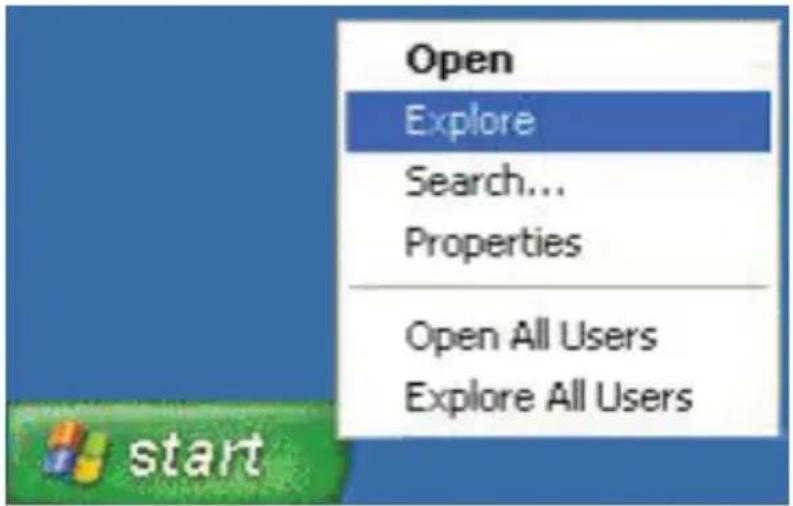
3 Click on the disk drive location containing your Installation CD to expose the CD contents.
4 Locate the setup.exe program and double click on it. The installation process will begin.

natural_image
Abstract geometric pattern with diagonal yellow stripes and gradient gray-blue tones on a solid yellow background (no text or symbols)




- MobileAsset
- CONGRATULATIONS
- STEP 1
- INSTALL THE SOFTWARE
- Next the License Agreement screen appears.
- ⑤ The User Registration screen appears.
- Database Installation
- STEP 2
- MIGRATING AN EXISTING DATABASE
- STEP 3
- SETUP YOUR DATABASE
- Methods of Data Entry (Importing vs. Manual Entry):
- Import Order:
- STEP 4
- PRINT ASSET TAGS
- STEP 5
- AUDIT YOUR ASSETS
- STEP 6
- BEGIN MANAGING YOUR ASSETS
- FOR PROFESSIONAL EDITION INSTALLATION
- INSTALLATION
- NOTE:
- Server and 5 Clients
- Select Installation Type screen:
- ② Server with Client and 4 Clients
- Client Only
- Important:
- USING THE MOBILEASSET CLIENTS
- CONNECTING A MOBILE DEVICE
- FOR ENTERPRISE EDITION INSTALLATION
- Server Installation Procedures:
- UPGRADING FROM MOBILEASSET ENTERPRISE VERSION 5 TO VERSION 6
- USING MOBILEASSET TO MANAGE ASSETS FOR MULTIPLE COMPANIES
- MANUAL START PROCEDURES
Brand : Wasp
Model : MobileAsset Enterprise Web Module
Category : Software