F-715SG - Calculator CANON - Free user manual and instructions
Find the device manual for free F-715SG CANON in PDF.


| Product Type | Scientific Calculator |
| Model | Canon F-715SG |
| Display | 12-digit LCD with dot matrix |
| Number of Functions | 240+ functions |
| Power Supply | Solar cell + LR44 battery (1.5V) |
| Auto Power Off | Approx. 10 minutes of inactivity |
| Dimensions (W x H x D) | 165 x 81 x 16.5 mm |
| Weight | 95 g (including battery) |
| Key Type | Plastic keys with tactile feedback |
| Protective Cover | Hard slide case included |
| Menu Language | English |
| Digit Separator | Yes (comma display) |
| Decimal Format | Float, Fix, Sci, Norm |
| Fraction Operations | Yes (mixed and improper) |
| Statistical Calculations | 1-variable and 2-variable statistics |
| Base Conversion | DEC, BIN, OCT, HEX |
| Memory | 9 variables (A-F, X, Y, M) |
| Cleaning Instructions | Wipe with a soft dry cloth; avoid solvents |
| Safety Precautions | Keep away from water and extreme temperatures; replace battery immediately if leaking |
| Spare Parts Availability | LR44 battery only; other parts not intended for user replacement |
| Repairability | Non-serviceable; contact Canon support for defects |
| Warranty | 1 year limited warranty (refer to documentation) |
Frequently Asked Questions - F-715SG CANON
User questions about F-715SG CANON
0 question about this device. Answer the ones you know or ask your own.
Ask a new question about this device
Download the instructions for your Calculator in PDF format for free! Find your manual F-715SG - CANON and take your electronic device back in hand. On this page are published all the documents necessary for the use of your device. F-715SG by CANON.
USER MANUAL F-715SG CANON
Replay, Copy and Multi-statements ...... P.8
INPUT RANGE AND ERROR MESSAGE ...... P.9
Calculation Accuracy, Input ranges P.9
Order of Operations P.11
Calculation Stacks P.12
Error Message and Error Locator P.12
BASIC CALCULATIONS ...... P.13
Arithmetic Calculations ...... P.13
Memory Calculations P.14
Fraction Operations P.15
Percentage Calculations
Degree-Minutes-Seconds Calculations
Fix, Sci, Norm, ROUND P.19
FUNCTIONAL SCIENTIFIC CALCULATIONS ...... P.21
Square, Root, Cube, Cube Root, Power, Power Root,
Reciprocal and Pi P.21
Logarithm, Natural Logarithm, Antilogarithm and Log ab ...... P.21
Angle Unit Conversion P.22
Trigonometry Calculations P.23
Permutation, Combination, Factorials and Random
Number Generation
Least Common Multiple and Greatest Common Divisor ...... P.25
Quotient and Remainder P.25
Coordinate Conversion P.26
Absolute Value Calculation P.26
STATISTICAL CALCULATIONS P.27
Standard Deviation P.29
Regression Calculations P.29
BATTERY REPLACEMENT P.33
ADVICE AND PRECAUTIONS P.34
SPECIFICATIONS ...... P.35
Thank you for purchasing Canon Scientific Calculator. The F-715SG/F-715SA features scientific, statistical and other advance functions such as LCM, GCD, Quotient and Remainder Calculations, and many more.
We recommend you to read this user manual and all the important notices before start using F-715SG/F-715SA. And please keep this user manual with you for future use.
HOW TO USE THE SLIDE COVER
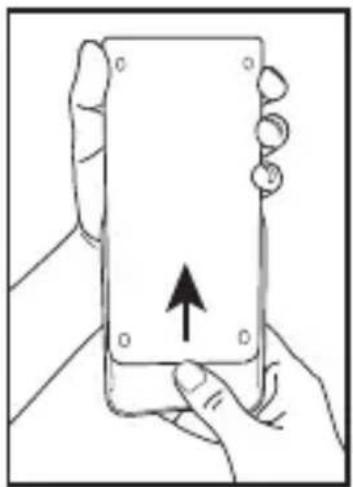
natural_image
Illustration of a hand holding a smartphone with an upward arrow indicator (no text or symbols present)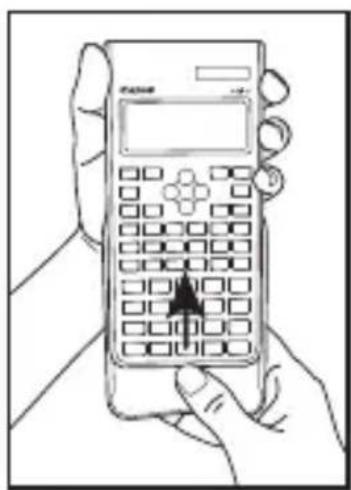
natural_image
Line drawing of a hand holding a handheld calculator with a cursor pointer (no text or symbols)Slide to open the cover
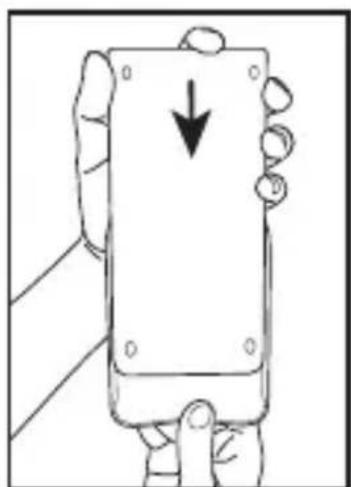
natural_image
Hand holding a smartphone with a downward arrow indicator (no text or symbols present)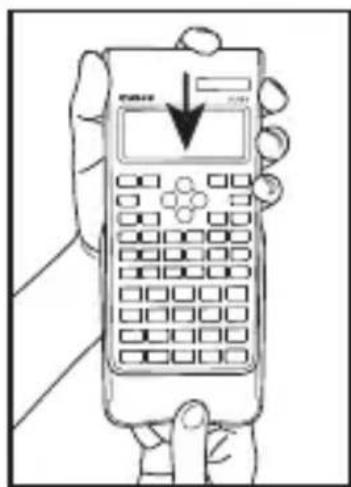
natural_image
Line drawing of a hand holding a handheld remote control device with a downward arrow (no text or symbols)Slide to close the cover
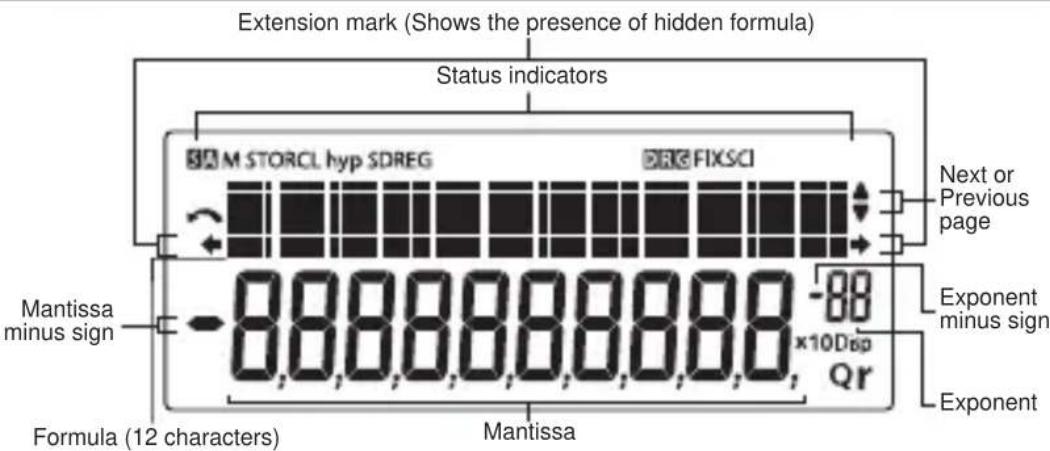
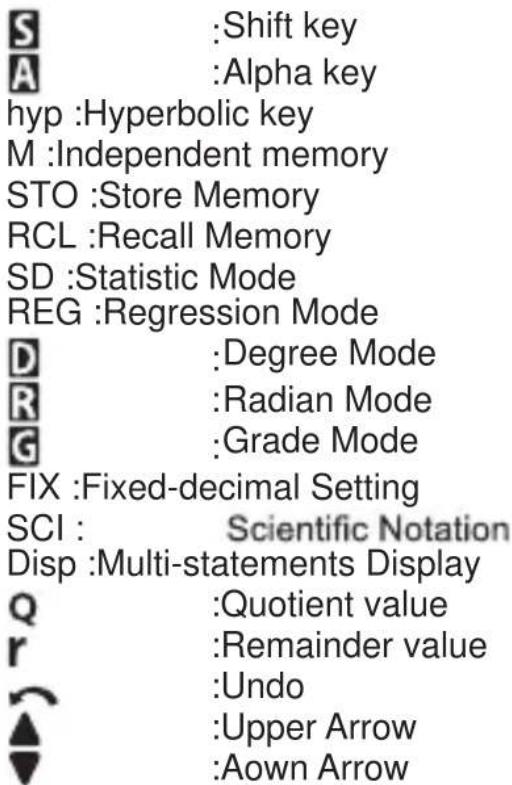
DISPLAY (2-LINE DISPLAY)
TO GET START
Power ON, OFF
■First time operation:
- Pull out the battery insulation sheet, then the battery will be loaded and the calculator can be powered on.
- Press ON/CA Alpha CLR 3 = ON/CA to reset the calculator.
Power ON: When ON(CPower ON/Clear All) is pressed.
Power OFF: When Shift OFF are pressed.
■Auto Power Off Function:
When the calculator is not used for about 7 minutes, the calculator will automatically power off.
MODE Selection
Press MODE to start the calculation mode selection with the following display:
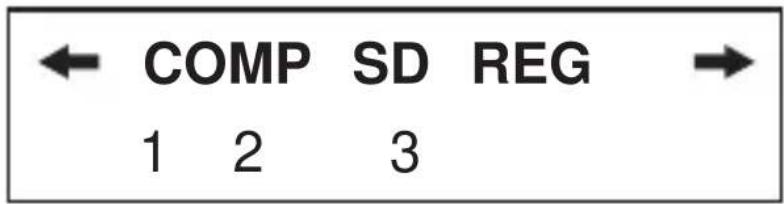
When pressing ⏻, ⏻ or MODI, you can access the next (or previous) mode selection page.
The following table shows the mode selection menu:
| Operation | Mode | LCD Indicator | |
| MODE 1MODE 2MODE 3 | COMPSDREG | Normal CalculationStatistical CalculationRegression Calculation | SDREG |
| MODE MODE 1MODE MODE 2MODE MODE 3 | D | ge gddaRdaRrG edG | DRG |
| MODE < < 1MODE < < 2MODE < < 3 | FixSciNorm | Fixed-decimal SettingScientific NotationExpone noitatonalitn | FIXSCI |
| MODE < 1 | pδi | Display Setup Selection | |
*1 Display Setup Selection options
First page : Press 1[ab/c] or 2[d/c] to specify mixed fraction or improper fraction display.
: Press 1[Dot] or 2[Comma] to specify decimal point or 3 digits separator symbols.
Display Formats Setting
F-715SG/F-715SA can display a result up to 10 digits. Results exceed the digit limit will be automatically displayed by exponential notation format. You can enter a value in floating-decimal, fixed-decimal, or scientific notation format and display format setting only affects the calculation results.
Example : Change the display formats for 1.23 x10-03
| Display Setting | Operation | Display (Lower) |
| Default setting :Norm 1,Scientific Notation :"5" significant digitsExponential Notation : Norm 2Fixed decimal places : "7" | 1.23 × 10^-03 1.2300 × 10^-03 0.0012300.0012300 |
Before Using the Calculator
■ Check the current Calculation Mode
Be sure to check the status indicators that indicate the current calculation mode (SD, REG... etc), display formats setting and angle unit setting (Deg, Rad, Gra) before starting a calculation.
■ Return Calculation Mode to the initial setup
You can return the calculation mode to the initial default by pressing

, and this action will not clear the variable memories.
■ Initialize the Calculator
When you are not sure the current calculator setting, you are recommended to initialize the calculator (calculation mode "COMP", angle unit "Degree", and clear replay and variable memories) by performing the following key operations:

INPUTTING EXPRESSIONS AND VALUES
Input Capacity
F-715SG/F-715SA allows you to input a single calculation up to 79 steps. One step is used as each time you press one of the numeric keys, arithmetic keys, scientific calculation keys or ☐ key. Shift, Alpha, M02t and the direction keys will not use up any step. Starting from the 73rd step, the cursor changes from [ _ ] to [ ■ ] that notifying the memory is running low. In case you need to input a single calculation with more than 79 steps, you should separate your calculation into two or more segments.
Input Editing

New input begins on the left of the upper (entry) line. As the entries are more than 12 digits, the line will scroll to the right consecutively. Press Ⓧ, Ⓧ to scroll the cursor within the upper (entry) line and you can perform input editing as needed.
Example (under editing): 1234567 + 889900
Replacing an entry (1234567 → 1234560)
| Display Setting | Operation | Display (Upper) |
| Press or keep pressing until | ←←←←←←←←←←←←←←←←←←←←←←←←←←←←←←←←←←←←←←←←←←←←←←←←←←←←←←←←←←←←←←←←←←←←←←←←←←←←←←←←←←←←←←←←←←←←←←←←←←←←→ | 1234567+8899→ |
| Replace with "0" | 0 | 1234560+8899→ |
Deletion (1234560 → 134560)
| Press or keep pressing until | ←...←sknilb "2" | 1234560+8899 → |
| "2" is deleted | DEL | 134560+88990 → |
Insertion (889900 → 2889900)
| Press or keep pressing until sknilb "8" | 134560+88990→ | |
| "8" and [ ] blinks alternately | Shift Insert | 134560+88990→ |
| Insert "2", "8" still blinking | 2 | 134560+2899→ |
Undo (889900)
| Clear "889900", still blinking | CE/C | 134560+2 |
| Resume "889900" | Shift | ← 560+2889900 |
- After deleted an input by DEL or cleared the input by CE/C, icon will be shown on the display.
- Press Shift to resume up to 79 DEL deleted input or to undo the cleared segment and back to the previous display.
- If pressed DEL ... CE/C to delete character(s) then clear the display, the calculator will prioritize the undo from resuming the latest CE/C cleared characters, and followed with the deleted characters continuously.
- After inserting a new data or executing a calculation command, or pressing ONICA, the calculator cannot perform the "Undo" function.
Replay, Copy and Multi-statements
Replay
- Replay memory capacity is 256 bytes that can store calculation expressions and results.
• After the calculation is executed, the calculation expression and its result will be stored in the replay memory automatically. - Pressing ⬤(or ⬇) can replay the performed calculation expressions and results.
- Replay memory is cleared when you.
i) Initialize calculator setting by

(or 3 = ON/KA)
ii) Change from one calculation mode to another.
iii) Press ON/CA key.
iv) Turn off the calculator by Shift OFF.
Copy
- Press shift after replayed the previous calculation expressions (statements).
Multi-statements
- You can put two or more calculation expressions together by using a colon ☐.
- The first executed statement will have [Disp] indicator; and the [Disp] icon will disappeared after the last statement is being executed.
| Operation | Display (Upper line) | Display (Lower Line) |
| .012×5 | ||
| Ans + 6 | 16. | |
| 9:5×2:Ans + 6_ | 17. | |
| 9+8 | .71Disp | |
| .012×5Disp | ||
INPUT RANGE AND ERROR MESSAGE
Calculation Accuracy, Input Ranges
Internal digits: Up to 16
Accuracy*: ±1 at the 10^th digit for a single calculation.
1 at the last significant digit for exponential display.
Output ranges: ±1 x 10 ^-99 to ±9.999999999 x 10 ^99
| Function | Input Range | |
| sin x Deg 0 | x | 4.499999999x10 Rad 0 | x | 7853981633 ≤ Grad 0 | x | 4.999999999x10 | 10 | |
| cos x Deg 0 | x | 4.500000008x10 Rad 0 | x | 7853981649 ≤ Grad 0 | x | 5.00000009x10 | 10 | |
| tan x Deg Same as sink, except when | x | =90(2n-1) Rad Same as sinx, except when | x | = /2(2n-1) π Grad Same as sinx, except when | x | =100(2n-1) | ||
| sin1x, cos-1x 0 | x| 1≤ | ||
| tan-1x, tanhx 0 | x≤ 9.999999999x10 99 | ||
| sinhx, coshx 0 | x| 230.2585092 | ||
| sinh-1x 0 ≤ | x | ≤4.9999999999x1099 | ||
| cosh-1x 1 ≤ x ≤4.9999999999x1099 | ||
| tanh-1x 0 ≤ | x | ≤9.9999999999 x10⁻¹ | ||
| logx, lnx 0< x 9.9999999999x10 99 | ||
| 10x -9.9999999999x1099 ≤ x ≤ 99.99999999 | ||
| ex -9.9999999999x1099 ≤ x ≤ 230.2585092 | ||
| √ x 0 x < 1x10 ≤ 100 | ||
| X2 | x | < 1x10 50 | ||
| X3 | x | 2.15443469x10 33 | ||
| 1/x | x | < 1x10 100; x ≠ 0 | ||
| 3√ x | x | < 1x10 100 | ||
| X! 0 x 69 (x is an integer) | ||
| nPr 0 n ≤ < 1x10¹⁰, 0 ≤ r ≤ n (n, r are integers) | ||
| 1 {n!/(n-r)!} ≤ < 1 x10100 | ||
| nCr 0 n < 1x10 ≤ 10, 0 ≤ r ≤ n (n, r are integers) | ||
| 1 [n!/{r!(n-r)!}] ≤ < 1 x10100 | ||
| Pol(x,y) | x |, | y | | 9.999999999x10 ^49 (x^2+y^2) 9.999999999x10^99 | |
| Rec(r, θ) 0 r : Same as sinxθ | 9.999999999x10 ^99 | |
| a|a |, b, c | < 1x10 ^100 , 0 ≤ b, c | |
| < a|x | < 1x10 | ^100 , Decimal Sexagesimal Conversions 0^ 0^ 0^ |x| 999999^ 59^ | |
| ^(x^y) | x>0: -1x10 ^100 < y log x < 100x=0: >0 yx<0: y=n,1/(2n+1), (n is an integer),However: ^100 < y log | x | < 100 -1x10 | |
| x√y y>0: x 0, | -1x10 ≠ ^100 < (1/x) log y < 100y=0: >0, xy<0: x=2n+1,1/n (n ≠ 0, n is an integer)However: ^100 < (1/x) log | y | < 100 -1x10 | |
| a Total of integer, numerator, and denominator must be /c10 digits or less (including division marks). | ||
| SD | x |(REG) | y || n | | < 1x10 ^50 ,< 1x10 ^50 ,< 1x10 ^100 | x σn, y σn, x̄, ȳ: n ≠ 0x σn-1, y σn-1 A, B, r, : n ≠ 0, 1med: 0 < n < 1x10 ^10 , n is an integer |
| LCM & GCD 0 | < x 9.9999999999x10 ^12 0 < y ≤ 9.999999999x10 ^12 0 < z ≤ 9.999999999x10 ^12 | |
| Abs | | x | < 1 x 10 ^50 | |
| θ←rθ...r(Quotient &Remainder) | 0 < x ≤ 9.999999999x10 ^12 0 < y ≤ 9.999999999x10 ^12 Quotient: 0 ≤ Q ≤ 9999999999Remainder: ≤ r ≤ 99999999999 | |
*Errors are cumulative in the case of consecutive calculations, this is also true as internal consecutive calculations are performed in the case of (x^y) , x , x! , nPr, nCr, etc. and may become large.
Order of Operations
The calculator will automatically determine the operation priority that algebraic expressions can be entered just as they are written:
1) Coordinate transformation : Pol(x, y), Rec(r, )
θ
dem ,nim ,xam : st
Logarithm with a, b variables : log _ab(a, b)
Random Integer Number Generation : i\~Rand(A, B)
LCM & GCD : LCM(, GCD(
Quotient and remainder : Q...r(
Other Function with parentheses : Abs(
2) Type A* functions
Cube, Square, Reciprocal, Factorial : x ^3 , x^2 , x^-1 , x! , “” egatneeP %
Regression value :, xx_2, xy
Angle unit conversions : DRG
*To perform type A function, input calculation value then press the above function key(s)
3) Powers and roots : (x^y), x_-
4) Fraction : a b/c, d/c
5) Abbreviated multiplication format in front of , e(natural logarithm base), memory name, or variable name: 2 , 3e, 5A, A , etc.
6) Type B** function :
[3], , , e^x, 10^x, , , , ^-1, ^-1, ^-1, , , , ^-1, ^-1, ^-1, (_).
**To perform type B function, press the above function key(s) then input calculation value
7) Abbreviated multiplication format in front of Type B functions :
2 3√Alog2, etc.
8) Permutations (nPr) and combinations (nCr).
9) x, ÷
10)+,-
■ Operations of the same precedence are performed from right to left.
For example: e^x120 e^x(120) . Other operations are performed from left to right
■ Operations enclosed with parentheses are performed first. When a calculation contains an argument that is a negative number, the negative number must be enclosed within parentheses.
Example: (-2)^4=16 ; and -2^4=-16
Calculation Stacks
This calculator uses memory areas, called "stacks", to temporarily store numeric value (numbers) and commands (+ -x ...) according to their precedence during calculations.
The numeric stack has 10 levels and the command stack has 24 levels. A stack error [Stack ERROR] occurs whenever you try to perform a calculation that exceeds the capacity of stacks.
■Calculations are performed in sequence according to "Order of Operations". After the calculation is performed, the stored stack values will be released.
Error Messages and Error Locator
The calculator is locked up while an error message is shown on the display to indicate the cause of the error.
■Press ☐ will clear the error, remove all replay memory and return to initial display of the latest mode.
- Press CE/C will clear the error message and return to the display of the latest mode.
■ Press ◀ or ▶ to display the calculation with the cursor positioned under the error and you can correct it accordingly.
| Error Message | Cause Action | |
| Math ERROR | Calculation result is outside the allowable calculation rangeAn attempt to perform a calculation using a value that exceeds the allowable input range.An attempt to perform an illogical operation (division by zero, etc.) | Check your input values and make sure they are all within the allowable ranges.Pay special attention to values in any memory areas you are using. |
| Stack ERROR | The capacity of the numeric stack or operator stack is exceeded. | Simplify the calculation. The numeric stack has 10 levels and the operator stack has 24 levels.Divide your calculation into two or more separate parts. |
| Syntax ERROR | An attempt to perform an illegal mathematical operation. | Press ➕ or ➕ to display the calculation with the cursor located at the location of the error and make required corrections. |
BASIC CALCULATIONS
■ Press MODE 1 to enter COMP mode as you want to perform basic calculations.
During the busy calculation, the calculator will display the message [PROCESSING].
Arithmetic Calculations

- To calculate the negative values (excludes the negative exponent), you have to enclose them with parentheses.
| Calculation Expression | Display (Result)Operat | |
| (-2.5)^2 | ||
| (4 × 10^75)(-2 × 10^-79) | 8+0^04 |
• This Calculator supports 24-level of parenthetical expression.
- You can omit the close parentheses □ as the calculation ends with = or M+.
| Calculation Expression | Display (Result)Operat | |
| (tan - 45) ÷ (-2) | tan (-) 4 5 ÷ (-)2 = | 5.0 |
| tan (- 45 ÷ -2) | tan ( (-) 4 5 ÷ (-) 2 = | 26531241 |
! When the number of ☐ is more than ☐, [Syntax ERROR] will be shown.
Memory Variables
- There are 17 memory variables (0 through 9, A through D, M, X, and Y) which store data, results, or dedicated values.
• To store values into memory by pressing STO + Memory variable.
• To recall memory values, press RCL + Memory variable. - Memory content can be cleared by simply pressing 0 STQ + Memory variable.
Example: 23 + 7 (Store to A), calculate sin (memory A), and clear memory A
| noitarepO Display (Upper Line) | )eniL rew | |
| 2 3 + 7 Shift STO A | 23+7 → A | 30. |
| sin RCL A = | sin A | 0.5 |
| 0 Shift STO A | 0 → A | 0. |
Independent Memory
- Independent memory M uses the same memory area as variable M. It is convenient for calculating cumulative total by just pressing M+(add to memory) or M-(subtract from memory); and the memory contents are retained even when the calculator is turned off.
• To clear independent memory (M), input 0 STO M - When you want to clear all memory values, press Alpha CLR 1 (Mcl) ON/CA
Answer Memory
- The input values or the most recent calculation result will be automatically stored into Answer Memory whenever you press = + , Shift M- followed by a memory variables, or just real a memory variable by RCL.
| noitarepO | )rewoL( ya | |||
| 1 | 2 | 3 | + 4 | |
| 5 | 6 | M+ | .975 654 | |
| x^i | = | Ans ^2 | .142,533 | |
• Ans can recall and use the latest stored Answer Memory by pressing Ans.
| noitarepO | )rewoL( ya |
| snA - 009987 .956,454 |
! Answer Memory is not updated as an error operation had been performed.
Fraction Operations
The Calculator support Fraction Calculation and the conversions between Fraction, Decimal point, Mixed fraction and Improper fraction.
Fraction Calculation, Fraction Decimal point conversion
| Example | Operation | Display (Lower) |
| 123 + 56 = 212 212 2.5 (Fraction Decimal) | 2 ,1 ,2.5.22 ,1 ,2. |
- Result will be displayed in decimal format automatically whenever the total digits of a fractional value (integer + numerator + denominator + separator marks) exceeds 10.
- As a fraction calculation is mixed with decimal value, the result will be displayed by decimal format.
Decimal Mixed fraction Improper fraction conversion
| Example | Operation | Display (Lower) |
| 5.25 ↔ 5 14 (Decimal ↔ Mixed Fraction)(Mixed Fraction ↔Improper Fraction) | 5.25↓ ↓ .4 1 5↓ .4 12 |
- Fraction conversion may take as long as two seconds.
! You can specify the fraction calculation result (when the result greater than one) display format by either mixed fraction or improper fraction.
Simply press MODE [Disp] 1, then press the corresponding setting you need:
1 a b/c : Mixed fraction
2 d/c : Improper fraction
Percentage Calculations

You can perform the following percentage calculations:
Basic
: To calculate a certain percentage of a value
(A × B shift % = ).
: Percentage of a value against another value
(A÷B shift % =).
| Example | Operation | Display (Upper) | Display (Lower) |
| To calculate 25 % of 820 | 820 x 25 % | 205. | |
| The percentage of 750 against 1250 | 750 ÷ 1250 % | 60. |
Mark up : "A" value mark up by "B%" (A + A B × Shift % =)
Discount : "A" value have "B%" discount(A - A B x Shift % =)
| Example | Operation | Display (Upper) | Display (Lower) |
| 820 mark up 25% | .520,1 % | ||
| 820 have 25% discount | .516 %52 |
Percentage Increase :
If "A" is added to "B", the percentage increase
from "B" is:
$$ \times 100 \% \left[ \frac{A + B}{B} \right] $$
(A)(B + B ÷ Shift) =
Percentage Change :
If "A" is changed into "B", the percentage change
from "A" to "B" is:
$$ \times 100 \% \left[ \frac {B - A}{A} \right] $$
( { B A- } A= Shift % =
| Example | Operation | Display (Upper) | Display (Lower) |
| 300 is added to 750, the percentage increase of 750 is | |c|c|c|c 1 & 3 & 0 & 0 & + \ 7 & 5 & 0 & ) & ÷ \ 7 & 5 & 0 & Shift % \ = | (300+750) ÷75 | 140. |
| 25 increased into 30, the percentage change of 25 is | |c|c|c|c 1 & 3 & 0 & - & 2 \ 5 & ) & ÷ & 2 & 5 \ Shift % & = | (30 -25) +25% | 20. |
Percentage Proportion :
the ratio/ percentage of each individual portion in a calculation expression.
$$ \text { If } A + B + C = D $$
$$ \text {"A"} \text { is a\% of "D" where a = x 100\% } \quad \frac {\mathrm{A}}{\mathrm{D}} $$
Examples: To calculate the ratio of each portion as 25+85+90=200 (100%), the ratio of 25 is 12.5%, 85 is 42.5%, 90 is 45%
| Operation | Display(Upper) | Display(Lower) |
| 25+85+90 → A | 200. | |
| 25÷A % | 12.5 | |
| 85÷A % | 42.5 | |
| 90÷A % | 45. |
* You can store the sum of value into memory variables, then recall and use the value by pressing RCL or Alpha + Memory variable.
Degree-Minutes-Seconds Calculations
You can use degrees (hours), minutes and seconds key to perform a sexagesimal (base-60 notational system) calculation or convert the sexagesimal value into decimal value.
Degree-Minutes-Seconds ↔ Decimal points
| )rewoL | ||
| 86°37' 34.2" + 0.7 =123°45'6"123°45'6" →123.7516667 | 8 6 ... 3 7 ... 34 · 2 ... ÷ 0 ·7 =... | 123°45°6.123.7516667 |
| 2.3456 → 2°20'44" | 2 · 3 4 5 6 =$hift *"" | 2°20°44.16 |
You can change the number of decimal point, the number of significant digits, or the exponential notation criteria by pressing MODE ◀ to the following selection screen:

Fix Sci Norm
1 2 3

Press 1 (Fixed Decimal Setting) : [ Fix 0 \~ 9? ] appears, specify the number of decimal places by pressing 0 \~ 9.
Press 2 (Scientific Notation) : [ Sci 0 \~ 9? ] appears, specify the number of significant digits by pressing 0 \~ 9.
Press 3 (Exponential Notation) : [ Norm 1 \~ 2? ] appears. Specify the exponential notation format by pressing 1 or 2 .
■ Norm 1 : Exponential notation is automatically used for integer values with more than 10 digits and decimal values with more than two decimal point.
■ Norm 2 : Exponential notation is automatically used for integer values with more than 10 digits and decimal values with more than nine decimal point.
| Example: 57 ÷ 7 x 20 = ?? | Operation Display(Lower) | |
| At default setting.To fix 4 digits decimal point.(Internal calculation continues16 digits) | 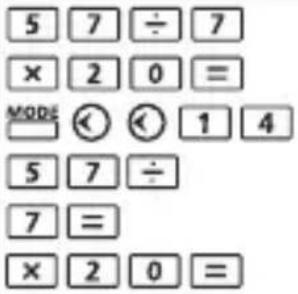 | 162.8571429162.85718.1429162.8571 |
| Perform internal roundingunder the special decimalsetting. | 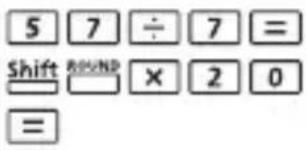 | 8.1429162.8580 |
| To display by 6 digits scientificnotation. | 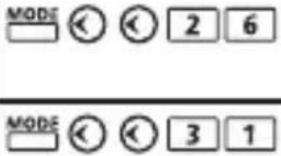 | 1.62858 × 10^02 |
| Notation format by pressing1 to clear the FIX and Scispecifications. | 162.858 | |
FUNCTIONAL SCIENTIFIC CALCULATIONS
■ Press MODE 1 to enter COMP mode for performing functional scientific calculations.
■ During the busy calculation, the calculator will display the message [PROCESSING].
■ = 3.14159265359
e = 2.71828182846
Square, Root, Cube, Cube Root, Power, Power Root, Reciprocal and Pi
Example: (^3-2^2+5^3)^-1×=0.621755977
| )rewoL( | ||
Example: (^32^6 + ^5243)^-1 = 0.142857142
| )rewoL( | ||
| { Shift V 2 ∧ 6 + 5Shift V 2 4 3 } x= | ( ^3 2^6 + 5^x 240.142857142 |
Logarithm, Natural Logarithm, Antilogarithm and Loga b

| Examples | Operation | Display (Lower) |
| e^-3 + 10^1.2 + 3 = 16.99733128 | 16.99733128 | |
| _381 - 1 = 4 | 4. |
Angle Unit Conversion
The calculator default angle unit setting is "Degree". If you need to change into "Radian" or "Grade", you can press MODE a number of times until you reach the setup screen:
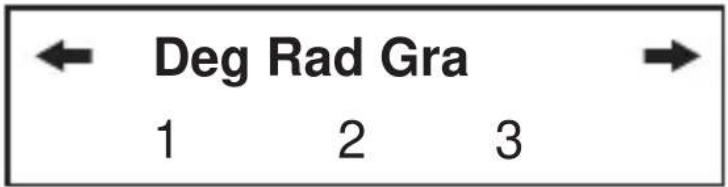
Then press the corresponding number key 1, 2, or 3 for the angle unit you need. Then the display will show the D R or G indicator accordingly.
To convert an angle unit between "Degree", "Radian" and "Grade", you can press Shift DRG and the following display menu will be shown:
| D | R | G |
| 1 | 2 | 3 |
Then, press 1, 2, or 3 will convert the displayed value into the selected angle unit.
Example: Convert 180 degree into radian and grade (180^ = ^Rad = 200^Gra)
| Display operation Display (Lower) | ||
| 3.141592654 | ||
| .002 081 |
■ Before using the trigonometric functions (except hyperbolic calculations), select the appropriate angle unit (Deg/ Rad/ Gra) by MODI.
■ 90^ = 2 Radians = 100 Grade.
Trigonometric (sin/ cos/ tan), Inverse Trigonometric (sin ^-1 / cos ^-1 / tan ^-1 ) Functions
| Examples | Operation | Display (Lower) |
| Degree Mode | MODE 1 | 0. |
| sin 53° 22' 12" = 0.802505182 | sin 5 3 ... 2 2 ... 1 2 ... = | 0.802505182 |
| cosec x = 1/sinxcosec 45° = 1.414213562 | ( sin 4 5 ) x-1 = | 1.414213562 |
| tan-1 (5/6) = 39.80557109° | Shift tan-1 ( 5 ÷ 6 = | 39.80557109 |
| Radian Mode | MAPF 2 ONICA | 0. |
| cos(π/6)Rad= 0.866025403 | cos 6 x-2 Shift π = | 0.866025403 |
| cos-1 12 = 0.785398163π )da(52.0 | Shift cos-1 { 1 ÷ √ 2Ani ÷ Shift π = | 0.7853981630.25 |
Hyperbolic (sinh/ cosh/ tanh), Inverse Hyperbolic (sinh ^-1 / cosh ^-1 / tanh ^-1 ) Functions
| Examples | Operation | Display (Lower) |
| sinh 2.5_cosh 2.5 = -0.082084998 | hyp sin 2 · 5 — hyp cos 2 · 5 = | -0.082084998 |
| cosh ^-1 45 = 4.499686191 | hyp Shift cos ^-1 4 5 = | 4.499686191 |
Permutation, Combination, Factorials and Random Number Generation
- Permutation : nPr = !(n - r)!
- Combination : nCr = !r!(n-r)!
• Factorial : x! = x(x-1)(x-2).....(2)(1)
| Examples | Operation | Display (Lower) |
| _10P_3 | 1 0 Shift nPr 3 = | 720. |
| _5C_2 | 5 Shift nCr 2 = | 10. |
| !5 | 5 Shift x1 = | 021 |
Random Number Generation
Shift Rand : To generate a random number between 0.000 and 0.999
Alpha i-Rand : To generate a random number between two specified positive integers. The entry is divided with ",".
Example: To generate a random number between 0.000 and 0.999; and generate an integer from range of 1 to 100
| Operation | Display (Lower) | Display | |
| Shift Rand = | *338.0dna | ||
| Alpha i-Rand 1 , 1 0 0 = | i~Rand(1,100 | 83.* | |
* The value is only a sample, results will differ each time.
Least Common Multiple and Greatest Common Divisor
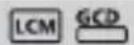
■ LCM: Calculate the least common multiple among (maximum) three positive integers.
■ GCD: Calculate the greatest common divisor among (maximum) three positive integers.
| Examples | Operation | Display (Lower) |
| LCM(15, 27, 39) = 1755 | 1,755. | |
| GCD(12, 24, 60) = 12 | 21 |
! Inputting a zero [0] value in a LCM/ GCD calculation, the calculator will skip the [0] value and continue the calculation with the non-zero integers.
! [Math ERROR] will be shown when decimal numbers or negative integers had been input.
Quotient & Remainder
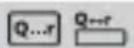
■ "Quotient" (Q) is the result of a division problem, "Remainder"(r) is the value left in an integer division problem.
■ The calculated quotient value (Q) and remainder value (r) will be stored into memory variables "C" and "D" automatically assigned.
Example: 35 ÷ 10 = 3 × 10 + 5 (3 is Quotient, 5 is Remainder)
| Operation | Display (Upper) | Display (Lower) |
| Q...r(35,10 | 3. Q | |
| r.5 | ||
| Ans + 3 | 6. | |
| C = | 3. | |
| D = | 5. |
! Only integers are allowed. [Math ERROR] will be shown when decimal numbers, non-integers (e.g. sin 60), or dividend value "zero [0]" had been input.
! Only Quotient Value (Q) can continue to be used for the next calculation or being stored into memory variables.
■ With polar coordinates, you can calculate and display within -180^ < ≤ 180^ range. (Same as Radian and Gradient)
■ After conversion, results will automatically assigned to memory variables X and Y.


To convert rectangular coordinates (x, y) to polar coordinates (r, θ); Press RCL X to display the value of r, or RCL Y to display the value of θ.
| Examples | Operation | Display (Lower) |
| With rectangular coordinate(x =1,y = 3 ). Find Polarcoordinate (r, θ) at degreego |  | |
 | 2. | |
 | 60. | |
 | .2 |


To converts polar coordinates (r, θ) to rectangular coordinates(x, y); Press RCL X to display the value of x, or RCL Y to display the value of y.
| Examples | Operation | Display (Lower) |
| With Polar coordinate(r=2, θ=60°). Find rectangular coordinate (x,y) at degree mode |  | 1.1.732050808.1 |
 | ||
 |
! [Syntax ERROR] will be shown if □ is missed in the coordinate conversion calculation.
Absolute Value Calculation
| DselpmaxE isplay (Lo | ||
| | sin(60_5) x (-π) | =2.573442045 |  | 2.573442045 |
 |
STATISTICAL CALCULATIONS
[SD] [REG]
■ To enter the standard deviation mode by pressing MODE 2, [SD] indicator lights up. If press MODE 3, you can enter the regression mode selection menu. [REG] indicator will be turned on.
■ Before starting, be sure to clear the statistic memory by pressing Alpha CLR 1 ON/CA.
■ Perform the data input.
- In SD mode, store the displayed data by pressing pressing Data Data will input the same data twice.
- In REG mode, store the x-data and y-data in the form of: x-data □ y-data □, pressing □□□□□□□□□□□□□□□□□□□□□□□□□□□□□□□□□□□□□□□□□□□□□□□□□□□□□□□□□□□□□□□□□□□□□□□□□□□□□□□□□□□□□□□□□□□□□□□□□□□□□
- Use Shift : for same data multiple entries. For example in SD mode, the data 20 has 8 times will press 20 Shift : 8 Data .
• Each time you press Data to register the input, the number of data input up to that point is indicated on the display once (n = the number of input data). - Press ⬇ or ⬇ key during or after data input can display the data value (x) and data frequency (Freq). Follow with the above example, press ⬇ will display [x1 = 20], and press ⬇ will display [Freq1 = 8].
• To edit the stored data, input the new value during the display of that data value (x) after pressing ⬤ or ⬇ key, and then press ☐ to confirm the edit. But, if you press ☐ instead of ☐, a new data value will be stored.
- Press Alpha CD can delete the data during the display of that data value (x) after ⚙ or ⏰ key is pressed; and the sequence of the data which following the deleted data will be shifted up automatically.
- Press CE/CR ON/CA key to exit the data value and frequency display, then you can perform other calculation operations.
- Input data are stored in calculation memory. As the memory full, [Data Full] will be displayed and you cannot input or perform any calculation. Press CE/C, Data or = key will display the options [EditOFF] or [ESC].
| Edit OFF(Press 1): | Keep on inputting data without storing into the memory, and you are not able to display or edit any of the data you had input. |
| ESC(Press 2): | Just exit data input without registering the data into the memory. |
• After changing into another mode or regression type (Lin, Log, Exp, Pwr, Inv, Quad), input data will be cleared.
■ After finishing data entries, you can recall or calculate the statistical values.
Standard Deviation
■ Press □2 to ender SD mode.
Before starting, be sure to clear the statistical memory by pressing Alpha CLR 1 = ON/CA.
■ You can recall the following statistical value after input all data.
| Value (Symbol) | |
| Summation of x ( x )Sum of Square ( x^2 )Number of data sample (n)Population Standard Deviation of x ( x_ n )Sample Standard Deviation of x ( x_ n-1 ) | Mean of x ( )Maximum value of x (maxX)Minimum value of x (minX)Median value (med) |
Example: To calculate x^2, x, , x_ n, x_ n-1, minX, maxX , and med of data: 75, 85, 90, 77, 77 in SD mode.
| Operation | Display (Upper) | Display (Lower) |
| Alpha CLR 1 = | Stat clear | ---- |
| 7 5 Data 8 5 Data 9 0 Data 7 | ||
| 7 Shift : 2 Data | .5= n | |
| Shift S-SUM 1 = | X^2 | 32,808. |
| Shift S-SUM 2 = | X | 404. |
| Shift S-VAR 1 = | X | 80.8 |
| Shift S-VAR 2 = | x_ n | 5.741080038 |
| Shift S-VAR 3 = | x_ n-1 | 6.418722614 |
| Shift S-PTS 1 = | minX | 75. |
| Shift S-PTS 2 = | maxX | 90. |
| Shift S-PTS > 1 = | med | 77. |
Regression Calculations
■ Press MODE 3 to ender REG mode, then the follow screen options will be shown:
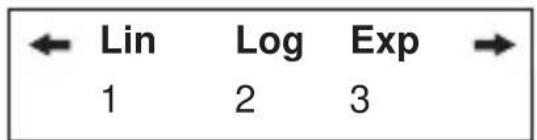
■ Press 1, 2 or 3 for [Lin] = Linear regression, [Log] = Logarithmic regression, [Exp] = Exponential regression.
If follow with MODE or another regression options will be displayed as follow:
| ← Pwr | Inv | Quad |
| 1 | 2 | 3 |
You can press 1, 2 or 3 for [Pwr] = Power regression, [Inv] = Inverse regression, [Quad] = Quadratic regression.
Before starting, be sure to clear the statistical memory by pressing Alpha CLR 1 ON/CA.
■ Input data in the form of x-data y-data Data. Use Shift: for same data multiple entries.
■ Press Alpha CD can delete the data during the display of data value after ⏻ or ⏽ key is pressed.
■ You can recall and use the following regression results:
| noitarepO | ||
| Summation of all x^2 value x | ^2 | Shift S-SUM 1 |
| Summation of all x value x | Shift S-SUM 2 | |
| Number of data sample n | Shift S-SUM 3 | |
| Summation of all y^2 values y | ^2 | Shift S-SUM > 1 |
| Summation of all y values | y | Shift S-SUM > 2 |
| Summation of all xy pairs | xy | Shift S-SUM > 3 |
| Mean of the x values | x^- | Shift S-VAR 1 |
| Population Standard Deviation of x x | _n | Shift S-VAR 2 |
| Sample Standard Deviation of x | x_n-1 | Shift S-VAR 3 |
| Mean of the y values | Shift S-VAR > 1 | |
| Population Standard Deviation of y y | _n | Shift S-VAR > 2 |
| Sample Standard Deviation of y | y_n-1 | Shift S-VAR > 3 |
| Regression coefficient A | A | Shift S-VAR > > 1 |
| Regression coefficient B | B | Shift S-VAR > > 2 |
| Minimum value of X | minX | Shift S-PTS 1 |
| Maximum value of X | maxX | Shift S-PTS 2 |
| Minimum value of Y | minY | Shift S-PTS > 1 |
| Maximum value of Y | maxY | Shift S-PTS > 2 |
| For non-quadratic regression | ||
| Correlation coefficient r | r | Shift S-VAR ➕ ➕ 3 |
| Regression estimated value x | Shift S-VAR ➕ ➕ 1 | |
| Regression estimated value y | Shift S-VAR ➕ ➕ 2 | |
| For Quadratic regression only | ||
| Summation of all x^3 values x | ^3 | Shift S-SUM ➕ ➕ 1 |
| Summation of all x^2y pairs x | ^2y | Shift S-SUM ➕ ➕ 2 |
| Summation of all x^4 values x | ^4 | Shift S-SUM ➕ ➕ 3 |
| Regression coefficient C | C | Shift S-VAR ➕ ➕ 3 |
| Regression estimated value x_1 | _1 | Shift S-VAR ➕ ➕ 1 |
| Regression estimated value x_2 | _2 | Shift S-VAR ➕ ➕ 2 |
| Regression estimated value y | Shift S-VAR ➕ ➕ 3 | |
Linear regression
• The Linear regression formula is in relation to two variables:
$$ y = A + B x $$
- Example: By the following investment and yield table, calculate the linear regression (regression coefficient A, regression coefficient B) of capital investment verse yield, the correlation coefficient, the minimum value of investment, the maximum value of yield (%), and the yield percentage at 45 thousand unit of investment, and the investment unit at 180% yield.
| Investment (thousand unit) | 20 | 30 | 40 | 50 | 60 |
| Yield (%) | 120 | 126 | 130 | 136 | 141 |
| Operation | Display (Upper) | Display (Lower) |
| MODE 3 1 (Lin Regression) | 0. | |
| Alpha CLR Stat Glea(Clear Stat. memory) | ---- | |
| 2 0 1 2 0 Data 3 0 1 2 6 Data 4 0 1 3 0Data 5 0 1 3 6 Data 6 01 4 1 Data | n = | 5. |
| Shift S-VAR ➡ ➡ 1 = (Coefficient A) | A | 109.8 |
| Shift S-VAR ➡ ➡ 2 = (Coefficient B) | B | 0.52 |
| Shift S-VAR ➡ ➡ 3 = (Correlation Coefficient) | r | 0.998523984 |
| 45 y 133.2 | ||
| 180 x 135. |
Logarithmic, Exponential, Power, and Inverse Regression Formulas
• Logarithmic Regression : y = A + Blnx
- Exponential Regression : y = ^Bx (Aey = InA + Bx)
• Power Regression : y = Ax^B(Iny = InA + BInx)
- Inverse Regression : y = A+Bx ^1
Quadratic Regression
• The quadratic regression is in relation to the formula:
$$ y = A + B x + C x ^ {2} $$
• Example: ABC company investigated the effectiveness of the advertisement expenses in coded units, the following data were obtained:
| Advertisement expenses: x | 18 | 35 | 40 | 21 | 19 |
| Effectiveness: y (%) | 38 | 54 | 59 | 40 | 38 |
Please calculate the correlation coefficient; use the regression to estimate the effectiveness (estimate the value of y) if the advertisement expenses x = 30, and estimate the advertisement expenses level (estimate the value of x_1 , x_2 ) for the effectiveness y=50
| Operation | Display (Upper) | Display (Lower) |
| MODE 3 > 3 (Quad Regression) | 0. | |
| Alpha CLR 1 = | Stat clear | ---- |
| 1 8 7 3 8 Data 3 5 7 54 Data 4 0 7 5 9 Data 2 1, 4 0 Data 1 9 7 3 8 Data | n = | 5. |
| 3 0 Shift S-VAR > > 3 = (y when x = 30) | 30 | 48.69615715 |
| 5 0 Shift S-VAR > > 1 = ( _1 when y = 50) | 50 _1 | 31.30538226 |
| 5 0 Shift S-VAR > > 2 = ( _2 when y = 50) | 50 _2 | -167.1096731 |
BATTERY REPLACEMENT
When the display characters are dim even a darker LCD contrast had been adjusted OR the following Low battery message appears on the display, replace the battery immediately.
LOW BATTERY
lease replace the lithium battery by the following procedures:
. Press Shift OFF to power off the calculator.
. Remove the screw which securely fix the battery cover in place.
. Slide the battery cover slightly and lift it.
. Remove the old battery with a ball pen or similar sharp object.
. Load the new battery with the positive "+" side facing up.
. Replace the battery cover, screw, and press the
= ☐ to initialize the calculator.


Caution: Risk of explosion if battery is replaced by an incorrect type. Dispose of used batteries according to the instruction.
Electromagnetic interference or electrostatic discharge may cause the display to malfunction or the contents of the memory to be lost or altered. Should this occur, press the ON/CA and Alpha CLR 3 = ON/CA to restart the calculator
ADVICE AND PRECAUTIONS
This calculator contains precision components such as LSI chips and should not be used in place subject to rapid variations in temperature, excessive humidity dirt or dust, or exposed to direct sunlight.
■ The liquid crystal display panel is made of glass and should not be subjected to excessive pressure.
- When cleaning the device do not use a damp cloth or a volatile liquid such as paint thinner. Instead, use only a soft, dry cloth.
- Do not under any circumstances dismantle this device. If you believe that the calculator is not functioning properly, either bring or mail the device together with the guarantee to the service representative of a Canon business office.
■ Never dispose the calculator improperly such as burning; it can create risks of personal injury or harm. You are suggested to dispose this product according to your national law.
- Do replace the battery once every two years even it is not used frequently.

Battery Cautions!
- Keep the battery out of reach of children. If the battery is swallowed, contact a doctor immediately.
- Misuse of battery may cause leakage, explosion, damages or personal injury.
- Don't recharge or disassemble the battery, it could cause a short circuit.
■ Never expose the battery to high temperatures, direct heat, or dispose by incineration.
■ Never leave a dead battery in the calculator as the dead battery may leak and cause damage to the calculator.
■ Continue using the calculator as the battery is low can cause improper operation and the stored memory may be corrupted or lost completely. Keep the written records of important data all the time; and replace the battery as soon as possible.
SPECIFICATIONS
Power Supply : Solar cell and a single Alkaline battery (LR44 x 1)
Power Consumption : D.C. 1.5V / 0.1mW
Battery Life : Approximately 3 years
(Base on 1 hour of operation per day)
Auto Power Off : Approx. 7 minutes
Usable Temperature : 0 \~ 40 °C (32°F\~ 104°F)
Size : 165 (L) x 80 (W) x 14 (H) mm (body)
168 (L) x 86.3 (W) x 17.8 (H) mm (with case)
6-1/2" (L) x 3-5/32" (W) x 35-64" (H) (body)
6-39/64" (L) x 3-25/64" (W) x 45/64" (H) (with case)
Weight : 89 g (3 oz) (body)
124 g (4.2 oz) (with case)
* Specifications are subject to change without notice.
© CANON ELECTRONIC BUSINESS MACHINES (H.K.) CO., LTD.
2015
PRINTED IN CHINA
E-IE-480